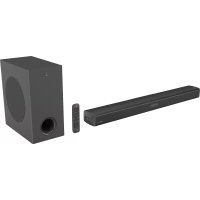
RFSB301 - Soundbar Renkforce - Free user manual and instructions
Find the device manual for free RFSB301 Renkforce in PDF.



| Product type | 2.1 channel soundbar with wireless subwoofer |
| Brand | Renkforce |
| Model | RFSB301 |
| Dimensions (W x D x H) | 869 x 76 x 106 mm (soundbar) |
| Total weight | 7.6 kg (soundbar + subwoofer) |
| Total power | 120 W |
| RMS output power | 2 x 30 W (soundbar) |
| Power supply | 100-240 V AC, 50/60 Hz |
| Connectivity | Bluetooth, HDMI (2 inputs, 1 ARC/eARC output), optical, coaxial, 3.5 mm AUX, USB |
| Audio formats | Dolby Atmos, Dolby Digital, PCM |
| Preset equalizer | Voice, Sport, Movie, Music |
| Surround function | Yes (VERTICAL/SURROUND button) |
| Wall mounting | Yes, brackets included |
| Subwoofer | Wireless, automatic or manual pairing |
| Bluetooth range | 15 m (without obstacles) |
| Subwoofer range | 10 m (without obstacles) |
| Operating temperature | 0 °C to +40 °C |
| Operating humidity | 40% to 85% RH (non-condensing) |
| Care and cleaning | Unplug before cleaning. Use a dry non-lint cloth. Do not use harsh chemicals. |
| Safety | Class II appliance (double insulation). Do not expose to water or moisture. |
| Package contents | Soundbar, subwoofer, 2 power cords, HDMI cable, remote control (AAA batteries included), wall brackets, 3.5 mm auxiliary cable, user manual |
Frequently Asked Questions - RFSB301 Renkforce
User questions about RFSB301 Renkforce
0 question about this device. Answer the ones you know or ask your own.
Ask a new question about this device
Download the instructions for your Soundbar in PDF format for free! Find your manual RFSB301 - Renkforce and take your electronic device back in hand. On this page are published all the documents necessary for the use of your device. RFSB301 by Renkforce.
USER MANUAL RFSB301 Renkforce
natural_image
Abstract geometric star-like pattern with five petal-like shapes and dot patterns (no text or symbols)renkforce
GB Operating Instructions
2.1 Dolby Atmos soundbar with wireless subwoofer
Item No. 2366444 Page 24 - 44
© Notice d'emploi
6 Tasten VOL+ / VOL-
eARC / ARC (Audio Return Channel)
- Introduction......25
- Explanation of symbols....25
- Intended use....26
- Delivery content....26
- Safety instructions ....27
a) General information....27
b) Connected devices....27
c) (Rechargeable) batteries....27
d) Operation....28
- Operating elements 30
a) Soundbar....30
b) Wireless subwoofer 31
c) Remote control 32
- Operation....33
a) Preparations for use 33
b) Placement and mounting....34
c) Connections....35
d) Pairing with the subwoofer 38
e) Basic operation....39
f) AUX/OPTICAL/COAXIAL/HDMI operation....40
g) Bluetooth operation 40
h) USB operation 41
i) Troubleshooting....42
- Care and cleaning....43
- Disposal 43
a) Product 43
b) (Rechargeable) batteries....43
- Declaration of Conformity (DOC)......44
- Technical data....44
1. Introduction
Dear customer,
Thank you for purchasing this product.
This product complies with the statutory national and European requirements.
To maintain this status and to ensure safe operation, you as the user must observe these operating instructions!

These operating instructions are part of this product. They contain important notes on commissioning and handling. Also consider this if you pass on the product to any third party. Therefore, retain these operating instructions for reference!
If there are any technical questions, please contact: www.conrad.com/contact
2. Explanation of symbols

The symbol with the lightning in the triangle is used if there is a risk to your health, e.g. due to an electric shock.

The symbol with the exclamation mark in the triangle is used to indicate important information in these operating instructions. Always read this information carefully.

The arrow symbol indicates special information and advice on operation.
3. Intended use
This 2.1 CH soundbar features a wireless subwoofer and delivers a total output of 120 W.
It is intended for indoor use only. Do not use it outdoors. Contact with moisture, e.g., in bathrooms, must be avoided under all circumstances.
For safety and approval purposes, you must not rebuild and/or modify this product. If you use the product for purposes other than those described above, the product may be damaged. In addition, improper use can result in short circuits, fires, electric shocks or other hazards. Read the instructions carefully and store them in a safe place. Make this product available to third parties only together with its operating instructions.
All company names and product names are trademarks of their respective owners. All rights reserved.
HDMI is a registered trademark of HDMI Licensing L.L.C.
4. Delivery content
- Soundbar
- Subwoofer
- 2x mains cables
- HDMI cable
-
Remote control
-
Mounting materials (2x wall mounts, 4x screws, 4x dowels)
- Operating instructions
- 3.5 mm aux cable
Up-to-date operating instructions
Download the latest operating instructions at www.conrad.com/downloads or scan the QR code shown. Follow the instructions on the website.


Read the operating instructions carefully and especially observe the safety information. If you do not follow the safety instructions and information on proper handling in this manual, we assume no liability for any resulting personal injury or damage to property. Such cases will invalidate the warranty/guarantee.
a) General information
- The device is not a toy. Keep it out of the reach of children and pets.
- Do not leave packaging material lying around carelessly. This may become dangerous playing material for children.
- Protect the appliance from extreme temperatures, direct sunlight, strong jolts, high humidity, moisture, flammable gases, steam and solvents.
- Do not place the product under any mechanical stress.
-
If it is no longer possible to operate the product safely, take it out of operation and protect it from any accidental use. Safe operation can no longer be guaranteed if the product:
-
is visibly damaged,
- is no longer working properly,
- has been stored for extended periods in poor ambient conditions or
- has been subjected to any serious transport-related stresses.
- Please handle the product carefully. Jolts, impacts or a fall even from a low height can damage the product.
- Consult an expert when in doubt about the operation, safety or connection of the appliance.
- Maintenance, modifications and repairs must only be completed by a technician or an authorised repair centre.
- If you have questions which remain unanswered by these operating instructions, contact our technical support service or other technical personnel.
b) Connected devices
- Also observe the safety and operating instructions of any other devices which are connected to the product.
c) (Rechargeable) batteries
- Correct polarity must be observed while inserting the (rechargeable) batteries.
- The (rechargeable) batteries should be removed from the device if it is not used for a long period of time to avoid damage through leaking. Leaking or damaged (rechargeable) batteries might cause acid burns when in contact with skin, therefore use suitable protective gloves to handle corrupted (rechargeable) batteries.
- Correct polarity must be observed while inserting the (rechargeable) batteries. - The (rechargeable) batteries should be removed from the device if it is not used for a long period of time to avoid damage through leaking. Leaking or damaged (rechargeable) batteries might cause acid burns when in contact with skin, therefore use suitable protective gloves to handle corrupted (rechargeable) batteries.
- (Rechargeable) batteries must be kept out of reach of children. Do not leave (rechargeable) batteries lying around, as there is risk, that children or pets swallow them.
- All (rechargeable) batteries should be replaced at the same time. Mixing old and new (rechargeable) batteries in the device can lead to (rechargeable) battery leakage and device damage.
- (Rechargeable) batteries must not be dismantled, short-circuited or thrown into fire. Never recharge non-rechargeable batteries. There is a risk of explosion!
- To prevent battery leakage which may result in bodily injury, property damage, or damage to the apparatus:
- Install all batteries correctly, + and – as marked on the apparatus.
- Do not mix old and new batteries.
- Do not mix alkaline, standard (Carbon-Zinc) or rechargeable (Ni-Cd, Ni-MH, etc.) batteries.
- Remove batteries when the unit is not used for a long time.
d) Operation
- Do not install near any heat sources such as radiators, heaters, stoves, or other apparatus (including amplifiers) that produce heat.
- Do not defeat the safety purpose of the polarized or grounding plug. A polarized plug has two blades (one is wider than the other). A grounding plug has two blades and a third grounding prong. The wide blade or the third prong is provided for your safety. If the provided plug does not fit into your outlet, consult an electrician for replacement of the obsolete outlet.
- Protect the power cord from being walked on or pinched at plugs, convenience receptacles, and the point where they exit from the device.
- Only use attachments/accessories specified by the manufacturer.
- Use only with the cart, stand, tripod, bracket or table specified by the manufacturer, or sold with the device. When a cart or rack is used, exercise caution when moving the cart/device to prevent it from tipping over and causing injury.
- Unplug the device during storms or when you do not plan to use it for an extended period.
- Refer all servicing work to qualified personnel. Servicing is required when the unit has been damaged in any way, such as if the power supply cord or plug is damaged, liquid has been spilled or objects have fallen into the apparatus, the unit has been exposed to rain or moisture, or if the unit does not operate normally or has been dropped.
- This equipment is a Class II or double insulated electrical appliance. It has been designed in such a way that it does not require a safe connection to electrical earth.
- The apparatus must not be exposed to drips or splashes. Do not place objects filled with liquids (such as vases) on the device.
- Ensure a minimum distance of 5 cm around the device to allow for sufficient ventilation.
- Ventilation must not be impeded by covering the ventilation openings with objects such as newspapers, tablecloths, curtains, etc.
- Do not place naked flame sources (e.g. lighted candles) on the device.
-
Batteries should be recycled or disposed of in accordance with national and local guidelines.
-
The device is designed for use in temperate climates.
- The use of controls or adjustments or performance of procedures other than those described in these instructions may result in hazardous radiation exposure or other hazards.
- To reduce the risk of fire or electric shock, do not expose this device to rain or moisture. The device must not be exposed to drips or splashes, and objects filled with liquids (e.g. vases) must not be placed on the device.
- The mains plug/appliance coupler is used as the disconnect device, and must remain readily operable.
- The battery may explode if it is incorrectly replaced. Replace only with the same or equivalent type of battery.
- The battery (batteries or battery pack) must not be exposed to excessive heat such as direct sunlight or fire.
- Before operating this device, check the voltage to see if it is identical to the voltage of your local power supply.
- Do not place this unit close to strong magnetic fields.
- Do not place this unit on an amplifier or receiver.
- If a solid object or liquid falls into the device, unplug the device and have it checked by qualified personnel before using it again.
- Do not attempt to clean the unit with chemical solvents, as this may damage the housing. Use a clean, dry or slightly damp cloth.
- When removing the power plug from the wall outlet, always pull directly on the plug. Do not pull on the cord.
- Changes or modifications to this unit not expressly approved by the manufacturer will void the user's authority to operate the device.
• The rating label is affixed to the bottom or back of the device.
6. Operating elements
a) Soundbar
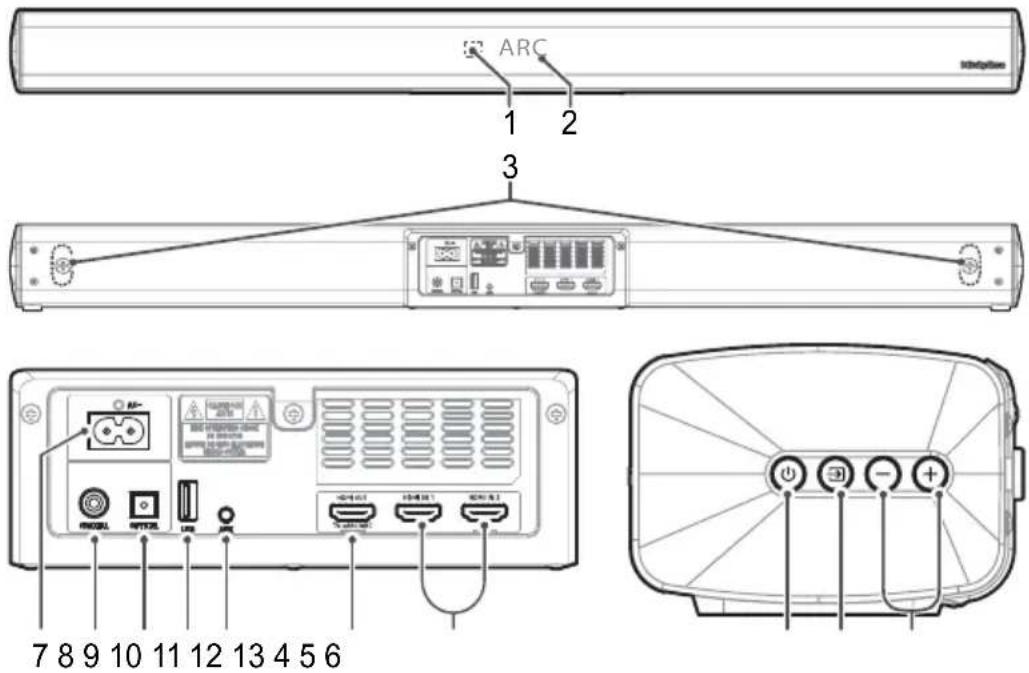
1 Remote Control Sensor
Receives the signal from the remote control.
2 Display Window Shows the current status.
3 Wall bracket screws
4 (ON/OFF) button
Switches the unit between ON and Standby mode.
5 (SOURCE) button Selects the play function.
6 VOL+/VOL- buttons
Increases/decreases the volume level.
7 AC Socket
Use to connect to a power cable.
8 COAXIAL Socket
Use to connect to the COAXIAL OUT socket on an external device.
9 OPTICAL Socket
Use to connect to the OPTICAL OUT socket on an external device.
10 USB Socket
Insert a USB device to play music.
11 AUX Socket
Connect to an external audio device.
12 HDMI OUT (TV eARC/ARC) Socket
Use this socket to connect a TV. The port supports the eARC/ARC HDMI feature, which allows the soundbar to play audio that originates on the connected TV.
13 HDMI IN (1/2) Sockets
Two HDMI ports for connecting HDMI source devices, such as a DVD player, Blu-ray Disc™ player, or gaming console. Note that only one HDMI input can be used at the same time.
b) Wireless subwoofer
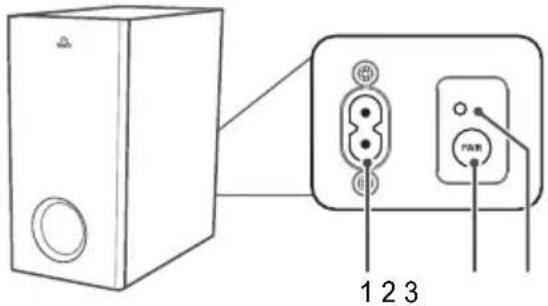
- AC Socket
Connect to a power supply.
- PAIR button
Press to activate the pairing function between the main unit and the subwoofer.
- PAIR Indicator
The light stops blinking once the Subwoofer is paired with the Soundbar.
c) Remote control
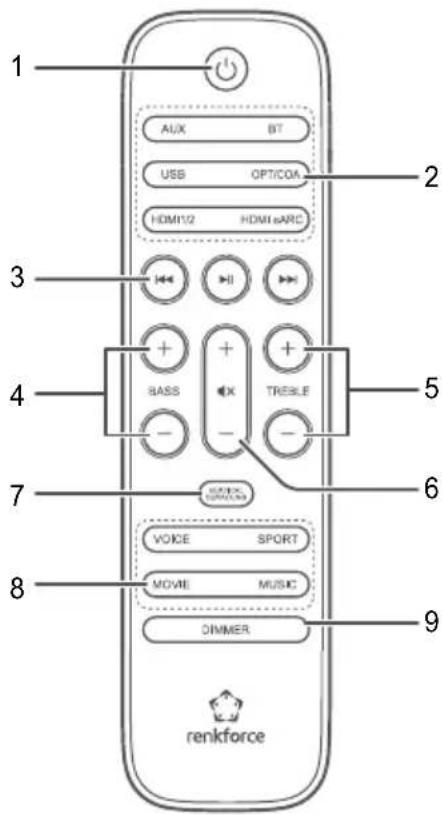
1 ⏻
Switch the unit between ON and STANDBY mode.
2 SOURCE buttons
Select the play function.
3
Skip to previous/next track in Bluetooth/USB mode.

Play/pause/resume playback in Bluetooth/USB mode. In Bluetooth mode, press and hold to activate the pairing function or disconnect the existing paired Bluetooth device.
4 BASS+/-
Adjust the bass level.
5 TREBLE +/-
Adjust the treble level.
6 (NOTE)
Mute or unmute the sound.
+/- (vol)
Increase/decrease the volume level.
7 VERTICAL/SURROUND
Adjust the surround ON/OFF. Press and hold to enter the audio delay setup.
8 EQ buttons
Select the equalizer (EQ) effect.
9 DIMMER
Adjust the display brightness.
a) Preparations for use
1. Preparing the remote control
The remote control allows the unit to be operated from a distance.
- Even if the remote control is operated within the effective range of 19.7 feet (6 m), reception may be impaired if there are obstacles between the unit and the remote control.
- If the remote control is operated near other products that generate infrared rays, or if other remote control devices using infra-red rays are used near the unit, it may not operate correctly. Conversely, the other products may not operate correctly.
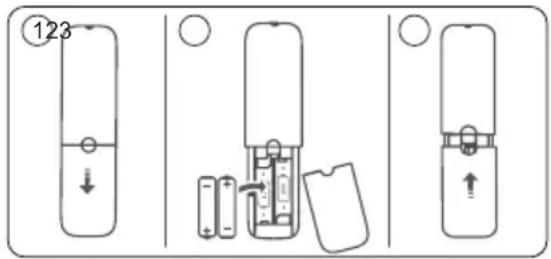
2. Replacing the remote control battery
- Press and slide the back cover to open the battery compartment of the remote control.
- Insert two AAA batteries (included). Make sure the (+) and (−) ends of the batteries match the (+) and (−) ends indicated in the battery compartment.
- Close the battery compartment cover.
Battery precautions
- Ensure that the batteries are inserted with the correct positive “+” and negative “-” polarities.
- Use batteries of the same type. Never use different types of batteries together.
- Either rechargeable or non-rechargeable batteries can be used. Refer to the precautions on their labels.
- Be aware of your fingernails when removing the battery cover and the battery.
- Do not drop the remote control.
- Protect the remote control from impacts.
- Do not spill water or any other liquids on the remote control.
- Do not place the remote control on a wet object.
- Do not place the remote control under direct sunlight or near sources of excessive heat.
- Remove the battery from the remote control if you do not plan to use it for an extended period, as corrosion or battery leakage may occur and result in physical injury, property damage, and/or fire.
- Do not use any batteries other than those specified.
- Do not mix new and old batteries.
- Never attempt to recharge non-rechargeable batteries.
b) Placement and mounting
1. Placement
- If your TV is placed on a table, you can place the unit on the table directly in front of the TV stand, centered with the TV screen.
- If your TV is attached to a wall, you can mount the unit on the wall directly below the TV screen.
2. Wall mounting (with wall-mounted TV)
- Installation must be carried out by qualified personnel. Incorrect assembly can result in severe personal injury and property damage (if you intend to install this product yourself, you must check for installations such as electrical wiring and plumbing that may be buried inside the wall). It is the installer's responsibility to verify that the wall will safely support the total load of the unit and wall brackets.
• Additional tools (not included) are required for the installation. - Do not overtighten the screws.
- Keep this instruction manual for future reference.
- Use an electronic stud finder to check the wall type before drilling and mounting.
WARNING
- To prevent injury, this apparatus must be securely attached to the floor/wall in accordance with the installation instructions.
- Suggested wall mounting height: ≤ 1.5 meters.
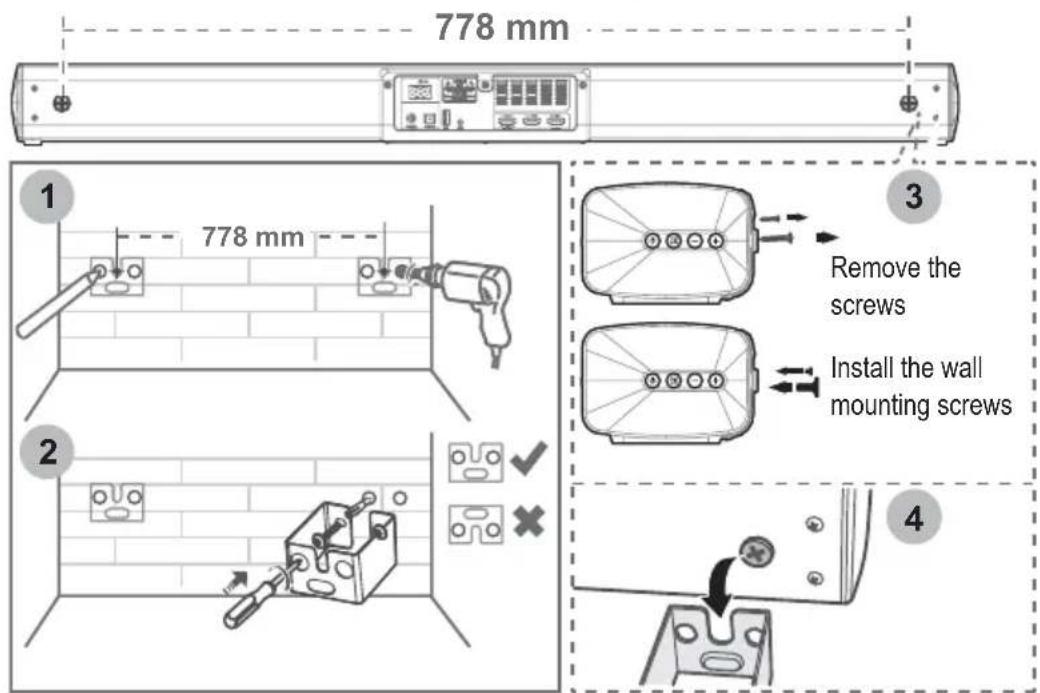
1 Drill 4 parallel holes ( 5.5-6 mm each according to wall type) in the wall. The distance between the holes should be 778 mm.
2 If dowels are required, place 1 dowel into each hole in the wall. Tighten the wall mount brackets on the wall with screws and a screwdriver (not included). Make sure that they are securely installed.
3 Remove the screws on the back of the unit. Install the wall mounting screws into the back of the unit.
4 Lift the unit onto the wall mount brackets and slot it into place.
c) Connections
1) Dolby Atmos
Dolby Atmos® gives you an immersive listening experience by delivering sound in three-dimensional space, together with all the richness, clarity, and power of Dolby sound. For more information, please visit dolby.com/technologies/dolby-atmos
Using Dolby Atmos®
Dolby Atmos ^® is only available in HDMI mode. For details of how to configure the connection, please refer to “HDMI Connection”.
- To use Dolby Atmos ^® in HDMI1, HDMI2 and HDMI ARC/eARC mode, your TV has to support Dolby Atmos ^® .
- Make sure that "No Encoding" is selected for bitstream in the audio output of the connected external device (e.g., Blu-ray DVD player, TV, etc.).
- While entering Dolby Atmos / Dolby Digital / PCM format, the Soundbar will show DOLBY ATMOS / DOLBY AUDIO / PCM AUDIO.
Tips:
- The full Dolby Atmos experience is only available when the Soundbar is connected to the source via an HDMI 2.0 cable.
- The Soundbar will still function when connected via other methods (such as a digital optical cable), but these are unable to support all of the Dolby features. We therefore recommend connecting via HDMI in order to ensure full Dolby support.
2) HDMI connection
Some 4K HDR TVs require the HDMI input or picture settings to be set for HDR content reception. For further details on configuring HDR settings, please refer to the instruction manual of your TV.
Using HDMI to connect the soundbar, AV equipment and TV:
Method 1:
eARC / ARC (Audio Return Channel)
The eARC / ARC (Audio Return Channel) function allows you to send audio from your ARC-compliant TV to your soundbar through a single HDMI connection. To use the ARC function, ensure your TV is both HDMI-CEC and ARC-compliant and set up accordingly. When configured correctly, you can use your TV remote control to adjust the volume output (VOL +/- and MUTE) of the soundbar.
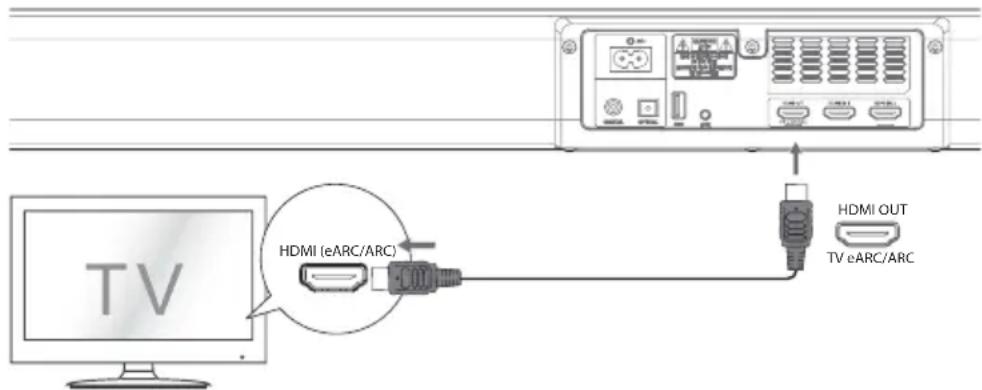
- Connect the HDMI cable (included) from the unit's HDMI OUT (TV eARC/ARC) socket to the HDMI (ARC) socket on your ARC-compliant TV. Then press the remote control to select HDMI eARC.
Tips:
- Your TV must support the HDMI-CEC and ARC function. HDMI-CEC and ARC must be set to On.
- The configuration method for HDMI-CEC and ARC may differ depending on your TV. For details about the ARC function, please refer to the owner's manual.
• ARC only works with devices that are HDMI ARC capable, and requires an HDMI 1.4 (or higher) cable.
• The digital sound output S/PDIF mode on your TV must be set to PCM.
Method 2: Standard HDMI
- If your TV is not HDMI ARC-compliant, connect your soundbar to the TV through a standard HDMI connection.
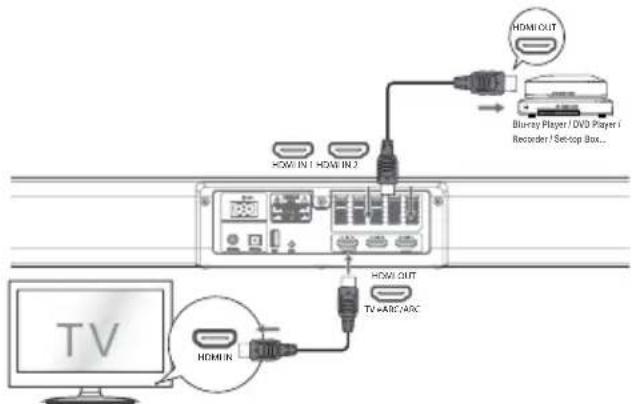
- Use an HDMI cable to connect the soundbar's HDMI OUT (eARC/ARC) socket to the TV's HDMI IN socket.
- Use an HDMI cable to connect the soundbar's HDMI IN (1 or 2) socket to your external devices (e.g., games console, DVD player or Blu-ray player).
3) Optical socket
- Remove the protective cap from the OPTICAL socket, and then connect an OPTICAL cable (not included) to the TV's OPTICAL OUT socket and the OPTICAL socket on the unit.
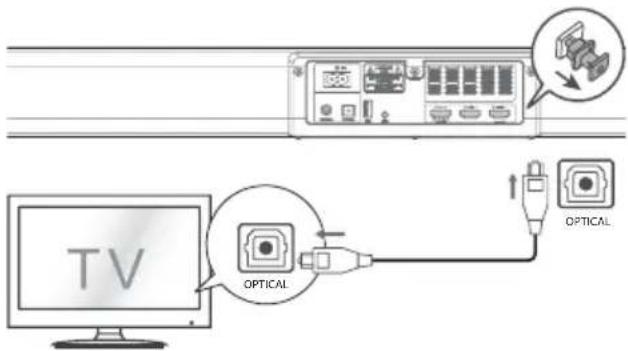
4) COAXIAL socket
- You also can use a COAXIAL cable (not included) to connect the TV's COAXIAL OUT socket to the COAXIAL socket on the unit.
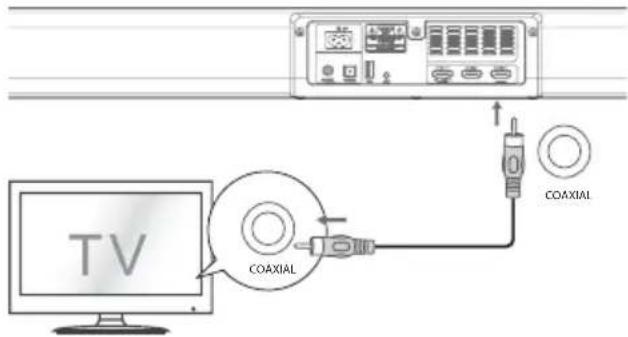
Tip: The unit may not be able to decode all digital audio formats from the input source. In this case, the unit will mute. This is NOT a defect. Ensure that the audio setting of the input source (e.g., TV, game console, DVD player, etc.) is set to PCM or Dolby Digital with HDMI/OPTICAL/COAXIAL input (refer to the user manual of the input source device for information on the audio settings).
5) AUX socket
- Use a 3.5 mm to 3.5 mm audio cable (included) to connect the headphone socket on your TV or external audio device to the AUX socket on the unit.
- Use an RCA to 3.5 mm audio cable (not included) to connect the TV's audio output sockets to the AUX socket on the unit.
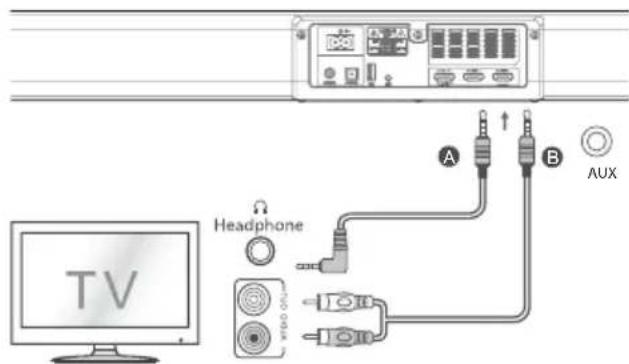
6) Power connection
- Risk of product damage!
Ensure that the power supply voltage corresponds to the voltage printed on the back or the underside of the unit. - Before connecting the AC power cord, ensure you have completed all other connections.
- Soundbar
Connect the mains cable to the AC\~ socket on the main unit, and then to a mains socket.
- Subwoofer
Connect the mains cable to the AC\~ socket on the subwoofer, and then to a mains socket.
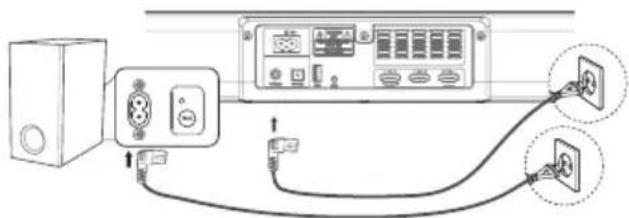
d) Pairing with the subwoofer
1) Automatic pairing
The subwoofer and soundbar will automatically pair when both units are plugged into the mains sockets and turned on. No cable is needed for connecting the two units.
- Determine the status based on the wireless subwoofer indicator.
| LED Status | |
| Fast blink Subwoofer in pairing mode | |
| Constant Connected/pairing successful | |
| Slow blink Connection/pairing failed | |
NOTE:
- Do not press the PAIR button on the rear of the subwoofer, except for manual pairing.
- If automatic pairing fails, pair the subwoofer with the main unit manually.
2) Manual pairing
- Ensure that all the cables are properly connected, and the main unit is in Standby mode.
- Press and hold the PAIR button on the rear of the subwoofer for a few seconds. The subwoofer will enter pairing mode and the Pair Indicator will blink quickly.
- Press the button on the main unit or remote control to switch the main unit on.
- After the wireless connection has been established, the pair indicator will light up.
- If the pair indicator blinks, this indicates that the wireless connection failed. Unplug the cable of the subwoofer and then reconnect the main cable after 4 minutes. Repeat steps 1 to 4.
NOTE:
- If the wireless connection fails again, check if there is a conflict or strong interference (for example, interference from a nearby electronic device). Remove these conflicts or strong interferences and repeat the above procedures.
- The subwoofer should be within 6 m (19.7 feet) of the soundbar with no obstacles.
- If a TV or external device is connected, the AUX and subwoofer will only switch on automatically when the TV or external device is switched on.
- If the main unit is not connected with the subwoofer and it is in On mode, the POWER Indicator will flash. Follow steps 1 to 4 above to pair the subwoofer with the main unit.
e) Basic operation
1) Standby/ON
When you first connect the main unit to the mains socket, the main unit will be in Standby mode.
- Press the button on the unit or remote control to switch the unit ON.
- Press the button again to switch the unit back to STANDBY mode.
- If you wish to switch the unit off completely, disconnect the mains plug from the mains socket.
- If a TV or external device is connected, the unit will switch on automatically when the TV or the external device is switched on.
2) Automatic power off function
The unit automatically switches to Standby mode after 15 minutes if the TV or the external unit is disconnected, switched off or the volume is too close to mute.
- To switch the unit off completely, remove the mains plug from the mains socket.
- Turn the unit off completely when not in use to save energy.
3) Selecting modes
Press the SOURCE) button on the unit or the AUX, BT, OPT/COA, HDMI 1/2, HDMI eARC and USB buttons on the remote control to select the desired mode. The selected mode will show on the display.
4) Adjusting the bass/treble level
- Press the BASS +/- buttons on the remote control to adjust the bass level.
- Press the TREBLE +/- buttons on the remote control to adjust the treble level.
5) Turning the surround sound ON/OFF
- Press the VERTICAL/SURROUND button on the remote control to turn on the surround sound. Press this button again to turn off the surround sound.
6) Setting the audio delay (AV SYNC)
Video image processing sometimes takes longer than the time required to process the audio signal. The Audio Delay feature is designed to remedy this delay.
- Set the audio delay for the current playback mode (e.g., if the audio delay mode is set for the current HDMI ARC playback, it is only for the HDMI ARC playback).
- Press and hold the VERTICAL/SURROUND button on the remote control to enter the audio delay settings. "LATENCY SET" will scroll across the display.
- Press the VOL+/- buttons to adjust the delay in 10 ms increments.
- Press the VOICE / SPORT / MOVIE / MUSIC buttons on the remote control to select your desired preset equalizer effects.
8) Adjusting the volume
- Press the + / - (VOL) buttons on the unit or remote control to adjust the volume.
- If you wish to turn the sound off, press the ◄× (MUTE) button on the remote control. Press the ◄× (MUTE) button again or press the + / - (VOL) buttons on the unit or remote control to resume normal listening.
9) Adjusting the brightness
- Press the DIMMER button on the remote control to select the brightness level.
f) AUX/OPTICAL/COAXIAL/HDMI operation
- Ensure that the unit is connected to the TV or audio device.
- Press the ➕ button repeatedly on the unit or the AUX, OPT/COA, HDMI 1/2, HDMI eARC buttons on the remote control to select the desired mode. The selected mode will show on the display.
- Operate your audio device directly for playback features.
- Press the VOL +/- button to adjust the volume to your desired level.
Tip:
- The unit may not be able to decode all digital audio formats from the input source. In this case, the unit will mute. This is NOT a defect. Ensure that the audio setting of the input source (e.g., TV, game console, DVD player, etc.) is set to PCM or Dolby Digital with HDMI 1 / HDMI 2 / HDMI ARC / OPTICAL / COAXIAL input (refer to the user manual of the input source device for details on the audio settings).
- When the DOLBY ATMOS audio format is selected, the soundbar display will show DOLBY ATMOS.
- When the DOLBY DIGITAL PLUS/DOLBY True HD audio is selected, the soundbar display will show DOLBY SURROUND.
- When entering non-PCM or DOLBY DIGITAL audio formats, if there is no sound output from the unit, the display will show NO SUPPORT.
- The full Dolby Atmos experience is only available when the soundbar is connected to the source via an HDMI 2.0 cable.
- The soundbar will still function when connected via other methods (such as a digital optical cable) but these are unable to support all of the Dolby features. We therefore recommend connecting via HDMI in order to ensure full Dolby support.
g) Bluetooth operation
1) Pairing Bluetooth-enabled devices
You will need to pair your Bluetooth device with the unit when connecting for the first time.
Note:
- The operational range between this player and a Bluetooth device is approximately 8 metres (provided that there are no obstacles between the Bluetooth device and the unit).
-
Ensure that you are familiar with the device's capabilities before connecting it to the unit.
-
Some Bluetooth devices may not be compatible.
- Obstacles between the unit and the Bluetooth device may reduce the operational range.
-
If the signal strength is weak, the Bluetooth receiver may disconnect and re-enter pairing mode automatically.
-
In ON mode, press the → button repeatedly on the unit or the BT button on the remote control to select Bluetooth mode. "NO BT" will show on the display if the unit is not paired with a Bluetooth device.
-
Activate your Bluetooth device and search for Bluetooth devices. "RF-SB-301" will appear in the list of Bluetooth devices.
- If you cannot find the unit, press and hold the ▶ or BT button on the remote control to make the unit discoverable. The display will show "PAIR" and you will hear "Pairing" from the unit.
- Select "RF-SB-301" from the list. When the devices have paired successfully, you will hear "Paired" from the unit, and the display panel will show "BT".
- Play music from the connected Bluetooth device.
To disconnect the Bluetooth device, you can:
- Switch to another function on the unit.
- Disable Bluetooth on your Bluetooth device. The Bluetooth device will be disconnected from the soundbar after the audio prompt.
- Press and hold the ▶ or BT button on the remote control.
Tips:
- If you are prompted to enter a password, use "0000".
- If no other Bluetooth device pairs with the unit within two minutes, the unit will restore its previous connection.
- The unit will also disconnect when your device is moved beyond the operational range.
- To reconnect your device to the unit, place it within the operational range.
- If the device is moved beyond the operational range, check if the device is still connected to the unit when back in range.
- If the connection is lost, follow the instructions above to pair your device with the unit.
2) Listening to music from a Bluetooth device
- If the connected Bluetooth device supports Advanced Audio Distribution Profile (A2DP), you can listen to the music stored on the device through the player.
-
If the device also supports Audio Video Remote Control Profile (AVRCP), you can use the player's remote control to play music stored on the device.
-
Pair your device with the player.
- Play music via your device (if it supports A2DP).
- Use the supplied remote control to control playback (if your device supports AVRCP).
- To pause/resume playback, press the ▶ button on the remote control.
- To skip to another track, press the ◀◀/▶▶I buttons on the remote control.
h) USB operation
- Insert the USB device.
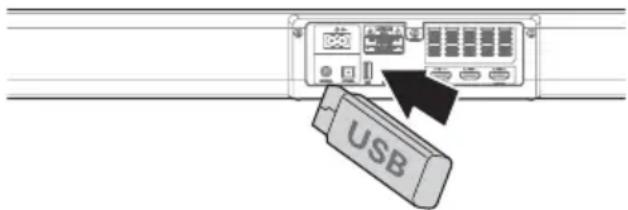
- Press the button repeatedly on the unit or press the USB button on the remote control to select USB mode.
3. During playback:
- To pause or resume play, press the ▶ II button on the remote control.
- To skip to the previous/next file, press the ◀◀ / ▶▶ | buttons on the remote control.
Tips:
- The unit can support USB devices with up to 32 GB of memory.
- The unit only supports MP3 files.
i) Troubleshooting
Never attempt to repair the unit yourself, as this will void the warranty. If you encounter problems when using this unit, check the following table before contacting customer service.
| There is no power • Ensure that the | AC cable is properly connected.• Ensure that there is power at the AC outlet.• Press the (standby) button to turn the unit on. |
| The remote control does not work • | Select the correct source before pressing a playback button.• Reduce the distance between the remote control and the unit.• Insert the battery with its polarities (+/-) aligned as indicated.• Replace the battery.• Aim the remote control directly at the sensor on the front of the unit. |
| There is no sound • Make sure that | the unit is not muted. Press the MUTE or VOL+/VOL–button to resume normal listening.• Press the button on the unit or remote control to switch the soundbar to standby mode. Then press the button again to switch the soundbar on.• Unplug both the soundbar and the subwoofer from the mains socket, and then plug them in again. Switch on the soundbar.• Ensure the audio setting of the input source (e.g., TV, game console, DVD player, etc.) is set to PCM or Dolby Digital mode when using a digital connection (e.g., HDMI, OPTICAL, COAXIAL).• Move the subwoofer closer to the soundbar. Make sure the subwoofer is within 5 m of the soundbar (the closer the better).• The soundbar may have lost its connection with the subwoofer. Re-pair the units by following the steps in the section “Pairing the Wireless Subwoofer with the Soundbar”.• The unit may not be able to decode all digital audio formats from the input source. In this case, the unit will mute. This is NOT a defect. |
| The TV does not display HDR content from the HDMI source properly | • Some 4K HDR TVs require the HDMI input or picture settings to be set for HDR content reception. For more information on HDR settings, please refer to the instruction manual supplied with your TV. |
| I cannot find the Bluetooth name of this unit on my Bluetooth device | ·Ensure that Bluetooth is enabled on your Bluetooth device.·Ensure you have paired the unit with your Bluetooth device. |
| The unit powers off after 15 mins | ·When the unit's input signal level is too low, the unit will turn off automatically after 15 minutes. To prevent the unit from turning off, increase the volume level of your external device. |
8. Care and cleaning

Do not use any aggressive cleaning agents, rubbing alcohol, or other chemical solutions as they can cause damage to the housing and functioning of the product.
- Disconnect the product from the mains before each cleaning.
- Clean the product with a dry, fibre-free cloth.
9. Disposal
a) Product

Electronic devices are recyclable waste and must not be disposed of in the household waste. At the end of its service life, dispose of the product in accordance with applicable regulatory guidelines.
Remove any inserted (rechargeable) batteries and dispose of them separately from the product.
b) (Rechargeable) batteries

You as the end user are required by law (Battery Ordinance) to return all used (rechargeable) batteries. Disposing of them in the household waste is prohibited.
Contaminated (rechargeable) batteries are labeled with this symbol to indicate that disposal in the domestic waste is forbidden. The designations for the heavy metals involved are: Cd = Cadmium, Hg = Mercury, Pb = Lead (name on (rechargeable) batteries, e.g. below the trash icon on the left).
Used (rechargeable) batteries can be returned to collection points in your municipality, our stores or wherever (rechargeable) batteries are sold.
You thus fulfill your statutory obligations and contribute to the protection of the environment.
10. Declaration of Conformity (DOC)
Conrad Electronic SE, Klaus-Conrad-Straße 1, D-92240 Hirschau hereby declares that this product conforms to the 2014/53/EU directive.

Click on the following link to read the full text of the EU declaration of conformity: www.conrad.com/downloads
Enter the product item number in the search box. You can then download the EU declaration of conformity in the available languages.
11. Technical data
Input voltage....100 - 240 V/AC, 50/60 Hz
Output power.... 2 x 30 W (RMS) (soundbar)
Transmission distance
Wireless subwoofer 10 meters (no barrier)
Bluetooth ....15 meters (no barrier)
Ports ......HDMI (2 x input, 1 x output), optical (input), coaxial (input), AUX 3.5 mm (input), USB Type A (input), AC power supply (input)
Operating/storage conditions.... 0 to +40 °C (operating)
-20 to +60 °C (storage)
40 - 85 % RH (non-condensing)
Dimensions (W x D x H) 869 x 76 x 106 mm (soundbar)
France (email): technique@conrad-france.fr
Précautions relatives aux piles
eARC / ARC (Audio Return Channel)
4) Prise COAXIAL
eARC / ARC (Audio Return Channel)
g) Bluetooth-werking
1) Bluetooth-apparaten koppelen
This is a publication by Conrad Electronic SE, Klaus-Conrad-Str. 1, D-92240 Hirschau (www.conrad.com).
All rights including translation reserved. Reproduction by any method, e.g. photocopy, microfilming, or the capture in electronic data processing systems require the prior written approval by the editor. Reprinting, also in part, is prohibited. This publication represents the technical status at the time of printing.
Copyright 2021 by Conrad Electronic SE.
Copyright 2021 by Conrad Electronic SE.
Copyright 2021 by Conrad Electronic SE.



- renkforce
- Introduction
- Explanation of symbols
- Intended use
- Delivery content
- Up-to-date operating instructions
- a) General information
- b) Connected devices
- c) (Rechargeable) batteries
- d) Operation
- Operating elements
- c) Remote control
- a) Preparations for use
- Preparing the remote control
- Replacing the remote control battery
- Battery precautions
- b) Placement and mounting
- Placement
- Wall mounting (with wall-mounted TV)
- WARNING
- c) Connections
- 1) Dolby Atmos
- Using Dolby Atmos®
- Tips:
- 2) HDMI connection
- Method 1:
- Method 2: Standard HDMI
- 3) Optical socket
- 4) COAXIAL socket
- 5) AUX socket
- 6) Power connection
- d) Pairing with the subwoofer
- 1) Automatic pairing
- 2) Manual pairing
- NOTE:
- e) Basic operation
- 1) Standby/ON
- 2) Automatic power off function
- 3) Selecting modes
- 4) Adjusting the bass/treble level
- 5) Turning the surround sound ON/OFF
- 6) Setting the audio delay (AV SYNC)
- 8) Adjusting the volume
- 9) Adjusting the brightness
- f) AUX/OPTICAL/COAXIAL/HDMI operation
- g) Bluetooth operation
- 1) Pairing Bluetooth-enabled devices
- 2) Listening to music from a Bluetooth device
- h) USB operation
- During playback:
- i) Troubleshooting
- Care and cleaning
- Disposal
- a) Product
- b) (Rechargeable) batteries
- Declaration of Conformity (DOC)
- Technical data
- Transmission distance
- Précautions relatives aux piles
- 4) Prise COAXIAL
- g) Bluetooth-werking
- 1) Bluetooth-apparaten koppelen
Brand : Renkforce
Model : RFSB301
Category : Soundbar