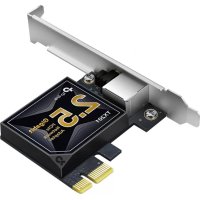
TX201 - Network card / adapter TP-LINK - Free user manual and instructions
Find the device manual for free TX201 TP-LINK in PDF.



| Brand | TP-Link |
| Model | TX201 |
| Product Type | Network card / Ethernet adapter |
| Interface | PCI Express |
| Connector | RJ-45 (Ethernet) |
| Supported Speeds | 10/100/1000 Mbps |
| Dimensions (approx.) | 120 x 80 x 20 mm |
| Weight (approx.) | 50 g |
| Power Supply | PCI Express bus |
| Supported Operating Systems | Windows, Linux (via drivers) |
| Driver Installation | CD provided or download from TP-Link website |
| Standards and Certifications | CE, RoHS |
| Warranty | 3 years (limited) |
| Maintenance and Cleaning | Dust with a soft, dry cloth |
| Safety | Keep away from water, fire, humidity, and high temperatures |
| Repairability | Not user-repairable (contact support) |
| Spare Parts | Low-profile bracket included for small form factor chassis |
Frequently Asked Questions - TX201 TP-LINK
User questions about TX201 TP-LINK
0 question about this device. Answer the ones you know or ask your own.
Ask a new question about this device
Download the instructions for your Network card / adapter in PDF format for free! Find your manual TX201 - TP-LINK and take your electronic device back in hand. On this page are published all the documents necessary for the use of your device. TX201 by TP-LINK.
USER MANUAL TX201 TP-LINK
For technical support, replacement services, user guides, and other information, please visit https://www.tp-link.com/support
CONTENTS
01 / Deutsch
04 / English
07 / Español
10 / Ελληνικά
13 / Français
16 / Italiano
19 / Português
22 / Suomi
25 / Nederlands
28 / Svenska
31 / Norsk
34 / Dansk
1 Hardwareinstallation
text_image
Diagram showing computer setup with cable, drive, and monitor, including a magnified view of the internal components.1 Hardware Connection
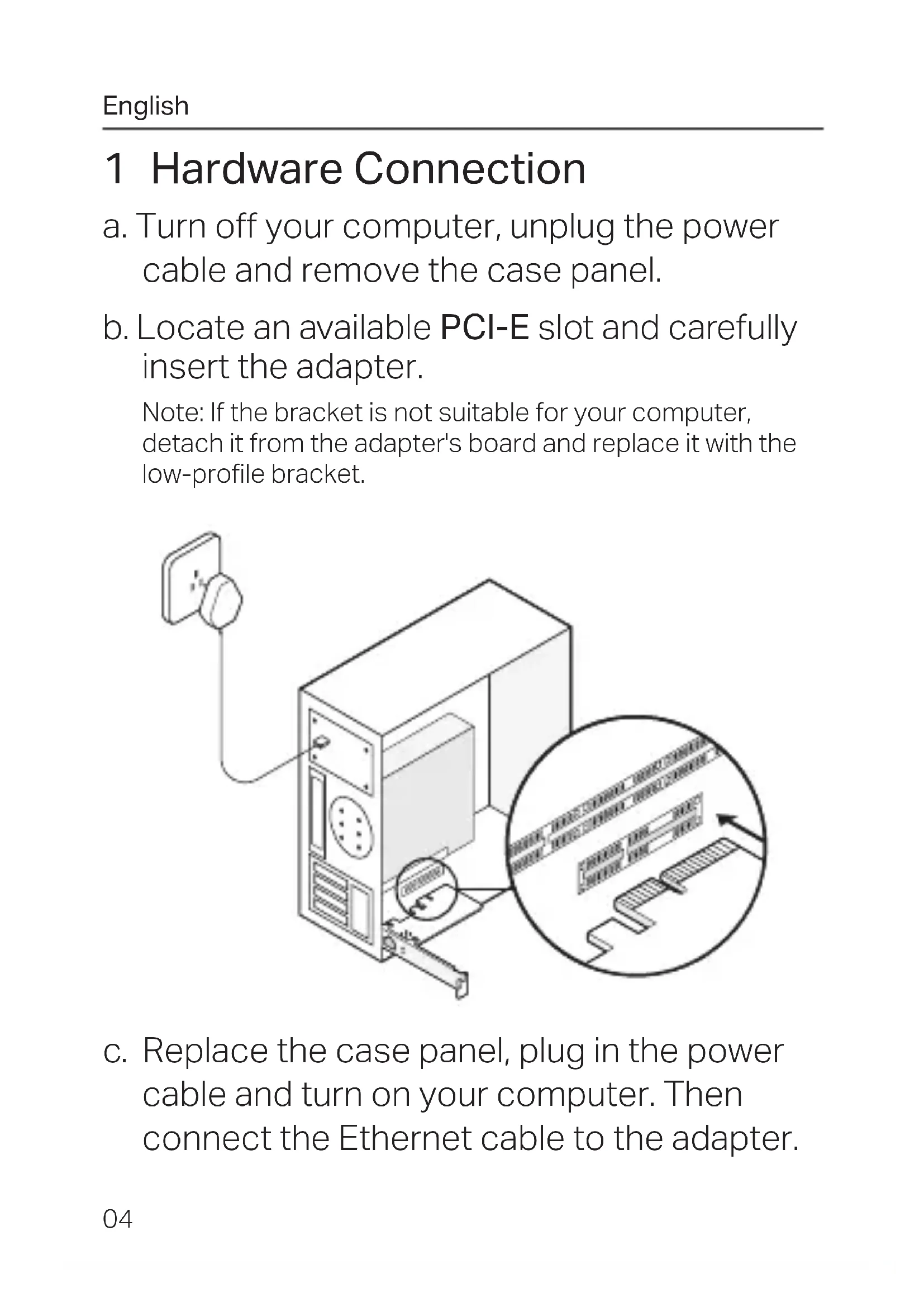
a. Turn off your computer, unplug the power cable and remove the case panel.
b. Locate an available PCI-E slot and carefully insert the adapter.
Note: If the bracket is not suitable for your computer, detach it from the adapter's board and replace it with the low-profile bracket.
text_image
Technical diagram showing a computer tower connected to a wall-mounted cable, with an inset magnified view highlighting internal components.c. Replace the case panel, plug in the power cable and turn on your computer. Then connect the Ethernet cable to the adapter.
2 Driver Installation
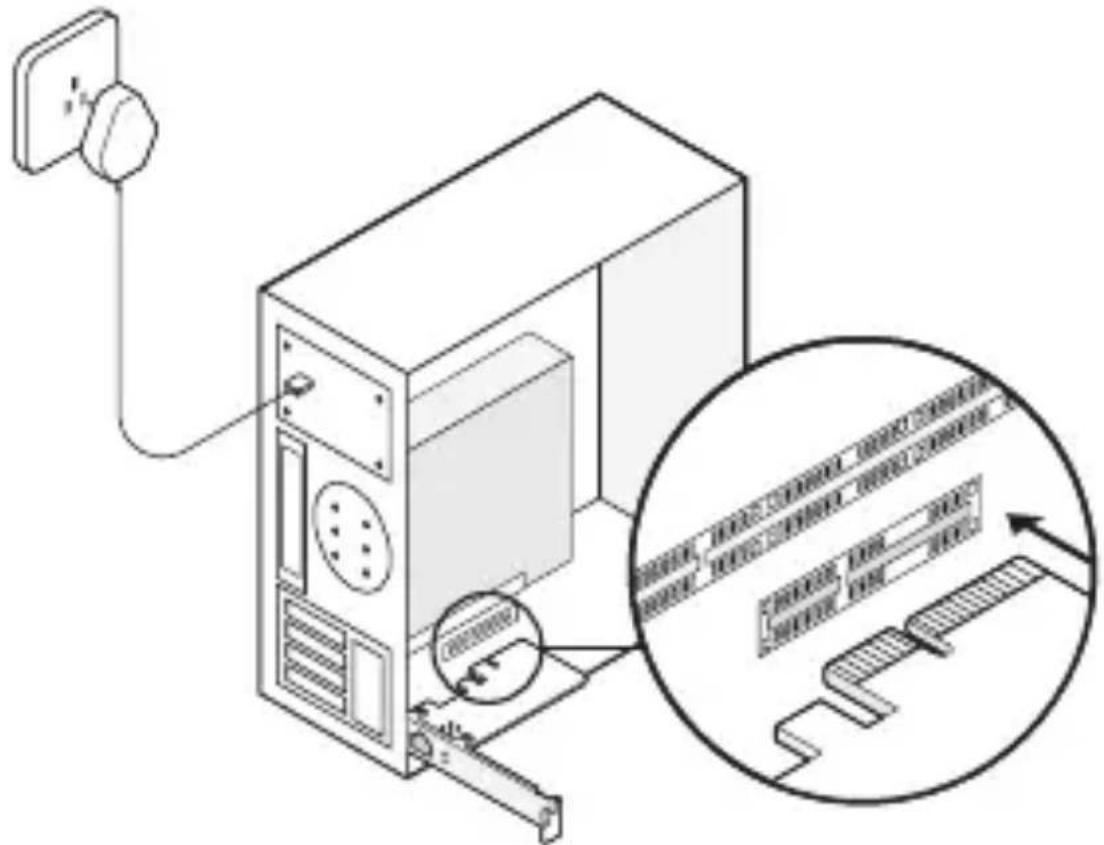
a. Insert the CD and run the Autorun.exe.
Note:
If there is no Autorun.exe in your CD file, go to https://www.tp-link.com/download-center and enter the adapter model to get a detailed installation guide.
b. Select your adapter and follow the instructions to complete the installation.
text_image
tp-link φ_{tp=1.44}Note:
If you can't install the driver successfully, disable the antivirus software and firewall, then try again.
FAQ (Frequently Asked Questions)
Q1: How do I find the driver if the CD is lost or broken?
A. You could find and download the driver at https://www.tp-link.com/download-center
Q2: How do I find the hardware version of the adapter?
A1. The hardware version (Ver:X.Y) is printed on the product label on the package or the adapter. The number X is the hardware version of the adapter.
A2. For more detailed instructions, please visit https://www.tp-link.com/faq-46.html
Q3: What should I do if PC cannot find the new hardware?
A1. Restart your computer and try again.
A2. Power off the computer, then reinsert the adapter or try to change another PCI-E slot.
A3. If the problem persists, contact our Technical Support.
text_image
Diagram showing computer tower connected to a power outlet, with an inset magnified view highlighting internal components.text_image
Diagram showing a computer tower connected to a wall-mounted cable, with an inset magnified view highlighting internal components.text_image
Diagram showing a computer tower connected to a wall-mounted cable, with an inset close-up illustrating the cable structure.text_image
Technical diagram showing a computer tower connected to a wall-mounted cable, with an inset magnified view highlighting internal components.A. Potete trovare e scaricare i driver in https://www.tp-link.com/download-center
text_image
Diagram showing computer tower connected to a power outlet, with an inset magnified view highlighting internal components.text_image
Technical diagram showing a computer tower connected to a wall-mounted cable, with an inset magnified view highlighting internal components.text_image
Diagram showing a computer tower connected to a wall-mounted cable, with an inset magnified view highlighting internal components.text_image
Diagram showing computer tower connected to a power outlet, with an inset magnified view highlighting internal components.text_image
Diagram showing computer tower connected to a power outlet, with an inset magnified view highlighting internal components.c. Sett dekselet på plass, sett i strømledningen og slå på datamaskinen. Koble Ethernet-kabelen til nettverkskortet.
text_image
Diagram showing computer tower connected to a power outlet, with an inset magnified view highlighting internal components.EU declaration of conformity
English
TP-Link hereby declares that the device is in compliance with the essential requirements and other relevant provisions of directives 2014/30/EU, 2014/35/EU, 2011/65/EU and (EU)2015/863. The original EU declaration of conformity may be found at https://www.tp-link.com/en/ce.
Deutsch
- Keep the device away from water, fire, humidity or hot environments.
- Do not attempt to disassemble, repair, or modify the device. If you need service, please contact us
Please read and follow the above safety information when operating the device. We cannot guarantee that no accidents or damage will occur due to improper use of the device. Please use this product with care and operate at your own risk.
TP-Link Three Years Limited Product Warranty
For TP-Link Branded Products Only.
THIS WARRANTY GIVES YOU SPECIFIC LEGAL RIGHTS, AND YOU MAY HAVE OTHER RIGHTS THAT VARY FROM STATE TO STATE (OR BY COUNTRY OR PROVINCE).
TO THE EXTENT ALLOWED BY LOCAL LAW, THIS WARRANTY AND THE REMEDIES SET FORTH ARE EXCLUSIVE AND IN LIEU OF ALL OTHER WARRANTIES, REMEDIES AND CONDITIONS
TP-Link warrants the TP-Link branded hardware product contained in the original packaging against defects in materials and workmanship when used normally in according with TP-Link's guidelines for a period of THREE YEARS form the date of original retail purchase by the end-user purchaser.