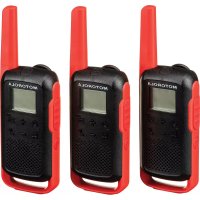
Talkabout T210 - Radio MOTOROLA - Free user manual and instructions
Find the device manual for free Talkabout T210 MOTOROLA in PDF.


| Product type | Two-way radio (FRS) |
| Brand | Motorola |
| Model | Talkabout T210 |
| Dimensions (approx.) | Not provided (approx. 18 x 6 x 3 cm) |
| Weight (with batteries) | Approximately 120 g |
| Power source | 3 AA alkaline batteries or rechargeable NiMH battery pack (via micro-USB) |
| Battery life | Up to 8 hours of transmission (depends on usage) |
| Number of channels | 22 (FRS, depending on country) |
| Interference reduction codes | 121 (analog 1-38, digital 39-121) |
| Call tones | 20 available tones |
| Maximum range | Up to 2 km (under ideal conditions) |
| Output power | 2 W on channels 1-7 and 15-22, 0.5 W on channels 8-14 |
| Functions | VOX/iVOX, simple/advanced scan, dual watch, keypad lock, simplified pairing, end-of-transmission tone |
| Weather alert | Not available (T210 model) |
| Battery indicator | 3 bars with low battery beep |
| Charging connectivity | Micro-USB port |
| NiMH battery storage temperature | -20 to 35 °C |
| Warranty | 2 years (depending on country, see manual) |
| Included accessories | Personalization stickers, belt clip, micro-USB cable (depending on version) |
| Certifications | FCC Part 15B, ISDE, compliant with RF exposure standards |
Frequently Asked Questions - Talkabout T210 MOTOROLA
User questions about Talkabout T210 MOTOROLA
0 question about this device. Answer the ones you know or ask your own.
Ask a new question about this device
Download the instructions for your Radio in PDF format for free! Find your manual Talkabout T210 - MOTOROLA and take your electronic device back in hand. On this page are published all the documents necessary for the use of your device. Talkabout T210 by MOTOROLA.
USER MANUAL Talkabout T210 MOTOROLA
TALKABOUT® TWO-WAY RADIO T21X, T27X SERIES
USERGUIDE
en-US
fr-CA
es-LA
pt-BR
SAFETY AND GENERAL INFORMATION
Caution
Before using this radio, read this booklet which contains important operating instructions.
For information on product details, brochures, user manuals and approved accessories. Please refer to www.motorolasolutions.com.
Compliance with RF Exposure Standards
National and international regulations require manufacturers to comply with the RF energy exposure limits for portable two-way radios before they can be marketed. Your Motorola Solutions two-way radio is designed, manufactured, and tested to comply with all applicable national and international regulations for human exposure to radio frequency electromagnetic energy.
RF Energy Exposure Awareness and Control Information and Operational Instructions for General Population and Uncontrolled Environment Use
For more information on what RF energy exposure is, see the following websites:
- https://www.fcc.gov/
- http://www.who.int/peh-emf/project/en/
-
http://www.ic.gc.ca/eic/site/smt-gst.nsf/eng/ sf11467.html
-
http://www.ic.gc.ca/eic/site/smt-gst.nsf/eng/ sf01904.html
For additional information, see https://www.motorolasolutions.com/en_us/about/ company-overview/corporate-responsibility/ governance-and-policies.html
Operating Instructions
- Transmit no more than 50% of the time. To transmit (talk), press the Push-To-Talk (PTT) button. To receive calls, release the PTT button.
- Hold the radio in a vertical position in front of the face with the microphone (and other parts of the radio including the antenna) at least 1 in. (2.5 cm) away from the nose or lips. Antenna should be kept away from the eye.
- When worn on the body, always place the radio in a Motorola Solutions-approved clip, holder, holster, case, or body harness for this product.
- DO NOT hold the antenna when the radio is transmitting.
DO NOT use any portable radio that has a damaged antenna. If a damaged antenna comes into contact with your skin, a minor burn can result. - To ensure continued compliance with applicable RF exposure limits, use only Motorola Solutions-approved, supplied or replacement antennas, batteries, and accessories.
- For a list of Motorola Solutions-approved accessories please refer to your user manual or visit www.motorolasolutions.com
Acoustic Safety
Exposure to loud noises from any source for extended periods of time may temporarily or permanently affect your hearing. The louder the volume of the radio, the sooner your hearing will be affected. Hearing damage from loud noise is sometimes undetectable at first, and can have a cumulative effect.
To protect your hearing, follow these precautions:
- Use the lowest volume necessary to do your job.
- Turn up the volume only if you are in noisy surroundings.
- Turn down the volume before putting on a headset or headphones.
- Limit the amount of time you use a headset or headphones at high volume.
- When using the radio without a headset or headphones, do not place the speaker of the radio directly against your ear.
Medical Devices
If you use a personal medical device, such as a pacemaker or hearing aid, consult the manufacturer of your device to determine if it is adequately shielded from RF energy. Your physician may be able to assist you in obtaining this information.
Holsters Incorporating Magnets
Some Motorola Solutions holsters incorporate strong, neodymium magnets. If you use a personal medical device, such as a pacemaker or hearing aid, consult the manufacturer of your device to
determine if it can be used in close proximity to magnets. Your physician may be able to assist you in obtaining this information. Also be aware that magnets can damage other products, including cell phones, computers, hard drives, and other electronic devices, as well as credit cards and magnetic media. Keep the holster away from any mechanical device that could be affected by a magnetic field. Consult the manufacturer of your product to determine if your device or product can be used in close proximity to magnets.
OperationalWarnings
The following explains the operational warnings:
For Vehicle With Air Bags
Warning: Refer to vehicle manufacturer's manual prior to installation of electronic equipment to avoid interference with air bag wiring. DO NOT place a portable radio in the area over an air bag or in the air bag deployment area. Air bags inflate with great force. If a portable radio is placed in the air bag deployment area and the air bag inflates, the radio may be propelled with great force and cause serious injury to occupants of the vehicle.
Potentially Explosive Atmospheres Blasting Caps and Blasting Areas

WARNING
Warning:
- Do not carry a radio that is not certified for Hazardous Locations into a potentially explosive atmosphere. It could result in a serious injury or death. You should only use a radio certified for hazardous locations in potentially explosive atmospheres.
- Explosive atmospheres refer to hazard classified locations that may contain hazardous gas, vapors, dusts, such as fueling areas below decks on boats, fuel or chemical transferor storage facilities, and areas where the air contains chemicals or particles such as grain, dust or metal powders. Areas with potentially explosive atmospheres are often, but not always, posted.
DO NOT remove, install, or charge batteries in such areas, or remove or install antennas. Sparks in a potentially explosive atmosphere can cause an explosion or fire resulting in bodily injury or even death.
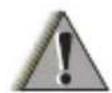
WARNING
Warning: To avoid possible interference with blasting operations, turn off your radio when you are near electrical blasting caps, in a blasting area, or in areas posted: "Turn off two-way radio." Obey all signs and instructions.
Batteries
- Caution: Risk of explosion if the battery is replaced by an incorrect type.
- Use only Motorola Solutions approved batteries
- Charge your battery using the approved Motorola Solutions charger.
- Use the battery in accordance with its water and/or dust Ingress Protection (IP) rating.
DO NOT discard your battery into a fire.
DO NOT replace the battery in any area labeled "Hazardous Atmosphere".
DO NOT disassemble, crush, puncture, shred, or otherwise attempt to change the form of your battery.
DO NOT dry a wet or damp battery with an appliance or heat source, such as a hair dryer or microwave oven.
DO NOT allow conductive material such as jewelry, keys, or beaded chains to touch exposed battery terminals. - Do not dispose of batteries with household waste.
Safety Instruction for Power Supply
- The power supply is for use with equipment according to IEC/EN/UL 62368-1/60950-1.
- The power supply is for indoor use in dry locations.
- The equipment should be connected to a nearby and easily accessible socket outlet.
- If the power supply is damaged or defective, do not repair or use the power supply.
- For more details, refer to https:// www.motorolasolutions.com/en_xu/support/ emea-compliance.html#phnav_other-products.
Do Not Substitute Options or Accessories
The Motorola Solutions communications equipment certified as intrinsically safe by the approving agency (FM, UL, CSA, CENELEC) is tested as a complete system which consists of the listed agency approved portable, approved battery, and approved accessories or options, or both. This approved portable and battery combination must be strictly observed.
There must be no substitution of items, even if the substitute has been previously approved with a different Motorola Solutions communications equipment unit. Approved configurations are listed by the approving agency (FM, UL, CSA, CENELEC).
The Intrinsically Safe Approval Label affixed to radio refers to the intrinsically safe classification of that radio product, and the approved batteries that can be used with that system.
The manual PN referenced on the Intrinsically Safe Approval Label identifies the approved accessories and or options that can be used with that portable radio unit.
Using a non-Motorola Solutions-intrinsically safe battery and/or accessory with the Motorola Solutions-approved radio unit will void the intrinsically safe approval of that radio unit.
European Union (EU) Waste of Electrical and Electronic Equipment (WEEE) Directive
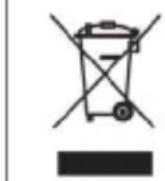
The European Union's WEEE directive requires that products sold into EU countries must have the crossed out trash bin label on the product (or the package in some cases). As defined by the WEEE directive, this cross-out trash bin label means that customers and end-users in EU countries should not dispose of electronic and electrical equipment or accessories in household waste. Customers or end-users in EU countries should contact their local equipment supplier representative or service centre for information about the waste collection system in their country.
Supplier's Declaration of Conformity
| FC | Supplier's Declaration of Conformity Per FCC CFR 47 Part 2 Section 2.1077(a) Responsible Party Name: Motorola Solutions, Inc. Address: 2000 Progress Pkwy, Schaumburg, Il. 60196. Phone Number: 1-800-927-2744 Hereby declares that the product: Model Name: T210, T210TP, T270, T270TP, T271TP conforms to the following regulations: FCC Part 15, subpart B, section 15.107(a), 15.107(d), and section 15.109(a) |
Class B Digital Device
As a personal computer peripheral, this device complies with Part 15 of the FCC Rules. Operation is subject to the following two conditions:
6. This device may not cause harmful interference, and
7. This device must accept any interference received, including interference that may cause undesired operation.
Note: This equipment has been tested and found to comply with the limits for a Class B digital device, pursuant to part 15 of the FCC Rules. These limits are designed to provide reasonable protection against harmful interference in a residential installation. This equipment
generates, uses and can radiate radio frequency energy and, if not installed and used in accordance with the instructions, may cause harmful interference to radio communications. However, there is no guarantee that interference will not occur in a particular installation.
If this equipment does cause harmful interference to radio or television reception, which can be determined by turning the equipment off and on, the user is encouraged to try to correct the interference by one or more of the following measures:
- Reorient or relocate the receiving antenna.
- Increase the separation between the equipment and receiver.
- Connect the equipment into an outlet on a circuit different from that to which the receiver is connected.
- Consult the dealer or an experienced radio or TV technician for help.
Notice to Users (FCC and ISED)
This device complies with Part 15 of the FCC rules and ISED's license-exempt RSS's per the following conditions:
- This device may not cause harmful interference.
- This device must accept any interference received, including interference that may cause undesired operation.
USA (FCC)/CANADA (ISED)
According to FCC Part 95, FRS devices do not require a license. Use of Motorola Solutions radio in Canada is subject to the rules and regulations in ISED RSS 210 and do not require a license.
Changes or modifications not expressly approved by Motorola Solutions may void the user authority granted by the FCC or ISED to operate this radio and should not be made. To comply with FCC or ISED requirements, transmitter adjustments should be made only by or under the supervision of a person certified as technically qualified to perform transmitter maintenance and repairs in the private land mobile and fixed services as certified by an organization representative of the user of those services. Replacement of any transmitter component (crystal, semiconductor, etc) not authorized by the FCC or ISED equipment authorization for this radio could violate FCC or ISED rules.
Note: Use of this radio outside the country where it was intended to be distributed is subject to government regulations and may be prohibited
Mexico and Panama
Mexico and the Republic of Panama do not require authorization to use FRS radio equipment frequencies.
Chile
Servicio de Banda Local UHF frequency use is subject to SUBTEL Resolution 1.261 and Resolution 52 Exenta. A license is required for use in Chile.
To obtain a Banda Local end-user license:
- Fill out the required form to request Local Band service.
Table 1: Location to Obtain the Application Form for Local Band Service
| Location Description | |
| SUBTEL Website | http://www.subtel.gob.cl/ index.php?op- tion=com_content&view=arti- cle&id=1388&Itemid=2087 |
| SUBTEL Office | Subsecretaria de Telecomunicaciones Unidad de Licencias y Permitos Lorenzo Gotuzzo N°124, piso 6 Santiago, Chile Telephone Number: (56-2) 421 3634 |
- Present this form with your ID at the SUBTEL office.
- Consult the SUBTEL office for applicable fees. For more information, consult SUBTEL at http://www.subtel.cl or call their office.
Peru
Colectivo Familiar frequency use is subject to MTC RVM 388-200-MTC/15.03 and FCC (FRS), Part 95B. No license is required for use in Peru. Consult MTC Peru at http://www.mtc.gob.pe for more information.
Brazil
The frequency general use is subject to the Resolution n° 680 and to the Act n° 14448, Item 15 - Radio Communication Equipment of General Use. It is not required use license in Brazil. See the Anatel site for more information: http://www.anatel.gov.br.
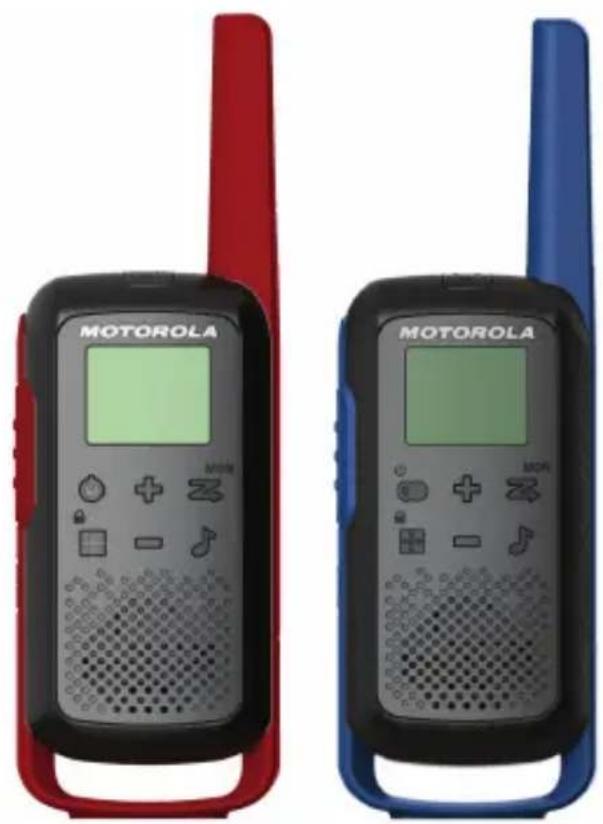
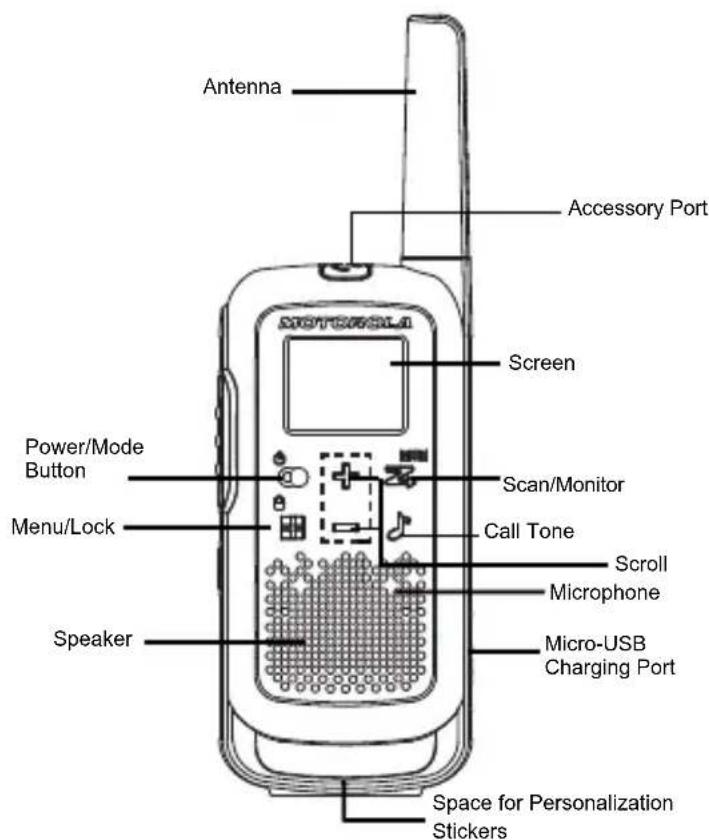
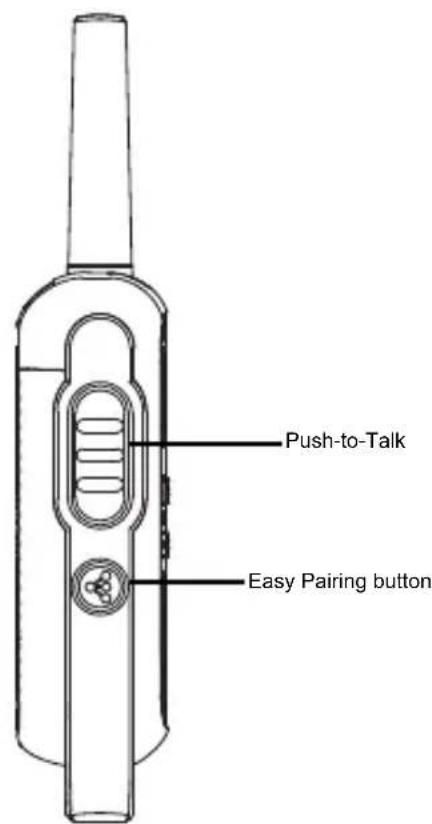
CONTROL BUTTONS
T27X Control Buttons
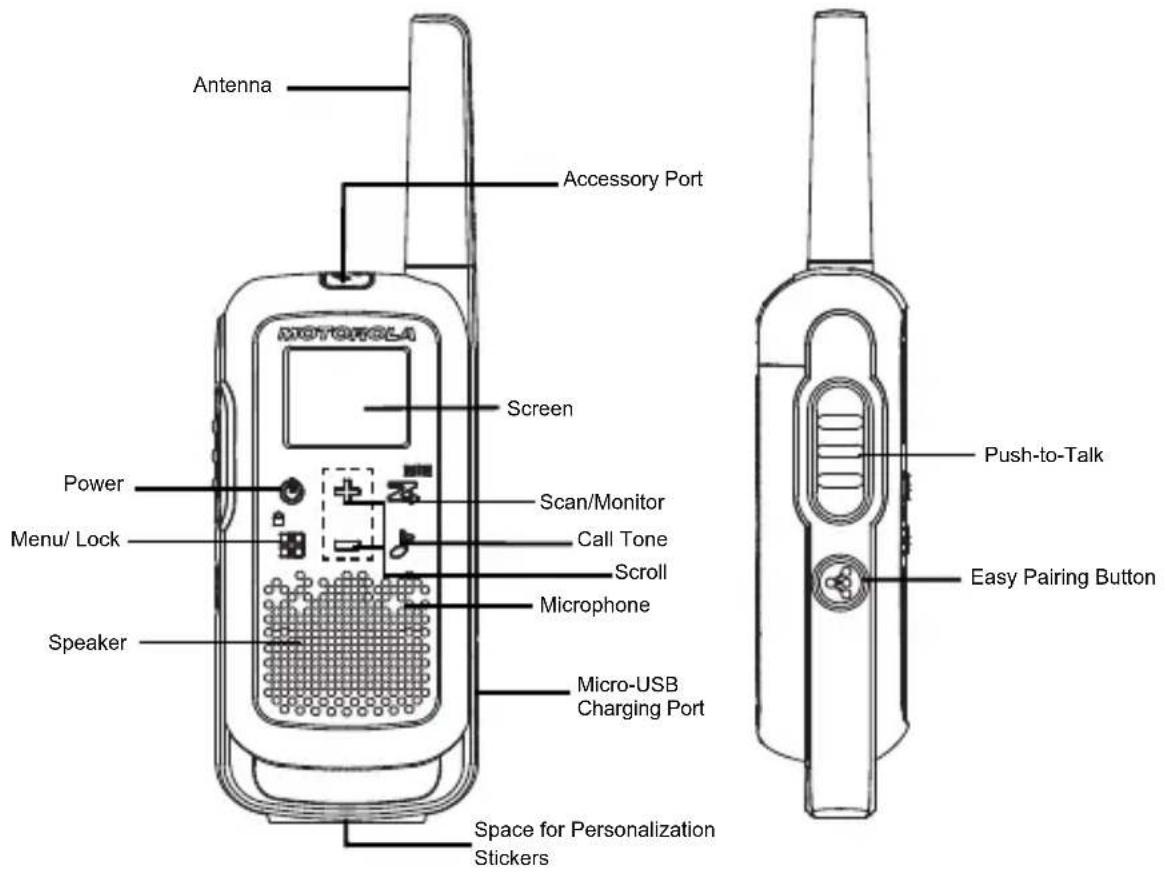
T21X Control Buttons
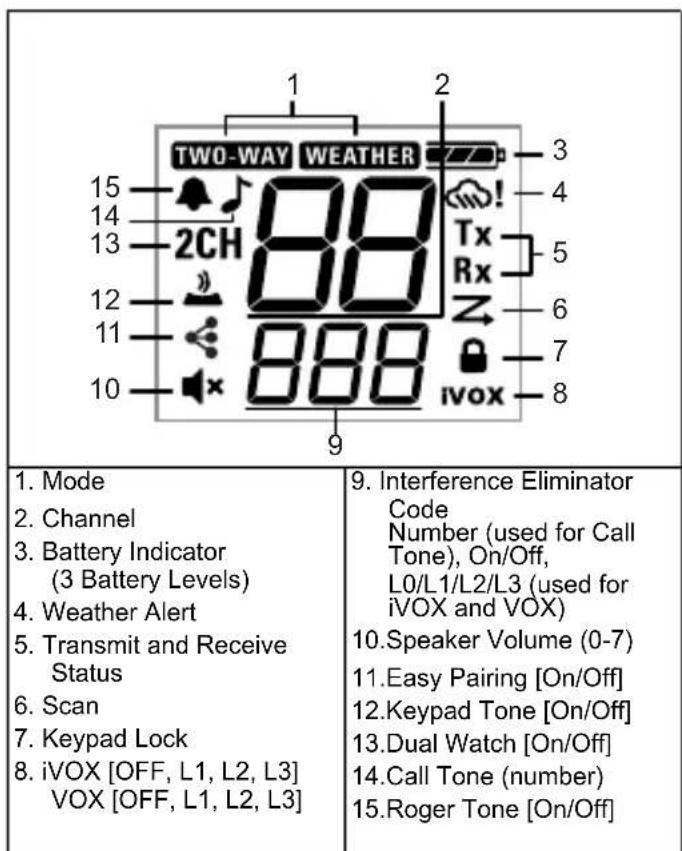
Display Screen Guide
T27X Display
T21X Display
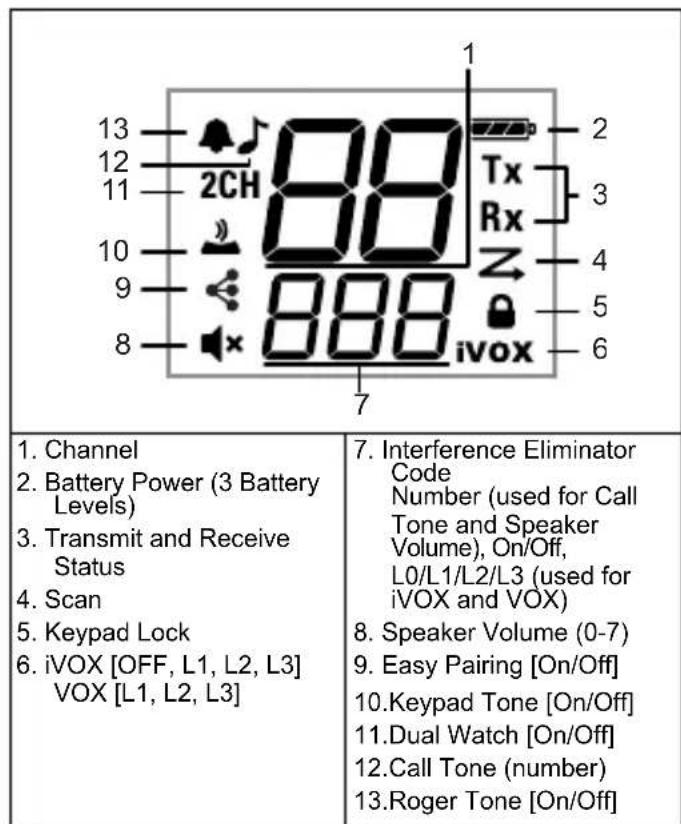
Note: The mode button is only available for T27X.
Note: The Weather Alert is only available for T27X.
GETTING STARTED
Personalization Stickers
Stickers are provided to personalize and keep track of radios. You can use permanent markers for blank stickers.
Installing the Batteries
Discard the retailer tag (loose in one of the battery compartments) before installing the batteries. Each radio can use either one NiMH rechargeable battery pack or three AA alkaline batteries and beeps when the batteries are low.
- Turn the radio off.
- With the back of the radio facing you, lift the battery cover latch up and remove the cover.
- To insert the NiMH battery pack by following the instruction on the battery pack. (The ribbon must be underneath the battery pack and must wrap around the right side of the pack for easy removal).
- To insert the three AA Alkaline batteries with + and - polarity as shown inside. (The ribbon must be underneath the AA alkaline batteries and must wrap around the right side of the batteries).
- Attach the battery cover and lock it by pressing down the latch.
Radio Battery Meter
The number of bars (0-3) on the Radio Battery icon shown indicates the charge remaining in the battery.
When the radio battery meter shows one segment left, the radio chirps periodically or after releasing the PTT button (Low Battery Alert).
Battery Capacity Maintenance
- Charge the NiMH batteries once every 3 months when not in use. After longer lapse, the start of charging in radio is delayed and can take up to five minutes.
- Before placing the radio in storage, remove the battery.
- Batteries corrode over time and may cause permanent damage to your radio.
- Store the NiMH batteries in temperature between -20^ to 35^ and in low humidity. Avoid damp conditions and corrosive materials.
Using the Micro-USB Charger
The micro-USB charger allows you to conveniently charge your NiMH battery pack.
- Power OFF your radio before you start charging.
- Plug the micro-USB cable into the micro-USB charging port on your radio.
- Connect the USB charger to a nearby and easily accessible wall power outlet.
- An empty battery is fully charged in 8 hours.
- The battery meter bar scrolls when the battery is charging.
Note:
- When moving between hot and cold temperatures, do not charge the NiMH battery pack until the battery temperature acclimates (usually about 20 minutes).
- For optimal battery life, remove the radio from the charger within 16 hours. Do not store the radio while connected to the charger.
Attaching and Removing the Belt Clip
- Attach the belt clip to the belt clip slot at the back of the radio until the clip clicks in place.
- Attach the belt clip to pocket or belt strap until the clip clicks in place.
To Remove
- Pull the release tab on top of the belt clip to release the latch.
- Push the belt clip with the other hand towards the top of radio.
Turning your Radio On and Off
Press and hold the Power button to turn the radio on or off.
- In the on position, the radio chirps and briefly shows all feature icons available on the radio.
- The display screen then shows the current channel, code, and all features that are enabled.
Setting the Volume
From Standby Mode, press on either to show the current value. Press or again to adjust the volume setting.
- Press to increase the speaker volume.
- Press to decrease the speaker volume.
Note: Do not hold the radio close to your ear. If the volume is set to an uncomfortable level, it could hurt your ear. Adjust '0' to mute the speaker.
TALKING AND LISTENING
To communicate, all radios in your group must be set to the same channel and Interference Eliminator Code.
- To talk, press and hold the PTT button. When
transmitting, TWO-way on radio
with weather mode feature) and T'shown.
- When you are finished talking, release the PTT button.
- When receiving, it's on!
radio with weather mode feature) and Rx shown.
For maximum clarity, hold the radio one inch away from your mouth and speak directly into the microphone. Do not cover the microphone while talking.
Talk Range
Your radio is designed to maximize performance and improve transmission range. Do not use the radios closer than 5 ft apart.
Monitor Button
Press and hold scan/Monitor button for three seconds to enter Monitor mode and listen for weak signals on the current channel. You can also listen to the volume level of the radio when you are not receiving. This allows you to adjust the volume, if necessary.
Push-to-Talk Timeout Timer
To prevent accidental transmissions and save battery life, the radio emits a continuous warning tone and stops transmitting if you press the PTT button for more than 60 continuous seconds.
Mode Button (Only on Radio with Weather Mode Feature)
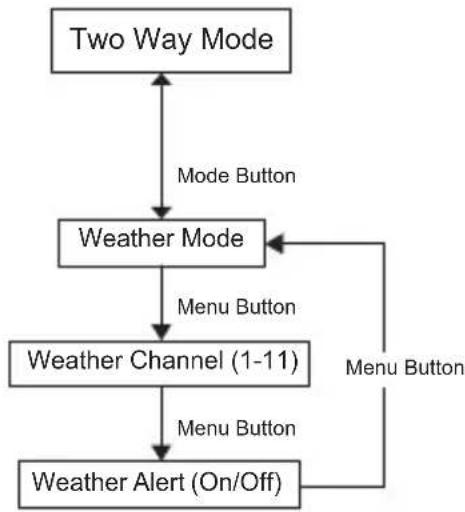
By pressing Mode button, the user seamlessly switches between two-way and weather mode. When radio is in two-way mode, TWO-WAY shown. When radio is in weather mode, WEATHER ** is shown. Corresponding setting and information is shown on the display.
MENU OPTION
Note: Weather channel broadcasts is available in US and Canada only.
Selecting the Channel
Each country model has different number of channels and frequencies. (See the "Channels and Frequencies" table on overleaf for details).
- With the radio on, press menu/Lock button until the channel number starts to flash.
- Press touchange the channel. Long press on these keys allows you to scroll through the channels rapidly.
- Press the PTT button to save the channel setting and exit Menu or Menu/Lock button to continue set up.
Selecting the Interference Eliminator Code
Interference Eliminator Codes help minimize interference by blocking transmissions from unknown sources. Your radio has 121 Interference Eliminator Codes. Codes 1-38 are standard analog codes that appear on other FRS radios. Codes 39-121 are additional digital codes added for superior interference protection. 0 is the off position, no analog or digital codes are enabled. To set the code for a channel:
- Press Menu/Lock button until the code starts to flash.
- Press to select the code. Long press on these keys allows you to scroll through the codes rapidly.
- Press the PTT button to save the code setting and exit Menu or Menu/Lock button to continue set up.
You can set a different code for each channel using this procedure.
Note: On a radio that uses Interference Eliminator Codes, the code must be set to 0 to communicate with radios that do not have Interference Eliminator Codes. Select 0 for "no tone, no code" on the display of your radio.
Setting and Transmitting Call Tones
Your radio can transmit different call tones to other radios in your group so you can alert them that you want to talk. Your radio has 20 call tones from which to choose.
To set a call tone:
- Press Menu/Lock until appears. The current call tone setting flashes.
- Press to change and hear the call tone.
- Press the PTT button to set the new call tone and exit Menu or Menu/Lock button to continue set up.
To transmit your call tone to other radios set up to the same channel and Interference Eliminator Code on your radio, and press Call Tone button.
Note: Setting the call tone to OFF to disable the call tone feature.
Internal Voice Operated Transmission/ Voice Operated Transmission (iv)px vox
Transmission is initiated by speaking into the microphone of the radio/ audio accessory instead of pushing the PTT button.
L3 = High Sensitivity for quiet environments
L2 = Medium Sensitivity for most environments
L1 = Low Sensitivity for noisy environments
- Press menu until the icon appears on the display. When audio accessory is connected, the VOX icon is shown. The current setting (Off, L1-L3) flashes.
- Press to select the sensitivity level.
- Press the PTT button to exit menu or menu to continue set up.
Note: When using iVOX/VOX, there will be a short delay.
Dual Watch Mode
Enables you to scan the current channel and another channel alternately.
To set another channel and start Dual Watch.
- Press menu/Lock until apps. The 2CH flashes.
- Press toselect the channel, then press
- Press toselect the code.
- Press the PTT button or wait until the time out to activate Dual Watch. The screen alternates between Home Channel and Dual Watch Channel.
- To end Dual Watch mode, Press icon.
Note: If you set the same channel and code as current channel, Dual Watch does not work.
Keypad Tones
You may enable or disable the speaker key tones. You hear the key tone each time a button is pushed.
- Press menu/Lock button until appears. The current setting On/Off flashes.
- Press either or to turn On or Off.
- Press the PTT button to confirm and exit Menu or Menu/Lock button to continue set up.
Note: When the keypad tone feature is off, the following are not disabled:
- Transmit timeout alert tone
Call tone - Low battery alert tone or
The transmitted talk confirmation tone
Transmitting a Talk Confirmation Tone
You can set your radio to transmit a unique tone when you finish transmitting. It is like saying "Roger" or "Over" to let others know you are finished talking.
- Press Menu/Lock button until the appears. The current setting On/Off flashes.
- Press to turn On or Off.
- Press the PTT button to set and exit Menu or continue set up.
SPECIAL FEATURES
Keypad Lock
To avoid accidentally changing your radio settings:
- Press and hold menu/Lock button until displays.
- When in lock mode, you can turn the radio ON and OFF, adjust the volume, receive, transmit, send a call tone, and monitor channels. All other functions are locked.
- To unlock the radio, press and hold menu/Lock button until is no longer displayed.
Easy Pairing
The Easy Pairing feature allows a group of radio users to program all their radios to the same Channel and Interference Eliminator Code settings quickly and simultaneously. Any one radio within the group can be designated as the "Leader's radio" and have it's Channel and Interference Eliminator Code settings transmitted to and copied by all the other radios in the group (Members' radios).
- Pick any one of the radios as the "Leader's radio". On this radio, program the Channel and Interference Eliminator Code to the desired settings.(See "Selecting the Channel" and "Selecting the Interference Eliminator Code" sections in this user manual).
- To copy the channel and Interference Eliminator Code combination to all the other "Members' radios", press and hold the button on the Members' radios until you hear a beep. Release the button after the beep, and wait for the transmission from the Leader's radio.
Note:
- The icon blinks on the display. This confirms that the radio is in Easy Pairing mode waiting to receive the Channel and Interference Eliminator Code settings from the Leader's radio. All Members' radios remain in this mode for 3 minutes.
- A group with many radios should have all users take this step at the same time, so all radios can be programmed in one go.
- On the Leader's radio, press and hold down the button until you hear a double beep.
Note:
- At the double beep, this radio's Channel and Interference Eliminator Code settings is transmitted, which is received and copied by all the other (Members') radios.
- The Leader's radio must make this transmission when all the Members' radios are still in the Easy Pairing mode, otherwise the transmission is not picked up.
- On the Leader's radio, user must remember NOT to release the button on the first (single) beep, otherwise this radio becomes another Member's radio. If that happens, you can press PTT to escape, and retry step 3.
Scanning Channels
Use scan to search all channels for transmissions from unknown parties, to find someone in your group who has accidentally changed channels or to quickly find unused channels for your own use.
There is a priority feature and two modes of scanning (basic and advanced) to make your search more effective. The Basic Scan mode uses the channel and code combinations for each of the channels as you have set them (or with the default code value of 1). The "Advanced Scan" mode scans all channels for any and all codes, detect any code in use and use that code value temporarily for that channel.
Priority is given to the "home channel", that is, the channel (and Interference Eliminator Code) your radio is set to when you start the scan. This means the initial channel (and code settings) is scanned more often than the other channels and your radio
responds quickly to any activity occurring on the home channel as a priority.
To start Basic Scanning:
- Briefly press the Scan/Monitor button. The scan
Z appears in the display and the radio begins to scroll through the channel and code combinations. - When the radio detects channel activity matching the channel and code combination, it stops scrolling and you can hear the transmission.
- To respond and talk to the person transmitting, press the PTT button within five seconds after the end of the transmission.
- The radio resumes scrolling through the channels 5 seconds after the end of any received activity.
- To stop scanning, briefly press the Scan/Monitor button.
To start Advanced Scanning:
- Set the Interference Eliminator Code to "zero" or OFF.
- Briefly press the Scan/Monitor button. The scan
Z appears in the display and the radio begins to scroll through the channels. No Interference Eliminator Codes filters what is heard.
-
When the radio detects channel activity with ANY code (or NO code), it stops scrolling and you can hear the transmission. Any Interference Eliminator Code that may be in use by that party is detected and displayed.
-
To respond and talk to the person transmitting, press the PTT button within 5 seconds of the end of the transmission. The radio transmits using the newly detected Interference Eliminator Code.
- The radio resumes scrolling through the channels 5 seconds after the end of any received activity.
- To stop scanning, briefly press the Scan/Monitor button.
Scanning Notes:
- If you press the PTT button while the radio is scrolling through inactive channels, the transmission is on the "home channel". Scanning resumes five seconds after the end of your transmission. You may press the Scan/Monitor button to stop scanning at any time.
- If the radio stops on an undesired transmission, you may immediately resume the scan by briefly pressing or
- If the radio repeatedly stops on an undesired transmission, you may temporarily remove that channel from the scan list by pressing and holding for 3 seconds. You may remove more than one channel in this way.
- To restore the removed channel(s) to the scan list, turn the radio off and then turn back on, or exit and re-enter the scanning mode by pressing Scan/Monitor button.
-
You cannot remove the home channel from the scan list.
-
In Advanced Scan, the detected code is only used for one transmission. You must note that code, exit scan and set that detected code on that channel to permanently use the detected code.
WEATHER RECEIVER
Note: Weather feature is not available on model T21X. Weather feature is available on model T27X designed for use in USA and Canada.
Your radio can tune in to broadcasts by the United States National Oceanic and Atmospheric Administration (NOAA) Weather Radio and Environment and Climate Change Canada (ECCC) Weather Radio. You can listen to a weather channel (see "Weather Channels and Frequencies" table for details) or set your radio to alert you to emergency weather broadcasts that interrupt routine broadcasts. When you listen to a weather channel, you cannot use your radio in scan mode or for two-way communications.
Both NOAA and ECCC have transmitters located throughout the United States and Canada, respectively. These transmitters broadcast watches, forecasts, and other information 24 hours a day.
Note: NOAA weather radio stations are assigned to cover specific areas and service may be limited. Please check with your local weather office for frequency and details or visit www.weather.gov/nwr in the US to view the appropriate transmitter
for your area. The use of the NOAA logo does not provide an endorsement or implied endorsement by the National Weather Service of NOAA, nor does the use of the Weather Radio logo provide an endorsement or implied endorsement by Environment and Climate Change Canada (ECCC).
Entering Weather Mode
1.From two-way mode,press Mode button to enter
weather mode
WEATHER
Setting the Weather Channel
Your radio receives weather frequencies:
- In weather mode, press menu/Lock button until weather channel number flashes.
- Press to select the appropriate channel with good reception in your area.
- Press the PTT button to set and exit Menu or Menu/Lock button to continue set up weather alert.
Setting the Weather Alert
Your radio can be set to respond to NOAA Weather Radio emergency messages. A special alarm tone sounds an alert and turns on the weather receiver to give you immediate weather and emergency information.
-
In weather mode press Menu/Lock button twice until ! displays.
-
Press toselect On/Off.
- Press the PTT button or Menu/Lock button to exit the weather menu set up.
- Press Mode button to return to two-way mode. If you activate Weather Alert and return to two-way mode is display.
Note: When the weather channel is activated, either manually or after receiving an alert, and no buttons are pressed for 5 minutes, the weather mode automatically revert to two-way mode.
As with two-way radio reception, weather channel reception depends on how close you are to a transmitter and whether you are indoors or outdoors. Because weather channels are transmitted without codes, they may contain static or noise. Weather Alert does not function while actively transmitting or receiving in two-way mode.
Weather Channels and Frequencies
| Weather Channel | Frequency (MHz) | Weather Channel | Frequency (MHz) |
| WX1 16 | 2.550 WX7 162.525 | ||
| WX2 16 | 2.400 WX8 161.650 | ||
| WX3 16 | 2.475 WX9 161.775 | ||
| WX4 16 | 2.425 WX10 161.750 | ||
| WX5 16 | 2.450 WX11 162.000 | ||
| WX6 16 | 2.500 |
CHANNELS AND FREQUENCIES
This FRS device is approved for USA and Canada. USA, Canada, Mexico, and Panama.
| Channel | Frequency (MHz) | Max Power Output | Channel | Frequency (MHz) | Max Power Output |
| 1 462 | 5625 2 W 12 | 467.6625 | 0.5 W | ||
| 2 462 | 5875 2 W 13 | 467.6875 | 0.5 W | ||
| 3 462 | 6125 2 W 14 | 467.7125 | 0.5 W | ||
| 4 462 | 6375 2 W 15 | 462.5500 | 2 W | ||
| 5 462 | 6625 2 W 16 | 462.5750 | 2 W | ||
| 6 462 | 6875 2 W 17 | 462.6000 | 2 W | ||
| 7 462 | 7125 2 W 18 | 462.6250 | 2 W | ||
| 8 467 | 5625 0.5 W 19 | 462.6500 | 2 W | ||
| 9 467 | 5875 0.5 W 20 | 462.6750 | 2 W | ||
| 10 467 | 6125 0.5 W | 21 462.7000 | 2 W | ||
| 11 467 | 6375 0.5 W | 22 462.7250 | 2 W |
Remark: Power refers to maximum allowable power as defined by FCC/ISED for each channel under FRS rules for USA and FRS/GMRS for Canada and is not a reflection of the power specification of the radio.
Brazil Chile
| Channel | Frequency (MHz) | Channel | Frequency (MHz) |
| 1 462.5625 14 467.5625 | |||
| 2 462.5750 15 467.5750 | |||
| 3 462.5875 16 467.5875 | |||
| 4 462.6000 17 467.6000 | |||
| 5 462.6125 18 467.6125 | |||
| 6 462.6250 19 467.6250 | |||
| 7 462.6375 20 467.6375 | |||
| 8 462.6500 21 467.6500 | |||
| 9 462.6625 22 467.6625 | |||
| 10 462.6750 23 467.6750 | |||
| 11 462.6875 24 467.6875 | |||
| 12 462.7000 25 467.7000 | |||
| 13 462.7125 26 467.7125 |
| Channel | Frequency (MHz) | Channel | Frequency (MHz) |
| 1 462.5500 18 467.6000 | |||
| 2 462.5625 19 467.6250 | |||
| 3 462.5750 20 467.6500 | |||
| 4 462.5875 21 467.6750 | |||
| 5 462.6000 22 467.7000 | |||
| 6 462.6125 23 467.7250 | |||
| 7 462.6250 24 467.8125 | |||
| 8 462.6375 25 467.8250 | |||
| 9 462.6500 26 467.8375 | |||
| 10 462.6625 27 467.8500 | |||
| 11 462.6750 28 467.8625 | |||
| 12 462.6875 29 467.8750 | |||
| 13 462.7000 30 467.8875 | |||
| 14 462.7125 31 467.9000 | |||
| 15 462.7250 32 467.9150 | |||
| 16 467.5500 33 467.9250 | |||
| 17 467.5750 -- | |||
Peru
| Channel | Frequency (MHz) | Channel | Frequency (MHz) |
| 1 462.5625 8 467.5625 | |||
| 2 462.5875 9 467.5875 | |||
| 3 462.6125 10 467.6125 | |||
| 4 462.6375 11 467.6375 | |||
| 5 462.6625 12 467.6625 | |||
| 6 462.6875 13 467.6875 | |||
| 7 462.7125 14 467.7125 | |||
ACCESSIONS
For more information on convenient power, carry and audio accessories to optimize your Talkabout Two-Way Radios, visit www.motorolasolutions.com/talkaboutaccessories.
WARRANTY
Consumer Two-Way Radio Products and Accessories purchased in the United States, Canada, Mexico, Panama, Brazil, Chile, and Peru
What Does this Warranty Cover?
Subject to the exclusions contained below, Motorola Solutions, Inc. ("Motorola") warrants the Motorola branded consumer two-way radios that operate via Family Radio Service or General Mobile Radio Service ("Products"), the Motorola branded or certified accessories sold for use with these Products ("Accessories") to be free from defects in materials and workmanship under normal consumer usage for the period(s) outlined below. This limited warranty is the exclusive remedy of a consumer, and applies as follows to new Products and Accessories and purchased by consumers in the USA, Canada, Mexico, Panama, Brazil, Chile, and Peru, which are accompanied by this written warranty:
Who is Covered?
This warranty extends only to the first consumer purchaser, and is not transferable.
What will MOTOROLA SOLUTIONS, INC. do?
Motorola Solutions, Inc., at its option, will at no charge repair, replace or refund the purchase price of any Products or
Accessories that do not conform to this warranty. We may use functionally equivalent reconditioned/ refurbished/pre-owned or new Products or Accessories.
What Other Limitations Are There?
Any Implied Warranties, Including Without Limitation. The implied warranties of merchantability and fitness for a particular purpose, shall be limited to the duration of this limited warranty, otherwise the repair, replacement, or refund as provided under this express limited warranty is the exclusive remedy of the consumers, and is provided in lieu of all other warranties, express or implied.
In no event shall Motorola Solutions be liable, whether in contract or tort (including negligence) for damages in excess of the purchase price of the product or accessory, or for any indirect, incidental, special or consequential damages of any kind, or loss of revenue or profits, loss of business, loss of information or other financial loss arising out of or in connection with the ability or inability to use the products or accessories to the full extent these damages may be disclaimed by law.
Some states and jurisdictions do not allow the limitation or exclusion of incidental or consequential damages, or limitation on the length of an implied warranty, so the above limitations or exclusions may not apply to you. This warranty gives you specific legal rights, and you may also have other rights that vary from state to state or from one jurisdiction to another.
USA, Canada, Mexico, and Panama
| Products Covered | Length Of Coverage |
| Products and Accessories as defined above, unless otherwise provided for below. | Two (2) years from the date of purchase by the first consumer purchaser of the product unless otherwise provided for below. |
| Products and Accessories that are repaired or replaced. | The balance of the original warranty or for ninety (90) days from the date returned to the consumer, whichever is longer. |
Brazil, Chile, and Peru
| Products Covered Length Of Coverage | |
| Products and Accessories as defined above, unless otherwise provided for below. | One (1) year from the date of purchase by the first consumer purchaser of the product unless otherwise provided for below. |
| Batteries whose fully charged capacity falls below 80 % of their rated capacity and batteries that leak. | |
| Products and Accessories that are repaired or replaced. | The balance of the original warranty or for ninety (90) days from the date returned to the consumer, whichever is longer. |
Exclusions From Warranty Coverage
Products Covered
Normal Wear and Tear:
Periodic maintenance, repair and replacement of Products or Accessories due to normal wear and tear.
Abuse & Misuse:
Defects or damage that result from: (a) improper operation, storage, misuse or abuse, accident or neglect, such as physical damage (cracks, scratches, etc.) to the surface of the Products and Accessories resulting from misuse; (b) contact with liquid, water, rain, extreme humidity or heavy perspiration, sand, dirt or the like, extreme heat, or food; (c) use of the Products or Accessories for commercial purposes or subjecting the Product or Accessory to abnormal usage or conditions; or (d) other acts which are not the fault of Motorola Solutions.
Use of Non-Motorola Solutions branded Products and Accessories:
Defects or damage that result from the use of Non-Motorola Solutions branded or certified products, accessories, software or other peripheral equipment.
Exclusions From Warranty Coverage
Products Covered
Unauthorized Service or Modification:
Defects or damages resulting from service, testing, adjustment, installation, maintenance, alteration, or modification in any way by someone other than Motorola Solutions or its authorized service centers.
Altered Products:
Products or Accessories with (a) serial numbers or date tags that have been removed, altered or obliterated; (b) broken seals or that show evidence of tampering; (c) mismatched board serial numbers; or (d) nonconforming or non-Motorola Solutions branded housings, or parts.
Communication Services:
Defects, damages, or the failure of Products or Accessories due to any communication service or signal you may subscribe to or use with the Products or Accessories.
How to Obtain Warranty Service or Other Information?
To obtain service or information, please call
USA and Canada Two-Way Radios
1-800-448-6686.
www.motorolasolutions.com/talkabout
Latin America
Toll free:
Mexico 001-855-241-8253
Panama 001-800-507-3589
Brazil 0800-892-4264
Peru 0800-55979
Chile 123-0020-2126
www.motorolasolutions.com/es_xl/support.html
Toll or long distance:
Spanish +1 630-203-5826
Portuguese +001.312.725.5373
English +1 630-203-5824
Brazil + 55 11 3525-3055 and 3056
For Accessories:
Please call the telephone number designated above for the Product with which they are used. You will receive instructions on how to ship the Products or Accessories at your expense, to Motorola Solutions or a Motorola Solutions Authorized Repair Center. To obtain service, you must include: (a) a copy of your receipt, bill of sale or other comparable proof of purchase; (b) a written description of the problem; (c) the name of your service provider, if applicable; (d) the name and location of the installation facility (if applicable) and, most importantly; (e) your address and telephone number.
For more information, please visit us at:

https://www.facebook.com/MotorolaTalkaboutWalkieTalkies

http://bit.ly/Talkabout
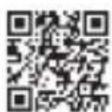
www.motorolasolutions.com/ talkabout
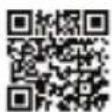
www.motorolasolutions.com/ talkabout/pt (Portuguese)
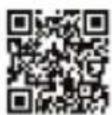
www.motorolasolutions.com/ talkabout/es (Spanish)
Notes
RENSEIGNEMENTS GENÉRAUX ET DES SECURITÉ
Mise en garde
- https://www.fcc.gov/
- http://www.who.int/peh-emf/project/en/
- http://www.ic.gc.ca/eic/site/smt-gst.nsf/eng/ sf11467.html
- http://www.ic.gc.ca/eic/site/smt-gst.nsf/eng/ sf01904.html
Pour en savoir plus, voir
https://www.motorolasolutions.com/en_us/about/
company-overview/corporate-responsibility/
governance-and-policies.html
www.motorolasolutions.com/talkabout
Amérique latine
Numéro sans frais :
https://www.motorolasolutions.com/fr_ca/support.html
http://bit.ly/Talkabout
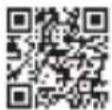
www.motorolasolutions.com/talkabout
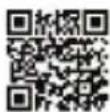
www.motorolasolutions.com/ talkabout/pt (portugais)
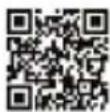
www.motorolasolutions.com/ talkabout/es (espagnol)
- https://www.fcc.gov/
- http://www.who.int/peh-emf/project/en/
- http://www.ic.gc.ca/eic/site/smt-gst.nsf/eng/ sf11467.html
- http://www.ic.gc.ca/eic/site/smt-gst.nsf/eng/ sf01904.html
Para Obtener informacion adicular, consulte https://www.motorolasolutions.com/en_us/about/ company-overview/corporate-responsibility/ governance-and-policies.html
www.motorolasolutions.com/talkabout
Latinoamérica
Número de téléphone Gratis:
Mexico 001-855-241-8253
Panama 001-800-507-3589
Portugues +001.312.725.5373
http://bit.ly/Talkabout
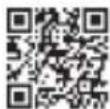
www.motorolasolutions.com/talkabout
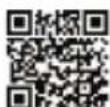
www.motorolasolutions.com/ talkabout/pt (portugués)
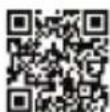
www.motorolasolutions.com/ talkabout/es (español)
- https://www.fcc.gov/
- http://www.who.int/peh-emf/project/en/
- http://www.ic.gc.ca/eic/site/smt-gst.nsf/eng/ sf11467.html
- http://www.ic.gc.ca/eic/site/smt-gst.nsf/eng/ sf01904.html
Para obter informacoes adcionais, consulte https://www.motorolasolutions.com/en_us/about/ company-overview/corporate-responsibility/ governance-and-policies.html
Temporizador de limite do botão PTT (Push-to-Talk)
www.motorolasolutions.com/talkabout
América Latina
Ligação gratuita:
www.motorolasolutions.com/pt_xl/support.html
Portugues +001.312.725.5373
http://bit.ly/Talkabout
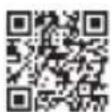
www.motorolasolutions.com/talkabout
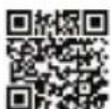
www.motorolasolutions.com/ talkabout/pt (Portugues)
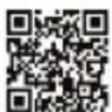
www.motorolasolutions.com/ talkabout/es (espanhol)
Notas
(Brasil)
Portuques
Notas
Notas

MOTOROLA SOLUTIONS
MOTOROLA, MOTO, MOTOROLA SOLUTIONS and the Stylized M logo are trademarks or registered trademarks of Motorola Trademark Holdings, LLC and are used under license. All other trademarks are the property of their respective owners. © 2021 Motorola Solutions, Inc. All rights reserved.
Printed in

MN006555A01-AC