Phoenix - Earphones Urbanista - Free user manual and instructions
Find the device manual for free Phoenix Urbanista in PDF.



| Product type | Wireless in-ear headphones |
| Brand | Urbanista |
| Model | Phoenix |
| Charging technology | USB-C and Powerfoyle solar cells |
| Battery life | Virtually unlimited thanks to continuous solar charging |
| Noise cancellation | Active (ANC) and Transparency mode |
| Connectivity | Bluetooth multipoint (up to 2 devices simultaneously) |
| Controls | Touch: double/triple tap, customizable long press |
| App | Urbanista Audio (iOS/Android) for customization and battery tracking |
| Case LED indicator | Orange (charge 0-30%), White (charge 30-100%), solid at 100% |
| Included ear tips | Silicone, multiple sizes |
| Compatibility | iOS and Android |
| Box contents | Earbuds, charging case, USB-C cable, ear tips |
| Reset | Full reset via long press outside case |
| Voice assistant | Activatable by long press on left side |
| Maintenance | Clean ear tips with a soft cloth |
| General information | Online support: https://support.urbanista.com/ |
Frequently Asked Questions - Phoenix Urbanista
User questions about Phoenix Urbanista
0 question about this device. Answer the ones you know or ask your own.
Ask a new question about this device
Download the instructions for your Earphones in PDF format for free! Find your manual Phoenix - Urbanista and take your electronic device back in hand. On this page are published all the documents necessary for the use of your device. Phoenix by Urbanista.
USER MANUAL Phoenix Urbanista
natural_image
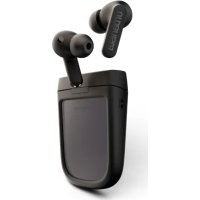
Black wireless earbuds and a black compact device (no visible text or symbols)urbanista
ENGLISH (EN) 04
ESPAÑOL (ES) 07
DEUTSCH (DE) 10
FRANÇAIS (FR) 13
ITALIANO (IT) 16
PORTUGUÊS (PT) 19
SVENSKA (SV) 22
日本語 (JA) 25
简体中文 ^(ZH) 28
EESTI KEEL (EE) 30
LIETUVI ^(LT) 33
LATVISKI (LV) 36
БЪЛГАРСКИ (BG) 39
ČEŠTINA (CZ) 42
ROMÂNĂ (RO) 45
SLOVENČINA (SK) 48
TÜRKCE (TR) 51
ا لعر بية 54
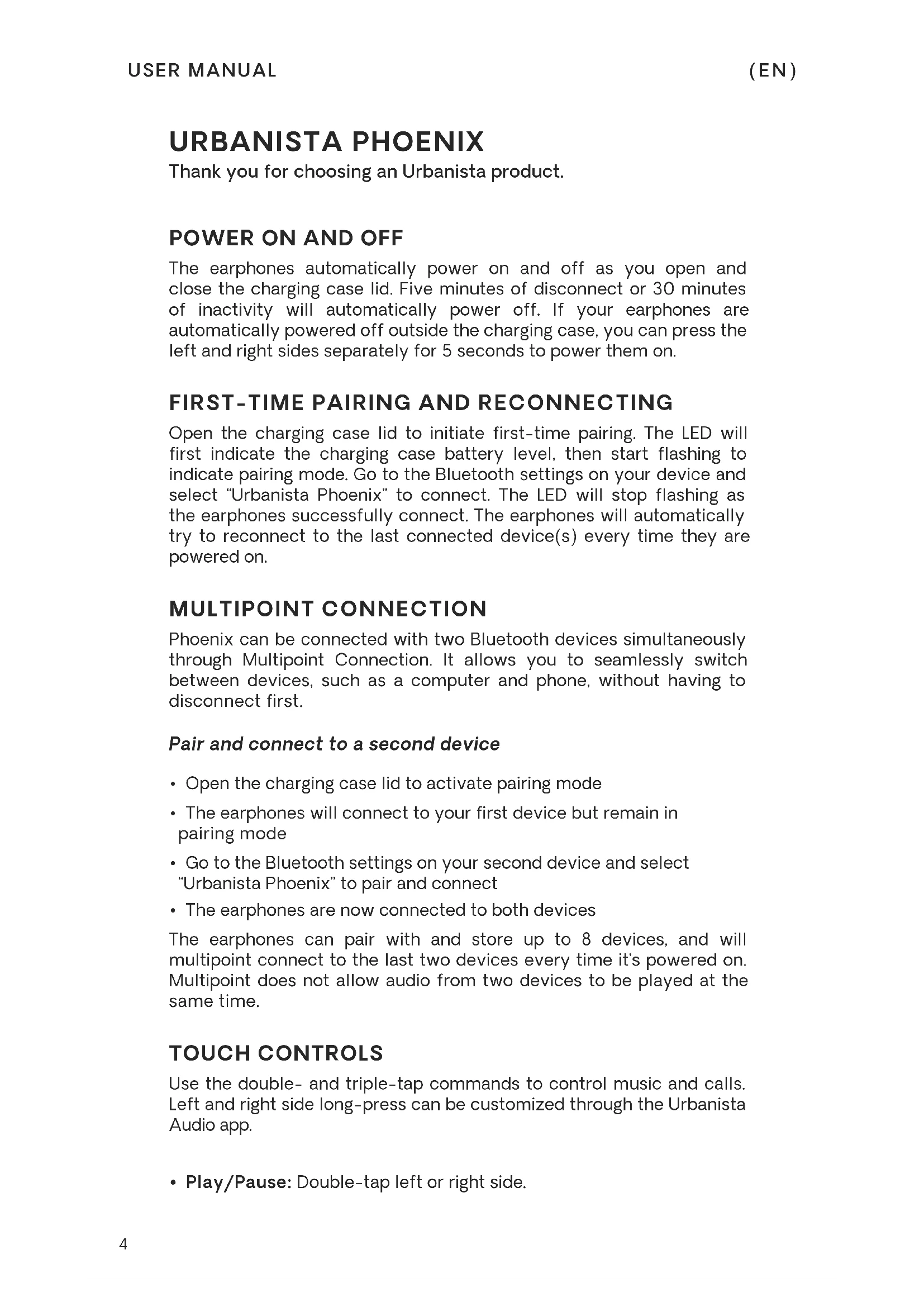
URBANISTA PHOENIX
Thank you for choosing an Urbanista product.
POWER ON AND OFF
The earphones automatically power on and off as you open and close the charging case lid. Five minutes of disconnect or 30 minutes of inactivity will automatically power off. If your earphones are automatically powered off outside the charging case, you can press the left and right sides separately for 5 seconds to power them on.
FIRST-TIME PAIRING AND RECONNECTING
Open the charging case lid to initiate first-time pairing. The LED will first indicate the charging case battery level, then start flashing to indicate pairing mode. Go to the Bluetooth settings on your device and select "Urbanista Phoenix" to connect. The LED will stop flashing as the earphones successfully connect. The earphones will automatically try to reconnect to the last connected device(s) every time they are powered on.
MULTIPOINT CONNECTION
Phoenix can be connected with two Bluetooth devices simultaneously through Multipoint Connection. It allows you to seamlessly switch between devices, such as a computer and phone, without having to disconnect first.
Pair and connect to a second device
- Open the charging case lid to activate pairing mode
- The earphones will connect to your first device but remain in pairing mode
- Go to the Bluetooth settings on your second device and select "Urbanista Phoenix" to pair and connect
• The earphones are now connected to both devices
The earphones can pair with and store up to 8 devices, and will multipoint connect to the last two devices every time it's powered on. Multipoint does not allow audio from two devices to be played at the same time.
TOUCH CONTROLS
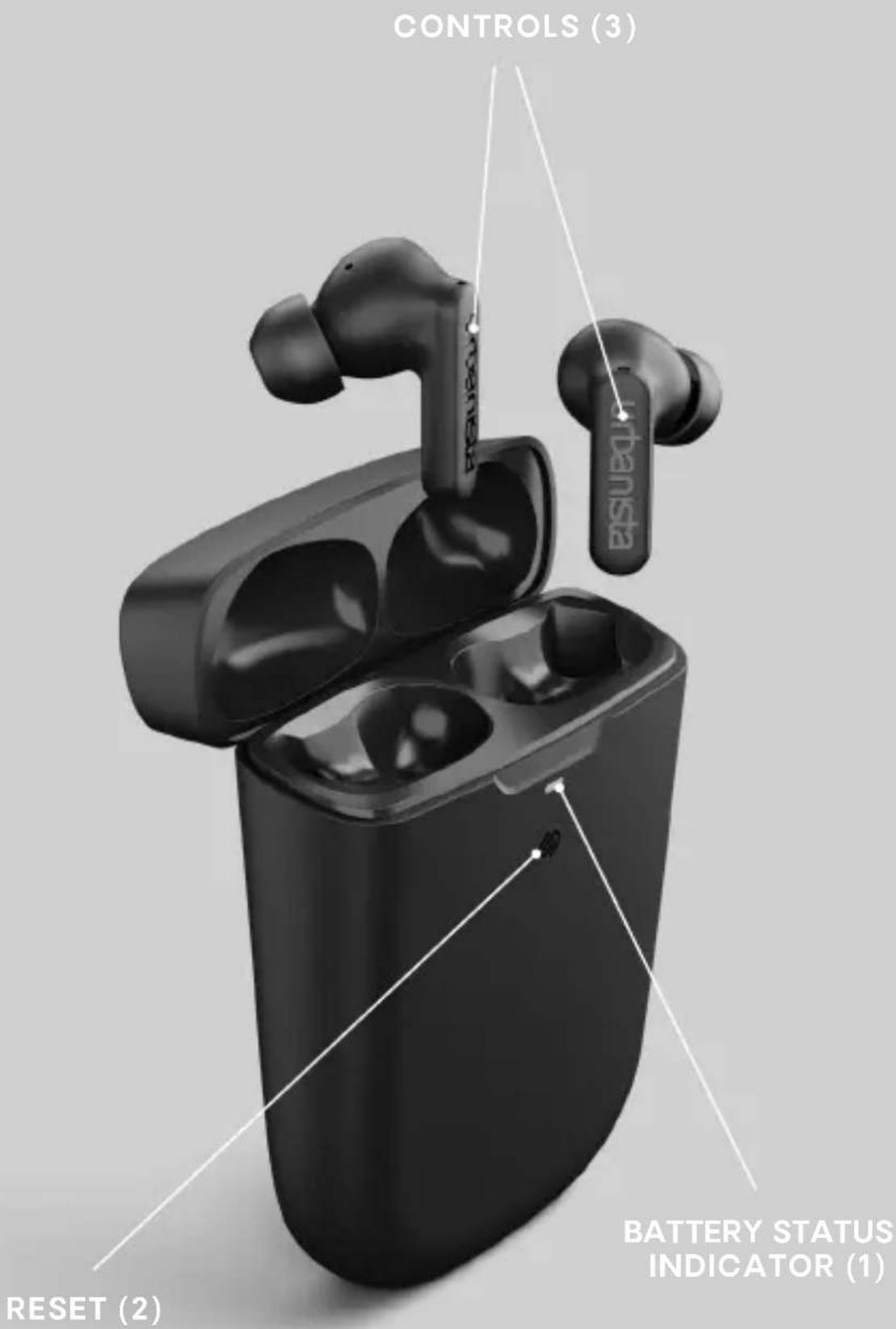
Use the double- and triple-tap commands to control music and calls. Left and right side long-press can be customized through the Urbanista Audio app.
- Play/Pause: Double-tap left or right side.
- Previous song: Triple-tap left side.
- Next song: Triple-tap right side.
- Answer/Hang-up: Double-tap left or right side.
- Reject a call: Long-press left or right side.
- Activate voice assistant: Long-press left side.
- Toggle between ANC and Transparency: Long-press right side
CHARGING AND BATTERY
Urbanista Phoenix has a built-in Powerfoyle™ solar cell that continuously charges your earphones' charging case whenever exposed to light - outdoor or indoor - providing you with virtually infinite playtime. The stronger the light, the more effective is the charging.
The earphones will automatically start charging when put back into the charging case. A “low battery” voice prompt will notify you when there are 30 minutes of playtime remaining, after which the earphones will automatically turn off.
Use the included USB Type-C cable connected to a power source to charge the case. The "Battery Status Indicator" (1) will pulse during charging and continuously lit when the case is fully charged.
• 0-30 % - LED pulses amber
• 30-100 % - LED pulses white
• 100 % - LED turns solid white
THE URBANISTA AUDIO APP
The Urbanista Audio app is the perfect companion for your Urbanista Phoenix earphones, available for both iOS and Android. The app allows you to customize features and personalize the way you use and experience your Urbanista products. Use the app to track Phoenix' light charging performance and history to better understand and optimize its battery life.
SILICONE TIPS
The included silicone tips come in three different sizes. Choose a size that comfortably fits your ears and provides an effective seal.
RESET
Should the earphones fail to connect, be unstable or unresponsive, please follow the below steps:
- Put the earphones back in the charging case and close the lid. Reopen after 10 seconds to pair or reconnect to your device.
Should the problem persist, please follow the below steps for a full reset:
- Delete "Urbanista Phoenix" from the Bluetooth settings on your device.
- With the earphones in the charging case, press the reset button (2) for 10 seconds until the LEDs turn solid. The earphones will restart and initiate pairing mode.
- Follow the instructions in "First Time Pairing and Reconnecting" to reconnect to your earphones.
TROUBLESHOOTING
If you have any additional questions, please visit our online help center where you will find our FAQs and an online version of this manual: https://support.urbanista.com/