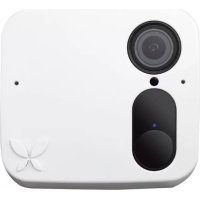
SmartCam - Surveillance Camera Ooma - Free user manual and instructions
Find the device manual for free SmartCam Ooma in PDF.


| Product type | Indoor/Outdoor smart surveillance camera |
| Brand | Ooma |
| Model | SmartCam |
| Video resolution | Full HD 1080p (30 fps) with 8x digital zoom |
| Field of view | 130 degrees |
| Night vision | Yes, with IR illumination for total darkness vision |
| Audio | Built-in microphone and speaker for semi-duplex two-way intercom |
| Motion detection | Passive infrared (PIR) detector and accelerometer |
| Facial recognition | Yes, AI-based with machine learning |
| Built-in storage | 16 GB (local recording without Wi-Fi) |
| Cloud storage | Up to 90 days depending on subscription |
| Connectivity | Wi-Fi 802.11 b/g/n (2.4 GHz) and Bluetooth 4.2 |
| Power | Rechargeable 6000 mAh lithium-ion battery (up to 6 months in normal use) + 5V DC 2A power adapter (micro-USB) |
| Protection rating | IP65 (weather-resistant, not submersible) |
| Dimensions (L x W x H) | 83.01 x 40.91 x 73 mm |
| Weight | 500 g |
| Operating temperature | -20 °C to 45 °C |
| Smart features | Automatic privacy mode (geofencing), programmable notifications, event filter, local network streaming |
| Updates | Automatic or manual firmware and app updates |
| Certifications | UL, FCC, IC, CE |
| Box contents | Camera, wall mount and magnetic bolt, screws and anchors, micro-USB cable, power adapter |
| Maintenance | Clean with a soft dry cloth. Do not immerse in water. |
| Security | AES-256 encryption, WPA/WPA2 secure connection |
Frequently Asked Questions - SmartCam Ooma
User questions about SmartCam Ooma
0 question about this device. Answer the ones you know or ask your own.
Ask a new question about this device
Download the instructions for your Surveillance Camera in PDF format for free! Find your manual SmartCam - Ooma and take your electronic device back in hand. On this page are published all the documents necessary for the use of your device. SmartCam by Ooma.
USER MANUAL SmartCam Ooma
Contents
- Welcome to Ooma Smart Cam! . . . . . . . . . . . . . . . . . . . . . . . . . . . . 06
How Ooma Smart Cam Works .08
- Setting up Ooma Smart Cam . . . . . . . . . . . . . . . . . . . . . . . . . . . . . . . . . . 09
Getting Started .09
Adding Ooma Smart Cam to an Existing Account . . . . . . . . . . . . . . . . . . . . . . . . . . . . . . . . . . . . . . . . . . . . . . 10
Ooma Smart Cam LED Blink Codes .....11
Firmware Updates . . . . . . . . . . . . . . . . . . . . . . . . . . . . . . . . . . . . . . . . . . . . . . . . . . . . . . . . . . . 12
App Updates .12
Finding the Best Location for Your Ooma Smart Cam .....13
Using Your Ooma Smart Cam Unplugged and Offline . . . . . . . . . . . . . . . . . . . . . . . . . . . . . . . . . . . . . . . . . . . . . . . . . . 15
Physical Installation of the Smart Cam .....16
- Faces (Advanced Facial Recognition) ..... 19
Understanding Facial Recognition on your Camera . . . . . . . . . . . . . . . . . . . . . . . . . . . . . . . . . . . . . . . . . . . . . . . . . . 19
How Faces Works . . . . . . . . . . . . . . . . . . . . . . . . . . . . . . . . . . . . . . . . . . . . . . . . . . . . . . . . . 20
Using Faces . . . . . . . . . . . . . . . . . . . . . . . . . . . . . . . . . . . . . . . . . . . . . . . . . . . . . . . . . . . 21
4. Live Streaming and Viewing Recorded Events .....22
Viewing the Camera's Feeds & Events Page. . . . . . . . . . . . . . . . . . . . . . . . . . . . . . . . . . . . . . . . . . . . 22
Viewing the Camera's Livestream . . . . . . . . . . . . . . . . . . . . . . . . . . . . . . . . . . . . . . . . . . . . . . . . . . 22
Panning and Zooming Video . . . . . . . . . . . . . . . . . . . . . . . . . . . . . . . . . . . . . . . . . . . . . . . . . . . . 23
Livestream Recording . . . . . . . . . . . . . . . . . . . . . . . . . . . . . . . . . . . . . . . . . . . . . . . . . . . . . . . . . 23
Two-Way Talk . . . . . . . . . . . . . . . . . . . . . . . . . . . . . . . . . . . . . . . . . . . . . . . . . . . . . . . . . . . . . . 24
Viewing Timeline Recordings .....24
Sharing, Managing, and Downloading Recordings .....25
5. Features, Rules, and Smart Alerts ..... 26
Power and Internet Outages . . . . . . . . . . . . . . . . . . . . . . . . . . . . . . . . . . . . . . . . . . . . . . . . . . . . . . . 26
Privacy Mode / Arm & Disarm Mode .....26
Managing Notifications . . . . . . . . . . . . . . . . . . . . . . . . . . . . . . . . . . . . . . . . . . . . . . . . . . . . . . . . . . 28
Timeline Filtering . . . . . . . . . . . . . . . . . . . . . . . . . . . . . . . . . . . . . . . . . . . . . . . . . . . . . . . . . . . . . . . 28
Local Network Streaming 29
- Settings 30
Wi-Fi Preferences . . . . . . . . . . . . . . . . . . . . . . . . . . . . . . . . . . . . . . . . . . . . . . . . . . . . . . . . . 30
Notifications .30
Enable/Disable Audio . . . . . . . . . . . . . . . . . . . . . . . . . . . . . . . . . . . . . . . . . . . . . . . . . . . . . . . . 30
Changing the Camera's Name . . . . . . . . . . . . . . . . . . . . . . . . . . . . . . . . . . . . . . . . . . . . . . . . . . . . . . 31
Camera Status. 31
Remaining Battery . . . . . . . . . . . . . . . . . . . . . . . . . . . . . . . . . . . . . . . . . . . . . . . . . . . . . . . . . . 31
Firmware Version . . . . . . . . . . . . . . . . . . . . . . . . . . . . . . . . . . . . . . . . . . . . . . . . . . . . . . . . . . 32
MAC Address . . . . . . . . . . . . . . . . . . . . . . . . . . . . . . . . . . . . . . . . . . . . . . . . . . . . . . . . . . . 32
- Personalizing Your Ooma Smart Cam .....33
Profile Settings 33
Sharing Login Credentials . . . . . . . . . . . . . . . . . . . . . . . . . . . . . . . . . . . . . . . . . . . . . . . . . . . . 33
- Managing Your Premium Plan Membership with Ooma Smart Cam . . . 34
Upgrading to a Membership Plan . . . . . . . . . . . . . . . . . . . . . . . . . . . . . . . . . . . . . . . . . . . . . . . 34
Cancelling a Paid Plan . . . . . . . . . . . . . . . . . . . . . . . . . . . . . . . . . . . . . . . . . . . . . . . . . . . . . . . . . . 36
-
FAQs and Troubleshooting . . . . . . . . . . . . . . . . . . . . . . . . . . . . . . . . 37
-
Technical Specifications. . . . . . . . . . . . . . . . . . . . . . . . . . . . . . . 3

1 Welcome to Ooma Smart Cam!
What Ooma Smart Cam Can Do for You
Ooma Smart Cam is a smart indoor/outdoor video security camera that records every event it sees. Equipped with high-accuracy motion detection sensors and advanced, AI-powered facial recognition, the camera continues to operate under all conditions, including internet and power outages. The Ooma Smart Cam camera can be plugged in using the power adapter, or it can operate using its built-in rechargeable battery. Since it connects to your Wi-Fi network and does not require a base station, it can be used in any household configuration.
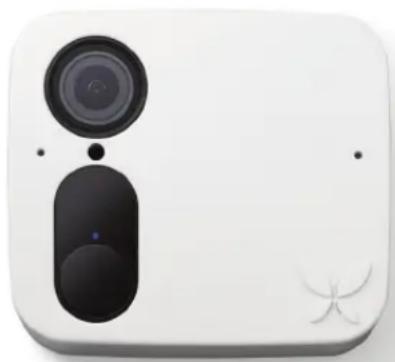
The Ooma Smart Cam boasts many advanced features, including:
FACIAL RECOGNITION – The artificial intelligence built-into the Ooma Smart Cam and its cloud storage service lets users train the camera to recognize faces. Facial recognition can significantly reduce false positives, common in other home security cameras, where friends or family members trigger unnecessary alerts. The camera also detects unknown faces and saves them. Users can access a list of unknown faces and a detailed report of events that have triggered the camera directly through the app.
FULL HD 1080P VIDEO WITH ADVANCED NIGHT VISION – The Ooma Smart Cam has a full HD resolution of 1080p with a high refresh rate. The Smart Cam has night vision capability that yields crystal-clear recordings regardless of lighting conditions.
ONBOARD BATTERY AND STORAGE – The Ooma Smart Cam contains onboard memory storage and an internal battery that will keep the camera running for six months under typical usage conditions. If your Wifi goes down, the camera will still record all the motion events and when the camera is reconnected to Wi-Fi, all recorded clips are automatically uploaded so users can see what happened even during a power or internet outage. The camera can also be used in locations where power and internet aren’t available.
INSTANT VIDEO CAPTURE – The Ooma Smart Cam instant capture activates almost instantly when an event is triggered. Whenever a motion event is detected, the camera records a clip that can be viewed on a mobile device through the Ooma Smart Cam app.
OUTDOOR CAPABILITIES – The Smart Cam is an IP 65-rated, waterproof, all-weather camera, which makes it perfect for outdoor use and has a field of view of 130 degree.
AUTO PRIVACY MODE – Geofencing tracks the location of a user’s mobile phone. It can automatically turn the Smart Cam off when the user is home and turn the camera back on when the user departs.
TWO-WAY TALK – The Ooma Smart Cam contains both a microphone and a speaker. While the camera is livestreaming, users can use the Ooma Smart Cam app on their phones to talk to people within the camera’s range.
How Ooma Smart Cam Works
When your Ooma Smart Cam detects motion, sound, or that the camera has been moved, it communicates via Wi-Fi to stream video to your Ooma Smart Cam cloud account. Your iOS or Android device will alert you through the Smart Cam app when a new video clip is uploaded so you will be aware of every unexpected movement that occurs.
Getting Help
Ooma Smart Cam customer support is available by phone at 888-711-6662 or by Email at info@butterfleye.com
![graph TD A["Device with antenna"] -->|Signal Wave| B["Server"] B --> C["Cloud"]](/content/2026/04/594684/images/a20f3875fa59d4d8e489f4174d6dbfdc64e47314f5854160ffcbc07f0800309f.jpg)

Setting up Ooma Smart Cam
Getting Started
Ooma Smart Cam has a permanently-installed battery. When you unbox the device, please use the included AC adapter and micro USB cable to plug the camera in and charge the camera for least 4-5 hours. If the battery is fully drained, charging the camera takes about four hours.

Once the camera is fully charged, follow these steps to complete your setup:
- Download the Ooma Smart Cam app from the App Store (iOS) or from Google Play (Android) and install it on your mobile device.
- Open the app and either create an Ooma Smart Cam account or sign into an existing account. Make sure your phone's Wi-Fi and Bluetooth are turned on.
- Hold down the power button on top of the camera to turn it on. The status LED in front of the camera will blink green three times. When the LED lights up a solid blue, the camera is ready to sync with your account. Tap the 'Start Pairing' option in the app. The application will automatically detect your camera and will guide you through connecting it to the internet.
- If you have another camera to sync, tap the "Add a Camera" option from the Menu Icon on top left of Feed and Events page and follow the on-screen prompts.


Adding Ooma Smart Cam to an Existing Account
You can add up to six Ooma Smart Cam cameras to your Smart Cam account. To add additional cameras, navigate to the “Add a Camera” page inside the Ooma Smart Cam app and follow steps 3 and 4 from the section above.
Ooma Smart Cam LED Blink Codes
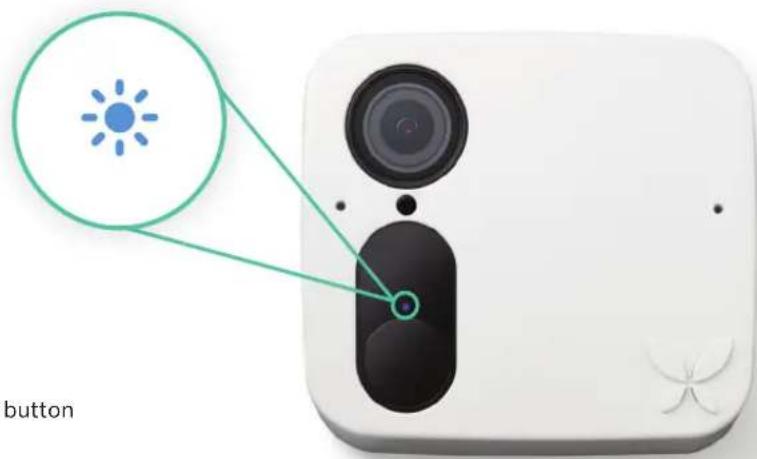

Blue blink – Video is recording
Blue stays for 5 seconds – Find & Identify button is being pressed in the app
Blue stays for 5 minutes – Camera is ready to be paired

Green 3x blink – Camera is turning on.

Red 3x blink – Camera is turning off

Red continuous blink – Battery is at or below 20% (Butterfleye Only)

Red solid - There is an error

Amber continuous blink – Internet is unavailable (Butterfleye Only)

Amber 3x blink – Camera is plugged into the charger

Purple continuous blink – Camera upgrade in progress
Firmware Updates
Ooma is continuously working to enhance the Ooma Smart Cam to add new software features and improve efficiency. When an update becomes available, a circle with a 1 inside will appear on the gear icon in the Ooma Smart Cam app. Tap the gear icon and scroll to the bottom of the camera details page. Tap “Update Camera Software” to begin the firmware update.
App Updates
The Smart Cam Security Camera app will update itself whenever a new version is released, provided that your phone is configured to accept automatic updates. Updates may contain new features and major security updates.
Finding the Best Location for Your Ooma Smart Cam
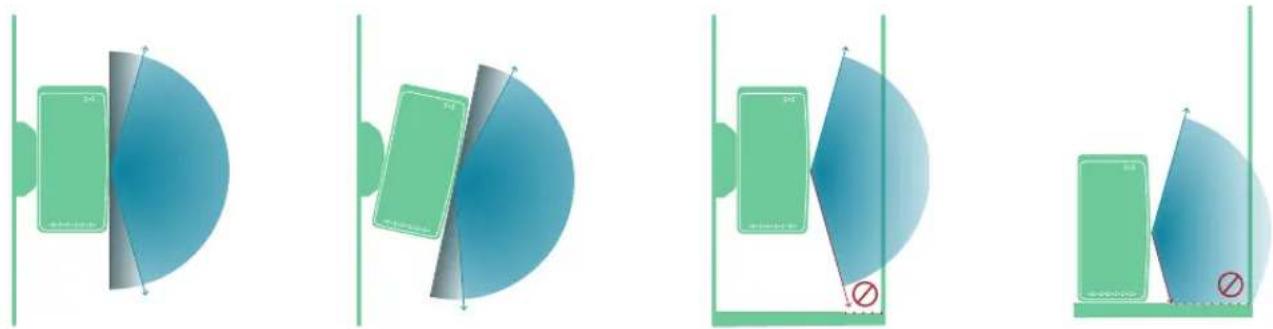
The Ooma Smart Cam camera is rated for both indoor and outdoor use. For best results, the camera should be installed within range of your Wi-Fi network.
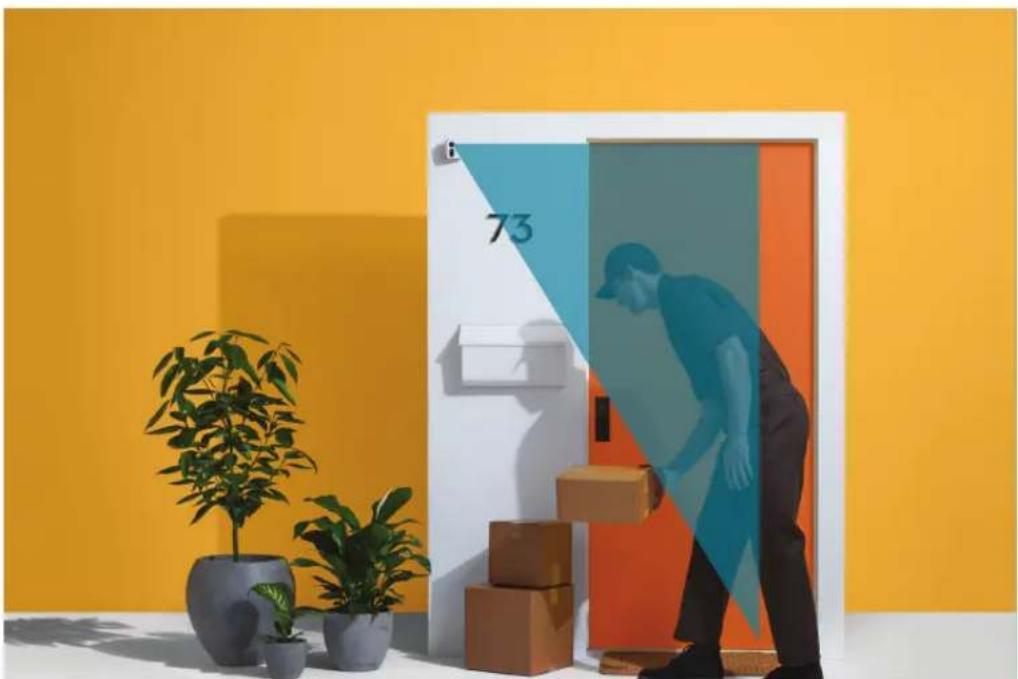
You should set up your camera in a location with a clear, unobstructed field of view of the area you want to monitor. The field of view is the area within which the camera can detect motion. Your Ooma Smart Cam camera has a 130° viewing angle.

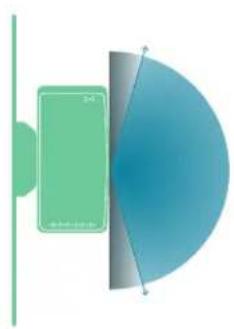
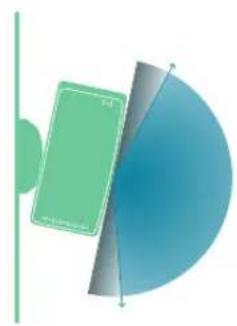

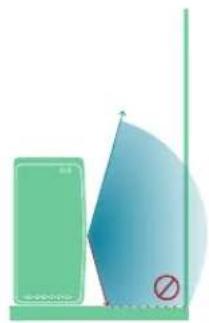
Do not block the camera's field of view. Make sure that no walls, tables, or objects are too close to the camera. If an object is within 2.5 inches of the sides or front of your camera, it can reflect light back into the camera lens and cause glare or hazy video.
The Smart Cam has advanced motion detection capabilities and night vision that are powerful enough to allow the camera to detect events and faces, even at night. For optimal facial recognition results, place the camera at eye level.
Using Your Ooma Smart Cam Unplugged and Offline
The Ooma Smart Cam camera has a built-in battery and onboard storage that allows the camera to record even when it is disconnected from AC power and Wi-Fi.
This makes the camera usable in locations without electrical outlets. With average use, a fully-charged camera will operate unplugged for multiple months. The camera only needs to be plugged in for about four hours to fully recharge.
Ooma Smart Cam can also operate without a Wi-Fi connection. Video clips are stored in the camera's onboard memory and are uploaded to the user's account when the camera is reconnected to Wi-Fi. The front led will blink amber when the camera is operating without a Wi-Fi connection. This is normal.

Physical Installation of the Smart Cam
Wall Mount Installation: (Indoor/Outdoor)
Please visit the “Contact Support” section on your App or Support Website (https://support.ooma.com/camera/) to access our complete video tutorials.
What equipment do you need to install the Smart Cam?
Ooma Smart Cam
■ Wall mount and magnetic bolt
Screws with anchors
Drill with 0.8 mm drill head
Screwdriver
Pencil

Follow the instructions below to install your camera:

Find a clean spot where you would like to connect the wall mount. Use a pencil to mark three dots through the screw slots.

Drill the three dots and insert the provided anchors into the holes. Put the wall mount against the wall and use a screwdriver to insert the screws. Make sure the protruding side faces towards the camera attachment.

Put the washer on the magnetic bolt and attach the bolt to the camera. Attach the camera to the mount's magnetic clip. Rotate the camera until it is aligned in the direction you wish to monitor.
Third Party Mount Installation:
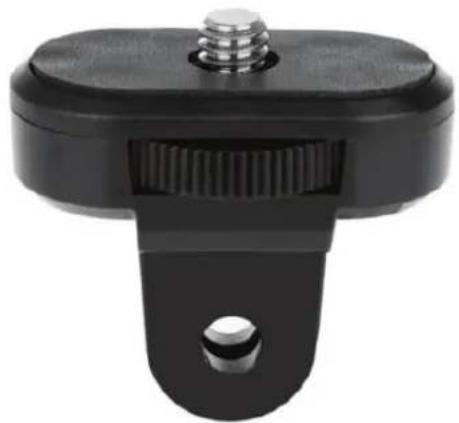
The Smart Cam comes with universal threads on the back of its casing, which allows the camera to be connected to third-party mounts, making it perfect for use as security protection anywhere. Make sure you have the universal thread to your thirdparty mount otherwise it can damage the camera thread.
Installing the Smart Cam Indoors:
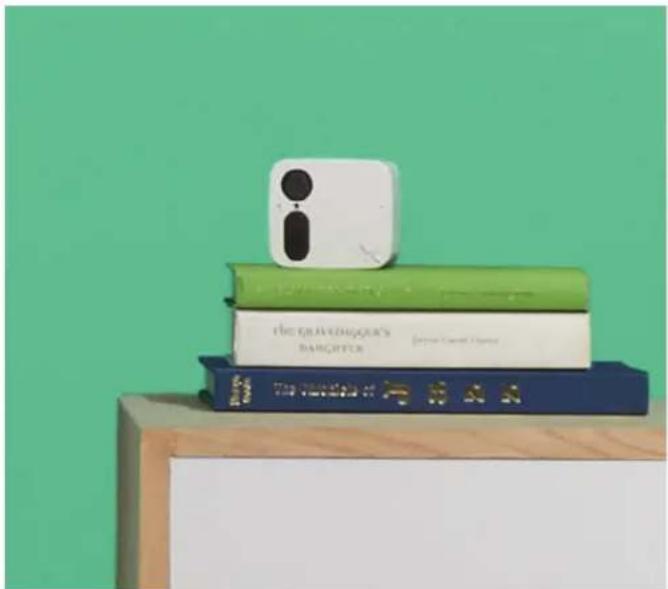
Ooma Smart Cam is perfect for indoor surveillance in almost any situation. If you don't wish to put holes in the wall, you can install the camera on any flat, horizontal surface like a desk, shelf, or even a crib. If you are comfortable permanently affixing the camera to the wall, the magnetic mount can be installed wall by following the instructions for a Wall Mount Installation.
3 Faces (Advanced Facial Recognition)
Understanding Facial Recognition on your Camera
The Faces feature allows Ooma Smart Cam users to identify the person appearing on camera, making the notifications you receive accurate and detailed.
Ooma Smart Cam leverages proprietary facial recognition that uses machine learning and artificial intelligence to learn to recognize individual faces. Once a face has been recognized, it can be named, or tagged, inside the Ooma Smart Cam app. Recognition of faces improves as you train the camera over the course of afew weeks.
For best results, the camera should be mounted outside or if kept indoors at or little above the eye level where it will see faces from the front rather than from the side.
How Faces Works
You can train the camera to recognize new faces, add images to existing faces for better recognition, or delete faces you do not want the camera to remember.
- Open the Ooma Smart Cam app on your mobile device.
- Tap the Faces option in the Menu bar to navigate to the Feeds & Events page in the app.
-
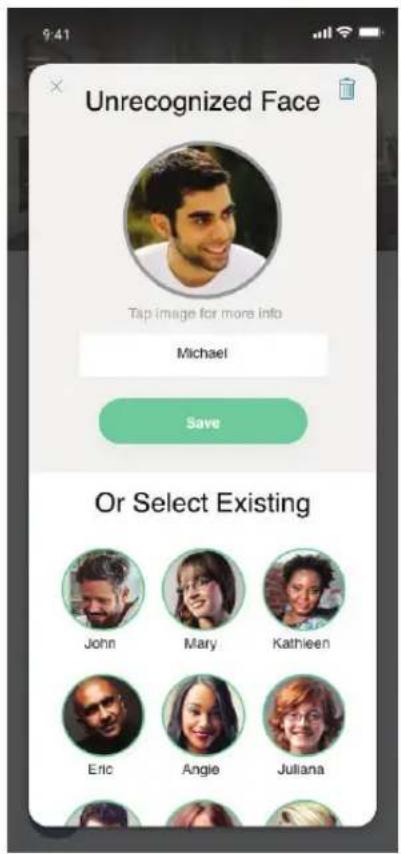
Tap any of the faces in the Unfamiliar Faces section to identify them. You have three options:
-
If this is the first time you are identifying the person, enter their name in the pop-up window that appears when you tap their face.
- If this is a person you have previously identified, select an existing face from the list in the pop-up window and then tap "Combine." This will help improve the recognition accuracy when the person is next seen by the camera.
- If this is a person you don't want identified in future, click the trash icon in the upper-right corner of the pop-up window.
The camera may occasionally incorrectly associate an image of an unknown person with a known face. To correct this, navigate to the Faces page and tap on the known face. Tap the picture of the face in the center circle in the pop-up window that appears. This will open a gallery of all recent images associated with that face. Train your camera by combining incorrect messages together so that it improves every time.
Scroll through the gallery and use the trash icon at the bottom of the screen to delete any incorrect images
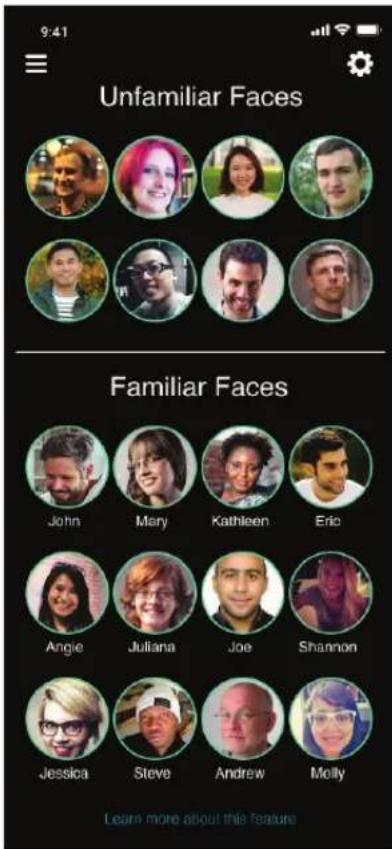
The Faces page


The Combine option The Gallery pages
Using Faces
You can choose to receive notifications only when the camera sees unknown faces, when it sees only known faces, or for all faces:
- Open the Ooma Smart Cam app on your mobile device.
- Navigate to the Feeds & Events page.
- Tap the gear icon in the upper-right corner of the screen, then tap the Notifications line.
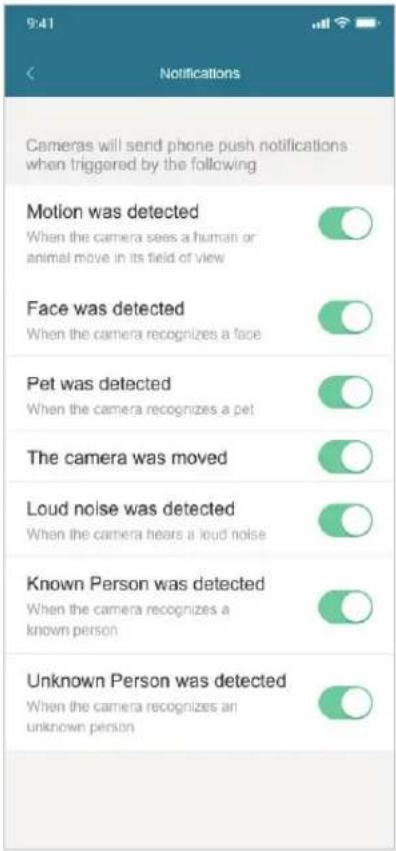
- Toggle the "Known Person was detected" and the "Unknown Person was detected" switches on or off.
4 Live Streaming and Viewing Recorded Events
Viewing the Camera's Feeds & Events Page
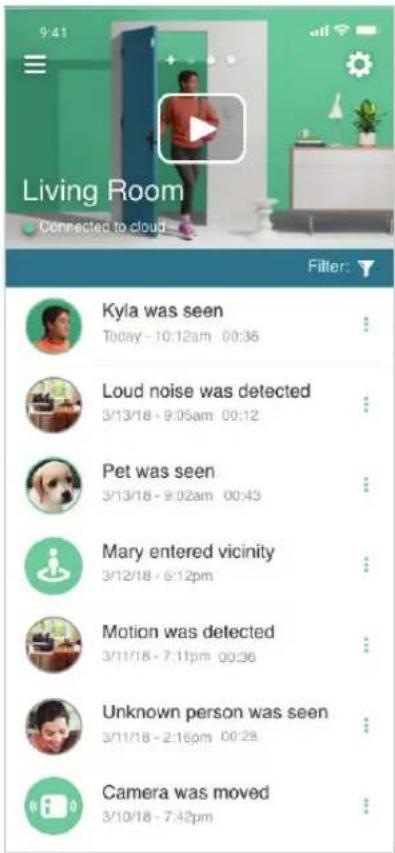
Video clips that are recorded by your Ooma Smart Cam, also known as events, are stored in the event timeline. You can swipe right or left to view each of the cameras connected to your account. This page allows you to view your recordings as well as to download, share, and delete events.
Viewing the Camera's Livestream
You can view a livestream of the camera's video feed at any time.
- Open the Ooma Smart Cam app on your mobile device.
- Navigate to the Feeds & Events page.
- Click the play button on the top video player.
- Swipe left or right to end the livestream.

The Feeds & Events page
Panning and Zooming Video
You can pan and zoom to see the details of any live or recorded video. Just pinch and drag on the desired location.
- Open the Ooma Smart Cam app on your mobile device.
- Start the livestream or select an event from your timeline, then:
- To zoom in and out of the video, pinch the screen.
- To move around in the player, touch and drag to the desired location without removing your fingers after pinching the screen.
Livestream Recording
Whenever livestream viewing is initiated, the video is recorded and uploaded to the cloud as an event. This enables real-time viewing along with later playback from the timeline.
Two-Way Talk
Two-Way Talk enables you to communicate remotely with people who appear on your camera's feed.
- Open the Ooma Smart Cam app on your mobile device.
- Start the livestream to display the camera's video feed and play audio (if enabled). Be sure that the mobile device is in landscape mode.
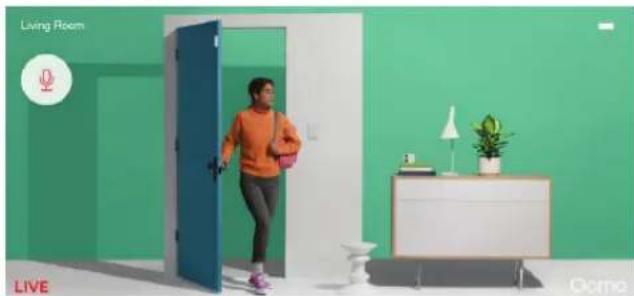
- Tap the microphone icon in the upper-left corner and wait for it to turn red, indicating that two-way audio is enabled.
- Press and hold the microphone icon to speak. You will not hear audio while the microphone button is pressed. Expect a delay of several seconds between the time you speak and the time your voice comes out of the speaker on the camera.
Viewing Timeline Recordings
All recordings are posted on the Ooma Smart Cam timeline. The timeline can be used to manage events: re-watching events, downloading events as MP4 files, sharing events, and deleting events.
If you receive a notification of a new event but do not see that event on your timeline, please close and reopen the Ooma Smart Cam app.
Sharing, Managing, and Downloading Recordings
You can share, manage, and download recordings from Ooma Smart Cam's timeline.
- Open the Ooma Smart Cam app on your mobile device.
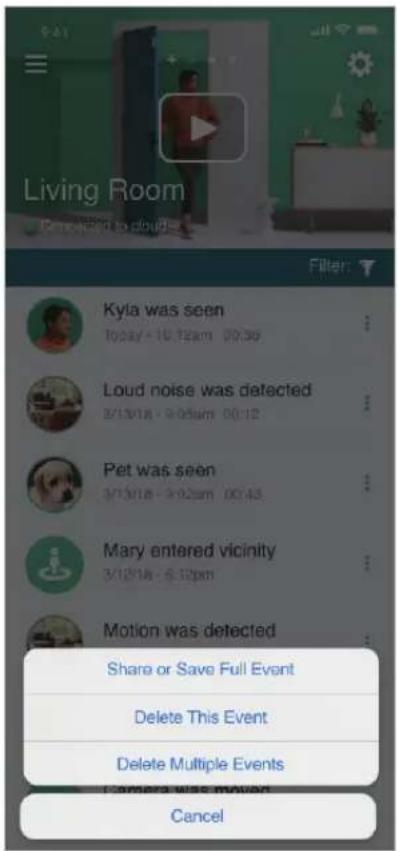
- Navigate to the Events Timeline, then select the event you wish to manage by tapping the three green dots on the right side of the event.
- Tap on Delete This Event to delete the event, or on Share or Save Full Event to download the event to your mobile device as a video.
- If you have chosen to download the video, a notification will appear when the download is complete so you can save the event on your mobile device or share it.
Three green dots

Share or Save Full Event

Features, Rules, and Smart Alerts
Power and Internet Outages
Ooma Smart Cam has an internal battery that lasts six months under typical usage conditions. When the internet or power goes out, Ooma Smart Cam continues to operate normally. All data is uploaded to the cloud once a Wi-Fi connection is re-established.
Privacy Mode / Arm & Disarm Mode
The Privacy Mode feature allows you to put the camera to sleep when you want to stop recording or when you don't want to be disturbed by notifications.
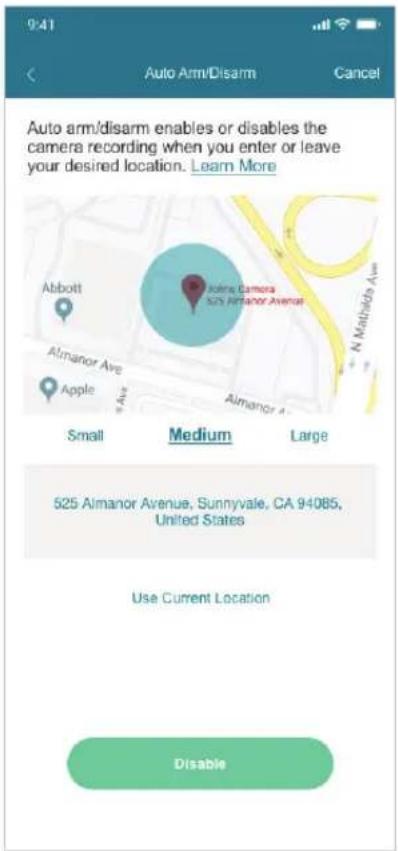
Auto Privacy Mode/Auto Arm & Disarm Mode (Geofencing)
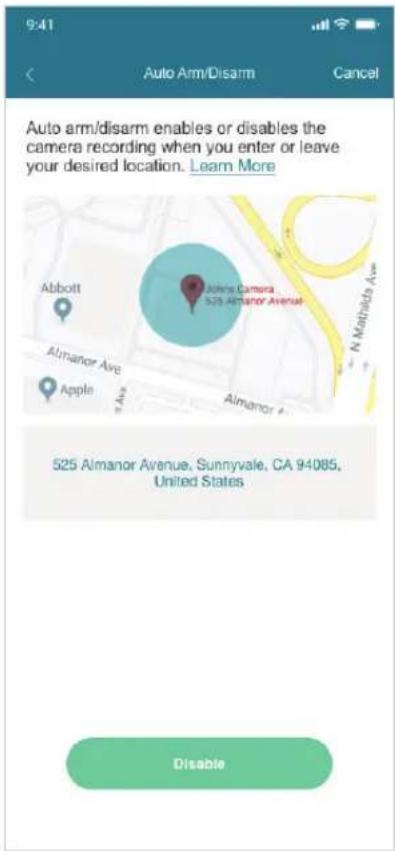
Ooma Smart Cam supports geofencing to automatically arm and disarm cameras based on the location of the user's mobile device. If you have Privacy Mode enabled and travel 50 meters (about 165 feet) away from your camera while carrying your mobile device, Privacy Mode will turn off so that your camera will capture anything that happens while you are away. When you return to the camera's home zone, Privacy Mode will be reenabled.

Auto Privacy Mode switch
Auto Privacy Mode Set up:
- Open the Ooma Smart Cam mobile app.
- Navigate to the Feeds & Events page and click the gear icon in the upper-right.
- Toggle the Auto Privacy Mode switch to the on position.
- Follow the instructions to either enter the street address for the camera's location or to accept the GPS location shown on your mobile device.
- Accept the address shown in the pop-up confirmation window which is your current camera location or edit the address manually
- Tap on edit if you wish to select a specific radius. You have the option to choose Small Medium or Large. Default will be medium as we think this is the optimum range one should have.
- Tap on Update once you choose the radius.

If you have multiple Ooma Smart Cam cameras synced to your account, you must enable Auto Privacy Mode for each one.
Managing Notifications
Ooma Smart Cam allows users to determine which notifications they wish to receive and which they would prefer to mute. Notification options can be automatically updated depending on the time of day.
- Open the Ooma Smart Cam mobile app.
- Navigate to the Feeds & Events page and click the gear icon in the upper-right
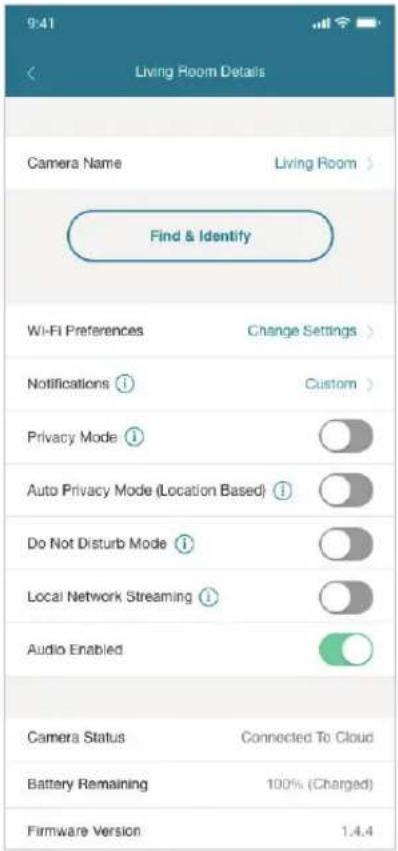
- Navigate to the Details page and tap the word "Custom" on the Notifications line.
- Use the toggle switches to select the notifications you wish to receive.
- Toggle the switch at the bottom of the page to create a Notification Schedule, which will turn off notifications at set times of day such as when you're home at night.
Notification work great with you wish to be notified about certain motion event as an when needed. For camera movement and loud noise detection notifications, please make sure to have your camera plugged in.
Timeline Filtering
Timeline filtering allows users to quickly sort through all timeline events to find specific recordings.
Details page
Notifications page
To filter your timeline:
- Open the Ooma Smart Cam mobile app.
- Navigate to the Feeds & Events page.
- Tap the filter icons on the "Filter by:" line. These are all selected by default.
- On the Filter Timeline Events page, de-select the items of your choice to create a filter. You can filter your results to a specific date range by using the "Show Videos On:" filter at the bottom of the page.
Local Network Streaming
Local Network Streaming allows users to bypass an external internet connection to create instant livestreams if their mobile device is connected to the same Wi-Fi router as the Ooma Smart Cam.
To turn on Local Network Streaming:
- Ensure that the Ooma Smart Cam and the mobile device are connected to same Wi-Fi router.
- Open the Ooma Smart Cam app.
- Navigate to the Feeds & Events page and click on the gear icon in the upper-right.
- Turn on Local Network Streaming.

Settings
Wi-Fi Preferences
Your mobile device must be within Bluetooth range of the Ooma Smart Cam camera to change the camera's Wi-Fi network. To switch the camera's Wi-Fi settings, launch the Ooma Smart Cam app on your mobile device and tap the gear icon of the camera whose Wi-Fi connection you wish to update. From the Details page, select "Change Settings" and then select the new network you wish to connect to. You may need to enter the network's credentials.
Notifications
To switch your notification settings, launch the Ooma Smart Cam app on your mobile device and tap the gear icon of the camera whose notifications you wish to update. From this page, you can customize the notifications you wish to receive. You can also schedule times when you would prefer not to receive notifications.
Enable/Disable Audio
To change audio settings, launch the Ooma Smart Cam app and tap the gear icon of the camera whose settings you wish to update. Toggle the “Audio Enabled” switch on or off.
Changing the Camera's Name
To change your camera's name, launch the Ooma Smart Cam app on your mobile device and tap the gear icon of the camera whose name you wish to change. Tap on the camera's current name on the "Camera Name" line. A popup window will appear to ask for the camera's new name.
Camera Status
To view a camera's status, launch the Ooma Smart Cam app on your mobile device and tap the gear icon of the camera whose status you wish to see. The status will either be “Connected to cloud” or “Offline”. Please refer to our trouble shooting guide on the Support website if any problems occur.
Remaining Battery
To view a camera's remaining battery charge, launch the Ooma Smart Cam app on your mobile device and tap the gear icon of the camera whose battery you wish to check. The remaining battery capacity is listed on the camera's Details page.
Firmware Version
To view the camera's firmware version, launch the Ooma Smart Cam app on your mobile device and tap the gear icon of the camera whose firmware you wish to check. The firmware version is listed on the camera's Details page.
MAC Address
To view your camera's MAC address, launch the Ooma Smart Cam app and tap the gear icon of the camera whose MAC address you wish to view. The MAC address can be found at the bottom of the camera's Details page.
7 Personalizing Your Ooma Smart Cam
Profile Settings
To customize your profile settings, launch the Ooma Smart Cam app on your mobile device. Tap the Menu icon in the upper left, then select Profile. You can use this page to:
Change your username
Update the email address of your Ooma Smart Cam account
Update your password
- See what version of the app you are using
See which Premium plan you have subscribed to
Sign out of your account
Sharing Login Credentials
For privacy purposes, we do not encourage sharing your account's login credentials. We recommend that only one mobile device be used to log into an account.
Only one user can be logged into an account at a time. If a second user logs in, the first user is automatically logged out of the account.
8 Managing Your Premium Plan Membership with Ooma Smart Cam
Upgrading to a Membership Plan
Ooma Smart Cam can be used without a monthly subscription plan, although Ooma offers two membership plans that unlock powerful features and increase the duration of cloud storage. All plans allow users to connect up to six cameras to a single account at no additional cost.
Details of current Ooma Smart Cam plans:
| Monitor Premium Business | |||
| Price per customer | FREE | 4.99/mo(1 camera)9.99/mo(2 - 6 cameras) | $29.99/mo |
| Cloud storage | 7 Days 30 days 90 Days | ||
| Instant video capture | ● ● ● | ||
| Livestreaming | ● ● ● | ||
| Video history | ● ● ● | ||
| Works during power and internet outages | ● ● ● | ||
| Instant alerts (motion, sound, anti-tamper) | ● ● ● | ||
| Onboard storage | ● ● ● | ||
| Instant streaming | ● ● ● | ||
| Monitor Premium Business | ||
| Privacy arm/disarm | ● ● ● | |
| Unlimited video download & share | ● ● ● | |
| Audio enabled/disabled | ● ● ● | |
| Ability to save multiple Wi-Fi credentials | ● ● ● | |
| Camera software upgrade over the air | ● ● ● | |
| Programmable notifications | ● ● ● | |
| Filter and sort timeline events | ● ● ● | |
| Bank-level AES-256 encryption | ● ● ● | |
| Facial recognition | ● | |
| Remote 911 (coming soon, Telo customers only) | ● | |
| Automatic arm/disarm | ● | |
| Two-way audio | ● | |
| Do-Not-Disturb Mode | ● | |
| Connect Upto 6 cameras | ● | |
| Multi-site automatic arm/disarm (coming soon) | ||
| Business analytics (coming soon) | ||
Cancelling a Paid Plan
You can use the Ooma Smart Cam mobile app to manage your payment method and cancellations.
For iPhone:
- Open your device's Settings app
- Scroll down and tap iTunes Store & App Store
- Tap your email and Apple ID
- Tap View Apple ID and enter your password
- Tap Subscriptions, then select Ooma Smart Cam
For Android:
- Launch the Google Play Store app
- Tap Menu, then My Apps, then Subscriptions, then tap on the Ooma Smart Cam app
- Tap "Cancel" and then "Yes" to confirm the cancellation
- The status of the subscription should change from Subscribed to Cancelled.

FAQs and Troubleshooting
- What is the minimum internet speed required for Ooma Smart Cam? Ooma Smart Cam requires a minimum upload speed of 2 Mbps per camera. For example, you will need a minimum of 6 Mbps of upload speed on your wireless network to support three cameras in your home.
- How can I recharge my Ooma Smart Cam? Your camera has an internal battery. Please use the provided power adapter and the micro USB cable to charge your camera. Once fully charged, which takes up to four hours, the camera will operate for six months at an average recording time of five minutes per day.
- Does Ooma Smart Cam work with both the 2.4 GHz and the 5 GHz frequency bands on Wi-Fi routers? Ooma Smart Cam only works with the 2.4 GHz frequency band.
- What might make the Ooma Smart Cam's batter drain faster? Ooma Smart Cam's battery will drain faster if the camera is in a completely dark location that requires heavy use of the infrared monitor. The battery will also drain faster on Wi-Fi networks with many connected devices.
- Does Ooma Smart Cam work outdoors? Yes, the camera is IP65 Weather Resistant and is specially designed for outdoor usage. The camera should not, however, be submerged in water. This can damage the camera.
- Does Ooma Smart Cam work without an internet connection? Yes. Ooma Smart Cam needs a Wi-Fi connection for live view and video upload. When the internet connection is interrupted, Ooma Smart Cam can use its built-in storage to record events that will be uploaded when a connection becomes available. Ooma Smart Cam can also connect directly to a mobile device through a local Wi-Fi network without needing an internet connection.
- Does the Ooma Smart Cam record audio? Yes. You can also use the Ooma Smart Cam app to talk to people who are near your camera.
- How do I access my videos? Ooma Smart Cam automatically uploads videos to the cloud. Videos are accessed through the Ooma Smart Cam app.
- How can I update my camera? The Ooma engineering team frequently releases free software updates for the Ooma Smart Cam. These updates will be available through your app under the Details tab. If the camera software update button is greyed out, then you are running the latest version of the software. If you have notifications enabled, you'll also receive a notification through the app when new software is released.
For more FAQs and troubleshooting data, please visit https://support.ooma.com/camera
Technical Specifications
Camera
1/3" 3.5 MP full color CMOS sensor
Full HD 1080p, 30 FPS
130-degree field of view
1080p full HD video with 8x digital zoom
H.264 encoding
■ Auto-adaptive white and black balance + exposure
- Noise reduction – low-light high sensitivity
- Focus range – fixed focus (2 ft - infinity)
Night vision for clear display in pitch dark
Wireless & Audio
802.11 b/g/n 2.4 Ghz
■ WEP, WPA, and WPA2 support
Bluetooth Low Energy (BT 4.2)
- Half duplex two-way audio with speaker and microphone
Noise Cancellation
Power & Capacity
USB: Input – Micro USB 5 V DC, 2 A
AC Adaptor: Input - 110-240 VAC, 50-60 Hz
AC Adaptor: Output - 5 V DC, 2 A
6000 mAH built-in Lithium-Ion rechargeable battery
Battery level indicator
16 GB built-in storage
Sensors & Detection
■ Passive infrared detector
■ Ambient light detector
Accelerometer
- Instant push notifications
Dimensions & Certifications
Weight: 17.06oz (500g)
Length: 83.01mm
Width: 40.91mm
Height: 73mm
- Operating temperature: -20C to 45C
IP 65
UL, FCC, and IC and CE certified
Have a Question or Need Assistance?
Ooma has a wealth of available resources if you need assistance.
Support articles. Access our comprehensive knowledge base at support.ooma.com
User manuals. Access this guide and all other product manuals at ooma.com/userguide
Forums. Talk with your fellow Ooma customers and our support staff at forums.ooma.com
Live support. Still having trouble? Chat with a service representative at any time at support.ooma.com
Speak with a support specialist M-F, 5am-5pm PST, or Sat/Sun 8am-5pm PST at 1-888-711-6662
Ooma®
525 Almanor Avenue, Suite 200
Sunnyvale, CA 94085
Learn more at info@butterfleye.com
or call 1-888-711-6662
© 2019 Ooma, Inc. All rights reserved. Patent Pending. Ooma, Ooma Telo, Ooma Connect 4G Adapter, Ooma Premier, Ooma HD2 Handset, Ooma HD3 Handset, Ooma Linx, Ooma Home Security, and the Ooma logo are trademarks or service marks of Ooma, Inc. Other company and product names mentioned herein are trademarks of their respective companies. Mention of third-party products is for informational purposes only and constitutes neither an endorsement nor a recommendation. Ooma assumes no responsibility with regard to the performance or use of these products.
Ooma SmartCam
Table des matières
- Voici la Smart Cam d'Ooma! .....06
La page Faces (Visages)

The Feeds & Events page
Trois points verts
Page des détails

Page des notifications
525 Almanor Avenue, Suite 200
Sunnyvale, CA 94085


- CONTENTS
- LIVE STREAMING AND VIEWING RECORDED EVENTS .....22
- FEATURES, RULES, AND SMART ALERTS ..... 26
- 1 WELCOME TO OOMA SMART CAM
- WHAT OOMA SMART CAM CAN DO FOR YOU
- THE OOMA SMART CAM BOASTS MANY ADVANCED FEATURES, INCLUDING
- HOW OOMA SMART CAM WORKS
- GETTING HELP
- SETTING UP OOMA SMART CAM
- GETTING STARTED
- ONCE THE CAMERA IS FULLY CHARGED, FOLLOW THESE STEPS TO COMPLETE YOUR SETUP
- ADDING OOMA SMART CAM TO AN EXISTING ACCOUNT
- OOMA SMART CAM LED BLINK CODES
- FIRMWARE UPDATES
- APP UPDATES
- FINDING THE BEST LOCATION FOR YOUR OOMA SMART CAM
- USING YOUR OOMA SMART CAM UNPLUGGED AND OFFLINE
- PHYSICAL INSTALLATION OF THE SMART CAM
- WALL MOUNT INSTALLATION: (INDOOR/OUTDOOR)
- WHAT EQUIPMENT DO YOU NEED TO INSTALL THE SMART CAM
- FOLLOW THE INSTRUCTIONS BELOW TO INSTALL YOUR CAMERA
- THIRD PARTY MOUNT INSTALLATION
- INSTALLING THE SMART CAM INDOORS
- 3 FACES (ADVANCED FACIAL RECOGNITION)
- UNDERSTANDING FACIAL RECOGNITION ON YOUR CAMERA
- HOW FACES WORKS
- USING FACES
- 4 LIVE STREAMING AND VIEWING RECORDED EVENTS
- VIEWING THE CAMERA'S FEEDS & EVENTS PAGE
- VIEWING THE CAMERA'S LIVESTREAM
- PANNING AND ZOOMING VIDEO
- LIVESTREAM RECORDING
- TWO-WAY TALK
- VIEWING TIMELINE RECORDINGS
- SHARING, MANAGING, AND DOWNLOADING RECORDINGS
- FEATURES, RULES, AND SMART ALERTS
- POWER AND INTERNET OUTAGES
- PRIVACY MODE / ARM & DISARM MODE
- AUTO PRIVACY MODE/AUTO ARM & DISARM MODE (GEOFENCING)
- AUTO PRIVACY MODE SET UP
- MANAGING NOTIFICATIONS
- TIMELINE FILTERING
- TO FILTER YOUR TIMELINE
- LOCAL NETWORK STREAMING
- TO TURN ON LOCAL NETWORK STREAMING
- SETTINGS
- WI-FI PREFERENCES
- NOTIFICATIONS
- ENABLE/DISABLE AUDIO
- CHANGING THE CAMERA'S NAME
- CAMERA STATUS
- REMAINING BATTERY
- FIRMWARE VERSION
- MAC ADDRESS
- 7 PERSONALIZING YOUR OOMA SMART CAM
- PROFILE SETTINGS
- SHARING LOGIN CREDENTIALS
- 8 MANAGING YOUR PREMIUM PLAN MEMBERSHIP WITH OOMA SMART CAM
- UPGRADING TO A MEMBERSHIP PLAN
- CANCELLING A PAID PLAN
- FOR IPHONE
- FOR ANDROID
- FAQS AND TROUBLESHOOTING
- TECHNICAL SPECIFICATIONS
- CAMERA
- WIRELESS & AUDIO
- POWER & CAPACITY
- SENSORS & DETECTION
- DIMENSIONS & CERTIFICATIONS
- HAVE A QUESTION OR NEED ASSISTANCE
- OOMA®
- OOMA SMARTCAM
- TABLE DES MATIÈRES
Brand : Ooma
Model : SmartCam
Category : Surveillance Camera