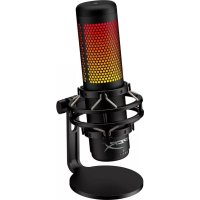
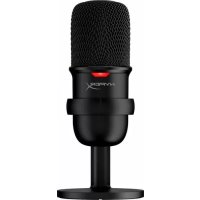
QuadCast S - Microphone HYPERX - Free user manual and instructions
Find the device manual for free QuadCast S HYPERX in PDF.



| Product Type | Condenser Microphone |
| Brand | HyperX |
| Model | QuadCast S |
| Polar Patterns | Stereo, Omnidirectional, Cardioid, Bidirectional |
| Frequency Response | 20 Hz - 20 kHz |
| Sensitivity | -36 dB (1 V/Pa at 1 kHz) |
| Headphone Output Impedance | 32 Ω |
| Maximum Headphone Output Power | 7 mW |
| Total Harmonic Distortion (THD) | ≤ 0.05% (1 kHz / 0 dBFS) |
| Power Supply | USB 5 V / 220 mA |
| Cable Length | 3 m |
| Weight (Microphone Only) | 254 g |
| Weight (Shock Mount) | 360 g |
| Total Weight (with USB Cable) | 710 g |
| Main Features | Touch mute, gain control, polar pattern selection, headphone jack, customizable RGB lighting via HyperX NGENUITY software |
| Connectivity | USB-C, 3.5mm headphone jack |
| Compatibility | PC, Mac, PS4 |
| Stand Adapter | Compatible with 3/8" and 5/8" threads |
| Customization Software | HyperX NGENUITY (free download) |
| Maintenance and Cleaning | Clean with a soft, dry cloth. Avoid moisture and extreme temperatures. |
| Spare Parts | USB cable, stand adapter |
| Repairability | Contact HyperX support if any issues |
| General Information | Condenser microphone with three 14mm condensers, ideal for podcasting, streaming, voiceovers |
Frequently Asked Questions - QuadCast S HYPERX
User questions about QuadCast S HYPERX
0 question about this device. Answer the ones you know or ask your own.
Ask a new question about this device
Download the instructions for your Microphone in PDF format for free! Find your manual QuadCast S - HYPERX and take your electronic device back in hand. On this page are published all the documents necessary for the use of your device. QuadCast S by HYPERX.
USER MANUAL QuadCast S HYPERX
Find the language and latest documentation for your HyperX QuadCast S here.
HyperX QuadCast S Installation Guide
For instructions in English
Para instrucciones en Espanol
+ .Fur Anleitungen in Deutsch
Pour des instructions en Francais
Per le istruzioni in Italiano
... Por as instruções em Português
Instrukcje w jezyku Polskim
ДяИнструкцииHaPycckom
C. Turkce talimatlar icin
日本語マニアル用
.
..
* DExem hong dan bang tieng Viet
Simplified Chinese......简体中文说明书
Traditional Chinese ....繁體中文說明
.
HyperX QuadCast™ S
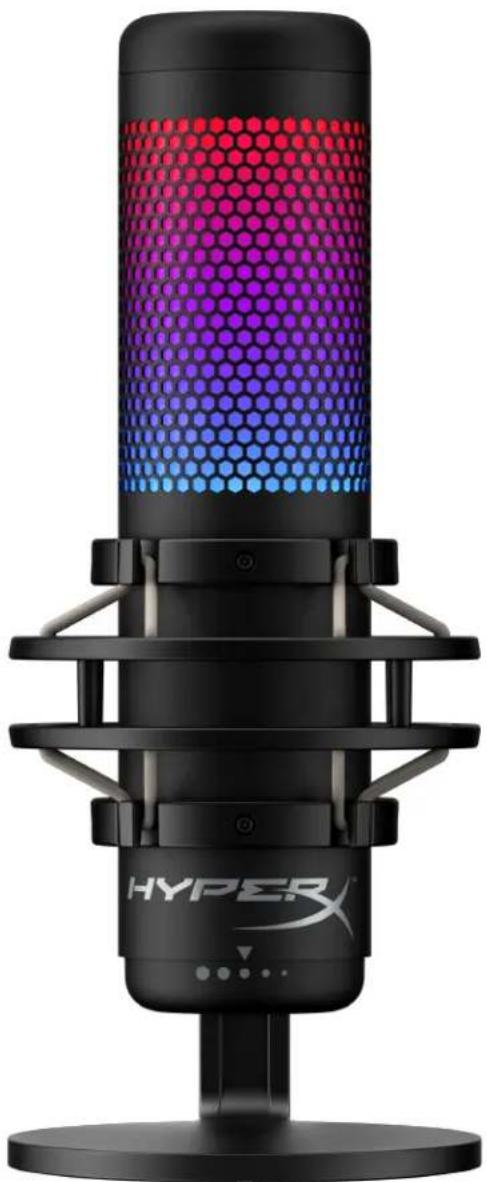
Part Numbers
HMIQ1S-XX-RG/G
TABLE OF CONTENTS
Overview 3
Specifications 4
Microphone Controls 5
Using with PC or Mac 7
Using with PS4TM 12
Connecting Headphones 13
Controlling Microphone Monitoring 14
Installing the Mount Adapter 16
Overview
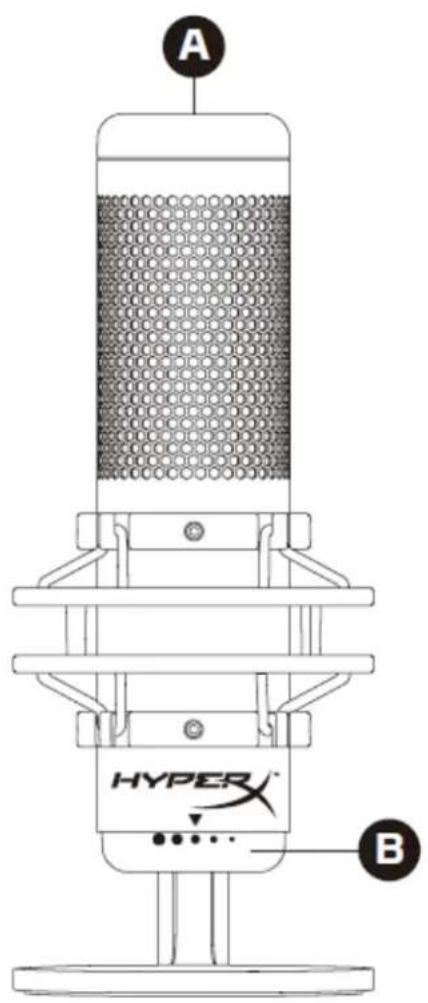
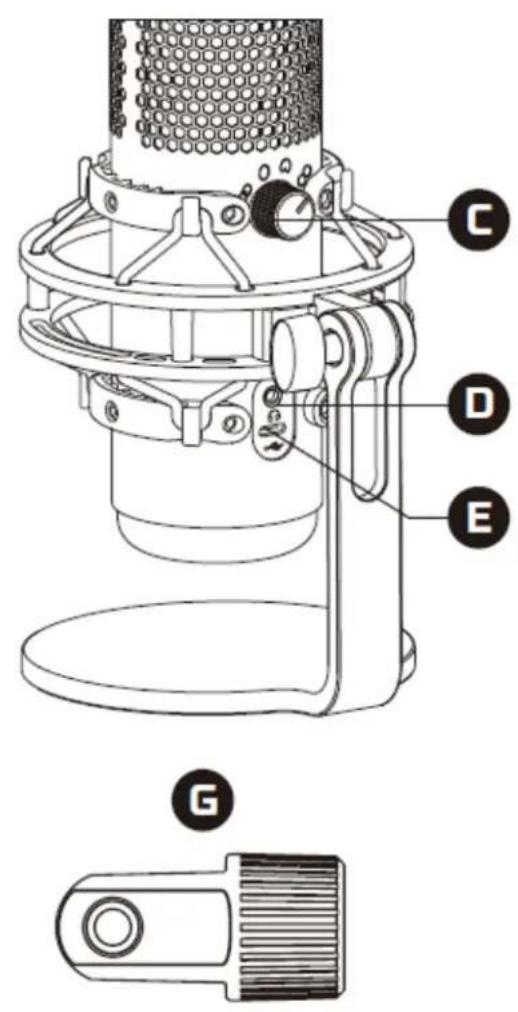

A. Tap-to-mute sensor
B. Gain control knob
C. Polar pattern knob
D. Headphone jack
E. USB-C port
F. USB cable
G. Mount adapter*
*Supports both 3/8" and 5/8" thread sizes
Specifications
Microphone
Power consumption: 5V 220mA (white light)
Sample/bit rate: 48kHz/16-bit
Element: Electret condenser microphone
Condenser type: Three 14mm condensers
Polar patterns: Stereo, Omnidirectional, Cardioid, Bidirectional
Frequency response: 20Hz - 20kHz
Sensitivity: -36dB (1V/Pa at 1kHz)
Cable length: 3m
Weight:
- Microphone: 254g
- Shock mount and stand: 360g
Total with USB cable: 710g
Headphone Output
Impedance: 32 Ω
Frequency response: 20Hz - 20kHz
Maximum power output: 7mW
THD: ≤ 0.05% (1kHz/0dBFS)
SNR: ≥ 90dB (1kHz, RL=∞)
Microphone Controls
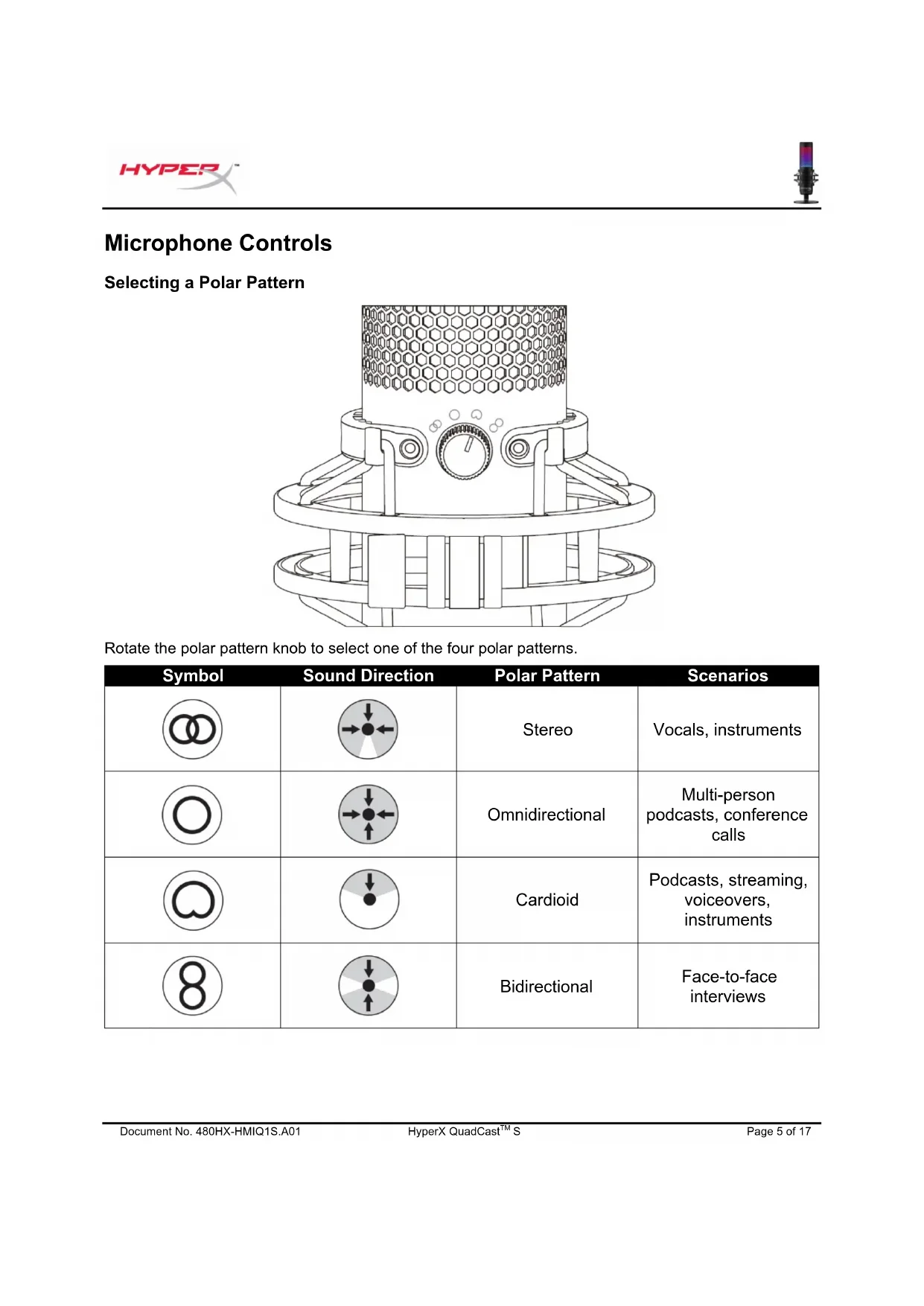
Selecting a Polar Pattern
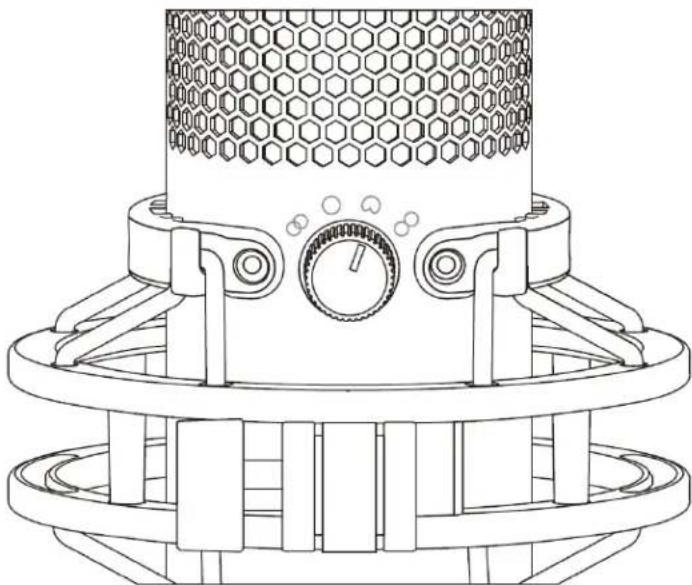
Rotate the polar pattern knob to select one of the four polar patterns.
| Symbol | Sound Direction | Polar Pattern | Scenarios |
| Stereo | Vocals, instruments | ||
| Omnidirectional | Multi-person podcasts, conference calls | ||
| Cardioid | Podcasts, streaming, voiceovers, instruments | ||
| 8 | Bidirectional | Face-to-face interviews |
Adjusting Gain Control
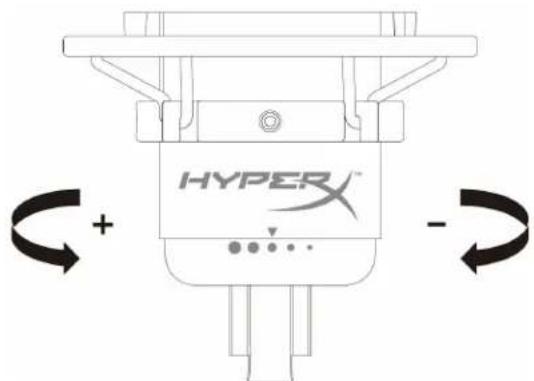
Rotate the gain control knob to adjust the gain of the microphone.
Muting the Microphone
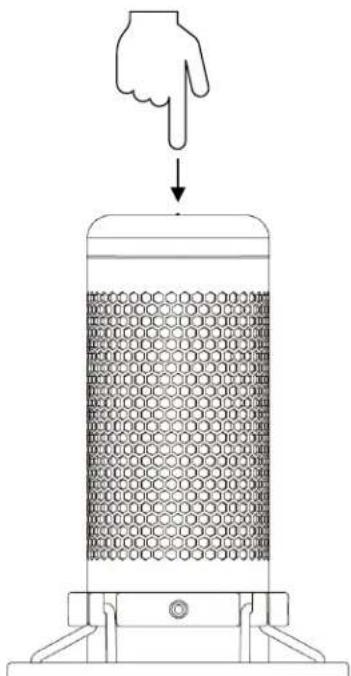
Tap the top of the microphone to mute/unmute the microphone. The microphone LED will indicate the current mute status of the microphone.
| Microphone LED | Mute Status |
| RGB | Mute off |
| Off | Mute on |
*LED behavior can be reversed and customized with HyperX NGENUITY software
Using with PC or Mac
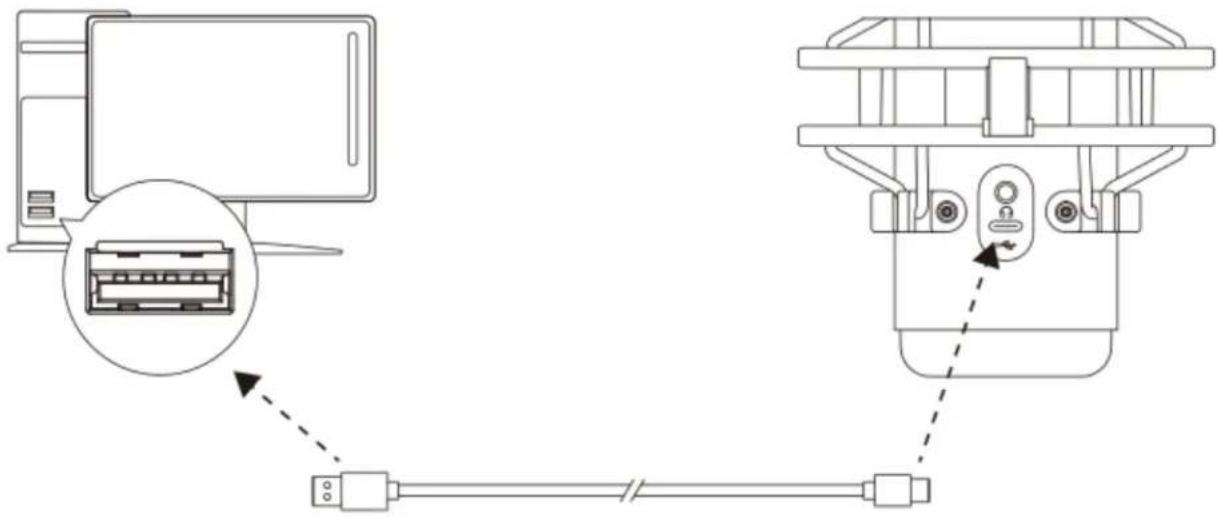
Connect the microphone to a USB port on the PC or Mac with the included USB cable.
Windows
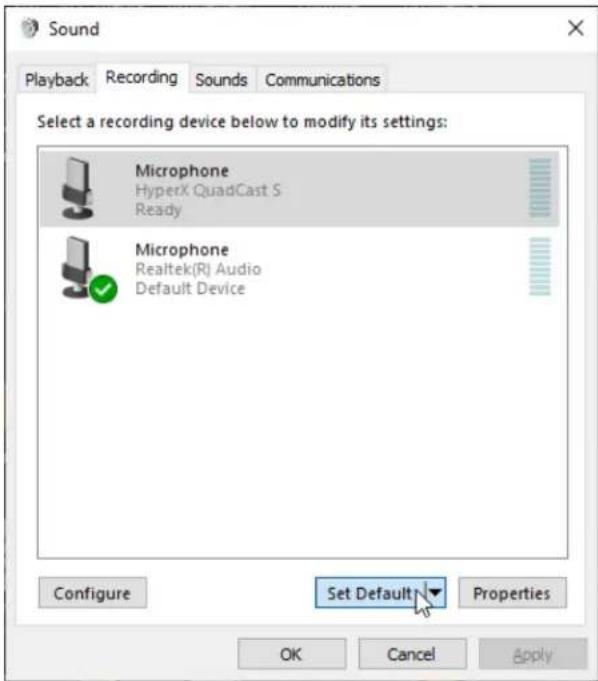
To ensure the microphone is configured correctly on the PC, follow the steps below:
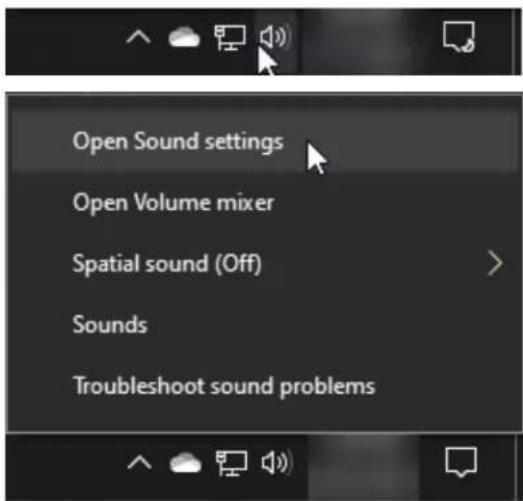
- Right-click on the sound icon in the system tray and select Open Sound Settings.
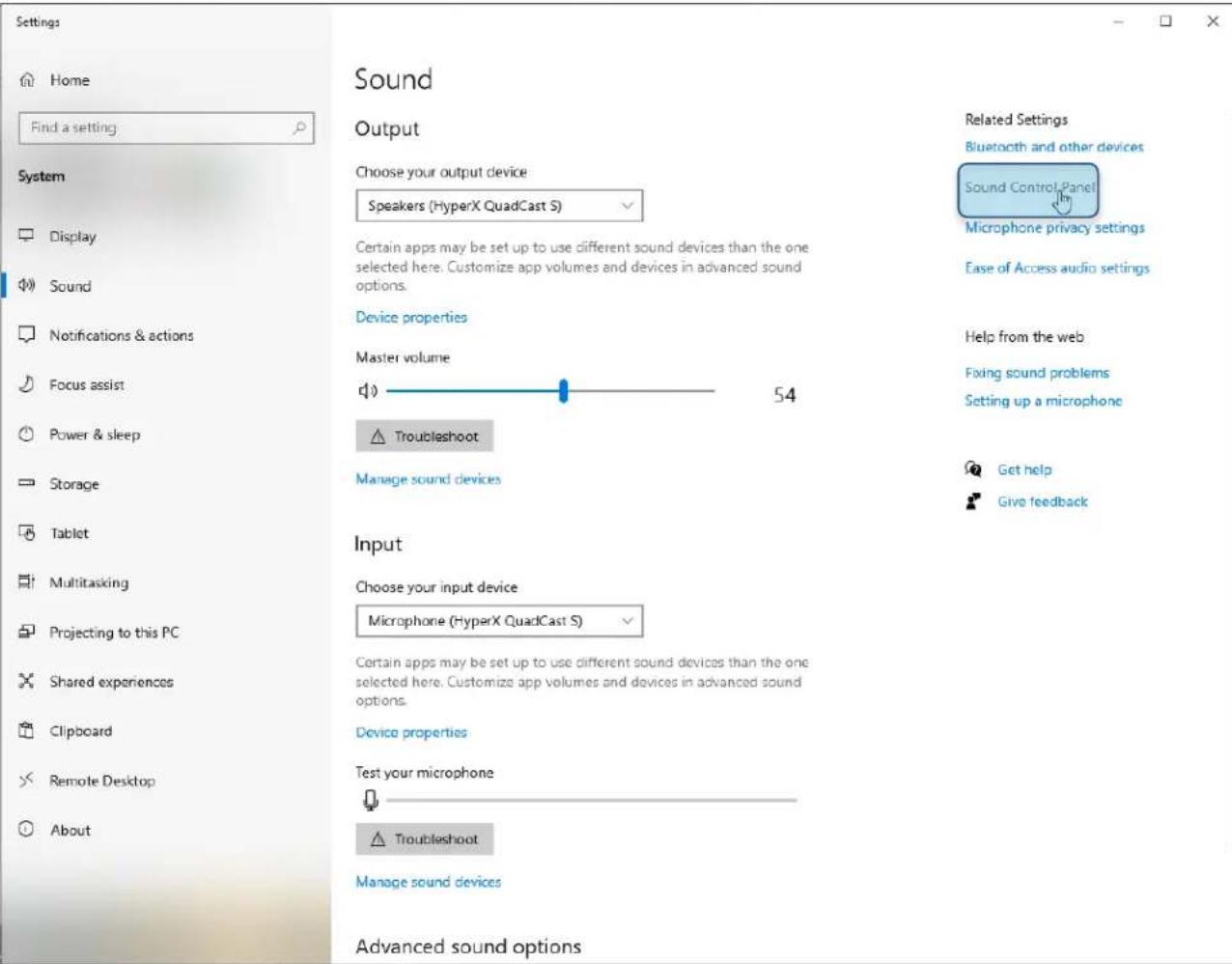
2. Select Sound Control Panel
- On the Playback tab, select Speakers HyperX QuadCast S and click on the Set Default button.
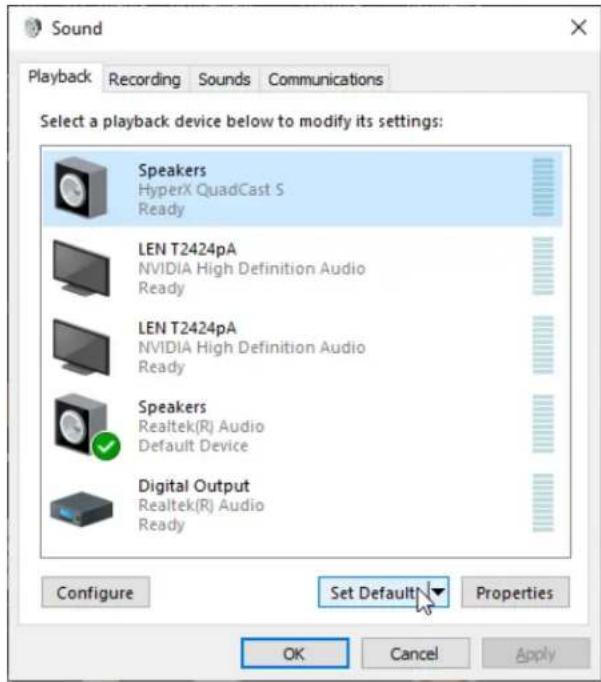
- On the Recording tab, select Microphone HyperX QuadCast S and click on the Set Default button.
macOS
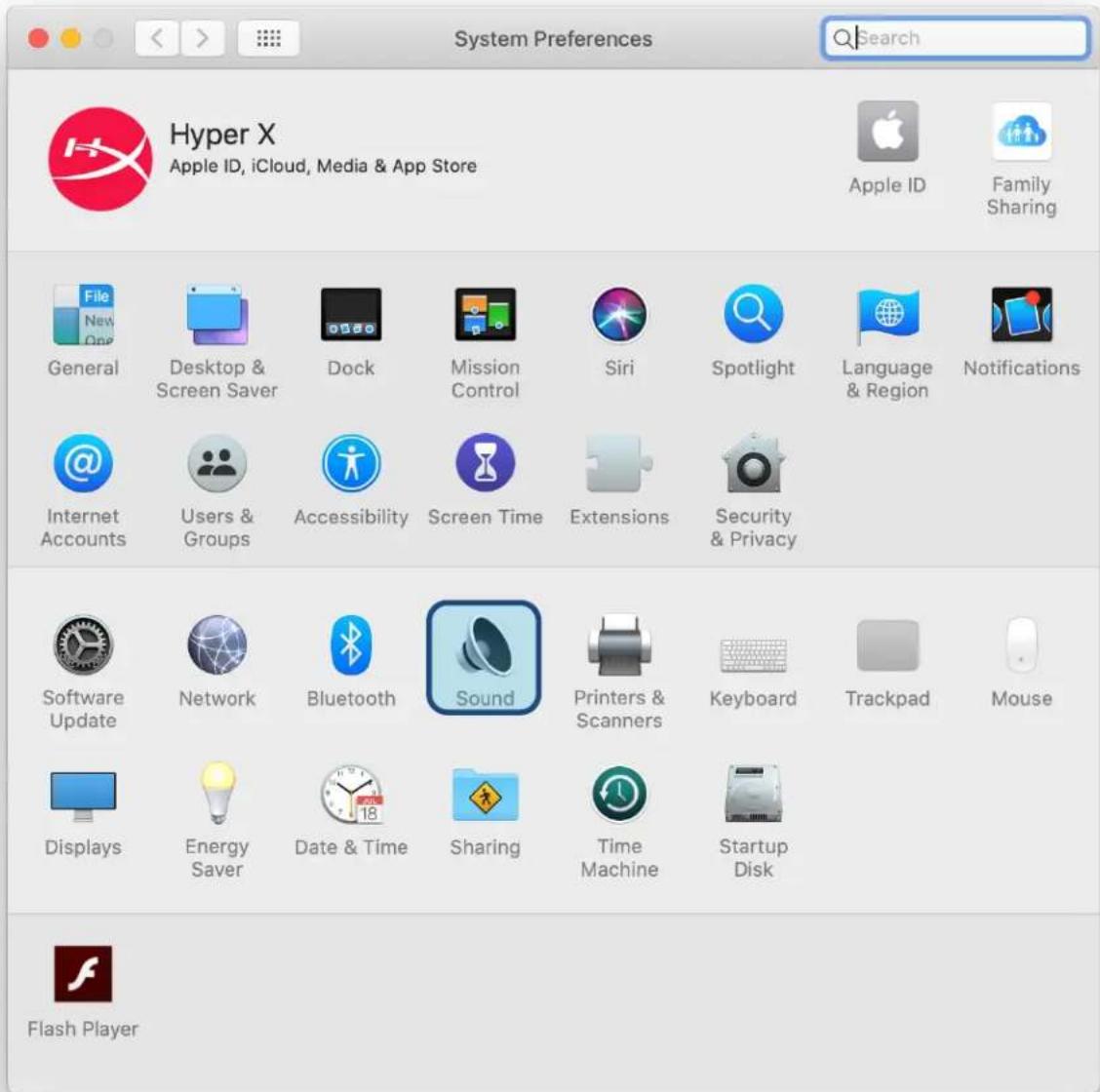
To ensure the microphone is configured correctly on the macOS, follow the steps below:
- Open System Preferences and select Sound.
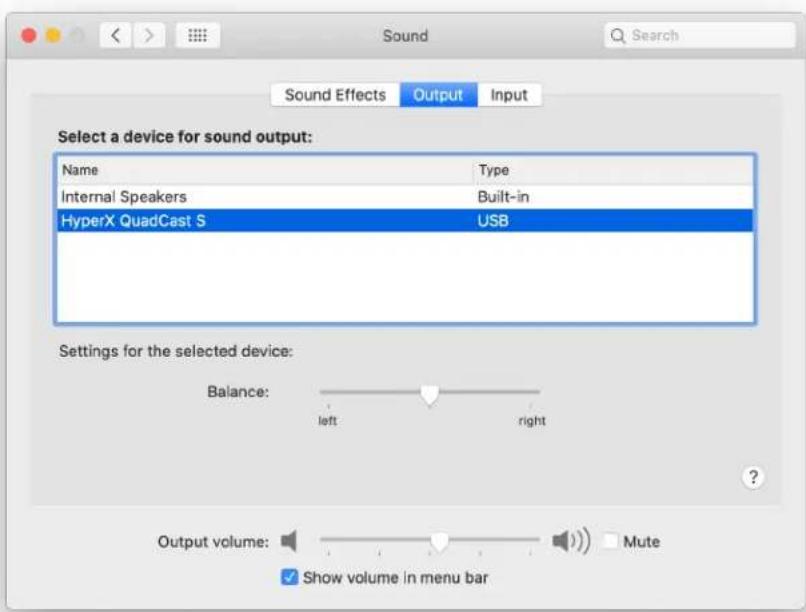
2. On the Output tab, select HyperX QuadCast S
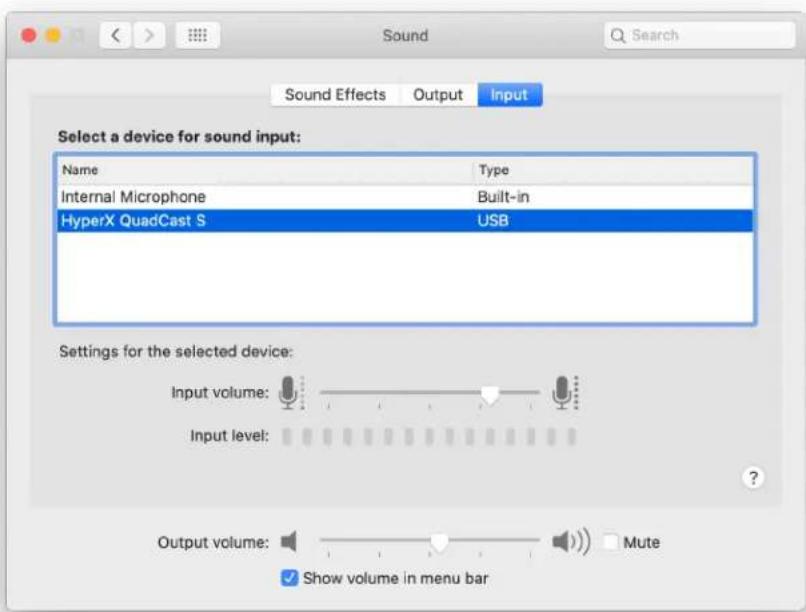
3. On the Input tab, select HyperX QuadCast S
Using with PS4TM
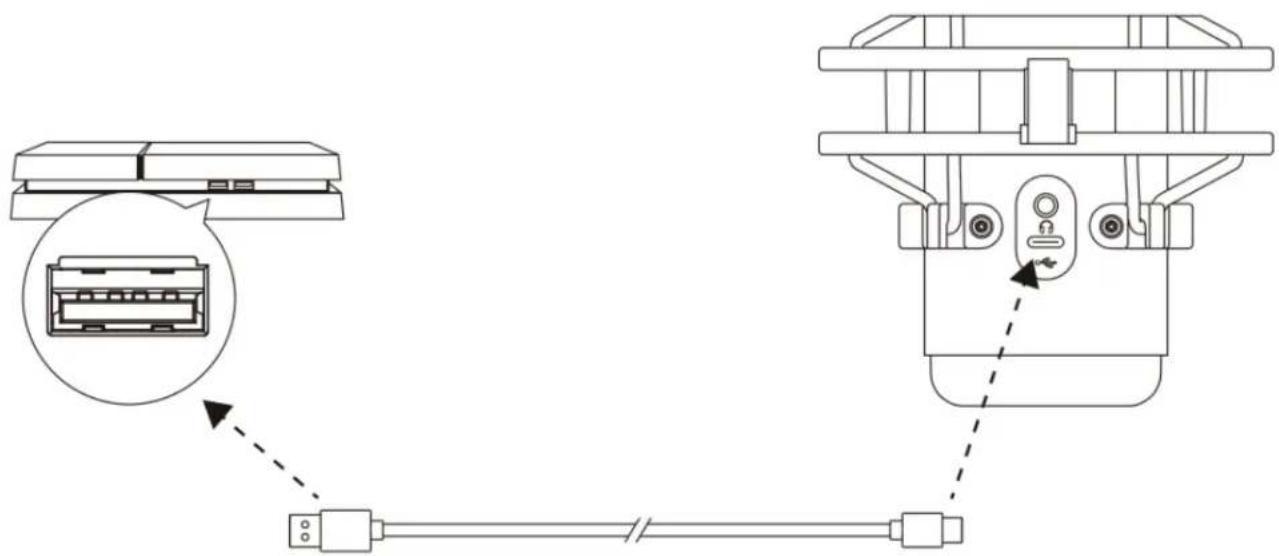
Connect the microphone to a USB port on the PS4 with the included USB cable.
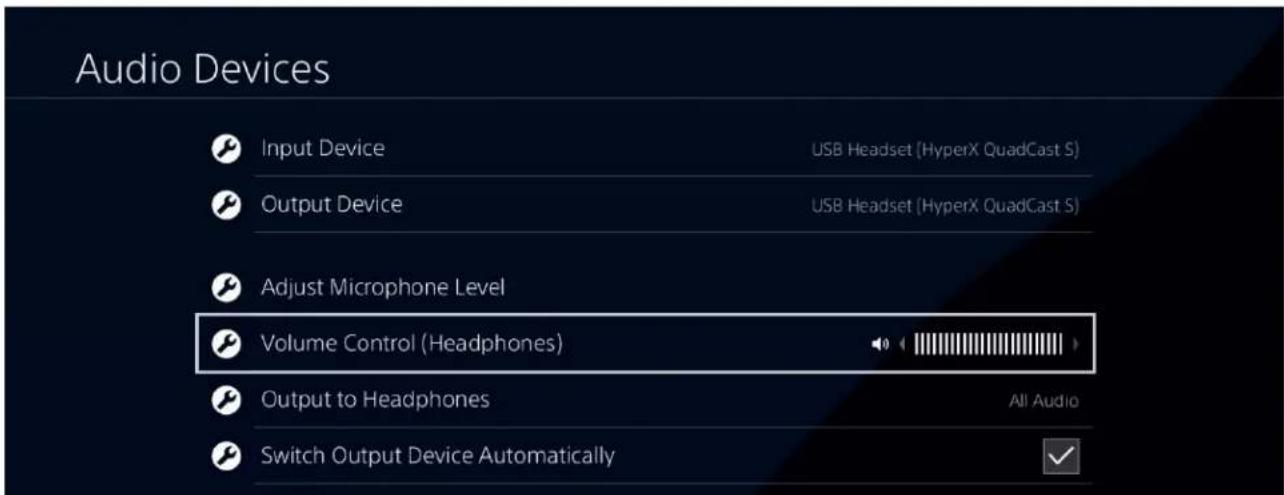
To ensure the microphone is configured with the most optimal settings on the PS4, follow the steps below:
- From the PS4 main menu, go to Settings > Devices > Audio Devices
- Set Input Device to USB Headset (HyperX QuadCast S)
- Set Output Device to USB Headset (HyperX QuadCast S)
- Set Output to Headphones to All Audio
- Set Volume Control (Headphones) to desired volume.
Connecting Headphones
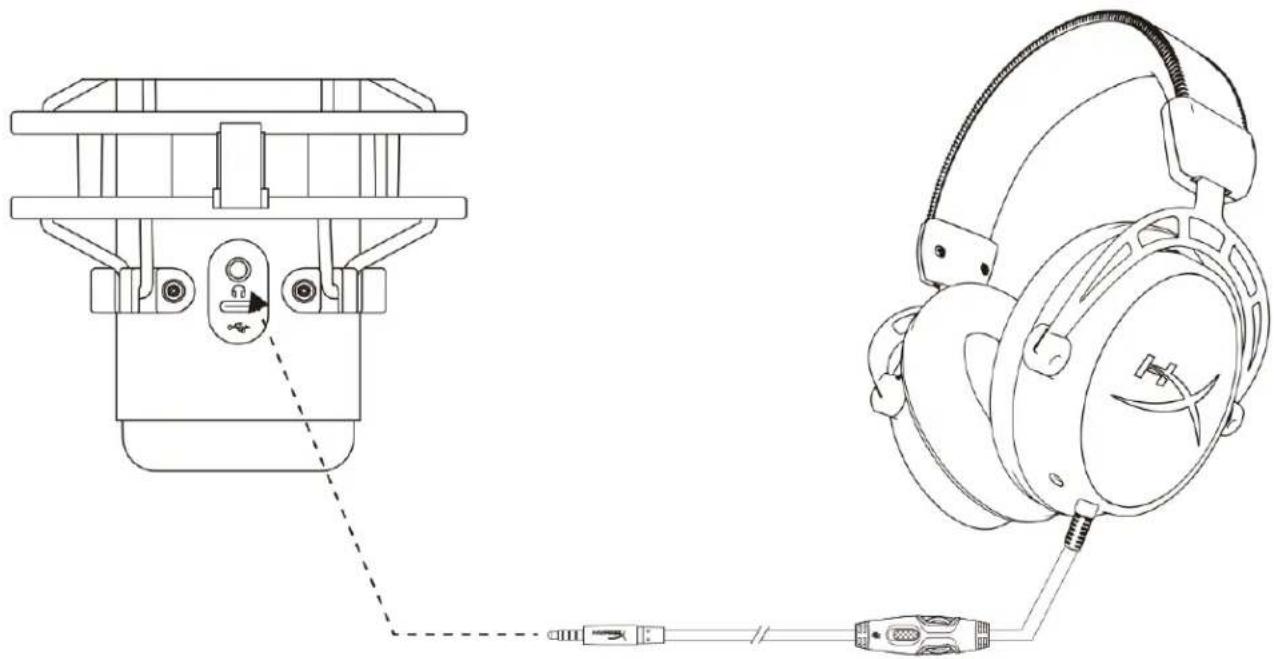
Connect headphones to the headphone jack on the microphone for microphone monitoring and playback audio.
Controlling Microphone Monitoring
PC
-
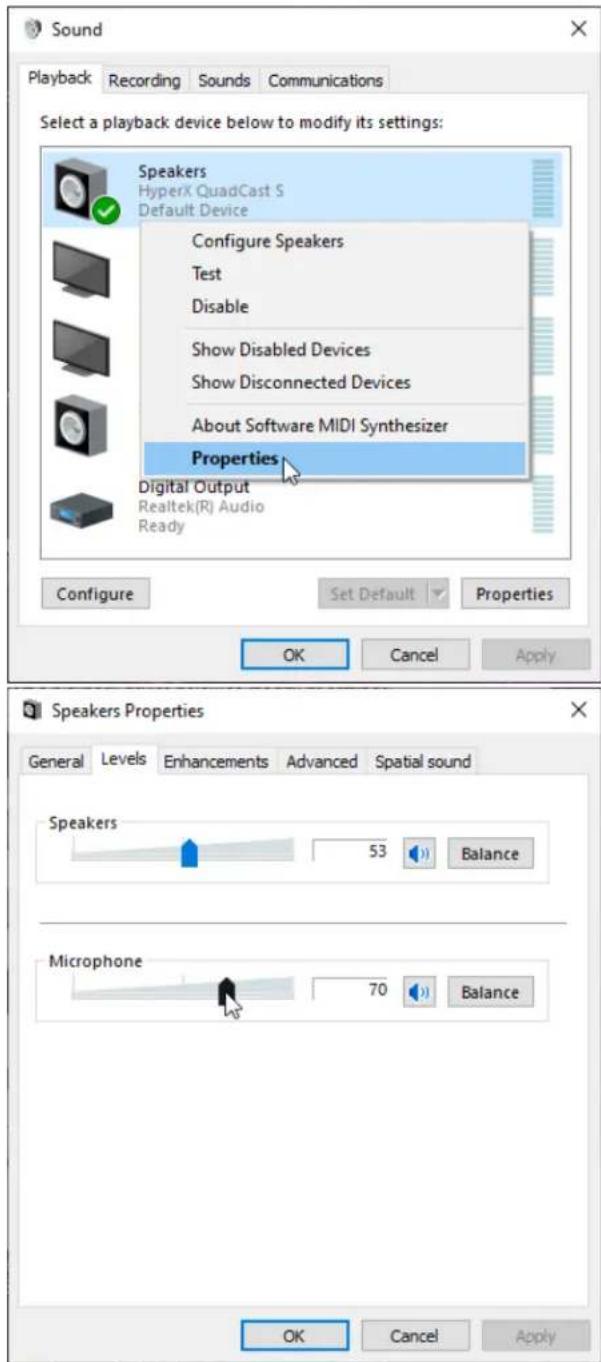
From the Sound control panel, on the Playback tab, right-click on Speakers HyperX QuadCast S and select Properties.
-
On the Levels tab, adjust the Microphone volume slider to adjust the level of microphone monitoring.
macOS
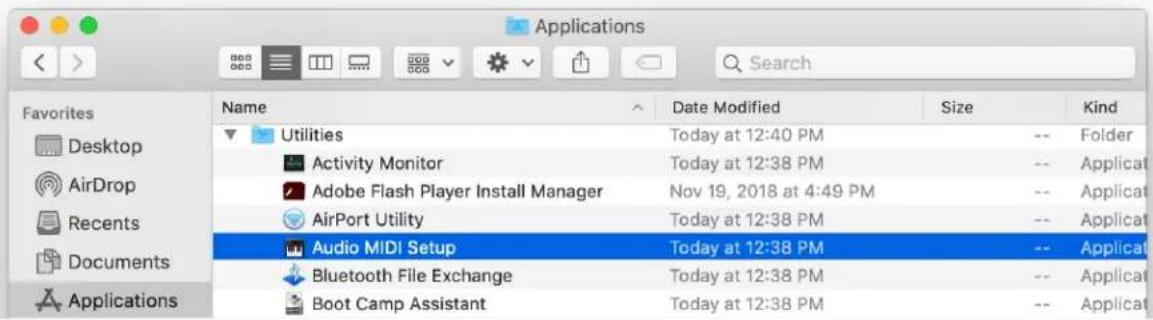
- Open the Finder app and go to Applications > Utilities > Audio MIDI Setup
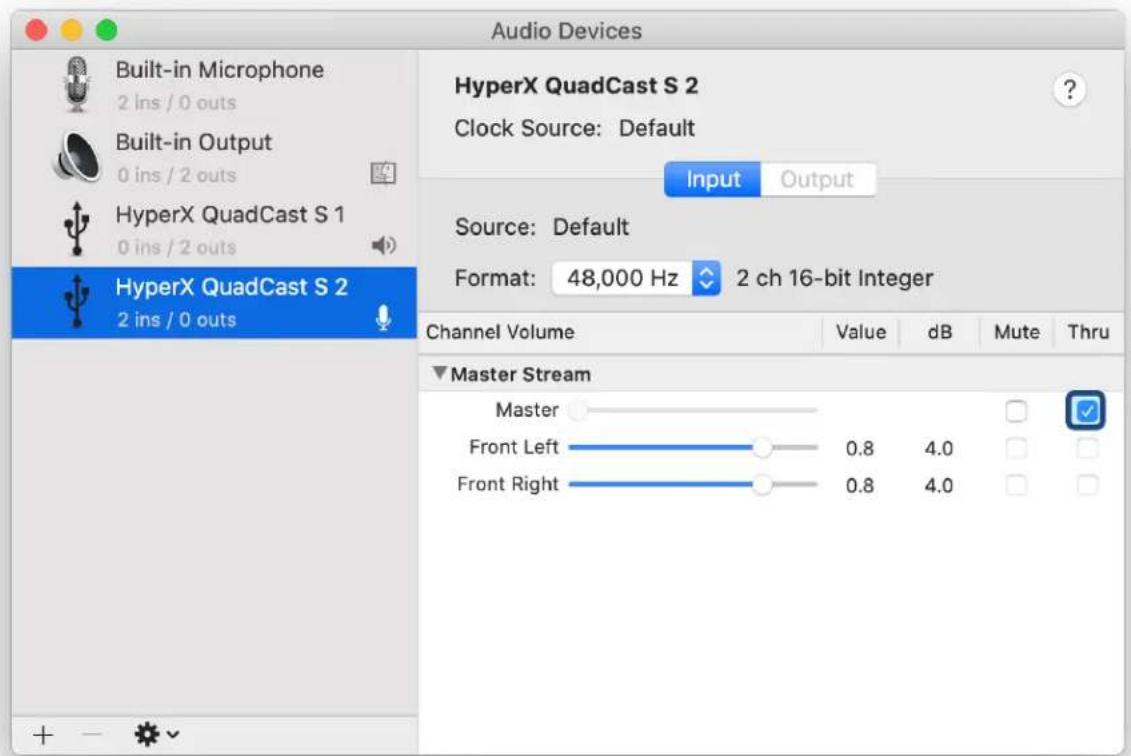
- Click on HyperX QuadCast S 2 and click on the checkbox under the Thru column to toggle microphone monitoring on or off.
PS4
Microphone monitoring level cannot be directly controlled on PS4.
Installing the Mount Adapter
- Secure the included mount adapter onto a microphone boom arm. The mount adapter supports 3/8" and 5/8" thread sizes.
- Remove both the thumb screw and nut from the microphone stand.
- Remove the microphone stand from the microphone.
- Align the mount adapter with the microphone mount holes and secure the adapter with the thumb screw and nut.
HyperX NGENUITY Software
To customize lighting, download the HyperX NGENUITY software at: hyperxgaming.com/ngenuity
Questions or Setup Issues
Contact the HyperX support team at: hyperxgaming.com/support/microphones
HyperX QuadCast™ S
SNR: ≥ 90 dB (1 kHz, RL=∞)
Sample-/Bitrate: 48kHz/16-bit
Element: Elektrolytkondensatormikrofon
Kondensator: Drei 14-mm-Kondensatoren
Richtcharakteristiken: stereo, omnidirektnional, kardoid, bidirektnional
SNR: ≥ 90 dB (1 kHz, RL=∞)

- HYPERX QUADCAST S INSTALLATION GUIDE
- HYPERX QUADCAST™ S
- PART NUMBERS
- TABLE OF CONTENTS
- OVERVIEW
- SPECIFICATIONS
- MICROPHONE
- HEADPHONE OUTPUT
- MICROPHONE CONTROLS
- ADJUSTING GAIN CONTROL
- MUTING THE MICROPHONE
- USING WITH PC OR MAC
- WINDOWS
- SELECT SOUND CONTROL PANEL
- MACOS
- ON THE OUTPUT TAB, SELECT HYPERX QUADCAST S
- ON THE INPUT TAB, SELECT HYPERX QUADCAST S
- USING WITH PS4TM
- CONNECTING HEADPHONES
- CONTROLLING MICROPHONE MONITORING
- PC
- PS4
- INSTALLING THE MOUNT ADAPTER
- HYPERX NGENUITY SOFTWARE
- QUESTIONS OR SETUP ISSUES
Brand : HYPERX
Model : QuadCast S
Category : Microphone