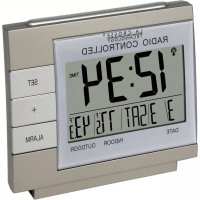
WS8054U - Thermometer LA CROSSE TECHNOLOGY - Free user manual and instructions
Find the device manual for free WS8054U LA CROSSE TECHNOLOGY in PDF.


| Brand | La Crosse Technology |
| Model | WS8054U |
| Product type | Indoor/outdoor thermometer with radio-controlled clock and alarm |
| Power supply (base station) | 2 AA/LR6 1.5 V batteries (alkaline) |
| Power supply (outdoor transmitter) | 2 AA/LR6 1.5 V batteries (alkaline) |
| Dimensions (base station) | 95 x 50 x 81 mm |
| Dimensions (outdoor transmitter) | 40 x 23 x 128 mm |
| Indoor temperature range | 0 °C to 50 °C (32 °F to 122 °F) |
| Outdoor temperature range | -29.9 °C to +59.9 °C (-21.8 °F to 140 °F) |
| Indoor reading frequency | Every 10 seconds |
| Outdoor reading frequency | 2 times every 10 minutes |
| Transmitter range | 25 m in open field (reduced by walls) |
| Radio-controlled clock reception | WWVB (60 kHz, Ft. Collins, Colorado) |
| Display functions | Indoor/outdoor temperature, time, date, day, alarm, moon phases (not mentioned but unlikely) |
| Settings | Time zone, daylight saving time, language (English/French/Spanish), 12/24 h format, °F/°C, alarm |
| Alarm | Duration 85 seconds, intensification after 2x25s, snooze function (10 min) |
| Backlight | E.L., activated 4 seconds by key |
| Maintenance | Clean with a soft, damp cloth; do not use solvents; remove weak batteries |
| Safety | Not for medical use; keep out of reach of children; do not immerse |
| Warranty | 1 year limited (manufacturing defects) |
| Customer service contact | La Crosse Technology (contact details in the manual) |
Frequently Asked Questions - WS8054U LA CROSSE TECHNOLOGY
User questions about WS8054U LA CROSSE TECHNOLOGY
0 question about this device. Answer the ones you know or ask your own.
Ask a new question about this device
Download the instructions for your Thermometer in PDF format for free! Find your manual WS8054U - LA CROSSE TECHNOLOGY and take your electronic device back in hand. On this page are published all the documents necessary for the use of your device. WS8054U by LA CROSSE TECHNOLOGY.
USER MANUAL WS8054U LA CROSSE TECHNOLOGY
FCC ID: OMO-01RX (receiver), OMOTX6U (transmitter)
THIS DEVICE COMPLIES WITH PART 15 OF THE FCC RULES. OPERATION IS SUBJECT TO THE FOLLOWING TWO CONDITIONS:
- THIS DEVICE MAY NOT CAUSE HARMFUL INTERFERENCE, AND
- THIS DEVICE MUST ACCEPT INTERFERENCE RECEIVED, INCLUDING INTERFERENCE THAT MAY CAUSE UNDESIRED OPERATION.
Model:WS-8054U
433 MHz
Radio Controlled Temperature Alarm
Instruction Manual
LA CROSSE
TECHNOLOGY
technology tools for home & office
Contents
Language Page
English 2
French 44
Spanish 88
TABLE OF CONTENTS
| Topic Page | |
| Inventory of Contents/ Additional Equipment 4 | |
| About WWVB 4 | |
| Quick Set-Up Guide 6 | |
| Detailed Set-Up Guide | |
| Battery Installation 8 | |
| Program Mode | |
| Function Buttons 14 | |
| Time Zone Setting | 15 |
| DST (Daylight Saving Time) Setting | 16 |
| Language Selection | 17 |
| Time Setting | 18 |
| Calendar Setting | 20 |
| 12/24-Hour Setting | 21 |
| Selecting 'F or 'C | 22 |
| Features & Operations | |
| Changing Display Mode (viewing seconds) | 23 |
| The Alarm | 24 |
| Indoor temperature | 27 |
| Remote Temperature | 27 |
| E.L. backlight | 28 |
| Mounting | 28 |
| Maintenance & Care 31 | |
| Troubleshooting | 32 |
| Specifications | 35 |
| Warranty Information | 36 |
GB P.2
P.3
GB
INVENTORY OF CONTENTS
1)WS-8054U
2) TX6U remote temperature transmitter
3) Instruction manual and warranty card.
ADDITIONAL EQUIPMENT (not included)
1) Two fresh 1.5V AA batteries.
2) Two fresh 1.5V AA batteries.
3) Three wall-hanging screws
4) Appropriate screwdriver for screws.
ABOUT WWVB (Radio Controlled Time)
The NIST (National Institute of Standards and Technology-Time and Frequency Division) WWVB radio station is located in Ft. Collins, Colorado, and transmits
the exact time signal continuously throughout the United States at 60kHz . The signal can be received up to 2, 000 miles away through the internal antenna in the Temperature Alarm. However, due to the nature of the Earth's Ionosphere, reception is very limited during daylight hours. The Temperature Alarm will search for a signal every night when reception is best. The WWVB radio station derives its signal from the NIST Atomic clock in Boulder, Colorado. A team of atomic physicists is continually measuring every second, of every day, to an accuracy of ten billions of a second per day. These physicists have created an international standard, measuring a second as 9,192,631,770 vibrations of a Cesium-133 atom in a vacuum.
GB P.4
P.5
GB
QUICK SET-UP GUIDE
Hint: Use good quality Alkaline Batteries and avoid rechargeable batteries.
- Have the temperature clock and remote temperature sensor 3 to 5 apart.
- Batteries should be out of both units for 10 minutes.
- Place the batteries into the remote temperature sensor first then into the temperature clock. (All remote temperature sensors must be started before the temperature clock)
- DO NOT PRESS ANY BUTTONS FOR 10 MINUTES.
In this time the temperature clock and remote temperature sensor will start to talk to each other and
the temperature clock will show both the indoor temperature and an outdoor temperature. If the temperature clock does not display both temperatures after the 10 minutes please retry the set up as stated above. After both indoor and outdoor temperatures are displayed for 10 minutes you can place your remote temperature sensor outdoors and set your time.
The remote temperature sensor should be placed in a dry, shaded area. The remote temperature sensor has a range of 80 feet. Any walls that the signal will have to pass through will reduce distance. An outdoor wall or window will have 20 to 30 feet of resistance and an interior wall will have 10 to 20 feet of resistance. Your distance plus resistance should not exceed 80 ft. in a straight line.
GB P.6
P.7
GB
NOTE: Fog and mist will not harm your remote temperature sensor but direct rain must be avoided. To complete the set up of your temperature clock after the 10 minutes have passed please follow the steps below.
2) Observing the correct polarity, install 2 AA batteries. The batteries will fit tightly (to avoid start-up problems make sure that they do not spring free during installation).
3) Replace the battery cover.

DETAILED SET-UP GUIDE
1) BATTERY INSTALLATION
Note: To avoid start-up problems make sure that the batteries do not spring free.
A) REMOTE TEMPERATURE SENSOR
1) Remove the battery cover.
P.9
GB
GB P.8
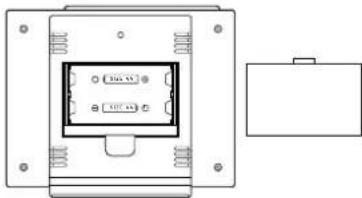
B) TEMPERATURE ALARM
1) Remove the battery cover, located on the backside of the unit.
2) Observe the correct polarity and install 2 AA batteries.
3) Replace the battery cover.
GB
P.10
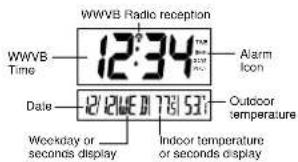
The temperature alarm will conduct a WWVB search every hour until the first signal is found. Once the WWVB time is found, a search is automatically conducted nightly at midnight. If the signal is found at midnight, the tower icon will remain, if not, another search will take place every hour (until 6:00 am) until the signal is found successfully. If no signal is found during this period, the
P.12
1) FUNCTION BUTTONS
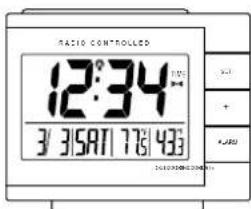
There are 3 function buttons located on the front of the temperature alarm and one on the top. The function buttons are labeled:"SET","+","ALARM",and "SNOOZE" (the top bar).
GB P.14
Note: After the batteries have been installed a tone will sound, and all the LCD's (Liquid Crystal Display) will briefly light up. The indoor temperature, the date as "1/1", the weekday as "MON", and the remote temperature will be displayed (within three minutes). Also, the time will appear as "-:-" for approximately 1 minute. The WWVB search is automatically initiated, and a tower icon appears and flashes with the time colon (no tower icon will appear if the WWVB is too weak to be detected, and the time display will remain on "-:-"). While the WWVB search is being conducted various numbers will appear in the time display. After 10minutes, the temperature alarm will either display the WWVB time, or discontinue the search if the time is not found. If the search is cancelled "-:-" will appear in the time LCD.
P.11
GB
tower icon will not appear and the clock will search again at 12:00 am the next night.
PROGRAM MODE
To enter the program mode hold down the "SET" button for 2 seconds, until "-5EST" flashes in the date LCD. The program mode is laid out in a manner that allows you to program each function separately, or you can follow the instructions entirely to program the temperature alarm. Complete programming is usually done for the initial set-up, and will require you to skip step 1 of programming sections III through VIII. Press the "SNOOZE" button at any time to exit the program mode, or wait approximately 15 seconds for the temperature alarm to automatically return to normal operation.
P.13
GB
II) TIME ZONE SETTING
1) Hold down the "SET" button for 2 seconds, the default setting "-5EST" will flash in the date LCD.
2) Press and release the "+" button to select the appropriate time zone. There are 13 time zones to choose from:
| -4ATL Atlantic Time | |
| -5EST Eastern Time (default setting) | |
| -6CST Central Time | |
| -7MST Mountain Time | |
| -8PST Pacific Time | |
| -9ALA | Alaskan Time |
| -10HAW | Hawaiian Time |
| -11,-12 | Next tow time zones West of HAW |
| GMT | Greenwich Mean Time |
| -1,-2,-3GMT | Three time zone West of GMT |
P.15
GB
3) Press and release the "SET" button to confirm the time zone setting, and to advance to DST (Daylight saving time) setting.
III) DST (DAYLIGHT SAVING TIME) SETTING
Note: The DST default is "On", meaning that the WWVB will automatically change the time according to Daylight Saving Time in the spring and fall. For areas that do not recognize DST changes (Arizona and parts of Indiana) turn the DST "OFF".
1) Hold down the "SET" button for 2 seconds (the selected time zone will flash); press and release the "SET" button once more until "On" flashes in the time
GB P.16
and to select the desired language. There are 3 languages to select from:
| US English | |
| F French | |
| E Spanish |
Press and release the "SET" button to confirm the language setting, and to advance to manually set the time.
V) TIME SETTING
Note: When the WWVB signal is found, that time will over-ride the manually set time.
1) Hold down the "SET" button for 2 seconds (the
GB P.18
VI)CALENDAR SETTING
Note: When the WWVB signal is found, that date will over-ride the manually set date.
1) Hold down the "SET" button for 2 seconds (the selected time zone will flash), press and release the "SET" button 5 more times until the default year "00" flashes in the date LCD.
2) Press and release the "+" button to select the year.
3) Press and release the "SET" button to confirm the year and to move to select the month.
4) The default month "1" will flash. Press and release the "+" button to select the appropriate month.
5) Press and release the "SET" button to confirm the month and to move to select the date.
6) The default date "1" will flash. Press and release the
LCD and "DST" flashes where the weekday normally appears.
2) Press and release the "+" button to turn the DST off, this will be indicated by the display of "OFF" in the time LCD.
3) Press and release the "SET" button to confirm the DST setting and to advance to select the language for the weekday.
IV) LANGUAGE SELECTION FOR THE WEEKDAY
1) Hold down the "SET" button for 2 seconds (the selected time zone will flash), press and release the "SET" button 2 more times until the default language "US" flashes in the time LCD.
2) Press and release the "+" button to toggle through
P.17
GB
selected time zone will flash), press and release the "SET" button 3 more times until the hour "12" flashes in the time LCD.
2) Press and release the "+" button to select the hour. Note: when setting the hour, "PM" will appear to the left of the hour display, if it is AM nothing will be displayed.
3) Press and release the "SET" button to confirm the hour setting, and to shift to select the minutes.
4) Press and release the "+" button to select the minutes.
5) Press and release the "SET" button to confirm the time setting, and to advance to manually set the calendar.
P.19
GB
^ + button to select the appropriate date.
7) Press and release the "SET" button to confirm the date and to move to select the weekday.
8) The default weekday "MON" (depends on selected language) will flash. Press and release the "+" button to select the appropriate weekday.
9) Press and release the "SET" button to confirm the calendar settings and to advance to select either 12 or 24-hour time display.
VII) 12/24-HOUR SETTING
1) Hold down the "SET" button for 2 seconds (the selected time zone will flash), press and release the "SET" button 9 more times until the "12" hour time display flashes in the time LCD.
P.20
P.21
GB
2) Press and release the "+" button to toggle between 12 and 24 hour time.
3) Press and release the "SET" button to confirm the 12/24-hour time display and to advance to select either "F or C.
1) Hold down the "SET" button for 2 seconds (the selected time zone will flash), press and release the "SET" button 10 more times until the default "F" flashes in the time LCD.
2) Press and release the "+" button to toggle between F and C.
3) Press and release the "SET" button to confirm the F or ^ C selection and exit the Program Mode.
5) Press and release the "+" button a third time and the display will return to the normal display.
II) THE ALARM
1) SETTING THE ALARM
Note: The duration of the alarm is 85 seconds. After each of the first two 25 second periods, the rate of the alarm increases.
(a) Hold down the "ALARM" button for 5 seconds. The "TIME" icon to the right of the minutes (in the time LCD) shifts to "ALARM" and the hour digit of the alarm flashes.
(b) Press and release the "+" button to set the alarm hour.
alarm "sound" icon to the right of the time)
(b)Press and release the "ALARM" button to activate and deactivate the alarm. The alarm "sound" icon to the right of the time will appear or disappear and the alarm time will be displayed briefly before returning to the normal display mode.
3) ACTIVATING THE SNOOZE FUNCTION
(a) While the alarm is sounding, press and release the "SNOOZE" button to activate the snooze function. The alarm "sound" icon and "SNOOZE" icon (to the right of the time) will flash. The duration of the snooze function is 10 minutes, then the alarm will resume.

FEATURES & OPERATIONS
I) CHANGING DISPLAY MODE (DAY, SECONDS, AND TEMPERATURE)
There are three possible display modes to view the day, seconds, and temperature. The month & date/ weekday /indoor temperature/remote temperature is the default.
To change the display:
1) Press and release the "+" button.
2) The display should now show the month&date/ seconds/indoor temperature/ remote temperature
3) Press and release the "+" button a second time.
4) The display will now show the month&date/weekday/ seconds/remote temperature
P.23
GB
(c) Press and release the "ALARM" button to confirm the hour and to set the alarm minutes.
(d) The alarm minutes will now flash.
(e) Press and release the "+" button to set the alarm minutes.
(f) Press and release the "ALARM" button to confirm and to exit the alarm setting mode.
Note: The alarm will be automatically set to sound when exiting the alarm- setting mode (indicated by the alarm "sound" icon to the right of the time).
2) ACTIVATING/DEACTIVATING THE ALARM
(a)The alarm will be automatically set to sound when exiting the alarm- setting mode (indicated by the
P.25
GB
4) SUSPENDING ALARM
(a) While the alarm is sounding or the SNOOZE is active, press and release the "ALARM" button to suspend the alarm until the next day.
III)INDOOR TEMPERATURE
The indoor temperature appears on the right side of the date LCD. The temperature is checked every 10 seconds and updated whenever there is a change.
IV) REMOTE TEMPERATURE
The remote temperature will be shown on the right side of the lower LCD screen. The temperature alarm receives the outdoor temperature (^ or ^ C) from the remote temperature sensor, and the temperature appears in
P.27
GB
the outdoor LCD. The remote temperature sensor transmits a new temperature to the temperature alarm twice every 10 minutes.
V) EL BACKLIGHT
The EL backlight is activated for four seconds after any button is pressed. It cannot be left on continuously as it would cause too great of a drain on the battery.
VI) MOUNTING THE REMOTE TEMPERATURE TRANSMITTER
A) The remote temperature sensor can be mounted in two ways:
1) With the use of screws.
2) Using the adhesive tape.
GB P.28
B) MOUNTING WITH SCREWS
1) Remove the mounting bracket from the remote temperature sensor. The bracket should snap off easily.
2) Place the mounting bracket over the desired location. Through the three screw holes of the bracket, mark the mounting surface with a pencil.
3) Where marked, start the screw holes into the mounting surface.
4) Screw the mounting bracket onto the mounting surface. Ensure that the screws are flush with the bracket.
5) Snap the remote temperature sensor onto the mounted bracket.
P.29
GB
C) MOUNTING WITH ADHESIVE TAPE
1) With a nonabrasive solution, clean and dry the back of the mounting bracket and the mounting surface to ensure a secure hold. The mounting surface should be smooth and flat.
2) Remove the protective strip from one side of the tape.
3) Adhere the tape to the designated area on the back of the mounting bracket.
4) Remove the protective strip from the other side of the tape.
5) Position the remote temperature sensor in the desired location, ensuring that the temperature alarm can receive the signal.
- Extreme temperatures, vibrations, and shock should be avoided to prevent damage to the units.
Clean displays and units with a soft, damp cloth. Do not use solvents or scouring agents-they may mark and damage the displays and casings. - Do not submerge in water.
- Immediately remove all low powered batteries to avoid leakage and damage. Replace with new batteries only, and of recommended size.
- Opening the casings invalidates the warranty. Do not try to repair the units. Contact La Crosse Technology for Repairs.
GB P.30
P.31
GB
TROUBLESHOOTING
Problem: The LCD is faint.
Solution: 1) Replace the batteries.
Problem:"OFL" appears in the indoor temperature. LCD.
Solution:
1) Move unit to an area with warmer or cooler surrounding temperature. Current surrounding temperatures are outside measuring range.
Problem: No reception of WWVB signal.
Solution:
1) It may help reception to face the front of the
temperature alarm in the general direction of Ft. Collins, Colorado.
2) Wait overnight for signal.
3) Be sure the temperature alarm is at least 6 feet from any electrical devices, i.e. TV sets, computers, or other radio controlled clocks.
4) Remove batteries for five minutes, reinsert and leave the unit alone overnight without pressing buttons.
5) If problems persist contact La Crosse Technology. Problem: Hour is incorrect (minute and date are correct).
Solution:
1) Be sure correct time zone and daylight saving time are selected.
GB P.32
P.33
GB
Problem:"--" appears in outdoor temperature LCD Solution:
1) Check batteries in remote
2) If batteries are replaced in remote, the unit must be re-started. Remove all batteries, and then follow start up procedure.
Problem:"OFL" appears in the outdoor temperature LCD
Solution:
1) Remote temperature is out of range.
2) Check batteries.
3) Interference from an outside source (cordless telephone, etc.)
4) Contact La Crosse Technology.
GB P.34
Note: For any questions not answered, contact La Crosse Technology with the contact information found at the end of this instructional manual.
SPECIFICATIONS
Temperature:
Measuring range:
32F to 122F with 0.2F resolution (indoor)
(0°C to 50°C with 0.1°C resolution)
21.8°F to 140°F with 0.2°F resolution (outdoor)
(-29.9^ to +59.9^ with 0.1^ resolution)
Checking intervals:
Every 10 seconds indoor, twice in 10 minutes for remote temperature.
P.35
GB
Power source:
Station: 2 x AA, 1.5V (Alkaline)
Transmitter: 2 x AA, 1.5V (Alkaline)
Battery life: Approximately 12 months
Remote temperature sensor
1.57 x 0.9 x 5.04 in
(40×23×128mm)
WARRANTY INFORMATION
La Crosse Technology, Ltd provides a 1-year limited warranty on this product against manufacturing defects in materials and workmanship.
This limited warranty begins on the original date of purchase, is valid only on products purchased and used in North America and only to the original purchaser of this product. To receive warranty service, the purchaser must contact La Crosse Technology, Ltd for problem determination and service procedures. Warranty service can only be performed by a La Crosse Technology, Ltd authorized service center. The original dated bill of sale must be presented upon request as proof of purchase to La Crosse Technology, Ltd or La Crosse Technology, Ltd's authorized service center.
La Crosse Technology, Ltd will repair or replace this product, at our option and at no charge as stipulated herein, with new or reconditioned parts or products if found to be defective during the limited warranty period
P.37
GB
specified above. All replaced parts and products become the property of La Crosse Technology, Ltd and must be returned to La Crosse Technology, Ltd. Replacement parts and products assume the remaining original warranty, or ninety (90) days, whichever is longer. La Crosse Technology, Ltd will pay all expenses for labor and materials for all repairs covered by this warranty. If necessary repairs are not covered by this warranty, or if a product is examined which is not in need or repair, you will be charged for the repairs or examination. The owner must pay any shipping charges incurred in getting your La Crosse Technology, Ltd product to a La Crosse Technology, Ltd authorized service center. La Crosse Technology, Ltd will pay reasonable return shipping charges to the owner of the product.
Your La Crosse Technology, Ltd warranty covers all defects in material and workmanship with the following specified exceptions: (1) damage caused by accident, unreasonable use or neglect (including the lack of reasonable and necessary maintenance); (2) damage occurring during shipment (claims must be presented to the carrier); (3) damage to, or deterioration of, any accessory or decorative surface; (4) damage resulting from failure to follow instructions contained in your owner's manual; (5) damage resulting from the performance of repairs or alterations by someone other than an authorized La Crosse Technology, Ltd authorized service center; (6) units used for other than home use (7) applications and uses that this product was not intended or (8) the products inability to receive a signal
GB P.38
P.39
GB
due to any source of interference.. This warranty covers only actual defects within the product itself, and does not cover the cost of installation or removal from a fixed installation, normal set-up or adjustments, claims based on misrepresentation by the seller or performance variations resulting from installation-related circumstances.
LA CROSSE TECHNOLOGY, LTD WILL NOT ASSUME LIABILITY FOR INCIDENTAL, CONSEQUENTIAL, PUNITIVE, OR OTHER SIMILAR DAMAGES ASSOCIATED WITH THE OPERATION OR MALFUNCTION OF THIS PRODUCT. THIS PRODUCT IS NOT TO BE USED FOR MEDICAL PURPOSES OR FOR PUBLIC INFORMATION. THIS PRODUCT IS NOT
GB P.40
A TOY. KEEP OUT OF CHILDREN'S REACH.
This warranty gives you specific legal rights. You may also have other rights specific to your State. Some States do no allow the exclusion of consequential or incidental damages therefore the above exclusion of limitation may not apply to you.
For warranty work, technical support, or information contact:
La Crosse Technology, Ltd 190 Main Street
La Crescent, MN 55947 Phone: 507.895.7095
Fax: 507.895.2820
P.41
GB
e-mail:
support@lacrossetechnology.com (warranty work)
sales@lacrossetechnology.com (information on other products)
web:
www.lacrossetechnology.com
Questions? Please see instruction video at www.lacrossetechnology.info/8054
All rights reserved. This handbook must not be reproduced in any form, even in excerpts, or duplicated
GB P.42
or processed using electronic, mechanical or chemical procedures without written permission of the publisher.
This handbook may contain mistakes and printing errors. The information in this handbook is regularly checked and corrections made in the next issue. We accept no liability for technical mistakes or printing errors, or their consequences.
All trademarks and patents are acknowledged.
P.43
GB
TABLE DES MATIERES
La station de radio WWVB NIST (National Institute of Standards and Technology - Division Heure et
B. INSTALLATION AVEC VIS
C. INSTALLATION AVEC RUBAN ADHESIF
Dimensions (L x I x H)
La Crosse Technology, Ltd
190 Main Street
La Crescent, MN 55947
Tel:507.895.7095
Fax:507.895.2820
e-mail:
support@lacrossetechnology.com