Flow Multi Control - Smart Home Overmax - Free user manual and instructions
Find the device manual for free Flow Multi Control Overmax in PDF.


| Brand | Overmax |
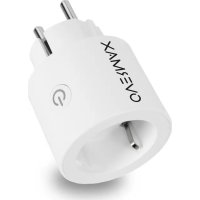
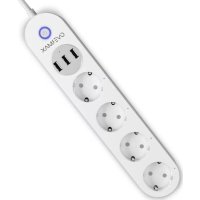
| Model | Flow Multi Control |
| Product type | Connected power strip (smart multi-socket) |
| Category | Smart home |
| Number of sockets | 4 (estimated) |
| Power supply | 230 V ~ 50 Hz |
| Maximum power | 2500 W (estimated) |
| Connectivity | Wi-Fi 2.4 GHz |
| Compatible app | iOS and Android: "Overmax Control" |
| Functions | Remote control, scheduling, timer, light indicator |
| Voice compatibility | Not specified (likely via third-party assistants) |
| Reset | Press and hold the power button for 5 seconds |
| Light indicator | Yes, flashes quickly in pairing mode |
| Dimensions (approx.) | 30 x 5 x 3 cm (estimated) |
| Weight (approx.) | 300 g (estimated) |
| Care and cleaning | Clean with a dry, soft cloth. Do not use abrasive products. |
| Safety | Overload protection (estimated) |
| Spare parts and repairability | No user-serviceable parts. In case of failure, contact customer service. |
| General information | Manual available free online in PDF format. Translation available upon request. |
Frequently Asked Questions - Flow Multi Control Overmax
User questions about Flow Multi Control Overmax
0 question about this device. Answer the ones you know or ask your own.
Ask a new question about this device
Download the instructions for your Smart Home in PDF format for free! Find your manual Flow Multi Control - Overmax and take your electronic device back in hand. On this page are published all the documents necessary for the use of your device. Flow Multi Control by Overmax.
USER MANUAL Flow Multi Control Overmax
Ensure that the device is powered on. Ensure that the Wi-Fi signal is good.

natural_image
Yellow circular icon with a white magnifying glass symbol in the center (no text or numbers)01:56

Skanuj urządzenie.
Thank you for placing trust in us and choosing Overmax.
Thanks to high-quality materials and modern solutions, we provide you with a product perfect for everyday use. We are convinced that the product will satisfy your requirements as it has been manufactured with utmost care. Before you use the product, please read this manual carefully.
Should you have any remarks or questions concerning the product, please do not hesitate to contact us:
Go to iOS Store / Google Play to find „Overmax Control” application or scan QR code and download the app. You can download it into iOS and Android.

Register new user
- To sign up in the application, click „Sign up” (fig. 1), and then read and accept the Privacy Policy (fig. 2).
- Enter your phone number or e-mail address to receive the verification code (fig. 3).
- Enter the verification code into empty field (fig. 4).
- Enter unique password and click „Done” (fig. 5).
Log into existing account
- To log into the existing account, click „Log into existing account” (fig. 1).
- Select country/region.
- Enter correct phone number or e-mail address and password, log in afterwards.
Add device manually (fig. 6)
- Switch on the power strip. Connect the phone to the Wi-Fi network that the device will connect to later.
- Select Flow Multi Control from the list (fig. 7).
- Select Wi-Fi network which you wish to connect your device to. Enter password and click „Next” (fig. 8). Note: Only Wi-Fi 2.4GHz networks are supported.
- If the device light does not flash fast, reset it by pressing the ON/OFF key for 5 sec. (fig. 9).
- When adding, the device must be very close to the Router (fig. 10).
- If the device has been correctly added, you will see a message „Added successfully” (fig. 11). Now you can select your device from the list of added devices.
Panel
- To activate or deactivate all ports, simultaneously select (1) (fig. 12).
- It is possible to activate and deactivate one port. To do so, click the port which you want to turn on or off.
Schedule
- To set the schedule, select (2) in the panel (fig. 12).
- Select port which you wish to set the schedule for (fig. 15).
- Select „Add“ (fig. 16).
- Set time at which a specific event is to occur, and then click „Save” (fig. 17).
Timer
- Select (3) in the panel (fig. 12).
- Select port which is to activate or deactivate after a specific period of time (fig. 13).
- Set time and select „OK“ (fig. 14).

The product complies with requirements of EU directives.
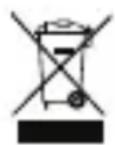
Pursuant to the Directive 2012/19/EU, this product is subject to selective collection. The product must not be disposed of together with domestic waste as it may pose a threat to the environment and human health. Worn-out product must be handed over to electrics and electronics recycling point.
The pictures are for reference only. The real design of the products may differ from the pictures presented.
Einführung
Registracija novog korisnika
- U svrhu registriranja u aplikaciji klikni polje „Registriraj se“ (slika 1) te pročitaj i prihvati Politiku privatnosti (slika 2).
- Upiši svoj broj telefona ili e-mail adresu kako bi dobio kod za verifikaciju (slika 3).
- Upiši kod za verifikaciju u prazno polje (slika 4).
- Upiši osobnu lozinku i klikni polje „Završeno“ (slika 5).