PW Soundbar - Soundbar Paradigm - Free user manual and instructions
Find the device manual for free PW Soundbar Paradigm in PDF.


| Product Type | Soundbar |
| Brand | Paradigm |
| Model | PW Soundbar |
| Power Supply | Removable power cord, polarized AC plug, voltage according to country |
| Audio Inputs | 3 x HDMI (ARC), 2 x optical digital, 2 x analog RCA |
| Audio Outputs | Wired subwoofer output (RCA), wireless receiver for subwoofer |
| Wireless Connectivity | Wi-Fi (DTS Play-Fi), Bluetooth, Apple AirPlay |
| Audio Technologies | DTS Play-Fi, Dolby Audio, DTS Digital Surround, Anthem Room Correction (ARC) |
| Listening Modes | Normal, Night, Bass+ |
| Basic Functions | Volume, mute, input selection, configuration menu |
| Display | OLED with Wi-Fi, codec, volume, input, ARC correction status icons |
| Remote Control | Infrared, AAA batteries, learnable for a second remote |
| Installation | On furniture or wall (wall mount included), adjustable display orientation |
| Maintenance | Clean with a dry cloth, no liquid cleaners |
| Safety | Do not open, risk of electric shock; avoid moisture; safe battery usage |
| Warranty | 1 year for material and workmanship defects |
| Repairability | No user-serviceable parts, repair by authorized technician |
Frequently Asked Questions - PW Soundbar Paradigm
User questions about PW Soundbar Paradigm
0 question about this device. Answer the ones you know or ask your own.
Ask a new question about this device
Download the instructions for your Soundbar in PDF format for free! Find your manual PW Soundbar - Paradigm and take your electronic device back in hand. On this page are published all the documents necessary for the use of your device. PW Soundbar by Paradigm.
USER MANUAL PW Soundbar Paradigm
PREMIUM WIRELESS series











Do Not Open! Risk of Electrical Shock. Voltages in this equipment are hazardous to life. No user-serviceable parts inside. Refer all servicing to qualified service personnel. To prevent fire or shock hazard, do not expose this module to moisture.

The lightning bolt flash with arrowhead symbol within an equilateral triangle, is intended to alert the user to the presence potentially "dangerous voltage" within
the product's enclosure that may be of sufficient magnitude to constitute a risk of electric shock to persons.

The exclamation point within an equilateral triangle is intended to alert the user to the presence of important operating and maintenance (servicing) instructions in
the literature accompanying the appliance.
PW SOUNDBAR
Tested to comply with FCC standards. FOR HOME OR OFFICE USE
IMPORTANT SAFETY INSTRUCTIONS!
- Read these instructions.
- Keep these instructions.
- Heed all warnings.
- Follow all instructions.
- Do not use this apparatus near water.
- Clean only with dry cloth.
- Do not block any ventilation openings. Install in accordance with the manufacturer's instructions.
- Do not install near any heat sources such as radiators, heat registers, stoves, or other apparatus (including amplifiers) that produce heat.
- Do not defeat the safety purpose of the polarized or grounding-type plug. A polarized plug has two blades with one wider than the other. A grounding type plug has two blades and a third grounding prong. The wide blade or the third prong are provided for your safety. If the provided plug does not fit into your outlet, consult an electrician for replacement of the obsolete outlet.
- Protect the power cord from being walked on or pinched, particularly at plugs, convenience receptacles, and the point where they exit from the apparatus.
- Only use attachments/accessories specified by the manufacturer.

- Use only with the cart, stand, tripod, bracket, or table specified by the manufacturer, or sold with the apparatus. When a cart is used, use caution when moving the cart/apparatus combination to avoid injury from tip-over.
- Unplug this apparatus during lightning storms or when unused for long periods of time.
- Refer all servicing to qualified service personnel. Servicing is required when the apparatus has been damaged in any way, such as power-supply cord or plug is damaged, liquid has been spilled or objects have fallen into the apparatus, the apparatus has been exposed to rain or moisture, does not operate normally, or has been dropped.
- To completely disconnect this equipment from the AC mains, disconnect the power supply cord plug from the AC receptacle.
- The mains plug of the power supply cord shall remain readily accessible.
- CAUTION: Danger of explosion if battery is incorrectly replaced. Replace only with the same or equivalent type (AAA). Dispose of dead batteries in accordance with local regulation.
- To prevent overheating, do not cover the apparatus. Install in accordance with the manufacturer's instructions.
- No naked flame sources, such as candles, should be placed on the product.
- Do not expose this apparatus to dripping or splashing and ensure that no objects filled with liquids, such as vases, are placed on the apparatus.
- Batteries (battery pack or batteries installed) shall not be exposed to excessive heat such as sunshine, fire, or the like.
- For apparatus mounted to wall, the apparatus shall be installed on solid wood, bricks, concrete or solid wood columns and battens.
- DO NOT overload wall outlets or extension cords beyond their rated capacity as this can cause electric shock or fire.
- Minimum distances around the apparatus for sufficient ventilation.
- The ventilation should not be impeded by covering the ventilation openings with items, such as newspapers, tablecloths,curtains,etc.
- Do not ingest the battery, Chemical Burn Hazard.
- Keep new and used batteries away from children.
- If the battery compartment does not close securely, stop using the product and keep it away from children.
- If you think batteries might have been swallowed or placed inside any part of the body, seek immediate medical attention.
- The battery (battery or batteries or battery pack) shall not be exposed to excessive heat such as sunshine, fire or the like.
- Risk of leakage. Only use the specified type of Batteries. Never mix new and used batteries. Observe correct polarity. Remove batteries from products that are not in use for extended periods of time. Store batteries in a dry place.
- Do not recharge non-rechargeable batteries.
-
Avoid exposure to extreme heat or cold.
-
This equipment is a Class II or double insulated electrical appliance. It has been designed in such a way that it does not require a safety connection to electrical ea
- Danger of explosion if battery is incorrectly replaced. Replace only with the same or equivalent type.
- (The remote control supplied with) This product contains a AAA battery. If the AAA battery is swallowed, it can cause severe internal burns in just 2 hours and can lead to death.
- Do not handle leaking or damaged AAA batteries.
-
THIS PRODUCT CONTAINS A AAA BATTERY. IF MISUSED OR ABUSED THIS CAN RESULT IN:
-
Smoke or gas hazard
- Heat hazard
- Fire hazard
- Explosion hazard
WARNING: This product is intended to be operated ONLY from the AC Voltages listed on the back panel or included power supply of the product. Operation from other voltages other than those indicated may cause irreversible damage to the product and void the product warranty. The use of AC Plug Adapters is cautioned because it can allow the product to be plugged into voltages in which the product was not designed to operate. If the product is equipped with a detachable power cord, use only the type provided with your product or by your local distributor and/or retailer. If you are unsure of the correct operational voltage, please contact your local distributor and/or retailer.
This device complies with Part 15 of the FCC Rules. Operation is subject to the following two conditions: (1) This device may not cause harmful interference, and (2) this device must accept any interference received, including interference that may cause undesired operation.
FEDERAL COMMUNICATIONS COMMISSION
INTERFERENCE STATEMENT: This equipment has been tested and found to comply with the limits for a Class B digital device, pursuant to part 15 of the FCC Rules. These limits are designed to provide reasonable protection against harmful interference in a residential installation. This equipment generates, uses and can radiate radio frequency energy and, if not installed and used in accordance with the instructions, may cause harmful interference to radio communications. However, there is no guarantee that interference will not occur in a particular installation. If this equipment does cause harmful interference to radio or television reception, which can be determined by turning the equipment off and on, the user is encouraged to try to correct the interference by one or more of the following measures:
- Reorient or relocate the receiving antenna.
- Increase the separation between the equipment and receiver.
- Connect the equipment into an outlet on a circuit different from that to which the receiver is connected.
- Consult the dealer or an experienced radio/TV technician for help.
Approved under the verification provision of FCC Part 15 as a Class B Digital Device.

Any changes or modifications not expressly approved by the grantee of this device could void the user's authority to operate the equipment.
RF EXPOSURE INFORMATION: This equipment complies with FCC/IC radiation exposure limits set forth for an uncontrolled environment and meets the FCC radio frequency (RF) Exposure Guidelines in Supplement C to OET65 and RSS-102 of the IC radio frequency (RF) Exposure rules. This equipment has very low levels of RF energy that are deemed to comply without testing of specific absorption ratio (SAR).
5GHz RF DEVICE STATEMENT: This device operates in the 5.15-5.25GHz frequency range and is restricted to indoor use only. Outdoor operations in the 5150-5250MHz frequency range is prohibited.
CANADA, INDUSTRY CANADA (IC) NOTICES: This Class B digital apparatus complies with Canadian ICES-003 and RSS-210. Operation is subject to the following two conditions: (1) this device may not cause interference, and (2) this device must accept any interference, including interference that may cause undesired operation of the device.
RADIO FREQUENCY (RF) EXPOSURE INFORMATION:
This equipment complies with FCC/IC radiation exposure limits set forth for an uncontrolled environment and meets the FCC radio frequency (RF) Exposure Guidelines in Supplement C to OET65 and RSS-102 of the IC radio frequency (RF) Exposure rules. This equipment has very low levels of RF energy that are deemed to comply without testing of specific absorption ratio (SAR).
2. CAUTION
- Comply with FCC RF exposure compliance requirement, separation distance of at least 20cm must be maintained between this product and all persons.
- This product and its antenna must not be co-located or operating in conjunction with any other antenna or transmitter.
- This transmitter must not be co-located or operating in conjunction with any other antenna or transmitter.
- Operations in the 5.15 - 5.25 GHz band are restricted to indoor usage only.
- For operation within 5.15 - 5.25 GHz / 5.25 - 5.35 GHz / 5.47 - 5.725 GHz frequency range, it is restricted to indoor environment.
- This device meets all the other requirements specified in Part 15E, Section 15.407 of the FCC Rules.
CONTAINS TRANSMITTER MODULE FCC ID:
2AAWQ-CAPRICA2L
CONTAINS FCC ID: MBBDMRS4
This product complies with Part 15 of the FCC Rules. Operation is subject to the following two conditions: (1) this product may not cause harmful interference, and (2) this product must accept any interference received, including interference that may cause undesired operation.
Paradigm Electronics Inc.
205 Annagem Blvd. Mississauga, ON L5T 2V1
MODEL NUMBER: PW SOUNDBAR
FCC ID: MBBPWSOUNDBAR
IC Information (For Canadian customers)
MODEL NUMBER: PW SOUNDBAR
IC NO: 11657A-PWSOUNDBAR
1.PRODUCT CONTAINS TRANSMITTER MODULE IC:
11138A-CAPRICA2L CONTAINS IC: 11657A-DMRS4 This Class B digital apparatus complies with Canadian CANICES-3(B)/NMB-3(B).Operation is subject to the following two conditions: (1) this product may not cause harmful interference, and (2) this product must accept any interference received, including interference that may cause undesired operation.
2. CAUTION
To reduce potential radio interference to other users, the antenna type and its gain should be so chosen that the equivalent isotropically radiated power (e.i.r.p.) is not more than that permitted for successful communication. (i) the device for operation in the band 5,150-5,250 MHz is only for indoor use to reduce the potential for harmful interference to co-channel mobile satellite systems.(ii) high-power radars are allocated as primary users (i.e. priority users) of the bands 5,250-5,350 MHz and 5,650-5,850 MHz and that these radars could cause interference and/or damage to LE-LAN devices. Radiation Exposure Statement:(ii) high-power radars are allocated as primary users (i.e. priority users) of the bands 5,250-5,350 MHz and 5,650-5,850 MHz and that these radars could cause interference and/or damage to LE-LAN devices. This equipment complies with IC radiation exposure limits set forth for an uncontrolled environment. This equipment should be installed and operated with minimum distance 20~cm between the radiator & your body.

WEEE NOTICE
Note: This mark applies only to countries within the European Union (EU) and Norway.
In accordance with the European Union WEEE (Waste Electrical and Electronic Equipment) directive 2002/96/EC effective August 13, 2005, we would like to notify you that this product may contain regulated materials which upon disposal, according to the WEEE directive, require special reuse and recycling processing. For this reason Paradigm has arranged with our distributors in European Union member nations to collect and recycle this product at no cost to you. To find your local distributor please contact the dealer from whom you purchased this product, email info@paradigm.com or visit the distributor locator at www.paradigm.com.
Please note, only this product itself falls under the WEEE directive. When disposing of packaging and other related shipping materials we encourage you to recycle these items through the normal channels.
- The maximum antenna gain permitted for devices in the bands 5,250 - 5,350 MHz and 5,470 - 5,725 MHz shall comply with the e.i.r.p. limits specified for point-to-point and non point-to-point operation as appropriate.
Caution: (i) The device operating in the band 5150-5250 MHz is only for indoor use to reduce the potential for harmful interference to co-channel mobile satellite systems; (ii) The maximum antenna gain permitted for devices in the bands 5250-5350 MHz and 5470-5725 MHz shall comply with the e.i.r.p. limit; and (iii) The maximum antenna gain permitted for devices in the band 5725-5825 MHz shall comply with the e.i.r.p. limits specified for point-to-point and non point-to-point operation as appropriate. (iv) Users should also be advised that high-power radars are allocated as primary users (i.e. priority users) of the bands 5250-5350 MHz and 5650-5850 MHz and that these radars could cause interference and/or damage to LE-LAN devices.
Hereby, Paradigm Electronics Inc., declares that this PW SOUNDBAR is in compliance with the essential requirements and other relevant provisions of:
1995/5/EC-R&TTE
2014/30/EU-EMC
2014/35/EU - LVD
2011/65/EU - ROHS2

WARNING/CAUTION!
-
Hazardous voltages exist inside—do not remove cover.
Refer servicing to a qualified technician. -
To prevent fire or shock hazard, do not expose this module to moisture.
- Unplug speaker should any abnormal conditions occur.
- Turn speaker off before making or breaking any signal connections!
- The power cord should not be installed, removed, or left detached from the speaker while the other end is connected to an AC power source.
- No candles or other sources of open flame should be placed on the speaker.
- No liquids either in glasses or vases should be placed on speaker.
- Speaker should not be exposed to dripping or splashing liquids.
- The terminals marked with the lightning bolt symbol should be connected by an instructed person or by way of ready made terminals.
- The power cord should remain readily operable, should any abnormal conditions occur.
- Any changes or modifications not expressly approved by the grantee of this device could voidthe user's authority to operate the equipment.
For DTS patents, see http://patents.dts.com. Manufactured under license from DTS Licensing Limited. DTS, the Symbol, DTS in combination with the Symbol, PLAY-Fl, and the DTS PLAY-Fl logos are registered trademarks or trademarks of DTS, Inc. in the United States and/or other countries. © DTS, Inc. All Rights Reserved.
For DTS patents, see http://patents.dts.com Manufactured under license from DTS Licensing Limited. DTS, the Symbol, DTS in combination with the Symbol, and DTS Digital Surround are registered trademarks or trademarks of DTS, Inc. in the United States and/or other countries. © DTS, Inc. All Rights Reserved.
Manufactured under license from Dolby Laboratories. Dolby, Dolby Audio and the double-D symbol are trademarks of Dolby Laboratories.
The Spotify software is subject to third party licenses found here: www.spotify.com/connect/third-party-licenses
Windows is a registered trademark of Microsoft Corporation in the United States and other countries.
The Bluetooth word mark and logos are registered trademarks owned by Bluetooth SIG, Inc. and any use of such marks by Paradigm Electronics Inc. is under license.
Qualcomm aptX is a product of Qualcomm Technologies International, Ltd.
Qualcomm is a trademark of Qualcomm Incorporated, registered in the United States and other countries, used with permission. aptX is a trademark of Qualcomm Technologies International, Ltd., registered in the United States and other countries, used with permission.
The terms HDMI and HDMI High-Definition Multimedia Interface, and the HDMI Logo are trademarks or registered trademarks of HDMI Licensing LLC in the United States and other countries.
Apple and the Apple logo are trademarks of Apple Inc., registered in the U.S. and other countries. App Store is a service mark of Apple Inc.
Other trademarks and trade names are those of their respective owners.
AirPlay, iPad, iPhone, and iPod touch are trademarks of Apple Inc., registered in the U.S. and other countries. iPad Air and iPad mini are trademarks of Apple Inc.
AirPlay works with iPhone, iPad, and iPod touch with iOS 4.3.3 or later, Mac with OS X Mountain Lion or later, and PC with iTunes 10.2.2 or later.
"Made for iPad" and "Made for iPhone" mean that an electronic accessory has been designed to connect specifically to iPad, or iPhone, respectively, and has been certified by the developer to meet Apple performance standards. Apple is not responsible for the operation of this device or its compliance with safety and regulatory standards. Please note that the use of this accessory with iPhone or iPad may affect wireless performance.
Made for:
iPhone 6s
iPhone 6 Plus
iPhone 6
iPhone 5s
iPhone 5c
iPhone 5
- iPad mini 4
- iPad Air 2
iPad mini 3
- iPad Air
Introduction and Overview. 7
Placement and Mounting 7
Location. 7
Installing on a Flat Surface 7
On-Wall Installation 8
Connection. 10
Power Connection 10
Signal Connection 11
Network Connection 12
Subwoofer Connection. 12
No Subwoofer 13
Wired Subwoofer Connection. 13
Wireless Subwoofer Connection 13
IR Output 13
Control Panel. 15
Remote Control 15
Changing the Remote's Battery 16
Programming a Second Remote. 16
Display 17
Wi-Fi Status 17
Audio Codec Status 17
Volume Level 17
Current Input Custom Name. 17
Anthem Room Correction Status 17
The Menu System 18
Entering and Exiting the Menu 18
Navigating the Menu 18
Menu Option: Installation 18
Menu Option: Subwoofer 19
An Overview of the Menu Structure 20
Bass Level. 22
Surrounds 22
Stereo Mode 23
Bass Mode. 23
Display. 23
Touch Display 23
HDMI 24
Anthem Room Correction 25
Power Settings 25
Wireless Setup (Wi-Fi and Bluetooth) 26
Learn Remote 26
Source Name 27
Service. 28
USB Upgrade 29
Surround Sound Decoding 30
Digital Inputs (HDMI and Digital Optical) 30
Analog Input (RCA) 30
Playing Audio Using DTS Play-Fi 31
Controlling Multiple Speakers. 31
Additional DTS Play-Fi Features 31
How to use Connect. 32
Updates and Rebooting 32
Rebooting Your Soundbar 32
Soundbar Firmware Update 32
DTS Play-Fi Module Update. 32
DTS Play-Fi App Update. 32
ARCTM (Anthem Room Correction) 33
Limited Warranty. 34
Frequently Asked Questions 35
Troubleshooting 36
Dimensional Drawings 39
Serial Number:
Record your serial number here for easy reference. You will need this information when filling out your warranty registration. The serial number is located on the back of the soundbar and on the product carton.
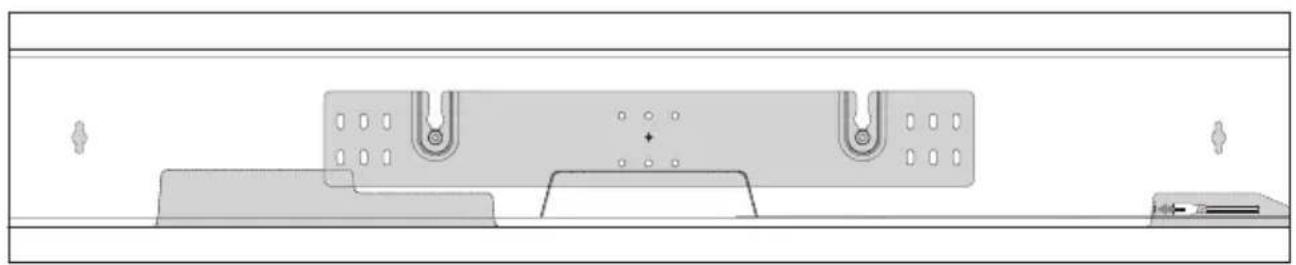
wall mount installation template

wall bracket

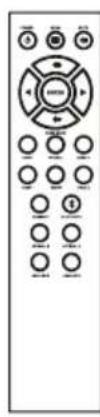
remote control

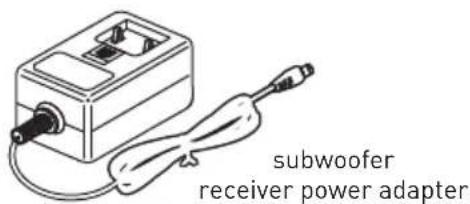
subwoofer wireless receiver
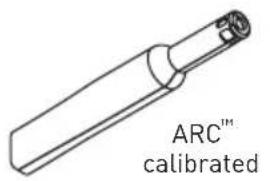
microphone


AAA batteries

(North America only)
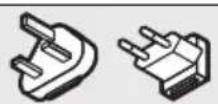
UK Europe

Australia/China
only included outside of North America

shoulder bolts
INTRODUCTION AND OVERVIEW
Thank you—the Paradigm owner, for loving what we do, and making it possible for us to do what we love.
Paradigm's dedicated in-house engineering and design team developed the PW SOUNDBAR to deliver exceptional multi-channel performance from a single system that easily integrates and installs in a diverse variety of environments—whether table or wall mounted. The PW SOUNDBAR produces an enveloping field of richly detailed audio for both music and movies via nine high-performance drivers and seven channels of dedicated amplification representing 100 watts of total system power.
Advanced digital signal processing technology allows Paradigm to replace five dedicated home theater speakers with a one piece solution capable of reproducing multi-channel recordings with unflinching accuracy, resolution, and detail—the inspiration behind every Paradigm design. The PW SOUNDBAR reproduces front left, right, and center channels via the system's dedicated tweeters and woofers. Surround channels are simulated using sophisticated digital signal
processing that directs sound from the system's tweeters and woofers throughout the room.
Additionally, for a fully authentic surround sound experience, the PW SOUNDBAR's built in subwoofer wireless transmitter and subwoofer wireless receiver makes connecting a dedicated subwoofer as simple as the push of a button.
A suite of wireless streaming technologies, including DTS Play-Fi®, AirPlay, and Bluetooth®, guarantees compatibility with wireless streaming applications.
Anthem® Room Correction (ARC) allows you to analyze the acoustic response of your listening environment and adjust output of the soundbar for optimal performance.
The simple remote control quickly adjusts volume and selects inputs. The remote also allows you to easily switch between three discrete acoustic modes—'Night' mode (to dial down the bass), 'Bass+' mode (for those moments requiring a little extra thunder), and a 'Normal' mode that restores normal levels.
PLACEMENT AND MOUNTING
LOCATION
We recommend locating the soundbar centered directly above or below your video display. The soundbar menu allows you to optimize acoustic performance for either 'on-wall' or 'on-shelf' installations. You will learn more about accessing these options in the "Controls" section of this manual.
INSTALLING ON A FLAT SURFACE
If you have a surface that provides a wide, level,
and stable platform (such as a table or audio/video rack), the soundbar can be placed directly on top.
When installing the system in this configuration, use the soundbar's menu system to choose 'Installation > Shelf Mount'.
Please note: This speaker is not magnetically shielded and should not be placed directly beneath or on top of a CRT television. The magnetic field will not affect plasma and LCD style televisions.
ON-WALL INSTALLATION
The soundbar can be mounted above or below a television with the feedback display and rear connection panels orientated towards the bottom or top of the soundbar (depending on your specific installation requirements). The information shown on the soundbar display can be flipped to match your installation orientation.
Note: These instructions assume the mounting surface is standard wood frame and sheetrock construction. If you wish to mount to another type of surface, consult a bonded contractor.
Note: When installing the system in this configuration, use the soundbar's menu system to choose 'Installation > Wall Mount'. For more information, see page 18 for details.
Required tools (not included):
- Stud finder
Level
Electric drill and drill bits - Phillips screwdriver
WARNING! We strongly recommend locating the wall bracket so at least one of the screw locations attaches

to a stud. WARNING! To prevent injury, this apparatus must be securely attached to the floor/wall in accordance with the installation instructions.
Required hardware (included):
(1) Installation template
(1) Wall bracket
Required hardware (not included):
(5) Screws appropriate for mounting surface
(5) Sheet rock anchors (sized for screws)
- Locate mounting location using a level and the installation template (fig. 1).
- Mark the three central pilot hole locations and remove the installation template (fig. 1).
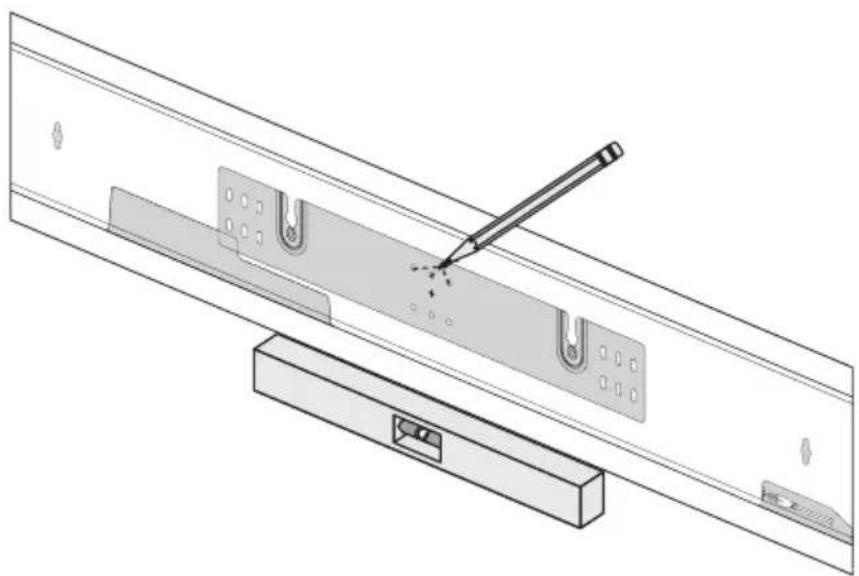
Fig. 1
- Using a stud finder, determine if there is a wall stud directly behind one of the three center screw locations (fig. 2a). If no stud is found: use the center most screw location and drill a pilot hole for the wall anchor. Install a wall anchor at this location. If a wall stud is found: drill a pilot hole into the stud.
- Using a screw, attach the wall bracket to the wall. DO NOT tighten (fig. 2b).
- Using a stud finder, determine if a wall stud is directly behind any of the remaining screw locations (fig. 2a).
If no stud is found: use the top and bottom center-most screw locations. If a wall stud is found: use the top and bottom screw locations with a stud behind them.
Use a level to square the wall bracket and mark the remaining pilot hole locations (fig. 2b).
- Remove the wall bracket or pivot to access the remaining screw locations (fig. 2b).
If no stud is found: drill pilot holes and install wall anchors. If a wall stud is found: drill pilot holes into the stud. - Using the screws, attach the wall bracket to the wall. DO NOT fully tighten.
- Use a level to square the wall bracket. Tighten all screws (fig. 2b).
- Attach audio and power cables as needed. Refer to the 'Connection' section of this manual.
- Move the soundbar into place and drop the shoulder bolts into the wall bracket keyholes. Before releasing, make sure the soundbar has dropped fully into the keyholes and is held firmly in place (fig. 3).
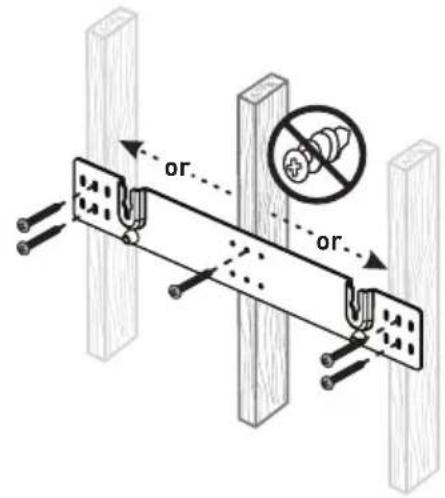
Fig. 2a

Fig. 2b

Fig. 3
CONNECTION
Turn your soundbar off before making or breaking any signal connections! WARNING! The

power cord should not be installed, removed, or left detached from the soundbar while the other end is connected to an AC power source.
POWER CONNECTION
The power cord should be firmly inserted into the AC power receptacle on the rear connection panel of the soundbar, then to any convenient AC wall outlet. The soundbar also integrates a signal sensing power supply that automatically switches into standby mode after sensing no audio signal for approximately 20 minutes (this will only occur when the menu's power setting is set to 'Auto Standby').

Fig. 4
If you remove your soundbar from the country of original sale, be certain that AC power supplied in any subsequent location is suitable before connecting and operating the soundbar. Substantially impaired performance or severe damage may occur to the soundbar if operation is attempted from an incorrect AC power source.
SIGNAL CONNECTION
When utilizing the soundbar to reproduce audio, a television's audio output should be defeated. Some televisions will allow you to turn off the internal speaker via the television's menu system. Other televisions may require you to turn the television's volume to "zero" or "mute".
Additionally, if you're connecting your television audio output using a HDMI or Digital Optical connection, your television may require you to activate the output and configure it to 5.1 surround sound. Please refer to your television's manual.
Connections are made at the signal input section on the rear electronics panel of the soundbar. Your soundbar features seven wired inputs:
- 3 × HDMI inputs (audio and video)
- 2 × Digital Optical inputs (audio only)
- 2 × Left/Right Analog (RCA) inputs (audio only) Please note, if your soundbar is being used in
an on-wall installation you may find it helpful to use 90^ RCA adapters, 90^ HDMI adapters, and/or low-profile HDMI cables when making signal connections.
When connecting your system, there are any variety of configurations that will work, and these methods will vary based on user preference.
Some users will choose to route all sources (such as DVD player, cable box, game console, media streamer, etc.) to their television via an HDMI, Digital Optical, or Left/Right Analog (RCA) connection and use the television to switch between audio/video sources. The advantage of this connection method is that only one audio cable (either HDMI, Digital Optical, or Left/Right Analog (RCA) needs to connect between the television and the soundbar—and changing the input on your television will change the audio signal being sent to the soundbar (without having to change the input setting on the soundbar itself).
Please note: Many televisions are not capable of passing multi-channel encoded audio signals, as a result they will down-mix these signals to a 2-channel stereo mix before sending them to the television's HDMI, Digital Optical, or RCA output.
We recommend running cables directly from the source components to the soundbar and
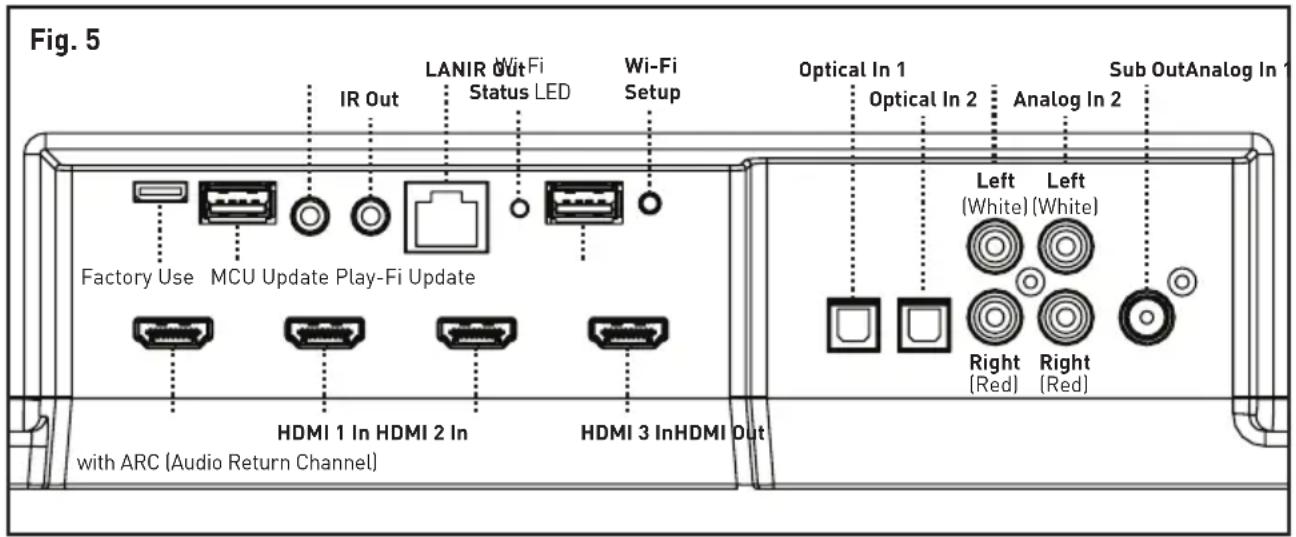
run an HDMI cable from the soundbar to the TV to pass along the video signal. This allows the soundbar to receive multi-channel encoded material. Depending on your number of sources, the TV may be used for switching some sources while the primary source devices may be directly connected to the soundbar for guaranteed multi-channel sound. The soundbar's HDMI ARC (Audio Return Channel) allows video to pass from the soundbar to the television and audio to pass from the television to the soundbar on the same HDMI cable. If you're using your television as the source, choose the soundbar's HDMI ARC input to hear any sounds originating from your television.
Please note: Not all telvisions are equipped with HDMI ARC technology.
A few important points to remember when connecting your soundbar:
- An HDMI or Digital Optical connection will provide the highest audio fidelity when connected to the soundbar.
- If your soundbar is not producing sound or surround sound from your Blu-ray player, DVD player, or other multi-channel audio capable source, you may need to set the player's digital audio output to "Bitstream" (also called "Raw", "Direct Digital", or "High Bit Rate"). If "PCM" is selected you'll lose the multi-channel encoded sound. Some players only require you to turn PCM off to configure for multi-channel encoded sound. Please refer to your player's manual.
- In a setup where HDMI is used to connect your audio/video source component(s) directly to your television, you will likely need to run an additional HDMI or Digital Optical connection between the source component and your soundbar. This extra connection will allow for multi-channel encoded audio to reach the soundbar. Many televisions that receive audio/video source materials via HDMI do not pass multi-channel encoding when the audio
is passed back out of the television's Digital Optical or Left/Right Analog (RCA) outputs. Instead, many televisions pass a 2-channel mix of the sound, stripping out the center, surround and subwoofer channels from the mix. This is not true for all televisions, but many models work this way. Using an HDMI connection between the television and soundbar will maximize the potential of successfully passing a multi-channel encoded audio signal from the television to the soundbar.
- Audio-only sources capable of only stereo output (such as portable media player docks or CD player) will often connect directly to the soundbar via the Analog Input.
NETWORK CONNECTION
To stream audio to your soundbar via Play-Fi, AirPlay, or Ethernet, a connection to your network must be established using Wi-Fi or Ethernet. Refer to the Play-Fi section for details on setting up a connection to your network.
SUBWOOFER CONNECTION
You may choose to employ a separate subwoofer to reproduce the LFE (low frequency effects) channel information in multi-channel recordings and/or reinforce bass performance of stereo recordings. A Paradigm subwoofer or an alternative brand subwoofer can be connected via the soundbar's "LFE Out" RCA connection.
Additionally, this soundbar integrates a built-in subwoofer wireless transmitter and includes a subwoofer wireless receiver to simplify the connection and placement of a subwoofer within your room.
No Subwoofer(Default)
For systems not using a separate subwoofer, use the soundbar's menu system and choose "Subwoofer
No Sub". This sets the soundbar to reproduce the entire frequency range when playing content.
Wired Subwoofer Connection
Using a high-quality RCA style cable designed for subwoofer connection, connect "Sub Out" from the soundbar to the "LFE In/Sub In" on the subwoofer.
Use the soundbar's menu system and choose 'Subwoofer > Wired Sub'.
Reference your subwoofer's manual to learn how to properly adjust the sub's level and phase controls to achieve proper blending with the soundbar. The subwoofer's crossover should be set to "bypass", "LFE". For subwoofer that do not have a "bypass" or "LFE" crossover setting, we recommend adjusting the crossover to its highest setting.
Wireless Subwoofer Connection
Press the subwoofer's sync button and hold for 3 seconds. The subwoofer's LED will blink quickly.
Use the soundbar's menu system and choose 'SUB > WIRELS > SYNC'. The soundbar will display 'PSH. BTN' [PUSH BUTTON].
If pairing has completed successfully, the subwoofer's LED will stop blinking and remain on and the soundbar will display 'SYNCED'. Please note: If a link is not established after 30 seconds, the subwoofer's LED will start blinking slowly and the soundbar will display 'FAILED'. Repeat ifSyncing fails.
Reference your subwoofer's manual to learn how to properly adjust the sub's level and phase controls. The subwoofer's crossover should be set to "bypass" or "LFE". For subwoofer's that do not have a "bypass" or "LFE" crossover setting, we recommend adjusting the crossover to its highest setting.
Please note: The subwoofer wireless transmitter built in to your Paradigm PW SOUNDDBAR is not compatible with Paradigm's subwoofer with built in subwoofer wireless transmitter technology. You can still utilize
wireless functionality by connecting the included subwoofer wireless receiver to the LFE input on your subwoofer or connecting a Paradigm PT-1 or PT-2 transmitter to the Sub Out on the soundbar.
Please note: If you decide to no longer use wireless, turn off the soundbar's wireless transmitter by using the menu system and choosing 'SUB > WIRELS > TRN.OFF' [TURN OFF] or 'SUB > NO SUB'. Doing this will turn off the transmitter and automatically set the soundbar for no sub.
WARNING! When operating wirelessly, the subwoofer may be susceptible to RF interference in the 2.4GHz bandwidth from microwave ovens and wireless devices such as Wi-Fi systems, video game consoles, cordless telephones, Bluetooth devices, and baby monitors. Generally, this issue (intermittent sound or slight popping noises) is easily resolved by physically separating problematic devices from one another—a distance as little as two feet will often alleviate the interference. In the case of microwave ovens, the interference will only occur when the microwave is operating.
Using a Paradigm Subwoofer
When configuring your subwoofer we recommend beginning with the following settings:
Low-pass: Bypass
Phase: 0^
Volume: Knob set to vertical (12-o'clock to 1-o'clock position).
IR OUTPUT
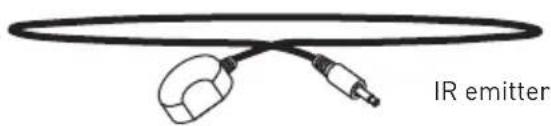
These jacks accept IR emitters with 3.5mm monostyle connectors. One IR emitter is included with the soundbar. Plug the IR emitter into either of the soundbar's IR Out jacks and place the other end of the IR emitter over the IR sensor on anther piece of equipment. The use of an IR emitter allows the soundbar to pass IR signals from any remote control to a tethered device—allowing control of equipment in locations a remote would not normally reach.
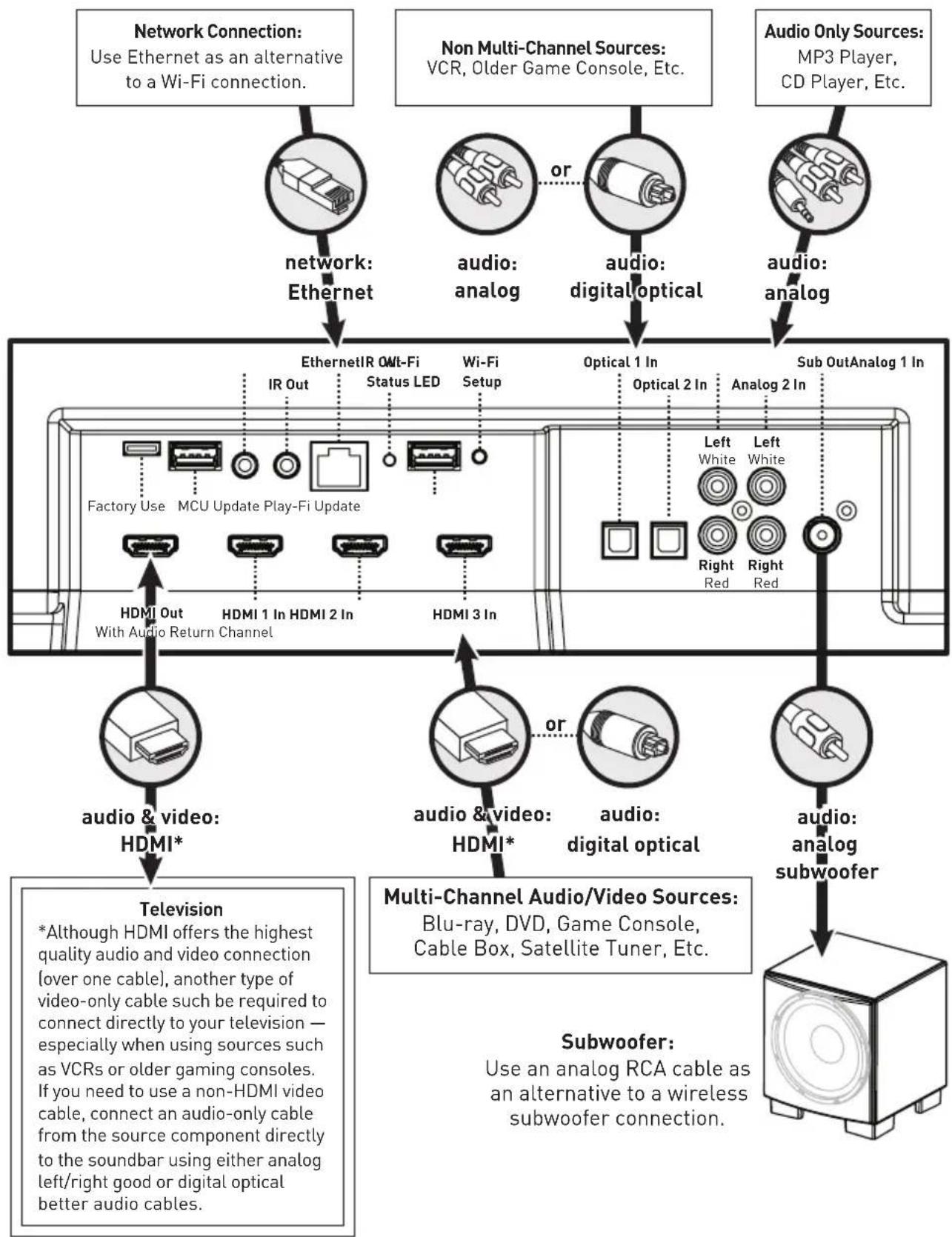
Fig. 6
CONTROL PANEL
Your soundbar features seven buttons that control the following functions:
MENU: Activates the setup menu. When the menu is activated the menu button will take you back one level, the volume buttons will function as up/down, and the Enter/Select button will allow you to select a menu item. Exit the menu by repeatedly pressing the Menu button.
ENTER/SELECT: When the menu is activated the Enter/Select button will allow you to select a menu item.
MUTE: Mutes the soundbar. When muted, the soundbar will display a Mute icon (A). Pressing
this button a second time or pressing either volume button will restore the previous volume setting.
VOL+/VOL-: Adjusts volume. When the menu is activated the volume buttons will function as up/down buttons.
INPUT: Cycles through the inputs. The order of the inputs is: HDMI 1 > HDMI 2 > HDMI 3 > HDMI ARC > Bluetooth > Optical 1 > Optical 2 > Analog 1 > Analog 2
POWER/STANDBY: Turns the soundbar on. Press and hold for 2 seconds to turn the soundbar off.
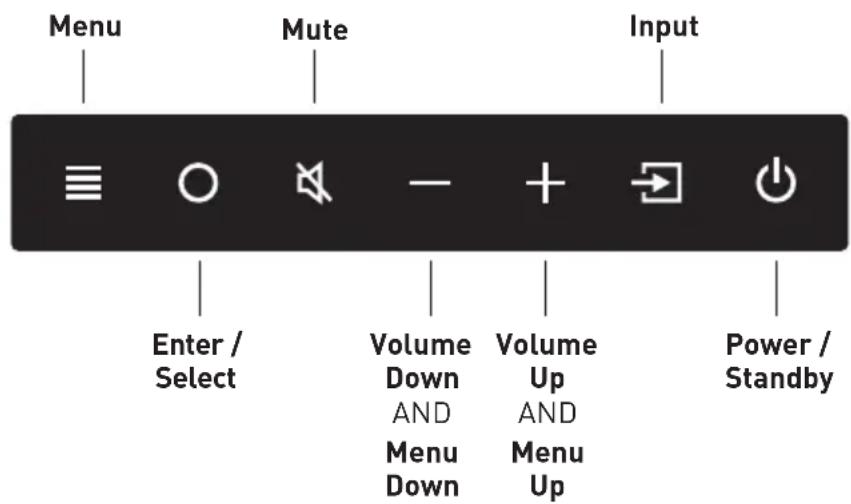
Fig. 8
REMOTE CONTROL
Your soundbar remote controls these functions:
POWER: Turns the soundbar on and off.
MENU: Enters and exits the soundbar menu.
MUTE: Mutes the soundbar. When muted, the soundbar will display 'MUTE'. Pressing this
button a second time or pressing either volume button will restore the previous volume setting.
VOL+/VOL-: Adjusts volume level.
BASS MODE - NIGHT: Reduces bass output and compresses the dynamic range.
BASS MODE - BASS+: Increases bass output.
BASS MODE - NORMAL: Restores normal levels.
INPUT: Activates the selected input.
CHANGING THE REMOTE'S BATTERY
Caution! Danger of explosion if battery is incorrectly replaced. Replace only with the same or equivalent type.

The remote control for your speaker uses two AAA type batteries. Access the battery compartment by using a Phillips screwdriver to remove the screw located on the bottom of the remote.
PROGRAMMING A SECOND REMOTE
This soundbar can be programmed to respond to a second remote. See "The Menu System" section of this manual for programming instructions.
Please note: There may be remote controls that the soundbar cannot learn or that the soundbar can not learn correctly. Due to the number of available remote controls, it is impossible to advise which will or will not work.
Please note: When learning from a second remote, you will likely find it does not have buttons that directly correspond with all available soundbar commands. Not all soundbar commands have to be programmed. Some remote controls offer 'function' buttons (F1, F2, etc.) that can be used to program unique soundbar commands such as 'NITE.MD' or 'OPTIC'.
Please note: Some remote controls offer discrete 'power on' and 'power off' buttons. Some offer only a single button to toggle power on and off. The learning function of the soundbar allows you to program for either scenario.
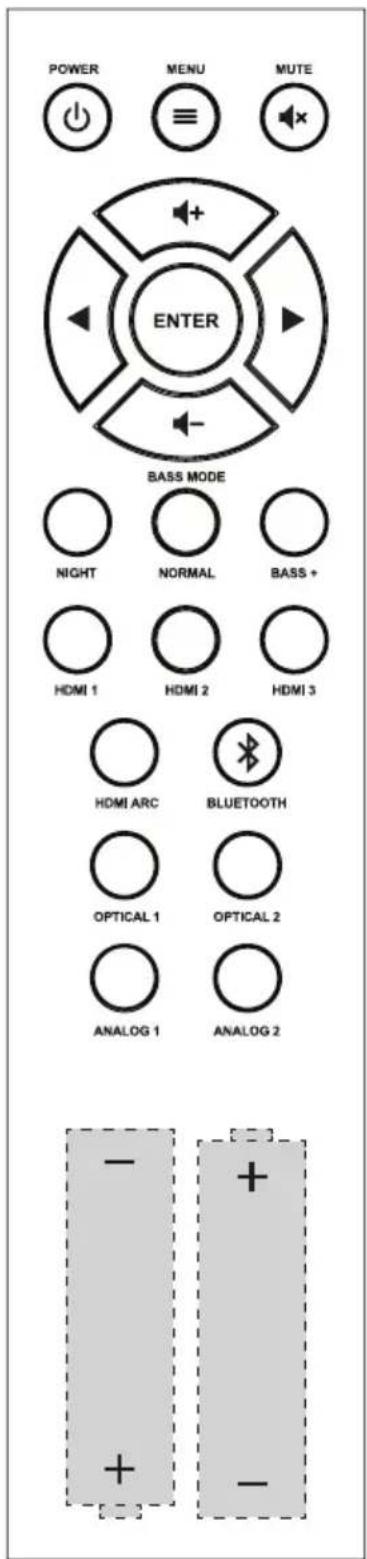
Fig. 9
DISPLAY

Fig. 10

Wi-Fi Status Satus Current InputAudio Codec Status
Your soundbar displays the following information:
Wi-Fi Status: The Wi-Fi icon displays when a Wi-Fi connection is established. If the soundbar is configured to connect to a Wi-Fi network but unable to connect, the icon will change to an exclamation point.
Please note: The Wi-Fi Status LED on the soundbar's connection panel provides more detailed feedback.
For information on Wi-Fi setup modes and detailed setup instructions, please refer to the "DTS Play-Fi and Network Connection" section of this manual.
Audio Codec Status: If an audio signal with surround sound encoding is detected this icon will indicate Dolby® Digital or DTS Digital SurroundTM.
Volume Level: Displays the current volume level. Current Input: This icon indicates the input that is currently active using its standard input name. This field is not customizable.
Current Input Custom Name: This indicates the input that is currently active using its custom user defined name.
Anthem Room Correction Status: This icon indicates that Anthem Room Correction is active. This icon will not display if an Anthem Room Correction has been manually turned off or an adjustment curve has not been uploaded to the soundbar. For information on setting up ARC, please refer to the [ARC^TM] Anthem Room Correction" section of this manual.
THE MENU SYSTEM

Fig. 11
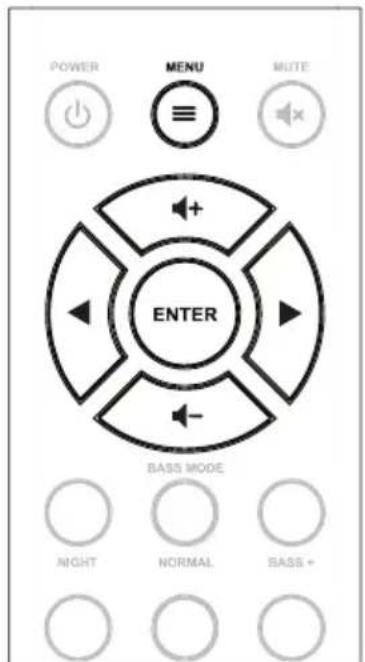
Fig. 12
ENTERING AND EXITING THE MENU
To access the menu from the remote, press 'Menu'. To exit the menu from the remote, press 'Menu' again.
To access the menu from the control panel press the menu button. To exit, press the menu button again.
The menu auto exits after 30 seconds.
NAVIGATING THE MENU**
The menu is navigated using the 'up/down/left/right/enter' navigation system. Up and Down are used to cycle through the menu and submenu options. Right or Select are used to access a submenu or to select an option. With the remote, left is used to exit a submenu and go back one level. With the control panel, the menu button is used to go back one level.
MENU OPTION: INSTALLATION
Installation: Enter the submenu by pressing the enter button. The settings in this menu will adjust the soundbar's equalization and voicing for optimal performance in shelf mount or wall mount installations.
Installation > Shelf Mount (Default): This option configures the soundbar's audio output to sound best in shelf mount installations. Activate by pressing the enter button and the soundbar will respond with 'Saved'.
Installation > Wall Mount: This option configures the soundbar's audio output to sound best in wall mount installations. Activate by pressing the enter button and the soundbar will respond with 'Saved'.
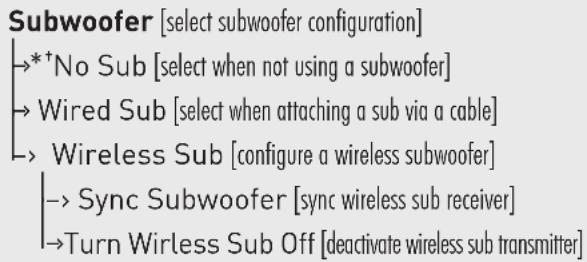
MENU OPTION: SUBWOOFER
Subwoofer: Enter the submenu by pressing the enter button. Here you may configure external subwoofer integration. Please note: When integrating an external subwoofer, you must choose either a wireless connection or a wired connection. Your soundbar does not simultaneously output via both connections. The soundbar can connect to only one wireless subwoofer. However, it is possible to connect multiple wired subwoofoers if you utilize a 'Y' splitter attached to the subwoofer cable, or if your subwoofer offers an output designed to daisy chain multiple subs.
Subwoofer > No Sub (Default): This option configures the soundbar to handle all bass information and will not output information via the subs wired or wireless subwoofer connections. Activate by pressing the enter button and the soundbar will respond with 'Saved'.
Subwoofer > Wired Sub: This option configures the soundbar to use an external subwoofer connected via a cable to the soundbar's Sub Out RCA connection. Activate by pressing the enter button and the soundbar will respond with 'Saved'. With this option, the wireless sub transmitter is turned off.
AN OVERVIEW OF THE MENU STRUCTURE



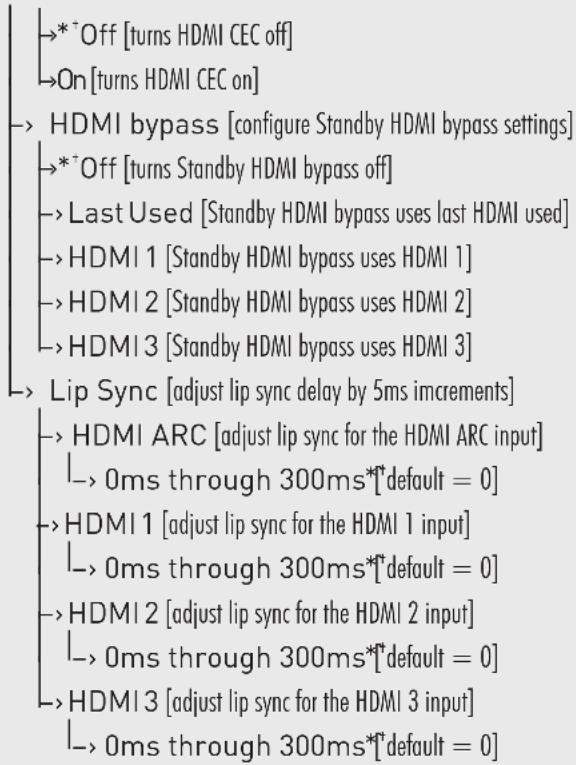

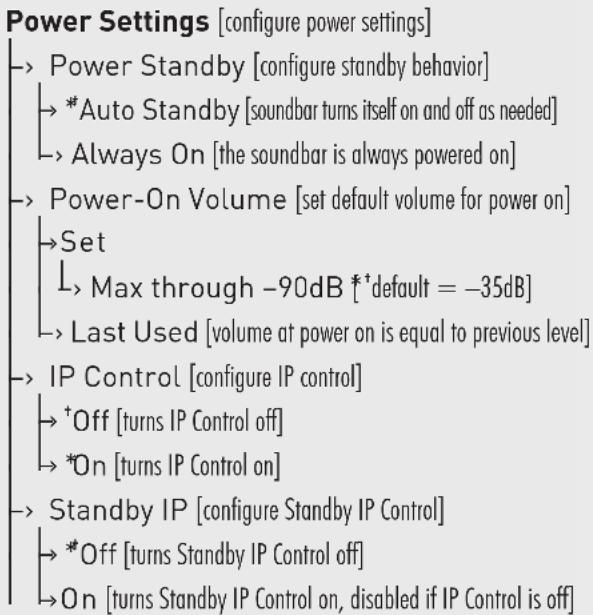

AN OVERVIEW OF THE MENU STRUCTURE (CONTINUED)
Learn Remote [learn remote codes for second remote control]
Volume +
Volume -
Mute
Next Input
Previous Input
→Up
Down
Left
Right
Enter
Bass Mode: Night
Bass Mode: Normal
Bass Mode: Bass+
Stereo Mode: Wide
Stereo Mode, Voice+
Stereo Mode: Normal
Power Toggle
Power On
Power Off
Menu
Input:HDMI 1
Input:HDMI2
Input:HDMI3
Input:HDMIARC
Input:Bluetooth
Input: Optical 1
Input: Optical 2
Input: Analog 1
Input: Analog 2
ARC On
ARC Off
L Reset Remote [clear codes for second remote]
N o [exits without clearing codes for second remote]
Yes [clears codes for second remote]
Source Name [assign custom names to inputs]
HDMI1
→HDMI2
HDMI3
→HDMIARC
Optical 1
Optical 2
Analog 1
Analog 2
Service [advanced controls]
L Firmware [displays firmware versions]
MCU [displays soundbar firmware version]
DSP [displays DSP firmware version]
→IA3S4 [displays wireless subwoofer firmware version]
TC390 [displays touch button firmware version]
IP Address [displays soundbar dynamic IP address]
MAC MCU [display MAC address of soundbar MCU]
MAC LAN [display MAC address of soundbar LAN]
MAC Wi-Fi [display MAC address of soundbar Wi-Fi]
CAP INFO [display hardware version and
DTS Play-Fi module version]
L Factory Reset [reset soundbar to original factory settings]
At Home [factory defaults for home use]
N0 [exits without resetting]
Yes [resets to factory defaults]
In Store [factory defaults for in-store use]
N [exits without resetting]
I Yes [retets to factory defaults]
USB Upgrade (updates firmware)
Upgrade DSP [updates DSP firmware]
Upgrade TC390 [updates touch button firmware]
Upgrade MCU [updates MCU firmware]
Upgrade ALL [updates all USB upgrades]
*HOME: Factory default setting, home use.
STORE: Factory default setting, retail store use.
Reference your subwoofer's manual to learn how to properly adjust the sub's level and phase controls to achieve proper blending with the soundbar. The subwoofer's crossover should be set to "bypass" or "LFE". For subwoofer that do not have a "bypass" or "LFE" crossover setting, we recommend adjusting the crossover to its highest setting.
Subwoofer > Wireless Sub: Enter the submenu by pressing the enter button. Here you can sync the soundbar to the subwoofer wireless receiver (included with your soundbar).
Reference your subwoofer's manual to learn how to properly adjust the sub's level and phase controls to achieve proper blending with the soundbar. The subwoofer's crossover should be set to "bypass" or "LFE". For subwoofer that do not have a "bypass" or "LFE" crossover setting, we recommend adjusting the crossover to its highest setting.
Subwoofer > Wireless Subwoofer > Sync
Subwoofer: This option connects the soundbar to the Subwoofer Wireless Receiver. StartSyncing by pressing the Enter button. The soundbar will display 'Push and Hold Button'.Press and hold the subwoofer wireless receiver's sync button. Connection is successful when the status light turns solid and the soundbar responds with Synced'.
Subwoofer > Wireless Sub > Turn Wireless Sub
Off: This option configures the soundbar to handle all bass information and, when selected, will not output information via the wired or wireless subwoofer connections. Activate by pressing the enter button and the soundbar will respond with 'Off'. Activating this option performs the same function as 'Subwoofer > No Sub'.
MENU OPTION: BASS LEVEL
Bass Level: Enter the submenu by pressing the enter button. Here you can configure bass output by ± 10dB in increments of 2dB.
Bass Level > - 10dB to +10dB : Using the up/down directional buttons, choose the desired bass level (from -10dB to +10dB ). Bass level output will be automatically set to match the value currently displayed.
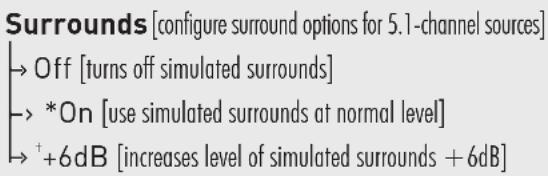
MENU OPTION: SURROUNDSD
Surrounds: Enter the submenu by pressing the enter button. This menu allows you to turn simulated surround channels on or off when the soundbar detects a multi-channel source.
Surrounds > Off: This option configures the soundbar (when it detects 5.1-channel encoded content) to down-mix to 3.1-channel output (left/center/right channels + subwoofer) and does not utilize simulated surround channels. All content originally intended for the surround channels is routed to the left/center/right channels. Activate by pressing the enter button and the soundbar will respond with 'Saved'.
Surrounds > On (Default): This option configures the soundbar (when it detects 5.1-channel encoded content) to fully reproduce all 5.1-channels of information including simulated surround channels. Activate by pressing the enter button and the soundbar will respond with 'Saved'.
Surrounds > +6dB: This option configures the soundbar (when it detects 5.1-channel encoded content) to fully reproduce all 5.1-channels of information including simulated surround channels with 6dB of extra output. Activate by pressing the enter button and the soundbar will respond with 'Saved'.
MENU OPTION:STEREO MODE
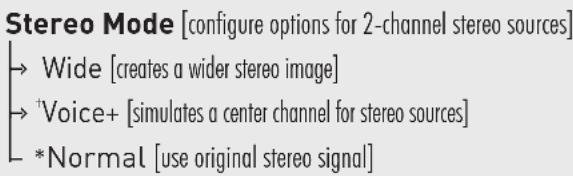
Stereo Mode: Enter the submenu by pressing the enter button. Here, you may set how the soundbar reproduces audio from 2-channel (stereo) sources.
Stereo Mode > Wide: This option configures the soundbar to create a wider stereo image. Activate by pressing the enter button, and the soundbar will respond with 'Saved'.
Stereo Mode > Voice+: This option configures the soundbar to reproduce the left and right channels with a simulated center channel. Activate by pressing the enter button and the soundbar will respond with 'Saved'.
Stereo Mode > Normal (Default): This option configures the soundbar to reproduce the content using only the left and right channels. Activate by pressing the enter button and the soundbar will respond with 'Saved'.
MENU OPTION: BASS MODE
Bass Mode: Enter the submenu by pressing the enter button. Here you may adjust the bass equalization of the soundbar. These options can also be activated directly from the soundbar's remote control.
Bass Mode > Bass+: This mode enhances bass output. Activate by pressing the enter button and the soundbar will respond with 'Saved'.
Bass Mode > Normal (Default): This mode returns the bass to normal levels. Activate by pressing the enter button and the soundbar will respond with 'Saved'.
Bass Mode > Night: This mode decreases bass output. Activate by pressing the enter button and the soundbar will respond with 'Saved'.
MENU OPTION: DISPLAY
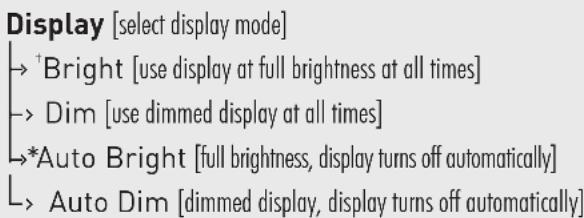
Display: Enter the submenu by pressing the enter button. The settings in this menu allow you to adjust the brightness of the display and configure the display to automatically turn on and off.
Display > Bright: This option configures the soundbar's display to be on at full brightness when the soundbar is on. Activate by pressing the enter button and the soundbar will respond with 'Saved'.
Display > Dim: This option configures the soundbar's display to be on at a reduced brightness when the soundbar is on. Activate by pressing the enter button and the soundbar will respond with 'Saved'.
Display > Auto Bright (Default): This option configures the soundbar's display to be on at full brightness when a setting (such as volume or input) is changed. After a few seconds, the display will turn off. Activate by pressing the enter button and the soundbar will respond with 'Saved'.
Display > Auto Dim: This option configures the soundbar's display to be on at a reduced brightness when a setting (such as volume or input) is changed. After a few seconds the display will turn off. Activate by pressing the enter button and the soundbar will respond with 'Saved'.
MENU OPTION: TOUCH DISPLAY
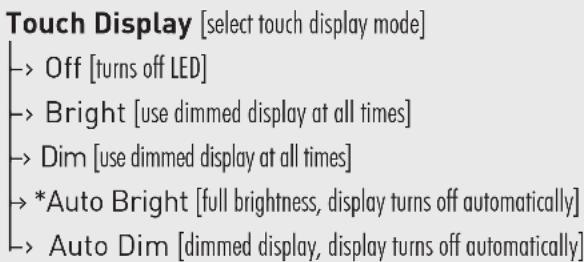
Touch Display: Enter the submenu by pressing the enter button. The settings in this menu allow you to adjust the brightness of the touch display and configure the touch display to automatically turn on and off.
Touch Display > Off: This option configures the soundbar's touch display to be off when the sound-
bar is on. Activate by pressing the enter button and the soundbar will respond with 'Saved'.
Touch Display > Bright: This option configures the soundbar's touch display to be on at full brightness when the soundbar is on. Activate by pressing the enter button and the soundbar will respond with 'Saved'.
Touch Display > Dim: This option configures the soundbar's touch display to be on at a reduced brightness when the soundbar is on. Activate by pressing the enter button and the soundbar will respond with 'Saved'.
Touch Display > Auto Bright (Default): This option configures the soundbar's touch display to be on at full brightness. After a few seconds, the touch display will turn off. Activate by pressing the enter button and the soundbar will respond with 'Saved'.
Touch Display > Auto Dim: This option configures the soundbar's touch display to be on at a reduced brightness. After a few seconds the display will turn off. Activate by pressing the enter button and the soundbar will respond with 'Saved'.
MENU OPTION: HDMI
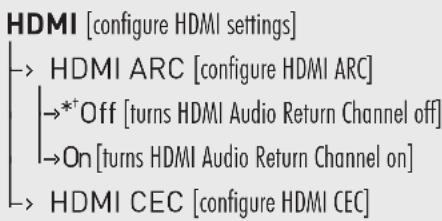
HDMI: Enter the submenu by pressing the enter button. Here you may adjust HDMI related settings.
HDMI > HDMI ARC: [HDMI Audio Return Channel] Enter the submenu by pressing the enter button. Here you may turn HDMI Audio Return channel on and off. HDMI ARC allows you to use one cable to pass video information from your soundbar to your television and send audio information from your television to your soundbar. This is useful if you have multiple sources hooked up to both your television and your soundbar and always want your soundbar to play audio.
HDMI > HDMI ARC > Off (Default) or On: This option turns the HDMI Audio Return Channel feature off or on. Activate by pressing the enter button and the soundbar will respond with 'Saved'.
HDMI > HDMI CEC: Enter the menu by pressing the enter button. Here you may turn HDMI CEC on and off. HDMI CEC (Consumer Electronics Control) allows all compatible devices to be controlled by one remote control and exchange remote commands via the HDMI connection.
HDMI > HDMI CEC > Off (Default) or On: This option turns the Consumer Electronics Control feature off or on. Activate by pressing the enter button and the soundbar will respond with 'Saved'.
HDMI > HDMI Bypass: Enter the submenu by pressing the enter button. Here you may choose the HDMI input to use with standby HDMI bypass. This feature allows the soundbar to send audio/video signals from HDMI connected sources to your television, even when you don't want to power on the soundbar and listen to audio through it.
HDMI > HDMI Bypass > Off (Default): This option turns off the standby HDMI Bypass feature. When the soundbar is in standby it will not pass audio/video out of HDMI. Activate by pressing the enter button and the soundbar will respond with 'Saved'.
HDMI > HDMI Bypass > Last Used: This option turns on the standby HDMI Bypass feature and passes audio/video from the last HDMI input you used while the soundbar is in standby mode. Activate by pressing the enter button and the soundbar will respond with 'Saved'.
HDMI > HDMI Bypass > HDMI 1 or HDMI 2 or HDMI 3: This option turns on the standby HDMI Bypass feature and passes audio/video from the HDMI 1, HDMI 2, or HDMI 3 input while the soundbar is in standby mode. Activate by
pressing the enter button and the soundbar will respond with 'Saved'.
HDMI > Lip Sync: Enter the submenu by pressing the enter button. Here you may adjust the audio/video sync for the HDMI inputs. Adjust this setting if the timing of the audio content does not match the video content.
HDMI > Lip Sync > HDMI ARC or HDMI 1 or HDMI 2 or HDMI 3: Enter the submenu by pressing the enter button. Here you choose which input you are adjusting lip sync for.
HDMI > Lip Sync > HDMI ARC or HDMI 1 or HDMI 2 or HDMI 3 > 0ms to 300ms: Using the up/down directional buttons, choose the desired delay (from 0 milliseconds to 300 milliseconds). Adjust this setting until the audio and video from your HDMI sources are synchronized. If your audio and video from HDMI sources is already synchronized, leave this set to 0ms. Lip sync will be automatically set to match the value currently displayed.
MENU: ANTHEM ROOM CORRECTION
Anthem Room Correction: Enter the submenu by pressing the enter button. Here you may turn Anthem Room Correction on and off. Using proprietary processes, a microphone, and the power of your PC, the ARC system analyzes your soundbar's in-room sound, then computes the required correction to yield optimal performance within your acoustic environment.
Anthem Room Correction > Off or On: This option turns the Anthem Room Correction feature on or off. Activate by pressing the enter button and the soundbar will respond with 'Saved'. Please note, turning ARC on and off only makes a difference if ARC corrections have not been loaded on the soundbar.
MENU OPTION: POWER SETTINGS
Power Settings: Enter the submenu by pressing the enter button. Here you may adjust the soundbar's power options.
Power Settings > Power Standby: Enter the submenu by pressing the enter button. Here you choose whether the subwoofer is always on or turns itself on and off automatically.
Power Settings > Power Standby > Auto Standby (Default): This option configures the soundbar to turn itself off after no audio signal is detected for approximately 20 minutes. When the soundbar detects an audio signal, it will immediately turn itself on. Activate by pressing the enter button and the soundbar will respond with 'Saved'. Please note: When set to Auto Standby, if the soundbar is manually turned off (using the power button on the control panel or remote control), the soundbar will not respond to an incoming audio signal and will not turn on automatically. In this situation, turn the soundbar on using the power button on the control panel or remote control and the soundbar will resume automatic power handling.
Power Settings > Power Standby > Always On: This option configures the soundbar to remain on at all times until it is manually turned off using the power button on the control panel or remote control. Activate by pressing the enter button and the soundbar will respond with 'Saved'.
Power Settings > Power-On Volume: Enter the submenu by pressing the enter button. Here you can configure the default volume of the soundbar when it powers on or comes out of standby.
Power Settings > Power-On Volume > Set: Enter the submenu by pressing the enter button. Here you choose set the power-on volume.
Power Settings > Power-On Volume > Set > -90dB to +10dB: Using the up/down directional buttons, choose the desired volume level. Once set the soundbar will
always be set to this level when it powers on or comes out of standby. The default level is -35dB.
Power Settings > Power-On Volume > Last Used:
When Power Standby is set to "Last Used", the soundbar will power on or come out of standby at a volume level matching the volume setting when it was powered off or went into standby.
Power Settings > IP Control: Enter the menu by pressing the enter button. Here you can turn IP Control off or on. IP Control allows the soundbar to respond to incoming IP commands from networked home control systems connected via Ethernet or Wi-Fi.
Power Settings > IP Control > Off or On: This option turns the IP Control feature off or on. Activate by pressing the enter button and the soundbar will respond with 'Saved'.
Power Settings > Standby IP: Enter the submenu by pressing the enter button. Here you can turn Standby IP Control off or on. This allows you to configure how the soundbar responds to incoming IP commands when it is in standby mode.
Power Settings > Standby IP > Off or On: This option turns the Standby IP Control feature off or on. Activate by pressing the enter button and the soundbar will respond with 'Saved'. When this setting is set to "Off" the soundbar will not respond to incoming IP command when it is powered off or in standby mode. If IP Control is set to Off, Standby IP Control is disabled.
MENU OPTION: WIRELESS SETUP
Wireless Setup: Enter the submenu by pressing the enter button. Here you may setup a Wi-Fi connection, turn Wi-Fi on or off, reset Wi-Fi settings, and setup a Bluetooth connection.
Wireless Setup > Initialize WiFi: Enter the submenu by pressing the enter button. Resetting will
clear the soundbar's Wi-Fi configuration. This function requires confirmation.
Wireless Setup > Initialize WiFi > No: Activate by pressing the enter button. Choosing this option will exit without resetting the Wi-Fi settings.
Wireless Setup > Initialize WiFi >Yes: Activate by pressing the enter button. The soundbar will respond with 'Resetting'. After a reset there is no way to recover the settings.
Wireless Setup > Bluetooth Pairing: Enter the submenu by pressing the enter button. Here you may setup a Bluetooth connection.
MENU OPTION: LEARN REMOTE
Please note: There may be remotes that the soundbar cannot learn or that the soundbar cannot learn correctly. Due to the number of available remotes, it is impossible to advise which remotes will or will not work.
Please note: When learning from a second remote, you will likely find it does not have buttons that directly correspond with all available soundbar commands. Not all commands have to be programmed. Some remotes offer 'function' buttons (F1, F2, etc.) that can be used to program unique soundbar commands such as 'Bass Mode: Night' or 'Input: HDMI 1'.
Please note: Some remote controls offer discrete 'power on' and 'power off' buttons. Some offer a single button to toggle power on and off. The learning function of the soundbar allows you to program either scenario.
Learn Remote: Enter the submenu by pressing the enter button. The settings in this menu program the soundbar to respond to a second remote control. The factory supplied remote control will always
work with the soundbar, even if the soundbar is programmed to respond to a second remote.
Using the up/down directional buttons, you can select and program the following commands:
Volume +
Volume -
Mute
- Next Input
Previous Input
Up
Down
- Left
Right
- Enter
- Bass Mode: Night
- Bass Mode: Normal
- Bass Mode: Bass+
- Stereo Mode: Wide
- Stereo Mode: Voice+
- Stereo Mode: Normal
Power Toggle
Power On
Power Off
- Menu
Input:HDMI 1
Input:HDMI2
Input:HDMI3
- Input: HDMI ARC
- Input: Bluetooth
Input: Optical 1
Input: Optical 2
Input: Analog 1
Input: Analog 2
- ARC On [Anthem Room Correction On]
- ARC Off [Anthem Room Correction Off]
Choose the command you want to program and press the enter button. The soundbar will respond with 'Push Button'. Hold the second remote approximately 12 inches (30cm) from the soundbar and press the appropriate button four times. If the new command is learned
successfully, the soundbar's display will display "Saved". If the new command is not learned,
the soundbar will display "Failed". Repeat the process if learning fails.
Learn > Reset Remote: Enter the submenu by pressing the enter button. Erasing will clear programming for the second remote. The Reset function requires confirmation.
Learn > Reset Remote > No: Activate by pressing the enter button. Choosing this option will exit without erasing the remote programming.
Learn > Reset Remote >Yes: Activate by pressing the enter button. The soundbar will respond with 'Resetting'. After codes are reset, there is no way to recover the previous settings.
MENU OPTION: SOURCE NAME
Source Name: Enter the submenu by pressing the enter button. The settings in this menu will allow you to assign new names to display on the soundbar when changing inputs. For example, you can program the 'Optical 1' input to display 'DVD'.
Using the up/down directional buttons, you can select and program the following input names:
HDMI 1
HDM12
HDM13
HDMIARC
Optical 1
Optical 2
- Analog 1
- Analog 2
Choose the input name you want to reprogram and press the enter button. The soundbar display
will display the current name. Pressing the up/ down directional buttons will cycle through the available alpha-numeric characters. Pressing the left/right directional buttons will move to the next/previouspace.To finish programming an input name, use the left/right buttons to move all the way to the left or right.
MENU OPTION: SERVICE
Service: Enter the submenu by pressing the enter button.
Service > Firmware: Enter this submenu by pressing the enter button.
Service > Firmware > MCU: Pressing the enter button will display the current firmware version for the soundbar's MCU (microcontroller unit).
Service > Firmware > DSP: Pressing the enter button will display the current firmware version for the soundbar DSP module.
Service > Firmware > IA3S4: Pressing the enter button will display the current firmware version for the soundbar's wireless subwoofer module.
Service > Firmware > TC390: Pressing the enter button will display the current firmware version for the soundbar's touch button module.
Service > Firmware > IP Address: Pressing the enter button will display the current firmware version for the soundbar's dynamic IP.
Service > Firmware > MAC MCU: Pressing the enter button will display the current firmware version for the mac address of the soundbar's MCU.
Service > Firmware > MAC LAN: Pressing the enter button will display the current firmware version for the mac address of the soundbar's LAN.
Service > Firmware > MAC Wi-Fi: Pressing the enter button will display the current firmware version for the mac address of the soundbar's Wi-Fi.
Service > Firmware > CAP Info: Pressing the enter button will display the current firmware version for the soundbar's DTS Play-Fi module.
Service > Factory Reset: Enter the submenu by pressing the enter button. Resetting the soundbar will restore all settings to the factory defaults settings. This will erase all user-configured presets, and Anthem Room Correction data. This function requires confirmation to reduce risk of performing an accidental reset.
Service > Factory Reset > At Home: Enter the submenu by pressing the enter button.
Service >Factory Reset >At Home >No:Activate by pressing the enter button. Choosing this option will exit without performing a reset.
Service >Factory Reset >At Home >Yes:
Activate by pressing the enter button. The soundbar will respond with 'Resetting'. Once complete, your soundbar will be reset to factory default Home settings. After a reset has been performed, there is no way to recover the previous settings.
Service > Factory Reset > In Store Enter the submenu by pressing the enter button.
Service >Factory Reset > In Store > No: Activate by pressing the enter button. Choosing this option will exit without performing a reset.
Service >Factory Reset >In Store >Yes:
Activate by pressing the enter button. The soundbar will respond with 'Resetting'. Once complete, your soundbar will be reset to factory default Home settings. After a reset has been performed, there is no way to recover the previous settings.
MENU OPTION: USB UPGRADE
USB Upgrade: Enter the submenu by pressing the enter button.
USB Upgrade > Upgrade DSP > No or Yes:
This option turns the DSP Upgrade off or on. Activate by pressing the enter button and the soundbar will respond with 'Saved'.
USB Upgrade > Upgrade TC390 > No or Yes:
This option turns the TC390 Upgrade off or on. Activate by pressing the enter button and the soundbar will respond with 'Saved'.
USB Upgrade > Upgrade MCU > No or Yes:
This option turns the MCU Upgrade off or on. Activate by pressing the enter button and the soundbar will respond with 'Saved'.
USB Upgrade > Upgrade ALL > No or Yes:
This option turns the ALL Upgrade off or on. Activate by pressing the enter button and the soundbar will respond with 'Saved'.
DIGITAL INPUTS (HDMI and Digital Optical)
This soundbar is capable of detecting and automatically decoding multi-channel audio formats, such as those found on DVD and Blu-ray movies.
When utilizing a digital connection, the soundbar can process the following formats: Dolby Digital, DTS Digital Surround™, and digital stereo.


Digital Surround

DOLBY
AUDIO
ANALOG INPUT (RCA)
- Digitally encoded sound information cannot be transmitted to an analog input. This connection method is adequate for most devices that only offer two channels of output (such as VCRs, CD players, older game consoles, or portable media player docks). Although most surround sound capable devices, such as DVD and Blu-ray players, offer both analog and digital connections, the digital connection should always be employed. If a source device is connected via an analog left/right RCA connection, the 5.1-channel encoded audio content will not be sent to the soundbar.
PLAYING AUDIO USING PLAY-FI
Note: Future updates to the DTS Play-Fi application may change functionality.
- Launch the DTS Play-Fi app on your mobile device or PC (located in the system tray).
- Android and iOS Device Users: Within the Play-Fi app, select your music source. You can choose from your personal music library, internet radio, or from select online music services (visit our website at paradigm.com to view a full list of available music services). PC Users: Any audio content from your computer can be streamed using DTS Play-Fi.
- If you have more than one DTS Play-Fi speaker connected to your network, you will be prompted to select the speaker to which you want to stream.
CONTROLLING MULTIPLE SPEAKERS
If you have more than one Play-Fi speaker connected to your network, you can simultaneously stream the same audio to multiple speakers.
- Android and iOS Device Users: Within the app, press the Play-Fi logo in the lower corner of the app. PC Users: Open the Play-Fi program using the icon in your system tray.
- Select additional devices to play audio from. PC Users: The free version of the Windows app may not allow streaming to multiple speakers. An upgraded version of the Play-Fi app, with this capability, can be purchased from the website.
Note: 8 DTS Play-Fi speakers can be syncsed to play the same audio content at the same time. We recommend up to 16 DTS Play-Fi speakers on a network for the best experience, but the only limit to connected devices is how many your router can support.
TIP! Primary and Secondary Speakers
When streaming audio content to multiple devices, you will be asked to assign them to two categories: primary and secondary devices. The DTS Play-Fi module requires a primary device be selected. This maximizes synchronization between multiple devices simultaneously streaming the same content.
Select the DTS Play-Fi device with the strongest signal as your primary device. Secondary devices connect to your primary device, so if you disable your primary device, you will need to select a new primary device before audio resumes on your secondary devices.
ADDITIONAL DTS PLAY-FI FEATURES
New versions of the DTS Play-Fi app will add features not mentioned in this manual. Please refer to the app and related documentation for details on new and enhanced features such as streaming different audio content to multiple zones and grouping of two discrete speakers for stereo (left/right) playback.
HOW TO USE CONNECT
You'll need Spotify Premium to use Connect, see details overleaf.
- Add your new device to the same Wi-Fi network as your phone, tablet or PC (see product user instructions for details).
- Open the Spotify app on your phone, tablet or PC, and play any song.
-
If you're using the app on a phone - tap the song image in the bottom left of the screen. For tablet and PC move to step 4.
-
Tap the Connect icon

- Pick your device from the list. If you can't see it, just check it's connected to the same Wi-Fi network as your phone, tablet or PC.
All done! Happy listening.
Licenses
The Spotify Software is subject to third party licenses found here: www.spotify.com/connect/third-party-licenses.
UPDATES AND REBOOTING
To completely reboot your soundbar, disconnect the power cord, wait 30 seconds, and plug it back in. Press the power button to turn the soundbar on. This reboot will cycle the power off and on and force the soundbar to reconnect to your network.
SOUNDBAR FIRMWARE UPDATE
Your soundbar Microcontroller (MCU) may occasionally require firmware updates. Please check www.paradigm.com for the latest firmware updates.
DTS PLAY-FI MODULE UPDATE
The DTS Play-Fi Caprica module within your soundbar will occasionally require a firmware update. If an update is needed, the DTS Play-Fi app will notify you and guide you through the update process.
DTS PLAY- ^国 APP UPDATE
If the DTS Play-Fi app on your mobile device or PC requires an update, you will be notified that an update is available and guided through the update process. network.
ARC^TM (ANTHEM ROOM CORRECTION)
Even when the finest speakers are perfectly positioned, the room itself still has a dramatic impact on any system's sound, an impact more profound than that of any individual component. Various solutions have fallen in and out of favor over the years, but none has solved the problem of "the room." Until ARC.
Using proprietary processes and the power of your PC, the ARC system analyzes each speaker's in-room sound, then computes the required correction to yield optimal performance from every speaker. It's a process that takes approximately 15 minutes. Anthem's approach is a true audiophile solution to the problems of the room.
IMPORTANT! The listening space must be silent while performing ARC. A noisy computer fan, a dishwasher or microwave running, etc. can negatively affect ARC's measurements.
How to Use ARC Technology:
-
Ensure that your soundbar is connected to your home network and is powered on.
-
IP Control must be "On". To activate, or to verify that it is "On", navigate the menu system to the following location:
IP Control: Power Settings > IP Control > On
- Download the latest version of ARC-2 software from www.anthemav.com and install it. Follow the on-screen instructions.
- Using the USB cable, connect the ARC microphone to a Windows PC. The USB cable and ARC microphone are provided with your wireless product.
- Look for the icon on your desktop and launch the ARC program. Follow the prompts on your computer screen to successfully run the ARC software; the entire process should take approximately 15 minutes.
- Hold the ARC microphone with your arm fully extended, the ARC microphone tip must point towards the ceiling and it must be positioned at ear level (Fig. 13).
- For best results, hold the microphone in 5 different positions around the room.
TIP! Once the ARC process is complete, the audio will be played back reflecting these corrections. To turn ARC correction on and off, use the menu and navigate to 'Anthem Room Correction'.

Fig. 13
LIMITED WARRANTY
Paradigm® PW SOUNDBAR covered in this manual are warranted to be and remain free of manufacturing and/or material defects for a period of one (1) year from the date of original purchase.
Within the time periods specified, repair, replacement or adjustment of parts for manufacturing and/or material defects will be free of charge to the original owner.
Thermal or Mechanical Abuse/Misuse Is Not Covered Under Warranty.
Limitations:
- Warranty begins on date of original retail purchase. It is not transferable;
- Warranty applies to product in normal home use only. If product is subjected to any of the conditions outlined in the next section, warranty is void;
- Warranty does not apply if the product is used in professional or commercial applications.
Warranty is Void if:
- The product has been abused (intentionally or accidentally);
- The product has been used in conjunction with unsuitable or faulty equipment;
- The product has been subjected to damaging signals, derangement in transport, mechanical damage or any abnormal conditions;
- The product (including cabinet) has been tampered with or damaged by an unauthorized service facility;
- The serial number has been removed or defaced.
Owner Responsibilities:
- Provide normal/reasonable operating care and maintenance;
- Provide or pay for transportation charges for product to service facility;
- Provide proof of purchase (your sales receipt given at time of purchase must be retained for proof-of-purchase date).
Should servicing be required, contact us using the information below, to arrange, bring in or ship prepaid, any defective unit. Visit our website, www.paradigm.com for more information.
Paradigm Electronics Inc. reserves the right to improve the design of any product without assuming any obligation to modify any product previously manufactured.
This warranty is in lieu of all other warranties expressed or implied, of merchantability, fitness for any particular purpose and may not be extended or enlarged by anyone. In no event shall Paradigm Electronics Inc., their agents or representatives be responsible for any incidental or consequential damages. Some jurisdictions do not allow limitation of incidental or consequential damages, so this exclusion may not apply to you.
Retain this manual and your sales receipt for proof of warranty term and proof of purchase.
For additional product support, call Paradigm at 905-696-2868 or email service@paradigm.com
Frequently Asked Questions
Can my soundbar be used as a dedicated center channel?
No. The soundbar is designed to work as a 2-channel stereo or multi-channel surround sound playback device.
Why is my soundbar not reproducing multi-channel (surround sound) audio?
This could be caused by any number of things. Review the "Connection" section of this manual for a better understanding of recommended connection methods and possible options that might impact the soundbar's ability to receive multi-channel encoded audio from your television and other audio/video source components.
Will this soundbar decode Dolby® TrueHD or DTS-HD Master Audio™?
No. This soundbar will not decode Dolby TrueHD or DTS-HD Master Audio™. If your audio source (most likely a Blu-ray player) supports either of these formats, you should configure it to default to the Dolby Digital or DTS Digital Surround™ encoded sound track.
How do I connect the soundbar if my television does not have a digital optical or coaxial) output?
If your television has analog outputs these can be used instead. For a digital connection connect the digital audio output of your cable box (or DVD, Blu-ray, game console, etc.) directly to the soundbar using a digital optical cable. A direct digital connection with a source component is always ideal.
How do I clean my soundbar?
Use a dust free cloth (such as a micro fiber cloth) or a soft brush to remove dust from your speakers. Do not spray any kind of cleaning agent on or in close proximity to the drivers.
Can I mount this soundbar on the wall with a mounting bracket that pivots?
Paradigm does not provide a pivoting wall-bracket for this soundbar. Aftermarket options may exist, but we can not recommend or guarantee a specific brand or model.
I have a Paradigm subwoofer with a built-in wireless receiver. Is my soundbar's built-in subwoofer wireless transmitter compatible with my subwoofer?
No. The subwoofer wireless transmitter built in to your Paradigm PW SOUNDBAR is not compatible with Paradigm's subwoofer with built in subwoofer wireless transmitter technology. You can still utilize wireless functionality by connecting the included subwoofer wireless receiver to the LFE input on your subwoofer or connecting a Paradigm PT-1 or PT-2 transmitter to the Sub Out on the soundbar.
Could you suggest a list of suitable electronics and cables ideal for Paradigm speakers?
We have no favorites and use electronics and cables quite interchangeably. We would suggest listening to a number of brands—and above all else—trust your ears. Dealers are always the best source for information when purchasing additional audio equipment.
Is there likely to be any interaction between my speakers and the television in my A/V system?
Yes, but only with CRT televisions. This soundbar is not magnetically shielded and should be kept at least 2 feet away from a CRT television. LCD and plasma televisions will not be affected.
How can I remove the metal perforated grille from the soundbar?
The soundbar's metal perforated grille is not removable.
TROUBLESHOOTING
I'm having trouble using the Play-Fi® app.
- For information on the DTS Play-Fi app, please visit: https://play-fi.com/faq
Soundbar does not turn on.
- Check that the soundbar's AC power cord is firmly attached to the AC Power In input and plugged into a working AC outlet.
The Wi-Fi Status LED does not light up.
- When connected to a network with an Ethernet cable, this light will turn off.
I am unable to connect my soundbar to my network.
- Verify that your wireless network is functioning.
- Your router's wireless signal may be weak or your soundbar may be out of the range of your Wi-Fi network. Move the soundbar closer to the router or use an Ethernet connection instead.
- Reboot your soundbar. Unplug the soundbar, wait 30 seconds, plug it back in, and press the Power button. This reboot will cycle the power off and on and force the soundbar to reconnect to your network.
- Reset your soundbar to factory settings. From the menu choose 'Service > Factory Reset > At Home > Yes'. The soundbar will respond with 'Resetting'. Once complete, your soundbar will be reset to factory default home settings. After a reset has been performed, there is no way to recover the previous user configured settings.
The Play-Fi app cannot find my soundbar.
- If you are trying to setup your soundbar, verify the soundbar is fully powered on and in Access Point Mode (Wi-Fi Status LED is pulsing slowly). If the Wi-Fi Status LED does
not pulse slowly, press and hold the Wi-Fi Setup button for 8 seconds. You will hear two tones—one at 3 seconds and another at 8 seconds.
- Verify you are within the recommended range of your wireless router.
- Verify your mobile device or PC has its Wi-Fi enabled or is otherwise connected to your network.
- Verify there are no other apps running on your device that might impede wireless connectivity to your network.
- Restart your phone, tablet or PC.
- If you still can't find the soundbar on your network and are in an office environment, verify with your network administrator that no special permissions are enabled that would prevent external wireless devices from communicating with the network.
- If the soundbar is still not found, uninstall, re-download, and re-install the DTS Play-Fi® app on your mobile device or PC. Reboot the soundbar. Unplug the soundbar, wait 30 seconds, plug it back in, and press the Power button. This reboot will cycle the power off and on and force the soundbar to reconnect to your network.
The Play-Fi app reports "Play-Fi Devices Lost."
- Check that your device is powered on.
- Verify you have a strong network signal.
- Verify the network connection has not been lost.
- Check for other devices that might be causing heavy network traffic.
- Verify that your mobile device or PC has not left the range of your router.
-
Verify that your mobile device or PC and your soundbar are connected to the same network.
-
Verify that your soundbar's wireless streaming has not been taken over by another app.
- Exit and then restart the DTS Play-Fi app.
- Uninstall, re-download, and re-install the DTS Play-Fi app on your mobile device or PC.
- Reboot the soundbar. Unplug the soundbar, wait 30 seconds, plug it back in, and press the Power button. This reboot will cycle the power off and on and force the soundbar to reconnect to your network.
No output from the soundbar
- Check that the soundbar is turned on.
- Check that the soundbar is not muted.
- Check that the soundbar's volume is not turned all the way down.
- Check that the soundbar is set to the proper input.
- Check that all system components are turned on and source material is playing.
- Turn the soundbar off and on using the remote control or the control power button.
- Unplug the soundbar, wait 30 seconds, and plug it back in.
- Check that all interconnecting cables are connected at both ends.
- If necessary, try connecting an alternate source component to make sure the original source component isn't the problem.
No surround sound
- Review the "Connection" section of this manual for a better understanding of recommended connection methods and possible options that might impact the soundbar's ability to receive multi-channel encoded audio from your television and other audio/video source components.
Sound is coming from both my soundbar and my television
- When utilizing the soundbar to reproduce audio, the television's audio output should be defeated. Some televisions will allow you to turn off the internal speaker via the television's menu system. Other televisions may require you to turn the television's volume to "zero" or to "mute" the television.
The soundbar is too quiet even when the soundbar is turned up
- Check that the output on your television or other source components are not connected via a variable level output. Sometimes this option may be configured in your source components menu. Please refer the manual for the source component in question.
Soundbar won't learn remote codes from aftermarket remote
- Review the "Menu Option: Learn" section of this manual.
- Hold the remote 12 inches (30 cm) from the soundbar during the learning process.
- Press the appropriate button on the second remote four times.
- If the soundbar has already learned a remote code and you are attempting to program the same code to a second function the soundbar will respond with "Fail".
- There may be remote controls that the soundbar cannot learn or that the soundbar can not learn correctly. Due to the number of available remote controls, it is impossible to advise which will or will not work.
- Check the user manual and/or manufacturer's website for your aftermarket remote to see if Paradigm is supported. If so, instead of 'learning' with the soundbar, use the code provided by the manufacturer to program the aftermarket remote itself.
Soundbar remote won't work
- Replace the remote control's batteries with matching batteries.
- Make sure the batteries are installed in the proper orientation.
- If new batteries do not fix the problem, you may have a faulty remote. Call Paradigm customer service at 905-696-2868 for details.
When using an aftermarket remote, the soundbar turns off when the television turns on
- Turn the television on. Manually press the Power button on the soundbar so that both the soundbar and television are both on at the same time.
No sound coming from external sub
- Check that the external sub is turned on.
- Check that the soundbar is configured for a wired or wireless subwoofer connection. Refer to the "Subwoofer Connection" section of this manual.
- If utilizing a wired connection, check that the subwoofer cables are attached to the Sub Out connection on the soundbar and to the appropriate input on the subwoofer.
- If utilizing a wireless connection, attempt
to re-sync the wireless connection. Refer to the "Subwoofer Connection" section of this manual. If a sync attempt has failed, you may need to power down both the soundbar and subwoofer wireless receiver before trying to re-sync.
- If utilizing a wireless connection, move the subwoofer closer to the soundbar.
- Turn the soundbar off and on using the remote control or control panel power button.
- Unplug the soundbar, wait 30 seconds, and plug it back in.
External sub is too quiet
- Turn up the volume on the subwoofer.
- Adjust the bass level setting in the soundbar menu system.
- Try moving the subwoofer to a different location in the listening room.
My soundbar is not behaving as expected.
- Turn the soundbar off and on using the remote control or control panel power button.
- Unplug the soundbar, wait 30 seconds, and plug it back in.
DIMENSIONAL DRAWINGS
WALL MOUNT CONFIGURATION

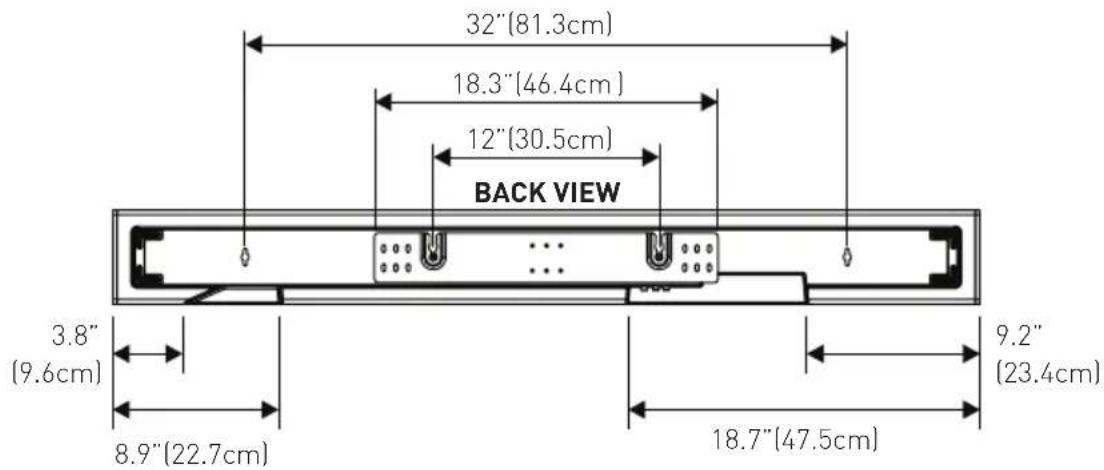
DIMENSIONAL DRAWINGS
TABLE MOUNT CONFIGURATION
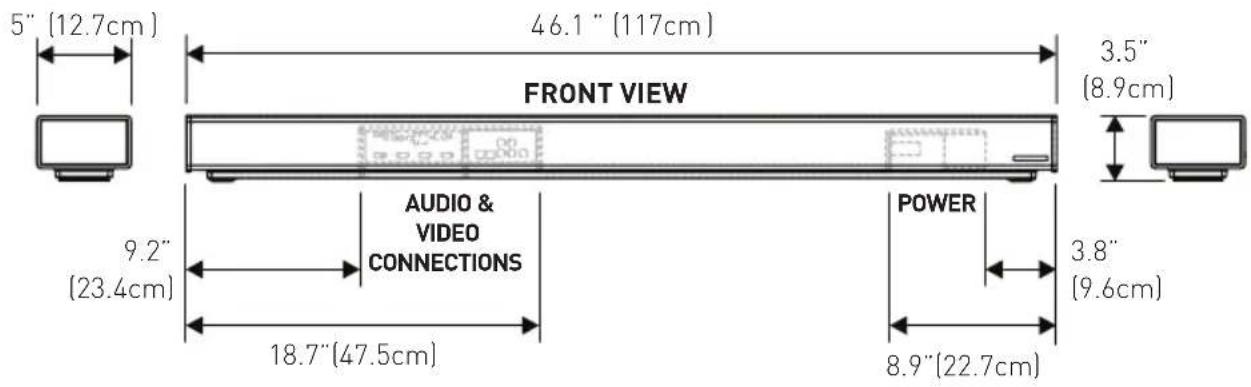

NOTES
NOTES
MANUEL D'UTILISATION
PLSOUNDBAR

PREMIUM WIRELESS series






Paradigm Electronics Inc. 205 Annagem Blvd.,
Mississauga, ON L5T 2V1
NUMERO DE MODELE: PW SOUNDDBAR
ID FCC: MBBPWSOUNDBAR
Bass mode (mode graves) 24
Display (affichage) 25
Touch Display (affichage tactile) 25
HDMI 25
ARC [Anthem Room Correction] 27
Installation > Wall Mount (Installation > Montage
ARC [configure I'Anthem Room Correction]
^* O on [allumé, allume l'Anthem Room Correction, si charge]
Left [gauche]
Right [droite]
Enter [entert]
Bass Mode: Night [mode graves : nuit]
Bass Mode: Normal [mode graves : normal]
Bass Mode: Bass+ [mode graves : graves +]
Stereo Mode: Wide [mode stéreo : large]
Input:HDMI1[entree:HMI1]
Input: HDM1 2 [entree : HDM1 2]
Input:HDMI3[entree:HMI3]
Input: HDMI ARC [entree : HDMI ARC]
Input:Bluetooth
Input: Optical 1 [entree: optique 1]
Service >Factory Reset >at home (Service >
Service >Factory Reset > In store > No (Service >
www.spotify.com/connect/third-party-licenses.
MISES À JOUR ET REDÉMARRAGE
REDÉMARRAGE DE LA BARRE DE SON
MISE A JOUR DU DTS PLAY-FMD
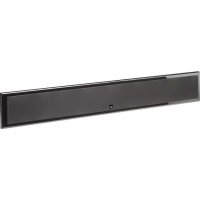
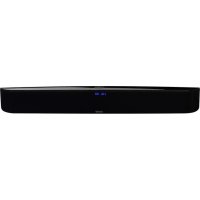
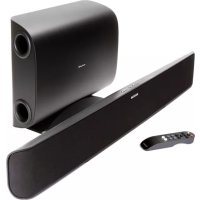
- PREMIUM WIRELESS series
- PW SOUNDBAR
- IMPORTANT SAFETY INSTRUCTIONS!
- FEDERAL COMMUNICATIONS COMMISSION
- RADIO FREQUENCY (RF) EXPOSURE INFORMATION:
- CAUTION
- CONTAINS TRANSMITTER MODULE FCC ID:
- CONTAINS FCC ID: MBBDMRS4
- FCC ID: MBBPWSOUNDBAR
- 1.PRODUCT CONTAINS TRANSMITTER MODULE IC:
- WEEE NOTICE
- WARNING/CAUTION!
- Made for:
- Placement and Mounting 7
- Connection. 10
- Control Panel. 15
- Remote Control 15
- Display 17
- The Menu System 18
- Surround Sound Decoding 30
- Playing Audio Using DTS Play-Fi 31
- How to use Connect. 32
- Updates and Rebooting 32
- ARCTM (Anthem Room Correction) 33
- Limited Warranty. 34
- Frequently Asked Questions 35
- Troubleshooting 36
- Dimensional Drawings 39
- Serial Number:
- INTRODUCTION AND OVERVIEW
- PLACEMENT AND MOUNTING
- LOCATION
- INSTALLING ON A FLAT SURFACE
- ON-WALL INSTALLATION
- Required tools (not included):
- Required hardware (included):
- Required hardware (not included):
- CONNECTION
- POWER CONNECTION
- SIGNAL CONNECTION
- NETWORK CONNECTION
- SUBWOOFER CONNECTION
- No Subwoofer(Default)
- Wired Subwoofer Connection
- Wireless Subwoofer Connection
- Using a Paradigm Subwoofer
- IR OUTPUT
- CONTROL PANEL
- REMOTE CONTROL
- CHANGING THE REMOTE'S BATTERY
- PROGRAMMING A SECOND REMOTE
- DISPLAY
- THE MENU SYSTEM
- ENTERING AND EXITING THE MENU
- NAVIGATING THE MENU**
- MENU OPTION: INSTALLATION
- MENU OPTION: SUBWOOFER
- AN OVERVIEW OF THE MENU STRUCTURE
- AN OVERVIEW OF THE MENU STRUCTURE (CONTINUED)
- Subwoofer > Wireless Subwoofer > Sync
- Subwoofer > Wireless Sub > Turn Wireless Sub
- MENU OPTION: BASS LEVEL
- MENU OPTION: SURROUNDSD
- MENU OPTION:STEREO MODE
- MENU OPTION: BASS MODE
- MENU OPTION: DISPLAY
- MENU OPTION: TOUCH DISPLAY
- MENU OPTION: HDMI
- MENU: ANTHEM ROOM CORRECTION
- MENU OPTION: POWER SETTINGS
- Power Settings > Power-On Volume > Last Used:
- MENU OPTION: WIRELESS SETUP
- MENU OPTION: LEARN REMOTE
- MENU OPTION: SOURCE NAME
- MENU OPTION: SERVICE
- Service >Factory Reset >At Home >Yes:
- Service >Factory Reset >In Store >Yes:
- MENU OPTION: USB UPGRADE
- USB Upgrade > Upgrade DSP > No or Yes:
- USB Upgrade > Upgrade TC390 > No or Yes:
- USB Upgrade > Upgrade MCU > No or Yes:
- USB Upgrade > Upgrade ALL > No or Yes:
- DIGITAL INPUTS (HDMI and Digital Optical)
- ANALOG INPUT (RCA)
- PLAYING AUDIO USING PLAY-FI
- CONTROLLING MULTIPLE SPEAKERS
- TIP! Primary and Secondary Speakers
- ADDITIONAL DTS PLAY-FI FEATURES
- HOW TO USE CONNECT
- UPDATES AND REBOOTING
- SOUNDBAR FIRMWARE UPDATE
- DTS PLAY-FI MODULE UPDATE
- DTS PLAY- FI国 APP UPDATE
- ARCTM (ANTHEM ROOM CORRECTION)
- How to Use ARC Technology:
- LIMITED WARRANTY
- Thermal or Mechanical Abuse/Misuse Is Not Covered Under Warranty.
- Limitations:
- Warranty is Void if:
- Owner Responsibilities:
- Frequently Asked Questions
- Can my soundbar be used as a dedicated center channel?
- Why is my soundbar not reproducing multi-channel (surround sound) audio?
- Will this soundbar decode Dolby® TrueHD or DTS-HD Master Audio™?
- How do I connect the soundbar if my television does not have a digital optical or coaxial) output?
- How do I clean my soundbar?
- Can I mount this soundbar on the wall with a mounting bracket that pivots?
- I have a Paradigm subwoofer with a built-in wireless receiver. Is my soundbar's built-in subwoofer wireless transmitter compatible with my subwoofer?
- Could you suggest a list of suitable electronics and cables ideal for Paradigm speakers?
- Is there likely to be any interaction between my speakers and the television in my A/V system?
- How can I remove the metal perforated grille from the soundbar?
- TROUBLESHOOTING
- I'm having trouble using the Play-Fi® app.
- Soundbar does not turn on.
- The Wi-Fi Status LED does not light up.
- I am unable to connect my soundbar to my network.
- The Play-Fi app cannot find my soundbar.
- The Play-Fi app reports "Play-Fi Devices Lost."
- No output from the soundbar
- No surround sound
- Sound is coming from both my soundbar and my television
- The soundbar is too quiet even when the soundbar is turned up
- Soundbar won't learn remote codes from aftermarket remote
- Soundbar remote won't work
- When using an aftermarket remote, the soundbar turns off when the television turns on
- No sound coming from external sub
- External sub is too quiet
- My soundbar is not behaving as expected.
- DIMENSIONAL DRAWINGS
- WALL MOUNT CONFIGURATION
- TABLE MOUNT CONFIGURATION
- NOTES
- MANUEL D'UTILISATION
- PLSOUNDBAR
- NUMERO DE MODELE: PW SOUNDDBAR
- Installation > Wall Mount (Installation > Montage
- Service >Factory Reset >at home (Service >
- Service >Factory Reset > In store > No (Service >
- MISES À JOUR ET REDÉMARRAGE
- REDÉMARRAGE DE LA BARRE DE SON
- MISE A JOUR DU DTS PLAY-FMD
Brand : Paradigm
Model : PW Soundbar
Category : Soundbar