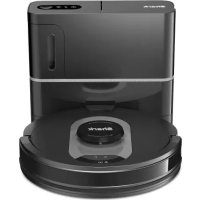
AI 360 RV2500SEU - Robot vacuum SHARK - Free user manual and instructions
Find the device manual for free AI 360 RV2500SEU SHARK in PDF.



| Product Type | Robot vacuum with auto-empty dock |
| Brand and Model | Shark AI 360 RV2500SEU |
| Navigation | AI 360 laser navigation with Class 1 LIDAR module |
| Connectivity | Wi-Fi 2.4 GHz, SharkClean app (iOS/Android), voice commands |
| Mapping | Map creation after exploration cycle, programmable no-go zones |
| Cleaning Functions | Whole home cleaning, UltraClean mode (multi-directional targeted cleaning), recharge and resume |
| Battery | Rechargeable lithium-ion (model RVBAT850), full charge up to 6 h |
| Runtime | Approximately 90 minutes (estimated) |
| Robot Dustbin Capacity | Approximately 0.2 L (estimated) |
| Dock Dustbin Capacity | Several weeks of debris (approximately 2 L estimated) |
| Main Brush | Anti-hair wrap rotary brush (Auto-Clean) |
| Side Brushes | 2 removable side brushes |
| Filtration | Robot filter (dry cleaning), station filters: foam + felt (upstream) and motor downstream filter |
| Obstacle Detection | Cliff sensors for stairs, front bumper, object detection > 9 cm |
| Charging Dock | Dock with auto-empty, removable dust reservoir, charging contacts |
| Robot Dimensions (L x W x H) | Approximately 33 x 33 x 9 cm (estimated) |
| Robot Weight | Approximately 3.5 kg (estimated) |
| Dock Weight | Approximately 4 kg (estimated) |
| Noise Level | Approximately 60 dB (estimated) |
| Maintenance | Empty bins, clean filters (rinse with cold water, dry 24 h), clean sensors/contacts, replace rotary brush every 6-12 months |
| Safety | Class 1 laser, automatic stop before handling, children and pet supervision recommended |
| Warranty | 2 years (Shark commercial warranty + legal warranties) |
Frequently Asked Questions - AI 360 RV2500SEU SHARK
User questions about AI 360 RV2500SEU SHARK
0 question about this device. Answer the ones you know or ask your own.
Ask a new question about this device
Download the instructions for your Robot vacuum in PDF format for free! Find your manual AI 360 RV2500SEU - SHARK and take your electronic device back in hand. On this page are published all the documents necessary for the use of your device. AI 360 RV2500SEU by SHARK.
USER MANUAL AI 360 RV2500SEU SHARK
Robotic Vacuum Cleaner
RV2500SEU
INSTRUKTIONER
GEBRAUCHSANWEISUNG
NOTICE D'UTILISATION
ET GARANTIE SHARK
INSTRUCCIONES
INSTRUCTIONS
ISTRUZIONI
INSTRUCTIES
INSTRUKSJONER
KÄYTTÖOHJEET
INSTRUKTIONER
INSTRUÇÕES
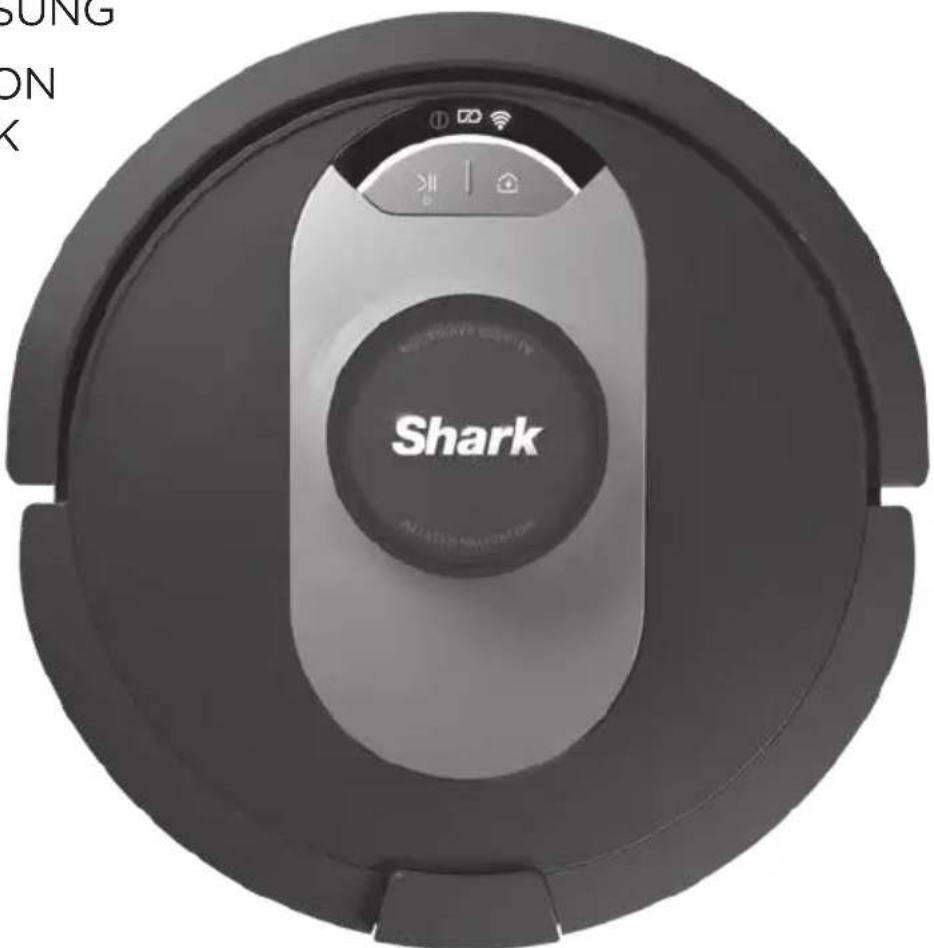
natural_image
Circular device with 'Shark' logo and control buttons, no readable text or symbols beyond branding

VIGTIGE SIKKERHEDSANVISNINGER
LÆS OMHYGGELIGT INDEN IBRUGTAGNING • KUN BEREGNET TIL HUSHOLDNINGSBRUG
ADVARSEL
Reducer faren for brand, elektrisk stød, person- eller ejendomsskader:
B∅RN ELLER DYR B∅R IKKE EFTERLADES UDEN OPSYN I DE RUM, SOM ROBOTST∅VSUGEREN HAR ADGANG TIL UNDER RENG∅RING.
ADVARSEL OM LASER
DETTE PRODUKT HAR EN LASER I KLASSE 1. SLUK ALTID FOR STRÖMMEN, F∅R ROBOTST∅VSUGEREN L∅FTES, ELLER DER FORETAGES VEDLIGEHOLDELSE PÅ DEN. SE IKKE DIREKTE IND I LASEREN.
HVIS IKKE OPLADNINGSKABLET PASSER ORDENTLIGT I KONTAKTEN, BEDES DU KONTAKTE EN KVALIFICERET ELEKTRIKER. TVING IKKE STIKKET IND I KONTAKTEN, OG FORS∅G IKKE AT AENDRE DET, SÅ DET PASSER.
GENERELLE ADVARSLER
natural_image
Simple line drawing of a container with an arrow indicating direction, no text or symbols presentnatural_image
Symbol of no Wi-Fi and a prohibition sign (no text or numbers present)Genstart din mobil
Base Power Indicator-Ikon
natural_image
Technical diagram of a mechanical component with two hanging parts and an inset showing a close-up of a circular feature (no text or symbols)natural_image
Line drawing of a robotic vacuum cleaner with a circular housing and directional arrow (no text or symbols)Ibrug


natural_image
Black toggle switch with icons for home, lightning bolt, and wind turbine (no text or symbols)Basens
natural_image
Line drawing of a washing machine with a circular base and power outlet, no text or symbols present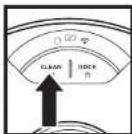
RENG∅RINGSKNAP
Download on the App Store

GETT ON Google Play
WI-FI-FEJLFINDING
natural_image
Interior corner diagram showing a rug, a potted plant, and a tiled floor area (no text or symbols)natural_image
Line drawing of a room interior with TV, rug, and robotic vacuum cleaner (no text or symbols)MANUEL RENG∅RINGSTILSTAND
T∅MNING AF ST∅VBEHOLDERENS BASE
natural_image
Diagram showing a mechanical device with an inset view of a component (no text or symbols present)natural_image
Line drawing of a mechanical component with an arrow indicating direction (no text or symbols)natural_image
Line drawing of a mechanical component with a downward arrow and dotted texture (no text or symbols)natural_image
Mechanical assembly diagram showing a clamping mechanism with an arrow indicating direction (no text or symbols present)natural_image
Line drawing of a laboratory apparatus with a top component and internal components (no text or symbols)RENS FILTRENE FORAN MOTOREN EN GANG OM MÅNEDEN
natural_image
Line drawing of a mechanical component with internal cavities and mounting holes (no text or symbols)natural_image
Technical line drawing of two electronic components with arrows indicating assembly or connection (no text or symbols)natural_image
Line drawing of a hand using a tool to clean or brush the surface (no text or symbols)natural_image
Diagram of two electronic components with a magnified inset showing their internal structure (no text or symbols)natural_image
Cross-sectional diagram of a mechanical device showing internal components and directional arrows (no text or labels)natural_image
Line drawing of a washing machine with attached power outlet (no text or symbols)RENG∅RING AF SIDEB∅RSTER
RENG∅R SIDEB∅RSTER EFTER BEHOV.
natural_image
Line drawing of a hand using a tool to adjust or install electronic components (no text or symbols visible)natural_image
Cross-sectional diagram of a mechanical device showing internal components and directional arrows (no text or symbols)natural_image
Technical line drawing of a mechanical assembly with a hand holding a tool (no text or symbols visible)natural_image
Technical line drawing of a mechanical device interior showing internal components and a handle (no text or symbols)natural_image
Line drawing of a hand using a tool to clean or adjust a vehicle interior (no text or symbols visible)SharkNinja Europe Limited,
3150 Century Way,
Thorpe Park,
Leeds, 1515 875
SharkNinja Germany GmbH
c/o Regus Management GmbH,
Excellent Business Center 10.+11. Stock,
Westhafenplatz 1
60527 Frankfurt am Main, Tyskland
sharkclean.eu
SharkClean.co.uk/EULA
NOTER
natural_image
Circular diagram with concentric rings and a diagonal line crossing through, no text or symbols present.natural_image
Simple line drawing of a robotic vacuum cleaner inside a door frame, with no text or symbols present.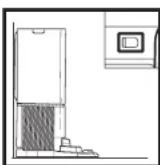
natural_image
Technical diagram of a mechanical component with two hanging parts and an inset showing a close-up view of a circular component (no text or symbols present)natural_image
Line drawing of a robotic vacuum cleaner with a circular housing and directional arrow (no text or symbols)In Verwendung


natural_image
Black toggle switch with icons for home, lightning bolt, and wind turbine (no text or symbols)Stromanzeigesymbol

natural_image
Line drawing of a robotic vacuum cleaner with attached power outlet and circular base (no text or symbols)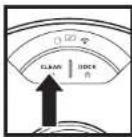
CLEAN-TASTE
natural_image
Interior view of a room with a rug, a potted plant, and a tiled floor (no text or symbols)natural_image
Line drawing of a room interior with TV, rug, and robotic vacuum cleaner (no text or symbols)natural_image
Diagram showing a mechanical component with an inset view of a housing (no text or symbols present)natural_image
Line drawing of a mechanical component with an arrow indicating direction (no text or symbols)natural_image
Line drawing of a mechanical component with a pile of particles, no text or symbols presentnatural_image
Mechanical assembly diagram showing a clamping mechanism with an arrow indicating direction (no text or symbols present)natural_image
Line drawing of a laboratory apparatus with a top component and internal components (no text or symbols)natural_image
Line drawing of a mechanical component with internal channels and mounting holes (no text or symbols)natural_image
Technical line drawing of two electronic components with arrows indicating assembly or connection (no text or symbols)natural_image
Line drawing of a hand using a tool to clean or store items, no text or symbols presentnatural_image
Diagram of two electronic components with a magnified inset showing internal structure (no text or symbols)natural_image
Cross-sectional diagram of a mechanical device showing internal components and directional arrows (no text or labels)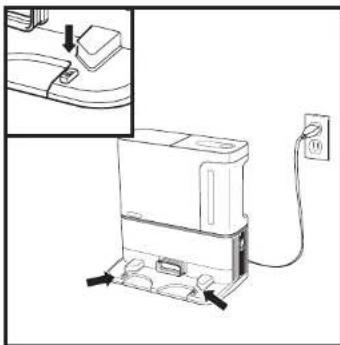
natural_image
Line drawing of a washing machine with a power outlet, showing internal components and wiring (no text or symbols)natural_image
Line drawing of a hand using a tool to adjust or install electronic components (no text or symbols visible)natural_image
Cross-sectional diagram of a mechanical device showing internal components and directional arrows (no text or symbols)natural_image
Technical line drawing of a mechanical assembly with a hand holding a tool (no text or symbols present)natural_image
Technical line drawing of a mechanical device interior showing internal components and a tool interacting with a component (no text or symbols present)natural_image
Line drawing of a hand using a tool to clean or adjust a vehicle interior (no text or symbols visible)SharkNinia Europe Limited.
3150 Century Way
Tharry: Back
Loans
LICUS, LC15.0
L315 825
SharkNinja Germany GmbH
Excellent Purinor Center 10 +11. Stock, Worthfengiatz 1
SharkClean.co.uk/EULA
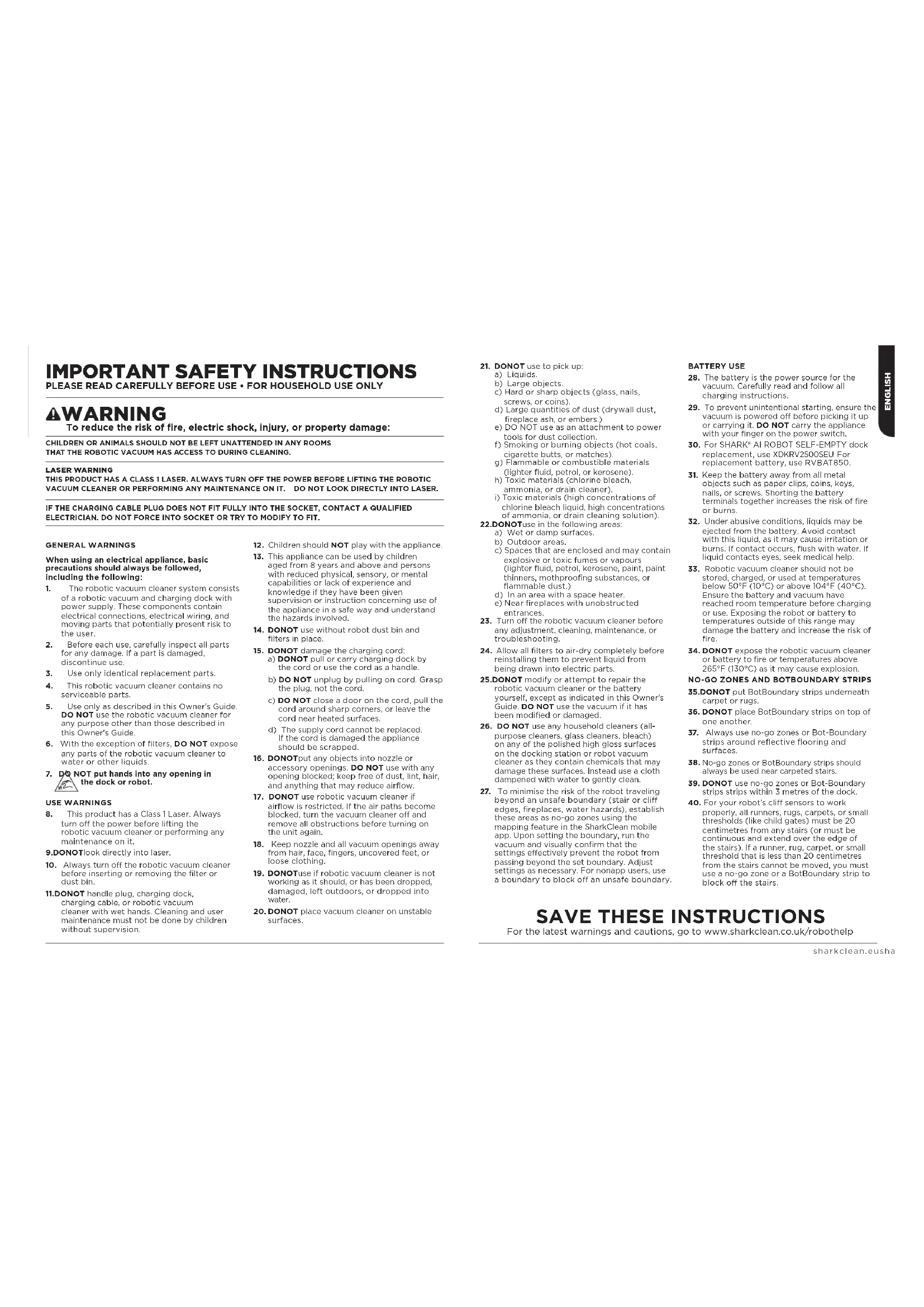
IMPORTANT SAFETY INSTRUCTIONS
PLEASE READ CAREFULLY BEFORE USE • FOR HOUSEHOLD USE ONLY
⚠ WARNING
To reduce the risk of fire, electric shock, injury, or property damage:
CHILDREN OR ANIMALS SHOULD NOT BE LEFT UNATTENDED IN ANY ROOMS
THAT THE ROBOTIC VACUUM HAS ACCESS TO DURING CLEANING.
LASER WARNING
THIS PRODUCT HAS A CLASS 1 LASER. ALWAYS TURN OFF THE POWER BEFORE LIFTING THE ROBOTIC VACUUM CLEANER OR PERFORMING ANY MAINTENANCE ON IT. DO NOT LOOK DIRECTLY INTO LASER.
IF THE CHARGING CABLE PLUG DOES NOT FIT FULLY INTO THE SOCKET, CONTACT A QUALIFIED ELECTRICIAN. DO NOT FORCE INTO SOCKET OR TRY TO MODIFY TO FIT.
GENERAL WARNINGS
When using an electrical appliance, basic precautions should always be followed, including the following:
-
The robotic vacuum cleaner system consists of a robotic vacuum and charging dock with power supply. These components contain electrical connections, electrical wiring, and moving parts that potentially present risk to the user.
-
Before each use, carefully inspect all parts for any damage. If a part is damaged, discontinue use.
-
Use only identical replacement parts.
-
This robotic vacuum cleaner contains no serviceable parts.
-
Use only as described in this Owner's Guide. DO NOT use the robotic vacuum cleaner for any purpose other than those described in this Owner's Guide.
-
With the exception of filters, DO NOT expose any parts of the robotic vacuum cleaner to water or other liquids.
-
DO NOT put hands into any opening in the dock or robot.
USE WARNINGS
- This product has a Class 1 Laser. Always turn off the power before lifting the robotic vacuum cleaner or performing any maintenance on it.
9.DONOTlook directly into laser.
- Always turn off the robotic vacuum cleaner before inserting or removing the filter or dust bin.
11.DONOT handle plug, charging dock, charging cable, or robotic vacuum cleaner with wet hands. Cleaning and user maintenance must not be done by children without supervision.
-
Children should NOT play with the appliance.
-
This appliance can be used by children aged from 8 years and above and persons with reduced physical, sensory, or mental capabilities or lack of experience and knowledge if they have been given supervision or instruction concerning use of the appliance in a safe way and understand the hazards involved.
-
DONOT use without robot dust bin and filters in place.
-
DONOT damage the charging cord; a) DONOT pull or carry charging dock by the cord or use the cord as a handle.
b) DO NOT unplug by pulling on cord. Grasp the plug, not the cord.
c) DO NOT close a door on the cord, pull the cord around sharp corners, or leave the cord near heated surfaces.
d) The supply cord cannot be replaced. If the cord is damaged the appliance should be scrapped.
-
DONOTput any objects into nozzle or accessory openings. DO NOT use with any opening blocked; keep free of dust, lint, hair, and anything that may reduce airflow.
-
DONOT use robotic vacuum cleaner if airflow is restricted. If the air paths become blocked, turn the vacuum cleaner off and remove all obstructions before turning on the unit again.
-
Keep nozzle and all vacuum openings away from hair, face, fingers, uncovered feet, or loose clothing.
-
DONOTuse if robotic vacuum cleaner is not working as it should, or has been dropped, damaged, left outdoors, or dropped into water.
-
DONOT place vacuum cleaner on unstable surfaces.
-
DONOT use to pick up:
a) Liquids.
b) Large objects.
c) Hard or sharp objects (glass, nails,
screws, or coins).
d) Large quantities of dust (drywall dust.
fireplace ash, or embers.)
e) DO NOT use as an attachment to power
tools for dust collection.
f) Smoking or burning objects (hot coals,
cigarette butts, or matches).
g) Flammable or combustible materials
(lighter fluid, petrol, or kerosene).
h) Toxic materials (chlorine bleach,
ammonia, or drain cleaner).
i) Toxic materials (high concentrations of
chlorine bleach liquid, high concentrations
of ammonia, or drain cleaning solution).
22.DONOTuse in the following areas:
a) Wet or damp surfaces.
b) Outdoor areas.
c) Spaces that are enclosed and may contain explosive or toxic fumes or vapours (lighter fluid, petrol, kerosene, paint, paint thinners, mothproofing substances, or flammable dust.)
d) In an area with a space heater.
e) Near fireplaces with unobstructed
entrances.
-
Turn off the robotic vacuum cleaner before any adjustment, cleaning, maintenance, or troubleshooting.
-
Allow all filters to air-dry completely before reinstalling them to prevent liquid from being drawn into electric parts.
25.DONOT modify or attempt to repair the robotic vacuum cleaner or the battery yourself, except as indicated in this Owner's Guide. DO NOT use the vacuum if it has been modified or damaged.
-
DO NOT use any household cleaners (all-purpose cleaners, glass cleaners, bleach) on any of the polished high gloss surfaces on the docking station or robot vacuum cleaner as they contain chemicals that may damage these surfaces. Instead use a cloth dampened with water to gently clean.
-
To minimise the risk of the robot traveling beyond an unsafe boundary (stair or cliff edges, fireplaces, water hazards), establish these areas as no-go zones using the mapping feature in the SharkClean mobile app. Upon setting the boundary, run the vacuum and visually confirm that the settings effectively prevent the robot from passing beyond the set boundary. Adjust settings as necessary. For nonapp users, use a boundary to block off an unsafe boundary.
BATTERY USE
-
The battery is the power source for the vacuum. Carefully read and follow all charging instructions.
-
To prevent unintentional starting, ensure the vacuum is powered off before picking it up or carrying it. DO NOT carry the appliance with your finger on the power switch.
-
For SHARK® AI ROBOT SELF-EMPTY dock replacement, use XDKRV2500SEU. For replacement battery, use RVBAT850.
-
Keep the battery away from all metal objects such as paper clips, coins, keys, nails, or screws. Shorting the battery terminals together increases the risk of fire or burns.
-
Under abusive conditions, liquids may be ejected from the battery. Avoid contact with this liquid, as it may cause irritation or burns. If contact occurs, flush with water. If liquid contacts eyes, seek medical help.
-
Robotic vacuum cleaner should not be stored, charged, or used at temperatures below 50°F (10°C) or above 104°F (40°C). Ensure the battery and vacuum have reached room temperature before charging or use. Exposing the robot or battery to temperatures outside of this range may damage the battery and increase the risk of fire.
-
DONOT expose the robotic vacuum cleaner or battery to fire or temperatures above 265°F (130°C) as it may cause explosion.
NO-GO ZONES AND BOTBOUNDARY STRIPS
35.DONOT put BotBoundary strips underneath carpet or rugs.
-
DONOT place BotBoundary strips on top of one another.
-
Always use no-go zones or Bot-Boundary strips around reflective flooring and surfaces.
-
No-go zones or BotBoundary strips should always be used near carpeted stairs.
-
DONOT use no-go zones or Bot-Boundary strips strips within 3 metres of the dock.
-
For your robot's cliff sensors to work properly, all runners, rugs, carpets, or small thresholds (like child gates) must be 20 centimetres from any stairs (or must be continuous and extend over the edge of the stairs). If a runner, rug, carpet, or small threshold that is less than 20 centimetres from the stairs cannot be moved, you must use a no-go zone or a BotBoundary strip to block off the stairs.
SAVE THESE INSTRUCTIONS
For the latest warnings and cautions, go to www.sharkclean.co.uk/robothelp
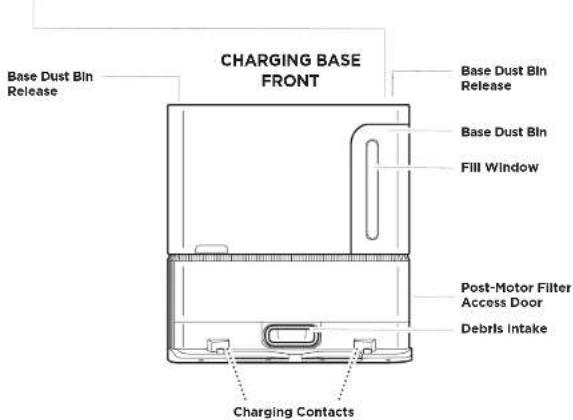
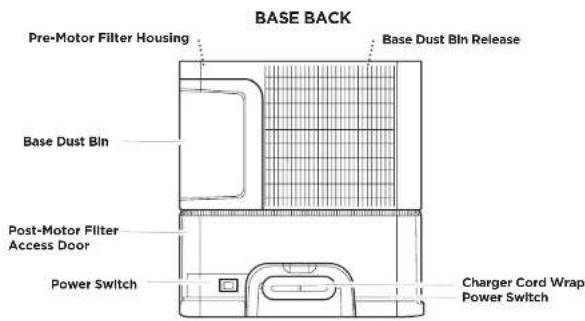
GETTING TO KNOW YOUR SHARK® AI ROBOT
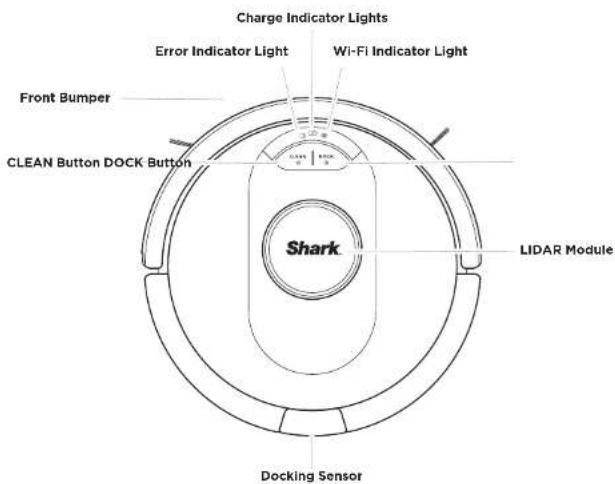
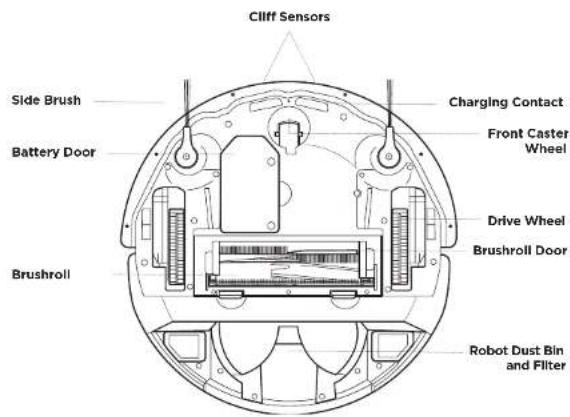
GETTING TO KNOW YOUR SHARK® AI ROBOT
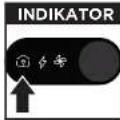
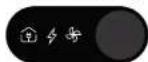
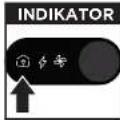
Base Indicators Lights
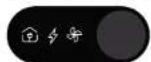

Base Power
Indicator Icon Base is plugged in and has power.

Charging Icon
Robot is properly aligned on base and charging.

Evacuation Icon
Robot is emptying debris into base.
LIVING WITH YOUR ROBOT
Questions? For how-to videos, FAQs, troubleshooting, and tips & tricks, visit: sharkclean.eu
CHECK BASE FILL LEVEL
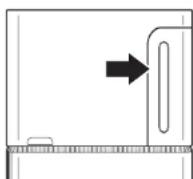
The base is designed to hold weeks of debris. During initial use, you may have to empty it more frequently while the robot finds more debris than usual. Check the fill level regularly to know when to empty.
AVOID MOVING THE ROBOT OR BASE
natural_image
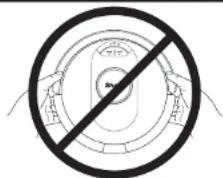
Circular diagram with a diagonal line and circular elements, no text or symbols present.While your robot is cleaning, DO NOT pick it up and move it, or move the charging base—this will impact the robot's ability to map your home.
DOORWAYS AND THRESHOLDS
natural_image
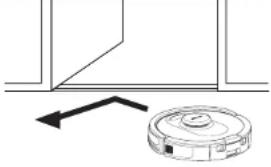
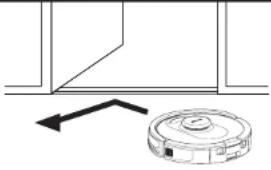
Simple line drawing of a robotic vacuum cleaner inside a room with an arrow indicating left motion (no text or symbols)Your robot can easily climb over most thresholds, but if one is higher than 2cm, set up a no-go zone in the app to block it off.
CAN'T CONNECT TO WI-FI?

Restart your phone
- Turn off phone, wait a few minutes, then turn it back on and connect to Wi-Fi.
Reboot your robot
- Make sure the power switch on the back of the base is in the ON position.
• Take robot off base and press and hold down the CLEAN button on the robot for 12 seconds. Turn your robot back on by placing it on the base.
Reboot your router
- Unplug the router power cable for 30 seconds, then plug it back in. Allow several minutes for your router to reboot completely.
- Then follow the steps outlined in the SharkClean® app WI-FI setup Instructions.
PREP YOUR HOME
Your robot uses an array of sensors to navigate around walls, furniture legs, and other obstacles while it cleans. To prevent the robot from entering areas you don't want it to, set up no-go zones in the app. For best results, prepare your home as indicated below, and schedule a daily cleaning to ensure all floor areas are regularly maintained.
NOTE: Scheduling is one of many features that can only be done in the app.
OBSTRUCTIONS
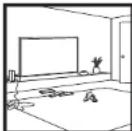
Clear cords and remove small objects like toys, clothing, or drapes from floors. Open interior doors in rooms you want your robot to clean. For best results, run your robot in well-lit conditions.
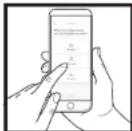
SCHEDULING
Schedule whole-home vacuuming runs with the app.
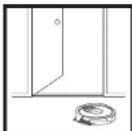
THRESHOLDS
Your robot may have some trouble clearing thresholds higher than 2cm. Block off high thresholds with the included BotBoundary strips.
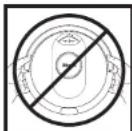
AVOID MOVING THE ROBOT & BASE
While your robot is cleaning, do not pick it up and move it, or move the charging base—this will impact the robot's navigation and ability to return to the base when cleaning is complete.
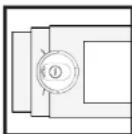
STAIRS
For your robot's cliff sensors to work properly, all runners, rugs, carpets, or small thresholds (like child gates) must be 20cm from any stairs (or must be continuous and extend over the edge of the stairs). If a runner, rug, carpet, or small threshold that is less than 20cm from the stairs cannot be moved, you must use a no-go zone or a BotBoundary strip to block off the stairs.
BASE SETUP
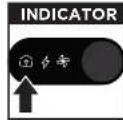
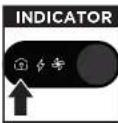
The Base Power Indicator Icon
- Select a permanent location for the Base because every time you relocate the base, your robot will have to completely re-map your house. Remove protective film from robot and base.
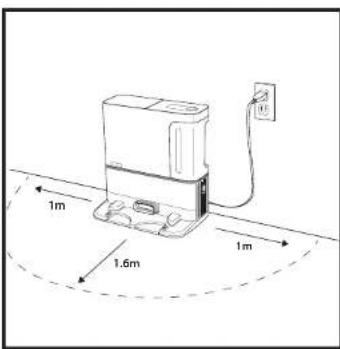
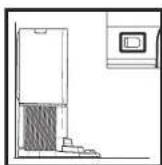
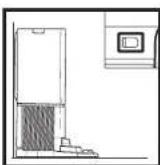
- Place the base with its back against a wall. Select a level surface on a bare floor in a central area with a strong WI-FI signal. Do not place base against baseboard heaters or other heating elements.
- Remove any objects that are closer than 1 meter from either side of the base or closer than 1.6 meters from the front of the base.
- Plug in the base. Make sure the power switch on the back of the base is in the (I) ON position. The Base Power Indicator Symbol ( ) on the top right side of the base will illuminate when the base has power
INSTALLING THE SIDE BRUSHES
natural_image
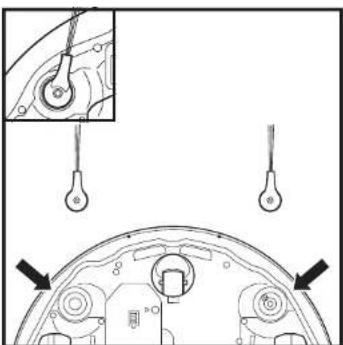
Technical diagram of a mechanical component with two hanging parts and an inset showing a close-up of a circular feature (no text or symbols)Snap the 2 included Side Brushes onto the square pegs on the bottom of the robot.
sharkclean.eusharkclean.eu
ROBOT BATTERY INDICATOR LIGHTS
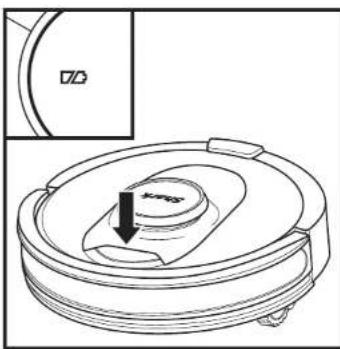
natural_image
Line drawing of a robotic vacuum cleaner with a circular housing and a directional arrow indicating motion (no text or symbols)In Use


While Charging (White)


No Charge or Off

The white charge indicator lights show how much battery power is remaining.
While the robot is charging, both white LED lights will flash. When charging is complete, both will illuminate steadily. It may take up to 6 hours to fully charge your robot.
If the robot is idle and away from the charging base for 10 minutes, it will enter Sleep Mode. The indicator lights will turn off, but the battery and Wi-Fi lights will remain on in sleep mode. Wake up the robot by pressing any button.
NOTE: If the low charge light is blinking red, there is not enough battery power for the robot to return to the base. Manually place the robot on the base.
TIP: To preserve battery life, if the robot will not be used for a long time, turn off the power on the robot by pressing the CLEAN button and holding it for 5-7 seconds. The robot should be recharged at least once every three months.
To turn robot off, take robot off base and press the CLEAN button on the robot for 5-7 seconds.
BASE INDICATOR LIGHTS
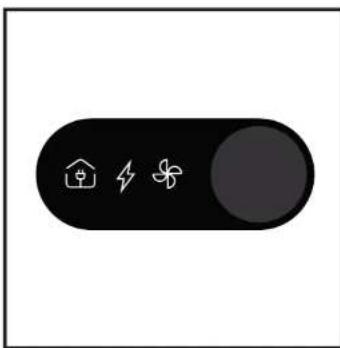
natural_image
Black toggle switch with icons for home, lightning bolt, and wind turbine (no text or symbols)Base Power
Indicator Icon
Base is plugged and has power
Charging Icon

Robot is properly aligned on base and charging.
Evacuation
Icon
Robot is emptying debris into base.

CHARGING
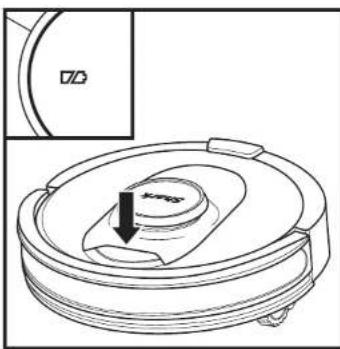
IMPORTANT: The Shark AI 360 Robot has a pre-installed rechargeable battery. Charge the battery completely before first use. It may take up to 6 hours to fully charge.
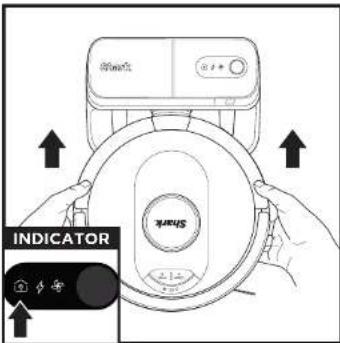
To, charge, place the robot on the base for 6 hours. When the robot is properly aligned with its BACK against the base, the Charging Symbol on the top right side of the base will illuminate, and the Battery icon on the robot will illuminate. When the battery is fully charged, the charging icon will stop pulsing but remain illuminated.
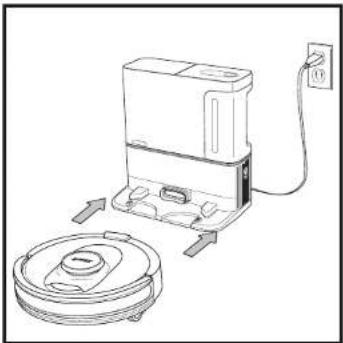
natural_image
Line drawing of a washing machine with a circular base and power outlet, no text or symbols presentWhen the cleaning cycle is complete, the battery is low, or when programmed to recharge/resume mission, the robot will search for the base. If the robot doesn't return to base, its charge may have run out.
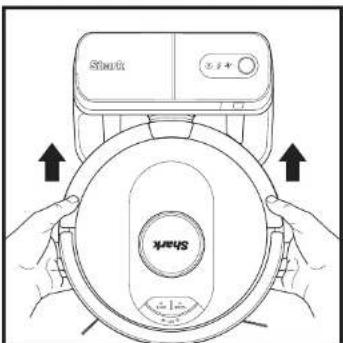
If the robot has no charge or it cannot return to the base, manually place it on the base. When the robot is properly aligned on the base with the robot's BACK against the base, the Charging Symbol on the top right side of the base will illuminate. The robot will beep when charging begins.
TO TURN ON ROBOT: Place robot on base or hold down CLEAN button for 5 to 7 seconds until the indicator lights turn on.
NOTE: When manually placing the robot on the base, make sure the Charging Contacts on the bottom of the robot are touching the ones on the base. NOTE: When picking up the robot, be careful not to place fingers between the bumper and the base of the robot.
BUTTONS AND INDICATOR LIGHTS
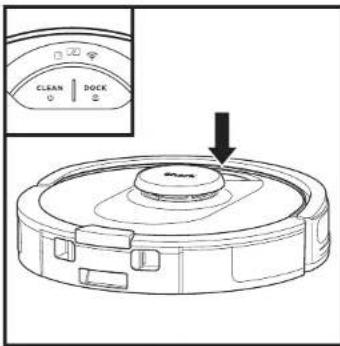
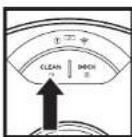
CLEAN BUTTON
Hold down for 5-7 seconds to power on robot. Press to begin a cleaning session and press again to stop the cleaning session. Hold down for 5-7 seconds to power off the robot.
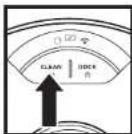
RECHARGE & RESUME
Press and hold the DOCK button for 15 seconds to turn Recharge & Resume ON or OFF.
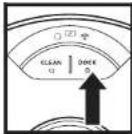
DOCK BUTTON
Press to stop cleaning and send robot back to the base to recharge.
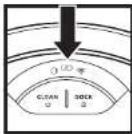
CHARGE INDICATOR LIGHTS Display the amount of charge remaining in the battery.
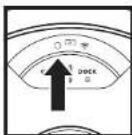
"!" ERROR INDICATOR
See Troubleshooting section for full list of error codes.
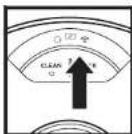
WI-FI INDICATOR
White light: connected to WI-Fl. Red light: not connected. Flashing white: setup mode. No light: not set up yet.
USING THE SHARK AI 360 ROBOT
Please visit sharkclean.eu for answers to all your app questions.
USING THE SHARKCLEAN APP AND VOICE CONTROLS
Get the most out of your Shark AI Robot with these app features:
- Recharge and Resume Enable this feature to handle multi-room cleaning in larger homes. The robot will return to the base, recharge, and can pick up where it left off. - UltraClean Mode: Targeted deep cleaning for a specific room, high-traffic zone or single spot.
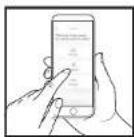
•Scheduling
Set up whole-home cleanings for any time, any day.
• Control From Anywhere Wherever you are, you're in control of your robot.
• Cleaning Reports Each time your robot cleans, your app will generate a cleaning report.
- No-Go Zones
Use the no-go zones in the app to keep your robot out of the areas you would like it to avoid.
Search for SharkClean in the app store and download the app to your smartphone.

App Store

derron Google Play
WI-FI TROUBLESHOOTING
• To use the app, your phone must be connected to a 2.4 GHz network. The app will only work on a 2.4 GHz network.
• Typical home WI-FI networks support both 2.4 GHz and 5 GHz.
- Do not use a VPN or a proxy server.
• DO NOT use WI-Fi repeaters to connect your robot.
• If you cannot connect, visit sharkclean.eu.
STILL CAN'T CONNECT?
Restart your phone
Turn off phone, wait a few minutes, then turn it back on and connect to Wi-Fi.
Reboot your robot
• Make sure the power switch on the back of the BASE is in the ON position.
• Take robot off base and press and hold the CLEAN button on the robot for 12 seconds to turn off power. Place the robot back on the base to power back on.
Reboot your router
- Unplug the router power cable for 30 seconds, then plug it back in. Allow several minutes for your router to reboot completely.
ERROR CODE PROBLEM
| !(RED) + Wi-Fi indicator (RED Flashing) Wrong password for Wi-Fi |
| !(Flashing red) + Wi-Fi (RED) SSID cannot be found, try connecting again |
| ! + Wi-Fi (Flashing RED at the same time) Cannot connect to Wi-Fi |
WI-FI TROUBLESHOOTING
What should I do if my Wi-Fi randomly disconnects?
Turn OFF the robot, by pressing and holding the CLEAN button for 5-7 seconds. Wait 10 seconds, then turn the robot power back on by pressing and holding the CLEAN button for 5-7 seconds. Turn off your phone, Wait 30 seconds, then turn your phone back on. Open Wi-Fi settings on your phone, find the Shark network, and select Forget Network. Reopen SharkClean app and retry the connection process. It is normal for your robot to temporarily lose connectivity when it goes under furniture or moves far from your router. Your Shark' robot will automatically reconnect to Wi-Fi. If the robot does not reconnect, power it off, wait 10 seconds, power the robot back on, and place it back on the base.
What should I do if I verified a wireless network password that is incorrect?
Close the app, then reopen it. Make sure that you entered the correct Wi-Fi network password this time. In your phone's network settings, choose your home 2.4 GHz network, and select Forget. Reconnect to your home network. Make sure to use the correct password. If you were able to connect to your home network, proceed to the app setup process. We recommend that you use the eye icon when entering your password to make sure it is correct. Turn off your router and wait 30 seconds. Turn your router back on. Check to make sure your 2.4 GHz network is visible in your phone settings. Turn off the robot, then wait 10 seconds. Turn the robot back on and wait for the voice prompt. Hard-close the app and restart the connection process on the robot. If you cannot locate your Wi-Fi password, please contact your Internet service provider..
What should I do if my username or password is invalid?
We recommend you select the eye icon next to the password entry to verify you are entering your password correctly. Select the 'Forgot Password' option on the sign-in page. The automated system will email you a link to reset your password. If you do not see an email, search your inbox and spam folder for emails from myshark-ninja@sharkninja.com You can use the 'Resend code' option to send the email again.
What should I do if there is an issue resetting password (did not receive the email or token was invalid)?
Select the 'Forgot Password' option on the sign-in page. The automated system will email you a link to reset your password. If you do not see an email, search your inbox and spam folder for emails from mysharkninja@sharkninja.com You can use the "Resend code" option to send the email again.
What should I do if my Shark ^+ robot won't connect to Wi-Fi or loses Wi-Fi connectivity?
If you are an iOS user and recently upgraded to iOS 14, you need to enable local network access on your phone for the SharkClean app. Please take the following steps to enable. Go to your phone settings --> Select Privacy --> Select Local Network --> Toggle Shark Clean on, then try connecting again. Make sure your phone is connected to your home Wi-Fi network before trying to connect your robot. Typical home Wi-Fi networks support both 2.4 GHz and 5 GHz. Make sure you are connected to a 2.4 GHz network when you enter your username and password. Ensure your robot is turned on and you hear an audio prompt. Do not use a VPN or a proxy server. Make sure Wi-Fi isolation is turned off on the router.
There may be instances where your Shark robot loses connectivity while operating, due to a weak Wi-Fi signal, or entering a zone that blocks Wi-Fi.
Turn off the robot. Wait 10 seconds, then turn the power back on and wait for the voice prompt. Power off your phone, wait 30 seconds, and power back on. Open Wi-Fi settings on your phone, find the Shark network, then select Forget Network. Reopen the SharkClean app and retry the connection process.
It is normal for your robot to temporarily lose connectivity when it goes under furniture, or moves far from your router. Your Shark robot will automatically reconnect to Wi-Fi. If the robot does not reconnect on its own, remove the unit from the base. Power the robot off, wait 10 seconds, and place it back on the base.
USING THE SHARK AI 360 ROBOT
AI 360 LASER NAVIGATION
natural_image
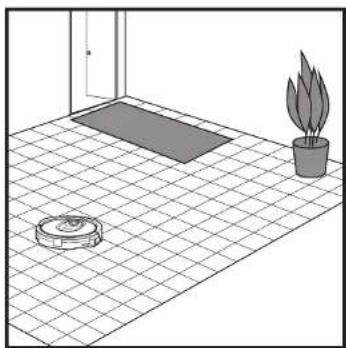
Interior corner diagram showing a rug, a potted plant, and a tiled floor with a circular object (no text or symbols)After setup is complete, your robot will conduct an Explore Run to create an initial map of your home. The robot will travel from room to room to identify walls, furniture, and other obstacles as it cleans. This run will take less time than a full cleaning, as it doesn't cover the entire floor.
natural_image
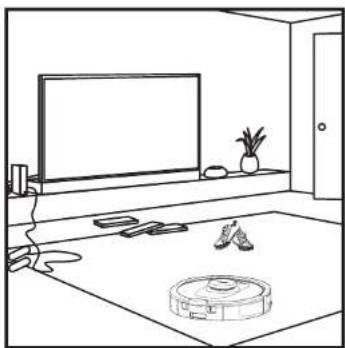
Line drawing of a room interior with TV, rug, and robotic vacuum cleaner (no text or symbols)The robot's object detection technology helps it navigate around obstacles taller than 9cm in height. Create no-go zones in the app to block off areas you do not want the robot to enter. You can set up no-go zones around small objects, or use them to block off large areas.
MANUAL CLEANING MODE
To manually start a cleaning cycle, press the CLEAN button on the robot or on the mobile app. To immediately send the robot back to the base, press the DOCK button.
ULTRACLEAN MODE
To start using UltraClean Mode, select a specific room, high-traffic zone, or spot in the SharkClean® app home map screen. Your robot will clean this targeted area on demand with multi-directional cleaning coverage.
NOTE: Be sure to charge the robot completely before its first cleaning so that it can explore, map, and clean as much of your home as possible. It may take up to 6 hours to fully charge your robot.
NOTE: Avoid moving the base. If it is relocated, the robot may not be able to find its way back to the base, if the robot is relocated while in use, it may not be able to follow its intelligent cleaning path, or find its way back to the base.
MAINTENANCE
EMPTYING THE BASE DUST BIN
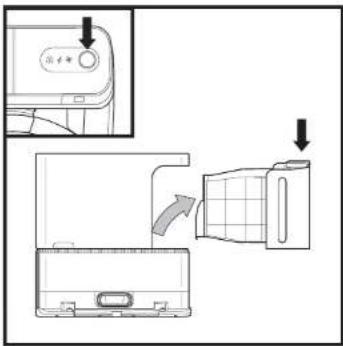
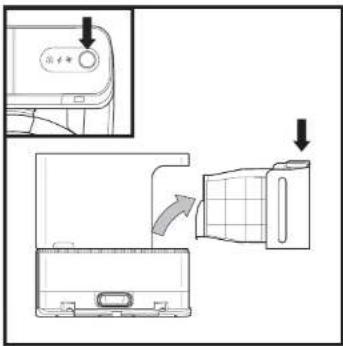
The Base Dust Bin holds weeks worth of dust and debris. Empty the base dust bin when the debris level approaches the max fill line.
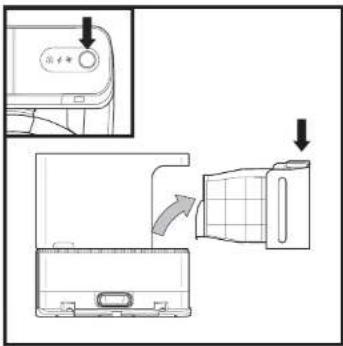
To detach the bin, press the Dust Bin Release button on top right side of the base, then slide out the bin.
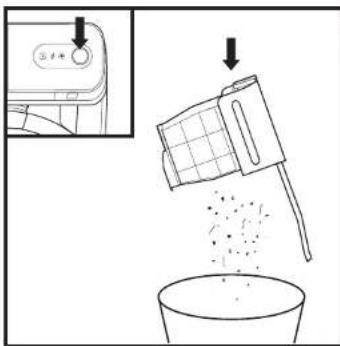
To empty the bin, hold it over the rubbish bin, then press the release button with the trash can icon on the bottom of the bin. The bin lid will open, releasing dust and debris. Lightly tap the dust bin against the inside of the bin receptacle to knock off any remaining debris. Reinstall the bin by sliding it into the slot in the base until it clicks into place.
MAINTENANCE
CAUTION: Turn off power before performing any maintenance.
EMPTYING THE ROBOT DUST BIN
natural_image
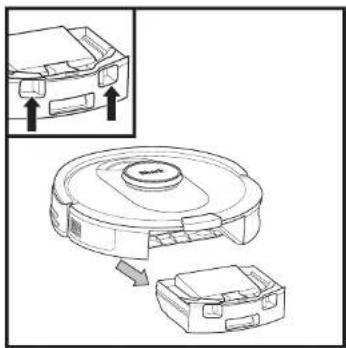
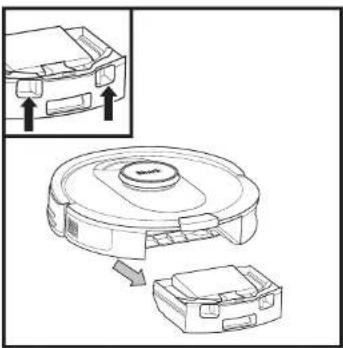
Diagram showing a mechanical device with an inset view of a component (no text or symbols present)Press the Dust Bin Release Button and slide out the dust bin.
natural_image
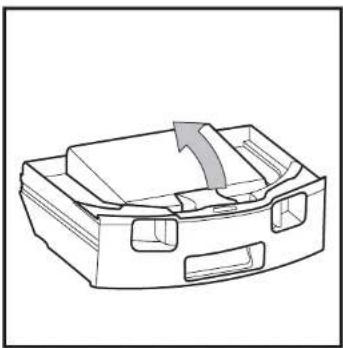
Line drawing of a mechanical component with an arrow indicating direction (no text or symbols)To open the dust bin lid, press and hold the button while lifting the lid, using the finger slots.
natural_image
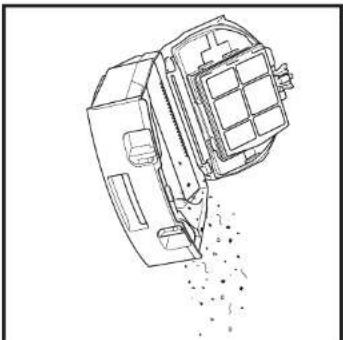
Line drawing of a mechanical component with a downward arrow and dotted texture (no text or symbols)Empty the debris and dust into bin. Remove filter and wash dust bin if necessary.
NOTE: Make sure to insert the dust bin completely, until it clicks into place.
natural_image
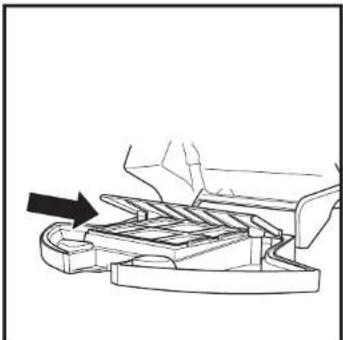
Mechanical assembly diagram showing a clamping mechanism with an arrow indicating direction (no text or symbols present)Look between the filter and the plastic shield and make sure there is no debris buildup.
Remove shield and clear any debris buildup with a dry cloth or soft brush.
MAINTENANCE
CLEANING AND REPLACING THE BASE FILTERS
For best results, regularly clean and replace the filters in the base.
To clean filters, rinse with cold water ONLY to prevent damage from cleaning chemicals. Allow all filters to air-dry for at least 24 hours before reinstalling them to prevent liquid from being drawn into electric parts.
IMPORTANT: DO NOT use soap when cleaning the filters.
natural_image
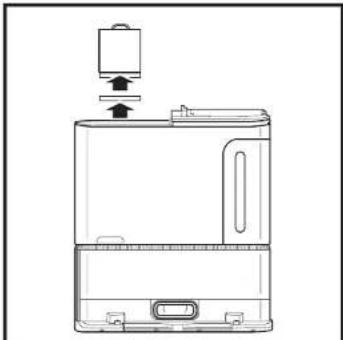
Line drawing of a device with a top component and internal components (no text or symbols)CLEAN PRE-MOTOR FILTERS ONCE A MONTH
To open the filter housing lid, hold the top left edge of the base and pull up on the lid. With the lid open, remove the foam filter by the top handle, then lift out the felt filter underneath. Tap the filters clean over the rubbish bin, then rinse them with cold water ONLY, as soap may damage them. Allow filters to air-dry completely before reinstalling them. The filters must be installed correctly for the base to work properly. Reinsert the felt filter first, then the foam filter.
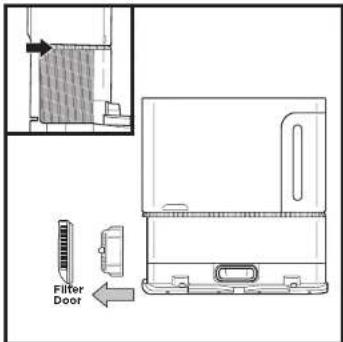
CLEAN POST-MOTOR FILTER EVERY YEAR
Press the button at the top of the Filter Door, then tilt the door and lift it off. Remove the Post-Motor Filter from the base by pulling the tab down. Tap the filters clean over the rubbish bin, then rinse them with cold water ONLY, as soap may damage them. To reinstall the post-motor filter, insert it into the base and replace the filter door.
NOTE: The pre-motor foam and felt filters should be replaced every 2.5 years. The post-motor filter should be replaced every 3 years. NOTE: Clean the mesh filter inside the dustbin with a small brush once a month.
MAINTENANCE
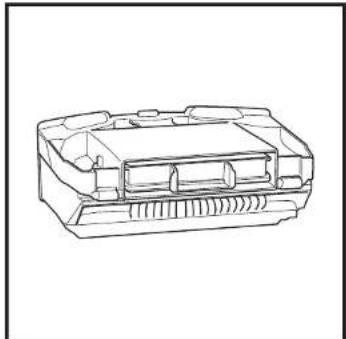
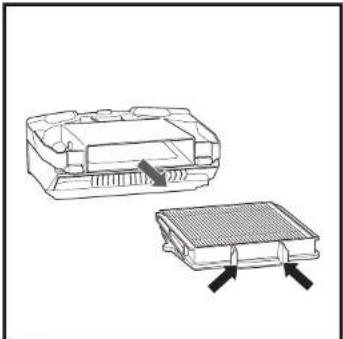
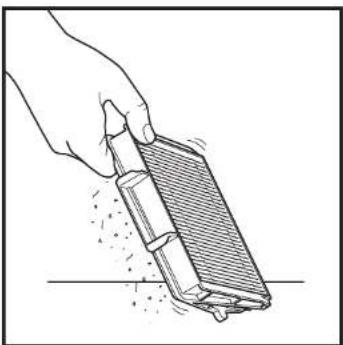
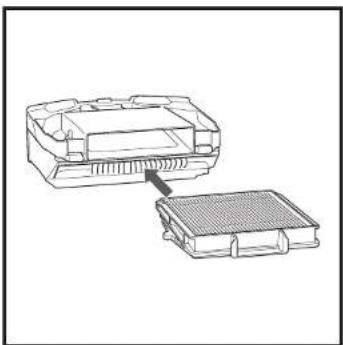
CLEANING AND REPLACING ROBOT'S FILTER
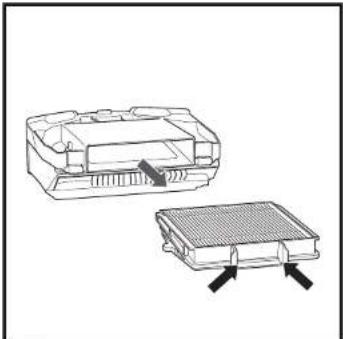
For best results, regularly clean and replace the filter in the robot. See sharkclean.eu for replacement filters. IMPORTANT: DO NOT use water to clean the robot filter.
natural_image
Technical line drawing of a mechanical component or housing (no text or symbols)Remove and empty the dust bin. Clean any hair or debris off the Anti-Tangle Comb on the back of the dust bin.
natural_image
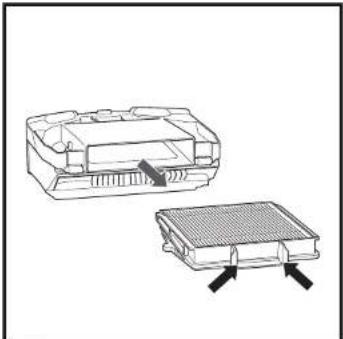
Technical line drawing of two electronic components with arrows indicating assembly or connection (no text or symbols)Pull filter out of the dust bin by the tabs.
natural_image
Line drawing of a hand using a tool to clean or store items, no text or symbols presentLightly tap the filter to remove debris every time you empty the dust bin.
natural_image
Diagram of two electronic components with a magnified inset showing internal structure (no text or symbols)Reinsert the filter into the dust bin, then slide the dust bin back into the robot until it clicks into place.
NOTE: Make sure to insert the dust bin completely, until it clicks into place.
MAINTENANCE
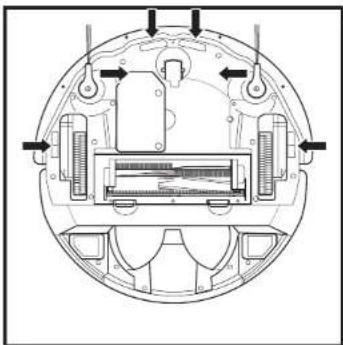
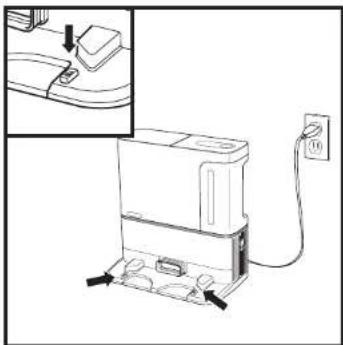
CLEANING SENSORS AND CHARGING CONTACTS
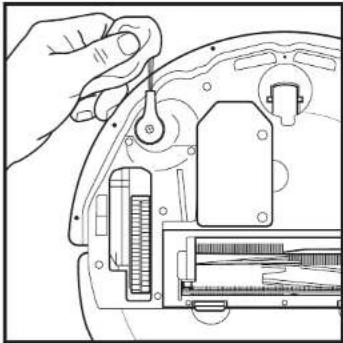
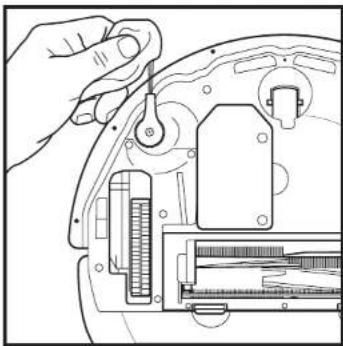
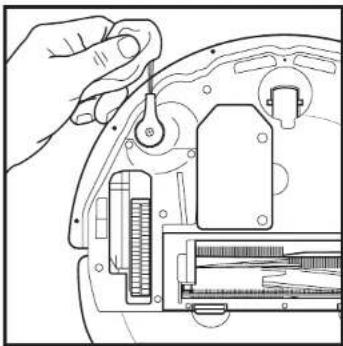
CLEAN SENSORS AND CHARGING CONTACTS AS NEEDED. With a dry cloth, gently dust off the sensors and contacts located on the bottom of the robot and on the base.
natural_image
Cross-sectional diagram of a mechanical device showing internal components and directional arrows (no text or labels)IMPORTANT: The robot uses cliff sensors to avoid stairs and other steep drops. Sensors may work less effectively when they are dirty. For best results, clean sensors regularly.
natural_image
Line drawing of a washing machine with attached power outlet (no text or symbols)CLEANING SIDE BRUSHES
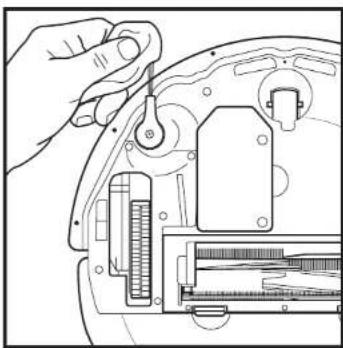
CLEAN SIDE BRUSHES AS NEEDED.
natural_image
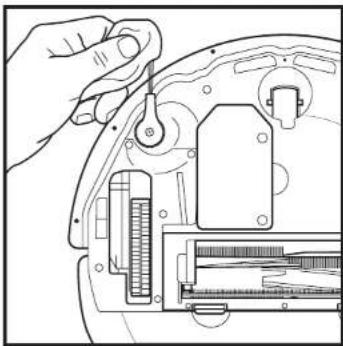
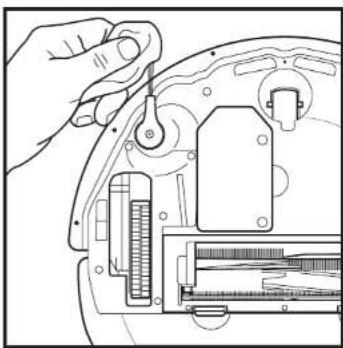
Line drawing of a hand using a tool to adjust or install electronic components (no text or symbols visible)Cloth not included.
Carefully unwind and remove any string or hair wrapped around brushes.
Gently wipe brushes with a dry cloth. To reinstall, snap the brushes over the pegs. Spin the brushes manually to make sure they are installed correctly.
NOTE: Remove and replace any side brushes that are bent or damaged. To remove a brush, lift it off its peg
MAINTENANCE
ANTI HAIR WRAP
SELF-CLEANING BRUSHROLL
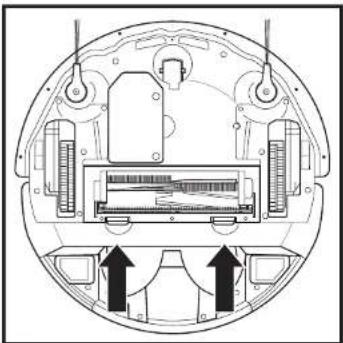
The Anti Hair wrap Brush-roll removes debris over time as it cleans. If some debris remains wrapped around the brush-roll, continue cleaning to allow the brush-roll to remove it. If some debris remains on the brush-roll after continued cleaning, follow the stops below to remove it.
natural_image
Cross-sectional diagram of a mechanical device showing internal components and directional arrows (no text or symbols)To access the brushroll, push up on the tabs on the brushroll door, then lift off the door.
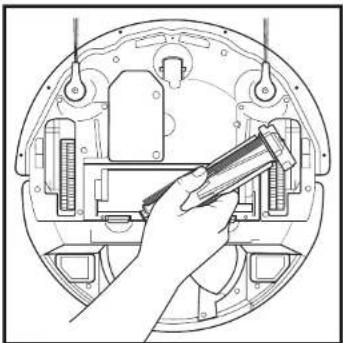
natural_image
Technical line drawing of a mechanical assembly with a hand holding a tool (no text or symbols present)Lift out the brushroll and remove any debris. Reinstall the brushroll, inserting the flat end first. Close the brushroll door and press down until both sides click into place.
LIDAR MODULE
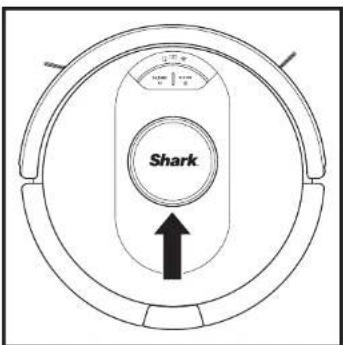
NOTE: Replace brushroll every 6 to 12 months, or when visibly worn. See sharkclean.eu for replacement parts.
Use a dry rag to clear out any debris underneath and around the LIDAR module. It may be necessary to use scissors to cut away hair wrap. Clean the module once a month, or when dirt or debris is visible.
MAINTENANCE
CAUTION: Turn off power before performing any maintenance.
TROUBLESHOOTING
If any error lights are illuminated or flashing on your Shark® AI 360 ROBOT, see the error code chart below;
| ERROR CODE | ERROR NUMBER | SOLUTION |
| DOCK (RED) + ! (RED) flashing | 2 | Side brush is stuck. Remove any debris from around the side brushes so they move freely. |
| CLEAN (RED) + DOCK (RED) + ! (RED) flashing | 2 | A drive wheel is stuck. Clean the wheels and remove any debris wrapped around the axles so they can move freely. |
| CLEAN (RED) + ! (RED) alternating | 2 | Blockage in brushroll. Remove any debris from around the brushroll so that it can spin freely. |
| CLEAN (WHITE) + DOCK (RED) + ! (RED) flashing | 2 | Wheel motor encoder failure. Please visit sharkclean.cu |
| CLEAN (WHITE) + ! (RED) flashing | 2 | Blockage in brushroll. Remove any debris from around and inside the brushroll so that it can spin freely. |
| CLEAN (RED) + ! (RED) flashing | 3 | Suction motor failure. Remove and empty the dust bin, clean the filters, remove the brushroll and brushroll door, and remove blockages. |
| DOCK (RED) flashing | 6 | Front bumper may be jammed. Clean the bumper and make sure it moves in and out freely. |
| CLEAN (RED) + DOCK (WHITE) flashing | 7 | Cliff sensor error. Move your robot to a new location and clean its cliff sensors. |
| CLEAN (RED) + DOCK (RED) flashing | 9 | Robot dust bin needs to be reinstalled. Insert the dust bin until it clicks in place. |
| CLEAN (RED) flashing | 10 | Robot may be stuck on an obstacle. Move robot to a new location on a level surface. |
| CLEAN (RED) + DOCK (WHITE) alternating | 16 | Robot is stuck. Move your robot to a new location and make sure the front bumper moves in and out freely. |
| CLEAN (RED) + DOCK (WHITE) + ! (RED) flashing | 21 | Robot has encountered an error while booting. Please turn the power off and back on. |
| CLEAN (WHITE) + DOCK (RED) flashing | 23 | Make sure the base indicator light turns blue to confirm your robot is placed on the base correctly. |
| BATTERY ICON (RED) flashing | 24 | Battery is critically low and needs recharging. Please pick up your robot and piece it on the base. Make sure the base indicator light turns blue to confirm your robot is placed on the base correctly. |
| DOCK (WHITE) + ! (RED) flashing | 24 | Robot has encountered an error while charging. Please make sure you are using the correct power cord for the base. |
| DOCK (RED) FLASHING + ! (RED) solid | 26 | Blockage in dust bin. Check base and robot dust bin for ologs. Clear any debris and reinstall the dust bin, ensuring that it clicks into pieces. |
MAINTENANCE
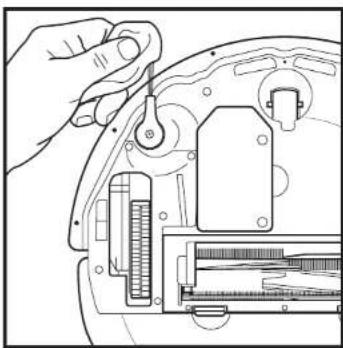
CLEANING THE WHEELS
CLEAN FRONT WHEEL HOUSING PERIODICALLY. See sharkclean.eu for replacement parts.
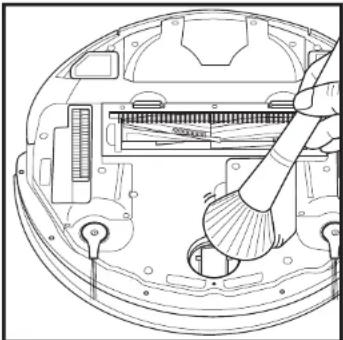
natural_image
Technical line drawing of a mechanical device interior showing internal components and a handle (no text or symbols)Rotate the front wheel while lightly brushing away dirt and debris. Clean the wheel and the housing around it.
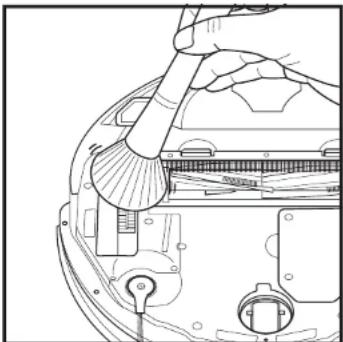
natural_image
Line drawing of a hand using a tool to clean or adjust a vehicle interior (no text or symbols visible)Periodically clean the drive wheels and the housing around them. To clean, rotate each drive wheel while dusting.
NOTE: Brush not included.
REPLACEMENT PARTS
NOTE: To order replacement parts and filters, visit sharkaccessories.com.
REPLACEMENT PARTS: ROBOT
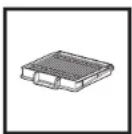
Robot Filter
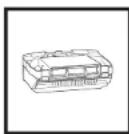
Robot Dust Bin
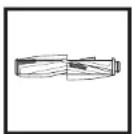
Brushroll
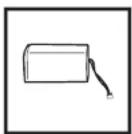
Battery
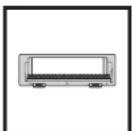
Brushroll Door
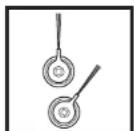
Side Brushes
REPLACEMENT PARTS: BASE
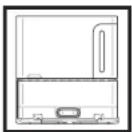
Self-Empty Charging Base
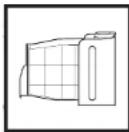
Base Dust Bin
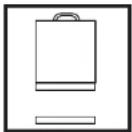
Base Pre-Motor Foam & Felt Filter Kit
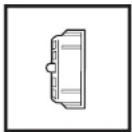
Base Post-Motor Filter
Shark | NINJA
TWO (2) YEAR LIMITED GUARANTEE
When a consumer buys a product in Europe, they get the benefit of legal rights relating to the quality of the product (your "statutory rights"). You can enforce these rights against your retailer. However, at Shark we are so confident about the quality of our products that we give you an additional manufacturer's guarantee of two years. These terms and conditions relate to our manufacturer's guarantee only - your statutory rights are unaffected.
Every Shark machine comes with a free parts and labour guarantee. You'll also find online support at www.sharkclean.eu.
How do I register my extended Shark guarantee?
You can register your guarantee online within 28 days of purchase. To save time, you'll need the following information about your machine:
- Model Number
- Serial Number (only if available)
- Date you received the machine (from your in-store receipt or delivery note)
To register online, please visit www.sharkclean.eu
IMPORTANT
• The manufacturer's guarantee covers your product for 2 years starting on the date of delivery.
- Please keep your receipt at all times. Should you need to use your guarantee we will need your receipt to verify the information you have supplied to us is correct. The inability to produce a valid receipt may invalidate your guarantee.
How long are new Shark machines guaranteed for?
Our confidence in our design and quality control means that your new Shark vacuum cleaner is guaranteed for two years.
What is covered by the free Shark guarantee?
Repair or replacement of your Shark machine (at Shark's discretion to decide whether to replace or repair) including all parts and labour. A Shark guarantee is in addition to your legal rights as a consumer.
What is not covered by the free Shark guarantee?
- Blockages - for details of how to unblock your vacuum cleaner, please refer to the Instructions.
- Normal wear and tear of parts which require regular maintenance and/or replacement to ensure the proper functioning of your unit.
- Accidental damage, faults caused by negligent use or care, misuse, neglect, careless operation or handling of the vacuum cleaner which is not in accordance with the Shark Instructions supplied with your machine.
• Use of the vacuum cleaner for anything other than normal domestic household purposes. - Use of parts not assembled or installed in accordance with the operating instructions.
• Use of parts and accessories which are not Shark spares.
• Faulty installation (except where installed by Shark).
Where can I buy genuine Shark spares and accessories?
Shark spares and accessories are developed by the same engineers who developed your Shark vacuum. You'll find a full range of Shark spares, replacement parts and accessories for all Shark machines at www.sharkclean.eu.
Please remember that damage caused by the use of non-Shark spares may not be covered under your manufacturer's guarantee.
PLEASE READ CAREFULLY AND KEEP FOR FUTURE REFERENCE.
These instructions are designed to help you keep your Shark AI Robot running at peak performance.
SharkNinja Europe Limited,
3150 Century Way.
Thorpe Park,
Leeds,
L315 025
SharkNinja Germany GmbH
c/o Regus Management GmbH,
Excellent Business Center 10.+11. Stock,
westhafenplatz
60327 Frankfurt am Main, Germany
sharkclean.eu
Illustrations may differ from actual product. We are constantly striving to improve our products; therefore the specifications contained herein are subject to change without notice.
END-USER LICENSE AGREEMENT FOR SHARKNINJA SOFTWARE
SharkClean.co.uk/EULA
NOTES
visita www.sharkclean.co.uk/robothelp
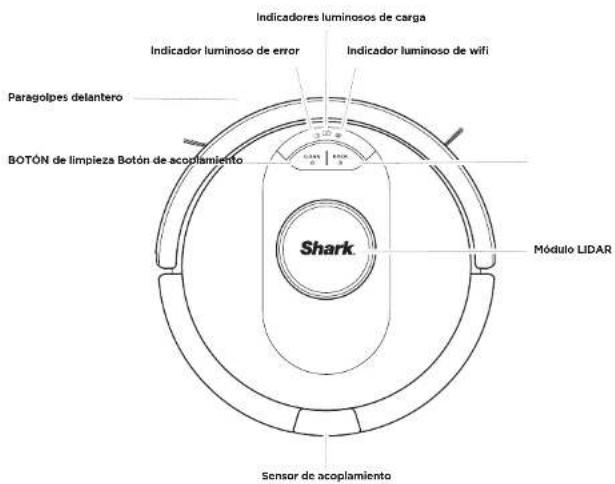
DESCUBRE TU SHARK® AI ROBOT
natural_image
Circular diagram with concentric rings and a diagonal line crossing through, no text or symbols present.natural_image
Simple line drawing of a robotic vacuum cleaner inside a room with an arrow indicating left motion (no text or symbols)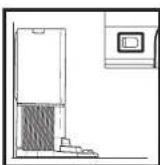
natural_image
Technical diagram of a mechanical component with two hanging parts and an inset showing a close-up of a circular component (no text or symbols present)natural_image
Line drawing of a robotic vacuum cleaner with a circular housing and a directional arrow indicating motion (no text or symbols)En uso


natural_image
Black toggle switch with icons for home, lightning bolt, and wind turbine (no text or symbols)natural_image
Line drawing of a washing machine with a circular base and power outlet, no text or symbols present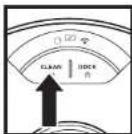
BOTÓN LIMPIAR
INDICADOR DE ERROR "I"
natural_image
Line drawing of a room with a rug, a potted plant, and a tiled floor (no text or symbols)natural_image
Line drawing of a room interior with TV, rug, and appliance (no text or symbols)natural_image
Diagram showing a mechanical component with an inset view of a housing (no text or symbols present)natural_image
Line drawing of a mechanical component with an arrow indicating direction (no text or symbols)natural_image
Line drawing of a mechanical component with internal components and a downward arrow indicating motion (no text or symbols)natural_image
Line drawing of a mechanical component with an arrow indicating direction (no text or symbols)natural_image
Line drawing of a laboratory apparatus with a top component and internal components (no text or symbols)LIMPIA LOS FILTROS ANTERIORES AL MOTOR UNA VEZ AL MES
natural_image
Line drawing of a mechanical component with internal channels and mounting holes (no text or symbols)natural_image
Technical line drawing of two electronic components with arrows indicating assembly or connection (no text or symbols)natural_image
Hand holding a cleaning brush with a textured brush, no text or symbols visiblenatural_image
Diagram of two electronic components with a magnified inset showing internal structure (no text or symbols)natural_image
Cross-sectional diagram of a mechanical device showing internal components and directional arrows (no text or labels)natural_image
Line drawing of a washing machine with a power outlet, showing internal components and wiring (no text or symbols)LIMPIEZA DE LOS CEPILLOS LATERALES
LIMPIA LOS CEPILLOS LATERALES CUANDO SEA NECESARIO.
natural_image
Line drawing of a hand using a tool to adjust or install a mechanical component (no text or symbols visible)natural_image
Cross-sectional diagram of a mechanical device showing internal components and directional arrows (no text or symbols)natural_image
Technical line drawing of a mechanical assembly with a hand holding a tool (no text or symbols visible)natural_image
Technical line drawing of a mechanical device interior with no visible text or symbolsnatural_image
Line drawing of a hand using a tool to clean or adjust a device component (no text or symbols visible)SharkNinja Europe Limited.
3150 Century Way
Thorne Park
Leeds (Inglaterra)
LS15 8ZB
SharkNinja Germany GmbH.
c/o Regus Management GmbH,
natural_image
Simple line drawing of a robotic vacuum cleaner inside a room with an arrow indicating left motion (no text or symbols)natural_image
Circular diagram with concentric rings and a diagonal line crossing through, no text or symbols present.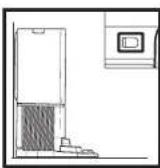
natural_image
Technical diagram of a mechanical component with two hanging parts and an inset showing a close-up of a circular component (no text or symbols present)natural_image
Line drawing of a robotic vacuum cleaner with a circular housing and a directional arrow indicating motion (no text or symbols)natural_image
Black toggle switch with icons for home, lightning bolt, and wind turbine (no text or symbols)natural_image
Line drawing of a robotic vacuum cleaner with attached power outlet and circular base (no text or symbols)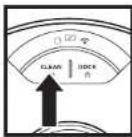
natural_image
Line drawing of a room with a rug, a potted plant, and a tiled floor (no text or symbols)natural_image
Line drawing of a room interior with TV, rug, and robotic arm (no text or symbols)natural_image
Diagram showing a mechanical component with an inset view of a housing (no text or symbols present)natural_image
Line drawing of a mechanical component with an arrow indicating direction (no text or symbols)natural_image
Line drawing of a mechanical component with internal components and a downward arrow indicating motion (no text or symbols)natural_image
Line drawing of a mechanical component with an arrow indicating direction (no text or symbols)natural_image
Line drawing of a laboratory apparatus with a top component and internal components (no text or symbols)NETTOYAGE DES FILTRES EN AMONT DU MOTEUR UNE FOIS PAR MOIS
natural_image
Technical line drawing of a mechanical component or housing (no text or symbols)natural_image
Technical line drawing of two electronic components with arrows indicating assembly or connection (no text or symbols)natural_image
Line drawing of a hand using a tool to clean or brush the surface (no text or symbols)natural_image
Diagram of two electronic components with a magnified inset showing internal structure (no text or symbols)natural_image
Cross-sectional diagram of a mechanical device showing internal components and mounting points (no text or labels)natural_image
Line drawing of a washing machine with a power outlet, showing internal components and wiring (no text or symbols)NETTOYAGE DES BROSSES LATÉRALES
NETTOYEZ LES BROSSES LATÉRALES SI CELA EST NÉCESSAIRE.
natural_image
Line drawing of a hand using a tool to adjust or install a mechanical component (no text or symbols visible)Chiffon non fourni.
natural_image
Cross-sectional diagram of a mechanical device showing internal components and directional arrows (no text or symbols)natural_image
Technical line drawing of a mechanical assembly with a hand holding a tool (no text or symbols present)natural_image
Technical line drawing of a mechanical device interior with no visible text or symbolsnatural_image
Line drawing of a hand using a tool to clean or store electronic components (no text or symbols visible)SharkClean.co.uk/EULA
IMPORTANTI ISTRUZIONI DI SICUREZZA
LEGGERE ATTENTAMENTE PRIMA DELL'UTILIZZO • SOLO PER IMPIEGO DOMESTICO
AVVERTENZA
natural_image
Circular diagram with a diagonal line and circular elements, no text or symbols present.natural_image
Simple line drawing of a robotic vacuum cleaner inside a room with an arrow indicating left motion (no text or symbols)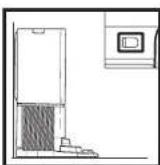
natural_image
Technical diagram of a mechanical component with two hanging parts and an inset showing a close-up of a circular feature (no text or symbols)natural_image
Line drawing of a robotic vacuum cleaner with a circular housing and a directional arrow indicating motion (no text or symbols)In uso


natural_image
Black toggle switch with icons for home, lightning bolt, and wind turbine (no text or symbols)natural_image
Line drawing of a robotic vacuum cleaner with attached power outlet and circular base (no text or symbols)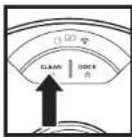
PULSANTE CLEAN
natural_image
Line drawing of a room with a rug, a potted plant, and a tiled floor (no text or symbols)natural_image
Line drawing of a room interior with TV, rug, and appliance (no text or symbols)natural_image
Diagram showing a mechanical component with an inset view of a housing (no text or symbols present)natural_image
Line drawing of a mechanical component with an arrow indicating direction (no text or symbols)natural_image
Line drawing of a mechanical component with a downward arrow and dotted texture (no text or symbols)natural_image
Mechanical assembly diagram showing a clamping mechanism with an arrow indicating direction (no text or symbols present)natural_image
Line drawing of a laboratory apparatus with a top component and internal components (no text or symbols)PULIRE I FILTRI PRE-MOTORE UNA VOLTA AL MESE
natural_image
Technical line drawing of a mechanical component or housing (no text or symbols)natural_image
Technical line drawing of two electronic components with arrows indicating assembly or connection (no text or symbols)natural_image
Hand holding a tool with a textured surface and spray particles, no text or symbols visiblenatural_image
Diagram of a device with two components, one showing a grid pattern and the other a flat base (no text or symbols)natural_image
Cross-sectional diagram of a mechanical device showing internal components and mounting points (no text or labels)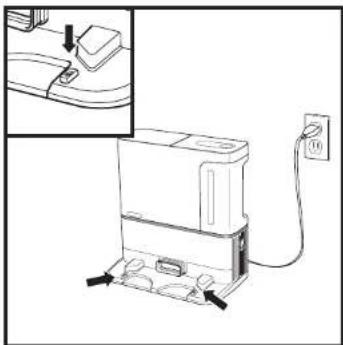
natural_image
Line drawing of a kitchen appliance with a power outlet and a close-up view of the door (no text or symbols)natural_image
Line drawing of a hand using a tool to adjust or install electronic components (no text or symbols visible)natural_image
Cross-sectional diagram of a mechanical device showing internal components and directional arrows (no text or symbols)natural_image
Technical line drawing of a mechanical assembly with a hand holding a tool (no text or symbols present)natural_image
Technical line drawing of a mechanical component with internal parts and a tool (no text or symbols)natural_image
Line drawing of a hand using a tool to clean or adjust a mechanical component (no text or symbols visible)SharkNinja Europe Limited,
3150 Century Way,
Thorpe Park,
Locus, LS15 BZB
SharkNinja Germany GmbH
Station controlelampjes
natural_image
Circular diagram with concentric rings and a diagonal line, no text or symbols presentnatural_image
Simple line drawing of a robotic vacuum cleaner inside a room with an arrow indicating left motion (no text or symbols)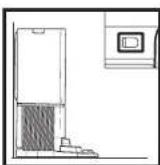
Stroomcontrolelampje station
natural_image
Technical diagram of a mechanical component with two hanging parts and an inset showing a close-up of a circular feature (no text or symbols)natural_image
Line drawing of a robotic vacuum cleaner with a circular housing and a directional arrow indicating motion (no text or symbols)In Gebruik


natural_image
Black toggle switch with icons for home, lightning bolt, and wind turbine (no text or symbols)Stroomcontrolelampje station
natural_image
Line drawing of a robotic vacuum cleaner with attached power outlet and circular base (no text or symbols)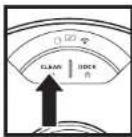
KNOP REINIGEN
Download on the App Store

GETTTON Google Play
WIFI PROBLEEMOPLOSSING
natural_image
Line drawing of a room with a rug, a potted plant, and a tiled floor (no text or symbols)natural_image
Line drawing of a room interior with TV, rug, and robotic arm (no text or symbols)natural_image
Diagram showing a mechanical component with an inset view of a housing (no text or symbols present)natural_image
Line drawing of a mechanical component with an arrow indicating direction (no text or symbols)natural_image
Line drawing of a mechanical component with a downward arrow and dotted texture (no text or symbols)natural_image
Mechanical assembly diagram showing a lever mechanism with an arrow indicating direction (no text or symbols present)natural_image
Line drawing of a laboratory apparatus with a top component and internal components (no text or symbols)PRE-MOTOR FILTERS EEN KEER PER MAAND REINIGEN
POST-MOTOR FILTER EEN KEER PER JAAR REINIGEN
natural_image
Line drawing of a mechanical component or housing (no text or symbols)natural_image
Technical line drawing of two electronic components with arrows indicating assembly or connection (no text or symbols)natural_image
Line drawing of a hand using a tool to clean or store items, no text or symbols presentnatural_image
Diagram of two electronic components with a magnified inset showing internal structure (no text or symbols)natural_image
Cross-sectional diagram of a mechanical device showing internal components and mounting points (no text or labels)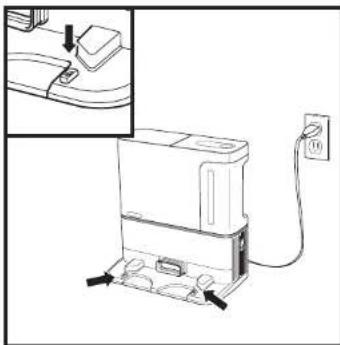
natural_image
Line drawing of a washing machine with attached power outlet (no text or symbols)natural_image
Line drawing of a hand using a tool to adjust or install electronic components (no text or symbols visible)natural_image
Cross-sectional diagram of a mechanical device showing internal components and directional arrows (no text or symbols)natural_image
Technical line drawing of a mechanical assembly with a hand holding a tool (no text or symbols visible)natural_image
Technical line drawing of a mechanical device interior with no visible text or symbolsnatural_image
Line drawing of a hand using a tool to clean or store electronic components (no text or symbols visible)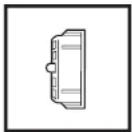
Post-motorfilter station
Shark | NINJA
BEPERKTE GARANTIE VAN TWEE (2) JAAR
SharkNinja Europe Limited,
3150 Century Way,
Thorpe Park,
Leeds, LS15 8ZB
SharkNinja Germany GmbH
c/o Regus Management GmbH,
Excellent Business Center 10.+11. Stock,
Westhafenplatz
60327 Frankfurt am Main,
Duitsland
natural_image
Simple line drawing of a robotic vacuum cleaner inside a door frame, with no text or symbols present.natural_image
Circular diagram with a diagonal line crossing through the center, no text or symbols present.KAN DU IKKE KOBLE TIL WI-FI?

Gjenstart telefonen
natural_image
Technical diagram of a mechanical component with two hanging parts and an inset showing a close-up of a circular feature (no text or symbols)Trykk de to medfølgende sidebørstene på de firkantede knaggene på bunnen av roboten.
sharkclean.eusharkclean.eu
ROBOTENS BATTERILYS
natural_image
Line drawing of a robotic vacuum cleaner with a circular housing and a directional arrow indicating motion (no text or symbols)I bruk


Under lading (hvit)


Ingen
ladning
eller a

natural_image
Black toggle switch with icons for home, lightning bolt, and wind turbine (no text or symbols)natural_image
Line drawing of a washing machine with a circular base and power outlet, no text or symbols present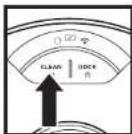
RENGJ∅RKNAPPEN
Download on the App Store

GETT ON Google Play
WIFI-FEILS∅KING
- For å bruke appen må telefonen være koblet til et nettverk med 2,4 GHz. Appen fungerer kun på et 2,4 GHz-nettverk.
- WIFI-nettverk i de floste hjem støtter både 2,4 GHz og 5 GHz.
- Ikke bruk VPN- eller proksyserver.
- IKKE koble til roboten ved hjelp av såkalte WI-FI «repeatere».
- Besøk sharkclean.eu hvis du ikke kan koble til.
FORTSATT IKKE MULIG Å KOBLE TIL?
Gjenstart telefonen din
natural_image
Interior corner diagram showing a rug, a potted plant, and a tiled floor with a circular object (no text or symbols)natural_image
Line drawing of a room interior with TV, rug, and robotic vacuum cleaner (no text or symbols)T∅MMING AV BASENS ST∅VBEHOLDER
T∅MMING AV ROBOTENS ST∅VBEHOLDER
natural_image
Diagram showing a mechanical component with an inset view of a housing (no text or symbols present)natural_image
Line drawing of a mechanical component with an arrow indicating direction (no text or symbols)natural_image
Line drawing of a mechanical component with a downward arrow and dotted texture (no text or symbols)natural_image
Mechanical assembly diagram showing a clamping mechanism with an arrow indicating direction (no text or symbols present)natural_image
Line drawing of a laboratory apparatus with a top component and internal components (no text or symbols)RENGJ∅R F∅R-MOTOR-FILTRE MÅNEDLIG
natural_image
Technical line drawing of a mechanical component or housing (no text or symbols)Fjern og tøm støvbeholderen. Rens eventuelt hår eller rusk fra «Anti-Tangle»-kammen på baksiden av støvbeholderen.
natural_image
Technical line drawing of two electronic components with arrows indicating assembly or connection (no text or symbols)natural_image
Hand holding a cleaning tool with a brush, spraying particles (no text or symbols visible)natural_image
Diagram of two electronic components with a magnified inset showing internal structure (no text or symbols)natural_image
Technical diagram of a mechanical assembly with internal components and directional arrows (no text or labels)natural_image
Line drawing of a portable water heater connected to a power outlet, with no text or symbols present.RENGJ∅RING AV SIDEB∅RSTER
RENGJ∅R SIDEB∅RSTER ETTER BEHOV.
natural_image
Hand holding a tool interacting with a device component (no visible text or symbols)natural_image
Cross-sectional diagram of a mechanical device showing internal components and directional arrows (no text or symbols)natural_image
Technical line drawing of a mechanical assembly with a hand holding a tool, no visible text or symbolsnatural_image
Technical line drawing of a mechanical device interior showing internal components and a tool interacting with a component (no text or symbols present)natural_image
Line drawing of a hand using a tool to clean or adjust a vehicle interior (no text or symbols visible)SharkNinja Europe Limited,
3150 Century Way.
Thorpe Park,
Leeds,
LS15 82B, Storbritannia
SharkClean.co.uk/EULA
MERKNADER
INSTRUÇÕES DE SEGURANÇA IMPORTANTES LEIA ATENTAMENTE ANTES DE USAR • APENAS PARA USO DOMÉSTICO
ATENÇÃO
natural_image
Circular diagram with a diagonal line crossing through the center, no text or symbols present.natural_image
Simple line drawing of a robotic vacuum cleaner inside a room with an arrow indicating left motion (no text or symbols)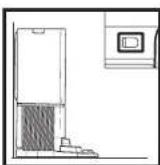
natural_image
Line drawing of a robotic vacuum cleaner with a circular housing and a directional arrow indicating motion (no text or symbols)Em utilização


natural_image
Technical diagram of a mechanical component with two hanging parts and an inset showing a close-up of a circular feature (no text or symbols)natural_image
Black toggle switch with icons for home, lightning bolt, and wind turbine (no text or symbols)natural_image
Line drawing of a washing machine with a circular base and power outlet, no text or symbols present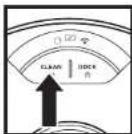
natural_image
Simple line drawing of a room with a rug, a potted plant, and a tiled floor (no text or symbols)natural_image
Line drawing of a room interior with TV, rug, and robotic arm (no text or symbols)natural_image
Diagram showing a mechanical component with an inset view of a housing (no text or symbols present)natural_image
Line drawing of a mechanical component with an arrow indicating direction (no text or symbols)natural_image
Line drawing of a mechanical component with a downward arrow and dotted texture (no text or symbols)natural_image
Mechanical assembly diagram showing a clamping mechanism with an arrow indicating direction (no text or symbols present)natural_image
Line drawing of a laboratory apparatus with a top component and internal components (no text or symbols)LIMPE OS FILTROS PRÉ-MOTOR UMA VEZ POR MÊS
natural_image
Technical line drawing of a mechanical component or housing (no text or symbols)Retire a esvazio o depósito de pó. Limpe todos os palos ou detritos da pente antiemaranhamento na parte traseira do depósito de pó.
natural_image
Technical line drawing of two electronic components with arrows indicating assembly or connection (no text or symbols)natural_image
Line drawing of a hand using a tool to clean or store items, no text or symbols presentnatural_image
Diagram of two electronic components with a magnified inset showing internal structure (no text or symbols)natural_image
Cross-sectional diagram of a mechanical device showing internal components and mounting points (no text or labels)natural_image
Line drawing of a washing machine with a power outlet, showing internal components and wiring (no text or symbols)LIMPEZA DAS ESCOVAS LATERAIS
LIMPE AS ESCOVAS LATERAIS CONFORME NECESSÁRIO.
natural_image
Line drawing of a hand using a tool to adjust or install a mechanical component (no text or symbols visible)Pano não incluído.
natural_image
Cross-sectional diagram of a mechanical device showing internal components and directional arrows (no text or symbols)natural_image
Technical line drawing of a mechanical assembly with a hand holding a tool (no text or symbols present)natural_image
Technical line drawing of a mechanical component with internal parts and a tool inserted (no text or symbols)natural_image
Line drawing of a hand using a tool to clean or adjust a mechanical component (no text or symbols visible)SharkNinia Europe Limited.
3150 Century Way.
Thorpe Park,
Leeds
LS15 8ZB
SharkClean.co.uk/EULA
NOTAS
TÄRKEITÄ TURVALLISUUSOHJEITA LUE HUOLELLISESTI ENNEN KÄYTTÖÄ • VAIN KOTITALOUSKÄYTTÖÖN
AVAROITUS
OVIAUKOT JA KYNNYKSET
natural_image
Simple line drawing of a robotic vacuum cleaner inside a room with an arrow indicating left motion (no text or symbols)natural_image
Circular diagram with a diagonal line and circular elements, no text or symbols present.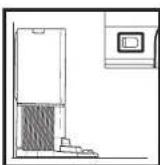
natural_image
Technical diagram of a mechanical component with two hanging parts and an inset showing a close-up of a circular feature (no text or symbols)natural_image
Line drawing of a robotic vacuum cleaner with a circular housing and a directional arrow indicating motion (no text or symbols)Käytössä


natural_image
Black toggle switch with icons for home, lightning bolt, and wind turbine (no text or symbols)Aseman virran
merkkivalokuva
Asema on klinni
ja siinā on virlaa
Latauskuvake
Robotti on asetettu
asemaan oikein
ja se intecutou.

Tyhjennyskuvak
Robotti tyhjentaä
roska asemaan.


LATAAMINEN
natural_image
Line drawing of a washing machine with a circular base and power outlet, no text or symbols present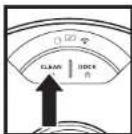
CLEAN-PAINIKE
WI-FI-YHTEYDEN VIANMÄÄRITYS
WI-FI-YHTEYDEN VIANMÄÄRITYS
natural_image
Interior corner diagram showing a rug, a potted plant, and a tiled floor with a circular base (no text or symbols)natural_image
Line drawing of a room interior with TV, rug, and robotic vacuum cleaner (no text or symbols)MANUAALINEN PUHDISTUSTILA
natural_image
Diagram showing a mechanical device with an inset view of a component (no text or symbols present)natural_image
Line drawing of a mechanical component with an arrow indicating direction (no text or symbols)natural_image
Line drawing of a mechanical component with a downward arrow and dotted texture (no text or symbols)natural_image
Mechanical assembly diagram showing a clamping mechanism with an arrow indicating direction (no text or symbols present)natural_image
Line drawing of a laboratory apparatus with a top component and internal components (no text or symbols)PUHDISTA MOOTTORIN ESISUODATTIMET KERRAN KUUKAUDESSA
natural_image
Technical line drawing of a mechanical component or housing (no text or symbols)natural_image
Technical line drawing of two electronic components with arrows indicating assembly or connection points (no text or symbols present)natural_image
Line drawing of a hand using a tool to clean or spray particles (no text or symbols)natural_image
Diagram showing two electronic components with a magnified inset, no text or symbols presentnatural_image
Technical diagram of a mechanical assembly with internal components and directional arrows (no text or labels)natural_image
Line drawing of a portable water heater connected to a wall socket (no text or symbols)SIVUHARJOJEN PUHDISTAMINEN
PUHDISTA SIVUHARJAT TARPEEN MUKAAN.
natural_image
Line drawing of a hand using a tool to adjust or install electronic components (no text or symbols visible)natural_image
Cross-sectional diagram of a mechanical device showing internal components and directional arrows (no text or symbols)natural_image
Technical line drawing of a mechanical assembly with a hand holding a tool (no text or symbols present)natural_image
Technical line drawing of a mechanical device interior showing internal components and a tool interacting with a component (no text or symbols present)natural_image
Line drawing of a hand using a tool to clean or store electronic components (no text or symbols visible)SharkNinja Europe Limited,
3150 Century Way,
Thorpe Park,
Leeds, 1515 97P
SharkNinja Germany GmbH
c/o Regus Management GmbH,
Excellent Business Center 10.+11. Stock,
westhafenplatz 1,
60327 Frankfurt am Main, Germany
sharkclean.eu
SharkClean.co.uk/EULA
MUISTIINPANOJA
VIKTIGA SÄKERHETSINSTRUKTIONER LÄS NOGGRANT FÖRE ANVÄNDNING • ENBART FÖR HUSHÄLLSBRUK
▲VARNING
natural_image
Circular diagram with a diagonal line and circular elements, no text or symbols present.natural_image
Simple line drawing of a robotic vacuum cleaner inside a room with an arrow indicating left motion (no text or symbols)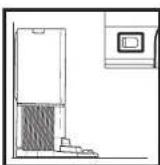
Basenhetens strömindikatorikon
natural_image
Technical diagram of a mechanical component with two hanging parts and an inset showing a close-up of a circular feature (no text or symbols)natural_image
Line drawing of a robotic vacuum cleaner with a circular housing and a directional arrow indicating motion (no text or symbols)Används


natural_image
Black toggle switch with icons for home, lightning bolt, and wind turbine (no text or symbols)Basenhetens
strömindikatorikon
natural_image
Line drawing of a washing machine with a circular base and power outlet, no text or symbols present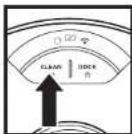
CLEAN-KNAPP
natural_image
Line drawing of a room with a rug, a potted plant, and a tiled floor (no text or symbols)natural_image
Line drawing of a room interior with TV, rug, and robotic arm (no text or symbols)natural_image
Diagram showing a mechanical component with an inset view of a housing (no text or symbols present)natural_image
Line drawing of a mechanical component with an arrow indicating direction (no text or symbols)natural_image
Line drawing of a mechanical component with internal components and a downward arrow indicating motion (no text or symbols)natural_image
Line drawing of a mechanical component with an arrow indicating direction (no text or symbols)natural_image
Line drawing of a laboratory apparatus with a top component and internal components (no text or symbols)RENGÖR INSUGSFILTREN EN GÅNG I MÅNADEN
natural_image
Line drawing of a mechanical component with internal channels and mounting brackets (no text or symbols)natural_image
Technical line drawing of two electronic components with arrows indicating assembly or connection (no text or symbols)natural_image
Line drawing of a hand using a tool to clean or brush the surface (no text or symbols)natural_image
Diagram of two electronic components with a magnified inset showing internal structure (no text or symbols)natural_image
Cross-sectional diagram of a mechanical device showing internal components and directional arrows (no text or labels)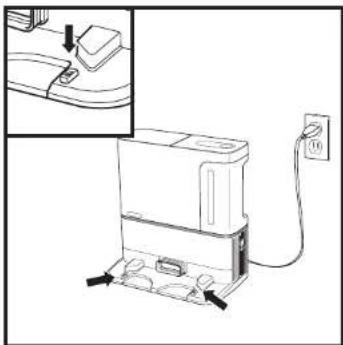
natural_image
Line drawing of a washing machine with attached power outlet (no text or symbols)natural_image
Line drawing of a hand using a tool to adjust or install electronic components (no text or symbols visible)natural_image
Cross-sectional diagram of a mechanical device showing internal components and directional arrows (no text or symbols)natural_image
Technical line drawing of a mechanical assembly with a hand holding a tool (no text or symbols present)natural_image
Technical line drawing of a mechanical device interior showing internal components and a tool interacting with a component (no text or symbols present)natural_image
Line drawing of a hand using a tool to clean or adjust a vehicle interior (no text or symbols visible)SharkNinja Europe Limited,
3150 Century Way,
Thorpe Park,
Leeds,
SharkClean.co.uk/EULA
ANTECKNINGAR
ANTECKNINGARANTECKNINGAR
ENGLISH Illustrations may differ from actual product
We are constantly striving to improve our products; therefore the specifications contained here in are subject to change without notice.
© 2022 SharkNinja Operating LLC. SHARK is a registered trademark of SharkNinja Operating LLC.
Apple App Store is a trademark of Apple Inc.
Google, Android and Google Play are trademarks of Google LLC.
SharkNinja Europe Limited, 3150 Century Way, Thorpe Park, Leeds, LS15 8ZB, UK
+44 (0)800 862 0453
www.sharkclean.co.uk

sharkclean.eu