KIDTAB 7 S04 - Tablet Trevi - Free user manual and instructions
Find the device manual for free KIDTAB 7 S04 Trevi in PDF.

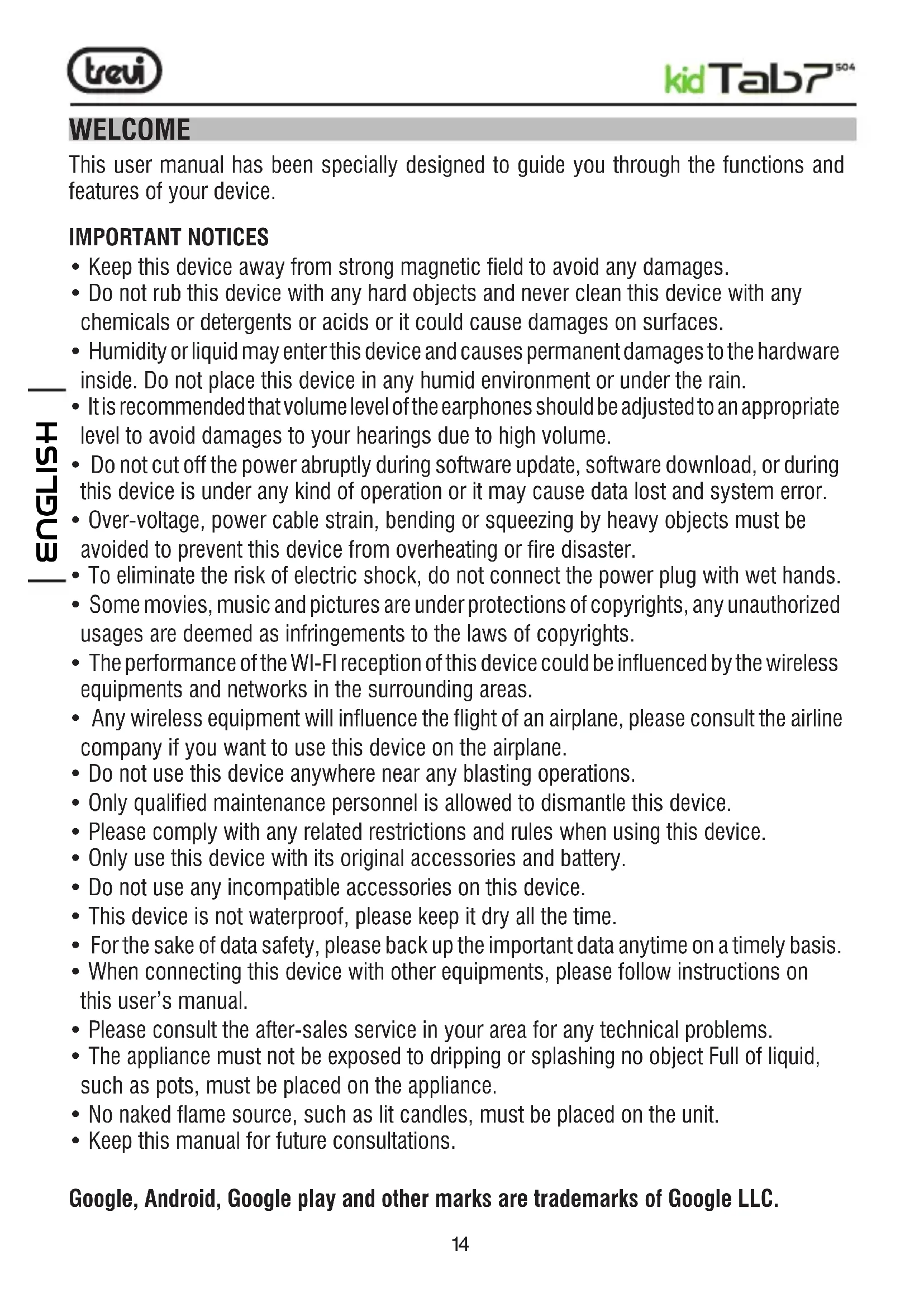


| Product Type | Touchscreen Tablet |
| Brand | Trevi |
| Model | KIDTAB 7 S04 |
| Screen | 7-inch TFT LCD, capacitive multi-touch |
| Screen Resolution | 1024 x 600 pixels (16:9) |
| Processor | Quad-core ARM Cortex-A53 @ 1.6 GHz |
| RAM Memory | 2 GB |
| Internal Storage | 16 GB |
| Operating System | Android 11 Go Edition |
| Wi-Fi Connectivity | 802.11 b/g/n (2.4 GHz) |
| Bluetooth | V4.2 |
| Battery | Lithium-polymer 3.7 V, 2500 mAh |
| Power Supply | 5V, 2A power adapter included |
| Dimensions (L x W x H) | 196 x 33 x 17 mm |
| Weight | 315 g |
| SAR Value | 0.62 W/kg |
| Main Functions | Wi-Fi, Bluetooth, front/rear camera, iWawa parental control, speaker, 3.5mm headphone jack, micro USB |
| Care and Cleaning | Do not use chemical or abrasive products; clean with a soft dry cloth |
| Safety | Do not expose to moisture, do not use non-original charger, do not disassemble, keep away from children while charging |
| Spare Parts and Repairability | The battery is not user-replaceable; contact a qualified technical service for any repair |
Frequently Asked Questions - KIDTAB 7 S04 Trevi
User questions about KIDTAB 7 S04 Trevi
0 question about this device. Answer the ones you know or ask your own.
Ask a new question about this device
Download the instructions for your Tablet in PDF format for free! Find your manual KIDTAB 7 S04 - Trevi and take your electronic device back in hand. On this page are published all the documents necessary for the use of your device. KIDTAB 7 S04 by Trevi.
USER MANUAL KIDTAB 7 S04 Trevi
natural_image
Abstract digital illustration with globe, network lines, and lab equipment (no readable text or symbols)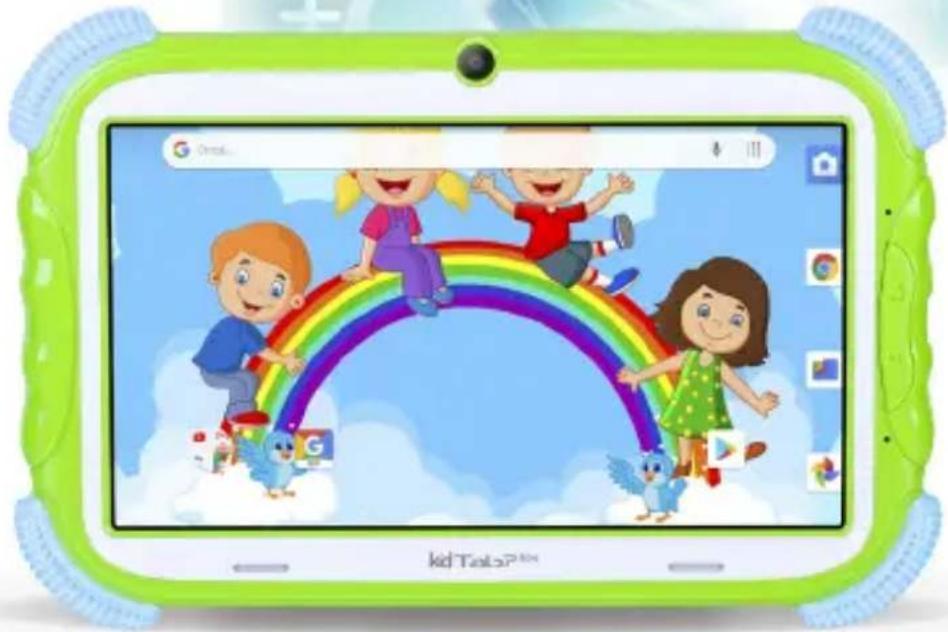
natural_image
Illustration of a children's tablet displaying a rainbow arch over clouds, surrounded by social media icons (no text or symbols on the main image)kidTab7 ^504
Google, Android, Google play and other marks are trademarks of Google LLC.
PER IMPOSTARE LA TUA LINGUA SUL DISPOSITIVO:
TO SET YOUR DEVICE LANGUAGE:
- Swicth on the appliance
- Go to the page with all applications
- Select the "IMPOSTAZIONI" icon
- Scroll through the list and select - "SISTEMA"
- Select "LINGUE E IMMISSIONE" and find their own language from those available.
Note: For information and updates of this product: www.trevi.it
POUR CONFIGURER LANGUE DE VOTRE APPAREIL:
natural_image
Diagram of a mechanical device with threaded ends and a connected cable, no text or symbols presentAvvertenze:
natural_image
Illustration of a cartoon apple with a child inside, floating on a beach with palm trees and water (no text or symbols)text_image
Downloaded Publishing applications Advanced online downloads... Add downloads STEM Video content Play video content Music Education video content JahannaDisplay 7-inch TFT LCD, TN, Capacitive (Touch-screen)
Resolution 1024x 600 (16:9)
CPU Quad-core ARM Cortex-A53@1.6GHz
RAM 2GB
Memoria Interna 16GB
Sistema Opeartivo Android™ 11 (Go edition)
WiFi Standard 802.11 b/g/n (2,4GHz)
Bluetooth: V4.2
This user manual has been specially designed to guide you through the functions and features of your device.
IMPORTANT NOTICES
- Keep this device away from strong magnetic field to avoid any damages.
- Do not rub this device with any hard objects and never clean this device with any chemicals or detergents or acids or it could cause damages on surfaces.
- Humidity or liquid may enter this device and causes permanent damages to the hardware inside. Do not place this device in any humid environment or under the rain.
- It is recommended that volume level of the earphones should be adjusted to an appropriate level to avoid damages to your hearings due to high volume.
- Do not cut off the power abruptly during software update, software download, or during this device is under any kind of operation or it may cause data lost and system error.
• Over-voltage, power cable strain, bending or squeezing by heavy objects must be avoided to prevent this device from overheating or fire disaster.
• To eliminate the risk of electric shock, do not connect the power plug with wet hands. - Some movies, music and pictures are under protections of copyrights, any unauthorized usages are deemed as infringements to the laws of copyrights.
- The performance of the WI-FI reception of this device could be influenced by the wireless equipments and networks in the surrounding areas.
- Any wireless equipment will influence the flight of an airplane, please consult the airline company if you want to use this device on the airplane.
- Do not use this device anywhere near any blasting operations.
- Only qualified maintenance personnel is allowed to dismantle this device.
- Please comply with any related restrictions and rules when using this device.
- Only use this device with its original accessories and battery.
- Do not use any incompatible accessories on this device.
- This device is not waterproof, please keep it dry all the time.
- For the sake of data safety, please back up the important data anytime on a timely basis.
- When connecting this device with other equipments, please follow instructions on this user's manual.
- Please consult the after-sales service in your area for any technical problems.
- The appliance must not be exposed to dripping or splashing no object Full of liquid, such as pots, must be placed on the appliance.
- No naked flame source, such as lit candles, must be placed on the unit.
- Keep this manual for future consultations.
Google, Android, Google play and other marks are trademarks of Google LLC.
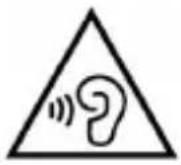
With earphone or headphones use:
To prevent possible hearing damage, limit the amount of time listening at high volumes.

This product is not a toy.
To use only under adult supervision.
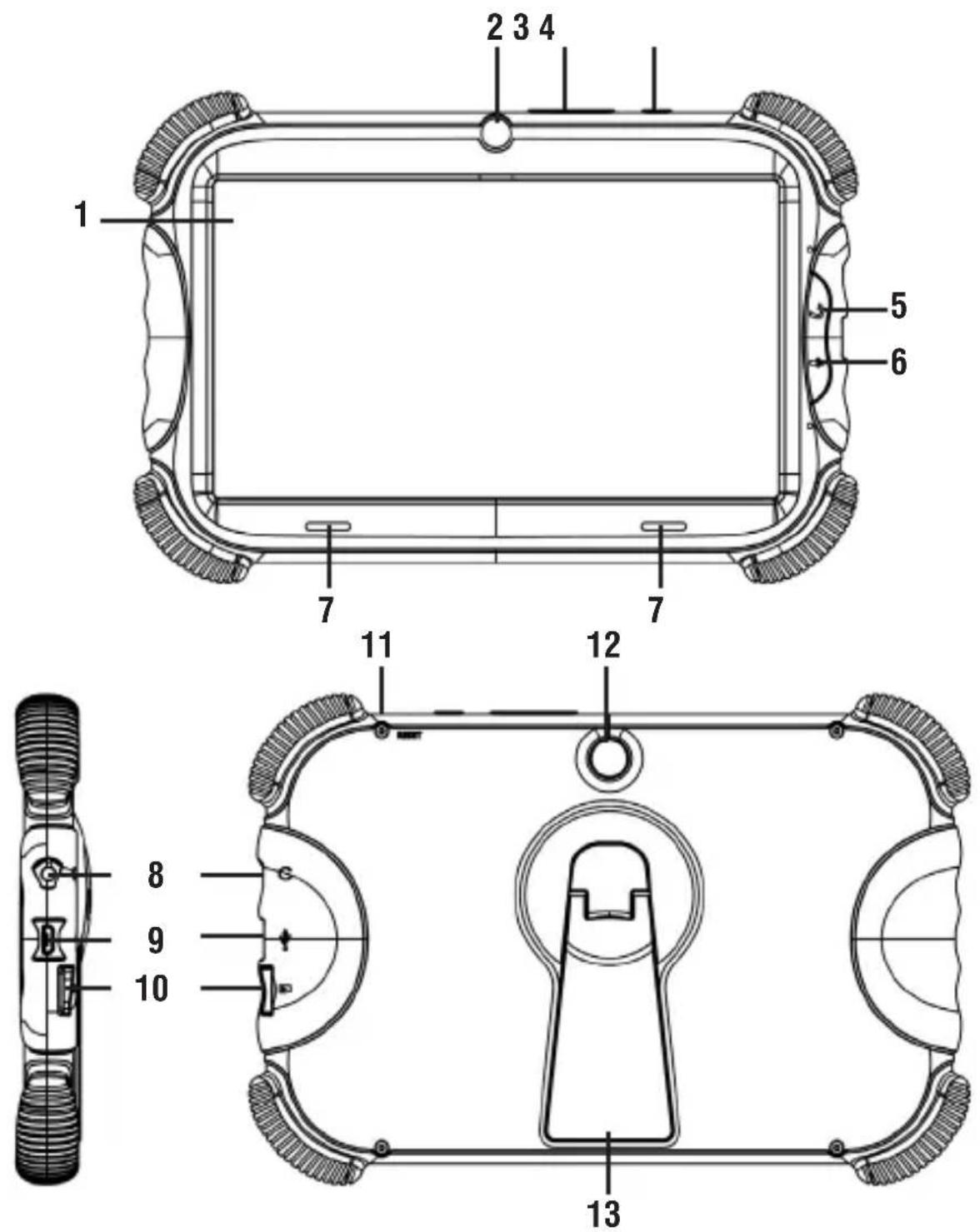
FUNCTION OVERVIEW
text_image
1 2 3 4 5 6 7 7 11 12 8 9 10 13- Display.
- Frontal camera.
- Volume buttons.
- Power button and ON/OFF Display.
- Return key.
- Voice assistant.
-
Speaker.
-
Earphone Socket 3.5mm.
- Micro USB/ DC socket: connect the unit to 5V adaptor/ connect the unit to PC.
- Micro SD CARD slot.
- Reset hole.
- Rear camera.
- Bracket.
BATTERY RECHARGE
This device uses a lithium rechargeable battery inside. Upon completion of charging, the device will work without needing to be connected to a power outlet.
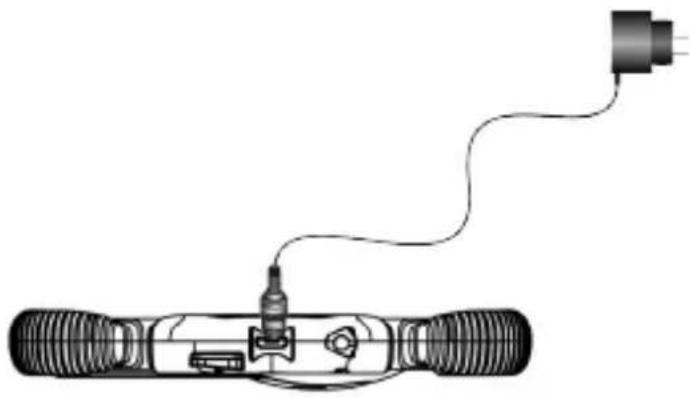
Battery charging via external power supply.
A Connect the switched off device, using the USB/ Micro USB cable, to the network adapter included in the package;
B Connect the adapter to a power outlet. IT IS VERY IMPORTANT THIS OPERATION IS CARRIED OUT BY AN ADULT;
C The device will display the battery icon and the charging phase for a few seconds. At any time, by lightly pressing the Power button (4), you can check the state of charge by checking the graphic indicator;
D When the battery icon is no longer moving (the internal indication will be complete) disconnect the device from the power supply.
natural_image
Diagram of a handheld device with wires and connectors, no text or symbols presentWarnings:
- Use only the supplied power supply, different power supplies could damage the battery.
- The charger is for adult use only and should be kept out of the reach of children.
- The device is charged even when it is connected to the computer with a USB cable.
- When using the device for the first time, it is advisable to fully charge the battery.
-
You can use the device even when it is being charged, but, for a longer battery life, its use is not recommended; moreover, by using the device, the charging times are lengthened.
-
While recharging the battery, the controls on the Touch Screen may not work properly, this is due to the unstable power supply, just unplug the power supply to make the device work properly.
- During recharging, the device may increase in temperature, this does not affect the performance and life of the device.
- Before the complete exhaustion of the battery, the device will warn you to connect the device to the power supply. When the battery is completely exhausted, the device will turn off automatically.
WARNING FOR CORRECT USE OF THE RECHARGEABLE BATTERY
- Recharge the battery at a temperature between 5°C and 35°C.
- Do not extend the recharge beyond the indicated times to avoid the risk of overheating and bursting.
- Charging the battery beyond the indicated times or a prolonged period of inactivity can reduce its duration.
- The rechargeable battery is subject to wear and its capacity gradually decreases.
- Before each recharge, it is advisable to completely drain the battery.
- We suggest you recharge the battery completely once a month if only use your tablet occasionally.
ATTENTION: with a completely discharged battery, by connecting the power supply, the device cannot be used for the first 3 minutes of charging, this is to guarantee the battery a small recharge and not be damaged before switching on.
GETTING STARTED
Power ON/OFF
- Press and hold the Power button (4) for 3-4 seconds to turn On your table. Select your language and set up your tablet following the start guide.
- Press and hold the Power button (4) for 2 seconds, then release it. It will show Power Off and Restart on the screen. Tap power Off to turn Off the Tablet.
- Press and hold Power button (4) for 5 seconds to do a forced shutdown when it's frozen.
Display lock/ unlock (Standby mode)
To extend the battery life, you can put the device in sleep mode by deactivating the LCD display. To do this, press the Power button (4) and release it immediately. Repeat the operation to reactivate the display and bring up the screen lock.
Do not Disturb
- Swipe down from the top of te Tablet to enter the pull-down notification file;
- Select the “Do not Disturb” button. Do not disturb mode (after entering the do not disturb mode, Notifications paused by do not disturb).
Connection to the Network
The Wi-Fi connection can be used with a Wi-Fi Access Point (AP) connection or create a Hotspot and Tethering connection. Selecting this item you access the wireless and networks settings. To access the Internet, first of all, you need to configure a Wireless network; to do this, you need to be in a Wi-Fi zone. Each time you are in a Wi-Fi zone that you have previously configured, the device will try to connect automatically (if the Wi-Fi function is active).
Wi-Fi On/ Off:
- Select the “Settings” icon and tap “Network and Internet”; activate the switch located to the right of the “Wi-Fi” item:

- To turn off the WiFi connection, turn off the switch.
NOTE: To increase the battery life, it is recommended to turn off the WiFi connection when not in use.
Search for and connect to a Wi-Fi network:
- As soon as the ON command is selected, the Tablet will automatically activate the search for available Wi-Fi networks, select the word Wi-Fi to view the list of available networks;
- Select the desired network and, if protected, enter the password using the virtual keyboard;
- Touch the “Connect” command and wait for the symbol to appear on the status bar;
- You can also manually configure a network if you know the network SSID by simply selecting the “Add network” item and entering the SSID address using the virtual keyboard.
Internet browsing
Before connecting to the network, make sure that the Wi-Fi connection is active.
- On the main page, touch the Google™, search band, the Android™, virtual keyboard will appear, where you can type the website address or search using a search engine;
- Or tap the icon that corresponds to the navigation browser.
While browsing, touch the icon to view the settings and submenus.
Application management
The TABLET comes with several applications in it, but is capable of supporting third party applications as well. We recommend that you download the “YOUTUBE KIDS” APP for your children using the Play Store market.
Uninstall an application:
- Select the "SETTINGS" - "APP AND NOTIFICATIONS" menu;
- Select "Show all apps" and select the application you want to uninstall;
- Touch the "UNINSTALL" command to permanently uninstall the application.
iWawa
iWawa offers parental controls to ensure the proper kind of experience is provided for children's use. Here we will walk you through the steps to help set up your Kids Tablet before your child's first use. We recommend iWawa to be enabled and if the parent's need to make adjustment they will need to enter a PIN to make changes to tablet's behavior. The Tablet should be updated as the child progress, installing apps that are age-appropriate.
How to set up iWawa Kids software:
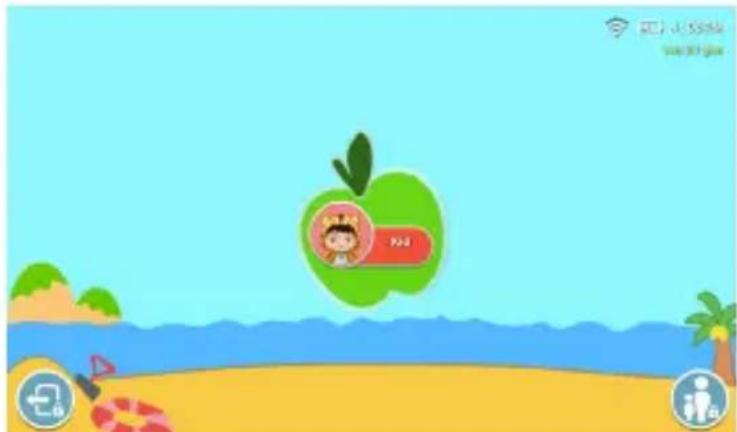
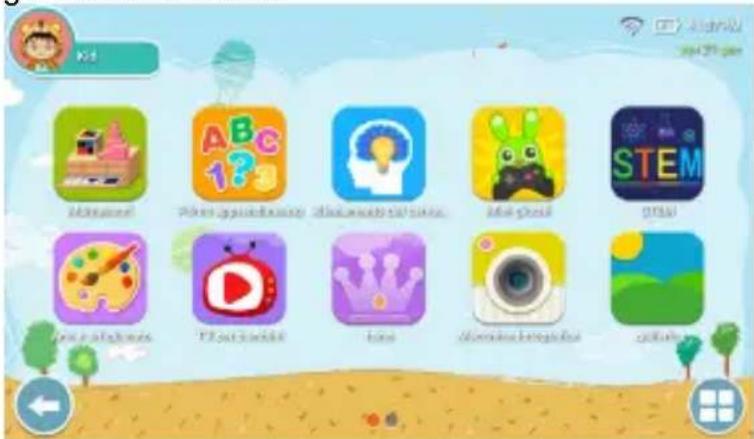
- Clic “iWawa” icon on the desktop to enter the Kids software - click “Kid” to enter the Kids mode;
text_image
P20 @163.com sai.90.psd- Here you can use iWawa's children's educational programs, or you can download apps for your child through the Kids Store.
text_image
Kind Kindbook Math App Math App Math App Math App Math App Math App Math App Math App Math App Math App Math App Math App Math App Math App Math App Math App Math App Math App Math App Math App Math App Math App Math App Math App Math App Math App Math App Math App Math App Math App Math App Math App Math App Math App- Here you can use iWawa's children's educational programs, or you can download apps for your child through the Kid Store;

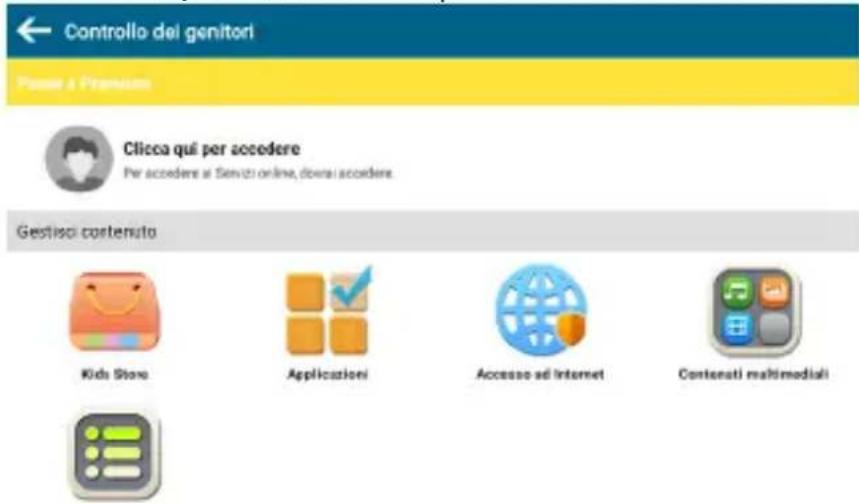
- Parental control: Easily control this kid's tablet and protect your child's healthy development. (Default initial password: 0000).
- Exit iWawa: Exit kids mode and reurn to the tablet desktop into normal mode. (Default initial password: 0000).
INFORMATION ON BATTERY REMOVAL AND DISASSEMBLY
Caution: This operation is reserved exclusively for specialized technical personnel! The rechargeable battery installed in this appliance cannot be replaced by the user.
- Unscrew all the screws that fix the rear cabinet to the front one;
- Remove the rear cabinet by levering upwards between the front and the rear;
- Locate the battery;
- Disconnect it and remove it.
Caution:
- Whatever type of battery is used, it should not be thrown away domestic, fire or water.
- Any used battery should be recycled or disposed of at any time dedicated collection centers.
WARNING: Lithium battery. Risk of explosion if battery is incorrectly replaced. Replace only with the same type or with an equivalent type.
PRECAUTIONS FOR CORRECT DISPOSAL OF THE PRODUCT.
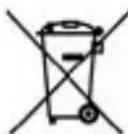
The symbol shown on the equipment indicates that waste must be disposed of in “separate collection” and so the product must not be disposed of together with urban waste. The user must take the product to special “separate waste collection centres” provided by local government, or deliver it to the retailer against the purchase of a new product. Separate collection of waste and subsequent treatment, recycling and disposal operations promotes the production of equipment with recycled materials and limits negative effects on the environment and on health caused by improper handling of waste. Illegal disposal of the product leads to the enforcement of administrative penalties.
TREVI pursues a policy of continuous research and development, the products may show different characteristics from those described.
TECHNICAL SPECIFICATION
| Display | 7-inch TFT LCD, TN, Capacitive (Multi Touch) |
| Resolution | 1024X 600 (16:9) |
| CPU | Quad-core ARM Cortex-A53@1.6GHz |
| RAM | 2GB |
| Built-In Memory | 16GB |
| Operative Sistem | Android^TM 11 (Go edition) |
| WIFI Standard | 802.11 b/g/n (2,4GHz) |
| Bluetooth Version: | V4.2 |
| Bluetooth transmission band | 2,4 GHz |
| Bluetooth Transmission Power | 1mW |
| Bluetooth Broadcast Power | 0,8mW |
| SAR value: | 0,62W/Kg |
| Rechargeable Battery | 3,7V, 2500mAh Li-Poly |
| with external DC adapter 5V --- 2A | |
| Size | 196x 33x 17mm |
| Weight | 315gr |
BIENVENUE
natural_image
Diagram of a handheld device with a cable and power outlet, no text or symbols presentMises en garde:
natural_image
Illustration of a cartoon apple floating on a beach with water and palm trees (no text or symbols)text_image
Game interface screenshot displaying 12 app icons with Chinese labels, including cartoon animals, alphabet, and STEM content.RECOMMANDATIONS POUR L'ELIMINATION CORRECTE DU PRODUIT.
text_image
Warning symbols: triangular warning triangle with sound wave and exclamation marknatural_image
Diagram of a mechanical device with a cable and plug, no text or symbols presentWarnungen:
natural_image
Illustration of a cartoon character with a green apple and red button, floating on a beach with water and palm trees (no text or symbols)natural_image
Diagram of a mechanical device with a cable and connector, no text or symbols presentAdvertencias:
natural_image
Illustration of a cartoon character with a green apple on a beach, surrounded by waves and a lifebuoy (no text or symbols)text_image
6.2 Grenzeland 70% spics & 50% pets 30% spics & 50% pets 30% spics STEM 30% spics TV & TV Kids Food Aerospace & Sports Adamstext_image
Grid of nine grayscale speech bubble icons with national flags, likely representing country or regional data.EN If you will not find your language on the instruction manual, please go on our website: www.trevi.it to find it
FR Si vous ne trouverez pas votre langue sur le mode d'emploi, veuillez vous visiter sur notre site Web: www.trevi.it de le trouver
DE Wenn Sie Ihre Sprache auf die Bedienungsanleitung nicht finden, gehen Sie bitte auf unsere Webseite: www.trevi.it zu finden
ES Si no encuentras tu idioma en el manual de instrucciones, por favor vaya a nuestra página web: www.trevi.it se encuentra
PT Se você não vai encontrar sua língua sobre o manual de instruções, por favor, vá em nosso site: www.trevi.it para encontrá-lo
https://www.trevi.it/dms/zidi/TREVI/KIDTAB7S04.pdf
Simplified EU Declaration Of Conformity
Hereby TREVI S.p.a declares that the equipment model Kid Tab7 S04 is in compliance with Directive 2014/53/EU.
The full text of the EU declaration of conformity is available at the following internet address
https://www.trevi.it/dms/zidi/TREVI/KIDTAB7S04.pdf
Statement on chemicals (Reach)
The concentration of SVHC substances in this unit come under quantity ≤ 0.1% (W/W)
permitted by the EC Regulation 1907/2006
kidTab7 ^504

natural_image
Abstract digital illustration of a globe with network lines and floating icons, no readable text or symbols
natural_image
Illustration of a green tablet with children playing on a rainbow arch, surrounded by decorative blue frames (no text or symbols)
Trevi S.p.A.
Strada Consolare Rimini-San Marino, 62
47924 RIMINI (RN) Italy
Tel. 0541/756420 - Fax 0541/756430
www.trevi.it - E-mail: info@trevi.it