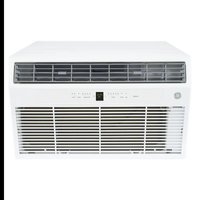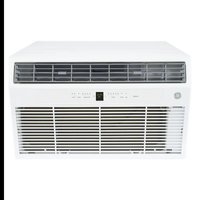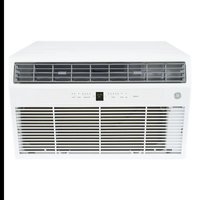
APCA11YBMW - Air Conditioning GE - Free user manual and instructions
Find the device manual for free APCA11YBMW GE in PDF.


User questions about APCA11YBMW GE
0 question about this device. Answer the ones you know or ask your own.
Ask a new question about this device
Download the instructions for your Air Conditioning in PDF format for free! Find your manual APCA11YBMW - GE and take your electronic device back in hand. On this page are published all the documents necessary for the use of your device. APCA11YBMW by GE.
USER MANUAL APCA11YBMW GE
IMPORTANT SAFETY INFORMATION .... 3
USING THE AIR CONDITIONER .... 4
CARE AND CLEANING ..... 7
INSTALLATION INSTRUCTIONS ...... 9
TROUBLESHOOTING ..... 13
WIFI SETUP 14
LIMITED WARRANTY .....15
CONSUMER SUPPORT .....16
OWNER'S MANUAL AND INSTALLATION INSTRUCTIONS
APCA11
Before you begin (on some models)
Record the GE module number and password for wifi setup. To locate this information, see pages 13 and 14.
GE Module Number #____
Password #
Write the model and serial numbers here:
Model # ____
Serial # ____
Find these numbers on a label on the side of the air conditioner.
THANK YOU FOR MAKING GE APPLIANCES A PART OF YOUR HOME.
Whether you grew up with GE Appliances, or this is your first, we're happy to have you in the family.
We take pride in the craftsmanship, innovation and design that goes into every GE Appliances product, and we think you will too. Among other things, registration of your appliance ensures that we can deliver important product information and warranty details when you need them.
Register your GE appliance now online. Helpful websites and phone numbers are available in the Consumer Support section of this Owner's Manual. You may also mail in the pre-printed registration card included in the packing material.

GE APPLIANCES
IMPORTANT SAFETY INFORMATION READ ALL INSTRUCTIONS BEFORE USING THE APPLIANCE
IMPORTANT SAFETY INSTRUCTIONS
⚠ WARNING
To reduce the risk of fire, electrical shock, injury to persons, or damage when using the air conditioner, follow basic precautions, including the following:
- Read all of the instructions before using this appliance.
- Plug into a grounded 3 prong outlet.
- Do not remove ground prong.
- Do not use an adapter.
- Do not use an extension cord.
- Do not operate the air conditioner if it has a damaged cord or plug, if it is not working properly, or if it has been damaged or dropped.
-
The air conditioner should be serviced only by qualified service personnel. Call an authorized service company for examination, repair, or adjustment.
-
Disconnect power before servicing.
- Disconnect power before cleaning.
NOTE: Turning off power by pressing the Power button does NOT disconnect the appliance from the power supply. - Do not install or use the air conditioner in any area where the atmosphere contains combustible gases or where the atmosphere is contaminated. Avoid any chemicals coming in contact with your air conditioner.
- Do not store anything directly on top of the air conditioner.
- Use two or more people to move and install air conditioner.
- Never operate the air conditioner without the filters in place.
- Do not use the air conditioner near a bathtub, shower or wash basin or other wet area.

WARNING
Risk of Fire or Explosion. This unit contains flammable refrigerant. Additional safety precautions must be followed.
- Do not use means to accelerate the defrosting process or to clean, other than those recommended by the manufacturer.
- The appliance shall be stored in a room without continuously operating ignition sources (for example: open flames, an operating gas appliance or an operating electric heater.
- Do not pierce or burn refrigerant tubing. Be aware that refrigerants may not contain an odor.
- Keep ventilation openings clear of obstruction.
- When handling, installing, and operating the appliance, care should be taken to avoid damage to
the refrigerant tubing.
- Do not drill holes in the unit.
- Maintenance, cleaning, and service should only be performed by technicians properly trained and qualified in the use of flammable refrigerants.
- GE Appliances does not support any servicing of the air conditioner.
- Dispose of air conditioner in accordance with Federal and Local Regulations. Flammable refrigerants require special disposal procedures. Contact your local authorities for the environmentally safe disposal of your air conditioner.
⚠ WARNING
How to Insert the Batteries in the Remote Control
■ Remove the battery cover by sliding it according to the arrow direction.
■ Insert new batteries, making sure that the (+) and (-) of battery are installed correctly.
■ Reattach the cover by sliding it back into position.
NOTES:
■ Use 2 “AAA” (1.5 volt) alkaline batteries. Do not use rechargeable batteries
■ Remove the batteries from the remote control if the system is not going to be used for a long time.
■ Do not mix old and new batteries. Do not mix alkaline, standard (carbon-zinc) or rechargeable (ni-cad, ni-mh, etc) batteries.
⚠ WARNING
Caution for Ingestion. The battery may cause suffocation if swallowed by children.
READ AND SAVE THESE INSTRUCTIONS
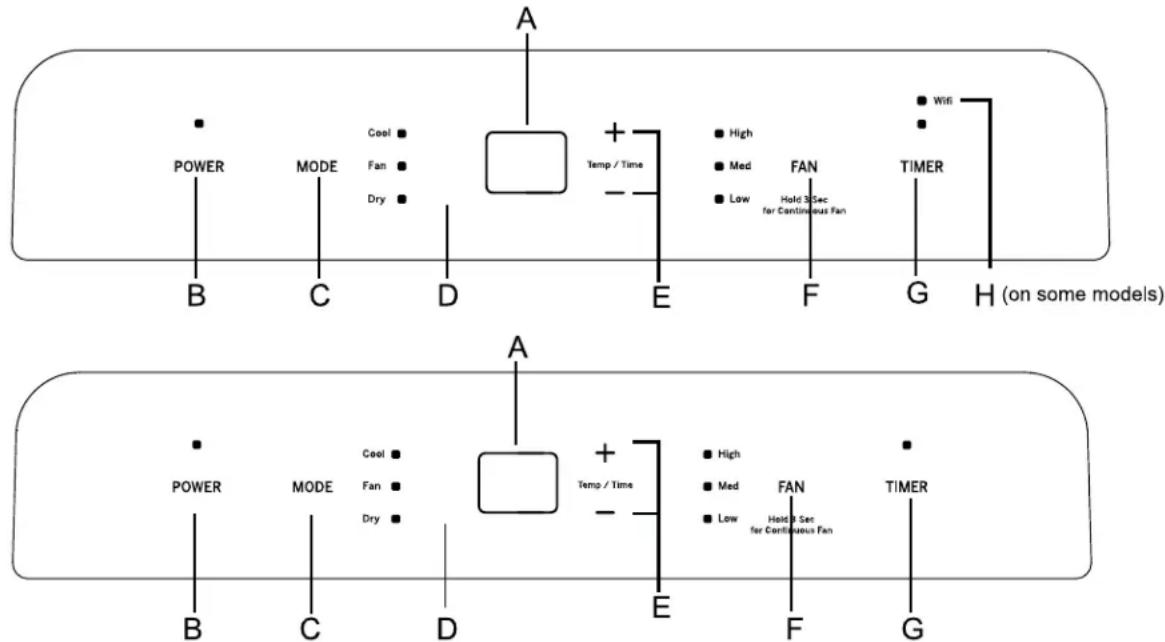
Controls
Features and appearance will vary.
Lights next to the touch pads on the air conditioner control panel indicate the selected settings.
text_image
A POWER MODE Cool Fan Dry Temp / Time High Med FAN Low Hold 3 Sec for Continuous Fan TIMER B C D E F G H (on some models) A POWER MODE Cool Fan Dry Temp / Time High Med FAN Low Hold 3 Sec for Continuous Fan TIMER B C D E F GControls
A. CONTROL PANEL DISPLAY
Displays the Set Temperature in degrees Fahrenheit. The corresponding indicator light will illuminate.
B. Power Button
Turns ON/OFF power to the air conditioner.
NOTE: Turning off power by pressing the Power button does NOT disconnect the appliance from the power supply.
- Press the Power button. The Power indicator will illuminate.
C. Mode Button
Press the Mode button to toggle among the operating options. The corresponding indicator will illuminate:
Cool – Cools the room to the set temperature Dry – Reduces the humidity in the room
Fan – Circulates the air in the room without cooling.
D. Remote Control Signal Receiving Window
Aim the Remote Control at this window so the Control will receive the signal.
E. Up and Down Arrow Buttons
Adjusts the Temperature or Hours in Time Delay. To Set the Temperature:
The temperature can be set between 64°F and 86°F (18°C and 30°C) when the air conditioner is in Cool mode.
-
Press the Mode button until the Cool mode is selected.
-
Press the Up Arrow or Down Arrow buttons to select the Temperature.
NOTE: The temperature cannot be set when the air conditioner is in either Fan or Dry mode.
F. Fan Speed Button
The fan speed can be adjusted from Low speed, Medium speed, to High speed when the air conditioner is either in Cool or Fan mode.
NOTE: The fan speed cannot be adjusted when the unit is in Dry mode.
- Press the Fan Speed button to toggle among the three speeds. The corresponding fan speed indicator will illuminate.
1. Continuous Fan Mode
To activate continuous fan mode, press and hold Fan Speed button for 3 seconds and release. "CF" will show on display for continuous fan mode. When set temperature is achieved, indoor fan will continue to run.
G. Timer Button
Program a time from (1-hour to 24-hours) for the air conditioner to turn Off or On. When a Time Delay is programmed, the Timer indicator light will illuminate.
While the air conditioner is operating:
-
Press the Timer button.
-
Press the Up/Down arrow buttons to select the number of hours you want the air conditioner to continue to operate before turning Off.
NOTE: Wait approximately 5 seconds for the Turn-Off time to be saved.
While the air conditioner is off:
-
Press the Timer button.
-
Press the Up/Down arrow buttons to select the number of hours you want the air conditioner to remain off before turning On.
NOTE: Wait approximately 5 seconds for the Turn-On time to be saved.
To cancel the timer:
- Press the Timer button once, the hours remaining will flash, press the Timer button again and the timer will be canceled.
H. WiFi Connect Pad (on some Models)
-
Press and hold the Timer button for 3 seconds to connect the app or disconnect the app.
-
Connect your air conditioner to WiFi router. Refer to the "WiFi Set up" section for more information.
Set Temperature will be shown when unit is in operation.
Cool Mode
Use the COOL mode for cooling.
To set the COOL mode:
- Press the MODE pad until the COOL indicator light is lit.
- Press the FAN pad to set HIGH, MEDIUM, or LOW fan speed.
- Press + or - to set the desired temperature between 64°F and 86°F in 1°F increments.
After settings have been made, the display will not change back to show the room temperature.
The temperature control is used to maintain the room temperature. The compressor will cycle on and off to keep the room at the set level of comfort. Set the temperature control at a lower number and the indoor air will become cooler. Set the temperature control at a
higher number and the indoor air will become warmer. NOTE: If the air conditioner is off and is then turned on while set to COOL, it will take approximately 3 minutes for the compressor to start and cooling to begin.
Cooling Descriptions
For Normal Cooling—Select the COOL mode and HIGH, MEDIUM, or LOW fan speed with a middle set temperature.
For Maximum Cooling—Select the COOL mode and HIGH fan speed with a lower set temperature.
For Quieter & Nighttime Cooling—Select the COOL mode and LOW fan speed with a middle set temperature.
NOTE: If you switch from COOL or DRY mode setting to OFF, wait 3 minutes before restarting.
DRY Mode—Dehumidification
Use the DRY mode to provide dehumidification only. The fan will run at a fixed speed at this setting, so a fan speed cannot be set. Keep windows and doors closed for the best dehumidifying effects.
To set the DRY mode:
- Press the MODE pad until the DRY indicator light is lit. In the DRY mode, a set temperature will not be displayed. After DRY mode has been set, the display will change back to show the room temperature.
NOTE: If you switch from a DRY setting to OFF or to a
fan setting, wait at least 3 minutes before switching back to a DRY setting.
If using the unit in the DRY mode as a dehumidifier for an extended time.
- Unplug the power cord.
- Connect a 12 " Outer diameter flexible drain hose to the upper drain port and drain to floor drain.
- Reconnect the power cord and press the MODE pad until the DRY indicator light is lit.
FAN Mode
Use the FAN mode to provide air circulation and filtering without cooling.
To set the FAN mode:
- Press the FAN pad until the desired indicator light for HIGH, MEDIUM, or LOW fan speed is lit.
Since fan only settings do not provide cooling, a set temperature will not be displayed. After FAN speed has been set, the display will change back to show the room temperature. The exhaust hose and window kit do not need to be installed when operating in fan mode.
Power Outage Recovery Feature
In the case of a power outage or interruption, the unit will automatically re-start in the settings last used after the power is restored.
NOTE: If the TIMER was set before the power outage, it will need to be reset after power is restored.
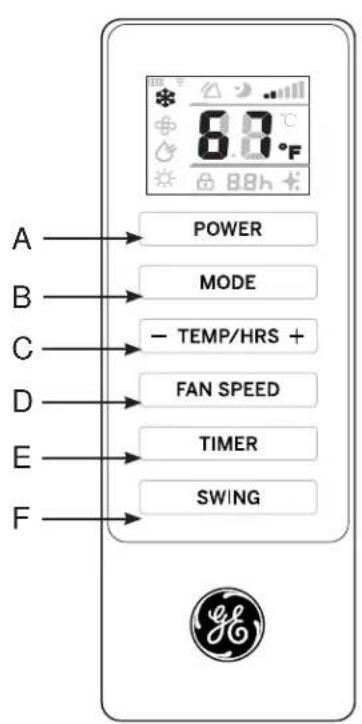
Controls
Features and appearance may vary. Icons on the remote control indicate the selected settings.
text_image
A → POWER B → MODE C → - TEMP/HRS + D → FAN SPEED E → TIMER F → SW/NG ©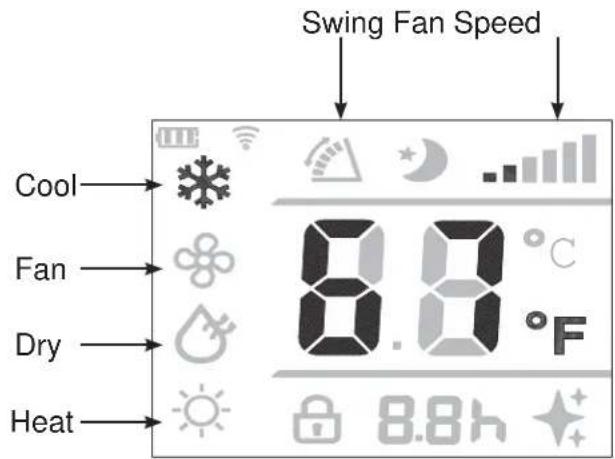
text_image
Cool Fan Dry Heat Swing Fan Speed 8.8 °F 8.8hREMOTE CONTROL
- Insert the two batteries (provided).
- Aim the remote control at the signal receiver on the control panel to operate the air conditioner.
A. Power
Turns ON/OFF power to the air conditioner.
NOTE: Turning off power by pressing the Power button does NOT disconnect the appliance from the power supply.
- Press the Power button. The Power indicator will illuminate.
B. Mode
Press the Mode button to toggle among the operating options. The corresponding indicator will illuminate: Heat (on some models) - Heats the room to the set temperature
Cool – Cools the room to the set temperature
DRY – Reduces the humidity in the room
Fan – Circulates the air in the room without cooling
C. Temperature
Adjusts the Temperature or Hours in Time Delay.
To Set the Temperature:
The temperature can be set between 64°F and 86°F (18°C and 30°C) when the air conditioner is in Cool mode.
- Press the Mode button until the Cool mode is selected.
- Press the Up Arrow or Down Arrow buttons to select the Temperature.
NOTE: The temperature cannot be set when the air conditioner is in either Fan or DRY mode.
D. Fan Speed
The fan speed can be adjusted from Low, Medium, to High speed when the air conditioner is in operation.
NOTE: The fan speed cannot be adjusted when the unit is in DRY mode.
- Press the Fan Speed button to toggle among the three speeds. The corresponding fan speed indicator will illuminate.
E. Timer
Program a time from (1-hour to 24-hours) for the air conditioner to turn Off or On. When a Time Delay is programmed, the Timer indicator light will illuminate.
F. Swing Button
The louvers on your portable air conditioner will open automatically (do not pry them open or push them shut). Use the Swing Button on your remote to adjust the louvers in the position you would like them to be in, or to operate in Swing mode the louvers will continue to move up and down.
Care and Cleaning
CLEANING
WARNING
Electrical Shock Hazard
Disconnect power before cleaning.
Failure to do so can result in death or electrical shock.
-
Unplug or disconnect power.
-
Use only a soft cloth dampened with water to clean the cabinet.
NOTE:
- Do not use a liquid or spray cleaner to clean the air conditioner.
•DO NOT use chemicals, abrasives, ammonia, chlorine bleach, concentrated detergents, solvents or scouring pads. Some of these chemicals/items may damage and/or discolor your air conditioner.
-
Dry thoroughly with a soft cloth.
-
Plug in or reconnect power.
Air Filter
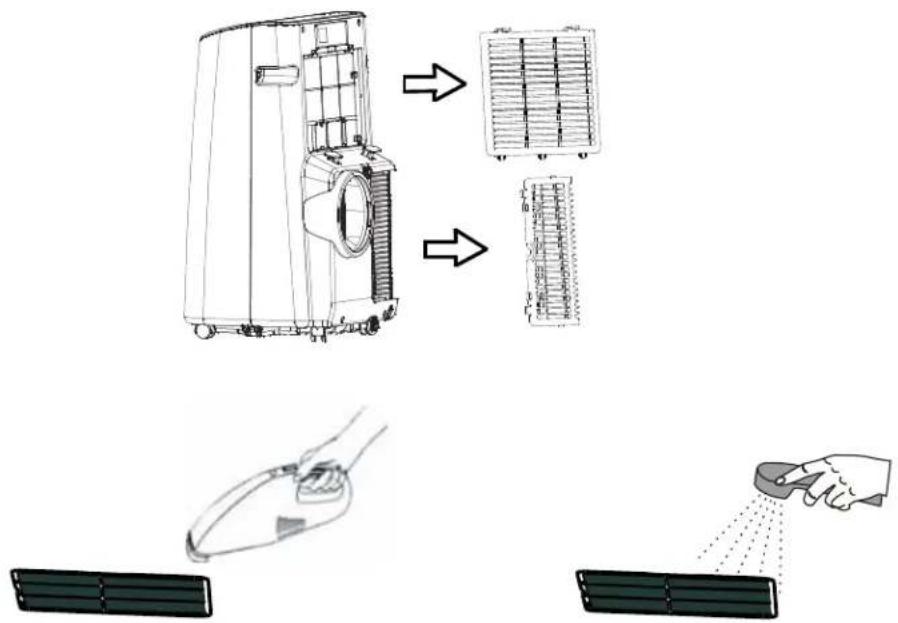
The air filters should be cleaned at least every two weeks for your unit to operate at optimum efficiency.
CAUTION
DO NOT operate the air conditioner
without a filter because dirt and lint will clog it and reduce performance.
To remove:
- Unplug or disconnect power.
- Pull to remove upper filter panel.
- Wash or vacuum the dust from the air filters.
NOTE: If washed, gently shake the filter to remove the excess water and dust particles trapped in the filter.
- Reinstall the filters.
- Plug in or reconnect power.
text_image
Diagram illustrating the assembly of a portable air conditioner with labeled components and airflow direction.Care and Cleaning
Internal Water Tank
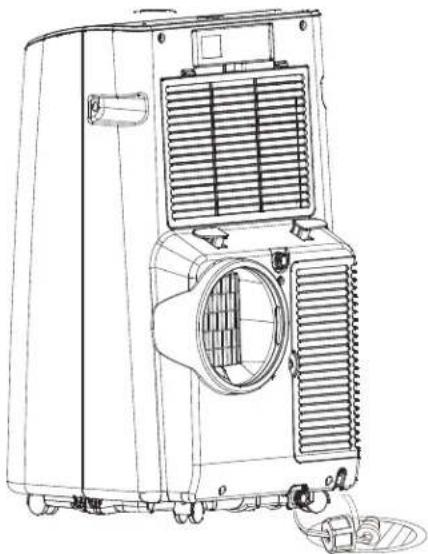
The Water Full indicator ("FL" on the control panel display) illuminates when the internal water tank has filled with condensed water.
To Empty the Internal Water Tank:
- Unplug or disconnect power.
- Place a shallow 1 quart or larger pan (not included) below the lower drain located on the back (near the bottom) of the air conditioner.
- Remove the cap and the rubber plug and drain the water tank.
- Re-insert the drain plug and screw the cap snugly into place.
- Plug in or reconnect power.
natural_image
Line drawing of an air conditioner unit with ventilation grilles and cooling fans (no text or symbols)Storage
If the unit is not being used for a long period of time: To Empty the Internal Water Tank:
- Unplug or disconnect power.
-
Drain the water from the water tank. (See "Internal Water Tank section" above.)
-
Use the original packaging to repack the unit to avoid a buildup of dust or dirt.
- Store the air conditioner in a cool, dry location.
How to Insert the Batteries in the Remote Control
- Remove the battery cover by sliding it according to the arrow direction.
- Insert new batteries, making sure that the (+) and (−) of battery are installed correctly.
- Reattach the cover by sliding it back into position.
NOTES:
■ Use 2 "AAA" (1.5 volt) alkaline batteries. Do not use rechargeable batteries.
■ Remove the batteries from the remote control if the system is not going to be used for a long time.
■ Do not mix old and new batteries. Do not mix alkaline, standard (carbon-zinc) or rechargeable (ni-cad, ni-mh, etc) batteries.
Questions? Call GE Appliances at 800.GE.CARES (800.432.2737) or visit our Website at: GEAppliances.com. In Canada, call 1.800.561.3344 or visit our Website at: www.GEAppliances.ca
BEFORE YOU BEGIN
Read these instructions completely and carefully.
- IMPORTANT — Save these instructions for local inspector's use.
- IMPORTANT — Observe all governing codes and ordinances.
- Note to Installer – Be sure to leave these instructions with the Consumer.
- Note to Consumer – Keep these instructions for future reference.
- Skill level – Installation of this appliance requires basic mechanical skills.
• Completion time – Approximately 1 hour
• We recommend that two people install this product. - Proper installation is the responsibility of the installer.
- Product failure due to improper installation is not covered under the Warranty.
- You MUST use all supplied parts and use proper installation procedures as described in these instructions when installing this air conditioner.
ELECTRICAL REQUIREMENTS

Some models require a 115/120-volt AC, 60-Hz grounded outlet protected with a 15-amp time-delay fuse or circuit breaker.
The 3-prong grounding plug minimizes the possibility of electric shock hazard. If the wall outlet you plan to use is only a 2-prong outlet, it is your responsibility to have it replaced with a properly grounded 3-prong wall outlet.
CAUTION
Do not, under any circumstances, cut or remove the third (ground) prong from the power cord.
Do not change the plug on the power cord of this air conditioner.
Aluminium house wiring may present special problems—consult a qualified electrician.
text_image
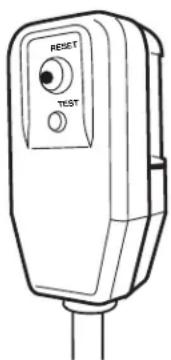
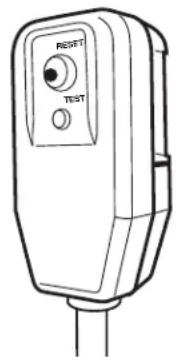
RESET TESTPower cord includes a current interrupter device. A test and reset button is provided on the plug case. The device should be tested on a periodic basis by first pressing the TEST button and then the RESET button while plugged into the outlet. If the TEST button does not trip or if the RESET button will not stay engaged, discontinue use of the air conditioner and contact a qualified service technician.
Location Requirements
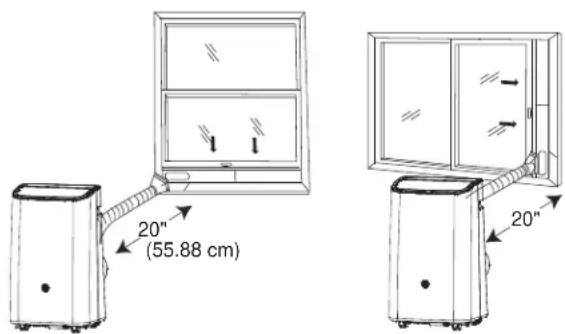
- Place the air conditioner on a flat, level surface. For optimal performance place portable 20" from exterior wall. For all other sides a minimum distance of 30" should be maintained.
- Keep the air conditioner free of any obstructions such as drapes, curtains, blinds, etc.
- The exhaust hose should be free of any obstructions.
- Do not place the air conditioner on an unstable or raised surface because it could fall and cause damage or injury.
- Do not place the air conditioner in direct sunlight or near a heat source such as baseboard heaters, stoves, etc.
- The window panel can be installed in a window with a minimum 20" (55.88 cm) to a maximum 46" (121.92) opening.
text_image
20" (55.88 cm) 20"Installation Instructions
PARTS INCLUDED
(Appearance may vary)
text_image
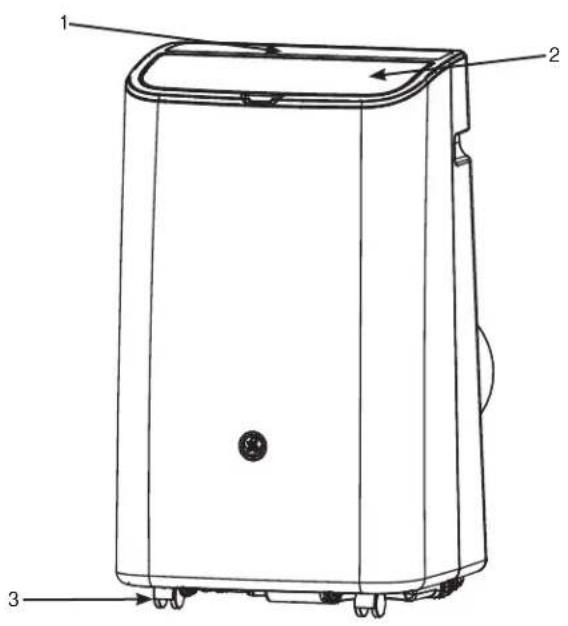
Technical diagram of a portable air purifier with labeled parts 1, 2, and 3- Control Panel
- Swing Air Louvers
- Casters
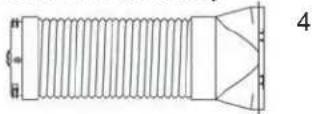
- Exhaust hose assembly
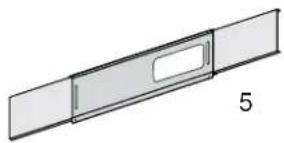
- Window sealing plate assembly
natural_image
Simple line drawing of a rectangular object with a slot, labeled '5' (no text or symbols on the object itself)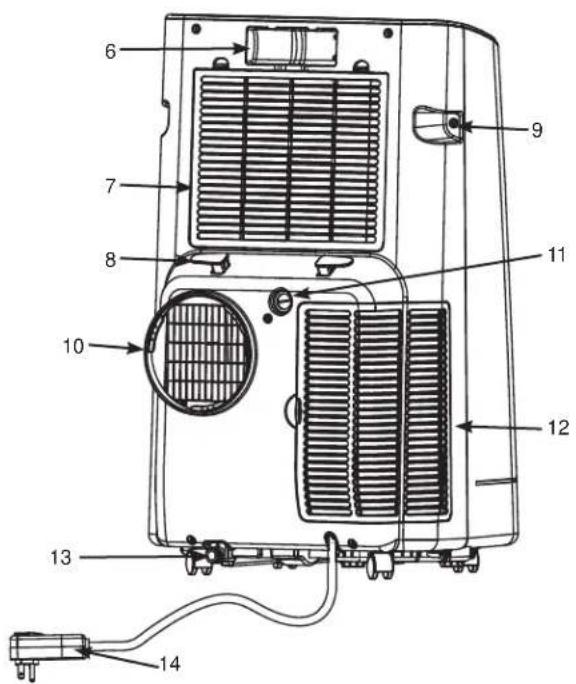
text_image
Technical diagram of a heating unit with numbered components for identification- Remote Control
- Filter Panel
- Power Cord Hook (2)
- Handle (2)
- Air Vent - exhaust
- Continuous Drainage hole
- Air inlet grille
- Drainage hole
- Power Cord and plug
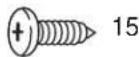
- Small Screw
1. UNPACK AIR CONDITIONER
WARNING
Excessive Weight Hazard
Use two or more people to move and install air conditioner.
Failure to do so can result in back or other injury.
- Remove packaging materials. Save the carton and the foam packaging for storing the air conditioner when not in use.
NOTE: There are NO packing materials inside the air conditioner to remove—Do Not open the cabinet.
- Properly dispose of/recycle all packing material.
- Handle the air conditioner gently.
- Keep the air conditioner upright and level. Do not set the air conditioner on its side, front, back or upside down.
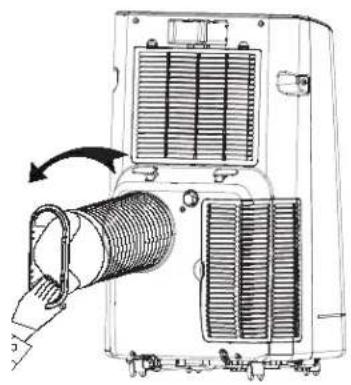
2. Install Exhaust Hose Assembly to Back of Unit
Install the exhaust hose assembly by screwing the hose counterclockwise into the exhaust port on the back of the Air Conditioner.
natural_image
Diagram of a mechanical device with internal components and a hand holding a coiled pipe (no text or symbols visible)3. INSTALL WINDOW PANELS
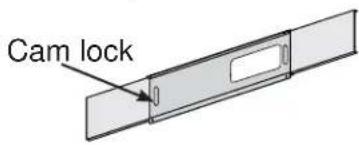
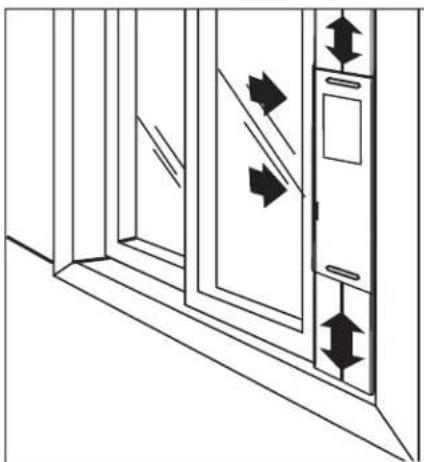
A. Measure the window opening. For a 20" opening, use just the middle panel of the Window Kit with the opening for the Exhaust Hose Adapter. For openings from 20" to 33", insert one side panel to the middle panel, for openings from 33" to 46", insert both side panels.
text_image
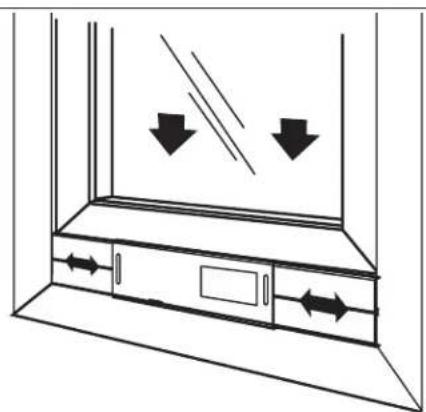
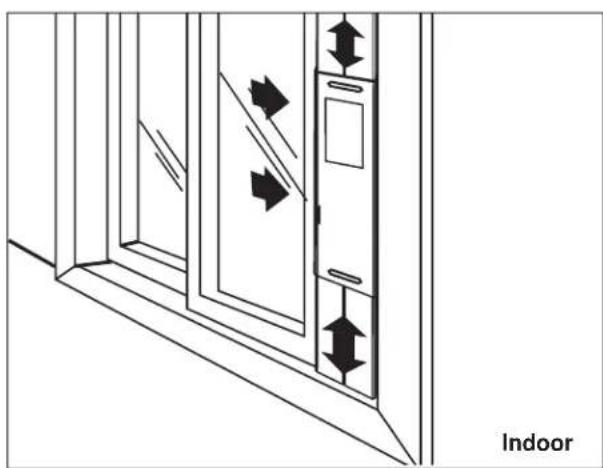
Cam lockB. Place the Window Kit into the window opening (the Cam Locks should be towards you) and slide the side panels (if being used) outward to fill the opening. Lock the panels in place with the Cam Locks. Slide the window shut against the Window Kit.
natural_image
Diagram of a window with directional arrows indicating airflow or movement (no text or symbols)Indoor
natural_image
Diagram of a door with directional arrows indicating movement, labeled 'Indoor' at bottom (no text or symbols on diagram itself)4. Connect Exhaust Hose to the Window Panel
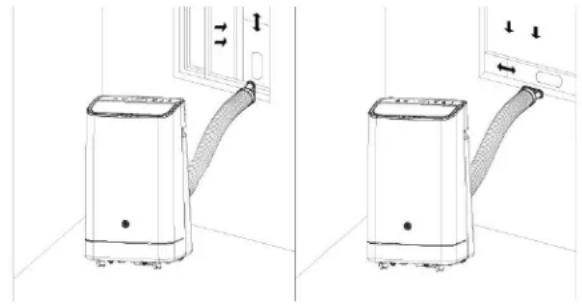
Place the Air Conditioner close to the window ensuring there is at least 20" of clearance from the wall and any other obstructions. Extend the hose so that it reaches the Window Kit. Insert the Exhaust Hose Adapter into the opening in the Window Kit and slide it into the locking position. Ensure that the hose runs straight to the window with no excess extension. Use the small screw to attach the exhaust hose assembly to the window sealing plate assembly.
Important: The Air Conditioner must be vented to the outside. Do not use a longer hose or extend the hose included with the Air Conditioner or the unit will not cool properly and will overheat.
natural_image
Two-panel line drawing showing a portable air conditioner unit with airflow direction indicators (no text or symbols)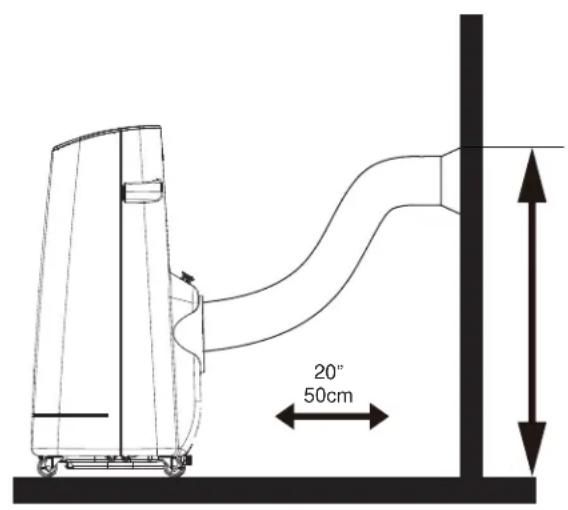
text_image
20" 50cm5. COMPLETE INSTALLATION
WARNING

Electrical Shock Hazard
Plug into a grounded 3 prong outlet.
Do not remove the ground prong from the power cord plug.
Do not use an adapter.
Do not use an extension cord.
Failure to do so can result in death, fire or electrical shock.
- Plug the power cord into a grounded 3 prong outlet.
- Press the Reset button on the plug to ensure the safety plug is providing power to the Air Conditioner.
- When removing the Air Conditioner, be sure to remove the Window Kit.
text_image
RESET TESTTroubleshooting Tips
| Problem Possible Causes Solution | ||
| Unit does not start or operate | Power supply cord is not plugged into an outlet. | Plug the power cord into a grounded 3 prong outlet. |
| Power supply cord has tripped. Press and | release the RESET button on the power supply cord. | |
| The Power button has not been pressed. | Press the Power button on the Control Panel or Remote Control to turn ON the air conditioner. | |
| There is no power to the electrical outlet. | Plug a working lamp into the outlet to check for power. | |
| A household fuse has blown or a circuit breaker has tripped. | Replace the fuse or reset the circuit breaker. | |
| The control was programmed for a Time Delay. | Cancel the Time Delay. See “Control Panel.” | |
| The batteries in the remote control are dead. | Replace the batteries. | |
| The internal water tank is full.NOTE: The air conditioner automatically turns off, and the Water Full indicator illuminates to alert you of this condition. | Empty the water tank. See “Air Conditioner Care.” | |
| Remote control is not working | Batteries are dead. Replace the batteries. | |
| Batteries are installed incorrectly. Make sure the batteries are inserted in the correct position. | ||
| Air conditioner is working but the room is not cooling. | The room temperature is hot.NOTE: On extremely hot and humid days,the air conditioner will take longer to cool the room. | Allow time for the room to cool when you first turn on the unit.Make sure the air conditioner has an adequate BTU rating for the size of the room being cooled. |
| The control is set incorrectly to Fan or Dehum mode. | Set the Mode to Cool and the Fan Speed to High. | |
| Airflow is restricted. Remove any obstacles to the airflow and redirect airflow for uniform cooling. | ||
| Temperature set too high. Lower the set temperature. | ||
| Air filters are dirty or restricted. Clean the air filter. See “Air Conditioner Care.” | ||
| Air conditioner installed incorrectly Check the exhaust hose and window panel for proper installation. | ||
| Doors and windows are open. Close the doors and windows to the room being cooled to prevent cooled air from escaping. | ||
Error Codes
| Code | Meaning |
| E1 | The hose temperature sensor is abnormal |
| E2 | The room temperature sensor is abnormal |
| E4 | Anti-freeze protection |
| FL | Full-water |
WiFi Setup (on some models)
GE Appliances WiFi Connect (for customers in the United States)
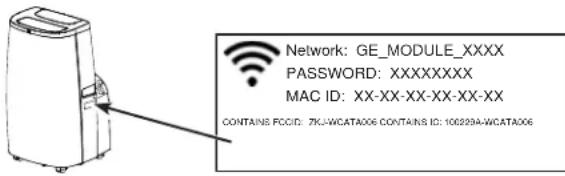
GE Appliances U+ Connect Enabled* If your Air Conditioner (AC) has a Connected Appliance Information label located on the outside as shown below, your AC is GE Appliances U+ Connect Enabled. A WiFi communication card is built into the product allowing it to communicate with your smart phone for remote monitoring, control and notifications. Please visit GEAppliances.com/connect to learn more about connected appliance features, and to learn what connected appliance apps will work with your smart phone. For assistance, call 1-800-220-6899.
text_image
Network: GE_MODULE_XXXX PASSWORD: XXXXXXXXX MAC ID: XX-XX-XX-XX-XX-XX CONTAINS FCCID: 7KJ-WCATA006 CONTAINS ID: 100294-WCATA006How it Works
Download the GE Appliances app
Use the app to connect your room air conditioner to WiFi
Once connected, use the app to turn down your air conditioner as you leave work.

Getting Started
To connect your room air conditioner, you'll need the GE Appliances app. The app will walk you through the connection process. Download the app from iTunes or Google Play.

text_image
GE APPLIANCES
All connected appliance data is held in strict accordance with the GE Appliances Connected Data Privacy Policy. Visit geappliances.com/privacy/privacy_policy_connected to view this policy.
Questions about U+ Connect
Get answers you need about setting up WiFi appliances and connecting to your home network in our support articles.
Visit products.geappliances.com/appliance/gea-support-search-content to view wifi connect room air conditioner support articles.
REGULATORY INFORMATION
FCC/IC Compliance Statement:
This device complies with Part 15 of the FCC Rules. Operation is subject to the following two conditions:
- This device may not cause harmful interference.
- This device must accept any interference received, including interference that may cause undesired operation.
This equipment has been tested and found to comply with the limits for a Class B digital device, pursuant to Part 15 of the FCC Rules. These limits are designed to provide reasonable protection against harmful interference in a residential installation. This equipment generates uses and can radiate radio frequency energy and, if not installed and used in accordance with the instructions, may cause harmful interference to radio communications. However, there is no guarantee that interference will not occur in a particular installation. If this equipment does cause harmful interference to radio or television reception, which can be determined by turning the equipment off and on, the user is encouraged to try to correct the interference by one or more of the following measures:
- Reorient or relocate the receiving antenna.
- Increase the separation between the equipment and receiver.
- Connect the equipment into an outlet on a circuit different from that to which the receiver is connected.
- Consult the dealer or an experienced radio/television technician for help.
Labelling: Changes or modifications to this unit not expressly approved by the manufacturer could void the user's authority to operate the equipment.
*Select Models Only
This product has WiFi capability and requires Internet connectivity and a wireless router to enable interconnection with an Energy Management System, and/or with other external devices, systems or applications.
Use of the Works with Apple HomeKit™ logo means that an electronic accessory has been designed to connect specifically to iPod touch®, iPhone®, or iPad®, respectively, and has been certified by the developer to meet Apple® performance standards. Apple is not responsible for the operation of this device or its compliance with safety and regulatory standards.
Limited Warranty
| For The Period Of: | Will Replace: |
| One YearFrom the date of the original purchase | Replacement, repair, or refund of the original retail price for any product which fails due to a defect in materials or workmanship. If the unit is exchanged, the replacement unit is warranted for the remainder of your product's original one-year warranty period. GE Appliances will, at its sole discretion, replace the product with a product of the same or comparable functionality and quality or refund the original retail price. |
In Order to Make a Warranty Claim During the First 90 Days from the Date of Original Purchase:
- Properly pack your unit. We recommend using the original carton and packing materials.
- Return the product to the retail location where it was purchased.
- Include in the package a copy of the sales receipt or other evidence of date of original purchase. Also print your name and address and a description of the defect.
In Order to Make a Warranty Claim During the Remainder of the One-Year Warranty:
- Locate your original sales receipt and make a note of your model and serial number.
- Call 800.GE.CARES (800.432.2737) or visit GEAppliances.com/service (in the United States) to initiate the product replacement process.
- You will be asked to provide your name, address, date of purchase, model and serial number.
• GE Appliances will arrange for a carton to be sent to
your home to recover the product.
- Please return all requested materials (postage pre-paid) in the carton provided. Please include a description of the defect.
- You should receive your replacement product or refund within 7 to 10 business days after your package is received.
What Will Not Cover:
- Customer instruction. This owner's manual provides information regarding operating instructions and user controls.
- Improper installation. If you have an installation problem, or if the air conditioner is of improper capacity, contact your dealer or installer. You are responsible for providing adequate electrical connecting facilities.
-
Failure of the product resulting from modifications to the product or due to unreasonable use including failure to provide reasonable and necessary maintenance.
-
Replacement of house fuses or resetting of circuit breakers.
- Failure due to corrosion on models not corrosion-protected.
- Damage to the product caused by improper power supply voltage, accident, fire, floods or acts of God.
- Incidental or consequential damage caused by possible defects with this air conditioner.
• Damage caused after delivery.
EXCLUSION OF IMPLIED WARRANTIES - Your sole and exclusive remedy is product repair as provided in this Limited Warranty. Any implied warranties, including the implied warranties of merchantability or fitness for a particular purpose, are limited to one year or the shortest period allowed by law.
For US Customers: This limited warranty is extended to the original purchaser and any succeeding owner for products purchased for home use within the USA. If the product is located in an area where service by a GE Appliances Authorized Servicer is not available, you may be responsible for a trip charge or you may be required to bring the product to an Authorized GE Appliances Service location for service. In Alaska, the limited warranty excludes the cost of shipping or service calls to your home.
Some states do not allow the exclusion or limitation of incidental or consequential damages. This limited warranty gives you specific legal rights, and you may also have other rights which vary from state to state. To know what your legal rights are, consult your local or state consumer affairs office or your state's Attorney General.
Warrantor US:
GE Appliances, a Haier company
Louisville, KY 40225
Consumer Support
GE Appliances Website
Have a question or need assistance with your appliance? Try the GE Appliances Website 24 hours a day, any day of the year! You can also shop for more great GE Appliances products and take advantage of all our on-line support services designed for your convenience. In the US: GEAppliances.com
Register Your Appliance
Register your new appliance on-line at your convenience! Timely product registration will allow for enhanced communication and prompt service under the terms of your warranty, should the need arise. You may also mail in the pre-printed registration card included in the packing material. In the US: GEAppliances.com/register
Schedule Service
Expert GE Appliances repair service is only one step away from your door. Get on-line and schedule your service at your convenience any day of the year. In the US: GEAppliances.com/service or call 800.432.2737 during normal business hours.
Extended Warranties
Purchase a GE Appliances extended warranty and learn about special discounts that are available while your warranty is still in effect. You can purchase it on-line anytime. GE Appliances Services will still be there after your warranty expires. In the US: GEAppliances.com/extended-warranty or call 800.626.2224 during normal business hours.
Remote Connectivity
For assistance with wireless network connectivity (for models with remote enable), visit our website at GEAppliances.com/connect or call 800.220.6899 in the US.
Parts and Accessories
Individuals qualified to service their own appliances can have parts or accessories sent directly to their homes (VISA, MasterCard and Discover cards are accepted). Order on-line today 24 hours every day. In the US: GEApplianceparts.com or by phone at 877.959.8688 during normal business hours.
Instructions contained in this manual cover procedures to be performed by any user. Other servicing generally should be referred to qualified service personnel. Caution must be exercised, since improper servicing may cause unsafe operation.
Contact Us
If you are not satisfied with the service you receive from GE Appliances, contact us on our Website with all the details including your phone number, or write to:
In the US: General Manager, Customer Relations | GE Appliances, Appliance Park | Louisville, KY 40225 GEAppliances.com/contact
Portable Room
CLIMATISEUR
CONSIGNES DE SÉCURITÉ ... 3
CONSIGNES D'UTILISATION ... 4
ENTRETIEN ET
NETTOYAGE....7
INSTRUCTIONS
D'INSTALLATION 9
DES CONSEILS DE
DÉPANNAGE 13
CONFIGURATION
DU WI-FI 14
GARANTIE ....15
SOUTIEN AUX
CONSOMMATEURS .....16
text_image
Diagram illustrating the assembly of a vacuum cleaner with labeled components and a hand holding a spray gun.natural_image
Line drawing of an industrial air conditioner unit with ventilation grilles and cooling fans (no text or symbols)Entreposage
Questions? Call GE Appliances at 800.GE.CARES (800.432.2737) or visit our Website at: GEAppliances.com. In Canada, call 1.800.561.3344 or visit our Website at: www.GEAppliances.ca
AVANT DE COMMENCER
text_image
20" (55.88 cm)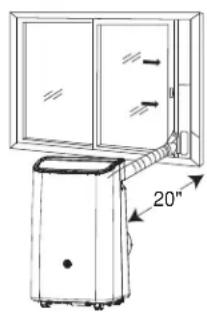
text_image
20"PIÈCES INCLUES
text_image
Technical diagram of a portable air purifier with labeled parts 1, 2, and 3natural_image
Simple line drawing of a rectangular panel with a slot, labeled '5' (no text or symbols on the diagram itself)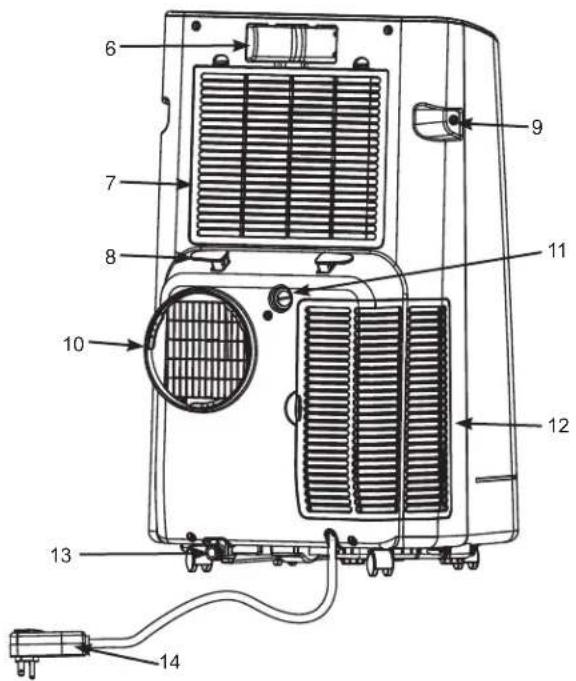
text_image
Technical diagram of a heating unit with numbered components for identificationnatural_image
Diagram of a mechanical device with heat exchanger and fan assembly (no text or symbols)3. INSTALLER LES PANNEAUX DE FENÊTRE
natural_image
Diagram of a window with directional arrows indicating airflow or movement (no text or symbols)Intérieur
natural_image
Diagram of a door with directional arrows indicating movement or force, no text or symbols presentIntérieur
natural_image
Two technical diagrams showing a portable air conditioner unit with airflow direction indicators (no text or symbols)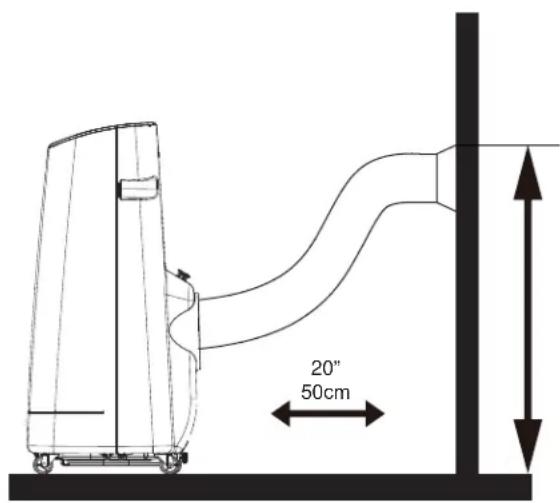
text_image
20" 50cm5. COMPLÉTER L'INSTALLATION
▲ AVERTISSEMENT
text_image
GE APPLIANCES
Questions concernant U+ Connect
Garant : GE Appliances, a Haier company Louisville, KY 40225
text_image
Diagram illustrating the process of cleaning a vacuum cleaner with labeled components and actionsCuidado y Limpieza
natural_image
Line drawing of an industrial air conditioner unit with ventilation grilles and cooling fans (no text or symbols)RANGEMENT
text_image
20" (55.88 cm) 20"PARTES INCLUIDAS
text_image
Technical diagram of a portable air purifier with labeled parts 1, 2, and 3text_image
Technical diagram of a heating unit with numbered components for identificationnatural_image
Diagram of a refrigerated industrial machine with cooling fans and heat exchangers, showing airflow direction (no text or labels)3. INSTALE LOS PANELES DE LA VENTANA
natural_image
Interior view of a double door with directional arrows indicating airflow or movement (no text or symbols)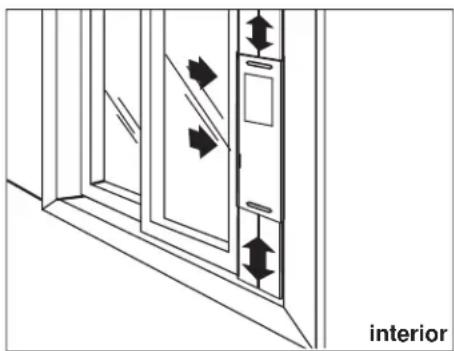
natural_image
Interior view of a door with directional arrows indicating movement or force (no text or symbols)4. Conecte la Manguera de Salida al Panel de la Ventana
natural_image
Two-panel line drawing showing a portable air conditioner unit with airflow direction, mounted on a door (no text or symbols)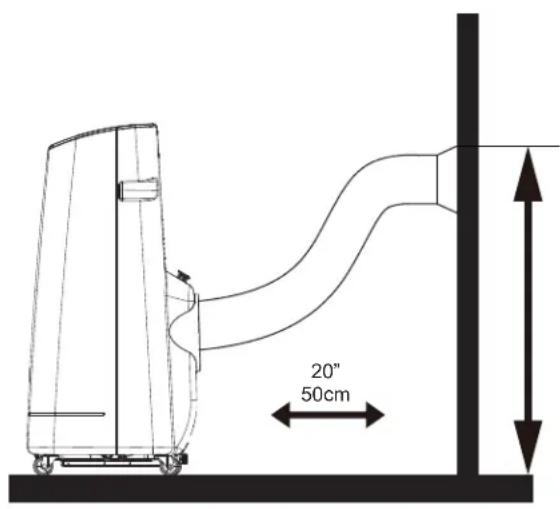
text_image
20" 50cmtext_image
GE APPLIANCES
GE Appliances, a Haier company
Louisville, KY 40225