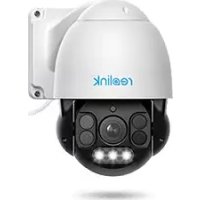
USER MANUAL RLC823A REOLINK
If you need any technical help, please visit our official support site and contact our support team before returning the products, https://support.reolink.com
Hoferstasse 9B, 71636 Ludwigsburg, Germany
prodsg@libelleconsulting.com
UK REP APEX CE SPECIALISTS LIMITED
89 Princess Street, Manchester, M1 4HT, UK info@apex-ce.com
Aug 2021
QSG1_B
58.03.005.0038
replink
Be Prepared, Be Reolink
EN/DE/FR/IT/ES
Operational Instruction
Apply to: RLC-523WA, RLC-823A
@ReolinkTech https://reolink.com
EN
Contents
What's in the Box 2
Camera Introduction 3
Connection Diagram 5
Set up the Camera 6
Mount the Camera 7
Troubleshooting 10
Specifications 11
Notification of Compliance 12
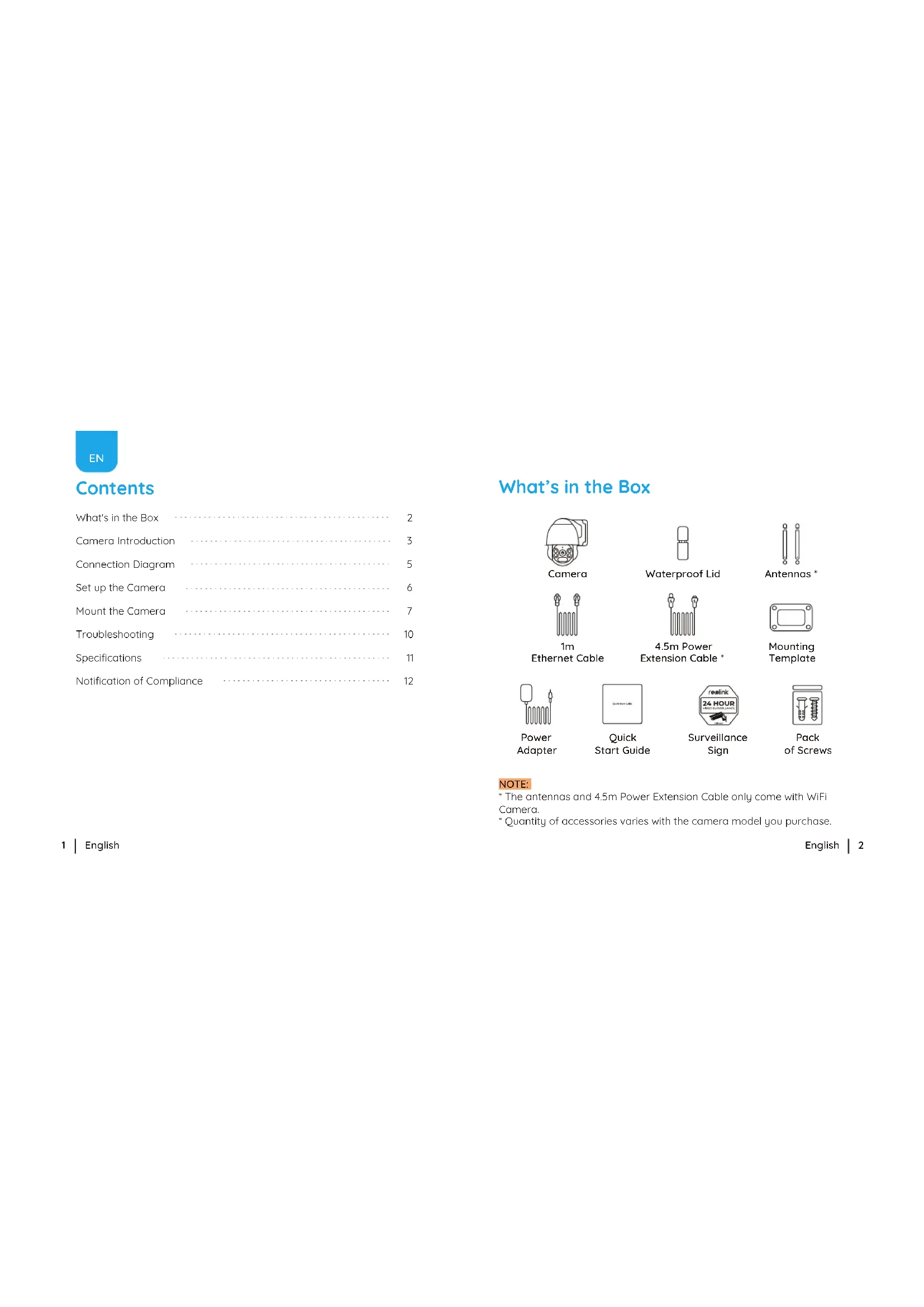
What's in the Box

Camera

Waterproof Lid

Antennas *

1m
Ethernet Cable

4.5m Power Extension Cable *

Mounting Template

Power Adapter

Quick
Start Guide

Surveillance
Sign

Pack
of Screws
NOTE:
* The antennas and 4.5m Power Extension Cable only come with WiFi Camera.
* Quantity of accessories varies with the camera model you purchase.
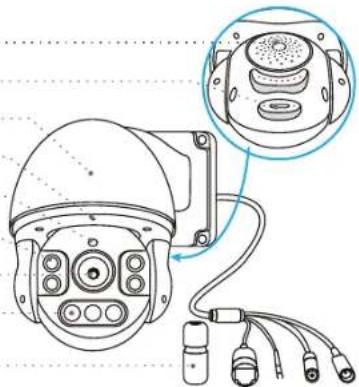
Camera Introduction
PoE Camera
Speaker
SD Card Slot
Metal Aluminum Case
Built-in Mic
Daylight Sensor
Infrared Lights
Lens
Spotlight
Waterproof Lid
Network Cable
Earth Wire
Reset Button
*Press and hold for 10seconds to restore camera to
factory settings
Power Port(Optional)
natural_image
Technical line drawing of a security camera with attached cables and a close-up inset showing internal components (no text or symbols)
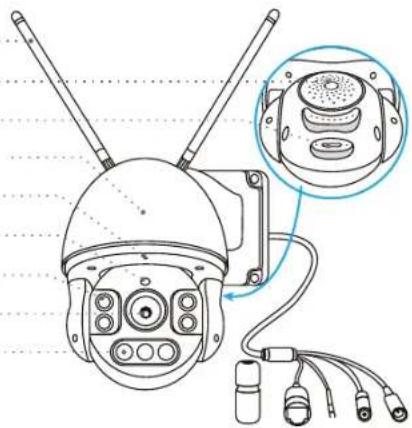
WiFi Camera
Antenna
Speaker
SD Card Slot
Metal Aluminum Case
Built-in Mic
Daylight Sensor
Infrared Lights
Lens
Spotlight
natural_image
Technical line drawing of a surveillance camera with antenna and head-mounted sensors, showing internal components (no text or symbols)
NOTE:
Actual camera appearance and components are subject to the model you purchased.
Connection Diagram
Before initial setup, follow the steps below to connect your camera.
- Connect the camera to a LAN port on your router with an Ethernet cable.
- Use the power adapter provided to power on the camera.
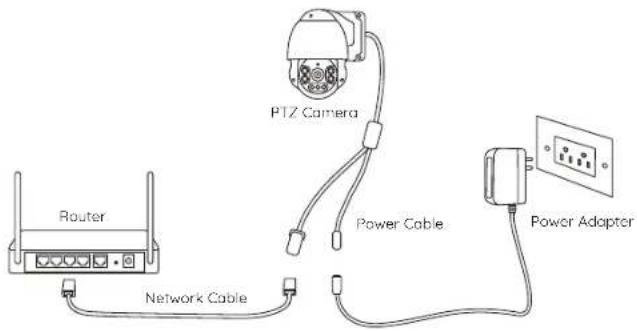
NOTE:
For PoE PTZ Camera, you may also connect the camera to a PoE Switch/Injector or Reolink PoE NVR. (The PoE Switch/Injector and Reolink PoE NVR are not included in the package)
Set up the Camera
Download and launch the Reolink App or Client software and follow the onscreen instructions to finish initial setup.
- On Smartphone
Scan to download the Reolink App.


- On PC
Download path of the Reolink Client: Go to https://reolink.com > Support > App & Client.
NOTE:
- If you are connecting the PoE camera to a Reolink PoE NVR, please set up the camera via the NVR interface.
- If you are setting up a WiFi PTZ camera, you need to follow the onscreen instructions to finish the WiFi configuration first.
Mount the Camera
Installation Tips
- Do not face the camera towards any light sources.
- Do not point the camera towards a glass window. Or, it may result in poor image performance due to the window glare from infrared LEDs, ambient lights or status lights.
- Do not place the camera in a shaded area and point it towards a well-lit area. Or, it may result in poor image performance. For better image quality, please make sure that the lighting condition for both the camera and the captured object is the same.
- For better image quality, it's recommended to clean the lens with a soft cloth regularly.
- Make sure the power ports are not exposed to water or moisture or blocked by dirt or other elements.
- Do not install the camera in places where rain and snow may hit the lens directly.
- The camera may work in extremely cold conditions as low as -25^ as it will produce heat when powering on. You may power on the camera indoors for a few minutes before installing it outdoors.
Mount the Camera to the Wall
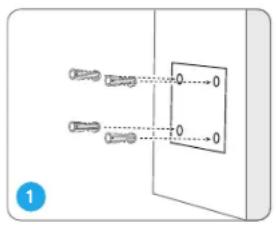
Drill holes in accordance with the mounting hole template.
NOTE: Use the drywall anchors included in the package if needed.
natural_image
Diagram of a security camera with attached wall-mounted sensor (no text or symbols)
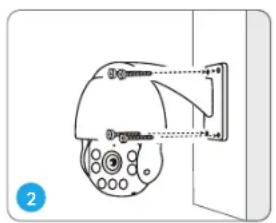
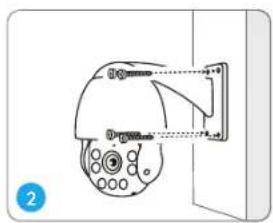
Install the mount base with screws included in the package.
NOTE: Run the cable through the cable notch on the mount base. As for the WiFi camera, it is recommended that the antennas be installed upward or horizontally for better WiFi connection.
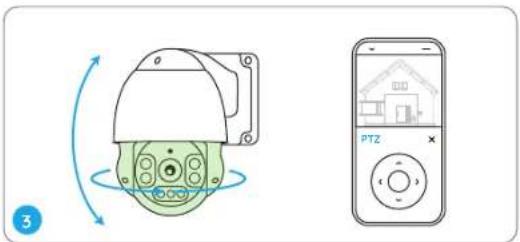
To adjust the camera direction, you may control the camera to pan and tilt via Reolink App or Client.
Troubleshooting
Camera is not Powering on
If your camera is not powering on, please try the following solutions:
For PoE Camera
- Make sure your camera is powered on properly. The PoE camera should be powered by a PoE switch/injector, a Reolink NVR or a 12V 2A power adapter.
- If the camera is connected to a PoE device as listed above, connect it to another PoE port and check again.
- Try again with another Ethernet cable.
For WiFi Camera
- Camera only supports one power extension cable, do not use two extension cables.
- Plug the camera into a different outlet and see if it works.
- Power on the camera with another working 12V 2A DC adapter and see if it works.
If these won't work, contact Reolink Support https://support.reolink.com
Pan&Tilt is not Working
If the pan&tilt is not working, please try the following solutions:
- Power cycle the camera and see if it will automatically pan/tilt. If not,
the camera may be faulty. If yes, please refer to the further steps.
- If the camera fails to pan/tilt via Reolink App/Client on the
WAN(remotely), try it on the LAN(locally) and see if it works.
- Upgrade the Reolink App/Client and the camera firmware to the latest version.
- Restore the camera to factory settings and check the pan/tilt again.
If these won't work, contact Reolink Support https://support.reolink.com
Specifications
Hardware Features
Night Vision: Up to 60 meters (190ft)
Day/Night Mode: Auto switchover
Angle of View: Horizontal: 96°\~27°, vertical: 69°\~21°
Pan&Tilt Range: Pan: 360° Tilt: 0°\~90°
General
Operating Temperature: -10°C to 55°C (14°F to 131°F)
Operating Humidity: 10%-90%
Weather Resistance: IP66 certified weatherproof
Size: Φ136 x 201mm
Weight: 1.8kg
For more specifications, visit https://reolink.com
Notification of Compliance
FCC Compliance Statement
This device complies with Part 15 of the FCC Rules. Operation is subject to the following two conditions:
- this device may not cause harmful interference, and
- this device must accept any interference received, including interference that may cause undesired operation.
NOTE: This equipment has been tested and found to comply with the limits for a Class B digital device, pursuant to part 15 of the FCC Rules. These limits are designed to provide reasonable protection against harmful interference in a residential installation. This equipment generates uses and can radiate radio frequency energy and, if not installed and used in accordance with the instructions, may cause harmful interference to radio communications. However, there is no guarantee that interference will not occur in a particular installation. If this equipment does cause harmful interference to radio or television reception, which can be determined by turning the equipment off and
on, the user is encouraged to try to correct the interference by one or more of the following measures:
- Reorient or relocate the receiving antenna.
- Increase the separation between the equipment and receiver.
- Connect the equipment into an outlet on a circuit different from that to which the receiver is connected.
- Consult the dealer or an experienced radio/TV technician for help. Changes or modifications not expressly approved by the party responsible for compliance could void the user's authority to operate the equipment.
FCC RF Exposure Warning Statements
This equipment complies with FCC radiation exposure limits set forth for an uncontrolled environment. This equipment shall be installed and operated with minimum distance 20cm between the radiator & body.
Reolink declares that the WiFi camera is in compliance with the essential requirements and other relevant provisions of Directive 2014/53/EU, the PoE camera is in compliance with Directive 2014/30/EU.
Correct Disposal of This Product
This marking indicates that this product should not be disposed with other household wastes throughout the EU. To prevent possible harm to the environment or human health from uncontrolled waste disposal, recycle it responsibly to promote the sustainable reuse of material resources. To return your used device, please use the return and collection systems or contact the retailer where the product was purchased. They can take this product for environmentally safe recycling.
Limited Warranty
This product comes with a 2-year limited warranty that is valid only if purchased from Reolink official stores or a Reolink authorized reseller. Learn more: https://reolink.com/warranty-and-return/
NOTE: We hope that you enjoy the new purchase. But if you are not satisfied with the product and plan to return, we strongly suggest that you reset the camera to factory default settings and take out the inserted SD card before returning.
Terms and Privacy
Use of the product is subject to your agreement to the Terms of Service and Privacy Policy at reolink.com. Keep out of reach of children.
End User License Agreement
By using the Product Software that is embedded on the Reolink product, you agree to the terms of this End User License Agreement ("EULA") between you and Reolink. Learn more: https://reolink.com/eulo/
ISED Statements
This device contains licence-exempt transmitter(s)/receiver(s) that comply with Innovation, Science and Economic Development Canada's licence-exempt RSS(s). Operation is subject to the following two conditions:
(1) This device may not cause interference.
(2) This device must accept any interference, including interference that may cause undesired operation of the device.
Radio Frequency Exposure Statement for IC
The device has been evaluated to meet general RF exposure requirements. The device can be used in mobile exposure conditions. The min separation distance is 20cm.
OPERATING FREQUENCY (For WiFi Version)
(the maximum transmitted power)
2412MHz --- 2472MHz (19dBm)
5150MHz --- 5350MHz (18dBm)
5470MHz --- 5725MHz (18dBm)
DE
Überblick
Lieferumfang 16
natural_image
Technical line drawing of a security camera with attached cables and sensor components (no text or symbols)
WLAN-Kamera
Antenne
Lautsprecher
SD-Kartenslot
HINWEIS:
natural_image
Diagram of a surveillance camera mounted on a wall-mounted device (no text or symbols visible)
natural_image
Technical line drawing of a security camera with multiple sensors and cables (no text or symbols)
Caméra WiFi
Antenne
Haut-parleur
Fente pour carte SD
Boîtier métallique
en aluminium
Micro intégré
NOTA:
natural_image
Diagram of a security camera with attached wall-mounted sensor (no text or symbols)
natural_image
Technical line drawing of a security camera with attached cables and sensor components (no text or symbols)
Telecamera Wi-Fi
Antenna
Altoparlante
Slot per Scheda SD
Alloggiamento
natural_image
Technical line drawing of a security camera with antenna and internal components, no text or symbols present
NOTA:
natural_image
Diagram of a security camera with attached wall-mounted sensor (no text or symbols)
Per la Telecamera WiFi
5470MHz --- 5725MHz (18dBm)
ES
Contenido
natural_image
Technical line drawing of a security camera with multiple sensors and wiring (no text or symbols)
Cámara WiFi
Antena
Altavoz
Ranura para Tarjeta SD
Carcasa Metálica
de Aluminio
natural_image
Technical line drawing of a security camera with dual-mounted sensors and an inset close-up showing internal components (no text or symbols)
NOTA:
natural_image
Diagram of a security camera mounted on a wall, showing sensor placement and mounting bracket (no text or labels)
5470MHz --- 5725MHz (18dBm)