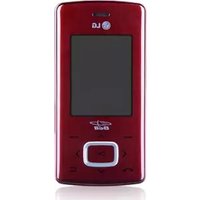
A275 - Cellphone LG - Free user manual and instructions
Find the device manual for free A275 LG in PDF.



User questions about A275 LG
0 question about this device. Answer the ones you know or ask your own.
Ask a new question about this device
Download the instructions for your Cellphone in PDF format for free! Find your manual A275 - LG and take your electronic device back in hand. On this page are published all the documents necessary for the use of your device. A275 by LG.
USER MANUAL A275 LG
4 Adepele street, Computer Villege, Lagos, Nigeria
Message Causes possibles Actions correctives possibles
Message Causes possibles Actions correctives possibles
Message Causes possibles Actions correctives possibles
Message Causes possibles Actions correctives possibles
Message Causes possibles Actions correctives possibles
Message Causes possibles Actions correctives possibles
Message Causes possibles Actions correctives possibles
Message Causes possibles Actions correctives possibles
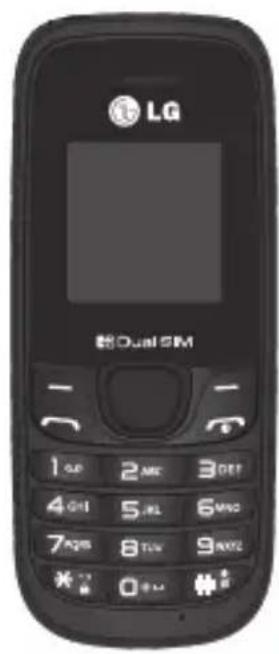
LG-A275 User Guide - English
This guide will help you to understand your new mobile phone. It will provide you with useful explanations of the features on your phone.
Some of the contents of this manual may differ from your phone depending on the phone software or your service provider.
Contents
Getting to know your phone 3
Installing the SIM Card and Charging the
Battery 5
Display Information 7
Menu and Options 8
Entering Text 9
Quick feature reference 13
Messaging 13
Contacts 14
Call history 16
Alarms 17
FM radio 17
Profiles 19
Tools 20
Organiser 20
Settings 21
Guidelines for safe and efficient use ....24
Accessories 34
Troubleshooting 35
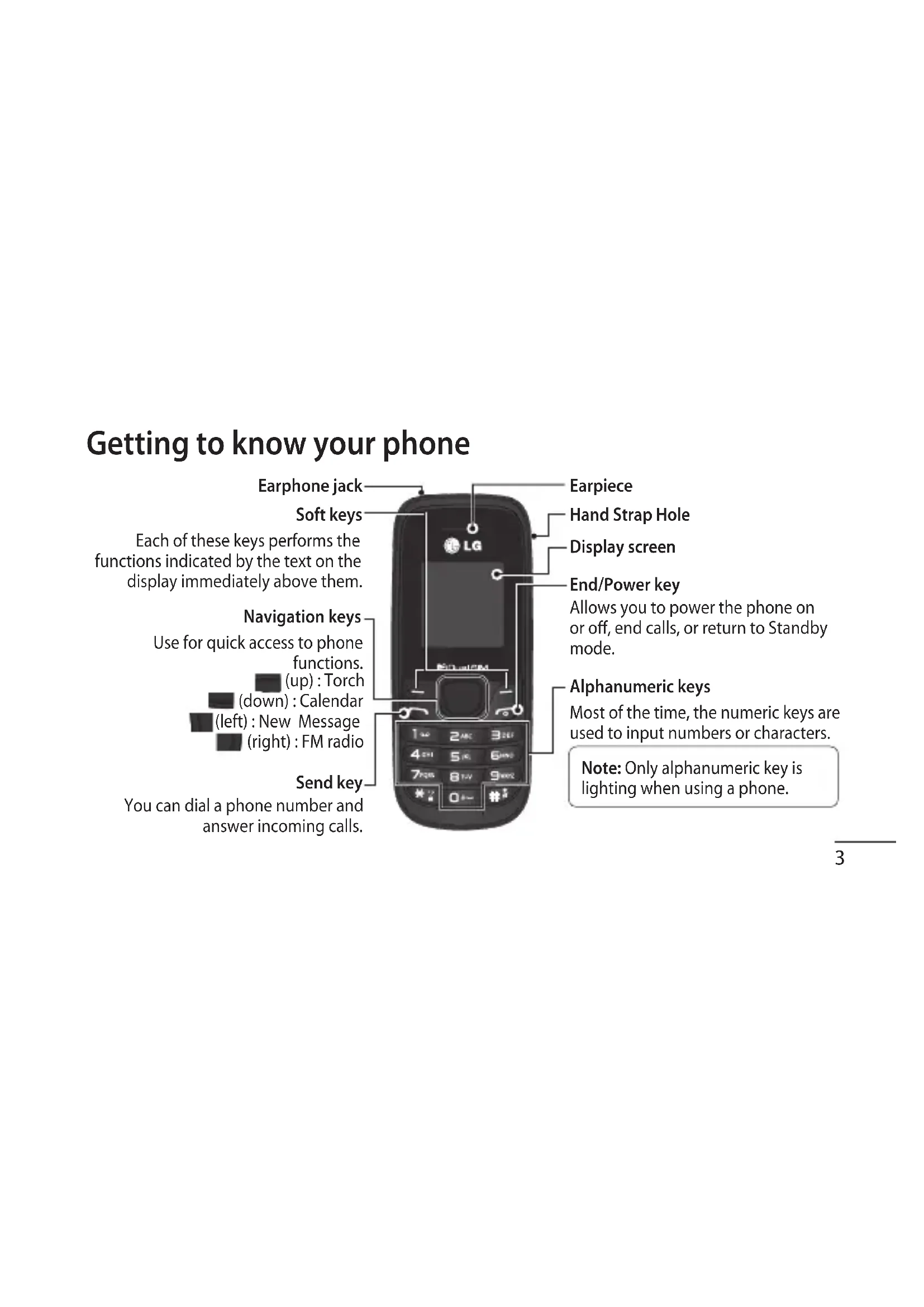
Getting to know your phone
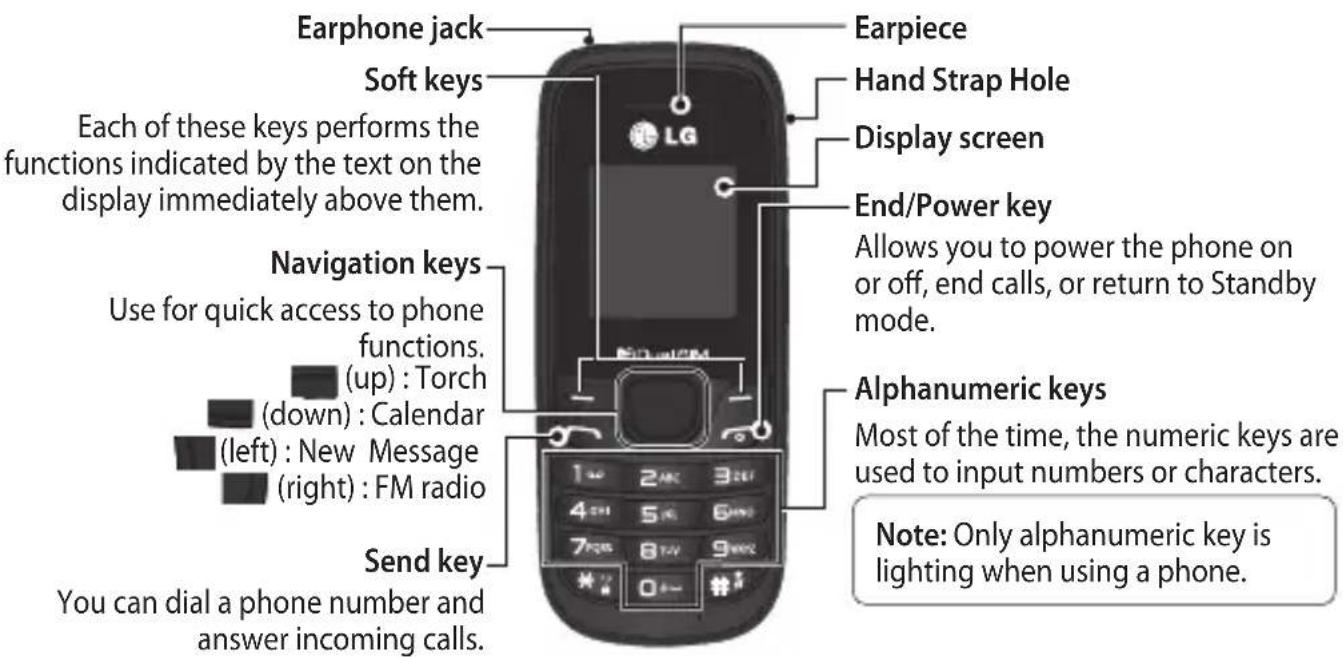
Getting to know your phone

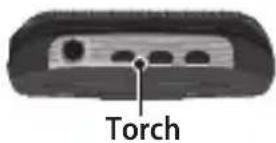
Charger port
Allow you to power charger only.
Installing the SIM Card and Charging the Battery
Installing the SIM Card
When you subscribe to a mobile phone network, you are provided with a plug-in SIM card which is loaded with your subscription details, such as your PIN, any optional services available and many others.
Important!
The plug-in SIM card and its contacts can easily be damaged by scratches or bending, so be careful when handling, inserting or removing the card. Keep all SIM cards out of the reach of small children.
only 2G SIM supported
Installing the SIM Card and Charging the Battery
Illustrations
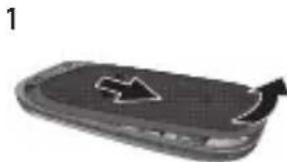
1 Open battery cover
2 Remove the battery
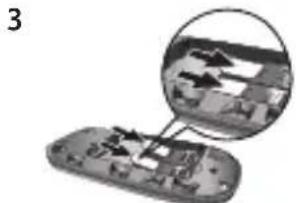
3 Insert your SIM
4 Insert the battery
5 Close the battery cover
6 Charge your battery
WARNING: Do not remove the battery while the phone is switched on, as this may damage the phone.
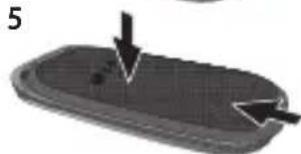
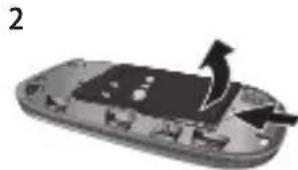
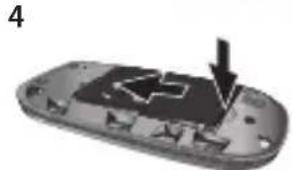
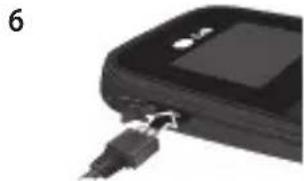
Display Information
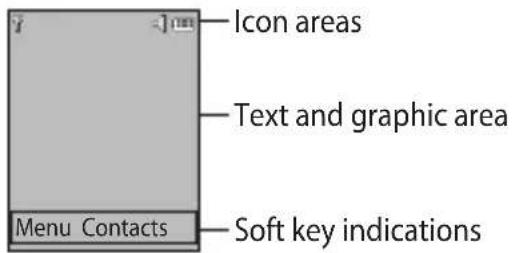
On-Screen Icons
| T. .il | Tells you the strength of the network signal. |
| Indicates the battery charge level. | |
| Indicates new text message(s). |
| Indicates new voice message(s). | |
| Indicates that the alarm clock is set. | |
| Indicates that your phone is using the general profile. | |
| Indicates that your phone is using the silent profile. | |
| Indicates that your phone is using the outdoor profile. | |
| Indicates that your phone is using the headset profile. | |
| Indicates that all calls are being diverted to another number. | |
| Indicates that your phone is in Flight mode. | |
| Indicates new schedule(s). |
Menu and Options
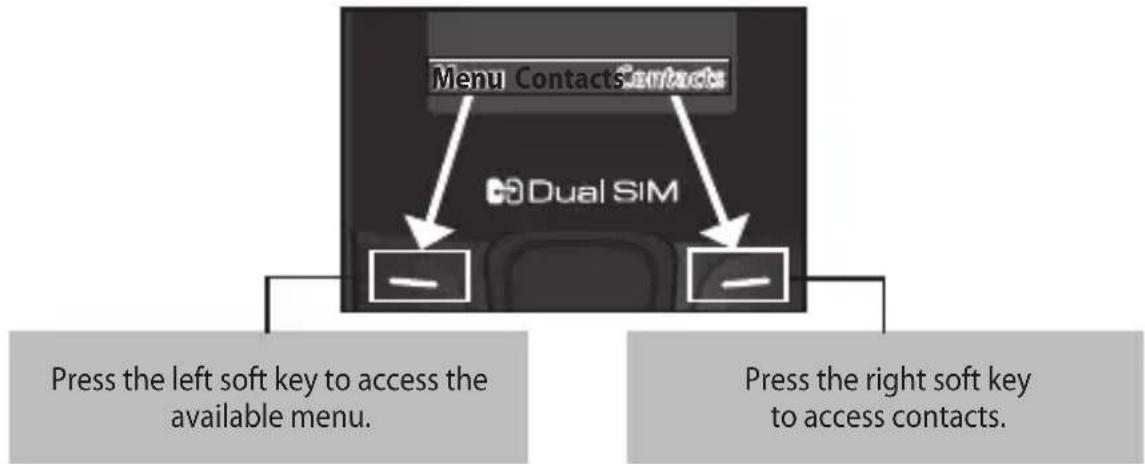
Your phone offers a set of functions that allow you to customise it. These functions are arranged in menus and sub-menus, which are accessed via the left and right soft keys. The label at the bottom of the display screen immediately above the soft keys indicates their current function.
Entering Text
You can enter alphanumeric characters via the phone's keypad. For example, storing names in Contacts, writing a message and scheduling events in the calendar all require entering text. To change modes, press the key
| Indicator Function (English Smart mode) | |
| 123 | Numeric |
| Abc | Multitap Abc |
| abc | Multitap abc |
| ABC | Multitap ABC |
T9 Mode
In Editor, Press Options Choose "Set T9" Select On. This mode allows you to enter words with only one keystroke per letter. Each key on the keypad is associated with more than one letter. T9 mode automatically compares your keystrokes with an internal linguistic dictionary to determine the correct word, thus requiring far fewer keystrokes than the traditional ABC mode.
Turning Your Phone On and Off
You can power the phone on and off by pressing or holding the power key.
Entering Text
Making a Call
1 Key in the number on the keypad.
2 Press initiate the call.
3 To end the call, press
TIP! To enter + when making an international call, press and hold 0.
Making a call from your contacts
1 Press Menu, select Contacts and choose Search.
2 On the keypad, enter the first few letter of the contact you want to call.
3 To scroll through your contacts, use the up and down navigation keys. And to scroll through their different numbers, use the left and right navigation keys.
4 Press to initiate the call.
Answering and rejecting a call
When your phone rings, press Accept or press to answer the call. While your phone is ringing, select Silent to mute the ringing. This is great if you have forgotten to change your profile to Silent for a meeting. Press or Reject to reject the incoming call.
TIP! You can change the settings on your phone to answer your calls in different ways. Press Menu, select Settings and choose Call. Press Common settings, select Answer mode and choose Any key or Send key only.
- Any key - You can answer a call by pressing any key.
- Send key only - You can answer a call only by pressing the Send key.
Changing your call settings
You can set the menu depending on the call. Press Menu, select Settings and choose Call > SIM1 or SIM2.
- Call divert - Select methods for diverting calls.
- Call barring - Choose a barring password for all outgoing calls, outgoing international, outgoing international except to home country, all incoming calls, or incoming when abroad.
- Call waiting - Select Active or cancel call waiting.
- Fixed dial number - Choosing a PIN2 code to enable fixed dial number lets you restrict calls only to numbers in the Fixed dial number list.
Entering Text
Checking your call history
You can check the records of All calls, Missed calls, Dialled calls, Received calls, and Call duration. The number and name (if available) are displayed together with the date and time at which the call was made. You can also view the number of times you have called a particular number. Press Menu, select Call history.
Quick feature reference Messaging
Sending a message
1 Press Menu, select Messaging and choose New message.
2 A new message editor will open. The default setting of the message editor is SMS mode.
3 Enter your message using either the T9 predictive mode or Abc manual mode or 123 mode. You can switch text input modes by pressing
4 Press Options and choose Insert to add an Symbol, Template, Contact, Business card.
5 Press Send to.
6 Enter the phone number or press Options and select Contacts or Recent list to open your contacts list.
7 Press Options and choose Send.
- Inbox - You will be alerted when you have received a message. It will also be saved here.
- Drafts - This menu shows the message you have saved.
Quick feature reference
- Outbox - This menu allows you to view the message which is about to be send or that have failed to send.
- Sent - This menu allows you to view the messages which have already been sent, including time and content.
- Listen voicemail – This menu provides you with a quick way to access your voice mailbox.
-
Info messages – Info service messages are text messages that are delivered by the network to your handset.
-
Templates - There are pre-defined messages in the list. You can view and edit the template messages or create new templates.
- Settings - This menu allows you to set the features of your network service provider.
Contacts
You can search for a contact stored in your Contacts menu.
1 Press Menu and choose Contacts, select Search or press right soft key) from the standby screen.
2 On the keypad enter the first letter of the contact you want to call.
3 To scroll through the contacts, use the up and down navigation keys. To scroll through their different numbers use the left and right navigation keys.
- New contact - You can add phonebook entries by using this menu.
- Speed dials - Assign contacts to any keys between 4 and 8. Speed dial 2 and 3 is set to SIM Budget and 9 is set to SOS mode, so you can not change these keys.
- SIM budget empty - You can set Speed SIM budget through Startup Wizard and Speed dial menu. It is easy way for checking SIM budget by pressing and holding the 2 or 3 key in Idle Screen.
- Copy all - You can copy all phone book entries from the SIM card memory to the Phone memory or from the Phone memory to the SIM card memory.
- Delete all - You can delete all phone book entries from the SIM card memory or Phone memory.
- Memory status - You can check the memory status for your SIM and phone.
Information
Service dial numbers – Access the list of service numbers assigned by your service provider securely.
Own number - You can save and check your own numbers on the SIM card.
Business card - You can save and check your business card containing information including your name, mobile number, home, office and email, and send it in a message.
Call history
You can check the record of all, missed, dialled, received calls and call durations. The number and name (if available) are displayed together with the date and time at which the call was made. You can also view the number of times you have called.
- All calls - Displays the lists of all three types (Received/Dialled/Missed calls) by time.
-
Missed calls - This option lets you view the last 20 unanswered calls.
-
Dialled calls - This option lets you view the last 20 outgoing calls (called or attempted).
- Received calls - This option lets you view the last 20 incoming calls.
- Call duration - Allows you to view the duration of your last call, all calls, dialled calls and received calls.
Alarms
You can set up to 3 alarm clocks to go on at a specified time.
FM radio
With embedded FM antenna, you can receive FM radio without an external earphone. You can listen to your favourite radio station anytime.
Listening to the radio
1 Press Menu and select FM radio.
2 Select Options > Auto scan then confirm Yes to scan for FM channels or No to cancel.
3 When your phone detects a channel, it will display a pop-up asking to save the channel. Confirm save or skip save by selecting No.
Note: Your phone can only store a maximum of 12 channels. Device will stop auto scanning when all 12 channels have been saved or when it cannot detect any more FM channels.
4 Select the channel by pressing the appropriate channel number on the keypad or by using the left or right navigation keys.
Note: Up and down navigation keys will increase or decrease sound volume respectively.
5 Select the channel number of the station you would like to listen to.
Note: In weak FM radio signal area the sensitivity can degrade with wireless and antenna mode. So it is advisable to insert the ear-mic for better and enhanced FM quality.
Profiles
- General - After setting up this profile, the indicator will be displayed on the standby screen.
- Silent - Ring tone is disabled and Vibrate is activated. When you set up this profile, the indicator will be displayed on the standby screen.
-
Outdoor - This is the default profile. Ring tone and key tone volume are set to maximum. When you set up this profile, the indicator will be displayed on the standby screen.
-
Flight mode - Select this profile to disable all mobile network services. You will not be able to make or receive messages or calls when Flight mode is switched on.
- Headset - When the headset is connected to the phone, the indicator will be displayed on the standby screen. You can personalise your call alert type, ring tones, ring volume, message alert type, message tones, message volume, keypad tones, keypad volume, effect sound volume and power on/off volume.
Tools
- Torch - Turn on/off the torch or turn on/off the torch directly by pressing the up navigation key in idle screen.
- Self call - This is a useful function for avoiding awkward situation politely. You can call yourself by setting the time in self call menu.
Note: Self call can be activated or deactivated from idle screen using shortcut code #^*#
-
Calculator - This contains the standard functions such as Addition, Subtraction, Multiplication and Division.
-
Stopwatch - This option allows you to use the function of a stopwatch.
- World clock - Allows you to determine the current time in another time zone or country.
Organiser
- Calendar - When you enter this menu, a calendar appears. A square cursor is placed on the current date. You can move the cursor to another date using the navigation keys, also you can set scheduler for desired date and time.
- Memo - You can register your own memos here.
Settings
- Dual SIM - You can see two Network Signal icons on the left-top of the screen when you insert two SIM-Card or Setting SIM icon.
- Date & Time - You can set functions relating to the date and time.
- Language - You can change the language for the display texts in your phone. This change will also affect the Language Input mode.
-
Display - You can adjust settings for the phone display.
-
Call - You can set the menu depending on the call.
- Auto key lock - Lock the keypad automatically in standby screen.
- Security - This menu allows you to set the phone securely.
PIN code request - Enable/Disable SIM PIN code request when your phone is powered on.
Phone lock - Lock your phone with a security code When power on, When SIM changed, or Immediately. (Default security code is "0000".)
Anti-theft mobile tracker - Anti-theft mobile tracker (ATMT) allows you to track your stolen phone. When someone changes the SIM in your phone without your permission, the tracking service will be activated. You will be notified by a text message sent to the default phone number you have set, without the unauthorized user's knowledge. You can activate the ATMT and configure your settings in this menu. (The default ATMT code is "0000".)
Change codes - To change your Security code, PIN code, PIN2 code, enter the old code followed by the new one.
- Power save - If you set Always on, you can save the battery power when you are not using the phone. Choose to switch between power save settings Always on, Night only or Off.
Network selection - You can select a network that will be registered either automatically or manually. -
SOS service - When SOS service is turned on, send the emergency SMS by press and holding the '9' key on your keypad in idle screen, SOS mode will now be turned on. The SOS messages will be sent to the phone number(s) listed in Recipient list. While SOS mode is active, incoming calls by them will be automatically accepted. To exit SOS mode, on the idle screen push the end key and select Yes.
-
Reset settings - Select Reset settings to restore the factory settings. You need the security code to activate this function. The default number is "0000".
- Memory status - You can check the free space and memory usage of each repository.
Guidelines for safe and efficient use
Please read these simple guidelines. Not following these guidelines may be dangerous or illegal.
Exposure to radio frequency energy
Radio wave exposure and Specific Absorption Rate (SAR) information.
This mobile phone model LG-A275 has been designed to comply with applicable safety requirements for exposure to radio waves. These requirements are based on scientific guidelines that include safety margins designed to assure the safety of all persons, regardless of age and health.
- The radio wave exposure guidelines employ a unit of measurement known as the Specific
Absorption Rate, or SAR. Tests for SAR are conducted using standardised methods with the phone transmitting at its highest certified power level in all used frequency bands.
- While there may be differences between the SAR levels of various LG phone models, they are all designed to meet the relevant guidelines for exposure to radio waves.
- The SAR limit recommended by the International Commission on Non-Ionizing Radiation Protection (ICNIRP) is 2W / kg averaged over 10g of tissue.
-
The highest SAR value for this model phone tested by DASY4 for use at the ear is 1.490 W/Kg (10g).
-
This device meets RF exposure guidelines when used either in the normal use position against the ear or when positioned at least 1.5cm away from the body. When a carry case, belt clip or holder is used for body-worn operation, it should not contain metal and should position the product at least 1.5cm away from your body. In order to transmit data files or messages, this device requires a quality connection to the network. In some cases, transmission of data files or messages may be delayed until such a connection is available. Ensure the above separation distance instructions are followed until the transmission is completed.
Product care and maintenance
WARNING
Only use batteries, chargers and accessories approved for use with this particular phone model. The use of any other types may invalidate any approval or warranty applying to the phone, and may be dangerous.
- Do not disassemble this unit. Take it to a qualified service technician when repair work is required.
Guidelines for safe and efficient use
- Repairs under warranty, at LG's option, may include replacement parts or boards that are either new or reconditioned, provided that they have functionality equal to that of the parts being replaced.
- Keep away from electrical appliances such as TVs, radios, and personal computers.
- The unit should be kept away from heat sources such as radiators or cookers.
- Do not drop the phone.
-
Do not subject this unit to mechanical vibration or shock.
-
Switch off the phone in any area where you are required by specific regulations. For example, do not use your phone in hospitals as it may affect sensitive medical equipment.
- Do not handle the phone with wet hands while it is being charged. It may cause an electric shock and can seriously damage your phone.
- Do not charge a handset near flammable material as the handset can become hot and create a fire hazard.
-
Use a dry cloth to clean the exterior of the unit (do not use solvents such as benzene, thinner or alcohol).
-
Do not charge the phone when it is on soft furnishings.
- The phone should be charged in a well ventilated area.
- Do not subject this unit to excessive smoke or dust.
- Do not keep the phone next to credit cards or transport tickets; it can affect the information on the magnetic strips.
- Do not tap the screen with a sharp object as it may damage the phone.
-
Do not expose the phone to liquid or moisture.
-
Use the accessories like earphones cautiously. Do not touch the antenna unnecessarily.
- Do not use, touch or attempt to remove or fix broken, chipped or cracked glass. Damage to the glass display due to abuse or misuse is not covered under the warranty.
- Your phone is an electronic device that generates heat during normal operation. Extremely prolonged, direct skin contact in the absence of adequate ventilation may result in discomfort or minor burns. Therefore, use care when handling your phone during or immediately after operation.
Guidelines for safe and efficient use
Efficient phone operation
Electronics devices
All mobile phones may get interference, which could affect performance.
- Do not use your mobile phone near medical equipment without requesting permission. Avoid placing the phone over pacemakers, for example, in your breast pocket.
- Some hearing aids might be disturbed by mobile phones.
- Minor interference may affect TVs, radios, PCs, etc.
Road safety
Check the laws and regulations on the use of mobile phones in the area when you drive.
- Do not use a hand-held phone while driving.
- Give full attention to driving.
- Pull off the road and park before making or answering a call if driving conditions so require.
-
RF energy may affect some electronic systems in your vehicle such as car stereos and safety equipment.
-
When your vehicle is equipped with an air bag, do not obstruct with installed or portable wireless equipment. It can cause the air bag to fail or cause serious injury due to improper performance.
- If you are listening to music whilst out and about, please ensure that the volume is at a reasonable level so that you are aware of your surroundings. This is particularly imperative when near roads.
Avoid damage to your hearing
Damage to your hearing can occur if you are exposed to loud sound for long periods of time. We therefore recommend that you do not turn on or off the handset close to your ear. We also recommend that music and call volumes are set to a reasonable level.
- When using headphones, turn the volume down if you cannot hear the people speaking near you, or if the person sitting next to you can hear what you are listening to.
Note: Excessive sound pressure from earphones can cause hearing loss.
Guidelines for safe and efficient use
Blasting area
Do not use the phone where blasting is in progress. Observe restrictions, and follow any regulations or rules.
Potentially explosive atmospheres
- Do not use the phone at a refuelling point.
- Do not use near fuel or chemicals.
- Do not transport or store flammable gas, liquid, or explosives in the compartment of your vehicle which contains your mobile phone and accessories.
In aircraft
Wireless devices can cause interference with aircraft.
- Turn off your mobile phone before boarding any aircraft.
- Do not use it on the aircraft without permission from the cabin crew.
Children
Keep the phone in a safe place out of the reach of small children. It includes small parts which may cause a choking hazard if detached.
Emergency calls
Emergency calls may not be available on all mobile networks. Therefore, you should never depend solely on the phone for emergency calls. Check with your local service provider.
Battery information and care
- You do not need to completely discharge the battery before recharging. Unlike other battery systems, there is no memory effect that could compromise the battery's performance.
-
Use only LG batteries and chargers. LG chargers are designed to maximise the battery life.
-
Do not disassemble or short-circuit the battery pack.
- Keep the metal contacts of the battery pack clean.
- Replace the battery when it no longer provides acceptable performance. The battery pack maybe recharged hundreds of times until it needs replacing.
- Recharge the battery if it has not been used for a long time to maximise usability.
- Do not expose the battery charger to direct sunlight or use it in high humidity, such as in the bathroom.
Guidelines for safe and efficient use
- Do not leave the battery in hot or cold places, this may deteriorate the battery performance.
- There is risk of explosion if the battery is replaced by an incorrect type.
- Dispose of used batteries according to the manufacturer's instructions. Please recycle when possible. Do not dispose as household waste.
-
If you need to replace the battery, take it to the nearest authorised LG Electronics service point or dealer for assistance.
-
Always unplug the charger from the wall socket after the phone is fully charged to save unnecessary power consumption of the charger.
- Actual battery life will depend on network configuration, product settings, usage patterns, battery and environmental conditions.
- Make sure that no sharp-edged items such as animal's teeth or nails, come into contact with the battery. This could cause a fire.
Ambient Temperatures
Max: +50°C (discharging) +45°C (charging)
Min: -10^
Accessories
There are various accessories for your mobile phone. You can select these options according to your personal communication requirements.
Standard Battery Travel Adapter
Note
Always use genuine LG accessories. Failure to do this may invalidate your warranty.
Accessories may be different in different regions. Please check with our regional service company or agent for further enquires.
Troubleshooting
This chapter lists some problems you might encounter while using your phone. Some problems require you to call your service provider, but most are easy to correct yourself.
Message Possible Causes Possible Corrective Measures
| USIM error | There is no USIM card in the phone or it is inserted incorrectly. | Make sure that the SIM card is correctly inserted. |
| No network connection/ Loosing network | Weak Signal outside of GSM network areaOperator applied new services | Move towards a window or into an open area. Check the network operator coverage map. See if the SIM card is older than 6~12 month. If so, change your SIM at the office of your network provider. |
Troubleshooting
| Message Possible Causes Possible Corrective Measures | ||
| Codes do not match | To change a security code, you will need to confirm the new code by entering it again. The two codes you have entered do not match. | The default code is [0000]. If you forget the code, contact your service provider. |
| Any application cannot be set | Not supported by service provider or registration required | Contact your service provider. |
Message Possible Causes Possible Corrective Measures
| Calls not available | Dialing error New SIM card inserted Prepaid charge limit reached | New network not authorised. Check for new restrictions. Contact your service provider or reset limit with PIN 2. |
| Phone cannot be switched on | On/Off key pressed long enough Battery is not charged Battery contacts are dirty | Press the On/Off key down for at least two seconds. Keep charger attached for a longer time Clean the contacts. Take out the battery and insert again. |
Troubleshooting
Message Possible Causes Possible Corrective Measures
| Charging error | Battery is not charged | Charge battery. |
| Outside temperature is too hot or cold | Make sure phone is charging under normal temperatures. | |
| Contact problem | Check the charger and connection to the phone. Check the battery contacts and clean them if necessary. | |
| No voltage | Plug into a different socket. | |
| Charger defective | If the charger does not warm up, replace it. | |
| Wrong charger | Only use original LG accessories. | |
| Battery defective | Replace battery. |
Message Possible Causes Possible Corrective Measures
| Number not permitted | The Fixed Dial Number function is on. | Check settings. |
| Impossible to receive/send SMS & Picture | Memory full Delete some existing messages in the phone. | |
| Files not open Unsupported file format Check the file format that can be supported | ||
Troubleshooting
Message Possible Causes Possible Corrective Measures
| The screen does not turn on when I receive a call. | Proximity sensor problem | If you use any protection tape or case, check it is covered the area around proximity sensor Make sure that the area around the proximity sensor is clean. |
| Hang up or freeze | Intermittent software problem | Take out the battery and insert battery. Turn on the phone. Try to do software update service via web site |