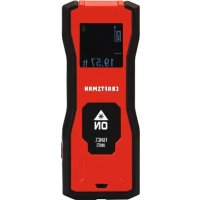
CMHT77639 - Laser level Craftsman - Free user manual and instructions
Find the device manual for free CMHT77639 Craftsman in PDF.


| Product type | Laser rangefinder level |
| Brand | Craftsman |
| Model | CMHT77639 |
| Laser class | Class 2 (IEC/EN60825-1:2014) |
| Laser power | ≤ 1.0 mW @ 620-690 nm |
| Measuring range | 0.3 m to 50 m (11.8 in to 165 ft) |
| Measurement accuracy | ± 3 mm (± 1/8 in) |
| Smallest displayed unit | ± 1 mm (± 1/16 in) |
| Measurement functions | Distance, area, volume, continuous measurement, indirect height (2 and 3 points) |
| Power supply | Rechargeable lithium-ion battery, charging via USB (cable included) |
| Charging time | Approximately 2.5 hours |
| Battery life | Up to 3000 measurements |
| Auto power off | Laser after 60 s, device after 120 s |
| Dimensions (H x W x D) | 118 x 24 x 46 mm |
| Weight | 86 g (3.04 oz) |
| Operating temperature range | 0 °C to +40 °C (32 °F to 104 °F) |
| Storage temperature range | -10 °C to +60 °C (14 °F to 140 °F) |
| Protection rating | IP40 |
| Safety | Do not look directly into the laser beam. Use with caution. |
| Maintenance | Clean with a soft, dry cloth. Do not use solvents. |
| Warranty | Craftsman limited warranty. Visit www.DEWALT.com |
| Made in | China |
Frequently Asked Questions - CMHT77639 Craftsman
User questions about CMHT77639 Craftsman
0 question about this device. Answer the ones you know or ask your own.
Ask a new question about this device
Download the instructions for your Laser level in PDF format for free! Find your manual CMHT77639 - Craftsman and take your electronic device back in hand. On this page are published all the documents necessary for the use of your device. CMHT77639 by Craftsman.
USER MANUAL CMHT77639 Craftsman
Figures
A
B
D
E
F
G
flowchart
graph TD
    A[" "] --> B[" "]
    C[" "] --> D[" "]
    style A fill:#fff,stroke:#000
    style B fill:#fff,stroke:#000
    style C fill:#fff,stroke:#000
    style D fill:#fff,stroke:#000
H
Figures
I
natural_image
Simple geometric diagram showing a right triangle with dashed lines and an arrow, no text or symbols present.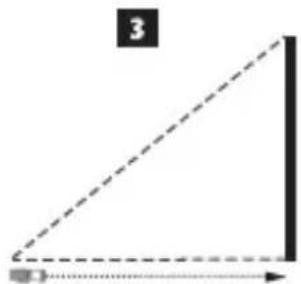
natural_image
Simple geometric diagram showing a right triangle with dashed diagonal and dotted line (no text or symbols)J
natural_image
Pure geometric diagram showing a triangle with dashed lines and an arrow, no text or symbols present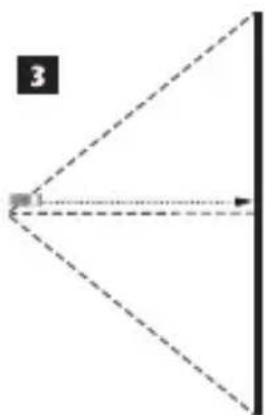
natural_image
Pure geometric diagram showing a triangle with dashed lines and a small square at the vertex (no text or symbols)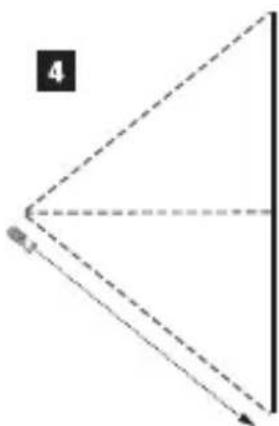
natural_image
Simple geometric diagram showing a triangle with dashed lines and an arrowhead, no text or symbols present.Contents
- Tool Information
- User Safety
- Setup
- Operation
- Warranty
- Specifications
- Information Codes
Retain all sections of this manual for future reference.
Tool Information
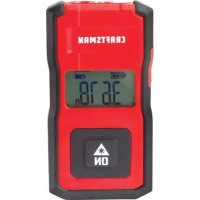
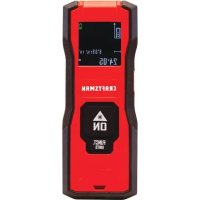
The CMHT77639 tool is a Class 2 laser product that is used to measure distances up to 165ft, area, volume, or the height of a tall object.
User Safety

WARNING:
Carefully read the Safety Instructions and Product Manual before using this product. The person responsible for the product must ensure that all users understand and adhere to these instructions.

WARNING:
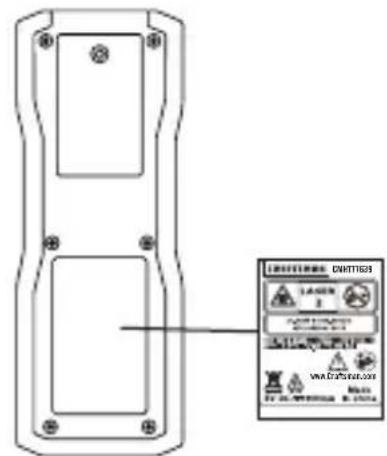
The following label information is placed on your laser tool to inform you of the laser class for your convenience and safety.
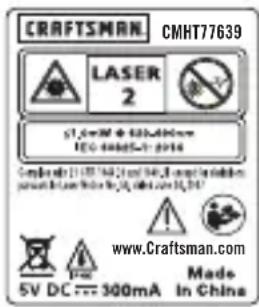

WARNING:
If the equipment is used in a manner not specified by the manufacturer, the protection provided by the equipment may be impaired.
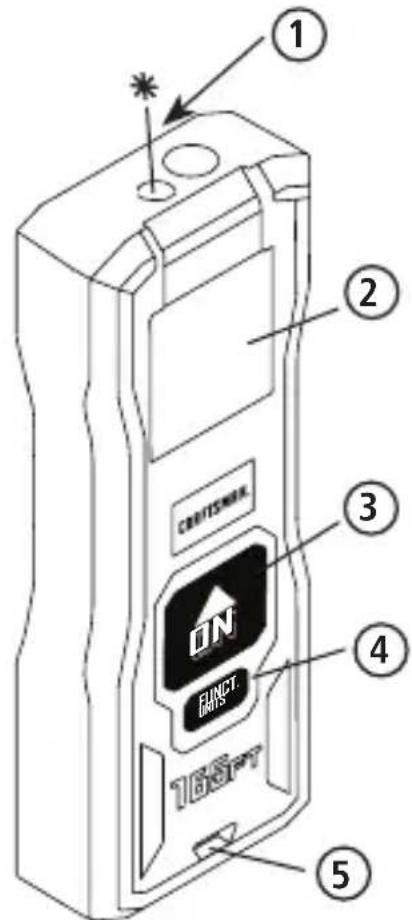
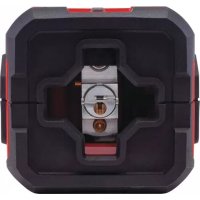
The CMHT77639 tool emits a visible laser beam, as shown in Figure A. The laser beam emitted is Laser Class 2 per IEC 60825-1 and complies with 21 CFR 1040.10 and 1040.11 except for deviations pursuant to Laser Notice No. 50, dated June 24, 2007.

WARNING:
While the laser tool is in operation, be careful not to expose your eyes to the emitting laser beam (red light source). Exposure to a laser beam for an extended time period may be hazardous to your eyes. Do not look into the beam with optical aids.

WARNING:
To reduce the risk of injury, user must read the Product User manual and Safety manual.
FCC Compliance
This device complies with Part 15 of the FCC Rules. Operation is subject to the following two conditions: (1) This device may not cause harmful interference, and (2) this device must accept any interference received, including interference that may cause undesired operation.
FCC Statement
This equipment has been tested and found to comply with the limits for a Class B digital device, pursuant to part 15 of the FCC rules. These limits are designed to provide reasonable protection against harmful interference in a residential installation. This equipment generates, uses, and can radiate radio frequency energy and, if not installed and used in accordance with the instructions, may cause harmful interference to radio communications. However, there is no guarantee that interference will not occur in a particular installation. If this equipment does cause harmful interference to radio or television reception, which can be determined by turning the equipment off and on, the user is encouraged to try to correct the interference by one or more of the following measures:
- Reorient or relocate the receiving antenna.
- Increase the separation between the equipment and the receiver.
- Connect the equipment into an outlet on a different circuit (not the circuit to which the receiver is connected).
- Consult the dealer or an experienced radio/TV technician for help.
E
Canada, Industry Canada (IC) Notices
Class B digital circuitry of this device complies with Canadian ICES-003. This device complies with Industry Canada license-exempt RSS standard(s). Operation is subject to the following two conditions: (1) this device may not cause interference, and (2) this device must accept any interference, including interference that may cause undesired operation of the device.
Under Industry Canada regulations, the radio transmitter(s) in this device may only operate using an antenna of a type and maximum (or lesser) gain approved for the transmitter by Industry Canada. To reduce potential radio interference to other users, the antenna type and its gain should be so chosen that the equivalent isotropically radiated power (e.i.r.p.) is not more than that necessary for successful communication.
Setup
Attaching the Wrist Strap
- While facing the front of the tool, insert the thin end of the wrist strap through one of the holes in the bottom of the tool (Figure A 5).
- Push the thin end of the wrist strap until it goes through the other hole.
- Separate the two wires, which make up the thin end of the wrist strap, to form a loop.
- Insert the thick end of the wrist strap all the way through the loop in the thin end, so the wrist strap is securely fastened to the tool (Figure C).
Charging the Battery
Fully charge the battery before initial use and whenever the tool has not been used for 6 months or longer.
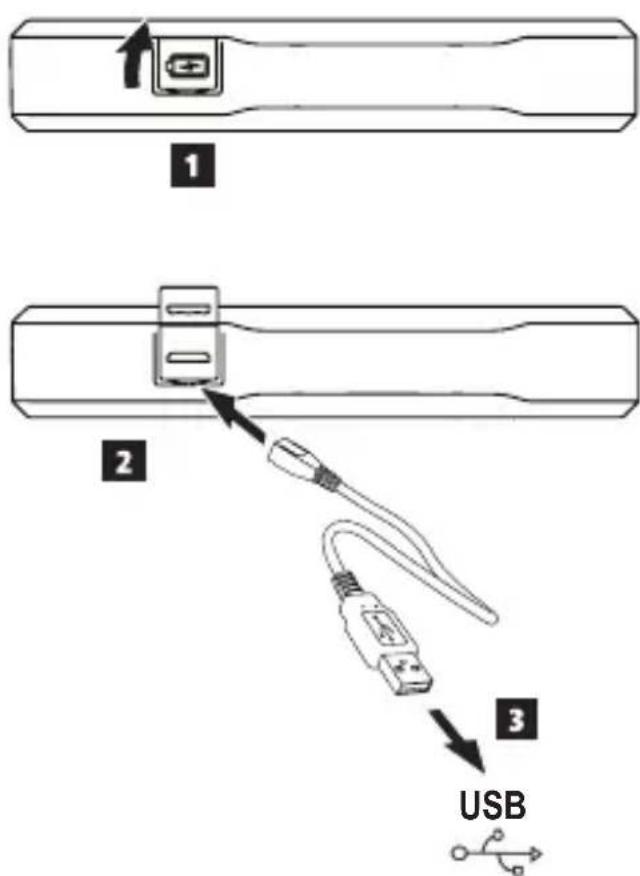
- Locate the port cover on the side of the tool (Figure D 1).
- Using your finger, gently pull the port cover up (Figure D 1).
- Insert the small end of the USB Recharge Cable into the port on the side of the tool, making sure to insert the flat side of the cable into the flat side of the port (Figure D 2).
-
Insert the USB end of the cable into a USB port in a computer or USB power outlet (Figure D 3).
-
Wait approximately 2.5 hours for the battery to fully charge and then disconnect the USB Recharge Cable.
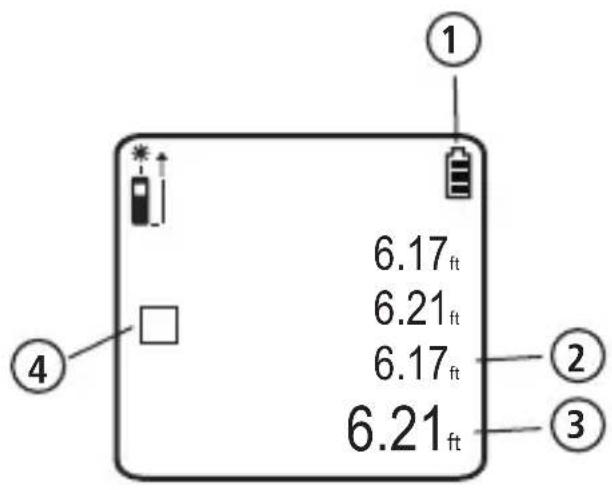
When the tool is ON, the battery level appears in the display window (Figure F 1).
Operation
Measuring the Distance to an Object
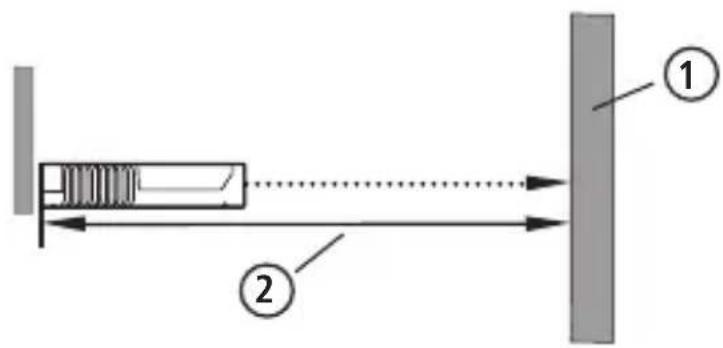
- Point the laser at the top of the tool (Figure A ①) toward the wall or object whose distance you need to measure (Figure E ①).
- Press Figure A 3) to turn the tool on and display the red laser dot.
- Press ☐ measure the distance from the bottom of the tool to the wall or object (Figure E 2).
- At the bottom of the display window (Figure A 2), view the current measurement (Figure F 3).
To take a new measurement, press 🔒 to move the current measurement up to the previous line on the display window (Figure F 2). Then repeat steps 2-4.
Measuring Distances Continuously
To take a series of measurements as you move around, change to Continuous Measure mode.
- Point the laser at the top of the tool (Figure A ①) toward the wall or object whose distance you need to measure (Figure E ①).
- Press Figure A 3) to turn the tool on and display the red laser dot.
- Press and hold 4 r 4 seconds to turn on the Continuous Measure mode.
- At the bottom of the display window (Figure A ②), view the current measurement (Figure F ③), which will keep changing as you move the tool.
- To take the current measurement (from the bottom of the tool to the wall or object) and exit Continuous Measure mode, press
To take a new measurement, press 🔒 to move the current measurement up to the previous line on the display window. Then repeat steps 1-5.
Measuring Area
You can measure the area of a wall, floor, or object.
- Point the tool's laser (Figure A 1) toward a wall or object, and not toward anyone's eyes.
- Press Figure A 3) to turn the tool on and display the red laser dot.
- Press □ to show □ on the display window (Figure F 4).
-
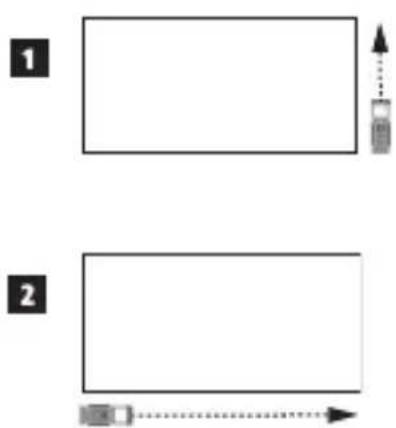
Measure the width.
-
Point the top of the tool at one side of the target (wall, floor, or object).
- Position the bottom of the tool at one end of the target and point the laser dot across the width (Figure ①).
-
Press 📁 to display the width measurement at the top of the display window.
-
Measure the length.
-
Position the bottom of the tool at one end of the target and point the laser dot across the length (Figure ②).
-
Press ▲ to display the length measurement on the second line of the display window.
-
View the Area measurement at the bottom of the display window (Figure F 3).
Measuring Volume
You can measure the volume of a room or object.
- Point the tool's laser (Figure A 1) toward a wall or object, and not toward anyone's eyes.
- Press (Figure A 3) to turn the tool on and display the red laser dot.
- Press □ twice to show □ on the display window (Figure F 4).
-
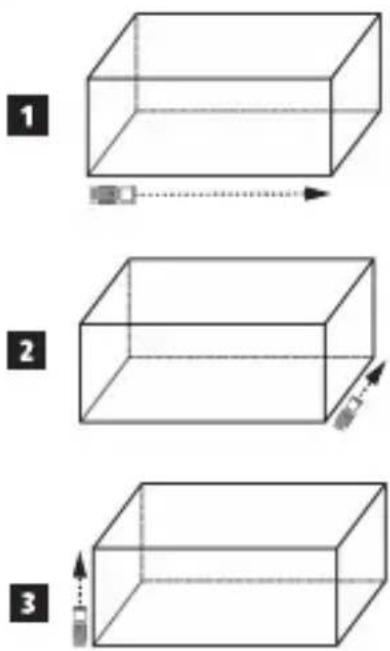
Measure the width.
-
Point the top of the tool at one side of the target (room or object).
- Position the bottom of the tool at one end of the target and point the laser dot across the width (Figure H 1).
-
Press 📁 to display the width measurement at the top of the display window.
-
Measure the length.
-
Position the bottom of the tool at one end of the target and point the laser dot across the length (Figure ①②).
-
Press ▲ to display the length measurement on the second line of the display window.
-
Measure the height.
-
Positon the bottom of the tool at one end of the target and point the laser dot across the height (Figure H 3).
-
Press ▲ to take the measurement.
-
View the Volume measurement at the bottom of the display window (Figure F 3).
Measuring the Height of a Tall Object
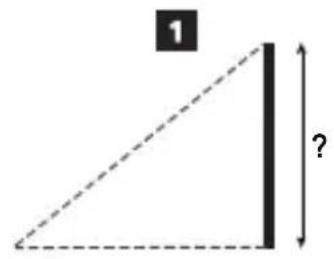
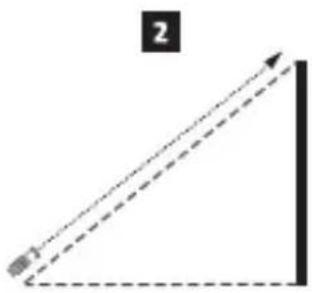
If you need to measure the height of a tall object (e.g., a tall building), you can calculate the height based on the distances from the same point to 2 or 3 points on the object. The tool will use the Pythagorean Theorem (C^2=A^2+B^2) to calculate the height.
Distances to 2 Points
You can use the distance to two points on a tall object (Double Indirect Height) to determine its height (Figure ①①).
- Point the tool's laser (Figure A 1) toward a wall or object, and not toward anyone's eyes.
- Press figure A 3) to turn the tool on and display the red laser dot.
- Press FUNCT. UNITS three times to show on the display window (Figure F 4).
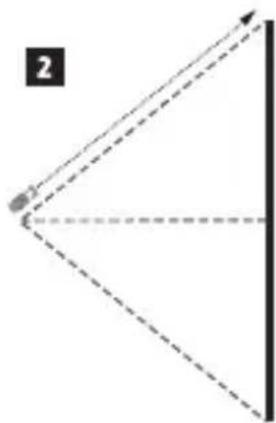
- Position the tool opposite the bottom of the building or object whose height you need to measure (Figure ①②).
- Aim the laser at the highest point of the building or object (Figure ①②).
- Press to measure the distance.
-
From the same point, aim the laser straight ahead toward the lowest point of the building or object (Figure ① ③).
-
Press measure the distance.
- On the bottom line of the screen, view the height of the building or object.
Distances to 3 Points
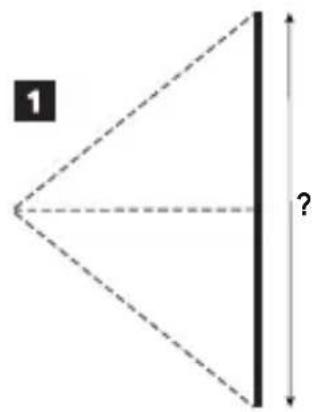
You can use the distance to three points on a tall object to determine its height (Figure ①).
- Point the tool's laser (Figure A ①) toward a wall or object, and not toward anyone's eyes.
- Press (Figure A 3) to turn the tool on and display the red laser dot.
- Press FUNCT. UNITS four times to show on the display window (Figure F 4).
- Position the tool opposite the approximate center of the vertical height to be measured (Figure ①②).
- Aim the laser at the highest point of the building or object (Figure ①②).
- Press measure the distance.
- From the same point, aim the laser straight ahead toward the center of the building or object (Figure ①③).
- Press 40 measure the distance.
- From the same point, aim the laser at the lowest point of the building or object (Figure ①④).
- Press to measure the distance.
- On the bottom line of the screen, view the height of the building or object.
Changing the Unit of Measure
Once the current measurement is taken (the device is not in Continuous Measure mode), you can change the unit of measure from fractional inches (7'04 7/8") to decimal inches (88.8 in), decimal inches to feet (7.40 ft), or feet to meters (2.257 m).
Press and hold FUNCT. UNITS until you see the measurement change (2-3 seconds).
Turning Off the Tool
The tool can be turned off in either of these ways:
- Press and hold 📁 for several seconds (until the display window clears).
- If you do not use the tool for 120 seconds, it will automatically turn off.
Limited Warranty
Go to www.CRAFTSMAN.com for the latest warranty information.
Specifications
E
| Range 11.8in to 165ft (0.3m to 50m) | |
| Measuring Accuracy* ± 1/16in (± 1.5mm)* | |
| Smallest Unit Displayed ± 1/16in (± 1mm) | |
| Laser Class Class 2 (IEC/EN60825-1: 2014) | |
| Laser Type ≤ 1.0mW @ 620-690nm | |
| Laser/Backlight Automatic Switch-off 60s | |
| Unit Automatic Switch-off 120s after the Laser is Off | |
| Continuous Measuring Yes | |
| Area/Volume Yes | |
| Indirect Height/Double Indirect Height Yes | |
| Battery Life Up to 3000 Measurements | |
| Dimension (H x D x W) 4.63 x .94 x 1.81in (118 x 24 x 46mm) | |
| Weight 3.04oz (86g) | |
| Storage Temperature Range 14° F ~ 140° F (-10°C ~ +60°C) | |
| Operating Temperature Range | 32° F ~ 104° F (0°C ~ +40°C) |
| Protection Class | IP40 |
| *Measuring Accuracy depends on the current conditions:Under favorable conditions (good target surface and room temperature), up to 30ft (10m).Under unfavorable conditions (bright sunlight, a very weak reflecting target surface, or large temperature fluctuations), the error can increase by to ± 0.002 in/ft (± 0.15mm/m) for distances over 30ft (10m). | |
Information Codes
If IC appears on the display window with a Code number, perform the corresponding Corrective Action.
| Code | Description | Corrective Action |
| 255 | Cannot Measure | Switch the device on/off several times. If the error still occurs, return the defective device to the Service Center or distributor. Refer to the Warranty. |
| 301 | Trigonometric | When calculating the height of a tall building, code 301 will appear if you measure a longer distance after a shorter distance. |
| 401 | Communication | If you take a measurement too quickly after taking another measurement, code 401 will appear. |
| 501 | Out of Temperature Range | Allow the device to cool down or warm up to a temperature within the range 32^ F ~ 104^ F ( 0^ C ~ +40^ C) |
Contenido


- Contents
- Tool Information
- User Safety
- WARNING:
- FCC Compliance
- FCC Statement
- E
- Canada, Industry Canada (IC) Notices
- Setup
- Attaching the Wrist Strap
- Charging the Battery
- Operation
- Measuring the Distance to an Object
- Measuring Distances Continuously
- Measuring Area
- Measuring Volume
- Measuring the Height of a Tall Object
- Distances to 2 Points
- Distances to 3 Points
- Changing the Unit of Measure
- Turning Off the Tool
- Limited Warranty
- Contenido
Brand : Craftsman
Model : CMHT77639
Category : Laser level