ManualGo.com
RLC520A - Surveillance Camera REOLINK - Free user manual and instructions
Find the device manual for free RLC520A REOLINK in PDF.



Download the instructions for your Surveillance Camera in PDF format for free! Find your manual RLC520A - REOLINK and take your electronic device back in hand. On this page are published all the documents necessary for the use of your device. RLC520A by REOLINK.
USER MANUAL RLC520A REOLINK
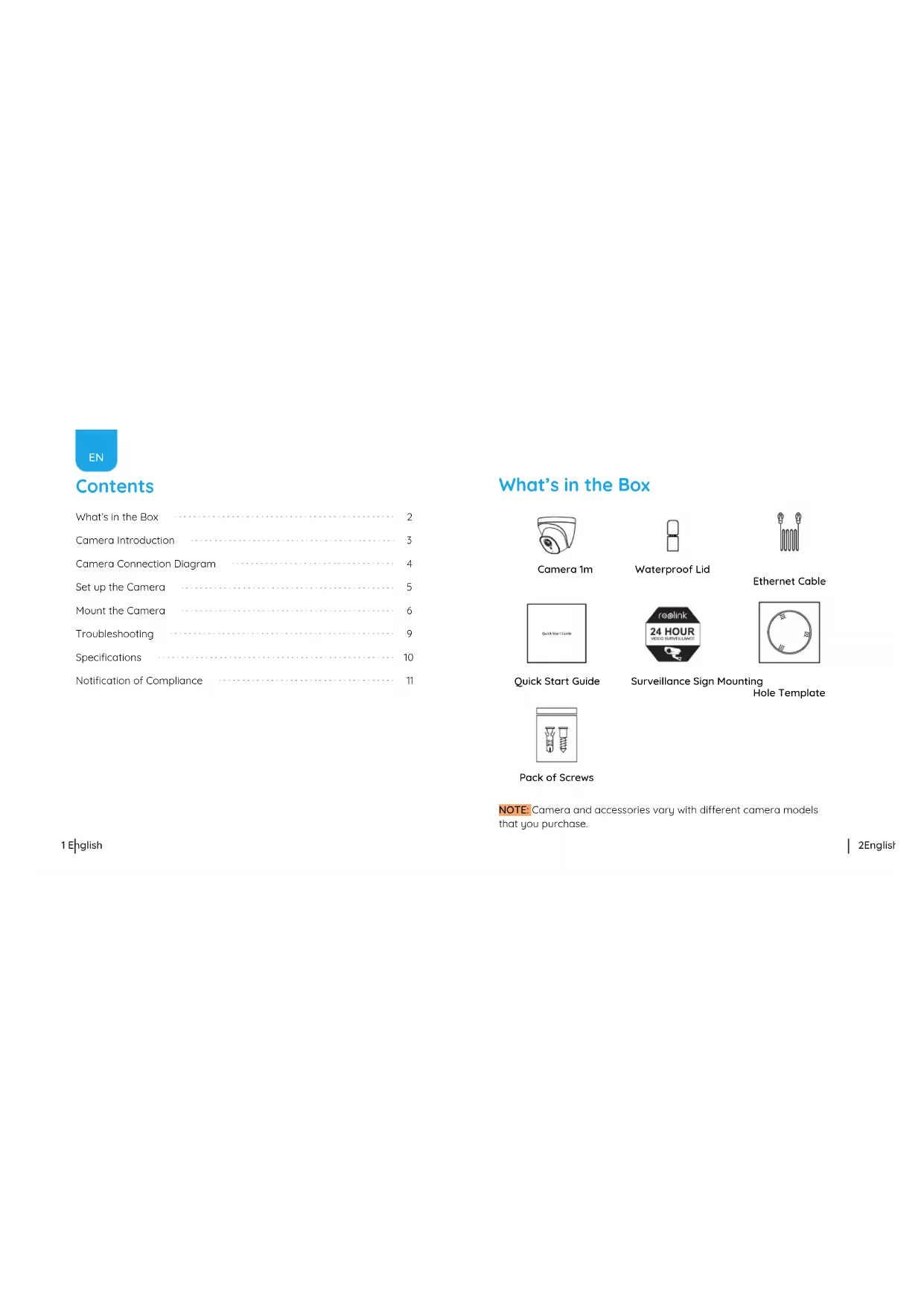
Room B, 4th Floor, Kingway Commercial Building, 171-173 Lockhart Road, Wan Chai, Hong Kong2English 1 English Contents What’s in the Box
Camera 1m Ethernet Cable Waterproof Lid Quick Start Guide Surveillance Sign Mounting Hole Template Pack of Screws NOTE: Camera and accessories vary with dierent camera models that you purchase.4English 3 English Camera Connection Diagram Before using the camera, please connect your camera as instructed below to finish initial setup.
1. Connect the camera to a PoE injector with an Ethernet cable.
2. Connect the PoE injector to your router, and then power on the
PoE injector. Ethernet Cable Ethernet Cable PoE IP Camera Power Adapter Router PoE Injector* Camera Introduction *You may also connect the camera to a PoE switch or Reolink PoE NVR. Lens Metal Case Waterproof Lid Network Cable Reset Button Power Port(Optional) Mount Infrared Lights Daylight Sensor Built-in Mic *Press and hold for 10seconds to restore camera to factory settings.6English 5 English Download and Launch the Reolink App or Client software, and follow the onscreen instructions to finish initial setup. Set up the Camera NOTE: The camera should be powered with a 12V DC adapter or a PoE powering device such as PoE injector, PoE switch or Reolink NVR (not included in the package). Installation Tips
- Do not face the camera towards any light sources.
- Do not point the camera towards a glass window. Or, it may result in poor image performance because of the window glare by infrared LEDs, ambient lights or status lights.
- Do not place the camera in a shaded area and point it towards a well-lit area. Or, it may result in poor image performance. For better image quality, please make sure that the lighting condition for both the camera and the capture object is the same.
- For better image quality, it’s recommended to clean the lens with a soft cloth from time to time.
- Make sure the power ports are not exposed to water or moisture or blocked by dirt or other elements.
- The camera comes with waterproof design so it can work properly under conditions like rain and snow. However, it doesn't mean the camera can work underwater.
- Do not install the camera at places where rain and snow may hit the lens directly.
- The camera may work in extreme cold conditions as low as -25°C. Because when it is powered on, the camera will produce heat. You may power on the camera indoors for a few minutes before installing it outdoors. Mount the Camera
- On PC Scan to download the Reolink App. Download path of the Reolink Client: Go to https://reolink.com > Support > App & Client. Available on the NOTE: If you are connecting the camera to a Reolink PoE NVR, please set up the camera via the NVR interface.NOTE: Use the drywall anchors included in the package if needed. NOTE: Run the cable through the cable notch on the mount base. Drill holes according to the mounting hole template and screw the mounting plate to the mounting holes on the ceiling. To separate mounting plate from the dome camera, hold and press on the camera top and turn anticlockwise. Mount the camera to the mounting plate and turn the camera clockwise to lock it tightly. If the camera is not locked properly, the camera may fall when you turn it anticlockwise to adjust the surveillance angle. Once the camera is installed, you may rotate the camera body manually to adjust the camera’s surveillance angle. 8English 7 English
4Camera Is Not Powering on If your camera is not powering on, please try the following solutions:
- Make sure your camera is powered on properly. The PoE camera should be powered by a PoE switch/injector, a Reolink NVR or a 12V power adapter.
- If the camera is connected to a PoE device as listed above, connect the camera to another PoE port and see if the camera will power on.
- Try again with another Ethernet cable. If these won’t work, contact Reolink Support https://support.reolink.com/. Troubleshooting Infrared LEDs Stop Working If the Infrared LEDs on your camera stop working, please try the following solutions:
- Enable infrared lights on Device Settings page via Reolink App/Client.
- Check if the Day/Night mode is enabled and set up auto infrared lights at night on Live View page via Reolink App/Client.
- Upgrade the firmware of your camera to the latest version.
- Restore the camera to factory settings and check out the infrared light settings again. Specifications Operating Temperature: -10°C to 55°C (14°F to 131°F) Operating Humidity: 10%-90% Ingress Protection: IP66 For more specifications, visit https://reolink.com/. Night Vision: 30 meters (100ft) Day/Night Mode: Auto switchover Hardware Features General If these won't work, contact Reolink Support https://support.reolink.com/. Failed to Upgrade Firmware If you cannot upgrade firmware for the camera, try the following solutions:
- Check out the current camera firmware and see if it is the latest one.
- Make sure that you download the correct firmware from Download Center.
- Make sure that your PC is working on a stable network. If these won't work, contact Reolink Support https://support.reolink.com/. 10English 9 EnglishThis product comes with a 2-year limited warranty that is valid only if purchased from Reolink ocial stores or a Reolink authorized resellers. Learn more: https://reolink.com/warranty-and-return/. Limited Warranty Use of the product is subject to your agreement to the Terms of Service and Privacy Policy at reolink.com. Keep out of reach of children. Terms and Privacy By using the Product Software that is embedded on the Reolink product, you agree to the terms of this End User License Agreement (“EULA”) between you and Reolink. Learn more: https://reolink.com/eula/. End User License Agreement Notification of Compliance FCC Compliance Statement This device complies with Part 15 of FCC Rules. Operation is subject to the following two conditions: (1) this device may not cause harmful interference, and (2) this device must accept any interference received, including interference that may cause undesired operation. For more information, visit: https://reolink.com/fcc-compliance-notice/. Reolink declares that this device is in compliance with the essential requirements and other relevant provisions of Directive 2014/53/EU. This marking indicates that this product should not be disposed with other household wastes.throughout the EU. To prevent possible harm to the environment or human health from uncontrolled waste disposal, Simplified EU Declaration of Conformity Correct Disposal of This Product recycle it responsibly to promote the sustainable reuse of material resources. To return your used device, please use the return and collection systems or contact the retailer where the product was purchased. They can take this product for environmentally safe recycling. NOTE: This equipment has been tested and found to comply with the limits for a Class B digital device, pursuant to Part 15 of the FCC Rules. These limits are designed to provide reasonable protection against harmful interference in aresidential installation. NOTE: We hope that you enjoy the new purchase. But if you are not satisfied with the product and plan to return, we strongly suggest that you reset the camera to factory default settings and take it out the inserted SD card before returning. 12English 11 English14Deutsch 13 Deutsch Überblick Lieferumfang