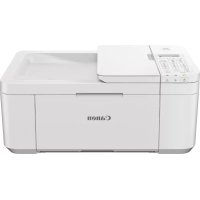
USER MANUAL PIXMA TR4651 CANON
Read Safety and Important Information (addendum) first.
natural_image
Icon showing a printer with a paper airplane and a document, symbolizing file transfer or sync (no text present)
natural_image
Two white icons: a laptop and a smartphone, on a solid red background (no text or symbols)
natural_image
Line drawing of a printer with two hands operating it (no text or symbols)
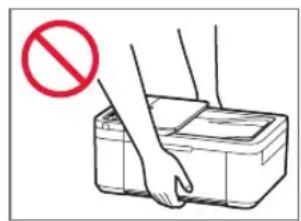
Настройка принтера

natural_image
Two diagrams showing a printer's internal structure before and after disassembly, with red arrows indicating the process (no text or symbols present)
natural_image
Two identical diagrams of a printer with red arrows indicating process flow, showing internal structure before and after (no text or symbols)
Настройка принтера
Внимание!
Country and region
*Others
natural_image
Two diagrams showing a printer being opened, with red arrows indicating the process (no text or symbols present)
natural_image
Mechanical assembly diagram showing two views of a vehicle chassis with internal components and a red arrow indicating a downward motion (no text or symbols present)
Внимание!
natural_image
Diagram of a mechanical device with a red arrow indicating direction (no text or symbols present)
Внимание!
natural_image
Diagram showing a hand pressing a component into a device, with red arrows indicating motion or force direction (no text or symbols present)
natural_image
Technical line drawing of a mechanical component with internal compartments (no text or symbols)
natural_image
Two identical diagrams of a printer with red arrows indicating process flow, showing internal structure before and after (no text or symbols)
![To connect to a computer [OK]](/content/2026/03/547381/images/85e735f8bee9645beb00bbc3617f0392c9eced6c41de21c3c7c74710e359835b.jpg)
https://ij.start.canon/fax
Загрузка бумаги
natural_image
Illustration of a printer with a red arrow indicating compression or disassembly (no text or symbols present)
natural_image
Diagram of a printer with an inset showing the internal structure (no text or symbols present)
natural_image
Illustration of a printer with a red arrow indicating compression or disassembly (no text or symbols present)
natural_image
Illustration of a printer being inserted into a paper airplane (no text or symbols visible)
natural_image
Line drawing of a printer with a paperclip inserted into the main body (no text or symbols)
Save the front tray paper
[OK]Next
natural_image
Two diagrams showing a printer's internal structure before and after assembly, with red arrows indicating motion (no text or symbols present)
natural_image
Two identical diagrams of a printer with red arrows indicating process flow, showing internal structure before and after (no text or symbols)
Важливо
Country and region
*Others
natural_image
Two line drawings of a printer with red arrows indicating compression or disassembly process (no text or symbols present)
natural_image
Diagram showing two views of a mechanical component with a red arrow indicating a downward motion (no text or symbols present)
Важливо
natural_image
Diagram of a mechanical device with a red arrow indicating direction (no text or symbols present)
Важливо
natural_image
Diagram showing a hand pressing a component into a device, with red arrows indicating motion or force direction (no text or symbols present)
natural_image
Cross-sectional diagram of a mechanical or electronic component with layered internal structures (no text or symbols)
natural_image
Two identical diagrams of a printer with red arrows indicating process flow, showing internal structure before and after (no text or symbols)
![To connect to a computer [OK]](/content/2026/03/547381/images/cbd4a568b954a674a8229a39bf3ebc92097ce57b30a857d17ac25c504ab2b77b.jpg)
https://ij.start.canon/fax
Завантаження паперу
natural_image
Illustration of a printer with a red arrow indicating compression or disassembly (no text or symbols present)
natural_image
Diagram of a printer with an inset showing the internal structure (no text or symbols present)
natural_image
Diagram of a printer with a red arrow indicating compression or disassembly (no text or symbols present)
natural_image
Line drawing of a printer with a hand inserting a paper into the print (no text or symbols)
natural_image
Illustration of a printer with a paper airplane being inserted (no text or symbols visible)
Save the front tray paper
[OK]Next
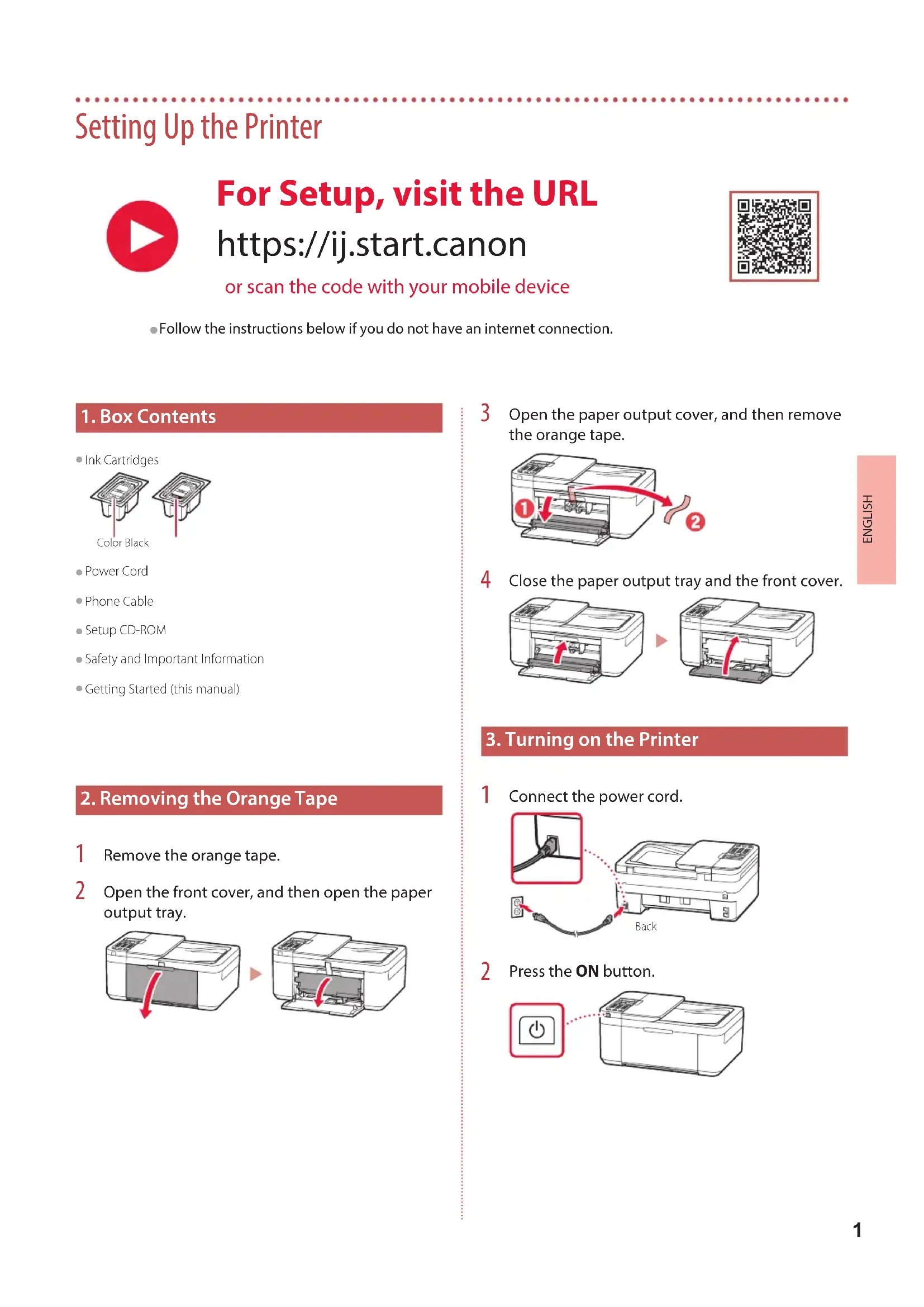
Setting Up the Printer

For Setup, visit the URL
https://ij.start.canon
or scan the code with your mobile device

- Follow the instructions below if you do not have an internet connection.
1. Box Contents
- Ink Cartridges
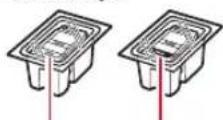
Color Black
Power Cord
- Phone Cable
- Setup CD-ROM
• Safety and Important Information
• Getting Started (this manual)
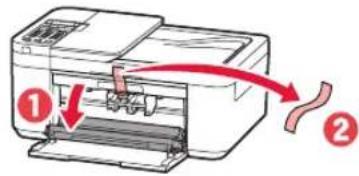
2. Removing the Orange Tape
1 Remove the orange tape.
2 Open the front cover, and then open the paper output tray.
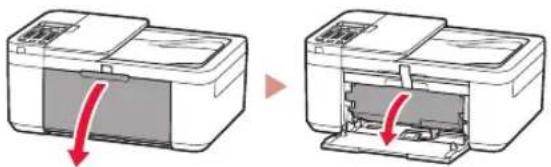
natural_image
Two views of a printer showing internal structure and external opening (no text or symbols)
3 Open the paper output cover, and then remove the orange tape.
4 Close the paper output tray and the front cover.
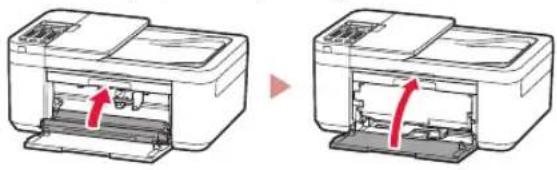
natural_image
Two identical diagrams of a printer with internal components, showing no text or symbols.
3. Turning on the Printer
1 Connect the power cord.
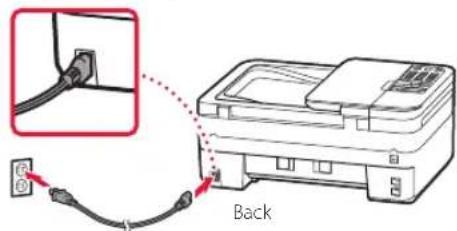
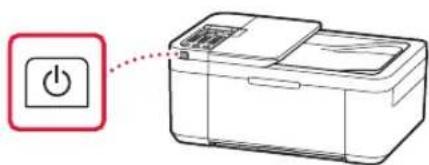
2 Press the ON button.
Setting Up the Printer
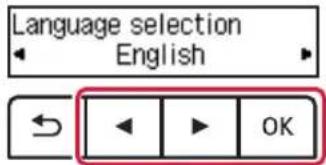
3 When the following screen appears, use the ◀ and ▶ buttons to select a language, and then press the OK button.
Important
If an error appears on the screen, see "If an error message (support code) appears on the screen" on page 3 and follow the instructions.
4 If the following screen appears, select your country or region, and then press the OK button.
Country and region
*Others
4. Installing the Ink Cartridges
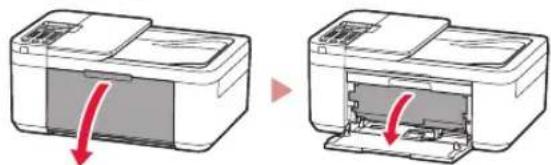
1 Open the front cover, and then open the paper output tray.
natural_image
Two diagrams showing a printer being opened, with red arrows indicating the process (no text or symbols present)
2 Open the paper output cover.
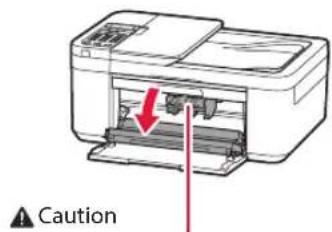
Do not touch the ink cartridge holder until it stops moving.
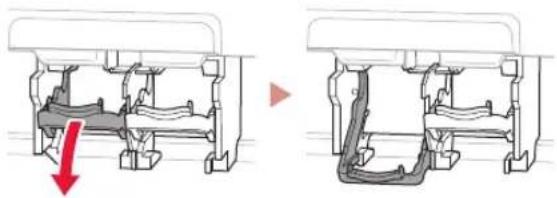
3 Lower the ink cartridge lock lever on the left-hand side.
natural_image
Mechanical assembly diagram showing two views of a vehicle chassis with internal components and a red arrow indicating a downward motion (no text or symbols present)
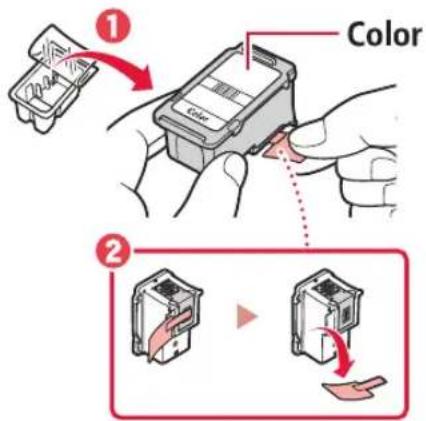
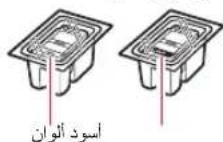
4 Remove the Color ink cartridge from the package and remove the orange tape.
Important
- Do not touch the ink on the orange tape. It could stain your hands or surrounding objects.
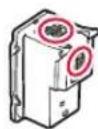
- Do not touch the areas shown in the figure. Otherwise, the printer may not print correctly.
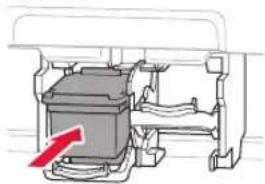
5 Insert the Color ink cartridge in the ink cartridge holder.
natural_image
Mechanical assembly diagram showing a central component with a red arrow indicating direction (no text or symbols present)
Important
Do not bump the ink cartridge. Doing so may cause a malfunction.
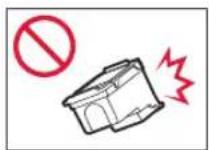
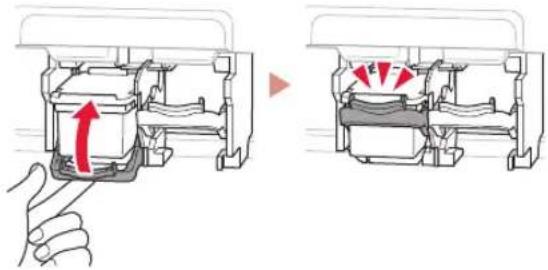
6 Raise the ink cartridge lock lever.
natural_image
Diagram showing a hand pressing a component into a device, with red arrows indicating motion or force direction (no text or symbols present)
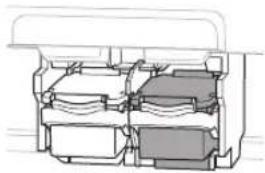
7 Repeat steps 3 to 6 and install the Black ink cartridge on the right-hand side.
natural_image
Technical line drawing of a mechanical component with internal channels (no text or symbols)
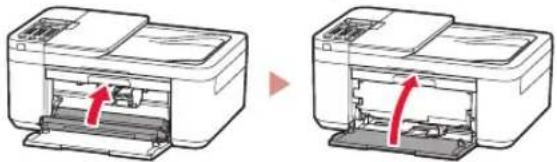
8 Close the paper output tray and the front cover.
natural_image
Two identical diagrams of a printer with red arrows indicating internal structure, no text or symbols present.
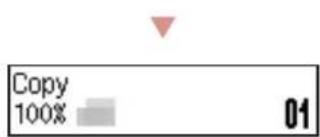
9 Follow the on-screen instructions, and then press the OK button.
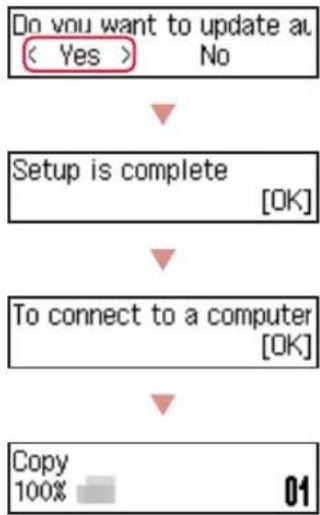
flowchart
graph TD
    A["Do you want to update at < Yes >"] --> B["Setup is complete [OK"]]
    B --> C["To connect to a computer [OK"]]
    C --> D["Copy 100%"]
Select the connection method that best matches how you will use the printer.
• To use the printer without connecting to any other devices
→ Setup is now complete.
To set up a fax, see "Using Fax Function" on page 5.
• To use the printer connecting to a computer or smartphone
→ Proceed to the next page.

If an error message (support code) appears on the screen
Remove all protective ma
Support code 1890 Support code
Check the support code, and then follow the instructions if the displayed code is written below.
1890
Protective material remaining.
→ "2. Removing the Orange Tape" on page 1
168A
Ink cartridges are not installed correctly.
→ "4. Installing the Ink Cartridges" on page 2
For all other cases, refer to the Online Manual.
Setting Up the Printer
What device are you connecting?
Computer Smartphone

Computer and smartphone
5-a
Connecting to a Computer
If you are using multiple computers, perform these steps on each computer.
1 Access the Canon website from your computer.

https://ij.start.canon
2 Select Set Up.
3 Enter your printer's model name and click Go.
4 Click Start, and then select Connecting to a Computer/Smartphone.
• The following steps are for Windows users.
5 Click Download.
6 Run the downloaded file.
- Follow the on-screen instructions. This may take some time.
- To connect to a smartphone as well, see "5-b. Connecting to a Smartphone" on page 5.
- Once you have added your printer, you can print from your Computer. To print, see "Loading Paper" on page 6.
• To set up a fax, see "Using Fax Function" on page 5.

Using the Setup CD-ROM
Double click EasySetup.exe in the CD-ROM, and then continue from step 3. If you do not have an internet connection, open the win folder in the CD-ROM and double click SETUP.exe. This will install the printer driver.
5-b
Connecting to a Smartphone
If you are using multiple smartphones, perform these steps on each smartphone.

1 Install the "Canon PRINT Inkjet/SELPHY" app on your smartphone.

• Search for "Canon PRINT" in App Store, or Google Play.
- Access the Canon website to download the app.

2 Open the installed app, and follow the on-screen instructions in the app to add your printer.
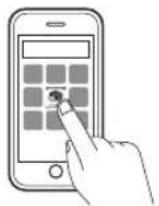
- Once you have added your printer, you can print from your smartphone. To print photos, see "Loading Paper" on page 6.
- To set up a fax, see "Using Fax Function" on page 5.

Using Fax Function
The fax function of your printer requires setup. Refer to FAX Setup Guide.
1 Access the Canon website.

https://ij.start.canon/fax
Loading Paper
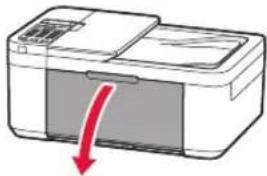
1 Open the front cover.
natural_image
Illustration of a printer with a red arrow indicating compression or disassembly (no text or symbols present)
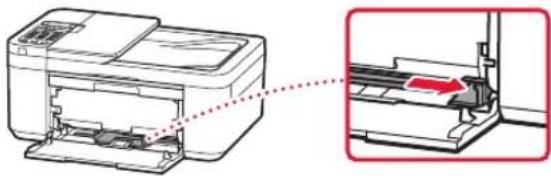
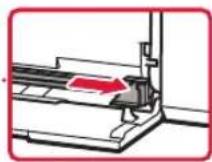
2 Slide the right-hand side paper guide to the far right.
natural_image
Diagram of a printer with an arrow indicating a process, showing internal components and a close-up view (no text or symbols)
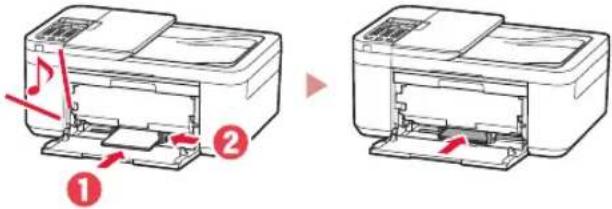
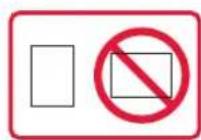
3 Load several sheets of paper with the print side facing down, and slide the paper guide against the edge of the paper stack.
- Push the paper all the way into the cassette.
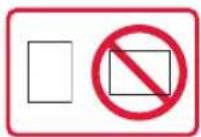
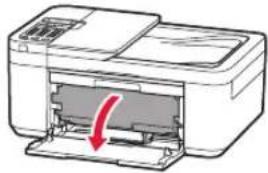
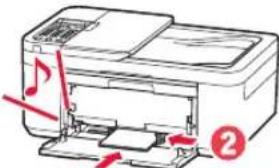
4 Open the paper output tray.
natural_image
Diagram of a printer with a paperclip being inserted, showing internal structure and a red arrow indicating the motion (no text or symbols present)
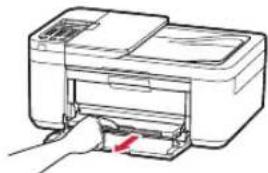
5 Pull out the paper output support of the paper output tray.
natural_image
Line drawing of a printer with a hand inserting a paper into the print (no text or symbols)
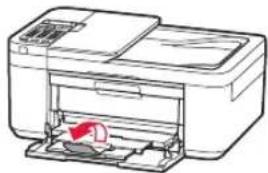
6 Open the output tray extension.
natural_image
Illustration of a printer with a paperclip and paper airplane (no text or symbols)
7 When the following screen appears, press the OK button.
Save the front tray paper
[OK]Next
8 Select the paper size and type, and press the OK button.
If Print Results Are Unsatisfactory
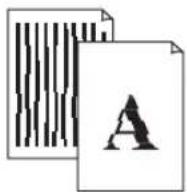
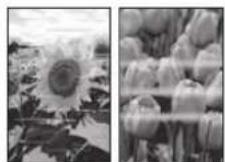
Perform Print Head Alignment if straight lines are crooked or colors are inconsistent, or print results are otherwise not what you expected.
For details, click Maintenance on the Online Manual and refer to If Printing Is Faint or Uneven > Aligning the Print Head. Refer to the back cover for how to access the Online Manual.
■ Lines Are Misaligned
■ Uneven or Streaked Colors
Configuration de l'imprimante

natural_image
Two diagrams showing a printer's internal structure before and after disassembly, with red arrows indicating the process (no text or symbols present)
natural_image
Two identical diagrams of a printer with internal components, showing no text or symbols.
Configuration de l'imprimante
natural_image
Two diagrams showing a printer being opened, with red arrows indicating the process (no text or symbols present)
natural_image
Mechanical assembly diagram showing two views of a vehicle chassis with internal components and a red arrow indicating a downward motion (no text or symbols present)
Important
natural_image
Diagram of a mechanical device with a red arrow indicating direction (no text or symbols present)
Important
natural_image
Diagram showing a hand pressing a component into a device, with red arrows indicating motion or force direction (no text or symbols present)
natural_image
Technical line drawing of a mechanical component or housing assembly (no text or symbols visible)
natural_image
Two identical diagrams of a printer with red arrows indicating internal components, shown from different angles (no text or symbols present)
https://ij.start.canon/fax
natural_image
Illustration of a printer with a red arrow indicating compression or disassembly (no text or symbols present)
natural_image
Diagram of a printer with an arrow indicating a process, showing internal structure and alignment (no text or symbols)
natural_image
Diagram of a printer with a red arrow indicating compression or disassembly (no text or symbols present)
natural_image
Line drawing of a printer with a hand inserting a paper into the print (no text or symbols)
natural_image
Line drawing of a printer with a paperclip and printer slot, no text or symbols present
natural_image
Diagram of a printer with a paperclip inserted, showing internal structure and a red arrow indicating the paper's edge (no text or symbols present)
natural_image
Line drawing of a printer with a hand inserting a paper into the print (no text or symbols)
natural_image
Line drawing of a printer with a paperclip and paperclip (no text or symbols)
Save the front tray paper
[OK]Next
natural_image
Illustration of a printer with a red arrow indicating compression or disassembly (no text or symbols present)
natural_image
Line drawing of a printer with paper feed and paperclip, showing internal structure (no text or symbols)
natural_image
Line drawing of a printer with paper feed and paperclip (no text or symbols)
1
https://ij.start.canon/fax


natural_image
Technical line drawing of a mechanical assembly with multiple compartments (no text or symbols)
natural_image
Two identical line drawings of a printer with internal structure, showing no text or symbols.
Do you want to update at
< Yes > No
Remove all protective ma
Support code 1890 Support code
Setup is complete [OK]

To connect to a computer [OK]

Copy 100% 01
إعداد الطابعة
natural_image
Two identical line drawings of a printer with a paper insert, showing the process before and after (no text or symbols present)
3. تشغيل الطبعة
1. محويات العليا
خراطيش الحبر
specialist الطاقة
كابل الهاتف
natural_image
Two diagrams showing a printer's internal structure before and after disassembly, with red arrows indicating the process (no text or symbols present)
Товарные знаки
- Windows is a trademark or registered trademark of Microsoft Corporation in the U.S. and/or other countries.
- App Store is a trademark of Apple Inc., registered in the U.S. and other countries.
• Google Play is a registered trademark of Google LLC.
Marques


Frequently Asked Questions
Foire aux questions
الأستلة الشائعة