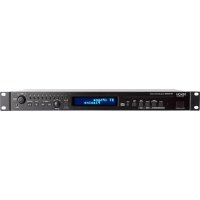
USER MANUAL DN500CB DENON
User Guide (English)
Introduction
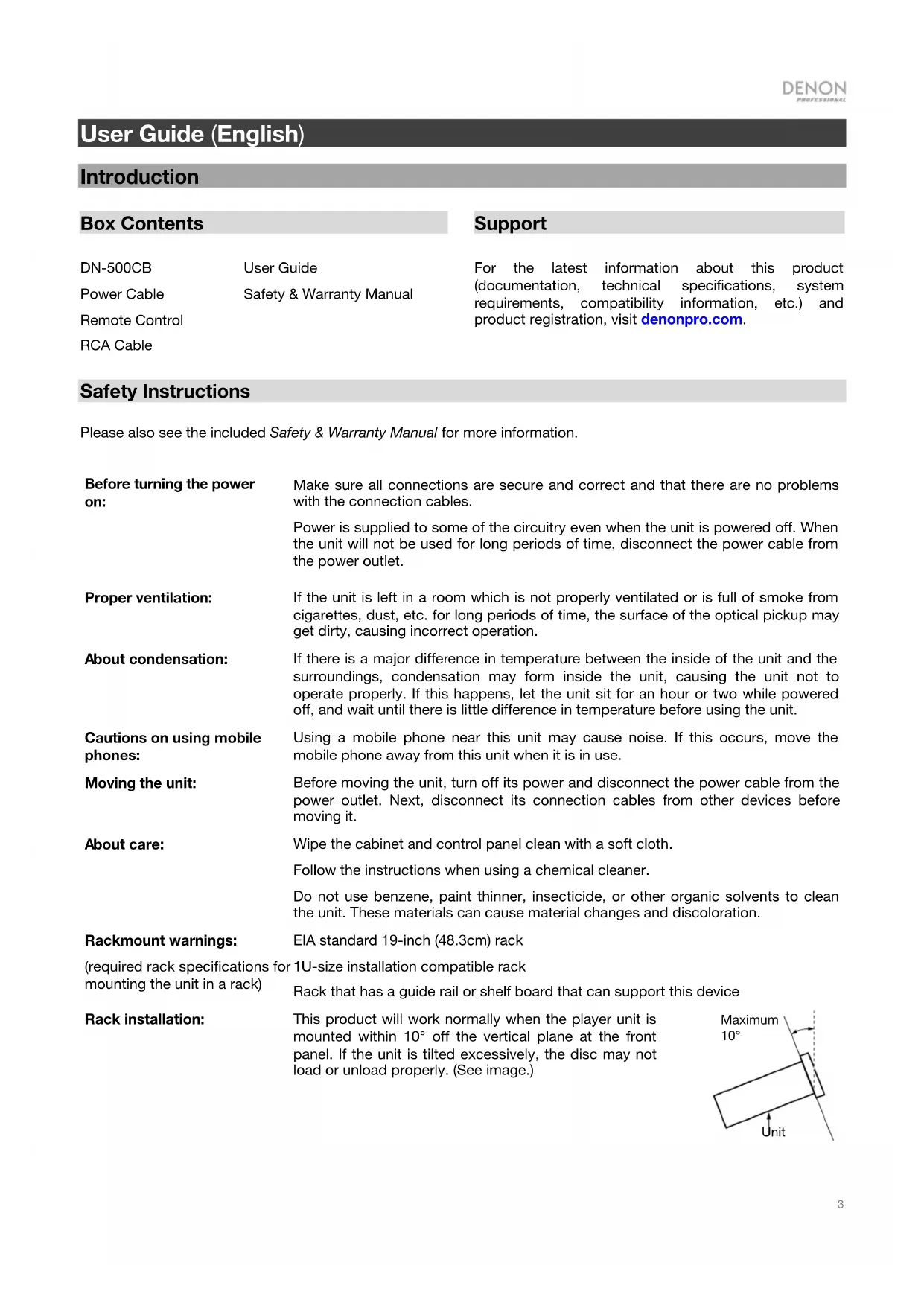
Box Contents
DN-500CB
User Guide
Power Cable
Safety & Warranty Manual
Remote Control
RCA Cable
Support
For the latest information about this product (documentation, technical specifications, system requirements, compatibility information, etc.) and product registration, visit denonpro.com.
Safety Instructions
Please also see the included Safety & Warranty Manual for more information.
| Before turning the power on: | Make sure all connections are secure and correct and that there are no problems with the connection cables.Power is supplied to some of the circuitry even when the unit is powered off. When the unit will not be used for long periods of time, disconnect the power cable from the power outlet. |
| Proper ventilation: | If the unit is left in a room which is not properly ventilated or is full of smoke from cigarettes, dust, etc. for long periods of time, the surface of the optical pickup may get dirty, causing incorrect operation. |
| About condensation: | If there is a major difference in temperature between the inside of the unit and the surroundings, condensation may form inside the unit, causing the unit not to operate properly. If this happens, let the unit sit for an hour or two while powered off, and wait until there is little difference in temperature before using the unit. |
| Cautions on using mobile phones: | Using a mobile phone near this unit may cause noise. If this occurs, move the mobile phone away from this unit when it is in use. |
| Moving the unit: | Before moving the unit, turn off its power and disconnect the power cable from the power outlet. Next, disconnect its connection cables from other devices before moving it. |
| About care: | Wipe the cabinet and control panel clean with a soft cloth.Follow the instructions when using a chemical cleaner.Do not use benzene, paint thinner, insecticide, or other organic solvents to clean the unit. These materials can cause material changes and discoloration. |
Rackmount warnings:
EIA standard 19-inch (48.3cm) rack
(required rack specifications for 1U-size installation compatible rack
mounting the unit in a rack)
Rack that has a guide rail or shelf board that can support this device
Rack installation:
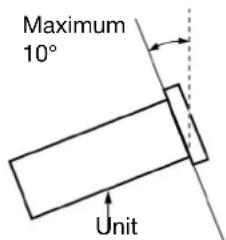
This product will work normally when the player unit is mounted within 10^ off the vertical plane at the front panel. If the unit is tilted excessively, the disc may not load or unload properly. (See image.)
Features
Front Panel
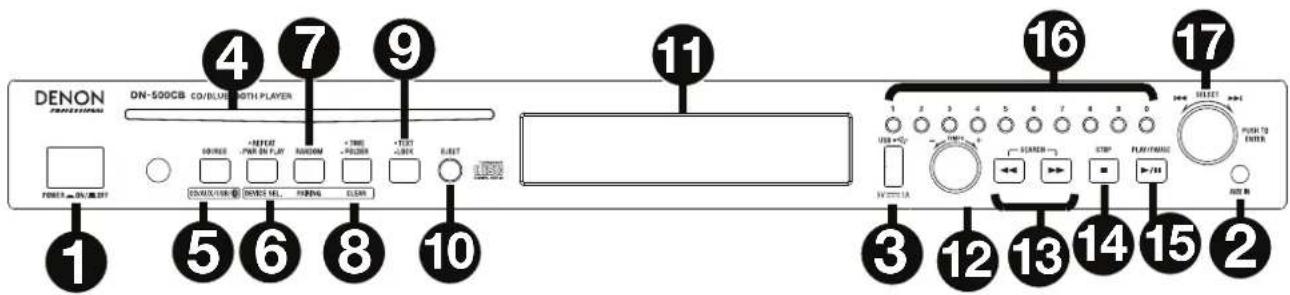
- Power Button: Press this button to turn the unit on or off. Make sure the AC In is properly connected to a power outlet. Do not turn the unit off during media playback—doing so could damage your media.
- Aux In: Connect an optional device to this input using a 1/8" (3.5mm) TRS cable. See Operation > Playing Audio from an External Device for more information.
- USB Port: Connect a mass-storage-class USB device to this port to play audio files. You can also connect your device's charging cable here to charge it.
- CD Slot: Insert a CD into this slot. See Operation > Playing Audio CDs for more information.
- CD/AUX/USB/BT Button: Press this to enter the Media Selection screen. See Operation > Selecting Media Playback Mode for more information.
- Repeat Button: In CD or USB Mode, press this button to cycle through Repeat Playback modes: Repeat One ☐, Repeat Folder, Repeat All ☐ and Repeat Off. See Operation > Playing Audio CDs for more information.
Power-On Play Button: Press and hold this button to turn Power-On Play on or off. See Operation > Additional Functions > Power-On Play for more information.
Device Select: When in Bluetooth mode, press the Device Sel. button. The screen will show "BT Device List". Use the Jog Dial to navigate through the list of Bluetooth devices. When you find one you want to pair to, select it by pressing the Jog Dial.
- Random Button: In CD or USB Mode, press this button to cycle through Random Play Mode ✦, Random Folder Mode and Single Play Mode (⇒).
Pairing: When Bluetooth mode is selected, the device will automatically enter pairing mode. To disconnect from a paired Bluetooth device, press and hold the Pairing button for 1.5 seconds. If you have set a custom Bluetooth pairing password, it is required to input this password before pairing. If a custom password was not set, (factory default: 0000) it is not required to input the password.
- Time Button: In CD or USB Mode, press this button to switch the Time Mode in the display. See Operation > Playing Audio CDs for more information.
Folder: When in USB mode, hold this button to switch to Folder View.
Clear: In Bluetooth mode, press and hold the Clear button to remove all paired devices from the unit's memory (and also unpair from a currently paired device). After the devices have been cleared from the unit's memory, to connect again to the same device, go to your Bluetooth device and select "Unpair" or "Forget the Device", depending on the type of device that you have. You can then select DN-500CB from your list of Bluetooth devices and connect.
- Text Button: In CD or USB Mode, press this button to cycle through the track information on the display: file (USB Mode only), title, album and artist.
Lock Button ☐ Press and hold this button to turn Panel Lock on and off. See Operation > Additional Functions > Panel Lock for more information.
- Eject Button: Press this to eject the CD in the CD slot. To force-eject a CD, power off the unit, then press and hold the eject button while powering the unit back on. To exit force-eject mode, turn the unit off.
-
Display: This screen indicates the unit's current operation. See Display for more information.
-
Tempo Control: In CD or USB Mode, turn the knob to adjust the tempo of the audio playback in a range from -15% to +15%. Press the knob to turn Tempo Lock on and prevent changes to the tempo setting. Press the knob again to turn off Tempo Lock.
- Search Buttons: In CD or USB Mode, press and hold one of these buttons to rewind/fast-forward. The track will rewind/fast-forward at 5 times the normal playback speed.
- Stop Button: Press this button to stop playback. To view current firmware version, hold the stop button while powering on the unit.
- Play/Pause Button: Press this button to start, resume, or pause playback.
- Number Buttons (0–9): In CD Mode, press one of these buttons to directly select a track to play. If the track number is two digits, press the buttons in succession (e.g., 1 then 2 for Track 12).
- Jog Dial: Turn this dial to browse the options shown in the display. Press this dial to confirm a selection. In CD and USB mode this is used to browse and select tracks.
Display
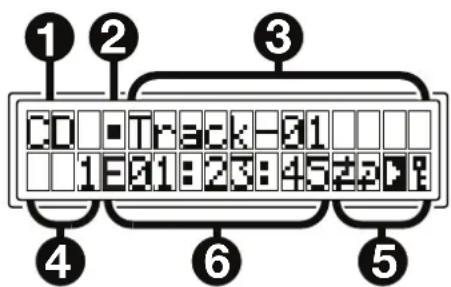
- Media Type: This is the currently selected media: CD, AUX, USB or Bluetooth. See Operation > Selecting Media Playback Mode for more information.
- Playback Operation Icon: This shows various symbols to indicate the current playback status:

Playing

ewinding

Paused

Forwarding

Stopped
-
Information: This shows extra information about the media being played.
-
Track/File Number: This is the number of the track or file.
-
Function Icons: This shows various symbols to indicate these current functions:
Random Playback (see Operation > Playing Audio CDs for more information)
Single Play Mode (see Operation > Playing Audio CDs for more information)
Repeat One (see Operation > Playing Audio CDs for more information)
Repeat All (see Operation > Playing Audio CDs for more information)
Power-On Play (see Operation > Additional Functions > Power-On Play for more information)
Panel Lock (see Operation > Additional Functions > Panel Lock for more information)
T_c Tempo Control (see Features > Front Panel > Tempo control more information)
T_L Tempo Lock (see Features > Front Panel > Tempo Contro I for more information)
- Time: In CD and USB Mode, this displays how much time has elapsed, the remaining time, total elapsed time, or the total remaining time (for CD mode only) shown as hh:mm:ss (hours, minutes, and seconds).
See Operation > Playing Audio CDs for more information.
Rear Panel
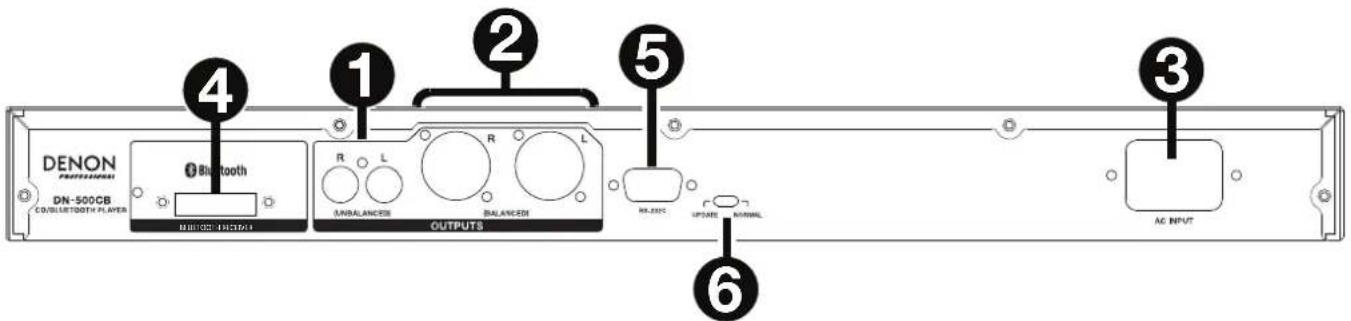
- Outputs (unbalanced RCA): These outputs send the audio signals from a CD, USB device (mass storage class), and device connected to the Aux In. Use RCA cables to connect these outputs to external speakers, sound system, etc. See Setup for more information.
- Outputs (balanced XLR): These outputs send the audio signals from a CD, USB device (mass storage class), and device connected to the Aux In. Use XLR cables to connect these outputs to external speakers, sound system, etc. See Setup for more information.
- AC In: Use the included power cable to connect this input to a power outlet. See Setup for more information.
- Bluetooth Receiver: This is the built-in antenna used to receive a signal from a Bluetooth device.
- Remote Input: This input lets you connect a host device (usually a computer) to DN-500CB. You can use the host device to control DN-500CB via commands sent from it (using RS-232C serial communication).
Note: Go to denonpro.com to access the serial protocol guide for more information.
- Operation Switch: For standard playback, leave this switch at the "Normal" position. If updating the unit, set this switch to the "Update" position.
Setup
Important: Connect all cables securely and properly (with stereo cables: left with left, right with right), and do not bundle them with the power cable.
- Use XLR cables or a stereo RCA cable to connect the Outputs (balanced or unbalanced) to the analog inputs of your external receiver, amp, powered monitors, etc.
- After completing all the connections, use the included power cable to connect the AC In to a power outlet.
Example:
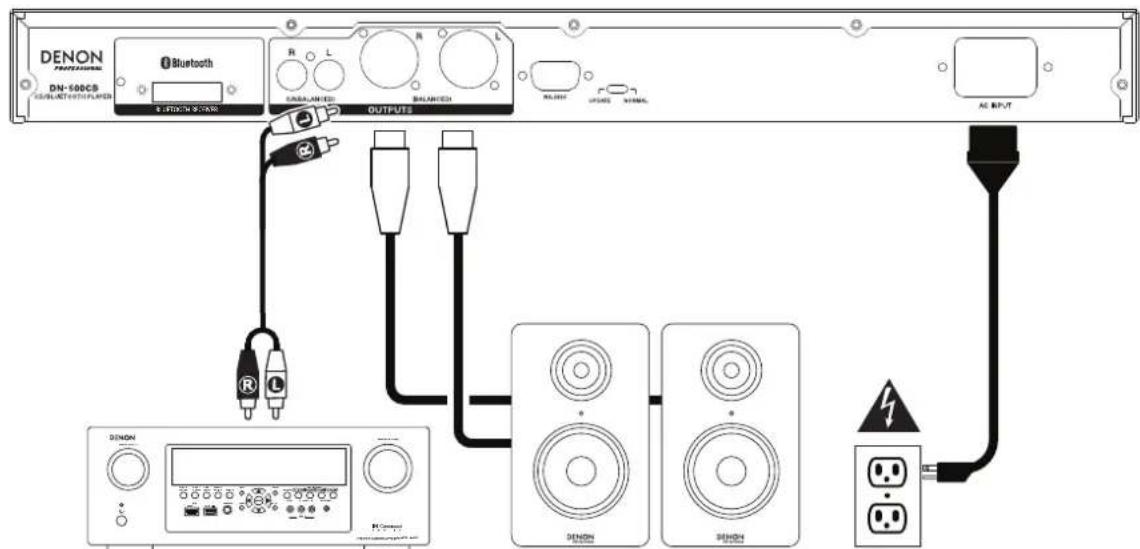
Receiver, amp, etc. Power
Powered Monitors
Operation
Remote Control
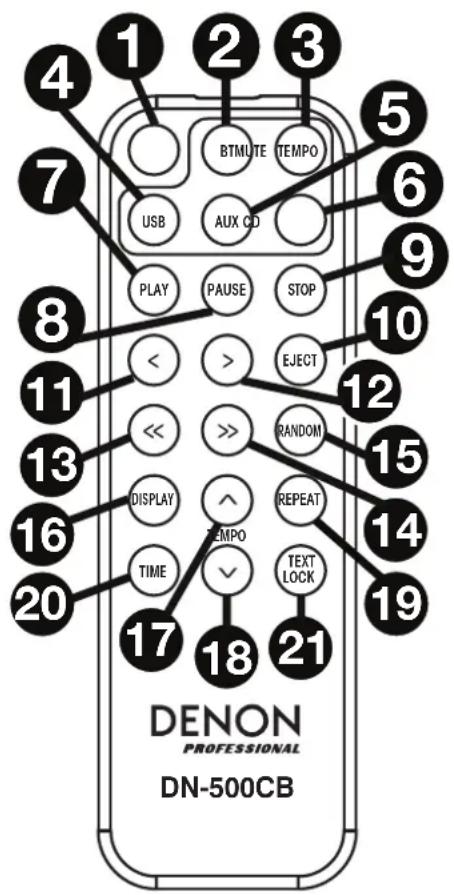
- Mute: Disables the sound from the audio outputs.
- BT: Switch to Bluetooth mode.
- Tempo Menu: Press to select the tempo function for adjustment.
Note: Tempo control will only function in CD and USB modes.
- USB: Switch to USB Mode.
- AUX: Switch to Aux Mode.
- CD: Switch to CD Mode.
- Play: Plays audio from a CD, USB flash drive, or Bluetooth device.
- Pause: Pause audio from a CD, USB flash drive, or Bluetooth device.
- Stop: Stops audio from a CD or USB flash drive. In Bluetooth mode, this button pauses audio.
- Eject: Ejects or inserts a CD.
- Previous Track: Goes to the previous CD or USB track.
- Next Track: Advances to the next CD or USB track.
- Search Backward: Hold to rewind through a CD or USB track.
- Search Forward: Hold to fast forward through a CD or USB track.
- Random: In CD or USB Mode, press this button to cycle through Random Play Mode ✝, Random Folder Mode and Single Play Mode (⇒).
-
Display: Press and release the button to adjust the display brightness. Press and hold the button to open the options menu. Hold the button again to close the option menu.
-
Tempo Up: Adjust the tempo up.
-
Tempo Down: Adjust the tempo down.
-
Repeat: In CD or USB Mode, press this button to cycle through Repeat Playback modes: Repeat One, Repeat Folder, Repeat All and Repeat Off.
-
Time: In CD or USB Mode, press this button to cycle the time in the display through Time Elapsed, Time Remaining, Total Elapsed Time, or Total Time Remaining (for CD Mode only).
-
Text/Lock: In CD or USB Mode, press this button to cycle through the track information on the display: file (USB Mode only), title, album and artist. Press and hold to turn Panel Lock on and off.
Battery Usage
Important: Before using the remote control for the first time, pull the insulation sheet out from the battery compartment.
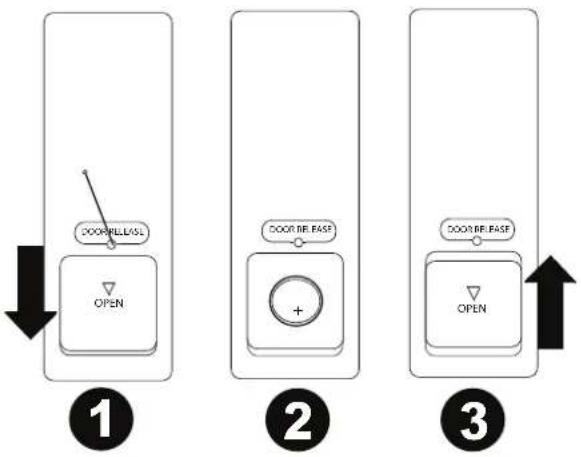
To replace the battery:
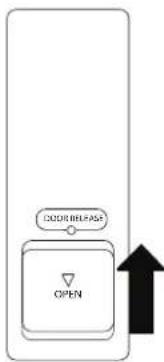
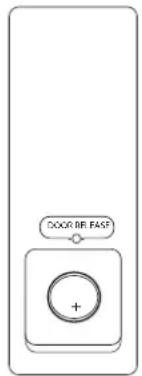
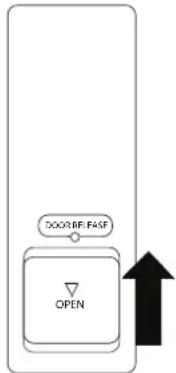
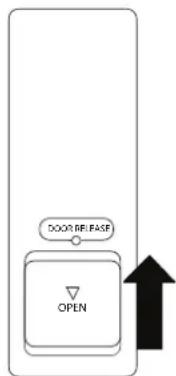
- On the back of the remote control, put a pin into the door release hole and then slide the door release open.
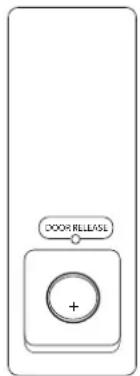
- Pull out the old lithium battery from the battery case and insert a new one. Place the battery so that the positive (+) side faces upward.
- Place the battery case carefully into the compartment so the edges are in the grooves and then slide the battery case to its original position.
Important: Misuse of the lithium battery can result in heat build-up, ignition, or rupture. Bear in mind the following points when using or replacing batteries:
• The supplied battery is for testing the functionality of the remote controller.
• Use a 3V CR2032 lithium battery.
- Never recharge the battery. Do not handle the battery roughly or disassemble the battery.
- When replacing the battery, place it with its polarities (+ and -) facing the correct directions.
- Do not leave the battery in a place subject to high temperature or direct sunlight.
- Keep the battery in a place beyond the reach of infants or children. If a battery is swallowed, consult a physician immediately.
- If electrolyte has leaked, discard the battery immediately. Be careful when handling it as the electrolyte can burn your skin or clothes. If the electrolyte touches your skin or clothes, immediately wash with tap water and consult a physician.
- Before discarding a battery, insulate it with tape, etc. and dispose of it in a place without fire, by following the directions or regulations laid down by the local authorities in the area of its disposal.
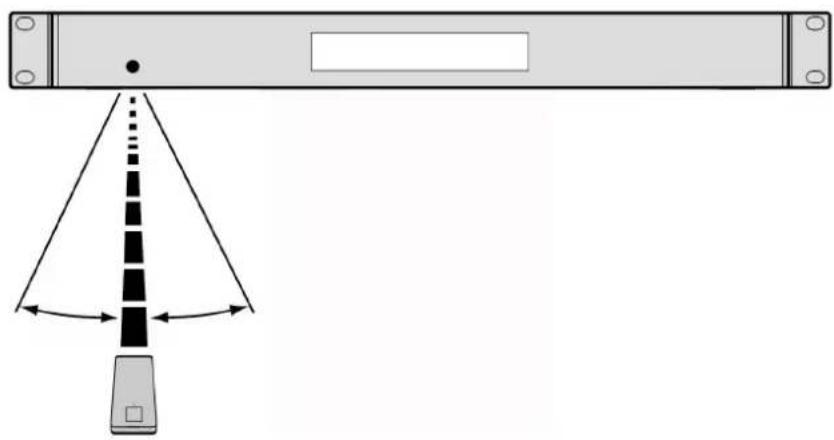
Operating Range
Point the remote control at the IR sensor when operating it.
Note: If the remote control sensor is exposed to direct sunlight, strong artificial light (like from an interverter-type fluorescent lamp), or infrared light, the unit or remote control may not function properly.
natural_image
Diagram showing a device with a cone and arrow indicating direction, no text or symbols present
To cycle through the available options, press the CD/AUX/USB/BT button.
- CD: audio CD, CD-DA, CD-ROM, WAV, MP3, or CD with audio files (CDR) (see Playing Audio CDs)
- Aux: device connected to Aux In (see Playing Audio from an External Device)
• USB: USB device (mass storage class) (see Playing Audio Files on a USB Flash Drive)
- Bluetooth: Bluetooth device (see Playing Audio from a Bluetooth Device)
Playing Audio CDs
To play audio CDs:
- If the unit is off, press the Power button to power it on.
Important: Do not insert a CD when the power is off. Doing so may damage the unit.
- Insert a CD into the CD slot. (Hold the edges of the CD without touching the recorded surface. Be careful not to trap your fingers when the disc is drawn into the unit.)
- Select CD as the media type (described in Selecting the Media Playback Mode).
The CD will start playing automatically when Power-On Play mode is active.
In CD Mode, you can perform any of the following operations:
- To start, resume, or pause playback, press the Play/Pause button.
- To stop playback, press the Stop button.
-
To rewind or fast-forward through the track, press and hold one of the Search buttons. The track will rewind/fast-forward at 5 times the normal playback speed. To resume playback, release the button.
• To skip directly to a track:
-
If in Pause, Stop, or Play mode, press one of the Number buttons (0–9) to enter the desired track number. If the track number is two digits, press the buttons in succession (e.g., 1 then 2 for Track 12). Alternatively, turn the Jog Dial to select a track and press the Jog Dial to load the track.
-
If the previous track was playing, playback will automatically begin once a new track is selected. If the track was paused or stopped, press the Play/Pause button to resume playback.
-
To select a Repeat Playback mode, press the Repeat button. It will cycle through One (the same track will repeat indefinitely), Repeat All (the list of all tracks will repeat indefinitely), and Repeat Off (no tracks will repeat).
- To select the Play Mode, press the Random button. It will cycle through Random (the list of all tracks will play in a random order [for up to 256 tracks]), and Single Play () (the current track will play until its end and then stop.
- To change the Time Mode in the display, press the Time button. It will cycle through Elapsed (how much time has elapsed of the current track), Remaining (how much time remains of the current track), Total Elapsed Time (how much time has elapsed of all remaining tracks), and Total Remaining (how much time remains of all remaining tracks. This applies only to CDs.)
- To eject a CD, press the Eject button when the unit is stopped or paused. Ejecting will appear in the display while ejecting the CD. No Disc will appear when there is no disc in the CD slot.
Important: When powering on the unit, hold the Eject button to engage Force Eject Mode.
Playing Audio Files on a CD
To play Audio files on a CD:
- If the unit is off, press the Power button to power it on.
Important: Do not insert a CD when the power is off. Doing so may damage the unit. When powering on the unit, hold the Eject button to engage Force Eject Mode.
- Insert a CD into the CD slot. (Hold the edges of the CD without touching the recorded surface. Be careful not to trap your fingers when the disc is drawn into the unit.)
- Select CD as your desired media type: (described in Selecting the Media Playback Mode).
- Select an audio file:
• To move through audio files, turn the Jog Dial on the unit.
- Press one of the Number buttons (0–9) to enter the desired track number. If the track number is two digits, press the buttons in succession (e.g., 1 then 2 for Track 12).
In CD Mode, you can perform any of the following operations:
• To start, resume, or pause playback, press the Play/Pause button.
• To stop playback, press the Stop button.
- To rewind or fast-forward through the track, press and hold one of the Search buttons. The track will rewind/fast-forward at 5 times the normal playback speed. To resume playback, release the button.
- To select a Repeat Playback mode, press the Repeat button. It will cycle through Repeat One (the same track will repeat indefinitely), Repeat Folder (the tracks in the current folder will repeat indefinitely), Repeat All (the list of all tracks will repeat indefinitely) and Repeat Off (no tracks will repeat).
- To select the Play Mode, press the Random button. It will cycle through Random (the tracks will play in a random order [for up to 256 tracks]), Random Folder (the tracks in the current folder will play in a random order) and Single Play () (the current track will play until its end and then stop).
- To change the Time Mode in the display, press the Time button. It will cycle through Elapsed (how much time has elapsed of the current track), Remaining (how much time remains of the current track), and Total Remaining (how much time remains for the total audio CD).
- To eject a CD, press the Eject button. Ejecting will appear in the display while ejecting the CD. No Disc will appear when there is no disc in the CD slot.
Playing Audio Files on a USB Flash Drive
To play audio files on a USB flash drive:
- If the unit is off, press the Power button to power it on.
- Connect your USB device (mass storage class) to the USB Port.
- Select USB as your desired media type (described in Selecting the Media Playback Mode).
-
Select an audio file:
-
When a USB flash drive is first connected, files on the root directory will be shown. Press and hold the Folder button to open to the first folder. All files within that folder will appear first. All other playable content on the flash drive will appear after. To access another folder, press and hold the Folder button again.
• To move through audio files, turn the Jog Dial on the unit.
- Press one of the Number buttons (0–9) to enter the desired track number. If the track number is two digits, press the buttons in succession (e.g., 1 then 2 for Track 12).
In USB Mode, you can perform any of the following operations:
- To start, resume, or pause playback, press the Play/Pause button.
• To stop playback, press the Stop button.
- To rewind or fast-forward through the track, press and hold one of the Search buttons. The track will rewind/fast-forward at 5 times the normal playback speed. To resume playback, release the button.
- To change the view mode, press the Folder/Time button.
- To select another folder or audio file, follow the steps described in Step 4 above.
- To show different track information in the display, press the Text button. It will cycle through the file name, title, album and artist.
- To select a Repeat Playback mode, press the Repeat button. It will cycle through Repeat One (the same track will repeat indefinitely), Repeat Folder (the tracks in the current folder will repeat indefinitely), Repeat All (the list of all tracks will repeat indefinitely) and Repeat Off (no tracks will repeat).
- To select the Play Mode, press the Random button. It will cycle through Random (the list of all tracks will play in a random order [for up to 256 tracks]), Random Folder (the tracks in the current folder will play in a random order) and Single Play () (the current track will play until its end and then stop.
- To change the Time Mode in the display, press the Time button. It will cycle through Elapsed (how much time has elapsed of the current track) and Remaining (how much time remains of the current track).
- To remove a USB device, gently remove it from the USB Port when it is not playing. (Removing a USB device while it is playing can damage it.)
Playing Audio from a Bluetooth Device
To play Bluetooth Tracks:
- If the unit is off, press the Power button to power it on.
- Select Bluetooth (BT) as the media type (described in Selecting the Media Playback Mode).
- Navigate to your Bluetooth device's setup screen, find "DN-500CB" and connect.
Note: If your Bluetooth device prompts for a pairing code, enter 0000.
In Bluetooth Mode, you can perform any of the following operations:
- To start, resume, or pause playback, press the Play/Pause button.
• To pause playback, press the Stop button.
- To remove the list of paired devices and disconnect from any currently paired device, press and hold the Clear button to remove all paired devices from the unit's memory (and also unpair from a currently paired device). After the devices have been cleared from the unit's memory, to connect again to the same device, go to your Bluetooth device and select "Unpair" or "Forget the Device", depending on the type of device that you have. You can then select DN-500CB from your list of Bluetooth devices and connect.
Additional Functions
Panel Lock
Use the Panel Lock feature to prevent accidental changes to the unit. When Panel Lock is activated, all buttons except for the Power button and Text/Lock button are locked/disabled on the unit. (The remote control will still function normally.)
To activate or deactivate Panel Lock, press and hold the Text/Lock button.
- When activated, P-Lock ON and E will appear in the display.
- When deactivated, P-Lock OFF will appear in the display, and I will disappear.
Power-On Play
Use the Power-On Play feature to set the unit to automatically start playback of the CD in the drive.
To activate or deactivate Power-On Play, press and hold the Pwr On Play button.
- When activated, P-OnPlay On will appear on the display.
- When deactivated, P-OnPlay Off will disappear on the display.
Playing Audio from an External Device
To play audio on an external device (e.g., smartphone, computer, portable music player, etc.) connected to the Aux In:
- If the unit is off, press the Power button to power it on.
- Connect the 1/8" (3.5 mm) stereo/headphone output of your external device to the Aux In.
- Select Aux as the media type (described in Selecting the Media Playback Mode). If your external device is connected, AUX Connected will appear in the display. If your external device is not connected, AUX Disconnect will appear in the display.
- To start playback, press the Play button on your external device.
Important: All buttons except for Power, CD/AUX/USB/BT, and Eject will be locked/disabled.
To access the Menu settings, press and hold the Jog dial (or press and hold the Display button on the remote). Turn the Jog dial or use the < and > buttons on the remote to navigate through the menu. Press the Jog dial to select an option or press the Play button on the remote. Press the Pause button on the remote to return to the previous Menu option, exit out of the menu, or wait a few seconds and the unit will automatically exit out of the Menu settings. The Menu settings seen are:
• Baud Rate (options are 9600, 38400 and 115,200 b/s)
- Flash Update (starts the process to update the unit. See denonpro.com to check if there are any available updates)
• System Version (displays the current firmware version)
• System Reset (resets the unit to factory default settings)
USB Devices
When playing audio files on a USB device, note the following:
- DN-500CB does not support USB hubs or USB extension cables.
- DN-500CB supports USB devices that are mass storage class or compatible with MTP.
• DN-500CB supports FAT16 or FAT32 file systems only.
- You can have up to 999 folders and up to 8 folder levels, including the root directory.
- You can have up to 999 audio files. If the USB device contains more than 1000 files, some audio files may not play or appear correctly.
- File names, folder names, and text characters can use up to 255 characters. Only uppercase letters, lowercase letters, numbers, and symbols can be displayed. Japanese file names will not be shown. File names that begin with a “.” will not be shown.
• Copyright-protected files might not play properly and/or may appear as Unknown File.
When playing audio files on a USB device, DN-500CB supports the following tag data:
• ID3 tags: Version 1.x and 2.x
• M4A (without DRM protection)
• MP2
- for MP3 files:
• Sample rate: 44.1 kHz
• Bit rate: 32 kbps to 320 kbps
- Format: MPEG1 Audio Layer 3
- File extension: .mp3
- for WAV files:
• Sample rate: 44.1/48 kHz
- Bit rate: 16/24 bit
- File extension: .wav
• WMA (without DRM protection)
Audio File Playback Order
When playing audio files stored within multiple folders, the playback order of each folder is automatically set when the unit reads the media. The files in each folder will play in the same order in which they were added to the media. (This order may appear differently on your computer and/or in your software than it does on the unit.)
Troubleshooting
If you encounter a problem, do the following:
- Make sure all cables, devices, antennae, and/or media are properly and securely connected.
- Make sure you are using the unit as described in this User Guide.
- Make sure your other devices or media are working properly.
- If you believe the unit is not working properly, check the following table for your problem and solution.
| Problem | Solution | Please |
| Power does not turn on. Make sure the unit is connected to a power outlet. | Setup |
| CD cannot be inserted into CD slot. | Make sure the unit is connected to a power outlet and that it is powered on.Press the Eject button to make sure a CD is not already in the CD slot. | Setup |
| No Disc appears even when a CD is inserted. | Press the Eject button to eject the CD and insert it again. | Operation > Playing Audio CDs |
| A specific section of the CD does not play properly. |
| Playback does not start even after pressing the Play button. | Clean the CD with a dry cloth or commercial CD cleaner.Insert a different CD. | Other Information > CDs |
| The unit does not produce any sound, or the sound is distorted. | Make sure all cable, device, or media connections are secure and correct.Make sure none of the cables are damaged.Make sure the settings on your amplifier,mixer, etc. are correct. | Setup |
| The unit cannot play a CD-R. Make sure the CD-R has been finalized properly.Make sure the CD-R is of good quality.Clean the CD with a dry cloth or commercial CD cleaner.Make sure the CD-R contains MP3 files. The unit cannot play other files on CD-R. | Other Information > CDs |
| The CD will not eject. | Press and hold the Eject button while turning on the unit. | Operation > Playing Audio CDs |
| No Device appears even when a USB device is inserted. | Disconnect and reconnect the USB device to make sure it is securely inserted.Make sure the USB device is of a mass storage class or compatible with MTP.Make sure the USB device is formatted using a FAT16 or FAT32 file system.Do not use a USB hub or USB extension cable.The unit does not supply power to USB devices.If your USB device requires a power source, connect it to one.Not all USB devices are guaranteed to work; some may not be recognized. | Other Information >USB Devices |
| Files on a USB device do not appear. | Make sure the files are of a supported file format. Files that are not supported by this unit will not appear.Make sure the USB device uses a folder structure that the unit supports: up to 999 folders (up to 8 folder levels, including the root) and up to 999 files.If your USB device is partitioned, make sure the files are in the first partition. The unit will not show other partitions. | Operation >Playing Audio Files on a USB Flash Drive |
| Files on a USB device cannot play. | Make sure the files are of a supported file format. Files that are not supported by this unit will not appear.Make sure the files are not copyright-protected. The unit cannot play copyright-protected files. | Operation >Playing Audio Files on a USB Flash Drive |
| File names do not appear properly. | Make sure the files are using only supported characters. Characters that are not supported will be replaced with a “.” | Other Information >USB Devices |
2
3
natural_image
Diagram of a device with a vertical beam and a triangular pointer, showing directional arrows (no text or symbols)
Funcionamiento
Assistance technique
natural_image
Diagram of a device with a vertical bar and a triangular pointer, showing directional arrows (no text or symbols)
Fonctionnement
flowchart
graph TD
    A["DOWN"] --> B["OPEN"]
    B --> C["DOWN IF FAST"]
1
2
3
natural_image
Diagram of a device with a vertical cone and directional arrows indicating motion or force (no text or symbols)
Operazione
flowchart
graph TD
    A["DOOR RELEASE"] --> B["OPEN"]
    B --> C["Down Arrow"]
1
2
3
natural_image
Diagram of a device with a vertical bar and a pointer, showing directional arrows (no text or symbols)
Betrieb
• Abtastrate: 44,1/48 kHz
- Bitrate: 16/24 bit
Technical Specifications
| Digital Audio System |
| System | Media player |
| Compatible Media | CD, USB device (mass storage class), Bluetooth audio |
| Supported Device Formats, File Systems | CD: CD-DA, CD-ROM (ISO9660)USB: FAT16, FAT32 |
| Supported File Formats(in CD or USB Mode) | M4A (without DRM protection) |
| MP2 |
| MP3 Sample rate: 44.1 kHzBit rate: 64 kbps to 320 kbps and VBRFormat: MPEG1 Audio Layer 3 |
| WAV Sample rate: 44.1 kHzBit rate: 16-bit |
| WMA (without DRM protection) |
| Number of Channels | 1 (stereo), 2 (mono) |
| Audio Frequency Range | 20 Hz – 20 kHz (±1.0 dB) |
| Signal-to-Noise Ratio | >95 dB (A-weighted) |
| Total Harmonic Distortion | < 0.01% |
| Dynamic Range | >85 dB |
| Channel Separation | >80 dB |
| Bluetooth | Bluetooth Version: |
| Output Class: Class 2 |
| Supported Bluetooth Profiles: A2DP, AVRCP, HFP, SPP, BAS, DIS, FMP, HRP, HRS, HTP, HTS, IAS, LLS |
| Bluetooth Range | 49 ft.15 m |
| Outputs |
| Analog Out L/R(unbalanced) | Type: RCA terminalLoad impedance: >10 kΩOutput level: 2 Vrms / at 10 kΩ load |
| Analog Out L/R (balanced) | Type: XLRLoad impedance: >10 kΩOutput level: +4 dBu |
| Inputs |
| Aux In Type: 1/8” (3.5mm) | TRS terminalInput impedance: >10 kΩMaximum input level: 1 Vrms |
| Other / General |
| File/Folder Limits | Storage capacity: up to 2 TBFile size: up to 2 GBFile name length: up to 255 charactersNumber of files: up to 999 (for 1 folder)Number of folders: up to 999 folders (including the root directory)Number of folder levels: up to 8 (including the root directory)Folder name length: up to 255 characters |
| Power | 100-240 V AC, 50/60 HzPower consumption: 19 W |
| Environmental Conditions | Operating temperature: 41 – 95 °F (5 – 35 °C)Operating humidity: 25 – 85%, no condensation |
| Dimensions(width x depth x height) | 9.4” x 1” x 1.7” / 240 x 482 x 43.6 mm (with rack ears)9.4” x 16.9” x 1.7” / 240 x 430 x 43.6 mm (without rack ears) |
| Weight | 6.3 lbs. / 2.9 kg |
Trademarks & Licenses
Denon is a trademark of D&M Holdings Inc., registered in the U.S. and other countries. Denon Professional products are produced by inMusic Brands, Inc. All other product names, company names, trademarks, or trade names are those of their respective owners.
denonpro.com