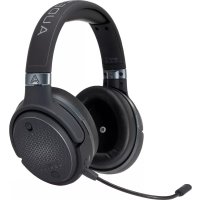
Mobius Universe - Headphones Audeze - Free user manual and instructions
Find the device manual for free Mobius Universe Audeze in PDF.


| Product Type | 3D immersive gaming headset |
| Brand | Audeze |
| Model | Mobius Universe |
| Power | Rechargeable battery via USB (1A charger) |
| Connectivity | USB-C, 3.5mm AUX, Bluetooth (SBC, AAC, LDAC) |
| Main Features | 3D audio (manual, automatic, off), built-in balanced amplifier, detachable microphone, equalizer with 7 presets |
| Controls | Power button, 3D button, headphone volume wheel, microphone volume wheel, microphone mute switch |
| Maintenance and cleaning | Store in a dry environment, avoid exposure to liquids, store in a protective case |
| Safety | Use a 1A charger for charging, do not expose to moisture |
| Spare parts and repairability | Not specified |
| General information | Headset designed for gamers, compatible with PC, PS5, Bluetooth devices |
Frequently Asked Questions - Mobius Universe Audeze
User questions about Mobius Universe Audeze
0 question about this device. Answer the ones you know or ask your own.
Ask a new question about this device
Download the instructions for your Headphones in PDF format for free! Find your manual Mobius Universe - Audeze and take your electronic device back in hand. On this page are published all the documents necessary for the use of your device. Mobius Universe by Audeze.
USER MANUAL Mobius Universe Audeze
The Traveler's Handbook
to the Mobius Universe
May your adventures be infinite and your imagination never ending.
INTRODUCTION
NOTICE: BEFORE ANYTHING ELSE, PLEASE READ THE MOBIUS SAFETY AND WARRANTY INFO! BE RESPONSIBLE, AUDIO ADVENTURERS!
You've found the Audeze Mobius Immersive, Cinematic 3D Headphone!
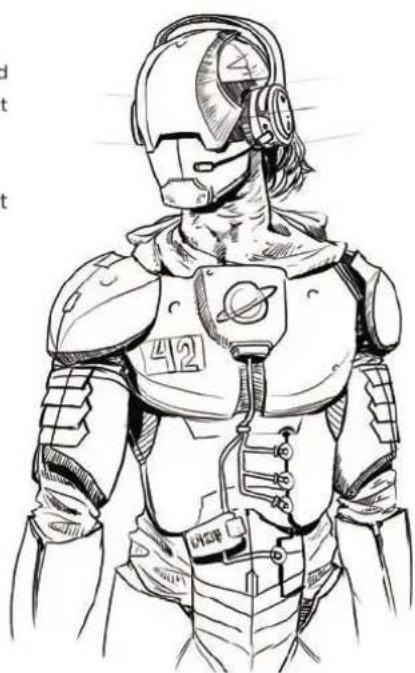
Don't be intimidated. Don't panic. This two button, two wheel, planar magnetic, Waves Nx head-tracking enabled pair of cans represents the most technologically advanced head accessory on the market. Some might call it a fancy space hat, but this is Mobius. And with your Mobius, we plan on taking you to places within audio far beyond anything you've ever known. So, take a deep breath, shake out those jitters, it's time to journey!
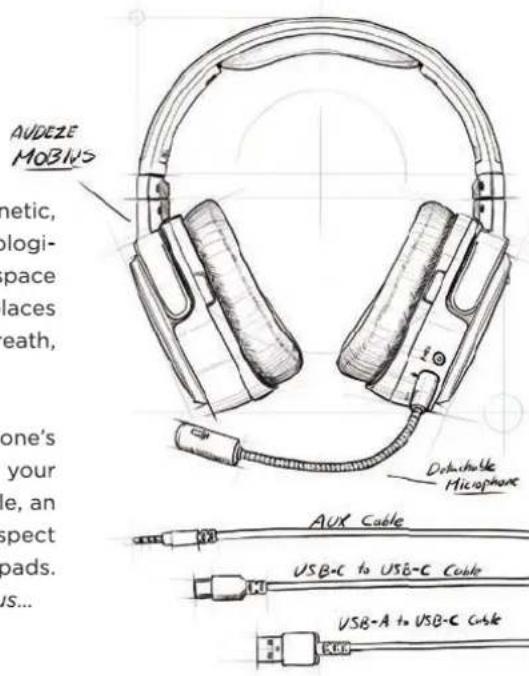
When embarking on a quest of this magnitude, it is of course wise to check one's inventory. Who leaves with nothing, after all? Such folly! Included in your Mobius pack, you'll find: a USB-A to USB-C cable, a USB-C to USB-C cable, an Analog 3.5mm cable, and a Detachable Microphone. While you're at it, inspect the design of Mobius, its flexibility, its durability, its memory foam pads.
Note: We recommend not twisting other headphones like you would Mobius...

WIRED CONNECTION - USB
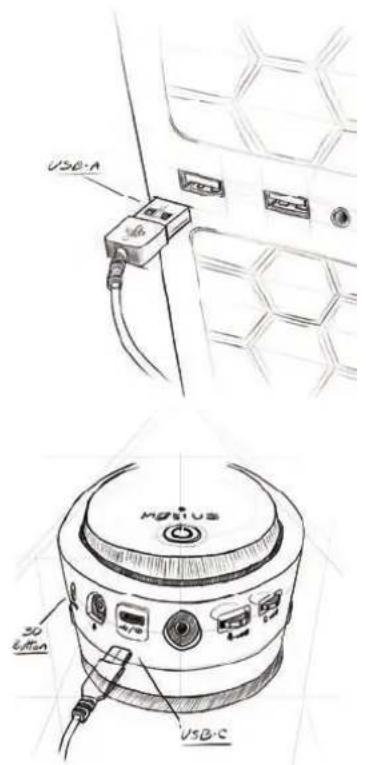
Let's begin: Mobius can be used with a wired (USB and AUX) or wireless (Bluetooth) connection. We'll begin with a wired USB connection as your likely primary connection. From your inventory of goodies, identify your USB-A to USB-C Cable to connect your Mobius to your PC (or PS4 or any appropriate USB enabled device). Mobius' USB-C input is on the bottom side of the left ear-cup. Additionally, make sure Mobius is set as the input/output device accordingly and lower your volume as a responsible precaution. Orient yourself to a desired listening positon and press the 3D button located on the bottom, front side of the left ear-cup and listen for the "Centered" confirmation prompt. Wait... you didn't hear the prompt? Oh, we forgot to turn Mobius on... You'll however notice that the LED on the left ear-cup of Mobius is illuminated red to signify that even though Mobius is off, it is receiving charge. We totally meant to do that...
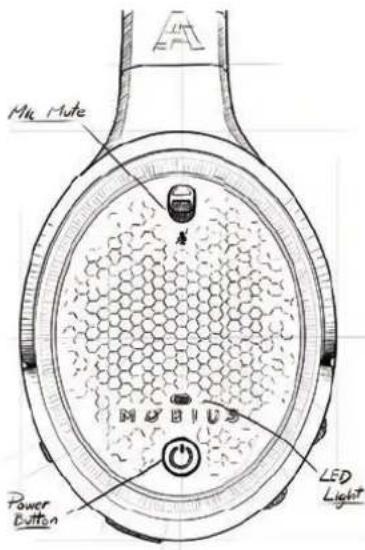
We should probably turn Mobius on... The power button is located on the outer face of the left ear-cup of Mobius along with all other controls we have and will mention. Press and hold the power button for 3 seconds so that the Mobius narrator can cheerfully confirm "Power On." To give your Mobius some rest, press and hold the power button for 5 seconds to power down and Mobius' narrator will confirm "Power Off." Additionally, if no cables or Bluetooth sources are connected, Mobius will efficiently power itself off after 3 minutes to conserve battery.
CHARGING
To charge using USB, Mobius supports 1 Amp chargers and takes approximately 3 hours to fully charge when Mobius is powered off. When plugging Mobius into a wall-wart, make sure the red LED is on to indicate that charging is in effect. Some older wall-warts and USB Hubs might not provide enough power to charge Mobius. Instead, please use a 1 Amp charger. When Mobius' battery is low, Mobius will attempt to charge using the USB cable simultaneously to keep you in the action. If you have a USB Hub or extender, Mobius will work equally well with these, but once again, some USB hubs might not charge Mobius. Please check your hub specs.
WIRED CONNECTION - ANALOG (3.5 MM)
If needed, complete a wired connection with your Analog AUX cable in the same way you connected via USB previously. The Analog input exists on the bottom side of the left ear-cup. Make sure you don't plug your cable into the microphone input. You wouldn't be the first one to make that mistake. Mobius has a balanced amplifier built-in, so you do not need any external amps to power this star of a headphone. Additionally, some PC's might have a separate connection input for headphone and microphone. In this case, obtain a splitter for your inventory to split the TRRS connection.
WIRELESS CONNECTION
For a Bluetooth connection, double press the power button to hear the narrator's "Pairing" prompt. While Mobius searches for your device of choice, select "Audeze Mobius 3D BT" in your device's Bluetooth list. The narrator will wisely confirm "Paired." Manually switch from USB/AUX mode to Bluetooth on your Mobius by double pressing the 3D button to cycle between USB, AUX, and Bluetooth voice prompts respectively.
Mobius supports three types of codecs within Bluetooth: SBC, AAC, and LDAC. Mobius uses AAC to connect to iDevices. Newer Android devices will connect utilizing LDAC. If neither codec is available for your device of choice, Mobius will use SBC. After all, you'll need adaptability for your journeys ahead with Mobius.
CONNECTION PRIORITY
When multiple connections are active, the AUX (Analog cable) has the highest priority followed by USB and finally Bluetooth. If neither Analog nor USB is plugged in, Mobius makes a logical conclusion and prioritizes a Bluetooth connection. As before, double press the 3D button to manually cycle between USB, AUX, and Bluetooth voice prompts respectively. Good work, traveler.
3D OPERATION
With connections established and covered, it's time to rev up some engines and experience the true experience of Mobius. There are 3 modes of operation. You can cycle through these modes with a long press of the 3D button.
3D Manual - In this mode, you will specify the direction of the central reference point. First, center your head for the optimal listening experience. Are you ready? We hope so. This is the big part. Press the 3D button on the bottom, front side of the left ear cup once. The Mobius narrator will confirm "Centered." That's it. Your 3D sound space has been fully prepped and rendered for the next generation audio experience, all with the simple press of a button. This is the default mode enabled automatically for USB and Analog connection modes.
3D Automatic - The centering button is disabled in this mode that's designed for mobile use. Instead, the Waves Nx algorithm automatically calibrates the center of your audio as you move, whether slightly or drastically. This is ideal for those that enjoy listening to audio in cars or trains or those who frequently space travel. This is the default behavior for Bluetooth connections.
3D Off - It's alright if 3D doesn't sync with your taste. All 3D processing is turned off in this mode, giving you a standard Audeze Planar closed-back headphone.

VOLUME AND MICROPHONE
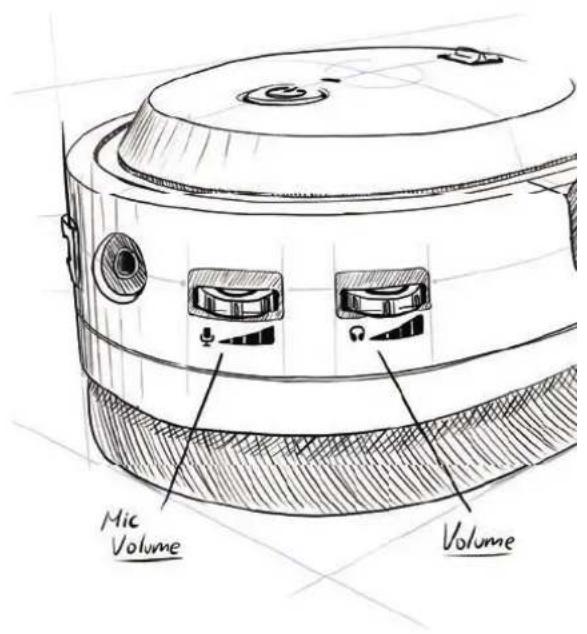
The next course of our training procedure within this traveler's guide covers the various controls that will optimize your performance and handling of Mobius. On the back of the side of the left ear-cup are both volume controls. Scroll the top wheel both directions. Congrats, you've adjusted your volume.
Next, repeat the previous procedure with the bottom wheel by scrolling up and down to adjust your microphone's volume. Of course, it helps to have the microphone plugged in. Thus, it's logical to retrieve your detachable microphone and plug it into the mic jack on the front of the left ear-cup. Make sure when connecting the microphone that the flat parts align and that the mic is not muted on the left ear-cup. With your microphone functional, you're equipped to communicate with friends, enemies, and dolphins alike.

ADVANCED CONTROLS
It's time for some advanced tactics. For those brave and experienced, these controls will add further efficiency in your travels throughout the space of audio. Mobius is the true omni-tool. Use it wisely and don't mix up your buttons.
When connected via Bluetooth:
- Perform a short press of the power button to answer/end a call.
- Press and hold the power button for 2 seconds to reject an incoming call. If the distance between your Mobius and its host device exceeds service range, Mobius will attempt to reconnect automatically within 1 minute. Alternatively, double-click the volume wheel to link back to the last device.
When connected and playing media:
- Perform a short press of the power button to pause/play music.
- Perform a short press and scroll the volume wheel to go to the next or previous song.
- Perform a short press and scroll the mic-gain wheel to change the EQ presets within Mobius.
The following EQ presets are available:
Default This is the EQ preset that is tuned to the Audeze House curve.
Footsteps This enhances footsteps to better hear those sneaking behind you. Some might say it's audio radar.
Ballistics Enhances gunshots and other ballistic sounds so you can clearly pinpoint the enemy in FPS games and take advantage.
Music This preset is made especially for music and jamming between intergalactic locations.
Racing Activate those warp drives. This preset is designed for racing.
RPG This preset is optimized for role playing games and immersion.
Flat No EQ. You can use this if you are planning to use external EQ options.
CONCLUSION
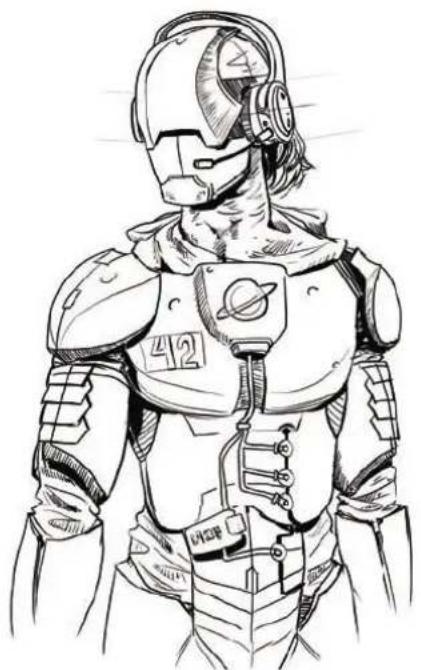
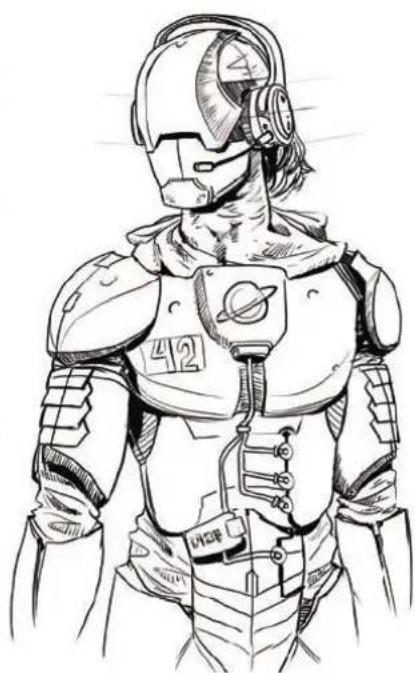
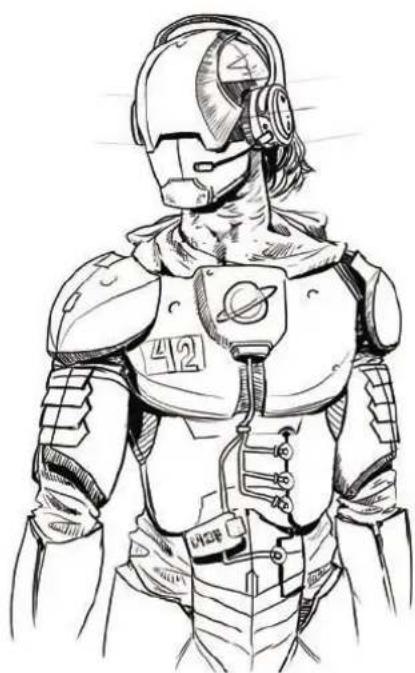
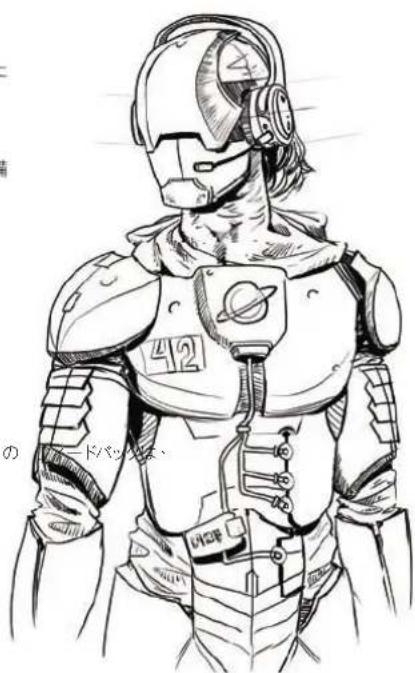
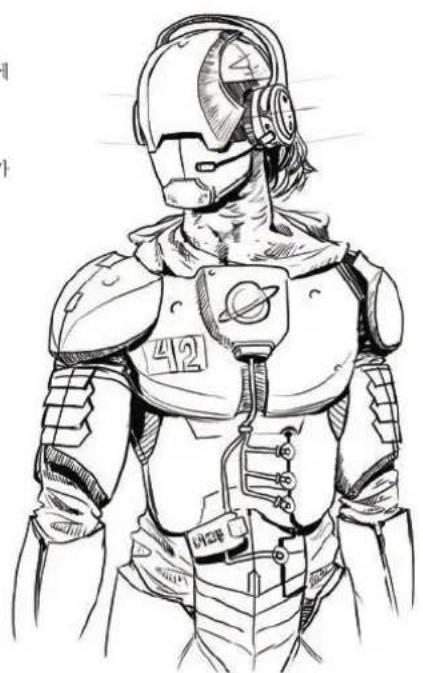
With that, your basic training for Mobius is complete. Make sure you store your Mobius carefully and responsibly in a protective case or on a headphone stand when not i n use. Keep Mobius in a dry environment and avoid exposure to liquids. Like an artifact from the far reaches of space, treasure your Mobius. We're excited for the adventures ahead and hope you are too! You're officially ready to conquer all challenges and explore the furthest reaches of audio. Don't forget which buttons to press and if yo u have any further questions, just remember: the answer to everything is 42.
Need Additional Help?
Contact our customer service at support@audeze.com or www.audeze.com/support
Feedback
We put great effort to ensure that your experience with Audeze is as incredible as the sound of our headphones. We would love to hear from you, your feedback is an important part of our efforts to continuously improve the Audeze experience.
Connect with us at:
Facebook.com/AudezeLLC
Twitter.com/Audeze
support@audeze.com
natural_image
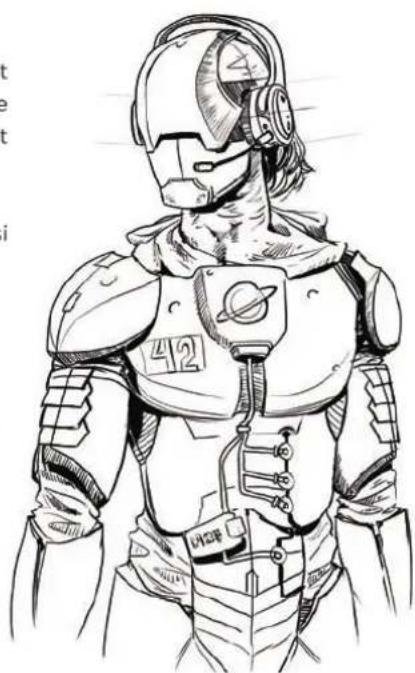
Sketch of a futuristic armored character wearing helmet and spacesuit (no text or symbols)
Button/Control
Action
Function
Single Click (Short Press) Pause or Play Audio/Answer or End Call
Double Click Begin Bluetooth Pairing
Power Button Long Press (3 seconds) Power On/Reject Incoming Call
Long Press (5 seconds) Power Off
Single Click (Short Press) "Center" Your 3D Audio
( Double 3D Buttange Source Mode (USB, AUX, BT)
Long Press (3 seconds) Change 3D Audio Mode (Auto/Off/Manual)
Scroll Change Audio Volume (+ / -)
Single Headphone PreVolume Wheel Change Song/Track (Next/Previous)
Double Click Link Back to Last Bluetooth Host Device
Scroll Change Microphone Volume (+ / -)
Single CMK6phoneVssChannel Wheel Change EQ Preset
Long Press (3 seconds) Change Audio Mode (7.1ch, 2ch, Hi-Res)

ggle MidMuterswitchicrophone
natural_image
Line drawing of a pair of hard headsets with visible earbuds and cable (no text or symbols)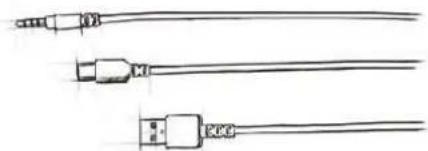
natural_image
Line drawing of three types of audio cables (no text or symbols)
MISE SOUS TENSION
natural_image
Diagram of a connector with attached cable and connectors, no visible text or symbols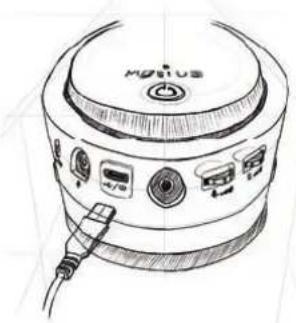
natural_image
Line drawing of a device with labeled ports and connectors (no readable text or symbols)CONNEXION FILAIRE
natural_image
Technical line drawing of a mechanical component with hexagonal lattice pattern and power button (no readable text or symbols)CONNEXION FILAIRE - ANALOGIQUE
natural_image
Hand-drawn sketch of a cylindrical device with two side outlets and control buttons, no text or symbols present.
CONTRÔLES AVANCÉS
Facebook.com/AudezeLLC
Twitter.com/Audeze
support@audeze.com
natural_image
Line drawing of a futuristic armored character with helmet and spacesuit (no text or symbols)
Bouton/Contrôle
Action
Fonction
Change Microphone Volume (Increase/Decrease)
natural_image
Technical line drawing of a pair of headphones with earbuds and cable (no text or symbols)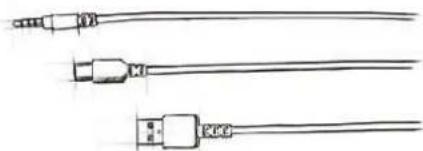
natural_image
Line drawing of three different types of cables or connectors (no text or symbols present)
LIGAR
natural_image
Diagram of a connector with attached cable and connectors, no visible text or symbols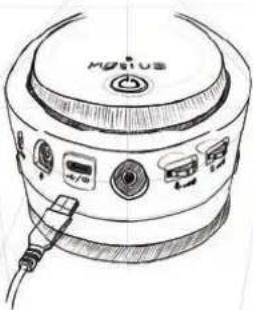
natural_image
Line drawing of a portable electronic device with ports and a cable (no text or symbols)natural_image
Technical line drawing of a Huawei brand headset with hexagonal pattern and power button (no text or symbols)natural_image
Hand-drawn sketch of a cylindrical device with two side outlets and control buttons, no text or symbols present.
CONTROLOS AVANÇADOS
Facebook.com/AudezeLLC
Twitter.com/Audeze
support@audeze.com
natural_image
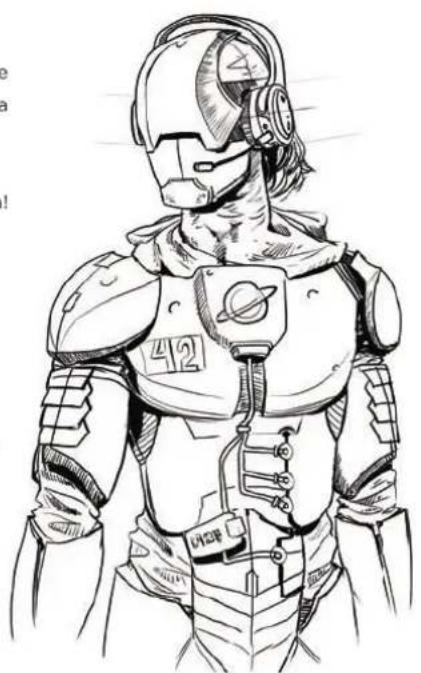
Line drawing of a futuristic armored character with helmet, spacesuit, and planet emblem (no text or symbols)
Botão/controllo
Ação
Função

natural_image
Line drawing of a headset with front and side panels, showing ear structure and cable (no text or symbols)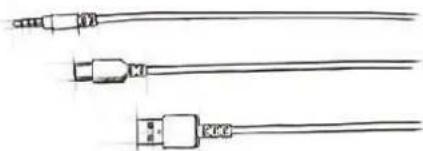
natural_image
Line drawing of three different types of cables or connectors (no text or symbols present)
ACCENSIONE
natural_image
Diagram of a connector with attached cable and connectors, no visible text or symbols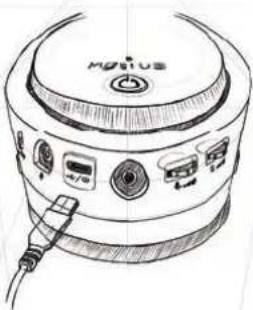
natural_image
Line drawing of a portable electronic device with ports and a cable (no text or symbols)CONNESSIONE VIA CAVO - USB
natural_image
Technical line drawing of a Hybrid Smartwatch (Hybrid) device with hexagonal pattern and power button (no text or symbols)CONNESSIONE VIA CAVO - ANALOGICA
natural_image
Hand-drawn sketch of a cylindrical device with two side outlets and control buttons, no text or symbols present.
COMANDI AVANZATI
Facebook.com/AudezeLLC
Twitter.com/Audeze
support@audeze.com

natural_image
Line drawing of a futuristic armored character with helmet and spacesuit (no text or symbols)
Tasto/Comando
Azione
Funzione
natural_image
Line drawing of a headset with front and side panels, showing ear structure and cable (no text or symbols)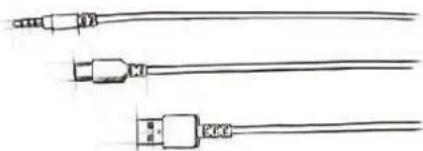
natural_image
Three types of cables with connectors, no text or symbols visible
EINSCHALTEN
natural_image
Diagram of a connector with attached cable and connectors, no visible text or symbols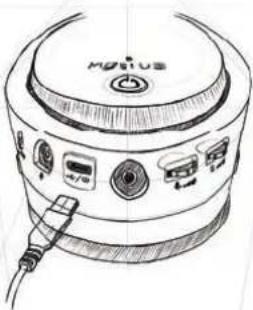
natural_image
Line drawing of a portable electronic device with ports and a cable (no text or symbols)KABELVERBINDUNG - USB
natural_image
Technical line drawing of a mechanical component with hexagonal pattern and labeled ports (no readable text or symbols)KABELVERBINDUNG - ANALOG
natural_image
Hand-drawn sketch of a cylindrical device with two side outlets and control buttons, no text or symbols present.
Facebook.com/AudezeLLC
Twitter.com/Audeze
support@audeze.com
natural_image
Line drawing of a futuristic armored character with helmet and spacesuit (no text or symbols)
Taste/Knopf
Aktion
Funktion
natural_image
Line drawing of a headset with front and side panels, showing earbuds and headband (no text or symbols)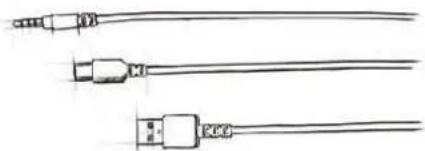
natural_image
Three types of cables with connectors, no text or symbols visible
ENCENDIDO
natural_image
Diagram of a connector with attached cable and connectors, no visible text or symbols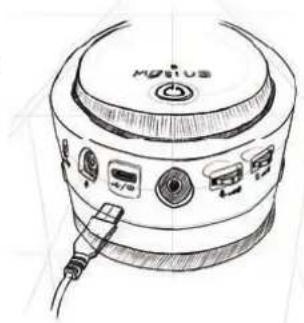
natural_image
Hand-drawn sketch of a device with labeled ports and connectors (no readable text or symbols)natural_image
Technical line drawing of a mechanical component with hexagonal pattern and labeled 'N4BIUS' (no readable text or symbols beyond label)natural_image
Hand-drawn sketch of a cylindrical device with two side outlets and control buttons, no text or symbols present.
CONTROLES AVANZADOS
Facebook.com/AudezeLLC
Twitter.com/Audeze
support@audeze.com
natural_image
Sketch of a futuristic armored character with helmet and spacesuit (no text or symbols)
Botón/control
Acción
Función
natural_image
Line drawing of a pair of hard headsets with earbuds and cable (no text or symbols)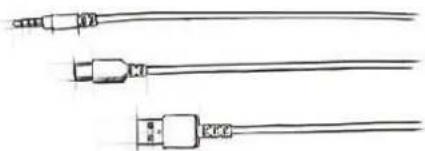
natural_image
Three types of cables with connectors, no text or symbols visible
开机
natural_image
Diagram of a connector with attached cable and connectors, no visible text or symbols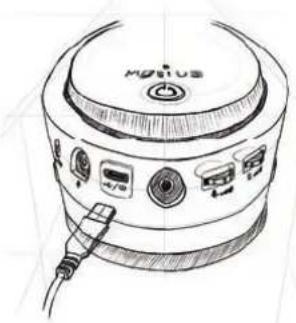
natural_image
Line drawing of a device with ports and connectors, no text or symbols present有线连接 - USB
natural_image
Technical line drawing of a circular device with hexagonal pattern and power button (no readable text or symbols)有线连接 - 模拟 (3.5MM)
natural_image
Hand-drawn sketch of a cylindrical device with two side outlets and control buttons, no text or symbols present.
高级控制器
Facebook.com/AudezeLLC
Twitter.com/Audeze
support@audeze.com
natural_image
Sketch of a futuristic armored character with helmet and spacesuit (no text or symbols)
natural_image
Line drawing of a headset with front and side panels, showing head and neck components (no text or symbols)
natural_image
Line drawing of three different types of cables: USB, USB, and network (no text or symbols)
電源を入れる
natural_image
Technical line drawing of a device with labeled ports and a circular base (no readable text or symbols)ワイヤ接続 - USB
Facebook.com/AudezeLLC
Twitter.com/Audeze
support@audeze.com
natural_image
Line drawing of a futuristic armored robot with helmet and spacesuit (no text or symbols)
natural_image
Line drawing of a headset with front and side panels, showing head and ear components (no text or symbols)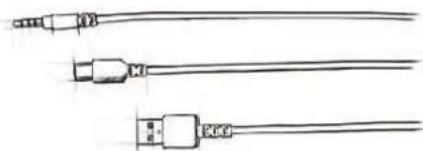
natural_image
Three types of cables with connectors, no text or symbols visible
전원 켜기
natural_image
Technical line drawing of a device with labeled ports and a circular base (no readable text or symbols)유선 연결 - USB
natural_image
Technical line drawing of a Huawei brand head panel with hexagonal mesh pattern and power button (no text or symbols)유신 연결 - 아날로그(3.5MM)
natural_image
Hand-drawn sketch of a cylindrical device with two side outlets and control buttons, no text or symbols present.
고급 제어
Improvement This is a key insight that the system is not to be able to get a new system.
Facebook.com/AudezeLLC
Twitter.com/Audeze
support@audeze.com
natural_image
Line drawing of a futuristic armored character with helmet, armor, and planet emblem (no text or symbols)
© 2018 Audeze LLC. All rights reserved. | ACC1082
- INTRODUCTION
- WIRED CONNECTION - USB
- CHARGING
- WIRED CONNECTION - ANALOG (3.5 MM)
- WIRELESS CONNECTION
- CONNECTION PRIORITY
- 3D OPERATION
- VOLUME AND MICROPHONE
- ADVANCED CONTROLS
- When connected via Bluetooth:
- When connected and playing media:
- The following EQ presets are available:
- CONCLUSION
- Need Additional Help?
- Feedback
- Connect with us at:
- Button/Control
- Action
- Function
- MISE SOUS TENSION
- CONNEXION FILAIRE
- CONNEXION FILAIRE - ANALOGIQUE
- CONTRÔLES AVANCÉS
- Bouton/Contrôle
- Fonction
- LIGAR
- CONTROLOS AVANÇADOS
- Botão/controllo
- Ação
- Função
- ACCENSIONE
- CONNESSIONE VIA CAVO - USB
- CONNESSIONE VIA CAVO - ANALOGICA
- COMANDI AVANZATI
- Tasto/Comando
- Azione
- Funzione
- EINSCHALTEN
- KABELVERBINDUNG - USB
- KABELVERBINDUNG - ANALOG
- Taste/Knopf
- Aktion
- Funktion
- ENCENDIDO
- CONTROLES AVANZADOS
- Botón/control
- Acción
- Función
- 开机
- 有线连接 - USB
- 有线连接 - 模拟 (3.5MM)
- 高级控制器
- 電源を入れる
- 유선 연결 - USB
- 유신 연결 - 아날로그(3.5MM)
Brand : Audeze
Model : Mobius Universe
Category : Headphones