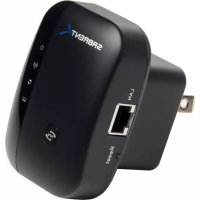
NTWRPT - Wifi repeater Sabrent - Free user manual and instructions
Find the device manual for free NTWRPT Sabrent in PDF.



| Product Type | Wi-Fi Repeater / Access Point |
| Brand | Sabrent |
| Model | NTWRPT |
| Wireless Standards | IEEE 802.11b/g/n (2.4 GHz) |
| Maximum Speed | Up to 300 Mbps |
| Ports | 1 x RJ45 10/100 Mbps |
| Buttons | WPS, Reset (hole) |
| LED Indicators | Power, Wireless, WPS (optional), LAN |
| Wireless Security | WEP 64/128-bit, WPA, WPA2, WPA/WPA2 Mixed |
| Operating Mode | Repeater (range extender) or Access Point (AP) |
| Configuration | Web interface (192.168.10.1), default credentials: admin/admin |
| WPS (Wi-Fi Protected Setup) | Yes, push button |
| Power Supply | Direct wall plug (100-240 V AC) |
| Dimensions (approx.) | 80 x 55 x 30 mm |
| Weight (approx.) | 100 g |
| Package Contents | 1 x repeater, 1 x RJ45 cable, 1 x quick installation guide |
| Factory Reset | Hold the Reset button for 10 seconds |
| Firmware Update | Via web interface (.bin file) |
| Operating Temperature | 0°C to 40°C (estimated) |
| Maintenance and Cleaning | Unplug before cleaning, use a dry soft cloth |
| Safety | Do not expose to water or humidity; do not open the casing |
| Spare Parts / Repairability | Not applicable, device not user-repairable; in case of failure, contact customer service |
Frequently Asked Questions - NTWRPT Sabrent
User questions about NTWRPT Sabrent
0 question about this device. Answer the ones you know or ask your own.
Ask a new question about this device
Download the instructions for your Wifi repeater in PDF format for free! Find your manual NTWRPT - Sabrent and take your electronic device back in hand. On this page are published all the documents necessary for the use of your device. NTWRPT by Sabrent.
USER MANUAL NTWRPT Sabrent

WIRELESS-N 300MBPS WIFI REPEATER AND RANGE EXTENDER
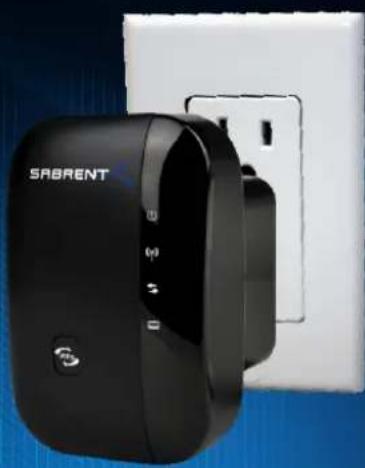
natural_image
Black SABRENT wall adapter with white socket, no visible text or symbols on device bodyEnglish
Spanish
French
Portuguese
USER MANUAL
NT-WRPT
Open Source Code
This product includes software codes developed by third parties. These software codes are subject to either the GNU General Public License (GPL), Version 2, June 1991 or the GNU Lesser General Public License (LGPL), Version 2.1, February 1999. You can copy, distribute, and/or modify in accordance with the terms and conditions of GPL or LGPL.
The source code should be complete, if you think our need to provide any additional source code files under GNU General Public License (GPL), please contact us. We are committed to meeting the requirements of the GNU General Public License (GPL). You are welcome to contact us local office to get the corresponding software and licenses. Please inform us your contact details and the product code. We will send you a CD with the software and license for free.
Please refer to the GNU GPL Web site for further information.
http://www.gnu.org/licenses/licenses.en.html.
Introduction
The WiFi Repeater is a combined wired/wireless network connection device designed specifically for small business, office, and home office networking requirements. It allows a wireless network to be expanded using multiple access points without the need for a wired backbone to link them. It also works well with other 11b/g and 11n protocol wireless products.

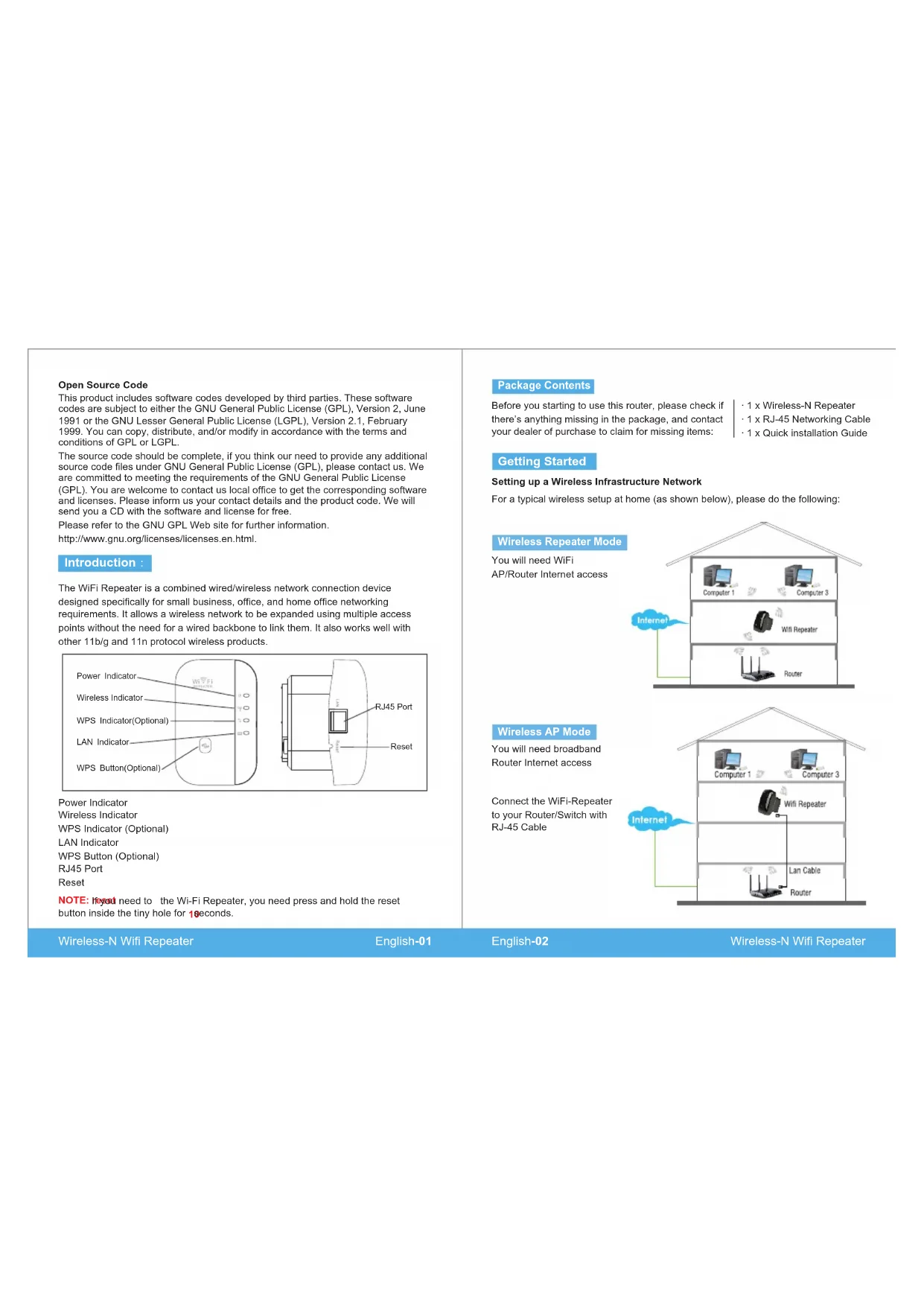
Power Indicator
Wireless Indicator
WPS Indicator (Optional)
LAN Indicator
WPS Button (Optional)
RJ45 Port
Reset
NOTE: If you need to the Wi-Fi Repeater, you need press and hold the reset button inside the tiny hole for 10 seconds.
Package Contents
Before you starting to use this router, please check if there's anything missing in the package, and contact your dealer of purchase to claim for missing items:
- 1 x Wireless-N Repeater
- 1 x RJ-45 Networking Cable
· 1 x Quick installation Guide
Getting Started
Setting up a Wireless Infrastructure Network
For a typical wireless setup at home (as shown below), please do the following:
Wireless Repeater Mode
You will need WiFi AP/Router Internet access
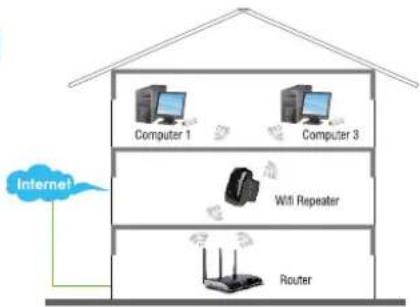
flowchart
graph TD
    A["Internet"] --> B["Computer 1"]
    A --> C["Computer 3"]
    A --> D["Wi-Fi Repeater"]
    A --> E["Router"]
Wireless AP Mode
You will need broadband Router Internet access
Connect the WiFi-Repeater to your Router/Switch with RJ-45 Cable
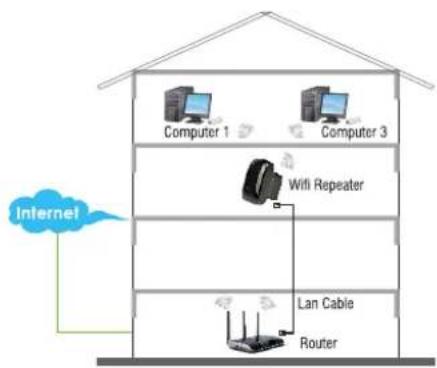
flowchart
graph TD
    A["Internet"] --> B["Computer 1"]
    A --> C["Computer 3"]
    A --> D["WiFi Repeater"]
    A --> E["Lan Cable Router"]
    B --> F["Computer 1"]
    C --> G["Computer 3"]
    D --> H["Router"]
    E --> I["Router"]
How to configure the Wi-Fi Repeater
You can configure the Wi-Fi Repeater by connecting it with your computer/laptop with enclosed RJ45 cable or wirelessly.
A. Configure the Wi-Fi Repeater wirelessly.
A1. Plug the Wi-Fi Repeater to a wall socket.
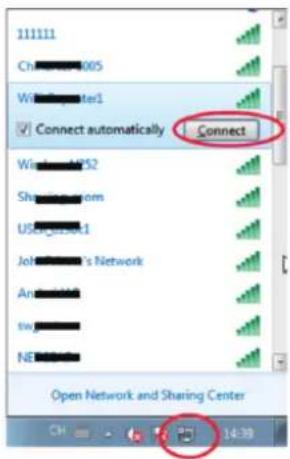
A2. Click on the network icon (or on the right bottom of your desktop. You will find the signal from the Wi-Fi Repeater. Click on 'Connect' and wait for a few seconds.
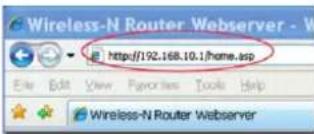
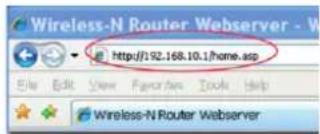
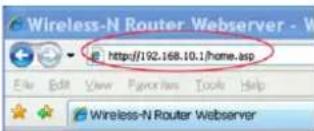
A3. Open web browser and type http://192.168.10.1 in the browser's address box. This number is the default IP address for this device.
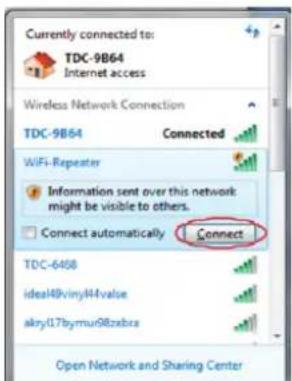

Note: Please check whether the WiFi-Repeater accord with factory default settings once you can't download http://192.168.10.1. If you are still not sure what reasons, you can reset the WiFi-Repeater, just need to press the reaction for seconds, then try again.
A4. The login screen below will appear. Enter the "User Name" and "Password" then click "OK" to login. The default User name is "admin" and Password is "admin".
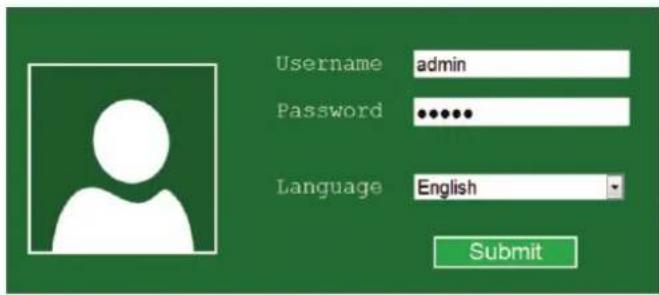
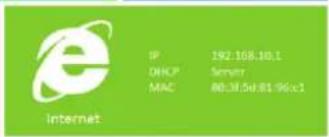
A5. After logging in, you will see the web page below: Click on 'Repeater' to continue.
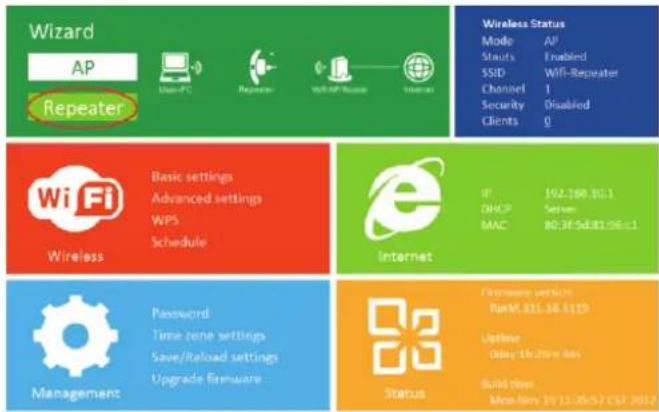
A6. Select your SSID to continue.Wireless

A7. When you see below, please do not change any setting but only insert the key of your network.

Click on 'Apply' button, The Repeater will restart.
Wait for a few seconds your Wi-Fi Repeater is ready for use.
* The default wireless SSID and Security key of Wi-Fi Repeater is same as your AP/router.
B. Configure the Wi-Fi Repeater with RJ45 Cable.
- Plug the Wi-Fi Repeater to a wall socket. Connect your computer / laptop with the Wi-Fi Repeater with enclosed RJ45 Cable.
- Follow process A3 to A7 to configure your Wi-Fi Repeater.
C. Configure the Wireless AP Mode.
- Plug the Wi-Fi Repeater into a wall socket.
- Follow process A3 to A4.
- Click on 'AP' to continue.
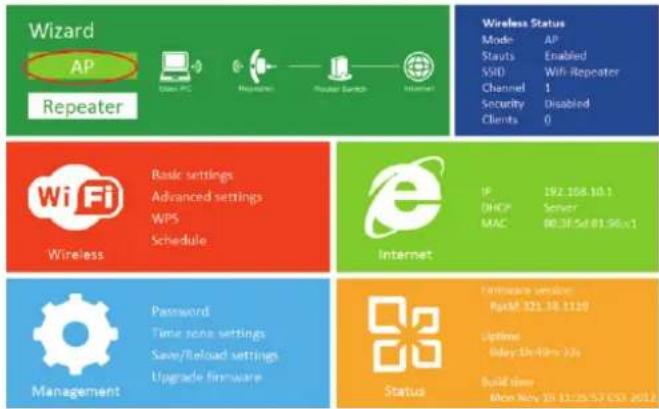
- The following message will be displayed on your web browser:
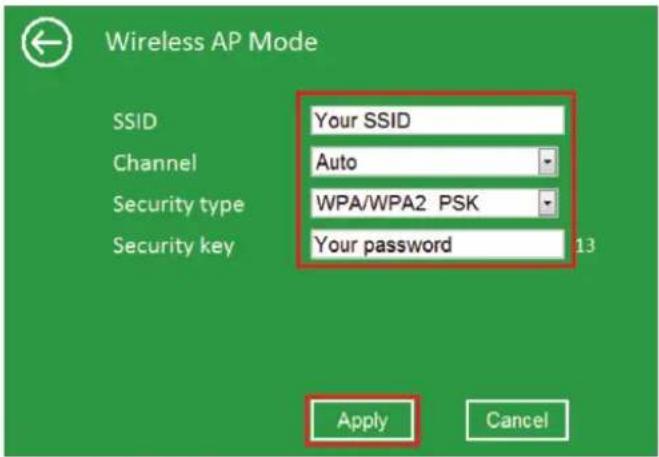
| SSID | the "SSID" of your wireless network. |
| Channel | Auto (recommend) |
| Security type | Setup the wireless security and encryption to prevent from unauthorized access and monitoring.Supports 64/128-bit WEP, WPA, WPA2, WPA/WPA2 encryption methods. |
| Security key the "Password" of your wireless network. | |
Click on 'Apply' button, The Repeater will restart.
Wait a few seconds your Wi-Fi Repeater is ready for use.
How to connect your computer/laptop with the Wi-Fi Repeater
Adding a Wireless computers to the WiFi-Repeater
- Log on to the computer.
- Open Connect to a Network by right-clicking the network icon (or) in the notification area.
- Choose the wireless network from the list that appears, and then click Connect.
- The repeater will then replace the SSID for your network and should now be accessible. Reconnect to your network. Do note that the menu will no longer accessible once connected.
- To confirm that you added the computer, do the following:
Open Network by clicking the Start button , and then clicking Control Panel. In the search box, type network, and then, under Network and Sharing Center, click View network computers and devices. You should see icons for the computer you added and for the other computers and devices that are part of the network.
Note : If you don't see icons in the Network folder, then network discovery and file sharing might be turned off.
Adding a Wireless computers to the WiFi-Repeater with WPS Button
- Log on to the computer.
- Press the WPS button of the WiFi Repeater directly for 2 - 3 seconds.
- Press the WPS button of the Wireless Adapter directly for 2 - 3 seconds. Click Finish to complete the WPS configuration. (Please check your Wireless adapter Manual with WPS configuration)
- You should see icons for the computer you added and for the other computers and devices that are part of the network.
Adding a wired (Ethernet) computer to the WiFi-Repeater
- Plug the Wi-Fi Repeater to a wall socket. Connect your computer / laptop with the Wi-Fi Repeater with enclosed RJ45 Cable.
- To confirm that you added the computer, do the following: Open Network by clicking the Start button , and then clicking Control Panel. In the search box, type network, and then, under Network and Sharing Center, click View network computers and devices. You should see icons for the computer you added and for the other computers and devices that are part of the network.
For more information: http://windows.microsoft.com/en-US/windows7/Add-a-device-or-computer-to-a-network http://windows.microsoft.com/en-US/windows7/Setting-up-a-wireless-network http://windows.microsoft.com/en-US/windows-vista/Setting-up-a-wireless-network
How to configure your computer/laptop with the Network IP Address
- Log on to the computer.
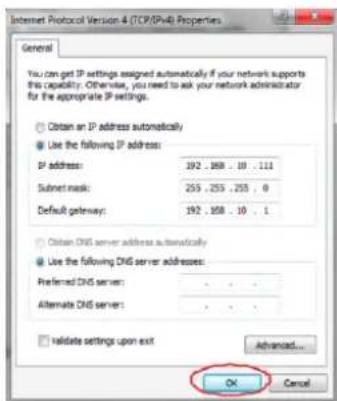
- Click the "Start" button (it should be located at the lower-left corner of your screen), then click "Control Panel". Click "View Network Status and Tasks", and then click "Manage Network Connections". Right-click "Local Area Network", then select "Properties". When the "Local Area Connection Properties" window appears, select "Internet Protocol Version 4 (TCP/iPv4)" and then click "Properties".

- Setting IP address manually: Type IP address is 192.168.10.x (x is from 2 to 254), and Subnet mask is 255.255.255.0. Type the Router's LAN IP address (the default IP is 192.168.10.1) into the Default gateway field.

Configuring via Web Browser
Wireless Base Configuration – AP Mode
In AP mode and click "Wireless -> Basic Settings" located at the web management interface, the following message will be displayed on your web browser:
You could configure the minimum number of Wireless settings for communication, such as Network Name (SSID) and Channel. The Access Point can be set simply with only the minimum setting items.

| Wireless Enable | Wireless On/Off |
| SSID | the "SSID" of your wireless network. |
| Channel | Auto (recommend) |
| Security type | Setup the wireless security and encryption to prevent from unauthorized access and monitoring.Supports 64/128-bit WEP, WPA, WPA2,WPA/WPA2 encryption methods. |
| Security key the "Password" of your wireless network. | |
Click 'Apply' button, The WiFi Repeater will restart.
Wireless Base Configuration – Repeater Mode
In Repeater mode and click "Wireless-> Basic Settings" located at the web management interface, the following message will be displayed on your web browser:
Wireless settings

Advanced settings Wireless advanced configurations
WPS Wi-Fi protected setup
Schedule Wireless schedule
Back Back to home page
Basic settings

| Wireless Enable | Wireless On/Off |
| Delete | Remove the repeater connection profile |
| Repeater ssid | the "SSID" of your repeater wireless network. |
| Security type | Setup the repeater ssid security type. |
| the "Password" of your repeater wireless network.Securi |
Click 'Apply' button, The WiFi Repeater will restart.
Change Management password
Default password of Wireless Router is "admin", and it's displayed on the login prompt when accessed from web browser. There's a security risk if you don't change the default password, since everyone can see it. This is very important when you have wireless function enabled.
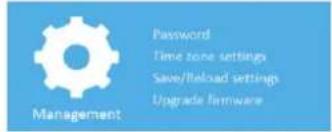
To change password, please follow the following instructions: Please click 'Management -> Password'menu on the web management interface, the following message will be displayed on your web browser:
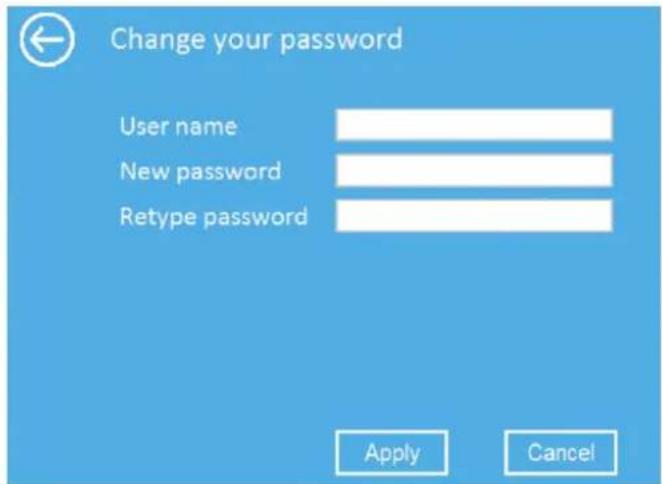
If you want to keep original password unchanged, click 'Cancel'.
Click 'Apply' button, The WiFi Repeater will log off.
Firmware Upgrade
The system software used by this router is called as 'firmware', just like any applications on your computer, when you replace the old application with a new one, your computer will be equipped with new function. You can also use this firmware upgrade function to add new functions to your router, even fix the bugs of this router.
Please click 'Management-> Upgrade Firmware' located at the web management interface, and then the following message will be displayed on your web browser:

Click 'Browse...' or 'Choose File' button first; you'll be prompted to provide the filename of firmware upgrade file. Please download the latest firmware file from our website, and use it to upgrade your router. After a firmware upgrade file is selected, click 'Upload' button, and the router will start firmware upgrade procedure automatically. The procedure may take several minutes, please be patient.
NOTE: Never interrupt the upgrade procedure by closing the web browser or physically disconnect your computer from router. If the firmware you uploaded is corrupt, the firmware upgrade will fail, and you may have to return this router to the dealer of purchase to ask for help. (Warranty voids if you interrupted the upgrade procedure).
Factory Default and Settings Backup, Restore
You can backup all Setting of this router to a file, so you can make several copied of router configuration for security reason.
To backup or restore router setting, please follow the following instructions: Please click 'Save/Reload setting' located at the web management interface, then the following message will be displayed on your web browser:
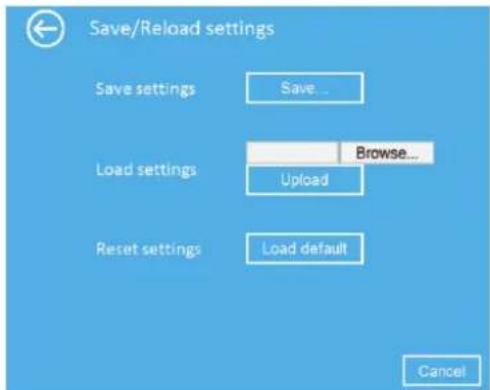
| Save Settings | Press 'Save...' button, you can please save it as another filename for different versions, and keep it in a safe place. |
| Load Settings | Press 'Browse...' to pick a previously-saved configuration file from your computer, and then click 'Upload...'. After the configuration is uploaded, the router's configuration will be replaced by the file you just uploaded. |
| Reset Settings | Click this 'Load default' button to remove all settings |
WEEE Directive & Product Disposal

At the end of its serviceable life, this product should not be treated as household or general waste. It should be handed over to the applicable collection point for the recycling of electrical and electronic equipment, or returned to the supplier for disposal.
Setting up a Wireless Infrastructure Network
Wireless Status
Mode A2
Struts Enabled
SSID Wi-Fi-Regulator
Channel 1
Security Disabled
Clients


http://windows.microsoft.com/en-US/windows7/Add-a-device-or-computer-to-a-network http://windows.microsoft.com/en-US/windows7/Setting-up-a-wireless-network http://windows.microsoft.com/en-US/windows-vista/Setting-up-a-wireless-network

| Basic settings |
| Secure-wirentics basic configuration |
| Advanced settings |
| Wireless advanced configuration |
| WPS |
| WHI protected setup |
| Schedule |
| Wireless schedule |
| Back |
| Back to home page |
Basic settings
| Wireless Enable | Enabled/Disable |
| SSID | WiFi-Repeater |
| Channel | Auto |
| Security type | WPA2 PSK |
| WPA2 encryption | TKIP AES |
| Security key | ********** |
http://windows.microsoft.com/en-US/windows7/Add-a-device-or-computer-to-a-network
http://windows.microsoft.com/en-US/windows7/Setting-up-a-wireless-network
http://windows.microsoft.com/en-US/windows-vista/Setting-up-a-wireless-network
Basic settings

Wireless Status
Mode AP
Struts Enabled
SSIO Wifi-Reporter
Channel 1
Security Disabled
Clients 0




http://windows.microsoft.com/en-US/windows7/Add-a-device-or-computer-to-a-network http://windows.microsoft.com/en-US/windows7/Setting-up-a-wireless-network http://windows.microsoft.com/en-US/windows-vista/Setting-up-a-wireless-network
Basic settings

- WIRELESS-N 300MBPS WIFI REPEATER AND RANGE EXTENDER
- Open Source Code
- Introduction
- Package Contents
- Getting Started
- How to configure the Wi-Fi Repeater
- Configure the Wi-Fi Repeater wirelessly.
- Configure the Wi-Fi Repeater with RJ45 Cable.
- Configure the Wireless AP Mode.
- How to connect your computer/laptop with the Wi-Fi Repeater
- Adding a Wireless computers to the WiFi-Repeater
- Adding a Wireless computers to the WiFi-Repeater with WPS Button
- Adding a wired (Ethernet) computer to the WiFi-Repeater
- How to configure your computer/laptop with the Network IP Address
- Configuring via Web Browser
- Wireless Base Configuration – AP Mode
- Wireless Base Configuration – Repeater Mode
- Wireless settings
- Basic settings
- Change Management password
- Firmware Upgrade
- Factory Default and Settings Backup, Restore
- WEEE Directive & Product Disposal
- Setting up a Wireless Infrastructure Network
Brand : Sabrent
Model : NTWRPT
Category : Wifi repeater