SonicHub Marine - Hi-fi system LOWRANCE - Free user manual and instructions
Find the device manual for free SonicHub Marine LOWRANCE in PDF.



User questions about SonicHub Marine LOWRANCE
0 question about this device. Answer the ones you know or ask your own.
Ask a new question about this device
Download the instructions for your Hi-fi system in PDF format for free! Find your manual SonicHub Marine - LOWRANCE and take your electronic device back in hand. On this page are published all the documents necessary for the use of your device. SonicHub Marine by LOWRANCE.
USER MANUAL SonicHub Marine LOWRANCE
Setting up the SonicHub 6
Enabling Audio. 6
Selecting AM/FM Tuner Region 6
SonicHub media bar panels 7
Operating SonicHub audio 8
Function key controls. 8
Audio Source menu 9
Selecting an audio source 9
Selecting Favorites 10
Audio Outputs 11
Deutsch 12
As Navico is continuously improving this product, we retain the right to make changes to the product at any time which may not be reflected in this version of the manual. Please contact your nearest distributor if you require any further assistance.
It is the owner's sole responsibility to install and use the instrument and transducers in a manner that will not cause accidents, personal injury or property damage. The user of this product is solely responsible for observing safe boating practices.
NAVICO HOLDING AS AND ITS SUBSIDIARIES, BRANCHES AND AFFILIATES. DISCLAIM ALL LIABILITY FOR ANY USE OF THIS PRODUCT IN A WAY THAT MAY CAUSE ACCIDENTS, DAMAGE OR THAT MAY VIOLATE THE LAW.
Governing Language: This statement, any instruction manuals, user guides and other information relating to the product (Documentation) may be translated to, or has been translated from, another language (Translation). In the event of any conflict between any Translation of the Documentation, the English language version of the Documentation will be the official version of the Documentation.
This manual represents the product as at the time of printing. Navico Holding AS and its subsidiaries, branches and affiliates reserve the right to make changes to specifications without notice.
Copyright © 2010 Navico Holding AS.
Feedback from you
Your feedback is important and helps Navico ensure that this manual is a valuable resource for all marine technicians. E-mail your comments or suggestions about this manual to the following address: tech.writing@navico.com.
Compliance Statements
The SonicHub Audio Server complies with the following regulations:
FCC Part 15 Subpart J Class B
CE compliant per EN60945
C - Tick
For more information please refer to our website: www.lowrance.com.
Warning
The user is cautioned that any changes or modifications not expressly approved by the party responsible for compliance could void the user's authority to operate the equipment.
This equipment has been tested and found to comply with the limits for a Class B digital device, pursuant to Part 15 of the FCC rules. These limits are designed to provide reasonable protection against harmful interference in a residential installation. This equipment generates, uses and can radiate radio frequency energy and, if not installed and used in accordance with the instructions, may cause harmful interference to radio communications. However, there is no guarantee that the interference will not occur in a particular installation. If this equipment does cause harmful interference to radio or television reception, which can be determined by turning the equipment off and on, the user is encouraged to try to correct the interference by one or more of the following measures:
Reorient or relocate the receiving antenna.
Increase the separation between the equipment and receiver
Connect the equipment into an outlet on a circuit different from that of the receiver
Consult the dealer or an experienced technician for help
About the SonicHub
The SonicHub is a high-quality marine audio server that allows you to use your unit to control audio playback from a variety of sources, including iPod, iPhone, USB mass storage device (mp3), satellite (SIRIUS™) and AM/FM radio.
When audio is enabled on your unit's settings menu, the SonicHub media bar panel will appear automatically at the bottom of the screen.
You can toggle the active status between the media bar panel and current operation mode panel by holding down the PAGES key.
When the media bar is the active panel, press the MENU key to access the SonicHub menu.
Setting up the SonicHub
Before you can start using your equipment, it must be installed according to the installation connection diagrams included with the unit.
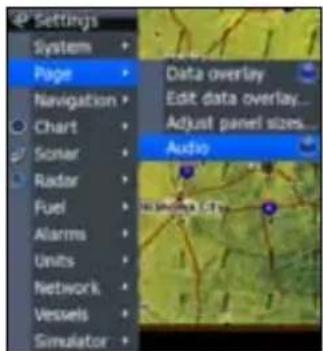
Enabling Audio
You must enable Audio on your display unit's settings menu to control audio playback with your unit.
The media bar panel will not be visible until audio has been enabled.
Selecting AM/FM Tuner Region
The SonicHub has a built-in AM/FM radio receiver, which allows you to control AM/FM radio broadcasts with your display unit.
Before playing FM radio through the SonicHub, you must purchase a marine-grade AM/FM antenna and select the appropriate AM and FM tuner region for your location.
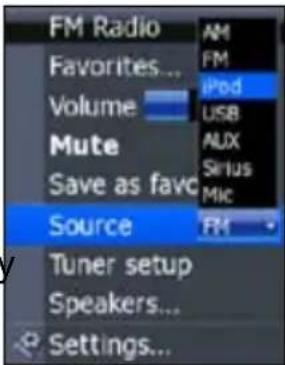
You will access AM and FM Tuner region settings from the Audio Source menu.
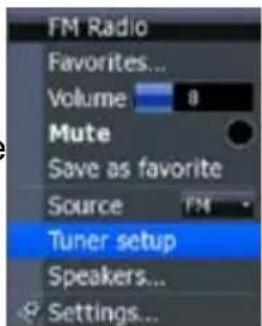
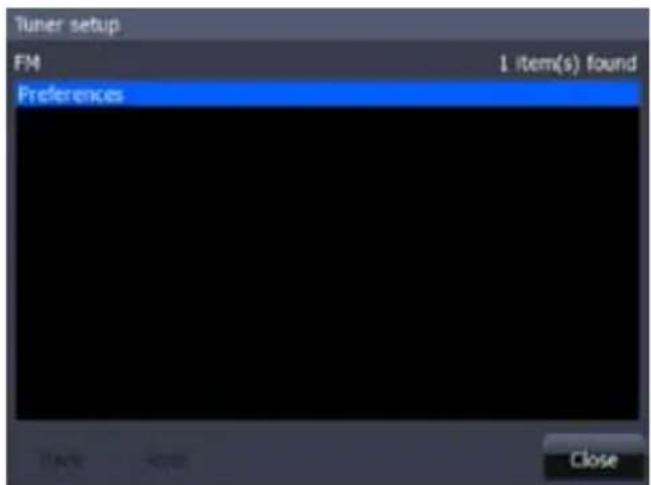
FM Audio Source menu
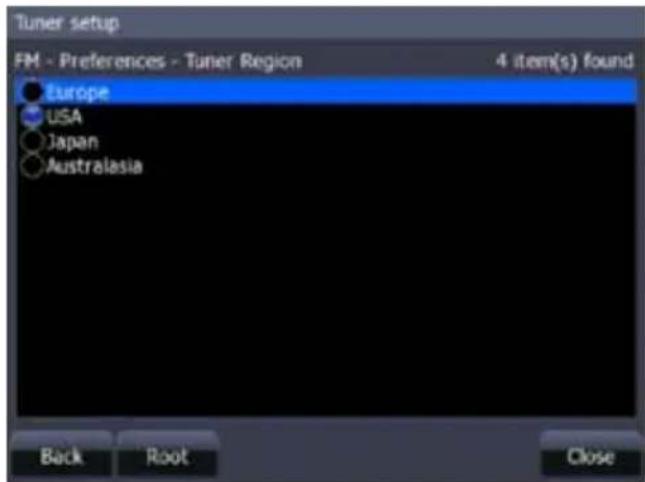
Tuner Region screen
SonicHub media bar panels
The media bar panel varies from one audio source to another. iPod, iPhone and USB mass storage devices share the same configuration. SIRIUS and AM/FM radio media bar panels differ slightly as shown in the media bar panel examples below.

Operating SonicHub audio
Adjustments to SonicHub audio playback settings can be made from the SonicHub menu, softkeys, function keys and the keypad.
Volume control, song and station selection, favorites and audio source can be adjusted/accessed using your units function keys and keypad. Shuffle and Repeat features (iPod, iPhone and USB Mass Storage) must be turned on/off on the SonicHub menu.
Function key controls
ZOOM IN·—Increase Volume
ZOOM OUT- Decrease Volume
ENTER- Mute
| Keypad Controls | ||
| iPod, iPhone, USB Mass Storage | SIRIUS, AM/FM radio | |
| Audio Source Play/Pause Previous track | Scroll forward through favorites Previous station: (AM/FM — Tune backward) | Next station (AM/FM — tune forward) |
| Scroll backward through favorites | ||

NOTE: When listening to AM/FM radio, press and hold the keypad left or right to switch from tune mode to seek mode.

NOTE: When playing audio from an iPod or USB storage device, press and hold the keypad left or right to rewind or fast forward through a track.
Audio Source
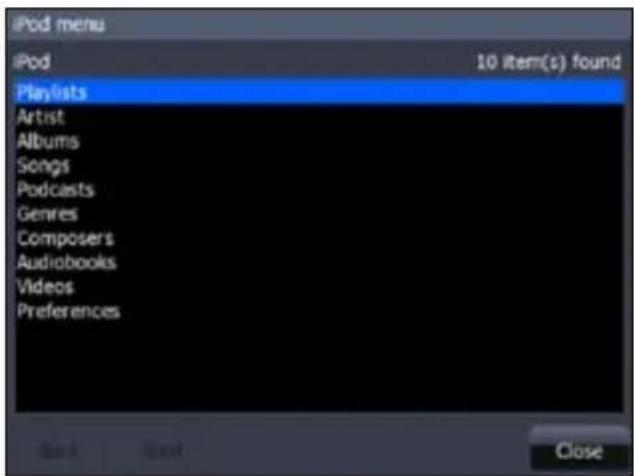
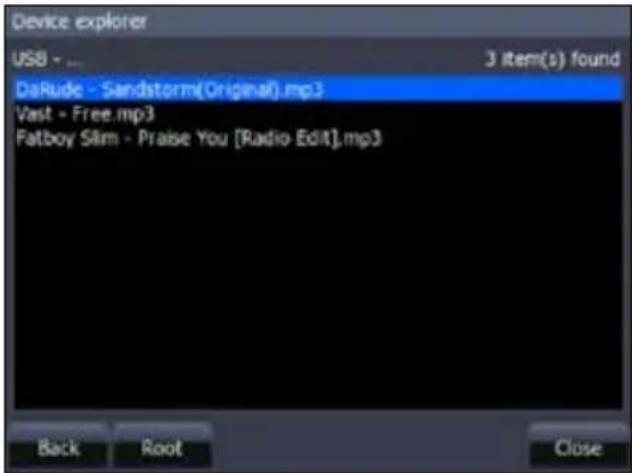
The Audio Source screen displays the menu of the selected audio source on your unit's screen.
That allows you to make adjustments to an audio source using its native menu or file structure (USB).
Selecting an audio source
You can use the SonicHub menu or your display unit softkeys to select an audio source. You must select an audio source to listen to SonicHub audio.
The Mic source selects a high voltage level input. It allows you to broadcast loud hailer messages over the audio system by replicating the loud hailer on the Lowrance LVR-880.
Selecting Favorites
You can add favorite stations for SIRIUS and AM/FM radio making it easier to tune into the selected stations.
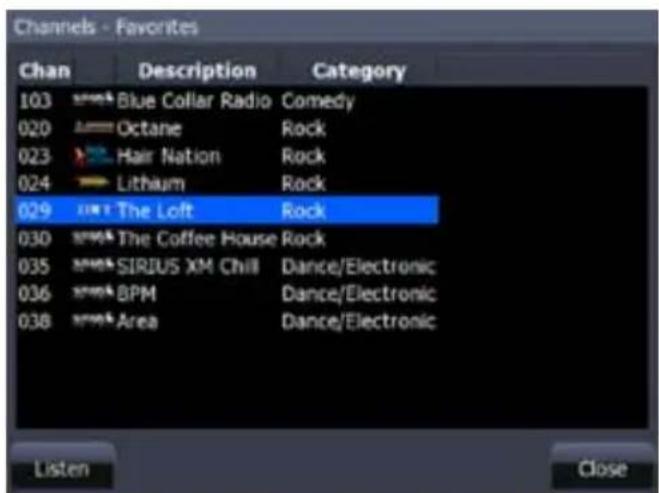
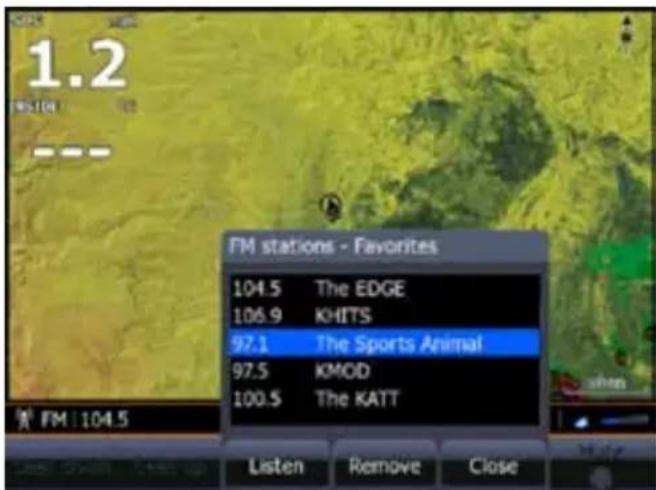
SIRIUS favorites screen FM favorites screen
SIRIUS Favorites
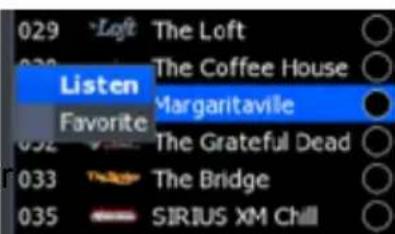
Favorite channels are selected from the All Channels list. You will access the All Channels list from the Sonichub menu. 029 The Loft
The All Channels screen is a list of all available channels, including channels not included in your subscription. You will not be able to add unsubscribed channels to your Favorites list. Refer to your LWX-1 manual for more information.
AM/FM Favorites
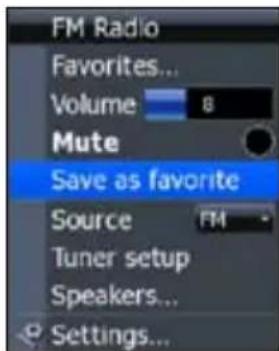
You can add stations to your list of Favorites from the SonicHub menu. You must tune into the desired station to add it to the Favorites list.
Audio Outputs
Your unit has three audio outputs; two allotted for speakers (front and rear) and one with amplifier and sub-woofer outputs.
Volume, balance and fade settings are the same for each output.
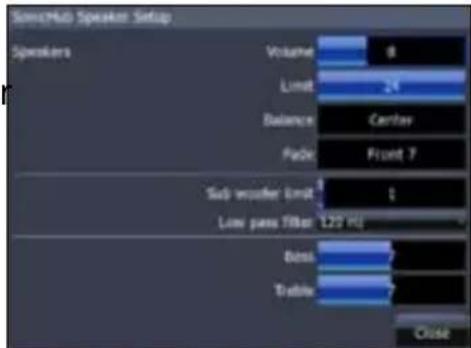
| SonicHub Audio Outputs | |
| Audio Output 1 | Front speakers |
| Audio Output 2 | Rear speakers (not included) |
| Audio Output 3 | Amplifier output; sub-woofer output |