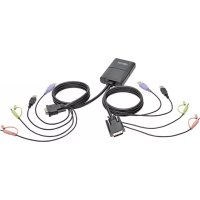
B032DUA2 - Switch Tripp Lite - Free user manual and instructions
Find the device manual for free B032DUA2 Tripp Lite in PDF.



| Product type | USB/DVI 2-Port Audio KVM Switch |
| Dimensions (W x D x H) | 11.30 x 7.65 x 2.65 cm |
| Weight | 0.48 kg |
| Power | 5 V DC, 3.05 W (USB bus-powered, no external power required) |
| Maximum video resolution | 1920 x 1200 (1080p) |
| Number of computers supported | 2 |
| Console connectors | 2x USB-A female (keyboard/mouse), 1x DVI-D Dual Link female, 2x 3.5 mm mini-jack female (speakers/microphone) |
| KVM connectors | 4x USB-A male, 2x DVI-D Single Link male, 4x 3.5 mm mini-jack male |
| Integrated cable length | 2 x 1.2 m (KVM), 1.8 m (remote port selector) |
| Port selection methods | Remote manual button, mouse wheel double-click, keyboard hotkeys (Scroll Lock) |
| System compatibility | Windows, Mac, Linux |
| Key features | Independent KVM/audio switching, keyboard/mouse emulation, power-on detection, HDCP compliant, firmware upgradeable, supports multimedia and wireless keyboards |
| Cleaning and maintenance | Disconnect before cleaning. Use a soft, dry cloth. Avoid contact with liquids. |
| Safety | For indoor dry use only. Operating temperature: 0 to 50 °C; storage temperature: -20 to 60 °C. Humidity: 0 to 80% RH non-condensing. |
| Spare parts and repairability | No user-serviceable parts. Contact Tripp Lite support for repairs. Limited 1-year warranty. |
| Warranty | 1 year (limited) |
| Housing material | Plastic |
Frequently Asked Questions - B032DUA2 Tripp Lite
User questions about B032DUA2 Tripp Lite
0 question about this device. Answer the ones you know or ask your own.
Ask a new question about this device
Download the instructions for your Switch in PDF format for free! Find your manual B032DUA2 - Tripp Lite and take your electronic device back in hand. On this page are published all the documents necessary for the use of your device. B032DUA2 by Tripp Lite.
USER MANUAL B032DUA2 Tripp Lite
2-Port USB/DVI Cable KVM Switch with Audio
Model: B032-DUA2
Español 15 • Français 29 • Русский 43
PROTECT YOUR INVESTMENT!
Register your product for quicker service and ultimate peace of mind.
You could also win an ISOBAR6ULTRA surge protector—a \$100 value!
www.tripplite.com/warranty


1111 W. 35th Street, Chicago, IL 60609 USA www.tripplite.com/support
Copyright © 2016 Tripp Lite. All rights reserved.
Product Features
- Control two computers or devices from a single USB keyboard, mouse and DVI monitor
- Compact design features built-in 4 ft. KVM and audio cables
- KVM and audio can be switched independently of each other, so you can access one computer while at the same time listening to audio from another
• Audio provides a full bass response for rich 2.1 channel surround sound - USB mouse port can be used to connect a USB 2.0 hub for peripheral sharing
• Supports video resolutions up to 1920 x 1200, (1080p) - KVM stores the monitor's EDID information to optimize display resolution
- Power on detection automatically switches to the powered on computer when the other one powers off
- Console mouse port emulation/bypass feature supports most mouse drivers and multifunction mice
• Supports multimedia keyboards and wireless keyboards/mice - Features Remote, Hotkey and Mouse Port Switching
• Supports Windows ^® , Mac ^® and Linux ^®
• Mac and Sun keyboard support and emulation*
• No external power required - HDCP compatible
- Firmware upgradable
* PC keyboard combinations emulate Mac and Sun keyboards. Mac and Sun keyboards only work with their own computers.
Package Contents
B032-DUA2
- Owner's Manual
Optional Accessories
• P560-Series DVI Monitor Cables with RGB Coax
• U222-004-R 4-Port USB 2.0 Hub
• U222-007-R 7-Port USB 2.0 Hub
• U222-010-R 10-Port USB 2.0 Hub
• U022-Series USB 2.0 A/B Device Cables
• U030-Series USB 2.0 Mini-B Cables
• U050-Series USB 2.0 Micro-B Cables
System Requirements
- DVI monitor
- USB Keyboard
- USB Mouse
• Computer with a DVI and USB port
Installation
Note: Make sure the power to all devices is turned off prior to installation. You must unplug the power cords of any computers that have the Keyboard Power On Function.
- Plug your USB keyboard, mouse and DVI monitor into the console ports on the unit.
Note: If using a wireless keyboard and mouse, the dongle must plug into the unit's keyboard port in order to use the hotkey function.
- (Optional) A USB 2.0 hub can be connected to the USB console mouse port, allowing you to add multiple USB peripherals to your installation.
Note: To ensure proper functionality, use a hub with an external power supply. Also, the KVM's Mouse Emulation Mode must be disabled (see the Keyboard Hotkey Commands section of this manual for details) when connecting a hub.
-
(Optional) Plug your speakers and/or microphone into the audio jacks on the side of the unit.
-
Plug the connectors of the built-in cables into their respective ports on the computers you are installing.
-
Power on your devices.
Note: The unit's power on default is to link to the first computer that is powered on.
Operation
There are three ways of accessing computers and devices connected to the KVM switch: Manual Remote Switching, Mouse Port Switching and Keyboard Hotkeys.
Note: When switching ports, wait a few seconds for the selected computer's video to display on the console monitor prior to switching ports again. Do not switch ports when a USB peripheral device is in operation.
Manual Remote Port Selection
Press the port selection pushbutton on the Remote Port Selector to toggle the KVM and Audio focus between the two computers. The LED lights on the unit will indicate which computer is selected.
Mouse Port Switching Functionality
Note: Mouse port switching is disabled by default, and must be enabled via keyboard hotkey command. In addition, it is only supported when the KVM's mouse emulation mode is enabled, which is enabled by default (see the Keyboard Hotkey Commands section for details). Only 3-button scroll wheel mice are supported.
When enabled, the Mouse Port Switching Functionality allows users with scroll mice to simultaneously switch the focus of the KVM and Audio between ports by double-clicking the scroll wheel on their mouse.
Keyboard Hotkey Commands
Hotkeys allow you to switch functionality focus between ports using only the keyboard, as well as perform other functions on the KVM switch. All hotkey operations begin by tapping the Scroll Lock key twice. See the Keyboard Hotkey Commands table for full details. To switch the KVM and Audio between the two ports, press the [Scroll Lock] key twice, and then the [Enter] key. If the [Scroll Lock] [Scroll Lock] hotkey conflicts with other programs running on your computer, it can be switched to [Ctrl] [Ctrl] via Hotkey command. (See the Keyboard Hotkey Commands table for details). The keyboard hotkey can also be switched by pressing and holding the Remote Port Selector switch for 3 seconds.
Operation
Keyboard Hotkey Commands
The following table lists the keyboard hotkey commands available for use on the KVM switch.
| Combination Function | ||
| [Scroll Lock][Scroll Lock]+ | [Enter] Toggles the KVM and Audio focus between the two ports. Note: If the KVM and Audio focus are on different ports, only the KVM focus switches | |
| [k] [Enter] Toggles the KVM focus only | ||
| [s] [Enter] Toggles the Audio focus only | ||
| [a] [Enter] Starts Auto Scan. The KVM focus cycles from port to port at 5 second intervals | ||
| [a] [Enter] [n] Starts Auto Scan. The KVM focus cycles from port to port at n second intervals. Note: Replace n with a number between 1 and 4 (1 = 3 secs; 2 = 5 secs (default); 3 = 10 secs; 4 = 20 secs) To exit Auto Scan, press [Esc] or [Spacebar]. Auto Scanning stops when you exit Auto Scan mode. | ||
| [x] [Enter] Toggles the hotkey invocation key between [Scroll Lock] and [Ctrl] | ||
| [m] [Enter] Enables/disables mouse emulation function | ||
| [n] [Enter] Enables/disables keyboard emulation | ||
| [w] [Enter] Enables/disables mouse port-switching function | ||
| [F2] [Enter] Activates Mac keyboard mapping | ||
| [F3] [Enter] Activates Sun keyboard mapping | ||
| [F10] [Enter] Automatically detects and sets the keyboard operating platform | ||
| [F4] [Enter] Lists current switch settings via the paste function of a text editor. Note: To perform this hotkey, you must first have a text editor or word processor (such as Microsoft® Word) open, with the cursor in the page window. Upon performing this hotkey, the KVM's current settings will be displayed. | ||
| [F5] [Enter] Performs a USB keyboard and mouse reset | ||
Operation
| Combination Function | ||
| [Scroll Lock][Scroll Lock]+ | [F6] [nn] [Enter] | Sets the keyboard language layout.Note: nn is a two digit number that represents one of the following keyboard language codes: US English 33; French 08; Japanese 15 |
| [d] [Enter] Invokes | s the Video Sync function, which allows the KVM to store the monitor's EDID information to optimize display resolution | |
| [e] [Enter] Enables/disables the Power on Detection feature | ||
| [r] [Enter] Resets | hotkeys to the default setting | |
Firmware Upgrade Utility
To update the B032-DUA2's firmware, do the following:
-
From a computer that is not part of your KVM installation, download the latest Firmware Upgrade package for the B032-DUA2 from Tripp Lite's support site (tripplite.com/support)
-
Disconnect the B032-DUA2 from your KVM installation. Press and hold the Remote Port Selector's pushbutton. While you are still pressing the pushbutton, connect the KVM cable's purple USB connector to a USB port on the computer to which you have downloaded the Firmware Upgrade package.
-
The B032-DUA2 will enter Firmware Upgrade Mode. The two port LEDs flash together to indicate the unit is in Firmware Upgrade Mode.
Note: While the B032-DUA2 is in Firmware Upgrade Mode, normal keyboard and mouse functions are suspended. You must complete the firmware upgrade or exit Firmware Upgrade Mode to regain normal control of the console.
-
Run the Firmware Upgrade Package file; the Firmware Upgrade Utility main screen appears
-
Click Next to perform the upgrade. As the upgrade progresses, status messages appear in the Status Messages panel and the progress toward completion is shown in the Progress bar.
Operation
-
After the upgrade has completed, a screen appears to inform you that the procedure to upgrade was successful. Click Finish to close the Firmware Upgrade Utility.
-
Set up your KVM installation again.
Firmware Upgrade Utility-Failed
If the Upgrade Succeeded screen does not appear, it means that the upgrade failed to complete successfully, in which case you should do the following:
- Disconnect the USB connectors on the KVM cables from the computer.
- Press and hold the Remote Port Selector's pushbutton. While still pressing the pushbutton, reconnect the KVM cable's USB connectors to the computer.
- Power on the B032-DUA2. It will now work with the factory default firmware. Follow the steps in the Firmware Upgrade Utility section to upgrade the firmware.
Troubleshooting
| Symptom Possible Cause Action | ||
| Monitor does not display after the KVM cable set is hot-plugged | DVI audio/video graphics card is not compatible with cable set hot-plugging | Power off all devices on the installation; power off the B032-DUA2; confirm all KVM cables are properly connected; power on the B032-DUA2; power on the computers |
| Graphics card driver is not up-to-date | Upgrade to the latest graphics card driver | |
| Mouse and/or keyboard is not responding | Switch needs to be reset | Power off all devices on the installation; power off the B032-DUA2; wait five seconds; power on the B032-DUA2 |
| Mouse port-switching function is not responding | Mouse does not support this function | This feature is only supported by USB 3-button scroll wheel mice |
| Mouse emulation is disabled | Enable mouse emulation. See Keyboard Hotkey Commands table for details | |
| Cannot switch ports by pressing [Scroll Lock] twice | Keyboard is incompatible with [Scroll Lock] invocation | Switch to the alternate Hotkey Setting Mode invocation keys. |
Specifications
| Computer Connections 2 | |
| Console Connections 1 | |
| Port Selection Remote Port Selector, Mouse, Hotkeys | |
| Connectors (Console Ports) Keyboard and Mouse: 2x USB Type A FemaleVideo: DVI-D Dual Link FemaleSpeakers/Microphone: 2x 3.5mm Mini-Stereo Female | |
| Connectors (KVM Ports) Keyboard and Mouse: 4x USB Type A MaleVideo: 2x DVI-D Single Link MaleSpeakers/Microphone: 4x 3.5mm Mini-Stereo Male | |
| LED Quantity and Color (KVM) | 2x Green |
| Built-In Cable Length (KVM) 2x | 4 ft. (2x 1.2 m) |
| Built-In Cable Length (Remote Port Selector) | 6 ft. (1.8 m) |
| Emulation (Keyboard/Mouse) USB | |
| Video Resolution 1920 x 1200 (1080p) | |
| Scan Interval 3, 5, 10, 20 seconds (default: 5 seconds) | |
| Power Consumption DC 5V, 3.05 W | |
| Operating Temperature 32° to 122°F (0° to 50°C) | |
| Storage Temperature -4° to 140°F (-20° to 60°C) | |
| Humidity 0% to 80% RH, Non-Condensing | |
| Housing Material Plastic | |
| Weight | 1.06 lb. (0.48 kg) |
| Dimensions (L x W x H) | 4.45 x 3.01 x 1.04 in. (11.30 x 7.65 x 2.65 cm) |
Appendix
Mac Keyboard Emulation
A PC compatible (101/104 key) keyboard can emulate the functions of the Mac keyboard using the PC keystrokes in the table below.
Note: When more than one key is required on the PC Keyboard to emulate the Mac keyboard, press and release the first key, and then press and release the second key.
| PC Keyboard Mac Keyboard | |
| [Shift] Shift | |
| [Ctrl] Ctrl | |
| [AG8X] | [0TWZ] |
 |  |
| [7X8S] | [WK3Z] |
| [SC6K] | [382K] |
| [HX0T] | [0C8Y] |
 | |
 | |
 | |
| [Z60H] | = |
 | |
 | |
 | |
 | F15 |
Appendix
Sun Keyboard Emulation
A PC compatible (101/104 key) keyboard can emulate the functions of the Sun keyboard using the PC keystrokes in the table below.
Note: When more than one key is required on the PC Keyboard to emulate the Sun keyboard, press and release the first key, and then press and release the second key.
| PC Keyboard Sun Keyboard | |
| [Ctrl], [T] Stop | |
| [Ctrl], [F2] Again | |
| [Ctrl], [F3] Props | |
| [Ctrl], [F4] Undo | |
| [Ctrl], [F5] Front | |
| [Ctrl], [F6] Copy | |
| [Ctrl], [F7] Open | |
| [Ctrl], [F8] Paste | |
| [Ctrl], [F9] Find | |
| [Ctrl], [F10] Cut | |
| [Ctrl], [1] | |
| [Ctrl], [2] | |
| [Ctrl], [3] | |
| [Ctrl], [4] | |
| [Ctrl], [H] [Help] | |
| [Compose] | |
Factory Default Settings
| Setting Default | |
| Hotkey Invocation Key [Scroll Lock] [Scroll Lock] | |
| Auto Scan Interval 5 seconds | |
| Keyboard Operating Platform PC Compatible | |
| Mouse Emulation Enabled | |
| Keyboard Emulation Enabled | |
| Mouse Port Switching Disabled | |
| Power on Detection Enabled |
Warranty & Product Registration
1-Year Limited Warranty
TRIPP LITE warrants its products to be free from defects in materials and workmanship for a period of one (1) year from the date of initial purchase. TRIPP LITE's obligation under this warranty is limited to repairing or replacing (at its sole option) any such defective products. To obtain service under this warranty, you must obtain a Returned Material Authorization (RMA) number from TRIPP LITE or an authorized TRIPP LITE service center. Products must be returned to TRIPP LITE or an authorized TRIPP LITE service center with transportation charges prepaid and must be accompanied by a brief description of the problem encountered and proof of date and place of purchase. This warranty does not apply to equipment, which has been damaged by accident, negligence or misapplication or has been altered or modified in any way.
EXCEPT AS PROVIDED HEREIN, TRIPP LITE MAKES NO WARRANTIES, EXPRESS OR IMPLIED, INCLUDING WARRANTIES OF MERCHANTABILITY AND FITNESS FOR A PARTICULAR PURPOSE.
Some states do not permit limitation or exclusion of implied warranties; therefore, the aforesaid limitation(s) or exclusion(s) may not apply to the purchaser.
EXCEPT AS PROVIDED ABOVE, IN NO EVENT WILL TRIPP LITE BE LIABLE FOR DIRECT, INDIRECT, SPECIAL, INCIDENTAL OR CONSEQUENTIAL DAMAGES ARISING OUT OF THE USE OF THIS PRODUCT, EVEN IF ADVISED OF THE POSSIBILITY OF SUCH DAMAGE. Specifically, TRIPP LITE is not liable for any costs, such as lost profits or revenue, loss of equipment, loss of use of equipment, loss of software, loss of data, costs of substitutes, claims by third parties, or otherwise.
Product Registration
Visit www.tripplite.com/warranty today to register your new Tripp Lite product. You'll be automatically entered into a drawing for a chance to win a FREE Tripp Lite product!*
* No purchase necessary. Void where prohibited. Some restrictions apply. See website for details.
FCC Notice, Class B
This device complies with part 15 of the FCC Rules. Operation is subject to the following two conditions: (1) This device may not cause harmful interference, and (2) this device must accept any interference received, including interference that may cause undesired operation.
Note: This equipment has been tested and found to comply with the limits for a Class B digital device, pursuant to part 15 of the FCC Rules. These limits are designed to provide reasonable protection against harmful interference in a residential installation. This equipment generates, uses and can radiate radio frequency energy and, if not installed and used in accordance with the instructions, may cause harmful interference to radio communications. However, there is no guarantee that interference will not occur in a particular installation. If this equipment does cause harmful interference to radio or television reception, which can be determined by turning the equipment off and on, the user is encouraged to try to correct the interference by one or more of the following measures:
• Reorient or relocate the receiving antenna.
- Increase the separation between the equipment and receiver.
- Connect the equipment into an outlet on a circuit different from that to which the receiver is connected.
- Consult the dealer or an experienced radio/TV technician for help.
Any changes or modifications to this equipment not expressly approved by Tripp Lite could void the user's authority to operate this equipment.
Warranty & Product Registration
WEEE Compliance Information for Tripp Lite Customers and Recyclers (European Union)

Under the Waste Electrical and Electronic Equipment (WEEE) Directive and implementing regulations, when customers buy new electrical and electronic equipment from Tripp Lite they are entitled to:

- Send old equipment for recycling on a one-for-one, like-for-like basis (this varies depending on the country)
- Send the new equipment back for recycling when this ultimately becomes waste
Use of this equipment in life support applications where failure of this equipment can reasonably be expected to cause the failure of the life support equipment or to significantly affect its safety or effectiveness is not recommended.
Tripp Lite has a policy of continuous improvement. Specifications are subject to change without notice.


Manufacturing Excellence.
1111 W. 35th Street, Chicago, IL 60609 USA
www.tripplite.com/support
1111 W. 35th Street, Chicago, IL 60609 EE UU www.tripplite.com/support
1111 W. 35th Street, Chicago, IL 60609 EE UU www.tripplite.com/support
1111 W. 35th Street, Chicago, IL 60609 USA www.tripplite.com/support

Manufacturing Excellence.
1111 W. 35th Street, Chicago, IL 60609 USA
www.tripplite.com/support
Manufacturing Excellence.
1111 W. 35th Street, Chicago, IL 60609 USA
www.tripplite.com/support

Manufacturing Excellence.
1111 W. 35th Street, Chicago, IL 60609 USA www.tripplite.com/support
16-11-124 93-3633_revA


- 2-Port USB/DVI Cable KVM Switch with Audio
- PROTECT YOUR INVESTMENT!
- Product Features
- Package Contents
- Optional Accessories
- System Requirements
- Installation
- Operation
- Manual Remote Port Selection
- Mouse Port Switching Functionality
- Keyboard Hotkey Commands
- Firmware Upgrade Utility
- Firmware Upgrade Utility-Failed
- Troubleshooting
- Appendix
- Mac Keyboard Emulation
- Sun Keyboard Emulation
- Warranty & Product Registration
- 1-Year Limited Warranty
- Product Registration
- FCC Notice, Class B
- WEEE Compliance Information for Tripp Lite Customers and Recyclers (European Union)
Brand : Tripp Lite
Model : B032DUA2
Category : Switch