ManualGo.com
SmartOnline S3M40KX - Uninterruptible power supply Tripp Lite - Free user manual and instructions
Find the device manual for free SmartOnline S3M40KX Tripp Lite in PDF.



Download the instructions for your Uninterruptible power supply in PDF format for free! Find your manual SmartOnline S3M40KX - Tripp Lite and take your electronic device back in hand. On this page are published all the documents necessary for the use of your device. SmartOnline S3M40KX by Tripp Lite.
USER MANUAL SmartOnline S3M40KX Tripp Lite
2.1 UPS Location Warnings 4
2.2 Equipment Connection Warnings 4
2.3 Battery Warnings 4
2.4 Transportation and Storage 5
3. Installation and Setup 7
3.1 Unpacking and Inspection 7
3.2 Internal Battery Connection Procedure for S3M30KX, 9
S3M40KIX, S3M60KX and S3M80KX Models
3.3 Installation of Internal Batteries in S3M30KX-NIB 10
and S3M40KX-NIB Models
3.4 Single UPS Installation 22
3.5 UPS Installation for Parallel Systems 24
3.6 External Battery Connection 25
4.2 LED Indicators and LCD Panel 26
4.3 Audible Alarm 28
4.4 Single UPS Operation 28
4.5 Parallel UPS Operation 30
4.6 LCD Panel Abbreviations 32
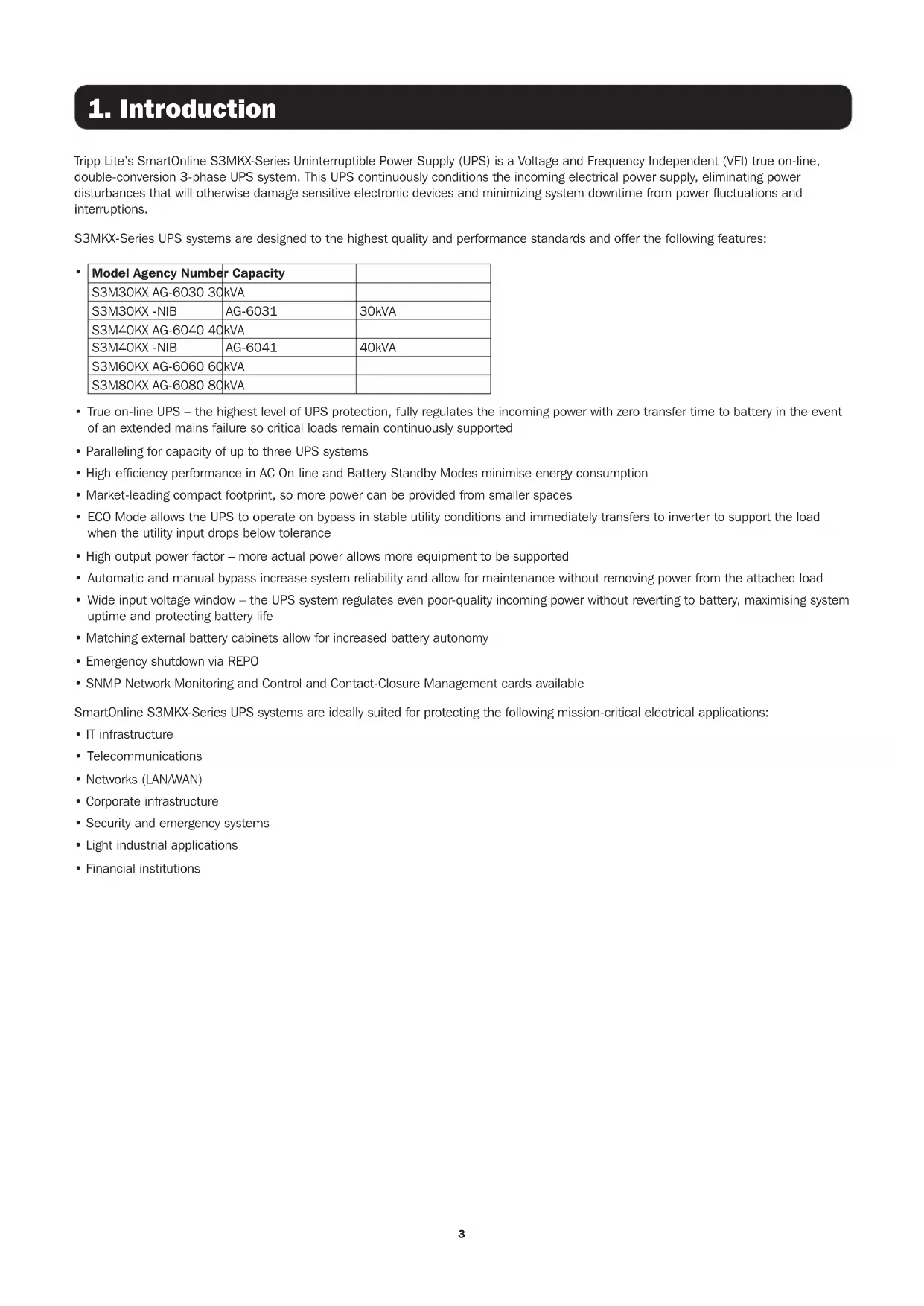
Tripp Lite’s SmartOnline S3MKX-Series Uninterruptible Power Supply (UPS) is a Voltage and Frequency Independent (VFI) true on-line, double-conversion 3-phase UPS system. This UPS continuously conditions the incoming electrical power supply, eliminating power disturbances that will otherwise damage sensitive electronic devices and minimizing system downtime from power fluctuations and interruptions. S3MKX-Series UPS systems are designed to the highest quality and performance standards and offer the following features:
- True on-line UPS – the highest level of UPS protection, fully regulates the incoming power with zero transfer time to battery in the event of an extended mains failure so critical loads remain continuously supported
- Paralleling for capacity of up to three UPS systems
- High-efficiency performance in AC On-line and Battery Standby Modes minimise energy consumption
- Market-leading compact footprint, so more power can be provided from smaller spaces
- ECO Mode allows the UPS to operate on bypass in stable utility conditions and immediately transfers to inverter to support the load when the utility input drops below tolerance
- High output power factor – more actual power allows more equipment to be supported
- Automatic and manual bypass increase system reliability and allow for maintenance without removing power from the attached load
- Wide input voltage window – the UPS system regulates even poor-quality incoming power without reverting to battery, maximising system uptime and protecting battery life
- Matching external battery cabinets allow for increased battery autonomy
- Emergency shutdown via REPO
- SNMP Network Monitoring and Control and Contact-Closure Management cards available SmartOnline S3MKX-Series UPS systems are ideally suited for protecting the following mission-critical electrical applications:
- Corporate infrastructure
- Security and emergency systems
- Light industrial applications
SAVE THESE INSTRUCTIONS
This manual contains important instructions and warnings that should be followed during the installation and maintenance of all Tripp Lite SmartOnline S3MX 3-Phase 30kVA, 40kVA, 60kVA and 80kVA UPS Systems and their batteries. Failure to heed these warnings may affect your warranty.
2.1 UPS Location Warnings
- Install the UPS indoors, away from heat, direct sunlight, dust and excess moisture or other conductive contaminants.
- Install the UPS in a structurally sound area. The UPS is extremely heavy; take care when moving and lifting the unit.
- Only operate the UPS at indoor temperatures between 0° C and 40° C.
- Optimum UPS performance and maximum battery life is obtained when the operating temperature is maintained between 17° C and 25° C.
- Ensure the installation area has sufficient space for maintenance and ventilation of the UPS system. Maintain a minimum clearance of 50 cm from the rear, front and both sides of the UPS for maintenance and ventilation.
- Do not install the UPS near magnetic storage media, as this may result in data corruption.
2.2 Equipment Connection Warnings
- Use of this equipment in life support applications where failure of this equipment can reasonably be expected to cause the failure of the life support equipment or to significantly affect its safety or effectiveness is not recommended.
- The UPS system contains its own energy source (battery). The output terminals may be live even when the UPS is not connected to an AC supply.
2.3 Battery Warnings
This UPS contains LETHAL VOLTAGES. The UPS is designed to supply power, even when disconnected from utility power. Only AUTHORISED SERVICE PERSONNEL should access the interior of the UPS after disconnecting utility and DC power. Batteries present a risk of electrical shock and burns from high short-circuit current. Battery connection or replacement should be performed only by qualified service personnel, observing proper precautions. Turn off the UPS before connecting or disconnecting internal batteries. Use tools with insulated handles. Do not open the batteries. Do not short or bridge the battery terminals with any object.
- The batteries are recyclable. Refer to local codes for disposal requirements or visit http://www.tripplite.com/support/recycling-program for recycling information.
- Do not dispose of the batteries in a fire, mutilate the batteries or open the battery coverings. Escaping electrolytes may be toxic and cause injury to skin and eyes.
- Do not disconnect the batteries while the UPS is in battery mode.
- Disconnect the charging source prior to connecting or disconnecting terminals.
- The following precautions should be observed:
1) Remove watches, rings and other metal objects.
2) Use tools with insulated handles.
3) Wear rubber gloves and electrical-grade boots.
4) Use an electrical-grade rubber mat while servicing batteries.
5) Do not lay tools or metal parts on top of batteries or battery cabinets.
6) Determine whether the battery supply (+, -, N) is inadvertently grounded. If it is, remove the source of the ground. Contact with any part of a grounded battery can result in electric shock. The likelihood of an electric shock is reduced if such grounds are removed during installation and maintenance.
- Battery replacement should be performed only by authorised service personnel, using the same number and type of batteries (sealed lead acid).
WARNING: In order to avoid any hazardous conditions during UPS installation and maintenance, these tasks may be
performed only by qualified and experienced electricians. Please read this Owner’s Manual and the safety instructions carefully before installing or using the unit.5
2.4 Transportation and Storage
To protect against shock and impact, transport the UPS system only in the original packaging. The UPS must be stored in a room that is dry and ventilated.
Condensation may occur if the UPS system is moved directly from a cold to a warm environment. The UPS system must be completely dry before being installed. Please allow at least two hours for the UPS system to adjust to the environment. Do not install the UPS system near water or in moist environments. Do not install the UPS system in direct sunlight or near heat sources. Do not block the ventilation holes on the UPS system’s housing.
Do not connect appliances or devices that could overload the UPS (i.e., equipment with large electrical motors) to the UPS output sockets or terminal. Carefully arrange cables so no one can step on or trip over them. Do not block the UPS system’s air vents. The UPS must be installed in a location with good ventilation. Ensure adequate ventilation space on each side of the unit. The UPS contains an earthed terminal. In the final installed system configuration, ensure equipotential earth grounding to the external UPS battery cabinet by connecting the earth terminals of both cabinets together. The UPS should only be installed by qualified maintenance electrical service personnel. An appropriate disconnect device such as short-circuit backup protection must be provided in the building wiring installation. An integral single-emergency switching device should be included in the building wiring installation. Connect the earth ground before connecting to the building wiring terminal. Installation and wiring must be performed in accordance with local electrical codes and regulations.
2.7 Connection Warnings
The UPS system does not contain standard backfeed protection inside. Isolate the UPS before working on this circuit. The isolation device must be able to carry the UPS input current.
- This UPS should be connected with TN earthing system.
- The power supply for this unit must be 3-phase rated in accordance with the equipment nameplate. It also must be suitably grounded.
- The input power to 3-phase UPS models requires a 4-pole breaker.
- Use of this equipment in life support applications where failure of this equipment can reasonably be expected to cause the failure of the life support equipment or to significantly affect its safety or effectiveness is not recommended.
- Connect the UPS power module’s grounding terminal to a grounding electrode conductor.
- The UPS is connected to a DC energy source (battery). The output terminals may still be live even when the UPS is not connected to an AC supply.
When installing the unit, verify that any maintenance bypass panel used is configured correctly before applying power to the unit.
- Be sure to place a warning label on all primary power isolators installed remotely from the UPS area and on any external access points between such isolators and the UPS. The warning label shall carry the following wording or equivalent. Before working on this circuit - Isolate Uninterruptible Power System (UPS) - Then check for Hazardous Voltage between all terminals including the protective earth. Risk of Voltage Backfeed
Do not disconnect the earth conductor cable on the UPS or the building wiring terminals at any time, as this will cancel the protective earth of the UPS system. In order to fully disconnect the UPS system, first press the “OFF” button, then disconnect the mains. Ensure no liquid or other foreign objects can enter into the UPS system.
3. Installation and Setup
3.1 Unpacking and Inspection
Unpack the unit and inspect the contents. Packaging may include additional accessories and components, depending on specific customer orders.
- One (1) 1.5 m battery cable kit extension (included with models S3M30KX, S3M30KX-NIB, S3M40KX, and S3M40KX-NIB only) Other Accesory and Component Options Available Cabling for UPS Paralleling:
- One (1) parallel cable (only available for parallel model) for every set of UPS units being paralled
- One (1) shared current cable (only available for parallel model) for every set of UPS units being paralled. Additional Charging Board to increase the battery charger capacity:
- 4A charger boards may be paralled to increase the charger’s current capacity. Note: Do not turn on the unit. Make sure to inspect the unit prior to installation. Ensure nothing inside the package was damaged during transportation. Notify the carrier and dealer immediately if there is any damage or missing parts. Please keep the original packaging in a safe place for future use. Rear Panel View - 30K and 40K Models S3M30KX Rear Panel S3M40KX Rear Panel S3M30KX and S3M40KX Input/Output Terminals (See next page for number descriptions.)8
3. Installation and Setup
Front Panel View - 60K and 80K Models S3M60KX Front View with Door Open S3M80KX Front View with Door Open S3M60KX and S3M80KX Input/Output Terminals
RS-232 Communications Port
USB Communications Port
Share Current Port for Paralleling Units
Parallel Ports for Paralleling Units
External Battery Cabinet Connector
Maintanance Bypass Switch (for Service Personnel Use Only)
Input/Output Terminal (Refer to
Output Terminal (Connects to Mission-critical Loads)
Output Grounding Terminal9
3. Installation and Setup
3.2 Internal Battery Connection Procedure for S3M30KX, S3M40KIX, S3M60KX and
S3M80KX Models DANGER! LETHAL HIGH VOLTAGE HAZARD! Potentially lethal high voltage exists within the batteries, even when not connected to a UPS system. Battery connection should be performed by qualified service personnel only, following all the precautions listed in this manual and adhering to local electrical codes. Refer to section 2.3 Battery Warnings. Internal Battery Connection Procedure
3. Installation and Setup
3) For 30kA and 40kVA units with internal batteries, there are four battery cable points that are disconnected for shipping purposes (refer to Figures 3.3 and 3.4). These four cables (two on the right side and two on the left side) will need to be reconnected for proper battery cabinet operation. Figure 3.3 Figure 3.4
4) Re-Install the top and side panels from Step 2.
5) Re-Install and tighten all screws from Step 1 with a torque of 1 N•m.
3.3 Installation of Internal Batteries in S3M30KX-NIB and S3M40KX-NIB Models
DANGER! LETHAL HIGH VOLTAGE HAZARD! Be careful to observe all safety warnings in the manual, especially those in section 2.3 Battery Warnings. Battery installation should be performed by qualified electrical service personnel only. Items needed: 1) Protective equipment (rubber gloves, electrical rated boots, electrical rated rubber floor mat, etc. as outlined in section 2.3 Battery Warnings). 2) 80x Sealed Lead Acid Batteries: 12V 9Ah (Non-Spillable VRLA AGM/GEL). Batteries must be UL-recognized to UL 1989, UL CCN: BARZ2. 3) Tripp Lite Wiring Kit PN: ACC-0442. Check the wiring kit to make sure all necessary items are there. This kit includes:
930 mm 1 Battery cables that need to be reconnected before proper operation of battery cabinet Left Side S3M30KX/S3M40KX Right Side S3M30KX/S3M40KX11
3. Installation and Setup
1) Take off top and side panels by removing all screws.
2) Remove the battery bracket bars on the right and left sides of
3) Install 11 battery packs to the layer (L1-a). Be sure to keep
terminal sides of all batteries up.
4) Install another 11 battery packs to the layer (L2-a). Be sure to
keep terminal sides of all batteries up.
5) Install another 9 battery packs to the layer (L3-a). Be sure to
keep terminal sides of all batteries up.12
3. Installation and Setup
6) Install another 11 battery packs to the layer (L1-b). Be sure to
keep terminal sides of all batteries up.
7) Install another 11 battery packs to the layer (L2-b). Be sure to
keep terminal sides of all batteries up.
8) Install another 8 battery packs to the layer (L3-b). Be sure to
keep terminal sides of all batteries up.
9) Install another 5 battery packs to the layer (L4 and L5). Be
sure to keep terminal sides of all batteries up.13
3. Installation and Setup
10) Install another 2 battery packs to the layer (L6). Be sure to
keep terminal sides of all batteries down.
11) Reattach the six battery bracket bars removed in step 2.
12) On the right side of the UPS, use 30 pieces of cable
to connect two terminals on all batteries shown below.
3. Installation and Setup
to connect #51 and #52 batteries.
to connect #75 and #76 batteries.
to connect #67 and #68 batteries.
to connect #64 and #65 batteries.
to connect #62 and #63 batteries.
to connect two terminals on all batteries.
3. Installation and Setup
to connect #77 and #78 batteries.
16) Install another 4 battery packs to the layer (L1). Be sure to keep terminal sides of all batteries up.
3. Installation and Setup
to connect #4 and #5 batteries.
to connect #3 and #4 batteries.
to connect #2 and #3 batteries.
to connect #1 and #2.
18) Install another 4 battery packs to the layer (L2). Be sure to keep terminal sides of all batteries up.
3. Installation and Setup
to connect #19 and #20 batteries.
to connect #18 and #19 batteries.
to connect #17 and #18 batteries.
to connect #16 and #17 batteries.
to connect #15 and #16 batteries.
20) Install another 4 battery packs to the layer (L3). Be sure to keep terminal sides of all batteries up.
3. Installation and Setup
to connect #34 and #35 batteries.
to connect #33 and #34 batteries.
to connect #32 and #33 batteries.
to connect #31 and #32 batteries.
to connect #30 and #31 batteries.
22) Reattach the battery brackets.
3. Installation and Setup
23) Use a meter to measure the positive pole of #20 battery and
the negative pole of #1 battery. (DC voltage should be within 240V~270V)
24) Use a meter to measure the positive pole of #40 battery and
the negative pole of #21 battery. (DC voltage should be within 240V~270V) 25) Use a meter to measure the positive pole of #80 battery and the negative pole of #61 battery. (DC voltage should be within 240V~270V) 26) Use one meter to measure the positive pole of #60 battery and the negative pole of#41 battery. (DC voltage should be within 240V~270V)20
3. Installation and Setup
27) Use the Battery Fuse PCB to connect batteries and refer to the Figures 3.5, 3.6 and 3.7. Refer to Table 3.1 for a complete battery wiring listing. BAT +1 cable to positive pole of #40 battery. BAT -1 cable to negative pole of #1 battery. BAT +2 cable to positive pole of #80 battery. BAT -2 cable to negative pole of #41 battery.* BAT N1 cable to positive pole of #20 battery. BAT N2 cable to negative pole of #21 battery. BAT N3 cable to positive pole of #60 battery. BAT N4 cable to negative pole of #61 battery. Figure 3.5 Figure 3.6Figure 3.7Notes:
- The blue numbers in above figures are “Battery Numbers” from 1 to 80, which are used for battery position identification.
- There are 2 red wires, 2 black wires and 4 blue wires, which connect the battery fuse board and batteries.• S3M30KX/NIB battery Fuse board part number: 71-303365-XXG.• S3M40KX/NIB Battery Fuse board part number: 71-303366-XXG. Left Side S3M30KX/S3M40KX Right Side S3M30KX/S3M40KX Battery Fuse PCB Input BAT-1 Input BAT +1BAT +1 BAT +2BAT N4BAT N3BAT -2* BAT -1 BAT -2 BAT +2 BAT N1BAT N3 BAT N4BAT N2* Only the BAT -2 cable and connector is routed through the cable grommet.21
3. Installation and Setup
Table 3.1 Battery Wiring for S3M30KX/NIB and S3M40KX/NIB BAT Number 1 2 3 4 5 6 7 8 9 10 Terminal – + – + – + – + – + – + – + – + – + – + Connection Wire 1050 mm Black Wire from Fuse Holder 250 mm Wire 250 mm Wire 250 mm Wire 160 mm Wire 75 mm Wire 75 mm Wire 75 mm Wire 75 mm Wire 75 mm Wire See Below BAT Number 10 11 12 13 14 15 16 17 18 19 Terminal – + – + – + – + – + – + – + – + – + – + Connection Wire 75 mm Wire 75 mm Wire 75 mm Wire 75 mm Wire 75 mm Wire 350 mm Wire 250 mm Wire 250 mm Wire 250 mm Wire See Below BAT Number 19 20 21 22 23 24 25 26 27 28 Terminal – + – + – + – + – + – + – + – + – + – + Connection Wire 160 mm Wire 1350 mm Blue Wire from Fuse Holder 1350 mm Blue Wire from Fuse Holder 75 mm Wire 75 mm Wire 75 mm Wire 75 mm Wire 75 mm Wire 75 mm Wire 75 mm Wire See Below BAT Number 28 29 30 31 32 33 34 35 36 37 Terminal – + – + – + – + – + – + – + – + – + – + Connection Wire 75 mm Wire 75 mm Wire 350 mm Wire 250 mm Wire 250 mm Wire 250 mm Wire 160 mm Wire 75 mm Wire 75 mm Wire See Below BAT Number 37 38 39 40 Terminal – + – + – + – + Connection Wire 75 mm Wire 75 mm Wire 75 mm Wire 1050 mm Red Wire from Fuse Holder BAT Number 41 42 43 44 45 46 47 48 49 50 Terminal – + – + – + – + – + – + – + – + – + – + Connection Wire 900 mm Black Wire from Fuse Holder 75 mm Wire 75 mm Wire 75 mm Wire 75 mm Wire 75 mm Wire 75 mm Wire 75 mm Wire 75 mm Wire 75 mm Wire See Below BAT Number 50 51 52 53 54 55 56 57 58 59 Terminal – + – + – + – + – + – + – + – + – + – + Connection Wire 75 mm Wire 800 mm Wire 75 mm Wire 75 mm Wire 75 mm Wire 75 mm Wire 75 mm Wire 75 mm Wire 75 mm Wire See Below BAT Number 59 60 61 62 63 64 65 66 67 68 Terminal – + – + – + – + – + – + – + – + – + – + Connection Wire 75 mm Wire 1350 mm Blue Wire from Fuse Holder 1150 mm Blue Wire from Fuse Holder 75 mm Wire 160 mm Wire 75 mm Wire 350 mm Wire 75 mm Wire 75 mm Wire 700 mm Wire See Below BAT Number 68 69 70 71 72 73 74 75 76 77 Terminal – + – + – + – + – + – + – + – + – + – + Connection Wire 75 mm Wire 75 mm Wire 75 mm Wire 75 mm Wire 75 mm Wire 75 mm Wire 75 mm Wire 930 mm Wire 75 mm Wire See Below BAT Number 77 78 79 80 Terminal – + – + – + – + Connection Wire 700 mm Wire 75 mm Wire 75 mm Wire 850 mm Red Wire from Fuse Holder
28) Reinstall the top and side panels per step 1). Tighten all screws with a torque of 1 N·m.22
3. Installation and Setup
3.4 Single UPS Installation
Installation and wiring must be performed in accordance with local electrical codes/regulations and should only be performed by qualified personnel. 1) Make sure the mains wire and breakers in the building can sustain the rated capacity of the UPS to avoid electric shock or fire hazard. Note: Using a wall receptacle as the input power source for the UPS may result in the receptacle burning or being destroyed.
2) Switch off the mains switch in the building prior to installation.
3) Turn off all the connected devices before connecting to the UPS.
4) Prepare the power cables according to Table 3.2. Refer to Table 3.3 for UPS Input Breaker sizes and Table 3.4 for Battery Cabinet Batteries and Breaker sizes.
- Before connecting any wires, make sure the AC input and battery power are completely shut off. Table 3.2 Power Cables Model Wiring Specification GroundInput (Ph) Output (Ph) Neutral Battery Packs S3M30KX 8 AWG [8 mm
], for external battery pack 4 AWG [21 mm
], for external battery pack 4 AWG [21 mm
], for external battery pack 4 AWG [21 mm
], for external battery pack 4 AWG [21 mm
S3M80KX 2 AWG [34 mm
3. Installation and Setup
Table 3.4 Battery Cabinet Batteries and Breakers Model Batteries Included Battery Size and Qty. Breaker Size BP480V100 Yes 100Ah x 40 400A, 3-Pole BP480V65 65Ah x 40 300A, 3-Pole BP480V40 40Ah x 40 200A, 3-Pole
- The S3M30KX cable should be able to withstand over 63A current. It is recommended to use 8 AWG (8 mm
) or thicker wire for Phase and 4 AWG (21 mm
) or thicker wire for Neutral for safety and efficiency.
- The S3M40KX cable should be able to withstand over 80A current. It is recommended to use 6 AWG (13 mm
) or thicker wire for Phase and 4 AWG (21 mm
) or thicker wire for Neutral for safety and efficiency.
- The S3M60KX cable should be able to withstand over 122A current. It is recommended to use 4 AWG (21 mm
) or thicker wire for Phase and 1 AWG (42 mm
) or thicker wire for Neutral for safety and efficiency.
- The S3M80KX cable should be able to withstand over 160A current. It is recommended to use 2 AWG (34 mm
) or thicker wire for Phase and 1/0 AWG (54 mm2) or thicker wire for Neutral for safety and efficiency. 5) Remove the terminal block cover to access the UPS system’s input, output and grounding connection terminals. Then connect the wires according to the terminal block diagram shown below. Connect the grounding/earthing wires first when making other wire connections. Notes:
- Ensure the wires are tightly and securely connected to the terminals.
- Install the output breaker between the output terminal and the load. The breaker should be qualified with leakage current protective function.
- Cabling should be protected by flexible conduit and routed through the appropriate knockouts in the terminal block cover. Terminal Block Wiring Diagram for S3M30KX and S3M40KX Terminal Block Wiring Diagram for S3M60K and S3M80K PBATNBATTO UPS BAT+TO UPS BAT NTO UPS BAT- ±240V Battery Connection Wiring Note: Be sure to also add an equipotential bonding wire between the UPS and the External Battery Cabinets.
6) Re-attach the terminal block cover to the rear panel of the UPS.
3. Installation and Setup
Make sure the UPS is not turned on prior to installation. The UPS should not be turned on until all wiring has been completed and checked.
If an external battery pack is installed, switch off the battery breaker before installation.
Installation and wiring must be performed in accordance with the local codes/regulations and installed using the following instructions by a qualified electrical service technician only. Note: Set the battery pack breaker in the “OFF” position, then install the battery pack.
- Pay close attention to the rated battery voltage posted on the rear panel. Connecting battery packs with the incorrect voltage may cause permanent damage to the UPS.
- Pay close attention to the polarity markings on the external battery terminal block and make sure the correct battery polarity is connected. Wrong connection may cause permanent damage to the UPS.
- Ensure the protective earth ground wiring is correct. The wire current spec, colour, position, connection and conductance reliability should be carefully observed.
- Ensure the utility input and output wiring is correct. The wire current spec, colour, position, connection and conductance reliability should be checked carefully. Make sure the R, S, T and N wiring is correct, not reversed and not short-circuited.
3.5 UPS Installation for Parallel Systems
If the UPS is only used for single operation, you may skip this section and proceed to section 3.7. 1) Parallel configuration supports up to three UPS systems. Do not attempt to link more than three UPS systems via parallel configuration.
2) Install and wire the UPS system according to section 3.5 guidelines.
3) When installing the parallel system, the length of input wires (R, S, T, N) in one UPS must be equal to the input wires of the other UPS. Likewise, the length of output wires (R, S, T, N) must also be in equal length. If not, it will cause unbalance current on the output load.
6) Connect the output wiring of each UPS to an output breaker.
7) Connect all output breakers to a main output breaker. This main output breaker will directly connect to the loads.
8) If an external battery pack is used, each UPS must be connected to an independent battery pack or a common battery pack. Note: The parallel system cannot use a common external battery pack. Doing so will cause permanent damage to the entire system.
9) Refer to the following wiring diagram for parallel installation:
Wiring Diagram of Parallel System S3M30KX, S3M40KX, S3M30KX/NIB and S3M40KX/NIB Models UPS 2 Output Input UPS 125
3. Installation and Setup
Wiring Diagram of Parallel System (S3M60KX and S3M80KX Models)
3.6 External Battery Connection
The S3M30KX/NIB and S3M40KX/NIB UPS models include a robust internal battery system. The S3M60KX and S3M80KX models require external battery packs. External battery packs may be used with the S3M30KX and S3M40KX models to extend runtime. Adding external batteries will increase runtime and require additional recharge time.* The illustrations below show the location of the UPS system’s external battery connector for the 30K and 40K model where the battery pack connects
. The illustration at the bottom shows the connection for the 60K and 80K models. Follow the installation instructions for your battery pack as they appear in your battery pack Owner’s Manual. Ensure the cables are fully inserted into their connectors.Small sparks may occur during battery connection; this is normal. Do not connect or disconnect battery packs when the UPS is running on battery power. *Limit three external battery packs per UPS. External Battery Connector for the S3M30KX/NIB and S3M40KX/NIB Models S3M30KX/NIB and S3M40KX/NIB External Battery Connection S3M60KX and S3M80KX External Battery Connection UPS 2 OutputInput UPS 1 BAT+ BAT N BAT- Ground26
Button Function ON/Enter Button Turn on the UPS: Press and hold for more than 0.5 seconds to turn on the UPS. Enter Button: Press to confirm a selection in the settings menu. OFF/ESC Button Turn off the UPS: Press and hold for more than 0.5 seconds to turn off the UPS. Esc Button: Press to return to the previous menu in the settings menu. Test/Up Button Battery Test: Press and hold for more than 0.5 seconds to test the battery while in On-line mode and Freq. Converter* mode. UP Button: Press to display the next selection in the settings menu. Mute/Down Button Mute the alarm: Press and hold for more than 0.5 seconds to mute the alarm. Refer to section 4.4.9 for details. Down Button: Press to display the previous selection in the settings menu. Test/Up + Mute/Down Button Press and hold the two buttons simultaneously for more than 1 second to enter/exit the setup menu. Refer to section 4.7 Setup Menu for details.
- Freq. Converter means Constant Output Voltage and Constant Output Frequency.
4.2 LED Indicators and LCD Panel
LINE BYPASS BATTERY FAULT
LED Indicators LCD Panel LED Indicators: There are four LEDs on front panel to show the UPS operation status: Mode / LED Line Bypass Battery Fault Initialization • • • • Standby mode o o o o Bypass mode o • o o On-line mode • o o o Battery mode o o • o Freq. Converter* mode • o o o Battery test • • • o ECO mode • • o o Fault o o o • Note: • means LED is glowing, and o means LED is off.27
LCD Panel Display Function Backup time information Indicates the battery discharge time in numbers H: hours, M: minutes, S: seconds Fault and Warning information Indicates a Warning when this icon is flashing and a Fault when this icon is steady. When the Fault and Warning Icon is steady, refer to the Fault code description in section 4.9. When the icon is flashing, refer to the Warning code description in section 4.11. Mute operation Indicates the UPS alarm is disabled. Output & Battery voltage information Indicates the output voltage, frequency or battery voltage. VAC: Output Voltage, VDC: Battery Voltage, Hz: Frequency Load information Indicates the load level by 0-25%, 26-50%, 51-75%, and 76-100%. Indicates overload. Indicates the load or the output is short. Mode operation information Indicates the UPS is connected to the mains. Indicates the battery is working. Indicates the bypass circuit is working. Indicates ECO Mode is enabled. Indicates the inverter circuit is working. Indicates the output is working. Mode Operation Info Mute Operation Battery Info Load Info Battery Info Load Info SettingBackup Time Info Input and Battery Voltage Info Output and Battery Voltage Info Fault and Warning Info28 Battery information Indicates the battery capacity by 0-25%, 26-50%, 51-75% and 76-100%. Indicates the battery is not connected. Indicates low battery level and low battery voltage. Input & Battery voltage information Indicates the input voltage, frequency or battery voltage. VAC: Input Voltage, VDC: Battery Voltage, Hz: Input Frequency
Description Alarm Status Mutable UPS Status Bypass Mode Beeps once every 2 minutes YesBattery Mode Beeps once every 4 seconds. Fault Mode Beeps continuously. Warning Overload Beeps twice per second.
All other warnings Beeps once per second. Fault All Beeps continuously. Yes
4.4 Single UPS Operation
4.4.1 Turning On the UPS (On-line Mode)
1) Make sure the power supply is correctly connected. If you have an external battery pack, set the breaker of the battery pack to the “ON” position, then switch the UPS input breaker to the “ON” position. At this time, the fan will be running and the UPS will proceed to power-on for initialization. Several seconds later, the UPS will operate in Bypass Mode and supply power to the connected loads via the bypass. Note: In Bypass Mode, the load is not protected by the UPS. To protect connected devices, turn on the UPS as shown in Step 2.
2) Press and hold the “ON” button for 0.5 seconds to turn on the UPS. The alarm will beep once.
3) A few seconds later, the UPS will enter On-line Mode. If utility power is abnormal, the UPS will operate in Battery Mode without interruption. Note: When the UPS is running low on battery power, it will automatically shut down in Battery Mode. The UPS will auto restart in On-line Mode once utility power is restored.
4.4.2 Turning On the UPS without Utility Power (Battery Mode)
1) When using an external battery pack, make sure the two battery strings are correctly connected before switching the battery pack breaker to the “ON” position.
2) Switch the battery pack breaker to the “ON” position.
3) Press the “ON” button to set up the power supply for the UPS. The UPS will enter Power-on Mode. After initialization, the UPS will enter “No Output Mode”/Standby Mode. When this happens, press and hold the “ON” button for 0.5 seconds to turn on the UPS. The alarm will beep once.
4) A few seconds later, the UPS will turn on and enter Battery Mode.
4.4.3 Connecting Devices to UPS
1) After the UPS has been turned on, devices may be connected and powered on one at a time. The UPS system’s LCD panel will display the total load level. 2) When connecting devices with inductive loads (such as a printer), the in-rush current should be calculated carefully to confirm it meets the capacity of the UPS. Power consumption of such loads may cause an overload.
3) If the UPS is overloaded, the alarm will beep twice every second.
4) In case of overload, remove non-essential devices immediately. To prevent overload and ensure system safety, it is recommended to have the total load connected to the UPS at no more than 80% of its nominal power capacity. 5) If the overload time is higher than the acceptable time listed in On-line Mode, the UPS will automatically transfer to Bypass Mode. After the overload is removed, the UPS will return to On-line Mode. If the overload time is higher than the acceptable time listed in Battery Mode, the UPS will go to fault status. At this time, if the bypass is enabled, the UPS will supply power to the load via bypass. If the bypass function is disabled or the input power is not within acceptable bypass range, it will directly cut off output.
4.4.4 Charging the Batteries
1) After the UPS is connected to utility power, the charger will automatically charge the batteries (except when in Battery Mode, during a battery self-test, overload or when the batteries are fully charged). 2) It is recommended to charge the batteries at least 10 hours prior to use. Otherwise, the backup time may be shorter than expected.
4.4.5 Battery Mode Operation
1) The default value is 990 minutes, or 16.5 hours. The UPS will automatically shut down to protect the battery after discharging for 16.5 hours. This battery discharge protection can be enabled or disabled through the LCD control panel (refer to section 4.7 for more information).
4.4.6 Testing the Batteries
1) To check the battery status when the UPS is in On-line Mode/Freq. Converter Mode, press the “Test” button for the UPS to perform a battery self-test.
2) Users may set battery self-tests through the network management card.
4.4.7 Turning Off the UPS with Utility Power Present in On-line Mode
1) Turn off the UPS inverter by pressing the “OFF” button for at least 0.5 seconds. The alarm will beep once and the UPS will enter Bypass Mode. Notes:
- If the UPS has been set to bypass output, it will bypass voltage from utility power to the output terminal, even though the UPS inverter has been turned off.
- After turning off the UPS, be aware that the UPS is operating in Bypass Mode and there is risk of power loss for connected devices. 2) In Bypass Mode, UPS output voltage is still present. In order to cut off the output, switch off the line input breaker. Within a few seconds, the unit’s LCD panel will be blank and the UPS will be completely off.
4.4.8 Turning Off the UPS with No Utility Power Present in Battery Mode
1) Turn off the UPS by pressing the “OFF” button for at least 0.5 seconds. The alarm will sound once.
2) The UPS will cut off power to output and the LCD panel will be blank.
4.4.9 Muting the Alarm
1) To mute the alarm, press the “Mute” button for at least 0.5 seconds. If the Mute button is pressed after the alarm is muted, the alarm will reactivate.
2) Some warning alarms cannot be muted unless the error is fixed. Refer to section 4.3 for details.
4.4.10 Operation in Warning Status
1) When the Fault LED flashes and the alarm sounds once every second, the UPS is encountering problems with its operation. Users may view the warning indicator from the LCD panel. Check the troubleshooting table in section 6 for more information.
2) Some warning alarms cannot be muted until the error is fixed. Refer to section 4.3 for details.30
4.4.11 Operation in Fault Mode
1) When the Fault LED illuminates and the alarm sounds continuously, there is a fatal error in the UPS. Users can view the fault code from the LCD panel. Refer to the table in section 6. Troubleshooting for more information. 2) Check the loads, wiring, ventilation, utility, battery, etc. after a fault occurs. Do not attempt to turn on the UPS again until the problem is resolved. If the problem cannot be fixed, please contact Tripp Lite Tech Support. 3) In the event of an emergency, immediately cut off the utility connection, external battery, and output to avoid further risk or danger.
4.4.12 Operation in Maintenance Mode (for Models with a Maintenance Bypass Switch Only)
1) This operation should only be performed by maintenance personnel or qualified technicians. When the UPS needs to be repaired or serviced and the load cannot be shut off, the UPS should be put into Maintenance Mode.
2) First, switch off the UPS.
3) Remove the cover of the maintenance bypass switch.
4) Turn the maintenance switch to “BPS” position.
Warning: (for Parallel System Setups Only)
- Before turning on the parallel system to activate the inverter, make sure all UPS maintenance switches are set to the same position.
- When the parallel system is turned on to work through the inverter, do not operate the maintenance switch of any unit.
4.5 Parallel UPS Operation
4.5.1 Parallel System Initial Startup
Before initial startup, ensure all UPS systems have the same configuration and can be connected in parallel. 1) Turn on each UPS to On-line Mode (refer to section 4.4.1). Using a multimeter, measure the inverter output voltage of each phase for each UPS to confirm that the inverter voltage difference between actual output and setting value is less than 1.5V (typically 1V). If the difference is greater than 1.5V, calibrate the voltage by configuring the inverter voltage adjustment (refer to Program Codes 15, 16 and 17, in section 4.7) in the LCD setting. If the voltage difference after calibration remains greater than 1.5V, contact Tripp Lite Technical Support for further assistance. 2) Calibrate the output voltage measurement by configuring the output voltage calibration (refer to Program Codes 18, 19, and 20, in section 4.7) in the LCD panel to ensure the difference between the real output voltage and the detected value of the UPS is less than 1V.
3) Turn off each UPS (refer to section 4.4.7), then follow the wiring procedure in section 3.4.
4) Remove the metal cover to access the parallel communication ports on the UPS. Connect each UPS one at a time (maximum of three units for parallel installation) with the parallel cable and shared current cable. Follow the parallel communication cable configuration in the figure below, then reinstall the metal cover. S3M30KX, S3M40KX S3M30KX/NIB and S3M40KX/NIB Parallel System UPS Wiring Current Sharing CableCurrent Sharing CableParallel CableParallel Cable S3M60KX and S3M80KX Parallel System UPS Wiring31
4.5.2 Turning On a Parallel System in On-line Mode
1) Turn on the line input breaker of each UPS, then turn on the external main input breaker. When all UPS systems enter Bypass Mode, measure the output voltage between two UPS systems for the same phase to ensure the phase sequence is correct. If these two voltage differences are near zero, then all connections are correct. If not, check to see if the wirings are connected correctly.
2) Turn on the output breaker of each UPS.
3) Turn on each UPS one at a time. The UPS systems will then enter On-line Mode synchronously. The parallel system is completed.
4.5.3 Turning On the Parallel System in Battery Mode
1) Turn ON the battery breaker and output breaker of each UPS.
Note: UPS may share the same battery bank or use separate battery banks while in a parallel system.
2) Turn on any UPS. A few seconds later, the UPS will enter Battery Mode.
3) Turn on another UPS. A few seconds later, the UPS will enter Battery Mode and add to the parallel system.
4) If there is a third UPS in the setup, follow the same procedure as outlined above. The parallel system is complete.
4.5.4 Adding a New Unit to the Parallel System
1) A new unit cannot be added to the parallel system when the whole system is in operation. The load must be powered off and the UPS system shut down.
2) Make sure all UPS systems can be connected in parallel. Follow the wiring instructions in section 3.4.
4.5.5 Removing a Unit from the Parallel System
There are two methods to remove a unit from the parallel system: Method 1: 1) Press the “OFF” key twice, each time for more than 0.5 seconds. The UPS will enter into Bypass Mode or Standby Mode without output.
2) Turn off the unit’s output breaker and input breaker.
3) After the unit shuts down, turn off the battery breaker and remove the parallel cable and shared current cables. Remove the unit from the parallel system. Method 2: 1) If the UPS indicates a bypass abnormal error code, you cannot remove the UPS without interruption and must first power down the load and the UPS system. 2) Make sure the bypass setting is enabled in each UPS, then turn off the running system. All UPS systems will transfer to Bypass Mode. Remove all the maintenance bypass covers and set the maintenance switches from “UPS” to “BPS”. Turn off all input breakers and battery breakers in the parallel system. 3) Turn off the output breaker and remove the parallel cable and shared current cable of the UPS to be removed. Remove the unit from the parallel system. 4) Turn on the input breaker of the remaining UPS system(s), then turn on the external main input breaker. The system(s) will transfer to Bypass Mode. Set the maintenance switches from “BPS” to “UPS” and reattach the maintenance bypass covers.
5) Turn on the remaining UPS systems.
Warning: (for Parallel System Setups Only)
- Before turning on the parallel system to activate the inverter, make sure all UPS maintenance switches are set to the same position.
- When the parallel system is turned on to work through the inverter, do not operate the maintenance switch of any unit.
- The parallel system DOES NOT support ECO Mode. DO NOT enable ECO Mode in any unit.32
4.6 LCD Panel Abbreviations
OFF Off FBD Not allowed OPN Allow Abbreviation Display content Meaning RES Reserved N.L Neutral line loss CHE Check OP.V Output voltage PAR Parallel, 001 means the first UPS
The third line HS.H Hot standby
Press and hold the Test/Up and Mute/Down buttons simultaneously for longer than one second to enter/exit the Setup Menu. There are three parameters to set up the UPS. Refer to the illustration below. Parameter 1 is for program alternatives. Refer to below tables for the programs to set up. Parameter 2 and Parameter 3 are the setting options or values for each program. The display will time out after 10 minutes of inactivity. This feature is always enabled. Note: Use the “Up” or “Down” button to change the programs or parameters. Parameter 1 Parameter 2 Parameter 333
Mode ECO Mode CVCF Mode Battery Mode Battery Test 01 Output voltage Y* 02 Output frequency Y 03 Voltage range for bypass Y 04 Frequency range for bypass Y 05 ECO Mode enable/disable Y 06 Voltage range for ECO Mode Y 07 Frequency range for ECO Mode Y 08 Bypass Mode setting Y Y 09 Maximum battery discharge time setting Y Y Y Y Y Y 10 Reserved Reserved for future options 11 Hot standby function setting Y 12 Neutral loss detection Y Y Y Y Y Y 13 Battery voltage calibration Y Y Y Y Y Y 14 Charger voltage adjustment Y Y Y Y Y Y 15 Inverter A voltage adjustment Y Y Y 16 Inverter B voltage adjustment Y Y Y 17 Inverter C voltage adjustment Y Y Y 18 Output A voltage calibration Y Y Y 19 Output B voltage calibration Y Y Y 20 Output C voltage calibration Y Y Y 21 Charger current setting Y 22 Charging boards quantity setting Y *Y means that this program can be set in this mode. Note: All parameter settings will be saved only when the UPS shuts down normally with an internal or external battery connection. Normal UPS shutdown means turning off input breaker in Bypass/No Output Mode. 01: Output Voltage Interface Setting Parameter 3: Output voltage For 220/230/240V AC models, you may choose the following output voltage: 220: Output voltage is 220V AC. 230: Output voltage is 230V AC (Default). 240: Output voltage is 240V AC.34
02: Output Frequency Interface Setting 60 Hz, CVCF Mode 50 Hz, Normal Mode ATO Parameter 2: Output Frequency Setting the output frequency. You may choose three options in Parameter 2:
50.0 Hz: The output frequency setting is 50.0 Hz.
60.0 Hz: The output frequency setting is 60.0 Hz.
ATO: If selected, output frequency will be decided according to the latest normal utility frequency. If it is from 46 Hz to 54 Hz, the output frequency will be 50.0 Hz. If it is from 56 Hz to 64 Hz, the output frequency will be 60.0 Hz. ATO is the default setting. Parameter 3: Frequency Mode Setting output frequency at CVCF Mode or not CVCF Mode. You may choose following two options in Parameter 3: CF: Setting UPS to CVCF Mode. If selected, the output frequency will be fixed at 50 Hz or 60 Hz according to the setting in Parameter 2. The input frequency could be from 46 Hz to 64 Hz. NCF: Setting UPS to Normal Mode (not CVCF Mode). If selected, the output frequency will synchronise with the input frequency within 46~54 Hz at 50 Hz or within 56~64 Hz at 60 Hz according to setting the in parameter 2. If 50 Hz is selected in Parameter 2, the UPS will transfer to Battery Mode when the input frequency is not within 46~54 Hz. If 60 Hz is selected in Parameter 2, the UPS will transfer to Battery Mode when the input frequency is not within 56~64 Hz. *If Parameter 2 is ATO, Parameter 3 will show the current frequency. 03: Voltage Range for Bypass Interface Setting Parameter 2: Set the acceptable low voltage for bypass. For 220/230/240V AC models, setting range is from 176V to 209V and the default value is 176V. Parameter 3: Set the acceptable high voltage for bypass. For 220/230/240V AC models, setting range is from 231V to 276V and the default value is 264V. 04: Frequency Range for Bypass Interface Setting Parameter 2: Set the acceptable low frequency for bypass. 50 Hz system: Setting range is from 46.0 Hz to 49.0 Hz. 60 Hz system: Setting range is from 56.0 Hz to 59.0 Hz. The default value is 46.0 Hz/56.0 Hz. Parameter 3: Set the acceptable high frequency for bypass. 50 Hz: Setting range is from 51.0 Hz to 54.0 Hz. 60 Hz: Setting range is from 61.0 Hz to 64.0 Hz. The default value is 54.0 Hz/64.0 Hz. 05: ECO Mode Enable/Disable Interface Setting Parameter 3: Enable or disable the ECO function. You may choose the following two options: DIS: Disable ECO function (Default). ENA: Enable ECO function. If the ECO function is disabled, the voltage range and frequency range for ECO Mode still can be set, but is void unless the ECO function is enabled. *If the system is running in parallel, be sure to set “DIS” only.35
06: Voltage Range for ECO Mode Interface Setting Parameter 2: Low voltage point in ECO Mode. The setting range is from -5% to -10% of the nominal voltage. Parameter 3: High voltage point in ECO Mode. The setting range is from +5% to +10% of the nominal voltage. 07: Frequency Range for ECO Mode Interface Setting Parameter 2: Set the low frequency point for ECO Mode. 50 Hz system: Setting range is from 46.0 Hz to 48.0 Hz. 60 Hz system: Setting range is from 56.0 Hz to 58.0 Hz. The default value is 48.0 Hz/58.0 Hz. Parameter 3: Set high frequency point for ECO Mode. 50 Hz: Setting range is from 52.0 Hz to 54.0 Hz. 60 Hz: Setting range is from 62.0 Hz to 64.0 Hz. The default value is 52.0 Hz/62.0 Hz. 08: Bypass Mode Setting Interface Setting Parameter 2: OPN: Bypass allowed. When selected, the UPS will run in Bypass Mode depending on whether the bypass setting is enabled/disabled. FBD: Bypass not allowed. When selected, Bypass Mode is not allowed in any situation. Parameter 3: ENA: Bypass enabled. When selected, Bypass Mode is activated (Default). DIS: Bypass disabled. When selected, automatic bypass is acceptable, but manual bypass is not allowed. Manual bypass means users manually operate UPS for Bypass Mode. For example, pressing OFF button in AC Mode to turn into Bypass Mode. 09: Maximum Battery Discharge Time Setting Interface Setting Parameter 3: 000~999: Set the maximum discharge time from 0 to 999 min. The UPS will shut down to the protect battery if the discharge time arrives before the battery is under voltage. The default value is 990 min. DIS: Disable battery discharge protection and backup time will depend on battery capacity. 10: Reserved Interface Setting Reserve for future options.36
11: Hot Standby Function Setting Interface Setting Parameter 2: HS.H: Indicates hot standby function. Parameter 3: Enable or disable hot standby function. YES: Hot standby function is enabled. The current UPS is set to host the hot standby function and will restart after AC recovery, even without the battery connected. NO: Hot standby function is disabled. The UPS is running in Normal Mode and cannot restart without battery. 12: Neutral Loss Detection Interface Setting Parameter 2: N.L: Indicates neutral loss detection function. Parameter 3: DIS: Disable the neutral loss detection function. The UPS will not detect a neutral loss. ATO: The UPS will automatically detect whether or not the neutral is lost. If neutral loss is detected, an alarm will be generated. If the UPS is turned on, it will transfer to Battery Mode. When neutral is restored and detected, the alarm will automatically be muted and the UPS will automatically return to Normal Mode. CHE: The UPS will automatically detect the neutral loss. If neutral loss is detected, an alarm will be generated. If the UPS is turned on, it will transfer to Battery Mode. When neutral is restored, the alarm will NOT be muted automatically and the UPS will NOT return to Normal Mode automatically. Here, you must mute the alarm and make the UPS manually return to Normal Mode. The operation is: First, enter this menu and press the “Enter” key to make the “CHE” flash. Second, press the “Enter” key again to activate the neutral detection (check). If neutral is detected, the alarm will be muted and the UPS will return to Normal Mode. If neutral is not detected, the alarm will continue to go off until the neutral is detected at the next manual checking operation. CHE is the default setting. 13: Battery Voltage Calibration Interface Setting Parameter 2: Select “Add” or “Sub” function to adjust battery voltage. Parameter 3: The voltage range is 0V to 9.9V. The default value is 0V. 14: Charger Voltage Adjustment Interface Setting Parameter 2: Choose Add or Sub to adjust charger voltage. Parameter 3: The voltage range is 0V to 9.9V. The default value is 0V. Notes: *Before making voltage adjustments, be sure to disconnect all batteries first to get the accurate charger voltage.
- Any modification should be suitable to battery specifications.37
- Add or Sub is according to the output voltage that you set. 16: Inverter-B Voltage Adjustment Interface Setting Parameter 2: Choose Add or Sub to adjust inverter-B voltage*. Parameter 3: The voltage range is 0V to 9.9V. The default value is 0V. *It will display number 1 under or SUB to represent inverter-B voltage. 17: Inverter-C Voltage Adjustment Interface Setting Parameter 2: Choose Add or Sub to adjust inverter-C voltage*. Parameter 3: The voltage range is 0V to 9.9V. The default value is 0V. *It will display number 2 under or SUB to represent inverter-C voltage. 18: Output-A Voltage Calibration Interface Setting Parameter 2: Always shows OP.V as output voltage. Parameter 3: Shows the internal measurement value of the output-A voltage. You can calibrate it by pressing Up or Down according to the measurement from an external voltage meter. The calibration result will be effective by pressing Enter. The calibration range is limited within +/-9V. This function is normally used for parallel operation. 19: Output-B Voltage Calibration Interface Setting Parameter 2: Always shows OP.V as output voltage*. Parameter 3: Shows the internal measurement value of the output-B voltage. You can calibrate it by pressing Up or Down according to the measurement from an external voltage meter. The calibration result will be effective by pressing Enter. The calibration range is limited within +/-9V. This function is normally used for parallel operation. *It will display number 1 under OP.U to represent the output B voltage.38
20: Output-C Voltage Calibration Interface Setting Parameter 2: Always shows OP.V as output voltage. Parameter 3: Shows the internal measurement value of the output-C voltage. You can calibrate it by pressing Up or Down according to the measurement from an external voltage meter. The calibration result will be effective by pressing Enter. The calibration range is limited within +/-9V. This function is normally used for parallel operation. *It will display number 2 under OP.U to represent the output C voltage. 21: Current Charger Setting Interface Setting Parameter 2: CHG indicates adjust charger current function. Parameter 3: Set the charger current. The setting range is 1A to 4A. The default value is 2A for 30K/40K and 4A for 60K/80K.
- 30K-40K: Adjust the charger current function only for one charger board installed on UPS. This feature will not work when more than one charger board is installed.
- 60K-80K: Adjust charger current function for only two charger boards installed on UPS. This feature will not work when more than two charger boards are installed. Note: Once the charger board is extended, all installed charger boards will charge the battery at the maximum power of 4A current. Extension board kits are available for the S3M30KX and S3M40KX models (CBKIT30-40) and the S3M60KX and S3M80KX models (CBKIT30-80). 22: Charging Boards Number Setting Interface Setting Parameter 2: CHG indicates adjust charging boards quantity function. Parameter 3: Set the charging boards quantity. The setting range is from 1 to 3 and the default value is 1.
- 60K-80K: Two charger boards are one group. If the UPS installs four charger boards, it needs to be set to 2. If the UPS installs six charger boards, it needs set to 3. Note: Once the charger board is extended, this parameter has to be changed accordingly.
4.8 Operating Mode/Status Description
The following table shows the LCD screen for operating modes and status. (1) If the UPS is in normal operation, it will show seven screens one-by-one, which represents 3-phase input voltages (An, bn, Cn), 3-line input voltages (Ab, bC, CA) and frequency in turns. (2) If parallel UPS systems are successfully set up, it will show one more screen with “PAR” in Parameter 2 and assigned number in Parameter 3 (as shown in the below parallel screen illustration). The primary UPS will be assigned automatically as “001”. Secondary UPS systems will be assigned as either “002” or “003”. The assigned numbers may be changed dynamically in the operation. Parallel Screen39
Operating Mode/Status UPS Power On Description When the UPS is powered on, it will enter into this mode for a few seconds as the CPU and system initialise. LCD Panel No-output Mode Description When bypass voltage/frequency is out of acceptable range or bypass is disabled (or forbidden), the UPS will enter No-output Mode if powering on or turning off the UPS. This means the UPS has no output. The alarm will beep every two minutes. LCD Panel AC Mode Description When input voltage is within acceptable range, the UPS will provide pure and stable AC power to output. The UPS will also charge the battery at AC mode. LCD Panel40 AC Mode (continued) ECO Mode Description When the input voltage is within voltage regulation range and ECO Mode is enabled, UPS will bypass voltage to output for energy saving. LCD Panel
CVCF Mode Description When the output frequency is set to “CF”, the inverter will output constant frequency (50 Hz or 60 Hz). In this mode, the UPS will have no bypass output but still charge the battery. LCD Panel Battery Mode Description When the input voltage/frequency is beyond the acceptable range or experiences a power failure, the UPS will provide backup power from the battery. The alarm will beep every 4 seconds. LCD Panel42 Battery Mode (continued) Bypass Mode Description When input voltage is within acceptable range and bypass is enabled, turn off the UPS and it will enter Bypass Mode. The alarm will beep every two minutes. LCD Panel Battery Test Description When the UPS is in AC Mode or CVCF Mode, press the “Test” button for more than 0.5 seconds. The UPS will beep once. The line between I/P and inverter icons will blink to remind users this operation is used to check the battery status. LCD Panel
Battery Test (continued) Warning Status Description If some errors occur in the UPS (but it is still operating normally), it will show one more screen to represent the warning situation. In the warning screen, the icon will be flashing. It can show up to 3 error codes, with each code indicating one error. The code meaning can be found in the warning code table in section 4.11. LCD Panel Fault Status Description When a UPS fault occurs, the inverter will be blocked. The fault code will display on the screen, and the icon will light up solid (it will not flash). The code meaning can be found in the fault code table in section 4.9. LCD Panel44
4.9 Fault Codes - When Icon is Solid (Not Flashing)
Fault code Fault Event Icon Fault Code Fault Event Icon 01 Bus start failure None 42 DSP communication failure None 02 Bus over None 43 Overload 03 Bus under None 46 Incorrect UPS setting None 04 Bus unbalance None 47 MCU communication failure None 06 Converter over current None 48 Two DSP firmware versions are incompatible in parallel system None 11 Inverter soft start failure None 60 Bypass phase short circuited 12 High inverter voltage None 61 Bypass SCR short circuited None
Inverter R output (line to neutral) short circuited 62 Bypass SCR open circuited None
Inverter S output (line to neutral) short circuited 63 Voltage waveform abnormal in R phase None
Inverter T output (line to neutral) short circuited 64 Voltage waveform abnormal in S phase None
Inverter R-S output (line to line) short circuited 65 Voltage waveform abnormal in T phase None
Inverter S-T output (line to line) short circuited 66 Inverter current sample abnormal None
Inverter T-R output (line to line) short circuited 67 Bypass O/P short circuited 1A Inverter A negative power fault None 68 Bypass O/P line to line short circuited 1B Inverter B negative power fault None 69 Inverter SCR short circuited None 1C Inverter C negative power fault None 6C BUS voltage drops too fast None 21 Battery SCR short circuited None 6D Current sampling error value None 23 Inverter relay open circuited None 6E SPS power error None 24 Inverter relay short circuited None 6F Battery polarity reverse None 25 Line wiring fault None 71 PFC IGBT over-current in R phase None 31 Parallel communication failure None 72 PFC IGBT over-current in S phase None 32 Host signal failure None 73 PFC IGBT over-current in T phase None 33 Synchronous signal failure None 74 INV IGBT over-current in R phase None 34 Synchronous trigger signal failure None 75 INV IGBT over-current in S phase None 35 Parallel communication loss None 76 INV IGBT over-current in T phase None 36 Parallel output current unbalance None 41 Over temperature None
4.10 Warning Indicator- When is Flashing
Warning Icon (flashing) Alarm Battery low Beeping every second Overload Beeping twice every second Battery unconnected Beeping every second Over charge Beeping every second EPO enable Beeping every second Fan failure/Over temperature Beeping every second Charger failure Beeping every second I/P fuse broken Beeping every second Other warnings (refer to section 4-11) Beeping every second
4.11 Warning Codes - When Icon is Flashing
If errors occur in the UPS but it continues to run normally, the LCD screen will show a warning. In the warning screen, the icon will flash. Up to three error codes may display, with each code indicating one error. Warning Code Warning Event Warning Code Warning Event 01 Battery disconnected 21 Line situations are different in parallel system 02 IP Neutral loss 22 Bypass situations are different in parallel system 04 IP phase abnormal 33 Locked in bypass after overload 3 times in 30 minutes 05 Bypass phase abnormal 34 Converter current unbalanced 07 Over charge 3A Cover of maintainence switch is open 08 Low battery 3C Utility power extremely unstable 09 Overload 3D Bypass is unstable 0A Fan failure 3E Battery voltage too high 0B EPO enable 3F Battery voltage unbalanced 0D Over temperature 40 Charger short circuited 0E Charger failure46
Contact Closure Mangement using RELAYCARDSV (Optional cards) Install an optional WEBCARDLX card in this slot to remotely monitor and control the UPS via a network. The RELAYCARDSV may also be inserted in this slot to provide dry contact communication functionality. Refer to the WEBCARDLX and RELAYCARDSV manuals at www.tripplite.com for further details. Note: Only one card may be used at a time.
The EPO is included as standard for site safety. Its default setting is Normally Closed (N.C.), with pins 1 and 2 closed for normal UPS operation. To enable EPO function, open contacts with pins 1 and 2.
The RS-232 port is built into the UPS system’s rear panel (S3M30KX and S3M40KX models) or behind the front door (S3M60KX and S3M80KX models) to provide service support when upgrading the UPS system software.
This port is for service purposes only. S3M30KX and S3M40KX Models S3M60KX and S3M80KX Models47
If the UPS system does not operate correctly, identify the problem using the table below. Symptom Possible Cause Remedy No indication and alarm in the front display panel even though the mains is normal. The AC input power is not connected correctly or securely. Check to make sure input cable is firmly connected to the mains. The icon and the warning code flash on LCD display. The alarm beeps every second. EPO function is activated. At this time, the EPO switch is set to “OFF” or the jumper is open. Set the circuit in closed position to disable the EPO function. The icon and flash on the LCD display. The alarm beeps every second. The external or internal battery is incorrectly connected. Check to make sure all batteries are securely and correctly connected. The icon and flash on the LCD display. The alarm beeps twice every second. UPS is overloaded. Remove excess loads from UPS output. UPS is overloaded. Devices connected to the UPS are fed directly by the electrical network via the Bypass. Remove excess loads from UPS output. After repetitive overloads, the UPS is locked in Bypass Mode. Connected devices are fed directly by the mains. Remove excess loads from UPS output, then shut down the UPS and restart. Fault code is shown as 43. The icon displays on the LCD. The alarm beeps continuously. UPS is overloaded for too long and becomes fault. The UPS automatically shuts down. Remove excess loads from the UPS output and restart. Fault code is shown as 14, 15, 16, 17, 18 or 19, the icon displays on the LCD. The alarm beeps continuously. The UPS automatically shuts down due to a short circuit on the UPS output. Check output wiring and if connected devices are in short circuit status. Other fault codes are shown on the LCD. The alarm beeps continuously. A UPS internal fault has occurred. Contact your dealer. Battery backup time is shorter than the nominal value. Batteries are not fully charged. Charge the batteries for at least 7 hours, then check capacity. If the problem still persists, consult your dealer. Batteries are defective. Contact your dealer to replace the battery. The icon and flash on the LCD. The alarm beeps every second. Fan is locked or not working, or the UPS temperature is too high. Check fans and notify dealer. The warning code 02 and the icon flash on the LCD. The alarm beeps every second. The input neutral wire is disconnected. Check and correct the input neutral connection. If the connection is ok and the warning still displays, refer to section 4.7. To enter the neutral loss check menu, first check that parameter 3 is “CHE”. If it is, press the “Enter” key to make “CHE” flash, then press “Enter” again to clear the alarm. If the warning still exists, check input fuses of L2 and L3. The L2 or L3 input fuse is broken. Replace the fuse.48
7. Storage and Maintenance
The UPS system must be stored in a clean, secure environment with a temperature less than 40°C and a relative humidity less than 90% (non-condensing). Store the UPS system in its original shipping container, if possible. If installation occurs more than 6 months after you receive the UPS system, recharge the batteries for at least 24 hours prior to use. Do not rely on the UPS system to provide backup power to connected equipment until the batteries are fully charged. Note: If the UPS system remains off for an extended period of time, it should be turned on periodically to allow the batteries to recharge. The UPS system should be turned on and the batteries should be recharged at least one uninterrupted 24-hour period every 3 months. Failure to recharge the batteries periodically may cause irreversible battery damage.
- The UPS system operates with hazardous voltages. Repairs should only be performed by qualified maintenance personnel.
- Even after the unit is disconnected from the mains, potentially dangerous components inside the UPS system are still connected to the battery packs.
- Before carrying out any kind of service and/or maintenance, disconnect the batteries and verify no current is present and no hazardous voltage exists in the terminals of high capability capacitor, such as BUS-capacitors.
- Only qualified technicians taking the required precautionary measures may replace batteries and supervise operations. Unauthorised persons should not perform battery maintenance.
- Verify no voltage between the battery terminals and the ground is present before maintenance or repair. The battery circuit is not isolated from the input voltage. Hazardous voltages may occur between the battery terminals and the ground.
- Batteries may cause electric shock and have a high short-circuit current. Remove all wristwatches, rings and other metal personal objects before maintenance or repair, and only use tools with insulated grips and handles for maintenance or repair.
- When replacing the batteries, install the same number, type and battery capacity.
- Do not attempt to dispose of batteries by burning them. This could cause a battery explosion. Batteries must be appropriately deposed of according to local regulations.
- Do not open or destroy batteries. Escaping electrolytes may be toxic and can cause injury to the skin and eyes.
- To avoid fire hazards, replace the fuse only with the same type and amperage.
- Do not disassemble the UPS system.
Tripp Lite’s S3MX-Series UPS systems use sealed lead-acid batteries. The battery life depends on operating temperature, the usage, and the charging/discharging frequency. High temperature environments and high charging/discharging frequency will quickly shorten the battery life. Please follow the suggestions below to ensure a normal battery lifetime.
1. Keep operating temperature between 0°C~40°C.
2. For optimum battery performance and life, operate at a regulated 25°C.
3. When the UPS needs to be stored for an extended period of time, the batteries must be recharged once every three months and the charging time must not be less than 24 hours each time.
Higher temperatures shorten fan life. When the UPS is running, make sure all fans are working normally and make sure air can move freely around and through the UPS. If not, replace the fans. Note: Contact Tripp Lite Technical Support for more maintenance information. Do not perform maintenance if you are not qualified to do so.49
MODELS S3M30KX S3M40KX S3M60KX S3M80KX Capacity (VA) 30 kVA 40 kVA 60 kVA 80 kVA Capacity (Watts) 27 kW 36 kW 54 kW 72 kW INPUT Nominal Voltage Ph-Ph 380V/400V/415V (Ph-N 220V/230V/240V) Voltage Range Ph-Ph 208-478V at < 50% Load; Ph-Ph 208-478V to 305-478V at 50% to 80% Load (Voltage Range Varies with Load); Ph-Ph 305-478V at > 80% Load Voltage Comeback Low-Loss Voltage +10V; High-Loss Voltage -10V Nominal Frequency 50/60 Hz (Auto-Selectable) Frequency Range 46-54 Hz (50 Hz System); 56-64 Hz (60 Hz System) Phase 3-Phase with Neutral (3-Phase, Neutral + Ground) Power Factor (100% Load) ≥ 0,99 Harmonic Distortion (THDi; 100% Load) < 3% OUTPUT Phase 3-Phase with Neutral (3-Phase, Neutral + Ground) Nominal Voltage Ph-Ph 380V/400V/415V (Ph-N 220V/230V/240V) AC Voltage Regulation (Double-Conversion Mode) ±1% (Balanced Load) AC Voltage Regulation (Converter Mode or Battery Mode) ±1% Power Factor 0,9 AC Voltage Regulation (ECO Mode) ± 11V of Nominal Frequency 46-54 Hz (50 Hz System); 56-64 Hz (60 Hz System) Frequency Regulation (Converter Mode or Battery Mode) ± 0,1 Hz Frequency Range (Battery Mode) 50 Hz ± 0,1 Hz or 60 Hz ± 0,1 Hz Overload (AC Mode) Up to 110% = 10 min; Up to 130% = 1 min; > 130% = 1 s Overload (Battery Mode) Up to 110% = 30 s; Up to 130% = 10 s; > 130% = 1 s Current Crest Ratio 3:1 Maximum Harmonic Distortion (100% Load) ≤ 2% THD (Linear Load); ≤ 4% THD (Non-Linear Load) Transfer Time (Line ‹—› Battery) 0 ms Transfer Time (Inverter ‹—› Bypass) Synchronous = 0 ms; Asynchronous < 4 ms Transfer Time (Inverter ‹—› ECO) < 10 ms BYPASS INPUT Nominal Voltage Ph-Ph 380V/400V/415V Phase 3-Phase with Neutral (3-Phase, Neutral + Ground) Voltage Range Upper Limit: Ph-N 231-264V Lower Limit: Ph-N 176-209V Nominal Frequency 50/60 Hz (Auto-Selectable) Frequency Range Selectable: ± 1-4 Hz (Default: ± 4 Hz) Overload (Bypass Mode) < 150% = 1 min EFFICIENCY AC Line Mode 94% at 100% Resistive Load; 93,5% at 50% Resistive Load ECO Mode 98%, at 100% Resistive Load; 97,5% at 50% Resistive Load Battery Mode 93,5% at 100% Resistive Load; 93% at 50% Resistive Load PARALLEL Parallel for Capacity Up to 3 Units Parallel for Redundancy N/A INTERNAL BATTERIES (S3M30KX and S3M40KX include internal batteries. Versions are also available without internal batteries installed: S3M30KX-NIB and S3M40KX-NIB.) Type 12V Non-Spillable VRLA AGM/GEL No Internal Batteries External Batteries Required for S3M30KX-NIB, S3M40KX-NIB, S3M60KX, S3M80KX, S3M100KX, S3M120KX, S3M160KX and S3M200KX Capacity 9 Ah 10 Ah Quantity 80 (2 x Strings of 20 + 20) Runtime (50% / 100% Load) 17/5.7 min 15/5 min Recharge Time 9 h to 90% Maximum Charging Current 2A ± 10% Float Voltage 13,65V/Battery; 2,27V/Cell Boost Charging 14,1V/Battery; 2,35V/Cell End of Discharge 10V/Battery; 1,67V/Cell50
MODELS S3M30KX S3M40KX S3M60KX S3M80KX EXTERNAL BATTERIES (S3M60KX, S3M80KX require external batteries for backup. S3M30KX-NIB, S3M40KX-NIB [without internal batteries installed], require external batteries for backup). Type 12V Non-Spillable VRLA AGM/GEL DC Nominal Acceptance Voltage ± 240 VDC Quantity 40N (N ≥ 1 x Strings of 20 + 20) Maximum Charging Current Adjustable up to 4A ± 10% (Max 12A with 2 x CBKIT30-40.) Adjustable up to 8A ± 10% (Max 24A with 2 x CBKIT30-80.) Float Voltage 13,65V/Battery; 2,27V/Cell Boost Charging 14,1V/Battery; 2,35V/Cell End of Discharge 10V/Battery; 1,67V/Cell Charger Temperature Compensation N/A PHYSICAL Dimensions (H x W x D) 1000 x 300 x 815 mm 1010 x 360 x 790 mm Unit Weight (With Internal Batteries) 265 kg 316 kg N/A N/A Unit Weight (Without Internal Batteries) 60 kg 61 kg 108 kg 113 kg ENVIRONMENT Operating Temperature 0 to 40˚ C (≤ 25˚ C for optimal battery lifespan.) Storage Temperature 0 to 35˚ C (UPS with Batteries), -15 to 60˚ C (UPS without Batteries) Operating Humidity 0 to 95% (Non-Condensing) Operating Altitude < 1000 m (Derate output power by 1% per 100 m above 1000 m.) Audible Noise < 60 dBA at 1 m < 70 dBA at 1 m < 75 dBA at 1 m Heat Dissipation (100% Load) 5527 BTU/h 7362 BTU/h 11054 BTU/h 14738 BTU/h Heat Dissipation (50% Load) 2994 BTU/h 3992 BTU/h 5998 BTU/h 7984 BTU/h MANAGEMENT Network Management Interface Requires optional WEBCARDLX. (Monitor, control and reboot the UPS using HTML5 web, SSH/telnet and SNMP interfaces. Supports centralised management through integration with a wide range of Network Management Systems and DCIM platforms.) Control Panel 62 mm LCD with supplemental LEDs. Contact Closure Interface Requires Optional RELAYCARDSV Programmable Relay I/O Card Remote Emergency Power Off (REPO) Feature Included (Default: Normally Closed) RS-232 Included (Service Only) STANDARDS Safety IEC 62040-1:2008+A1:2013 (TUV Approval) EMC/EMI EN 62040-2:2006 (Category C3) (TUV Approval) Ingress Protection Rating IP20 CE Marking Yes RoHS Compliant Yes Quality Management System ISO 9001 OTHER INFORMATION Colour RAL 9005 Jet Black Mobility Casters ACCESSORIES (Sold Separately) Scalable Battery Cabinets Support 5 min to 3 h runtime at 100% load. Available models include BP480V100-NIB, BP480V100, BP480V65-NIB, BP480V65, BP480V40-NIB, BP480V40, BP480V10-NIB, BP480V10, BP480V09. (NIB=No internal batteries.) Network Management Card WEBCARDLX (Monitor, control and reboot the UPS using HTML5 web, SSH/telnet and SNMP interfaces. Supports centralised management through integration with a wide range of Network Management Systems and DCIM platforms.) Remote Environmental Sensors (Require WEBCARDLX.) E2MT (Temperature Sensor); E2MTDO (Temperature Sensor with Digital Outputs); E2MTDI (Temperature Sensor with Digital Inputs); E2MTHDI (Temperature/Humidity Sensor with Digital Inputs) Contact Closure Card RELAYCARDSV External Bypass Panel Contact your local sales representative or distributor for more information. Scalable Charger Board Kits CBKIT30-40 (Adds 4A; Max 2) CBKIT30-80 (Adds 8A; Max 2) Parallel Cable Kit P3080KIT Battery Temperature Compensation Thermostat Kit N/A Note: Product specifications are subject to change without further notice.51
Battery Cabinet Dimensions 12V 9/10Ah x 80pcs12V 40Ah x 40pcs12V 65/100Ah x 40pcs 1221 mm836 mm1501 mmBattery Cabinet Models Breaker IncludedDimmensions(H x W x D) mm DescriptionBP480V100400A, 3-Pole1501 x 826 x 1136Battery Cabinet with 40 x 100Ah batteriesBP480V100-NIBBattery Cabinet without batteries, but designed for 40 x 100Ah batteries (includes battery cabling and breaker)BP480V65300A, 3-PoleBattery Cabinet with 40 x 65Ah batteriesBP480V65-NIBBattery Cabinet without batteries, but designed for 40 x 65Ah batteries (includes battery cabling and breaker)BP480V40200A, 3-Pole 1221 x 826 x 900Battery Cabinet with 40 x 40Ah batteriesBP480V40-NIBBattery Cabinet without batteries, but designed for 40 x 40Ah batteries (includes battery cabling and breaker)BP480V10Fuse, 100 Amps 836 x 250 x 779Battery Cabinet with 80 x 10Ah batteriesBP480V09 Battery Cabinet with 80 x 9Ah batteriesBP480V10-NIBBattery Cabinet without batteries, but designed for 80 x 10Ah/9Ah batteries (includes battery cabling and fuse) UPS Functional Block Diagram Maintainance Bypass Bypass Input Output Terminal I/P EMIIP BreakerMaintainance SwitchBattery SCR and RelayINV RelayCharger Battery SPS CNTL COMMRectier PFC Inverter OP EMI52 1111 W. 35th Street, Chicago, IL 60609 USA • www.tripplite.com/support
Your SmartOnline 3-Phase UPS System is covered by the limited warranty described below. Extended warranty (3- and 4-year) and start-up service programs are available. For more information, call Tripp Lite Customer Service at +1.773.869.1234 or visit www.tripplite.com/support. 3-Phase UPS System Limited Warranty Seller warrants this product, if used in accordance with all applicable instructions as verified by Tripp Lite’s “Start-up” service, to be free from original defects in material and workmanship for a period of two (2) years from the date of start-up. If the product should prove defective in material or workmanship within that period, Seller will repair or replace the defective parts without charge for labor or parts. If the product was not started up by authorised Tripp Lite service, replacement parts will be provided but labor charges will apply based on published Tripp Lite Time and Material Rates. Tripp Lite will assign to you any warranties provided by the manufacturers of components of the Tripp Lite product. Tripp Lite makes no representations as to the extent of these warranties and assumes no responsibility for warranties of these components. Service under this Warranty can only be obtained by contacting: Tripp Lite Customer Service; 1111 W. 35th Street; Chicago IL 60609; +1.773.869.1234; intlservice@tripplite.com. THIS WARRANTY DOES NOT APPLY TO NORMAL WEAR OR TO DAMAGE RESULTING FROM ACCIDENT, IMPROPER INSTALLATION, MISUSE, ABUSE OR NEGLECT. SELLER MAKES NO EXPRESS WARRANTIES OTHER THAN THE WARRANTY EXPRESSLY SET FORTH HEREIN. EXCEPT TO THE EXTENT PROHIBITED BY APPLICABLE LAW, ALL IMPLIED WARRANTIES, INCLUDING ALL WARRANTIES OF MERCHANTABILITY OR FITNESS, ARE LIMITED IN DURATION TO THE WARRANTY PERIOD SET FORTH ABOVE; AND THIS WARRANTY EXPRESSLY EXCLUDES ALL INCIDENTAL AND CONSEQUENTIAL DAMAGES. (Some states do not allow limitations on how long an implied warranty lasts, and some states do not allow the exclusion or limitation of incidental or consequential damages, so the above limitations or exclusions may not apply to you. This Warranty gives you specific legal rights, and you may have other rights which vary from jurisdiction to jurisdiction). Regulatory Compliance Identification Numbers For the purpose of regulatory compliance certifications and identification, your Tripp Lite product has been assigned a unique series number. The series number can be found on the product nameplate label, along with all required approval markings and information. When requesting compliance information for this product, always refer to the series number. The series number should not be confused with the marketing name or model number of the product. WEEE Compliance Information for Tripp Lite Customers and Recyclers (European Union) Under the Waste Electrical and Electronic Equipment (WEEE) Directive and implementing regulations, when customers buy new electrical and electronic equipment from Tripp Lite they are entitled to:
- Send old equipment for recycling on a one-for-one, like-for-like basis (this varies depending on the country)
- Send the new equipment back for recycling when this ultimately becomes waste Tripp Lite has a policy of continuous improvement. Specifications are subject to change without notice.53 Manual del Propietario SmartOnline
S3M80KX 2 AWG [34 mm
S3M80KX 2 AWG [34 mm
S3M30KX, S3M40KIX, S3M60KX и S3M80KX
3.3 Установка внутренних батарей в моделях 166
S3M30KX-NIB и S3M40KX-NIB
S3M80KX 2 AWG [34 mm