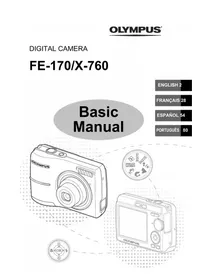
X760 - Camera OLYMPUS - Free user manual and instructions
Find the device manual for free X760 OLYMPUS in PDF.



| Product type | Digital camera |
| Brand | Olympus |
| Model | X760 |
| Sensor | CCD 1/2.5", 6.2 million pixels (gross), 6.0 effective million |
| Lens | Olympus 6.3–18.9 mm, f/3.1–5.9 (equivalent 38–114 mm in 35 mm) |
| Optical zoom | 3x |
| LCD screen | 2.5" color TFT, 153,600 pixels |
| Shutter speed | 2 to 1/2000 s |
| Shooting modes | Auto, Portrait, Landscape, Night, Scene (10 modes), Guide, Video |
| Flash | Auto, red-eye reduction, fill-in, off |
| Self-timer | 12 seconds |
| Focus | Automatic; normal: 0.1 m (W) – ∞, super macro: 0.05 m |
| Storage | xD-Picture Card (16 MB to 1 GB) |
| Image formats | JPEG (DCF) |
| Connections | USB, video (PAL/NTSC), DC input |
| Power supply | 2 AA batteries (alkaline, NiMH, Oxyride) or AC adapter |
| Weight (without battery or card) | 124 g |
| Included software | OLYMPUS Master (CD-ROM) |
| Included accessories | Strap, USB cable, video cable, AA batteries, CD-ROM, manuals |
| Cleaning | Damp cloth, do not use solvents |
Frequently Asked Questions - X760 OLYMPUS
User questions about X760 OLYMPUS
0 question about this device. Answer the ones you know or ask your own.
Ask a new question about this device
Download the instructions for your Camera in PDF format for free! Find your manual X760 - OLYMPUS and take your electronic device back in hand. On this page are published all the documents necessary for the use of your device. X760 by OLYMPUS.
USER MANUAL X760 OLYMPUS
Gather these items (box contents) 3
Insert the batteries. 4
Turn on the power 5
Set date and time 6
Select a Language 8
Shoot 9
View pictures. 10
Basic Operation 11
Shooting Mode Buttons 11
Mode Dial 12
SCENE Modes. 12
Macro Mode 13
Flash Modes 13
Self-Timer 14
Power Save Feature 14
15
Top Menu 15
Erase All Pictures 15
Connecting the Camera 16
Playback on a TV 16
Direct Printing (PictBridge) 17
Transfer Images 18
OLYMPUS Master Software 20
Specifications 21
Safety Precautions 22
- Before using your camera, read this manual carefully to ensure correct use.
- We recommend that you take test shots to get accustomed to your camera before taking important photographs.
- Please observe the safety precautions at the end of this manual.
- The images of the LCD screen and illustrations of the camera used in this manual may differ from the actual product.
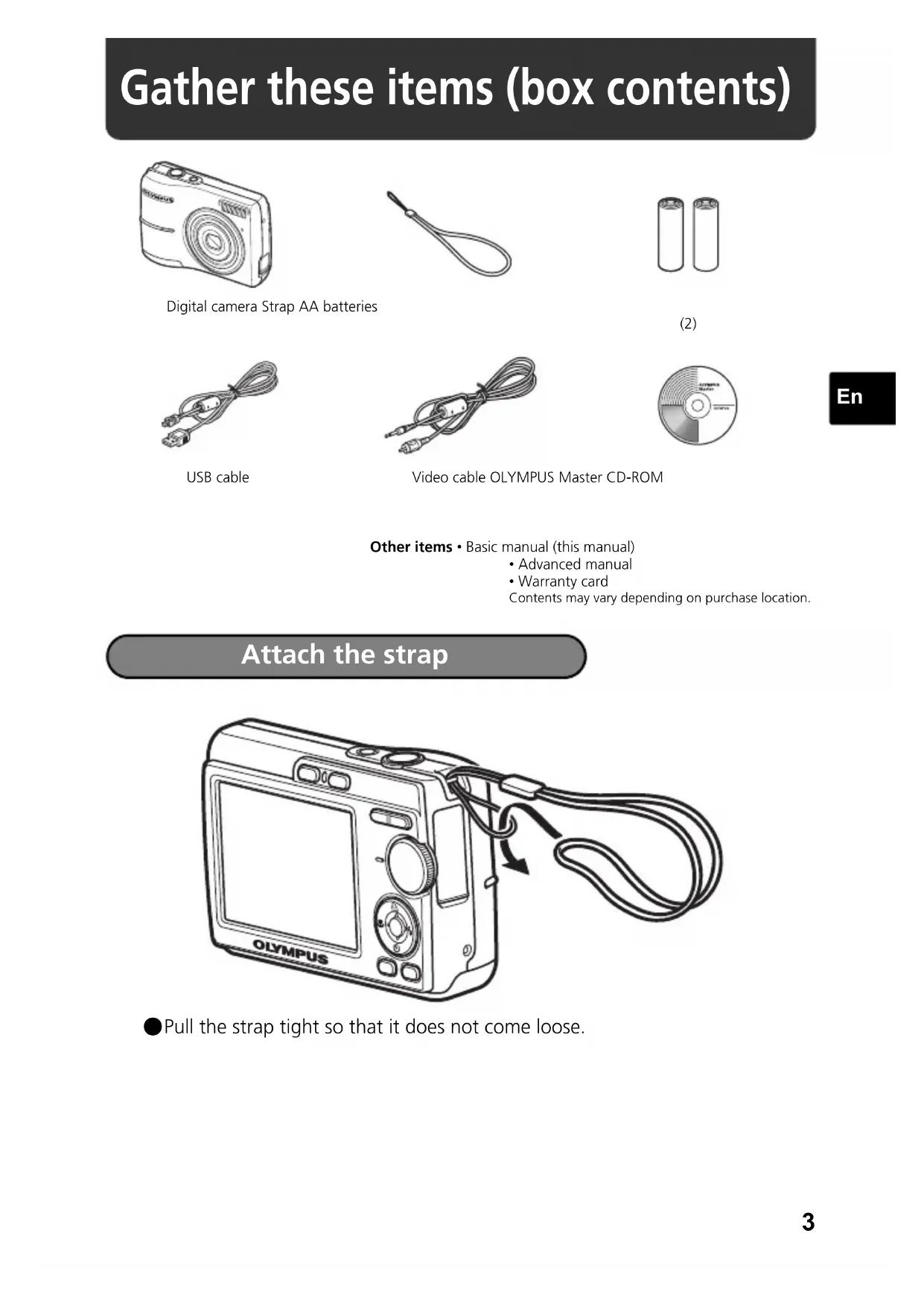
Gather these items (box contents)
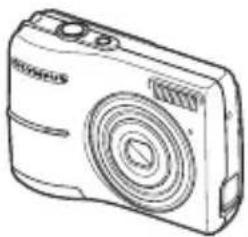
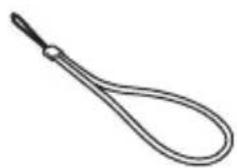
Digital camera Strap AA batteries
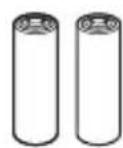
(2)
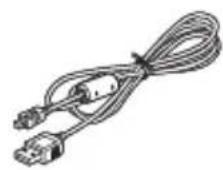
USB cable
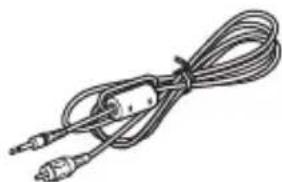
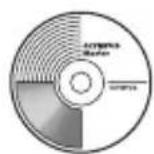
Video cable OLYMPUS Master CD-ROM
Other items · Basic manual (this manual)
Advanced manual
Warranty card
Contents may vary depending on purchase location.
Attach the strap
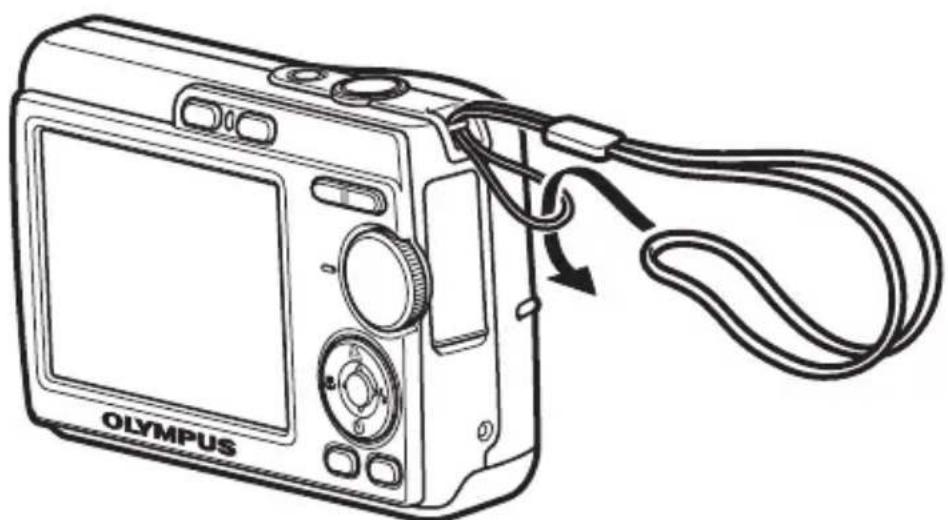
Pull the strap tight so that it does not come loose.
Insert the batteries
a. Insert the batteries into the camera
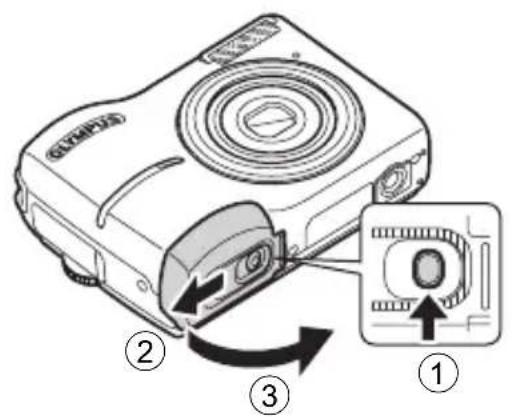
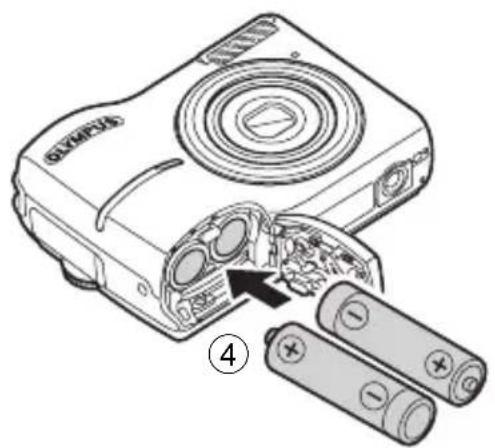
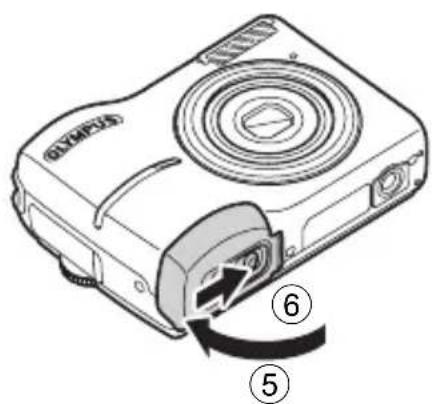
- For details on inserting an optional xD-Picture Card (hereinafter called the card), please refer to Advanced Manual.
Turn on the power
This section explains how to turn on the camera in shooting mode.
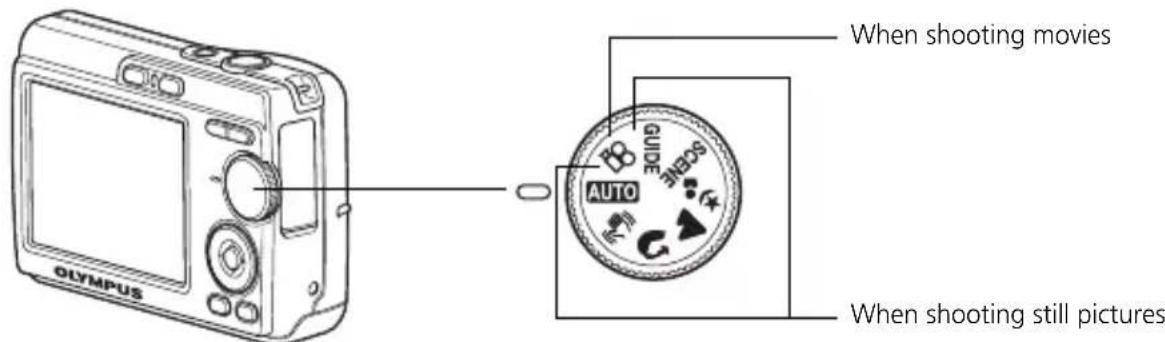
a. Set the mode dial to AUTO
En
Still picture shooting modes
| AUTO | The camera determines the optimum settings and shoots the picture. |
| (√) | This function reduces the blur caused by a moving subject or camera movement when taking pictures. |
| Suitable for taking pictures of people. | |
| Suitable for taking pictures of landscapes. | |
| Suitable for taking pictures of people at night. | |
| SCENE | Shoot pictures by selecting a scene mode according to the situation. |
| GUIDE | You can set the items you want by doing the settings according to the shooting guide displayed on the screen. |
b. Press the POWER button
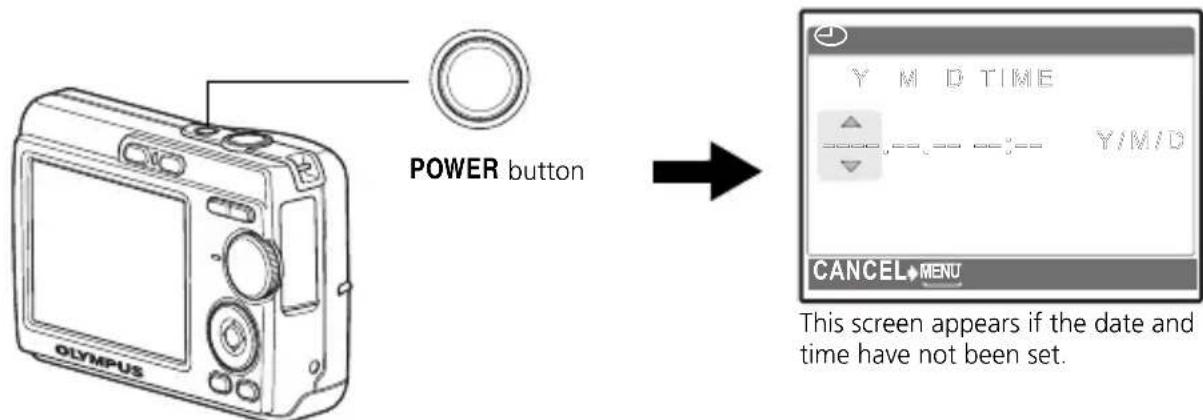
To turn off the camera, press the POWER button again.
Set date and time
About the date and time setting screen
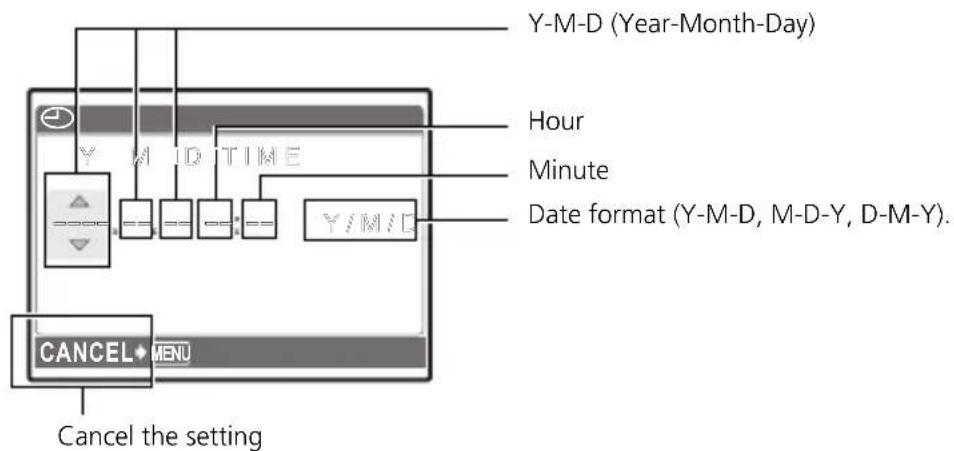
a. Press the button and button to select [Y].
The first two digits of the year are fixed.
![OLYMPUS X760 - a. Press the button and button to select [Y]. - 1](/content/2026/03/533350/images/fb6c10f6cfd5536bec7f125bfaa198466c20fe11d4852cf528cbdf6cb467d5dd.jpg)
![OLYMPUS X760 - a. Press the button and button to select [Y]. - 2](/content/2026/03/533350/images/548551323186cd1a2754d8dae4a5085b0a6e3f2e517d14d7ecfe1ed748714feb.jpg)
b. Press the button.
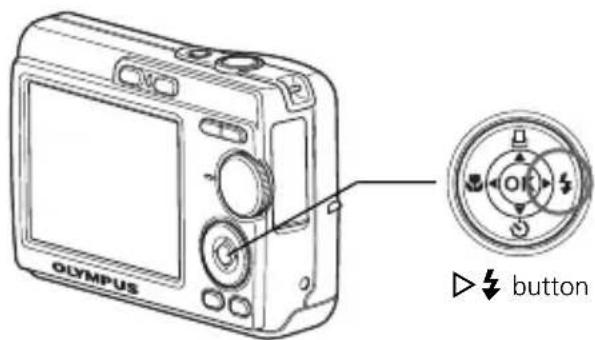
c. Press the button and the button to select [M].
![OLYMPUS X760 - c. Press the button and the button to select [M]. - 1](/content/2026/03/533350/images/3ea21f3d6647559819077a0a967c9b2c1b0180f27e56f3ccff7ac9df87146ad8.jpg)
d. Press the button.
e. Press the button and the button to select [D].
![OLYMPUS X760 - c. Press the button and the button to select [M]. - 2](/content/2026/03/533350/images/aa021470753f8e27cb9c4420b7d62a67753b5f4a45acef54dadc3ce7982179c0.jpg)
f. Press the button.
g. Press the button and the button to select "hour" and "minute".
![OLYMPUS X760 - c. Press the button and the button to select [M]. - 3](/content/2026/03/533350/images/2a48ef67639c9a97f518260a2c53719ca1235eb98ab5a7205e902edbe241f70a.jpg)
h. Press the button.
i. Press the button and button to select year, month and date.
![OLYMPUS X760 - c. Press the button and the button to select [M]. - 4](/content/2026/03/533350/images/b955d06337bdc5650d532a64ce0f1aea9712a72329036326c39aa6a640ffffbb.jpg)
j. After all items have been set, press OK.
The time is displayed in the 24-hour format.
For a more accurate setting, you can press when the time signal hits 00 seconds.
![OLYMPUS X760 - c. Press the button and the button to select [M]. - 5](/content/2026/03/533350/images/d910b8145dcc6d4585723de03dfe763e11516bc9167e67d489a05453739ea397.jpg)
Select a Language
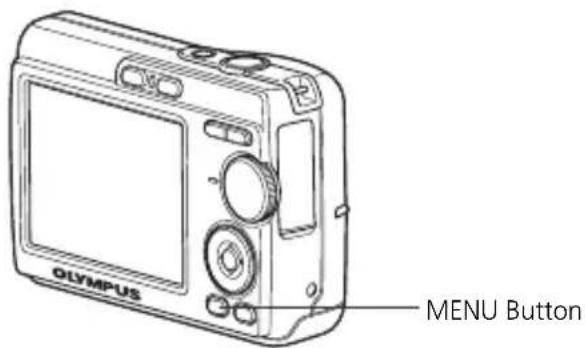
a. Press the MENU button to display the top menu.
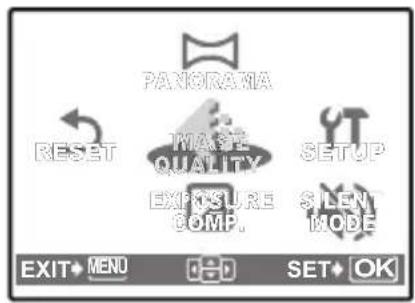
b. Press the button to select [SETUP] and then press the OK button.
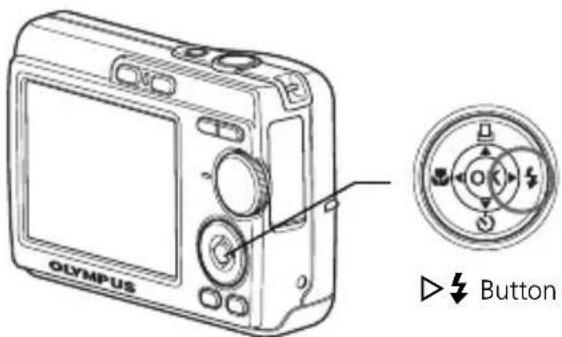
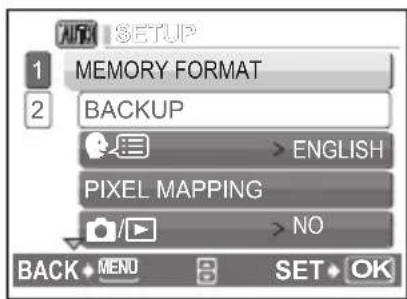
c. Press the button to select and then press the OK button.
d. Press the button and the button to select a language and then press the OK button.
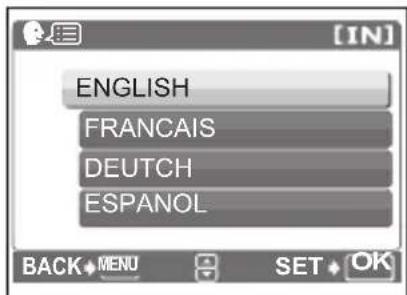
- You can add other languages to your camera with the provided OLYMPUS Master software. Please refer to the Advanced Manual.
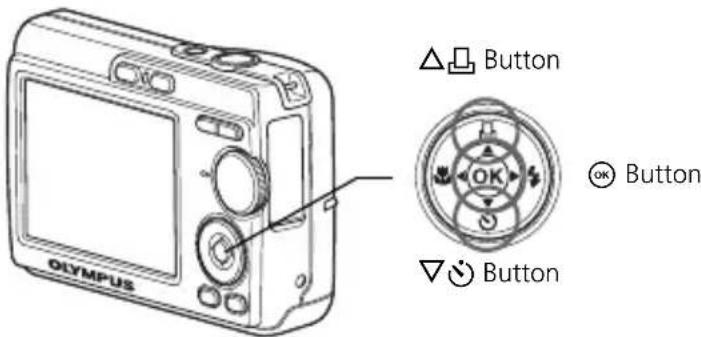
Shoot
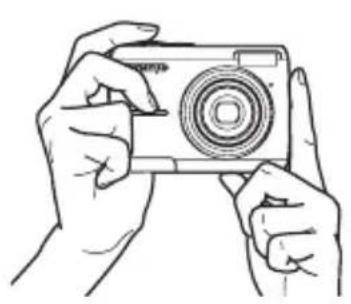
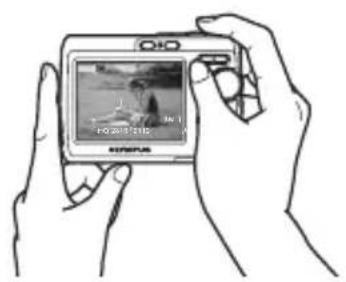
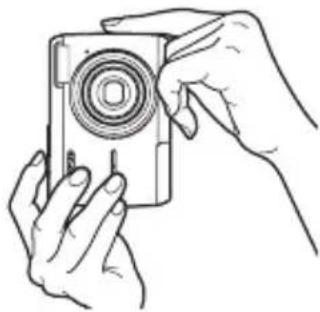
a. Hold the camera
Horizontal grip Vertical grip
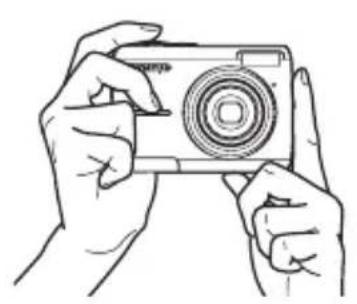
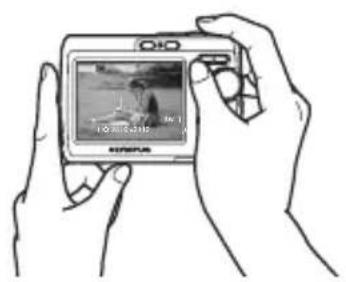
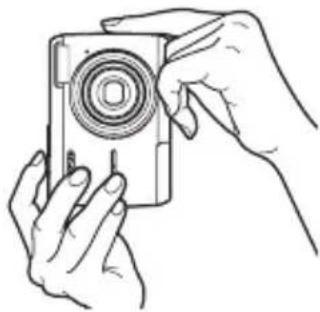
En
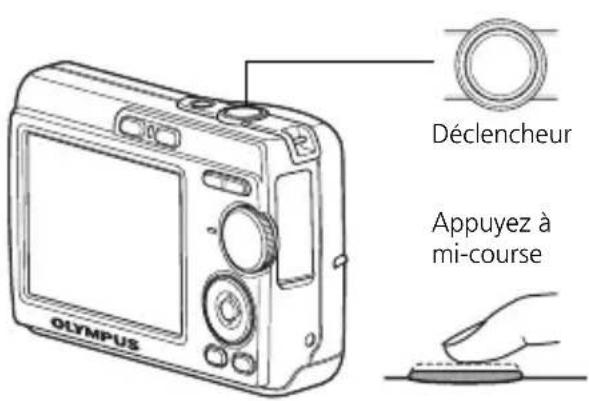
b. Focus
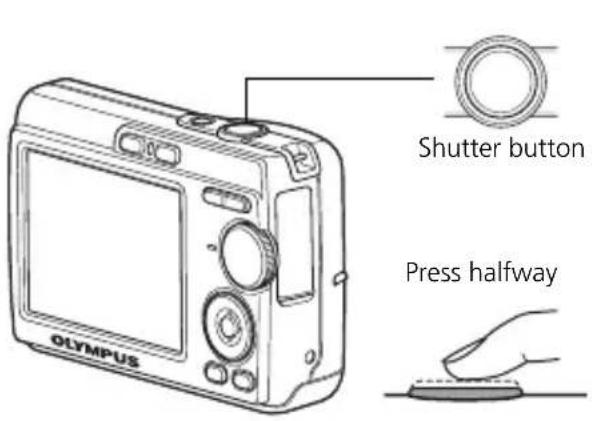
Place this mark over your subject.
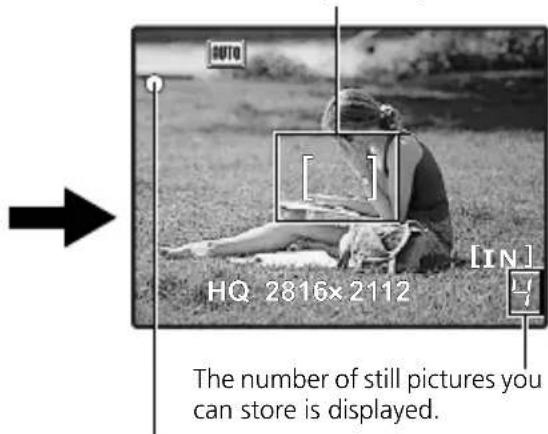
The green lamp indicates that the focus and exposure are locked.
c. Shoot
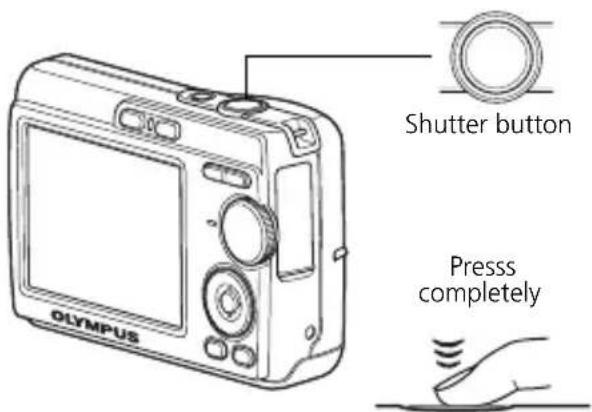
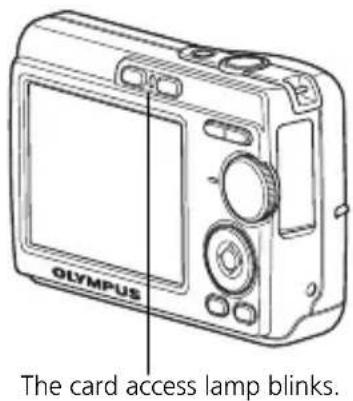
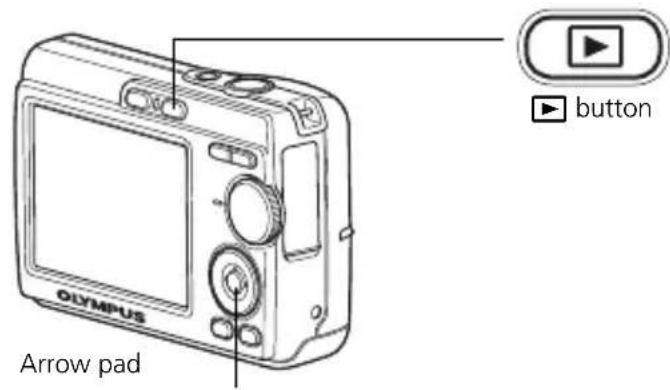
View pictures
a. Press the button.
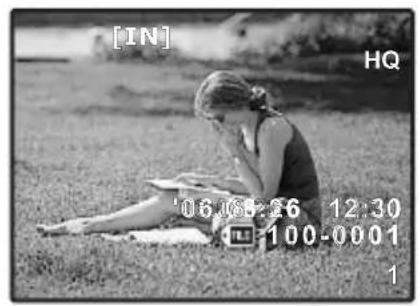
Erase pictures
a. As described in a. above, display the picture you want to erase.
b. Press the button.
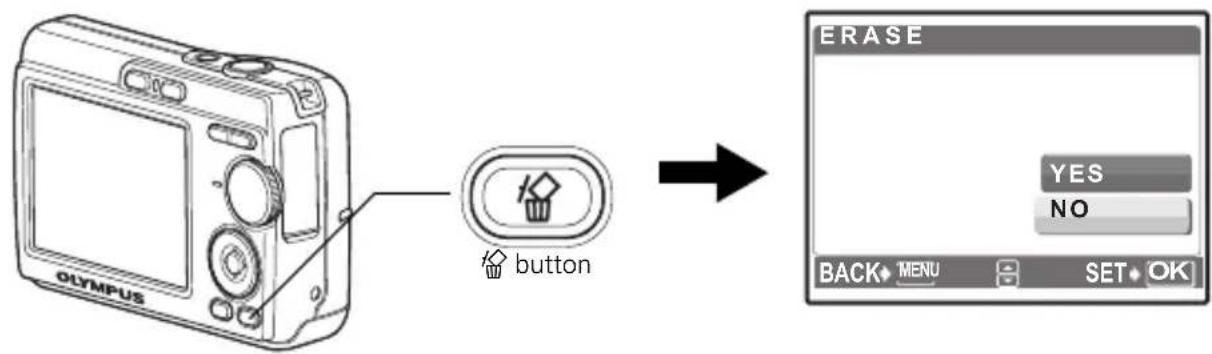
c. Press the button to select [YES] and press OK.
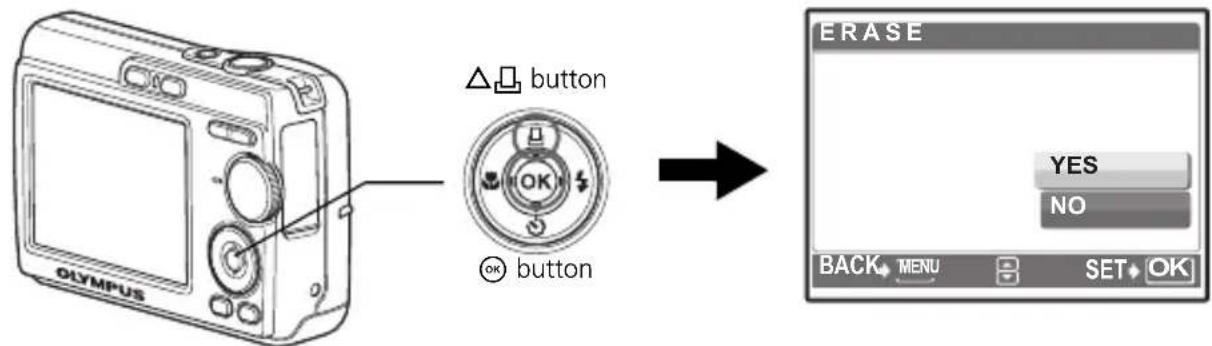
Basic Operation
Shooting Mode Buttons
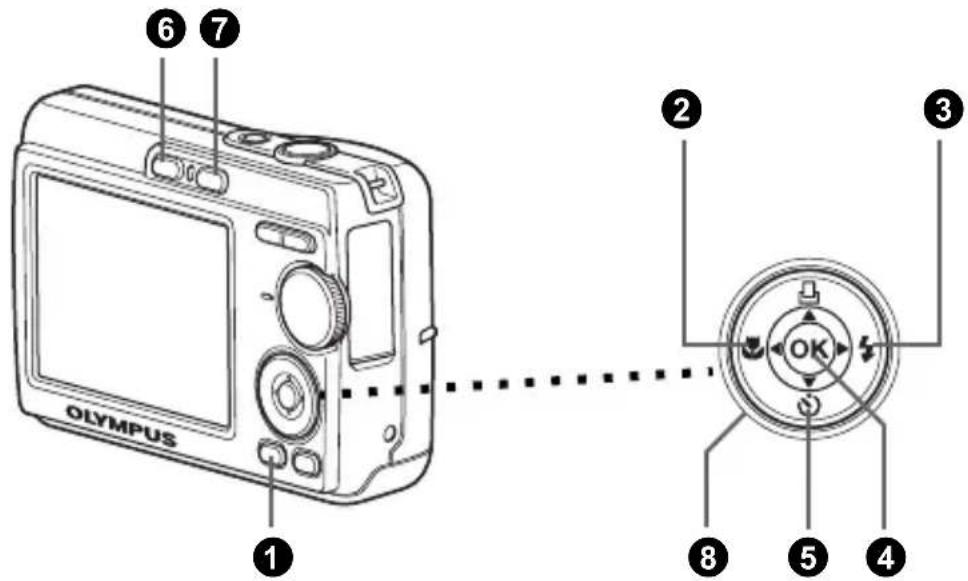
While in shooting mode, use these buttons for quick access to some of the more commonly used features.
En
1 MENU button
Displays the top menu on the monitor.
2 button (Macro Mode)
Use macro or super macro mode when taking close-up pictures such as of a flower.
3> button (Flash Mode)
Select from 4 flash modes - AUTO, Red-eye reduction, Fill-in flash, or Flash off.
4 OK button
Press to confirm settings.
5 button (Self-timer)
Select the self-timer to delay the shot approximately 12 seconds from when the shutter button is pressed.
6 button (Shooting)
Selects the shooting mode.
7 button (Playback)
Selects the playback mode.
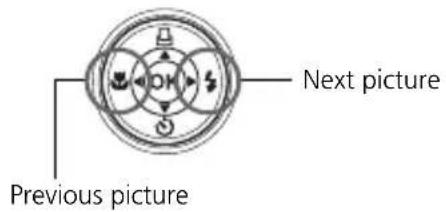
Arrow pad (△∇<
Selects scenes, playback pictures and menu items.
Mode Dial
Set the desired mode and turn the camera on. You may select the desired mode before or during use.
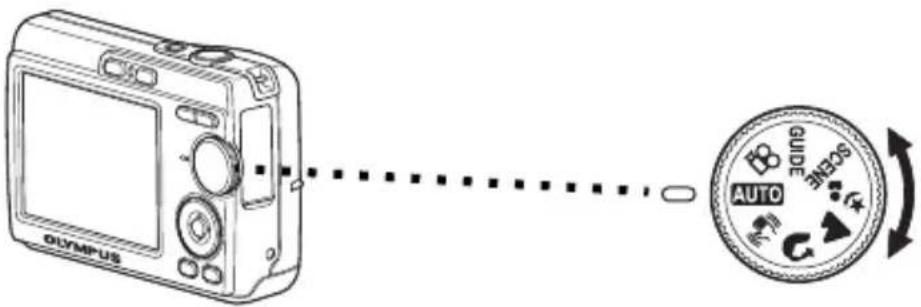
En
| AUTO | Suitable for taking regular pictures. |
| ( ) | This function reduces the blur incurred by a moving subject or camera movement when taking pictures. |
| Suitable for taking portrait pictures. | |
| Suitable for taking pictures of landscapes and other outdoor scenes. | |
| Suitable for taking pictures of your subject against a distant background. | |
| SCENE | This function lets you select from 10 situation-related modes set to the shooting conditions. |
| This function lets you record movies. | |
| Guide | You can set the desired setting following the shooting guide displayed on the monitor. |
SCENE Modes
Select the shooting mode depending on an object.
1 Set the mode dial to SCENE, and select the other scene.
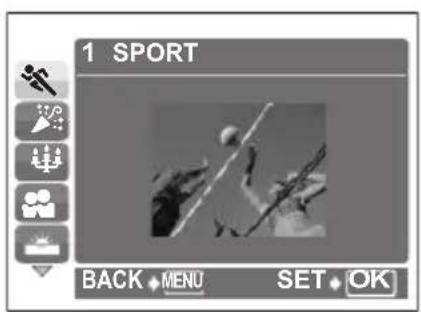
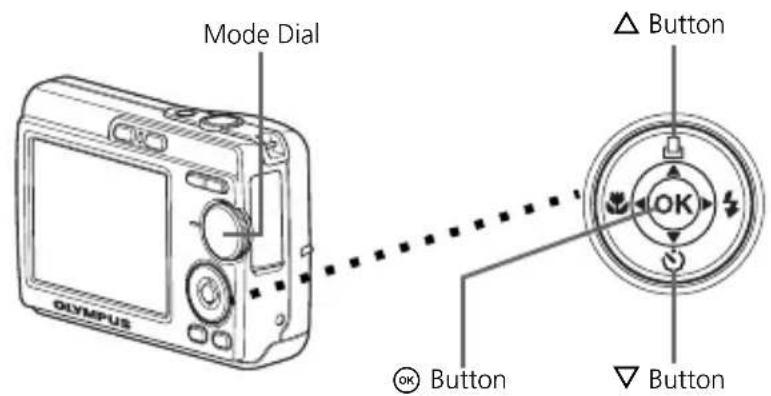
Press / to select the scene modes and press OK.
Shooting SCENE Modes
SPORT
INDOOR
CANDLE
SELF PORTRAIT
SUNSET
- FIREWORKS
BEHIND GLASS
CUISINE
DOCUMENTS
Auction
Macro Mode
This mode lets you take pictures as close as 10 cm (3.9 in.) to your subject. (Most wide-angle side)
Use this mode to take pictures as close as 5 cm (2.0 in.) to your subject. In mode, the position of the zoom lens is fixed.
Press repeatedly to select [ ] or [ ] and press OK.
Flash Modes
Press repeatedly to select the flash mode and press OK.
Press the shutter button halfway.
- When the flash is set to fire, the mark lights.
Press the shutter button completely to take the picture.
| Icon Flash Mode Description | |
| AUTO | Auto flash The flash fires automatically in low light or backlight conditions. |
| ◎ | Red-eye reduction flash The red-eye reduction flash mode significantly reduces this phenomenon by emitting pre-flashes before firing the regular flash. |
| ¶ | Fill-in flash The flash fires regardless of the available light. |
| ⓷ | Flash off The flash does not fire even in low light conditions. |
Self-Timer
Press to select [O] and press OK.
Press the shutter button completely to take the picture.
The self-timer lamp lights for approximately 10 seconds after the shutter button is pressed, then starts blinking. After blinking for approximately 2 seconds, the picture is taken.

En
Power Save Feature
- To save battery power, the camera automatically enters sleep mode and stops operating if not used for approximately 3 minutes. Press the shutter button on zoom lever to reactivate the camera.
- If the camera is not operated for 15 minutes after the camera enters sleep mode, it automatically retracts the lens and turns off. To resume operation, turn on the power again.
Menu and Settings
Top Menu
Press MENU to display the top menu.
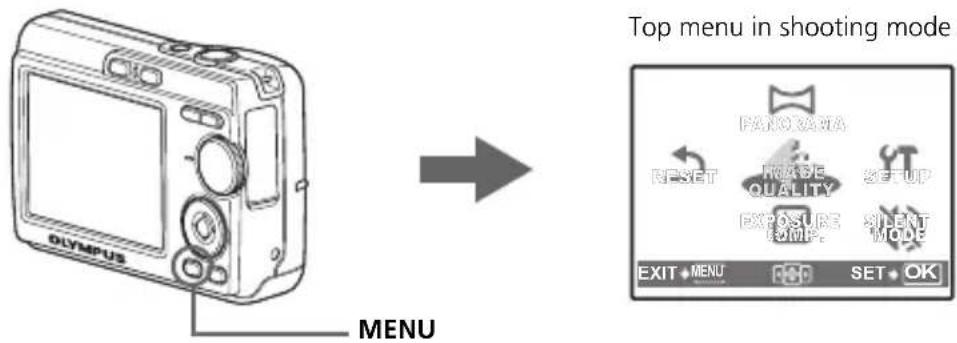
Use the arrow pad ( / / /D) to select menu items, and press to set them. PANorama
Panorama shooting lets you create a panoramic picture, using the OLYMPUS Master software from the provided CD-ROM. An Olympus xD-Picture Card is required for panorama shooting.
RESET
Return the changed shooting functions back to default settings.
IMAGE QUALITY
Set the image quality of the picture you will shoot according to its intended purpose.
Set the date, time, language, and operation sound, etc.
EXPOSURE COMP. (Exposure Compensation)
Use this setting to overexpose (+) or underexpose (-) a picture.
SILENT MODE
Mute operational sounds that occur during shooting and playback.
Erase All Pictures
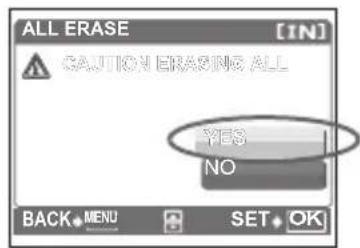
Press MENU in playback mode to display the top menu and select [ERASE] > [ALL ERASE].
2 Select [YES], and press OK.
- All the pictures are erased.
Connecting the Camera
Playback on a TV
Use the video cable provided with the camera to playback recorded images on your TV. Both still pictures and movies can be played back.
Make sure that the TV and camera are turned off. Connect the video out connector on the camera to the video input terminal on the TV using the video cable.
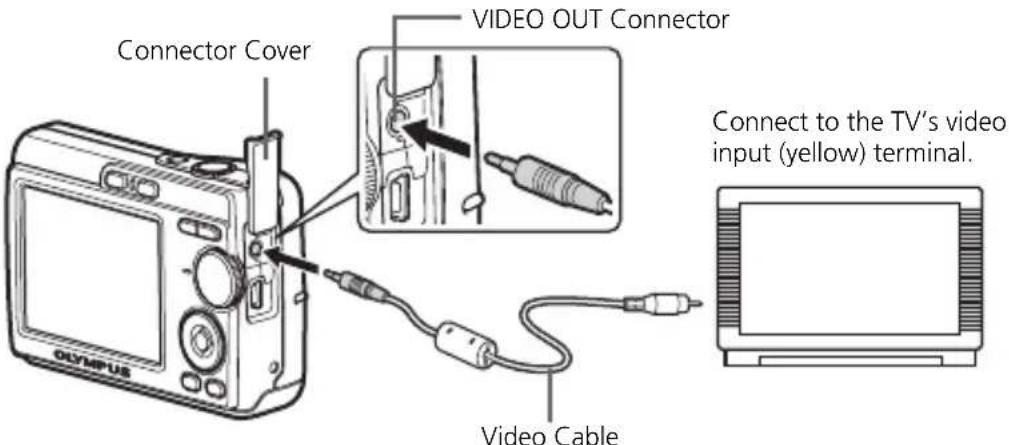
2Turn the TV on and set it to the video input mode.
- For details of switching to video input, refer to your TV's instruction manual.
3 Turn on the camera and then press to enter playback mode.
- The last picture taken is displayed on the TV. Use the arrow pad (//) to select the picture you want to display.
Direct Printing (PictBridge)
Using the provided USB cable, you may connect your camera directly to a PictBridge compatible printer such as the Olympus P-11 to make prints. You can print a picture with simple operations.
In playback mode, display the picture you want to print out on the monitor.
Connect one end of the provided USB cable into the camera's USB connector and the other end into the printer's USB connector.
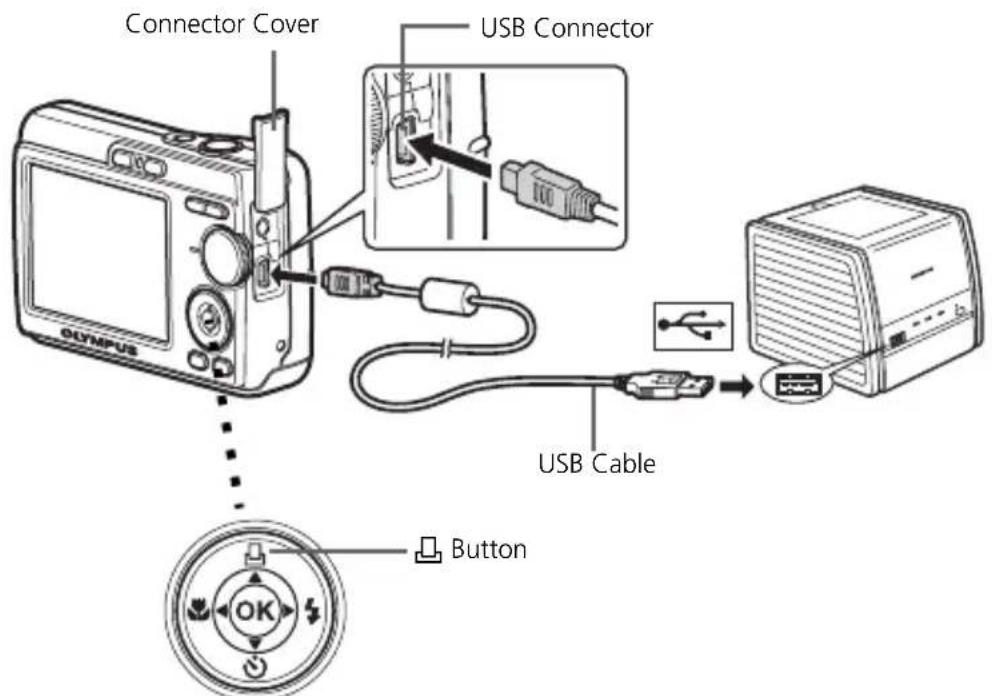
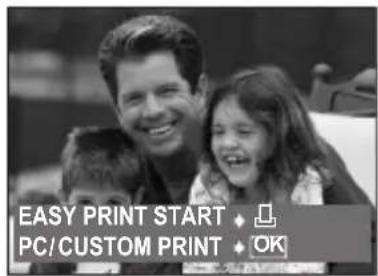
Press
Printing starts.
- When printings finished, disconnect the USB cable from the camera with the picture selection screen displayed.
Transfer Images
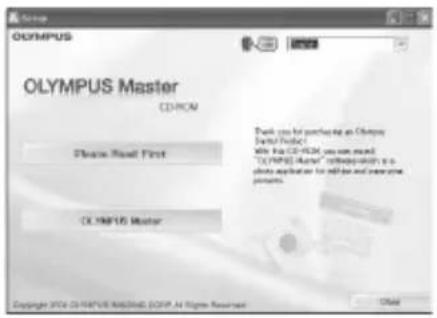
Install the software
Insert the OLYMPUS Master CD-ROM.
2Windows: Click the "OLYMPUS Master" button.
Macintosh: Double-click the "Installer" icon.
3Simply follow the on-screen instructions.
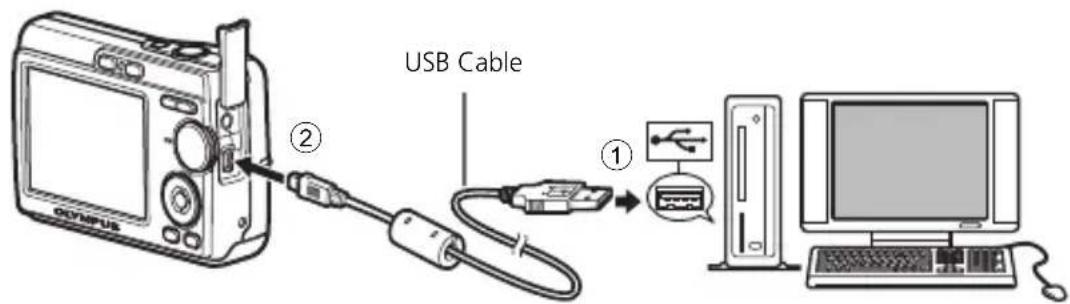
Connect the camera to the computer
Connect the camera and computer using the USB cable (included).
The monitor will turn on automatically.
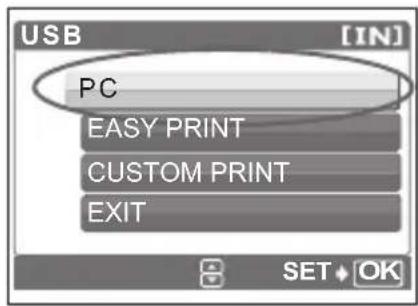
2 Select [PC] on the monitor, and press OK.
- Your PC will now recognize your camera as a removable storage drive.
Transfer images to the computer
1With the camera now connected, open OLYMPUS Master.
- The [Transfer Images] window is displayed.
Select the images you want to transfer, and click the [Transfer Images] button.
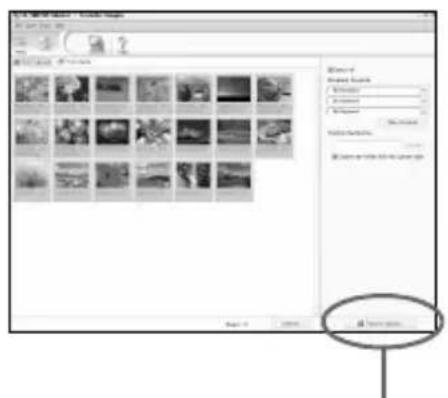
[Transfer Images] window
[Transfer Images] button
En
If the [Transfer Images] window is not displayed automatically:
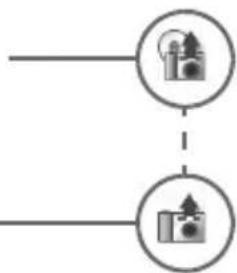
a. Click the "Transfer Images" icon on the OLYMPUS Master main menu.
b. Click the "From Camera" icon.
Tips
- For more detailed information regarding camera setup and usage, please refer to the camera's "Advanced Manual" provided on CD-ROM.
- For more details on using the OLYMPUS Master software, please refer to the (electronic) reference manual located in the OLYMPUS Master folder on your hard drive. For additional assistance, refer to the "Help" file in the OLYMPUS Master software.
OLYMPUS Master Software
OLYMPUS Master Software: Use this software to download pictures from the camera, view, organize, retouch, e-mail and print your digital pictures and movies and more! This CD also contains the complete software reference manual in Adobe Acrobat (PDF) format.
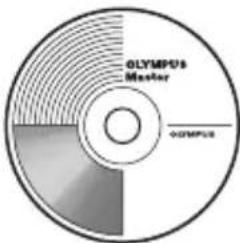
System Requirements
| OS Windows 98SE | Me/2000 Professional/XP or Mac OS X (10.2 or later) |
| CPU Pentium III 500 | MHz/Power PC G3, or faster |
| RAM 128 MB or more | (256 MB or more recommended) |
| Hard Disk 300 MB | or more free space |
| Connection USB port | |
| Monitor | 1024 × 768 pixels resolution or more with minimum 65,536 colors (Windows), 32,000 colors (Macintosh) |
For the latest support information, visit the Olympus website (http://www.olympus.com/digital)
Upgrade (OLYMPUS Master Plus)
In addition to the functions in OLYMPUS Master, the OLYMPUS Master Plus features movie editing, album printing, contact sheet printing, HTML album, free stitch panorama, CD/DVD writing functions, and a lot more, allowing you to greatly expand your digital photograph capabilities.
You can upgrade your software to OLYMPUS Master Plus via the Internet. You need to have OLYMPUS Master installed in a computer with an Internet connection.

User Registration
Register your camera when you install OLYMPUS Master to activate your warranty, receive notifications of software and camera firmware updates, and more.
Camera
Product type : Digital camera (for shooting and displaying)
Recording system
Still pictures : Digital recording, JPEG (DCF compatible)
Applicable : Exif 2.2, DPOF, PRINT Image Matching III, PictBridge standards
Movie : QuickTime Motion JPEG compatible
Memory : Internal memory
xD-Picture Card (16 MB to 1 GB)
No. of effective pixels : 6,000,000 pixels
Image pickup device : 1/2.5" CCD (primary color filter), 6,200,000 pixels (gross)
Lens : Olympus lens 6.3 to 18.9 mm, F3.1 to 5.9 (equivalent to 38 to 114 mm on 35 mm film)
Photometric system : Center-weighted metering
Shutter speed : 2 to 1/2000 sec.
Shooting range : 0.1 m (0.3 ft.) to (W), 0.6 m (2.0 ft.) to (T) (normal/ macro mode) 0.05 m (2.0 in.) to (super macro mode)
Monitor: 2.5" TFT color LCD display, 153,600 pixels
Outer connector : DC-IN jack, USB connector, VIDEO OUT jack
Automatic calendar : Automatic update from 2000 to 2099 system
Operating environment
Temperature: 0 to 40^ (32°F to 104°F) (operation)/-20 to 60^ (-4°F to 140°F) (storage)
Humidity : 30 to 90% (operation)/10 to 90% (storage)
Power supply : AA batteries 2 each (Oxyride batteries/Alkaline battery/ NiMH battery) or specified AC adapter
Dimensions : 90 mm (W) × 62.5 mm (H) × 22.5 mm (D) (3.5 × 2.5 × 0.9 in.) (excluding protrusions)
Weight : 124 g (4.4 oz) (without battery and card)
Please note that design and specification improvements may result in unannounced changes.
CAUTION
RISK OF ELECTRIC SHOCK DO NOT OPEN

CAUTION: TO REDUCE THE RISK OF ELECTRICAL SHOCK, DO NOT REMOVE COVER (OR BACK). NO USER-SERVICEABLE PARTS INSIDE. REFER SERVICING TO QUALIFIED OLYMPUS SERVICE PERSONNEL.


An exclamation mark enclosed in a triangle alerts you to important operating and maintenance instructions in the documentation provided with the product.
If the product is used without observing the information given under this symbol, serious injury or death may result.
If the product is used without observing the information given under this symbol, injury or death may result.
If the product is used without observing the information given under this symbol, minor personal injury, damage to the equipment, or loss of valuable data may result.
WARNING!
TO AVOID THE RISK OF FIRE OR ELECTRICAL SHOCK, NEVER DISASSEMBLE, EXPOSE THIS PRODUCT TO WATER OR OPERATE IN A HIGH HUMIDITY ENVIRONMENT.
General Precautions
Read All Instructions — Before you use the product, read all operating instructions. Save all manuals and documentation for future reference.
Cleaning — Always unplug this product from the wall outlet before cleaning. Use only a damp cloth for cleaning. Never use any type of liquid or aerosol cleaner, or any type of organic solvent to clean this product.
Attachments — For your safety, and to avoid damaging the product, use only accessories recommended by Olympus.
Water and Moisture — For precautions on products with weatherproof designs, read the weatherproofing sections.
Location — To avoid damage to the product, mount the product securely on a stable tripod, stand, or bracket.
Power Source — Connect this product only to the power source described on the product label.
Lightning — If a lightning storm occurs while using an AC adapter, remove it from the wall outlet immediately.
Foreign Objects — To avoid personal injury, never insert a metal object into the product.
Heat — Never use or store this product near any heat source such as a radiator, heat register, stove, or any type of equipment or appliance that generates heat, including stereo amplifiers.
Handling the Camera

WARNING
-
Do not use the camera near flammable or explosive gases.
-
Do not use the flash on people (infants, small children, etc.) at close range.
-
You must be at least 1 m (3 ft.) away from the faces of your subjects. Firing the flash too close to the subject's eyes could cause a momentary loss of vision.
-
Keep young children and infants away from the camera.
-
Always use and store the camera out of the reach of young children and infants to prevent the following dangerous situations which could cause serious injury:
-
Becoming entangled in the camera strap, causing strangulation.
- Accidentally swallowing the battery, cards or other small parts.
- Accidentally firing the flash into their own eyes or those of another child.
-
Accidentally being injured by the moving parts of the camera.
-
Do not look at the sun or strong lights with the camera.
-
Do not use or store the camera in dusty or humid places.
Do not cover the flash with a hand while firing.

CAUTION
-
Stop using the camera immediately if you notice any unusual odors, noise, or smoke around it.
-
Never remove the batteries with bare hands, which may cause a fire or burn your hands.
-
Never hold or operate the camera with wet hands.
-
Do not leave the camera in places where it may be subject to extremely high temperatures.
-
Doing so may cause parts to deteriorate and, in some circumstances, cause the camera to catch fire. Do not use the charger or AC adapter if it is covered (such as a blanket). This could cause overheating, resulting in fire.
-
Handle the camera with care to avoid getting a low-temperature burn.
-
When the camera contains metal parts, overheating can result in a low-temperature burn. Pay attention to the following:
-
When used for a long period, the camera will get hot. If you hold on to the camera in this state, a low-temperature burn may be caused.
-
In places subject to extremely cold temperatures, the temperature of the camera's body may be lower than the environmental temperature. If possible, wear gloves when handling the camera in cold temperatures.
-
Be careful with the strap.
-
Be careful with the strap when you carry the camera. It could easily catch on stray objects - and cause serious damage.
Battery Handling Precautions
Follow these important guidelines to prevent batteries from leaking, overheating, burning, exploding, or causing electrical shocks or burns.

DANGER
- Use only the Olympus brand NiMH batteries and fitting charger.
- Never heat or incinerate batteries.
- Take precautions when carrying or storing batteries to prevent them from coming into contact with any metal objects such as jewelry, pins, fasteners, etc.
- Never store batteries where they will be exposed to direct sunlight, or subjected to high temperatures in a hot vehicle, near a heat source, etc.
- To prevent causing battery leaks or damaging their terminals, carefully follow all instructions regarding the use of batteries. Never attempt to disassemble a battery or modify it in any way, by soldering, etc.
- If battery fluid gets into your eyes, flush your eyes immediately with clear, cold running water and seek medical attention immediately.
- Always store batteries out of the reach of small children. If a child accidentally swallows a battery, seek medical attention immediately.

WARNING
- Keep batteries dry at all times.
- To prevent batteries from leaking, overheating, or causing a fire or explosion, use only batteries recommended for use with this product.
- Never mix batteries (old and new batteries, charged and uncharged batteries, batteries of different manufacture or capacity, etc.).
- Do not charge alkaline or lithium batteries if they are not rechargeable.
- Insert the battery carefully as described in the operating instructions.
- Do not use batteries if their body is not covered by the insulating sheet or if the sheet is torn, as this may cause fluid leaks, fire, or injury.

CAUTION
- Do not remove batteries immediately after using the camera. Batteries may become hot during prolonged use.
- Always unload the battery from the camera before storing the camera for a long period.
The following AA batteries cannot be used.
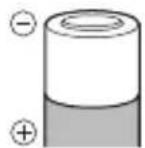
Batteries whose bodies are only partially or not at all covered by an insulating sheet.
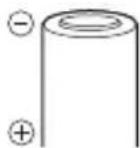
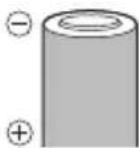
Batteries whose terminals are raised, but not covered by an insulating sheet.
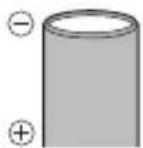
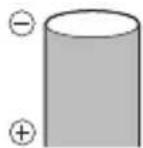
Batteries whose terminals are flat and not completely covered by an insulating sheet. (Such batteries cannot be used even if the terminals are partially covered.)
- If NiMH batteries are not charged within the specified time, stop charging them and do not use them.
- Do not use a battery if it is cracked or broken.
- If a battery leaks, becomes discolored or deformed, or becomes abnormal in any other way during operation, stop using the camera.
- If a battery leaks fluid onto your clothing or skin, remove the clothing and flush the affected area with clean, running cold water immediately. If the fluid burns your skin, seek medical attention immediately.
- Never subject batteries to strong shocks or continuous vibration.
For customers in North and South America
For customers in USA
Declaration of Conformity
Model Number: FE-170/X-760
Trade Name : OLYMPUS
Responsible Party : OLYMPUS IMAGING AMERICA INC.
Address: 3500 Corporate Parkway, P.O. Box 610, Center Valley,
PA 18034-0610, U.S.A.
Telephone Number : 484-896-5000
Tested To Comply With FCC Standards
FOR HOME OR OFFICE USE
This device complies with Part 15 of the FCC rules. Operation is subject to the following two conditions:
(1) This device may not cause harmful interference.
(2) This device must accept any interference received, including interference that may cause undesired operation.
For customers in Canada
This Class B digital apparatus meets all requirements of the Canadian Interference-Causing Equipment Regulations.
Trademarks
- IBM is a registered trademark of International Business Machines Corporation.
- Microsoft and Windows are registered trademarks of Microsoft Corporation.
- Macintosh is a trademark of Apple Computer Inc.
- ImageLink/EasyShare are trademarks of the Eastman Kodak Company.
· xD -Picture CardTM is a trademark. - All other company and product names are registered trademarks and/or trademarks of their respective owners.
- The standards for camera file systems referred to in this manual are the "Design Rule for Camera File System/DCF" standards stipulated by the Japan Electronics and Information Technology Industries Association (JEITA).
Memo
Table des matieres
Tenue horizontally Tenue vertical
b. Mise au point
Normes applicable: Exif 2.2, DPOF, PRINT Image Matching III, PictBridge
Video:QuickTime Motion compatible JPEG
Mémoire : Mémoire interne
90 mm (L) × 62,5 mm (H) × 22,5 mm (P) (hors saillies)
Poids
Partie responsible :
OLYMPUS IMAGING AMERICA INC.
Adresse : 3500 Corporate Parkway, P.O. Box 610, Center Valley, PA
18034-0610, U.S.A.
Apagar todas as imagens
1 Prima MENU no modo reproducao para exibir o menu superior e selecionar [APAGAR] > [APAGAR IMAGS].
- Surge a janela [Transfer Images] (Transfer imaging).
Upgrade (OLYMPUS Master Plus)
Morada : 3500 Corporate Parkway, P.O. Box 610, Center Valley, PA
18034-0610 EUA.
Telephone Nstreamo:484-869-5000
3500 Corporate Parkway, P.O. Box 610, Center Valley, PA 18034-0610, U.S.A. Tel. 484-896-5000
Technical Support (USA)
24/7 online automated help: http://www.olympusamerica.com/support
Phone customer support: Tel. 1-888-553-4448 (Toll-free)
Our phone customer support is available from 8 am to 10 pm (Monday to Friday) ET
E-Mail: distec@olympus.com
Olympus software updates can be obtained at: http://www.olympusamerica.com/digital
To find the nearest Authorized Distributor, please visit: http://www.olympusamerica.com/digital, and click on the Worldwide Warranty icon at the bottom of the page.
Authorized Distributors
| U.S.A.: | Brazil: | ||
| Los Angeles | Olympus Imaging America Inc. | Rio de Janeiro | Assistec |
| 10805 Holder Street Suite 170 | Rua Uruguaiana, 94-Sobreloja | ||
| Cypress, CA 90630-5145 | Centro-Rio de Janeiro CEP 20050-091 | ||
| Tel: (888) 553-4448 | Tel: (021) 2242-3236 Fax: (021) 2242-3236 | ||
| New York | Olympus Imaging America Inc. | Sao Paulo | E-Mail: rio@assistecs.com.br |
| 400 Rabro Drive | Assistec | ||
| Hauppauge, NY 11788-4258 | Rua Avanhandava 126, 3 Andar | ||
| Tel: (888) 553-4448 | Consolação, São Paulo | ||
| Canada: | Tel: (011) 3123-3100 Fax: (011) 3214-0706 | ||
| Calgary | Alta Camera Service | E-mail: ASSISTECSS@UOL.COM.BR | |
| 107-10 Ave. SW, Calgary, Alberta T2R 1KB | Assistec | ||
| Tel: (403) 234-0400 | Ficial Shopping Eldorado | ||
| Mississauga | Nortown Photo Service | Av. Rebouças 3970, 1 Subsolo, Loja 1035 | |
| 3045 Southcreek Road Unit 33 | Pinheiros, Sao Paulo | ||
| Mississauga, Ontario L4X 2X6 | Tel: (011) 3815-3054 Fax: (011) 3814-4398 | ||
| Tel: 1-877-677-3686 Fax: (905) 624-6167 | E-mail: ASSISTECSS@UOL.COM.BR | ||
| E-mail: service@nortownphoto.com | |||
| Montreal | AMT Service Inc. | Chile: | Reifschneider Foto S.A. C.I. |
| 5215 de la Savane | Camino Conquistador del monte 5024 | ||
| Montreal, Quebec H4P 1V4 | Huechuraba, Santiago Tel: 56-02-443-1500 | ||
| Tel: (514) 738-7044 Fax: (514) 738-4229 | E-mail: ceciliacalvo@reifschneider.cl | ||
| Vancouver | Vancam Service Ltd. | Colombia: | CV Tronica LTDA |
| 1666 West 8th Ave., Vancouver, | Calle 68 No 12-57, Bogota | ||
| B.C. V6J 1V4 Tel: (604) 736-4113 | Tel: (0571)235-7260/348-1573 | ||
| Winnipeg | Computech Camera Repairs Ltd. | Fax: (0571) 348-1574 | |
| 119 Sherbrook Street | E-mail:的服务@cvtronica.com | ||
| Winnipeg, Manitoba R3C 2B5 | Panama: | FOTOSER | |
| Tel: (204) 786-2693 | Edif. El Paical, Oficina No3, P.A. | ||
| Mexico: | Olympus Imaging de Mexico S.A. de C.V. | Urb. Herbruger, Transistmica | |
| WTC Mexico, | (Detras del S/M Riba Smith), | ||
| Montecito No.38 - Lobby - Office 3 | Tel/Fax: (507) 261-0436 | ||
| Col. Naples, Mexico D.F. 03810 | E-mail: rearanda@rocketmail.com | ||
| Tel. (5255) 54881280 | Uruguay: | Fotocamera S.R.L. | |
| E-mail: pedro.jimenez@olympus.com | Cuareim 1439 Montevideo | ||
| Argentina: | Jesus Labrador S.A. | Tel: (02) 900-2004 Fax: (02) 900-8430 | |
| Paraguay 755 PB, C1057 AAI Buenos Aires | E-mail: FOTOCAM@ADINET.COM.UY | ||
| Tel: (011) 4313-3174 Fax: (011) 4312-5239 | |||
| E-Mail: jesuslabrador@speedy.com.ar | |||
| Jesus Labrador S.A. | 4ta. transversal Urb. Horizonte, | ||
| Sucrursal Mitre, Bartolome Mitre 860 | Edificio América, Mezanine, Caracas 1070-A | ||
| C1036AAP Buenos Aires Tel: (011) 4331-1227 | Tel: (0212) 238-3526 Fax: (0212) 239-8598 | ||
| E-mail: jesuslabrador@speedy.com.ar | E-mail: guillermolandaeta@micron.com.ve |
- Gather these items (box contents) 3
- Insert the batteries. 4
- Turn on the power 5
- Set date and time 6
- Select a Language 8
- Shoot 9
- View pictures. 10
- Basic Operation 11
- 15
- Connecting the Camera 16
- Transfer Images 18
- OLYMPUS Master Software 20
- Specifications 21
- Safety Precautions 22
- Gather these items (box contents)
- Attach the strap
- Insert the batteries
- a. Insert the batteries into the camera
- Turn on the power
- a. Set the mode dial to AUTO
- Still picture shooting modes
- b. Press the POWER button
- Set date and time
- About the date and time setting screen
- a. Press the button and button to select [Y].
- b. Press the button.
- c. Press the button and the button to select [M].
- Select a Language
- Shoot
- a. Hold the camera
- b. Focus
- c. Shoot
- View pictures
- Erase pictures
- Basic Operation
- Shooting Mode Buttons
- MENU button
- button (Macro Mode)
- 3> button (Flash Mode)
- OK button
- button (Self-timer)
- button (Shooting)
- button (Playback)
- Arrow pad (△∇<
- Mode Dial
- SCENE Modes
- Shooting SCENE Modes
- Macro Mode
- Flash Modes
- Self-Timer
- En
- Power Save Feature
- Menu and Settings
- Top Menu
- RESET
- IMAGE QUALITY
- EXPOSURE COMP. (Exposure Compensation)
- SILENT MODE
- Erase All Pictures
- Connecting the Camera
- Playback on a TV
- Direct Printing (PictBridge)
- Press
- Transfer Images
- Install the software
- Connect the camera to the computer
- Transfer images to the computer
- Tips
- OLYMPUS Master Software
- System Requirements
- Upgrade (OLYMPUS Master Plus)
- User Registration
- Camera
- CAUTION
- General Precautions
- Handling the Camera
- WARNING
- Battery Handling Precautions
- DANGER
- For customers in North and South America
- For customers in USA
- For customers in Canada
- Trademarks
- Memo
- Table des matieres
- b. Mise au point
- Apagar todas as imagens
- Upgrade (OLYMPUS Master Plus)
- Technical Support (USA)
- Authorized Distributors
Brand : OLYMPUS
Model : X760
Category : Camera