DH70W1WG - Air-conditioner HISENSE - Free user manual and instructions
Find the device manual for free DH70W1WG HISENSE in PDF.



| Product type | Portable dehumidifier |
| Brand | Hisense |
| Model | DH70W1WG |
| Power supply | 220-240 V ~ 50 Hz |
| Power consumption | 450 W (estimated) |
| Dehumidification capacity | 70 L/day (estimated) |
| Noise level | ≤ 52 dB(A) |
| Water tank | 6 L (estimated) |
| Main functions | Dehumidification, ventilation, auto dry mode, timer, WiFi control |
| Connectivity | WiFi 2.4 GHz (module AEH-W4B1) |
| Mobile app | Hi-Smart Air (iOS 8+ / Android 4.4+) |
| Operating temperature | 0 °C to 40 °C |
| Operating humidity | 20 % to 85 % RH |
| Maintenance | Regular cleaning of washable air filter |
| Safety | Compliant with FCC and IC standards |
| Net weight | 15 kg (estimated) |
| Dimensions (W x D x H) | 350 x 250 x 600 mm (estimated) |
Frequently Asked Questions - DH70W1WG HISENSE
User questions about DH70W1WG HISENSE
0 question about this device. Answer the ones you know or ask your own.
Ask a new question about this device
Download the instructions for your Air-conditioner in PDF format for free! Find your manual DH70W1WG - HISENSE and take your electronic device back in hand. On this page are published all the documents necessary for the use of your device. DH70W1WG by HISENSE.
USER MANUAL DH70W1WG HISENSE
Smartphone App User's Manual
Models:
AP10CW1G Portable AC
SAFETY Precautions....2
Hi-Smart Air Home Appliance System 3
WiFi Module Performance Parameters.... 4
System Operation Requirements 4
A、Smartphone System Requirements 4
B、Wireless Router requirements....5
C. In-Home WiFi Network Connectivity Tips 6
D. Other Requirements and Precautions 6
Downloading the App....7
Method for registration and login 8
Method for Pairing 10
IOS Pairing 11
Android Pairing.... 13
Instructions for Unpairing and General Functions.... 15
Unpairing 15
Additional Information & Terms 15
Home Appliance Functions.... 17
Portable AC....18
Dehumidifier....19
Troubleshooting the Hisense Hi-Smart Air App 21
Statement 24
FCC Statement....24
IC Statement....26
Welcome
Welcome to the Hisense family and thank you for trusting Hisense with your purchase! We're happy that you chose Hisense, and we are confident that you'll be completely satisfied with your new Hisense Air Home Appliance for many years to come.
Hisense proudly stands behind our products and welcome your suggestions and feedback that will help us to continue meeting your expectations. To contact us directly, please refer the local contact information in the Hi-Smart Air App.
We look forward to you sharing the positive experience you've had with our product and our service! We welcome product reviews and hope you will share your Hisense experience at your retailer's website, or on Facebook or Twitter.
SAFETY Precautions
The Hisense Hi-Smart Air App is only compatible with Hisense specific Air Home Appliance models (Dehumidifier Portable Air Conditioner and Mini-Split Air Conditioner). The APP is not compatible with other Hisense home appliances, or products of other brands.
Notice: The App may not operate correctly if not used according to the directions given in this manual.
This manual is only applicable to specific Hisense Hi-Smart Air Home Appliance products (Dehumidifier Portable Air Conditioner and Mini-Split Air Conditioner). Please confirm the appliances are installed correctly before use.
This device complies with Part 15 of the FCC rules. Operation is subject to the following two conditions (1) this device may not cause harmful interference, and (2) this device must accept any interference received, including interference that may cause undesired operation. Please visit www.Hisense-usa.com/fccpart15b for more information.
Hi-Smart Air Home Appliance System
The manual instructs users on the use of Hisense Hi-Smart air home appliances, including the smart WiFi module and smartphone application. A smartphone is required to install the Hi-Smart Air App. Currently, tablet devices are not supported.
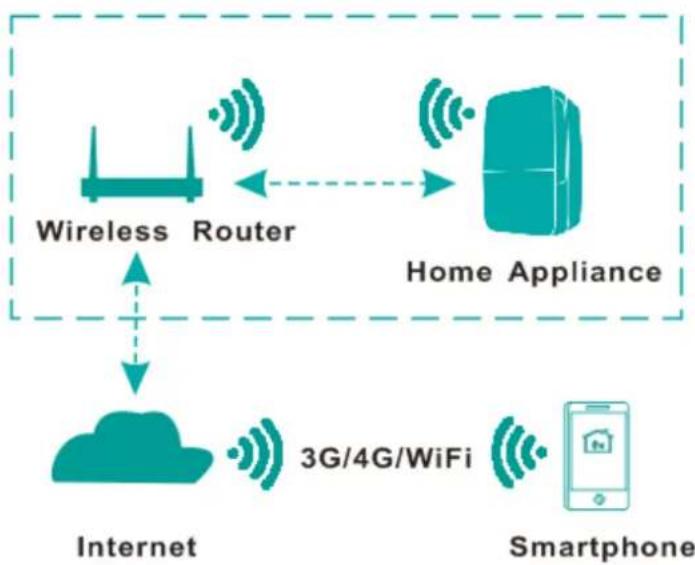
flowchart
graph TD
    A["Wireless Router"] <--> B["Home Appliance"]
    C["Internet"] <--> D["3G/4G/WiFi"]
    E["Smartphone"] --> F["Home Appliance"]
    style A fill:#f9f,stroke:#333
    style B fill:#ccf,stroke:#333
    style C fill:#cfc,stroke:#333
    style D fill:#fcc,stroke:#333
    style E fill:#cff,stroke:#333
    style F fill:#ffc,stroke:#333
Hi-Smart System Communication Pathway
Users first install the Hi-Smart Air App on their smartphones, and the App sends control instructions to the internal WiFi module inside the home appliance, via the communication pathway shown in the above diagram. The smart appliance is then controlled and managed via smartphone.
WiFi Module Performance Parameters
Table 1: Internal WiFi module Performance Parameters
| WiFi Model | AEH-W4B1 |
| Transmission frequency | 2.4GHz |
| Transmission power | ≤19dBm |
| Power supply | 5V/450mA |
| Operating temperature | 0~40°C |
| Operating humidity | 20%~85%RH |
System Operation Requirements
A、Smartphone System Requirements
The following are the minimum specifications needed to successfully run the Hi-Smart Air app on a smartphone:
Table 2: Smartphone requirements
| Terminal device | Android | IOS |
| OS | Android 4.4 or higher | IOS 8 or higher |
| Resolution | 800*480 or higher | 960*640 or higher |
B、Wireless Router requirements
Table 3: Wireless Router requirements
| Standard | IEEE 802.11b/g/n |
| Frequency Range | 2.412-2.472GHz |
| Security | 128 bits WEP,AES,WPA,WPA2 |
| Output Power | 802.11b: 11dB M(11Mbps)802.11g: 15dB M(54Mbps)802.11n: 11dB M(72.2Mbps) |
| Data Rate | 802.11b: 11Mbps802.11g: 54Mbps802.11n: 72.2Mbps |
| Sensitivity | 802.11b: 11Mbps802.11g: 54Mbps802.11n: 72.2Mbps |
| Number of Channels | 2.4GHz:Ch1~Ch13 |
| Modulation | QPSK+OFDM |
Notice:
*Please try to use a certified 2.4G wireless router.
*The wireless router requirements are a general specification.
*Depending on the environment, there might be multiple WiFi access points available. It is important to ensure that the correct one is being used.
* A router firewall may have high security or parental controls configured, and these settings may block some required network ports for the device.
The following network ports should be opened/whitelisted on your router:80/443/53/55055/55056(Check the router's user manual for instructions on configuring firewalls.)
C. In-Home WiFi Network Connectivity Tips
Locate the Hi-Smart Air home appliance as close to the wireless router as possible. If the WiFi signal strength is weak, the Hi-Smart App and WiFi module may be disconnected depending on the WiFi signal strength. Check that no metal objects are attached to the Hi-Smart appliance, or otherwise interfering with the WiFi signal.
D. Other Requirements and Precautions
* The smartphone must be connected with WiFi instead of 3G/4G when it is paired to the Hi-Smart Air home appliances for the first time;
* When using the Hi-Smart Air Application, cellular data use may generate expenses if the mobile phone is connected with 3G/4G data
service;
* The internet connection may fail due to presence of any firewalls. If this is the case, it's recommended to contact your internet service provider;
* If your internet service provider requires an ID or a password to connect to the internet, you must enter your ID or password when connecting to the internet.
Downloading the App
- Please make sure that smartphone has been connected to the Internet before downloading the App.
- For Android smartphone users, open PLAY Store and enter Hi-Smart Air in the Search bar to find the latest version. Download and install it.
- For IOS smartphone users, open the APP Store and enter Hi-Smart Air in the Search bar to find the latest version. Download and install it.

text_image
GET IT ON Google play
text_image
Available on the App StoreMethod for registration and login
(Please make sure that the smartphone has an active connection to the Internet)
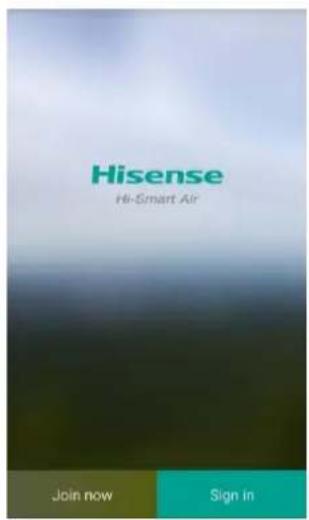
After downloading the application, install the Hi-smart Air App as directed, and then enter the application by clicking the desktop Icon. As shown in picture, the
text_image
Hisense Hi-Smart Air Join now Sign in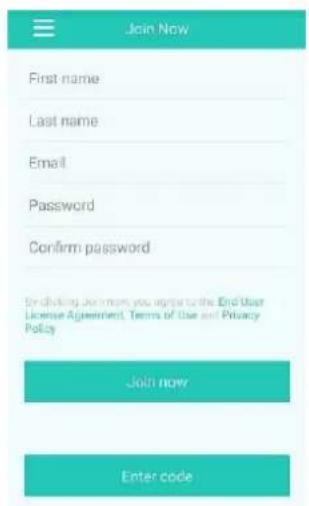
text_image
Join Now First name Last name Email Password Confirm password Enabling John mom you agree to the End User License Agreement, Terms of Use and Privacy Policy Join now Enter codeusers without an account must register an account by clicking the "Join now" and the users with an account shall log in by directly clicking the "Sign in";
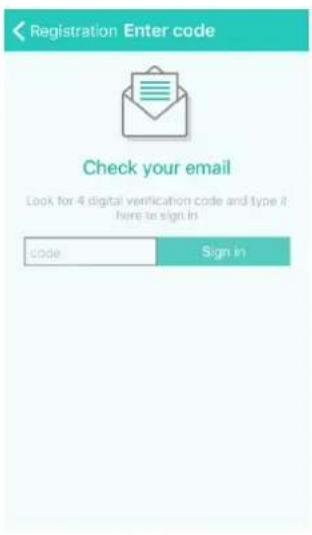
After clicking "Join in", the system will send a registration code to the user's registered e-mailbox, the user then submits the code and activates the account thru the interface shown. The user then clicks "Already received the email in Registration interface, and enter your code".
text_image
Registration Enter code Check your email Look for 4 digital verification code and type it here to sign in Code Sign in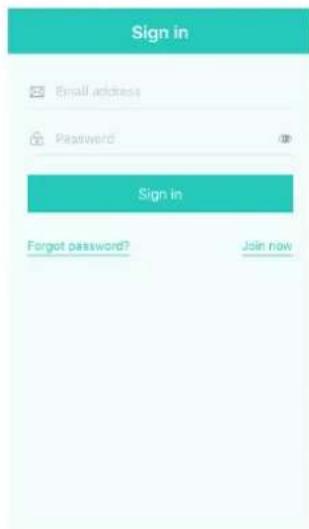
text_image
Sign in Email address Password Sign in Forgot password? Join now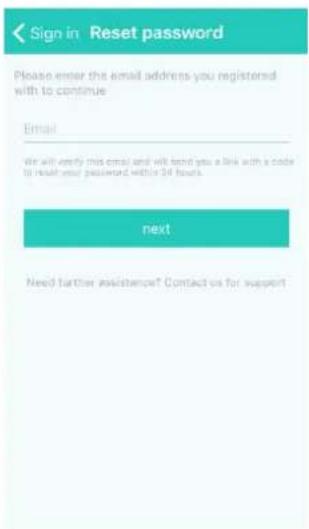
text_image
Sign in Reset password Please enter the email address you registered with to continue Email We will verify this email and will send you a link with a code to reach your password within 34 hours. next Need further assistance! Contact us for supportAccount login. Enter your Email and Password to log in. If the password is forgotten, click "Forgot password", then enter an Email address and check the code in the mailbox.
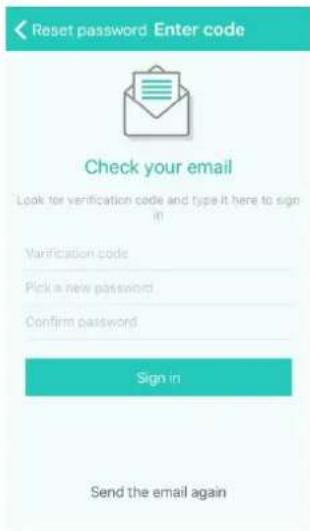
Enter the code and change the password via the interface.
text_image
Reset password Enter code Check your email Look for verification code and type it here to sign (1) Verification code Pick a new password Confirm password Sign in Send the email againMethod for Pairing
Before pairing your device, please make sure your smartphone is connected to the Internet through a wireless router. The smartphone and the appliance can't be paired through 3G/4G cellular data service.
For a Dehumidifier: press "mode" and "fan" button at the same time and the buzzer will sound 3 times, wait until the display shows "P2";
For a Portable AC: click "SWING" button 6 times on the remote and the buzzer will sound 5 times, wait until the display shows "77";
For a Mini-Split AC, press Horizon Airflow button 6 times on the remote and the buzzer will sound 5 times, wait until the display shows "77".
Notices:
-
The three smart home appliances mentioned above only support one user to carry out Pairing. If other users want to check or control the state of these Hi-Smart home appliances, they need to get authorization of the first pairing user. Please check the section “share” for specific operation methods.
-
The initial paired user will lose connection if another user
conducts the above operation forcibly and carries out the pairing successfully.
IOS Pairing
(Please make sure that the smartphone has been connected to the Internet by wireless router)
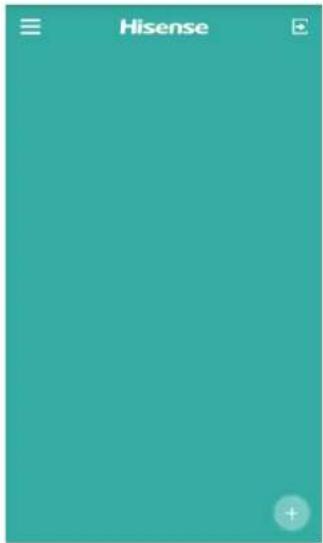
After logging in the account, the user will enter right interface and click the right-hand lower-corner “+” to add smart home appliances;
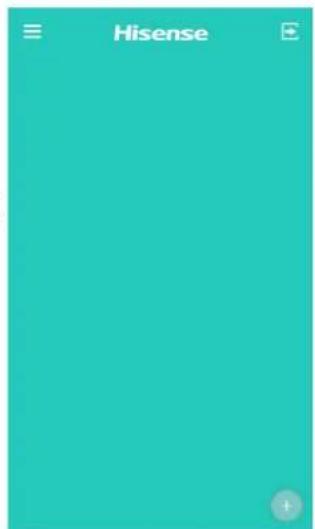
text_image
Hisense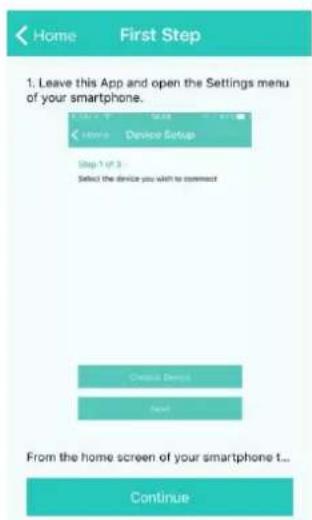
text_image
Home First Step 1. Leave this App and open the Settings menu of your smartphone. Home Device Setup Step 3 of 3 Select the device you wish to comment Create Devices Next From the home screen of your smartphone t... ContinueThe picture (left) is a pairing guidance interface (4 pages in all). The user can start pairing after getting familiar with pairing
steps.
If further confirmation is required
text_image
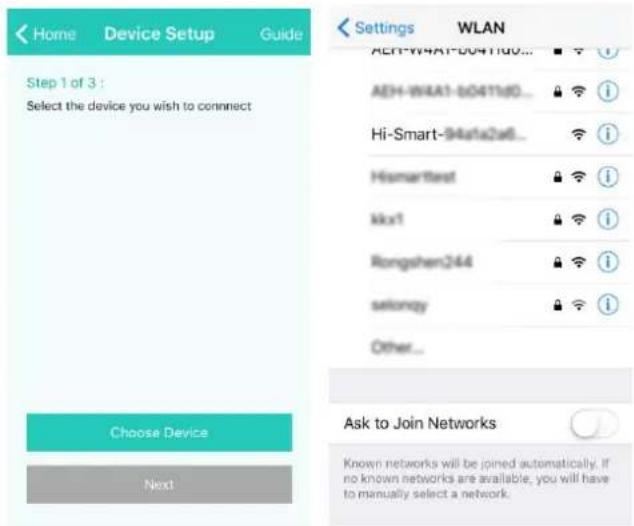
Home Device Setup Guide Step 1 of 3 : Select the device you wish to connect Choose Device Next Settings WLAN AEH-W4A1-B0411d0... Hi-Smart-94a1a2a6... Hismarttest kxx1 Rongshen244 selyony Other... Ask to Join Networks Known networks will be joined automatically. If no known networks are available, you will have to manually select a network.after browsing the pair guidance interface pages, the user can check the pairing steps in the “Guide”, on the top right corner.
Adding Home Appliances.
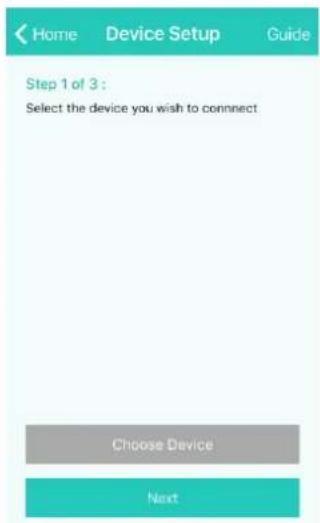
Step 1, Click “Choose Device”, the interface will display, and then choose home appliances beginning with “Hi-Smart” and wait for the interface to display automatically.
text_image
Home Device Setup Guide Step 1 of 3 : Select the device you wish to connect Choose Device NextNote:
If the interface cannot display automatically in 10 seconds after product (Hi-Smart-xxxx selection ), double click “Home” to return to the “Device Setup” interface and click “Next”.
Step 2, Choose the
wireless router, and then the interface will display.
text_image
Device Setup Device Setup Step 3 of 3 : Enter your network's password Starting getting device info...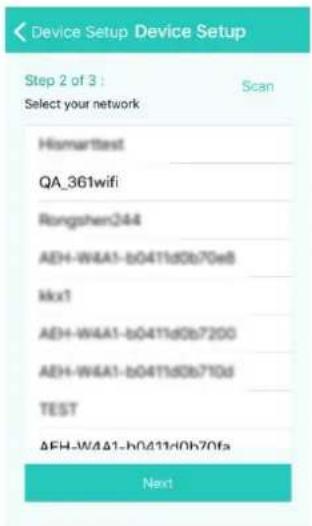
text_image
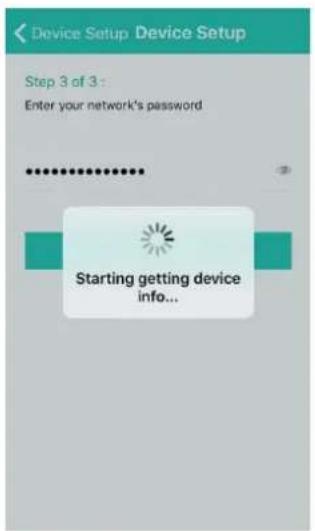
Device Setup Device Setup Step 2 of 3 : Scan Select your network Hismarttest QA_361wifi Rongshen244 AEH-W4A1-b041ld0b70e8 kx1 AEH-W4A1-b041ld0b7200 AEH-W4A1-b041ld0b710d TEST AEH-W4A1-b041ld0b70fa NextStep 3, Enter the
password for the wireless router and wait for
completion of pairing with the home appliance.
Android Pairing
(Please make sure that the smartphone has been connected to the Internet through a wireless router)
After logging into the account, the user will enter the interface (right), and click the right downside “+” to add smart home appliances.
text_image
Hisense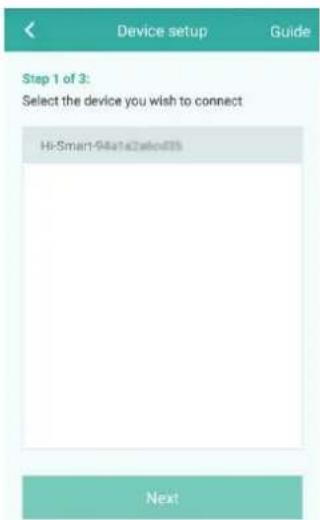
text_image
Device setup Guide Step 1 of 3: Select the device you wish to connect Hi-Smart-941s2sled03 NextPairing: When adding home appliances, the user can choose unpaired appliances (serial number of home appliances shall begin with Hi-Smart) and click “Next” to start pairing. By clicking “Guide”, at the top right corner of the screen, operational pairing hints can be found.
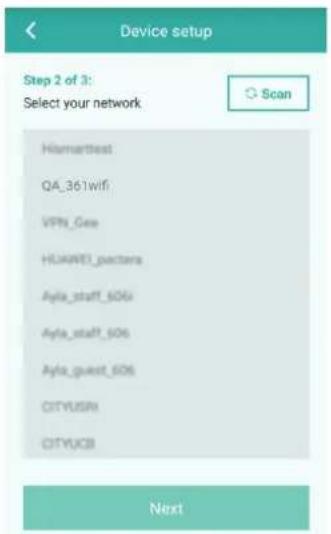
A selection list of wireless routers is shown in the picture at right. Click “Next”.
text_image
Device setup Step 2 of 3: Select your network Hismarttest QA_361wifi VPN_Gee HUAWEI_pactera Ayla_staff_50G Ayla_staff_50G Ayla_guest_50G CITYUSR CITYUCB Next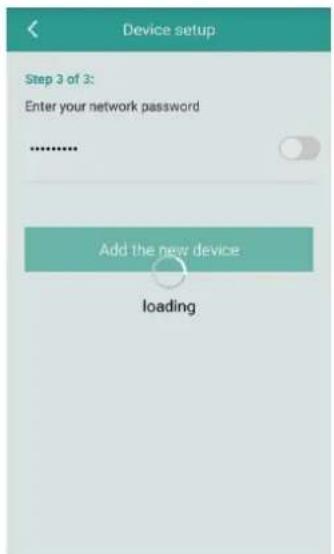
text_image
Device setup Step 3 of 3: Enter your network password Add the new device loadingEnter the password of the wireless router and click “Add the new device” to complete pairing.
Instructions for Unpairing and General Functions
Unpairing
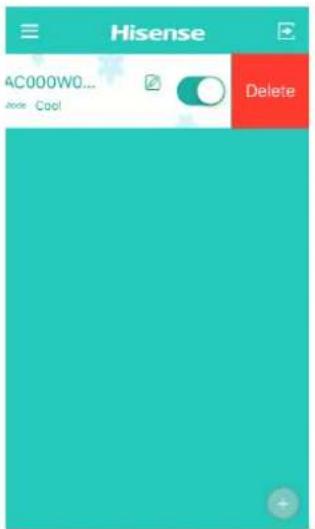
After pairing, enter the home appliance list interface. To delete any home appliance, select the home appliance which needs to be deleted and slide the selector to the left side, as shown in the picture at right. For android users, just press the screen for 2 seconds on the selected appliance to delete it.
text_image
Hisense AC000W0... Mode Cool Delete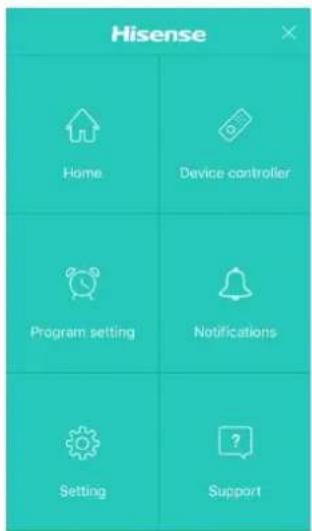
text_image
Hisense Home Device controller Program setting Notifications Setting SupportClick the top left corner of the home appliance list to enter the Menu interface.
Additional Information & Terms
The device controller has different control interfaces to control the home appliances.
Program setting: Check product timer settings
Notification: Enable or disable the malfunction pushing service. When a malfunction of air appliance occurs, the Hi-Smart Air App will notify the user about the malfunction.
text_image
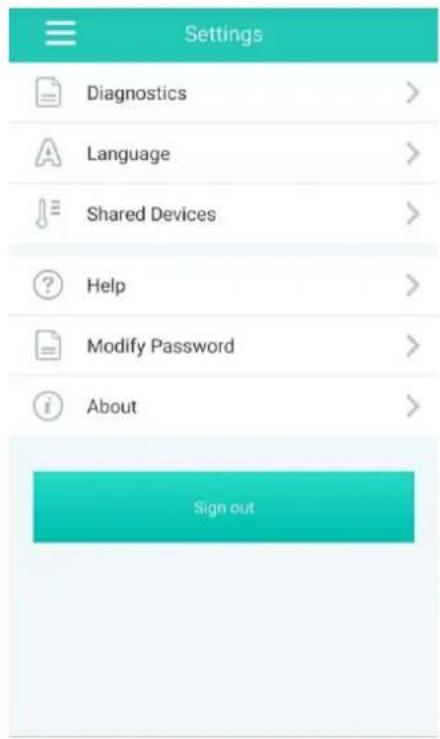
Settings Diagnostics > Language > Shared Devices > Help > Modify Password > About > Sign out >The Setting interface as shown in Chart 4 lists function options:
—Diagnostics: self-diagnosis for all Hi-Smart Air home appliances. Also checks the home appliance for malfunctions. —Language: three languages are supported: English, Spanish and French —Shared devices: Only one user may
be paired with a Hi-Smart unit. If other users want to check or control the home appliance, it requires the first paired user to delete the pairing with the appliance.
—Help: A web link to the User's Manual and FAQ
—Modify password: change account password
—About: Application software version
—Sign out: log out of the account
Home Appliance Functions
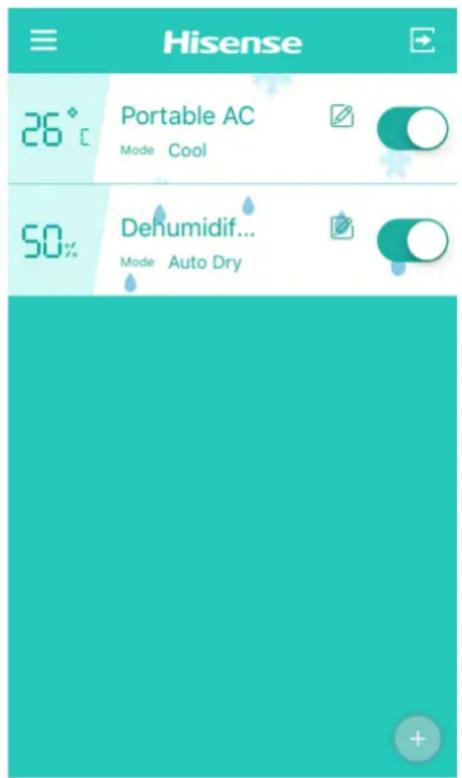
The Home appliance list shows successfully-linked Dehumidifier, Portable Air Conditioner, and Split Air Conditioner data. On the left are temperature or humidity Set values of corresponding home appliances. Also displayed are the names and current operating modes of each home appliance. On the right, are the home
text_image
≡ Hisense 26° Portable AC Mode Cool 50% Dehumidif... Mode Auto Dryappliance “Name edit” and “Quick toggle” buttons. The user can enter the home appliance control interface by clicking any home appliance. In this IOS smartphone interface, users can refresh the home appliance status through pull down menu’s. For an Android smartphone, the status of their Home Appliances will automatically refresh.
Portable AC
text_image
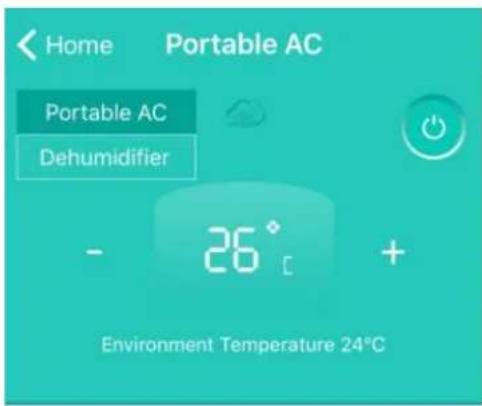
Home Portable AC Portable AC Dehumidifier - 26° + Environment Temperature 24°CThe operation interface for portable AC shows the current home appliance name. The user can select other linked home appliances and conduct toggle operations by clicking available home appliances. Also, the set
temperature and current ambient temperature are displayed.

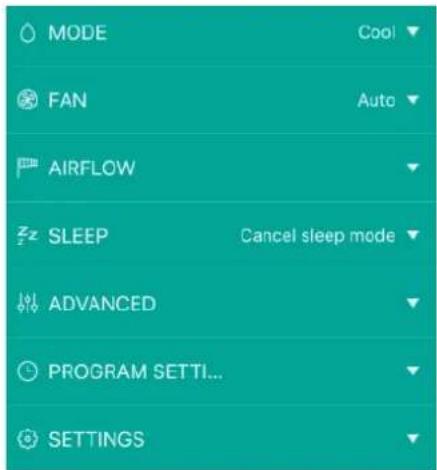
Add more function Quick settings by clicking “+” in the box;
The following settings are available:
MODE: Different product types have different operating modes.
FAN: Fan speed setting.
AIRFLOW: Fan louver direction setting.
SLEEP: Sleep mode setting.
ADVANCED: Includes Super, Dimmer AC panel and Share functions.
text_image
MODE Cool FAN Auto AIRFLOW Sleep Cancel sleep mode ADVANCED PROGRAM SETTI... SETTINGSPROGRAM SETTING: Checks Timer settings of Portable AC
SETTINGS: Includes Temp scale translation, Editable Home Appliance name, Device Info and Diagnostics function.
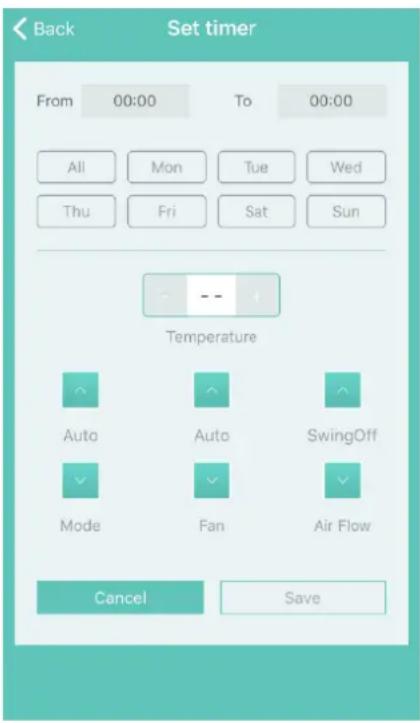
text_image
Back Set timer From 00:00 To 00:00 All Mon Tue Wed Thu Fri Sat Sun Temperature Auto Auto SwingOff Mode Fan Air Flow Cancel SaveEnter the Timer setting interface by clicking “+” in PROGRAM SETTING. The Timer setting is as shown in the above chart. Select the beginning time and define a specific day for execution of the setting, Temperature, Mode, Fan Speed and Air Flow for each week and save the settings. The application will feed back the setting results.
Dehumidifier
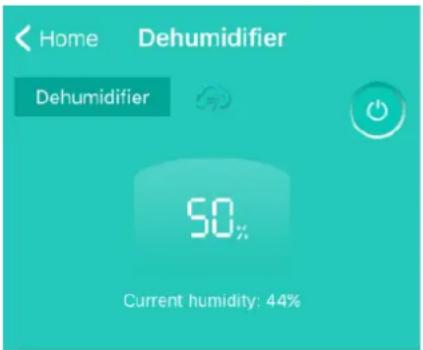
text_image
Home Dehumidifier Dehumidifier 50% Current humidity: 44%The Dehumidifier operation interface displays the name of the current home appliance, and is available for enabling and disabling the appliance. Also, it displays the setting temperature and current ambient temperature.

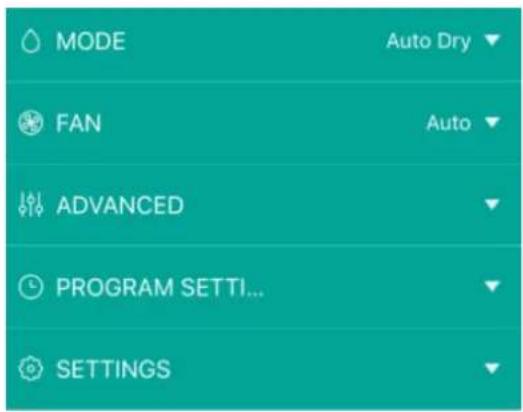
Add more Quick settings of relevant functions by clicking “+” in the box;
text_image
MODE Auto Dry FAN Auto ADVANCED PROGRAM SETTI... SETTINGS- The following settings are available:
• MODE: Home appliances of different types have different operating modes.
· FAN: Fan speed setting;
- ADVANCED: Includes Share functions;
- PROGRAM SETTING: Includes Timer functions;
SETTINGS: Includes Edit Home Appliance name, Device Info and Diagnostics functions.
NOTE: The Dehumidifier operation functions of are similar to that of Portable AC.
Troubleshooting the Hisense Hi-Smart Air
App
Check possible causes and solutions:
| Issue | Possible Cause | Solution |
| Cannot log into the account | Mobile phone WiFi is disabled | Enable WiFi |
| Wireless router cannot be connected to the Internet | Contact your local Internet Service Provider (ISP) | |
| Account password is wrong | re-enter password | |
| The account isn’t active | Check whether the code in registered mailbox has been used | |
| Password cannot be reset through the “Forgot password?” function in login interface | The account will be frozen for 30 minutes if the user fails to login to the account after 5 attempts | Reset the password after 30 minutes |
| Cannot register to become a member | The account name or password is wrong | Please follow the prompt |
| Incorrect e-mail format | Register by correct e-mail format | |
| Home appliance cannot be paired with the App | Home appliance is not powered on | Power “On” the home appliance |
| Wireless communication signals are weak because the wireless router is out of range | Adjust location of wireless router or the appliance | |
| Wireless network cannot be connected to the Internet | Contact your local Internet Service Provider (ISP) | |
| For Dehumidifier: press "mode" and "fan" button at the same time and the buzzer will sound 3 times, wait until the display shows | ||
| The appliance is not in “Pair” mode. | "P2"; For Portable AC: click the Vertical Airflow button 6 times on the remote and the buzzer will sound 5 times, wait until the display shows "77"; For Mini-Split AC, press Horizon Airflow button 6 times on the remote and the buzzer will sound 5 times, wait until the display shows "77". | |
| APP works abnormally | Close WiFi of smartphone and then re-open it | |
| Restart the smartphone | ||
| Incorrect password | Input correct password of wireless router | |
| Home appliance operates abnormally | Power “Off” home appliance for 10 seconds and then restart it | |
| The home appliance is already paired on another account | The original account holder must share control of the appliance | |
| The home appliance is offline all the time | The home appliance is not powered on | Power “On” the home appliance |
| The wireless router cannot be connected to the Internet normally | Contact your local Internet Service Provider (ISP) | |
| The wireless router is out of range, or the signal is weak. | Adjust the location of wireless router or of the appliance. | |
| The home appliance operates abnormally | Power “Off” the home appliance for 10 seconds and then restart it | |
| App communication is abnormal | Restart the App, or dis-able and re-enable WiFi on the smartphone | |
| The home appliance is not powered on | Power “On” the home appliance | |
| The wireless router is not powered on | Power “On” the wireless router | |
| The Wireless router supporting the home | Contact your local Internet Service Provider (ISP) | |
| The appliance doesn’t respond to remote control | appliance cannot connect to Internet normally | |
| Wireless router is out of range, or the signal is weak | Adjust location of wireless router or the appliance | |
| The home appliance operates abnormally | Power "Off" the home appliance for 10 seconds and then restart it | |
| App communication is abnormal | Restart the App, or disable and re-enable the WiFi on the smartphone | |
| Cannot un-pair the appliance from the smart phone | Application operates abnormally | Restart the Application or smartphone and try again |
| The App closes unexpectedly | The smartphone app suddenly shuts down due to memory limitations of the smartphone. | Close any unnecessary apps that may be running in the background before using Hi-Smart Air app |
| Due to a network error or server load, the connection is unstable. | Try to log in again at a later time. | |
| Network error. | •Server connection may take time(slow). •Try to log in again •Check wireless network。 | |
| Session timed out due to inactivity. | Network environment not stable. | •Try to log in again at a later time. •Turn home appliance off, and then powering back up. |
| Command Fail due to network error | *Check wireless network connection. •Turn home appliance off, and then powering back up. | |
| App or Certain | App needs to be | After upgrading the phone operation system, if the App |
| functions cannot be used | updated. | cannot be used, please upgrade App to the latest version |
| Timer functions are abnormal | App was not enabled to read the smartphone's time | Settings shall be made by following routes in case of Android system: “Settings - Apps (Device) - Hi-Smart Air - Permissions - Location”, enable the switch of Location;For IOS, go to the bottom of “Setting”, find Hi-Smart Air, enter it and choose “While Using” from “Location”; |
| Timer functions not working | The Timer functions weren’t triggered. | Timer is based on triggering, and only work under the conditions set by the user. |
Statement
FCC Statement
This equipment has been tested and found to comply with the limits for a Class B digital device, pursuant to part 15 of the FCC rules. These limits are designed to provide reasonable protection against harmful interference in a residential installation. This equipment generates, uses, and can radiate radio frequency energy and, if not installed and used in accordance with the instructions may cause harmful interference to radio communications. However, there is no guarantee that interference will not occur in a particular installation.
If this equipment does cause harmful interference to radio or television reception, which can be determined by turning the equipment off and on, the user is encouraged to try to correct the interference by one or more of the following measures:
- Reorient or relocate the receiving antenna.
- Increase the separation between the equipment and receiver.
- Connect the equipment into an outlet on a circuit different from that to which the receiver is connected.
- Consult the dealer or an experienced radio/TV technician for help.
Radiation Exposure Statement
This equipment complies with FCC radiation exposure limits set forth for an uncontrolled environment and it also complies with Part 15 of FCC RF Rules.
This equipment should be installed and operated with minimum distance of 20 in. (50 cm) between the radiator and your body. This transmitter must not be co-located or operated in conjunction with any other antenna or transmitter.
CAUTION:
To comply with the limits of the Class B digital device, pursuant to
Part 15 of the FCC Rules, this device is comply with Class B limits. All peripherals must be shielded and grounded. Operation with non-certified peripherals or non-shielded cables may results in interference to radio or reception.
MODIFICATION:
To assure continued compliance, any changes or modifications not expressly approved by the grantee of this device could void the user's authority to operate the device.
Label Statement
This device complies with part 15 of the FCC Rules. Operation is subject to the following two conditions:
- This device may not cause harmful interference, and
- This device must accept any interference received, including interference that may cause undesired operation.
IC Statement
This device complies with Industry Canada licence-exempt RSS standard(s).Operation is subject to the following two conditions:
- This device may not cause interference, and
- This device must accept any interference, including interference
that may cause undesired operation of the device.
Radiation Exposure Statement
This equipment complies with IC radiation exposure limits set forth for an uncontrolled environment. This equipment should be installed and operated with minimum distance of 50 cm(8 in.) between the radiator and your body.
Hisense
Electrodomé stico Hi-Smart Air
text_image
GET IT ON Google play
text_image
Available on the App Storetext_image
Hisense AC000W0... Accs Cool Delete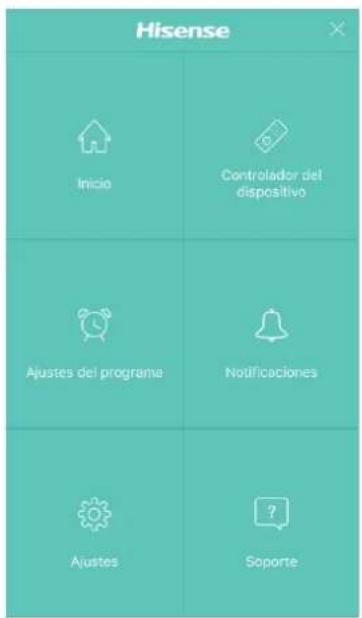
natural_image
Solid teal background with a white plus sign in the top-left corner (no text or symbols beyond the icon)Añ ada má s funciones rá pidas pulsando en "+".
text_image
GET IT ON Google play