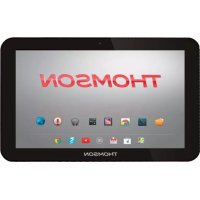
TEO10SAD - Tablet THOMSON - Free user manual and instructions
Find the device manual for free TEO10SAD THOMSON in PDF.


| Product type | Touchscreen tablet |
| Brand | Thomson |
| Model | TEO10SAD |
| Processor | Allwinner A64 Quad core |
| RAM | 2 GB DDR3 |
| Internal storage | 8 GB, 16 GB, 32 GB or 64 GB depending on model |
| Expandable storage | Up to 32 GB via microSD card |
| Screen size | 10.1 inches |
| Screen resolution | 1280 x 800 pixels |
| Screen technology | IPS, capacitive multitouch 5 points |
| Wi-Fi | 802.11 b/g/n |
| Connectivity | 1 micro USB port (OTG) |
| Headphone jack | 3.5 mm |
| Front camera | 2 megapixels |
| Rear camera | 5 megapixels |
| Speaker | 1 x 1.0 W |
| Microphone | Built-in |
| Operating system | Android 8.1 |
| Battery | Li-polymer 3.7 V / 4400 mAh |
| Charger | Power adapter 5 V, 2 A |
| Main functions | Internet browsing, email, YouTube, eBook reader, Google Play, Wi-Fi, media player, camera, orientation detection |
| Included accessories | Tablet, charger, micro USB cable, user manual |
| Care and cleaning | Clean with a soft, dry cloth. Do not use alcohol, thinner or benzene. |
| Safety | Do not expose to moisture. Do not open the casing. Use only the provided charger. Avoid shocks and high temperatures. |
Frequently Asked Questions - TEO10SAD THOMSON
User questions about TEO10SAD THOMSON
0 question about this device. Answer the ones you know or ask your own.
Ask a new question about this device
Download the instructions for your Tablet in PDF format for free! Find your manual TEO10SAD - THOMSON and take your electronic device back in hand. On this page are published all the documents necessary for the use of your device. TEO10SAD by THOMSON.
USER MANUAL TEO10SAD THOMSON

mythomson.com
THOMSON
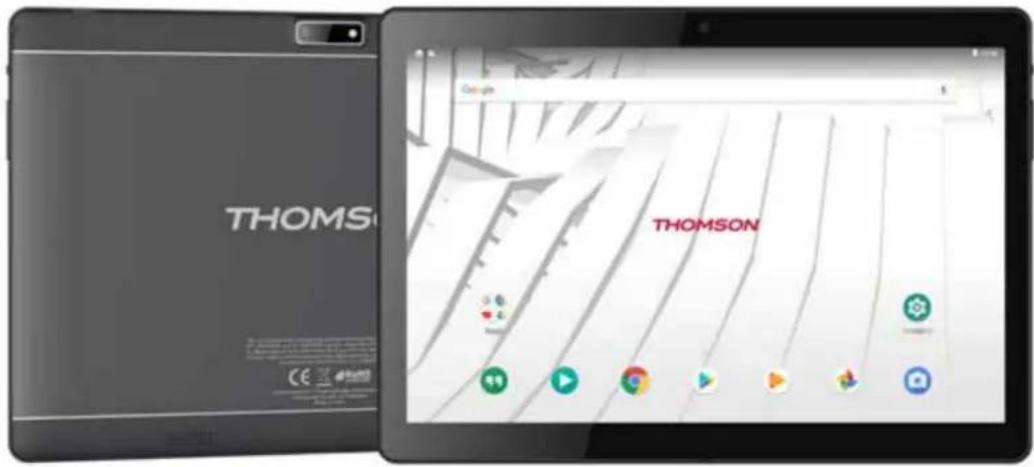
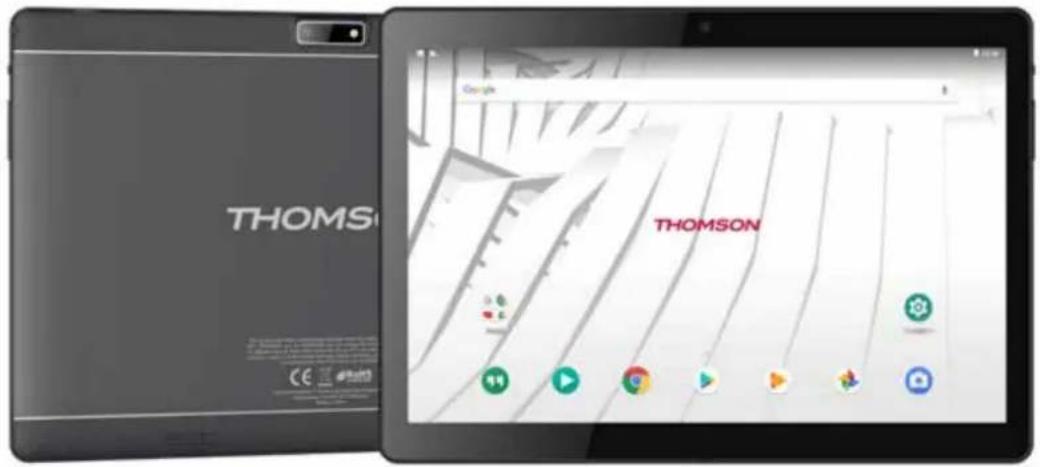
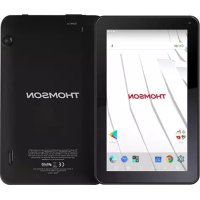
TEO - 10.1-inch tablet
DESIGNED FOR ANDROID™ 8.1
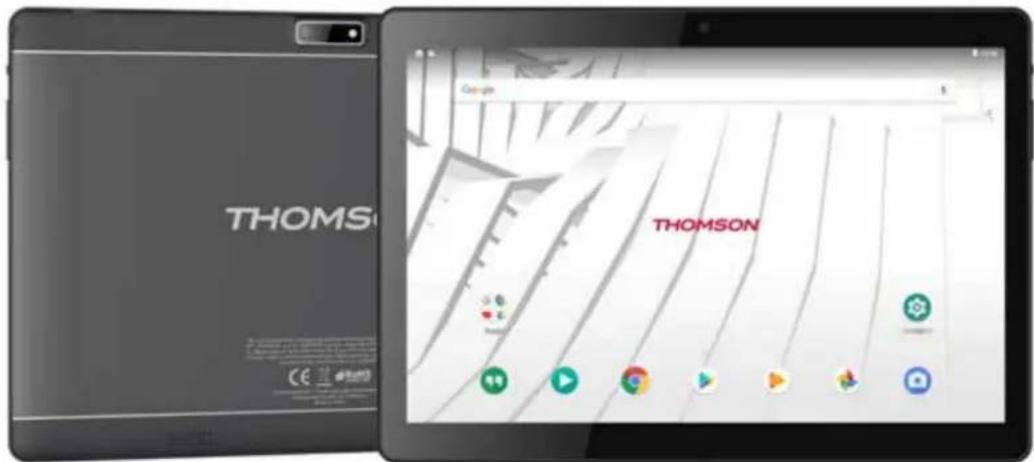

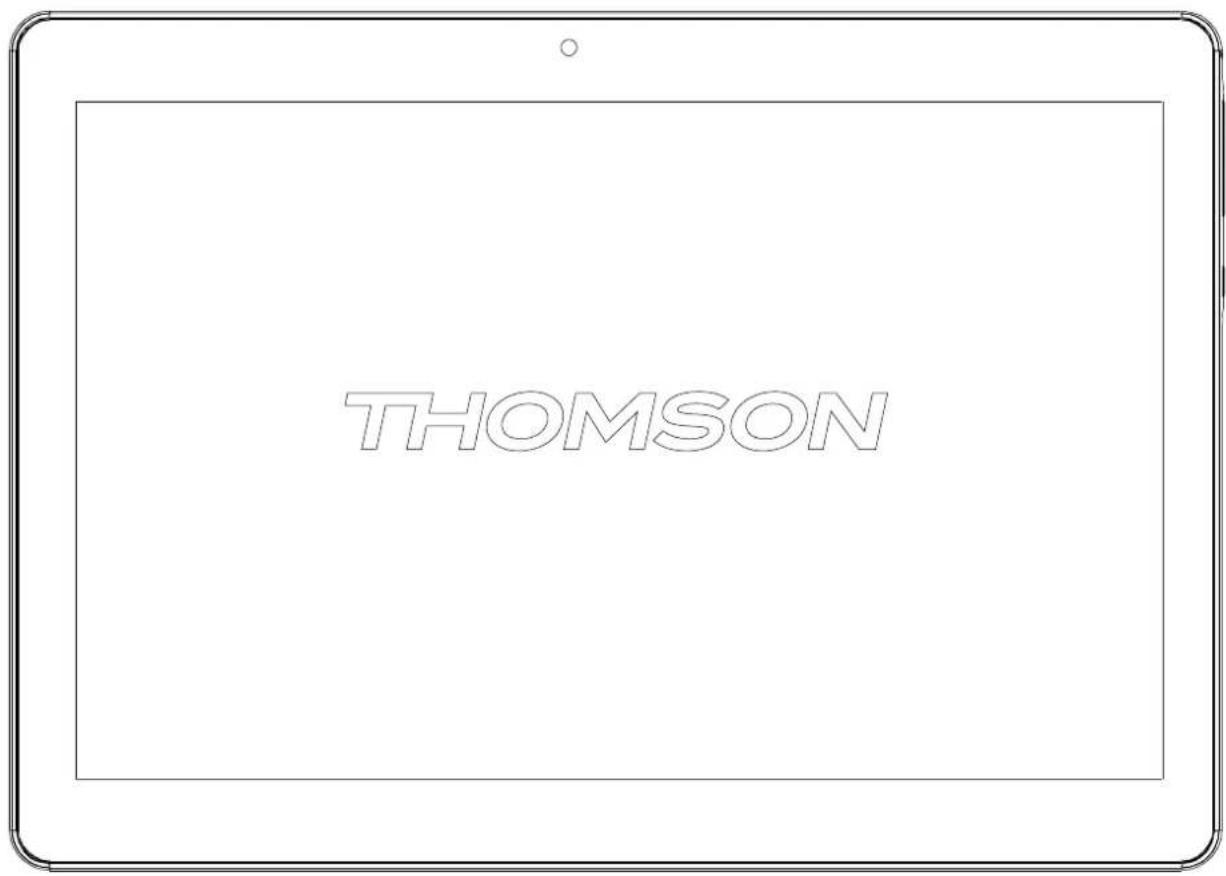
Table des matières
Access the Settings menu to adjust the tablet's options.
Dépannage
This product has been manufactured and sold under the responsibility of Group SFIT. THOMSON, and the THOMSON logo are trademarks of Technicolor (S.A.) or its affiliates and are used under license by Group SFIT. Any other product, service, company, trade or product name and logo referenced herein are neither endorsed nor sponsored by Technicolor (S.A.) or its affiliates.
Google, Android, Google Play, YouTube and other marks are trademarks of Google LLC.
All other trademarks and logos are property of their respective owners unless indicated otherwise.
THOMSON
TEO - 10.1-inch tablet
DESIGNED FOR ANDROID™ 8.1

THOMSON
Table of contents
Safety & Regulatory Statements ...... 2
Safety Precautions....3
Box Contents .... 4
Unit at a Glance 6
Getting Started....7
About Applications ....8
About Applications .... 8
Connecting to the Internet....9
Connecting to Wireless Internet....9
Email 10
Manually Configuring an Email account....11
Transferring Files 12
Troubleshooting....12
Specifications....14
Legal and Trademark Notices ....14
Safety & Regulatory Statements
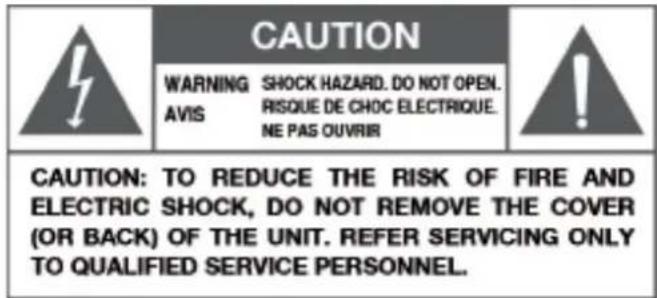
The lightning flash with arrowhead symbol equilateral triangle is intended to alert the user to the presence of uninsulated "dangerous voltage" within the product's enclosure that may be of sufficient magnitude to constitute a risk of electric shock.

The exclamation point within an equilateral triangle is intended to alert the user to the presence of important operation and servicing instructions in the literature accompanying the appliance.

For recycling or disposal information about this product, please contact your local authorities.
① WARNING: To prevent fire or shock hazard, do not expose this device to rain or moisture. Dangerous high voltage is present inside the enclosure. Do not open the cabinet.Protect your hearing: Hearing experts advise against the con-stant use of personal stereos played at high volume. Constant exposure to high volumes can lead to hearing loss. If you should experience ringing in the ears or hearing loss, discontinue use and seek medical advice.Note: If the product suddenly has no response or powers off, an electrostatic discharge may be the cause. In this circumstance, please follow the procedures below for within recovery:Turn off the unit by pushing and holding the slide button at the right (Power off Power off position) for 15 seconds. ② Turn on the unit against

At full volume, prolonged listening to the portable audio device may damage the user's hearing.
Safety Precautions
1 Please protect the device away against moisture and dust.
2 Do not leave the device in a high-temperature environment, especially a closed car in hot weather.
3 Do not drop or strike the device.
4 Do not shake the device violently, particularly the LCD screen, as this may cause the display to malfunction.
5 Please make sure to carefully adjust the earphone volume; excessive volume may be harmful to your hearing.
6 Please charge the device when
The power icon shows that the battery is nearly flat
The device turns itself off automatically and will not come back on.
There is no response when operating the buttons.
Attention: Please use only the charger provided by the manufacturer; other chargers may damage the device.
7 Do not disconnect the device from your PC when downloading, uploading or formatting as this may cause programming errors in the device.
8 Do not disassemble the device yourself; only allow an expert to do so.
9 Do not use alcohol, thinner or benzene-based chemicals to clean the surface of the device.
10 Do not use the device in places where its use is prohibited, like aircraft.
11 Please make sure to always back up your device. The manufacturer is not responsible for lost files or after damage to or repair of the device.
12 The manufacturer reserves all the rights to the technology and design of the device and has no obligation to inform the user if new versions or designs have been developed.
13 The device is NOT waterproof; please keep it away from moisture at all times.
14 This device will take approximately 20 seconds to power up; please don't try to operate the device during this period.
Box Contents
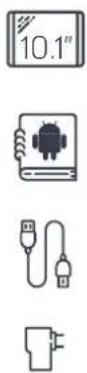
- A THOMSON tablet
- A user manual
- A power USB charger
- A micro USB cable
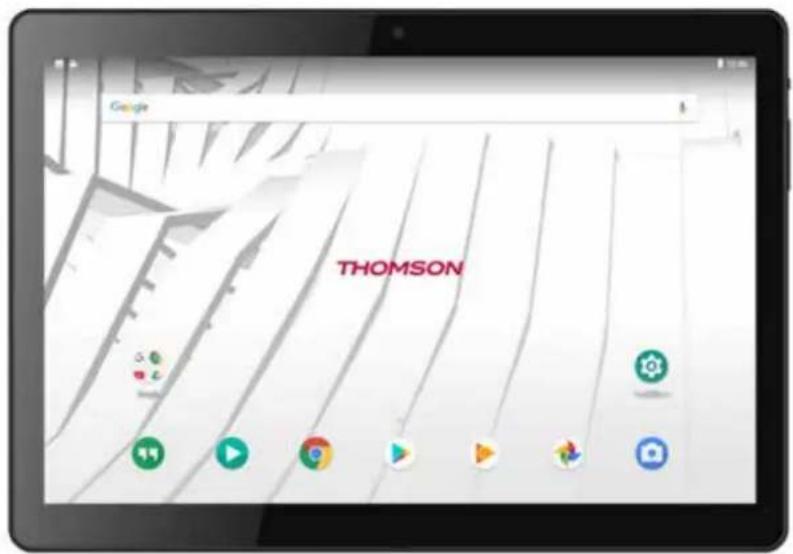
Features
Browse the Web.
Visit your favorite websites
Check your e-mail
Keep in touch with friends and family
Watch YouTube videos
Browse the world's most popular videosharing community
Read your favorite books
Download thousands of books with the included E-book reader*
Discover thousands of apps for Android
Games, applications, and more with Google Play
Connect to the Internet wirelessly
High-speed Wi-Fi 802.11 b/g/n networking
Enjoy your media library anywhere
Portable powerhouse plays popular music, video, and photo formats
microSD memory card reader
Increase your storage capacity (up to 32 GB supported)
Built-in camera
Convenient front-facing (2MP) and rear camera(5MP)
Automatic orientation detection
Read any way you want; the display adjusts automatically!
Reading books in the ePub format requires the included E-book reader application.
Streaming video quality will be affected by the source, and the quality and condition of your network connection.
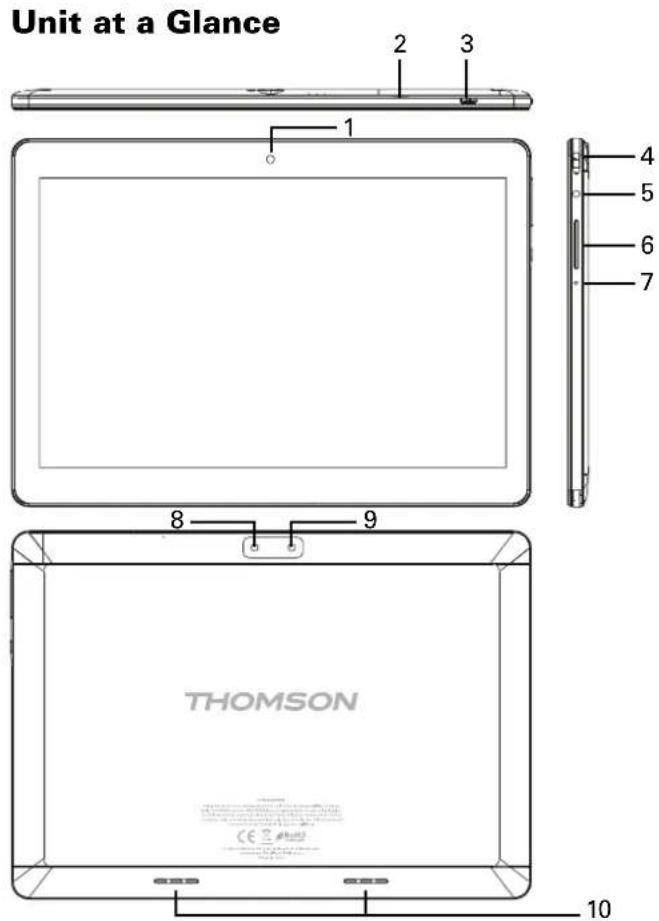
1. Camera
Use it to take pictures or capture videos.
2. Micro SD-CARD
Load external Micro SD-cards here.
3. Micro USB
Connect to a USB device or a computer to transfer data (e.g. music, videos, photos, files). Connect to a USB device
4. Headphone
Audio output connection for headphones.
5. Power
Press to turn the unit on, or to turn the screen on or off. Press and hold to access the Power Off menu.
6. VOL+/VOL-
Press VOL+ to increase the volume level. Press VOL- to decrease the volume level.
7. Reset
Press this button to force off the system when the device is halted.
8. Camera
Use it to take pictures or capture videos.
9. Flash
10. Speaker
Getting Started
Turning the Tablet on or off
To turn the tablet on:
Press and hold the Power key until the LCD screen turns on. Wait until the Home screen appears; the tablet is now ready for use.
To turn the tablet off:
- Press and build the Power key until the power off menu appears.
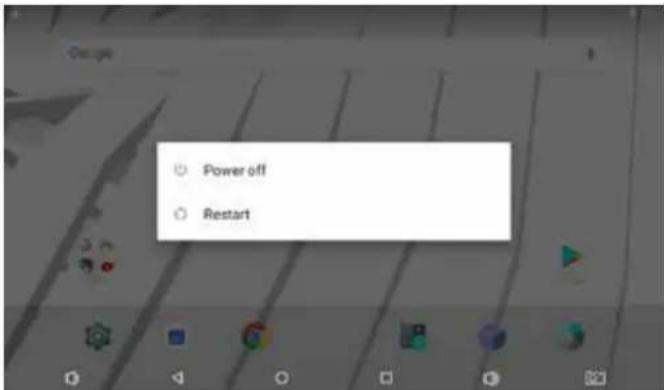
- Touch the screen "Power off" to turn off the tablet Turning the Screen On or off (standby)
When the tablet is on, you can turn off the screen to conserve battery power. Simply press the Power key once to turn the screen off. Press the Power key again to turn the screen back on.
To conserve batterypower, the screen can be set to turn off automatically when the tablet is not in use (between 15 seconds and 30 minutes). This screen timeout option can be found in the display menu.
About Applications
To open an application, touch the application icon on the home screen or in the Launcher where you can swipe up the icon. On the home screen to get in.
Launcher screen:
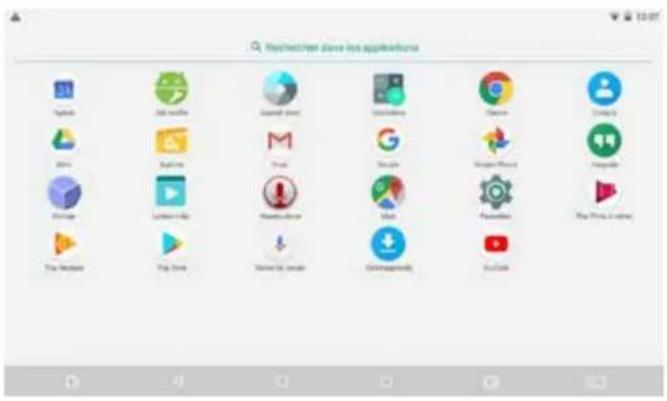
① The screen show above is for illustrative purposes only. Reserves the right to modify and improve the final list of applications available on the tablet.
About Applications
Preinstalled Applications
Some applications have been installed on your tablet for your convenience.
These applications include:

Browse the web

Perform simple mathematical operations

Take pictures or videos with the front facing camera

Check your e-mail.

Play music.

Access the Settings menu to adjust the tablet's options.
Preinstalled Applications
Installing Applications
You can also download an install additional from the device's applications marketplace, the web browser or other sources.
The tablet must be set to allow installation of applications from non-Market sources. The Unknown sources option can be set in the Application settings menu.
Connecting to the Internet
Connecting to Wireless Internet
- Press the settings icon.
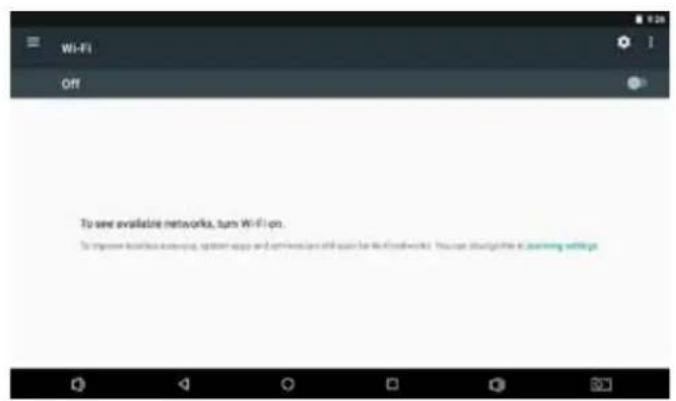
- Locate the Wi-Fi ▼ setting and slide it to the On position.
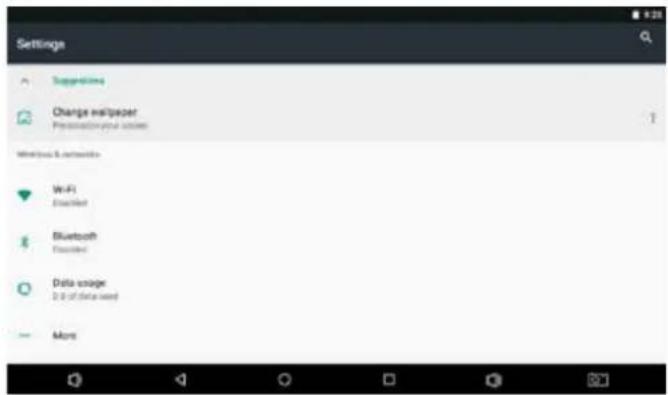
- Select a network from the list of available networks. To refresh the list of available networks, press ☐, select Refresh button.
To manually add a network, select the Add Network button.
- Select Connect from the pop up menu.
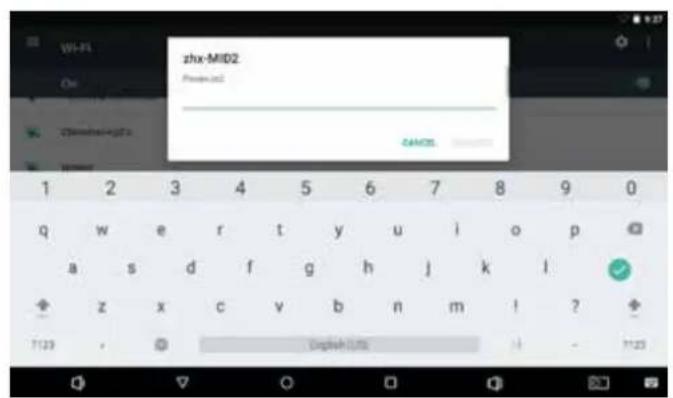
- If the network is secured with a password, enter the password to continue. Once finished connecting, play will show Connected under the name of the network.
To conserve battery life, turn off Wi-Fi when nor in use.
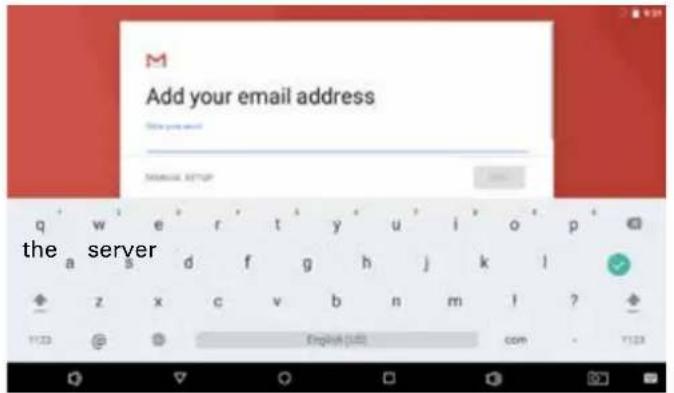
Setting Up an Email account
- Press Gmail icon under App menu.
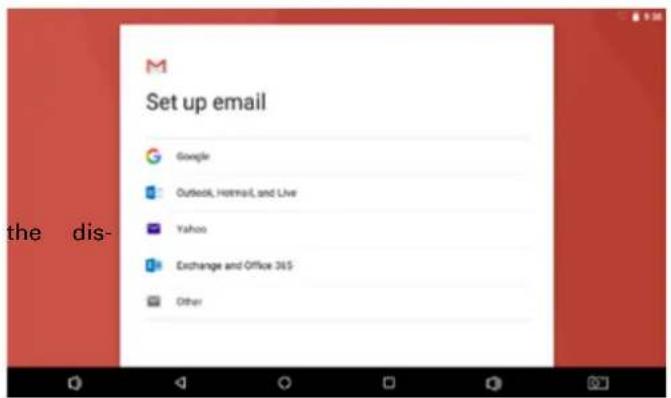
- Press Add an email address, enter your email address, press Next, then input password. If this does not work, you will need to manually configure your account. Before attempting to configure manually, re-enter your email and password to make sure they are correct.
Manually Configuring an Email account
It is recommended to consult an IT professional before attempting to manually configure your email address.
- To set up your email manually, detailed information is required. Check your provider's website or phone support for individual provider information.
- The first thing you will need to determine is type. While most servers are POP3, IMAP and Exchange are also supported services.
- Enter your email address and password then press Next.
- Fill in all information for the Incoming server portion of the manual setup.
- Press Next and the app will test your settings.Wi-Fi is required to be active for this step.
- Fill in all information for the Outgoing server settings.
- Press Next and the app will test your settings.Wi-Fi is required to be active for this step.
Transferring Files
Transferring Files with a Computer
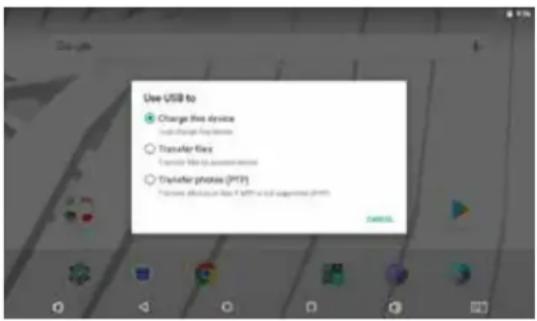
To begin transferring files to your computer, plug of the included Mini-USB to USB cord into the unit, and the other into the USB port on a computer.
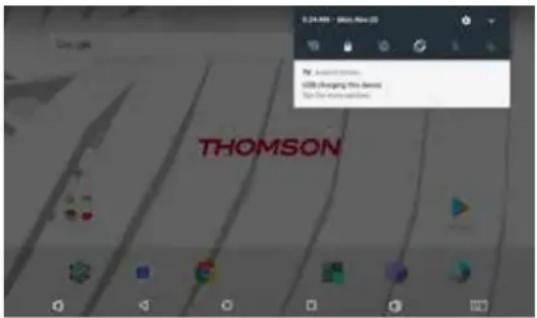
You will now be able to transfer files
Troubleshooting
1.1 Device can not connect to Wi-Fi
Ensure the wireless network is working by testing it using another wireless device.
Ensure the device and the wireless router is within the range of the wireless network to be connected too. Walls or other obstructions will reduce the possible distances between wireless devices.
Ensure the security password being used is correct.
1.2 Device doesn't turn on
You can not turn on the device when the battery charge is below the critical level, please charge the battery.
Use a needle or paper clip to reset unit on the side of the device and check if it is restarting is normally or not.
Check if the charger is connected correctly.
1.3 Heat Issues
When running multiple applications, using the screen on its brightest setting, or when being charged, this device can get quite hot. This is normal and should nor cause any inconvenience when in use.
1.4 System has anomalies and doesn't work correctly
Installing some third-party applications may cause the system not to operate correctly. Press the RESET button and perform a system reset to resolve this issue.
1.5 Cannot set E-mail Account or registration application
Ensure that the MID is connected to a Wi-Fi network and can connect to the Internet.
Ensure you E-email settings have been entered correctly for the account being accessed.
Make sure your system time and local time are correct.
1.6 Can not record
Use a needle or paper clip to reset unit on the side of the device, then check if the record function works correctly.
1.7 The stand-by time of the device is too short
The duration of the lithium battery varies with environmental temperature changes and the service conditions. If the environment temperature is too low or too high, the duration of the battery will be affected. It is recommended to use this device at normal temperature.
Battery life is dependent on usage. High volume, WIFI, and the frequent use may cause the battery to be drained at a higher rate.
1.8 No sound via earphone
Please check if the volume setting is 0.
Please check if audio file is broken, and try to play another audio file to confirm. If the audio file is broken, it may cause severe noise or static.
1.9 The color distortion of video or picture display
Use a needle or paper clip to reset unit on the back of the
device to solve this issue.
1.10 Can not copy files
Please check if the device is connected to the computer correctly.
Please check if the memory space is full.
Please check if the USB cable is broken.
1.11 Other troubles Please follow up the steps as below to fix the other troubles before you return the MID/Tablet PC to us:
Step1 : Use a needle or paper clip to reset unit on the side of the device, then check if the function works correctly
Step2 : Upgrade the firmware from the PC and restart the device and then check if the function works correctly
Specifications
| Processor Allwinner | A64 Quad core |
| RAM 2 GB DDR3 | |
| Storage | 8GB / 16GB / 32GB / 64 GB flash built-in ( depend of model )microSD card slot (max.32GB supported) |
| Display | 10.1" IPS (1280x800),5 point multi-touch Capacitive touch screen |
| Wi-Fi Networking LAN | 802.11 b/g/n |
| Audio Output 3.5mm | headphone |
| PC Interface 1 x micro USB port (support USB host and OTG) | |
| Additional Features | Built-in microphoneFront facing camera(2MP) - rear(5MP)1x1.0W speaker |
| Operating System Android 8.1 | |
| Power | Rechargeable Li-poly battery power 4400mAhAdapter(DC 5V, 2A) |
Legal and Trademark Notices
This product has been manufactured and sold under the responsibility of Group SFIT. THOMSON, and the THOMSON logo are trademarks of Technicolor (S.A.) or its affiliates and are used under license by Group SFIT. Any other product, service, company, trade or product name and logo referenced herein are neither endorsed nor sponsored by Technicolor (S.A.) or its affiliates.
Google, Android, Google Play, YouTube and other marks are trademarks of Google LLC.
All other trademarks and logos are property of their respective owners unless indicated otherwise.
THOMSON
TEO - 10.1-inch tablet
DESIGNED FOR ANDROID ^TM 8.1

mythomson.com
- THOMSON
- TEO - 10.1-inch tablet
- Table des matières
- Dépannage
- Table of contents
- Safety & Regulatory Statements
- Safety Precautions
- Box Contents
- Camera
- Micro SD-CARD
- Micro USB
- Headphone
- Power
- VOL+/VOL-
- Reset
- Camera
- Flash
- Speaker
- Getting Started
- About Applications
- Preinstalled Applications
- Connecting to the Internet
- Connecting to Wireless Internet
- Manually Configuring an Email account
- Transferring Files
- Troubleshooting
- Device can not connect to Wi-Fi
- Device doesn't turn on
- Heat Issues
- System has anomalies and doesn't work correctly
- Cannot set E-mail Account or registration application
- Can not record
- The stand-by time of the device is too short
- No sound via earphone
- The color distortion of video or picture display
- Can not copy files
- Other troubles Please follow up the steps as below to fix the other troubles before you return the MID/Tablet PC to us:
- Legal and Trademark Notices
Brand : THOMSON
Model : TEO10SAD
Category : Tablet