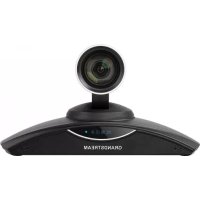
GVC3202 - Video conferencing system GRANDSTREAM - Free user manual and instructions
Find the device manual for free GVC3202 GRANDSTREAM in PDF.


| Product Type | Video Conferencing System |
| Brand | Grandstream |
| Model | GVC3202 |
| Display | 8-inch capacitive touchscreen (1280x800) |
| Camera | Built-in 13 MP camera, 120° field of view, digital zoom |
| Microphone | Wideband microphone array, echo cancellation |
| Speaker | Built-in 10W speaker |
| Connectivity | Wi-Fi 802.11 a/b/g/n/ac, Bluetooth 4.0, Ethernet 10/100/1000 |
| Operating System | Android 7.0 Nougat |
| Power Supply | 12V DC, 1.5A power adapter |
| Dimensions (WxDxH) | 220 x 150 x 95 mm |
| Weight | 1.2 kg |
| Main Functions | HD video calls, screen sharing, meeting control, calendar integration |
| Maintenance and Cleaning | Clean with a soft, dry cloth. Do not use abrasive products. |
| Security | TLS/SRTP encryption, authentication, firmware update |
| Spare Parts and Repairability | Remote control, power adapter, HDMI cable, Ethernet cable available |
| General Information | Box contents: main unit, remote control, adapter, HDMI cable, quick guide |
Frequently Asked Questions - GVC3202 GRANDSTREAM
User questions about GVC3202 GRANDSTREAM
0 question about this device. Answer the ones you know or ask your own.
Ask a new question about this device
Download the instructions for your Video conferencing system in PDF format for free! Find your manual GVC3202 - GRANDSTREAM and take your electronic device back in hand. On this page are published all the documents necessary for the use of your device. GVC3202 by GRANDSTREAM.
USER MANUAL GVC3202 GRANDSTREAM
Grandstream Networks, Inc.
GVC32XX
Remote Control Upgrading Instructions Guide
Table of Contents
SUPPORTED DEVICES 4
DOCUMENT PURPOSE 5
PREREQUISITES....6
UPGRADE REMOTE CONTROL 7
Install Remote Control App ....7
Table of Figures
Figure 1: Application....7
Figure 2: File Manager....7
Figure 3: Settings....8
Figure 4: Unknown Source....8
Figure 5: Install Remote Control ....9
Figure 6: Open App....9
Table of Tables
Table 1: List of Supported Products ....4
SUPPORTED DEVICES
Following table shows Grandstream products supporting remote control upgrade..
Table 1: List of Supported Products
| Model | Firmware |
| GVC3200/3202 | 1.0.1.74 or higher |
| GVC3210 | 1.0.1.69 or higher |
| GVC3220 | 1.0.1.24 or higher |
DOCUMENT PURPOSE
This document describes the detailed steps to upgrade the GVC32xx remote control software version. Upgrading remote control makes sure the remote control has the latest software which contains new fixes. For issues such as touchpad on remote control is not working, please follow below operations to upgrade and restore it.
PREREQUISITES
- Please make sure GVC32xx is using the latest official or Beta firmware in Grandstream website: https://www.grandstream.com/support/firmware
- Please make sure your remote control is paired with GVC32xx device.
- It is recommended to replace a new battery on your remote control to ensure sufficient battery supply for upgrading process.
UPGRADE REMOTE CONTROL
Install Remote Control App
Step 1: On your PC, download remote control firmware from the following link:
https://www.grandstream.com/hubfs/Product_Documentation/GVC320x_RemoteControl_Firmware.zip
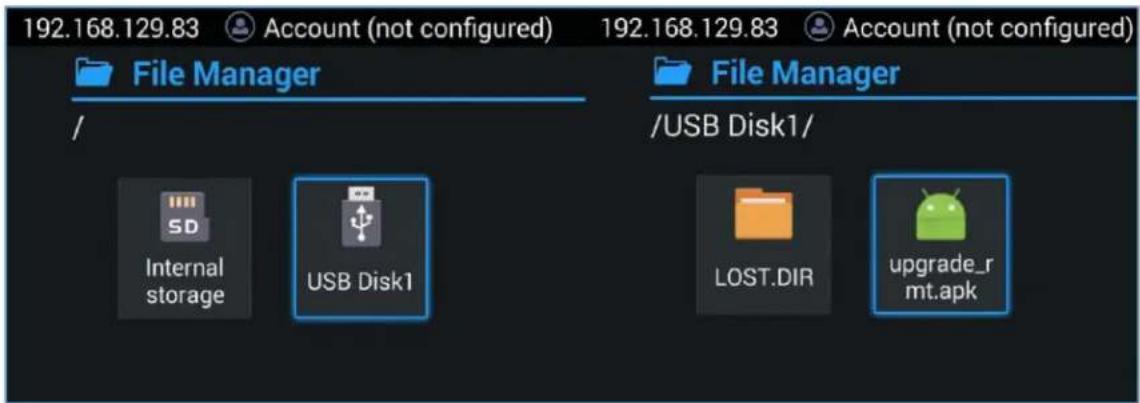
Step 2: Unzip the package. Open the folder and find file "upgrade_rmt.apk". Copy file "upgrade_rmt.apk" to a USB flash drive plugged in the PC.
Step 3: Plug in USB flash drive into GVC32xx USB port.
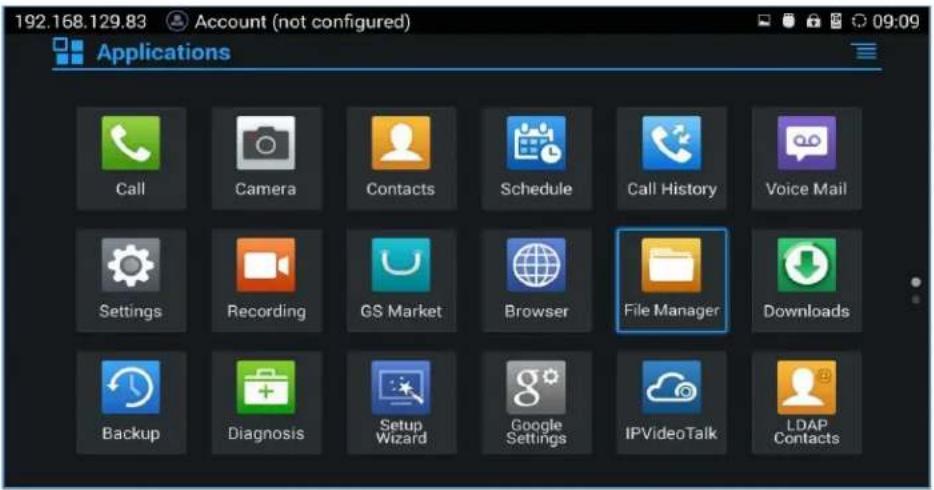
Step 4: On GVC32xx, proceed from File Manager→ USB Disk, click on "upgrade_rmt.apk" to install it.
text_image
192.168.129.83 Account (not configured) Applications Call Camera Contacts Schedule Call History Voice Mail Settings Recording GS Market Browser File Manager Downloads Backup Diagnosis Setup Wizard Google Settings IPVideoTalk LDAP ContactsFigure 1: Application
text_image
192.168.129.83 Account (not configured) 192.168.129.83 Account (not configured) File Manager / File Manager /USB Disk1/ Internal storage USB Disk1 LOST.DIR upgrade_rmt.apkFigure 2: File Manager
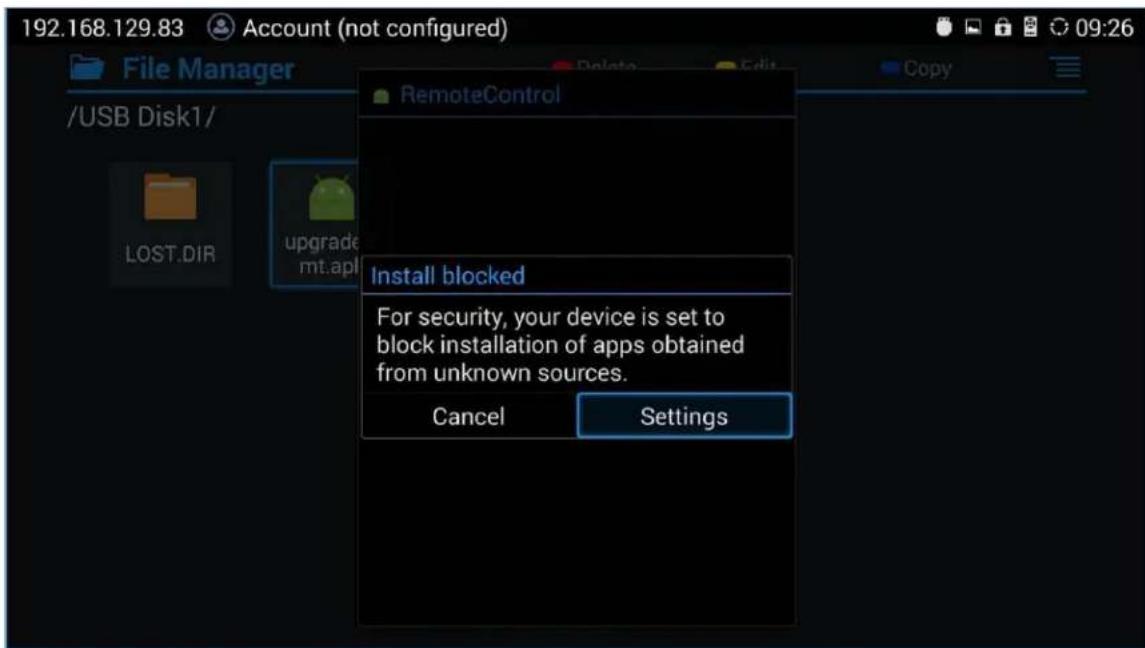
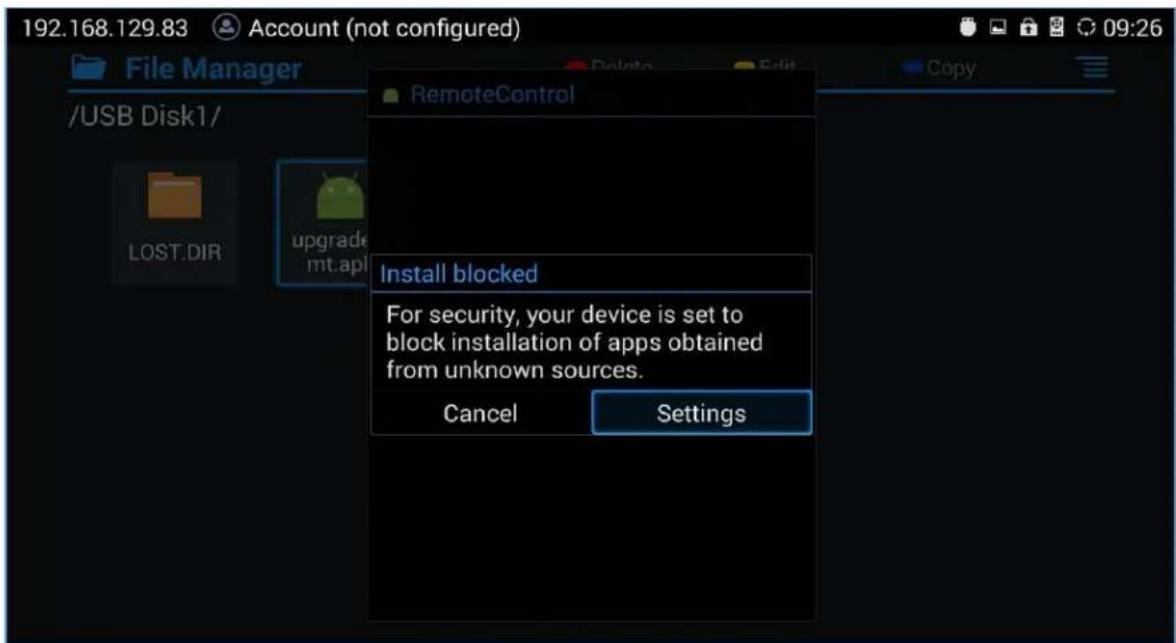
Step 5: If you see "Install blocked" prompt, please proceed from the Menu: Settings→ System→ Security, enable "Unknown Sources" option.
text_image
192.168.129.83 Account (not configured) File Manager /USB Disk1/ LOST.DIR upgrade mt.apl RemoteControl Install blocked For security, your device is set to block installation of apps obtained from unknown sources. Cancel SettingsFigure 3: Settings
text_image
192.168.129.83 Account (not configured) File Manager /USB Disk1/ LOST.DIR upgrade mt.apl RemoteControl Install blocked For security, your device is set to block installation of apps obtained from unknown sources. Cancel SettingsFigure 4: Unknown Source
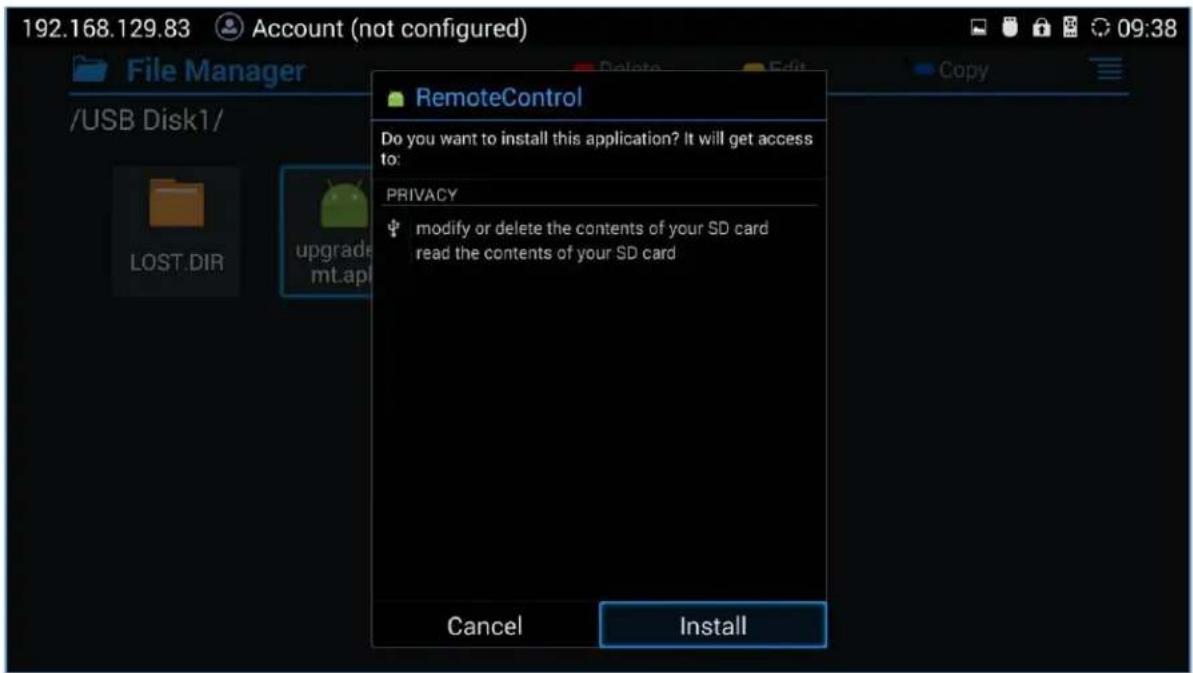
Step 6: After allowing Unknown Sources Installation, please go back to File Manager->USB Disk, click on "upgrade_rmt.apk" to install it.
text_image
192.168.129.83 Account (not configured) File Manager /USB Disk1/ RemoteControl Do you want to install this application? It will get access to: PRIVACY modify or delete the contents of your SD card read the contents of your SD card Cancel InstallFigure 5: Install Remote Control
text_image
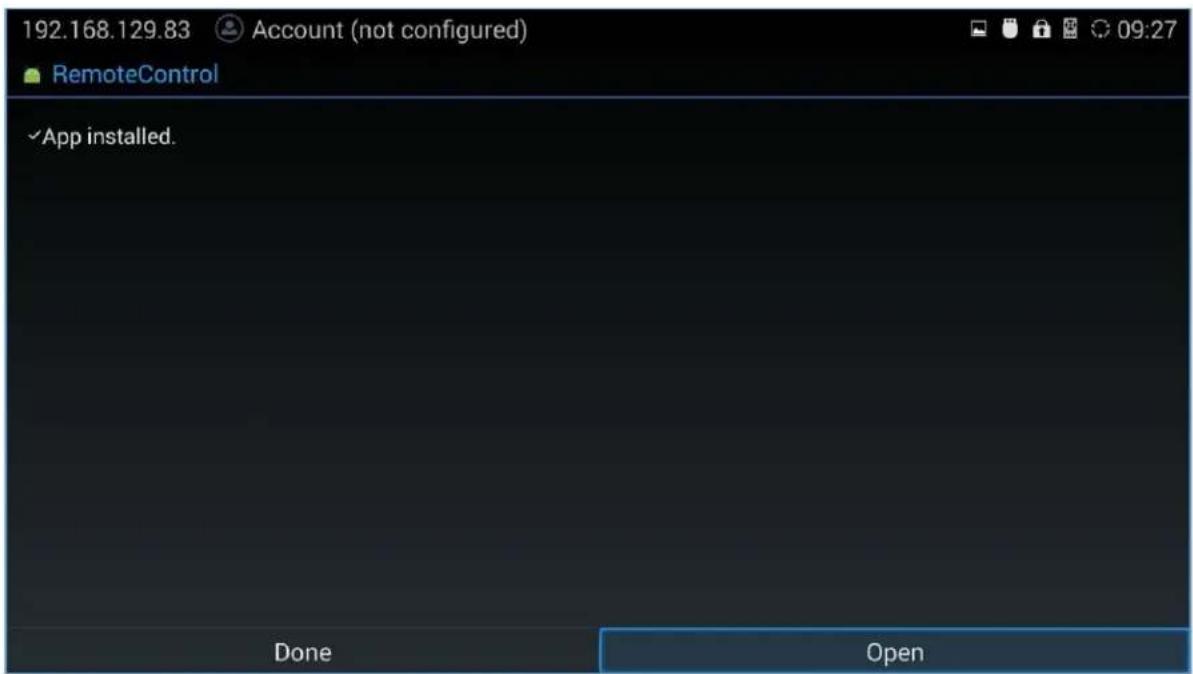
192.168.129.83 Account (not configured) RemoteControl ✓ App installed. Done OpenFigure 6: Open App