ManualGo.com
AccuSync AS120 - Monitor NEC - Free user manual and instructions
Find the device manual for free AccuSync AS120 NEC in PDF.


Download the instructions for your Monitor in PDF format for free! Find your manual AccuSync AS120 - NEC and take your electronic device back in hand. On this page are published all the documents necessary for the use of your device. AccuSync AS120 by NEC.
USER MANUAL AccuSync AS120 NEC
AccuSync 120 USER'S MANUAL To learn about other special offers, register online at www.necmitsubishi.com/ productregistration
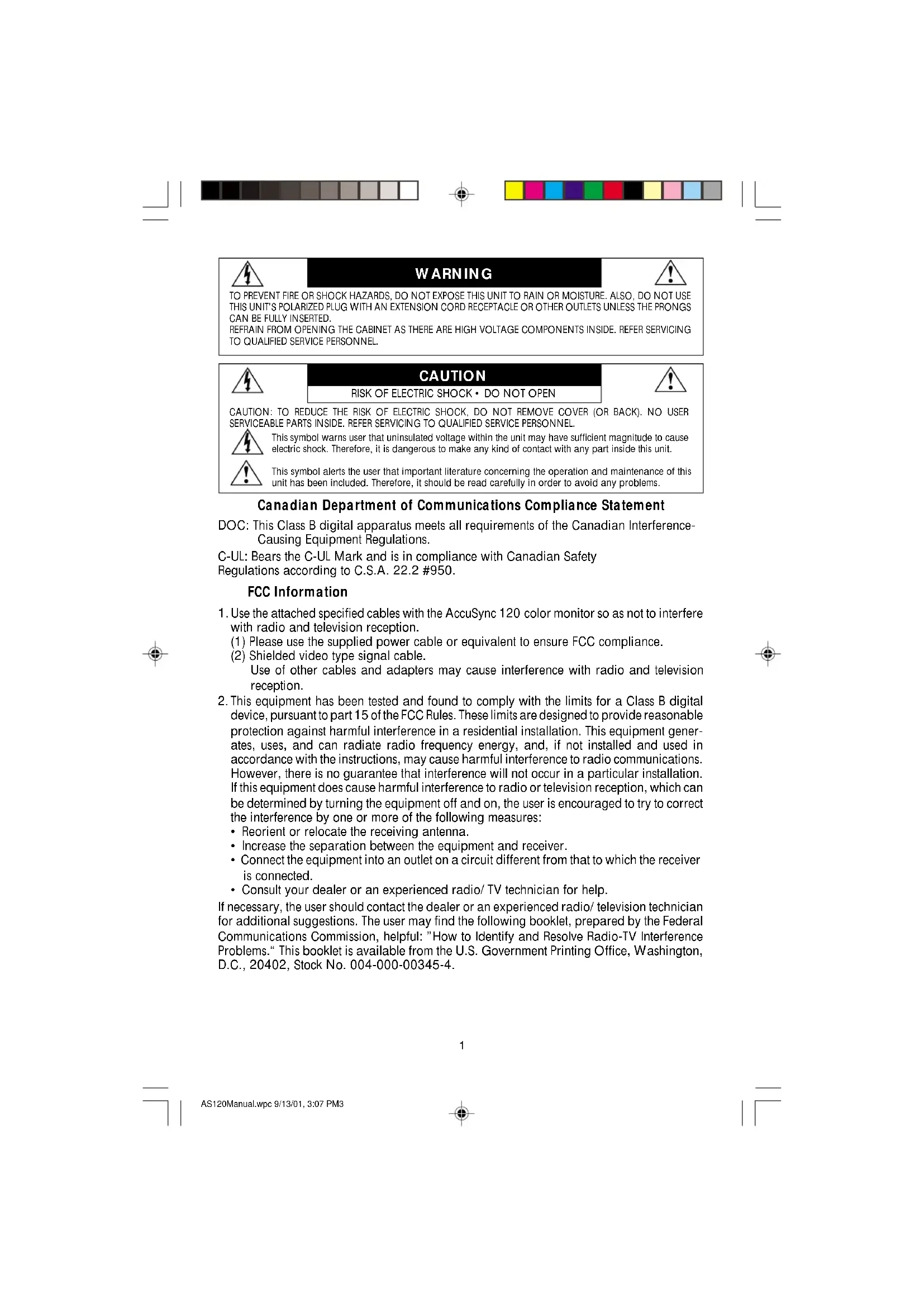
Références 25 Garantie limitée 26 AS120Manual.wpc 9/13/01, 3:07 PM21 TO PREVENT FIRE OR SHOCK HAZARDS, DO NOT EXPOSE THIS UNIT TO RAIN OR MOISTURE. ALSO, DO NOT USE THIS UNIT'S POLARIZED PLUG WITH AN EXTENSION CORD RECEPTACLE OR OTHER OUTLETS UNLESS THE PRONGS CAN BE FULLY INSERTED. REFRAIN FROM OPENING THE CABINET AS THERE ARE HIGH VOLTAGE COMPONENTS INSIDE. REFER SERVICING TO QUALIFIED SERVICE PERSONNEL. WARNING CAUTION RISK OF ELECTRIC SHOCK • DO NOT OPEN CAUTION: TO REDUCE THE RISK OF ELECTRIC SHOCK, DO NOT REMOVE COVER (OR BACK). NO USER SERVICEABLE PARTS INSIDE. REFER SERVICING TO QUALIFIED SERVICE PERSONNEL. This symbol warns user that uninsulated voltage within the unit may have sufficient magnitude to cause electric shock. Therefore, it is dangerous to make any kind of contact with any part inside this unit. This symbol alerts the user that important literature concerning the operation and maintenance of this unit has been included. Therefore, it should be read carefully in order to avoid any problems. Canadian Department of Communications Compliance Statement DOC: This Class B digital apparatus meets all requirements of the Canadian Interference- Causing Equipment Regulations. C-UL: Bears the C-UL Mark and is in compliance with Canadian Safety Regulations according to C.S.A. 22.2 #950. FCC Information
Use the attached specified cables with the AccuSync 120 color monitor so as not to interfere with radio and television reception. (1) Please use the supplied power cable or equivalent to ensure FCC compliance. (2) Shielded video type signal cable. Use of other cables and adapters may cause interference with radio and television reception.
This equipment has been tested and found to comply with the limits for a Class B digital device, pursuant to part 15 of the FCC Rules. These limits are designed to provide reasonable protection against harmful interference in a residential installation. This equipment gener- ates, uses, and can radiate radio frequency energy, and, if not installed and used in accordance with the instructions, may cause harmful interference to radio communications. However, there is no guarantee that interference will not occur in a particular installation. If this equipment does cause harmful interference to radio or television reception, which can be determined by turning the equipment off and on, the user is encouraged to try to correct the interference by one or more of the following measures:
- Reorient or relocate the receiving antenna.
- Increase the separation between the equipment and receiver.
- Connect the equipment into an outlet on a circuit different from that to which the receiver is connected.
- Consult your dealer or an experienced radio/TV technician for help. If necessary, the user should contact the dealer or an experienced radio/television technician for additional suggestions. The user may find the following booklet, prepared by the Federal Communications Commission, helpful: ”How to Identify and Resolve Radio-TV Interference Problems.“ This booklet is available from the U.S. Government Printing Office, Washington, D.C., 20402, Stock No. 004-000-00345-4. AS120Manual.wpc 9/13/01, 3:07 PM32 Your new NEC AccuSync
monitor box* should contain the following:
- Remember to save your original box and packing material to transport or ship the monitor. You can register your product online at www.necmitsubishi.com/productregistration Video Signal Cable AccuSync 120 USER'S MANUALTo learn about other special offers, register online at www.necmitsubishi.com/ productregistration
To attach the AccuSync
monitor to your system, follow these instructions:
1. Turn off the power to your computer.
2. If necessary, install the display card into your system. For more information,
refer to the display card manual.
3. For the PC: Connect the one end of the 15-pin mini D-SUB of the video signal
cable to the rear of the monitor and the other end to the connector of the display card in your system (Figure A.1). Tighten all screws. For the Mac: Connect the Macintosh cable adapter (not included) to the monitor connector on the Macintosh (Figure B.1). Attach the 15-pin mini D-SUB end of the video signal cable to the Macintosh cable adapter on the computer and the other end to the back of the monitor (Figure B.1). Tighten all screws. NOTE: To obtain the AccuSync 120 Macintosh cable adapter, call NEC-Mitsubishi Electronics Display of America, Inc. at (800) 820-1230.
4. Connect one end of the power cord to the AccuSync monitor and the other
end to the power outlet (Figure C.1).
5. Turn on the monitor (Figure D.1) and the computer.
NOTE: If you have any problems, please refer to the Troubleshooting section of this User’s Manual. 15-pin mini D-SUB Video Signal Cable AS120Manual.wpc 9/13/01, 3:08 PM5AccuSync 120 Figure D.1 Figure C.1 Figure B.1 Quick Start cont.
(On-Screen Manager) control buttons on the front of the monitor function as follows: SELECT Enters and exits the OSM menu. CONTROL –/+ Selects one of the controls and increases or decreases the adjustment. ▲ / ▼ Moves the highted area ▲ / ▼ to select control. Adjusts the overall image and background screen brightness. Adjusts the image brightness in relation to the background. Moves the image horizontally (left or right). Moves the image vertically (up or down). Increases or decreases the horizontal size of the image. Increases or decreases the vertical size of the image. Rotates the entire display clockwise or counterclockwise. Increases or decreases the curvature of the sides either inward or outward. Decreases or increases the curvature left or right. Increases or decreases the tilt of the sides either to the left or right. Increases or decreases the top of the screen to be the same as the bottom. Increases or decreases the curvature of the inward or outward top corners. Increases or decreases the curvature of the bottom corner inward or outward. AS120Manual.wpc 9/13/01, 3:08 PM76 Controls cont. Color Preset: Select from 9300K or 6500K color temperature. AccuColor Temperature: Increases or decreases the color temperature. RED Red Color Contrast: Adjust the red contrast of the display GREEN Green Color Contrast: Adjust the green contrast of the display. BLUE Blue Color Contrast: Adjust the blue contrast of the display. Video Level: Select from 0.7 or 1.0V to match to computers output. Language: Adjusts language of OSM menu. OSD Position: Adjusts Position of OSM menu. Degauss: Eliminates the buildup of stray magnetic fields which alter the correct scan of the electron beams and effect the purity of the screen colors, focus and convergence when acivated, your screen image will jump and waver a bit as the screen is demanetized. CAUTION: Please allow a minimum of 20 minutes to elapse between uses of degauss control. Recall: Resets all OSM settings to default. Moiré: Reduces horizontal/vertical moiré levels. Convergence: Aligns all colors horizontal (R,G,B) to form a single color (White). AS120Manual.wpc 9/13/01, 3:08 PM8Recommended Use
Safety Precautions and Maintenance
FOR OPTIMUM PERFORMANCE, PLEASE NOTE THE
FOLLOWING WHEN SETTING UP AND USING
- DO NOT OPEN THE MONITOR. There are no user serviceable parts inside and opening or removing covers may expose you to dangerous shock hazards or other risks. Refer all servicing to qualified service personnel.
- Do not spill any liquids into the cabinet or use your monitor near water.
- Do not insert objects of any kind into the cabinet slots, as they may touch dangerous voltage points, which can be harmful or fatal or may cause electric shock, fire or equipment failure.
- Do not place any heavy objects on the power cord. Damage to the cord may cause shock or fire.
- Do not place this product on a sloping or unstable cart, stand or table, as the monitor may fall, causing serious damage to the monitor.
- Keep the monitor away from high capacity transformers, electric motors and other devices such as external speakers or fans, which may create strong magnetic fields.
- If possible, position the monitor so that it is facing the east to minimize the effects of the earth’s magnetic field.
- Changing the direction of the monitor while it is powered on may cause image discoloration. To correct this, turn the monitor off for 20 minutes before powering it back on. Immediately unplug your monitor from the wall outlet and refer servicing to qualified service personnel under the following conditions:
- When the power supply cord or plug is damaged.
- If liquid has been spilled, or objects have fallen into the monitor.
- If the monitor has been exposed to rain or water.
- If the monitor has been dropped or the cabinet damaged.
- If the monitor does not operate normally by following operating instructions.
- Allow adequate ventilation around the monitor so that heat can properly dissipate. Do not block ventilated openings or place the monitor near a radiator or other heat sources. Do not put anything on top of monitor.
- The power cable connector is the primary means of detaching the system from the power supply. The monitor should be installed close to a power outlet which is easily accessible.
- Handle with care when transporting. Save packaging for transporting. CAUTION AS120Manual.wpc 9/13/01, 3:08 PM9CORRECT PLACEMENT AND ADJUSTMENT OF THE MONITOR CAN REDUCE EYE, SHOULDER AND NECK FATIGUE. CHECK THE FOLLOWING WHEN YOU POSITION THE MONITOR: Recommended Use cont.
- Adjust the monitor height so that the top of the screen is at or slightly below eye level. Your eyes should look slightly downward when viewing the middle of the screen.
- Position your monitor no closer than 12 inches and no further away than 28 inches from your eyes. The optimal distance is 18 inches.
- Rest your eyes periodically by focusing on an object at least 20 feet away. Blink often.
- Position the monitor at a 90° angle to windows and other light sources to minimize glare and reflections. Adjust the monitor tilt so that ceiling lights do not reflect on your screen.
- If reflected light makes it hard for you to see your screen, use an anti-glare filter.
- Clean your monitor regularly. Use a lint-free, non-abrasive cloth and a non-alcohol, neutral, non-abrasive cleaning solution or glass cleaner to minimize dust.
- Adjust the monitor’s brightness and contrast controls to enhance readability.
- Use a document holder placed close to the screen.
- Position whatever you are looking at most of the time (the screen or reference material) directly in front of you to minimize turning your head while you are typing.
- Get regular eye checkups. Ergonomics To realize the maximum ergonomics benefits, we recommend the following:
- Adjust the Brightness until the background raster disappears
- Do not position the Brightness control to its maximum setting
- Use the preset Size and Position controls with standard signals
- Use the preset Color Setting and Sides Left/Right controls
- Use non-interlaced signals with a vertical refresh rate between 70-85Hz for the AccuSync
- Do not use primary color blue on a dark background, as it is difficult to see and may produce eye fatigue due to insufficient contrast For more detailed information on setting up a healthy work environment, call NEC - Mitsubishi Electronics Display of America at (800) 820-1230, NEC FastFacts
information at (800) 366-0476 and request document #900108 or write the American National Standard for Human Factors Engineering of Visual Display Terminal Workstations – ANSI- HFS Standard No. 100-1988 – The Human Factors Society, Inc. P.O. Box 1369, Santa Monica, California 90406.
120 Notes Specifications Monitor Picture Tube Diagonal: 21.0 inch 90° deflection, 0.25 mm trio dot pitch, Viewable Image Size: 20.0 inch medium short persistence phosphor, Radius: 1730 mm multi-layered, anti-static screen coating, semi-tint screen, Invar Shadow Mask and OptiClear
screen surface. Input Signal Video: ANALOG 0.7 Vp-p/75 Ohms Sync: Separate sync. TTL Level Horizontal sync. Positive/Negative Vertical sync. Positive/Negative Composite sync Positive/Negative Sync on Green: Display Colors Analog input: Unlimited number of Colors Depends on display card used. Synchronization Horizontal: 30 kHz to 96 kHz Automatically Range Vertical: 55 Hz to 160 Hz Automatically Resolutions Supported 640 x 480 @ 70 to 160 Hz Some systems may not support Resolution based on horizontal and 720 x 400 @ 55 to 160 Hz all modes listed. vertical frequencies only 800 x 600 @ 55 to 152 Hz 1024 x 768 @ 55 to 120 Hz 1152 x 870 @ 55 to 105 Hz 1280 x 1024 @ 55 to 89 Hz ..................... NEC cites recommended resolution at 1600 x 1200 @ 55 to 76 Hz 85 Hz for optimal display performance Active Display Area Horizontal: 390 mm/15.4 inches Dependent upon signal timing used, (Factory Setting) Vertical: 293 mm/11.5 inches and does not include border area. Active Display Area 406 mm/16.0 inches Dependent upon signal timing used, (Full Scan) 305 mm/12.0 inches and does not include border area. Power Supply AC 100 - 240 V, 50/60 Hz Current Rating 2.0A @ 100 - 240V Dimensions 498 mm (W) x 510 mm (H) x 512 mm (D)
Environmental Considerations Operating Temperature: 0°C to +40°C Humidity: 10% to 90% Feet: 0 to 10,000 Feet Storage Temperature: -20°C to +60°C Humidity: 0% to 90% Feet: 0 to 45,000 Feet NOTE: Technical specifications are subject to change without notice. Specifications AS120Manual.wpc 9/13/01, 3:08 PM1110 Features Flat Square Technology: Using a 0.26 mm dot type CRT, delivers an increased contrast and crisp, clean text and graphics without sacrificing the focus level, clarity and brightness. OptiClear
Screen Surface: Reduces reflection and glare and increases contrast without sacrificing focus level, clarity or brightness. Along with the flat square technology CRT, a high contrast screen delivers crisp, clean text and graphics. Invar Shadow Mask: Holes in the thin metal sheet behind the glass of the CRT surface correspond to each phosphor dot on the inner surface of the CRT’s faceplate, allowing the correct electron beam (red, green, blue) to hit the correct color phosphor for improved focus, brightness and color. Dual Dynamic Beam Focus: Provides precise, continuous focus adjustments of the electron beams and optimum image quality, even to the far edges of the screen. AccuColor
Control System: Allows you to change the color settings on your display to match your personal preference. OSM
(On-Screen Manager) Controls: Allow you to quickly and easily adjust all elements of your screen image via simple to use on-screen menus. ErgoDesign
Features: Enhance human ergonomics to improve the working environment, protect the health of the user and save money. Examples include OSM controls for quick and easy image adjustments, tilt/swivel base for pre- ferred angle of vision and compliance with MPRII guidelines for lower emissions. Plug and Play: The Microsoft
solution with the Windows
95/98 operating system facilitates setup and installation by allowing the monitor to send its capabilities (such as screen size and resolutions supported) directly to your computer, automatically optimizing display performance. IPM
(Intelligent Power Manager) System: Provides innovative power-saving methods that allow the monitor to shift to a lower power consumption level when on but not in use, saving two-thirds of your monitor energy costs, reducing emissions and lowering the air conditioning costs of the workplace. Reduced Magnetic Field
Technology: Reduces magnetic and alternating electric field emissions and static electricity, addressing ergonomic concerns regarding potential risks from extended computer monitor use. Multiple Frequency Technology: Automatically adjusts monitor to the display card’s scanning frequency, thus displaying the resolution required. FullScan
Capability: Allows you to use the entire screen area in most resolu- tions, significantly expanding image size. OSM Display Screen Copyright 2001 by NEC-Mitsubishi Electronics Display AS120Manual.wpc 9/13/01, 3:08 PM1211 Troubleshooting No picture
- Display card should be completely seated in its slot.
- Power Button and computer power switch should be in the ON position.
- Signal cable should be completely connected to display card/computer and monitor.
- Check connector for bent or pushed-in pins. Image is scrolling or unstable
- Signal cable should be completely attached to the computer and monitor.
- Check pin assignments and signal timings of the monitor and your display card with respect to recommended timings and pin assignments.
- If the Macintosh cable adapter is used, check for proper connection or make sure the display card is Macintosh compatible and that the card is properly seated in the computer. LED on monitor is not lit (no green, orange, orange color can be seen)
- Power Switch should be in the ON position and power cord should be connected. Picture is fuzzy or color looks blotchy
- Adjust Brightness and Contrast Controls.
- Access the Degauss Control through OSM™ controls. Activate the Degauss Control. CAUTION: A minimum interval of 20 minutes should elapse before the Deguass Control is used a second time when not switching between modes. Picture bounces or a wavy pattern is present in the picture
- Move electrical devices that may be causing electrical interference away from the monitor.
- See inside cover of User’s Manual for FCC information. Edges of the display image are not square
- Use the OSM Geometry Controls to straighten the edges.
- If possible, position the front of the monitor facing east. Display image is not centered, too small, or too large
AS120Manual.wpc 9/13/01, 3:08 PM14Limited Warranty
NEC-Mitsubishi Electronics Display of America, Inc. (hereinafter “NMD-A”) warrants this Product to be free from defects in material and workmanship and, subject to the conditions set forth below, agrees to repair or replace (at NMD-A’s sole option) any part of the enclosed unit which proves defective for a period of three (3) years from the date of first consumer purchase. Spare parts are warranted for ninety (90) days. Replacement parts or unit may be new or refurbished and will meet specifications of the original parts or unit. This warranty gives you specific legal rights and you may also have other rights, which vary from state to state. This warranty is limited to the original purchaser of the Product and is not transferable. This warranty covers only NMD-A-supplied components. Service required as a result of third party components is not covered under this warranty. In order to be covered under this warranty, the Product must have been purchased in the U.S.A. or Canada by the original purchaser. This warranty only covers Product distribution in the U.S.A. or Canada by NMD-A No warranty service is provided outside of the U.S.A. or Canada. Proof of Purchase will be required by NMD-A to substantiate date of purchase. Such proof of purchase must be an original bill of sale or receipt containing name and address of seller, purchaser, and the serial number of the product. It shall be your obligation and expense to have the Product shipped, freight prepaid, or delivered to the authorized reseller from whom it was purchased or other facility authorized by NMD-A to render the services provided hereunder in either the original package or a similar package affording an equal degree of protection. All Products returned to NMD-A for service MUST have prior approval, which may be obtained by calling 1-800-632-4662. The Product shall not have been previously altered, repaired, or serviced by anyone other than a service facility authorized by NMD-A to render such service, the serial number of the product shall not have been altered or removed. In order to be covered by this warranty the Product shall not have been subjected to displaying of fixed images for long periods of time resulting in image persistence (afterimage effects), accident, misuse or abuse or operated contrary to the instructions contained in the User’s Manual. Any such conditions will void this warranty. NMD-A SHALL NOT BE LIABLE FOR DIRECT, INDIRECT, INCIDENTAL, CONSEQUENTIAL, OR OTHER TYPES OF DAMAGES RESULTING FROM THE USE OF ANY NMD-A PRODUCT OTHER THAN THE LIABILITY STATED ABOVE. THESE WARRANTIES ARE IN LIEU OF ALL OTHER WARRANTIES EXPRESS OR IMPLIED, INCLUDING, BUT NOT LIMITED TO, THE IMPLIED WARRANTIES OF MERCHANTABILITY OR FITNESS FOR A PARTICULAR PURPOSE. SOME STATES DO NOT ALLOW THE EXCLUSION OF IMPLIED WARRANTIES OR THE LIMITATION OR EXCLUSION OF LIABILITY FOR INCIDENTAL OR CONSEQUENTIAL DAM- AGES SO THE ABOVE EXCLUSIONS OR LIMITATIONS MAY NOT APPLY TO YOU. This Product is warranted in accordance with the terms of this limited warranty. Consumers are cautioned that Product performance is affected by system configuration, software, the application, customer data, and operator control of the system, among other factors. While NMD-A Products are considered to be compatible with many systems, specific functional implementation by the customers of the Product may vary. Therefore, suitability of a Product for a specific purpose or application must be determined by consumer and is not warranted by NMD-A. For the name of your nearest authorized NEC-Mitsubishi Electronics Display service facility, contact NEC-Mitsubishi Electronics Display at 1-800-632-4662. AS120Manual.wpc 9/13/01, 3:08 PM15AFIN D’ÉVITER TOUT RISQUE D’INCENDIE OU D’ÉLECTROCUTION, NE PAS EXPOSER CET APPAREIL À LA PLUIE OU À L’HUMIDITÉ. NE PAS UTILISER LA FICHE D’ALIMENTATION POLARISÉE AVEC UNE PRISE DE CORDON DE RALLONGE OU AUTRE QUE SI LES BROCHES PEUVENT ÊTRE ENTIÈREMENT INTRODUITES. NE PAS OUVRIR LE BOÎTIER, LEQUEL CONTIENT DES COMPOSANTS À HAUTE TENSION. CONFIER TOUS TRAVAUX À DU PERSONNEL TECHNIQUE QUALIFIÉ. AVERTISSEMENT ATTENTION RISQUE DE DÉCHARGE ÉLECTRIQUE • NE PAS OUVRIR ATTENTION : POUR ÉVITER TOUT RISQUE D'ÉLECTROCUTION, NE PAS OUVRIR LE COUVERCLE (L'ARRIÈRE). À L'INTÉRIEUR, AUCUNE PIÈCE NE NÉCESSITE L'INTERVENTION DE L'UTILISATEUR. EN CAS DE PROBLÈME, S'ADRESSER À DU PERSONNEL TECHNIQUE QUALIFIÉ. Ce symbole est une mise en garde contre les risques d'électrocution que présentent certaines parties dépourvues d'isolation à l'intérieur de l'appareil. Il est donc dangereux d'établir le moindre contact avec ces parties
NEC AS120Manual.wpc 9/13/01, 3:08 PM31 # de pièce AS120(Rev.01) Imprimé aux KoreaPROPRIETARY NOTICE AND LIABILITY DISCLAIMER The information disclosed in this document, including all designs and related materials, is the valuable property of NEC-Mitsubishi Electronics Display of America and/or its licensors, as appropriate, reserve all patent, copyright and other proprietary rights to this document, including all design, manufacturing, reproduction, use and sales rights thereto, except to the extent said rights are expressly granted to others. The NEC-Mitsubishi Electronics Display of America product(s) discussed in this document are warranted in accordance with the terms of the Limited Warranty Statement accompanying each product. However, actual performance of each such product is dependent upon factors such as system configuration, customer data and operator control. Since implementation by customers of each product may vary, the suitability of specific product configurations and applications must be determined by the customer and is not warranted by NEC-Mitsubishi Electronics Display of America. To allow for design and specification improvements, the information in this document is subject to change at any time without notice. Reproduction of this document or portions thereof without prior approval of NEC-Mitsubishi Electronics Display of America is prohibited.
DECLARATION OF CONFORMITY
This device complies with Part 15 of FCC Rules. Operation is subject to the following two conditions. (1) This device may not cause harmful interference, and (2) this device must accept any interference received, including interference that may cause undesired operation. U.S. Responsible Party: NEC-Mitsubishi Electronics Display of America, Inc. Address: 500 Park Blvd, Suite 1100 Itasca, Illinois 60143 Tel. No.: (630) 467-3000 Type of Product: Computer Monitor Equipment Classification: Class B Peripheral Models: AccuSync 120 We hereby declare that the equipment specified above conforms to the technical standards as specified in the FCC Rules. Windows is a registered trademark of Microsoft Corporation. NEC is a registered trademark of NEC Corporation. ENERGY STAR is a U.S. registered trademark. All other brands and product names are trademarks or registered trademarks of their respective owners. As an ENERGY S TAR
Partner, NEC-Mitsubishi Electronics Display of America, Inc. has determined that this product meets the ENERGY S TAR guidelines for energy efficiency. The ENERGY STAR emblem does not represent EPA endorsement of any product or service. NEC AccuSync
Series AS120Manual.wpc 9/13/01, 3:08 PM32Part No. AS120(Rev.01)Printed in Korea