
MVHP7300 - Car stereo PIONEER - Free user manual and instructions
Find the device manual for free MVHP7300 PIONEER in PDF.



| Product type | Multimedia car radio |
| Brand | Pioneer |
| Model | MVHP7300 |
| Dimensions (W × H × D) | 178 × 50 × 160 mm (DIN standard) |
| Power supply | 14.4 V DC (10.8 to 15.1 V) |
| Maximum current consumption | 10.0 A |
| Maximum power output | 50 W × 4 (70 W × 1 for subwoofer, 2 Ω) |
| Continuous power output | 22 W × 4 (1 kHz, 5% THD, 4 Ω) |
| Display | 3.0 inches, color TFT LCD, 16:9, 1440 × 240 pixels |
| FM tuner | 87.9 - 107.9 MHz |
| AM tuner | 530 - 1710 kHz |
| USB port | USB 1.1/2.0, FAT16/FAT32, 500 mA max |
| SD card slot | SD/SDHC, FAT12/16/32 |
| Supported audio formats | MP3, WMA, AAC (iTunes) |
| Supported video formats | DivX (Home Theater 3 to 6), .avi and .divx files |
| Supported image formats | JPEG (Baseline, EXIF 2.1) |
| Main features | FM/AM radio, USB/SD playback, iPod/iPhone via USB, DivX, JPEG, Pandora (via iPhone), 8-band equalizer, filters, loudness correction |
| Bluetooth | Not available on this model (MVHP7300) |
| Security | Parking brake lock (disables video while driving) |
| Maintenance and cleaning | Clean the screen with a soft, dry cloth. Remove the front panel to protect the device. |
| Spare parts and repairability | Contact an authorized Pioneer dealer for spare parts and repairs. |
| Optional accessories | HD Radio tuner (GEX-P20HD), XM tuner, SIRIUS, iPod interface cable CD-IU50V |
| General information | 188-page user manual available in French |
Frequently Asked Questions - MVHP7300 PIONEER
User questions about MVHP7300 PIONEER
0 question about this device. Answer the ones you know or ask your own.
Ask a new question about this device
Download the instructions for your Car stereo in PDF format for free! Find your manual MVHP7300 - PIONEER and take your electronic device back in hand. On this page are published all the documents necessary for the use of your device. MVHP7300 by PIONEER.
USER MANUAL MVHP7300 PIONEER
OperationManual Moded'employoi
RDSMEDIACENTERRECEIVER RECEPTORCENTRALMULTIMEDIARDS AUTORADIOMULTIMEDIARDS
MVH-P8300BT MVH-P7300


Bluetooth

Radio
Made for

iPod

iPhone
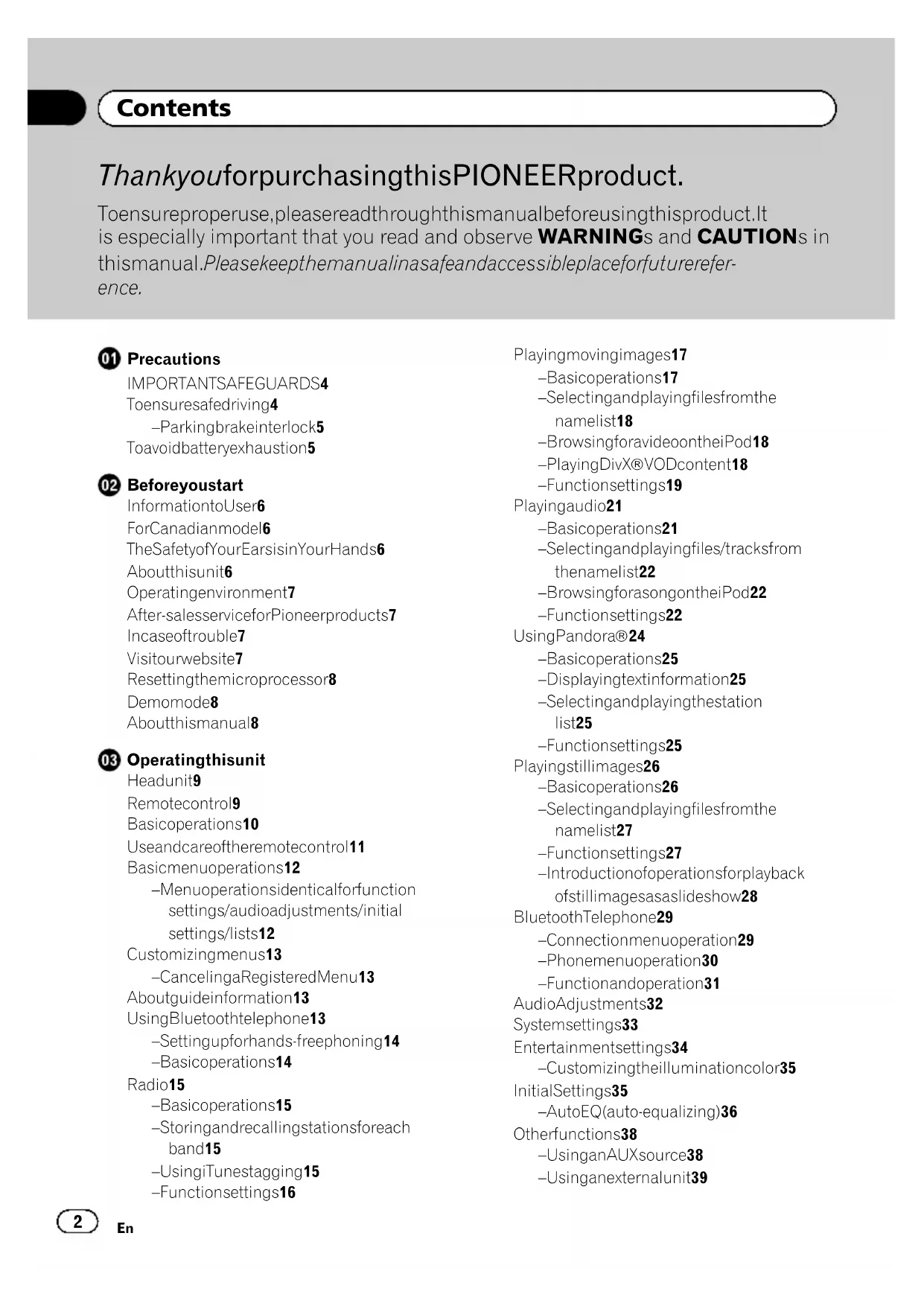
Contents
ThankyouforpurchasingthisPIONEERproduct.
Toensureproperuse,pleasereadthroughthismanualbeforeusingthisproduct.It is especially important that you read and observe WARNINGs and CAUTIONs in this manual.Pleasekeepthemanualinasafeandaccessibleplaceforfuturereference.

Precautions
IMPORTANTSAFEGUARDS4
Toensuresafedriving4
-Parkingbrakeinterlock5
Toavoidbatteryexhaustion5

Beforeyoustart
InformationtoUser6
ForCanadianmodel6
TheSafetyofYourEarsisinYourHands6
Aboutthisunit6
Operatingenvironment7
After-saleserviceforPioneerproducts7
Incaseoftrouble7
Visitourwebsite7
Resettingthemicroprocessor8
Demomode8
Aboutthismanual8

Operatingthisunit
Headunit9
Remotecontrol9
Basicoperations10
Useandcareoftheremotecontrol11
Basicmenuoperations12
-Menuoperationsidenticalforfunction settings/audioadjustments/initial settings/lists12
Customizingmenus13
-CancelingaRegisteredMenu13
Aboutguideinformation13
UsingBluetoothtelephone13
-Settingupforhands-freephoning14
-Basicoperations14
Radio15
-Basicoperations15
-Storingandrecallingstationsforeach band15
-UsingiTunestagging15
-Functionsettings16
Playingmovingimages17
-Basicoperations17
-Selectingandplayingfilesfromthen namelist18
-BrowsingforavideoontheiPod18
-PlayingDivX®VODcontent18
-Functionsettings19
Playingaudio21
-Basicoperations21
-Selectingandplayingfiles/tracksfrom thenamelist22
-BrowsingforasongontheiPod22
-Functionsettings22
UsingPandora®24
-Basicoperations25
-Displayingtextinformation25
-Selectingandplayingthestation list25
-Functionsettings25
Playingstillimages26
-Basicoperations26
-Selectingandplayingfilesfromthenamelist27
-Functionsettings27
-Introductionofoperationsforplayback ofstillimagesasasideshowhow28
BluetoothTelephone29
-Connectionmenuoperation29
-Phonenuoperation30
-Functionandoperation31
AudioAdjustments32
Systemsettings33
Entertainmentsettings34
-Customizingtheilluminationcolor35
InitialSettings35
-AutoEQ( auto-equalizing)36
Otherfunctions38
-UsinganAUXsource38
-Usinganexternalunit39
-Switchingthedisplayindication39
04 Detailedinstructions
Changingthewidescreenmode40
SettingtheDivXsubtitlefile40
Settingtheaspectratio40
DisplayingtheDivX®VODregistration
code40
Displayingthederegistrationcode41
Changingthepictureadjustment41
05 Availableaccessories
HDRadio™tuner42
-Basicoperations42
-Storingandrecallingstations42
-UsingiTunestagging42
-Functionsettings42
XMTuner43
-Basicoperations43
-Storingandrecallingstations43
-SelectinganXMchanneldirectly43
-Functionsettings43
-Selectingachannelfromachannel category44
-DisplayingtheRadioID44
SIRIUSSatelliteRadiotuner44
-Basicoperations44
-Storingandrecallingstations45
-SelectingaSIRIUSchannel directly45
-Functionsettings45
-Selectingachannelfromachannel category46
-UsingtheInstantReplayfunction46
Additionalinformation
Troubleshooting47
Errormessage47
UnderstandingautoEQerrormessage50
Indicatorlist50
Handlingguidelines52
Compressedaudio/videocompatibility(USB, SD)53
iPodcompatibility54
Sequenceofaudiofiles55
Usingthedisplaycorrectly55
-Handlingthedisplay55
-Liquidcrystaldisplay(LCD)screen55
-LED(light-emittingdiode)
backlight56
Copyrightandtrademark56
Specifications58
Precautions
IMPORTANTSAFEGUARDS
Please read all of these instructions regarding your display and retain them for future reference.
1Readthismanuallyandcarefullybeforeoperatingyourdisplay.
2Keepthismanualhandyasareference for operating proceduresandsafetyinformation.
3Paycloseattentionontoall warningsinthis manualandfollowtheinstructionscarefully.
4 Donotallowotherpersonstousethissystemuntiltheyhavereadandunderstood theoperatinginstructions.
5 Donotinstallthedisplaywhereitmay(i) obstructthedriver'svision,(ii)impairthe performanceofanyofthevehicle'soperatingsystemsaftetyfeatures,includingairbags,hazardlampbuttonsoiii) impairthedriver'sabilitytosafelyoperatethevehicle.
6 Donotoperatethisdisplayifdoingsoin anywaywilldivertyourattentionfrom theseafeoperationofyourvehicle. Always observesafedrivingrulesandfollowall existingtrafficregulations.Ifyouexperiencedifficulty inoperatingthesystemor readingthedisplay,parkyourvehicleina safelocationandmakenecessaryadjustments.
7 Pleaseremembertowearyourseatbeltat alltimeswhileoperatingyourvehicle.If youareeverinanaccident,yourinjuries canbeconsiderablymoreseverifyour seatbeltisnotproperlybuckled.
8Neveruseheadphoneswhiledriving.
9Topromotesafety, certainfunctionsare disabledunlessstheparkingbrakeison, andthevehicleisnotinmotion.
10Neversetthevolumeofyourdisplayso highthatyoucannothearoutsidetraffic andemergencyvehicles.
WARNING
Donotatempttoinstallorserviceyourdisplaybyyourself.Installationorservicingofthedisplaybypersonswithouttrainingandexperienceinelectronicequipmentmandatomotiveaccessoriesmaybedangerousandcouldexposeyoutootheriskofelectricshock orotherhazards.
Toensuresafedriving
WARNING
LIGHTGREENLEADATPOWERCON-NECTORISDESIGNEDTODETECT PARKEDSTATUSANDMUSTBECN-NECTEDTOTHEPOWERSUPPLYSIDE OFTHEPARKINGBRAKESWITCH.IMPROPERCONNECTIONORUSEOF THISLEADMAYVIOLATEAPPLICABLE LAWANDMAYRESULTINSERIOUSINJURYORDAMAGE.
- Toavoidtheriskofdamageandjuryandthe potentialviolationofapplicablelaws,thisunit isnotforusewithvideothatisvisibletothe driver.
Toavoidtheriskofaccidentandthepotential violationofapplicablelaws,noviewingof frontseatvideoshouldeveroccurwhileth vehicleisbeingdriven. - Insomecountriesorstatesstheviewing of imagesonadisplaysinsidevehicleevenby personsotherthanthedrivermaybeillegal. Wheresuchregulationsapply,theymustbe obeyed.
Whenyouattempttowatchvideoimage whiledriving,thewamingViewingoffront seatvideosourcewhiledrivingisstrictly prohibited.willappearonthefrontdisplay. Towatchvideoimageonthefrontdisplay, parkourvehicleinasafeplaceandapplythe parkingbrake.
Precautions
Certain functions(微观行为)offered by this unit could be dangerous and/or unlawful if used whileparking brake. If you attempt to use the vehicle's brakes, they will become disabled until you stop the vehicle's safe place, and (1) apply the parking brake, (2) release the parking brake, and then (3) apply the parking brake again. Please keep the brakepedal pushed down before releasing the parking brake.
Operation
1PressM.C.todisplaythenextpage.
2PressM.C.toselectOK.

Toavoidbatteryexhaustion
Keepthevehicleengineerunningwhenusing thisunittoavoiddrainingthebatterypower.
- Whennopowerissuppliedtothisunit, suchaswhenthevehiclebatteryisbeing replaced,themicrocomputerofthisunitreturnstoitsinitialcondition.Werecommendthatyoutranscribetheaudo adjustmentdata.

WARNING
Donotusewithvehiclesthatdonotfeaturean ACCposition.
FCCID:AJDK029
MODELNO.:MVH-P8300BT
IC:775E-K029
ThisequipmentcomplieswithFCC/ICradiation exposurelimitsetforthoranuncontrolled environmentandmeetstheFCCradiofrequency(RF)ExposureGuidelinesinSupplementCtoOET65andRSS-102ofthelCradio frequency(RF)Exposurerules.Thisequipment hasverylowlevelsofRFenergythatitdeemed tocomplywithoutmaximumpersissiveexposerevaluation(MPE).Butitisdesirablethat itshouldbeinstalledandoperatedkeeping the radiatoratleast20cmormoreawayfrom person'sbody(excludingextremities:hands, wrists,feetandankles).
This transmitter mustnotbeco-locatedoroperatedin conjunctionwithanyotherantennaortransmitter.
-MVH-P7300
- Thisdevicecomplieswithpart15ofthe FCCRules. Operationissubjecttothefollowingtwoconditions:
(1)Thisdevicemaynotcauseharmfulinter-ference,and(2)thisdevicemustaccept anyinterferencereceived,includinginter-ferencethatmaycauseundesiredoper-ation.

InformationtoUser
Alterationnormodificationscarriedoutwithout appropriateauthorizationmayinvalidatethe user'srighttooperatetheequipment.

ForCanadianmodel
ThisClassBdigitalapparatuscomplieswith CanadianICES-003.

TheSafetyofYourEarsisin YourHands
Getthemostoutofyourequipmentbyplaying itatasafelevel—alevelthatletsthesound comethroughclearlywithoutannoyingblaringordistortionand,mostimportantly,withoutfectingyoursensitivehearing.Sound canbedeceiving.Overtime,yourhearing "comfortlevel"adaptstohighervolumesof sound,sowhatsounds"normal"canactually beloudandharmfultoyourhearing.Guard againstthisbysettingyourequipmentata safelevelBEFOREyourhearingadapts.
ESTABLISHASAFELEVEL:
- Setyourvolumecontrollateralowsetting.
Slowly increasethesounduntilyoucan hearitcomfortablyandclearly,withoutdistortion. - Once you have established a comfortable sound level, set the dial and leave it there.
BESURETOOBSERVETHEFOLLOWING GUIDELINES:
- Donotturnupthevolumesohighthatyou can'thearwhat'saroundyou.
Usecautionortemporarilydiscontinueuse inpotentiallyhazardoussituations. - Donotuseheadphoneswhileoperatinga motorizedvehicle;theuseofheadphones maycreateatrafchazardandisillegal in manyareas.
Aboutthisunit
ThetunerfrequenciesonthisunitareallocatedforuseinNorthAmerica.Useanotherareasmayresultinpoorreception.

WARNING
Handlingthecordonthisproductorcordsassociaredwithaccessoriesoldwiththeproductmayexposeyutochemicalslistedonproposition65knowtotheStateofCaliforniaandothergovernmententitiestocausecancerandbirthdefectorotherreproductiveharm.Washhandsafterhandling.

CAUTION
- Donotallowthisunittocomeintocontact withliquids. Electricalshockcouldresult. Also,damagetothisunit,smoke,andoverheatingcouldresultfromcontactwithliquids.
- Keepthismanualhandyforfuturereference.
Alwayskeep the volume lowenoughto hear outside sounds. - Avoidexposureto moisture.
- If the battery is disconnected or discharged, any preset memory will be erased.

Important(Serialnumber)
Theserialnumberislocatedonthebottomof thisunit.Foryourownsecurityandconvenience, besurettecordthisnumberontheenclosed warrantycard.
Note
Functionsettingoperationsarecompletedevenif themenuiscancelledbeforetheoperationsare confirmed.
Operatingenvironment
Thisunitshouldbeusedwithinthetemperaturerangesshownbelow.
Operatingtemperaturerange: -10^ + 60^ (14°Fto140°F)
EN300328ETCtesttemperature: -20^
+55°C(-4°Fand131°F)
After-saleservicefor Pioneerproducts
Pleasecontactthedealerordistributorfrom whereyoupurchasedthisunitforafter-sales service(includingwarrantyconditions)orany otherinformation.Incasethenecessaryyinformationisnotavailable,pleasecontactthe companieslistedbelow:
Please donot ship your unit to the companies at the addresses listed below for repair without advance contact.
U.S.A.
PioneerElectronics(USA)Inc.
CUSTOMERSUPPORTDIVISION
P.O.Box1760
LongBeach,CA90801-1760
800-421-1404
CANADA
PioneerElectronicsofCanada,Inc.
CUSTOMERSATISFACTIONDEPARTMENT
300AllstateParkway
Markham, Ontario L3R0P2
1-877-283-5901
905-479-4411
ForwarrantyinformationpleaseseetheLimitedWarrantysheetincludedwiththisunit.

Incaseoftrouble
Shouldthisproductfailtooperateproperly, pleasecontactyourdealerornearestauthorizedPioneerServiceStation.
Visitourwebsite
Visitusatthefollowingsite: http://www.pioneerelectronics.com inCanada
Beforeyoustart
http://www.pioneerelectronics.ca
1 Registryyourproduct. Wewillkeepthedetails ofyourpurchasefiletohelpyoureferto thisinformationintheeventofaninsurance claimssuchaslossortheft.
2Receiveupdatesonthelatestproductsand technologies.
3Downloadowner'smanuals,orderproduct catalogues,researchnewproducts,and muchmore.
Resettingthemicroprocessor
Themicroprocessormustberesetinthefollowingsituations:
- Beforeusingthisunitforthefirsttimeafter installation
- If the unit fails to operate properly
- Whenstrangeorincorrectmessagesappearonthedisplay

RESETbutton
1Removethefrontpanel.
2PressRESETwithapentiporother pointedinstrument.
Demomode
Important
Failuretoconnecttheredlead(ACC)ofthisunit toterminalcoupledwithignitionswitchon/off operationsmayleadtobatterydrain.
ThedemoautomaticallystartswiththesignitionswitchissettoACCorONwhiletheunitisturnedoff.Turningofftheunitdoesnotcanceldemomode.Tocancelthedemomode,operatethefunctioninthetinitialsettingmenu.
Operatingthedemowhiletheignitionswitch issettoACCmaydrainbatterypower.
ReferoDemonstration(demodisplaysetting)onpage35.
Aboutthismanual
This manual describes operationsofboth MVH-P8300BTandMVH-P7300.OnlyMVH-P8300BTfeaturesBluetoothfunctions,sothe explanationsforthosefunctionsdonotapply toMVH-P7300.
Inthe following instructions, USBmemories, USBportableaudiolayers, and SDmemory cardsarecollectivelyreferredtoas"external storagedevices(USB,SD)".IfonlyUSBmemoriesandUSBportableaudiolayersareindicated, theyarecollectivelyreferredtoas"USB storagedevices".
Inthismanual,iPodandiPhonewillbereferredtoas“iPod”.

Headunit

PartPart
| ①HOME⑤ | AUXinputjack (3.5mmstereo/ videojack) Microphoneinput jackforautoEQ measurement | |
| ②SRC/OFF⑥ | back/display off) | |
| ③ | MULTI-CONTROL (M.C.) | ⑦Detachbutton |
| ④USBport⑧ | SDmemorycard slot Removethefront paneltoaccessthe SDmemorycard slot. | |

CAUTION
UseanoptionalPioneerUSBcable(CD-IU50)to connecttheUSBaudiolayer/USBmemoryas anydeviceconnecteddirectlytotheunitwillprotrudeoutfromtheunitandmaybedangerous. Donotuseunauthorizedproducts.
Remotecontrol
OnlyforMVH-P7300

OnlyforMVH-P8300BT

PartOperation
| 9 | +/-(VO- LUME) | Presstoincreaseordecreasevo- lume. |
| 10MUTE | Presstomute.Pressagaintoun- mute. | |
| 11▲/▼/▲▼ | Presstoperformmanualseek tuning,fastforward,reverseand tracksearchcontrols. | |
| 12AUDIO | Presstodisplayanaudiofunc- tion. | |
Operatingthisunit
| PartOperation | |
| 13DISP/SCRL | Presstoselectdifferentdisplays fortheaudiosource. Presstoselectthebasicscreenshot imagescreenforthepisode source. Ifthebackgroundsettingon theentertainmentmenuis turnedoff,yocanswitchbe-tweenthebasicsscreenand imagescreen. |
| 14II | Presstopauseorresumeplay-back. |
| 15FUNCTIONPresstodisplayfunctions. | |
| 16LIST/ENTER | Presstodisplaythelistdepending onthesource. Whileintheoperatingsnenu, presstocontrolfunctions. |
| 17BAND/ES-CAPE | PresstoselectamongthreeFM bandsandoneAMband. Whenplayingexternalstoragede-vicescontainingamixtureofvariousmediafiletypes,pressto switchbetweenmediafiletypes toplay. Music(compressedaudio)-Video(DivXvideofiles)-Photo (JPEGpicturefiles) Presstoreturntothereordinarydis-playfromthelist/functionmenu. Presstocanceltheinitialsetting menu. |
| 18Thumbpad | Movetoperformmanualseek tuning,fastforward,reverseand tracksearchcontrols. Presstodisplaythefolderlist,file listorpresetchannellistdepend-ingonthesource. |
| 19DIRECT | Presstodirectlyselectthedesired channelforXM/SIRIUStuner. |
| 20CLEAR | Presstocanceltheinputnumber when0to9areused. |
| 210to9but-tons | Presstodirectlyselectthedesired channelorpresettuning Buttons 1to6canoperatorethepresettun-ing. Pressandholdoneofthebuttons 1to6topresetthedesiredsta- tion. |
| PartOperation | |
| 22 | OFF HOOK) Presstostarttalkingonthe phonenumberoperatingaphone. |
| 23 | ON HOOK) Whileoperatingthephone source.presstoendacallorre- jectanincom ingcall. |
| 24PGMNotused. | |
Note
You cannot operate function settings, audio adjustments, list menus, etc. by pressing / / and thumbpadoftheremotecontrol.Usemulti-controllotheheadunitinstead.
Basicoperations

Important
- Handlegently when removing or attaching the front panel.
- Avoid subjecting the front panel to excessive shock.
- Keep the front panel out of direct sunlight and high temperatures.
- Toavoiddamagingthe device or vehicle interior, remove anycables and devices attached to the front panel before detaching it.
Operatingthisunit
| Removingthefrontpaneltoprotectyourunitfrom theft 1|Pressthedetachbuttontoreleasethefront panel. 2|Grabthefrontpanelandremove. 3|Alwayskepthedetachedfrontpanelinaprotectiondevicessuchasaprotectioncase. |
| Re-attachingthefrontpanel 1|Slidethefrontpanelupuntilitclicks. Thefrontpanelandtheheadunitareconnected ontheupperside.Makesurethatthefrontpanel hasbeenproperlyconnectedtotheheadunit. 2|Pressthelowersideofthefrontpaneluntilitis firmlyseated. Ifyoucan'tattachthefrontpaneltotheheadunit successfully,tryagain.Forcesthefrontpanel intoplacemayresultindamage. |
| Turningtheuniton 1|PressSRC/OFFtoturntheuniton. |
| Turningtheunitoff 1|Press and hold SRC/OFF until the unit turns off. |
| Selectingasource 1|PressSRC/OFFtocyclebetween: XM (XM tuner)—SIRIUS (SIRIUS tuner)—Digital Radio(HDRadiotuner)/Radio(tuner)—USB (USBstoragedevice)/iPod(iPodconnectedusing USB input)—Pandora (Pandora)—SD (SD memory card)—EXT1 (external unit 1)—EXT2 (external unit2)—AUX(AUX) |
| Adjustingthevolume 1|TurnM.C.toadjustthevolume. |
Notes
- Whenthisunit'sblue/whiteleadisconnected tothevehicle'sauto-antennarelaycontrol terminal, thevehicle'santennaextendswhen thisunit'ssourceisturnedon.Toretractthe antenna, turnthesourceoff.
- WheniPodsourceisselected,thesourcewill switch to Pandorasource when you turn on Pandora application.
Useandcareoftheremote control


WARNING
- Keep the battery out of thereach of children. Should the battery beswallowed, consult a doctor immediately.
- Batteries(batterypackorbatteriesinstalled) mustnotbeexposedtoexcessiveheatsuch assunshine,fireorthelike.

CAUTION
- UseoneCR2025(3V) lithiumbattery.
- Removethebatteryiftheremotecontrolisnot usedforamonthorlonger.
- Thereisadangerofexplosionifthebatteryis incorrectlyreplaced.Replacesonlywiththe sameorequivalenttype.
- Donothandlethebatterywithmetallictools.
- Donotstorethebatterywithmetallicobjects.
- If the battery leaks, wipe heremotecontrol completely clean and install new battery.
Operatingthisunit
- Whendisposingofusedbatteries,comply withgovernmentalregulationsorenvironmentalpublicinstitutions'rulesthatapplyinyour country/area.
- "Perchlorate Material - special handling may apply.
See www.dtsc.ca.gov/hazardouswaste/ perchlorate.(ApplicabletoCalifornia,U.S.A.)

Important
- Donotstoretheremotecontrolinhightemperaturessordirectsunlight.
- Theremotecontrolmaynotfunctionproperly indirectsunlight.
- Donotlettheremotecontrolfallontothefloor,whereitmaybecomejammedunderthebrakeoracceleratorpedal.
Basicmenuoperations
You can operates source selection, list function, audio adjustment, etc., using HOME.
1PressHOME.
2PushM.C.upordowntochangethe menuoption.
Home(homemenu)—Custom(custom menu)—Phone(phonenum)
ThephonemuisavailableonlyforMVHP8300BT.
3TurnM.C.toselectthemenuoption. Afterselecting,performthefollowingprodudes.
Home(homemenu)
Source(selectingasource)
1PressM.C.todisplaythesettingmode.
2UseM.C.toselectthedesiredsourcename. Turntochangetheource.Presstoselect. Forthesourcesyoucanchoose,refertoSelecting asourceonthepreviouspage.
List(operatingslistmenu)
1 PressM.C.todisplaythelist. Presstodisplaythefolderlist,fileistorpreset channellistdependingonthesource.
Audio(settinganaudiomenu)
1PressM.C.todisplaytheaudiomenu. RefertoAudioAdjustmentssonpage32.
System(settingasystemmenu)
1PressM.C.todisplaythesystemmenu. RefertoSystemsettingsonpage33.
Entertainment(settinganentertainmentmenu)
1PressM.C.todisplaytheentertaintmentmenu. RefertoEntertainmentsettingsonpage34.
Custom(custommenu)
You can choose menus with inline each menu (Audiofunctionmenu,etc.) and register them to this custom menu.
RefertoCustomizingmenuusonthenextpage.
Displayingthecustommenu
1PressM.C.todisplaythesettingmode.
Phone(phonemenu)
Displayingthephonemenu
- RefertoPhonemenuoperationonpage30.
Menuoperationsidenticalfor functionsettings/audo adjustments/initialsettings/lists
Returningtothepreviousdisplay
Returningtothepreviouslist/category(thefolder/categoryonelevelhigher.)
1Press
Returningtotheordinarydisplay Canceltheinitialsettingmenu
1 Press HOME.

Operatingthisunit
Customizingmenus
You can register frequently used menu items to custom menu.
- Themenucolumnsyoucanregister are displayedincircularindicators.
1Displaymenucolumnstoregister.
RefertoBasicmenuoperationsonthepreviouspage. YoumaydisplaythemenucolumninHome (homemenu).
2PushandholdM.C.righttoregisterthemenucolumn.
Themenucolumnsyouhavenegisteredare displayedinlarge,circularindicators.
3Displaythecustommenuandchoosea registeredmenu.
ReferoBasicmenuoperationsonthepreviouspage.
Note
Youcanregisterupto12columns.
CancelingaRegisteredMenu
1Displaythecustommenuandchoosea registeredmenu.
ReferoBasicmenuoperationsonthepreviophage.
2PushandholdM.C.righttocancelthe registeredmenu.
Aboutguideinformation
Thisunitdisplaysguideinformationonhowto useM.C.foreachfunction.
1Displaythesystemmenu.
ReferoBasicmenuoperationsonthepreviouspage.
2UseM.C.toselecttheGuidInfo.
Turntochangethemenuoption.Presstoselect.
Guideinformationisdisplayed.
| Operation | |
| TurnM.C. | |
| PushM.C.upordown. | |
| PushM.C.leftorright. | |
| PressM.C. | |
| PressandholdM.C. | |
| PushM.C.up. | |
| PushM.C.down. | |
| PushandholdM.C.up. | |
PressM.C.todisplaythenextpage.

UsingBluetoothtelephone
ThisfunctionisavailableonlyforMVH-P8300BT.
Important
- Sincethisunitisonstandbytoconnectwith yourcellularphoneviaBluetoothwireless technology,usingitwithouttheengineerunningcandrainthebatterypower.
- Operationsmayvarydependingonthekindof cellularphone.
- Advancedoperationsthatrequireattention suchasdialingnumbersonthemonitor, usingthephonebook,etc.,areprohibited whiledriving.Parkyourvehicleinasafeplace whenusingtheseadvancedoperations.
Operatingthisunit
Settingupforhands-freephoning
Beforeyoucanusethehands-freephoning functionyoumustsetupheunitforusewith yourcellularphone.
Connection
OperatetheBluetoothtelephoneconnection menu.RefertoConnectionmenuoperationon page29.
2Functionsettings
OperatetheBluetoothtelephonefunctionmenu.
ReferToPhonenuOperationonpage30.
Theestimatedcalltimeappearsinthedisplay (thismaydifferslightlyfromtheactualcall time).
Basicoperations
| Makingaphonecall 1ReferToPhonenuoperationonpage30. |
| Answeringanincom ingcall 1Whenacallisreceived,pressM.C. ·Youcanalsoper formthisoperationbypush-ingM.C.up. |
| Endingacall 1PressM.C. |
| Rejectinganincom ingcall 1Whenacallisreceived,pushM.C.down. |
| Answeringacallwaiting 1Whenacallisreceived,pressM.C. ·Youcanalsoperformthisoperationbypush-ingM.C.up. |
| Switchingbetweencallersonhold 1PushM.C.up. |
| Cancelingcallwaiting 1PushM.C.down. |
| Adjustingtheotherparty'slisteningvolume 1PushM.C.leftrightwhiletalkingonthe phone. |
| Turningprivatemodeonoroff 1PushandholdM.C.upwhiletalkingonthe phone. |
Notes
- Ifprivatemodeisselectedonthecellular phone, hands-freephoningmaynotbeavailable.
Radio Basicoperations

①Indicatordisplayarea
Referto/Indicatoristonpage50.
②Textinformationarea
Songtitle
- Artistname
-Programservicename
- Band/Presetnumber/Frequencyindicator
③Sourceimagedisplay
Manualtuning(stepbystep)
PushM.C.leftorright.
Seeking
1PushandholdM.C.leftorright,andthenrelease. YoucancancelseektuningbypushingM.C.leftorright. WhilepushingandholdingM.C.leftorright,you canskipstations.SEektuningstartsassoonas yourelaseM.C.
Storingandrecallingstations foreachband
Using the presetscreen
[1]PushM.C.upordowntodisplaythepreset screen.
[2]PushM.C.upordownuntilthedesiredband (FM1, FM2, FM3 for FM or AM) is displayed.
13 UseM.C.tostoretheselectedfrequencyinthe memory. Turntochangethepresetnumber.Pressand holdstore.
4 UseM.C.toselecttthedesiredstation. Turntochangethestation.Presstoselect. Youcanalsodisplaythepresetscreenbypressing HOME.RefertoBasicmenuoperationsonpage12.
UsingiTunestagging
Thisfunctioncanbeoperatedwiththefollowing iPodmodels.
—iPod5thgeneration
—iPodnano3rdgeneration
—iPodnano4thgeneration
—iPodnano5thgeneration
—iPodnano6thgeneration
—iPodclassic
—iPodclassic120GB
—iPodtouch1stgeneration
—iPodtouch2ndgeneration
—iPodtouch3rdgeneration
—iPodtouch4thgeneration
iPhone
iPhone3G
iPhone3GS
—iPhone4
However, taginformation can bestored in this uniteven while otheri Podmodelsare used.
Thesonginformation tag)canbesavedfrom thebroadcastingstation toyouriPod.The songswillshowupinaplaylistcalled"Tagged playlist"iniTunesthenexttimeyoussyncyour iPod.Thenyoucandirectlybuythesongsyou wantfromtheiTunesStore.
Operatingthisunit
Storingthetaginformationtothisunit
Tuneintothebroadcaststation.
[2]PressandholdM.C.if TAG appearsinthedisplay whilethedesiredsongisbroadcasting.
StoringthetaggedinformationtoyouriPod
1ConnecttheiPodtothisunitandtransferthis unit'staginformationtotheiPod.
- Thetaggedsongsandthesongthatyoucan buyfromtheiTunesStoremaybedifferent. Makesuretoconfirmthesongbeforeyou makethepurchase.
- If you cannot use this function normally, update your Podfirmware.
- Thetaginformationforupto50songscanbestoredonthisunit. Dependingonthetimingofwhenthetaginformationiststored,thetaginformationforthesongplayedbeforeafterthecurrenllyplayingsongmayalsobestored.
- IfanSDdisselectedasthesourcewhiletaginformationisbeingstoredtothisunit,thetaginformationwillnotbetransferredtotheiPod.
- Taginformationcannotbetransferredtothe iPodwhenafelonanSDdeviceisbeing viewedasasideshowhow.
Whiletransferringthetag,youcannotselect theSDsource.
Functionsettings
1PressM.C.todisplaythefunction menu.
2TurnM.C.toselectthefunction.
Afterselecting,performthefollowingprocedurestosetthefunction.
BSM(beststationsmemory)
BSM(beststationsmemory)automaticallystoresthe sixstrongestationsintheorderoftheirsignal strength.
[1]PressM.C.toturnBSMon.
Tocancel,pressM.C.again.
Local(localseektuning)
Localseektuningletsyoutuneintoonlythoseradio stationswithsufficientlystrongsignsforgoodreception.
TPressM.C.todisplaythesettingmode.
2TurnM.C. losectthedesiredsetting. FM:OffLevel1Level2Level3Level4 AM:OffLevel1Level2 Thehighestlevelsettingallowsreceptionofonly thestrongeststations,whilelowerlevelsallowthe receptionofweakerstations.
3PressM.C.toconfirmtheselection.

Playingmovingimages Basicoperations
IfaniPodwithvideocapabilitiesisconnected tothisunitusinganinterfacecablessuchas theCD-IU50V(soldseparately),youcanenjoy thevideocontentsoftheiPodasaniPod source.YouneednotchangetheAUXsetting.

Youcanswitchtothebasicscreenortheimagescreen.
RefertoDisplay(displaysetting)onpage19.
①Fileinformationareaforthecurrenllyplaying file
Externalstoragedevic USB,SD)
- Folder/filenumberindicator
iPod
Songnumberindicator
②Indicatorisplayarea
- Whenplayingexternalstoragedevicesthat containamixtureofvariousmediafiletypes, switchbetweenmediafiletypeswhenplaying differentfiles. RefertoA/VFormat(switchingmediafile types)onthenextpage.
Selectingandplayingfiles fromthenamelist
1Displaythelistmenu.
RefertoBasicmenuoperationsonpage12.
2UseM.C.toselectthedesiredfilename (orfoldername).
| Changingthefileorfoldername 1TurnM.C. |
| Playing 1Whenafileisselected,pressM.C. |
| Viewingalistofthefiles(or folders)intheselected folder 1Whenafolderisselected,pressM.C. |
| Changingthefileorfoldername skip100itemsat once) 1PushM.C.upordown. |
| Changingthefileorfoldername(automaticallyskip 100itemseachtime) 1PushandholdM.C.upordown. |
BrowsingforavideontheiPod
1Displaythelistmenu.
RefertoBasicmenuoperationsonpage12.
2UseM.C.toselectacategory/video.
| Changingthenameofthevideoorcategory 1TurnM.C. |
| Playing 1Whenavideoisselected.pressM.C. |
| Viewingalistofthefiles(or folders)intheselected folder 1Whenacategoryisselected.pressM.C. |
| SearchingtheListbyalphabet 1.Whenalistfortheselectedcategoryisdisplayed, pushandholdM.C.leftorrighttoswitchtoal- phabetsearchmode. 2TurnM.C.toselectaletter. 3PressM.C.todisplaythealphabeticalist. |
| Changingthenameofthevideo skip100itemsat once) 1PushM.C.upordown. |
| Changingthenameofthevideo(automaticallyskip 100itemseachtime) 1PushandholdM.C.upordown. |
PlayingDivX® VODcontent
SomeDivXVOD(videoon demand)content mayonlybeplayableafixednumberoftimes. Whenyouattempttoplaybackthistypeof contentsavedonanexternalstoredagedevice, theremainingnumberoftimesitcan be playedisshownon-screen.Youcanthendecidwhetherornottplaybackthecontents oftheexternalstoredagedevice.
- Ifthereisnolimittothenumberoftimes theDivXVODcontentcanviewed, then youmayinserttheexternalstoragedevice intoyourplayerandplaythecontents as oftenasyoulike,andnomessagewillbe displayed.
- You can confirm thenumberoftimesthat the content can be played by checking the number displayed after RemainingViews:
Important
- InordertoPlayDivXVODcontentssonthis unit, you first need to register the unit with your DivXVODcontents provider. Fordetails on your registration code, refer to Displaying the DivX® VOD registration code on page 40.
- DivXVODcontentisprotectedbyaDRM(DigitalRightsManagement)system.Thisrestrictsplaybackofcontenttospecific,registereddevices.
Operatingthisunit
- Ifmessageisdisplayedafterinserting theexternalstoragedevicecontaining DivXVODcontent,useM.C.toselectadesiredmode.
Turntochangethemode.Presstoselect.
-Play-PlaybackoftheDivXVODcontent
- NextPlay-Skiptothenextfile
- Stop-If youdonotwanttoplaytheDivX VODcontent
Functionsettings
1PressM.C.todisplaythefunction menu.
2TurnM.C.toselectthefunction.
Afterselecting,performthefollowingprocedurestosetthefunction.
Externalstoragedevice(USB,SD)
Play/Pause play/pause)
PressM.C.todisplaythesettingmode.
2TurnM.C.toselectthedesiredsetting. Play—Pause
3PressM.C.toconfirmtheselection.
PlayMode(repeatplay)
PressM.C.todisplaythesettingmode.
2TurnM.C.toselectarepeatplayrange.
All-Repeatallfiles
- File-Repeatthecurrentrfile
- Folder-Repeatthecurrentrfolder
3PressM.C.toconfirmtheselection.
Stop(stoppingplayback)
[1]PressM.C.tostopplayback.
TimeSearch(timesearch)
[1]PressM.C.todisplaythesettingmode.
2|TurnM.C.tofindthepartyyouwanttoplay.
[3]PressM.C.toconfirmtheselection.
WideMode(switchingthewidemode)
|1|PressM.C.todisplaythesettingmode.
[2]TurnM.C.toselectthedesiredsetting. Full(full)-Just(just)—Cinema(cinema)—Zoom (zoom)—Normal(normal) Fordetailsaboutthesettings,refertoChanging thewidescreenmodeonpage40.
3PressM.C.toconfirmtheselection.
Display(displaysetting)
Youcanswitchtothebasicscreenortheimagescreen.
1)PressM.C.todisplaythesettingmode.
[2]PressM.C.toselectthedesiredsetting.
A/VFormat(switchingmediafiletypes)
PressM.C.todisplaythesettingmode.
2TurnM.C.toselectthedesiredsetting. Music(compressedaudio)—Video(DivXvideo files)—Photo(JPEGpicturefiles)
3PressM.C.toconfirmtheselection.
DivX®Subtitle(DivXsubtitlefilesettings)
PressM.C.todisplaythesettingmode.
2TurnM.C.toselectthedesiredsetting. Original (DivX subtitles) - Custom (DivX externalsubtitles) Fordetailsaboutthesettings,refertoSettingthe DivXsubtitlefileonpage40.
3PressM.C.toconfirmtheselection.
TVAspect(aspectratiosettings)
PressM.C.todisplaythesettingmode.
2TurnM.C.toselectthedesiredsetting. 16:9LetterBoxPanScan Fordetailsaboutthesettings,reftoSettingthe aspectrationpage40.
3PressM.C.toconfirmtheselection.
DivX®VOD(DivX®VODregistrationcode)
1)PressM.C.todisplaythesettingmode.
2UseM.C.todisplaythedesiredcode. Turntochangethemenuoption.Presstoselect. Registration-RefertoDisplayingtheDivX VOD registrationcodeonpage40. Deregistration - Refer to Displaying the deregistrationcodeonpage41.
AudioLang.(audiolanguagesettings)
Operatingthisunit
Youcanswitchthearaudiolanguageduringplayback whenplayingafilerecordedwithdialogintwoormorelanguages.
1)PressM.C.todisplaythesettingmode.
2TurnM.C.toselectthedesiredsetting.
3PressM.C.toconfirmtheselection.
SubtitleLang.(subtitlelanguagesettings)
Youcanswitchsubtitlelanguageageduringplayback whenplayingfilerecordedwithsubtitlesinoneormorelanguages.
[1]PressM.C.todisplaythesettingmode.
2TurnM.C.toselectthedesiredsetting.
3|PressM.C.toconfirmtheselection.
iPod
Play/Pause(pause)
1PressM.C.topauseorresume.
ShuffleMode(shuffle)
1PressM.C.todisplaythesettingmode.
2TurnM.C.toselectyourfavoritesetting.
Songs - Play back songs in the selected list in randomorder.
-Albums-Playbacksongsfromarandomly selectedalbuminorder.
-Off-Cancelrandomplay.
[3]PressM.C.toconfirmtheselection.
PlayMode(repeatplay)
[1]PressM.C.todisplaythesettingmode.
2TurnM.C. loselectarepeatplayrange.
One-Repeatthecurrentsong
All-Repeatallsongsintheseletedlist
3PressM.C.toconfirmtheselection.
ControlMode(controlmode)
Thisfunctionisnotcompatiblewiththefollowing iPodmodels.
-iPodnano1stgeneration
- iPod5thgeneration
1PressM.C.toselectyourfavoritesetting.
- App - This unit's iPod function can be operated from the connected iPod.
Audio - This unit's iPod function can be operated from this unit.
TimeSearch(timesearch)
1PressM.C.todisplaythesettingmode.
2TurnM.C.tofindthepartyyouwanttoplay.
3PressM.C.toconfirmtheselection.
WideMode(switchingthewidemode)
PressM.C.todisplaythesettingmode.
2TurnM.C.toselectthedesiredsetting. Full(full)-Just(just)-Cinema(cinema)-Zoom (zoom)-Normal(normal) Fordetailsaboutthesettings,refertoChanging thewidescreenmodeonpage40.
3PressM.C.toconfirmtheselection.
Display(displaysetting)
Youcanswitchtothebasicscreenorthemimage screen.
PressM.C.todisplaythesettingmode.
2PressM.C.toselectthedesiredsetting.
ABCSearch(alphabetsearchmodesetting)
Whenthissettingison,youcanswitchtoalphabet searchmodebyturningM.C.twicewhileusingthe browsefunctionoftheiPod.RefertoSearchingthelist byalphabetonpage18.
Press M.C. to turn the setting for when M.C. is turned twice on/off.
SoundRetriever(soundretriever)
Automatically enhances compression audio and restores richness.
1PressM.C.todisplaythesettingmode.
2TurnM.C.toselectthedesiredsetting.
Off(off)1-2
1iseffectiveforlowcompressionrates,and2is effectiveforhighcompressionrates.
3PressM.C.toconfirmtheselection.
Notes
- SwitchingthecontrolmodetoApppauses songplayback.OperatetheiPodtoresume playback.
The following functions are still accessible from the unitevenifthecontrolmodeissetto
App.
Volume,fastforward/reverse,trackup/ down,pausing
- WhenthecontrolmodeissettoApp, operationsarelimitedasfollows:
Operatingthisunit
-OnlyPlay/Pause(pause),ControlMode (controlmode),WideMode(switching thewidemode)andDisplay(displaysetting)functionsareavailable.
Thebrowsefunctioncannnotbeoperated fromthisunit.
- You can select the following functions if the background setting on the entertainment menu is off.
—WideMode(switchingthwidemode)
—Display(displaysetting)
DivX®Subtitle(DivXsubtitlefilesettings)
—TVAspect(aspectratiosettings)
—SubtitleLang.(subtitlelanguage settings)
Playingaudio Basicoperation:

①Fileinformationareaforthecurrenllyplaying file
Externalstoragedevic USB,SD)
- Folder/filenumberindicator iPod
- Songnumberindicator
②Indicatordisplayarea RefertoIndicatoristonpage50.
③Textinformationarea Externalstoragedevice(USB,SD)
- Songtitle/artistname/albumtitle—folder/filename
iPod
Songtitle
-Artistname
-Albumtitle
④Artwork/Sourceimagedisplayarea iPod
- ArtworkdisplayorSourceimagedisplay Externalstorageodevice(USB,SD)
- Sourceimagedisplay
⑤Playtimeindicator
⑥Scrubberbar
⑦Remainingtimeindicator
| PlayingsongsonaUSBstoragedevic 1)OpentheUSBportcover. 2)PlugintheUSBstoragedeviceusingaUSB cable. |
| StoppingplaybackofsongsonaUSBstoragedevic 1)YoumaydisconnecttheUSBstoragedeviceat anytime. |
| PlayingsongsonanSDmemorycard 1Removethefrontpanel. 2InsertanSDmemorycardintotheSDcardslot. Insertitwiththecontactsurfacefacingdown, andpressonthecarduntilitclicksandcomple- telylocksintoplace. 3Re-attachthefrontpanel. |
| StoppingplaybackofsongsonanSDmemorycard 1Removethefrontpanel. 2PressontheSDmemorycarduntilitclicks. TheSDmemorycardsejected. 3PullouttheSDmemorycard. 4Re-attachthefrontpanel. |
| PlayingsongsonaniPod 1OpentheUSBportcover. 2ConnectaniPodtotheUSBcableusinganiPod DockConnector. |
| Selectingafolder 1PushM.C.upordown. |
| Selectingatrack(chapter) 1PushM.C.leftorright. |
| Fastforwardingorreversing 1PushhandholdM.C.leftorright. |
Notes
- DisconnectUSBstoragedevicesfromtheunit whennotinuse.
DependingontheversionofiTunesusedtowriteMP3filestoadiscormediafiletypes,incompatibletextstoredwithinanaudiofilemaybedisplayedincorrectly. - DisconnectheadphonesfromtheiPodbefore connectingittothisunit.
- TheiPodcannotreturnedonoroffunlessthe controlmodeissettoApp.
- TheiPodwillturnoffabouttwominutesafter theignitionswitchissettoOFF.
Selectingandplayingfiles/tracksfromthenamelist
Operationsarethesameasthoseformoving images.(RefertoSelectingandplayingfiles fromthenamelistonpage18.)
The following operation is available.
Playingasongintheselectedfolder TWhenafolderisselected,pressandholdM.C.
BrowsingforasongontheiPod
Operationsarethesameasthoseformoving images.(RefertoBrowsingforvideoonthe iPodonpage18.)
Thefollowingoperationisavailable.
Playingasongintheselectedcategory 1Whenacategoryisselected,pressandholdM.C.
However, the categories in the optier are different from those form moving images.
- Video(video)
- Playlists(playlists)
- Artists(artists)
-Albums(albums)
Songs(songs)
-Podcasts(podcasts) - Genres(genres)
- Composers(composers)
Audiobooks(audiobooks)
Functionsettings
1PressM.C.todisplaythefunction menu.
2TurnM.C.toselectthefunction.
Afterselecting,performthefollowingprocedurestosetthefunction.
Externalstoragedevice(USB,SD)
Play/Pause(pause)
1 PressM.C.topauseorresume.
Random(randomplay)
1PressM.C.toturnrandomplayonoroff.
PlayMode(repeatplay)
1PressM.C.todisplaythesettingmode.
2TurnM.C.toselectarepeatplayrange.
- Fordetailsaboutthesettings.referto
PlayMode(repeatplay)onpage19.
3 PressM.C.toconfirmtheselection.
Operatingthisunit
SoundRetriever(soundretriever)
Automatically enhances compression audio and restores rich sound.
1)PressM.C.todisplaythesettingmode.
2TurnM.C.toselectthedesiredsetting. Off(off)-1-2 1iseffectiveforlowcompressionrales,and2is effectiveforhighcompressionrates.
3PressM.C.toconfirmtheselection.
TimeSearch(timesearch)
1PressM.C.todisplaythesettingmode.
2TurnM.C. lofindthepartyyouwanttoplay.
3PressM.C.toconfirmtheselection.
Display(displaysetting)
Youcanswitchtothedesiredtextinformation.
1PressM.C.todisplaythesettingmode.
[2]PressM.C.toselectthedesiredsetting.
A/VFormat(switchingmediafiletypes)
[1]PressM.C.todisplaythesettingmode.
[2]TurnM.C.toselectthedesiredsetting. Music(compressedaudio)—Video(DivXvideo files)—Photo(JPEGpicturefiles)
[3]PressM.C.toconfirmtheselection.
iPod
Play/Pause(pause)
PressM.C.topauseorresume.
ShuffleAll(shuffleall)
1PressM.C.toturnshuffleallon. Toturnoff,setShuffleModeintheFunction menuutoff.
ShuffleMode(shuffle)
PressM.C.todisplaythesettingmode.
2TurnM.C.toselectyourfavoritesetting. Fordetailsaboutthesettings,referto ShuffleMode(shuffle)onpage20.
[3]PressM.C.toconfirmtheselection.
PlayMode(repeatplay)
[1]PressM.C.todisplaythesettingmode.
[2]TurnM.C.toselectarepeatplayrange. One-Repeatthecurrentsong All-Repeatallosingsintheselectedlist
[3]PressM.C.toconfirmtheselection.
LinkSearch(linksearch)
Youcanplay songsfromthefollowinglists.
-Albumlistofthecurrenlyplayingartist
Songlistofthecurrentlyplayingalbum
-Albumlistofthecurrentlyplayinggenre
[1]PressM.C.todisplaythesettingmode.
[2] Turn M.C. to change the mode; press to select.
- Artists - Displays the album list of currently playingartist.
- Albums - Displays a song list from the album currently being played.
- Genres-Displaysanalbumlistfromthe genrecurrentlybeingplayed.
3UseM.C.toselectanalbumorsongfromthelist. Formoredetailsabouttheselectionoperation, refertoBrowsingforavideoontheiPodonpage 18.
ControlMode(controlmode)
Thisfunctionisnotcompatiblewiththefollowing iPodmodels.
- iPodnano1stgeneration
- iPod5thgeneration
PressM.C.toselectyourfavoritesetting.
- App - This unit's iPod function can be operated from the connected iPod.
Audio - This unit's iPod function can be operated from this unit.
Audiobooks(changingofaudiobookspeed)
PressM.C.todisplaythesettingmode.
2TurnM.C.toselectyourfavoritesetting.
- Faster - Playback at a speed faster than normal
- Normal-Playbackatnormalspeed
- Slower - Playback at a speed slower than normal
3PressM.C.toconfirmtheselection.
SoundRetriever(soundretriever)
Automatically enhances compression audio and restores richness.
PressM.C.todisplaythesettingmode.
2TurnM.C. losectthedesiredsetting.
Off(off)1-2
1iseffectiveforlowcompressionrates.and2is effectiveforhighcompressionrates.
3PressM.C.toconfirmtheselection.
TimeSearch(timesearch)
Operatingthisunit
1|PressM.C.todisplaythesettingmode.
2|TurnM.C.tofindthepartyyouwanttoplay.
3)PressM.C.toconfirmtheselection.
ABCSearch(alphabetsearchmodesetting)
Whenthissettingison,youcanswitchtoalphabet searchmodebyturningM.C.twicewhileusingthe browsefunctionoftheiPod.RefertoSearchingthelist byalphabetonpage18.
Press M.C. to turn the setting for when M.C. is turned twice on or off.
Notes
- SwitchingthecontrolmodetoApppauses songplayback.OperatetheiPodtoresume playback.
The following functions are still accessible from the unitevenifthecontrolmodeissetto App.
Volume,fastforward/reverse,trackup/ down,pausing
- WhenthecontrolmodeissettoApp, operationsarelimitedasfollows:
-OnlyPlay/Pause(pause),ControlMode(controlmode),WideMode(switching thewidemode)andDisplay(displaysetting)functionsareavailable.
—Thebrowsefunctioncannotbeoperated fromthisunit.
UsingPandora
IMPORTANT:
RequirementstoaccessthePandoramusicserviceusingthepioneercaraudio/videoproducts:
- AppleiPhone(firstgeneration), iPhone3G, iPhone3GSoriiPhone4withfirmwareversion 3.0orlater.
- Latest version of the Pandora application for theiPhone, downloaded to your device. (SearchAppleiTunesAppStorefor "Pandora").
- CurrentPandoraaccount(Freeaccountand paidaccountsavallablefromPandora;create afreeaccountonlineat
http://www.pandora.com/registerorthrough thePandoraapplicationfortheiPhone).
-iPhoneDataPlan.
Note:iftheDataPlanforyouriPhonedoes notprovideforunlimiteddatausage,addi tionalchargesfromAT&TmayapplyforaccessingthePandoraserviceviaAT&T's3Gand/or EDGEnetworks.
- ConnectiontotheInternetvia3G,EDGEorWiFiNetwork.
- OptionalPioneeradapter cable connecting youriPhonetothePioneercaraudio/video products.
Limitations:
- AccessstothePandoraservicewilldepend on theavailabilityofcellularand/orWi-FinetworkforpurposesofallowingyouriPhoneto connecttothelnternet.
Pandora'sserviceiscurrentlyonlyavailablein theU.S. - AbilityofthePioneercaraudio/videoproducts toaccessthePandoraserviceissubjectto changewithoutnoticeandcouldbeaffected byanyofthefollowing:compatibilityissues withfuturefirmwareversionsofiPhones; compatibilityissueswithfuturefirmwareversionsofthePandoraapplicationforthe iPhone;changestothePandoramusicservice byPandora;discontinuationofthePandora musicservicebyPandora.
- Certain functionality of the Pandora service is not available when accessing the service through the Pioneercara audio/video products, including, but not limited to, creating new stations, deleting stations, emailing current stations, buying songs from iTunes, viewing additional text information, logging into Pandora, and adjusting Cell Network Audio Quality.
PandoralternetradioisamusicservicenotaffiliatedwithPioneer.Moreinformationisavailableathttp://www.pandora.com.
You can play the Pandoraby connecting your iPod which was installed the Pandora application.
Basicoperations

①Indicatordisplayarea
| Playingsongs 1OpentheUSBportcover. 2ConnectaniPodtotheUSBcableusinganiPod DockConnector. 3StartupthePandoraapplicationinstalledonthe iPod. |
| GivingaThumbsUp 1Push M.C.up to give a "Thumbs Up" for song cur- rentlyplaying. |
| GivingaThumbsDown 1Push M.C.down to give a "Thumbs Down" for the songcurrentlyplayingandtoskiptothenext song. |
| Skippingtracks |1|PushM.C.right. |
Displayingtextinformation
| Hidingtextinformation 1|Pressandhold ▷. Todisplaytextinformation,press ▷. |
| Storingsonginformation(Bookmark) 1| Press and hold M.C. to display the setting mode. 2|TurnM.C.toselectthedesiredsetting. •Song-toaddinformationforthesongcur- rentlyplayingtob bookmarks •Artist - to add artist information for the song currentlyplayingtob bookmarks •Cancel - to cancel and return to the previous display 3|PressM.C.toconfirmtheselection. |
Selectingandplayingstationlist
1PressHOMEtoswitchtomenuilist mode.
2PushM.C.upordowntoselectHome.
3TurnM.C.tochangethemenuoption andpressittoselectList.
| Changingstations 1TurnM.C. |
| Playing 1Whenthestationisselected,pressM.C. |
| Changingthesortorder 1PressandholdM.C. Youcansorttheitemsinthelistalphabeticallyor inorderofthedatesonwhichtheitemswerecreated. |
Functionsettings
1PressM.C.todisplaythefunction menu.
2TurnM.C.tochangethemenuoption andpresstoselectFunction.
3TurnM.C.toselectthefunction.
Afterselecting,performthefollowing proceduresostosetthefunction.
Operatingthisunit
Play/Pause(pause)
PressM.C.topauseorresume.
Bookmark(bookmark)
TPressM.C.todisplaythesettingmode.
2TurnM.C.losectthedesiredsetting. Fordetails,refertoStoringsonginformation(Bookmark)onthepreviouspage.
3PressM.C.toconfirmtheselection.
SoundRetriever的声音retriever)
[1]PressM.C.todisplaythesettingmode.
2TurnM.C.losectthedesiredsetting. Fordetails,refertoSoundRetriever(soundretriever)onpage23.
3PressM.C.toconfirmtheselection.

Playingstillimages
WhenaUSB/SDdevicethatcontainsJPEG picturefilesisconnected,thisunitstartsasli-deshowfromthefirstfolder/pictureonthedevi-vice.Theplayerdisplayshepicturesineach folderinalphabeticalorder.

Basicoperations
Youcanswitchtothebasicscreenorthe imagescreen.
ReferToDisplay(displaysetting)onthenext page.
①Folder/filenumberindicator
②Indicatordisplayarea Referto/Indicatoristonpage50.
③Textinformationarea
- Foldername
- Filename
PlayingfilesonaUSBstoragedevic
TOpentheUSBportcover.
√2 PlugtheUSBstoragedevicusingaUSB cable.
StoppingplaybackoffilesonaUSBstoragedevic
1 YoumaydisconnecttheUSBstoragedevicat anytime.
PlayingfilesonanSDmemorycard
1Removethefrontpanel.
2 InsertanSDmemorycardintotheSDcardslot. Insertitwiththecontactsurfacefacingdown, andpressonthecarduntilitclicksandcompletelylocksintoplace.
3Re-attachthefrontpanel.
Operatingthisunit
| StoppingplaybackoffilesonanSDmemorycard ①Removethefrontpanel. ②PressontheSDmemorycarduntilitclicks. TheSDmemorycardsejected. ③PullouttheSDmemorycard. ④Re-attachthefrontpanel. |
| Selectingafolder ①PushM.C.upordown. |
| Selectingafile ①PushM.C.leftorright. |
| Searchingevery10files ①PushandholdM.C.leftorright. |
Notes
- DisconnectUSBstoragedevicesfromtheunit whennotinuse.
- Incompatible text stored with the video image file may not be displayed or may be displayed incorrectly.
- Whenplayingexternalstoragedevicesthat containamixtureofvariousmediafiletypes, switchbetweenmediafiletypeswhenplaying differentfiles.
ReferoA/VFormat(switchingmediafile types)onpage19.
Selectingandplayingfiles fromthenamelist
Operationsarethesameasthoseformoving images.(RefertoSelectingandplayingfiles fromthenamelistonpage18.)
Functionsettings
1PressM.C.todisplaythefunction menu.
2TurnM.C.toselectthefunction.
Afterselecting,performthefollowingprocedurestosetthefunction.
Play/Pause(pause)
[1]PressM.C.topauseorresume.
Random(randomplay)
|1|PressM.C.toturnrandomplayonoroff.
PlayMode(repeatplay)
PressM.C.todisplaythesettingmode.
TurnM.C.toselectareepeatplayrange. -Folder-Repeatthecurrentrfolder
All-Repeatallfiles
3PressM.C.toconfirmtheselection.
Capture(capturinganimageeinJPEGfiles)
You can capture imagedata and use it as wallpaper. Imagescanbestoredandrecalledeasilyinthisunit.
-Onlyoneimagecanbestoredonthisunit.Old imagesareoverwrittenwiththenewones.
1PressM.C.todisplaythesettingmode.
2TurnM.C.toselecttthedesiredsetting.
3PressM.C.toconfirmtheselection.
Rotate(picturerotation)
PressM.C.todisplaythesettingmode.
2PressM.C.torotatethedisplayedpicture90° clockwise.
WideMode(switchingthewidemode)
PressM.C.todisplaythesettingmode.
2TurnM.C.toselectthedesiredsetting. Full(full)-Just(just)—Cinema(cinema)—Zoom (zoom)—Normal(normal) Fordetailsaboutthesettings,refertoChanging thewidescreenmodeonpage40.
3PressM.C.toconfirmtheselection.
TimePerSlide(slideshowhowintervaltimesetting)
JPEGfilescanreviewedasasideshowhowonthisunit.
Inthissetting, the intervalbetweeneachimagecan beset.
1)PressM.C.todisplaythesettingmode.
TurnM.C. losectthedesiredsetting.
-5sec-JPEGimageswitchintervalsof5 seconds
10sec-JPEG images switch at intervals of 10 seconds
15sec-JPEG images switch at intervals of 15 seconds
- Manual-JPEGimagescanbeswitched manually
3PressM.C.toconfirmtheselection.
Display(displaysetting)
Operatingthisunit
Youcanswitchtothebasicscreenorthemimage screen.
1)PressM.C.todisplaythesettingmode.
2|PressM.C.toselectthedesiredsetting.
A/VFormat(switchingmediafiletypes)
[1]PressM.C.todisplaythesettingmode.
[2]TurnM.C.toselectthedesiredsetting. Fordetailsaboutthesettings,referto A/VFormat(switchingmediafiletypes)onpage 19.
3PressM.C.toconfirmtheselection.
Note
You can select the following functions if the background setting ontheentertainment menu is off.
- Capture(capturinganimageeinJPEGfiles)
- Rotate(picturerotation)
- WideMode(switchingthewidemode)
-Display(displaysetting)
Introductionofoperationsfor playbackofstillimagesasa slideshow
You can view still imagessavedtoaUSB/SD asasideshowhowwhilelisteningtoaudiofrom another source.
Fordetailsaboutthesettings,referto
SlideShow(slideshowviewing)onpage34.
Functionsettings
1PressM.C.todisplaythefunction menu.
2TurnM.C.toselecttthefunction.
Afterselecting,performthefollowingprocedurestosetthefunction.
Return(endingslideshow)
1)PressM.C.toendtheslideshow.
PhotoSelection(selectingphotos)
11PressM.C.todisplaythesettingmode.
2 Selectafile. Thefollowingoperationsareavailable.Theoperat ingmethodisthesameasthatforthebasicop erations.RefertoBasicoperationsonpage26.
- Selectingfolder
- Selectingafile
- Searchingevery10files
Play/Pause(pause)
TPressM.C.topauseorresume.
Random(randomplay)
PressM.C.toturnrandomplayonoroff.
PlayMode(repeatplay)
TPressM.C.todisplaythesettingmode.
2TurnM.C.toselectarepeatplayrange.
All-Repeatallfiles
- Folder-Repeatthecurrentrfolder
3PressM.C.toconfirmtheselection.
Capture(capturinganimageeinJPEGfiles)
Fordetailsaboutthesettings,refertoCapture(cap-turinganimageeinJPEGfiles)onthepreviouspage.
1PressM.C.todisplaythesettingmode.
2TurnM.C.toselectthedesiredsetting.
3PressM.C.toconfirmtheselection.
Rotate(picturerotation)
PressM.C.todisplaythesettingmode.
2PressM.C.torotatethesplayedpicture90° clockwise.
WideMode(switchingthewidemode)
1PressM.C.todisplaythesettingmode.
2TurnM.C,toselectthedesiredsetting. Full(full)-Just(just)-Cinema(cinema)-Zoom (zoom)-Normal(normal) Fordetailsaboutthesettings,refertoChanging thewidescreenmodeonpage40.
3PressM.C.toconfirmtheselection.
TimePerSlide(slideshowhowintervaltimesetting)
Fordetailsaboutthesettings.refertoTimePerSlide (slideshowhowintervaltimessetting)onthepreviouspage.
TPressM.C.todisplaythesettingmode.
2TurnM.C.toselectthedesiredsetting.
3PressM.C.toconfirmtheselection.
Operatingthisunit
Note
WhentheUSBorSDsourceisselected,thisunit cannotviewstillimagesonUSB/SDasa slideshow.
BluetoothTelephone
ThisfunctionisavailableonlyforMVHP8300BT.
Fordetailsonbasicoperationsafterconnectingtoacellularphone,refertoUsingBluetoothtelephonehoneonpage13.
PINcodeissetto0000asthedefault.You canchangethiscode.RefertoPINCode (PINcodeinput)onthenextpage.
Connectionmenuoperation

Important
Besuretoparkyourvehicleinasafeplaceand applytheparkingbrakewhenperformingthisoperation.
1Displaythephonemenu.
RefertoBasicmenuoperationsonpage12.
2UseM.C.toselectConnection.
Turntochangethemenuoption.Presstoselect.
3TurnM.C.toselectthefunction.
Afterselecting,performthefollowing proceduresostosetthefunction.
DeviceList connectingcordisconnectingacellular phonefromthedevicelist)
PressM.C.todisplaythesettingmode.
2TurnM.C.toselectthenameofadeviceyouwant toconnect.
3PressandholdM.C.toswitchtheBluetoothdeviceaddressanddeviceiname.
4PressM.C.toconnecttheselectedcellular phone.
Whileconnecting, the circular indicator flashes. Tcompletetheteconnection.checkthedevicename(MVH-P8300BT)andenterthePINcodeon yourcellularphone.Iftheconnectionistestablished.acircularindicatorappearsnexttothedevicename.
DeleteDevice(deletingcellularphonefromthede- vicelist)
Operatingthisunit
1|PressM.C.todisplaythesettingmode.
[2]TurnM.C.toselectthenameofadviceyouwant todelete.
[3]PressM.C.toselectthedeviceyouwanttodelete. PressandholdM.C.toswitchtheBluetooth deviceaddresssanddeviceiname.
4UseM.C.toselectYes. Turntochangethemenuoption.Presstoselect. Tocancel,selectNo.
- Whilethisfunctionisinuse,donotturnoffthe engine.
AddDevice connectinganewcellularphone)
1)PressM.C.tostartsearching.
Tocancel,pressM.C.whilesearching.
2TurnM.C.toselectadvicefromthedevicelist.
- Ifthedesireddeviceisnotdisplayed,select SearchAgain.
- lffivedevicesarealreadypaired,Memory Fullisdisplayedanditisnotpossibletoperformthisoperation.Inthiscase,deleteapaireddevicefirst.
3PressandholdM.C.toswitchtheBluetoothdeviceaddressanddeviceiname.
4PressM.C.toconnecttheselectedcellular phone. Whileconnecting.Pairingflashes.Tcomplete theconnection.checkthedevicename(MVHP8300BT)andenterthePINcodeonyourcellular phone.lftheconnectionisestablished,Pairedis displayedandthephonemenuappears.
SpecialDevice(settingspecialdevice)
Bluetoothdevicessthatareddifficulttoestablishhaconnectionwitharecalledspecialdevices.IfyourBluetoothdeviceislistedaspecialdevice,selecttheappropriateone.
1PressM.C.todisplaythesettingmode.
2UseM.C.toselectaspecialdevice. Turntochangethemenuoption.Presstoselect.
3|Useacellulararphonoconnecttothisunit. Tcompleteteconnection.checkthedevicename(MVH-P8300BT)andenterthePINcodeon yourcellularphone.lftheconnectionisestablished.acircularindicatorappearsnexttothedevicename.
- lffivedevicesarealreadypaired,Memory Fullisdisplayedanditisnotpossibletoperformthisoperation.Inthiscase,deleteapaireddevicefirst.
AutoConnect connectingtoaBluetoothdevice automatically)
1 PressM.C.toturnautomaticconnectiononor off.
Visibility(settingthevisibilityofthisunit)
Tochecktheavailabilityofthisunitfromotherdevices,Bluetoothvisibilityofthisunitcanbeturned on.
1)PressM.C.toturnthevisibilityofthisunitonor off.
- WhilesettingSpecialDevice,Bluetoothvisibilityofthisunitisturnedontemporarily.
DevicelInformation(Bluetoothdeviceaddressdisplay)
1PressM.C.todisplaytheBluetoothdeviceaddressanddevicename.
PINCode(PINcodeinput)
ToconnectyourcellularphonetothisisunitviaBluetoothwirelessstechnology,youneedtoenteraPIN codeonyourphonetotoverifytheconnection.Thedefaultcodeis0000,butyoucanchangeitwiththis function.
1PressM.C.todisplaythesettingmode.
2TurnM.C.toselectanumber.
[3] Press M.C. to move the cursor to the next position.
4AfterinputtingthePINcode(upto8digits),press M.C.
ThePINcodecanbestoredinthememory.
- When you press and hold M.C. in the same display, the PIN code you entered is stored in this unit.
- PressingM.C.intheconfirmationdisplayreturnsyoutothePINcodeinputdisplay,and youcanchangethePINcode.
Phonenuoperation
Important
Besuretoparkyourvehicleinasafeplaceand applytheparkingbrakewhenperformingthisoperation.
1Displaythephonemenu.
ReferoBasicmenuoperationsonpage12.
2TurnM.C.toselectthefunction.
Afterselecting,performthefollowingprocedurestosetthefunction.
Operatingthisunit
Recent(recentcallhistory)
You can make phone call by selecting from dialled calls, received calls, and missed calls in this menu.
Press M.C. to display Missed Calls (missed call history).DialedCalls(dialedcallhistory)orReceivedCalls(receivedcallhistory).
2UseM.C.toselectthedesiredlist. Turntochangethemenuoption.Pressselect.
3PressM.C.tomakeacall.
4Whenyoufindaphonenumberthatyouwantto storeinthememory.pressandholdM.C.right.
PhoneBook phonebook)
Thephonebookinyourcellularphonenumberwill be transferredautomaticallywhenthephoneisconnectedtothisunit.
- Dependingonthecellarphone, thephonebook maynotbetransferredautomatically. Inthiscase, operateyourcellarphonetotransferthephone book. Thevisibilityofthisunitshouldbeon. Refer toVisibility(settingthevisibilityofthisunit) on thepreviouspage.
PressM.C.todisplaythealthabeticallist.
2TurnM.C.toselectthefirstletterofthenameyou arelookingfor.
- PressandholdM.C.toselecttthedesired charactertype. alphabet-Cyrillicalphabet
PressM.C.todisplayareregisterednamelist.
4TurnM.C.toselectthenameyouarelookingfor.
5PressM.C.todisplaythephonenumbertlist.
6UseM.C.toselectthephonenumberyouwantto call. Turntochangethephonenum.Presstoselect.
7PressM.C.tomakeacall.
[8]Whenyoufindaphonenumberthatyouwantstoreinthememory.pressandholdM.C.right.
PresetDial(presetphonenumbers)
[1]PressM.C.todisplaythesettingmode.
[2]UseM.C.toselectthedesiredpresetnumber. Turntochangethemenuoption.Pressselect.
3PressM.C.tomakeacall.
PhoneFunction(Phonefunction)
You can set Auto Answer and Ring Tone from this menu.Fordetails,refertoFunctionandoperationon thispage.
Connection(Phoneconnection)
- OperatetheBluetoothtelephoneconnection menu.RefertoConnectionmenuoperationon page29.
Functionandoperation
1DisplayPhoneFunction.
RefertoPhoneFunction(Phonefunction) on thispage.
2PressM.C.todisplaythefunction menu.
3TurnM.C.toselectthefunction.
Afterselecting.performthefollowingprocedurestosetthefunction.
AutoAnswer(automaticanswering)
[1]PressM.C.toturnautomaticansweringonoroff.
RingTone(ringtoneselect)
PressM.C.toturntheringtoneonoroff.

Operatingthisunit
AudioAdjustments
1Displaytheaudiomen.
RefertoBasicmenuoperationsonpage12.
2TurnM.C.toselecttheaudiofunction.
Afterselecting,performthefollowingprocedurestosettheaudiofunction.
Fader/Balance(fader/balanceadjustment)
[1]PressM.C.todisplaythesettingmode.
[2]PushM.C.upordowntoadjustthefront/rear speakerbalance. Adjustmentrange(front/rear):Front15toRear 15
3PushM.C.leftorrighttoadjusttheleft/right speakerbalance. Adjustmentrange(left/right):Left15toRight15
- SelectF/R0whenonlyusingtwospeakers.
- Whentherearoutputsettingandpreoutsetting areSubwoofer,youcannotadjustfront/rear speakerbalance.
SonicCenterControl(soniccentercontrol)
Soundthatissuitedforthelistingeningpositioncaneasilybecreatedwiththisfunction.
[1]PressM.C.todisplaythesettingmode.
2PushM.C.leftorrighttoselectalisteningposition.
Adjustmentrange:Left:7toRight:7
AutoEQ( auto-equalizeron/off)
Theauto-equalizerisanequalizercurvecreatedby autoEQ(refertoAutoEQauto-equalizing)onpage 36).
Youcanturntheauto-equalizeronoroff.
1PressM.C.toturntheauto-equalizeronoroff. YoucannotthisfunctionifautoEQhasnotbeen carriedout.
GraphicEQ(equalizeradjustment)
You can adjust the currently selected equalizer curves settings as desired. Adjusted equalizer curves settings are stored in Custom1 or Custom2.
- AseparateCustom1curvecanbecreatedforeachsource.IfyoumakeadjustmentswhancurveotherthanCustom2isselected,th equalizercurvesettingswillbestoredinCustom1.
- ACustom2curvethatiscommonforallsources canbecreated.Ifyoumakeadjustmentswhen theCustom2curveisselected,theCustom2 curvewillbeupdated.
PressM.C.todisplaythesettingmode.
2TurnM.C.toselectanequalizercurve. Powerful—Natural—Vocal—Custom1—Custom2—Flat—SuperBass
3PushM.C.lefttrighthtoselecttheequalizer bandtoadjust. 40Hz—80Hz—200Hz—400Hz—1kHz—2.5kHz —8kHz—10kHz
4PushM.C.upordowntoadjustthelevelofthe equalizerband. Adjustmentrange:+12dBto-12dB
Loudness(loudness)
Loudnesscompensatesfordeficienciesinthelow-andhigh-frequencyrangesatlowvolume.
PressM.C.todisplaythesettingmode.
2TurnM.C.toselectthedesiredsetting. Off (off)Low (low)Mid (mid)High (high)
3PressM.C.toconfirmtheselection.
Subwoofer1(subwooferon/offsetting)
Thisunitisequippedwithasubwooferoutputwhich canbeturnedonoroff.
1PressM.C.toturnsubwooferoutputoroff.
Subwoofer2(subwooferadjustment)
Thecut-offfrequencyandoutputlevelcanbeadjustedwhenthesubwooferoutputison.Onlyfrequencieslowerthanthoseintheseselectedrangeareoutputtedfromthesubwoofer.
1PressM.C.todisplaythesettingmode.
2TurnM.C.toselecttthephaseofsubwooferoutput. Normal(normalphase)—Reverse(reverse phase)
3PushM.C.upordowntoadjusttheoutputlevel ofthesubwoofer. Adjustmentrange:+6to-24
4PushM.C.leftortrighttoselectthecut-offfrequency.50Hz-63Hz-80Hz-100Hz-125Hz
BassBooster(bassboost)
Operatingthisunit
[1]PressM.C.todisplaythesettingmode.
2|TurnM.C.toadjustthelevel.
Adjustmentrange:0to+6
3PressM.C.toconfirmtheselection.
HighPassFilter(highpassfilteradjustment)
Whenyoudonotwantlowsoundsfromthesubwooferoutputfrequencyrangetoplayfromthefrontorrearspeakers,turnontheHPF(highpassfilter).Onlyfrequencieshigherthantheseselectedrangeareoutputfromthefrontorrearspeakers.
[1]PressM.C.todisplaythesettingmode.
[2]TurnM.C.toselecttthecut-offfrequency. Off (off)50Hz-63Hz80Hz100Hz125Hz
3PressM.C.toconfirmtheselection.
SLAsourceleveladjustment)
SLA(Sourceleveladjustment)letsyouadjustthevolumelevelofeachsourcetopreventradicalchangesinvolumewhenswitchingbetweenources.
-WhenselectingFMasthesource,youcannot switchtoSLA.
- SettingsarebasedontheFMvolumelevel,which remainsunchanged.
TheAMvolumelevelcanalsobeadjustedwith thisfunction.
PressM.C.todisplaythesettingmode.
2PushM.C.upordowntoadjustthesourcvolume. Adjustmentrange:+4to-4
Note
YoucannotselectCustom1andCustom2when usingtheauto-equalizer.
Systemsettings
1Displaythesystemmenu.
RefertoBasicmenuoperationsonpage12.
2TurnM.C.toselectthesystemfunction.
Afterselecting,performthefollowing proceduresetosetthesystemfunction.
GuidInfo(guideinformation)
[1]PressM.C.todisplaytheguideinformation. RefertoAboutguideinformationonpage13.
ClockADJ(dateandclock)
|1|PressM.C.todisplaythesettingmode.
[2]PressM.C.toselectthesegmentoftheclockdisplayyouwishtoset. Day—Month—Year—Hour—Minute—AM/PM
[3]TurnM.C.tosetthedateandtime.
PictureADJ(picturedjustment)
[1]PressM.C.todisplaythesettingmode.
2TurnM.C.toselectthefunctiontobeadjusted. Presstoselect. Brightness-Contrast-Color-Hue-Dimmer -Temperature-BlackLevel
Fordetailsaboutthesettings,refertoChanging thepictureadjustmentonpage41.
WhenyouselectBlackLevel,pressM.C.toturn thesettingonoroff.
3TurnM.C.toincreaseordecreasethelevelofthe selecteditem.
Adjustmentrange:+24to-24
Dimmer can be adjusted from +48 to +1 .
Temperature can be adjusted from +3 to -3 .
CautionLang.(cautionlanguagesettings)
Youcanswitchthedisplaylanguageeforthewarning messageoftheparkingbrakeinterlock.
PressM.C.todisplaythesettingmode.
2TurnM.C.toeslecttthedesiredsetting. English-Francais-Espanol
3PressM.C.toconfirmtheselection.
SystemLang.(menulanguagesettings)
Thelanguageeanbechangedforthefollowing:
- Function menus
- Systemmenu
-Initialmenu - On-screendisplay
-
MultilanguagesettingforDivX
-
If the embedded language and these selected languages settingarenotthesame, text information maynotdisplayproperly.
- Somecharactersmaynotbedisplayedproperly.
- Tcompletethisoperation, switch the ignitionkey offandonafteryousetthissetting.
PressM.C.todisplaythesettingmode.
2TurnM.C.toselecttthedesiredlanguage. English (English)Espanol (Spanish)-Portugues(Potuguese)-PYCCKN(Russian)
3PressM.C.toconfirmtheselection.
DetachWarning( Warningonesetting)
If the front panel is not detached from the head unit within a few seconds, turn off the ignition, warning tonesounds. You can turn off the warning tone.
PressM.C.toturnwarningtoneonoroff.
AUXInput(auxiliaryinput)
Activatethissettingwhenusinganauxiliarydevice connectedtothisunit.
1PressM.C.toturnAUXInputonoroff.

Entertainmentsettings
1Displaytheentertaintmentmenu.
RefertoBasicmenuoperationsonpage12.
2TurnM.C.toselecttheentertainment function.
Afterselecting,performthefollowing proceduresostesettheentertaintmentfunction.
Background(backgrounddisplaysetting)
1PressM.C.todisplaythesettingmode.
2TurnM.C. losectthedesiredsetting. BGP1(backgroundpicture1)—BGP2(backgroundpicture2)—BGP3(backgroundpicture3) —BGV (background visual)—Photo (photo)— SPEANA(spectrumanalyzer)—Off(displayoff)
3 PressM.C.toconfirmtheselection.
Clock(entertainmentclock)
1PressM.C.toturnentertainmentclockdisplayon oroff. Ifthesettingison,itisautomaticallyswitchedto entertainmentclockdisplay.
SlideShow(slideshowviewing)
1PressM.C.todisplaythesettingmode.
2TurnM.C.toselecttheexternalstoragedevice. USB(USBstoragedevice)-SD(SDmemorycard) Slideshowwillstart.
Appearance(screen/illuminationcolor)
1PressM.C.todisplaythesettingmode.
2TurnM.C.tochangethedesiredscreen/illuminationcolor.Presstoselect. Screen (screen color)—Illumi (Illumination color) —ColorSetting(customizingcolor) FordetailsonColorSetting(customizingcolor), refertoCustomizingtheilluminationcoloronthe nextpage.
3TurnM.C.tochangethedesiredillumination color.Presstoselect.

Theilluminationcolorchangesatingspecificregularterval.

Thecustomizedcolorissetastheilluminationcolor.
Operatingthisunit
Notes
- IfSPEANA(spectrumanalyzer)isselected, the spectrumanalyzerwillbedisplayedinsteadofSourceimagedisplayerArtworkdisplay.
If you select USB, SD as the source, you cannotselectSlideShow.
Customizingtheilluminationcolor
1UseM.C.toselectColorSettinginthe Appearance(Illuminationcolor).
RefertoAppearance(screen/illumination color) on the previous page.
2UseM.C.tocustomizethecolor.
Turnforfinetuning.Pushleftorrighttoadjust thenextcolor.
3PressM.C.tostorethecustomizedcolor inthememory.
Theilluminationcolorwillbeswitchedtothecustomizedcolor.
InitialSettings
1PressandholdSRC/OFFuntiltheunit turnoff.
2PressM.C.todisplaytheinitialsetting menu.
3TurnM.C.toselecttheinitialsetting.
Afterselecting,performthefollowing proceduresetosetheinitialsetting.
A-EQMeasurementauto-equalizing)
Theauto-equalizerisanequalizercurvecreatedby autoEQ(refertoAutoEQauto-equalizing)onthenext page). Youcanturntheauto-equalizeronoroff.
RearSpeaker(rearoutputandsubwoofersetting)
Thisunit'srearoutput(rearspeakerleadsoutputand RCAreaoutput)canbeusedforfull-rangespeaker (Full)orsubwoofer(Subwoofer)connection.Ifyou switchtherearoutputsettingtoSubwoofer,you can connectaresspeakerleaddirectlytoasubwoofer withoutusinganauxiliaryamp. Initially, theunitissetforrearfull-rangespeakercon nnection(Full).
PressM.C.todisplaythesettingmode.
2TurnM.C.tochangethesetting. Subwoofer(subwoofer)—Full(full-rangespeaker) Evenifyouchangethissetting,therewillbenooutputunlessyouturnthesubwooferoutputon(refertoSubwoofer1(subwooferon/off setting)onpage32).
- If you change this setting, subwoofer output in the audiomenu will return to the factory settings.
3PressM.C.toconfirmtheselection.
Demonstration(demodisplaysetting)
PressM.C.toturnthedemodisplayoroff.
BTMemoryClear(resettingtheBluetoothwireless technologymodule)
Operatingthisunit
ThisfunctionisavailableonlyforMVH-P8300BT. Bluetoothtelephonedatacanbedeleted.Toprot personalinformation,werecommenddeletingdatabeforetransferringtheunittootherpersons followingsettingswillbedeleted.
- phonebookentriesontheBluetoothtelephone
- presetnumbersontheBluetoothtelephone
- registrationassignmentoftheBluetoothtelephone
-callhistoryoftheBluetoothtelephone
-informationofthecnownedBluetoothtelephone - PINcode
[1]PressM.C.todisplaythesettingmode.
2UseM.C.toselectYes.
Turntochangethemode.Pressselect.
Clearedisplayedandthesettingsaredeleted.
Tocancel,selectNo
- Whilethisfunctionisinuse, donotturnoff theengine.
BTVer.Info.(Bluetoothversiondisplay)
ThisfunctionisavailableleonlyforMVH-P8300BT.
1PressM.C.todisplaytheBluetooth(microprocessor)versionofthisunit.
SoftwareUpdate(updatingthesoftware)
ThisfunctionisavailableonlyforMVH-P8300BT. Thisfunctionisusedtoupdatethisunitwiththela estsoftware.Forinformationonthesoftwareand dating,refertoourwebsite.
PressM.C.todisplaythesettingmode.
Use M.C. to select Yes to show a confirmation display. Turntochangethemode.Pressselect.
Tocancel,selectNo
Followtheon-screeninstructionstofinishupdat ingthesoftware.
EverScroll scrollmodesetting)
WhenevererscrollissettoOn,recordedtextinformationsccrollcontinuouslyinthedisplay.Settoffifyouprefertheinformationtoscrolldjustonce.
1PressM.C.toturntheeverscrollonoroff.
Theauto-equalizerautomaticallymeasures thecar'sinterioracousticcharacteristics,and thencreatesanauto-equalizercurvebased on thatinformation.
- Toperformthisfunction, dedicated microphone(e.g. CD-MC20) is required.
WARNING
Asaloudtone(noise) may be emitted from the speakers when measuring the car's interior acoustic characteristics, never perform autoEQ while driving.
CAUTION
- ThoroughlychecktheconditionsbeforeperformingautoEQasthespeakersmaybedamagedifthesefunctionsareperformedwhen:
—Thespeakersareincorrectlyconnected. (Forexample,whenarearspeakerisconnectedasasubwooferoutput.)
—Aspeakerisconnectedtoapowerampd-liveringoutputhigherthanthespeaker's maximuminputpowercapability.
- Ifthemicrophoneisplacedinanunsuitable positionthemeasurementtonemaybecome loudandmeasurementmaytakealongtime, resultinginbatterydrainage.Besuretoplace themicrophoneinthespecifiedlocation.
BeforeoperatingtheautoEQfunction
- CarryoutautoEQinasquietaplaceas possible,withthecarengineandairconditioningswitchedoff. Alsocutpowertocar phonesorportabletelephonesinthecar,or removethemfromthecarbeforecarrying outautoEQ.Soundsotherthanthemeasurementtone(surroundingsounds,enginesound,telephonesringetingetc.)may preventcorrectmeasurementofthecarinterioracousticcharacteristics.
- BesuretocarryoutautoEQusingtheop-tionalmicrophone.Usinganothermicrophonemaypreventmeasurement,orresult inincorrectmeasurementofthecarinterioracousticcharacteristics.
- InordertoperformulaEQ, the front speaker must be connected.
- Whenthisunitisconnectedtoapower ampwithininputlevelcontrol,autoEQmay notbepossibleifthepoweramp'sinput levelissetbelowthestandardlevel.
Operatingthisunit
- Whenthisunitisconnectedtoapower ampwithanLPF,turnthisLPFoffbefore performingautoEQ.Alsosetthecut-offfrequencyforthebuilt-inLPFofanactivessubwoofertothehighestfrequency.
- Thedistancehasbeencalculatedbycomputertobetheoptimumdelaytogiveaccu-rateresultsforthecircumstances,so pleasecontinuetousethisvalue.
—Thereflectedsoundwithinthecaris stronganddelaysoccur.
The LP Fonactives subwoofoersorent nalampsdelaythelowersounds.
- AutoEQchangestheaudiosettingsasfollows:
Thefader/balancesettingsreturntothe centerposition.(RefertoFader/Balance (fader/balanceadjustment)onpage32.)
TheequalizercurveswitchestoFlat. (RefertoGraphicEQ(equalizeradjustment)onpage32.)
Thefront,centerandrearspeakerswill automaticallybeadjustedtoahigh passfiltersetting.
- Previoussettings for autoEQwillbeoverwritten.
PerformingautoEQ
1Stopthecarinaplacethatisquiet, closeallthedoors,windowsandsunroof, andthenturntheengineoff.
Iftheengineisleffrunning,enginenoisemay preventcorrectautoEQ.
2Fixtheoptionalmicrophoneintheter-teroftheheadrestofthedriver'sseat,face- ingforward.
TheautoEQmaydifferdependingonwhere youplacethemicrophone.Ifdesired,place themicrophoneonthefrontpassengerseatto carryoutautoEQ.

3TurntheignitionswitchtoONorACC.
Ifthecar'sairconditionerorheateristurned on,turnitoff.Noisefromthefaninthear conditionerorheatermaypreventcorrectauto EQ.
If this unit is turned off, press SRC/OFF to turn thesourcecon.
4Displaytheinitialsettingmenu.
Referto/initial/Settingssonpage35.
5UseM.C.toentertheautoEQmeasurementmode.
Turntochangethemenuoption.Presstoselect.
6Plugthemicrophoneintothemicrophoneinputjackonthisunit.

7PressM.C.tostartautoEQ.
8Whenthe10-secondcountdownstarts, getoutofthecarandclosethedoorwithin 10seconds.
Ameasurementtone(noise)isemittedfrom thespeakers,andautoEQmeasurementbegins.
- IttakesaboutnineminutesforautoEQmeasurementtobecompletedwhenallthespeakers areconnected.
Operatingthisunit
TostopautoEQ,pressM.C.
9WhenautoEQiscompleted, Complete isdisplayed.
Whenthecar'sinterioracousticcharacteristicscannotbemeasuredcorrectly,anerrormessagewillbedisplayed.(RefertoUnderstandingautoEQerrormessagesonpage50.)
10Storethemicrophonecarefullyinthe glovecompartmentoranothersafeplace.
Ifthemicrophoneissubjecteddodirectsunlightforanextendedperiod,hightemperaturesmaycauseddistortion,colorchangeormalfunction.
Otherfunctions
UsinganAUXsource
Whenconnectingauxiliarydeviceusingthe frontAUXinput.
- YouneedtoactivatetheAUXsettingin the initialsettingmenu.RefertoAUXInput (auxiliaryinput)onpage34.
- IfaniPodwithvideocapabilitiesisconnectedtothisunitvia3.5mmplug(4pole) cable(suchastheCD-V150M),you can enjoy the video contentsofttheconnected iPod.
- Aportableaudio/videoplayercanbeconnectedbyusinga3.5mmplug(4pole)with anRCAcable(soldseparately).However, dependingonthecable,areverseconnectionbetweenered(rightsideaudio) cableandyellow(video)cablemayberequiredinorderforthesoundandvideo imagetobereproducedcorrectly.
- InserttheminiplugintotheAUXinput jackonthisunit.
Formoredetails,refertoHeadunitonpage9. Thisauxiliarydeviceisautomaticallysetto AUX.
Functionsettings
1PressM.C.todisplaythefunction menu.
2TurnM.C.toselectthefunction.
Afterselecting,performthefollowingprocedurestosetthefunction.
A/VChange(auxiliarydevice signal setting)
1PressM.C.todisplaythesettingmode.
2TurnM.C.toselecttthedesiredsetting.
Audio-auxiliarydeviceconnectedwitha stereominiplugcable
Video - auxiliary video device connected with 4-poleminiplugsable(e.g.,CD-V150M)
3 PressM.C.toconfirmtheselection.
Display(displaysetting)
Operatingthisunit
Youcanswitchtothebasicscreenortheimagedisplayscreen.
[1]PressM.C.todisplaythesettingmode.
2|PressM.C.toselectthedesiredsetting.
WideMode(switchingthwidemode)
1)PressM.C.todisplaythesettingmode.
2TurnM.C.toselectthedesiredsetting. Full(full)-Just(just)-Cinema(cinema)-Zoom (zoom)-Normal(normal) Fordetailsaboutthesettings,refertoChanging thewidescreenmodeonthenthename.
[3]PressM.C.toconfirmtheselection.
Notes
- YoucanselectDisplayandWideMode, whenVideohasbeenselected.
- You can select the following functions if the background setting on the entertainment menu is off.
—WideMode(switchingthwidemode)
—Display(displaysetting)
Usinganexternalunit
AnexternalunitreferstoaPioneerproduct, suchasthosewhichwillbeavailableinthefuture. Althoughincompatibleasasource,the basicfunctionsofuptotwoexternalunitscan becontrolledwiththisunit.Whentwoexternal unitsareconnected,theexternalunitsare automaticallyallocatedtoexternalunit1orexternalunit2.
Thebasicoperationsoftheexternalunitare explainedbelow.Theallocatedfunctionswill differdependingontheconnectedexternal unit.Fordetailsconcerningthesefunctions, refertotheowner'smanualfortheexternal unit.
Selectingtheexternalunitasthesource
- PressSRC/OFFtoselectExternalasthe source.
Basicoperations
Thefunctionsallocatedtothefollowingoperationswilldifferdependingontheconnected
externalunit.Fordetailsconcerningthese functions,refertotheowner'smanualforthe connectedexternalunit.
- PressBAND/ESCAPEontheremotecontrol.
- PressandholdBAND/ESCAPEontheremotecontrol.
- PushM.C.leftorright.
- PushandholdM.C.leftorright.
- PushM.C.upordown.
- Pressanynumberkeyfrom1to6on theremotecontrol(MVH-P8300BTonly).
Usingthefunctionsallocatedto1to 6keys
1Displayingthelistmenu.
RefertoBasicmenuoperationsonpage12.
2UseM.C.toselect1KEYto6KEY.
Turntochange1KEYto6KEYandpress.
Functionsettings
1PressM.C.todisplaythefunction menu.
2TurnM.C.toselectthefunction.
Turntochangethemenuoption.Presstoselect.
Function1(function1)—Function2(function
2)-Function 3 (function 3)-Function 4 (function4)—Auto/Manual(auto/manual)
Switchingthedisplayindication
Displayindicationcanbeswitchedonoroff.
-
Pressandhold
-
Pressingoneofthebuttonswillturnondisplayindication.
Detailedinstructions
Changingthewidescreen mode
You can select desired mode forenlarginga 4:3 picturetoa16:9 picture.
- Displaythescreenmode.
RefertoWideMode(switchingthewide mode)onpage19.
Full(fullscreen)
The4:3pictureisenlargedinthehorizontaldirectiononly,givingyoua4:3TVpicture(normalpicture)withoutanyomissions.
Just(just)
Thepictureisenlargedslightlyatthecenterand theamountofenlargementincreaseshorizontally towardtheedgesoftheshcreen,enablingyouto enjoya4:3picturewithoutsensinganydisparity evenwhenviewingonawidescreen.
Cinema(cinema)
The pictureisenlargedbythesameproportionas FullorZoominthehorizontaldirectionandby anintermediateproportionbetweenFulland Zoomintheverticaldirection;idealforacinema-sizedpicture(widescreenpicture)wherecaptionslieoutsidethepicture.
Zoom(zoom)
The4:3pictureisenlargedinthesameproportion bothverticallyandhorizontally;idealforacinema sizedpicture(widescreenpicture).
Normal(normal)
The4:3pictureisdisplayedasitis,givingyounosenseofdisparitysinceitsproportionsarethesameasthatofthenormalpicture.
Notes
- Differentsettingscanbestoredforeachvideo source.
- Whenavideoisviewedinawidescreenmode thatdoesnnotmatchitsoriginalaspectratio,it mayappeardifferent.
- Rememberthatusingthewidemodefeature ofthisystemforcommercialpublicviewingpurposesmayconstituteaninfringement ontheauthor'srightsprotectedbytheCopyrightLaw.
Thevideoimagewillappearcoarserwhen viewedinCinemaaorZoommode.
SettingtheDivXsubtitlefile
You can select whetherornottodisplayDivX externalsubtitles.
TheDivXsubtitleswillbedisplayedeven whenCustomisselectedifnODivXexternalsubtitlefileexist.
- You can select the following functions if the background setting on the entertainment menu is off.
- DisplaytheDivXsubtitlefilesetting mode.
ReferoDivX®Subtitle(DivXsubtitlefilesettings) onpage19.
- Original-DisplaytheDivXsubtitles
- Custom-DisplaytheDivXexternalsubti-ties
Notes
- Upto42characterscanbedisplayedonone line. Ifmorethan42charactersareset, the linebreaksandthecharactersaredisplayed onthenextline.
- Upto126characterscanbedisplayedone screen. Ifmorethan126charactersareset, theexcesscharacterswillnotbedisplayed.

Settingtheaspectratio
-Displaytheaspectrationsettingmode.
Refer to TVApect (aspectratiosettings) on page 19.
16:9-Widescreenpicture(16:9)isdisplayedasis(initialsetting)
- LetterBox-Thepictureistheshapeofa letterboxwithblackbandsonthetopand bottomofthescreen
- PanScan-Thepictureiscutshortontherightandleftsidesofthescreen
DisplayingtheDivX® VOD registrationcode
InordertoplayDivXVOD(videoondemand)
contentsonthisunit, theunitmustfirstbere-gisteredwithaDivXVODcontentsprovider.
Forregistration, generateaDivXVODregistrationcodeandsubmittoyourprovider.
Detailedinstructions
- Keeparecordofthecodeasyouwillneed itwhenyouregistryourunittotheDivX VODprovider.
- SelectRegistration.
RefertoDivX®VOD(DivX® VODregistration code)onpage19.
Yourregistrationcodeisdisplayed.
Displayingthederegistrationcode
If your device is already registered, deregister it by entering the deregistration code.
1SelectDeregistration.
RefertoDivX®VOD(DivX® VODregistration code)onpage19.
2UseM.C.toselectYes.
Turntochanggethemenuoption.Presstoselect.
Theederegistrationiscompleted.
Tocancelderegistration,selectNo.
Changing the picture adjustment
You can adjust the Brightness (brightness),
Contrast (contrast), Color (color), Hue (hue),
Dimmer(dimmer),Temperature(temperature)andBlackLevel(blacklevel)foreach source.
-
YoucannotadjustColor,Hue and BlackLevelfortheaudiosource
-
If the color system is not NTSC, you cannot adjust Hue.
- Displaythepictureadjustmentmode.
ReferoPictureADJ(pictureadjustment)on page33.
- Brightness-Adjuststheblackintensity
- Contrast-Adjuststhecontrast
Color-Adjuststhecolorsaturation
Hue-Adjuststhetoneofcolor(red greenisemphasized) - Dimmer-Adjuststhebrightnesssofthedisplay
-
Temperature-Adjuststhecolortemperature, resulting inabetterwhitebalance
-
BlackLevel—Emphasizesthedarkportions ofimagesmakingthedifferencebetween brightanddarkmoredistinct
HDRadio™tuner
ThisHDRadioReadyreceiverisreadytoreceive
HDRadiobroadcastswhenconnectedtothe
HDRadiotuner(e.g.GEX-P20HD),soldseparately.
Fordetailsconcerningoperation,refertotheHD
Radiotuner'soperationmanual.
Basicoperations

①Indicatordisplayarea
Refertolndicatorlstonpage50.
②Textinformationarea
- Call sign—artist name—song title—programtype
- Band/Presetnumber/Frequencyindicator
③Sourceimagedisplay
Operationsarethesameasthoseofthetuner.
(ReferToBasicoperationsonpage15.)
Storingandrecallingstations
Operationsarebasicallythesameasthoseof
thetuner.(RefertoStoringandrecallingsta
tionsforeachbandonpage15.)
However, the bandselectionmethodisdiffer
entfromthatofthetuner.
Selecting a band
Push M.C. down.
UsingiTunestagging
Theoperationisthesameasthatofthetuner. (RefertoUsingiTunestaggergingonpage15.)
Functionsettings
1PressM.C.todisplaythefunction menu.
2TurnM.C.toselectthefunction.
Afterselecting,performthefollowingprocedurestosetthefunction.
BSM (best stations memory)
1 Press M.C. to turn BSM on. To cancel, press M.C. again.
Local (local seek tuning)
1 Press M.C. to display the setting mode.
2 Turn M.C. to select Local.
3 Press M.C. to turn Local on or off.
4 Turn M.C. and press to select Level.
5 Turn M.C. to select the desired setting. FM: Off—Level1—Level2—Level3—Level4 AM: Off—Level1—Level2
The highest level setting allows reception of only the strongest stations, while lower levels allow the reception of weaker stations.
Seek Mode (seek mode)
Seek tuning setting can be changed between digital station seek (Seek HD) and analog station seek (Seek All) depending on the reception status.
Press M.C. to select your favorite setting. Seek All—Seek HD
Blending (reception mode)
If the reception for a digital broadcast becomes poor, this unit automatically switches to the analog broadcast of the same frequency. If this function is set to D/A Auto, the tuner switches between digital broadcast and analog broadcast automatically. If this function is set to Analog, the tuner will only receive analog broadcasts.
1 Press M.C. to display the setting mode.
2 Turn M.C. to select a desired mode.
D/A Auto—Analog
Display displaysetting)
Youcanswitchtothedesiredtextinformation.
1PressM.C.todisplaythesettingmode.
2PressM.C.toselectthedesiredsetting.

XMturer
You can use this unit to control XM satellite digitaltuner (GEX-P920XM), which issold separately.
Fordetailsconcerningoperation,refertothe XMturer'soperationmanuals.Thissection providesinformationonXMoperationswith thisunitwhichdiffersfromthatdescribed in theXMTuner'soperationmanual.
- Withthisunit,youcanoperatetwoadditionalfunctions:XMchanneldirectselectionandpresetchannellist.
Basicoperations

①Indicatordisplayarea
Referto/Indicatoristonpage50.
②Textinformationarea
- Channelname
- Artistname
Songtitle
- Band/Presetnumber/Frequencyindicator
③Sourceimagedisplay
Selectingachannel(stepbystep)
[1]PushM.C.leftorright.
- IfyoupushhandholdM.C.leftorright,you canincreaseordecreasethechannelnumber continuously.
- Youcanalsoperformtuningfromadesired channelcategory.(RefertoSelectingachannelfromachannelcategoryonthenextpage.)
Switchingthedisplayoff
[1]Pressandhold

Storingandrecallingstations
Operationsarebasicallythesameasthoseof thetuner.(RefertoStoringandrecallingstationsforeachbandonpage15.)
However, the bandselection method is different from that of the tetuner.
Selectingaband
1PushM.C.down.
BandcanbeseletedfromXM1.XM2orXM3.
SelectinganXMchanneldirectly
ThisfunctionisavailableonlyforMVH-P8300BT. Whensingtheremotecontrol,youcanselect thechanneldirectlybyenteringthedesired channelnumber.
1PressDIRECT
Thechannelnumberinputdisplayappears.
2 Press 0 to 9 to enter the desired channel number.
- Youancanceltheinputnumberbypressing CLEAR.
3|PressDIRECT
Thechanneloftheenterednumberisselected.
Afterenteringthenumberinputmode,ifyou donotperformmanoperationwithinabout eightseconds,themodeisautomaticallycanceled.
Functionsettings
1PressM.C.todisplaythefunction menu.
2TurnM.C.toselecttthefunction.
Afterselecting,performthefollowingprocedurestosetthefunction.
ChannelMode channelselectmodesetting)
You havetwomethodsforselectingachannel:by numberandbycategory.Whenselectingbynumber, channelsinanycategorycanbeselected.Selectby categorytonarrowyoursearchdowntoonlychannelsinaparticularcategory.
1|PressM.C.todisplaythesettingmode.
2TumM.C.toselectthedesiredsetting.
AllCH channelnumberselectsetting)Categorychannelcategoryselectsetting)
3|PressM.C.toconfirmtheselection.
Selectingachannelfromachannelcategory
1Switchthechannelselectsettingsto Category.
ReferoChannelMode channelselectmode setting) onthispage.
2PushM.C.upordowntoselectthedesiredchannelcategory.
3PushM.C.leftorrighttoselectthedesiredchannelintheselectedchannelcategory.
DisplayingtheRadioID
1Selectthechannelselectsettingsto AIICH.
ReferoChannelMode channelselectmode setting) onthispage.
2PushM.C.leftorrighttoselect RADIOID.
Ifyouselectanotherchannel,displayofthelD codeiscanceled.
- RADIOIDandthelIDcodesarepeatedlydisplayedoneaftertheother.
SIRIUSSatelliteRadiotuner
You can use this unit to control SIRIUSSatellite Radiotuner, which issold separately. WhentheSIRIUStunerisusedtogether with thisunit,someoperationsdifferslightlyfrom those described intheSIRIUSoperationmanual.This manual provides information on thesepoints.Forallotherinformationon usingtheSIRIUStuner,pleaserefertotheSIRIUSoperationmanual.

Basicoperations
①Indicatorisplayarea
- IfyoupushandholdM.C.leftorright,you canincreaseoredecreasethechannelnumber continuously.
- Youcanalsoperformtuningfromadesired channelcategory. (RefertoSelectingachannelfromachannelcategoryonthenextpage.)
DisplayingtheRadioID
[1]PushM.C.lefttrighttselectCH000.
- ToselectCH000,setthechannelselectsettingto AllCH.Aboutthechannelselectsetting,referto ChannelMode channelselectmodesetting)on thispage.
Notes
- PlaytimeandscrubberbararedisplayedduringtheInstantReplaymode.RefertoUsing theInstantReplayfunctiononthenthentheta.
- Playtimedisplayindicatessthetimeinverted fromthelivebroadcast.Theplaytimeisdisplayedasanegativenumber.
- It may take a few seconds before you can hear anything while this unit acquires and processes esthesatellites signal when you change the source to a SIRIUS Tunerhorse channel.
Storingandrecallingstations
Operationsarebasicallythesameasthoseof thetuner.(RefertoStoringandrecallingstationsforeachbandonpage15.) However, the bandselectionmethodisdifferentfromthatofthetuner.
Selectingaband
1PushM.C.down.
BandcanbeseletedfromSIRIUS1,SIRIUS2or SIRIUS3.
SelectingaSIRIUSchanneldirectly
OperationsarethesameasthoseoftheXM tuner.(RefertoSelectinganXMchanneldirectly onpage43.)
Functionsettings
1PressM.C.todisplaythemainmenu.
2TurnM.C.tochangethemenuoption andpresstoselectFunction.
3TurnM.C.toselectthefunction.
Afterselecting,performthefollowing proceduresstosetthefunction.
ChannelMode channelselectmodesetting)
You havetwomethodsforselectingachannel:by numberandbycategory.Whenselectingbynumber, channelsinanycategorycanbeselected.Selectby categorytonarrowyoursearchdowntonlychannelsinaparticularcategory.
RefertoChannelMode channelselectmodesetting) onthepreviouspage.
GameAlert(gamealertsetting)
Thissystemcanalertyouwhengamesinvolvingyour favoriteteamsareabouttostart.Tousethisfunction youneedtosetupagamealertfortheteamsinadvance.
Tousethisfunction,aPioneerSIRIUSbusinterface(e.g.CD-SB10)isrequired.
- Tousethisfunction, aSIRIUSplug-and-playunit withaGameAlertFunctionisrequired.
- Fordetails,refertotheSIRIUSplug-and-play unit'smanuals.
- You can also operate this function when a SIR-PNR2 is connected to this unit.
TheGameAlertfunctionisonatthedefaultsetting.
-Onceyouselecttheteams,youneedtoturnthe GameAlertfunctionon.
PressM.C.toturntheGameAlertonoroff.
- Whenagameoftheselectedteamisabouttostart(oriscurrentlyplaying)onadifferentstation,agamealertisddisplayed.
UseM.C.toselectJumpandswitchtotheother stationlolistentothegame.
Turntochangethemenuoption.Presstoselect. IfyouselectStay,thestationwillnotbeswitched.
TeamSetting(teamsetting)
Availableaccessories
|1|PressM.C.todisplaythesettingmode.
2|PressM.C.toselectadesiredleague.
3TurnM.C.toselectadesiredteam.
4|PressandholdM.C.tostoretheselectedteam in thememory. Thegamealertfunctionisactivatedforthatteam.
[5]Repeatthesestepstoselectotherteams. Upto12teamscanbeselected.
- When you have already ready selected 12 teams, FULLis displayed and additional teamscannotbeselected. Inthis case, first deleteaselectedteamandthenentryagain.
LiveGamelinfo(gameinformation)
Ifanygamesoftheselectedteamsarecurrentlyplaying,youcandisplayinformationonthegamesandtuneintothebroadcastchannel.Youcandisplayinformationonthegameswhileenjoyingthesoundfromthestationyouarecurrentlytunedinto.Youcanalsotuneintothebroadcastchannelwhenyouwishto.
|1|PressM.C.todisplaythesettingmode.
2TurnM.C.toselectagame.
Thegamescorewillbeupdatedautomatically.
3PressM.C.toswitchtotheotherstationandlistentothegame.
- If you haven't selected any teams, NOT SET is displayed.
- Whengamesinvolvingyourfavoriteteamsarenot currentlyplaying.NOGAMEisdisplayed.
Display(displaysetting)
Youcanswitchtothedesiredtextinformation.
PressM.C.todisplaythesettingmode.
2PressM.C.toselectthedesiredsetting.
InstantReplay(InstantReplaymodesetting)
PressM.C.toturnInstantReplaymodeonoroff.
Play/Pause(pause)
PressM.C.topauseorresume.
Selectingachannelfromachannelcategory
OperationsarethesameasthoseoftheXM tuner.(RefertoSelectingachannelfromachannelcategoryonpage44.)
Using the Instant Replay function
ThefollowingfunctionscanbeoperatedinInstantReplaymode.
- Tousethisfunction,aPioneerSIRIUSbus interface(e.g.CD-SB10)isrequired.
- Tousethisfunction,aSIRIUSplug-and-playunitwithanInstantReplayFunctionis required.
- Fordetails,refertotheSIRIUSplug-and-playunit'smanuals.
UsingInstantReplaymode
Refer to Instant Replay (Instant Replay mode setting) onthispage.
- Whenanothersourceisselected, instantreplaymodeiscanceled.
Selectatrack
1PushM.C.leftright.
Fastforwardorreverse
1PushandholdM.C.leftorright.andthen release.

Troubleshooting
Common
| SymptomCauseAction | ||
| Thepowerwill notturnon. Theunitwill notoperate. | Leadsandcon-nectorsareincor-rectlyconnected. | Confirmoncemore thatalconnec-tionsarecorrect. |
| Thefuseis blown. | Rectifythecause andthenreplace thefuse.Besureto installafusewith thesamerating. | |
| Noiseand/or otherfactorsare causingthebuilt-inmicroproces-sortooperatin-correctly. | PressRESET. | |
| Operationwith theremote controlisnot possible. Theunitdoes not operate correctlyeven whentheap-propriatere-motecontrol buttonsare pressed. | Batterypoweris low. | Loadanewbattery. |
| Thereisno sound. Thevolume levelwillnot rise. | Cablesarenot connectedcor-rectly. | Connectthecables correctly. |
| Theaspect ratioisincor-rectandthe imageis stretched. | Theaspectratioc settingisincor-rectforthedis-play. | Selecttheappro-priatesettingfor yourdisplay. |
| Thereisno imagedisplayed. | Theparking brakeableis notconnected. | Connecttbepark-ingbrakecable, andapplythepark-ingbrake. |
| Theparking brakeisnotap-plied. | Connecttbepark-ingbrakecable, andapplythepark-ingbrake. | |
| Theimagedisplayedstops (pauses)and theunitcannot beoperated. | Thedatacould nolongerbe readduringplay-back. | Stopplayback once,andstart playbackagain. |
SymptomCauseAction
| Thereisnosound.Thevolumelevelislow. | Thevolumelevel islow. | Adjustthevolume level. |
| Theattenuatorison. | Turntheattenuator off. | |
| Thesoundand videoskip. | Theunitisnotfirmlysecured. | Firmlysecurethe unit. |
| NOXXXXap- pearswhena displayischan-ged(NOTITLE,forexample). | Thereisnoembeddeditinfor- mation. | Switchthedisplay orplayanother track/file. |
| SubFolders cannotbe playedback. | Folderrepeat playhasbeense- lected. | Selecttherepeat rangeagain. |
| Therepeat rangechanges automatically. | Anotherfolder wasselecteddur-ingrepeatplay. | Selecttherepeat rangeagain. |
| Tracksearchor fastforward/re- versewasperformedduring filerepeatplay. | Selecttherepeat rangeagain. |
ProblemsduringiPodplayback
| SymptomCauseAction | ||
| TheiPoddoes not operate correctly. | Thecablesarein-correctlycon-nected. | Disconnectthe cablefromthe iPod.Oncethe iPod'smainmenu isdisplayed,reconnecttheiPodand resetit. |
| TheiPodversion isold. | UpdatetheiPod version. | |

Errormessages
Whenyoucontactyourdealeroryournearest PioneerServiceCenter,besuretonotethe errormessage.
Externalstoragedevic USB,SD)
| MessageCauseAction | |
| NoDeviceTheUSBstorage deviceisnotcon- nected. | Connectaccompa- tibleUSBstorage device. |
Additionalinformation
MessageCauseAction
| Unplayable File | Thistypeoffile cannotbeplayed onthisunit. | Selectafelthat canbeplayed. |
| Thereareno songs. | Transfertheaudio filestotheexternal storagedeviceneand connect. | |
| Theconnected USBstoragede-vicehassecurity enabled. | FollowtheUSB memoryinstruc-tionstodisablense-curity. | |
| FormatReadSometimeshere isdelayedb-twenthestartof playback and whenyoustartto hearanysound. | Waituntilthemes-sagedisappears andyouhear sound. | |
| SkippedTheexternalsto-ragedeviceminusecontains WMAfilesem-beddedwith Windows Media™ DRM9/10. | Playanaudiofile notembeddwith WindowsMedia DRM9/10. | |
| ProtectAllthefilesinthe external storage deviceareem-beddedwith WindowsMedia DRM9/10. | Transferaudiofiles notembeddwith WindowsMedia DRM9/10tothe external storage deviceandcon-nect. | |
| Incompatible USB | TheUSBdevice connectedtois notsupportedby thisunit. | ConnectaUSB MassStorage Classcompliant device. |
| TheUSBdevice isnotformatted with FAT16or FAT32. | Theconnected USBdeviceshould beformatted with FAT16orFAT32. | |
| Incompatible SD | Non-compatible SDstoragede-vice | Removeyourdeviceandreplaceit withacompatible SDstoragedevic. |
MessageCauseAction
| CheckUSBTheUSBconnec-tororUSBcablehasshort-circuited. | CheckthattheUSBconnectororUSBcableisnotcaughtinsome-thingordamaged. | |
| TheconnectedUSBportableaudiplayer/USBmemoryconsumesmorethanmaximumallowablecurrent. | DisconnecttheUSBstoragedeviceanddonotuseit.TurntheignitionswitchtoOFF,thentoACC orONandthenconnectonlycom-ppliantUSBstoragedevices. | |
| Error-02-9X/-DX | Communicationfailed. | Performoneofthefollowingoperations.-TurntheignitionswitchOFFandbackON.-Disconnector ejecttheexternalstoragedevice.-Changetoadif-ferentsource.Then,returntotheUSBorSDsource. |
| Rentalex-pired. | TheconnectedexternalstoragedevicecontainsexpiredDivXVODcontent. | •Replacetheexternalstoragedevice.•Selectafilethatcanbeplayed. |
| FileNotPlay-able-HighDe-finition | TheconnectedexternalstoragedevicecontainsahighdefinitionDivXfile. | •ThisunitcannotplayDivXHDfiles.Replacetheexternalstoragedevicewithonethisunit canplay.•Selectafilethatcanbeplayed. |
| Itisnotpossi-bletowriteintheflash. | Thisunit'sflashmemoryusedasthertemparystorageareaisfull. | Selectafilethatcanbeplayed. |
| AuthorizationError | Thisunit'sDivXregistrationcodehasnotbeenauthorizedbytheDivXVODcon-temsprovider. | RegisterthisunittotheDivXVODcontentsprovider. |
Additionalinformation
| MessageCauseAction | ||
| Videoframe ratenotsup-ported | Theexternalsto-ragedevicestframerateismorethan30fps. | Replacetheexter-nalstoragedevic. |
| AudioFormat notsupported | Thistypeoffileisnotsupportedonthisunit. | Selectafilethat canbeplayed. |
| NotFoundNorelated songs. | Transferafelthat canbeplayed. | |
iPod
| MessageCauseAction | ||
| NoDeviceUSBstoragede-viceoriPodis notconnected. | Connectlacompa-tibleiPod. | |
| Incompatible USB | Non-compatible iPod | Disconnectyour deviceandreplace itwithacompati-bleiPod. |
| CheckUSBTheiPodoper-atescorrectlybut doesnotcharge. | Makesurethecon-rectioncablefor theiPodhasnot shortedout(e.g., notcaughtin metalobjects). Afterchecking, turntheignition switchOFFand backON,ordis-connecttheiPod andreconnect. | |
| FormatRead/Ready | Sometimesthere isadelaybe-tweenthestartof playback and whenyoustartto hearanysound. | Waituntilthemes-sagedisappears andyouhear sound. |
| Error-02-6X/-9X/-DX | Communication failed. | Disconnectthe cablefromthe iPod.Oncethe iPod'smainmenu isdisplayed,recon-necttheiPodand resetit. |
| iPodfailure.Disconnectthe cablefromthe iPod.Oncethe iPod'smainmenu isdisplayed,recon-necttheiPodand resetit. | ||
| MessageCauseAction | |
| Error-02-67TheiPodfirm-wareversionis old. | UpdatetheiPod version. |
| StopThereareno songs. | Transfersongsto theiPod. |
| Thereareonosongsinthecurrenlist. | Selectalistthat containssongs. |
| NoxxxxThereisnoinfor-mentation. | Recordinformation ontheiPod. |
| NotFoundNorelated songs. | Transfersongsto theiPod. |
Pandora
| MessageCauseAction | ||
| Startupthe Pandoraapplicationfrom yourDevice. | ThePandoraaplicationhasnot startedrunning yet. | Startupthe Pandoraapplicationfromyour iPod/iPhone. |
| Pandorasystem maintenance Try againlater. | Unabletosave thumbrating. Unabletosave BookMark. Pandorasystem isundergoing maintenance. | Tryagainlater. |
| Skiplimit reached. | Skiplimit reached. | Donotexceedthe skiplimit. |
| Thisversion of the PandoraAplicationis not supported. | Thisversionof thePandoraaplicationisnot supported. | ConnectaniPod/iPhonethathasa compatibleversion ofthePandoraaplicationinstalled. |
| Pandoraisan-abletoplay music.Please seeyourDevice. | Deviceerrorsmes-sagedisplayedin PandoraApplica-tion. Unabletoplay musicfrom Pandora. | Pleasecheckyour iPod/iPhone. |
| CreateStation withinthe PandoraAplicationon Device. | Nostationfound.Createastationin thePandoraapplica-tiononyour iPod/iPhone. | |
| UnabletosaveBook-mark.Try againlater. | UnabletosaveBookmark. | Tryagainlater. |
Additionalinformation
iTunestaggering
| MessageCauseAction | ||
| iPodfullTAGsnottransferred. | MemoryusedfortaginformationontheiPodisfull. | SyncthiPodwithiTunesandcleanupthetaggedplay-list. |
| MemoryfullTAGsnotstored. | Thisunit'sfleshmemoryusedasthetemporarystorageareaisfull. | ConnecttheiPodtothisunitandtransferthisunit'staginformationtotheiPod. |
| Tagtransferfailed.ReconnectyouriPod. | Thisunit'staginformationcannottransfertotheiPod. | ChecktheiPodandtryagain. |
| Tagstorefailed. | Taginformationcannotbestoredinthisunit. | Tryagain. |
| SDsourcecan-notbeselectedduringtagtransfer. | TaginformationisbeingtransferredtotheiPod. | Waituntiltagtransferiscom-plete. |
BluetoothTelephone
| MessageCauseAction | |
| Error-10Thepowerfailed | Turntheignition |
| fortheBluetooth moduleofthis unit. | switchOFFand thentoACCorON. Iftheerrors mes-sageisstilldisplayed after performingthe aboveaction, pleasecontact yourdealeroran authorizedPioneer ServiceStation. |

UnderstandingautoEQ errormessages
Whencorrectmeasurementofthecar'sinteracousticcharacteristicsisnotpossible usingautoEQ,anerrormessagemayappear onthedisplay.Insuchcases,refertothetable belowtoseewhattheproblemisandhowit maybecorrected. Afterchecking,tryagain.
MessageCauseAction
| Error.Please checkMIC. | Themicophone isnotconnected. | Plugtheoptional microphonese-curelyintothe jack. |
| Error.Please checkxxxxx speaker. | Themicophone cannotpickup themeasuring toneofaspeaker. | ·Confirmthatthe speakersarecon- nectedcorrectly. ·Correcttheinput levelsettingofthe powerampcon- nectedtothe speakers. ·Setthemicro- phonecorrectly. |
| Error.Please checknoise. | Thesurrounding noiselevelistoo high. | ·Stopyourcarin aplacethatis quiet, and switch offtheengine, air conditionerand heater. ·Setthemicro- phonecorrectly. |
| Error.Please checkbattery. | Powerisnot beingsupplied fromthebattery tothisunit. | ·Stopyourcarin aplacethatis quiet, and switch offtheengine, air conditionerand heater. ·Connectthebat- terycorrectly. |

Indicatorlist
Common
| (MVH-P8300BTonly) IndicateshataBluetoothtele- phoneisconnected. | |
| YIII | (MVH-P8300BTonly) Indicateshesignalstrengththefe cellularphone. |
| J | Showswhentaginformationis storedinthisunit. |
| •TAG | Flasheswhenthetagsbeing transferredtoaniPod. |
Additional information
A-EQ
Indicates that AutoEQison.

Showswhensonginformation (tag)isbeingsavedtoyouriPod.
iPod
| ① | Showswhenrepeatatplayissetto OneorAll. |
| Showswhenshufflefunctionison. | |
| S.Rtrv | Showswhenthesoundretriever functionison. |
ExternalstoragedevicUSBSD)
| Showswhentherepeatrangeis selectedforthecurrenftfile. |
| Showswhentherepeatrangeis selectedforthecurrenftfolder. |
| Showswhenrandomplayison. |
| Showswhenthesoundretriever functionison. |
Tuner
| Local | Showswhenlocalseektuningis on. |
| ○○ | Indicatessthattheselectedfrequencyisbeingbroadcastin stereo. |
| •TAG | Showswhensonginformation (tag)fromaradiostationisreceived. |
HDRadio™ Technology
| All Seek HD Seek | Showsthesearkmodestatus. |
| D/Auto Analog | Showthesetupvalueofreception mode. |
| ShowswhendigitalaudioofHD Radiosignalisreceived. |
| ShowswhenanalogaudioofHD Radiosignalisreceived. |
| Showstheradiofieldstrength. |
| Showswhenthetuneristunedto HDRadiostation. |
| Showswhenyoucanreceivesong information tag)fromaradiosta- tion. |
XM/SIRIUStuner
| Game | Showswhenhautomatically switch- ingtothegamealertfunctionis notpossible. |
| All CH | Showswhenthechannelnumber selectsettingisselected. |
| Category | Showswhenthechannelcategory selectsettingisselected. |
Additionalinformation
Pandora

Showswhenasongwitha ThumbsUp"ratingisplaying.

Showswhenasongwitha "ThumbsDown"ratingisplaying.

Showswhenthesoundretriever functionison.

Handlingguidelines
Externalstoragedevic USB,SD)
Addressanyquestionsyouhaveaboutyourexternal storagedevic(USB,SD)tothemanufacturerofthe device.
Donotleavetheexternalstoragedevic(e(USB,SD)in placeswithhightemperatures.
Dependingontheexternalstoragedevice(USB,SD), thefollowingproblemsmayoccur.
- Operationsmayvary.
- Thestoragedevicemaynotberecognized.
- Filesmaynotbeplayedbackproperly.
USBstoragedevic
ConnectionsviaUSBhubarenotsupported.
DonotconnectanythingotherthanaUSBstorage device.
FirmlysecuretheUSBstoragedevicewhendriving. DonotlettheUSBstoragedevicefallontothefloor, whereitmaybecomejammedunderthebrakeoracceleratorpedal.
DependingontheUSBstoragedevicethedevicemaycausenoisetoocurintheradio.
Thedevicemaygeneratenoiseintheradio.
ThisunitcanplaybackfilesintheUSBportable audioplayer/USBmemorythatisUSBMassStorage Class.However,copyrightprotectedfilesthatare storedintheUSBdevicescannnotbeplayedback.
YoucannotconnectaUSBportableaudioplayer/USB memorytothisunitviaUSBhub.
PartitionedUSBmemoryisnotcompatiblewiththis unit.
DependingonthekindofUSBportableaudiolayer/ USBmemoryyouuse,thedevicemaynotberecognizedoraudiofilesmaynotbeplayedbackproperly.
DonotleavetheUSBportableaudioplayer/USB memoryindirectsunlightforextendedamountsoft time.Doingsomaycausethedevicetomalfunction fromtheextremeiseintemperature.
SDmemorycard
ThisunitssupportsonlythefollowingtypesofSD memorycards.
SD
SDHC
KeeptheSDmemorycardoutofthereachofchildren.ShouldtheSDmemorycardbeswallowed,consultadoctorimmediately.
Don't touch the connector soft the SD memory card directly with your fingersorwith anymetal device.
DonotinsertanythingotherthananSDmemorycard intotheSDcardslot.Ifametalobject(suchasa coin)isinsertedintotheslot,theinternalcircuitsmay breakandcausealfunctions.
DonotinsertadamagedSDmemorycard(e.g. warped, label peeledoff) as it may not beejected fromtheslot.
DonottrytoforceanSDmemorycardintotheSD cardslotasthecardorthisunitmaybedamaged.
WhenejectinganSDmemorycard,pressitandhold ituntilclicks.Itisdangerousforyoutoreleaseyour fingerimmediatelyafteryoupressthoncardasthe cardmayshootoutoftheslotandhityouintheface, etc.lfthecardshootsoutoftheslot,itmaybecome lost.
iPod
DonotleavetheiPodindirectsunlightforextended amountsofttime.DoingsomaycausetheiPodtomalfunctionduetoanextreeriseintemperature.
DonotleavetheiPodinplaceswithhightemperatures.
Toensureproperoperation,connectthedockconnec-torcablefromtheiPoddirectlytothisunit.
Additionalinformation
FirmlysecuretheiPodwhendriving.Donotletthe iPodfallontothefloor,whereitmaybecomejammed underthebrakeoracceleratorpedal.
Fordetails,refertothemanualsfortheiPod.
AboutiPodsettings
- WhenaniPodisconnected,thisunitchangesthe EQ(equalizer)settingoftheiPodtooffinorderto optimizetheacoustics.Whenyoudisconnectthe iPod,theEQreturnstotheoriginalsetting.
- You can not set Repeattooff thei Pod when using this unit. Repeats automatically changed to Allwhenthei Pod disconnected to this unit.
JPEGpicturefiles
JPEGisshortforJointPhotographicExpertsGroup andreferstoastillimagecompressiontechnology standard.
FilesarecompatiblewithBaselineJPEGandEXIF2.1 stillimagesuptoaresolutionof8192×7680.(EXIF formatisusedmostcommonlywithdigitalstillcameras.)
PlaybackofEXIFformatfilesthatwereprocessedbya personalcomputermaynotbepossible.
ThereisnoprogressiveJPEGcompatibility.
DivXvideofiles
Depending on the composition of the file information, such as a number of audio streams or files size, theremaybeaslightdelayinplaybackifdatais being played back from an external storage device.
Somespecialoperationsmaybeprohibiteddueto thecompositionoftheDivXfiles.
OnlyDivXfilesdownloadedfromaDivXpartnersite areguaranteeforproperoperation.Unauthorized DivXfilesmaynotoperateproperly.
DRMrentalfilescannotbeoperateduntilplaybackistarted.
RecommendedFILESize:2Mbpsorlesswithatransmissionrateof2GBorless.
ThelDcodeofthisunitmustberegisteredtoaDivX VODproviderinordertoplaybackDivXVODfiles.For informationonIDcodes,refertoDisplayingtheDivX VODregistrationcodeonpage40.
FormoredetailsaboutDivX,visitthefollowingsite: http://www.divx.com/
Important
- WhennamingaJPEGimagefile,addthecorrespondingfilenameextension(.jpg,.jpeg,jpeor.jfif).
- Thisunitplaysbackfileswiththesefilename extensions(.jpg,.jpeg,.jpeor.jfif)asaJPEG imagefile.Toppreventmalfunctions,donot usetheseextensionsforfilesotherthanJPEG imagefiles.
Compressedaudio/video compatibility(USB,SD)
WMA
Fileextension:.wma
Bitrate:5kbpsto320kbps(CBR),VBR
Samplingfrequency:8kHzto48kHz
WindowsMediaAudioProfessional,Lossless,Voice/DRMStream/Streamwithvideo:Notcompatible
MP3
Fileextension.mp3
Bitrate:8kbpsto320kbps(CBR),VBR
Samplingfrequency:8kHzto48kHz(32kHz,44.1kHz, 48kHzforemphasis)
CompatibleID3tagversion:1.0,1.1,2,2,2.3(ID3tag Version2.xisgivenprioritythanVersion1.x.)
M3u%=Notcompatible
MP3i(MP3interactive),mp3PRO:Notcompatible
AAC
Compatibleformat:AAEncodedbyiTunes
Fileextension:m4a
Bitrate:8kbpsto320kbps
Samplingfrequency:8kHzto44.1kHz
AppleLossless:Notcompatible
AACfileboughtfromtheiTunesStore(.m4pfileextension):Notcompatible
Additionalinformation
DivXcompatibility
| Compatibleformat:DivXvideoformatimplementedin relationtoDivXstandards |
| Fileextensions:.avior.divx |
| DivXUltraformat:Notcompatible |
| DivXHDformat:Notcompatible |
| DivXfileswithoutvideodata:Notcompatible |
| Compatibleaudiocode:MP2,MP3,DolbyDigital |
| LPCM:Notcompatible |
| Bitrate:8kbpsto320kbps(CBR),VBR |
| Samplingfrequency:32kHz,44.1kHz,48kHz |
| Compatibleexternalsubtitlefileextension:.srt |
Supplementalinformation
| Onlythefirst32characterscanbedisplayadasafelname(includingthefileextension)orafoldername. |
| ThisunitmaynotoperatecorrectlydependingontheapplicationusedtoencodeWMAfiles. |
| Theremaybeaslightdelaywhenstartingplaybackofaudiofilesembeddedwithimagedata. |
Externalstoragedevic USB,SD)
| Playablefolderhierarchy:uptoeighttiers(Apractical hierarchyislessthantwotiers). |
| Playable folders:upto6000 |
| Playablefiles:upto65535 |
| Playbackofcopyright-protectedfiles:Notcompatible |
| Partitionedexternalstoragedevice(USB,SD):Only thefirstplayablepartitioncanbeplayed. |
| Theremaybeaslightdelaywhenstartingplaybackof audiofilesonanexternalstoragedevice(USB,SD) withnumerousfolderhierarchies. |
SDmemorycard
| ThereisnocompatibilityforMultiMediaCards (MMC). |
| CompatibilitywithallSDmemorycardsisnotguaranteed. |
| ThisunitisnotcompatiblewithSD-Audio/SD-Video. |

CAUTION
Pioneeracceptsnoresponsibilityfordatalost on theUSBmemory/USBportableaudioplayer/SD memorycardevenifthatdataislostwhileusing thisunit.
iPodcompatibility
ThisunitsupportsonlythefollowingiPodmodels. SupportediPodsoftwareversionsareshownbelow. Olderversionsmaynotbesupported.
- iPhone4(softwareversion4.1)
iPhone3GS(ssoftwareversion4.1)
iPhone3G(softwareversion4.1)
iPhone(softwareversion3.1.3) - iPodnano6thgeneration(softwareversion1.0)
iPodnano5thgeneration(ssfwareversion1.0.2)
-iPodnano4thgeneration(sfowwareversion1.0.4) - iPodnano3rdgeneration(softwareversion1.1.3)
- iPodnano2ndgeneration(softwareversion1.1.3)
-iPodnano1stgeneration(swtwareversion1.3.1) - iPodtouch4thgeneration(softwareversion4.1)
- iPodtouch3rdgeneration(softwareversion4.0)
- iPodtouch2ndgeneration(softwareversion4.0)
- iPodtouch1stgeneration(softwareversion3.1.3)
- iPodclassic160GB(softwareversion2.0.4)
- iPodclassic120GB(softwareversion2.0.1)
-iPodclassic(softwareversion1.1.1.2) - iPod5thgeneration(softwareversion1.3)
DependingonthegenerationorversionoftheiPod, somefunctionsmaynotbeavailable.
OperationsmayvarydependingonthesoftwareversionofiPod.
When usinganiPod,aniPodDockConnectortoUSB Cableisrequired.
APioneerCD-IU50interfaceableisalsoavailable. Fordetails,consultyourdealer.
Aboutthefile/formatcompatibility,refertotheiPod manuals.
AudioBook, Podcast: Compatible

CAUTION
Pioneeracceptsresponsibilityfordatalost theiPod,evenifthatdataislostwhilethisunitis used.
Additionalinformation
Sequenceofaudiofiles
Theusercannotassignfoldernumbersand specifyplaybacksequenceswiththisunit.

Exampleofahierarchy
Level 1 Level 2 Level 3 Level 4

Externalstoragedevice(USB,SD)
Theplaybacksequenceisthesameastherecordedsequenceintheexternalstagedevic(USB,SD).
Tospecifytheplaybacksequence, the following methodisrecommended.
1Createafilenamethatincludesnumbersthat specifytheplaybacksequence(e.g.,01xxx.mp3and099yyy.mp3).
2Putthosefilesintoafolder.
3 Savethefolderthatcontainsthefilestothe externalstoragedevic(e(USB,SD).
However, depending on the system environment, you may not be able to specify the playback sequence.
ForUSBportableaudiolayers,thesequence isdifferentanddependsontheplayer.
Usingthedisplaycorrectly

CAUTION
- If liquidorforeignmattersshouldgetinside thisunit,turnoffthepowerimmediatelyand consultyourdealerorthenearestaauthorized PIONEERServiceStation.Donotusetheunit inthisconditionbecausedoingsomayresult infire,electricshock,ortherfailure.
- If you notice smoke, astrangenoiseorsmell, or any other abnormal signs from the display.
turnoffthepowerimmediatelyandconsult yourdealerorthenearestauthorized PIONEERServiceStation.Usingthisunitin thisconditionmayresultinpermanentdamagetothesystem.
- Donotdisassembleormodifythisunit,as therearehigh-voltagecomponentsinsidewhichmaycauseelectricshock.Besureto consultyourdealerorthenearestauthorizedPIONEERServiceStationforinternalinspection,adjustments,orrepairs.
Handlingthedisplay
- Whenthedisplayissubjecteddodirectsunlightforalongperiodoftime,itwillbecomeveryhotresultinginpossibledamagetothelCDscreen.Youshouldavoidexposingthedisplayunittodirectsunlightasmuchaspossible.
- Thedisplayshouldbeusedwithinthe temperaturerangeof 10^ + 60^(14^140^)
Attemperatureshigherorlowerthanthis operatingtemperatureerange,thedisplay maynotoperatenormally.
Liquidcrystalldisplay(LCD)screen
- HeatfromtheheatermaydamagetheLCD screen, and coolairfrom the coolermay causemoisturetoforminsidethisplay resulting in possible damage. Also, if the displayiscooledownby the cooler, the screen may become dark, or the lifespan of the small fluorescent tube used inside the display may be shortened.
- Smallblackdotsorwhitedots(brightdots) mayappearonthelCDscreen.Theseare duetothecharacteristicsofthelCD screenanddonotindicateamalfunction.
- When using acellular phone, keep the antenna away from the displaytoprevent disruption of the videoimage by the appearance of spots, colored stripes, etc.
Additionalinformation
LED(light-emittingdiode) backlight
- Atlowtemperatures,usingtheLEDbacklightmayincreaseimagelaganddegrade theimagequalityduetothecharacteristics oftheLCDscreen.Imagequalitywillim-provwithanincreaseintemperature.
- ToprotecttheLED backlight, the display will darken in the following environments:
- In the direct sunlight
- Near the heatervent
The product lifetime of the LED backlight is more than 10000 hours. However, it may decrease if used in high temperatures. - IftheLED backlightreachestheendofits productlifetime,thescreenwillbecome darkandtheimagewillnolongerbeprojected.Insuchcases,pleaseconsultyour dealerorthenearestauthorizedPIONEER ServiceStation.
Copyrightandtrademark
ThisitemincorporatescopyprotectiontechnologythatisprotectedbyU.S.patentsandotherintellectualpropertyrightsofRovi Corporation.Reverseengineeringanddisassemblyareprohibited.
Bluetooth
TheBluetooth® wordmarkandlogosareregisteredtrademarksownedbyBluetoothSIG,Inc. andanyuseofsuchmarksbyPioneer Corporationisunderlicense.Othertrademarksandtradenamesarethoseoftheirrespectiveowners.
iTunes
AppleandiTunesaretrademarksofApple Inc.,registeredintheU.S.andothercountries.
MP3
Supply of this product only conveys salicense for private, non-commercial use and does not conveyalicensenor implyany righttouse
thisproductinycommercial(i.e.revenue
generating)realtimebroadcasting(terrestrial,
satellite,cableand/oranyothermedia),broadcasting/Streamingviainternet,intranetsand/
orthernetworksorinotherelectroniccontentdistributionsystems,suchaspay-audior
audio-on-demandapplications.Anindependentlicenseforsuchuseisrequired.Fordetails,pleasevisit
http://www.mp3licensing.com.
WMA
Windows MediaiseitherareregisteredtrademarkortrademarkofMicrosoftCorporationin theUnitedStatesand/orothercountries. Thisproductincludestechnologyownedby MicrosoftCorporationandcannnotbeusedordistributedwithoutalicensefromMicrosoft Licensing,Inc.
SDmemorycard
SDLogoisattrademarkofSD-3C,LLC. SDHCLlogoisattrademarkofSD-3C,LLC.
iPod&iPhone
iPhone,iPod,iPodclassic,iPodnano,and iPodtoucharetrademarksofAppleInc.,registeredintheU.S.andothercountries. "Made for iPod" and "Made for iPhone" mean thatanelectronicaccessoryhasbeendesigntoconnectspeciallytoiPodor iPhone,respectively,andhasbeencertifiedby thedevelopertomeetAppleperformance standards. Appleisnotresponsiblefortheoperationof thisdeviceoritscompliancewithsafetyand regulatorystandards. Pleasesonetethatheuseofthisaccessorywith iPodoriPhonomayaffectwirelessperformance.
DivX
DivX® isregisteredtrademarkofDivX,Inc., andisusedunderlicense.
Additionalinformation
ABOUTDIVXVIDEO:DivX isadigital videoformatcreatedbyDivX,Inc.ThisisanofficialDivXCertified devicethatplaysDivX video.Visitdivx.comformereinformationand softwaretoolstoconvertyourfilesintoDivX video.
ABOUTDIVXVIDEO-ON-DEMAND:This DivXCertified device must be registered in orderto play purchased DivXVideo-on-De demand(VOD) movies. To obtain your registration code, locate the DivXVODsection in Playing moving images. Gotovod.divx.com for more information on how to complete your registration.
SATRadio
TheSATRADIOREADYmarkindicates that theSatelliteRadioTunerforPioneer(i.e.,XM tunesandSiriussatellitetunerwhicharesold separately)canbecontrolledbythisunit. Pleaseinquiretoyourdealerornearest authorizedPioneerservicestationregarding thesatelliteradiotunerthatcanbeconnected tothisunit.Forsatelliteradiotuneroperation, pleaserefertothesatelliteradiotunerowner's manual.
- Thesystemwillusedirectsatellite-to-receiverbroadcastingtechnologyprovidelistenersintheircarsandathomewith crystal-clearsoundseamlesslyfromcoast tocoast.Satelliteradiowillcreateand packageover100channelsofdigital-quality music,news,sports,talkandchildren's programming.
"SATRadio",theSATRadiologiandallrelatedmarksaretrademarksofSiriusSatelliteRadiolnc.,andXMSatelliteRadiolnc.
HDRadio™Technology
- HDRadio™,HDRadioReady™,andthe HDRadioReadylogoareproprietarytrademarksofiBiquityDigitalCorporation.
- This HDRadioReadyreceiverisreadytoreceiveHDRadiobroadcastswhenconnectedtotheHDRadiotuner(e.g.GEX-P20HD),soldseparately.
DolbyDigital
ManufacturedunderlicensefromDolby Laboratories. "Dolby"andthedouble-Dsymbol aretrademarksofDolbyLaboratories.
Pandora
PandoraiseregisteredtrademarkofPandora Media,Inc.
Additionalinformation
Specifications
General
Powersource.14.4VDC(10.8Vto15.1V allowable)
Groundingsystem.Negativetype
Maximumcurrentconsumption 10.0A
Dimensions(W×H×D):
DIN
Chassis.178mm×50mm×162mm(7in,×2in,×6-3/8in.)
Nose.188mm×58mm×17mm(7-3/8in,×2-1/4in,×5/8in.)
Weight. 1.1kg(2.4lbs)
(MVH-P8300BT)
Weight. 1.0kg(2.2lbs)
(MVH-P7300)
Display
Screensize/aspectratio.....3.0inchwide/16:9
(effectivedisplayarea:
66.8mm×36.7mm)
Pixels. 345600(1440x240)
Displaymethod.TFTactivematrix
Colorsystem.....NTSCcompatible
Durabletemperaturerange(poweroff) -4°F to +176°F
Audio
Maximumpoweroutput.....50Wx4 70Wx1/2Ω(forsubwoo- fer)
Continuouspoweroutput..22W × 4 (1kHz,5%THD,4 Ωload,bothchannelsdri- ven)
Load impedance 4Ω (4Ω to 8Ω (2Ω for 1 ch) allowable)
Preoutmaximumoutputlevel 4.0V
Equalizer(8-BandGraphicEqualizer): Frequency. 40Hz/80Hz/200Hz/400Hz/ 1kHz/2.5kHz/8kHz/10kHz
Gain. 12dB
HPF: Frequency. 50Hz/63Hz/80Hz/100Hz/ 125Hz Slope. -12dB/oct
Subwoofer(mono): Frequency. 50Hz/63Hz/80Hz/100Hz/ 125Hz Slope. -18dB/oct Gain.. +6dBto-24dB
Phase.........Normal/Reverse
Bassboost: Gain+12dBto0dB
USB
USBstandardspecification USB1.1,USB2.0fullspeed
Maximumcurrentsupply...500mA
USBClass.. .MSC(MassStorageClass)
Filesystem.FAT16,FAT32
MP3decodingformat......MPEG-1&2AudioLayer3
WMAdecodingformat.......Ver.7,7.1,8,9,10,11,12 (2chaudio) (WindowsMediaPI
AACdecodingformat.......MPEG-4AACiTunesencodedonly) (Ver.9.0.3andearlier)
DivXdecodingformat......HomeTheaterVer.3,4,5.2, 6(.avi.,divx)
SD
Compatiblephysicalformat Version1.10
Filesystem.FAT12,FAT16,FAT32
MP3decodingformat......MPEG-1&2AudioLayer3
WMAdecodingformat.......Ver.7,7.1,8,9,10,11,12 (2chaudio) (WindowsMediaPlayer)
AACdecodingformat.......MPEG-4AACiTunesencodedonly) (Ver.9.0.3andearlier)
DivXdecodingformat......HomeTheaterVer.3,4,5,2,6(.avi.,divx)
FMtuner
Frequencyrange.87.9MHzto107.9MHz
Usable sensitivity 9 dBf (0.8μV/75Ω, mono, S/N:30dB)
Signal-to-noiseratio.72dB(IHF-Anetwork)
AMtuner
Frequencyrange. 530kHzto1710kHz (10kHz)
Usablesensitivity. 25uV(S/N:20dB)
Signal-to-noiseratio.62dB(analogbroadcasting) (IHF-Anetwork)
Bluetooth
(MVH-P8300BT)
Version............Bluetooth2.0certified
Outputpower..........+4dBmMaximum
(Powerclass2)
Additionalinformation
CEA2006Specifications

Poweroutput.14WRMSx4Channels
(4Ωand≤1%THD+N)
S/Nratio. 91dBA(reference:1Winto
4Ω)
Note
Specificationsandthedesignaresubjecttomodificationswithoutnotice.
Tabledesmatieres
Formatsaudio/videocompresses compatibles(USB,SD)118
Compatible Pod119
PlayMode(repetitiondelalecture)
Stop(arretdealelecture)
1AppuyezsurM.C.pourarreterlalecture.
TimeSearch(recherchetemporelle)
PlayMode(repetitiondelalecture)
PhotoSelection(selectiondephotos)
1AffichezPhoneFunction.
BassBooster(accentuationdesgraves)
Blending(moderception)
LiveGameInfo(informationsurlesmatches)
MessageCausespossibles Actioncorrective
| Memoryfull. | Lamémoireflash | Connectezl'iPodà |
| Tagsnotsto-red. | decemtpareil | cetappareilet |
| utiliséepourle | transférezlesinfor-mationsd'étiquette | |
| stockagetempo-raireestpleine. | decemtpareilvers l'iPod. |
| Tagtransfer | Lesinformations | Vérifiez'iPodetes-sayezdenouveau. |
| failed.Recon-nectyour iPod. | d'étiquettedecetmonary | ventpasété |
| transféréesvers iPod. |
| Tagstorefai- led. | Lesinformations d'étiquettene peuventpasetre enregistrrezessur cetappareil. | Essayzdenou- veau. |
| SDsourcecan- | Lesinformations | Attendezquele |
| notbeselec- | d'étiquettessont | transfertd'étiquet- |
| tedduringtag | encoursde | tessoitterminé. |
| transfer. | transfertvers | |
| I'iPod. |
TelephoneBluetooth
MP3i(MP3interactif),mp3PRO:incompatible
AAC
Formatcompatible:AAEncodépariTunes
AppleLossless:incompatible
Phase.. Normale/Inverse
Accentuationdesgraves:
Gain. +12Ba0dB
USB
RapportS/B. 91dBA(reference:1Wsur 4Ω)
Remarque
Markham, Ontario L3R0P2
1-877-283-5901
905-479-4411
Paraobtenerinformaciónsobrelagarantía, vaselahojadeGarantíalimitadaadjuntaa esteproducto.
Encasodeproblemas
http://www.pioneerelectronics.com
enCanada
http://www.pioneerelectronics.ca
Appearance(colordepantalla/illumination)
1PulseM.C(paramostrarelmododeajuste.
2GireM.C.paracambiarelcolordelapantallaola iluminacionsegunsuspreferencias.Pulsepara seleccionarlo.
Screen (color de pantalla)—Illumi (iluminación encolor)—ColorSetting (colorpersonalizzato)
Paraobtenerinformación sobre ColorSetting (colorpersonalizzato),consultePersonalizacion de lailuminacionencolorenestapagina.
Register your product at
http://www.pioneerelectronics.com
See "Visit our website" page.
PIONEERELECTRONICSAUSTRALIAPTY.LTD.
5ArcoLane,Heatherton,Victoria,3202Australia
TEL:(03)9586-6300
PIONEERELECTRONICSOCANADA,INC.
300AllstateParkway,Markham,OntarioL3R0P2,Canada
TEL:1-877-283-5901
TEL:905-479-4411
PIONEERELECTRONICSDEMEXICO,S.A.deC.V.
Blvd.ManuelAvilaCamacho13810piso
Col.LomasdeChapultepec, Mexico, D.F. 11000
TEL:55-9178-4270
先锋股份有限公司
台北市內湖區瑞光路407號8樓
電話:(02)2657-3588
先鋒電子(香港)有限公司
香港九龍尖沙咀海港城世界商業中心
9楼901-6室
電話:(0852)2848-6488
PublishedbyPioneerCorporation.
Copyright © 2010byPioneerCorporation.
Allrightsreserved.
PubliéparPioneerCorporation.Copyright
©2010parPioneerCorporation.Tous
droitsréserves.
PrintedinThailand
ImpriméenThaïlande