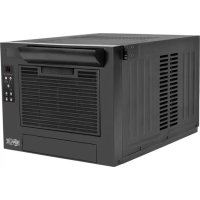
SRCOOL7KRM - Air Conditioning Tripp Lite - Free user manual and instructions
Find the device manual for free SRCOOL7KRM Tripp Lite in PDF.


| Product Type | Self-contained rack-mount air conditioner |
| Brand | Tripp Lite |
| Model | SRCOOL7KRM |
| Cooling Capacity | 7,000 BTU (up to 2 kWh) |
| Refrigerant | R410A (eco-friendly) |
| Main Functions | Cooling, dehumidification, quiet mode, timer, auto restart |
| Fan Speeds | High, medium, low, auto |
| Condensate Evaporation | Integrated (drip-free operation) |
| Power Supply | AC power cord, grounded plug |
| Remote Management | Optional SRCOOLNET2 (control via network, email, SMS) |
| Display | Digital, with LED indicators |
| Control Panel | Buttons POWER, FUNCTION, FAN SPEED, QUIET, TIMER, TEMP+/TEMP- |
| Temperature Units | Celsius or Fahrenheit (switchable) |
| Air Filter | Washable, recommended cleaning every 2 weeks |
| Included Accessories | Directional vent, drain plug, magnetic door panels, 4POSTRAILKIT mounting kit |
| Mounting | On shelves in a rack (square or threaded holes) |
| Warranty | 1 year limited |
| Country of Origin | United States (Tripp Lite, Chicago) |
Frequently Asked Questions - SRCOOL7KRM Tripp Lite
User questions about SRCOOL7KRM Tripp Lite
0 question about this device. Answer the ones you know or ask your own.
Ask a new question about this device
Download the instructions for your Air Conditioning in PDF format for free! Find your manual SRCOOL7KRM - Tripp Lite and take your electronic device back in hand. On this page are published all the documents necessary for the use of your device. SRCOOL7KRM by Tripp Lite.
USER MANUAL SRCOOL7KRM Tripp Lite
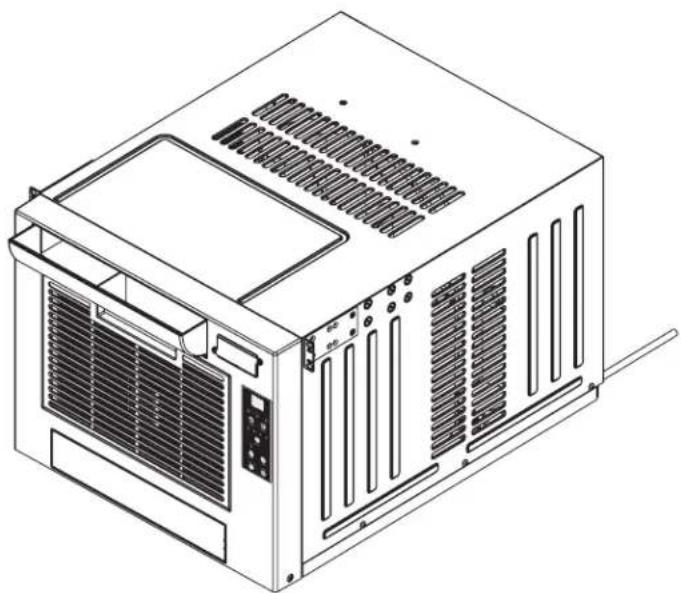
Rackmount Air Conditioning Unit
SRCOOL7KRM (120V, 60 Hz)
natural_image
Line drawing of a server rack unit with ventilation grilles and ventilation grilles (no text or symbols)Introduction 2 Maintenance 8
Important Safety Instructions 2 Troubleshooting 9
Features 3 Storage & Service 10
Accessories 4 Warranty & Product Registration 10
Installation 4 Español 11
Optional Accessories 7 Français 22
Operation 7
PROTECT YOUR INVESTMENT!
Register your product for quicker service and ultimate peace of mind.
You could also win an ISOBAR6ULTRA surge protector—a \$50 value!
www.tripplite.com/warranty



Introduction
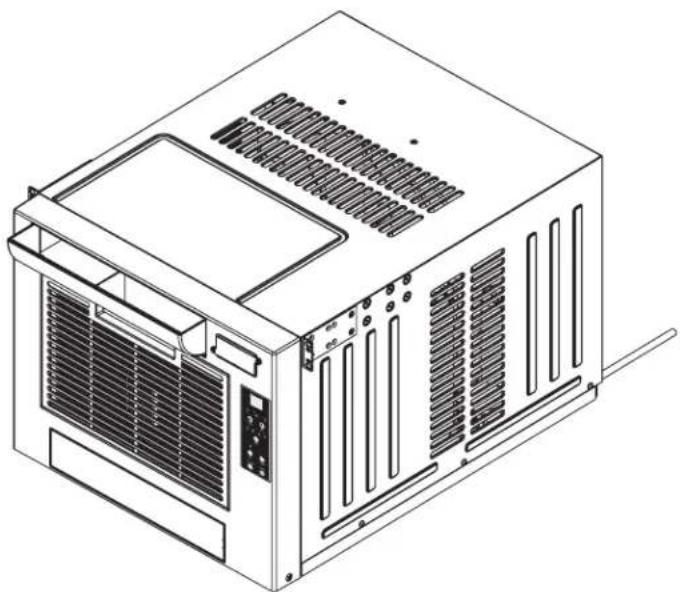
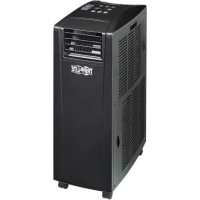
The self-contained Rackmount Air Conditioning Unit provides 7,000 BTU (up to 2 kWh) of supplemental cooling capacity. Designed for IT environments, it's ideal for cooling overheated rack enclosures and network closets without access to facility air conditioning. It also filters and dehumidifies air to improve operating conditions and equipment reliability. Condensate is re-evaporated for drip-free operation, so you won't waste time emptying water collection tanks. The self-contained design does not require any plumbing or special circuits, so setup is quick and easy. Eco-friendly R410A refrigerant meets environmental standards.
Recommended Applications:
Cooling an overheated rack enclosure.
Important Safety Instructions

SAVE THESE INSTRUCTIONS
This manual contains instructions and warnings that should be followed during the installation, operation and storage of this product. Failure to heed these warnings may affect your warranty.
Warnings
- The individual user should determine prior to use whether this device is suitable, adequate or safe for the use intended. Since individual applications are subject to great variation, the manufacturer makes no representation or warranty as to the suitability or fitness of this device for any specific application.
• Install the unit indoors, away from extreme temperatures or humidity, direct sunlight, dust and conductive contaminants. - Connect the unit directly to a grounded AC power outlet. Failure to do so may cause an electric shock or fire.
- The power source supplying the unit must be rated in accordance with the unit's nameplate.
- Do not modify the plug nor use an adapter that would eliminate the ground connection.
- Do not use an extension cord to connect the unit to an AC outlet. Use only the power cord that came with the unit.
- Comply with all applicable wiring and safety regulations, such as National Electrical Code (NEC) in the United States.
- Do not plug additional equipment into the outlet where the unit is plugged in. Overloading the outlet may cause an electric shock or fire.
- Do not attempt to turn the unit on or off by connecting or disconnecting the AC plug. A serious electric shock may occur. Use the ON/OFF button to turn the unit on or off.
- Turn the unit off and unplug it from the AC outlet before performing maintenance.
- Before connecting the unit to a dedicated drainage system, turn it off and unplug it. There is a risk of electric shock while the unit is plugged in.
- Maintenance should be performed by trained personnel only.
- Do not use thinners, alcohol, detergents or abrasive brushes to clean the unit's cabinet. These items may damage the cabinet.
- Do not pour water over the unit. This may cause an electric shock and damage the unit.
- Do not operate the unit without the air filter. This may cause dust accumulation that may damage the unit.
- Do not attempt to operate the unit in a room with inadequate air circulation.
- Use of this equipment in life support applications where failure of this equipment can reasonably be expected to cause the failure of the life support equipment or to significantly affect its safety or effectiveness is not recommended. Do not use this equipment in the presence of a flammable anesthetic mixture with air, oxygen or nitrous oxide.
Features
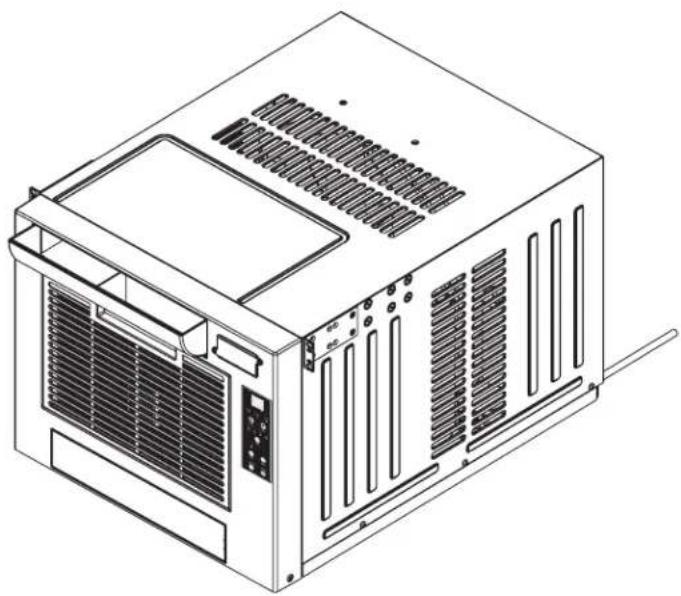
Front View
A Directional Vent
B Cool Air Output
C SRCOOLNET2 Slot
D Control Panel
Air Filter
F Front Panel
G Blocking Plate
Rear View
H AC Power Cord
Warm Air Exhaust
J Drainage Outlet
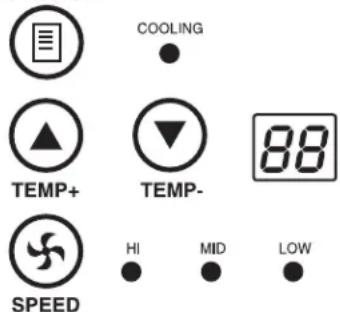
Control Panel
A Numeric Display
B Operating Mode LEDs
C Temperature Control Buttons
D Fan Speed Mode LEDs
E "FAN SPEED" Button
F "QUIET" Button
G "TIMER" Button
H "FUNCTION" Button
"POWER" Button
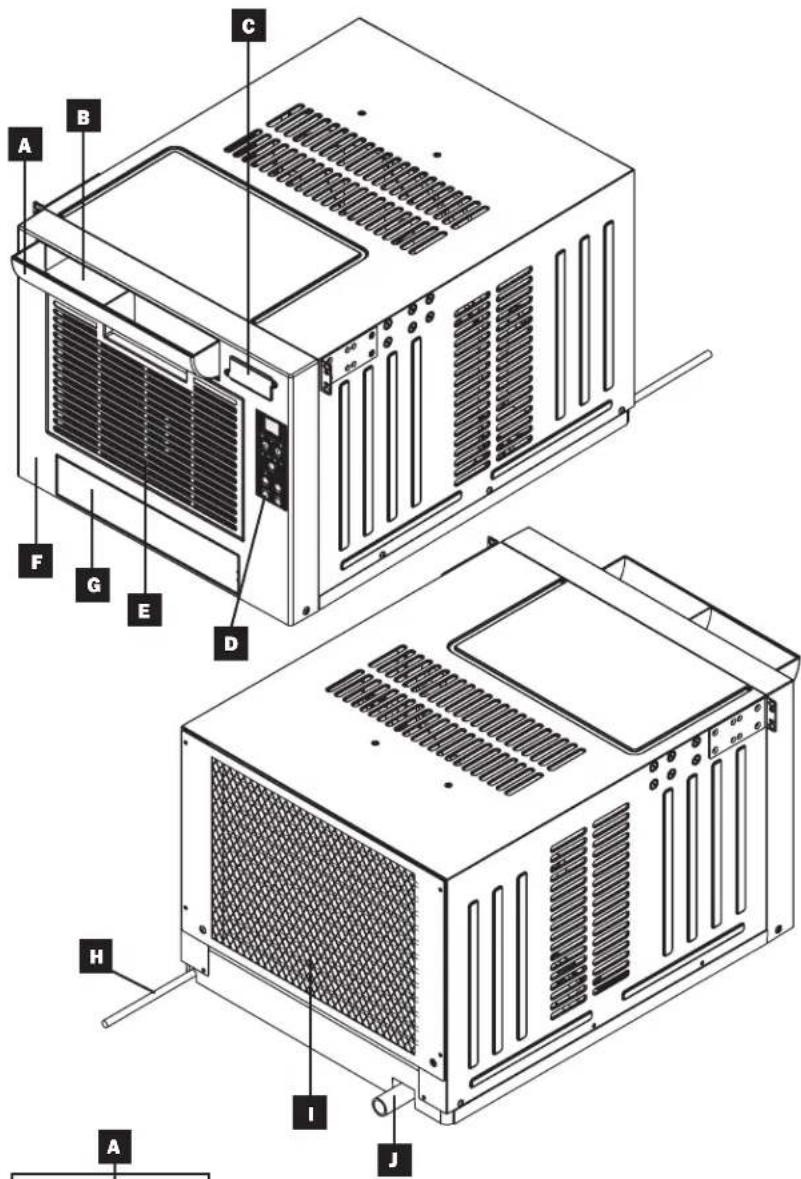
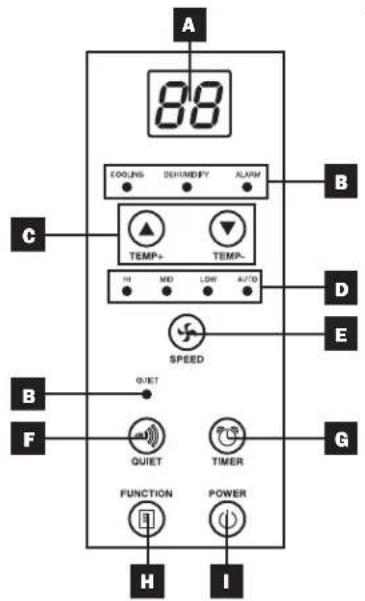
Accessories
Warning: After removing the unit from the shipping container, check for damage or missing parts (refer to the parts list below). If you notice a problem, visit www.tripplite.com/support for service. Do not attempt to operate a damaged unit.
Accessory Parts List:

4POSTRAILKIT Directional Vent Drainage Plug (Pre-Installed) Magnetic Door Panels
Installation
The procedures described in this section are for common rack and rack enclosure types and may not be appropriate for all applications. The user must determine the fitness of hardware and procedures before mounting. If hardware and procedures are not suitable for your application, contact the manufacturer of your rack or rack enclosure.
Square-Hole Rack Installation
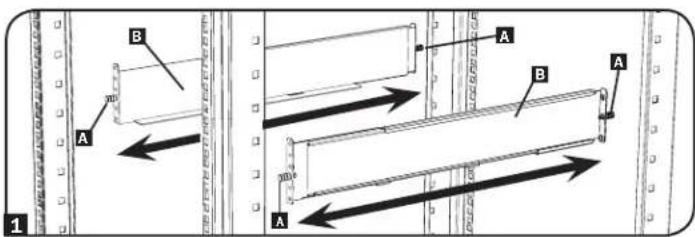
1 The included plastic pegs A will temporarily support the empty rackmount shelves B while you install the permanent mounting hardware. Insert a peg near the center of the front and rear bracket of each shelf as shown. Each front bracket has 6 holes and each rear bracket has 3 holes. The pegs will snap into place.
After installing the pegs, expand each shelf to match the depth of your rack rails. The pegs will fit through the square holes in the rack rails to support the shelves. Refer to the rack unit labels to confirm that the shelves are level in all directions.
Note: The support ledge of each shelf must face inward.
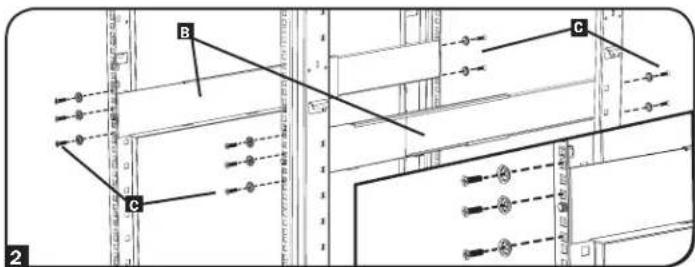
2 Secure the shelves B to the mounting rails permanently using the included screws and cup washers C as shown. Place 6 screws total at the front and 4 screws total at the back.
Tighten all screws before proceeding.
Warning: Do not attempt to install the SRCOOL7KRM until you have inserted and tightened the required screws. The plastic pegs will not support its weight.
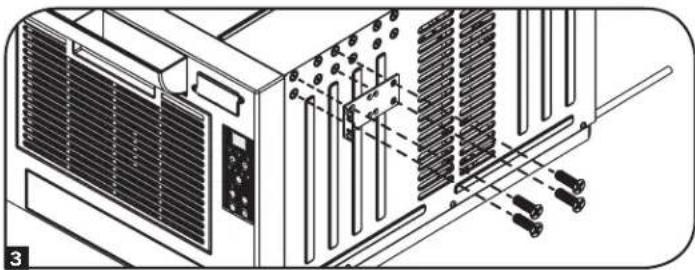
3 Attach the SRCOOL7KRM's mounting brackets to the forward mounting holes of the unit using the included hardware. The mounting bracket "ears" should face forward.
4 With the aid of an assistant, lift the SRCOOL7KRM and slide it into the shelves. Attach the mounting brackets to the forward mounting rails with user-supplied screws and washers D. Tighten all screws securely.
natural_image
Technical line drawing of an internal server rack with cooling fans and heat sinks (no text or symbols)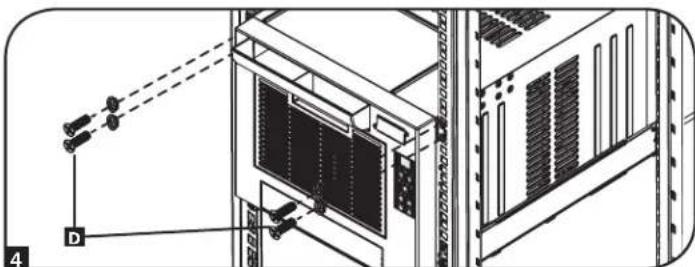
natural_image
Technical line drawing of a server rack with attached-mounted sensors and a monitor, no text or symbols presentInstallation (continued)
Threaded-Hole Rack Installation
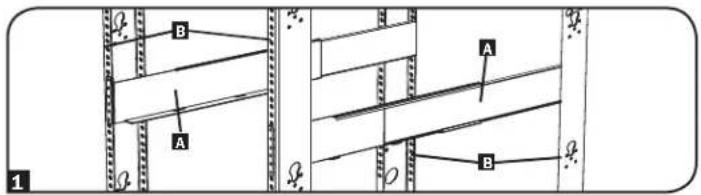
1 Align the mounting rail A along the inside surface of the rack posts B so that the flanges on the ends of the rail wrap around to the front and rear surfaces of the posts and the rail holes meet the threaded holes on the rack post.
2 Secure the shelves A to the mounting rails permanently using user-supplied screws and washers C for your rack as shown. Place 6 screws total at the front and 4 screws total at the back.
Tighten all screws before proceeding.
Warning: Do not attempt to install the SRCOOL7KRM until you have inserted and tightened the required screws.
3 Follow steps 3 and 4 of the Square-Hole Rack Installation instructions to securely mount the SRCOOL7KRM.

Directional Vent Installation
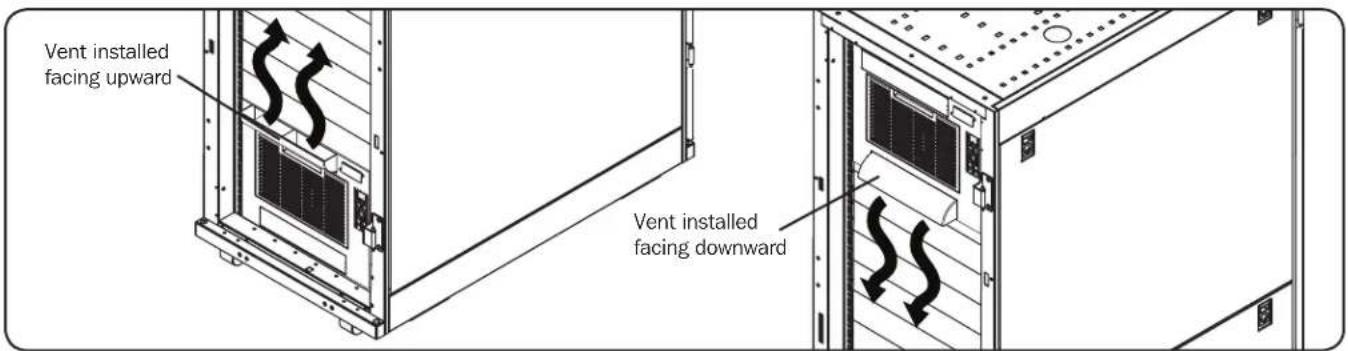
The directional vent can be installed to provide downward or upward airflow.
For Upward Airflow
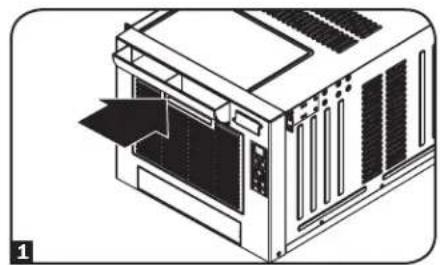
1 Make sure the opening on the directional vent is facing upward. Align the vent with top opening on the front face of the SRCOOL7KRM and push it in firmly.
natural_image
Line drawing of a server rack with an open door and ventilation slots (no text or symbols)For Downward Airflow
1 Using a flathead screwdriver, remove the blocking plate A from the SRCOOL7KRM. It's located below the air filter cover. Take out the foam insert B.
2 Push foam inser B into the top opening on the front face of the SRCOOL7KRM. Align the blocking plate A with the top opening on the front face of the SRCOOL7KRM and push it in firmly.
3 Make sure the opening on the directional vent is facing downward. Align the vent with the bottom opening on the front face of the SRCOOL7KRM and push it in firmly.
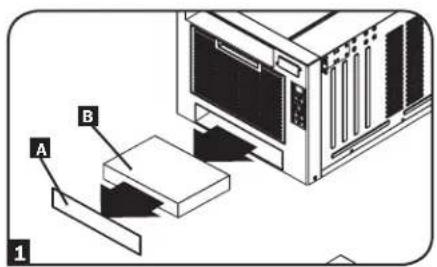
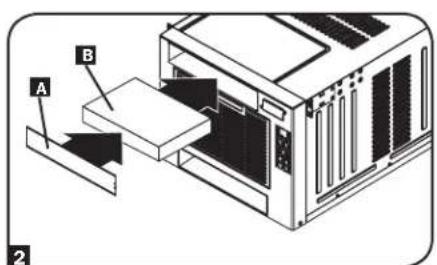
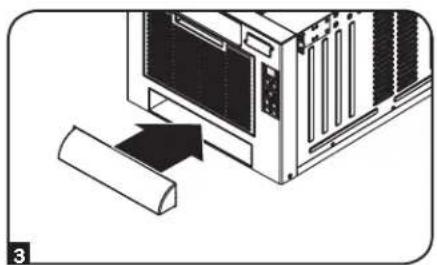
natural_image
Diagram of a computer monitor with an open scroll and arrow indicating direction (no text or symbols)Installation (continued)
Drainage Plug
Warning: The unit's built-in re-evaporator will not function unless the drainage plug is installed in the drainage outlet.
The SRCOOL7KRM ships with the drainage plug pre-installed. When the unit cools or dehumidifies, condensation forms. The unit has a built-in re-evaporator that allows it to expel condensation through the warm air exhaust stream. This feature allows the unit to operate indefinitely without requiring you to empty a water collection tank.
1 Cooling Mode with Re-Evaporation
The drainage plug must remain installed to enable re-evaporation of condensation.
2 Cooling Mode without Re-Evaporation
To use Cooling mode without re-evaporating condensation, remove the drain plug and route a user-supplied drain line to external drainage.
3 Dehumidify Mode
When using the unit in Dehumidify mode, you must remove the drain plug and route a user-supplied drain line to external drainage. This is required because the amount of water removed from the air increases significantly.
Note: If the drainage system becomes clogged, a small internal reservoir will collect condensation. If the drainage system is not cleared before the internal reservoir fills, the unit will shut down automatically.
Warning: Before connecting the unit to a dedicated drainage system, turn it off and unplug it. There is a risk of electric shock while the unit is plugged in.
Note: If your building's cooling system has night or weekend thermostat setbacks, has periodic shutdowns, or has limited cooling capacity, you may need to consider alternatives to the standard installation. This product is meant to be used as a supplemental cooling device, and cannot make up for significant fluctuations in building temperature or humidity.
Powering the SRCOOL7KRM
Plug the unit into an appropriate power source.
Low Temperature Operation
The SRCOOL7KRM is a high performance cooler, capable of producing very cold air output. When using the unit in environments that are already cold (20°C / 68°F or less), Tripp Lite recommends using the Dehumidify Mode only. This will allow the unit to continue to provide the supplemental cooling while preventing any evaporator icing issues caused by the low room temperature.
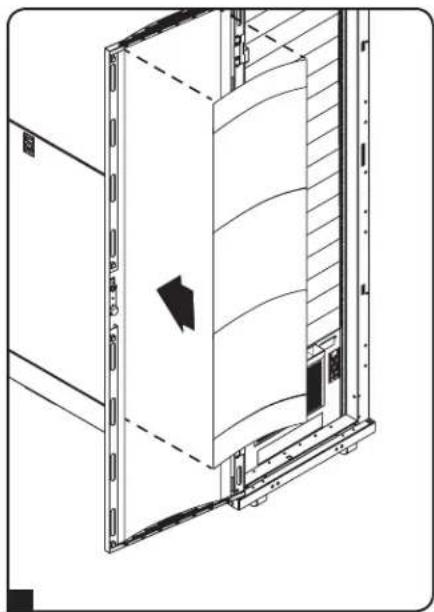
Magnetic Door Panel Installation
1 Open the rack enclosure front door.
2A 42U Models: Attach three magnetic door panels to the inside of the enclosure door. Leave the front of the SRCOOL7KRM exposed to allow adequate airflow into it.
2B 48U Models: Attach five magnetic door panels to the inside of the enclosure door. Leave the front of the SRCOOL7KRM exposed to allow adequate airflow into it.
Note: Panels may need to be trimmed to fit your application.
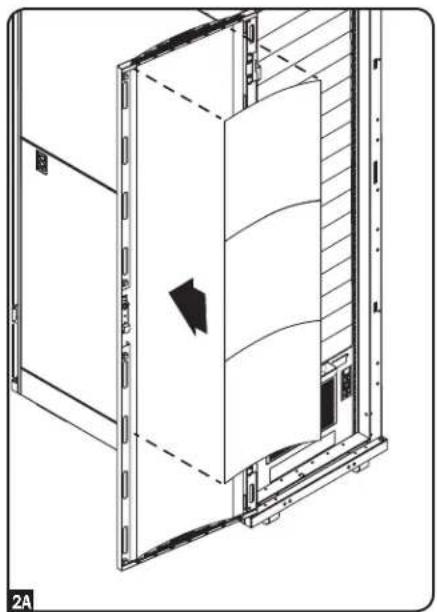
natural_image
Technical line drawing of a door frame with internal structure and a black arrow indicating direction (no text or symbols)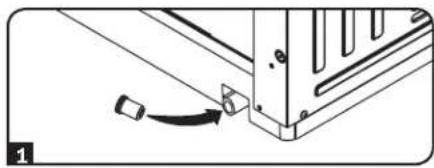
natural_image
Pure mechanical assembly diagram showing a bracket with a fastener and a cable, no text or symbols present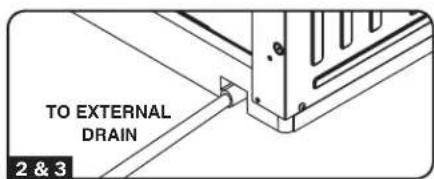
natural_image
Technical line drawing of a door frame with a curved panel and directional arrow (no text or symbols)Optional Accessories
Remote Cooling Management
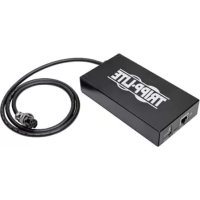
Add remote cooling management to your SRCOOL7KRM with the optional SRCOOLNET2 module. It allows you to communicate with and control the SRCOOL7KRM as a manageable device on your network and is accessible via Web Browser, Network Management Station or Telnet. With the SRCOOLNET2 installed, you can:
- Change settings and monitor temperature and humidity from any location
- Receive alerts via e-mail, SMS or SNMP
- Access detailed condition and event logs
Learn more about the SRCOOLNET2 at www.tripplite.com.
Operation
Warning: Install the unit according to the instructions in the "Installation" section before attempting to operate it.
Power
Turn the unit on or off by pressing the "POWER" button.
The unit has a three-minute compressor delay in order to prevent potential circuit overloads at start up.
Automatic Restart Feature
The unit will turn on and resume operation automatically when power is restored after a power outage. The unit will use the same settings that it used immediately before the power outage occurred. Note: If the power outage is brief, the unit will run the fan alone for three minutes before resuming normal operation. The delay allows the compressor to depressurize so the unit will function properly when it enters Cool mode.
Cool Mode
Pressing the "FUNCTION" button cycles between Cool mode and Dehumidify mode. The "COOLING" LED illuminates when Cool mode is active.
Press the TEMP+ and TEMP- buttons to set the temperature in Cool mode. The selected temperature is shown on the numeric display. Once set, the desired temperature will blink five times, after which the display will show the current room temperature.
Press the "FAN SPEED" button to cycle between high, medium and low fan speeds. An LED illuminates to indicate the selected fan speed. When speed is set on AUTO, the unit will automatically select a fan speed based on the set and ambient temperatures. If ambient temperature is lower than the set temperature, the fan will run and the "COOLING" LED will blink to indicate that the compressor is off. When cooling resumes, the "COOLING" LED will remain illuminated.
FUNCTION

Dehumidify Mode
Pressing the "FUNCTION" button cycles between Cool mode and Dehumidify mode.
The “DEHUMIDIFY” LED illuminates when Dehumidify mode is active. In Dehumidify mode, the fan runs at a fixed speed and temperature controls are irrelevant. For optimal performance in Dehumidify mode, close windows and doors, remove the drain plug and route user-supplied drain line to external drainage.
FUNCTION

DEHUMIDIFY
Timer
The "TIMER" button allows you to schedule the unit to turn on or off automatically.
Timer On (Note: The unit must be off to activate the Timer On function. Confirm that mode, temperature and fan speed settings are correct before activating the Timer On function.) Activate the timer by pressing the "TIMER" button. Press the TEMP+ and TEMP- buttons to set the delay (in hours) before the unit will turn on. The number of hours is shown on the numeric display. The number will flash on the screen five times before returning to the current temperature.
Timer Off (Note: The unit must be on to activate the Timer Off function.) Activate the timer by pressing the "TIMER" button. Press the TEMP+ and TEMP- buttons to set the delay (in hours) before the unit will turn off. The number of hours is shown on the numeric display. The number will flash on the screen five times before returning to the current temperature.


Operation (continued)
Quiet Control Mode
The unit includes a Quiet Control mode which regulates the cooling via the timer and microprocessor to achieve quieter operation levels when noise is an issue.
To activate, press the "QUIET" button. The Quiet LED will turn on. Set the desired temperature and then set the timer to the duration of the Quiet Control mode cycle. During the course of the cycle, the microprocessor memory will adjust the preset temperature by 0.9^ F (0.5°C) every 30 minutes until it reaches the desired temperature. Once the temperature is reached, the unit will maintain the temperature for the duration of the set time.

QUIET
QUIET


TEMP+

TEMP-


TIMER
Changing Degree Units
The unit can display temperature in both Celsius and Fahrenheit. The default setting for the SRCOOL7KRM is Fahrenheit.
To toggle between temperature modes, put the unit in standby mode. The air conditioner is in standby mode when it is plugged into live AC power, but powered off. Then, hold the "FUNCTION" key for 10 seconds. To verify the degree units have changed, power on the unit.
FUNCTION

Alarm
If the internal water tank becomes full, the unit will display the "E4" error code on its screen. To resume normal function, turn the unit off, remove the drainage plug and drain the excess water from the unit. Replace the plug and turn the unit on to begin cooling.
One possible cause of the "E4" error is an excessively humid operating environment. If the error occurs regularly, you should check the humidity level of the operating environment. You may need to add an external drain.

ALARM

POWER

Maintenance
Periodic maintenance extends the unit's lifespan and permits maximum operating efficiency.
Cleaning the Air Filter
It is important to keep the air filter clean and free of dust. When the filter is dirty or clogged with dust, it decreases cooling efficiency and can threaten air quality. Tripp Lite recommends cleaning the filter at least once every two weeks.

Before cleaning the filter, turn the unit off and unplug it! There is a risk of electric shock while the unit is plugged in.
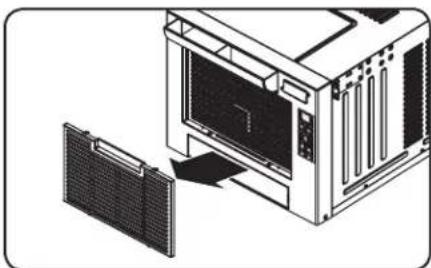
- Turn the unit off and unplug it.
- Remove the air filter.
- Wash the filter with warm water and a neutral detergent. Do not use harsh detergents or chemicals. Allow the filter to air dry completely after washing. Note: Do not use water hotter than 104^ F ( 40^ C) to clean the filter.
- Replace the air filter.
- Plug the unit in and resume normal operation.
natural_image
Diagram of a computer monitor with an open screen and a separate panel, showing no text or symbols.Cleaning the Cabinet

Before cleaning the cabinet, turn the unit off and unplug it! There is a risk of electric shock while the unit is plugged in.
- Turn the unit off and unplug it.
- Wipe the unit with a dry, non-abrasive cloth. Do not use gasoline, benzene, thinners or other harsh chemicals that may damage the surface. Do not pour water directly over the unit or into the working parts. This causes a risk of electrical shock and deterioration of electrical components and wiring insulation.
- In extreme cases, wipe the unit with a damp cloth to remove residue.
Moving the SRCOOL7KRM
- Turn the unit off and unplug it.
- Remove the drainage plug and drain any excess water from the unit.
- Replace the plug.
- Move the unit to the desired location.
Troubleshooting
Review the possible solutions below. If the problem persists, please visit www.tripplite.com/support for service.
| Problem Possible Cause Possible Solution | ||
| The unit does not function. The unit is turned off. Turn the unit on. (See “Operation” section.) | ||
| Cooling performance is unsatisfactory. | The air exhaust or intake is blocked. | Confirm that all ducts and intakes are clear of obstructions. |
| The temperature setting is too high. Adjust the temperature setting. | ||
| The fan speed setting is too low. Adjust the fan setting. | ||
| The air filter is dirty. Clean the air filter. | ||
| The wattage of the rack enclosure, the size of the room or the ambient temperature exceeds the cooling capacity of a single unit. | Install additional units or contact Tripp Lite for additional cooling solutions suitable for your application. | |
| The unit leaks water. | The drainage plug is not installed. | Insert the drainage plug in the drainage outlet. (See “Installation” section.) |
| The unit has ice or frost buildup. The unit is operating in an environment that is too cool or has excess humidity. | OPTION 1: Tum off the unit, and let the unit defrost. Once defrosted, ensure the unit is operating with the fan speed set on HIGH.OPTION 2: Tum off the unit, and let the unit defrost. Once defrosted, operate the unit in DEHUMIDIFY MODE, or increase the desired temperature setpoint. | |
Additional Display Codes
| Display Code | Description |
| df Unit is in Defrost Mode | |
| E1 | Indoor Temperature Sensor Error |
| E2 | Internal Temperature Sensor Error |
| E4 | Water Full Error |
Defrost Mode
If the "df" code appears, it means the unit detected an icing problem and has started a defrost cycle. The compressor will stop and the upper motor will continue to run at high speed for 3.5 minutes.
If the icing problem clears up, the unit will return to normal operation. If the code returns, check the humidity and temperature of the operating environment. An environment that is too cool or has excessive humidity can cause icing problems. If the operating environment is normal and you are still getting the "df" code, contact Tripp Lite for further instructions.
Error Codes
The Tripp Lite SRCOOL7KRM has the ability to continually monitor itself. Should an error occur, the display will show one of 3 error codes to the left:
Code E4 can be cleared by emptying the water tank. Consult the Alarm entry in the Operation section for details.
For Codes E1 and E2 follow these steps:
- Power cycle the unit by unplugging it from the source for 5 minutes.
- Plug the unit back in.
- Restart the unit.
If the code remains clear, continue to operate the unit as normal. If the code returns, please contact Tripp Lite for further instructions.
Storage and Service
Storage
Before storing the unit, confirm that the ducts and vents are secured or removed and cared for properly. Also confirm that the unit is drained of condensation.
Service
Your Tripp Lite product is covered by the warranty described in this manual. A variety of Extended Warranty and On-Site Service Programs are also available from Tripp Lite. For more information on service, visit www.triplite.com/support. Before returning your product for service, follow these steps:
- Review the installation and operation procedures in this manual to insure that the service problem does not originate from a misreading of the instructions.
- If the problem continues, do not contact or return the product to the dealer. Instead, visit www.triplite.com/support.
- If the problem requires service, visit www.triplite.com/support and click the Request Return (RMA) link. From here you can request a Returned Material Authorization (RMA) number, which is required for service. This simple on-line form will ask for your unit's model and serial numbers, along with other general purchaser information. The RMA number, along with shipping instructions will be emailed to you. Any damages (direct, indirect, special or consequential) to the product incurred during shipment to Tripp Lite or an authorized Tripp Lite service center is not covered under warranty. Products shipped to Tripp Lite or an authorized Tripp Lite service center must have transportation charges prepaid. Mark the RMA number on the outside of the package. If the product is within its warranty period, enclose a copy of your sales receipt. Return the product for service using an insured carrier to the address given to you when you request the RMA.
Warranty and Product Registration
Warranty
1-YEAR LIMITED WARRANTY
Seller warrants this product, if used in accordance with all applicable instructions, to be free from original defects in material and workmanship for a period of 1 year from the date of initial purchase. If the product should prove defective in material or workmanship within that period, Seller will repair or replace the product, in its sole discretion. Service under this Warranty can only be obtained by your delivering or shipping the product (with all shipping or delivery charges prepaid) to: Tripp Lite, 1111 W. 35th Street, Chicago, IL 60609 USA. Seller will pay return shipping charges.
THIS WARRANTY DOES NOT APPLY TO NORMAL WEAR OR TO DAMAGE RESULTING FROM ACCIDENT, MISUSE, ABUSE OR NEGLECT. SELLER MAKES NO EXPRESS WARRANTIES OTHER THAN THE WARRANTY EXPRESSLY SET FORTH HEREIN. EXCEPT TO THE EXTENT PROHIBITED BY APPLICABLE LAW. ALL IMPLIED WARRANTIES, INCLUDING ALL WARRANTIES OF MERCHANTABILITY OR FITNESS, ARE LIMITED IN DURATION TO THE WARRANTY PERIOD SET FORTH ABOVE; AND THIS WARRANTY EXPRESSLY EXCLUDES ALL INCIDENTAL AND CONSEQUENTIAL DAMAGES. (Some states do not allow limitations on how long an implied warranty lasts, and some states do not allow the exclusion or limitation of incidental or consequential damages, so the above limitations or exclusions may not apply to you. This Warranty gives you specific legal rights, and you may have other rights which vary from jurisdiction to jurisdiction).
WARNING: The individual user should determine prior to use whether this device is suitable, adequate or safe for the use intended. Since individual applications are subject to great variation, the manufacturer makes no representation or warranty as to the suitability or fitness of this device for any specific application.
PRODUCT REGISTRATION
Visit www.tripplite.com/warranty today to register your new Tripp Lite product. You'll be automatically entered into a drawing for a chance to win a FREE Tripp Lite product!*
* No purchase necessary. Void where prohibited. Some restrictions apply. Open to U.S. residents only. See www.triplite.com for details.
Regulatory Compliance Identification Numbers
For the purpose of regulatory compliance certifications and identification, your Tripp Lite product has been assigned a unique series number. The series number can be found on the product nameplate label, along with all required approval markings and information. When requesting compliance information for this product, always refer to the series number. The series number should not be confused with the marking name or model number of the product.
WEEE Compliance Information for Tripp Lite Customers and Recyclers (European Union)
Note: This statement applies to products marked with the WEEE logo.
Under the Waste Electrical and Electronic Equipment (WEEE) Directive and implementing regulations, when customers buy new electrical and electronic equipment from Tripp Lite they are entitled to:
- Send old equipment for recycling on a one-for-one, like-for-like basis (this varies depending on the country)
- Send the new equipment back for recycling when this ultimately becomes waste
Tripp Lite has a policy of continuous improvement. Product specifications are subject to change without notice.


1111 W. 35th Street, Chicago, IL 60609 USA • www.tripplite.com/support
SRCOOL7KRM (120V, 60 Hz)
natural_image
Line drawing of a server rack unit with ventilation grilles and ventilation grilles (no text or symbols)Panel de Control
natural_image
Technical line drawing of an internal server rack with heat exchangers and connectors (no text or symbols)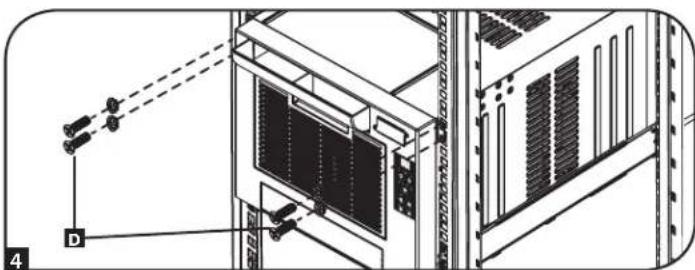
natural_image
Technical diagram of a server rack with labeled components and connection lines (no readable text or symbols)natural_image
Isometric line drawing of a server rack unit with ventilation grilles and a door, no text or symbols presentnatural_image
Diagram of a computer monitor with an open scroll and directional arrow indicating motion (no text or symbols)natural_image
Pure mechanical assembly diagram showing a bracket with a cable and fastener (no text or symbols)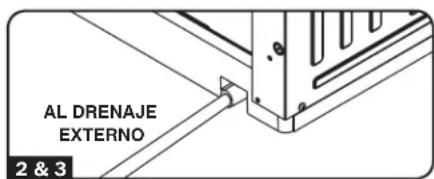
natural_image
Technical line drawing of a server rack with ventilation duct and door panel (no text or symbols)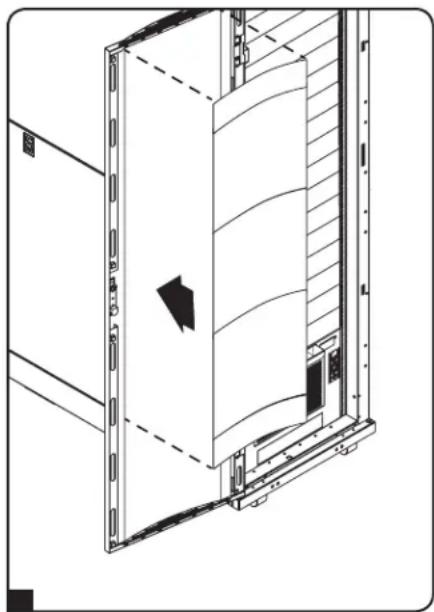
natural_image
Technical line drawing of a cabinet or enclosure with a curved panel and door, showing internal structure without any text or symbols.natural_image
Diagram of a computer monitor unit with a grid panel removed from its side (no text or symbols)1111 W. 35th Street, Chicago, IL 60609 USA • www.tripplite.com/support
SRCOOL7KRM (120V, 60 Hz)
natural_image
Line drawing of a modular air conditioning unit with ventilation grilles and fan slots (no text or symbols)Installation 25 English 1
Accessoires en option 26 Español 11


Introduction
Panneau de commande
natural_image
Technical line drawing of an internal server rack with cooling fans and connectors (no text or symbols)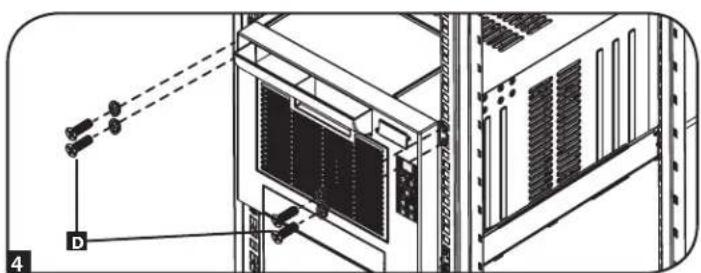
natural_image
Technical diagram of a server rack with connected components and a labeled connection point (no text or symbols present)Installation (suite)
natural_image
Isometric line drawing of a computer oven with ventilation grilles and a door, no text or symbols presentnatural_image
Illustration of a computer monitor with an open screen and a rolled paper strip, no text or symbols presentInstallation (suite)
Bouchon de drainage
natural_image
Pure mechanical assembly diagram showing a bracket with a curved arrow indicating motion (no text or symbols)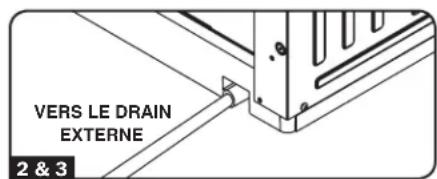
natural_image
Technical line drawing of a door frame with a black arrow indicating direction (no text or symbols)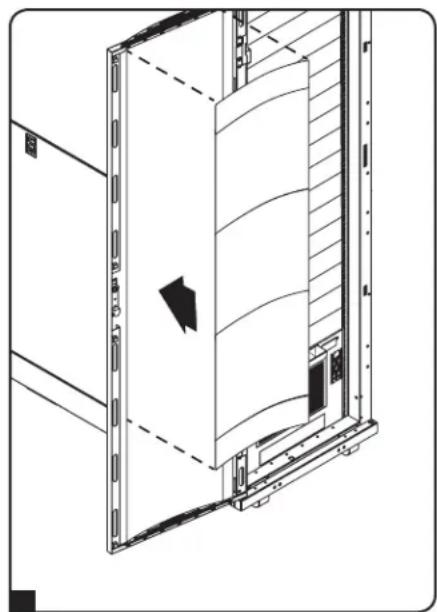
natural_image
Technical line drawing of a server rack with ventilation ducts and a black arrow indicating a component (no text or symbols)Accessoires en option
natural_image
Diagram showing a device with a grid panel and an open screen, no text or symbols presentNettoyer l'armoire
1111 W. 35th Street, Chicago, IL 60609 USA • www.tripplite.com/support
14-05-151 • 93-336F mVA

- Rackmount Air Conditioning Unit
- PROTECT YOUR INVESTMENT!
- Introduction
- Recommended Applications:
- Important Safety Instructions
- SAVE THESE INSTRUCTIONS
- Warnings
- Features
- Front View
- Rear View
- Control Panel
- Accessories
- Installation
- Square-Hole Rack Installation
- Installation (continued)
- Threaded-Hole Rack Installation
- Directional Vent Installation
- For Upward Airflow
- For Downward Airflow
- Drainage Plug
- Powering the SRCOOL7KRM
- Low Temperature Operation
- Magnetic Door Panel Installation
- Optional Accessories
- Remote Cooling Management
- Operation
- Power
- Automatic Restart Feature
- Cool Mode
- Dehumidify Mode
- Timer
- Operation (continued)
- Quiet Control Mode
- Changing Degree Units
- Alarm
- Maintenance
- Cleaning the Air Filter
- Before cleaning the filter, turn the unit off and unplug it! There is a risk of electric shock while the unit is plugged in.
- Cleaning the Cabinet
- Before cleaning the cabinet, turn the unit off and unplug it! There is a risk of electric shock while the unit is plugged in.
- Moving the SRCOOL7KRM
- Troubleshooting
- Additional Display Codes
- Defrost Mode
- Error Codes
- Storage and Service
- Storage
- Service
- Warranty and Product Registration
- Warranty
- PRODUCT REGISTRATION
- Regulatory Compliance Identification Numbers
- Panel de Control
- Panneau de commande
- Installation (suite)
- Bouchon de drainage
- Accessoires en option
- Nettoyer l'armoire
Brand : Tripp Lite
Model : SRCOOL7KRM
Category : Air Conditioning