PlayStation Pulse 3D - Headphones SONY - Free user manual and instructions
Find the device manual for free PlayStation Pulse 3D SONY in PDF.


User questions about PlayStation Pulse 3D SONY
0 question about this device. Answer the ones you know or ask your own.
Ask a new question about this device
Download the instructions for your Headphones in PDF format for free! Find your manual PlayStation Pulse 3D - SONY and take your electronic device back in hand. On this page are published all the documents necessary for the use of your device. PlayStation Pulse 3D by SONY.
USER MANUAL PlayStation Pulse 3D SONY
Wireless Headset and Adaptor
3 Precautions
4 Part names and functions
6 Initial setup
6 Using your headset wirelessly with a PS5 ^™ console or PS4 ^™ console
7 Audio selection
8 Using your headset with PlayStation VR
8 Using your headset wirelessly with a USB device
8 Using your headset with other devices
9 Charging the headset
10 Status indicator display
11 Resetting the headset
12 Specifications
Table des matières
For more instructions about the use of this product, visit playstation.com/help.
Before using this product, carefully read this manual and any manuals for compatible hardware. Keep instructions for future reference.
Safety/Use and Handling
- Observe all warnings, precautions and instructions.
- CHOKING HAZARD - Small parts. Keep out of the reach of small children.
- Keep the product out of the reach of small children. Small children may swallow small parts, may pull on cables and cause the headset to fall, or may wrap the cables around themselves, which may inflict injury or cause an accident or a malfunction.
- Do not use the headset while cycling, driving or engaged in any other activity where your full attention is required. Doing so may result in an accident.
- This product has magnets which may interfere with pacemakers, defibrillators and programmable shunt valves or other medical devices. Do not place this product close to such medical devices or persons who use such medical devices. Consult your doctor before using this product if you use such medical devices.
- Stop using the wireless headset immediately if you begin to feel tired or if you experience discomfort or pain in your head while operating the wireless headset. If the condition persists, consult a doctor.
- Avoid prolonged use of the wireless headset. Take a break at about 30-minute intervals.
-
Permanent hearing loss may occur if the headset is used at high volume. Set the volume to a safe level. Over time, increasingly loud audio may start to sound normal but can actually be damaging your hearing. If you experience ringing in your ears or muffled speech, stop listening, and have your hearing checked. The louder the volume, the sooner your hearing could be affected. To protect your hearing:
-
Limit the amount of time you use the headset at high volume.
- Avoid raising the volume to block out noisy surroundings.
– Lower the volume if you can't hear people speaking near you.
- If you feel that the headset is irritating your skin, stop using it immediately.
- The battery used in this device may present a risk of fire or chemical burn if mistreated. Do not disassemble, heat above 60^ (140 °F), or incinerate.
- Do not handle damaged or leaking lithium-ion batteries.
- Observe all signs and instructions that require an electrical device or radio product to be switched off in designated areas, such as gas/refueling stations, hospitals, blasting areas, potentially explosive atmospheres or aircraft.
- Do not insert anything into the headset because this may cause damage to the internal components or cause injury to you.
- When using headsets or headphones in particularly dry air conditions, you may sometimes experience a small and quick (static) shock on your ears. This is a result of static electricity accumulated in the body, and is not a malfunction of your headset or headphones.
- Avoid leaving the headset near speakers while the microphones are on, as this may produce feedback (audio noise).
- Do not expose the headset to high temperatures during operation, transportation, or storage. Do not leave it in direct sunlight for extended periods (such as in a car during summer).
- Do not put heavy objects on the headset.
- Do not allow liquid or small particles to get into the headset.
- Do not throw or drop the headset, or subject it to strong physical shock.
- Do not place any rubber or vinyl materials on the headset exterior for an extended period of time.
- Do not store the headset by hanging it from the headband strap. After a period of time, the strap can stretch and loosen the fit of the headset.
- Use a soft, dry cloth to clean the headset. Do not use solvents or other chemicals. Do not wipe with a chemically treated cleaning cloth.
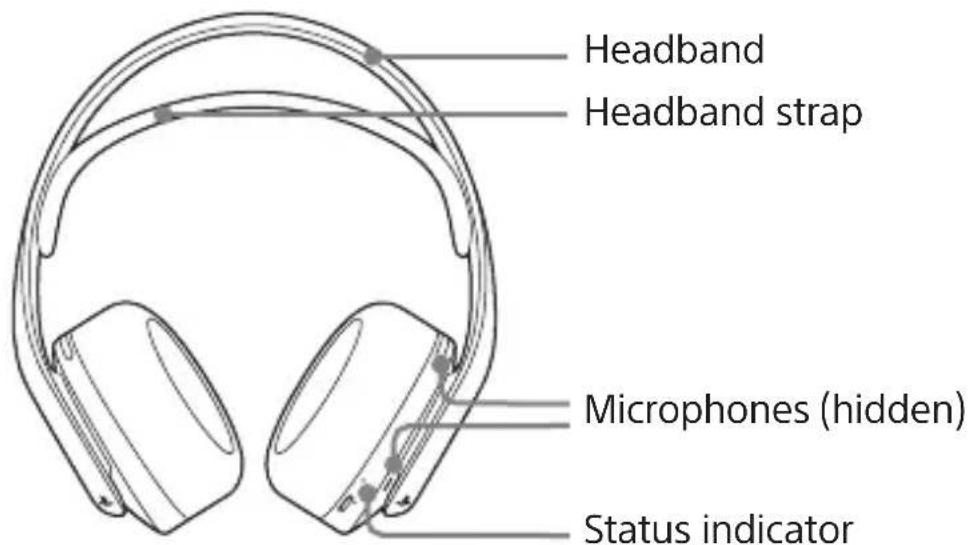
Part names and functions
Front
text_image
Headband Headband strap Microphones (hidden) Status indicatorRear
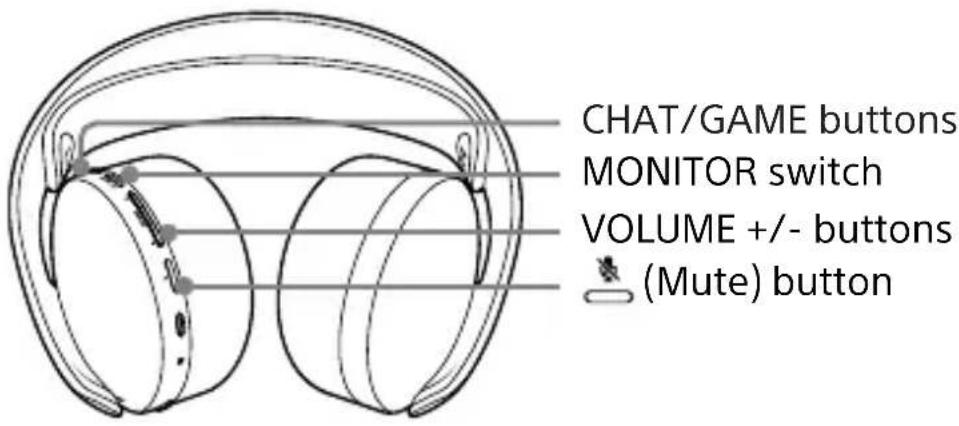
text_image
CHAT/GAME buttons MONITOR switch VOLUME +/- buttons (Mute) buttonBottom
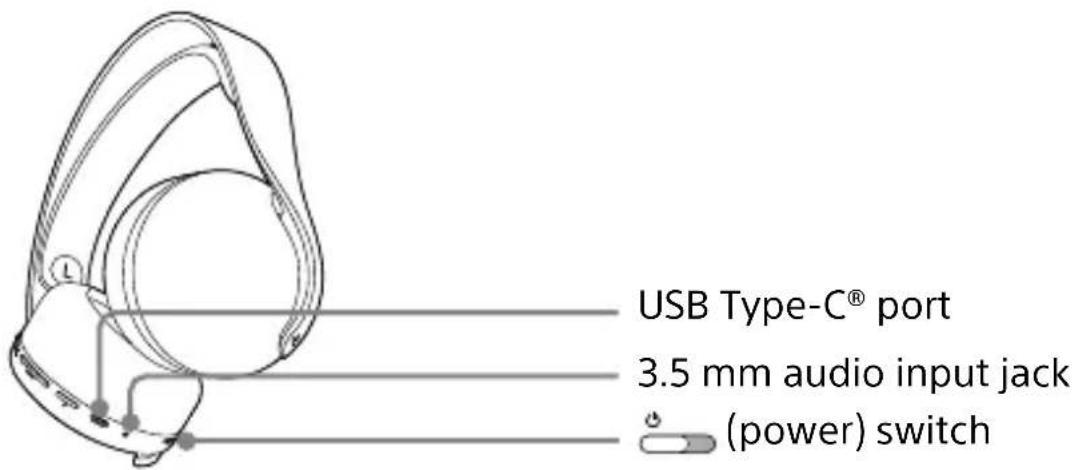
text_image
USB Type-C® port 3.5 mm audio input jack (power) switchWireless adaptor (CFI-ZWD1)
Connects the headset wirelessly to your console.
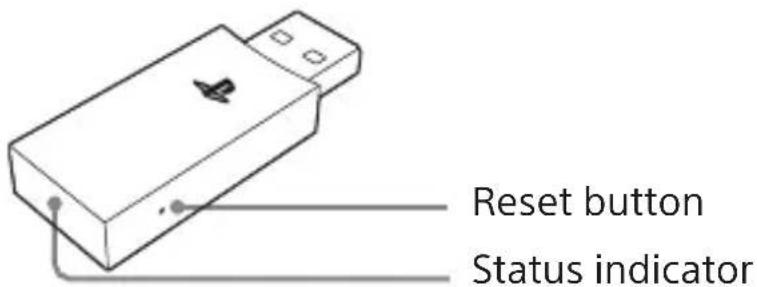
text_image
Reset button Status indicator1 Connect the included USB cable to charge the headset.
- When charging while the headset is not connected to the wireless adaptor, the status indicator on the headset pulses orange. When fully charged, the status indicator turns off.
- When charging while the headset is connected to the wireless adaptor, the status indicator on the headset is white. When fully charged, the status indicator blinks orange once and then turns solid white to show it's still connected.
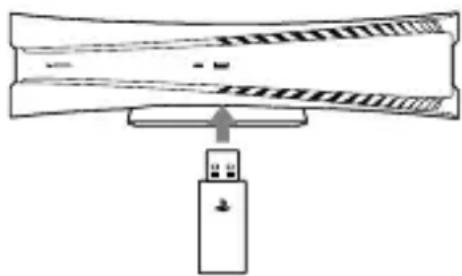
2 Connect the wireless adaptor to a USB port on your PS5 ^TM console or PS4 ^TM console.
The status indicator on the adaptor blinks white while searching for the headset.
natural_image
Diagram showing a device with an arrow pointing to a rectangular object, no text or symbols present3 Slide the 🎨 (power) switch on. When your headset powers on, it looks for the wireless adaptor. The headset status indicator blinks blue while searching and turns solid white when the connection is complete.
You can also check by sound. When your headset powers on, it will beep and search for the adaptor. When the connection is complete, another beep sounds.
If a connection can't be made, the headset turns off. Slide the switch off, and then on. If a connection still can't be made, try resetting the headset (see "Resetting the headset").
Using your headset wirelessly with a PS5 ^™ console or PS4 ^™ console
- Be sure to always update your system software to the latest version.
- You can use up to 2 wireless headsets at the same time on your PS5™ console or PS4™ console.
- If you move out of range for more than 30 seconds, you'll hear a low beep to indicate the connection is lost. When you move back into range, you'll hear a high beep to indicate the connection is restored.
- This headset supports 3D audio on PS5™ consoles if the game supports 3D audio.
- The Headset Companion app for PlayStation®4 consoles does not support this headset.
On screen status
When first connecting to your console or when changing the settings, status icons appear on the screen.
| [WBD2] | Volume level |
 | Volume muted |
 | Mic on |
 | Mic muted |
 | Battery full |
 | Battery medium |
 | Battery low |
 | Battery empty |
Icons may vary depending on compatible PlayStation ^® console used.
Audio selection
Mic mute (button)
To mute the headset microphones, press the mute button on the headset.
To unmute, press the button again. Mute is active when the button shows orange.
Mic monitoring (MONITOR switch)
Mic monitoring is a feature that allows you to hear your own voice, so you can hear how you sound to your friends. Slide the switch to enable mic monitoring.
You'll hear a beep:
- On: high beep
- Off: low beep
When mute is on, mic monitoring is turned off.
Chat and game volume balance (CHAT/GAME buttons)
You can listen to both game audio and chat audio simultaneously. Use the CHAT/GAME buttons to adjust the relative volume of chat audio versus game audio. Press the CHAT and GAME buttons at the same time to reset the relative volume.
Some games may have a chat feature that is incompatible with the CHAT/GAME function.
- To change the audio output on your PS5™ console, select
Settings 🙏 > Sound > Audio Output > Output to Headphones. - To change the audio output on your PS4™ console, select
Settings > Devices > Audio Devices > Output to Headphones.
Using your headset with PlayStation®VR
You can use the included audio cable to connect your headset to the stereo headphone jack of the PlayStation®VR headset. This provides all audio processed by PS VR, including 3D audio, if supported by the game.
Using your headset wirelessly with a USB device
You can use the headset with compatible PCs (Windows ^® or macOS ^® ) or other device that has USB audio output.
Insert the wireless adaptor into a USB Type-A port on your compatible device, and then turn on the headset.
The CHAT/GAME feature can be used only when the headset is connected to a PS5 ^™ console or PS4 ^™ console.
If you move out of range for more than 30 seconds, you'll hear a low beep to indicate the connection is lost. When you move back into range, you'll hear a high beep to indicate the connection is restored.
Using your headset with other devices
You can use the included audio cable (4-conductor) to connect your headset to the 3.5 mm audio jack of compatible devices.
The headset functions as a passive headset when you use an audio cable. Turn off the headset when you use an audio cable.
Wireless connection and the following functionality is disabled when you use an audio cable.
• Chat and game volume balance
- Mic mute
- Mic monitoring
• Volume levels
You must use the included audio cable in order to use the headset mics on a compatible device. If your device isn't compatible with the included 4-conductor cable, you can't use your headset's mics with that device.
4-conductor audio cable (included) Stereo-only audio cable (not included)

natural_image
Pure electrical connector diagram without any text or symbols
natural_image
Pure electrical connector diagram without any text or symbols- On mobile devices, 3D audio is not supported.
- Output volume varies depending on the mobile device that is connected. Adjust volume accordingly.
Charging the headset
When the battery is empty, fully charging the headset on a PS5 ^™ console or PS4 ^™ console takes approximately 3.5 hours.
To determine the charge level of your headset, turn the power on and then press the CHAT and VOL- buttons at the same time. The status indicator blinks and you hear beeps.
| Battery level Status indicator Audio indicator | ||
 | Purple, 3 blinks 3 beeps | |
 | Purple, 2 blinks 2 beeps | |
 | Purple, 1 blink 1 beep | |
 | Orange, fast blinks 1 high beep, 1 low beep | |
When the battery level is low, the status indicator blinks orange and the headset beeps. Charge the battery by connecting the headset to a supported USB device such as your PS5 ^™ console or a PC using the included USB cable.
| Charging while headset is not connected to the wireless adaptor | Charging while headset is connected to the wireless adaptor |
| Status indicator on the headset pulses orange. | Status indicator on the headset is white. |
| When fully charged, the status indicator on the headset turns off. | When fully charged, the status indicator on the headset blinks orange once, and then turns solid white to show it's still connected. |
- If the headset status indicator blinks orange and the battery is not nearly empty, this might indicate an error state. You may need to reset your headset (see "Resetting the headset").
- If you move out of range and the headset disconnects from the wireless adaptor, the headset will turn off after five minutes to preserve the battery. To wake up your headset, slide the 📁 switch off, and then on.
- You can view the battery level on your console. Battery level is shown from the accessory section of the control center on your PS5™ console.
- If a USB port does not provide enough power for charging, connect the headset to a different USB port.
- It is recommended that you charge the battery in an environment with a temperature of 5^ to 35^ (41 °F to 95 °F). Charging in other environments might not be as effective.
- If you do not plan to use the wireless headset for an extended period of time, it is recommended that you fully charge it at least once a year to help maintain battery functionality.
Status indicator display
Status indicators on the headset and wireless adaptor tell you about the connection and charging status, as well as battery level.
Status indicator (headset)
| Status indicator color Behavior Description | |
| Blue Blinking Searching for wireless adaptor | |
| White Solid Connected to wireless adaptor | |
| Orange Pulsing Headset charging (not connected to wireless adaptor) | |
* If the headset indicator blinks orange and the headset doesn't turn off, this might indicate an error state. You may need to reset your headset (see "Resetting the headset").
Status indicator (wireless adaptor)
| Status indicator color Behavior Description | ||
| White Double blinking Searching for headset | ||
| Blinking Pairing with headset | ||
| Solid Connected to headset | ||
Resetting the headset
If the headset does not respond, try resetting it.
1 Turn off the headset.
2 Connect the wireless adaptor to your console or other powered USB Type-A port.
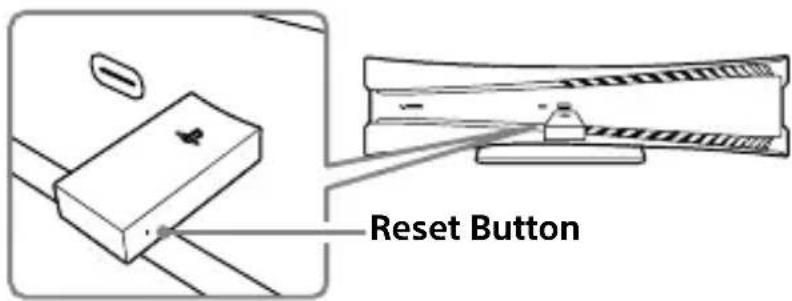
3 Insert a small pin or similar object (not included) into the hole surrounding the reset button on the wireless adaptor, and push in for at least one second.
text_image
Reset Button4 On the headset, hold down the CHAT button and the VOL+ button.
5 While still holding down the CHAT button and the VOL+ button, slide the headset's power switch on.
If the reset is successful, the headset and adaptor will connect.
Specifications
Input power rating 5V = 650 mA
Battery type Built-in rechargeable lithium-ion battery
Battery voltage 3.65 V
=
Battery capacity 1000 mAh
Operating environment temperature
5^ C to 35^ C ( 41^ F to 95^ F)
Dimensions (w/h/d) Wireless headset: 213 × 190 × 91 mm (8.4 × 7.5 × 3.6 in)
Wireless adaptor: 48 x 18 x 8 mm (1.9 x 0.7 x 0.3 in)
Weight Wireless headset: approx. 292 g (10.3 oz)
Wireless adaptor: approx. 6 g (0.2 oz)
Communication system 2.4 GHz RF
Maximum communication range Approx. 10 m (33 ft)*
Use time when fully charged Up to 12 hours at mid volume level* 2
Contents Wireless headset (1)
Wireless adaptor (1)
Audio cable 1.2 m (3.9 ft) (1)
USB cable (Type-A to Type-C) 1.5 m (4.9 ft) (1)
Quick Start Guide (1)
Safety and Support Guide (1)
*1 Actual communication range varies depending on factors such as obstacles between the headset and wireless adaptor, magnetic fields from electronics (such as a microwave oven or an external hard drive), static electricity, antenna performance, and the operating system and software applications in use. Depending on the operating environment, reception may be interrupted.
*2 Actual use time varies depending on factors such as the battery charge and ambient temperature.
Design specifications are subject to change without notice.
Précautions
natural_image
Line drawing of a pair of headphones with earbuds and headband (no text or symbols)Touches CHAT/GAME
natural_image
Line drawing of a helmet with a circular head and horizontal lines indicating measurement or alignment (no text or symbols)Port USB Type-C®
natural_image
Line drawing of a rectangular electronic device with ports and a connector (no text or symbols)natural_image
Diagram showing a device connected to a cable or cable connector (no text or symbols present)natural_image
Pure electrical circuit lines without any symbols
natural_image
Pure electrical circuit lines without any symbols"ab", "PlayStation", "PS4", and "PS5" are registered trademarks or trademarks of Sony Interactive Entertainment Inc.
"SONY" and "Sony Entertainment" are registered trademarks or trademarks of Sony Corporation.
Windows is either a registered trademark or trademark of Microsoft Corporation in the United States and/or other countries. macOS ^® is a trademark of Apple Inc., registered in the U.S. and other countries.
USB Type-C® and USB-C® are registered trademarks of USB Implementers Forum.