NVT2FAMEX - Radio NUVO - Free user manual and instructions
Find the device manual for free NVT2FAMEX NUVO in PDF.


| Product Type | Radio |
| Brand | NUVO |
| Model | NVT2FAMEX |
| Power Supply | Mains 120 V ~ 60 Hz (power adapter included); battery operation possible (batteries not included) |
| Main Functions | AM/FM reception, built-in speaker, volume and tuning controls |
| Dimensions (approx.) | 300 x 150 x 200 mm (W x H x D) |
| Weight (approx.) | 1.5 kg |
| Housing Material | ABS Plastic |
| Care and Cleaning | Use a soft dry cloth. Do not use abrasive products or solvents. Unplug before cleaning. |
| Safety Precautions | Do not expose to rain or moisture. Do not open the chassis. Risk of electric shock. Use only specified accessories. |
| Hearing Protection | Prolonged exposure to high sound levels can damage hearing. Use earplugs if necessary. |
| Operating Temperature | 0°C to 40°C |
| Operating Humidity | 10% to 90% without condensation |
| Batteries (optional) | 6 D type (LR20) batteries for battery operation (not included) |
| Repairability | Refer all repairs to qualified service personnel. No user-serviceable parts inside. |
Frequently Asked Questions - NVT2FAMEX NUVO
User questions about NVT2FAMEX NUVO
0 question about this device. Answer the ones you know or ask your own.
Ask a new question about this device
Download the instructions for your Radio in PDF format for free! Find your manual NVT2FAMEX - NUVO and take your electronic device back in hand. On this page are published all the documents necessary for the use of your device. NVT2FAMEX by NUVO.
USER MANUAL NVT2FAMEX NUVO
The Sound of LiVing.
text_image
NOVO® HV-T2FAM Power CD4018 & Laser FR 103.5 The MEX-1 The Bo FR 90.0 NPR Radio I/IOI 1 MENU A/E DSP BAND OK CD4018-S USB HV-T2FAM ANTENZA TUNER A AUDIO R AUDIO TUNER B CPU INPUT NuV/Host RB 232 SYSTEM NOVO® Model HV-T2FAM Drip ABC/W Tuner Bio Technologies LLC/Matrix, KY USB www.novo technologies.com CAUTION AIDS: 600x 600x 600x 600x 600x 600x 600x 600x 600x 600x 600x 600x 600x 600x 600x 600x 600x 600x 600x 600x 600 FECEC RoHS 1 2 3 4 5 6 7 8 9 10 11 12 13 14 15 16 17 18 19 20 21 22 23 24 25 26 27 28 29 30 31 32 33 34 35 36 37 38 39 40 41 42 43 44 45 46 47 48 49 50 51 52 53 54 55 56 57 58 59 60 ISO-2487-CL-50-999 NEW MUSIC IN CHINESENV-T2FAM-EX
Dual AM/FM Tuner
Installation Guide
ENGLISH
Danger
Exposure to extremely high noise levels may cause a permanent hearing loss. Individuals vary considerably to noise induced hearing loss but nearly everyone will lose some hearing if exposed to sufficiently intense noise for a sufficient time. The U.S. Government's Occupational Safety and Health Administration (OSHA) has specified the following permissible noise level exposures:
DURATION PER DAY (HOURS) 8 6 4 3 2 1
SOUND LEVEL (dB) 90 93 95 97 100 103
According to OSHA, any exposure in the above permissible limits could result in some hearing loss. Ear plugs or protectors in the ear canal or over the ears must be worn when operating this amplification system in order to prevent a permanent hearing loss. If exposure in excess of the limits as put forth above, to insure against potentially harmful exposure to high sound pressure levels, it is recommended that all persons exposed to equipment capable of inducing high sound pressure levels, such as this amplification system, be protected by hearing protectors while this unit is in operation.
text_image
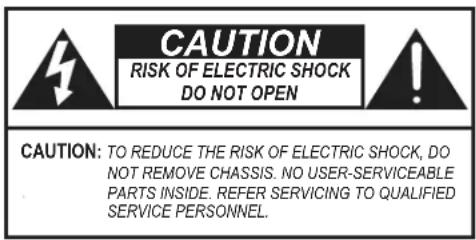
CAUTION RISK OF ELECTRIC SHOCK DO NOT OPEN CAUTION: TO REDUCE THE RISK OF ELECTRIC SHOCK, DO NOT REMOVE CHASSIS. NO USER-SERVICEABLE PARTS INSIDE. REFER SERVICING TO QUALIFIED SERVICE PERSONNEL.AVIS: RISQUE DE CHOC ELECTRIQUE-NE PAS OUVRIR.

THIS SYMBOL IS INTENDED TO ALERT THE USER TO THE PRESENCE OF NON-INSULATED "DANGEROUS VOLTAGE" WITHIN THE PRODUCT'S ENCLOSURE THAT MAY BE OF SUFFICIENT MAGNITUDE TO CONSTITUTE A RISK OF ELECTRIC SHOCK TO PERSONS.

THIS SYMBOL IS INTENDED TO ALERT THE USER TO THE PRESENCE OF IMPORTANT OPERATING AND MAINTENANCE (SERVICING) INSTRUCTIONS IN THE LITERATURE ACCOMPANYING THE UNIT.

APPARATUS SHALL NOT BE EXPOSED TO DRIPPING OR SPLASHING AND THAT NO OBJECTS FILLED WITH LIQUIDS, SUCH AS VASES, SHALL BE PLACED ON THE APPARATUS.
IMPORTANT SAFETY INSTRUCTIONS
- Read all safety and operating instructions before using this product.
- All safety and operating instructions should be kept for future reference.
- Read and understand all warnings listed on the operating instructions.
- Follow all operating instructions to operate this product.
- This product should not be used near water, i.e. Bathtub, sink, swimming pool, wet basement, etc.
- Only use dry cloth to clean this product.
- Do not block any ventilation openings, It should not be placed flat against a wall or placed in a built-in enclosure that will impede the flow of cooling air.
- Do not install this product near any heat sources; such as, radiators, heat registers, stove or other apparatus (including heat producing amplifiers) that produce heat.
- Do not defeat the safety purpose of the polarized or grounding-type plug. A polarized plug has two blades with one wider than the Other. A grounding-type plug has two blades and a third grounding prong. The wide blade or the third prong are provided for your safety If the provided plug does not fit into your outlet, consult an electrician for replacement of the obsolete outlet.
- Protect the power cord being walked on or pinched, particularly at Plugs, convenience receptacles and the point where they exit from the apparatus. Do not break the ground pin of the power supply cord.
- Only use attachments specified by the manufacturer.
- Use only with the cart, stand, tripod, bracket, or table specified by the manufacturer or sold with the apparatus. When a cart is used, use caution when moving cart/apparatus combination to avoid injury from tip-over.
- Unplug this apparatus during lightning storms or when unused for long periods of time.
- Care should be taken so that objects do not fall and liquids are not spilled into the unit through the ventilation ports or any other openings.
- Refer all servicing to qualified service personnel. Servicing is required when the apparatus has been damaged in any way; such as, power-supply cord or plug is damaged, liquid has been spilled or objects have fallen into the apparatus, the apparatus has been exposed to rain or moisture, does not operate normally or has been dropped.
- WARNING: To reduce the risk of fire or electric shock, do not expose this apparatus to rain or moisture.
FRENCH
Danger
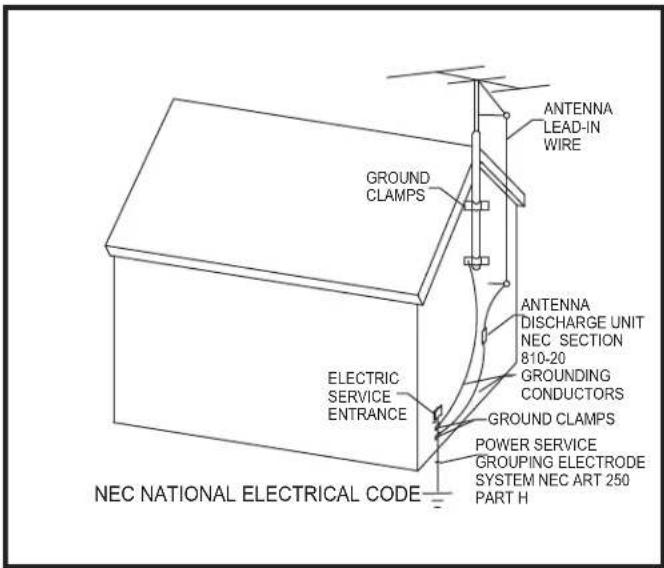
Note to CATV system installer:
This reminder is provided to call the CATV system installer's attention to Section 820-40 of the NEC, which provides guidelines for proper grounding and, in particular, specifies that the cable ground shall be connected to the grounding systems of the building, as close to the point of cable entry as practical.
FCC Information for the User
Caution:
Changes or modifications by the user that are not expressly approved by the party responsible for compliance could void the user's authority to operate the equipment.
NOTE:
This equipment has been tested and found to comply with the limits for a class B digital device, pursuant to part 15 of the FCC rules. These Limits are designed to provide reasonable protection against harmful interference in a residential installation. This equipment generates, uses and can radiate radio frequency energy and, if not installed and used in accordance with the instructions, may cause harmful interference to radio communications. However, there is no guarantee that interference will occur in a particular Installation. If this equipment does cause harmful interference to radio or television reception, which can be determined by turning the equipment off and on, the user is encouraged to try to correct the interference by one or more of the following measures:
1) Reorient or relocate the receiving antenna.
2) Increase the separation between the equipment and the receiver.
3) Connect the equipment into an outlet on a circuit different from that to which the receiver is connected.
4) Consult the dealer or an experienced radio/TV technician for help.
text_image
ANTENNA LEAD-IN WIRE GROUND CLAMPS ANTENNA DISCHARGE UNIT NEC SECTION 810-20 GROUNDING CONDUCTORS GROUNDS CLAMPS ELECTRIC SERVICE ENTRANCE POWER SERVICE GROUPING ELECTRODE SYSTEM NEC ART 250 PART H NEC NATIONAL ELECTRICAL CODEIntroduction
Congratulations on your purchase of the NuVo T2 Dual Tuner. Enjoying broadcast music throughout the home has moved into the 21 ^st century with NuVo's T2 Dual Tuner solutions. The included active AM/FM antenna provides a clear precise signal to the home. The T2's internal NuVoNet communication allows for very unique and complete feedback to all of the NuVo Control Pads including RDS (Radio Data Service) artist and song information.
With NuVo, broadcast music has never been better.
Table of Contents:
| T2FAM-EX Quick Setup Guide for Use with NuVoNet | page 2 |
Basic Features
| Front Panel | page 4 |
| Back Panel | page 5 |
| NV-T2RC4 Remote Control | page 6 |
I. Installing the T2FAM-EX in the Home
| Connecting the Audio Outputs | page 7 |
| Setting the Audio Outputs for NuVoNet or Standalone use | page 7 |
| AM/FM Antenna Installation | page 8 |
| Connecting for NuVoNet Use | page 8 |
| IR Control of the T2FAM-EX | page 8 |
| RS232 Serial Control | page 9 |
II. T2FAM-EX Front Panel Menu
| Bands | page 9 |
| T2FAM-EX Options | page 9 |
| Edit Presets | page 9 |
| Tuning Mode | page 10 |
| T2FAM-EX Settings | page 10 |
| Operating Mode | page 10 |
| Enabled Bands | page 10 |
| Tuning | page 10 |
| Diagnostics | page 11 |
| Reset Memory | page 11 |
III. NuVoNet Control of the T2FAM-EX
| Tuning Up and Down | page 12 |
| Changing Bands | page 12 |
| Tuning Modes | page 12 |
| Selecting Tuner A or B | page 12 |
| Control Pad Main Menu | page 13 |
IV. Using the T2 Configurator Software
| 1.0 Start | page 15 |
| 2.0 Config | page 15 |
| 3.0 Presets | page 17 |
| Advanced Settings | |
| 4.0 Advanced Config | page 18 |
| 5.0 Update System | page 20 |
| NV-T2FAM-EX Specifications | page 21 |
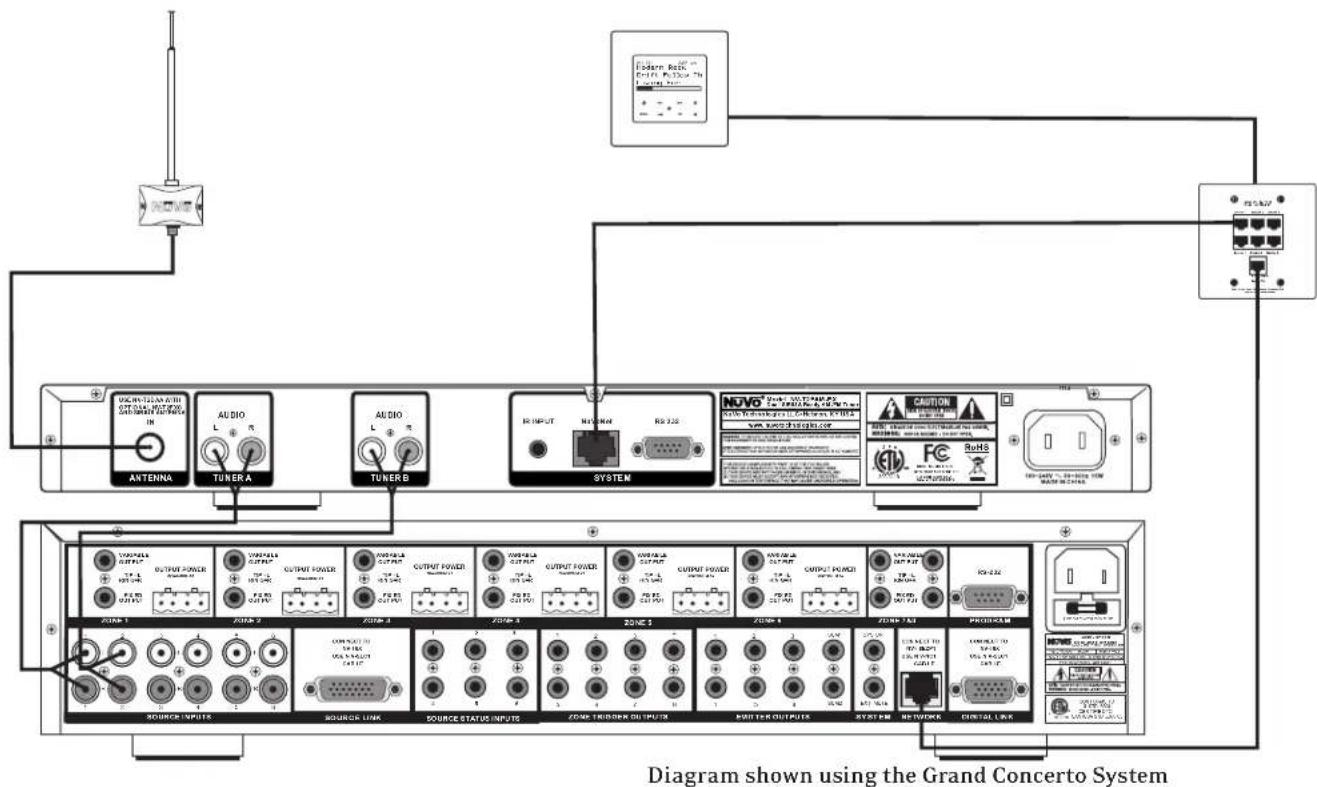
T2FAM-EX Wiring Diagram
text_image
Antenna TUNERA AUDIO TUNER B SYSTEM NUVO CAUTION FC ROHS POUND 1 POUND 2 POUND 3 POUND 4 POUND 5 POUND 6 POUND 7 POUND 8 POUND 9 POUND 10 POUND 11 POUND 12 POUND 13 POUND 14 POUND 15 POUND 16 POUND 17 POUND 18 POUND 19 POUND 20 POUND 21 POUND 22 POUND 23 POUND 24 POUND 25 POUND 26 POUND 27 POUND 28 POUND 29 POUND 30 POUND 31 POUND 32 POUND 33 POUND 34 POUND 35 POUND 36 POUND 37 POUND 38 POUND 39 POUND 40 POUND 41 POUND 42 POUND 43 POUND 44 POUND 45 POUND 46 POUND 47 POUND 48 POUND 49 POUND 50 POUND 51 POUND 52 POUND 53 POUND 54 POUND 55 POUND 56 POUND 57 POUND 58 POUND 59 POUND 60 POUND 61 POUND 62 POUND 63 POUND 64 POUND 65 POUND 66 POUND 67 POUND 68 POUND 69 POUND 70 POUND 71 POUND 72 POUND 73 POUND 74 POUND 75 POUND 76 POUND 77 POUND 78 POUND 79 POUND 80 POUND 81 POUND 82 POUND 83 POUND 84 POUND 85 POUND 86 POUND 87 POUND 88 POUND 89 POUND 90 POUND 91 POUND 92 POUND 93 POUND 94 POUND 95 POUND 96 POUND 97 POUND 98 POUND 99 POUND 100T2FAM-EX Quick Setup Guide for Use With NuVoNet
The T2FAM-EX Dual Tuner is the perfect broadcast music solution for whole-home audio. The internal NuVoNet capability of the T2FAM-EX allows it to easily communicate in real time with the NuVo Grand Concerto and Essentia E6G Control Pads. The following is a step-by-step guide for setting up and installing the T2FAM-EX for use with the Grand Concerto and Essentia NuVoNet Suites.
Step 1: Upon unpacking your T2FAM-EX Tuner, establish what audio inputs, 1-6, the T2's A and B audio outputs will represent. Plug t h e T 2 in t o a n A C po we r s o u r c
Step 2: Attach the audio outputs A and B of the Tuner to the appropriate numbered inputs on the Grand Concerto or Essentia S ys t e m.
Step 3: Connect the CAT5 from the NuVoNet output on the rear panel of the Tuner to one of the Device inputs on the Grand Concerto EZ Port or the Essentia Allport. This will enable communication to the System's Control Pads. Note that a single CAT5 connection provides information from both tuners A and B. A final CAT5 Connection should then be made to the NuVoNet CAT5 input on the back panel of the Grand Concerto or Essenita main amplifier for the NuVoNet RJ45 on the Grand Concerto EZ Port or the Essentia Allport. This completes the necessary connection for the NuVoNet communication.
Step 4: Complete the antenna connection on the back panel of the Tuner using standard RG6 coaxial cable. Quad shielded cable is recommended. When the antenna is connected, the Tuner will begin receiving a signal for both Tuners A and B.
Step 5: When the Tuner is plugged into an AC power source the front panel display will move through a boot procedure. When this procedure is complete a message, Uninitialized State Detected will appear.
Step 6: Following the prompt from the display, touch the OK button on the Tuner's front panel control. This will display a regional tuning selection, USA and Canada, Western Europe, Australia, and New Zealand. Make to appropriate selection to match the Tuner's g e o g r a p h ic l o c a t io n .
Step 7: Touching OK on the front panel controls will prompt a second screen on the display. This will read, Set Tuner A Mode, Standalone, Source 1, Source 2, Source 3, Source 4, Source 5, and Source 6. The top selection, Standalone, will be highlighted. This choice is used for any purpose that is not NuVoNet communication. Using the down arrow on the far right of the front panel controls, scroll to the desired source input number, and touch OK to select. The display will automatically go to Tuner B setup. Repeat the steps for setting Tuner A. If NuVoNet is not connected or all available sources have been assigned, then the source selections will be grayed out.
Step 8: When the desired source number is selected, the display will return to the first screen. Both outputs A and B will display the lowest AM band frequency by default. At this point full tuning capability can be done from the Tuner's front panel, or an addressed NuVo Control Pad.
Step 9: When both Tuner outputs are set, make sure the system to make sure the NuVoNet and CAT5 connection between the Tuners back panel and the system to make sure the system to make sure the Tuner's back panel and the system to make sure the Tuner's back panel and the system to make sure the Tuner's back panel and the system to make sure the Tuner's back panel and the system to make sure the Tuner's back panel and the system to make sure the Tuner's back panel and the system to make sure the Tuner's back panel and the system to make sure the Tuner's back panel and the system to make sure the Tuner's back panel and the system to wake
The T2FAM-EX Tuner is now ready for NuVoNet communication with either the Grand Concerto or Essentia E6G distributed audio systems te m s .
Please see the complete installation guide for understanding the full use of your T2FAM-EX Tuner.
text_image
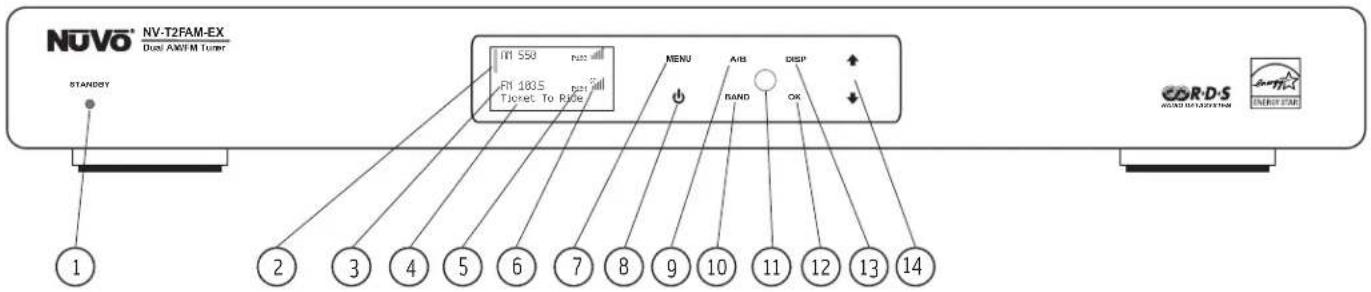
NUVO® NV-T2FAM-EX Dual AWFM Tower STANDSY 1 2 3 4 5 6 7 8 9 10 11 12 13 14 IN 550 Ran Rf 1835 Ran Ticket To Ride MENU A/B DISP RAND OK R-D-S WORLD WATHTONION SARMS SARMSFront Panel Features
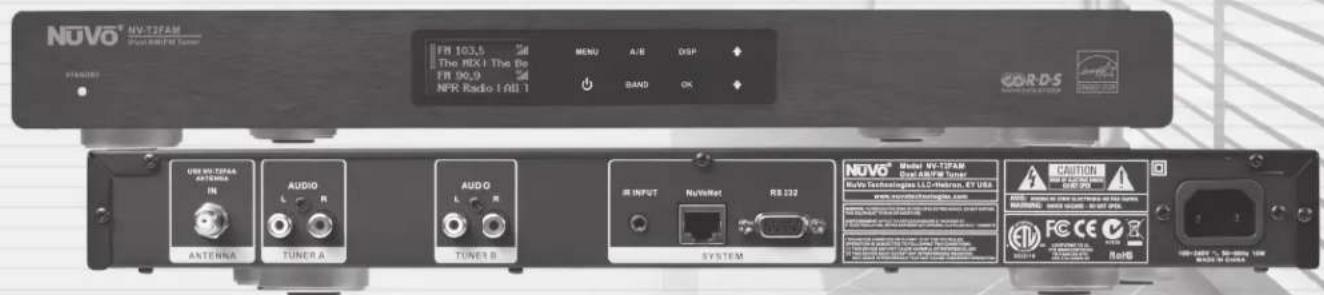
- Standby: This blue LED will light when the T2FAM is plugged into an AC power outlet.
- Tuner Highlight: This highlight bar shifts between the tuner A and B display to indicate which tuner is being controlled.
- Broadcast Band Display: This line of the front panel display shows the selected broadcast band and frequency. The bands available are FM and DAB.
-
Metadata Display: This line of the display scrolls RDS, Radio Data Service, information for FM broadcast.
-
Preset Number: The T2FAM features up to 5 banks of 20 presets each. This indicates the number of the preset bank and the s e l e c t e d p r e s e t .
-
Antenna Signal: The level of signal level is indicated with up to five bars, five being the best. When listening to FM, full stereo reception is indicated with an abbreviated ST.
-
Menu: This capacitive touch panel allows front access to the T2FAM's controls as well as preset listening selections and tuning parameters.
-
Power: This button turns the power for the front panel off when tapped, and causes a soft reboot of the operating system when it is held for 3 seconds.
-
A/B: By tapping the A/B button, the highlighted tuner output control toggles between A and B.
-
Band: The Band button toggles between AM and FM listening.
-
IR Window: The T2FAM-EX can be controlled via IR through its front panel IR receiver.
-
OK: Ok initiates a highlighted Menu choice.
-
Disp: This button is only active for SIRIUS Satellite radio. It does not function on the T2FAM Tuner.
-
Up and Down Arrows: These arrow buttons provide multiple functions depending on the mode of the tuner. In normal operation they initiate tuning up and down through the selected band. When in menu mode they scroll up and down through the menu choices.
text_image
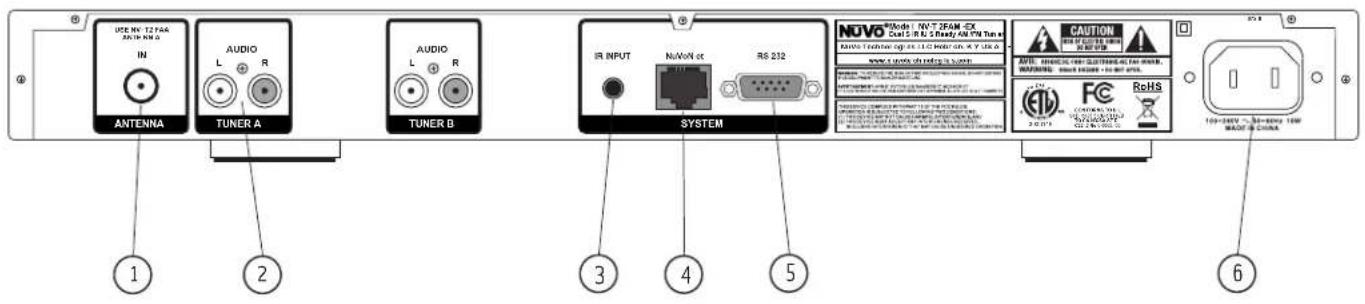
USE IN: 12 FAM AN IR NIN D IN ANTENNA AUDIO L R TUNER A AUDIO L R TUNER B IR INPUT NuVoc at RS 232 NOVO®Model I: NV-T 3F6M-EX Dual S-R/2.5 Ready AM TV Tun e www.nuvo.cn/refincl.sv.com CAUTION AVIC ENGLISH CNTS REVEEING EXTRAM POWER, MINISSIONAL CANADA FOR THE POWER OF THE POWER. RCH 109-180V 30-Pe-100V WACOR CHINA ① ② ③ ④ ⑤ ⑥Back Panel Features
- Antenna Input: This single F connector is the coaxial cable connection between the T2FAM-EX and the included NV-T2FAA AM/ F Ma n t e n n a .
- Audio Output: The audio broadcast for AM and FM received by the Tuner module is available through this stereo RCA output. Tuner A and B offer independent audio outputs for use with the NuVo audio systems or third party receivers and amplifiers.
- IR Input: The T2FAM-EX offers a single stereo mini, 3.5mm, connection for independent IR control of both tuners A and B.
- NuVoNet: This single CAT5 connection provides full NuVoNet communication for both tuners A and B to the NuVo Grand Concerto and Essentia E6G audio distribution systems. This connection is made at the Grand Concerto EZ Port or the Essentia E6G Allport.
- RS232: This DB9 9-pin connector is used for configuration programming (see Section IV. Using the Tuner Configurator Software, pg. 15) and bidirectional serial control from a third party home automation controller.
- AC Power: The T2FAM-EX is designed to plug into any AC power source. The digital switching power supply allows the tuner to respond to any world wide voltage.
text_image
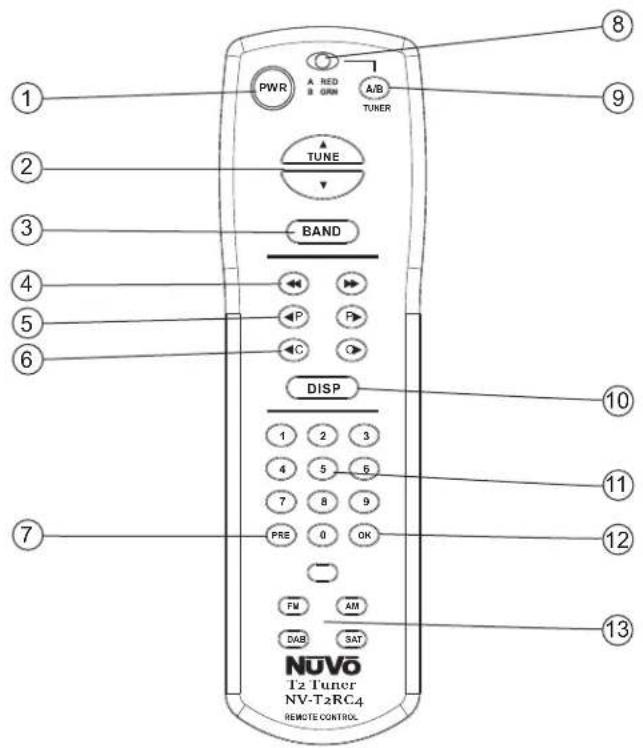
PWR A RED B ORN A/B TUNER TUNE BAND P P C DISP 1 2 3 4 5 6 7 8 9 PRE 0 OK FM AM DAB SAT NUVO T2 Tuner NV-T2RC4 REMOTE CONTROLNV-T2RC4 Remote Control
- Power: The power button turns the selected tuner on and off.
- Tune Buttons: These buttons are the equivalent of using the Up and Down arrows on the front panel of the T2FAM-EX to tune.
- Band: This button toggles through the tuner s available broadcast bands.
- Seek Up and Down: The seek buttons will tune to the next available station with the required signal strength for AM and FM use. The signal threshold can be adjusted higher or lower using the Tuner Configurator software (see Section IV. Using the Tuner Configurator Software, pg. 18), or through the advanced menu options on the front panel (see Section II. T2FAM-EX Front Panel Menu, Seek Thesholds, pg. 11).
- Preset Tune: These buttons step through the assigned presets. The T2FAM-EX is capable of 5 banks of 20 presets.
- Category Tune: Category Tune is not implemented on this model.
- Pre: This button is used to establish a preset bank and preset number for the frequency being displayed on the selected tuner.
- Tuner A & B LED: This LED glows red when Tuner A is selected and green when Tuner B is selected. This LED glows only momentarily when a button is pushed.
- A/B: This button toggles between Tuner A and Tuner B operation.
- Disp: This button functions only for North American satellite radio use.
- Numeric Buttons: These buttons (0-9) are used to access a specific station frequency.
- OK: This is a select button used for saving presets or entering an AM or FM frequency.
- Source Buttons: These four buttons are a direct select for the tuning bands available through the T2 Tuners. Actual functionality depends on the model tuner being controlled.
I. Installing the T2FAM-EX in the Home
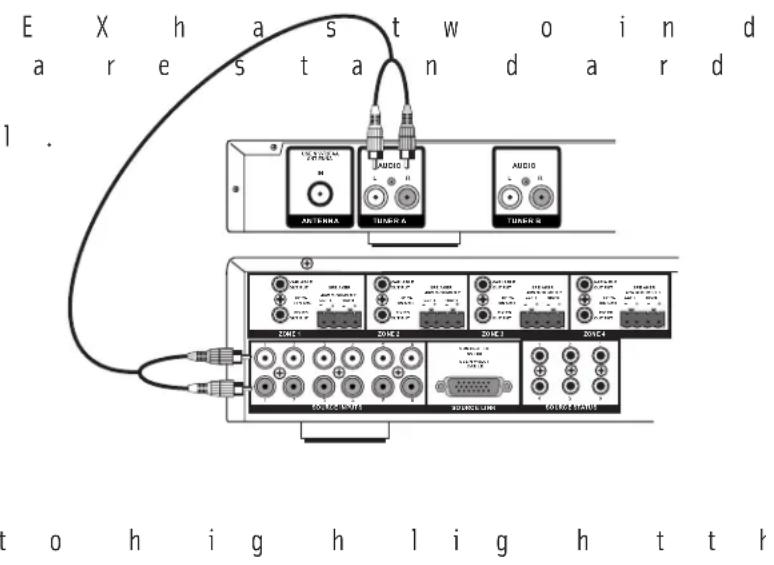
Connecting the Audio Outputs (Fig. 1)
| T | h | e | T | 2 | F | A | M | - |
| a | n | d | B | . | T | h | e | s e |
| connected to any device designed to receive an analog stereo | ||||||||
| a | u | d | i | o | s | i | g | n a |
Setting the Audio Outputs for NuVoNet or Standalone use (Fig. 2)
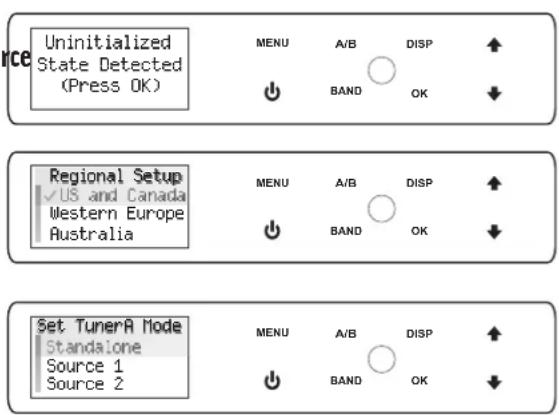
The outputs A and B are individually set from the front panel display of the T2FAM-EX. When the tuner is initially plugged into an AC power source, a short setup wizard will appear on the display. A message, Uninitialized State Detected (Press OK) will appear. When OK is pressed, the prompt is to select a regional tuning standard. The choices are USA/Canada, Western Europe, Australia, and New Zealand. Use the Up and Do w n a r r o w s OK button to select. Once regional tuning has been selected, the display will prompt for the use of each output A and B.
+Output A will highlight automatically. Using the Up and Down arrows on the front panel, move the highlight to the appropriate use of the tuner output and touch OK. The choices a r e Stand Alone, Source 1, Source 2, Source 3, Source 4, Source
5, and Source 6. For any use other than with the Essentia E6G or Grand Concerto Systems, select Stand-alone. This will require IR or serial control of the T2FAM-EX's functions. Highlighting the appropriate Source number input for the NuVo system and touching the OK button sets NuVoNet communication. Once Output A is set, the highlight will move to Output B. For operation, both outputs A and B must be set as Stand Alone or as a NuVoNet Source.
When the Tuner's outputs are set, they will return to AM 530, or the minimum AM band setting for the selected regional tuning parameters. At this point the T2FAM-EX is ready for either NuVoNet communication or standalone use, depending on the s e t t i n g ma d e f o r b o t h o u t p u
Fig. 1
text_image
E X h a s t w o i n d a r e s t a n d a r d 1 . A U D I O T U A N R A U D I O T U A N R A U D I O T U A N R 2014C 1 2014C 2 2014C 3 2014C 4 ECU/ES-UNITS BUSB/COUNT ECUT/CE-UNITS t o h i g h l i g h t t hFig. 2
text_image
Uninitialized State Detected (Press OK) MENU A/B DISP ↑ BAND OK ↓ Regional Setup US and Canada Western Europe Australia MENU A/B DISP ↑ BAND OK ↓ Set TunerA Mode Standalone Source 1 Source 2 MENU A/B DISP ↑ BAND OK ↓AM/FM Antenna Installation (Fig. 3)
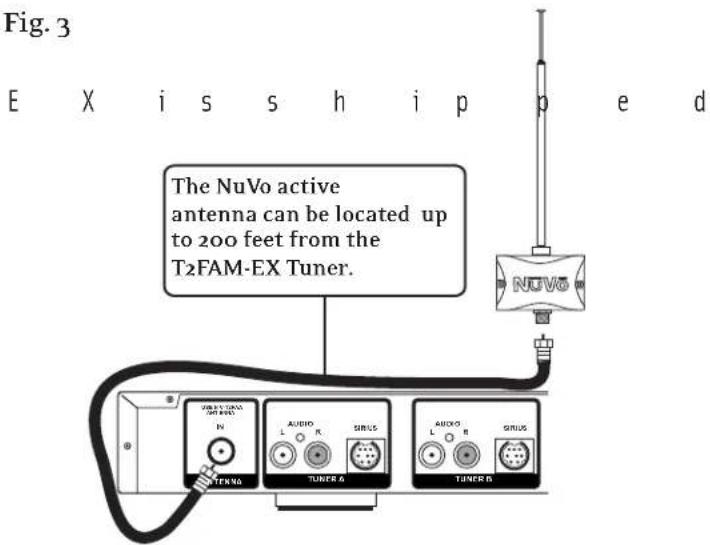
T h e T 2 F A M - antenna. The antenna is designed to work actively with the tuner using standard 75-ohm coaxial cable. Quad-shielded cable is recommended for this purpose. The advantage of the active antenna technology is the remote location capability, up to 200 feet from the T2FAM-EX location without the need for an external power supply. The termination at the antenna and tuner is a standard F style connector. No software application or configuration is necessary beyond making the cable connection at each end.
Note, for best results, the T2FAA antenna should be located as high as possible, either in an attic or outside. If you choose to use a third party antenna, other than the T2FAA, you must use the forced off setting from the menu to allow the signal to pass through to the T2FAM-EX, (see Section II. T2FAM-EX Front Panel Menu, Antenna Power, pg. 11).
Connecting for NuVoNet Use (Fig. 4)
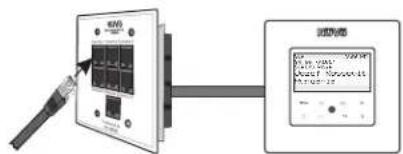
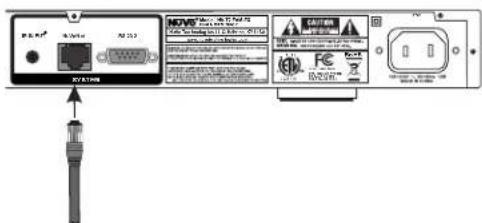
Once audio outputs A and B are set for NuVoNet, the T2FAM-EX is ready to communicate in real time with the Grand Concerto or Essentia E6G audio distribution systems. To complete the connection, all that is necessary is a single CAT5 cable from the NuVoNet output on the T2FAM-EX's back panel to one of the Device inputs on either the Grand Concerto EZ Port or the Essentia E6G Allport. Since the outputs of the Tuner must be set as a specific source number input for NuVoNet communication, the number of the Device connection used is irrelevant to the system's operation. Once the connection is complete, the tuner is ready to fully communicate with N uV oN et .
IR Control of the T2FAM-EX (Fig. 5)
The T2FAM-EX can be used without NuVoNet as a standalone AM/FM tuner. It is necessary to set the audio outputs at Standalone for IR control to be active (see Section I. Setting the Audio Outputs for NuVoNet or Standalone Use, p g
text_image
Fig. 3 E X i s s h i p o e d The NuVo active antenna can be located up to 200 feet from the T2FAM-EX Tuner. NUVo TUNER A TUNER B N L AUDIO R SIRUS L AUDIO R SIRUS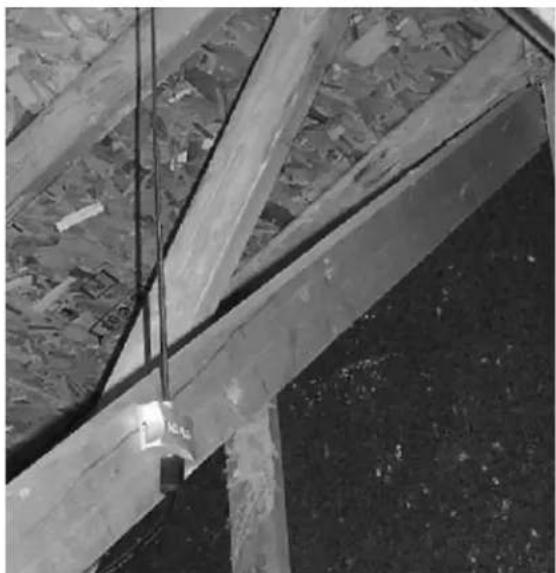
natural_image
Close-up of wooden structural beams and joints, no visible text or symbolsFig. 4
text_image
Diagram showing connection between an electronic device with a cable and a digital display labeled '电源端' (Power Terminal)7 )
text_image
NVIDIA NVIDIA® NVIDIA® NVIDIA® NVIDIA® NVIDIA® NVIDIA® NVIDIA® NVIDIA® NVIDIA® NVIDIA® NVIDIA® NVIDIA® NVIDIA® NVIDIA® NVIDIA® NVIDIA® NVIDIA® NVIDIA® NVIDIA® NVIDIA® NVIDIA® NVIDIA® NVIDIA® NVIDIA® NVIDIA® NVIDIA™ NVIDIA™ NVIDIA™ NVIDIA™ NVIDIA™ NVIDIA™ NVIDIA™ NVIDIA™ NVIDIA™ NVIDIA™ NVIDIA™ NVIDIA™ NVIDIA™ NVIDIA™ NVIDIA™ NVIDIA™ NVIDIA™ NVIDIA™ NVIDIA™ NVIDIA™ NVIDIA™ NVIDIA™ NVIDIA™ NVIDIA™ NVIDIA™ NVIDIA®0 n c e t h e a u d i o o u t p u t s a r
offers three methods for IR control. One is to take the IR output of your control device using a mono 3.5mm patch cable into the Direct IR input on the back panel of the T2FAM-EX. Tuners A and B feature discrete commands, allowing both tuners to be controlled independently from one input. The second method for IR control is to attach an IR emitter over the IR receiver on the front panel, and the third method is to aim the remote control at the IR receiver located on the front p a n e l .
RS232 Serial Control
The T2FAM-EX features a bidirectional DB9 port for serial control. This enables the tuner to be controlled via a third party home automation system and will in turn issue present state commands back to the controller. Potentially, all aspects of NuVoNet communication can be emulated using the serial control capability. The necessary protocol for serial use can be downloaded from the NuVo website ProZone at www.nuvotechnologies.com/prozone.
natural_image
Simple diagram with horizontal and vertical lines and a small rectangular box (no text or symbols)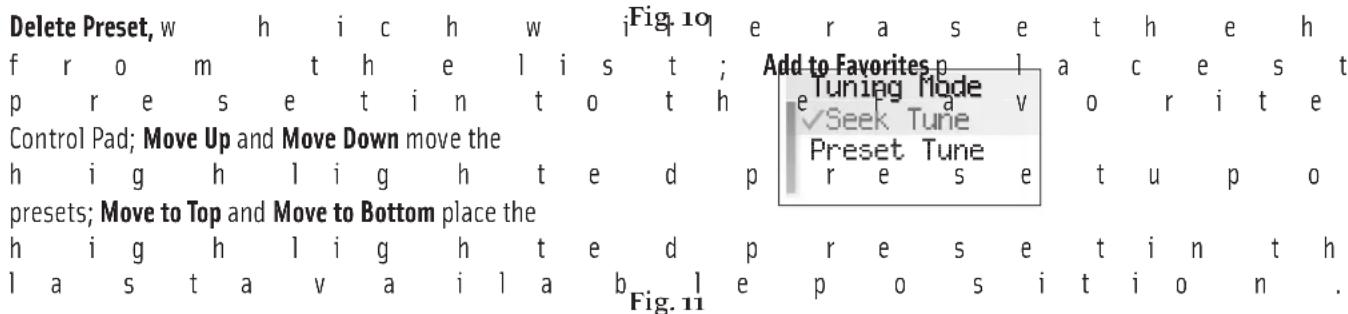
text_image
Delete Preset, w h i c h w i Fig. 10 e r a s e t h e h f r o m t h e l i s t ; Add to Favorites p l a c e s t p r e s e t i n t o t h e Tuning Mode v o r i t e Control Pad; Move Up and Move Down move the h i g h l i g h t e d p r e s e t u p o presets; Move to Top and Move to Bottom place the h i g h l i g h t e d p r e s e t i n t h l a s t a v a i l a b l e p o s i t i o n . Fig. 11Tuning Mode (Fig. 10): Tuning Mode has four choices that set defaults for the way in which the T2FAM-EX

text_image
w i l l t u n e t h r o u Enabled Bands h a n n Seek Tune: Seek Tune searches for strong frequencies in AM/FM bands and will stop at t h e n e xt f r e q u e n c y t h a p a r a m e t e r s .T h i s m e n u or off. When Seek Tune is turned off, Step Tu n e i s t h e d Fig 12 e f a u l t .Preset Tune: When turned on, the Preset Tune mode will only stop at channels or frequencies that have been saved as presets.
T2FAM-EX Settings (Fig. 11)
There are several operational defaults that are set in this menu c h o i c e :
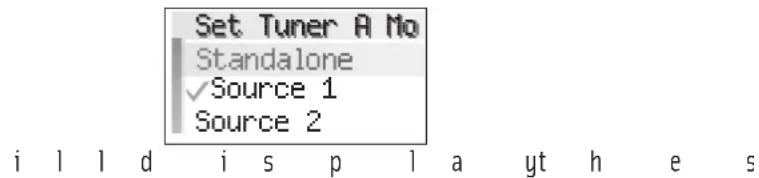
Operating Mode (Fig. 12): T h i s w
choice for each tuner output A and B with a check mark. The choices are Standalone, Source 1, Source 2, Source 3, Source 4, Source 5, and Source 6. Here, the source number or standalone can be changed from the initial power on setting. Used NuVoNet sources will be g r a ye d o u t
Enabled Bands: Broadcast bands associated with each tuner can be turned off here. This is useful especially for AM where an acceptable AM signal is not possible.
text_image
Set Tuner A Mo Standalone ✓ Source 1 Source 2Tuning: There are four sub-menus that set default tuning parameters for the T2FAM-EX:
Fine Tuning: T h i s r e d to 50 kHz in FM and 1 kHz in AM. With today's digital tuners this feature is rarely used.
Regional Setup: Regional Setup sets the d e f a u l t t u the world. The choices are US/Canada, Western Europe, Australia, and New Zealand.
C u s t o m i s t h e Co n f i g u t h i s m a n u
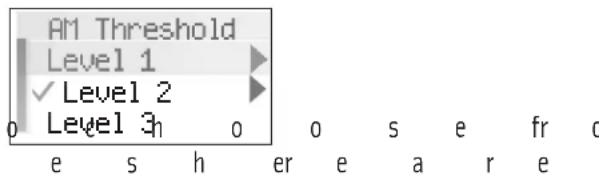
Seek Thresholds (Fig. 13): The recognized

text_image
s i g n a l l e v e l f o r A M a n d F menu. There are three default levels with 1 being the lowest, requiring a stronger signal t o b e r e c o g n i ze d a n d 3 brequiring a weak to moderate signal to be recognized. The default is 2, the middle level.
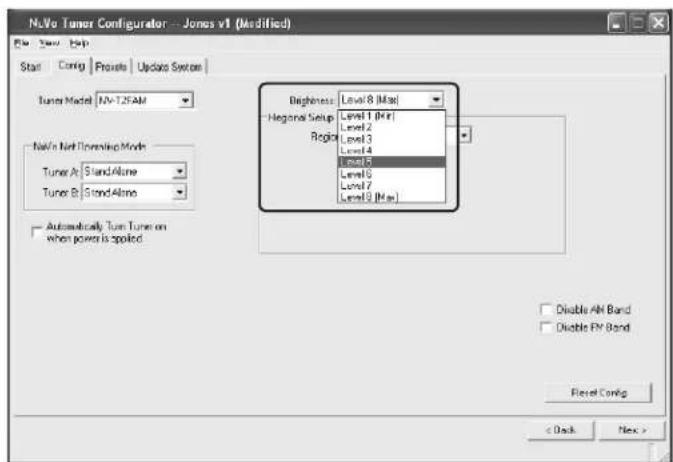
Brightness: Brightness sets the overall level of the display. There are seven degrees of
b ri g h t n e s s t o Level 3n o o s e fr c
Antenna Power: T h e c h o i c e s h er e a r e
Automatic, Forced ON a n d Forced OFF.
Automatic is the default and allows the T2FAM-EX to provide 5 volts to the attached T2FAA active antenna. This is necessary for AM reception. In instances where you intend on using a third party FM antenna, the Forced OFF choice is necessary to block DC v o l t a g e n nice feature that eliminates the need for an external DC blocker. Forced ON provides
Fig. 14
text_image
AM Threshold Level 1 ✓ Level 2 o Level 3h o o s e fr c e s h er e a r e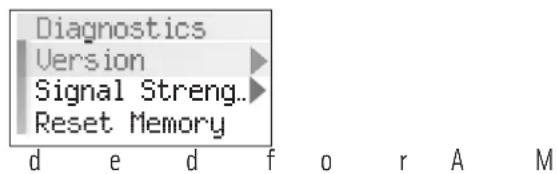
text_image
Diagnostics Version Signal Streng.. Reset Memory d e d f o r A MFig. 15
Diagnostics (Fig. 14): S i g n a
reception and the current firmware version number
a r e p r o v i d e d i n jrk t th ab e | Di a g n
Version: This displays the T2FAM-EX's current firmware version. Upgraded versions are posted on the NuVo website ProZone and
a r e l o a d e d o n t o t h e Tu n
new configuration from the Tuner Configurator software through the RS232
p o rt .
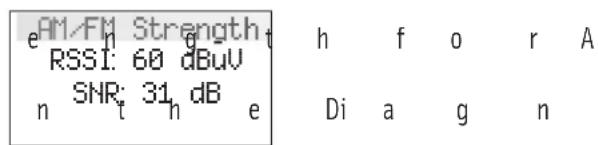
AM/FM Signal Strength (Fig. 15): T h i s
displays two levels for tuners A and B. RSSI,
re c e i v e d measurement in dBuV, and SNR, signal to
n o i s e , i s me a s u r e d i n d B.
Fig. 16
text_image
ePM/FM Strength RSSI: 60 dBuV SNR: 31 dB n t h e h f o r A Di a g n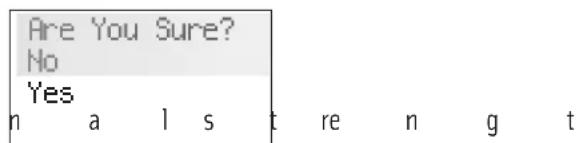
text_image
Are You Sure? No Yes n a l s t re n g tReset Memory (Fig. 16): T h i s s
when it is advantageous to remove all settings from the tuner. Choosing yes to reset memory returns the T2FAM-EX to its factory default.
III. NuVoNet Control of the T2FAM-EX
N u V o N e t a l l o w
Pad to completely control the T2FAM-EX functionality. The important feature of the Control Pad is its multi-line OLED, (organic light emitting diode) display, which give complete
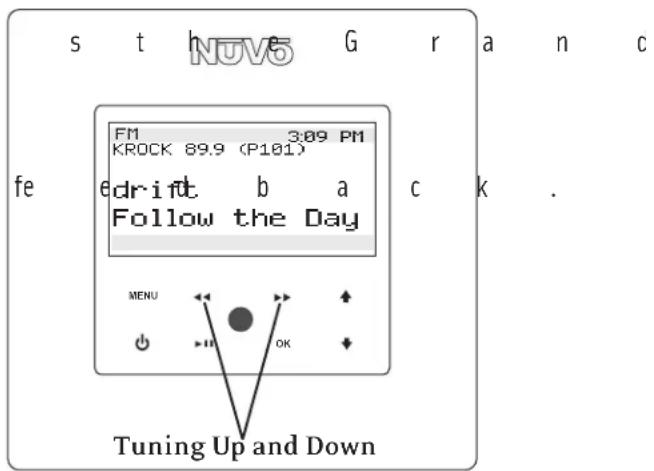
Tuning Up and Down (Fig. 17)
Tuning at the NuVo Control Pad is accomplished by touching arrow forward >> or arrow back <<. A single touch advances one station frequency based on the tuning method selected, and a touch and hold will rapidly change the channel or frequency.
Changing Bands (Fig. 18)
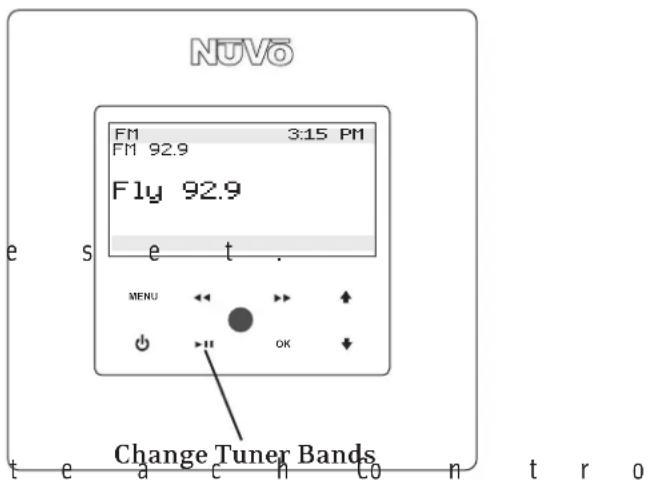
In normal play mode, touching the Play/Pause button changes the broadcast band. This can also be done in the Bands menu selection. If a band has been turned off, (see Section II.
T2FAM-EX Front Panel Menu, T2FAM-EX Settings, Enabled Bands, pg. 10), only the enabled bands will be present.
Tuning Modes
The available tuning modes are Seek and Preset tune. Seek is an AM/FM function that searches for stronger frequencies.
Preset tune moves to the next preset in the list. Touching and holding the Play/Pause button advances to the next tuning
mo d e ,s e e k o r p r
Selecting Tuner A or B
In normal play mode, selecting a new source is done by touching the OK button. Each touch will advance to the next source. Accessing the sources can also be done from the
S o u r c e s me n u a
Fig. 17
text_image
s t h NU6 G r a n c fe e drift b a c k . Follow the Day MENU OK Tuning Up and DownFig. 18
text_image
NUVO FM 3:15 PM FM 92.9 Fly 92.9 MENU OK Change Tuner BandsControl Pad Main Menu (Fig. 19)
T o u c h i n g t h
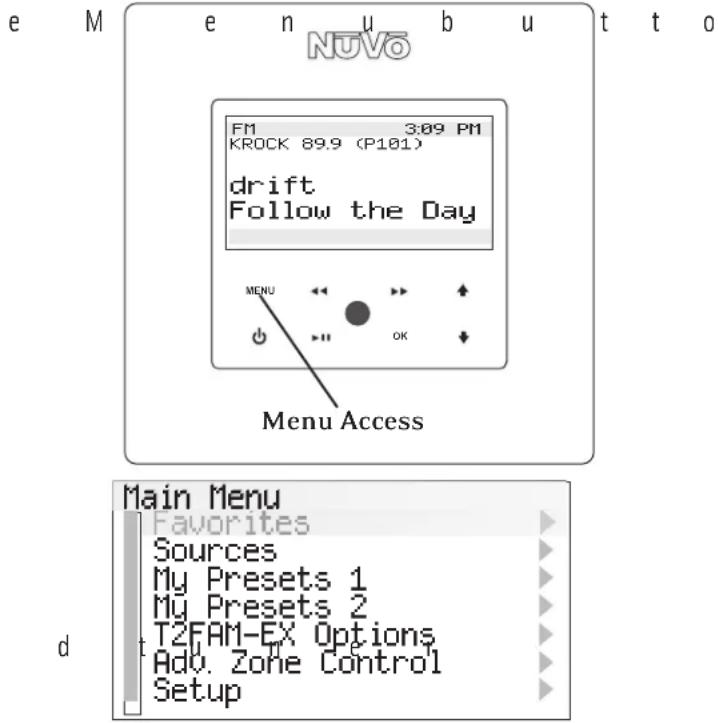
Main Menu where the user has several control choices. Once in the Control Pad Menu, the arrow Up and Down buttons move the highlight up and down. When the desired choice is highlighted, touch the OK button to initiate the command.
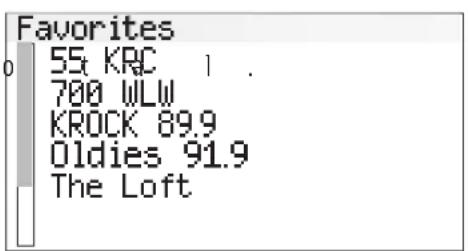
Favorites (Fig. 20): The NuVoNet system places the top 20 presets or playlists for each source in one alphabetical list. This allows the user to make a selection without having to choose that source first.
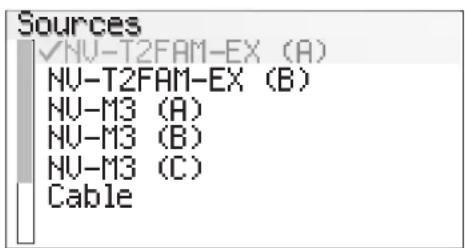
Sources (Fig. 21): Sources 1–6 are listed in this menu for easy access. NuVoNet automatically assigns the names T2FAM-EX (A) and T2FAM-EX (B) when the NuVoNet source number is established at the Tuner, (see Section I. Setting the Audio Outputs for NuVoNet or Standalone use, p g .7 ).
Bands: This displays the available broadcast bands for t h e s e l e c t e d
Presets: Presets only appear if channels or frequencies have been saved. The T2FAM-EX allows 5 banks of 20 presets each. The groups of 20 are automatically defined as My Presets 1, My Presets 2, etc., unless they are given preset group names in the Tuner Configurator Software. When a preset is chosen, the front panel will display its bank and preset number. For example, P103 notes preset bank 1 and
p r e s e t 3 o f2
Fig. 19
text_image
e M e n u b u t t o NUVO FN 3:09 PM KROCK 89.9 (P101) drift Follow the Day MENU OK Menu Access Main Menu Favorites Sources My Presets 1 My Presets 2 T2FAM-EX Options Adv. Zone Control SetupFig. 20
text_image
Favorites 55 KRC 1 . 700 WLW KROCK 89.9 Oldies 91.9 The LoftFig. 21
text_image
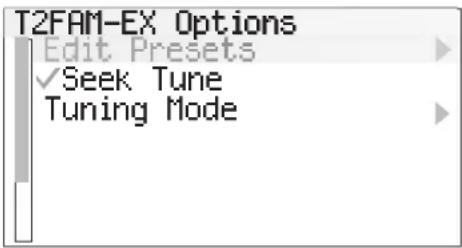
Sources ✓NU-T2FAM-EX (A) NU-T2FAM-EX (B) NU-M3 (A) NU-M3 (B) NU-M3 (C) CableT2FAM-EX Options (Fig. 22): T u n i n the T2FAM-EX are easily set from any Control Pad using this menu. There are three sub-menu choices:
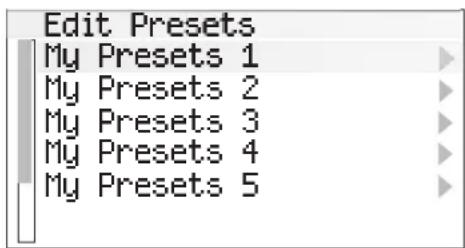
Edit Presets (Fig. 23): This allows the user to establish the current channel or station frequency as a preset. The menu provides five banks of 20 presets each. Choosing a preset bank will then give you the option of saving the current channel. To add a preset to favorites, highlight and select an existing preset. This will bring up a second menu with several choices. Delete Preset, will erase the highlighted preset from the list. Add to Favorites places the highlighted preset into the Favorites menu available at each Control Pad. Move Up and Move Down move the highlighted preset up or down within the list of preset. Move to Top and Move to Bottom place the highlighted preset in the number 1 position or to the last available position.
Seek Tune: Selecting Seek Tune turns the frequency seek function on and off. When check marked, seek is active. This is an AM/FM function that allows the Tuner to search within the selected band until a strong signal is found. The level of signal necessary for the seek function can be set within the T 2 F A M -
Settings, Seek Threshold, pg. 11). Tuning Mode: Tuning Mode changes the tuning between Seek Mode and Preset Mode. If Preset is chosen, touching the arrow forward button >> or arrow back button << scroll through the saved presets.
Fig. 22 p a r a m e t e r
text_image
T2FAM-EX Options Edit Presets ✓Seek Tune Tuning ModeFig. 23
text_image
Edit Presets My Presets 1 My Presets 2 My Presets 3 My Presets 4 My Presets 5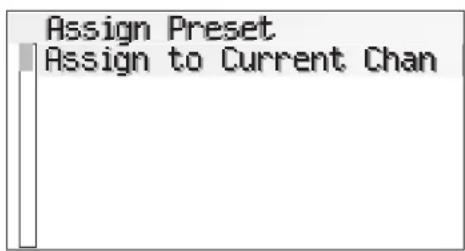
text_image
Assign Preset Assign to Current Chan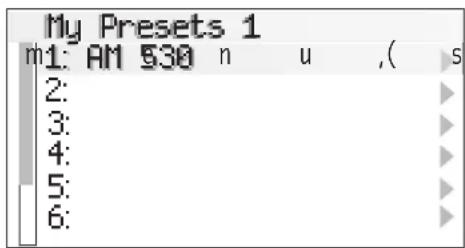
text_image
My Presets 1 m1: AM 530 n u ,( s 2: 3: 4: 5: 6:IV. Using the Tuner Configurator Software
The Configurator Software is tabbed, wizard style software that easily moves you through the T2FAM-EX setup and implementation as a NuVoNet source or as a standalone source controllable by IR or Serially. Within the Configurator you can set up the source address and presets for an installation and download the information to the T2FAM-EX's FLASH memory prior to its installation. Its non-volatile memory will retain the configuration indefinitely while the Tuner is unplugged.
1.0 Start (Fig. 24)
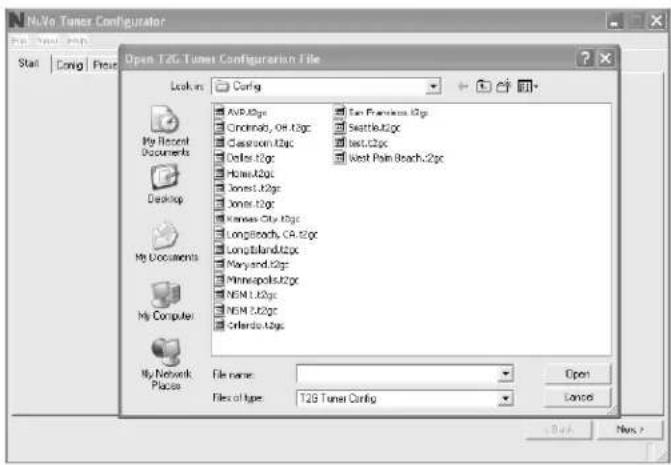
The start tab allows you to load an existing configuration or create a new one. You can also retrieve and edit a configuration from an existing Tuner. When the computer is connected to the Tuner via its RS232 port, you can click on Retrieve Configuration from Tuner and make any necessary edits. When the edited version is downloaded to the Tuner, the previous configuration will be overwritten.
To start a new configuration or open an existing configuration, click on the Load Existing or Create New Configuration button. The File Name field allows you to give a new configuration a new name.
Fig. 24
text_image
N.Va Tuner Configurator Open T2G Tuner Configurator File Look in Config AVR 02gc Cincinnati, OR 02gc Classroom 02gc Dellos 02gc Home 02gc Jones 02gc Jones 02gc Kansas City 02gc Long Beach, CA 02gc Long Island 02gc Mary and 02gc Minneapolis 02gc NSM 02gc NSM 02gc Sofardo 02gc File name: Files of type: T2G Tuner Config Open Cancel Next > Start Contig Place2.0 Config (Fig. 25)
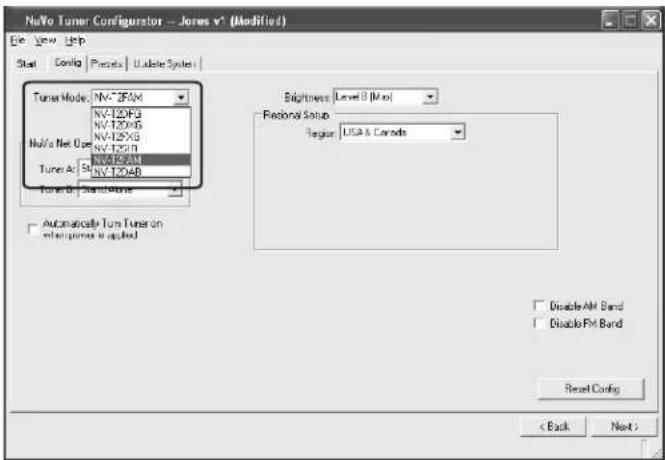
The Config tab is for the initial setup, which determines basic tuner operation. Within the Config Tab the first step is to establish the correct tuner model being configured. Make that model choice from the Tuner Model menu.
Fig. 25
text_image
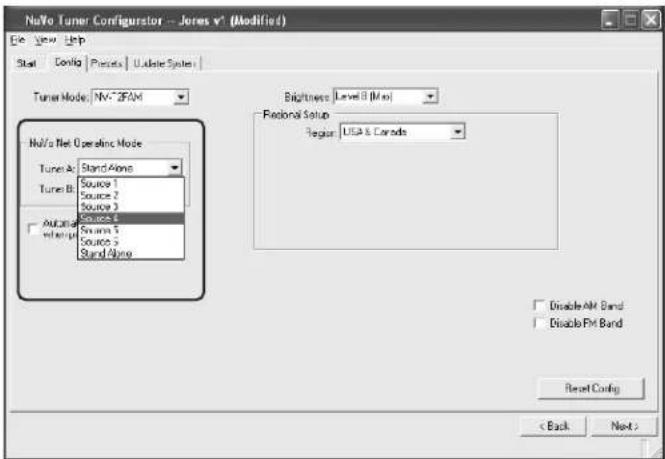
NaVo Tuner Configurator -- Jones v* (Modified) File View Help Stat Config Pieces Update Static Tuner Mode: NV-2FM NV-12F9 NV-12X5 NV-12X6 NV-12X7 NV-12X8 NV-12X9 NV-12X10 NV-12X11 NV-12X12 Tuner A: NV-12X13 Tuner B: Nanu Mode Brightness Level 0 (Max) Rectonal Setup Region: USA & Canada □ Automatically Tun Tuner on inferences is applied □ Disable AM Band □ Disable FM Band Reset Config < Back Next >2.1 NuVoNet Operating Mode (Fig. 26): T h i s d r allows you to select between Stand Alone or as a NuVoNet
Source 1-6 . If you are using the Tuner as NuVoNet source with a NuVo System, you must select a unique, dedicated source input for each Tuner (A and B) being configured.
Stand Alone will set the output for any use other than NuVoNet. Making the appropriate NuVoNet Source selection properly sets the Tuner's outputs for full communication when the configuration is downloaded to the Tuner.
Fig. 26
text_image
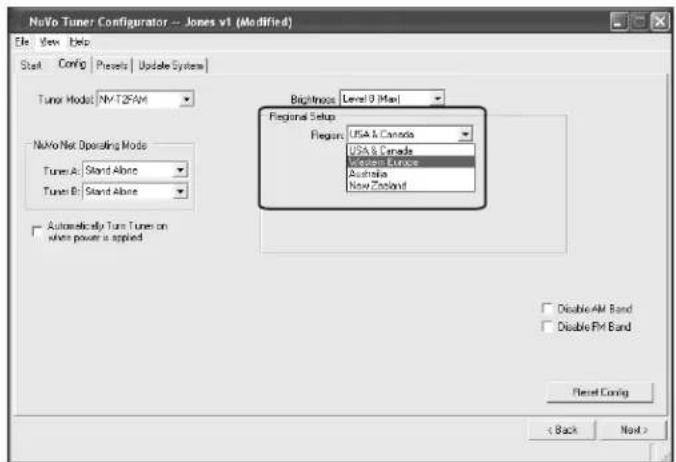
NaVo Tuner Configurator -- Jones v* (Modified) File View Help Start Config Presets Update System Tuner Mode: NV-2FAM NaVo Net Operating Mode Tuner A: Stand Alone Tuner B: Source 1 Source 2 Source 3 Source 4 Source 5 Source 6 Stand Alone Brightness: Level 0 (Max) Regional Setup Region: USA & Canada Automatic Auto... Disable NM Band Disable PM Band Reset Config < Back Next >2.2 Regional Setup (Fig. 27): D e p e n l o c a t i o n , t h standard. The choices are USA & Canada, Western Europe, Australia, and New Zealand. Countries outside these geographic locations need the advanced custom setting (see Section IV. Advanced Settings: 4.1 Custom Regional Setup, p g . 1 8).
Fig. 27
text_image
NuVo Tuner Configurator -- Jones v1 (Modified) File View Help Start Config Pixels Update System Tuner Modul: NV-T2FAM Niko Net Operating Modu Turner A: Stand Alone Turner B: Stand Alone Automatically Turn Tunes on white power is applied Brightness: Level 3 (Max) Regional Setup Region: USA & Canada USA & Canada Western Europe Australia New Zealand Disable AM Band Disable FXI Band Reset Config < Back Next >2.3 Brightness (Fig. 28): This sets the intensity of the display for the tuner. The factory default is the maximum level, 8.
Fig. 28
text_image
N.Vo Tumor Configurator -- Jonas v1 (Modified) Start Config Prostate Update Sectors Tuner Model: AV-12FAM Nav-In Net Florring Mode Tuner A: Stand/Alone Tuner B: Stand/Alone Automatically Turn Toner on when power is applied Brightness: Level 8 (Max) Hegonic Setup: Level 1 (Min) Level 2 Region: Level 3 Level 4 Level 5 Level 6 Level 7 Level 8 (Max) Disable AH Band Disable FY Band Reset Config < Back Next >d2.4 Auto-On (Fig. 29): In the event of lossy of power, or if the run g e Tunertis unplugged, the tuners can be set with this check box to automatically turn on when power is restored. Note that this feature is only necessary for non-NuVoNet use, since NuVoNet causes the tuners to turn on when a zone within the NuVo System is turned on. The tuners will turn off when all NuVo System zones are turned off.
Fig. 29

text_image
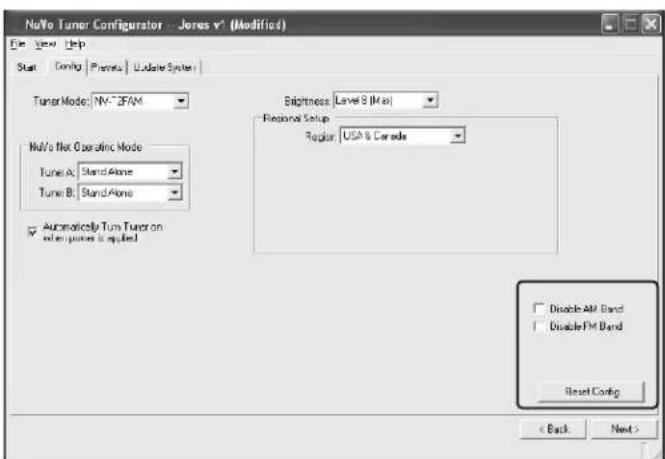
NuVo Tuner Configurator -- Jones v1 (Modified) File Edit Help Start Config Features Update System Tuner Mode: NV-3FAM NuVo Net Operating Mode Tuner A: Stand Alone Tuner B: Stand Alone ✓ Automatically Turn Tuner on with employees is applied Brightness: Level 9 (Max) Regional Setup: Regular: USA & Canada Disable AM Band Disable PM Band Reset Config < Back Next >2.5 Disable Bands (Fig. 30): These check boxes allow you to disable the AM or FM bands. This is useful for areas where re l i a b l e r e c e
Reset Config: This button will reset all of the configuration information to the original factory default settings.
Fig. 30
text_image
NuVo Tuner Configurator - Jones v1 (Modified) File View Help Start Config Format Update System Tuner Mode: NV~2FAM NuVo Net Operating Mode Tune A: Stand Alone Tune B: Stand Alone Automatically Turn Tuner on when purposes is applied Brightness Level 9 (Max) Regional Setup Regular USA & Canada Disable AM Band Disable FM Band Reset Config < Back Next >3.0 Presets
T h e T u n e r C o e a s i l y s e t t i n
T2FAM-EX non-volatile memory prior to the installation.
NuVoNet will automatically read the presets and make them
a va i l a b l e o n
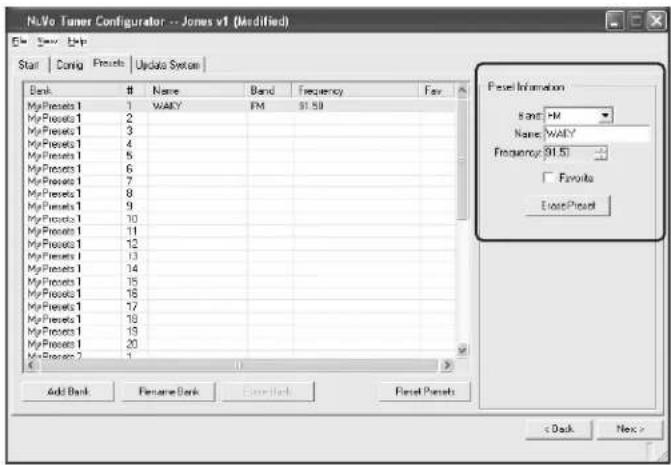
3.1 Preset Information (Fig. 31): This section provides a display
n a m e , b a n d
preset information fields are populated, the same information will automatically fill the highlighted fields to the left. Each of the 5 available banks of presets will hold 20 separate AM or FM channel selections. The default setting will show two available banks of 20 with the default names, My Presets 1 and My Presets 2
When the AM or FM bands are selected and a station name is typed into the Name field, the Frequency dialer will become active. As you scroll up and down the frequency list, the highlighted Frequency column to the left will
a u t o m a t i ca
Favorite: This check box will add any highlighted preset to the
Favorites menu on the Control Pads. Up to 20 can be selected for each tuner band. When a preset is selected, it will appear in the far right column labeled Favorites. Any preset can be added or removed from the list by highlighting the preset and selecting or deselecting the Favorite box.
Fig. 31
text_image
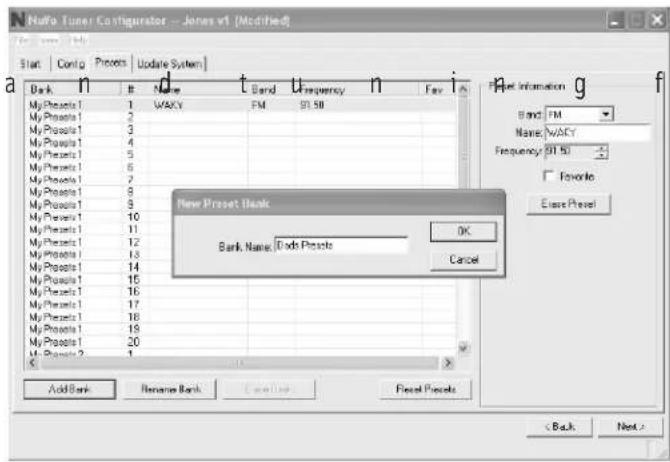
N.Vo Tuner Configurator -- Jones v1 (Modified) Start | Config | Projects | Update System Bank # Name Band Frequency Fav My Presets 1 1 WAVE FM $1.50 My Presets 1 2 My Presets 1 3 My Presets 1 4 My Presets 1 5 My Presets 1 6 My Presets 1 7 My Presets 1 8 My Presets 1 9 My Presets 1 10 My Presets 1 11 My Presets 1 12 My Presets 1 13 My Presets 1 14 My Presets 1 15 My Presets 1 16 My Presets 1 17 My Presets 1 18 My Presets 1 19 My Presets 1 20 My Presets 1 Add Back Rename Dark Save Back Reset Presets Panel Information SME +M Name: WAVE Frequency: 91.50 Favorites Exist Pencil < Back Next >3.2 Add Bank (Fig. 32): If you want to add a bank of 20 presets, the Add Bank button will bring up a window that allows you to name the bank and automatically add it to the Tuner's e p r e se t s.
Fig. 32 e Co n t r o l Pa d s
text_image
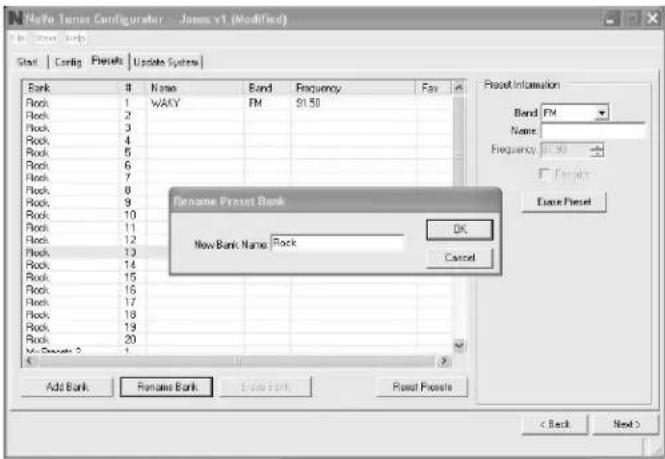
Nello Tuner Configurator - Jones v1 (Modified) Start Config Process Update System Bank B# New Name Sand Frequency Fav My Project 1 1 WACY FM 91.50 My Project 1 2 My Project 1 3 My Project 1 4 My Project 1 5 My Project 1 6 My Project 1 7 My Project 1 8 My Project 1 9 My Project 1 10 My Project 1 11 My Project 1 12 My Project 1 13 My Project 1 14 My Project 1 15 My Project 1 16 My Project 1 17 My Project 1 18 My Project 1 19 My Project 1 20 My Project 2 1 New Preset Book Bank Name: Dods Presets OK Cancel Add Back Rename Back Cancel Fixed Presets Net Information Bond: FM Name: WACY Frequency: 91.50 Favorites Express Preset Back Next > < Back Next >3.3 Rename Bank (Fig. 33): This button allows you to give a bank of presets a customized name.
Fig. 33
text_image
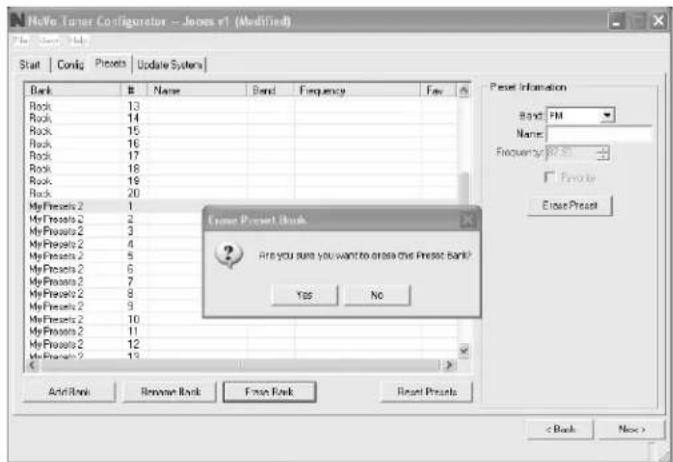
Nate Towers Configurator - Jones v1 (Modified) Start Config Pisodes Update System Bank # Name Bond Frequency Fay Rock 1 WARY PM ST 50 Rock 2 Rock 3 Rock 4 Rock 5 Rock 6 Rock 7 Rock 8 Rock 9 Rock 10 Rock 11 Rock 12 Rock 13 Rock 14 Rock 15 Rock 16 Rock 17 Rock 18 Rock 19 Rock 20 New Bank Name: Rock Add Bank Renome Bank Eave Bank Rest Preset Reset Information Bond: FM Name: Frequency: 10.90 Options: Exane Preset OK Cancel < Back Next >3.4 Erase Bank (Fig. 34): A 1 l p r e s of the first bank, can be erased one bank at a time. You cannot e r a s e t h e f i r
Fig. 34
text_image
Hello Timer Configurator -- Jones v1 (Modified) Start Config Process Update Systems Bank # Name Band Frequency Fax Rock 13 Rock 14 Rock 15 Rock 16 Rock 17 Rock 18 Rock 19 Rock 20 My Present 2 1 My Present 2 2 My Present 2 3 My Present 2 4 My Present 2 5 My Present 2 6 My Present 2 7 My Present 2 8 My Present 2 9 My Present 2 10 My Present 2 11 My Present 2 12 My Present 2 13 Event Present Book Are you sure you want to create this Presset Bank? Yes No Reset Presets Reset Information Band: FM Name: Frequency: 0.0000000000000000000000000000000000000000000000000000000000000000000000000000000000000000000000000000 < Back Next >Advanced Settings
The Tuner software contains several specialized settings for more advanced setup. Clicking on view and selecting
Advanced will expand the tabs as discussed in the next
s e c t i o n t o a l
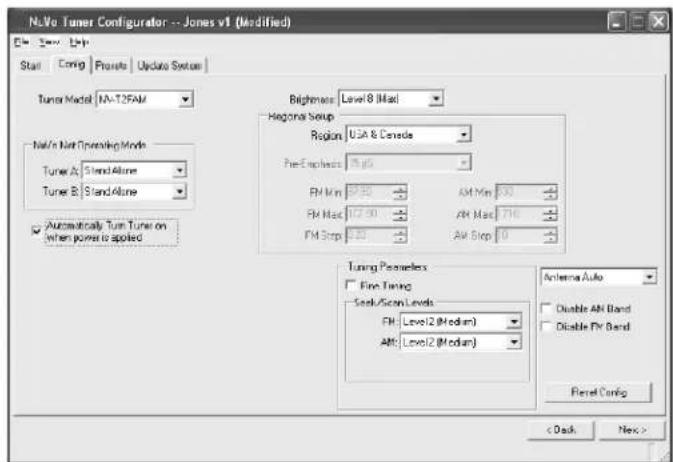
4.0 Advanced Config (Fig. 35)
The Tuner software allows for more advanced settings that, if
n e c e s s a r y , a p r o c e s s f o r b
existing one does not change from the standard mode.
Fig. 35
text_image
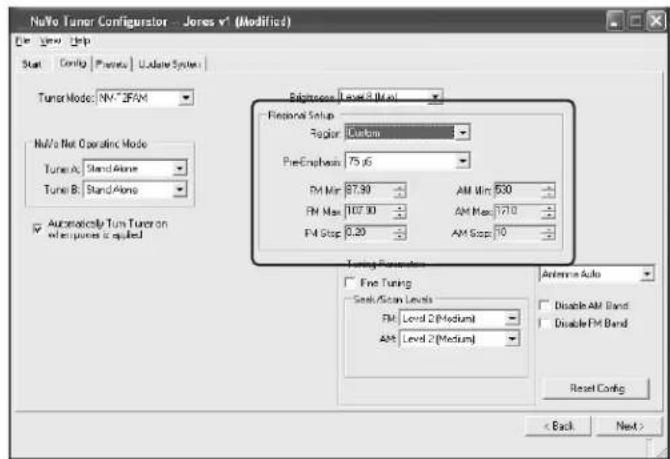
NuVo Tuner Configurator -- Jones v1 (Modified) Start Config Prostrate Update Sectors Tuner Model: AV-T2FAM Nan/in Net Forwarding Mode Tuner A: Stand/Alone Tuner B: Stand/Alone Automatically Turn Tuner on when power is applied Brightness: Level 8 (Max) Regional Setup Region: USA & Canada Pre-Explicator: 75 μS FM Min: 39.50 AM Min: 39.50 FM Max: 12.30 AM Max: 71.0 FM Step: 1.20 AM Step: 0 Tuning Parameters Fine Tuning Seek/Scan Levels FM: Level12 (Median) Alt: Level12 (Median) Antenna Auto Disable Alt Band Disable FV Band Reset Config < Back Next >e4.1 Custom/Regional Setup (Fig. 36): S s o , wme ic t o h at a tuning standard outside the four preset regions. The Custom setting allows specific parameters to be set. One Op r determining factor for tuning is the Pre-emphasis . The two choices for this are (microseconds) and The custom setting also allows for specific setting of the minimum and maximum tuning capability and the individual tuning s t e p s f o r F Ma n
Fig. 36
text_image
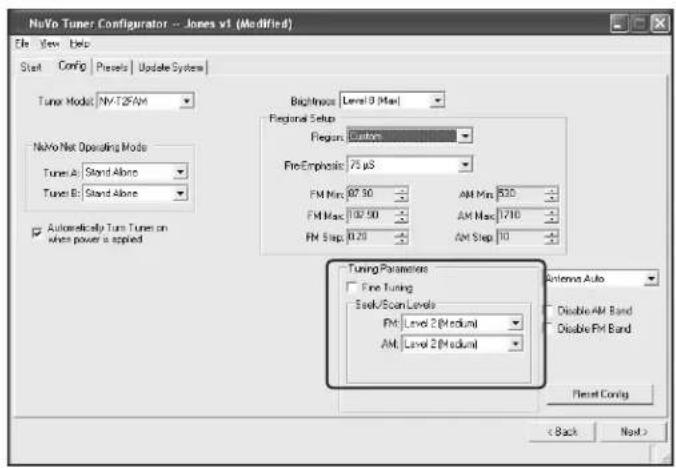
NuVo Tuner Configurator -- Jones v1 (Modified) File View Help Start Config Prompts Update System Tuner Mode: NV-3FAM NuVo Net Operating Mode Tuner A: Stand Alone Tuner B: Stand Alone Autologically Tun Turon on when powers is applied References: Level 8 (Max) Regional Setup Regular Custom PreEmphasis: 75 µG PM Min: 87.90 AM Min: 6.00 PM Max: 107.90 AM Max: 7.10 PM Stop: 2.20 AM Stop: 0 Tuning Parameters Fine Tuning Seek/Scan Levels FM: Level 2 [Medium] AM: Level 2 [Medium] Antenna Auto Disable AM Band Disable PM Band Reset Config < Back Next >4.2 Tuning Parameters (Fig. 37): This section determines how the NV-T2FAM-EX tunes up and down. Seek/Scan Levels for each band, FM and AM, set the signal strength parameter for searching stations. Level 0 (Low), causes the tuner to stop at any frequency with a very low signal, and Level 4 (High), stops only when a very strong signal is detected. The factory default is Level 2 (Medium), which searches for a moderate signal. This setting changes the necessary signal threshold, which is the minimum signal level required for the Tuner to recognize it a n d l o c k o n t o
Fig. 37
text_image
NuVo Tuner Configurator -- Jones v1 (Modified) File View Help Start Config Presets Update System Tuner Modul [NV-T2FAM] NuVo Net Operating Mode Tunes A: Stand Alone Tunes B: Stand Alone Automatically Turn Tunes on white power is applied Brightness: Level 3 (Max) Regional Setup Region: Custom FireEmphasis: 75 µS FM Min: 80.50 AM Min: 630 FM Max: 102.50 AM Max: 1710 FM Step: 0.20 AM Step: 10 Tuning Parameters Fine Tuning Seek/Scan Levels FM: Level 2 (Medium) AM: Level 2 (Medium) Antenna Auto Disable AM Band Disable PM Band Reset Config < Back Next >Fig. 38
text_image
NuVo Tuner Configurator -- Jones v* (Modified) File View Help Start Config Pressets Update System Tuner Mode: MV-2FAM NuVo Net Operatic Mode Tunes A: Stand Alone Tunes B: Stand Alone Automatically Tun Tuner on interpenses is applied Brightness: Level 0 (Max) Rectal Setup Regular: Custom PreEnohoid: 75 µS PM Max: 37.30 AM Max: 5.00 PM Max: 107.90 AM Max: 171.0 PM Step: 0.20 AM Step: 10 Tuning Parameters: Free Tuning Seek/Scan Levels FM: Level 2 [Medium] AM: Level 2 [Medium] Antenna Auto Antenna Auto Antenna On Antenna Off Disable PM Band Reset Coding < Back Next >4.3 Fine Tuning: W h e n s e l e c t e d , F i n e T u
tuning standard for FM from the default .10 MHz tuning to .05 MHz step tuning. AM will tune by single kHz increments, rather than the default 10 kHz for USA and Canada, and 9 kHz for Europe. Smaller tuning steps allow access to all station fre q u e n c i e s
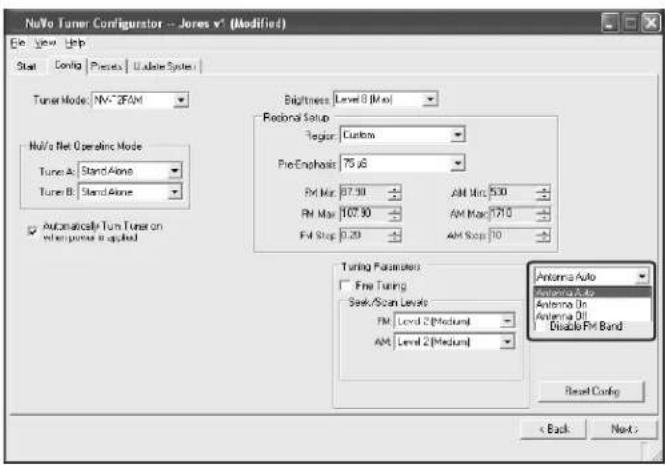
4.4 Antenna Power (Fig. 38): This drop down menu provides options for the way in which power is sent to the attached antenna. The choices are Antenna Auto, Antenna On and Antenna Off. Antenna Auto is the default and allows the T2FAM-EX to supply power to the NV-T2FAA antenna. In instances where you intend on using a third party FM antenna, the Antenna Off choice is necessary to block DC voltage needed for AM reception. This eliminates the need for an inline DC blocker. Antenna On and Antenna Auto serve the same function. A DC voltage must be present for AM reception.
5.0 Update System
W h e n y o u a T2FAM-EX, connect your computer to the DB9, RS232 port of the back panel of the Tuner. Note that you may need a USB RS232 cable if your computer is not equipped with a serial p o r t .
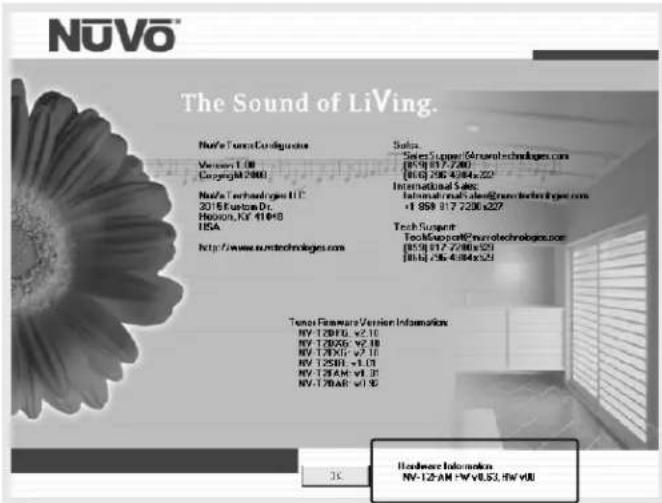
5.1 Help/ About (Fig. 40): You can click on Help and then
About to confirm communication between the computer and the Tuner. The initial software screen will appear. If the current Tuner firmware information is listed in the bottom right-hand corner of the screen, you have good communication. If it does not appear, check your cable connections, and make sure the Tuner is powered on. Often, lack of communication is fixed by c l o s i n g a n d
Fig. 40
text_image
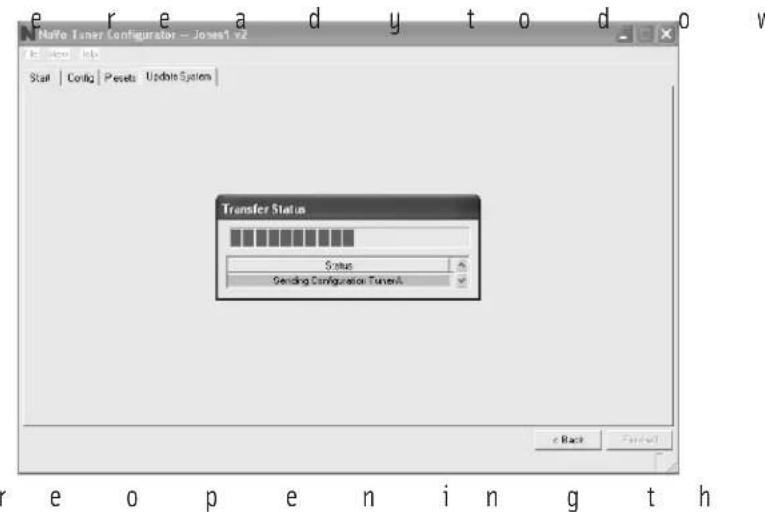
NUVO® The Sound of Living. NuV's Tunes Consigiorus Version 1.08 Copyright 2000 NuV's Technologies LLC 3015 Kvalon Dr. Hoodon, KY 41648 USA http://www.nuveltechnologics.com Sales Series Support/General technologies.com [819] 817-7280 [816] 296-4384x222 International Sales: Internal tech deal@nunvechnologies.com +1 959 817-7236 x227 Tech Support Tech support@nunvechnologies.com [859] 817-7280 x521 [816] 296-4384x521 Tunes Features Version Information NV-12BFLX v2.10 NV-12BASX v2.10 NV-12DVRX v2.10 NV-12SIRX v1.01 NV-12RANX v1.01 NV-12BARX v1.00 Hardware Information NV-12AM +W v8.53, HW VIII5.2 Download Configuration (Fig. 41): The final step in the setup is to download the configuration to the T2FAM-EX via either its RS232 serial port. A progress bar will indicate the
a ct u a l d o w n l
Fig. 41
text_image
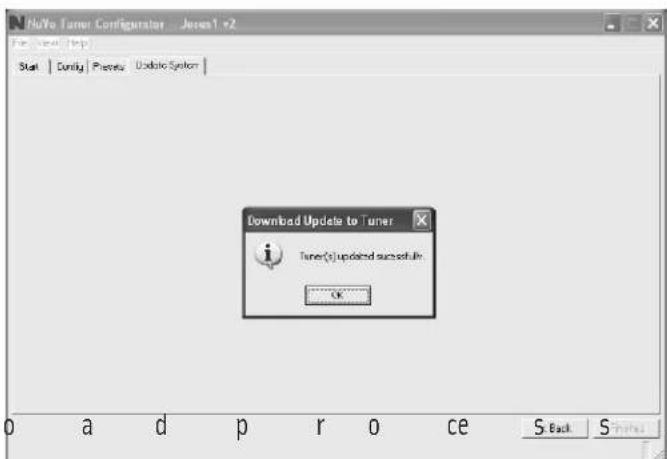
NuFe Tuner Configurator -- Jones1 v2 Status | Config | Presets | Update System | Transfer Status Status Sending Configuration Tuners e Back Cancel5.3 Successful Download (Fig. 42): When the download is complete, a final window will appear indicating that all information has downloaded successfully. Actual download time will vary based on your computer's processing
ca p a b i l i t i e s .
Fig. 42
text_image
NuVo Tuner Configurator - Jones1 v2 Start | Cleanly | Pheno | Update System | Download Update to Tuner Tuner(s)updated successfully: OK S Back S PrintNV-T2FAM-EX Tuner
Specifications
Power Requirements
AC Power Input 90-264 VAC 50/60Hz
Power Consumption, operating 3 W max.
Power Consumption, standby 1 W max.
Memory Backup Indefinite
FM
Tuning Range 87.5 to 108.0 MHz
Total Harmonic Distortion (1 kHz)
| Mono % | 0.3 |
| Stereo % | 0.5 |
Signal to Noise Ratio
| Mono dB | 80 |
| Stereo dB | 75 |
Usable Sensitivity μV 1.0
Selectivity (400 kHz) dB 50
Frequency Response (20 Hz to 15 kHz) dB -3
Stereo Separation (1 kHz) dB 43
Antenna Input 75 Ω (unbalanced)
Usable Sensitivity, 30 dB S/N 14 dBV
Auto Scan Sensitivity Adjustable
Image Rejection 50 dB min.
Limiting Sensitivity 10 dBV
Intermediate Frequency 10.7 MHz
AM
Tuning Range 522 to 1720 kHz
Signal to Noise Ratio 50 dB
Usable Sensitivity 18 μV
Intermediate Frequency 450 kHz
Usable Sensitivity at 25 dB S/N 14 dBV
Auto Scan Sensitivity Adjustable
Image Rejection 50 dB min.
Audio Output Two Stereo Outputs
Level Adjustable
Impedance 560 ohms
Infrared Input
Input Voltage 3–15 V
Input Carrier Frequency 38 kHz nominal
Polarity Active High
Regulatory Approvals
USA Safety Listing (UL 6500)
FCC
Canada Safety Listing (CAN/CSA E60065.00)
ENERGY STAR
Physical Specifications
Unit Size Millimeters 44 H x 430 W x 250 D
Unit Size Inches 1.75 H x 17 W x 9.875 D
Shipping Size Millimeters 205 H x 515 W x 343 D
Shipping Size Inches 8.07 H x 20.3W x 13.5 D
Unit Weight Kilograms 2.36
Unit Weight Pounds 5.20
Shipping Weight Kilograms 6.5
Shipping Weight Pounds 14.3
*NuVo Technologies reserves the right to change specifications without notice.
NV-T2FAM-EX Package Contents
SKU QTY
NV-T2FAM-EX Dual AM/FM Tuner 1
NV-T2FAA AM/FM Active Antenna 1
NV-T2RC4 Remote Control 1
NV-RCA1 RCA Stereo Audio Cable 2
NV-AC2 2 meter RG6 Antenna Cable 1
NV-REM1U Single Space Rack Ear Mount (pair) 1
NV-NC1 3 meter CAT5 Network Cable 1
NV-PC Power Cable (Aus, EU, or UK) 1
NUVO®
NuVo Technologies
3015 Kustom Dr. Hebron, KY 41048, USA
www.nuvotechnologies.com
Ph: 859-817-7200

TNFAM 0838