RCR450 - Controller RCA - Free user manual and instructions
Find the device manual for free RCR450 RCA in PDF.



| Product Type | Universal Remote |
| Brand | RCA |
| Model | RCR450 |
| Number of controllable devices | Up to 4 (TV, VCR, DVD, SAT-CBL) |
| Power Supply | 2 AAA alkaline batteries (included or not depending on model) |
| Battery Saver | Automatic shutdown after 60 seconds of inactivity |
| Technology | Infrared (IR) |
| Programming Methods | Direct code entry and manual code search |
| Compatibility | Infrared devices manufactured after 1990, most brands |
| Preprogrammed for | RCA, GE and PROSCAN (without programming) |
| MENU key | Yes, dedicated for menu navigation |
| LED indicator | Yes, light indicator |
| Maintenance and Cleaning | Clean with a soft, dry cloth |
| Warranty | 90-day limited (product replacement) |
| Documentation | Code lists provided, instruction manual included |
Frequently Asked Questions - RCR450 RCA
User questions about RCR450 RCA
0 question about this device. Answer the ones you know or ask your own.
Ask a new question about this device
Download the instructions for your Controller in PDF format for free! Find your manual RCR450 - RCA and take your electronic device back in hand. On this page are published all the documents necessary for the use of your device. RCR450 by RCA.
USER MANUAL RCR450 RCA
Compatible with today's most popular brands.
Consolidates up to 4 remotes Dedicated MENU key for DVD navigation
Product Diagram 2
Introduction 3
Battery Installation and Information 3
Battery Saver 3
Programming the Remote. 4
Programming Methods 4
Direct Code Entry 4
Manual Code Search and Entry 5
Testing the Code for Maximum Functionality .7
Using the Remote to Control Your Components 8
On-screen Menus 8
Accessing and Selecting Menu Items 8
Exiting a Menu Mode 8
Troubleshooting 8
Warranty 11
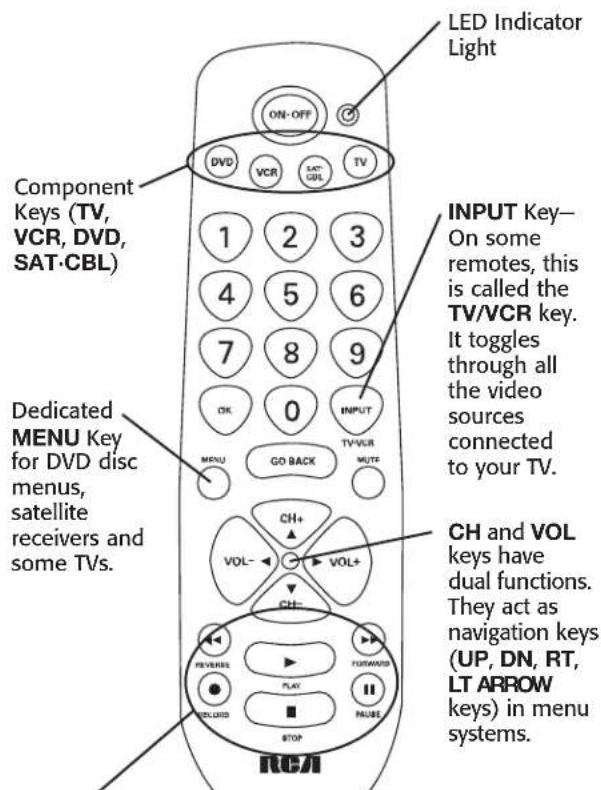
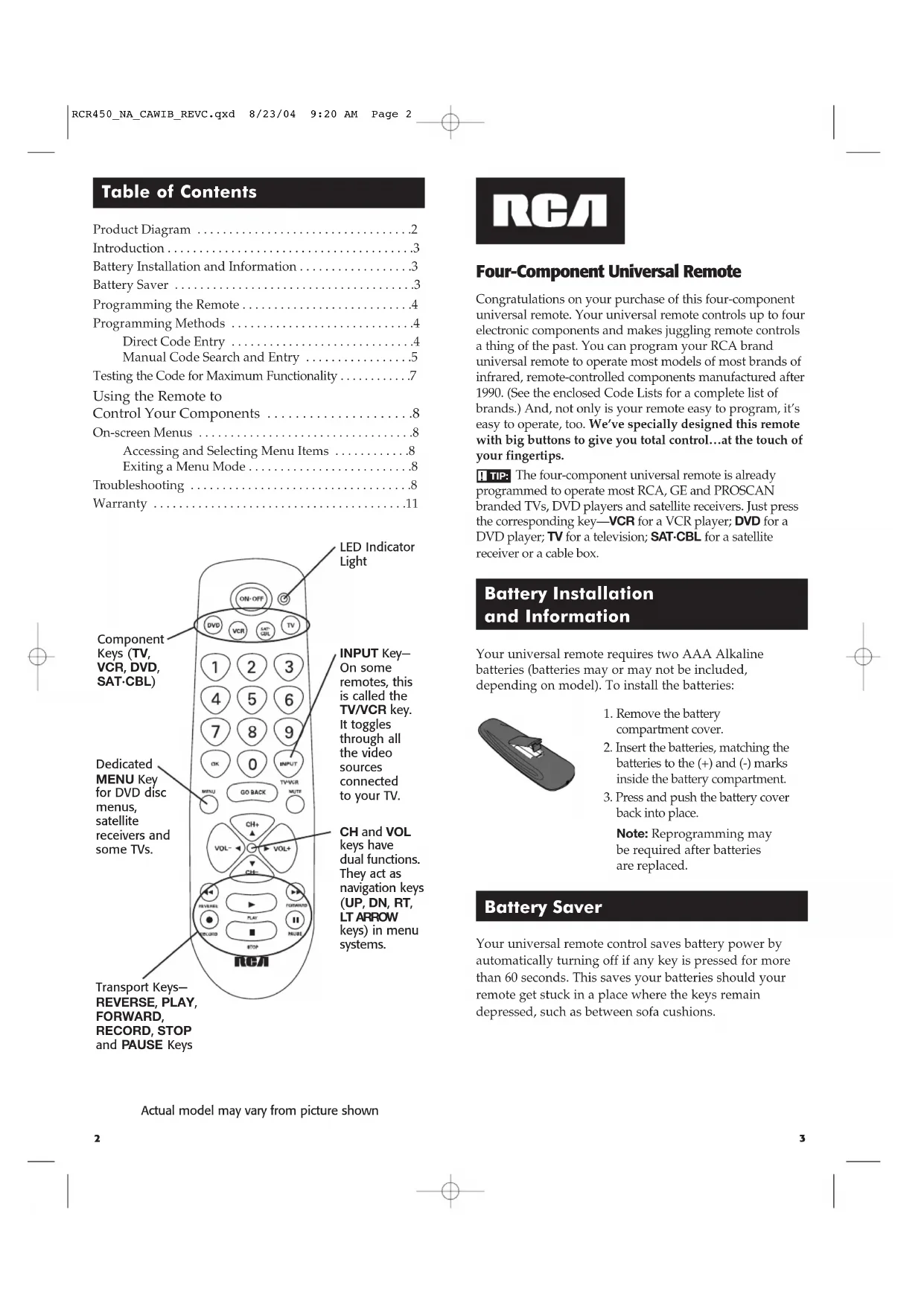
Transport Keys-
REVERSE, PLAY, FORWARD, RECORD, STOP and PAUSE Keys
LED Indicator Light
INPUT Key
On some
remotes, this
is called the
TV/VCR key.
It toggles
through all
the video
sources
connected
to your TV.
CH and VOL keys have dual functions. They act as navigation keys (UP, DN, RT, LT ARROW keys) in menu systems.
Actual model may vary from picture shown
REIA
Four-Component Universal Remote
Congratulations on your purchase of this four-component universal remote. Your universal remote controls up to four electronic components and makes juggling remote controls a thing of the past. You can program your RCA brand universal remote to operate most models of most brands of infrared, remote-controlled components manufactured after 1990. (See the enclosed Code Lists for a complete list of brands.) And, not only is your remote easy to program, it's easy to operate, too. We've specially designed this remote with big buttons to give you total control...at the touch of your fingertips.
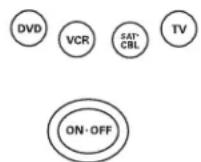
The four-component universal remote is already programmed to operate most RCA, GE and PROSCAN branded TVs, DVD players and satellite receivers. Just press the corresponding key—VCR for a VCR player; DVD for a DVD player; TV for a television; SAT-CBL for a satellite receiver or a cable box.
Battery Installation and Information
Your universal remote requires two AAA Alkaline batteries (batteries may or may not be included, depending on model). To install the batteries:
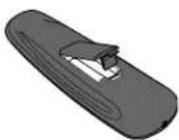
- Remove the battery compartment cover.
- Insert the batteries, matching the batteries to the (+) and (-) marks inside the battery compartment.
- Press and push the battery cover back into place.
Note: Reprogramming may be required after batteries are replaced.
Battery Saver
Your universal remote control saves battery power by automatically turning off if any key is pressed for more than 60 seconds. This saves your batteries should your remote get stuck in a place where the keys remain depressed, such as between sofa cushions.
Programming the Remote
Your universal remote can operate a variety of brands of components. In order for your universal remote to control your components, you need to program the remote with the codes that match the components (See Code Lists enclosed). These codes enable the remote to communicate with your components. Each brand and each component has its own "language," and, by programming the correct codes into your remote, you tell the remote to "speak the same language" as your components.
There are two methods you can use to program your remote control to operate your components: Direct Code Entry and Manual Code Search and Entry. Most components can be programmed in one of these ways. Try them in the order listed.
In order to control combo TV/VCR or TV/DVD units, you must program both the TV key and the VCR or DVD key. Once programmed successfully, the TV key controls the TV functions on your unit, and the VCR or DVD key controls the VCR or DVD functions. There is a specific section in the Code Lists for combo units. The codes in this section should be tried first, using Direct Code Entry on the TV and VCR or DVD keys. If this is unsuccessful, follow the normal programming methods for both the TV and the VCR or DVD keys.
Programming Methods
Direct Code Entry
Toprogram your universal remote to control your components using the Direct Code Entry Method, follow the steps below.
- Manually turn on the component you want the remote to control (TV, VCR, DVD, satellite receiver or cable box).
-
Locate the enclosed Code Lists. Find the list for the component you wish to program. Find your component's brand. You will see a listing of four-digit codes for each brand. If your brand isn't listed, use the Manual Code Search method to program the remote control. (Refer to page 6 for Manual Code Search method.)
-
Press and hold the component key (TV, VCR, DVD, SAT-CBL) you wish to program. The LED indicator light turns on and remains on. If you release the component key any time during the Direct Code Entry procedure, the LED indicator light blinks four times, and the process is exited.
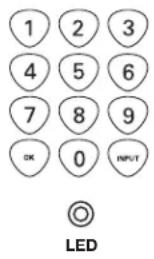

- While holding down the component key, consult the Code Lists for the four-digit code that corresponds to your component's brand and use the number keys (0-9) on the keypad to enter it. While you are pressing the numbers, the LED indicator light turns off.
- After the fourth number is entered, the LED indicator light turns on. At this time, release the component key. If the LED indicator light turns off, you have entered a valid code and have followed the correct procedure for Direct Code Entry.
If you enter a code number that is not in the Code Lists or you do not follow all of the steps for Direct Code Entry, the LED indicator light blinks four times when the component key is released. This is an indication that a programming error has occurred. In that case, repeat the Direct Code Entry process from step 3 and try the next code listed.
I TIP: Throughout the programming of each key, be sure to keep the remote pointed at the IR sensor of the component you are currently programming the remote to control.
- To confirm that the component key is programmed with the correct code for maximum functionality, test the component. Attempt to control a variety of the component's functions with the remote. If some of the features of your components do not work, try programming the remote with a different code in the list until you find the code that allows the remote to control the majority of your component's functions. Different codes can provide different levels of functionality.
Manual Code Search and Entry
If your component's brand isn't listed in the Code Lists, or if you have tried all of the codes for your brand and the remote does not operate your component, try the Manual Code Search. This Code Search method cycles through all of the codes in the Code Lists in the event that your component's code is listed under another brand.
The Manual Code Search method may take a long time because the remote searches through all of the codes in its memory for the code that operates your component. Therefore, if your brand is listed in the Code Lists, first try the Direct Code Entry method described on page 4.


Programming Methods (continued)
TOxit without saving at any point in the Manual Code Search, press and release the GO BACK key.
- Manually turn on the component you want the remote to control (TV, VCR, DVD, satellite receiver or cable box).
Note: If you press an invalid key during the Manual Code Search, the remote does not respond and the LED indicator light does not blink. If you do not press a valid Manual Code Search key (TV, VCR, DVD, SAT-CBL, ON-OFF, GO BACK), the search times out after two minutes. When the search times out, the LED indicator light blinks four times and turns off. The last programmed code under that component key is retained.


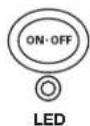

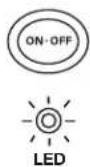
- Press and hold the component key (TV, VCR, DVD, SAT-CBL) you wish to program. The LED indicator light turns on and remains on.
- While holding the component key down, press and hold the ON-OFF key. The LED indicator light turns off.
- After holding down both keys for three seconds, the LED indicator light turns back on.
- Release both keys. The LED indicator light remains on.
ITIP: Throughout the programming of each key, be sure to keep the remote pointed at the IR sensor of the component you are currently programming the remote to control.
- Press and release the ON-OFF key repeatedly until your component turns off. Each time you press the ON-OFF key, the LED indicator light blinks, and the next code in the list is sent. This process continues until all of the codes in the Code Lists have been searched. If your component turns off, you have found the correct code. (If it cycles through and the LED indicator light blinks four times and turns off, all codes have been searched. The Manual Code Search method is exited.)
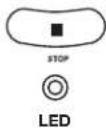
Because there are so many codes, you may have to press the ON-OFF key many times—possibly up to 200 times.
- Once you have found the correct code, you must save the new code by pressing and releasing the STOP key. The LED indicator light turns off. You must press the STOP key to save the code or the correct code will not be stored!
- Once you press the STOP key, the code is stored.
Testing the Code for Maximum Functionality
To confirm that the component key is programmed with the correct code for maximum functionality, it is necessary to test the component. If some of the features of your component do not work, different codes in the list can be tried until you find the code that allows the remote to control the majority of your component's functions. Different codes can provide different levels of functionality. Follow these steps to test for maximum functionality, if you have programmed your remote using the Manual Code Search and Entry Method.
- Once the code has been stored (see Manual Code Search and Entry Method above), use the remote to attempt to control a variety of the component's functions. If the code that has been stored controls the majority of the component's functions, programming is complete. If the code stored does not give maximum functionality, you will want to try another code.
- In that case, repeat the Manual Code Search and Entry Method from step 1. When the component turns off for the first time, do not press the STOP key, which would store the code. Instead, with the unit now off, continue to press the ON-OFF key repeatedly until the unit turns back on. Once the unit turns back on, you have found another code that operates the component. Press the STOP key.
- Test the functionality again by attempting to control a variety of the component's functions. If the code that has been stored controls the majority of the component's functions, programming is complete. If the code stored does not give maximum functionality, you will want to try another code.
- Repeat the Manual Code Search and Entry Method from step 1. Each time a code turns the component on or off, you have found a code that operates the remote and needs to be tested for maximum functionality. Continue through the code lists, cycling through the codes you have already tried, until you find one that offers maximum functionality.
Using the Remote to Control Your Components
Because this remote controls more than one component, you must first "tell" the remote which component you wish to operate. That means, if you wish to operate your TV, you must first press the TV key to put the remote in the TV Mode.
The remote stays in the chosen component mode (such as TV Mode) until you change it. If your remote is in TV Mode, you must change the mode in order to operate your DVD, VCR, satellite receiver or cable box. For example, if you are in VCR Mode, and you wish to turn off your TV, you must press the TV key first before pressing the ON-OFF key.
On-screen Menus
Accessing and Selecting Menu Items
Today's advanced components use on-screen menus to help you navigate through all their features and functions. While this remote cannot access every menu system of every component model, it does offer some menu functionality.
Touse a component's on-screen menu system, you first have to put the remote in Menu Mode.


- Press the component key whose menu you want to access.
- Press the MENU key. The LED indicator light blinks, indicating you are in the Menu Mode.
- Use the VOL+/- and/or CH+/- keys to navigate through the on-screen menu system.
- To make a selection from the on-screen menu, press the MENU or OK key to select the highlighted item.
If the remote doesn't respond, check to see that the LED indicator light is still blinking. Remember: the LED indicator light times out after 20 seconds. If this happens, just press the MENU key again, and then retry your selection.
Exiting a Menu Mode
The remote automatically times out of Menu Mode after 20 seconds of inactivity (no keys being pressed). At that time, the remote clears the displayed menu from the TV.
If you want to exit the Menu Mode yourself, press the corresponding component key on the remote (TV, VCR, DVD, SAT-CBL). The LED indicator light turns off and the remote
is automatically set to control the component whose key you just pressed to leave the Menu Mode. For example, if the remote is in DVD Menu Mode, press the DVD key to exit the Menu Mode. The remote is now out of Menu Mode and is set to control the DVD. To control another component, simply press the component key for the unit you wish to control (TV, VCR, satellite receiver or cable box).
Troubleshooting
Problem: The remote does not operate your component.
- You must put the remote in the correct mode by pressing the corresponding component key (TV, VCR, DVD, SAT-CBL) so the remote knows which component you want to operate.
- Remove any obstacles between the remote and the component. Make sure to aim the remote at the IR sensor on the component.
- Make sure the batteries are fresh and are properly installed. (See Battery Installation on page 3.) Replace the batteries with two new AAA batteries, if necessary. Reprogramming may be required.
- Reset the remote. Remove the batteries, then press and hold the number 1 key on the remote for several seconds to reset the microprocessor inside the remote. Release the number 1 key, reinstall the batteries, and press the ON-OFF key. If the LED indicator light turns on, reprogram the remote and try again. If it doesn't light up, replace the batteries with new ones.
Problem: The remote can't be programmed to operate your component.
- If you are testing the remote after you have entered the code, you may be too far away from the component or at a wrong angle. This remote uses IR (infrared) technology to communicate with components. The remote sends the code, and the component's IR sensor reads the code. Therefore, there must be an unobstructed path between the remote and the IR sensor on the component. Move closer and make sure you point the remote at the component (VCR player when programming the VCR key; DVD when programming the DVD key; TV when programming the TV key; cable box or satellite receiver when you're programming the SAT-CBL key).
- If you've used the Direct Entry programming method to enter the codes for your brand and the unit is still not functioning properly, try the Code Search method. (See Code Search on page 5.)
- To control combo TV/VCR or TV/DVD units, you must program both the TV key and the VCR or DVD key. Once programmed successfully, the TV key controls the TV functions on your unit, and the VCR or DVD key controls the VCR or DVD functions. There is a specific section in the Code Lists for combo units. The codes in this section should be tried first using Direct Code Entry on the TV and VCR or DVD keys. If this is unsuccessful, follow the normal programming methods for both the TV and the VCR or DVD keys.
- Make sure the batteries are fresh and are properly installed.
Troubleshooting (continued)
Problem: The remote is not performing commands properly.
- You must put the remote in the correct mode by pressing the corresponding component key (TV, VCR, DVD, SAT-CBL) so the remote knows which component you want to operate.
- Make sure component is "ready" (e.g., DVD player has disc loaded; VCR has tape loaded, etc.
- You may have pressed an invalid key for the mode the remote is in.
- If you're trying to turn on an RCA, GE or PROSCAN component, press the component key (TV, VCR, DVD, SAT-CBL) instead of the ON-OFF key.
- If you're trying to change channels, try pressing the OK key after entering the channel number as this is a requirement of certain models and brands.
- There is a possibility that a programmed code may only be able to control some of your component features (e.g., only turns a component on and off). To confirm that the component key is programmed with the correct code for maximum functionality, test the component. Attempt to control a variety of the component's functions with the remote. If some of the features of your components do not work, try programming the remote with a different code in the list (using the Direct Entry Method) until you find the code that allows the remote to control the majority of your component's functions. Different codes can provide different levels of functionality.
Problem: The LED indicator light does not turn on when you press a key.
- You must put the remote in the correct mode by pressing the corresponding component key (TV, VCR, DVD, SAT-CBL) so the remote knows which component you want to operate.
- You may have pressed an invalid key for the mode the remote is in.
- Make sure the batteries are fresh and are properly installed. (See Battery Installation on page 3.) Replace the batteries with two new AAA batteries, if necessary. Reprogramming may be required.
Problem: The VCR won't record.
- Make sure the remote is in VCR Mode.
- Make sure the tape is properly loaded in the VCR.
- Make sure the tape is not write-protected. If the safety tab is removed the tape is write-protected, and you cannot record onto that tape.
Problem: The remote will not change channels on your component.
- You must put the remote in the correct mode by pressing the corresponding component key (TV, VCR, DVD, SAT-CBL) so the remote knows which component you want to operate.
-
Press the OK key after you enter a channel number.
-
Remove any obstacles between the remote and the component. Make sure to aim the remote at the IR sensor on the component.
Problem: The component's menu doesn't appear on the TV screen.
Make sure you have connected your component to your TV properly. (See your components' Owner's Manuals for proper connection procedures.)
- You must put the remote in the correct mode by pressing the corresponding component key (TV, VCR, DVD, SAT-CBL) so the remote knows which component you want to operate.
- Menu access isn't supported for all brands. If that's the case, you'll need to use your original remote control to access menu functions for these components.
For more information, please visit www.rca.com.
Limited 90-Day Warranty
Our company (in the U.S., THOMSON INC. / In Canada, Thomson multimedia Ltd.) warrants that for 90 days from date of purchase, it will replace this product if found to be defective in materials or workmanship. For a prompt, no charge replacement of equivalent product, return the defective product postage prepaid to the appropriate address.
In the US: In Canada:
Product Exchange Center Thomson multimedia Ltd.
11721 Alameda Avenue 6200 Edwards Boulevard
Socorro TX 79927 Mississauga, Ontario
Canada L5T 2V7
This replacement is the company's sole obligation under this warranty. THOMSON INC. / Thomson multimedia Ltd. will not be responsible for any incidental or consequential damages or for any loss arising in connection with the use or inability to use this product. Some states/provinces do not allow the exclusion or limitation of incidental or consequential damages, so the above limitation or exclusion may not apply to you. This warranty excludes defects or damage due to misuse, abuse, or neglect. This warranty gives you specific legal rights, and you may also have other rights, which vary from state to state/province to province.
2004 Thomson Inc.
Trademarks(s) © Registered
www.rca.com
Table des matieres
Warranty/Garantle/Garantia
Limited Lifetime Warranty
Our company (in the U.S., THOMSON INC. / In Canada, Thomson multimedia Ltd.) will replace this product, regardless of how long you, the original purchaser, own it if found to be defective in materials or workmanship. For a prompt, no charge replacement of equivalent product, return the defective product postage prepaid to the appropriate address.
In the US: In Canada:
Product Exchange Center Thomson multimedia Ltd.
11721 Alameda Avenue 6200 Edwards Boulevard
Socorro, TX 79927 Mississauga, Ontario
Canada L5T 2V7
This replacement is the company's sole obligation under this warranty. THOMSON INC. / Thomson multimedia Ltd. will not be responsible for any incidental or consequential damages or for any loss arising in connection with the use or inability to use this product. Some states/provinces do not allow the exclusion or limitation of incidental or consequential damages, so the above limitation or exclusion may not apply to you. This warranty excludes defects or damage due to misuse, abuse, or neglect. This warranty gives you specific legal rights, and you may also have other rights, which vary from state to state/province to province.
Garantie limite a vie
Consolidate four remote controls into one!
Operates up to four components:
· TV · DVD or VCR · Satellite Receiver or Cable Box
Dedicated MENU key
Compatible with today's most popular brands!
Your RCA universal remote control is compatible with most brands of infrared remote-controlled components manufactured after 1990. Complete Code Lists included. Operates most RCA, GE and PROSCAN branded products without any programming!
See iridace for details.
Duenas a ltefio. Para mayor informacion, sea adentro.
Code Lists
Brand Codes are used for programming using the Brand Code Search and Entry method outlined in the User's Guide.
Listes de Codes
For a three-component remote control, program the DVR Codes on the VCR · DVD key. For a four-component remote control, program the DVR Codes on the VCR · AUX keys.
VCR/DVR Codes (continued)
Codes de Magnétoscope/DVR (suite)
A three-component remote control will operate your TV/VCR or a TV/DVD combo unit. However, to operate a TV/DVD/VCR combo unit, at least a four-component remote control is required.
ABC 5001,5003,5004,5005,5006
Antronix 5008, 5009
Archer 5008, 5009, 5011
Cabletenna 5008
Cableview 5008
Century 5011
Citizen 5011
Colour Voice 5012
Eastern 5017
Garrard 5011
GC Electronics 5009
GE 5000,5003
Gemini 5018
General Instruments. 5000, 5001, 5003, 5046, 5049
Hamlin. 5020, 5021, 5022, 5035
Hitachi 5003
Jasco 5011
Jerrold. 5000, 5001, 5003, 5005, 5018, 5023, 5046, 5049
Magnavox 5025
Motorola 5000, 5003, 5046, 5047, 5052
Movie Time 5027
NEC. 5005
NSC 5027
Panasonic 5000, 5048
Philips 5011, 5012, 5025
Pioneer. 5033, 5034
PROSCAN. 5003
RCA 5000.5049
Realistic 5009
Regal 5022, 5035
Regency . 5017
Rembrandt 5003
Samsung 5034
Scientific Atlanta 5006, 5036, 5037, 5038
Signal 5018
Signature 5003
Spicer 5000
Starcom 5001 5018
Stargate 5018
Starquest 5018
Jorom 5004 5023
Tusa 5018
IV86 5027
Unika 5008.5009.501
United Cable 5001
Universal 5008, 5009, 5011
View Star. 5025, 5027
Zenith 5000.5050.5051
©2004 THOMSON INC
10330 N. Meridian Street
Indianapolis, IN 46290
R53M1 NA IB/CODES REVD
Trademark(s) Registered
Marque(s) deposee(s)
Marca(s) Registrar(a)
www.rca.com

- REIA
- Four-Component Universal Remote
- Battery Installation and Information
- Battery Saver
- Programming the Remote
- Programming Methods
- Direct Code Entry
- Manual Code Search and Entry
- Programming Methods (continued)
- Testing the Code for Maximum Functionality
- Using the Remote to Control Your Components
- On-screen Menus
- Accessing and Selecting Menu Items
- Exiting a Menu Mode
- Troubleshooting
- Problem: The remote does not operate your component.
- Problem: The remote can't be programmed to operate your component.
- Troubleshooting (continued)
- Problem: The remote is not performing commands properly.
- Problem: The LED indicator light does not turn on when you press a key.
- Problem: The VCR won't record.
- Problem: The remote will not change channels on your component.
- Problem: The component's menu doesn't appear on the TV screen.
- Limited 90-Day Warranty
- Table des matieres
- Warranty/Garantle/Garantia
- Limited Lifetime Warranty
- Garantie limite a vie
- Consolidate four remote controls into one!
- Compatible with today's most popular brands!
- Code Lists
- Listes de Codes
- VCR/DVR Codes (continued)
- Codes de Magnétoscope/DVR (suite)
Brand : RCA
Model : RCR450
Category : Controller