RCR412BN - Controller RCA - Free user manual and instructions
Find the device manual for free RCR412BN RCA in PDF.


User questions about RCR412BN RCA
0 question about this device. Answer the ones you know or ask your own.
Ask a new question about this device
Download the instructions for your Controller in PDF format for free! Find your manual RCR412BN - RCA and take your electronic device back in hand. On this page are published all the documents necessary for the use of your device. RCR412BN by RCA.
USER MANUAL RCR412BN RCA
Universal Remote Control Owner's Manual
RCR412BN / RCR4125N / RCR4125IN
SAVE THIS MANUAL AND THE CODE LIST: Itemme controls ran sometimes lose their programming when you change the bacteria. Make sure you keep the manual and code lists in a safe place so that you can reprogram the remote if you need to.
Tip: This remote is always programmed to operate most RDA Inward TV, VCDs, DVD program and automatic receivers. Just press the corresponding key. DVD for a DVD player, TV for a television. SAT-CBL-DTC for a television receiver. QSI-QLIN for a VCD.
Step 1: Install your batteries
Your universal remote requires two AA alkaline batteries batteries may or may not be induced, depending on model. To install the batteries:
. Remove the battery compartment
05M
-
Insert the batteries, matching the thickness in the (+) and (-) marks inside the battery compartment.
-
Push the battery cover back to place
Battery Precautions:
- Do not mix oil and new batteries - Do not mix diesel, diesel (carbustriene) in natural products (rachal petroleum) batteries - Always remove oil, wood or warm oil batteries promptly and recycle or dispose of them in accordance with Local and National Regulations
Battery Saver
Your universal remote control save battery power by automatically burning oil that key is pressed for more than 65 accounts. This saves your battery life should your remote get stuck in a place where the keys remain depressed, such as between safe cushions.
Step 2: Program your remote
In case that universal remote with your home entertainment system, first you need to program it to control your devices. There are four ways you can program the universal remote to operate your device.
- The Auto Code Search goes automatically through all the ranges for the device you're trying to control. It's the market mentioned, but it can sometimes have a sugar from a small line of other programming methods.
- The Brand Code Search searches through the codes for select brands of devices, it's not as easy as the auto code search, but it can be better.
- The Direct Code Entry lets you enter a code from the accompanying code list for your brand of device. It's not a easy to the other methods, but it's potentially the fastest method.
- The Manual Code Search lets you manually go through all instructions for the choice you're trying to control.
Auto Code Search
The Auto Code Search you automatically through all the orders for the device you're trying to control. When you find the one that operates your device, you can stop the search and show that once
TIPS: Each device key is associated with a type of device that TV is proud to search for TVs, SATA-DTC-DTC for satellite resources, cable modules or digital TV subscribers, DVD for DVD players, and VCR-AUX for VCRs or DVRs. To program a device key for a different type of device, see the Changing a Key's Device Type scoton.
To exit without saving a new code at any point in the Auto Code Search, press the GO BACK key.
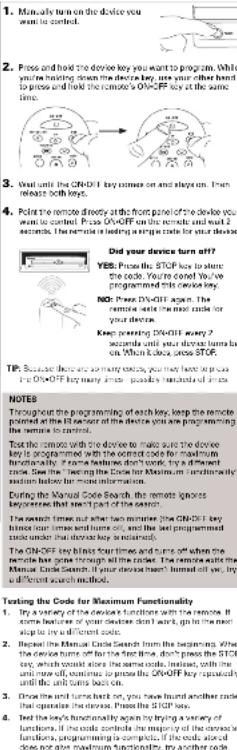
- Manually turn on the device you want to answer.

- Press and hold the device key you want to program. While you're holding down the device key, use your other hand to press and hold the remote's ON-OFF key at the same time.
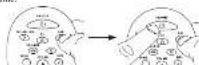
-
And let the 20-011 he comes on and sheep on. From range here, he
-
Form the remote directly at the front panel of the device you want to control. Press PLAY on the remote and wait 3 seconds. The remote is testing a batch of 10 under an your device.

Did your device turn off?
NO: Press PLAY again. The remote basis the next batch of
Step: procuring PLAY entry 5 seconds until your close hume off.
- When your device turns off, press the 31-31 RSI buy on the remote and wait at least 2 seconds. The remote tries the last of the previous ten codes.

Did your device turn on?
YES: Price the S1GP key. You're done! You've programmed this device key.
NO: Press REVERSE again. The remote tests the next
12.38 in one month
Keep pressing REVERSE every 2 seconds until your device turns back on. When it does, press STOP
Note: If you accidentally press the REVERSE key after your device turns on, please the FOLLOW key. Then, will have successfully seen if your device turns off again.
NOTES
Throughout the programming at each key, he sure to keep the remote pointed at the IR sensor of the device you are currently programming the remote to control.
Test the remote with the device to make sure the device key is programmed with the correct code for maximum functionality. It seems features don't work, try a differed mode. See the "Using the Code for Abstrom Functionality" action below for more information.
During the Auto Link Search, the remote igms
Repurchases that their part of the section.
The search times out after two minutes the ON-OFF key, blinks four times and turns off, and the last programmed code under that device key is retained.
The CNOF 1 buy blocks four immorbid turns on when the remote has gone through all the codes. The remote contains the Auto Code Search, if your device hasn't turned off yet try a different search method.
Testing the Code for Maximum Functionality
-
Try a variety of the device's functions with the remote. If some device features don't work, go to next step to try a different code.
-
Decant the Auto Cuts Search Method from the beginning, When your device turns off, do not stop searching. Instead with the unit now off, continue to press the PLAY key every 5 seconds until the unit turns back on.
-
Once the unit turns back on, press the REVERSE key on the remote every 2 seconds until your device turns off again. When your device turns off again, press the STOP key.
-
Box the key's functionally again by attempting to control a variable of the device's functions. If the code that has been stored controls the majority of the device's functions, programming is complete. If the code stored does not give maximum functionality, by another code.
Brand Code Search
The Brand Code: Search goes through only the codes for one of the select brands listed in the accompanying code list. If your brand of device is listed, this search can be very quick and easy.
TPS: Each device say is associated with a type of device—the TV is present to search for TVs. SOT-GBL-DTC for case the backbox, cable boxes or digital TV connectors, DVD for DVD placers, and VCD/AUX for VCDs or DVIs. To program a device key for a different type of device, see the Changing a Key's Device Type section.
The ON-OFF key serves as an indicator light during programming, giving you feedback at each stage of the process.
In all without saving a new code at any point in the lineal Eagle Security, over the 120 BAYX box
- Manually turn on the desire you want to check

- Find your device's brand in the Brand Code list section of the accompanying code list. Circle the number for your brand and have the list cards.

- Press and hold the device key you want to program. While you're holding down the device key, use your other hand to press and hold the remote's ON/OFF key at the same time.
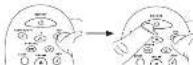
-
Wait until the CN-DCI key turns on and says me. Then release both keys.
-
Look at the number you clicked for your devices brand code number. Pass that number on the number hospital.

- Point the remote directly at the front panel at the distance you want to control. Press CN-DF 1 on the remote and walk 2 seconds. The remote is feeling a single code for what the next travel:

Did your device turn off?
YES: Press the STOP key to store the code. You're done! You've programmed this device key.
NO: Press ON-CFF again. The remote tests the next code for your brand.
Keep pressing ON-CFF every 2 seconds until your device turns back on. When it does, press STOP.
NOTES
Throughout the programming of each key, can move to keep the context purchased at the all times of the device you are currently programming the remote to control.
Test the remote with the device to make some the device key in programmatic with the current code for maximum functionality. It seems features could work by a different code. See the "Testing the Code for Maximum Functionality" section below for more information.
During the Second Cycle Seconds, the new
keypenses that aren't part of the search. The search times out after two minutes the 0's-OFF key linics true times and home off, and the last programmer each under the electric key is returned.
The CH-CFF key blinds four times and turns off when the nematic has gone through all the colors. The nematic acts the Brand Code Search. If your device has been turned off so, try a different search method.
Testing the Code for Maximum Functionality
-
Try a variety of the devices can be called with the panels. If some device features don't work, go to the next step to be a different code.
-
Repeat the Brand Code Search from the beginning. When the device turns off for the first time, don't press the STOP key, which would store the same code. Instead, with the unit now off, continue to press the CN-OFF key repeatedly until the unit turns back on.
-
Decor the air lams back on, you have loans and the ocula that upcuses the day ye. Press the STOP key.
-
But the one's temporarily again by attempting to control a variety of the device's functions. If the code that has been stored controls the majority of the device's functions programming is complete, if the code stored does not give maximum functionally by any other code.
Direct Code Entry
Direct Code Entry kits you enter a code from the accompanying code list for your brand of device, it's not as easy as the other methods, but it's potentially the tested method.
TIP: Each device key is associated with a type of device—the TV is present to search for TVs, SAT-CBL-OTC for satellite receivers, cable boxes or digital TV converters. DVD for DVD players, and VCD-AMUX for VCDs and DADs. In program a particular key for additional types of devices, see the Charging a Key's Device Type section.
The ON-OFF key serves us an indicator light during programming, giving you feedback at each stage of the process.
-
Manually turn on the device you want to control.
-
Find the Code List that came who the remote. Locals the online for the type of device you're trying to program, and find your brand in that section. Circle tree codes for your brand and keep them handy.
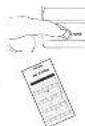
- Share and hold the device say you want to program your ON-OFF key comes out.
While you're holding down the device key, use your other hand enter the first five digit code for your brand in the code. In the ON-OFF key goes off after the first digit.
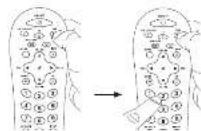
- When your or sincere entering the five-digit module, keep nothing clean the device key and tone at the DX-OFF key
Is the ON-OFF key on?
YES: You're called! Your va progromed this device buy. NO, it blinked four times and turned off: You now either entered a code number that is cut in the code here or missed a step in the code entry procedure. Try step 3 again
Remember in order the code for future reference in the two presented in the Code Retrieval section of this manual. If your label and label in the code set, one was at the Code Search method to program the remote manual, (Refer to the Auto and Manual Code Search methods).
If you release the device key any time during the Direct Code Entry procedure, the ON-OFF key links four times, and the process is exited. The last programmed code under the device key is retained.
Used the remote with the device to make sure the device buy is programmed with the correct scale for maximum functionality. If some features don't work, try a different scope in the list.
Manual Code Search
The Manual Data Search helps you gain one-by-new through all the codes for the device you're trying to control. When you find the one that operates your device, you can stop the search and score that code.
TIPS. The ON-OFF key serves us an indicator light during programming, giving you to check at each step of the process. Each device key is associated with a type of device—the TV is present to search for TV, 500 GB+10C for calling the receiver, radio icon or digital TV connecting I2VD for DVD player, and VCD/ALX or VCDs or DVIs. In program a clean way for a different type of device, see the Charging a Ray's Device Type medium.
The Manual Code Search method may take a long time because the remote search through all of the contact in its memory use options. If your brand is located in the Brand Code or the Code Lists, first try the Brand Code Search on the Direct Code Entry method.
To exit without saving a new code at any point in the Manual Code Search, press the GO BACK key.
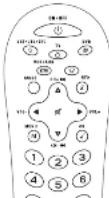
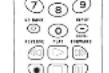
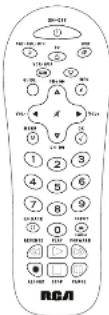
Tour of the Remote
In most cases, the keys on this remote perform the same functions as the keys on your original remote once you've programmed this remote to operate your components. Many keys on this remote have other functions as well.
Illuminated ON/OFF key serves as an indicator light to provide feedback.
Device keys iTV, SAT-CBL-DTC, DVD, VCR-AUX] put the remote in the right mode to control your device.
Backlight key ☑ turns backlighting on/off. GUIDE and MENU put the remote in menu/guide mode, which makes the CH/VDL keys serve as arrow keys; they also access the same features as the keys on your original remains.
CH and VDL keys have dual function. They can act as navigation keys in menu systems as well as channel and volume controllers outside the menus. The CH key also provides step forward and step back controls for DVD players and D/Fs that support this functionality
GO BACK exits remote programming: It also performs the same functions as on your original remotes.
The INPUT and - idash key has three functions: 11. It toggles through all the video frames connected to your TV; 21 when the number is in VCR media, this button toggles between VCR and the TV input; 21 when you're creating digital channel numbers directly, this button lets you separate the main channel number has two sub-channel samples (each on 50 K
IMPORTANT
Because the remote controls more than one device, you must first "bell" the remote which device you want to operate. That means, if you wish to open the your TV, you must first press the TV key to put the remote in the TV Media. The remote stays in that device mode until you press a different device key. For example, if your remote is in TV Media and you want to open the DVD player, you must press the DVD key to change device modes.
Backlighting
Backlight illumination helps you see the nominal control keys rather in the dark. You can turn backlight illumination up or sell by pressing the backlight key. Backlighting stays on as long as days are being pressed and turns off six seconds after the last exposure. Does the backlight time be limited out, any lowercase will use value it. If the backlight illumination is up, and you press the backlight key, the backlight turns off.
Accessing Device Menus and Guides
Many devices use on screen menus and guides to help you navigate through all their features and programming. While this remote may not access every menu or guide system of every device mode, it does offer some menu and guide functionality.
To use a device's on screen menu or guide system, you first have to put the remote in Menu or Guide Mode.
-
Make sure your device are turned on and your TV is out to the correct device input use the INPUT key to toggle through inputs when in TV Mode.
-
Press the device key whose menu you want to access.
-
To access menu, press the MENU key. To access quicken, press the GUIDE key. The ON-OFF key starts blinking, indicating you are in Menu or Guide Mode.
-
Use the VOL+1 and CH4+ keys to navigate through the on-seron menu system or guide. To select the highlighted item, press the CK key. TIP: If the remote doesn't respond, check to see that the ON-OFF key is still blinking. The ON-OFF key times out after 20 seconds. If this happens, just press the MENU key again, and then relay your selection up.
Exiting Menu/Guide Mode
The remote automatically reduces out of Menu or Gustin Mode after 20 seconds of inactivity into key being processed. At that time, the remote clears the displayed menu from the TV. If you want to ask the Menu Mode yourself, press the corresponding device key on the remote (TV, SAT+OBL+DTC, DVD, VCR+AUXI). The ON-OFF key turns off.
Advanced Functions
Changing A Key's Device Type
Each device key is associated with a type of device—the TV is present to search for TVs, SAT-CIR+DTC for satellite receivers, cable boxes or digital TV converters, DVD for DVD players, and VCR+AUX for VCRs or DVRs. To program these keys to control a different kind of device, you have to reassign them first.
Reassigning the VCR-AUX Key To Control Other
Devices
The VCR+AUX key defaults to control a VCR or DVR. If you want, the VCR+AUX key to control a different device (an additional TV, DVD, satellite, cable box or digital TV converter, for example), you must not sign it.
- Press and hold the VCD-ALIX key. The ON-OFF key turns on.
- While holding down the VCD-ALIX key, press and reassess the number key on the looped for the device you wish to control the chart below. The ON-OFF key turns off.
| VCR-AUX KEY CONTROLS: | |
| Additional TV | process 1 |
| VBR or DVD | process 2 |
| Additional DVD | process 3 |
| Additional subline, radio box or digital TV converter | process 6 |
-
Release the VCR-AUX key. The ON-OFF key blints four times and then turns off. The VCR-AUX key is now set to control the device type you selected.
-
Follow the directions in the main, brand, direct entry, no manual code search in program the VCB-AUX key.
Code Retrieval
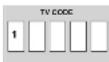
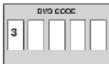
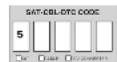
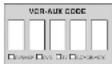
Once you've programmed the remote to control your devices, you may want to record the codes for future reference. If you used the Direct Code Entry method, this is easy. Just find the codes you entered and make a note of them in the boxes below. If you used one of the Code Search methods to program your remote in: If you used the Direct Entry method but don't remember the trade, you will make an exclusive each device's first digit code, receiving the actual code and writing it down will show you time. If you need to program the Direct Entry method, you can use the other words when you change the tabulism. If the codes are almost, you can use the Direct Entry method to reprogram your remote to control your devices, which is quite and easy.

-
While holding the device key down, press and hold the INFO key. The ON-OFF key turns off. After holding down both keys for three seconds, the ON-OFF key turns back on.
-
Release both keys. The ON/OFF key remains on
-
Starting with the number 1 key press and release each number key on the keypad in the following order: 1-9, then 0. The number that causes the ON-OFF key to blink is the first number of the code. As you find each number of the code write it down for future reference.
Note: All TV cables begin with the number 1, all VCR and DVR cables begin with the number 2; all DVDs, the number 3; and all satellite receivers, cable boxes and digital TV converters, the number 5.
- Repeat step 4 until you have retrieved all live numbers in the code. After the fifth number is retrieved, the ON-OFF key blinks briefly, then turns off.
TIP: To exit the Code Retrieval Mode at any time, press the GD BACK help.
Note: If you present invalid key during the Code Retrieval process, the remote will not respond. If you do not press a valid Code Retrieval key (IV, SAT-CIL-CHC, DVD, VEN-AUX, INFO, GO BACK), Code Retrieval times out after 15 seconds. The ON-OFF key blinks four times, and then turns off.
Troubleshooting
Problem: The remote does not operate your device.
- Make sure the remote is in the current mode by penalizing the corresponding device by ITV, SAT-OBL-BTC, DVD, VCR-NUBO. Take the remote which device to accept
- Remove any contactive between the remote and the device. Make sure you're aiming the remote at the device's all sensor. - Make sure the home or are fresh, and are properly installed. Replace the home with two new AA batteries, if necessary (see the memory from location equation).
Problems: The remote can't be programmed to operate your device.
- If you are testing the remote file programming it, you may be not far away from the device or a wrong integer. There must be an unobstructed path between the remote and the 16 sensor on the device. Show a cover and make sure you print the remote or the device you're trying to control.
- Sysin using the Direct Entry programming method to enter the orders for your brand and the unit is still not functioning properly, by the arm, brand, or manual search method. - To create combo units, five T4/60s or T5/60s, you must program the logged all corresponding devices keep to create each part of the order unit. Online programmed connecting the TV key compute the T4 functions, and the iC8/60X or DVD key controls the VCH or DVD functions.
- Make sure the balance are fresh and are properly installed. Problem: The remote doesn't perform commands properly.
- Make sure the remote is in the correct mode by pressing the corresponding device (TV, SAT+CEL+DTC, DVD, VCH+AUX). This kits the remote which device to operate. - Make sure devices is ready. For example, the DVD player has a set loaded.
- You may have stopped an invalid key for the made the remote is in. - If you're trying to enter a channel number directly, try pressing the OK, very after entering the channel number as this is a requirement, of certain models and brands.
There is a possibility that a programmed once may only be able to control some of your device features. For example, only turns a device on and off. To confirm that the device has a programmed with its own device for maximum voltage, but the device is being too wide of its device's functions. With the remote, if some of the owners of your devices don't work, try programming the remote with different codes in the ring using the Eimer Code Every Method, until you find the case that allows the remote to control the majority of your device's functions. Different codes can provide different levels of functionally.
Problem: The ON-OFF key does not light when you press a key. - You may have pressed an invalid key for the mode the remote is le.
• Make sure the remote is in the corner, mode by pressing the corresponding device key ITY, SAT-CEL-BTC, DVD, VCR-VUX. This tells the remote which device to operate.
- Make sure the batteries are fresh and are properly installed. Express the battery with two new 4A batteries, if necessary (see the Battery Installation section).
Problem: The remote will not change channels on device. - Make sure the remote is in the corner mode by pressing the corresponding device key ITV, SAT/CEL/ETC, DVD, VCH/AUXI. The else the remote which device is open.
- Press the UK key after you enter a channel number. - Remove any obstacles between the remote and the device. Make sure to aim the remote at the UK remote on the device.
Problem: The device's menu does not appear on the TV screen. - Make sure you have connected the device to your TV properly and selected the correct input. See your device's manual for
Make sure the remote to in the correct mode by pressing the overstanding device key (TV, BAT-CBL-DTC, DVD, VCR-AUXI) This tells the remote which device to operate.
- Menu access isn't supported for all brands. You may need to use your original remote control to access menu functions for some devices.
For more information, please visit www.reaecessories.com Consumer Help Line: 1-800-420-7868
Care and Maintenance
- Keep the remote dry. If it gets wet, wipe it dry immediately. - Live and above the remote only in normal temperature environments.
- Handle the remote gently and carefully. Don't drop it.
- Keep the remote away from chief and dirt.
- Write the remote with a dump cloth occasionally to keep it
1064-11
- Modifying or hampering with the remote's internal device can cause malfunction and invictions by exactly.
(1) AD = BD = 1
-
Limited Lifetime Warranty
Aurora Electricas Corporation (the "Company") was born to you the industrial province of this product that should it, under corruption and conditions, be proven defective in material or workmanship during the hours of you over it, such as well, will be repaid or increased by the Company's professional change for parts and responsibility. To ensure a replacement offer at the terms of the Germany, the product is also delivered with proof of warranty coverage buy, down bill of sale, specification of orders, incorporation permit, to the Company in the address shown below.
In a Warranty does not own patent, purchased, serviced or sold-value in the United States or Canada. The Warranty is not known value and now not owned or created an investor for installation, removal or reinstallation of the products. The Warranty does not apply if in the Company's opinion, the product has been a respect through alteration, improper installation, maintaining, misuse, neglect, sudden, or the smallest structure of different types like leg, all or a standard or rechargeable.
THE EXTENT OF THE COMPANY'S LIABILITY UNDER THIS WARRANTY IS UNITED TO THE REPAIR OR REPLACEMENT PROVIDED ABOVE AND, IN NO EVENT, SHALL THE COMPANY'S LIABILITY EXCEED THE PURCHASE PRICE READY BY PURC USSED FOR THE PRODUCT.
This Warranty is not all other express warranties or liabilities. ANY IMPLIED WARRANTIES, INCLUDING ANY IMPLIED WARRANTY OF MERCHANTABILITY UTILITY UTILITY FOR A PARTICULAR PURPOSE IS SHALL BE LIMITED TO DIFUSION OR IN THIS WARRANTY IN NO CASE SHALL THE COMPANY IS LIABLE FOR ANY CONSULTURAL OR INDUSTRIAL DAMAGES WHAT SOVER IT'S PERSON OR REPRESENTATION IN AUTHORized to assume for the Company any liability offer that expressed basis in connection with the sale of the product.
Some states/provinces do not allow instructions on how long an implied variety of schools or the exclusion or limitation of industrial non-expected damage to close limits or out-of-use may not apply to you. This material gives you special legal rights and you may also have other rights which may form data/provis and availability.
U.S.A. Auditorium Electronics Corporation, 123 Venus Blvd., Happenaya, New York 1750
CANADA: Audioserventer Center, 60 Genes, GBT Kennedy Road
Unit 3, Door 16, Michigan, Crude 12T 195
22100 Audiovox Accessories Corporation 111 Congressional Blvd., Suite 350 Cannul, IN 48232
Trademark(s) & Registered
ACR12 US Q
REAL
Owner's Manual (English on back)
[Illegible due to severe distortion and noise]
segundo. El control narrow prazo al
The quick brown fox jumps over the lazy dog.


Exposition contents. Compede into, up to 8-10
The following table is in English:


In favor of programs are control
VCR-AUXi personal control
GUIDE, MENU personal
E. notive actual products ex
The following table is in Chinese:
(1) 2017. 9:26-03:00 (LgA range: 50% recupercar. La media OK-OFF as
847-05L-DTC, DVD, VCR-AUXI. Esta is index of control remote of
disposto (po bens) manjor.
In this, four % Morboutsy, Chris Let 192.