
RCR311BIN - Controller RCA - Free user manual and instructions
Find the device manual for free RCR311BIN RCA in PDF.


| Product Type | Universal Remote Control |
| Brand | RCA |
| Model | RCR311BIN |
| Compatibility | Works with most major brands of TVs, DVD players, cable boxes, and more |
| Number of Devices | Up to 4 |
| Power Source | 2 AA batteries (not included) |
| Battery Life | Approximately 6–12 months under normal use |
| Dimensions (H x W x D) | 8.5 x 2.5 x 1 inches |
| Weight | 5.6 oz (with batteries) |
| Color | Black |
| Display | None |
| Backlight | No |
| Control Type | Infrared (IR) |
| Range | Up to 30 feet |
| Programming Method | Auto-code search or direct code entry |
| Code Database | Pre-programmed with thousands of codes |
| Learning Function | No |
| Warranty | 90 days limited |
| Country of Origin | China |
Frequently Asked Questions - RCR311BIN RCA
User questions about RCR311BIN RCA
0 question about this device. Answer the ones you know or ask your own.
Ask a new question about this device
Download the instructions for your Controller in PDF format for free! Find your manual RCR311BIN - RCA and take your electronic device back in hand. On this page are published all the documents necessary for the use of your device. RCR311BIN by RCA.
USER MANUAL RCR311BIN RCA
RCR311SN / RCR311STN
SAVE THIS MANUAL AND THE CODE LISTS!
I am not continuing to sometimes have their programming when you charge the batteries. Make sure you keep the manual and code lists in a safe place so that you can reprogram the remote if you need to.
Tip: This remote is already programmed to operate next 30A-branded TVs, VCDs, DVD players and additional instruments. Just press that corresponding key—VCD/OD for a DVD player. TV for a television, BAT/CBL/DTC for a cable line receiver.
Step 1: Install your batteries
Your universal nature requires two AA aburine bacteria chatteries may or may not be included, depending on model:
To install the batteries:

- Remove the battery
compartment co-e
- Inser the so-called
the batteries to the (1+0) and
(-) marks inside the battery
minewinare.
- Push the history of each hand into
Battery Prescriptions
- Do not mix old and new batteries. - Do not mix alkaline, standard (carbon-goline) or non-negligible (nickel-sulfurine) batteries. - Always remove red, white or white-out batteries promptly and recycle or dispose of them in accordance with Local and National Regulations.
Battery Saver
Your universal remote control saves battery power by automatically turning off if any key is pressed for more than 60 seconds. The never your battery is should your remote gas inside in a place where the keys remain depressed, such as between safe cushions.
Step 2: Program your remote
In use the universal remote with your home entertainment system, and you need to program in control your devices. There are four ways you can program the universal remote to operate your devices:
- The Auto Code Search gives automatically through all the ranges for the device you're trying to control. It's the earliest method, but it can sometimes have longer than some of the other programming methods.
The Brand Code Search searches through the code for select brands of devices, it's not as easy as the auto code search, but it can be false.
The Direct Code Entry lets you enter a code from the accompanying code list for your financial cases. It's not a case to the other methods, but it's potentially the fastest method.
The Manual Code Search Yes you manually go through
and a number for the device you're trying to control.
(五) 本次股东大会的召集和召开程序
Auto Code Search
The Auto Code Search gave automatically through all the orders for the device you're trying to control. When you find the one that operation your devices, you can stop the search and store this code.
TIPS: Each device key is associated with a type of device—the TV or present to search for TVs, SAD/CDI/OTC for satellite receivers, cable boxes or digital TV converters (IDTC), and VCR/PDT for VCRs or DVD players.
To set without a new rule at any point in the auto.
Costar Search, proper the DG BACK key.
(二)交易对方及标的资产的产权关系
- Manually turn on the device you
want to control.

- If you're programming the TV or SAT-CBL-DTC key.
图3-20-2
If you're programming the VCR-OVD key, you need to tell the remote which kind of device you want this key to create, VCR or DVD.
ess and hold the VCR-DVD key. While you're holding down the VCR-DVD key, see your other hand to press the number key for the type of desire you want to control with this key: 2 for VCR, 3 for DVD.
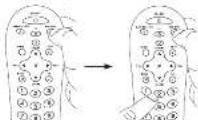
- Precum and help the device buy you want to program. While you're holding down the device buy, use your other hand in peace and hold the remote's SN-OFF buy at the same time.
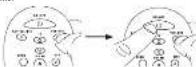
- With until the ON-OFF key comes on and stays on. Then release both keys.
[Non-Text]

- Point the remote address is the front panel of the device you
want to confirm. Press P.OY on the remote and wait 5 seconds.
The remote is testing a batch of
10 codes on your device
(二)本次股东大会的召集和召开程序
Did your device turn off?
YES: Go in step 6.
No. 6: CLN
NO: Phear FLA+ liquid. The removal consists of new gases in 10 orders.
Keep our info FLAX simply 5 seconds until your device turns
Keep p.1227 g, E4 - 00% p.2500 as other, p.6016 to his off.
-

- When your device turns off, press
the REVERSE key on the remote
and was at land 2 quarters.
The vehicle is the last of the previous pet cases.
Pilgrim, Andes, cow
Did your device turn on?
YES: Proced the SICP Org. With me
Ustine: 750 VI program/ase his device box
(1) 2017年1月

NO: Price 11.01/22 again. The molecule looks the role
code in the batch
Keep preaching REVERSE every 2 months until your device
turns thick 8°, 27° 6" fl. abs. press 510°.
Find it you accidentally prove the III X1125, any other year
the first him's, just the "Offsely" say. Then, will now be a good way to pay the idea you'll give.
[Unreadable]
NOTES
Throughout the programming of each key, he sure to keep the remote pointed at the IR sensor of the device you are currently programming the remote to control.
Tea the remote with the device to make sure the
device key is programmed with the correct code for
maxmu= h=db=ally. If some features don't work try
a different rank Sea the "Isving the Code for Suturum
Functionally, _0 is below for more information
During the Auto Code Search, the remote ignores
he presses that aren't part of the season.
The season times out after two minutes (the ON-DEF key
blinks four times and turns off, and the last programmed
Note under that device key is retained.
The ON-DI key blints four times and sums of when the
remote has gone through all one cycle. The remote ends
the Auto Code Search, if your device hasn't turned off yet in a different month window.
(1) 3.5% of the total
Testing the Code for Maximum Functionality
-
Try a variety of the device's functions with the remote. If some device features don't work, go to next step to try a different code.
-
Repeat the Auto Only Search Method from the beginning. When your device turns off, do not stop searching. Instead, with the unit now off, continue to press the FLASH key every 0 seconds until the unit turns back on.
-
Once the unit turns back on, press the REVERSE key on the
remote every 2 seconds until your device turns off again.
When your device turns all again, price the \$130 sig.
- Test the code's functionality again by attempting to control a variety of the device's functions. If the code that has been stored controls the majority of the device's functions programming is complete, if the code stored does not give maximum functionality, try another code.
Brand Code Search
The Brand Code Search goes through only the codes for one of the select Intrinsic listed in the accompanying code list. If your brand of code is listed, this search can be very quick and easy.
TPS: Each device key is associated with a type of device—the TV or packet to search for TV, SAI-CBI-DTC for new the receivers, cable hovers or digital TV consoles (DTC), and VCF/DVD for VCBs or DVD players.
The ONOFF key serves to an indicator light stating programming, giving your feedback at each stage of the process. To exit without saving a new code at any point in the Brand Code Search, press the GO BACK key.
- Manually turn on the desire you
want to control


- If you're programming the TV or SOT-CBL-DTC key,
go to step 3. If you're programming the VCR-DVD key, you need to tell the remote which kind of device you want this key to control. VCR or DVD.
Press and hold the VCR-DVD key. While you're holding down the VCR-DVD key, use your other hand in press the number key for the type of device you want to control with the key: 2 for VCR, 2 for DVD.
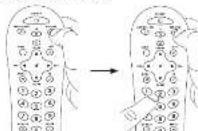
- Find your device's brand in the Brand Code 1st section of the accompanying code list. Grids the number for your brand and has the 1st notes.

- Price and hand the device key you want to program. While you're nothing down the device key, use your other hand to press and hold the remote's ON/OFF key at the same
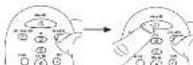
-
Wait until the ON/OFF key comes on and stays on. Then returned both keys.
-
Look at the number you said for your device's brand code number. Press that number on the remote standard.
(2) 指标
[Non-Text]
- Point the remote directly at the front panel of the device you want to control. Price ON/OFF on the remote and wait 2 seconds. The remote is testing a single code for your device's brand.
Did your device turn off?
YES: Press the STOP key to store the code. You're done. You've programmed this device key
NO: Pass OY=OFF again. The ranoid scale the next track for your brand
Keep pressing ON/OFF every 2 seconds until your device has back on. When it does, press STOP.
NOTES
Throughout the programming of each key, be sure to keep the remote pointed at the IR anchor of the device you are currently programming the remote to control. Test the remote with the device to make sure the device key is programmatic with the remote mode for maximum functionality. It some features don't work, try a different code. See the Testing Code for Maximum Functionality similar below for more information.
During the Brand Cycle Search, the novel ignores keycases that aren't part of the search.
The search time, for time now, must have the 10-14 key blines four times and turns off, and the last programmed code under that device key is retained.
The GMCI say that this four times and times all were the remote has gone through all the codes. The remote is to the Brand Code Search. If your device hasn't turned off, try a different search method.
Testing the Code for Maximum Functionality
-
Try a variety of the devices functions with the needs, if some devices have been done, go in the next step to try a different code.
-
Repeat the Brand Code: Scarer from the beginning. When the device turns off for the first time, don't press the STOP key, which would store the same code. Instead, with the unit now off, continue to press the ON-OFF key repeatedly until the unit turns back on.
-
Does the unit turn to set on, you have found that operates the device. Press the STOP key.
-
Just the code's heterogeneity again by attempting to control a variety of the device's functions. If the code that has been stored controls the majority of the device's functional programming is complete, if the code stored does not give maximum functionally, its other code.


Direct Code Entry
Direct Code Entry less you enter a code from the accompanying code list for your brand of devices. It's not as easy as the other methods, but it's potentially the format method.
TP: Each device key is associated with a type of device — but TV is present to search for TVs, S61-SE-CIC for reliable recorders, radio hardware digital TV connectors (CIC), and VCD-DVD for VCRs or DVD players.
The DVD-II key serves as an indicator light during programming, giving you feedback at each stage of the process.
- Manually turn on the device you want to run out.

-
Find the Order list that came with the remote. Locate the section for the type of device you're trying to program, and find your brand in that section. Click the order for your brand and keep them handy.
-
Press and hold the device key you want to program the ON-OFF key comes out.
While you're handling down the device key, use your other hand to enter the first five-digit keys for your brand in the order list the ONE-OFF key goes off after the first digit.
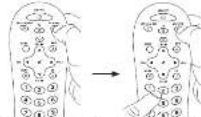
- When you've entered entering the five-digit code, keep nothing down the devices key and mark at the 30-CHI key
Is the ON-OFF key on?
YES: You're counsel. You've programmed this division by. NO₂. It blinked four times and turned off: You have either entered a code number that is not in the code lock or missed a step in the code entry procedure. Try step 3 again.
NOTES
Remember to enter the code for future reference in the box provided in the Code Manual section of this manual. If your brand isn't listed in the code list, one was of the Code Search method in program the remote circuit, order by the Auto and Manual Code Search methods.
If you release the device key any time during the Direct Code Entry procedure, the ON/OFF key links four times, and the process is added. The arc programmed code under the device key is returned.
Use the remote with the remote to make and the remote key is programmed with the smallest scale for maximum functionality. If some features don't work, try a different code in the list.
Manual Code Search
The Manual Code Search lets you go one-by-one through all the codes for the device you're trying to control. When you find the one that operates your device, you can stop the search and store a first code.
[Non-Text]
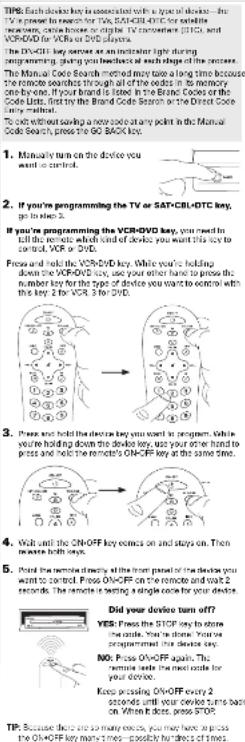
NOTES Throughout the programming of each key, keep the remote pointed at arc. Rescener of the device you are programming the remote to control. Test the remote with the device to make sure the device by a programmed with the next code for maximum frequency. If some features don't work, try a different choice. See the "Testing the Code for Maximum Functionality" section below for more information. During the Manual Code Search, the remote ignores expresses that aren't part of the search. The search times out after two minutes the ON-OFF key blinks four times and turns off, and the last programmed code must be taken by a second. The ON-OFF key blinks four times and turns off which the remote starts through all the codes. The remote starts with the Manual Code Search. If your device hasn't off up, try a different search method.
Testing the Code for Maximum Functionality
-
To a variety of the device's functions with the remote, if some features of your device can't work, go in the mode step to try a different code.
-
Repeat the Manual Code Search from the beginning. When the device turns off for the first time, don't press the STOP key, which would store the same code. Instead, with the unit now off, must be pressed the ON/OIT key repeatedly until the unit turns back on.
-
Once the units turn back on, you have found another code that operates the device. Press the STOP key.
-
Test the key functionality again by trying a variety of functions. If the code controls the majority of the device's functions, programming in complex, if the code stored
Tour of the Remote
in most cases, the keys on this remote perform the same functions as the keys on your original remote once you've programmed this remote to create your components. Many keys on this remote have other functions as well.
Illuminated ON-OFF key serves as an indicator light to provide feedback.
Device keys (TV) SAT-CSL-DTC, VCR-OVD) put the remote in the right mode to control your device.
Backlight key turns backlighting on/off.
GUIDE and MENU put the remote in menuguide mode, which makes the CH/VOL keys serve as arrow keys; they also access the same features as the keys on your original remotes.
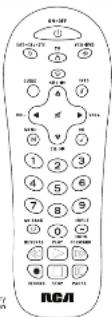
CH and VOL keys have dual functions: they can act as navigation says in menu systems as well as channel and volume controllers outside the menu. The CH keys also provide skip forward and skip back control for DVD players and EVFs that support this functionality.
GO BACK sets remote programming; it also performs the same functions as on your original remotes.
The INPUT and — (dash) say has three functions: 11. It toggles through all the video sources connected to your TV; 21 when the remote is in VCR mode, this button toggles between VCR and the TV input; 31 when you're entering digital channel numbers directly, this button lets you separate the main channel number from the sub-channel number (such as 99.1)
IMPORTANT
Because the remote contains more than one device, you must find "let" the remote which device you want to operate. That means, if you wish to operate your TV, you must first press the TV key to put the remote in the TV Make. The remote stays in that device made until you present a different device key. For example, if your remote is in TV Make and you want to operate the DVD player, you must press the VCD+DVD key to change device makes.
Backlighting
Backlight Illumination helps you use the remote control keys better in the dark. You can turn backlight illumination on or off by pressing the backlight key ☑. Backlighting stays on as long as keys are being pressed and turned off six seconds after the last key press. Once the backlight time has timed out, any key press will reactivate it. If the backlight illumination is on, and you press the backlight key, the backlight turns off.
Accessing Device Menus and Guides
Many devices use on-action menus and guides to help you navigate through all their features and programming. While this remote may not access every menu or guide system of every device model, it does offer some menu and guide functionality.
To use a device's on-screen menu or guide system, you first have to put the remote in Menu or Guide Mode.
-
Make sure your devices are turned on and your TV is set in the correct device input (use the INPUT key to toggle through inputs when in TV mode.)
-
Press the device key whose menu you want to access. 3.
press the GUIDE key. The ON-OFF key starts drinking, indication you see in More or Guise Note.

- Use the VOL-f and CH4-1 keys to navigate through the on-screen menu system or guide. To select the highlighted item, press the OK key. TIP: If the remote doesn't respond, check to see that the ON-OFF key is still blinking. The ON-OFF key times cut after 25 seconds. If this happens, just press the fall VU key again, and then apply your selection.
Exiting Menu/Guide Mode
The remote automatically times out of Menu or Davis Mode after 20 seconds in Michigan (no keys being pressed). At the time, the remote clears the displayed menu from the TV. If you want to exit the Menu Mode yourself, press the corresponding device key on the remote ITV, SAT+OSL+DTC, VCR+DVDs. The ON-OFF key turns off.
Advanced Functions
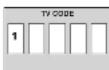
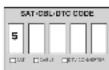
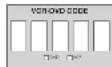
Code Retrieval Once you've programmed the remote to control your devices, you may want to record the codes for future reference. If you used the Direct Code Entry method, this is easy. Just find the codes you entered and make a note of there in the issues below. If you used one of the Code Search methods to program your remote or if you used the Direct Entry method but don't remember the code, you will recall to notice each device's five digit code. Retrieving the actual code and writing it down will save you time if you ever need to program the remote again (e.g., if programming is lost when you change the ballateral). If the code is recorded, you can use the Direct Entry method to reprogram your remote to control your devices, which is quick and easy.

Press and hold the device key (TV, SAT-CBL-OTC, VCR-DVD) when code you wish to achieve. The ON-OFF key turns on. Keep pressing the device key.
-
While holding the device key down, press and hold the INIO key. The ON-CFF key turns all. After holding down both keys for three seconds, the ON-CFF key turns back on.
-
Release both keys. The ON-OFF key remains on.
-
Starting with the number 1 key, press and release each number key on the keypad in the following order: 1-6, then 0. The number that results the O/S-CFF key to link is the first number of the code. As you find each number of the code, write it down for future reference.
Note: All TV codes begin with the number 1; all VCR and DVR codes begin with the number 2; all DVDs, the number 3; and all satellite resoners, cable harness and LTV converters, the number 5.
- Repeat step 4 until you have retrieved all five numbers in the code. After the fifth number is retrieved, the ON-OFF key bins briefly, then turns off.
TIP: To exit the Code Retrieval Mode at any time, press the ECI BACK say.
Note: If you press an invalid key during the Code Retrieval process, the remote will not respond. If you do not press a valid Code Retrieval key (TV, SAT-CRI-OTC, VCD/DVD, INFO, DC BACK), Code Retrieval times not after 15 seconds. The ON-OFF key blinks four times, and then turns off.
Troubleshooting
Problem: The remote does not operate your device.
• Make sure the remote is in the correct mode by pressing the corresponding device key:TV, 85T-CBL-DTC, VCR-OVDI. This talk to the next which is important to
- Remove any obstacles between the remote and the device. Make sure you making the remote at the doctor's 11 sensors. - Make sure the batteries are fresh and are properly installed. Replace the batteries with two new A4 batteries, if necessary into the German control office socket.
Problem: The remote can't be programmed to operate your device.
- If you are testing the remote while programming it, you may be too far away from the device or at a wrong angle. There must be an unbehedral path between the remote and the IR sensor on the devices. Move closer and make sure you point the remote at the device you're trying to control.
- If you're using the Direct Entry programming method to enter the code for your brand and the unit is call not functioning properly, try the auto, brand, or manual search method. - To control code units, how TV/VR River / TMDVDs, you must
program the internal corresponding choice keys to control each part of the combo unit. Since programmed successfully, the TV key controls the TV functions, and the VCR-OVD key controls the VCR or DVD functions.
• Make sure the balance are both and are properly installed.
Problem: The remote doesn't perform commands properly.
- Make sure the remote is in the current mode by passing the corresponding device key (TV, SADCBL-DTC, VCH0V/Dt). This is the remote which denotes to operate.
- Make outDevice is ready (for example), the DVD player has a also loaded;
- You may have proved an email address for the mode the template is in. - If you're trying to enter a channel number directly, try pressing the ENTER key after entering the channel number as this is a requirement of certain models and branches.
- There is a possibility that a programmed code may only be able to control some of your device features (for example, only turns a device on and off). To confirm that the device key is programmed with the correct code for maximum functioning, feed the device. Attempt to control a variety of the device's functions with the remote. If some of the features of your device don't work, dry programming the remote with a different code in the first using the Direct Guide Entry Method, until you find the code that allows the remote to control the majority of your device's functions. Different works can provide different levels of functionality.
Problem: The OFF-OFF key does not light when you press a key. • You may have pressed an invalid key for the mode the remote is in.
- Even sure the events is in the context mode by pressing the corresponding device key (TV, S&P/CBL+DTC, VCH/VD), this leads the remote which device to operate.
- Make sure the borders are fresh and are properly installed. Replace the borders with new now 4/6 borders, if necessary (see the boundary installed at an outlet).
Problem: The remote will not change channels on devices. • Give sure the remote is in the most mode by pressing the
unoperating dosing key:TV, SST-CBI-DTO, VCR-OVD]. This tells the more which dose to a peak.
- Prave the ENIEK key what you enter a channel number. - Remove any obstacles between the remote and the device. Make sure to aim the remote at the IS perape on the device.
Problem: The device's menu does not appear on the TV screen. - Make sure you have connected the device to your TV properly and selected the correct input. (See your doctor's Owner's Manuals for
- Make sure the remote is in the correct mode by pressing the corresponding device by ITV, SAT-CSL-OTC, VCRDVD. This tells the remote which devices to account.
- Many access isn't supported for all brands. You may need to use your original remote control to access many functions for some drinks.
For more information, please visit www.rcsaccessories.com Consumer Help Line: 1-800-420-7958
Care and Maintenance
- Keep the remote dry. If it gets wet, wipe it dry immediately. - Use and store the remote only in normal temperature
- Handle the remote gently and carefully. Don't drop it.
- Keep the remote away from clay and dirt. - Was the remote with a clamp cloth occasionally to keep it looking new.
- Modifying or tampering with the remote's internal devices can cause malfunction and invalidate its warranty.
Limited Lifetime Warranty
Austevia Electronics Corporation (the "Company") is wanted to you the only real portion of this product should be understand or conditions, be proven in order to make a work on the industry. The Extensive Electrical Appliances Inc. will be required or replaced by the Company's options for the charge of the parts, and report other. To obtain or replacement within the terms of the Warranty, the product is to be deferred. In order to maintain coverage for similar risk levels of actual depreciation of derivative transportation provided, the Company's address situation takes
This Warranty does not cover product purchased, serviced or used lands for the Limited Service or Canada. This Warranty is not transferrible and store, not secure to locate imported for installation, removal or installation of the product. This Warranty does not apply in the Company's on-line, the product we can damages through a retailer, improve install rights, handling, misuse, neglect, accident, or the simultaneous use of different hardware types (e.g. ball or round or rechargeable).
THE EXTENT OF THE COMPANY'S LIABILITY UNDER THIS WARRANTY IS UNITED TO THE REPAIR OR REPLACEMENT PROVIDED ABOVE AND, IN NO EVENT, SHALL THE COMPANY'S LIABILITY EXCEED THE PURCHASE PRICE. PAID BY PURCHASER FOR THE PRODUCT.
The company is a stock market other reserve markets for listed, 6/9/01 implied Warrants. This, including any implied warranty of commercial facility or fitness for a particular and purpose shall be limited to valuation of the warranty by no case shall be company's label for any consolidation or derivative mortgages. Not applicable. No person or representative is authorized to assume for the Company's label by other than expressed bonds in connection with the risk of this product.
Some data points and results are available to have long term security links or the exclusion or limitation of indicator or consequential damage on the above intravenous or extravenous may not apply to you. This Women's gives you specific legal rights and your way also have other rights, which vary from data provided now to sales service.
U.S.A.: Audiovax Electronics Corporation, 159 Varns Bred., Progressays, New York, 11288 CANADA: Audiovax Return Centre, do Geno, 6685 Kennedy Road. Unit 3, Day 18, 16:00:0000, Column 157-345.
(0208) Audiovox Accessories Corporation 111 Congressional Blvd., Suite 3M Carmel, IN 46132
Trademark(s) 要 Registered PCR3127/08 05
REAL
Manual del Propietario del Control Remoto Universal RCR312W / RCR311BN / RCR311BIN / RCR311SN / RCR311STN
Owner's Manual (English on back)
Astron: a regular group accelerator in 10 choligres
Aptestor in the 2015

- Si votà programando la tecnio TV o BAT·CSL·DTC, www.pvo.3.
www.rcsaccessories.com
The bested period works now. Since the 2013 intermedia reports.
Ufjavolmoged matal varota inigments te telomok
10.19.26.17
When already, we are to learn something like a new
Marinegal normal stress response delake yly vaciva
list: "male pregnancy completion (or one breast) if prior a query
ELIX AUSTEN PEATRIZACUSTRALIA CNTI NEREMBA NASCO PEETAS KOTCHI, D. INESCUETRA GARANTIAS MAJISTAS, INC. VENOC
CHU CHEN GARANTIA MELICITA DE COMERCIALIDAD O
ACAPTASILIDAD PARA UN PROPOSITE EN PARTICULAR ESTADAS.
LIMITADAS A LA CARRERA DE ESTA GANANT EN ENSINO ESO
- COMPLIPTEN 30-42 IN SPORCHINI - PHELOKLA FRETURA 31 EN 31 INTERFERRA: Nihara, perepa, piograningate, ertl, windrabin, n aumir
of possible results in thickness, outperformance, resistance to aperture or Cu
- The following services described above are perfectly, we also have to be used in our studies
EE.00.: Australia Section by Corporate, 150 Markets Act, Australia
CANADA: 19
CANADA ALABORATORI COM 10 GONSO, 0095 AS 1342, IT-36. Upt: 3 Door '8. Monopatra Cripio LT 142
- SAVE THIS MANUAL AND THE CODE LISTS!
- Step 1: Install your batteries
- Battery Prescriptions
- Battery Saver
- Step 2: Program your remote
- Auto Code Search
- NOTES
- Testing the Code for Maximum Functionality
- Brand Code Search
- Direct Code Entry
- Manual Code Search
- Tour of the Remote
- IMPORTANT
- Backlighting
- Accessing Device Menus and Guides
- Exiting Menu/Guide Mode
- Advanced Functions
- Troubleshooting
- Care and Maintenance
- Limited Lifetime Warranty
- REAL
- Manual del Propietario del Control Remoto Universal RCR312W / RCR311BN / RCR311BIN / RCR311SN / RCR311STN
Brand : RCA
Model : RCR311BIN
Category : Controller