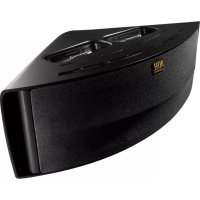
Octiv Duo M202 - Speaker ALTEC LANSING - Free user manual and instructions
Find the device manual for free Octiv Duo M202 ALTEC LANSING in PDF.




| Product Type | Speaker with docking station for iPhone/iPod |
| Brand | Altec Lansing |
| Model | Octiv Duo M202 |
| Dimensions (approx.) | 28 x 14 x 9 cm |
| Weight (approx.) | 1.1 kg |
| Power Supply | 5V DC power adapter (included) |
| Main Functions | Dual docking station for iPhone/iPod, simultaneous charging of both devices, multi-function remote control, AUX audio input (3.5 mm), USB port for charging a third device |
| Compatibility | iPhone and iPod (with included adapters), other audio devices via AUX input |
| Control | Buttons on the speaker and infrared remote control (battery included) |
| Maintenance and Cleaning | Clean with a soft, slightly damp cloth (mild soap and water). Avoid harsh solvents |
| Safety | Do not expose to water or humidity. Unplug during thunderstorms. Use only the provided adapter |
| Spare Parts and Repairability | Spare parts available from the manufacturer. No user-serviceable parts. Refer all repairs to qualified personnel |
| General Information | Speaker with dual dock, ideal for listening to and charging two Apple devices simultaneously |
Frequently Asked Questions - Octiv Duo M202 ALTEC LANSING
User questions about Octiv Duo M202 ALTEC LANSING
0 question about this device. Answer the ones you know or ask your own.
Ask a new question about this device
Download the instructions for your Speaker in PDF format for free! Find your manual Octiv Duo M202 - ALTEC LANSING and take your electronic device back in hand. On this page are published all the documents necessary for the use of your device. Octiv Duo M202 by ALTEC LANSING.
USER MANUAL Octiv Duo M202 ALTEC LANSING
Altec Lansing Octiv Duo Speaker System for iPhone and iPod Players
Thank you for purchasing the Altec Lansing Octiv Duo speaker system. Designed specifically to work with your iPhone and iPod players, this dual-docking/charging speaker system provides high-quality audio performance that brings out the best in your music. It does everything a docking speaker does multiplied by two!
Please carefully read this User Guide for instructions on setting up and using your Octiv Duo speaker system.
Prior to installing or operating the Altec Lansing Octiv Duo speaker system, refer to the important product safety information.
Getting Assistance
The answers to most setup and performance questions can be found in the Troubleshooting section of this guide. You can also consult the frequently asked questions (FAQ) in the customer support section of our Web site at www.alteclansing.com.
If you live in North America and still can't find the information you need, please call our customer service team for assistance before returning this product to your retailer under their return policy.
Tel: 800-258-3288 (Toll Free in US and Canada)
Email: csupport@alteclansing.com
If you live outside of North America, please visit our Web site at www.alteclansing.com and select your region to locate your country's distributor.
For the most up-to-date information, be sure to check our Web site at www.alteclansing.com.
International Distribution
International customers: For information regarding the distribution of Altec Lansing products in your country, please visit www.alteclansing.com and click on your region.
Registering Your Product
Visit www.alteclansing.com to register your product online, so we can provide you with the best possible service and technical support.
FCC Compliance
Changes or modifications not expressly approved by the party responsible for compliance could void the user's authority to operate this equipment.
This device complies with Part 15 of the FCC Rules. Operation is subject to the following two conditions:
1) This device may not cause harmful interference, and
2) This device must accept any interference received, including interference that may cause undesired operation.

The lightning flash with arrowhead, within an equatorial triangle, is intended to alert the user to the presence of uninsulated "dangerous voltage" within the product's enclosure that may be of sufficient magnitude to constitute a risk of electric shock to persons.
Safety Information

Caution: To prevent the risk of electric shock, do not remove cover (or back). No user-serviceable parts inside. Refer servicing to qualified service personnel.
The exclamation point within an equilateral triangle is intended to alert the user to the presence of important operating and maintenance (servicing) instructions in the literature accompanying the appliance.
CAUTION
To prevent electric shock do not use this (polarized) plug with an extension cord, receptacle or other outlet unless the blades can be fully inserted to prevent blade exposure.
WARNING
To reduce the risk of fire or electric shock, do not expose this appliance to rain or moisture.
IMPORTANT SAFETY INSTRUCTIONS
- Read these instructions.
- Keep these instructions.
- Heed all warnings.
- Follow all instructions.
- Do not use this apparatus near water. This apparatus shall not be exposed to dripping or splashing, and no objects filled with liquids, such as vases, shall be placed on the apparatus.
- Clean only with dry cloth.
- Do not block any ventilation openings. Install in accordance with the manufacturer's instructions.
- Do not install near any heat sources such as radiators, heat registers, stoves, or other apparatus (including amplifiers) that produce heat.
-
Do not defeat the safety purpose of the polarized or grounding-type plug. A polarized plug has two blades with one wider than the other. A grounding type plug has two blades and a third grounding prong. The wide blade or the third prong are provided for your safety. If the provided plug does not fit into your outlet, consult an electrician for the replacement of the obsolete outlet.
-
Protect the power cord from being walked on or pinched particularly at plugs, convenience receptacles, and the point where they exit from the apparatus.
- Only use attachments/accessories specified by the manufacturer.
- Use only with the cart, stand, tripod, bracket, or table specified by the manufacturer or sold with the apparatus. When a cart is used, use caution when moving the cart/apparatus combination to avoid injury from tip-over.
- Unplug this apparatus during lightning storms or when unused for long periods of time.
- Refer all servicing to qualified service personnel. Servicing is required when the apparatus has been damaged in any way, such as power-supply cord or plug is damaged, liquid has been spilled or objects have fallen into the apparatus, the apparatus has been exposed to rain or moisture, does not operate normally, or has been dropped.
- Do not install in an area which impedes the access to the power plug. Disconnecting the power plug is the only way to completely remove power to the product and must be readily accessible at all times.
- Do not install the appliance in a confined space, such as a bookcase or built-in cabinet.
NOTE The lithium-ion battery must be properly recycled or disposed of. Please contact your local recycling center for proper battery handling and disposal instructions.
Please read FCC information and important safety logos at the bottom of the unit.
Contents
Welcome.
Safety Information 1
Package Contents 3
Getting Started 4
Placing and Removing Adapters for the iPhone and iPod 5
Speaker Features and Indicators 6
Speaker Controls. 7
Full-featured Remote Details. 8
How to Listen to Your iPhone or iPod 10
Charging your iPhone or iPod 10
Listening to Your Non-docking iPod or Other Portable Audio Device 11
Charging a Third USB Device. 12
Maintaining Your Speaker System 12
Troubleshooting 13
Warranty 16
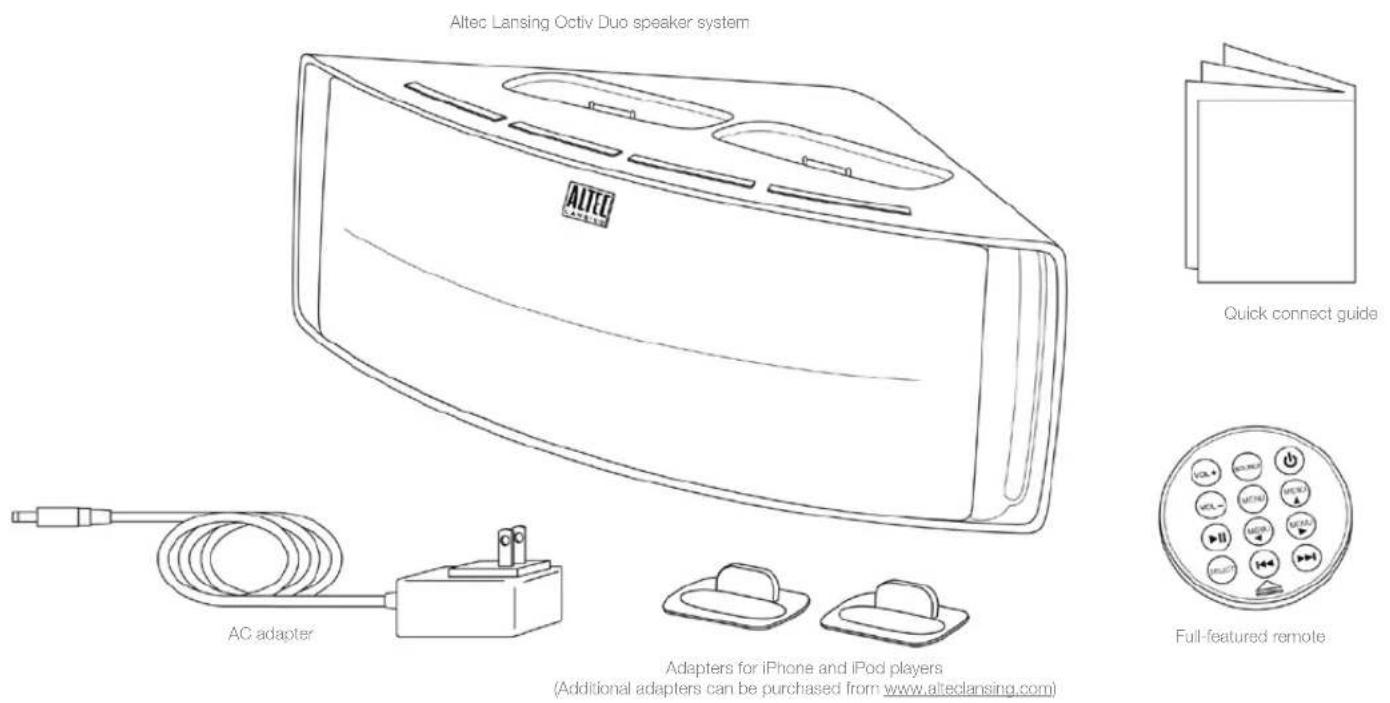
Package Contents
m
Getting Started
Place your Altec Lansing Octiv Duo speaker system on a desk, bookshelf, counter, or other hard surface.
WARNING In order to prevent accidentally dropping your iPhone or iPod players, be sure to remove them from the docking stations before picking up the speaker system.
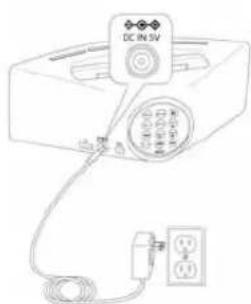
How to Install the AC Adapter
1 Connect the AC adapter cable plug into the speaker system's jack. The jack is located on the back of the system and is labeled DC IN 5V.
2 Plug the AC adapter into the wall outlet.
WARNING Use of another AC adapter may damage the product. Use only the supplied AC adapter (available on www.alteclansing.com).
How to Connect the Full-featured Remote Battery
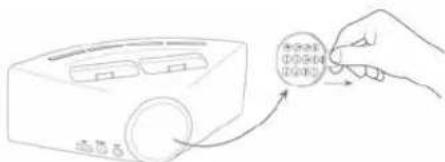
The full-featured remote battery (included) is installed at the factory. However, there is a piece of plastic film inserted between the battery and the remote's contact to prevent the battery from draining during shipping. To remove this film, follow the steps below:
Pull the battery holder out about halfway.
The battery door is located on the lower end of the remote. Use your thumbnail to pull the tab to open the battery holder.
2 Pull the plastic film out of the remote.
Push the battery holder back into the remote, making sure the battery stays in place.
NOTE Please discard used batteries properly.
Placing and Removing Adapters for the iPhone and iPod
Your Altec Lansing Octiv Duo speaker system includes removable adapters for today's popular iPhone and iPod models. These adapters ensure that your iPhone and iPod properly fit in the speaker system's dock. As new iPhone and iPod models are introduced, new adapters will be made available to customers. You may also use the adapter supplied with your iPhone or iPod, or available for purchase at www.alteclansing.com or www.apple.com.
How to Place an Adapter
1 Select the correct adapter for your iPhone or iPod. Using the correct adapter ensures a proper fit for your iPhone or iPod.
2 Insert the front edge of the adapter first.
3 Gently press the rear of the iPhone or iPod adapter into the dock. Now you can carefully place your iPhone or iPod into the dock.
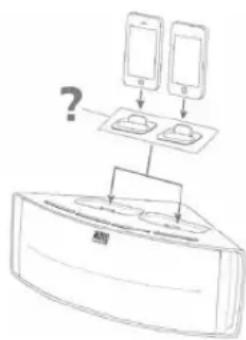
NOTE Your iPhone or iPod cannot be in a case.
How to Remove an Adapter
1 Remove your iPhone or iPod.
2 Grip the rear of the adapter and pull gently upward.
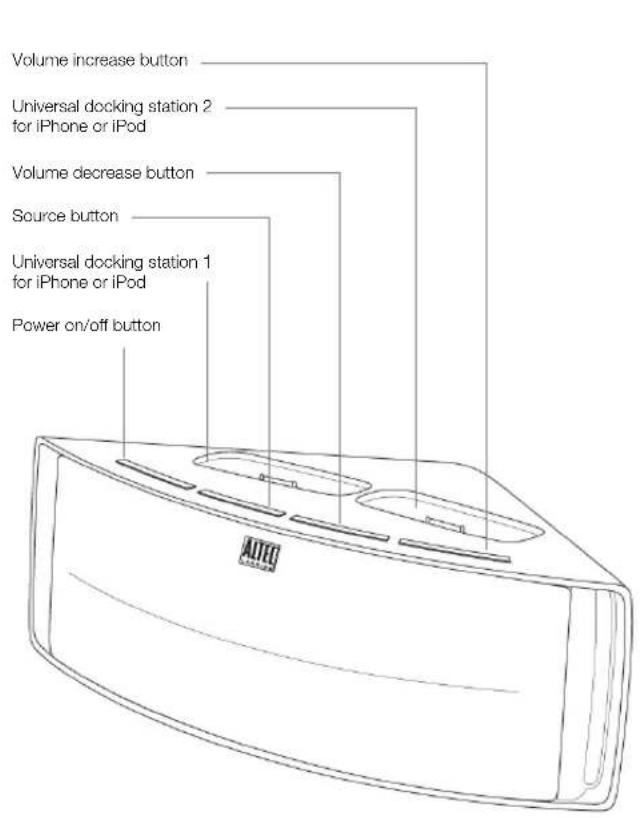
Speaker Features and Indicators
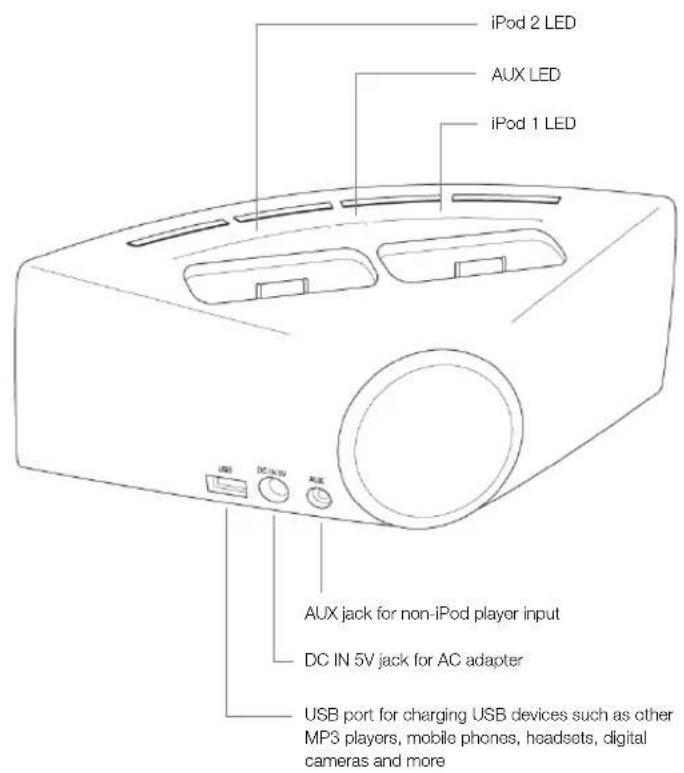
Speaker Controls
| Turn on your speaker system | Ensure the AC adapter is connected to the system and plugged into the wall. See the Getting Started section for more information. Press the \( \oplus \) button. |
| Turn off your speaker system | Press the \( \phi \) button. Whenever you are finished using your speaker system, please remember to turn it and your iPhone,iPod or other MP3 player off to conserve electricity. |
| Change audio source | Press the "SOURCE" button to cycle through the audio sources: iPod 1, iPod 2, or AUX. |
| Turn up the volume Press the "+" button. | |
| Turn down the volume Press the "-" button. |
Full-featured Remote Details
The full-featured remote lets you operate many functions of your Altec Lansing Octiv Duo speaker system:
| Turn on your speaker system | Press the ⑥ button. |
| Turn off your speaker system | Press the ⑥ button. |
| Turn up the volume Press the "VOL +" button. | |
| Turn down the volume Press the "VOL -" button. | |
| Play/pause a song on your iPhone or iPod | In "iPod 1" or "iPod 2" mode, press the ① button to begin playing a selected track. Press the button again to pause it. |
| Skip to the beginning of the current song or to the previous track on your iPhone or iPod | In "iPod 1" or "iPod 2" mode, press the ④ button. |
| Rewind the currently playing track on your iPhone or iPod | In "iPod 1" or "iPod 2" mode, press and hold the ④ button. |
| Skip to the beginning of the next song on your iPhone or iPod | In "iPod 1" or "iPod 2" mode, press the ④ button. |
| Fast-forward the currently playing track on your iPhone or iPod | In "iPod 1" or "iPod 2" mode, press and hold the ④ button. |
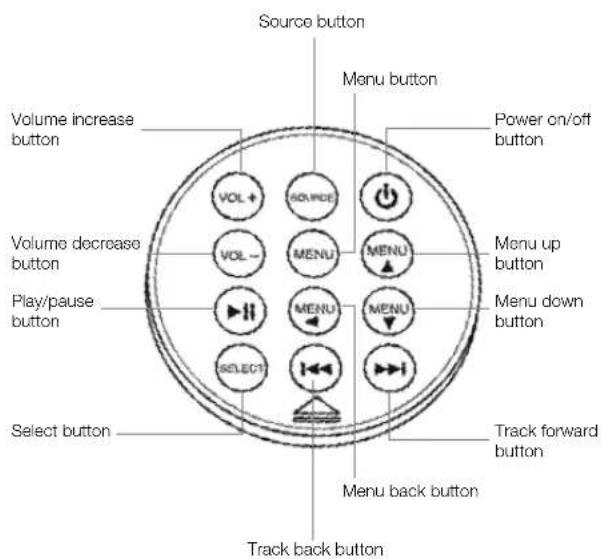
Full-featured Remote Details
| Change audio source | Press the “SOURCE” button to cycle through the audio sources: iPod 1, iPod 2, or AUX. |
| Enter the menu on the iPod In “iPod 1” or “iPod 2” mode, press the MENU button to enter the menu on the active iPod. | |
| Navigate up in the menu | In “iPod 1” or “iPod 2” mode, press the MENU button to scroll up within a menu screen on the active iPod. |
| Navigate down in the menu | In “iPod 1” or “iPod 2” mode, press the MENU button to scroll down within a menu screen on the active iPod. |
| Navigate back in the menu | In “iPod 1” or “iPod 2” mode, press the MENU button to move back one level within a menu on the active iPod. |
| Make a selection in the menu | In “iPod 1” or “iPod 2” mode, press the “SELECT” button to make a selection within a menu on the active iPod. |
NOTE For best results, aim the full-featured remote toward the Octiv Duo speaker system.
How to Listen to Your iPhone or iPod
1 Dock your iPhone or iPod in the Altec Lansing Octiv Duo speaker system.
2 Turn on your speaker system. Press the 品 button.
3 Select the appropriate "iPod" mode.
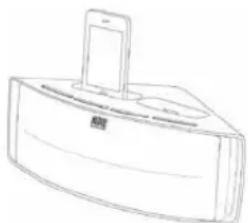
Press the "SOURCE" button on your speaker system or full-featured remote until the associated LED lights up - either "iPod 1" or "iPod 2," depending on which docking station your iPhone or iPod is in.
4 Press the button on your iPhone or iPod.
Music from your iPhone or iPod will start playing. The speaker system and its remote are capable of controlling 3rd-generation iPod models, the iPod touch and iPhone.
5 Adjust the volume.
Use the "+" and "-" buttons on the Altec Lansing speaker system or the "VOL +" and "VOL -" buttons on the full-featured remote to adjust the system volume.
6 Find your desired song.
Press the or button on the full-featured remote to go to the next or previous track. Press and hold the or button on the full-featured remote while a track is playing for high-speed forward or reverse music search of the current track.
NOTE The speaker system is compatible with the alarm clock and sleep timer features built into select iPhone and iPod models. For these features to work properly and play through the speaker system, the speaker system must be connected to a wall outlet and turned on. See the user guide for iPhone or iPod for details on how to access these features.
Charging Your iPhone or iPod
Whenever your iPhone or iPod players are docked and your Altec Lansing Octiv Duo speaker system is plugged into an AC outlet, your iPhone or iPod players are charging (until fully charged) - even if the speaker system is switched off. Your Octiv Duo speaker system is capable of charging two iPhone or iPod players simultaneously.
Listening to Your Non-docking iPod or Other Portable Audio Device
If you have a third audio device, you can enjoy it through your Altec Lansing Octiv Duo speaker system as well. Just connect it via the AUX jack. Here's how:
1 Locate a 3.5mm stereo cable (not included).
2 Plug one end of the stereo cable into your device.
Your device should have either a headphone or LINE OUT jack for you to plug into.
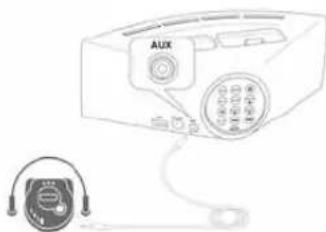
3 Plug the other end of the stereo cable into your speaker system's AUX jack.
The AUX jack is located on the back of the unit.
4 Turn on your speaker system.
Press the button.
5 Select "AUX" mode.
Press the "SOURCE" button on your speaker system or the full-featured remote until the "AUX" LED lights up.
6 Turn on your device and start it playing.
7 Adjust the volume.
Use the "+" and "-" buttons on the speaker system or the "VOL +" and "VOL -" buttons on the full-featured remote to adjust the volume.
NOTE You may need to adjust the device volume also. Your device's volume should be set to approximately 34 volume.
8 When you are finished listening to your portable audio device, please remember to turn both it and your speaker system off to conserve electricity.
Charging a Third USB Device Maintaining Your Speaker System
You can also power and charge a third iPhone or iPod, a non-iPod MP3 player, or other non-docking USB device (e.g. mobile phones, headsets, digital cameras and more) through the Altec Lansing Octiv Duo speaker system. Just connect it via the USB jack. Here's how:
1 Locate a USB cable (not included) that will fit the USB port on the back of the Octiv Duo speaker system and your device.
2 Plug one end of the USB cable into your device. Your device should have a USB connector on it.
3 Plug the other end of the USB cable into your speaker system's USB jack. The USB jack is located on the back of the unit.
Your device is now charging.
Place your speaker system on a level surface away from sources of direct sunlight or excessive heat.
Protect your furniture with a piece of cloth or other protective material when placing your speaker system on a natural wood or lacquered finish.
Clean your speaker system with a soft cloth moistened only with mild soap and water. Stronger cleaning agents, such as benzene, thinner or similar materials, can damage the surface of the unit.
Troubleshooting
| Symptom Possible Problem Solution | ||
| Speaker system doesn't respond (no power) | AC adapter isn't plugged into a wall outlet or the connector isn't plugged into the power supply jack on the back of the speaker system. | Plug the AC adapter into a wall outlet and plug the connector into the power supply jack on the back of the speaker system. |
| Wall outlet is not functioning. Plug another device into the same outlet to confirm the outlet is working. | ||
| The power isn't turned on. | Turn on the speaker system by pressing the Ⓞ button. The "Power" LED lights up. | |
| iPhone or iPod doesn't dock properly | The wrong adapter for iPhone or iPod is being used, or no adapter. | Make sure the adapter is the proper one for your iPhone or iPod. |
| iPhone or iPod didn't install properly. Remove your iPhone or iPod from the dock and check for obstructions on the connectors in the dock and on your iPhone or iPod. Then reseat it in the dock. | ||
Troubleshooting
| Symptom Possible Problem Solution | |
| iPhone or iPod doesn't respond to the speaker system or remote | iPhone or iPod is not installed properly. Remove your iPhone or iPod from the dock and check for obstructions on the connectors in the dock and on your iPhone or iPod. Then reseat it in the dock. |
| Your iPhone or iPod software is too old. Upgrade software on your iPhone or iPod. For details visit www.apple.com/ipod/download. | |
| iPhone or iPod is locked up. Please make sure your iPhone or iPod is working properly before docking into the unit. Please refer to your iPhone or iPod manual for details. | |
| Using 1st- or 2nd- generation iPod, iPod shuffle or other devices. Your speaker system cannot control those iPod models or other devices. | |
| The wrong adapter for iPhone or iPod is being used. Make sure the adapter is the proper one for your iPhone or iPod. | |
| iPhone or iPod didn't charge | iPhone or iPod is not installed properly. Remove your iPhone or iPod from the dock and check for obstructions on the connectors in the dock and on your iPhone or iPod. Then reseat it in the dock. |
| iPhone or iPod is locked up. Please make sure your iPhone or iPod is working properly before docking into the unit. Please refer to your iPhone or iPod manual for details. | |
| AC adapter isn't plugged into a wall outlet, or the connector is not plugged into the power supply jack on the back of the speaker system. Plug the AC adapter into a wall outlet and plug the connector into the supply jack on the speaker system. | |
| The wrong adapter for iPhone or iPod is being used. Make sure the adapter is the proper one for your iPhone or iPod. | |
Troubleshooting
Symptom Possible Problem Solution
| Sound is distorted | Volume level is set too high. Decrease the volume. | |
| Sound source is distorted. If the iPhone or iPod original sound source (sound file) is of poor quality, distortion and noise are easily noticed with high-power speakers. Try a different audio source such as a music CD. | ||
| Full-featured remote doesn't work | Battery is weak. Replace current battery with a new battery. | |
| Full-featured remote is not pointed toward the speaker system. | Point the full-featured remote toward the Altec Lansing speaker system and move within 10 feet of the unit. | |
| No sound from the AUX device, such as an MP3 player or CD player connected to the AUX jack | Volume on the device is set too low. Increase the volume on the device to approximately 3/4 full volume. | |
| Source selector is not set to AUX. Set source selector to AUX. | ||
| The speaker system exhibits erratic or unexpected behavior; controls do not function | Static electricity, momentary interruption of power or abnormal operating conditions may be responsible. | 1. Disconnect the AC adapter cable plug from the speaker system's jack.2. Wait 20–30 seconds.3. Reconnect the AC adapter cable plug to the speaker system's jack. |
Warranty
ALTEC LANSING ONE-YEAR LIMITED WARRANTY
What Does the Warranty Cover?
Altec Lansing warrants that its products shall be free from defects in materials or workmanship, with the exceptions stated below.
What Is the Period of Coverage?
This warranty runs for one year from the date of purchase. The term of any warranties implied by law shall expire when your limited warranty expires. Some states and/or Member States in the European Union do not allow limitations on how long an implied warranty lasts, so the above limitation may not apply to you.
What Does the Warranty Not Cover?
This warranty does not cover any defect, malfunction or failure that occurs as a result of: improper installation; misuse or failure to follow the product directions; abuse; or use with improper, unintended or faulty equipment. (For information on proper installation, operation and use consult the manual supplied with the product. If you require a replacement manual, you may download a manual from www.alteclansing.com.) Also, consequential and incidental damages are not recoverable under this warranty. Some states do not allow the exclusion or limitation of incidental or consequential damages, so the above limitation or exclusion may not apply to you.
What Will Altec Lansing Do to Correct the Problem?
Altec Lansing will, at its option, repair or replace any product that proves to be defective in material or workmanship. If your product is no longer being manufactured, or is out of stock, at its option, Altec Lansing may replace your product with a similar or better Altec Lansing product.
How to Get Warranty Service
To get a covered product repaired or replaced, you must contact Altec Lansing during the warranty period by email (csupport@ateclansing.com). You must include in your email, your name, address, email address, telephone number, date of purchase and a complete description of the problem you are experiencing. In the United States, you may alternatively contact Altec Lansing by telephone at 1-800-ALTEC88 - please be prepared to provide the same information. If the problem appears to be related to a defect in material or workmanship, upon proof of purchase Altec Lansing will provide you a return authorization and instructions for return shipment. Return shipments shall be at the customer's expense. You should insure the shipment as appropriate because you are responsible for the product until it arrives at Altec Lansing.
How Will State Law Affect Your Rights?
This warranty gives you specific legal rights, and you may also have other rights which vary from state to state. Please note that in the European Union, you as a consumer might have other legal rights under national legislation of European Union Member States governing the sale of Altec Lansing's goods. Those rights are not affected by this guarantee.
The above limited warranties and remedies are sole warranties and remedies available to purchaser, if, and to the extent, valid and enforceable under the applicable law.
DISPOSAL OF OLD ELECTRICAL AND ELECTRONIC EquipMENT

This symbol on the product or on its packaging indicates that this product shall not be treated as household waste. Instead it shall be handed over to the applicable collection point for the recycling of electrical and electronic equipment. By ensuring this product is disposed of correctly, you will help prevent potential negative consequences for the environment and human
health, which could otherwise be caused by inappropriate waste handling of this product. The recycling of materials will help to conserve natural resources. For more detailed information about recycling of this product, please contact your local city office or your household waste disposal service.
Bienvenue
ASIA/PACIFIC 23/F, Office Tower, Shun Hing Square Diwang Commercial Centre, 5002 Shen Nan Dong Road, Shenzhen, China 518006
Product specifications and appearance are subject to change without notice.
made for iPod) and "Made for iPhone" mean that an electronic accessory has been designed to connect specifically to iPod or iPhone, respectively, and has been certified by the developer to meet Appo performance standards. Apple is not responsible for the operation of this device or its compliance with safety and regulatory standards.
1-year limited warranty (2 years in Europe; see inside for details).
©2019 Atec Lansing, LLC. All rights reserved.
ALTEC, ALTEC LANSING, the Altcc Lansing logo, Hcar What's Next, Cctiv, and M202 are trademarks or registered trademarks of Altcc Lansing LLC.
IPhone and iPod are trademarks of Apple Inc., registered in the U.S. and other countries.
All other trademarks appearing herein are the property of their respective owners.
Designed by Altec Lansing in the USA, Made in China. A13976 R01


- Getting Assistance
- International Distribution
- Registering Your Product
- FCC Compliance
- Safety Information
- CAUTION
- WARNING
- IMPORTANT SAFETY INSTRUCTIONS
- Contents
- Package Contents
- Getting Started
- Placing and Removing Adapters for the iPhone and iPod
- How to Place an Adapter
- Full-featured Remote Details
- How to Listen to Your iPhone or iPod
- Charging Your iPhone or iPod
- Listening to Your Non-docking iPod or Other Portable Audio Device
- Adjust the volume.
- Charging a Third USB Device Maintaining Your Speaker System
- Troubleshooting
- Warranty
- ALTEC LANSING ONE-YEAR LIMITED WARRANTY
- What Does the Warranty Cover?
- What Is the Period of Coverage?
- What Does the Warranty Not Cover?
- What Will Altec Lansing Do to Correct the Problem?
- How to Get Warranty Service
- How Will State Law Affect Your Rights?
- DISPOSAL OF OLD ELECTRICAL AND ELECTRONIC EquipMENT
- Bienvenue
Brand : ALTEC LANSING
Model : Octiv Duo M202
Category : Speaker