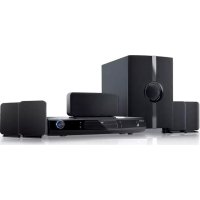
DVD968 - Home Theater System COBY - Free user manual and instructions
Find the device manual for free DVD968 COBY in PDF.



User questions about DVD968 COBY
0 question about this device. Answer the ones you know or ask your own.
Ask a new question about this device
Download the instructions for your Home Theater System in PDF format for free! Find your manual DVD968 - COBY and take your electronic device back in hand. On this page are published all the documents necessary for the use of your device. DVD968 by COBY.
USER MANUAL DVD968 COBY
Please read carefully before use. Léa el manual antes de usar
about oPTiCal DiSCS 7
Disc Requirements 7
DVD Features. 7
DVD Region Codes 8
Disc Care and Maintenance 8
Handling a Disc 9
Cleaning a Disc 9
DVD968 aT a glaNCE 10
Front Panel 10
Rear Panel 11
Remote Control 12
Battery Installation 12
Remote Key Functions 13
CoNNECTioNS 17
Video System. 17
Composite Video Out (Standard) 18
Component Video Out (Good) 18
HDMI Video Out (Best) 18
Audio System 19
Speakers 20
RCA Stereo Audio Out (Optional, Standard) 21
Coaxial Digital Audio Out (Optional, Best) 21
Stereo Line Input 22
Power Supply & Installation 22
Power Supply 22
Power Management 23
Installation 23
Table of Contents
gETTIng STaRTED 24
Turning the Unit On 24
Select the Video Line 24
Select the Source Mode 24
Load a Disc (or other media) 25
BasicPlayback Instructions 25
Play/Pause/Stop 26
Previous/Next (Skip) 26
Forward/Reverse (Search) 26
Step 26
RepeatPlayback 27
Adjusting the Sound 27
oPERaTioN MoDES 28
DVD/CD Discs 28
Additional DVD Controls 28
Digital Media Discs. 29
Menu Operation 29
JPEG Picture Discs 29
Thamburger Mode Operation 30
USB Drives & Memory Cards 31
Menu Operation 31
Tuner (AM/FM Radio) 32
SySTEM SETuP 34
General Setup Page 34
TV Display 34
Angle Mark 35
OSD Language (On-Screen Display Language) 35
Closed Captions 35
Screen Saver 36
HDCD (High Definition Compatible Digital) 36
Last Memory 36
Table of Contents
Audio Setup Page 37
Analog Audio Setup 37
Digital Audio Setup 38
Channel Delay 39
Equalizer 39
3D PROCESSING 40
Dolby Digital Setup 42
Video Setup Page 43
Video Output 43
Resolution 43
Color Setting 43
HDMI SETUP 44
HDMI 45
DivX VOD(DivX Video-on-demand) 45
Preference Page 46
TV Type 46
PBC (Play Back Control) 46
Audio, Subtitle and Disc Menu 47
Parental 47
Password 47
Password Mode. 47
Password 48
Default 48
SPECiFiCaTioNS 49
TRoubleSHooTiNg 50
SaFETy NoTiCES 54
Package Contents
Please make sure that the items shown below are included in the package. Should an item be missing, please contact the local retailer from which you purchased this product.
Main Unit1.
Satellite Speakers (x4)2.
Center Speaker (x1)3.
Subwoofer Speaker (x1)4.
Remote Control5.
AM Loop Antenna6.
FM Wire Antenna7.
AV Cable8.
Speaker Cables9.
Features
Thank you for purchasing a Coby Home Theater System! Please read this manual carefully before connection and operation and keep it for future reference.
This DVD player is a new generation home player that can produce high-quality video and audio for your continued enjoyment.
Built in digital audio decoders (Dolby Digital, LPCM, MPEG, etc.)
High-fidelity 96kHz/24bit audio digital signal processor
Coaxial digital audio output
Playback support from USB drives and SD/MMC/MS memory cards
Compatible with DVD, CD, CD+G, and JPEG discs
Full function remote control
AM/FM stereo tuning system
High-quality integrated amplifier
About Optical Discs
Disc Requirements
This DVD player supports playback of the following media types and discs.
| Type Disc Mark Content Type | ||
| DVD Audio | + Video DVD VIDEO | |
| CD Audio | COMPACT DISC DIGITAL AUDIO | |
| JPEG Still Picture | PICTURE CD COMPATIBLE | |
| CD + G Audio + Graphics | ||
This unit can play back optical discs or memory cards that contain digital media files, MPEG-4, or JPEG files. Discs and media types not listed above are not supported by this unit (e.g., PC CD-ROM, CD-Extra, CD-I, etc.)
DVD Features
Each DVD disc contains features that may vary depending upon the production of the disc. Some of the icons you may see that represent these features are shown below.
| 2 | Number of Audio Tracks |
| .2. | Number of Subtitles |
| ∞2 | Angle Indicator |
| 16:9 L8 | Screen Format (Aspect Ratio) |
| + | Zoom |
About Optical Discs

Some of the DVD features enabled by this player depend on how the DVD was produced. Some features may not be enabled if the disc does not support the feature, or it may require special settings. Check the features printed on the DVD package or follow the instructions found on the disc's on-screen menu.
DVD Region Codes
DVD discs and DVD players are manufactured under a compulsory worldwide agreement, the DVD Regional Code System. DVD players will only operate with DVD discs encoded with the same corresponding Regional Code.
| Region Code Region | |
| 1 Canada, USA | |
| 2 Europe (including Poland, Romania, Czech Republic), Japan, Middle East (including Saudi Arabia, Egypt, Iran, South Africa) | |
| 3 East Asia (including Hong Kong, Taiwan, South Korea), Southeast Asia | |
| 4 Australia, Caribbean, Central America, South America, Mexico, New Zealand | |
| 5 Africa, the former Soviet Union, India, North Korea, Pakistan, Turkmenistan | |
| 6 China | |
Disc Care and Maintenance
Optical discs (DVDs, CDs) contain high-density compressed data and need proper handling.
About Optical Discs
Handling a Disc
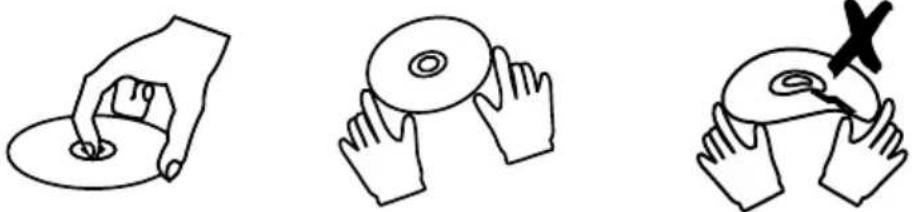
Hold a DVD/CD by its edges. Avoid touching the recorded side of the disc. To remove a DVD/CD from its storage case, press down on the center retention mechanism of the case and lift the disc out.
Do not bend or press discs.
Do not subject discs to prolonged exposure to direct sunlight, high humidity, or high temperatures.
To reduce the risk of scratches, always put discs back in their case after use. Store discs vertically in a cabinet.
Do not place stickers or labels on either side of a disc.
Cleaning a Disc
Use a dry, soft cloth to wipe off any fingerprints and dusts from the playing surface of the disc. Wipe in a straight line radially from the center to the outside edge of the disc. Small dust particles and light stains will not affect playback quality.

Never use chemicals such as record sprays, anti-static sprays, benzene, or thinners to clean a disc. Doing so will damage the surface of the disc permanently.
Front Panel
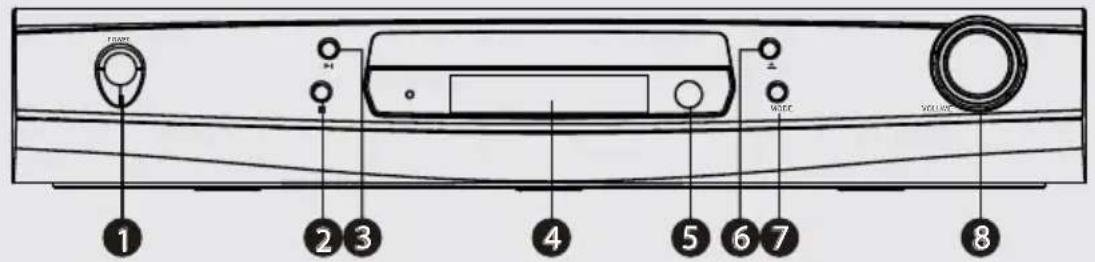
Power Switch1.
Stop2.
Play/Pause3.
Display Screen4.
Remote Control Sensor5.
Open/ Close6.
Video Output Mode7.
Master Volume Knob8.
Rear Panel
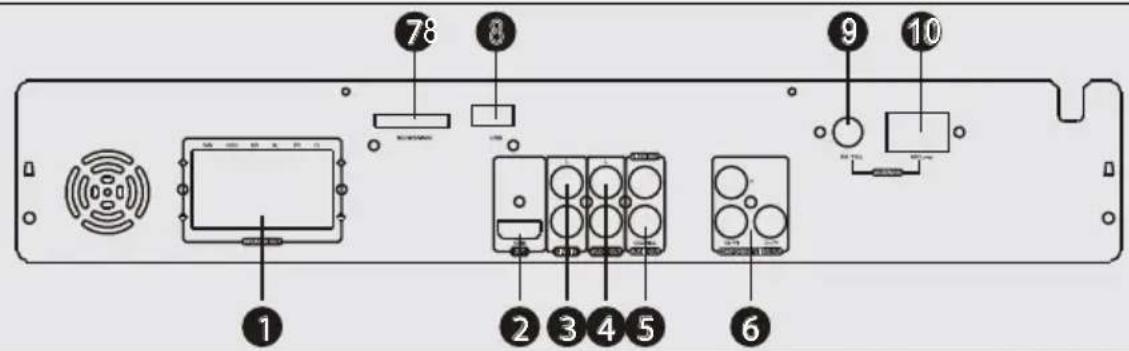
Speaker Output1.
HDMI Output2.
Line Input3.
2-CH Audio Output4.
Coaxial Digital Audio Output5.
Component Video Output6.
Memory Card Slot7.
USB Slot8.
FM Antenna Jack9.
- AM Antenna Jack
Remote Control
The remote control transmits a directional infrared beam. Be sure to aim the remote control directly at the infrared remote sensor during operation. The sensor may not be able to receive signals properly if the sensor is covered, if there is a large object between the remote control and the sensor, or if it is exposed to direct sunlight or a strong artificial light (e.g., fluorescent or strobe lights). If possible, change the position of the light source or reposition the unit to avoid direct lighting.
To use the remote, point it at the remote sensor of the player. Operate the remote within 15 feet of the sensor and at an angle of ± 60 degrees.
Battery Installation
Remove the battery compartment cover located on the rear of the 1. remote control.
Insert batteries, making sure to match their polarities (+/-) to the 2. markings on the inside of the compartment.
Replace the cover.3.

Batteries in the remote will last for approximately 1 year. Replace the batteries if the remote control does not work. Always dispose of batteries according to your local municipal regulations.
The batteries used in the remote control may present a fire or chemical burn if mistreated. Do not recharge, disassemble, incinerate, or heat the battery ( 212^ ). Do not mix old with new batteries, or different types of batteries. Remove the batteries from the remote if it will not be used for a long period of time. Keep batteries away from children.
Remote Key Functions
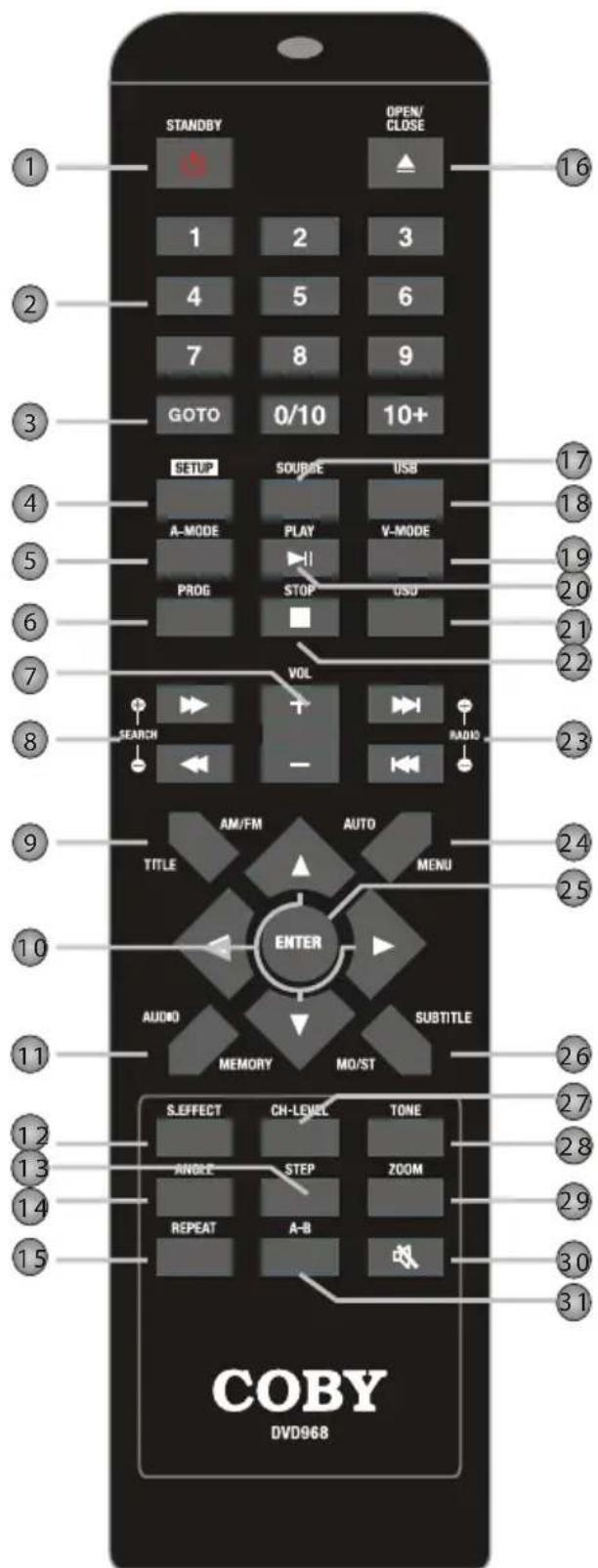
| Name Description | ||
| 1 | Standby | Turn the unit on or off (standby). The Main Power switch on the rear panel must be set to the ON position. |
| 2 | Numeric Keypad | <0-9, 10>: Use the numeric keypad to input numbers where appropriate. <+10>: Add 10 to input numbers higher than 10. For example, press <+10> twice and then press <5> to input the number "25". |
| 3 | GOTO | Enter Direct Access mode to go to a specific part of a movie. |
| 4 | SETUP Enter the main | setup menu of the unit. |
| 5 | AUDIO OUTPUT MODE | Press to switch the audio mode between 5.1-CHANNEL OUTPUT and STEREO OUTPUT. |
| 6 | PROG Enter Program | mode to create a custom playlist. |
| 7 | VOL+ Increase the volume level. | |
| VOL-Decrease the volume level. | ||
| 8 | FORWARD | Video & Music] Increase the rate of forward playback (fast-forward). |
| SEARCH + | [Radio] Tune to a higher station frequency. | |
| REVERSE | [Video & Music] Increase the rate of reverse playback (rewind). | |
| SEARCH - | [Radio] Tune to a lower station frequency. | |
| 9 | TITLE [DVD] Enter the DVD Title menu. | |
| AM/FM | Radio: Change between the AM and FM bands. | |
| 10 | Navigation Keypad | <NArrow Keys>: Navigate on-screen menus. |
| 11 | AUDIO | [DVD] Change the DVD audio channel (requires a DVD featuring multiple audio channels). |
| MEMORY | [Radio] Manually save the current frequency as a preset station. | |
| 12 | S.EFFECT | Change the sound effect options. |
| 13 | STEP | [DVD] Play DVD video frame by frame. |
| 14 | ANGLE | [DVD] Change the angle view (requires a DVD featuring multiple camera angles). |
| 15 | REPEAT Change the repeat playback options. | |
| 16 | OPEN/CLOSE Open/Close the disc tray. | |
| 17 | SOURCE | Change the source input mode of the unit (e.g., DVD-VIDEO, LINE, TUNER). |
| 18 | USB | Change the source input mode between DVD, USB, and CARD. Press <SOURCE> to place the unit in DVD mode first to access the USB and memory card source modes. |
| 19 | V-MODE | Change the video output mode of the unit to match the video connection used. Select CVBS for 480i composite video, YUV for 480i component video, or P-YUV for 480p component video. |
| 20 | PLAY/PAUSEPlay or pause the disc. | |
| 21 | OSD | Toggle on-screen information display. |
| 22 | STOP | Press once to stop disc playback. The player will save and resume playback from the stop location. Press twice to stop disc playback completely. The player will resume playback from the beginning of the disc. |
| 23 | NEXT | [Video & Music] Skip to the next track. |
| RADIO + | [Radio] Tune to a higher station preset. | |
| PREVIOUS | [Video & Music] Skip to the previous track. | |
| RADIO - | [Radio] Tune to a lower station preset. | |
| 24 | MENU | [DVD] Return to the DVD Root menu. |
| AUTO | [Radio] Automatically scan for and save stations within reception as preset stations. Using this function will over-ride and erase all previously saved presets. | |
| 25 | ENTER | Confirm a selection. |
| 26 | SUBTITLE | [DVD] Change the subtitle display (requires a DVD featuring multiple subtitles). |
| MO/ST [Radio] Change between mono and stereo reception modes. Use mono mode for stations with weak reception. | ||
| 27 | CH-LEVEL | Adjust the audio channel levels (use in conjunction with <VOL+) and <VOL->). |
| 28 | TONE | Adjust the bass and treble tone levels (use in conjunction with <VOL+> and <VOL->). |
| 29 | ZOOM [DVD] Use the picture zoom feature. | |
| 30 | MUTE Temporarily disable or restore the sound. | |
| 31 | A-B Use the Repeat A-B function. | |
Connections
Video System
Choose the best available video connection. Avoid using more than one connection at the same time to prevent signal interference. The video settings of the unit must match the video connection used. Press V-MODE on the remote to change the video setting, or change the video settings in the System Setup menu (please refer to the System Setup section of this manual for more information).
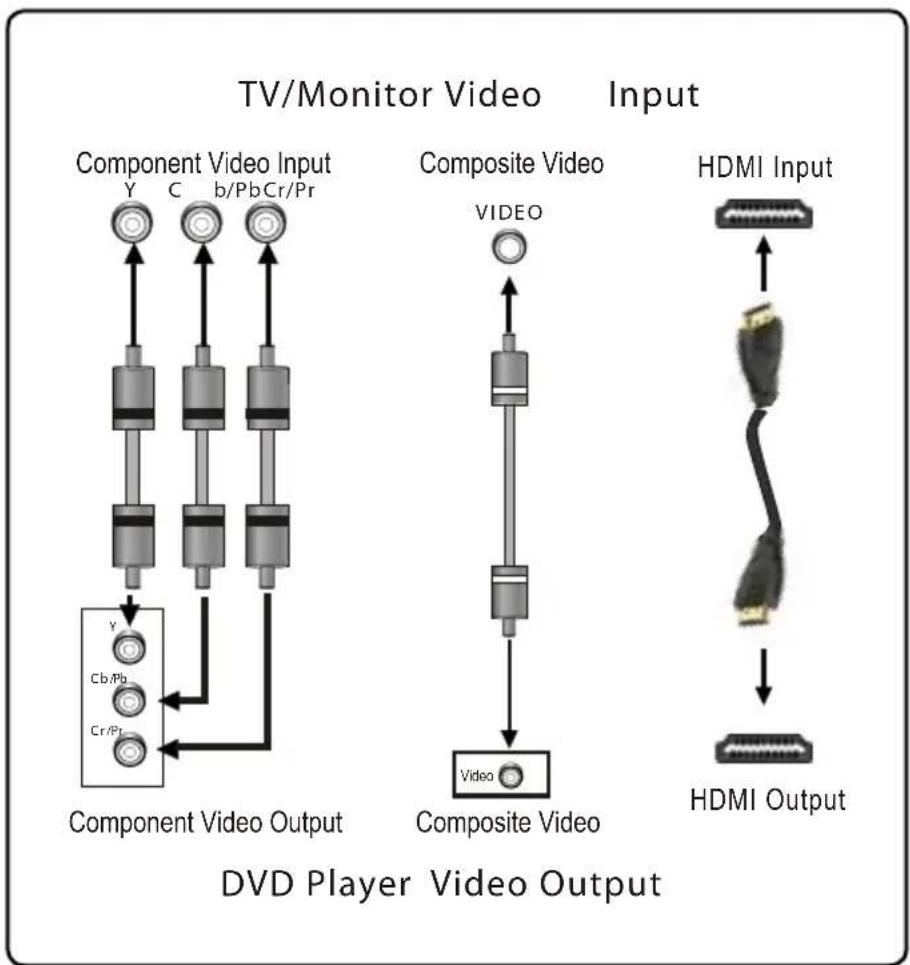
Composite Video Out (Standard)
Using the supplied AV cable:
Connect one end of the yellow cable to the yellow Video Out jack of 1. the unit.
Connect the other end of the yellow cable to the yellow Video In 2. jack of a TV.

Press
The maximum output resolution for the composite video connection is 480i.
Component Video Out (Good)
Using an optional component video cable:
Connect one end of the green, blue and red cables to the Y, Cb/Pb, 1. and Cr/Pr Component Video Out jacks of the unit, respectively.
Connect the other end of the green, blue and red cables to the Y, 2. Cb/Pb, and Cr/Pr Component Video In jacks of a TV, respectively.
HDMI Video Out (Best)
HDMI output presents the highest possible resolutions and video quality. If an HDMI input jack is present on your television, use it.
Connect one end of an HDMI cable (not supplied) to the HDMI 1. output of the player.
Connect the other end of the HDMI cable to the HDMI input of your 2. TV/monitor.

You must set the unit's video output to either YUV or P-YUV when using the component video output. Use YUV for 480i output; use P-YUV for 480p output. See the Setup section of this manual for more information.
You may also press < V-MODE> on the remote until you see "YUV" or "P-YUV" on the TV screen to set the unit to the component video mode.
The maximum output resolution for the component video connection is 480p .
Audio System
Choose the best available audio connection. Avoid using more than one connection at the same time to prevent signal interference. The audio settings of the unit must match the audio connection used. Change the audio settings in the System Setup menu (please refer to the System Setup section of this manual for more information).
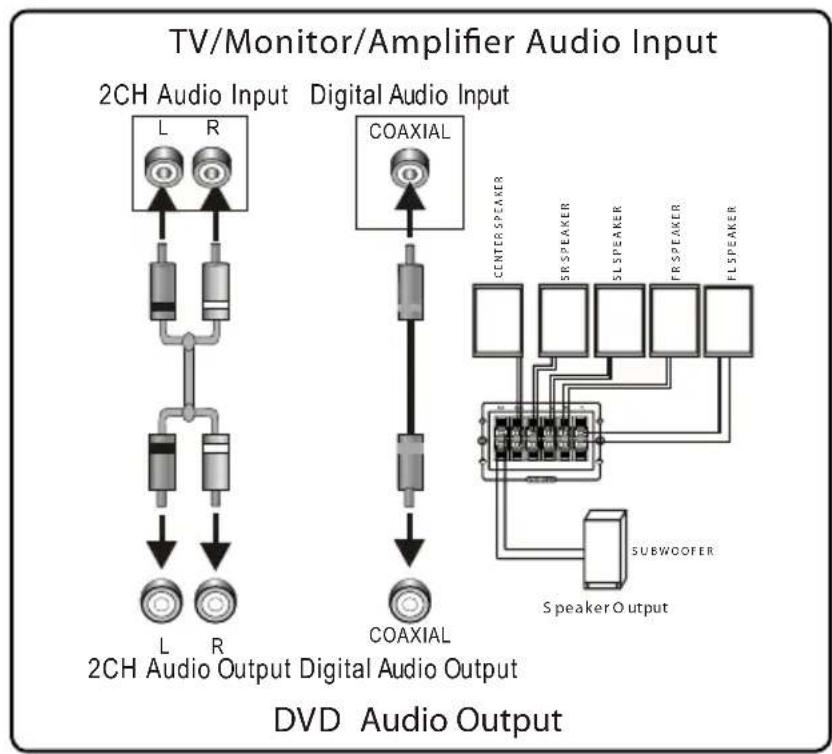
Speakers
This unit has an integrated amplifier. Connect the supplied speakers to enjoy your movies with 5.1-channel surround sound!
If necessary, strip 3/8'' (10 mm) of insulation from each end of the 1. speaker wire.
While pressing the terminal levers of each speaker, insert the bare 2. wire into the hole, then release the lever to secure the connection.
While pressing the speaker terminal levers of the unit, insert the bare 3. wire into the hole, then release the lever to secure the connection.
The speaker wire and terminal for each speaker is color-coded for 4. Your convenience. The following table will help you match the speakers to their proper terminal:
| Terminal Speaker Color | ||
| SW Subwoofer Green | ||
| CEN Center Red | ||
| SR Surround Right | Blue | |
| SL | Surround Left | Yellow |
| FR | Front Right | Gray |
| FL | Front Left | White |

Make sure that the terminals are connected to the bare wires and not the insulation. Always match colored positive (+) terminals together; and match black negative (-) terminals together. If switched, the sound will be out of phase and will not be produced correctly. Do not connect more than one wire to each speaker terminal; do not connect one speaker to several terminals.
RCA Stereo Audio Out (Optional, Standard)
For use with an external amplifier/audio system. Using the supplied AV cable:
Connect one end of the white and red cables to the white and red 1. Audio Out jacks of the unit (L, R).
Connect the other end of the white and red cables to the white and 2. red Audio In jacks of an external audio system.

Please refer to the documentation included with your external audio system for further help using this connection.
Coaxial Digital Audio Out (Optional, Best)
For use with a digital decoding external amplifier/audio system. Using an optional coaxial digital audio cable:
Connect one end of the coaxial cable to the black Digital Audio Out 1. jack of the unit.
Connect the other end of the coaxial cable to the Digital Audio In 2. jack of an external audio system.

Please refer to the documentation included with your external audio system for further help using this connection.
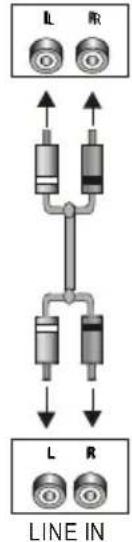
Stereo Line Input
For use with an external playback device with stereo audio output (e.g., a VCR, MP3, or CD player). Using an optional RCA stereo audio patch cable:
Connect one end of the white and 1. red cables to the white and red Line Input jacks of the unit (L, R).
Connect the other end of the cable 2. to the output jack(s) of an external audio playback device.
After this connection has been made, press
Audio Output of Extra Devices
2-CH AUDIO OUTPUT
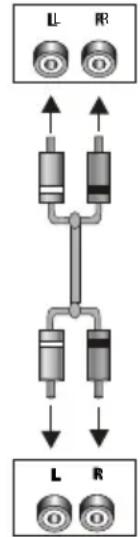
LINE IN
DVD Audio Input

Depending on the type of patch cable used, you can use this connection with external devices with a 3.5mm stereo output jack or RCA stereo output jacks.
Please refer to the documentation included with your external audio system for further help using this connection.
Power Supply & Installation
Power Supply
Plug the power cord of this unit into an AC 100-240V 50/60Hz wall outlet, only. Make all video, speaker, and audio connections before connecting the power.
Connections

Do not connect the power plug to a power outlet other than that which is indicated here and on the rating label as this may result in the risk of fire or electric shock.
Do not handle the power plug with wet hands. Doing so may cause electric shock.
Power Management
If the unit will not be in use for a long period of time, turn the unit off and unplug it from the AC power supply, and remove the batteries from the remote control.
Installation
Install the unit on a level, flat and firm surface with good ventilation. Never block the cabinet vents; blocked vents will cause the unit to overheat and malfunction.
Do not install the unit in a place exposed to heating sources or direct sunlight.
Do not install the unit in a place exposed to moisture or rain.
Turning the Unit On
Locate the Main Power switch on the rear panel of the unit and set it 1. to the ON position.
Press
Select the Video Line
Press <V-MODE> on the remote to set the video mode that corre-1. Sponds to the video connection used (e.g., Component or Composite). See the Connections section for details.
Set your TV to display the video line connection that corresponds 2. to your DVD player (e.g., AV1, AV2, HDMI, Component, S-Video, DVD, etc.) The DVD output will be displayed on the TV screen when the proper line has been selected.
Select the Source Mode
For more information about each of the source modes, please refer to their respective sections in this manual.
Press
Select DVD mode to play optical discs (e.g., DVD, CD, or CD+G) from the disc tray.
Select TUNER to enjoy radio broadcasts.
Select LINE mode to enjoy audio from an external device connected to the LINE IN jacks (optional).
Press
Select Memory Card to play media from memory cards loaded in the Card Slot (SD, Memory Stick, or MMC).
Select USB to play media from USB flash memory drives loaded in the USB Port.
Select DVD mode to play optical discs (e.g., DVD, CD, or CD+G) from the disc tray.

The unit must be placed in DVD mode before the Memory Card and USB modes can be accessed. Press
Load a Disc (or other media)
Press
If a single-sided disc is inserted upside-down, the unit will display "NO DISC" or "BAD DISC".

To play from media other than a disc, insert a memory card or USB flash drive, then press <USB> on the remote to change between Memory Card, USB, and DVD/Disc modes.
BasicPlayback Instructions
Press
Some discs may start playing automatically or display a DVD menu specific to the disc. If a menu appears, use the
Play/Pause/Stop
Press
Press
Press
Press
Previous/Next (Skip)
Press
Press <PREV> to return to the previous track (DVD, CD, etc).
Forward/Reverse (Search)
Press
Press
Step
Press <STEP> for frame-by-frame playback. Each successive press of <STEP> will advance the video one frame. Press <PLAY> to resume normal playback.

Audio will be muted during fast-forward, fast-reverse, and stepped playback.
Repeat Playback
Press
Adjusting the Sound
Press < VOL + > to increase the volume level.
Press < VOL to decrease the volume level.
Press
Press
Press
Press
Press < S.EFFECT> to change the sound effects mode. Set the sound effects mode to off when playing a Dolby 5.1-channel disc to avoid interference with Dolby Digital decoding.
DVD/CD Discs
Press
Load a compatible DVD-video or CD-audio disc into the disc tray. A 2. content menu will appear on screen.
Press
Some discs may start playing automatically or display a DVD menu specific to the disc. If a menu appears, use the
Additional DVD Controls
See the Getting Started section for basic playback controls (Play/Pause, Next/Forward, etc.)
| On the remote... Function | |
| Press <TITLE> Access the title menu of the DVD. | |
| Press <MENU> Return to the root menu of the DVD. | |
| Press <OSD> Change the on screen display of information. | |
| Press <SUBTITLE> Change the subtitle display (requires a DVD encoded with multiple subtitles). | |
| Press <AUDIO> Change the audio track (requires a DVD encoded with multiple audio channels). | |
| Press <ANGLE> | Change the angle display (requires a DVD encoded with multiple camera angles). |
| Press <ZOOM> Change the magnification level of the image. When the magnifica-tion level is greater than “1” (Zoom), use the Navigation Keypad to pan across the image (up, down, left, right). | |
Digital Media Discs
Press
Load a disc with compatible digital media files into the disc tray. A 2. content menu will appear on screen.
Menu Operation
Press the
Press the LEFT arrow to return to the previous menu.
Press
Press
Press
- Do not put anything in the safety slot. If you do, the laser diode will be ON when the disc compartment door is still open.
- If the unit is not to be used for a long period of time, make sure that all power sources are disconnected from the unit. Remove all batteries from the battery compartment, and unplug the AC-DC adapter from the wall outlet. Make it a practice to remove the AC-DC adapter by grasping the main body and not by pulling the cord.
This unit employs a laser. The use of controls or adjustment or performance of procedures other than those specified here may result in exposure to hazardous radiation.
Important Safety Instructions
Read Instructions: All the safety and operating instructions should be read 1. before the product is operated.
Retain Instructions: The safety and operating instructions should be re-2. tained for future reference.
HeedWarnings: All warnings on the product and in the operating instruc-3. tions should be adhered to.
Follow Instructions: All operating and usage instructions should be fol-4 lowed.
Cleaning: Unplug this product from the wall outlet before cleaning. Do not 5. use liquid cleaners or aerosol cleaners. Use a damp cloth for cleaning.
Attachments: Use only attachments recommended by the manufacturer. 6. Use of other attachments may be hazardous.
Water and Moisture: Do not use this product near water (e.g., near a bath 7. tub, washbowl, kitchen sink, laundry tub, in wet basements, or near a swimming pool and the like).
Accessories: Do not place this product on an unstable 8.
cart, stand, tripod, bracket, or table. Use only with carts, stands, tripods, brackets, or tables recommended by the manufacturer or sold with the product. Any mounting of the product should follow the manufacturer's instructions and should use a mounting accessory recommended by the manufacturer. A
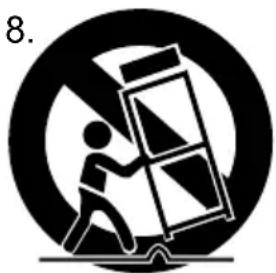
product and cart combination should be moved with
care. Quick stops, excessive force, and uneven surfaces may cause the product and cart combination to overturn.
Ventilation: Slots and openings in the cabinet are provided for ventilation to 9. ensure reliable operation of the product and to protect it from overheating. These openings should never be blocked by placing the product on a bed, sofa, rug, or other similar surface. This product should not be placed in a built-in installation such as a bookcase or rack unless proper ventilation is provided or the manufacturer instructions have been adhered to.
Power Sources: This product should be operated only from the type of 10. power source indicated on the rating label. If you are not sure of the type of power supply to your home, consult your product dealer or local power company. For products intended to operate from battery power or other sources, refer to the operating instructions.
Grounding or Polarization: This product may be equipped with a polarized 11. alternating-current line plug that has one blade wider than the other. This plug will only fit into the power outlet in one direction. This is a safety feature. If you are unable to insert the plug fully into the outlet, try reversing the direction of the plug. If the plug should still fail to fit, contact an electrician to replace the obsolete outlet. Do not defeat the safety purpose of the polarized plug.
Power-Cord Protection: Power supply cords should be routed so that they 12. are not likely to be walked on or pinched by items placed upon or against them, paying particular attention to cords at plugs, convenience receptacles, and at the point which they exit from the product.
Protective Attachment Plug: The product may be equipped with an attach-13.
ment plug with overload protection. This is a safety feature. See the operat-. ing instructions for replacement or directions to reset the protective device.
If replacement of the plug is required, be sure the service technician has
used a replacement plug that has the same overload protection as the origi-. nal plug as specified by the manufacturer.
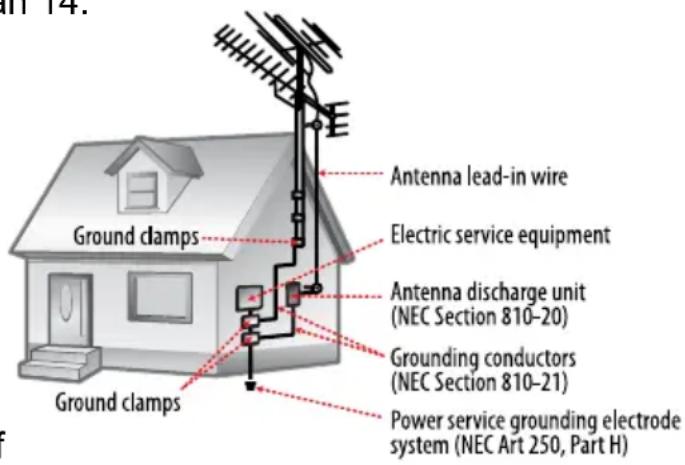
Outdoor Antenna Grounding: If an 14.
outside antenna is connected to the product, be sure the antenna system is grounded so as to provide some protection against voltage surges and built-up static charges.
Article 810 of the National Electrical Code, ANS/NFPA 70 provides information with
regard to proper grounding of the mast and supporting structure,
grounding of the lead-in wire to an antenna-discharge unit, size of grounding conductors, location of antenna-discharge unit, connection to grounding electrodes, and requirements for the grounding electrode (see figure).
Safety Notices
Lightning: For added protection for this product, unplug it from the wall 15. outlet and disconnect the antenna or cable system during a lightning storm or when it is left unattended and unused for long periods of time. This will prevent damage to the product due to lightning or power-line surges.
Power Lines: An outside antenna system should not be located in the vi-16. cinity of overhead power lines or other electric light or power circuits, or where it can fall into such power lines or circuits. When installing an outside antenna system, extreme care should be taken to keep from touching such power lines or circuits, as contact with them might be fatal.
Overloading: Do not overload wall outlets, extension cords, or integral con-17. venience receptacles as this can result in a risk of fire or electric shock.
Object and Liquid Entry: Never push objects of any kind into this product 18. through openings as they may touch dangerous voltage points or shout-out parts that could result in a fire or electric shock. Never spill liquid of any kind on the product.
Servicing: Do not attempt to service this product yourself as opening or 19. removing covers may expose you to dangerous voltage or other hazards. Refer all servicing to qualified service personnel.
Damage Requiring Service: Unplug this product from the wall outlet and re-20. fer servicing to qualified service personnel under the following conditions: a) when the power-supply or plug is damaged; b) if liquid has been spilled or if objects have fallen into the product; c) if the product has been exposed to rain or water; d) if the product does not operate normally by following the operating instructions. Adjust only those controls that are covered by the operating instructions as improper adjustment of other controls may result in damage and will often require extensive work by a qualified technician to restore the product to its normal operation; e) if the product has been dropped or damaged in any way; f) when the product exhibits a distinct change in performance—this indicates a need for service.
Replacement Parts: When replacement parts are required, be sure that 21. your service technician has used replacement parts specified by the manufacturer or have the same characteristics as the original part. Unauthorized substitutions may result in fire, electric shock, or other hazards.
Safety Check: Upon completion of any service or repairs to this product, 22. ask the service technician to perform safety checks to ensure that the product is in proper operating condition.
Safety Notices
Wall or Ceiling Mounting: The product should be mounted to a wall or ceiling-23. Using only as recommended by the manufacturer.
Heat: The product should be situated away from heat sources such as ra-24. diators, heat registers, stoves, or other products (including amplifiers) that produce heat.
WARNING: To prevent fire or shock hazard, do not expose this device to rain or moisture. Dangerous high voltage is present inside the enclosure. Do not open the cabinet.
CAUTION: To prevent electric shock, match wide blade of plug to wide slot of outlet and fully insert.

For recycling or disposal information about this product, please contact your local authorities or the Electronics Industries Alliance: www.eiae.org.
FCC Statement:
This device complies with Part 15 of the FCC Rules. Operation is subject to the following two conditions: (1) This device may not cause harmful interference, and (2) This device must accept any interference received, including interference that may cause undesired operation.
Note: This equipment has been tested and found to comply with the limits for Class B digital devices, pursuant to Part 15 of the FCC rules. These limits are designed to provide reasonable protection against harmful interference in a residential installation. This equipment generates, uses and can radiate radio frequency energy and, if not installed and used in accordance with the instructions, may cause harmful interference to radio communications. However, there is no guarantee that interference will not occur in a particular installation. If this equipment does cause harmful interference to radio or television reception, which can be determined by turning the equipment off and on, the user is encouraged to try to correct the interference by one or more of the following measures:
Reorient or relocate the receiving antenna.
- Increase the separation between the equipment and receiver.
- Connect the equipment into an outlet on a circuit different from that to which the receiver is connected.
- Consult the dealer or an experienced radio/TV technician for help.
Use of shielded cable is required to comply with Class B limits in Subpart B of Part 15 of the FCC rules.
Do not make any changes or modifications to the equipment unless otherwise specified in the manual. If such changes or modifications should be made, you could be required to stop operation of the equipment.
CoNTENiDoS Del PaQuETE 63
CaRaCTERISTiCs 64
aCERCa DE IoS DiSCoS oPTiCoS 65
Audio Output of Extra Devices
2-CH AUDIO OUTPUT
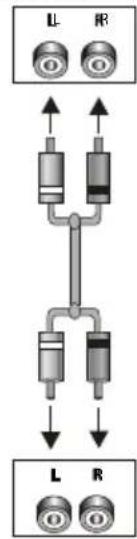
LINE IN
DVD Audio Input
Cable coaxial audio digital
Open/Close (Ejection)6.
Audio Output of Extra Devices
2-CH AUDIO OUTPUT
DVD Audio Input

Coby Electronics Corporation
1991 Marcus Ave, Suite 301
Lake Success, NY 11042
www.cobyusa.com
www.ecoby.com