LCD42E40W - TV SANYO - Free user manual and instructions
Find the device manual for free LCD42E40W SANYO in PDF.



User questions about LCD42E40W SANYO
0 question about this device. Answer the ones you know or ask your own.
Ask a new question about this device
Download the instructions for your TV in PDF format for free! Find your manual LCD42E40W - SANYO and take your electronic device back in hand. On this page are published all the documents necessary for the use of your device. LCD42E40W by SANYO.
USER MANUAL LCD42E40W SANYO
High Definition LCD TV
Help line: 1-800-263-2244
Monday to Friday 9 am to 5 pm (Eastern)
http://ca.sanyo.com
Thank you for choosing SANYO. Please read all instructions to obtain maximum benefit of your product.
CAUTION
RISK OF ELECTRIC SHOCK DO NOT OPEN
CAUTION: TO REDUCE THE RISK OF ELECTRIC SHOCK, DO NOT REMOVE COVER (OR BACK). NO USER SERVICEABLE PARTS INSIDE. REFER SERVICING TO QUALIFIED SERVICE PERSONNEL.
THIS SYMBOL INDICATES THAT DANGEROUS VOLTAGE CONSTITUTING A RISK OF ELECTRIC SHOCK IS PRESENT WITH THIS UNIT.

THIS SYMBOL INDICATES THAT THERE ARE IMPORANT OPERATING AND MAINTENANCE INSTRUCTIONS IN THE OWNER'S MANUAL WITH THIS UNIT.

WARNING: TO REDUCE THE RISK OF FIRE OR ELECTRIC SHOCK, DO NOT EXPOSE THIS APPLIANCE TO RAIN OR MOISTURE.
IMPORTANT SAFETY INSTRUCTIONS
- Read these instructions.
- Keep these instructions.
- Heed all warnings.
- Follow all instructions.
- Do not use this apparatus near water.
- Clean only with a dry cloth.
- Do not block any ventilation openings. Install in accordance with the manufacturer's instructions.
- Do not install near any heat sources such as radiators, heat registers, stoves or other apparatus (including amplifiers) that produce heat.
- Do not defeat the safety purpose of the polarized or grounding-type plug. A polarized plug has two blades with one wider than the other. A grounding type plug has two blades and a third grounding prong. The wide blade or the third prong are provided for your safety. If the provided plug does not fit into your outlet, consult an electrician for replacement of the obsolete outlet.
- Protect the power cord from being walked on or pinched, particularly at plugs, convenience receptacles, and at the point where they exit from the apparatus.
- Only use the attachments/accessories specified by the manufacturer.
- Use only with the cart, stand, tripod, bracket or table
specified by the manufacturer or sold with the apparatus. When a cart is used, use caution when moving the cart/ appliance combination to avoid injury from tip-over.

- Unplug this apparatus during lightning storms or when unused for long periods of time.
- Refer all servicing to qualified service personnel. Servicing is required when the appliance has been damaged in any way, such as when a power-supply cord or plug is damaged, liquid has been spilled or objects have fallen into apparatus, the apparatus has been exposed to rain or moisture, does not operate normally or has been dropped.
- If an outside antenna is connected to the television equipment, be sure the antenna system is grounded so as to provide some protection against voltage surges and built up static charges. In the U.S. Selection 810-21 of the National Electrical Code provides information with respect to proper grounding of the mast and supporting structure, grounding of the lead-in wire to an antenna discharge unit, size of grounding conductors, location of antenna discharge unit, connection to grounding electrodes, and requirements for the grounding electrodes.
- An outside antenna system should not be located in the
vicinity of overhead power lines or other electrical light or power circuits or where it can fall into such power lines or circuits. When installing an outside antenna system, extreme care should be taken to keep from touching such power lines or circuits as contact with them might be fatal.
EXAMPLE OF ANTENNA GROUNDING ACCORDING TO NATIONAL ELECTRICAL CODE, ANSI/NFPA 70
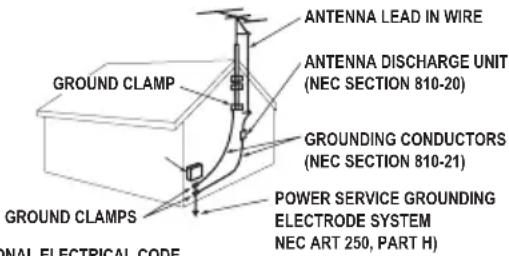
NEC-NATIONAL ELECTRICAL CODE
Note to CATV system installer:
This reminder is provided to call the CATV system installer's attention to Article 820-40 of the NEC that provides guidelines for proper grounding and, in particular, specifies that the cable ground shall be connected to the grounding system of the building, as close to the point of cable entry as practical.
- Wall or Ceiling Mounting - The product should be mounted to a wall or ceiling only as recommended by the manufacturer and listed by an independent laboratory (such as UL).
- "Apparatus shall not be exposed to dripping or splashing and no objects filled with liquids, such as vases, shall be placed on the apparatus."
- When the MAINS plug is used as the disconnect device, the disconnect device shall remain readily operable.
- Install the LCD TV in a proper position. If not, it may result in a fire hazard.
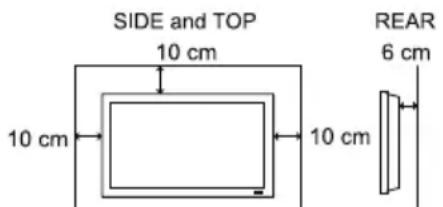
- Provide appropriate space on the top, sides and rear of the LCD TV cabinet for allowing air circulation and cooling the LCD TV.
- Minimum clearance must be maintained. If the LCD TV is to be built into a compartment or similarly enclosed, the minimum distances must be maintained. Do not cover the ventilation slot on the LCD TV. Heat build-up can reduce the service life of your LCD TV, and can also be dangerous.
FCC INFORMATION
This equipment has been tested and found to comply with the limits for a Class B digital device, pursuant to Part 15 of the FCC Rules. These limits are designed to provide reasonable protection against harmful interference in a residential installation. This equipment generates, uses and can radiate radio frequency energy and, if not installed and used in accordance with the instructions, may cause harmful interference to radio communications. However, there is no guarantee that interference will not occur in a particular installation. If this equipment does cause harmful interference to radio or television reception, which can be determined by turning the equipment off and on, the user is encouraged to try to correct the interference by one or more of the following measures:
- Reorient or relocate the receiving antenna.
- Increase the separation between the equipment and receiver.
- Connect the equipment into an outlet on a circuit different from that to which the receiver is connected.
- Consult the dealer or an experienced radio/TV technician for help.
CAUTION: FCC Regulations state that improper modifications or unauthorized changes to this unit may void the user's authority to operate the unit.
ENERGY STAR® USER INFORMATION
ENERGY STAR User Information Statement: the factory default settings of this television meet ENERGY STAR requirements. Changing Picture Settings may increase energy consumption, possibly beyond the limits required for ENERGY STAR qualification.
To ensure your television is operating at an optimal energy efficiency, select default picture mode.
TRADEMARKS

Manufactured under license from Dolby Laboratories.
"Dolby" and the double-D symbol are trademarks of Dolby Laboratories.

HDMI, the HDMI logo and High-Definition Multimedia Interface are trademarks or registered trademarks of HDMI Licensing LLC.

"As an Energy Star® Partner, Sanyo Electric co., Ltd. has determined that this product meets the Energy Star® guidelines for energy efficiency."

This symbol on the nameplate means the product is Listed by Underwriters' Laboratories Inc. It is designed and manufactured to meet rigid U.L. safety standards against risk of fire, casualty and electrical hazards.
PROTECTING THE LCD SCREEN
The screen can be damaged if it is not maintained properly. Do not use hard objects such as hard cloth or paper. Do not use excessive pressure when cleaning the screen; excessive pressure can cause
permanent discoloration or dark spots.
NEVER spray liquids on the screen.


HANDLING PRECAUTIONS
Handle by the cabinet only. Never touch the screen when handling.
Excessive pressure on the screen can cause permanent discoloration or dark spots.
Handling damage is not covered under warranty.

CONTAINS MERCURY LAMPS, DISPOSE OF PROPERLY

CONTENTS
IMPORTANT SAFETY INSTRUCTIONS..2
FCC INFORMATION 3
ENERGY STAR® USER INFORMATION.3
TRADEMARKS 3
PROTECTING THE LCD SCREEN. 3
HANDLING PRECAUTIONS 3
INSTALLING AND UNINSTALLING
STAND BASE. 5
INSTALLATION 6
POSITIONING THE LCD HDTV. 6
WALL MOUNTING (OPTIONAL). 6
GETTING STARTED. 7
PRECAUTIONS. 7
GETTING STARTED-CONTROLS AND JACKS 8
(Only HDMI1 is compatible with this function) 12
DIGITAL AUDIO 12
AUDIO OUT JACKS 12
PC CONNECTIONS 13
PC MONITOR OPERATION. 13
SPORTS MODE 14
ON-SCREEN MENU OPERATION. 15
MENUNAVIGATIONMAP 15
CHANNEL ADJUSTMENT. 15
PARENT ADJUSTMENT. 17
PICTURE/ AUDIO/ ADVANCED ADJUSTMENT. 19
PICTURE. 19
AUDIO 19
ADVANCED. 20
SYSTEM. 22
USB (PHOTO VIEWER). 24
HELPFUL HINTS - PROBLEMS / SOLUTIONS 27
SPECIFICATIONS 28
CONFIGURATIONS OF VGA TERMINALS 29
PC/HDMI SIGNAL MODES 29
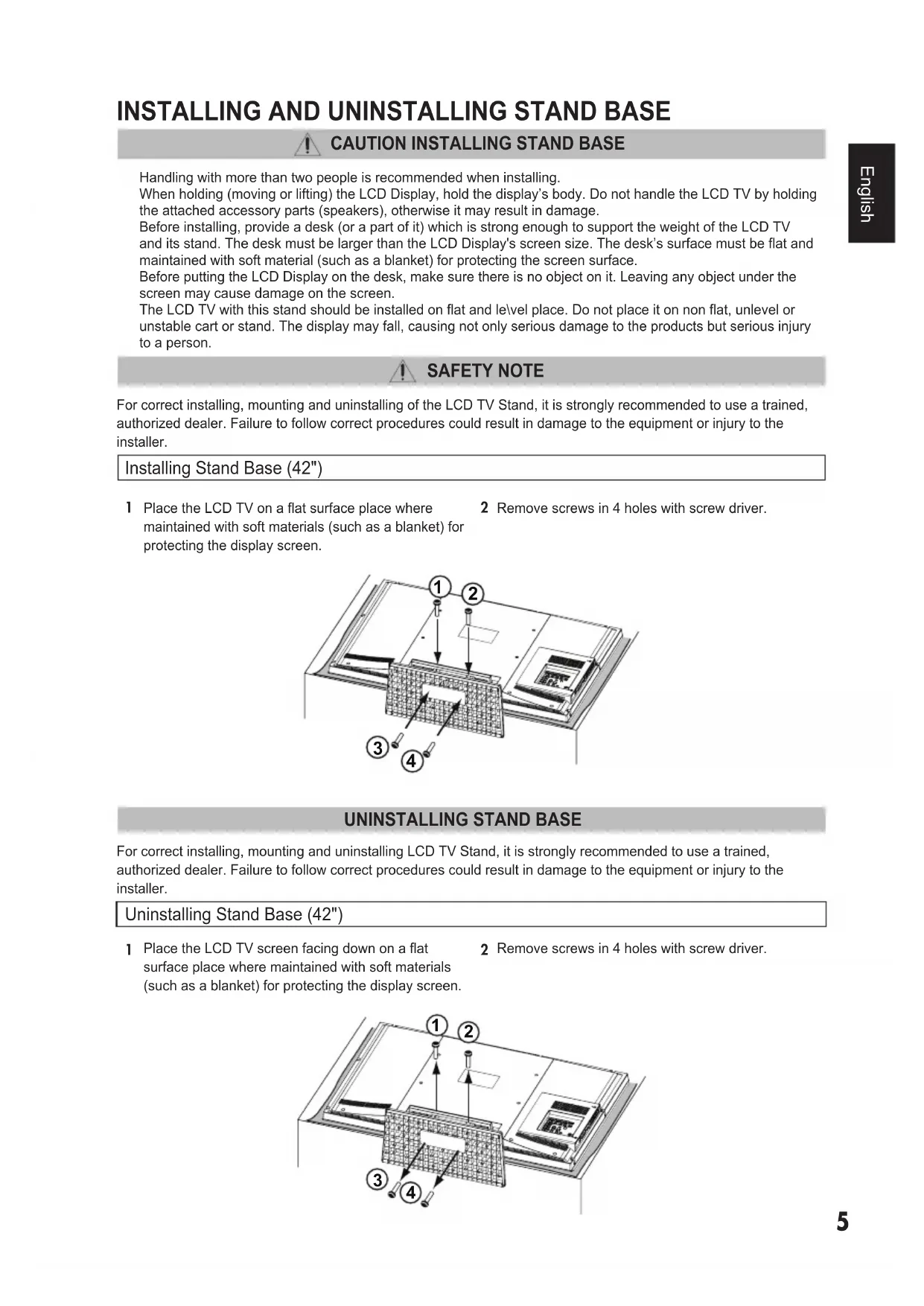
INSTALLING AND UNINSTALLING STAND BASE

CAUTION INSTALLING STAND BASE
Handling with more than two people is recommended when installing.
When holding (moving or lifting) the LCD Display, hold the display's body. Do not handle the LCD TV by holding the attached accessory parts (speakers), otherwise it may result in damage.
Before installing, provide a desk (or a part of it) which is strong enough to support the weight of the LCD TV and its stand. The desk must be larger than the LCD Display's screen size. The desk's surface must be flat and maintained with soft material (such as a blanket) for protecting the screen surface.
Before putting the LCD Display on the desk, make sure there is no object on it. Leaving any object under the screen may cause damage on the screen.
The LCD TV with this stand should be installed on flat and le\vel place. Do not place it on non flat, unlevel or unstable cart or stand. The display may fall, causing not only serious damage to the products but serious injury to a person.

SAFETY NOTE
For correct installing, mounting and uninstalling of the LCD TV Stand, it is strongly recommended to use a trained, authorized dealer. Failure to follow correct procedures could result in damage to the equipment or injury to the installer.
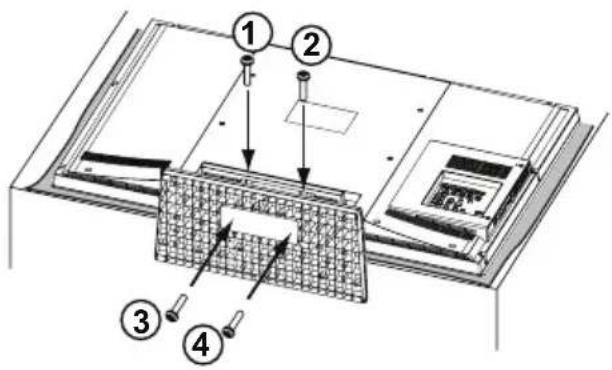
Installing Stand Base (42")
1 Place the LCD TV on a flat surface place where maintained with soft materials (such as a blanket) for protecting the display screen.
2 Remove screws in 4 holes with screw driver.
UNINSTALLING STAND BASE
For correct installing, mounting and uninstalling LCD TV Stand, it is strongly recommended to use a trained, authorized dealer. Failure to follow correct procedures could result in damage to the equipment or injury to the installer.
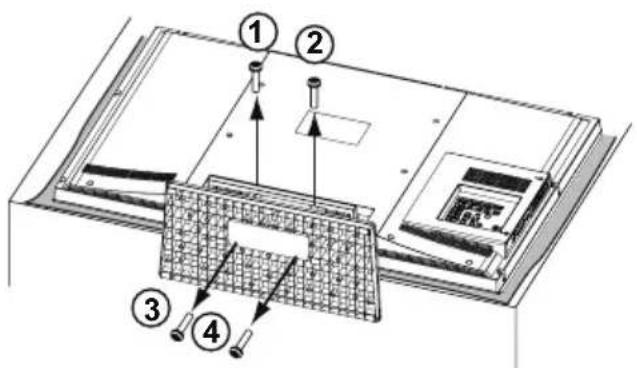
Uninstalling Stand Base (42")
1 Place the LCD TV screen facing down on a flat surface place where maintained with soft materials (such as a blanket) for protecting the display screen.
2 Remove screws in 4 holes with screw driver.
INSTALLATION
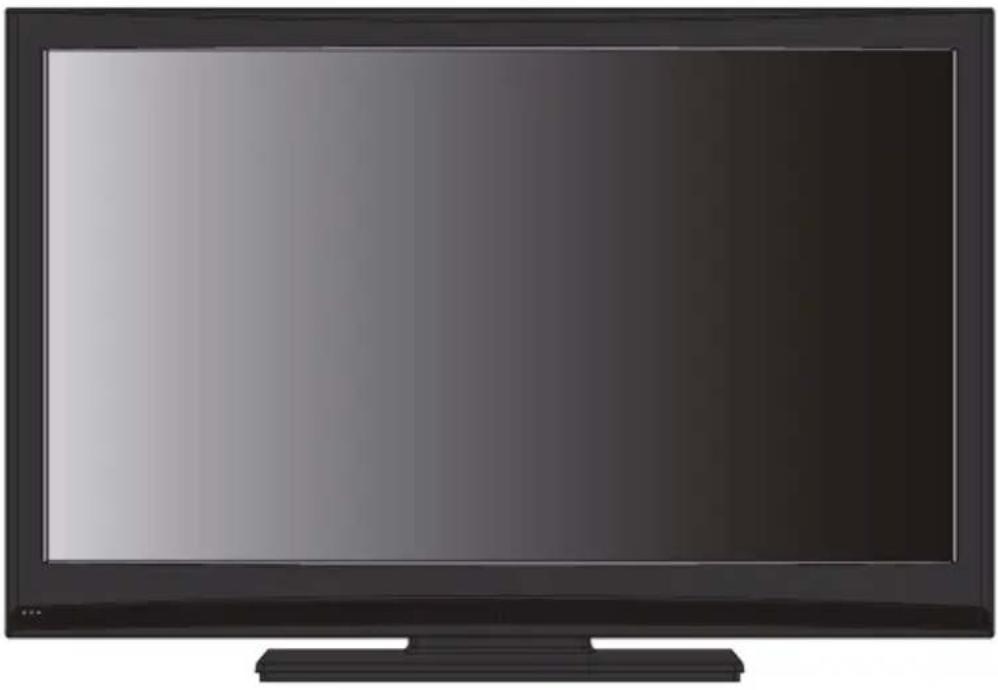
POSITIONING THE LCD HDTV

Always use a firm-flat surface when positioning your HDTV. Do no position the unit in a confined area. Allow adequate space for proper ventilation.
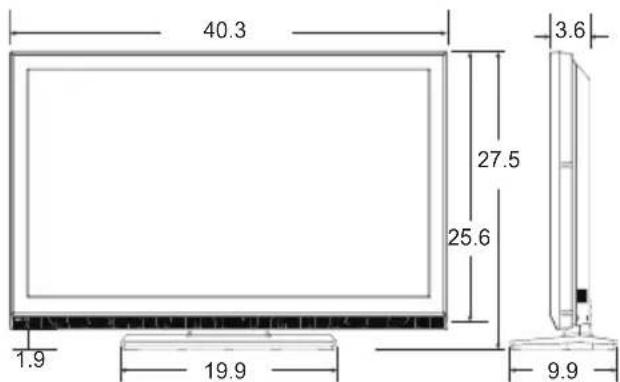
- Diagonal screen: 42.02 inches
NOTE: All dimensions are in inches.
WALL MOUNTING (OPTIONAL)
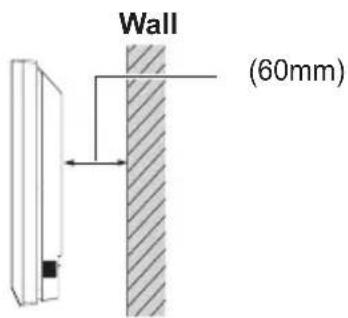
Use the screws that are threaded into the standmounting inserts on the back of your HDTV to secure it to a wall mounting kit.
NOTE: 1. Wall Mounting kit is not supplied.
2. Wall mounting kit shall be able to sustain at least 3 times of set weight.
VESA standard interface:
TV 200 × 400 ~mm
Wall Mounting Inserts
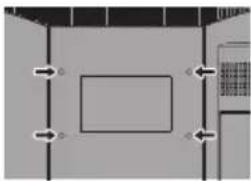
Mounting screws measurements:
42"TV
M4 Diameter, Length - 13mm (min.); 16mm (max.)
GETTING STARTED
1 Install supplied batteries in the Remote.

PRECAUTIONS
Do not use rechargeable together with dry cells, other types, mixed new and old or batteries with different charge levels.
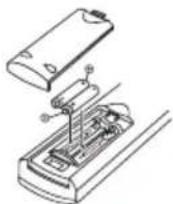
Do not expose the Remote or batteries to moisture or heat such as sunshine.
Match the "+" and "-" signs on the batteries with marks inside the Remote Control.

Please recycle used up rechargeable batteries.
2 Antenna Connection for off-air signals.
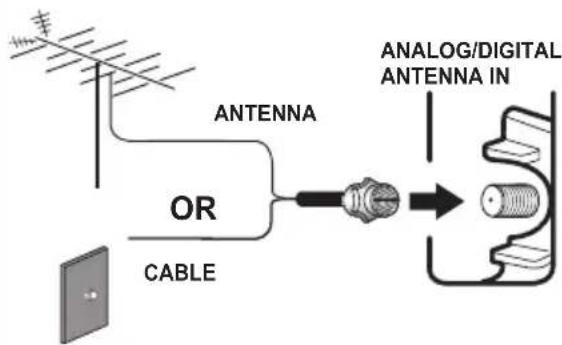
THE TUNER IN THIS HDTV CAN RECEIVE:
a. Digital and Analog off-air signals from an antenna.
OR
b. Analog or Clear QAM cable channels from a direct Cable TV connection.
NOTES:
You must use the on-screen MENU to Search for Clear QAM Cable channels. (see page 11)
For the best picture, connect your Cable box or Satellite receiver to HDMI or component (VIDEO3) jacks.
This HDTV can receive ANY unscrambled RF signal being broadcast.
GETTING STARTED-CONTROLS AND JACKS
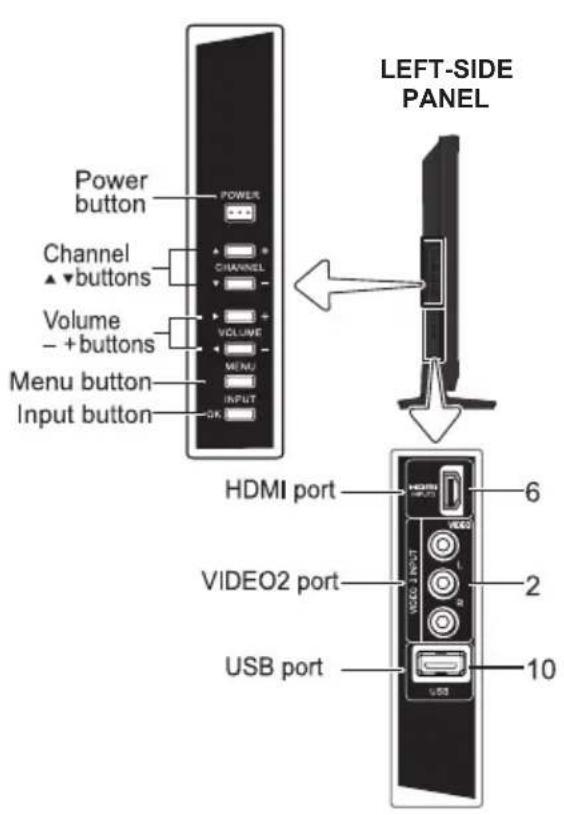
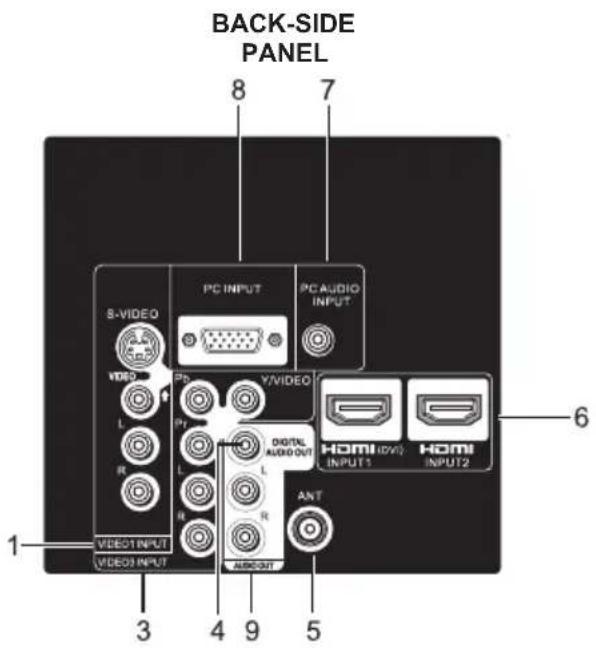
① S-Video Input (VIDEO1), PAGE 10 - To enhance video detail use the S-Video jack instead of the Video jack, if available on your external equipment. (An S-Video connection will override a connection to the Video1 input jack.
② Composite video Input VIDEO01 or VIDEO02, PAGE 10 - Standard (composite) video and standard audio inputs, and for use with video devices with analog audio and composite video output. Connect digital video equipment to the Video Yellow jack, and matching Audio White (L) and Red (R) jacks.
③ Component Video InputVIDEO3 (YPbPr), PAGE 10 - Connect digital video equipment to the Video Green (Y), Blue (Pb), Red (Pr) jacks, and matching Audio White (L) and Red (R) jacks. These jacks will automatically detect the type of signal being received.
④ Digital Audio Output (Coaxial), PAGE 12 - Use a Phono-Type (Coaxial) Digital Audio Out Cable to connect Digital Audio Output to an advanced stereo home theater system equipped with Dolby® Digital.
⑤ Analog / Digital Antenna Input, PAGE 7 - Connect an RF antenna or Analog Cable system to this jack.
HDMI Input (INPUT1, INPUT2 or INPUT3), PAGE 12 - A digital AV interface that accepts uncompressed video signals for the best picture. This HDMI input supports HDCP copy protection, allowing transmission of copy-protected digital contents.
⑦ PC AUDIO INPUT, PAGE 12, 20 - This terminal is not only use for PC audio input but also can share with HDMI audio input for DVI signal connecting.
PC INPUT (RGB connector of 15 pin D-SUB), PAGE 13 - Connect computer to this terminal. Audio is separated from another Stereo Mini Jack (PC AUDIO INPUT).
Stereo Audio Out (L/R) Jacks, PAGE 12 - Connect stereo audio equipment to these jacks.
USB port, PAGE 24 - Used for updating the television's firmware and access JPEG file.
① MUTE Button - Press to mute or restore the sound.
② Numeric Buttons - Press numeric buttons to select a channel.
Example: Press 6 then OK button to select analog channel A6. Press 6 then 1-- button to select digital channel D6.
③ INPUT Button - Press to select the source to view: TV,VIDEO1,VIDEO2,VIDEO3, HDMI1, HDMI2, HDMI3, PC or USB Input.
4 SPORTS Button - Press to choose between options Football, Winter Sports, Marine Sports, Indoor Sports, and Off in turn.(See page 14)
⑤ ECO Button - Press to Energy saving mode between options Off, ECO1, ECO2, and ECO3 in turn.
Volume Buttons - Press VOL + to decrease or increase the audio volume.
⑦ PIX SHAPE Button - Press to choose between options Standard, WaterGlass, Zoom1, Full and Zoom2. Available options depend on the signal and the broadcast's aspect ratio.
8 AUDIO Button - Press to select the desired audio mode, if available.
9 MENU - Press to display on-screen menu.
buttons to move the cursor up and down.
buttons to move the cursor left and right.
OK Button - Press to select an option from the menu system, when required.
EXIT Button - Press to exit from the menu.
1-Button - Press numeric button then press this button to select TV digital channel.
GUIDE Button - Press to show window with the guide information displayed on your HDTV screen (digital channel only).
⑫ INFO Button - Press to display Channel Banner information.
Digital Banner may contain: Channel Number, CC State, Channel Title, Video Resolution, Video Ratio, Signal Strength, Digital Sound information & Program Rating.
Analog Banner may contain: Channel Number, CC State, Channel Title, Video Resolution, Analog Sound information, & Program Rating.
13 RECALL Button - Press to switch to last channel or input selected.
④ Channel Up / Down (CH+.−) Buttons - Press to
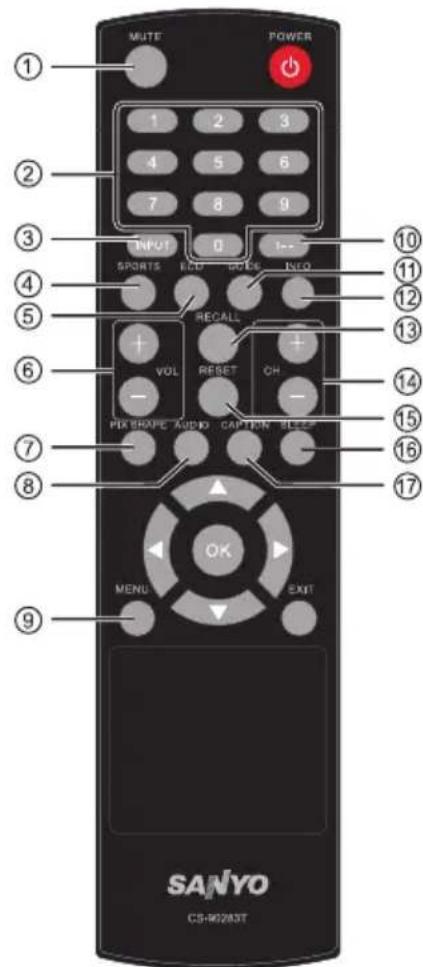
switch to last / next active channel.
RESET Button -Press this button to display RESET menu. If you execute RESET function, the TV will clear all customized settings.
NOTE: The Channel Scan Memory database will be reset to default (all analog channel enabled). You will need to execute Channel Scan after RESET.
SLEEP Button - Press this button to switch Off Timer between Off, 30 min, 60 min, 90 min, 120 min, 150 min and 180 min options.
NOTE: The Off Timer will be canceled when the TV is turned off or when a power failure occurs.
CAPTION Button - Press this button to switch CC mode between "Off", "CC Display" and "Muted=On" options. Digital Captions can be changed using the menu settings.
GETTING STARTED-CONNECTIONS
3 Analog Signal Connections -VIDEO1 orVIDEO2 (optional).
Connect an analog device, such as, an Analog Cable Box, Satellite Receiver or VCR
Composite connectors are included on your HDTV to provide continued compatibility with older analog devices such as a VCR. The S-Video connector will provide the best analog resolution. If you have an S-Video connector on your old analog equipment, you should use it instead of the standard video connector. (Cables are not supplied)
1 Connect an AV cable to the VIDEO1 or VIDEO2 jack on the HDTV and to your analog AV equipment, as shown. Match the connector colors to jack colors.
2 Press the INPUT button to step through the signal inputs to select Video1 or Video2.
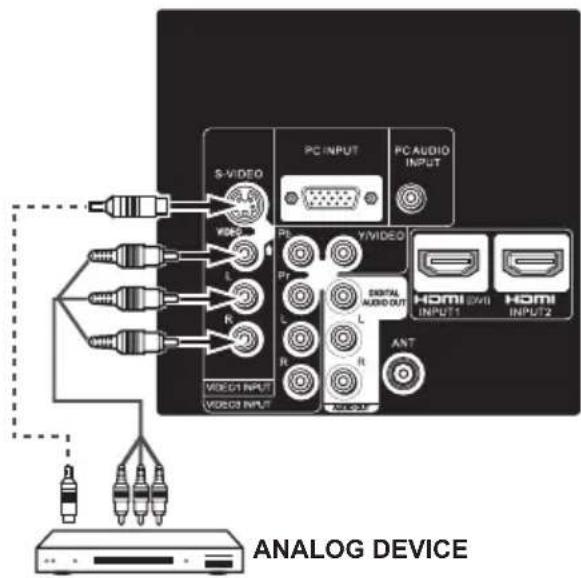
4 Component Signal Connections -VIDEO3 (YPbPr) Connect Digital devices, such as, a HD Cable Box, HD Satellite Receiver, DVD Player, and Game System
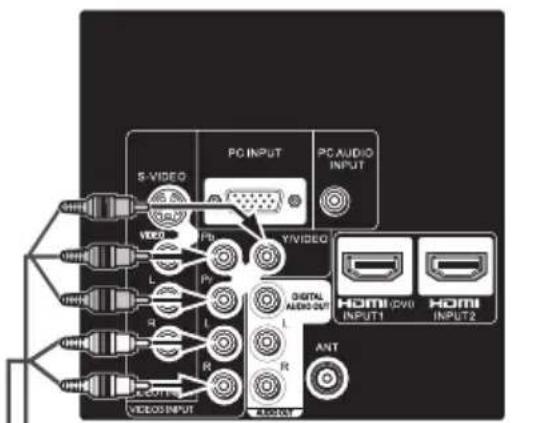
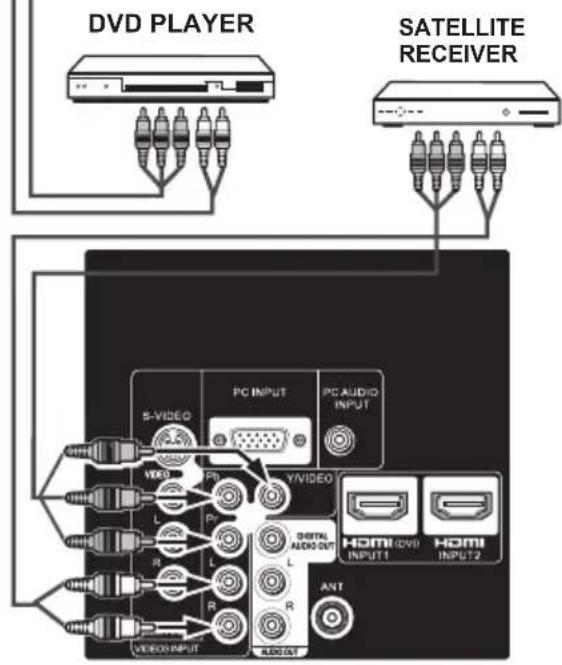
The Component jacks on this HDTV will accept HDTV, EDTV, and SDTV video signals, making Component a great choice when connecting your compatible external devices.
1 Connect a COMPONENT cable to a set of Green, Blue, and Red video jacks VIDEO3 (YPbPr) on the HDTV and to your digital device, as shown. (Cable is not supplied)
2 Connect an AUDIO cable to the matching set of White and Red audio jacks, as shown. (Cable is not supplied)
3 Press the INPUT button to step through the signal inputs to selectVIDEO3 (YPbPr).
NOTES:
The Green video jack and White, Red audio jacks can be used as Composite connectors like VIDEO1 and VIDEO2 (Shared with Component-Y).
You may follow theVIDEO3 OPERATION (See PAGE 19) to choice suitable function (Video or YPbPr) for external devices.
GETTING STARTED-Power Connection/CHANNEL SEARCH
POWER CONNECTION
5 Plug in AC power cord (120V AC, 60Hz)
6 Press the POWER button, (Follow the on-screen instructions).
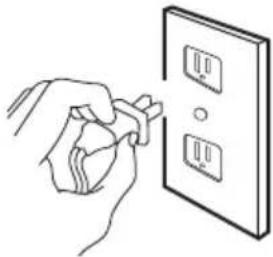
To 120V AC outlet.
INITIAL SETUP
7
highlight Store or Home. Press the OK button. TVs will enter INITIAL CHANNEL SCAN automatically.
Store : This mode is for the retail display setup.
Home : This mode qualifies for ENERGY STAR.
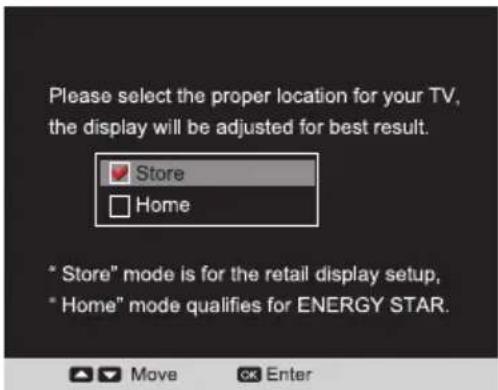
NOTE: The INITIAL SETUP function will recover once DEFAULT OPERATION is executed (seePAGE 24)
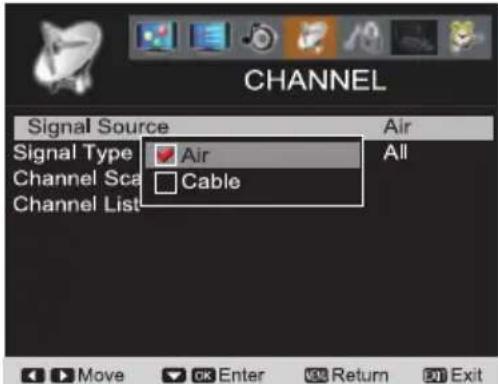
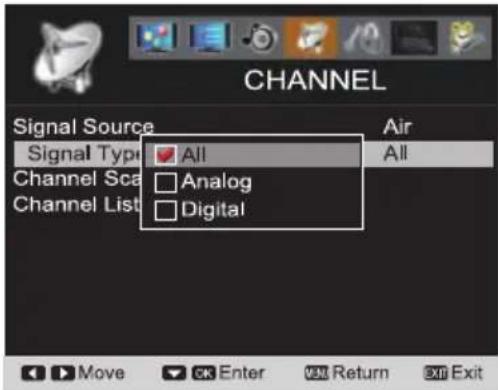
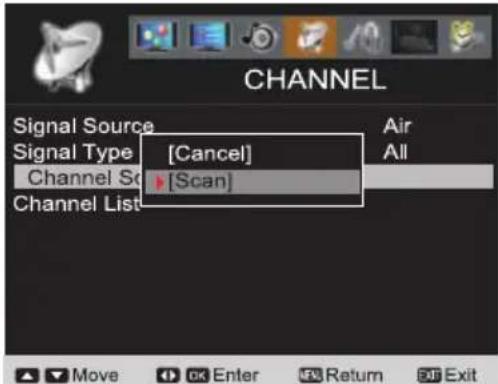
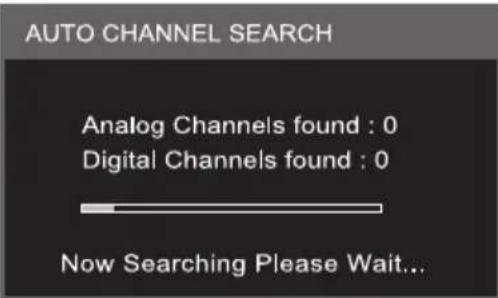
INITIAL CHANNEL SCAN
NOTE: Skip the following process if there is no cable or antenna being plugged-in to tuner connector.
8
highlight the Channel Scan. Press the OK button. Choose the Scan to start the channel scanning. The scanned channels are stored in channel List
ADVANCED AV CONNECTIONS
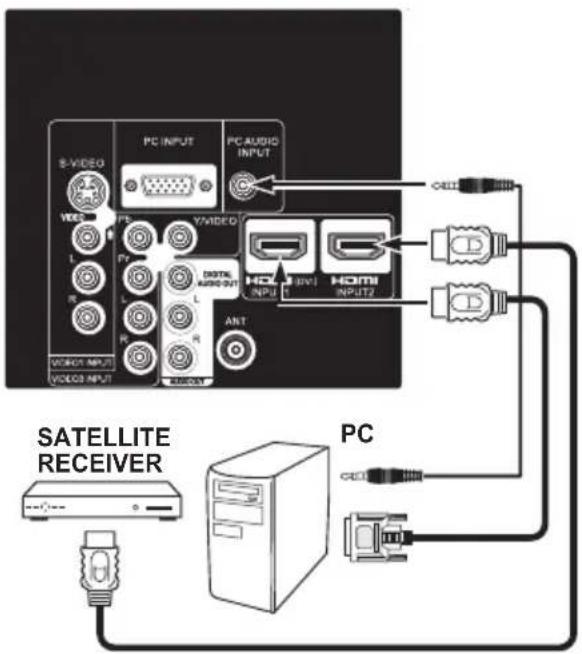
ADVANCED DIGITAL SIGNAL CONNECTIONS-HDMI TO HDMI
Connect compatible Digital devices, such as, a HD Cable Box, HD Satellite Receiver, DVD Player, and Game System.
HDMI-High-Definition Multimedia Interface.
This is an all digital AV interface that accepts uncompressed video signals for the best picture quality possible. It supports HDCP copy protection, allowing transmission of copy-protected digital content. The signal can also include Dolby® Digital or PCM audio, when available.
1 Connect a HDMI cable to the HDMI input and to your external device. (Cable is not supplied)
NOTE: Press the INPUT button to step through the signal inputs to select HDMI1, HDMI2 or HDMI3.
DVI TO HDMI
(ONLY HDMI1 IS COMPATIBLE WITH THIS FUNCTION)
1 Use an adapter (not supplied) to connect a DVI device to a HDMI1 input jack.
NOTE : HDMI Audio setting is necessary. (refer page 20)
2 Connect the audio out of the device to the PC AUDIO INPUT.
BACK-SIDE VIEW OF HDTV
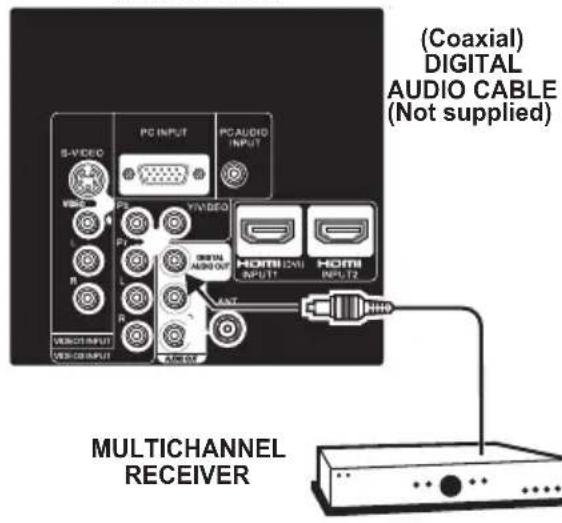
DIGITAL AUDIO
1 Connect the Digital Audio output to a multichannel receiver, as shown.
NOTE: Dolby Digital audio signal is available from the Digital Audio output terminal only when received as part of a Digital Antenna input being viewed on the screen.
BACK-SIDE VIEW OF HDTV
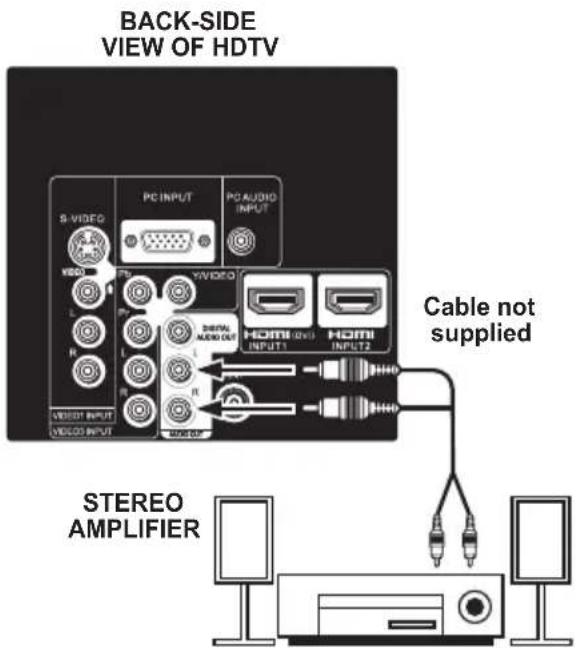
AUDIO OUT JACKS
1 Connect the Audio output to a multichannel receiver, as shown.
PC CONNECTIONS

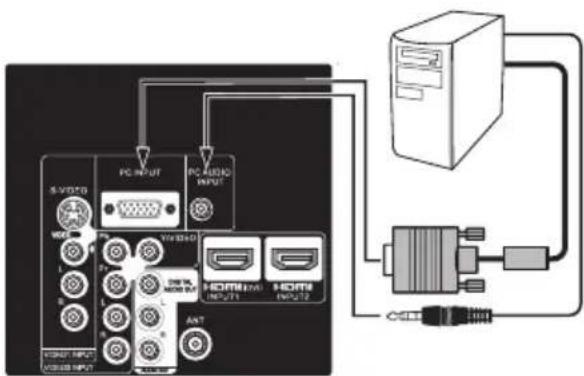
NOTE: Before connecting any cables, disconnect the AC Power Cords of both the HDTV and Personal Computer from the AC outlets.
1 Connect an RGB cable from the monitor output on your PC to the RGB connector on the HDTV and tighten the screws. (Monitor Cable not supplied).
2 Insert one end of a Stereo Mini-Audio cable into the PC Audio Out jack and the other end into the HDTV PC AUDIO INPUT jack. (Stereo Mini-Audio Cable not supplied).
HINT: Volume can be adjusted both from the PC and the HDTV VOLUME +, and - buttons.
3
Select Auto Adjustment from the PC Setup Menu.

NOTE: Power on the HDTV and any other peripheral equipment before powering on the computer.
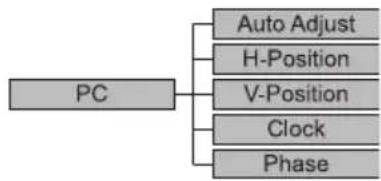
PC MENU NAVIGATION MAP
To avoid a "No Support" condition, preset your PC's output resolution to an XGA value, such as, 1024 x 768, before you disconnect it from your regular monitor.
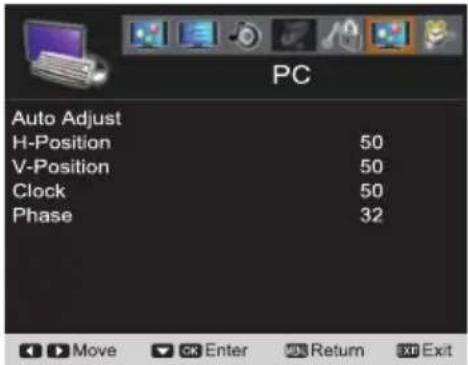
PC MENU-AUTO ADJUSTMENTS OPERATION
1
on the remote control to highlight the Auto Adjust in the PC menu mode. Press the OK button.
2
Highlight Auto Adjust and press the OK button to start the automatically adjust function.
PC MENU- MANUAL ADJUSTMENTS OPERATION
The Clock, Phase, Horizontal Position, and Vertical Position are set automatically when Auto Adjustment is completely done.
Clock- Adjust the Dot frequency to match the dot frequency of your computer.
Phase- Adjust the phase when the picture appears to flicker or blur.
H-Position-Move the image horizontally.
V-Position-Move the image vertically.
1
on the remote control to highlight H-Position, V-Position, Clock or Phase. Press the OK button.
2
setting value. Press the MENU button to return.
3
Press the EXIT button on the remote control to exit the current menu.
The Picture settings in the PC input do not affect other input settings.
SPORTS MODE
By simply pushing the "SPORTS" button on the remote control, the TV will automatically optimize both picture & sound settings for the programs shown.
Off
Football
- For golf, football programs etc.
- Fresh greenness of the lawn
- Enfolding cheering voices, ball hitting sounds
Winter Sports
- For skiing, ice skating programs etc.
Details kept white, vivid color of costume
Enhanced skiing/skating sounds
Marine Sports
- For swimming, diving programs etc.
Sparkling blue of sea, azure sky
Delightful splashing and surf sounds
Indoor Sports
- For basketball, boxing programs etc.
- Alive reddish flesh
- Clear announcements, powerful banging sounds
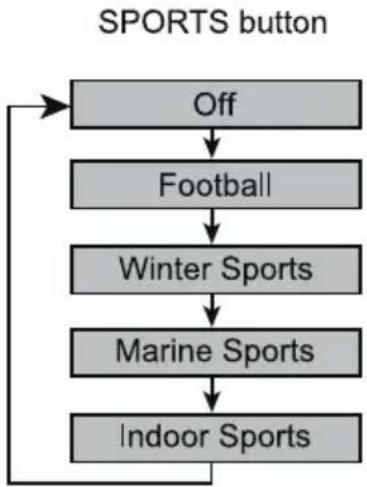
NOTE: When the "SPORTS" button is pushed, an OSD showing the current sports mode will appear on the the bottom left of the screen. Once the channel or the input source is changed, the sports mode will automatically be set to "Off", and the "Sports Off" OSD will appear on the top right of the screen.
If the channel or input source is changed under the "Sports Off" status, the "Sports Off" OSD will not appear on the top right of the screen.
There are two categories:
Air Cable
AIR(Antenna) Search: It will search for analog and digital channels that are broadcasted over-the-air.
Cable Search: It looks for analog cable channels and unscrambled (Clear QAM) digital cable channels.
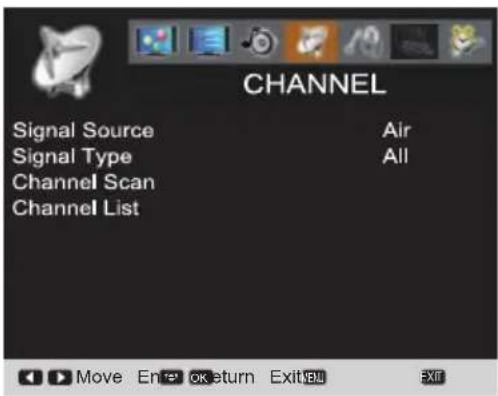
1 Press the MENU button on the remote control to
buttons to highlight CHANNEL. Press the OK button.
2 Highlight Air or Cable. Press the OK button.
3 to highlight All. Press the OK button. (A red hook will appear beside the select item).
4 to highlight Channel Scan. Press the OK button. Choose the Scan to start the channel scanning.
ON-SCREEN MENU OPERATION (CONTINUED)
The Channel List is a database of active channels you can
buttons.
Customize it by deleting or adding channels.
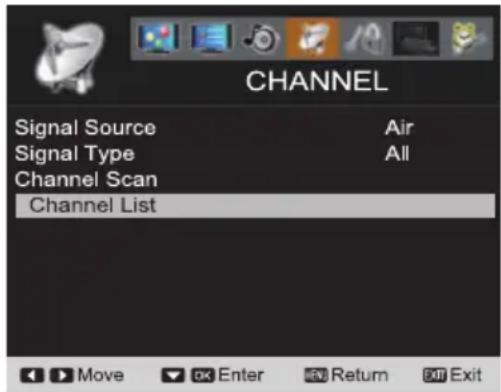
1 Press the MENU button on the remote control to display the Main menu.
2 CHANNEL mode. Press the OK button.
3 to highlight Channel Scan. Press the OK button. Make the channel scan process complete. (the OK button)
ADDING CHANNELS TO CHANNEL LIST
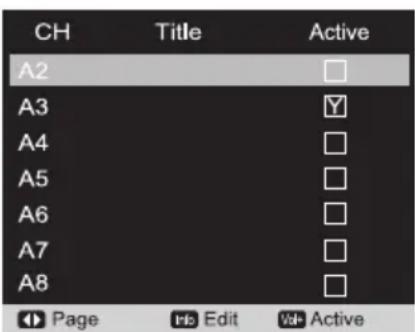
1 to highlight the Channel List. Press the OK button.
2 3
select and highlight the channel you want to add. 4 Press the VOL+ to add the channel to the Channel List. (A white Y will appear in the squared region. This means the channel is added to the Channel List.)
DELETING CHANNELS FROM THE CHANNEL LIST
1 to highlight the Channel List. Press the OK button.
2 3
select and highlight the channel you want to delete. 4 Press the VOL+ button to delete the channel from the Channel List. (A white Y will disappear in the squared region. This means the channel has been deleted from the Channel List.)
RENAMING CHANNELS FROM THE CHANNEL LIST
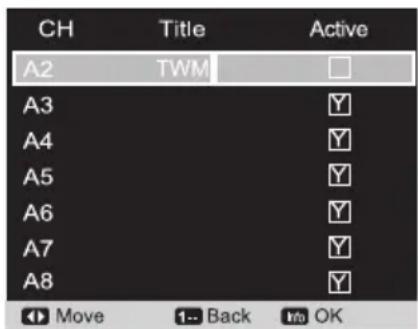
You can rename each channel of the Channel List with following operation:
1 to highlight the Channel List. Press the OK button.
2 unshowed channels.
3 to select and highlight the channel you want to rename.
4 Press the INFO button.
5 Use 0~9 buttons to type the channel renaming with each appointed English word, numbers, and symbols by continuously pressing. (HINT: Use CURSOR buttons to move forward and backward. Use 1-- button to delete.)
6 Press the INFO button to confirm.
| Number Button | Characters | Number Button | Characters |
| 0 | 0.,?!~(@)/+= | 5 | JKLjk15 |
| 1 | 1 | 6 | MNOmno6 |
| 2 | ABCabc2 | 7 | PQRSpqrs7 |
| 3 | DEFdef3 | 8 | TUVtuv8 |
| 4 | GHlghi4 | 9 | WXYZwxyz9 |
ON-SCREEN MENU OPERATION (CONTINUED)
PARENT ADJUSTMENT
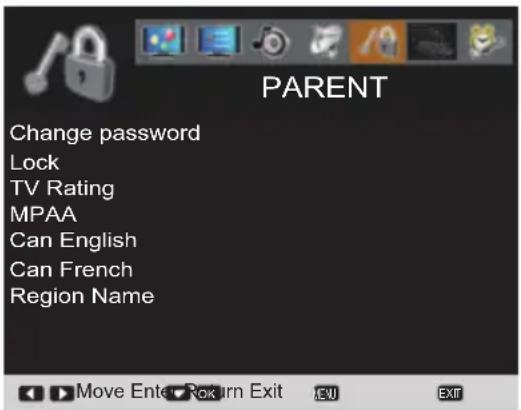
This SANYO television is equipped with an electronic V-Chip to interpret MPAA (Motion Picture Association of America) and TV Parental Guidelines rating codes. When these codes are detected, the HDTV will automatically display or block the program, depending upon choices you make when setting up the PARENT menu.
Use this feature to automatically block programs with content you deem as inappropriate for your children to view.
MORE INFORMATION
Additional information about MPAA and V-Chip rating can be found at:
www.mpaa.org and www.v-chip.org, respectively.
password SETTING
You will need to set a passowrd when using this TV and entering the PARENT menu for the first time.
Enter this password to access the PARENT menu from the second time.
1 Press the MENU button and then use the CURSOR Press the OK button.
2 Use the 0-9 buttons to enter "NEW PIN" (the new password you want to assign). Press the OK button.
3 Use the 0-9 buttons to enter "Confirm" numbers. Press the OK button.
NOTE: Please carefully remember new password. If you forget the former password, press 1-- button 4 times to reset password.
Change password OPERATION
1
button.
2 Enter password. If the password is correct, it will automatically return to PARENT menu. If the password is wrong, you can enter password again or press MENU button to return to PARENT menu.
3
4 Use the 0 - 9 buttons to enter the "OLD PIN" (the former password), "NEW PIN" (the new password you want to assign), and enter "Confirm" numbers in turn. Press the OK button.
Lock OPERATION
V-Chip- This TV follows the restricted channels broad casting setting within MPAA and TV Rating option in PARENT menu.
Lock- Block the broadcast of the current displayed channel directly or current source input.
1
2 Enter your password. If the password is correct, it will automatically return to the PARENT menu. If the password is wrong, you can enter the password again or press MENU button to return to the PARENT menu.
3
to highlight Lock. Press the OK button. 4 Select V-Chip or Lock. Press the OK button.
TV Rating OPERATION
TV Rating- Decides which kind of classified channel in the Channel List can be viewed.
You can block portions of the TV rating by choosing one or more of the content ratings (D, L, S, V and FV).
By blocking just the L and S content ratings of TV-14, for example, TV-14 rated programs with a D and/or V content rating could still be viewed.
1
Press the OK button.
3
2 Enter your password. If the password is correct, it will automatically return to the PARENT menu. If the password is wrong, you can enter the password again or press the MENU button to return to the PARENT menu.
4
highlight TV Rating for TV Rating. Press the OK button.
buttons to select the setting you want to adjust and press the OK button. (A white mark will appear in the squared region)
MPAA OPERATION
MPAA- Decides which kind of classified movie rating signal can be viewed.
1
Press the MENU button and then use the
2 Enter your password. If the password is correct, it will automatically return to the PARENT menu. If the password is wrong, you can enter the password again or press MENU button to return to the PARENT menu.
3
highlight MPAA for movie Rating. Press the OK button.
4
to select the setting you want to adjust and press the OK button. (A white mark will appear in the squared region).
ON-SCREEN MENU OPERATION (CONTINUED)
CANADIAN/US ENGLISH OPERATION
1 Press the MENU button and then use the CURSOR buttons to highlight PARENT. Press the OK button.
2 Enter your password. If the password is correct, it will automatically return to PARENT menu. If the password is wrong, you can enter password again or press the MENU button to return to PARENT menu.
3 to highlight Can English. Press the OK button.
4 to select the setting you want to adjust and press the OK button. (A white mark will appear in the squared region).
1 Press the MENU button and then use the CURSOR OK button.
2 Enter your password. If the password is correct, it will automatically return to PARENT menu. If the password is wrong, you can enter password again or press the MENU button to return to PARENT menu.
3 to highlight Can French. Press the OK button.
4 select the setting you want to adjust and press the OK button. (A white mark will appear in the squared region.)
NOTE: Press the OK button to make or cancel the selected settings. A lock symbol will appear beside the selected rating option indicating that it is blocked.
Region Name- Region Name for V-Chip Regional Rating 5 (RRT5) is an advanced V-Chip ratings system for digital channels that are received with an antenna.
When the HDTV detects compatible RRT5 data, it is downloaded and stored in memory and the menu is modified to include and advanced adjustment option.
1 Press the MENU button and then use the CURSOR buttons to highlight PARENT. Press the OK button.
2 Enter your password. If the password is correct, it will automatically return to PARENT menu. If the password is wrong, you can enter password again or press the MENU button to return to the PARENT menu.
3 to highlight Region Name. Press the OK button.
4 to select the option you want to adjust. Press the OK button.
5 Press the OK button to confirm or cancel the selected setting.
NOTE: If current program stream is without RRT5 data, this function will be grayed out. This function is only effective for digital channels including RRT5 data.
PICTURE/ AUDIO/ ADVANCED ADJUSTMENT
PICTURE
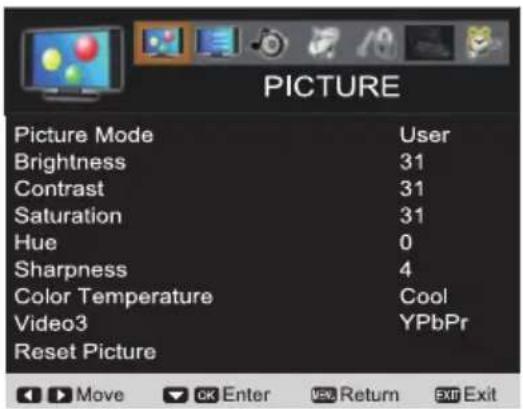
1 Press the MENU button on the remote control to display the Main menu.
2 PICTURE. Press the OK button.
3 to select the Picture Mode. Press the OK button.
4 select the Cinema, Standard, Vivid or User. Press the OK button to add a red hook in the blank space.
1 Press the MENU button on the remote control to display the Main menu.
2 PICTURE:Press the OK button.
3 select the Brightness, Contrast, Saturation, Hue or Sharpness. Press the OK button.
4 setting.
Reset Picture- Make the previous adjustment settings under the PICTURE mode recovered from the factory default value.
1 Use the PICTURE. Press the OK button.
2 Use the to highlight Reset Picture. Press the OK button.
3 Use the to select Reset or Cancel. Press the OK button.
NOTE: Press the MENU button to return to the PICTURE mode menu.
AUDIO
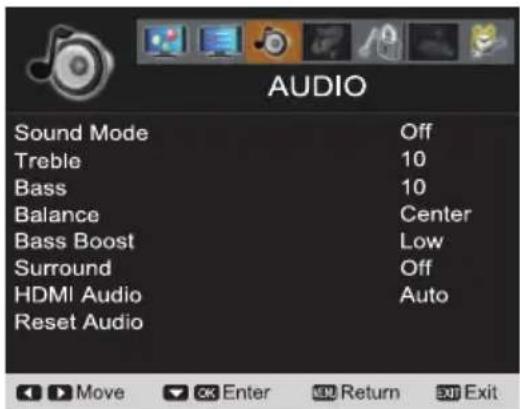
User mode (Sound Equalier) will allow to adjust frequency response from 100Hz to 10kHz by user. Use the select frequency.
Use the to frequency setting.
1 Press the MENU button on the remote control to display the Main menu.
2 Use the AUDIO. Press the OK button.
3 Use the select Treble, Bass or Balance. Press the OK button.
4 Use the audio setting.
1 Press the MENU button on the remote control to display the Main menu.
2 Use the AUDIO. Press the OK button.
3 Use the to highlight Bass Boost. Press the OK button.
4 Use the to highlight Off, Low or High. Press the OK button.
SURROUND OPERATION
1 Press the MENU button on the remote control to display the Main menu.
2 Use the AUDIO. Press the OK button.
3 Use the to highlight Surround. Press the OK button.
4 Use the to highlight Off, Low or High. Press the OK button.
HDMI1 includes three categories, Auto, Digital and Analog for choosing. (Default setting is Auto) For the other HDMI port, the HDMI Audio setting will be gray out and fixed in Digital.
Auto- During this setting, the system will base on HDMI1 signal type to detect this input source which is pure HDMI or DVI signal, then select the audio input signal is from HDMI port or from PC AUDIO INPUT port automatically. (refer page 13)
Digital- During this setting, the audio input signal will be fixed to the HDMI1 port.
NOTE: If the HDMI is a DVI signal type, there will be no sound output.
Analog- During this setting, the audio input signal will be fixed to PC AUDIO INPUT port.
NOTE : Even though the HDMI is pure HDMI type, the audio
still is selected from the PC AUDIO INPUT port.
1 Press the MENU button on the remote control to display the Main menu.
2 Use the AUDIO. Press the OK button.
3 Use the to highlight HDMI Audio. Press the OK button.
4 Use the to select Auto, Digital or Analog option. Press the OK button. (A red hook will appear in the white blank space).
Reset Audio- It can reset previous adjusting settings during the AUDIO mode to the factory default value.
1 Use the AUDIO. Press the OK button.
2 Use the to highlight the Reset Audio. Press the OK button.
3 Use the to select Reset or Cancel. Press the OK button.
NOTE: Press the MENU button to return to the AUDIO menu.
ADVANCED
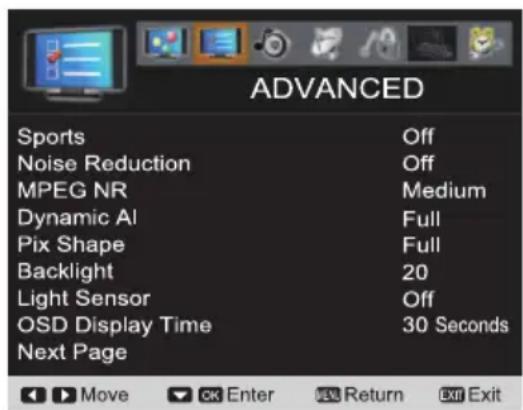
1 Press the MENU button on the remote control to display the Main menu.
2 Use the ADVANCED. Press the OK button.
3 Use the to select Sports. Press the OK button.
4 Use the to select Off, Football, Winter Sports, Marine Sports or Indoor Sports. Press the OK button.
1 Press the MENU button on the remote control to display the Main menu.
2 Use the ADVANCED. Press the OK button.
3 Use the to select Noise Reduction. Press the OK button.
4 Use the to select Off, Weak, Medium or Strong. Press the OK button. DVD player, cable/satellite box and digital camera signals usually will not need noise reduction.
MPEG NR OPERATION
1 Press the MENU button on the remote control to display the Main menu.
2 Use the ADVANCED. Press the OK button.
3 Use the to select MPEG NR. Press the OK button.
4 Use the to select Off or On. Press the OK button.
NOTE: Please set PICTURE MODE to User then can turn on this function. PAGE 19.
Pix Shape- Divided into three categories. The options during the Pix Shape mode change by the detection of HD, SD or PC inputs.
HD: Full / WaterGlass / Zoom1 / Zoom2
SD: Standard / WaterGlass / Zoom1 / Full / Zoom2
PC: Normal / Full / Dot by Dot
1 Press the MENU button on the remote control to display the Main menu.
2 Use the ADVANCED. Press the OK button.
3 Use the to select Pix Shape. Press the OK button.
4 Use the to select Standard, WaterGlass, Zoom1, Full or Zoom2. Press the OK button.
NOTE: The remote controls of HD cable and satellite boxes also have similar zoom choices. Try having the TV setting on FULL first, and adjust via the cable/satellite box's remote control.
BACKLIGHT OPERATION
1 Press the MENU button on the remote control to display the Main menu.
2 Use the ADVANCED. Press the OK button.
3 Use the to select Backlight. Press the OK button.
4 desired value between 0 to 20.
Picture brightness will automatically be boosted or reduced depending on the room brightness.
1 Press the MENU button on the remote control to display the Main menu.
2 ADVANCED. Press the OK button.
3 select Light Sensor. Press the OK button.
4 to select Off,Low,Middle or High. Press the OK button.
1 Press the MENU button on the remote control to display the Main menu.
2 Use the ADVANCED. Press the OK button.
3 Use the to select the OSD Display Time option. Press the OK button.
4 Use the 20 Seconds, 30 Seconds, 40 Seconds, 50 Seconds or 60 Seconds. Press the OK button.
NEXT PAGE OPERATION
NEXT PAGE - Jump to next page menu.
1 Press the MENU button on the remote control to display the Main menu.
2 ADVANCED. Press the OK button.
3 select the Next Page.
4 Press the OK button to jump next page.
When you select to PC source or USB mode the120Hz CONDITION default setting is set to Off.
When display happened double shadow or Outer Glow, please turn off the 120Hz CONDITION.
Reset Advanced- Reset the previous adjustment settings under the ADVANCED mode to the factory default value.
1 Use the ADVANCED. Press the OK button.
2 Use the highlight Reset Advanced. Press the OK button.
3 Use the select Reset or Cancel. Press the OK button.
NOTE: Press the MENU button to return to the previous ADVANCED menu.
PREVIOUS PAGE OPERATION
PREVIOUS PAGE - Return to previous page.
Press the MENU button on the remote control to display the Main menu.
2 ADVANCED. Press the OK button.
3 select the Previous Page.
4 Press the OK button can return to previous page.
SYSTEM
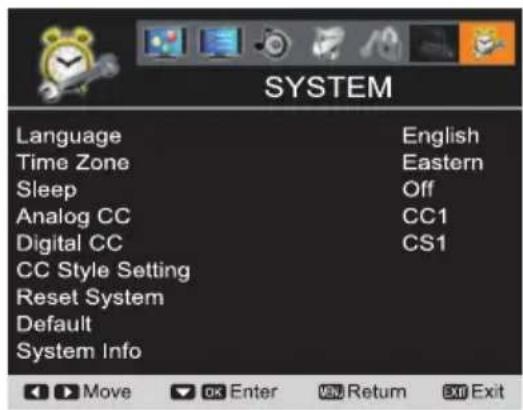
LANGUAGE OPERATION
Language- Choose from English, François, and Espanol for the on-screen display of menus and messages.
1 Press the MENU button on the remote control to display the Main menu.
2 Use the SYSTEM. Press the OK button.
3 highlight Language option. Press the OK button.
4 select English, François or Espanol. Press the OK button. A red hook will appear in the squared and blank region.
TIME ZONE OPERATION
Time Zone- Choose from six categories in different location, U.S.A. of Eastern, Central, Mountain, Pacific, Alaska, and Hawaii, for your choice of setting all displayed time zone on all ON- Screen Menu.
1 Press the MENU button on the remote control to display the Main menu.
2 Use the SYSTEM. Press the OK button.
3 Use own) buttons to highlight Time Zone. Press the OK button.
4 Use own) buttons to select Eastern, Central, Mountain, Pacific, Alaska or Hawaii. Press the OK button. A red hook will appear in the squared and blank region.
SLEEP OPERATION
Sleep- Choose from Off, 30 min, 60 min, 90 min, 120 min, 150 min, and 180 min for your choice of setting the counting down of time you desire the HDTV to be turned off by itself. The default setting is Off.
1 Press the MENU button on the remote control to display the Main menu.
2 Use the SYSTEM. Press the OK button.
3 Use own) buttons to highlight Sleep. Press the OK button.
4 Use Down) buttons to select Off, 30 min, 60 min, 90 min, 120 min, 150 min or 180 min. Press the OK button. A red hook will appear in the squared and blank region.
Analog CC- Choose from eight types of captions for Analog TV signal for your choice of setting the desired caption type to be displayed with Analog TV signal programs on your HDTV.
1 Press the MENU button on the remote control to display the Main menu.
2 Use the SYSTEM. Press the OK button.
3 Use own) buttons to highlight Analog CC. Press the OK button.
4 Use own) buttons to select CC1, CC2, CC3, CC4, TT1, TT2, TT3 or TT4. Press the OK button. A red hook will appear in the squared and blank region.
DIGITALCLOSED-CAPTION OPERATION
Digital CC- Choose from six types of captions for Digital TV signal for your choice of setting the desired caption type to be displayed with Digital TV signal programs on your HDTV.
1 Press the MENU button on the remote control to display the Main menu.
2 Use the SYSTEM. Press the OK button.
3 Use own) buttons to highlight Digital CC. Press the OK button.
4 Use own) buttons to select CS1, CS2, CS3, CS4, CS5 or CS6. Press the OK button. A red hook will appear in the squared and blank region.
CC STYLE SETTING OPERATION
CC Style Setting- Caption is a textual information transmitted along with the picture and sound.
Turning captioning ON causes the HDTV to open these captions (Digital or Analog) and superimpose them on the screen (Local broadcasters decide which caption signals to transmit). Digital Captions can be changed by your choice of the CC Style Setting as shown.
There are several Subcatalogs for each nine categories under the CC Style Setting for your choice of setting the desired caption style superimposed on your HDTV screen.
| Category Title Subcatalog of the Category Title | |
| CC Setting | CC Display / Muted=On / Off |
| CC Priority | Automatic / Analog CC / Digital CC |
| Digital CC Preset | Default / Custom |
| Font Size | Standard / Large / Small |
| Font Color | White / Red / Green / Blue / Yellow / Magenta / Cyan / Black |
| Font Style | Style1 / Style2 / Style3 / Style4 / Style5 / Style6 / Style7 |
| Edge Type | None / Raised / Depressed / Outline / L Shay / R.ashow |
| Edge Color | White / Red / Green / Blue / Yellow / Magenta / Cyan / Black |
| Background Color | White / Red / Green / Blue / Yellow / Magenta / Cyan / Black |
1 Press the MENU button on the remote control to display the Main menu.
2 Use the SYSTEM. Press the OK button.
3 Use own) buttons to highlight CC Style Setting. Press the OK button. 4 Use own) buttons to select CC Setting, CC Priority, Digital CC, Present, Font Size, Font Color, Font Style, Edge Type, Edge Color or Background Color. Press the OK button.
5 Use the above-mentioned Subcatalog of the Category Title you want to set. Press the OK button.
Reset System- Reset the previous adjustment settings under the SYSTEM mode to the factory default value
1 Use the
SYSTEM. Press the OK button.
2 Use own) buttons to highlight Reset System. Press the OK button.
3 Use own) buttons to select Reset or Cancel. Press the OK button.
DEFAULT OPERATION
Default-A function linked to the RESET button on the remote control.
Allows you to reset the previous adjustment settings of all ON-Screen Menu Operations to the factory default value.
NOTE: Be sure you wish to execute this function.
1 Use the
SYSTEM. Press the OK button.
2 Use own) buttons to highlight Default. Press the OK button.
3 Use own) buttons to select Reset or Cancel. Press the OK button.
System Info- Allows your checking the record of the Firmware Code version and release Date kept in your HDTV memory.
1 Use the
SYSTEM. Press the OK button.
2 Use own) buttons to highlight System Info. Press the OK button.
3 Use the MENU button to return to SYSTEM menu or use the EXIT button to close the ON-Screen menu.
USB (PHOTO VIEWER)
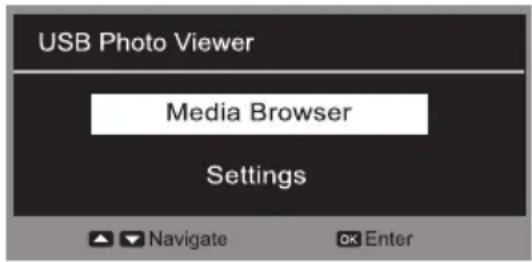
MEDIA BROWSER OPERATION
1 Press the INPUT button on the remote control and use the highlight USB. Press the OK button.
2 Use the highlight Media Brower. Press the OK button.
3 Use the to select JPEG file or JPEG folder. Press the OK button.
SINGLE VIEW (Open)
1 Use the select Open. Press the OK button.
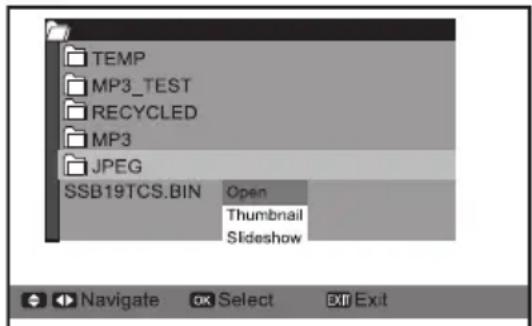
2 Use the select JPEG file. Press the OK button.
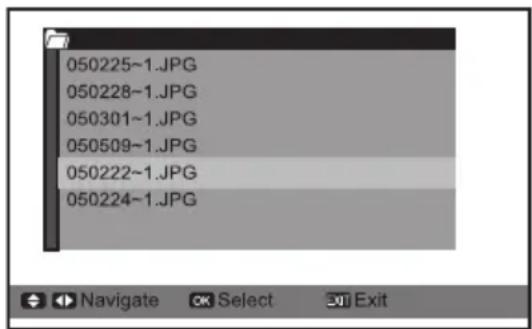
3 rotate the image.
4 Press OK button can zoom in x2 and press OK button again can zoom in x4. Press EXIT button
can minify the image and press exit again can to original size.
scroll over the screen only in Zoom mode(x2,x4)
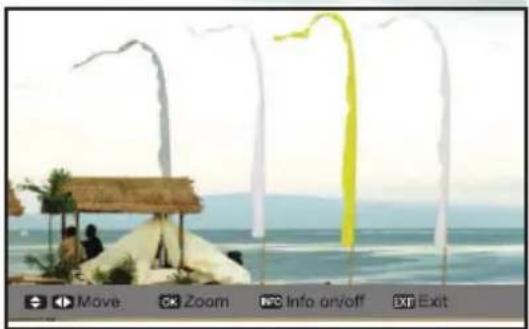
5 Use the EXIT button to exit this function.
MULTI VIEW (Thumbnail)
1 Use the select Thumbnail. Press the OK button.
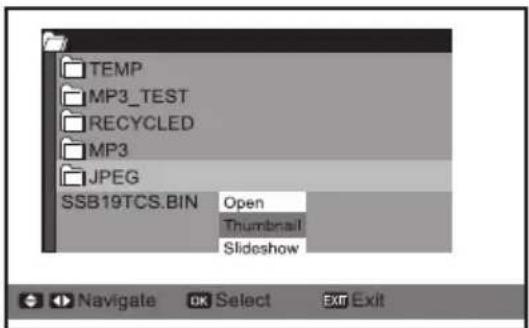
2 Press the OK button then use the CURSOR
Press the OK button.
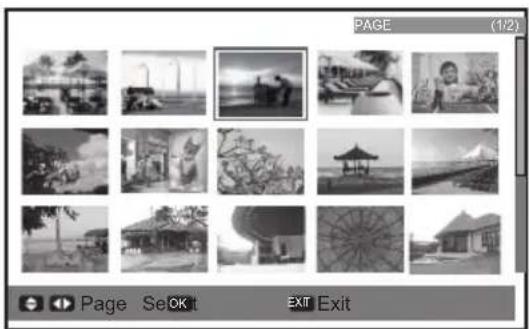
3 If the JPEG file more than 15 files. Use the CURSOR
page JPEG file. Press the OK button.
4 Use the EXIT button to exit this function.
SLIDESHOW
1 Use the select Slideshow. Press the OK button.
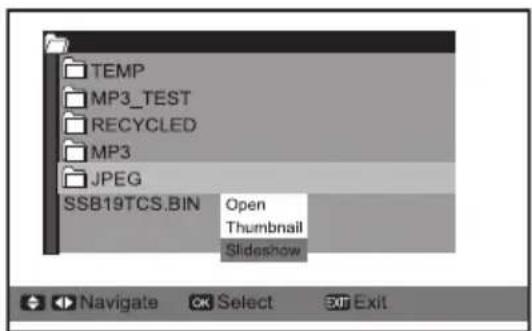
2 Use the EXIT button to exit this function.
SETTINGS (for Slideshow function) OPERATION
1 Use the highlight Settings. Press the OK button.
2 Use the highlight Slideshow Interval. Use the CURSOR buttons to select 3sec, 5sec or 10sec.
3 Use the highlight Slideshow Effect. Use the CURSOR buttons to select Off, Wipe Right, Wipe Down, Comb Side, Comb UpDown, Checker, Mosaic, Fade, Blind Left, Blind Down and Box In.
4 Use the highlight Slideshow Repeat. Use the CURSOR buttons to select On or Off.
NOTES: The operation bar of JPEG viewer (OSD) will disappear within three seconds. Press the INFO button to display the operation bar again. Use the CURSOR picture. Use the INFO button to close OSD information
PHOTO VIEWER SPECIFICATIONS
| Playable media | USB memory (Should be a flash memory type with USB mass storage.) No support for USB HUB. |
| Format FAT16, FAT32 | |
| Maximum number of files 10000 | |
| Maximum number of folders | 1000 |
| File path Up to 260 characters | |
| Directory/File name 8 characters | |
| mage file format | JPEG Base Line format (Supported) with English file name. Progressive/JPEG 2000/Uncompressed (Not supported) |
| Pixel 8x8 to 16384x8640 | |
| Zoom-in-limit x16 | |
| Zoom-out limit | 4069x2160 (Width x Height) or less: x 1/16 Larger than 4096x2160 (Width x Height) and 8192x4320 (Width x Height) or less: x 1/32 Larger than 8192x4320 (Width x Height): x1/64 |
| Character code supported in file system library | Symbol: ! - _ # $ % & ' @ ^ Number: 0 1 2 3 4 5 6 7 8 9 Alphabet: A B C D E F G H I J K L M N O P Q R S T U V W X Y Z a b c d e f g h i j k l m n o p q r s t u v w x y z *No operation is guaranteed for use Symbol only as a directory name or file name. |
NOTES:
Connectivity is not guaranteed for all devices.
Gently insert the USB device into the port and do no remove while viewing Media Player.
USB device: USB Mass Storage Class device (MSC)
Connect the USB device to the TV directly.
Do not use a USB Hub.
You must obtain any required permission form copyright owners to use copyright content. SANYO cannot and does not grant such permission.
HELPFUL HINTS - Problems / Solutions
If you are having problems with your HDTV, check this trouble shooting chart to find one or more possible solutions.
Before returning your HDTV, please visit our website at http://ca.sanyo.com or call us toll free at 1.800.263.2244. We can Help!
| Problem: Check these | Conditions: Try these Solutions: Page No. | ||
| No picture, sound (Digital Picture) | Check the antenna / external connections. There may be a station trouble, no signal broadcast. MUTE function may be turned ON. | Adjust antenna. Try a different channel. Execute Channel Scan in the CHANNEL menu. (Set Signal Type to All) Adjust Volume. | 7, 11, 15 - 16 |
| No Caption | Check if station is broadcasting a Closed - Caption signal. Select another channel. | Press the CAPTION button to select captioning mode. | 9, 23 |
| Cannot display picture on a full screen | Press the_PIX SHAPE button on the remote control to change settings. | 9, 21 | |
| Poor Picture/ Sound (watching Analog) | Check if the program is in color. Check the antenna / external connections. Color or Tint may be misadjusted. There may be a station trouble. MUTE function may be turned ON. | Try a different channel. Adjust the antenna. Execute Reset Picture in the PICTURE menu. Adjust the Volume and/or Image. | 7,9 19 - 20 |
| “No Signal” message appears on screen | Check the Audio / Video connections. Check the external equipment connections. Check the external equipment settings. Check the antenna connection. | Press the INPUT button on the remote control. | 7 - 13 |
| Pixilation of Digital image | Press the INFO button and check signal strength. | Turn antenna, install signal booster. Install outdoor Digital antenna. | 7, 11 |
| Cannot select or scan some channels | Channel may be removed from memory. Check antenna connections. No digital signal being broadcasted. Weak Signal. | Selec Channel List to add channels or start channel scan in CHANNEL mode. Turn antenna, install signal booster. | 7, 11, 15 - 18 |
| No Cable channels above number 13 | Check CHANNEL menu, Signal Source item should set to Cable. | Set Signal Source to Cable, Set Signal Type to All and execute Channel Scan to search for Cable channels in CHANNEL menu. | 11, 15 |
| Remote Control will not operate TV | Check batteries. Check if the TV is Plugged in. | Replace batteries. Aim remote control at front of TV. | 7, 9 |
| Cabinet makes popping sound | This is a normal condition during warm - up and cool down of the plastic cabinet parts. | ||
| No USB Media message appears on screen | Check the external equipment connections. Check the external equipment settings. | Press the INPUT button on the remote control. | |
SPECIFICATIONS
Maximum Visible Range
(H)930.24 x (V)523.26 mm (42.02 inches diagonal)
Picture Resolution
Full HD 1920X1080
Viewing Angle
Horizontal 178^ & Vertical: 178^ (Panel tentative)
Brightness
450(Typical) cd / m^2 (Panel tentative)
Contrast Ratio
4000:1 (Typical) (Panel tentative)
Voltage
120V AC 60Hz
AC Power Consumption (average)
178 Watts
Color System
NTSC3.58
Sound System
M
Channel Coverage
Low band: 54.00 to 144.00MHz
Mid band: 145.00 to 424.00MHz
High band: 425.00 to 861.25MHz
Sound Output
10W+10W
Dimensions
(Including Stand)
(W)1023 x (H)697 x (D)250 mm
Net Weight
(Including Stand)
16.3 kg
Operating Environment
Operating Temperature: 5^ to 35^
Operating Humidity: 0% to 90%
Storage Temperature: 0^ to 40^
Storage Humidity: 0% to 90% (non-condensing)
Specifications are subject to change without notice.
The On-Screen Menu and figures in this manual may differ slightly from the product.
Input terminals
| PC | HDMI/DVI Audio YPb | ANT Pr YPbPr A | Video 1 Video 2 | USB | ||||
| VGA AUDIO JACK AV AV | idlo | |||||||
| 1 | 1 | 311 | 1111 | |||||
Output terminals
| Digital Audio Output | Audio Output |
| 1 | 1 |
CONFIGURATIONS OF VGA TERMINALS
VGA IN (D-SUB) TERMINAL
Terminal:D-SUB15PIN
Connect video output terminal of LCD TV to this terminal with a VGA Cable (not supplied). When connecting
Macintosh computer, the MAC Adapter (not supplied) is required.
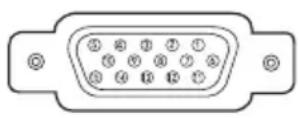
Pin Configuration
| 1 Red Input 9 +5V | ||
| 2 Green Input 10 NC | ||
| 3 Blue Input 11 Sense 0 | ||
| 4 Reserved 12 DDC_SDA | ||
| 5 Reserved 13 Horiz. sync. | ||
| 6 GND 14 Vert. sync. | ||
| 7 GND 15 DDC_SCL | ||
| 8 GND |
PC / HDMI SIGNAL MODES
This LCD TV can correspond to the signals below. After connecting with the computer, the TV can automatically recognize the signal from the connected PC (computer) / HDMI.
PC SIGNAL MODE COLUMN (recommended)
| SYSTEM MODE | Resolution V-Freq. (Hz) | H-Freq. (KHz) | PIXELS | CLOCK (MHz) | |
| VGA | 640x480 | 59.94 | 31.47 | 25.18 | |
| SVGA | 800x600 | 60 | 37.88 | 40 | |
| XGA | 1024x768 | 60 | 48.36 | 65 | |
| WXGA 1360x768 | 60 | 47.712 | 85.5 | ||
| WXGA 1280x768 | 60 | 47.78 | 79.5 | ||
| SXGA 1280x1024 | 60 | 63.981 | 108 | ||
NOTE:
In principle, the TV can not display signal modes not described in the above column. However, it can sometimes display a signal very similar with one of the modes described.
It is not the trouble of the TV if interference appears on the picture while switching the signal mode.
The Dot Clock of the computer's signal must be less than 108 MHz.
When the input signal from PC is out of the PC signal mode column, above, "No Support" caution message will display. But in some case, the LCD TV will still display the PC signal though the signal mode doesn't exist on the list above. Under this condition, the display position may not correct and the quality may not be admitted also.
When input signal is digital from HDMI terminal, refer to the chart below.
| SYSTEM MODE | Resolution V-Freq. (Hz) | H-Freq. (KHz) | PIXEL S CLOCK (MHz) | |
| 480I | 720(1440)x480 | 59.94 | 15.73 | |
| 480P | 720x480 | 59.94 | 31.47 | |
| 720P/60 128 | 0x720 | 60 | 45 | |
| 1080I/60 | 1920x1080 | 60 | 33.75 | |
| 1080P/24 1920x1080 | 24 | 27 | ||
| 1080P/60 1920x1080 | 60 | 67.5 | ||
RISQUE DE CHOC ÉLECTRIQUE, NE PAS OUVRIR.
ATTENTION: AFIN DE RÉDUIRE LES RISQUES DE CHOC ELECTRIQUE, NE RETIREZ PAS LE COUVERCLE (OU L'ENDOS). CET APPAREIL NE CONTIENT AUCUNE PIECE POUVANT ÉTRE REPARÉE PAR L'UTILISATEUR. FAITES APPEL À UN TECHNIÇIEN COMPÉTENT POUR TOUS LES TRAVAUX D'ENTRETIEN OU DE REPARATION.
CE SYMBOLE INDIQUE LA PRESENCE D'UNE TENSION ELECTRIQUE D'UNE INTENSITE SUFFISANTE POUR CONSTITUER UN RISQUE DE CHOC ELECTRIQUE.

ICE SYMB BO LE INDI QUE QUE L E MANU EL DE L'UTILISATEUR FOURNI AVEC CET APPAREIL CONTIENT DES INSTRUCTIONS IMPORTANTES CONCERNANT SON UTILISATION ET L'ENTRETIEN.

AVERTISSEMENT : AFIN DE RÉDUIRE LES RISQUES D'INCENDIE OU DE CHOC ÉLECTRIQUE, N'EXPOSEZ PAS L'APPAREIL À LA PLUIE OU À L'HUMIDITE.
CONSIGNES DE SECURITÉ IMPORTANTES
(NEC,SECTION 810-21)
SYSTEME D'ELECTRODES DE MISE
TERRE DE L'ALIMENTATION
ELECTRIQUE (NEC, ART. 250, PARTIE H)
NEC-NATIONAL ELECTRICAL CODE
FIXATION AU MUR (OPTIONNELLE) 6
POUR COMMENCER.
CONSIGNES. 7
MISE EN ROUTE-CONTROLES ET CONNECTEURS. 8
OPÉRATION DE LA TÉLECOMMANDE....9
MISE EN ROUTE-CONNEXIONS. 10
CONNEXION D'ALIMENTATION. 11
FIXATION AU MUR (OPTIONNELLE)
(SEULEHDMIESTCOMPATIBLEAVEC CETTE
FONCTION.)
3sec, 5sec ou 10sec.
3 metre en surbrillance Effet de diaporama.
(L)1 023 × (H)697 × (P)250 mm
Poids net
(socle inclus)
16,3 kg
PORT D'ENTREE VGA (D-SUB)
I could do this. I would like to say that it is possible to do so, but I don't know how to do it.
WARRANTY APPLICATION
New, unused SANYO Color Television products purchased in Canada through a SANYO authorized dealer are warranted against manufacturing defects in materials and workmanship for ONE YEAR for parts and labor, from the date of purchase by the original retail purchaser for non-commercial use. This warranty only applies in favor of the original retail purchaser of the warranted product.
SANYOCANADA INC.'S RESPONSIBILITY
During the warranty period, SANYO Canada Inc. will repair, or at our option, replace a Color Television product which shows evidence of a manufacturing defect in materials or workmanship.
Replacement PARTS are warranted for the remaining portion of the warranty period.
WHATIS NOT COVERED
(a) Color Television products purchased outside Canada.
(b) Color Television products purchased in a used condition.
(c) Problems due to product set-up and installation.
(d) Adjustments that are outlined in the Operating Manual.
(e) Accessory items including antenna, batteries and connecting cables.
(f) Damage in or due to transportation.
(g) Damage due to improper maintenance, accident, abuse, misuse or negligence.
(h) Damage caused by lightning and power surges.
ORIGINAL RETAIL PURCHASER'S RESPONSIBILITY
You, the original retail purchaser, must present your original, dated bill-of-sale together with this warranty to SANYO Canada Inc. or to an authorized Sanyo Service Depot* when you make claim under this warranty.
You, the original retail purchaser, are responsible for any costs of TRANSPORTING the product to and from SANYO Canada Inc. or an authorized Sanyo Service Depot. You also are responsible for the cost of any MAINTENANCE necessary in respect of the product.
*In-home service is only available to the units whose screen size is 46 inches or over, and limited to the locations within a 30-km radius of any authorized Sanyo Service Depot, throughout Canada.
WARRANTY BECOMES Void This warranty becomes void if the product's serial numbers are altered or removed or if any repair to the product is made other than by SANYO Canada Inc. or by an authorized Sanyo Service Depot.
LIMITATIONS
(a) SANYO Canada Inc. reserves the right to change or improve the design of the model of the product warranted hereunder without incurring any obligation to make any modifications to or to install any improvement in or on the product.
(b) In no event shall SANYO Canada Inc. or any of its Authorized Dealers be liable for special or consequential damage arising from the use of this product.
STATUTORY WARRANTY
The above provisions do not preclude the operation of any applicable provincial statute which in certain circumstances may not allow some of the limitations and exclusions described in this Warranty. Where any terms of this Warranty are prohibited by such a statute, they shall be deemed null and void but the remainder of this warranty shall remain in effect.
HOWTO OBTAIN WARRANTYSERVICE
Please contact the Sanyo Authorized Dealer from whom the product was purchased or contact us directly at:
SANYOCanada Inc.
201 Creditview Road
Woodbridge Ont. L4L 9T1
(905) 265-4100
1-800-263-2244