PDVD6990 - DVD player Proscan - Free user manual and instructions
Find the device manual for free PDVD6990 Proscan in PDF.


| Product Type | DVD Player |
| Brand | Proscan |
| Model | PDVD6990 |
| Dimensions (W x H x D) | 260 x 43 x 194 mm |
| Net Weight | 0.78 kg |
| Power Supply | 100-240 V~ 50/60 Hz |
| Standby Power Consumption | Less than 0.5 W |
| Compatible Disc Formats | BD, BD-R, BD-RE, DVD-R/RW, DVD+R/RW, DVD-Video, VCD, CD, CD-R/RW |
| Video Formats | H.264, MPEG1, MPEG2, MPEG4, WMV, AVCHD |
| Audio Formats | Dolby Digital, Dolby Digital Plus, Dolby TrueHD, DTS, WMA |
| Photo Formats | JPEG, PNG, GIF |
| HDMI Video Output | Auto, 480i/576i, 480p/576p, 720p, 1080i, 1080p, 1080p 24 Hz |
| USB Port | 1 x USB for media file playback |
| Remote Control | Yes, with batteries included |
| Included Accessories | Remote control, batteries, HDMI cable, power adapter, user manual |
| Maintenance | Clean with a dry cloth; for discs, wipe from center to edge with a microfiber cloth |
| Safety | Do not expose to water or moisture; do not open the casing; Class 1 laser |
| Warranty | 90 days against defects in materials and workmanship |
Frequently Asked Questions - PDVD6990 Proscan
User questions about PDVD6990 Proscan
0 question about this device. Answer the ones you know or ask your own.
Ask a new question about this device
Download the instructions for your DVD player in PDF format for free! Find your manual PDVD6990 - Proscan and take your electronic device back in hand. On this page are published all the documents necessary for the use of your device. PDVD6990 by Proscan.
USER MANUAL PDVD6990 Proscan
This product has been manufactured and sold under the responsibility of CURTIS INTERNATIONAL LTD.
PROSCAN, and the PROSCAN logo are trademarks used under license by CURTIS INTERNATIONAL LTD. - further information at www.proscan-brand.com.
All other products, services, companies, trademarks, trade or product names and logos referenced herein are the property of their respective owners.
Contents
Safety and Maintenance 2
Security Instructions 2
Panel Description 4
Remote Control 5
Connections 6
Basic Operations 7
USB Play 7
Setup Menu 8
Basic Operation for the Menu 8
General Player Settings 8
Display Settings 9
Audio Settings 9
Specifications 10
Troubleshooting 11
Warranty 12
Safety and Maintenance

This symbol indicates "dangerous voltage" inside the product that presents a risk of electric shock or personal injury

This symbol indicates important instructions accompanying product
WARNING: To reduce the risk of fire or electric shock, do not expose this product to rain or moisture. Appliance shall not be exposed to dripping or splashing and no objects filled with liquids, such as vases, shall be placed on the appliance
Security Instructions
Read all of the instruction before using this Blu-ray player and keep this manual in a safe place for future reference
- Read and keep these instructions
- Heed all warnings and follow all instructions
- Do not use this player near water
- Clean only with dry cloth
- Do not block any ventilation openings and install in accordance with the manufacturer's instructions
- Do not install near any heat sources such as radiators, heat registers, or the player (including amplifiers) that produce heat
- Protect the power cord from being walked on or pinched particularly near the convenience receptacles, and the point where they exit from the player
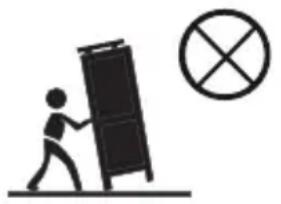
- Use only with the cart, stand, tripod, bracket, table specified by the manufacturer or sold with the player. When a cart is used, use caution when moving the cart/player combination to avoid injury from tip-over
- Unplug this player during lightning storms or when unused for long periods of time
- Refer all servicing to qualified service personnel Servicing is required when the player has been damaged in any way, such as the power-supply cord or plug being damaged, liquid has been spilled or objects have fallen into the player, the player has been exposed to rain or moisture, does not operate normally, or has been dropped
- Please keep the unit in an environment with good ventilation
- WARNING: To reduce the risk of the fire or electric shock, do not expose this apparatus to rain or moisture. The apparatus shall not be exposed to dripping or splashing and no objects filled with liquids, such as vases, shall be placed on the player
- WARNING: Where the mains plug or an appliance coupler is used as the disconnect device, the disconnect device shall remain readily operable
- Do not expose the batteries to excessive heat such as fire direct sunshine or similar sources
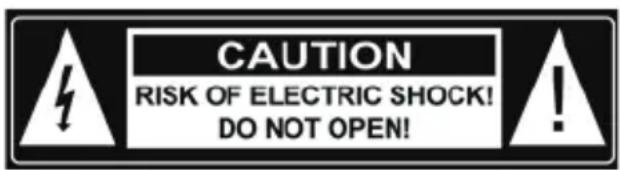
CAUTION: To reduce the risk of electric shock, do not remove cover (or back). No user serviceable parts inside. Refer servicing to qualified service personnel
CLASS 1 LASER PRODUCT
Use of controls, adjustments or performance of procedures other than those specified here in may result in hazardous radiation exposure
Trademark Notice
DVD Logo is a trademark of DVD Format / Logo Licensing Corporation.
The Blu-ray Disc^TM , Blu-ray™, BONUSVIEW™ word marks and logos are trademarks of the Blu-ray Disc Association.
Manufactured under license from Dolby Laboratories. Dolby, Dolby Audio, and the double-D symbol are trademarks of Dolby Laboratories Licensing Corporation.
For DTS patents, see http://patents.dts.com. Manufactured under license from DTS Licensing Limited. DTS, the Symbol, & DTS and the Symbol together are registered trademarks, and DTS 2.0+Digital Out is a trademark of DTS, Inc. © DTS, Inc. All Rights Reserved.
The terms HDMI, HDMI High-Definition Multimedia Interface, HDMI Trade dress and the HDMI Logo are trademarks or registered trademarks of HDMI Licensing Administrator, Inc Java and all other Java trademarks and logo are registered trademarks of Oracle and/or its affiliates.
Cinavia Notice
This product uses Cinavia technology to limit the use of unauthorized copies of some commercially-produced film and videos and their soundtracks. When a prohibited use of an unauthorized copy is detected, a message will be displayed and playback or copying will be interrupted.
If playback or copying is interrupted and one of the messages shown below is displayed, the content is an unauthorized copy protected by Cinavia technology.
Message
[Message(s) 1]
[Message(s) 2]
[Message(s) 3]
[Message(s) 4]
| Cinavia Message Code |
| 1 |
| 2 |
| 3 |
| 4 |
More information about Cinavia technology is provided at the Cinavia Online Consumer Information Center at http://www.cinavia.com. To request additional information about Cinavia by mail, send a postcard with your mailing address to: Cinavia Consumer information Center, P.O. Box 86851, San Diego, CA, 92138, USA.
IPR Message
Copyright 2004-2013 Verance Corporation. Cinavia™ is a Verance Corporation trademark. Protected by U.S. Patent 7,369,677 and worldwide patents issued and pending under license from Verance Corporation. All right reserved.

CAUTION: This product utilizes a laser
Do not open cover and do not repair yourself. Refer servicing to qualified personnel

Panel Description
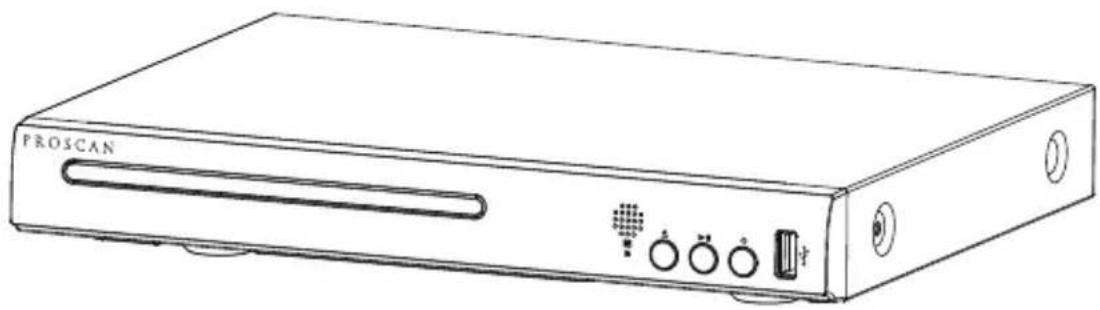
Front panel

- Disc Compartment
- Power indicator light
- IR Sensor: Point the remote control at the IR sensor
- Open or close the disc compartment
- Start (resume) / pause play
- Turn on / Turn off
- USB Port
Remote Control
(1) Turn on the player or switch it to standby mode.
(2) RED/PROG: Edit the program and play.
(3) GREEN/MARK: Press this button once to set Bookmark at a specified point of a movie. To select the set point you want to jump to, press and hold BOOKMARK button for 3 seconds.
(4) NUMBERS: For direct channel access.
(5) CLEAR: To clear an entry.
(6) FAST REVERSE: Search backward.
(7) FAST FORWARD: Search forward.
(8) OSC: To access On Screen Control Menu.
(9) PLAY/ PAUSE: Start (resume) / pause play.
(10) TOP MENU: To open the Top menu of BD/DVD video disc.
(11) UP: Navigates through the Menu.
(12) LEFT: Navigates through the Menus.
(13) DOWN: Navigates through the Menus.
(14) SETUP: Access the SETUP menu.
(15) MUTE: To mute the sound and press again to restore.
(16) AUDIO: Select an audio language.
(17) VOL+: Increases volume.
(18) SUB-T: Select a subtitle language on a disc.
(19) VOL-: Decreases volume.
(20) PIP: Turn on/off the Picture in Picture. This feature is limited to discs with PIP.
(21) Open or close the disc compartment.
(22) BLUE/ZOOM: To zoom it or zoom out.
(23) YELLOW/A-B: Press A-B can repeat playback of a user defined section.
(24) GOTO: Jump to a user specified time during playback.
(25) NEXT: Skip to the next title, chapter or track.
(26) PREV: Skip to the previous title, chapter or track.
(27) STOP: Stop play.
(28) TITLE: To open the Title menu of a disc.
POPUP: Shows and hides popup menu.
(29) ENTER: Confirms an entry or selection.
(30) RIGHT: Navigates through the Menu.
(31) RETURN: Return to a previous display menu.
(32) DISPLAY the current status or the disc information.
(33) REPEAT: The specific repeat mode is different according disc type.
DVD: RepeatCH>RepeatTT>RepeatAll>Repeat Off
CD/VCD: Repeat track>Repeat all>Repeat Off
Playlist: Repeat file>Repeat playlist>Repeat Off
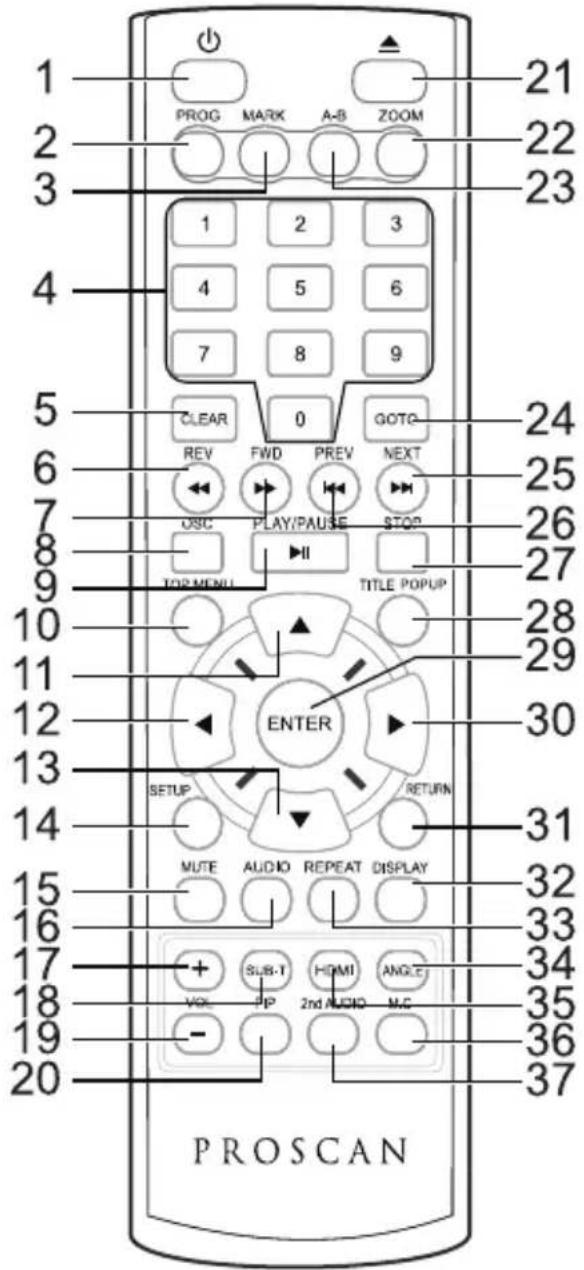
(34) ANGLE: Select a different camera angle. This feature is available only on certain DVD or Blu-ray Discs.
(35) HDMI: Switch HDMI output resolution.
(36) M.C.: To turn on/off Media center.
(37) 2nd AUDIO: Selects the secondary audio of the Picture in Picture. This feature is limited to discs with 2nd AUDIO.
Connections
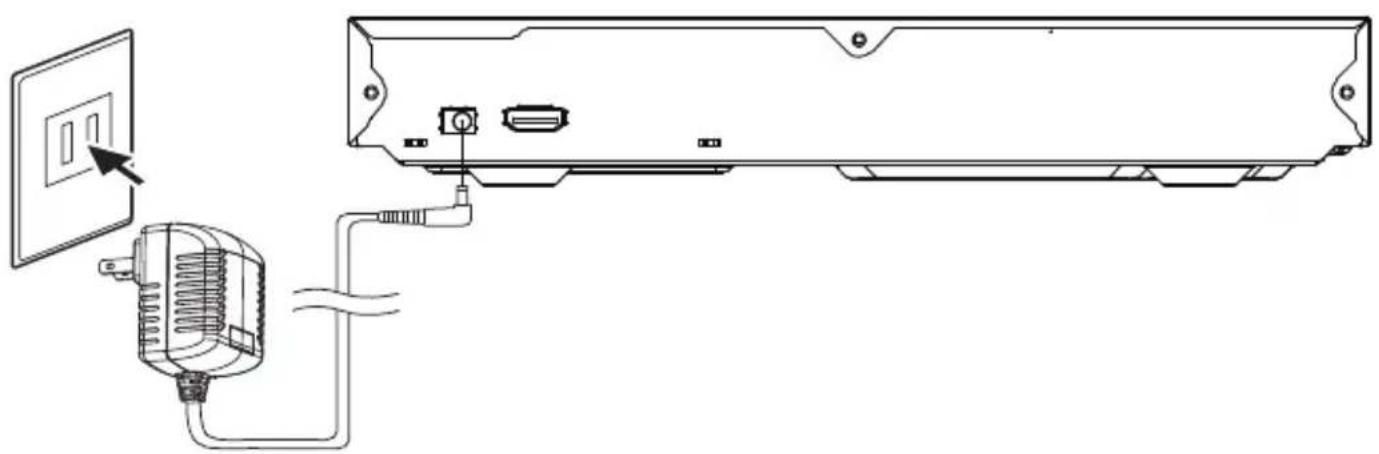
1. Connecting to an External Power Source
Connect the power adapter (supplied with the player) to the side input plug and to a wall outlet.
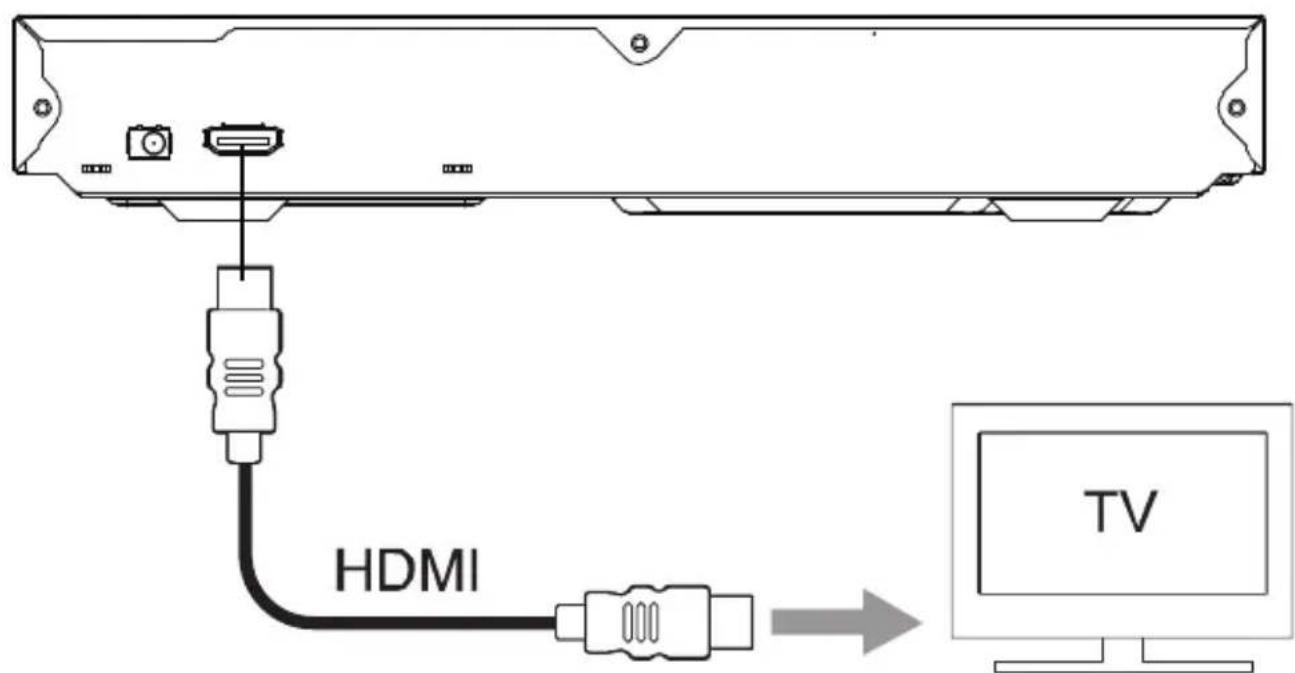
2. Connect to HDMI OUT
Connect the HDMI cable to HDMI OUT.
Basic Operations
Turn On
Press to turn on the Blu-ray disc player
Turn on the TV and switch to the correct video input (refer to the TV user manual)
Setup Menu
Press SETUP to display the setup menu on the TV screen
Navigate the Menu
When a menu is displayed, press the Navigation Keys on the remote control to navigate through it
Select Menu Display Language
- Select General Settings in SETUP Menu
- Press Up/Down buttons to select Language
- Press Right button to select OSD and press Right button again to enter the select menu, then you can select the language you want
- Press ENTER to confirm
Play a Disc
- Press open the disc compartment
- Insert a disc with the label facing up
- Press to close the disc compartment and start disc play
- To stop disc play, press
USB Play
- Insert the USB device into the USB port.
- Press the Media Center button on the remote control to open the Media Center menu.
- Use the directional buttons to select the file you want to play, and then press the ENTER button to play.
Note:
If you want to change to USB media mode, please stop playing DVD disc. Or else it can't enter to USB media mode.
Clean Discs
Wipe the disc with a Micro fiber Cleaning Cloth from the centre to the edge in a straight line movement
Caution
Never use solvents such as benzene, thinner, cleaners available commercially, or anti-static sprays intended for discs to clean the player
Setup Menu
Basic Operation for the Menu
- Press twice during playback
- Press SETUP, the SETUP MENU display on the screen.
- Select a main menu by /
- Select the menu you want by / buttons and press to enter.
- Select the option by / and press
You can press to return to the previous menu.
- Select by / buttons and press OK to confirm.
You can press to return to the previous menu. - To return to the main menu from any submenu, press RETURN.
- To exit the menu, press SETUP.
General Player Settings
System
- Screen Saver: Turns the screen saver on/off. The screen saver will display in 3 mins if there is no operation when the unit is turned on
- Disc Auto Playback: Turns the disc auto playback function on/off
- Disc Auto Upgrade: Turns the Disc Auto Upgrade function on/off
- Load Default: Return the player to its default settings
- Upgrade: select this when you want to upgrade your player software to the latest version
- BUDA: Define memory for BD-J
-
Copy Right: show copy right page
-
Notice: BUDA Setup has two-submenu of "External" & "On board". If you choose "External", you must inserted USB to this product first
Language
- OSD: Selects the OSD language
- Menu: Selects the menu language of the disc
- Audio: Selects the audio language for the program
- Subtitle: Selects the subtitle language for the program
Note:
You have to select the audio and subtitle language according to the requirements on the disc
Playback
- Closed Caption: Turn on/off the CC function
- Angle Mark: Turn on/off the Angle mark function
- PIP Mark: Turn on/off the PIP mark function
- Secondary Audio Mark: Turn on/off Secondary Audio mark function
- Last Memory: Turn on/off the last memory function
- PBC: Turn the PBC function on/off
- Audio Watermark Level 3: Function reserved.
Security
- Change Password: Changes the password for parental control menu
- Parental Control: to set the parental control
- Country Code: Select the Country code
Note:
The original code is 0000. The code can be changed by user
Display Settings
TV
- TV Screen: Selects the display mode for the TV
- Resolution: Selects the resolution for the TV
- TV System: Selects the TV system type
- Color Space: Selects the color space
- HDMI Deep Color: Selects the color for HDMI
- HDMI 1080 24Hz: Enable/disable this settings
Video Processing
- Video Adjust: Enter the submenu to adjust the video display.
- Sharpness: Select the playback sharpness mode.
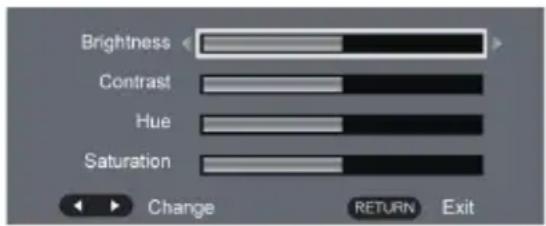
Adjust the Brightness, Contrast, Hue, Saturation of the screen to suit
Audio Settings
Audio Output
- HDMI: Selects the HDMI mode.
- Down sampling: Selects down sampling.
(Select this when the Amplifier connected to the placer is not 96KHz compatible)
- DRC: Set DRC on / off or auto.
Specifications
Playback disc formats
BD, BD-R, BD-RE, DVD-R/RW, DVD+R/RW, DVD-Video, VCD, CD, CD-R/RW
Video formats
H.264/MPEG1/MPEG-2/MPEG4/WMV/AVCHD
Audio formats
Dolby Digital, Dolby Digital Plus, Dolby TrueHD, DTS, WMA
Photos
JPEG, PNG, GIF
Accessories supplied
- Remote control and batteries
- User manual
HDMI cable - Adapter
Video
- Signal system: PAL / NTSC
HDMI video output: Auto, 480i/576i, 480p/576p, 720p, 1080i, 1080p, 1080p@24Hz
Audio
HDMI output
Main unit
- Power supply rating:100-240V~50/60Hz
- Power consumption in standby mode:<0.5W
- Dimensions (w x h x d): 260 x 43x 194 (mm)
Net Weight: 0.78kg
Wave length:
-BD:405+5nm/-5nm
-DVD:650 + 13NM/-10NM
-CD:790+15NM/-15NM
Troubleshooting
WARNING: Before requesting after service please check this possible resolution. Risk of electric shock. Never remove the casing of the product. To keep the warranty valid, never try to repair the product yourself
| No reaction to the remote control | ·Make sure the player is connected to a power outlet ·Insert the batteries correctly ·Point the remote control at the IR sensor located on the front panel of this product ·If the remote still does not function, try putting new batteries into the remote control |
| No picture | ·See TV manual for correct video input selection Change the video until you see the screen |
| No picture on HDMI connection | ·If this player is connected to an unauthorized display device with an HDMI cable, the audio/video signal may not be displayed ·Check if the HDMI cable is faulty. If faulty or damaged, replace the HDMI cable ·If this happens when you change the [resolution] setting, press Resolution on the remote control repeatedly until the picture appears |
| High-definition video signal not playing on the TV | ·Ensure that the audio cables are connected to the audio input of the TV ·Assign the audio input of the TV to the corresponding video input. See the TV user manual for details |
| No sound on HDMI connection | ·You may not hear any sound from the HDMI output if the connected device is non-HDCP compliant or only DIVI compatible |
| Disc cannot be played | ·Ensure that the disc is loaded properly ·Ensure that this player supports the disc. See Specifications ·Ensure that this player supports the region code of the DVD or BD ·For DVD+RW, ensure that the disc is finalized ·Clean the disc |
| Data Files cannot be played or read | ·Ensure that the data file was recorded in the standard UDF, ISO9660 or JOLIET format ·Ensure that the JPEG file extension .jpg, JPG,JPEG or JPEG |
| Not entry sign appears on the TV | ·The requested operation is not possible |
To make a warranty claim, please email support2@curtiscs.com or call 1-800-968-9853.
90 day Warranty
This product is warranted to be free from defects in material and workmanship for a period of ninety (90) days from the date of original delivery to the consumer. During this period, your exclusive remedy is repair or replacement of this product or component found to be defective, at our option; however, you are responsible for all costs associated with returning the product to us. If the product or component is no longer available, we will replace with a similar one of equal or greater value. Prior to a replacement being sent, the product must be rendered inoperable or returned to us.
This warranty does not cover glass, filters, wear from normal use, use not in conformity with the printed directions., or damage to the product resulting from accident, alteration, abuse, or misuse. This warranty extends only to the original consumer purchaser or gift recipient. Keep the original sales receipt, as proof of purchase is required to make a warranty claim. This warranty is void if the product is used for other than single-family household use or subjected to any voltage and waveform other than as on the specified rating on the label (e.g., 120V~60Hz).
We exclude all claims for special, incidental, and consequential damages caused by breach of express or implied warranty. All liability is limited to the amount of the purchase price. Every implied warranty, including any statutory warranty or condition of merchantability or fitness for a particular purpose, is disclaimed except to the extent prohibited by law, in which case such warranty or condition is limited to the duration of this written warranty. This warranty gives you specific legal rights. You may have other legal rights that vary depending on where you live. Some states or provinces do not allow limitations on implied warranties or special, incidental, or consequential damages, so the foregoing limitations may not apply to you.
For faster service, locate the model, type, and serial numbers on your appliance.
ATTACH YOUR PROOF OF PURCHASE HERE, PROOF OF PURCHASE IS REQUIRED TO OBTAIN WARRANTY SERVICE.
Please have the following information available when you contact the Support Team:
- Name, address and telephone number.
- Model number and serial number.
A clear, detailed description of the problem.
Proof of purchase including dealer or retailer name, address and date of purchase.
PROSCAN
Lecteur Blu-ray Disc^TM