PLCD3273A - Television Proscan - Free user manual and instructions
Find the device manual for free PLCD3273A Proscan in PDF.


User questions about PLCD3273A Proscan
0 question about this device. Answer the ones you know or ask your own.
Ask a new question about this device
Download the instructions for your Television in PDF format for free! Find your manual PLCD3273A - Proscan and take your electronic device back in hand. On this page are published all the documents necessary for the use of your device. PLCD3273A by Proscan.
USER MANUAL PLCD3273A Proscan
Before using the TV, please read this manual thoroughly, and retain it for future reference.

natural_image
Modern flat-screen TV displaying a woman with feather-like hair and green bokeh background (no text or symbols on screen)Model:PLCD3273A-B
CONTENTS
| 1 | SAFETY PRECAUTION | 1 | |
| 2 | IMPORTANT SAFETY INSTRUCTION | 2 | |
| 3 | ACCESSORIES | 3 | |
| 4 | GETTING STARTED | 3 | |
| 5 | CONTROL REFERENCE GUIDE | Remote Control | 4 |
| Front View | 5 | ||
| Back View | 5 | ||
| Side View | 6 | ||
| 6 | CONNECTIONS | Antenna Connection | 7 |
| AV Connection | 7 | ||
| YPbPr Connection | 8 | ||
| HDMI Connection | 8 | ||
| VGA Connection | 9 | ||
| Headphone Connection | 9 | ||
| Power Cord Connection | 9 | ||
| Coax(SPDIF) Connection | 10 | ||
| 7 | WALL MOUNT INSTALLATION | 11 | |
| 8 | INITIAL SETUP | Putting The Unit On A Proper Place | 12 |
| Source Selection | 12 | ||
| Turning The Unit On For The First Time | 12 | ||
| 9 | TV SETUP | Picture Menu | 14 |
| Audio Menu | 16 | ||
| Time Menu | 18 | ||
| Setup Menu | 19 | ||
| LOCK(Parental) Menu | 22 | ||
| TV(CHANNEL) Menu | 25 |
CONTENTS
10
DISPLAY MODE
PC Formats 26 Video Formats 27
11
SPECIFICATION
28
12
TROUBLE SHOOTING GUIDE
TV Symptom 29
SAFETY CLASS: This is an IEC safety class I product and it must be grounded for safety.
SAFETY PRECAUTION
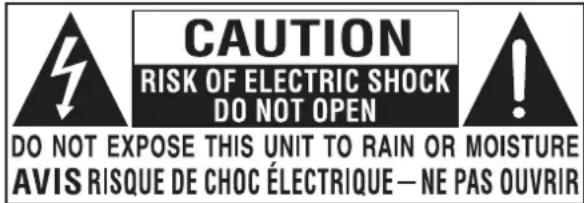
* CAUTION MARKING WAS LOCATED AT THE REAR OF THE APPARATUS.
text_image
CAUTION RISK OF ELECTRIC SHOCK DO NOT OPEN DO NOT EXPOSE THIS UNIT TO RAIN OR MOISTURE AVIS RISQUE DE CHOC ÉLECTRIQUE — NE PAS OUVRIRWARNING: TO REDUCE THE RISK OF ELECTRIC SHOCK, DO NOT REMOVE COVER (OR BACK) NO USER SERVICEABLE PARTS INSIDE. REFER SERVICING TO QUALIFIED SERVICE PERSONNEL.
The lightning flash with arrowhead symbol, within an equilateral triangle, is intended to alert the user to the presence of uninsulated "dangerous voltage" within the product's enclosure that may be of sufficient magnitude to constitute a risk of electric shock to persons.
The exclamation point within an equilateral Triangle is intended to alert the user to The presence of important operating and maintenance (servicing) instructions in the literature accompanying the appliance.

- DANGER OF EXPLOSION IF BATTERY IS INCORRECTLY REPLACED. REPLACE ONLY WITH THE SAME OR EQUIVALENT TYPE.
• USE OF CONTROLS OR ADJUSTMENTS OR PERFORMANCE OF PROCEDURES OTHER THAN THOSE SPECIFIED MAY RESULT IN HAZARDOUS RADIATION EXPOSURE.

• TO REDUCE THE RISK OF FIRE OR ELECTRIC SHOCK, DO NOT EXPOSE THIS APPLIANCE TO RAIN OR MOISTURE. TO REVENT FIRE OR SHOCK HAZARD, DO NOT
- EXPOSE THIS UNIT TO RAIN OR MOISTURE. DO NOT PLACE OBJECTS FILLED WITH LIQUIDS ON OR NEAR THIS UNIT.
- SHOULD ANY TROUBLE OCCUR, DISCONNECT THE AC POWER CORD AND REFER SERVICING TO A QUALIFIED TECHNICIAN.
PLACEMENT INFORMATION
- Do not use this unit in places that are extremely hot, cold, dusty or humid.
- Do not restrict the airflow of this unit by placing it somewhere with poor airflow, by covering it with a cloth, by placing it on bedding or carpeting.
SAFETY INFORMATION
- When connecting or disconnecting the AC power cord, grip the plug and not the cord itself. Pulling the cord may damage it and create a hazard.
- When you are not going to use the unit for a long period of time, disconnect the AC power cord.
RATING PLATE LOCATION
The rating plate is located on the rear of the unit.
FCC STATEMENTS
NOTE: This unit has been tested and found to comply with the limits for a Class B digital device, pursuant to Part 15 of the FCC Rules. These limits are designed to provide reasonable protection against harmful interference in a residential installation.
This unit generates, uses and can radiate radio frequency energy and, if not installed and used in accordance with the instructions, may cause harmful interference to radio communication. However, there is no guarantee that interference will not occur in a particular installation. If this unit does cause harmful interference to radio or television reception, which can be determined by turning the unit off and on, the user is encouraged to try to correct the interference by one or more of the following measures:
- Reorient or relocate the receiving antenna.
- Increase the separation between the unit and receiver.
-Connect the unit into an outlet on a circuit different from that to which the receiver is connected. - Consult the dealer or an experienced radio/TV technician for help.

WARNING:
Changes or modifications to this unit not expressly approved by the party responsible for compliance could void the user authority to operate the unit.
IMPORTANT SAFETY INSTRUCTIONS
1) Read these instructions.
2) Keep these instructions.
3)Heed all warnings.
4) Follow all instructions.
5) Do not use this apparatus near water.
6) Clean only with a dry cloth.
7) Do not block any ventilation openings. Install in accordance with the manufacturer's instructions.
8) Do not install near any heat sources such as radiators, heat registers, stoves, or other apparatus (Including amplifiers) that produce heat.
9) Do not defect the safety purpose of the polarized or grounding-type plug.
A polarized plug has two blades with one wider than the other.
A groundingtype plug has two blades and a third grounding prong.
The wide blade or the third prong is provided for your safety.
If the provided plug does not fit into your wall outlet, consult an electrician for replacement of the obsolete outlet.
10) Protect the power cord from being walked on or pinched particularly at plugs, convenience receptacles, and the point where they exit from the apparatus.
11) Only use attachments / accessories specified by the manufacturer.
12) Use only with the cart, stand, tripod, bracket, or table specified by the manufacturer, or sold with the apparatus.
When a cart is used, use caution when moving the cart / apparatus combination to avoid injury from tip-over.
13) Unplug this apparatus during lightning Storms or when unused for long periods of time.
14) Refer all servicing to qualified service personnel. Servicing is required when the apparatus has been damaged in any way, such as the power cord or plug is damaged, liquid has been spilled or objects have fallen into the apparatus, the apparatus has been exposed to rain or moisture, does not operate normally, or has been dropped.
15) To prevent electric shock, ensure the grounding pin on the AC cord power plug is securely connected.

ACCESSORIES
Please check and identify the supplied accessories.
Remote control x 1
Battery(AA) x 2
Warranty Card x 1
Instruction Manual x 1
Base stand and 4 screws x1
Screw driver x 1
GETTING STARTED
USING THE REMOTE CONTROL
- Point the remote control at the remote sensor located on the unit.
- When there is a strong ambient light source, the performance of the infrared remote sensor may be degraded, causing unreliable operation.
·The recommended effective distance for remote operation is about 16 feet (5 meters).
TO INSTALL THE BATTERIES
-
Open the battery door.
-
Insert 2 "AA" batteris

natural_image
Simple illustration of a cylindrical device with a lid and handle (no text or symbols)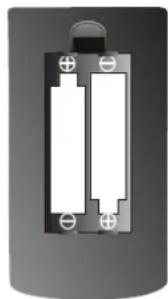
natural_image
Diagram of two rectangular batteries with positive and negative terminals, no text or symbols presentBATTERY REPLACEMENT
When the batteries become weak, the operating distance of the remote control is greatly reduced and you will need to replace the batteries.

CAUTION : Danger of explosion if battery is incorrectly replaced.
NOTES
- If the remote control is not going to be used for a long time, remove the batteries to avoid damage caused by battery leakage corrosion.
- Do not mix old and new batteries. Do not mix ALKALINE, standard (CARBON-ZINC) or rechargeable (NICKEL-CADMIUM) batteries.
·Always remove batteries as soon as they become weak. - Weak batteries can leak and severely damage the remote control.

WARNING :
Do not dispose batteries in a fire. Batteries may explode or leak.
Batteries shall not be exposed to excessive heat such as sunshine, fire or the like.
CONTROL REFERENCE GUIDE
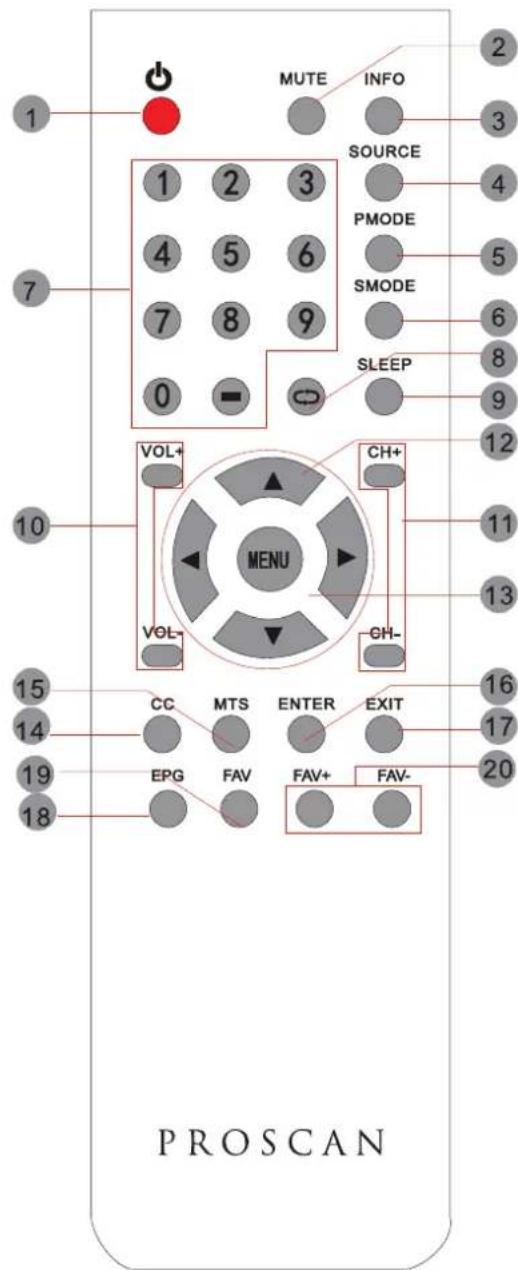
REMOTE CONTROL
text_image
MUTE INFO SOURCE PMODE SMODE SLEEP VOL+ CH+ MENU VOL- GH- CC MTS ENTER EXIT EPG FAV FAV+ PROSCANUniversal Remote Code: 1218
(Universal Remote Control is not included.)
1.STANDBY
To switch on the TV or make the TV into standby mode.
2.MUTE
Press this button to mute or restore sound.
3.INFO
Show the information of the program you are watching.
4.SOURCE
Press this button to select an input source.
5.PMODE
Press this button to select a picture mode for different picture qualities.
6.SMODE
Press this button to select sound setting for different sound effects.
7.0-9
Allows you to change the channel of the TV.
8.
Switches back and forth between the current and previous channels.
9.SLEEP
To select the amount of time before your TV turns Off automatically.
10.VOL+/VOL-
Increases/Decreases the Volume control.
11.CH+/CH-
Skips to the next/previous channel on TV mode.
Moves the cursor upward/downward/to the left/to the right when making a selection.
13.MENU
Displays the OSD Menu of the TV.
14.CC
Press the button to enter into the CC mode.
15.MTS
To change among STEREO, MONO and SAP. If there is no second language available for the signal received, LCD Display audio will output to mono.
16. ENTER
Press to confirm selections on a menu screen.
17.Exit
Press this button to exit the on screen display.
18.EPG
Press this button to select the electronic programme guide in DTV mode.
19. FAV
Press this button to show the favourite list.
20. FAV+/FAV-
Press this button to go through the FAV channel list.
CONTROL REFERENCE GUIDE
FRONT VIEW
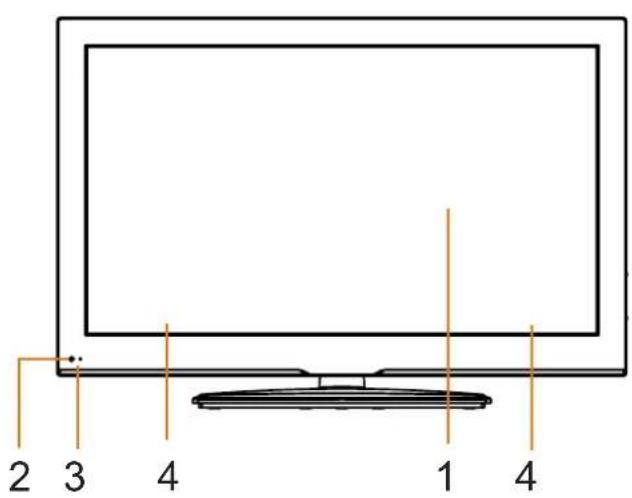
text_image
2 3 4 1 41.Color Screen
2.Remote Sensor
Do not block this sensor or the remote control will not work.
- Standby Indicator
Indicates whether the unit is ON or in STANDBY (OFF) mode.
Light in red: The unit is in STANDBY.
Light in blue: The unit is turned ON.
- Speakers
BACK VIEW
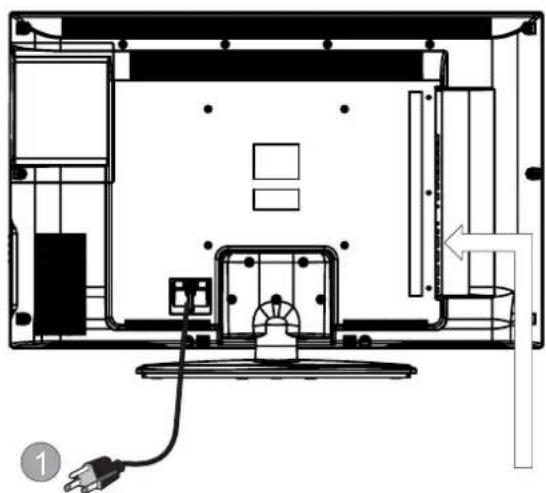
natural_image
Architectural floor plan showing room layout and electrical connections (no text or labels)-
Power Cord
-
Headphone Jack
-
Service Port
4.HDMI IN Jacks
5.PC ADUIO IN Jack
6.VGA IN Jack
7.TV ANTENNA Terminal
- Coax OUT Jack
9.AV IN Jack
10.COMPONENT IN Jack
- AUDIO OUT Jack
(Audio out-This connection is for sending
out analog audio signal to the 2nd equipment.
Red is for Right Channel, white is for left channel.)

flowchart
graph LR
    A["Headphone"] --> B["Service Port"]
    B --> C["HDMI1"]
    C --> D["HDMI2"]
    D --> E["HDMI3"]
    E --> F["PC AUDIO"]
    F --> G["VGA"]
    G --> H["RF"]
    H --> I["Coax"]
    I --> J["8"]
    I --> K["9"]
    I --> L["11"]
    M["COMPONENT"] --> N["Y"]
    M --> O["Pb"]
    M --> P["Pr"]
    M --> Q["L"]
    M --> R["R'"]
    M --> S["VIDEO"]
    M --> T["AV"]
    M --> U["L"]
    M --> V["R"]
    M --> W["AUDIO OUT"]
CONTROL REFERENCE GUIDE
SIDE VIEW
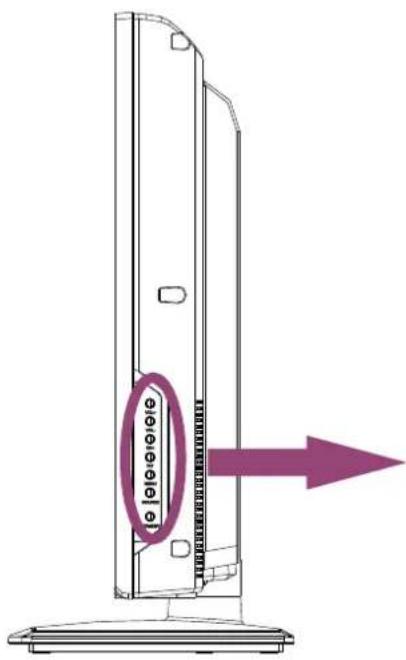
text_image
e e1 VOL+
2 VOL-
3 CH+
4 CH-
5 — MENU
6 SOURCE
7 — STANDBY
- VOL+ Button
Press to adjust the volume up. - VOL- Button
Press to adjust the volume down. - CH+ Button
Press to change the TV channels and up highlight selections on the menu screen. - CH- Button
Press to change the TV channels and down
highlight selections on the menu screen. - Menu Button
Press to display the on-screen TV menu. - SOURCE Button
Press to select the input source of the TV. - STANDBY Button
Press to turn the unit on and off.
CONNECTIONS
CONNECTING A TV ANTENNA / CABLE / SATELLITE
To view television channels correctly, a signal must be received from one of the following sources:
- An indoor or outdoor aerial antenna
- A cable system
- A satellite system
NOTE
For receiving over-the-air TV broadcasts, we recommend that you use an external fixed antenna. Should you require the use of a temporary antenna, please ensure that you purchase an antenna with sufficient ability to receive in weak signal areas.
Only when you are in close proximity to a transmitter will a temporary antenna reproduce a signal as strongly as a fixed antenna.
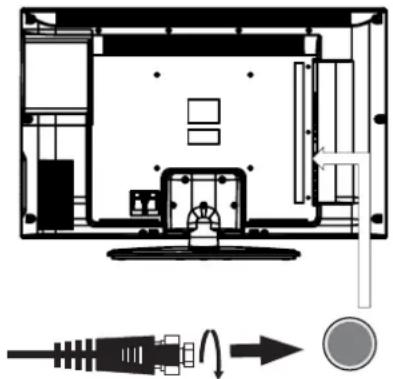
natural_image
Architectural floor plan showing room layouts and component connections (no text or labels)Satellite, cable or TV antenna cable to TV ANTENNA
terminal (cable not included)
CONNECTING AN A/V DEVICE
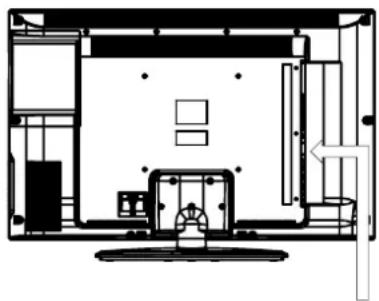
To connect to other equipment such as a VCR, camcorder, satellite system or cable, etc.
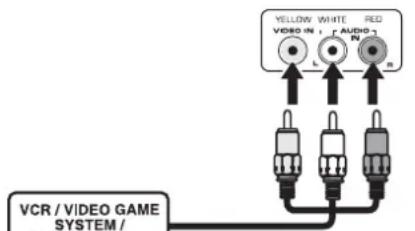
CONNECTING DEVICES WITH A COMPOSITE (YELLOW RCA-TYPE) VIDEO OUTPUT
To connect A/V devices such as a VCR, video game system or camcorder.
Connecting to a VCR / Video Game System / Camcorder
Connect the AUDIO / VIDEO cable (not included) as shown.
Make sure you connect the cable from the other equipment (AUDIO VIDEO OUT) to this unit (AV in)
NOTE
Please refer to the user manual for the other equipment for more information.
natural_image
Architectural floor plan showing room layout and furniture placement (no text or labels)To AUDIO / VIDEO
OUT jacks
text_image
YELLOW WHITE RED VIDEO N Audio N L N n VCR / VIDEO GAME SYSTEM /To AUDIO / VIDEO IN jacks
CONNECTIONS
CONNECTING A HIGH-DEFINITION (HD) SOURCE USING CONNEMPONENT
High-Definition (HD) Devices with component video output must be connected to the YPbPr input.
Connect the component video cable and audio cable (not included) as shown.
Make sure you connect the component video cable and audio cable from the other equipment
COMPONENT OUT and AUDIO OUT) to the unit COMPONENT IN.
NOTE
When connecting a DVD player to the television, the picture resolution is solely dependent upon the resolution supported by the DVD player attached. DVD player resolutions vary from 480i to 1080i. and this television can support DVD players up to a maximum resolution of 1080i.
* May require a subscription for receiving HD channels, check with your cable/satellite service provider for details.

natural_image
Architectural floor plan showing room layout with furniture and fixtures (no text or labels)COMPONENT IN
To COMPONENT VIDEO IN jacks

text_image
GREEN BLUE RED WHITE RED COMPONENT VIDEO IN V Pt Pt L AUDIO IN W N R NT s tTo COMPONENT AUDIO IN jacks
To COMPONENT VIDEO OUT jacks To COMPONENT AUDIO OUT jacks

text_image
HD SOURCE With component video output (Digital Cable Box*, Satellite Receiver* or external over-the-air HD-Tuner)CONNECTING A HIGH-DEFINITION (HD) SOURCE USING HDMI CONNECTION
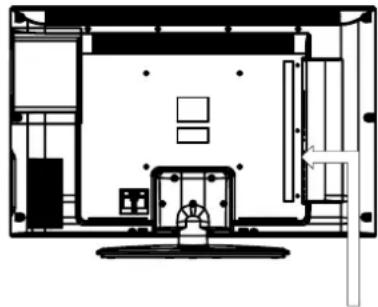
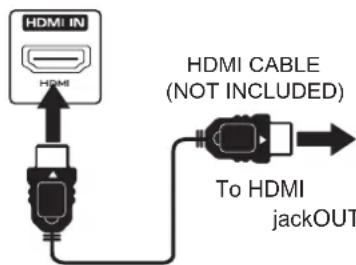
HDMI (High Definition Multimedia Interface) supports both video and audio on a single digital connection for use with DVD players, DTV, set-top boxes and other digital AV devices. HDMI was developed to provide the technologies of High Bandwidth Digital Content Protection (HDCP) as well as Digital Visual Interface (DVI) in one specification. HDCP is used to protect digital content transmitted and received by DVI-compliant or HDMI compliant displays.
HDMI has the capability to support standard, enhanced or high-definition video plus standard to multi-channel surround-sound audio. HDMI features include uncompressed digital video, a bandwidth of up to 2.2 gigabytes per second (with HDTV signals), one connector (instead of several cables and connectors), and communication between the AV source and AV devices such as DTVs.
natural_image
Architectural floor plan showing room layout with furniture and fixtures (no text or labels)To HDMI IN jack
text_image
HDMI IN HDMI HDMI CABLE (NOT INCLUDED) To HDMI jackOUTConnect the HDMI cable (not included) as shown:
Make sure you connect the cable from the source equipment ( ) HDMI OUT ( HDMI IN ).
HD SOURCE With component video output (Digital Cable Box*, Satellite Receiver* or external over-the-air HD-Tuner)
CONNECTIONS
CONNECTING A PC
Connect the 15-pin D-SUB PC/VGA connector from your computer to the 15-pin D-SUB PC/VGA input on this unit using a monitor cable and an audio cable (not included) as shown.
Make sure you connect the cable from the computer (VGA) to this AUDIO - PC OUT (VGA)AUDIO - PC IN
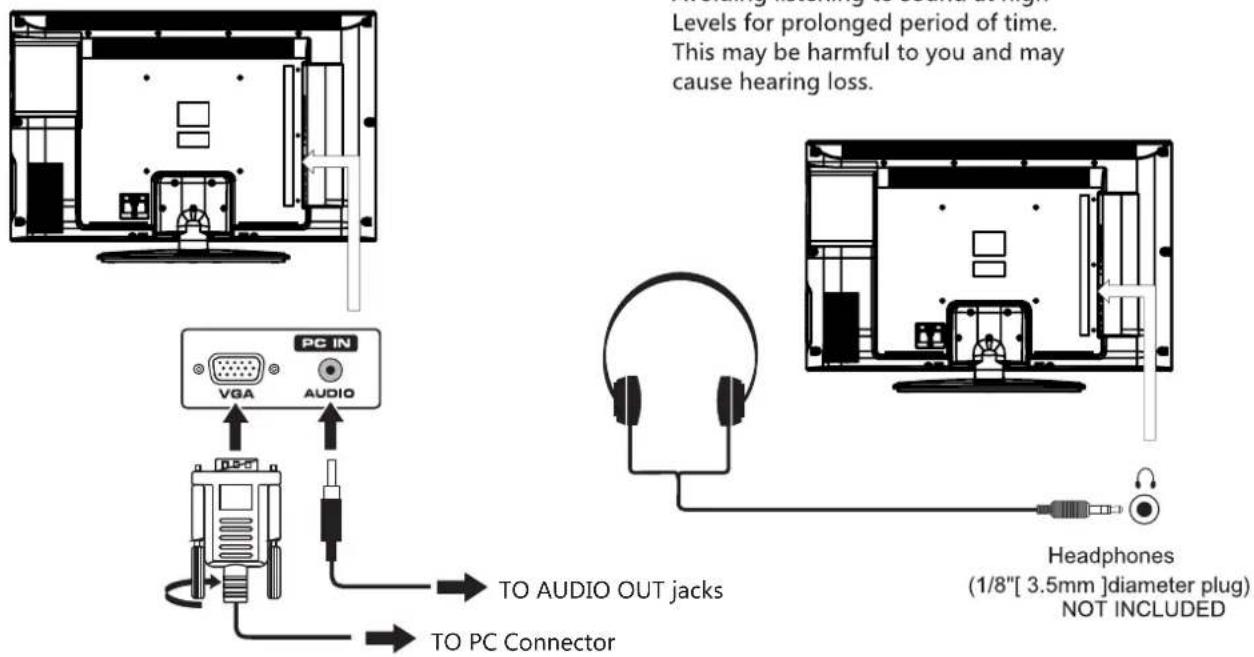
text_image
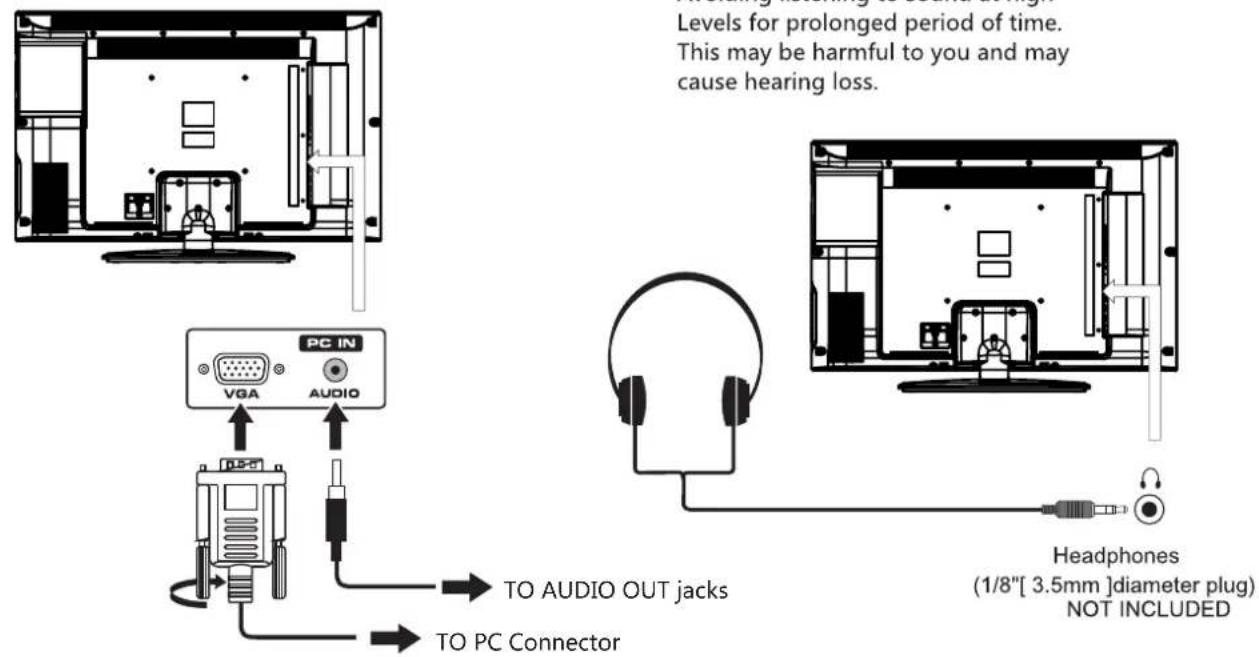
Levels for prolonged period of time. This may be harmful to you and may cause hearing loss. PC IN VGA AUDIO TO AUDIO OUT jacks TO PC Connector Headphones (1/8"[3.5mm]diameter plug) NOT INCLUDEDCONNECTING HEADPHONES
- Turn down the volume before connecting headphones to the unit, then adjust the volume to your desired level.
- When headphones are connected, no sound will come from the front speakers.
NOTE
Avoiding listening to sound at high Levels for prolonged period of time. This may be harmful to you and may cause hearing loss.
text_image
Levels for prolonged period of time. This may be harmful to you and may cause hearing loss. PC IN VGA AUDIO TO AUDIO OUT jacks TO PC Connector Headphones (1/8"[ 3.5mm ]diameter plug) NOT INCLUDEDYou can power on your TV unit before you make sure the power cord is inserted well. At the same time, please check that the rated voltage of your unit matches your local Voltage.
NOTE
- Insert the power plug fully into the socket outlet. (If the power plug is loose, it could generate heat and cause fire.)
- Ensure that the power plug is easily accessible.
- Ensure the earth pin on the power plug is securely connected to prevent electrical shock.
- Do not touch the power plug with a wet hand. (This may cause electrical shock)
- Do not use any power cord other than that provided with this TV. (This may cause fire or electrical shock
- Do not damage the power cord. (A damaged cord may cause fire or electrical shock)
- Do not move the TV with the cord plugged in the socket outlet.
- Do not place a heavy object on the cord or place the cord near a high-temperature object.
- Do not twist the cord, bend it excessively, or stretch it.
- Do not pull on the cord. Hold onto the power plug body when disconnecting cord.
- Do not use a damaged power plug or socket outlet.

natural_image
Diagram showing a cable being inserted into an open TV wall, with a plug inserted (no text or symbols present)To AC wall outlet
CONNECTIONS
Connection to a Home Theater Audio System
For BEST audio performance
Connecting to a Home Theater System Dolby Digital can deliver optimal 2 channel stereo or surround sound with five discrete full range channels plus a sixth channel for a subwoofer.
Enjoy optimal sound reproduction from your system with a Dolby Digital amplifier that incorporates a digital coaxial input. Connect an optional digital cable directly to the television's Coax audio output to listen through all inputs except VGA.
(The VGA does not support digital audio)

flowchart
graph TD
    A["User Room"] --> B["SpDIF OUT Coax"]
    B --> C["Special Digital Cable"]
    C --> D["Dolby Prologic Surround Receiver"]
    D --> E["Center Channel"]
    E --> F["Dolby Surround Connection Illustration"]
    F --> G["Surround Left Speaker"]
    F --> H["Surround Right Speaker"]
    G --> I["Subwoofer"]
    H --> J["Subwoofer"]
    style A fill:#f9f,stroke:#333
    style B fill:#ccf,stroke:#333
    style C fill:#cfc,stroke:#333
    style D fill:#fcc,stroke:#333
    style E fill:#cff,stroke:#333
    style F fill:#ffc,stroke:#333
    style G fill:#cfc,stroke:#333
    style H fill:#cfc,stroke:#333
    style I fill:#fcc,stroke:#333
How To Setup Digital Output
Press the MENU button on the remote control Press the right ▶ arrow button to select AUDIO Press the down ▼ arrow button to highlight SPDIF type right ▶ Raw or PCM
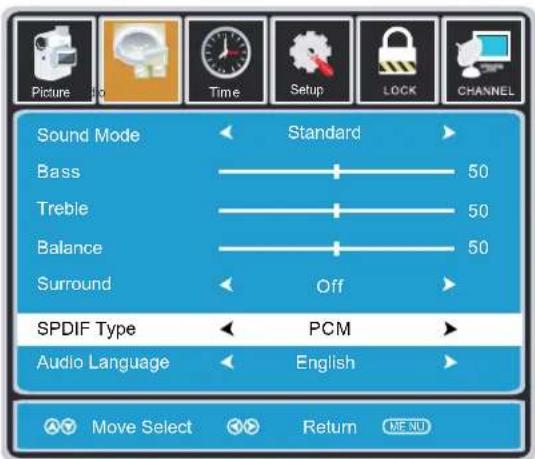
text_image
Sound Mode Bass Treble Balance Surround Standard 50 50 50 Off SPDIF Type PCM Audio Language English Move Select Return MENU*NOTE: Refer to the User Manual from your home theater equipment for recommended audio settings.
WALL MOUNT INSTALLATION
INSTALLING REMOVING THE BASE STAND
WARNING : The LCD Display is very fragile, and must be protected at all times when removing the base Stand.
Be sure that no hard or sharp object or anything that could scratch or damage the LCD display comes into contact with it. Do NOT exert pressure on the front of the unit at any time because the screen could crack.
1 Disconnect all cables or cords connected to the unit.
2. Lay the unit down on a flat surface with the back side facing up. Please make sure to place a soft cushioned material such as a pillow or thick piece of foam beneath the screen
3. To remove the base stand, loosen screws off the holes then pull downwards to release the base stand.
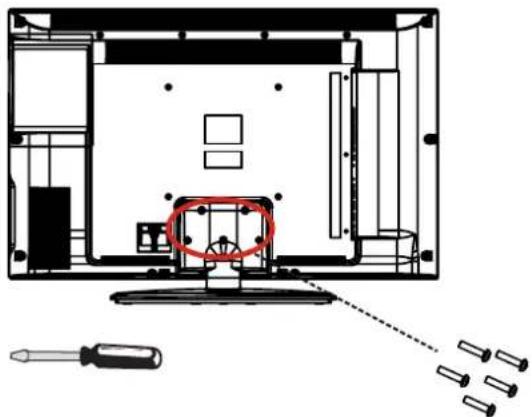
natural_image
Technical diagram of a computer monitor interior with screwdriver and indicator lights (no text or labels)MOUNTING ON THE WALL
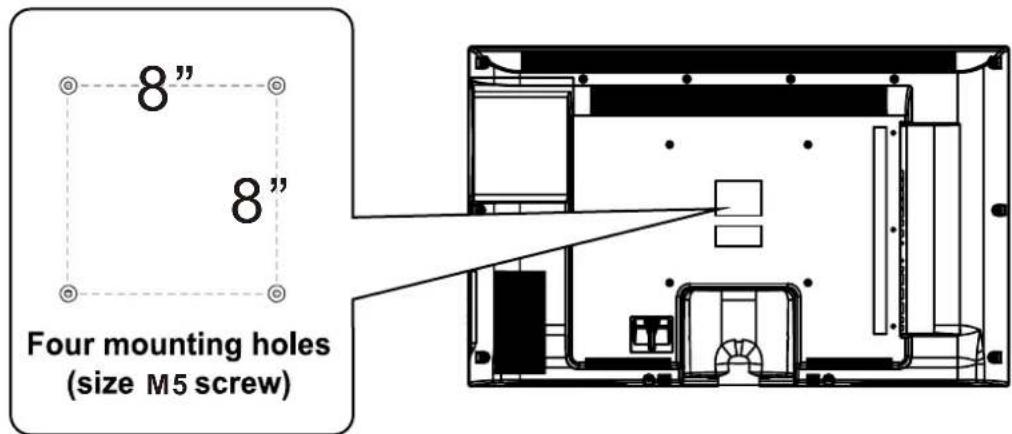
This unit is VESA-compliant, and is designed to be wall-mounted with a VESA-compliant 8" x 8" (200mm x 200mm) mounting kit designed for flat-panel TVs (not supplied). Mount this unit according to the instructions included in the mounting kit. Length of screw should not exceed 14 mm.
NOTE
Remove the base stand before mounting the unit on the wall.
text_image
Four mounting holes (size M5 screw)INITIAL SETUP
PUTTING THE UNIT ON A PROPER PLACE
When you turn on your television set for the first time, be sure to place it on a solid stable surface.
To avoid danger, do not expose the TV to water, or a heat source (e.g. lamp, candle, radiator).
Do not obstruct the ventilation grid at the rear and be sure to leave sufficient gaps around the unit.

natural_image
Modern flat-screen TV displaying a woman with feathered hair and green background (no visible text or symbols)TURNING THE UNIT ON FOR THE FIRST TIME
After you have initially connected your TV antenna or cable, turn the television ON.
A screen will display asking you to run a Channel Auto Scan to search and receive available local digital channels.
It is here where you will select antenna options and run . Channel Auto Scan
Channels will be stored in the TV tuner.
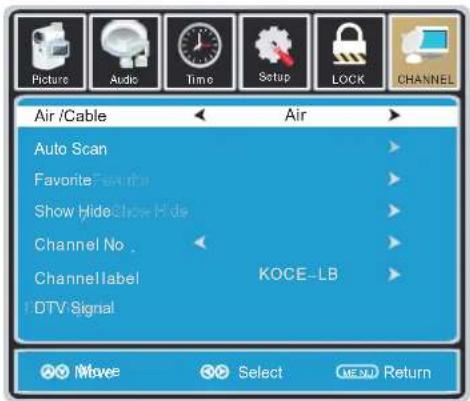
Press the bMENU on the remote control. Using the ◀▶buttons, scroll to highlight chaneel mode. Press the ▼ button to highlight AIR/CABLE.
SOURCE SELECTION
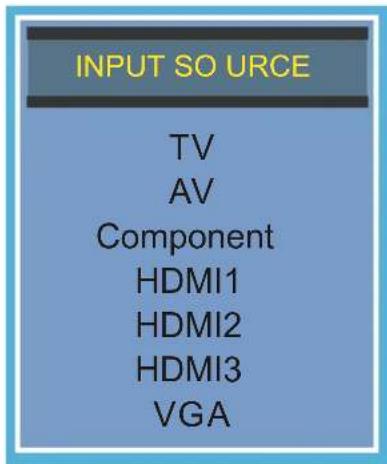
- Press the SOURCE button on the remote control.
- Use the ▲ or ▼ button to select the options (TV, AV, Component, HDMI1, HDMI2, HDMI3, VGA)
and select any of them using the ▶ button or the ENTER (The screen will change to your desired source).
Note: Before wa tching please ma ke sure all necessary cables and devices are connected.
Please run Channel Auto Scan
text_image
INPUT SO URCE TV AV Component HDMI1 HDMI2 HDMI3 VGAINITIAL SETUP
How to Navigate
Air Mode: Select AIR when connected to an indoor/ outdoor antenna.
text_image
Air /Cable Auto Scan Favorite Show Hide Show Hide Channel No. Channel label DTV Signal Air KOCE-LB Move Select MENU ReturnPress the ▼button to highlight AIR.

text_image
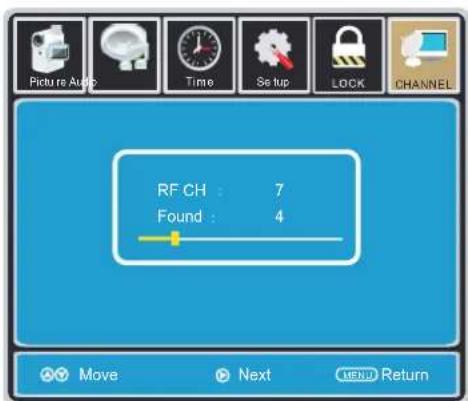
Picture Auto Time Setup LOCK CHANNEL Cable System Auto Start to Scan Move Next ME V ReturnPress the ▼ button to select AUTOSCAN then press the ▶ button to enter the submenu and press the ▶ button to start Channel Auto Scan.
text_image
Picture Augs Time Set up LOCK CHANNEL RF CH : 7 Found : 4 Move Next KEY ReturnChannel Auto Scan may take several minutes to complete.
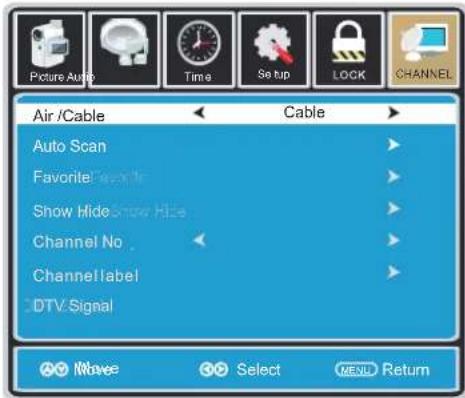
Cable Mode: Select CABLE if you subscribe to a pay television service including satellite.
text_image
Picture Audio Time Setup LOCK CHANNEL Air /Cable Cable Auto Scan Favorite Scan Show Hide Show Hide Channel No Channel label DTV Signal Move Select MENU ReturnUsing the ◀▶ button to highlight CABLE.

text_image
Picture Audio Time Setup LOCK CHANNEL Cable System Auto Start to Scan Move Next NEW ReturnPress the ▼ button to select AUTOSCAN. Press the ENTER button and the cursor will move up and CABLE SYSTEM will be displayed next. Press ▶ the button to select STD > IRC > HRC > Auto (Auto is recommended). Press the ▼ button to select Start to Scan and press ENTER to start Channel Auto Scan.

text_image
Picture Audio Time Set up LOCK CHANNEL RF CH : 7 Found : 4 Move Next Return MENUChannel Auto Scan may take several minutes to complete.
NOTE: For cable or satellite users with no TV antenna, there no need to run Channel Auto Scan. Connect your cable or satellite set top box to one of the available inputs on the TV for viewing.
TV SETUP

PICTURE MENU
The PICTURE menu offers options to enhance and refine the picture displayed on your TV based on ambient room light and personal preferences.
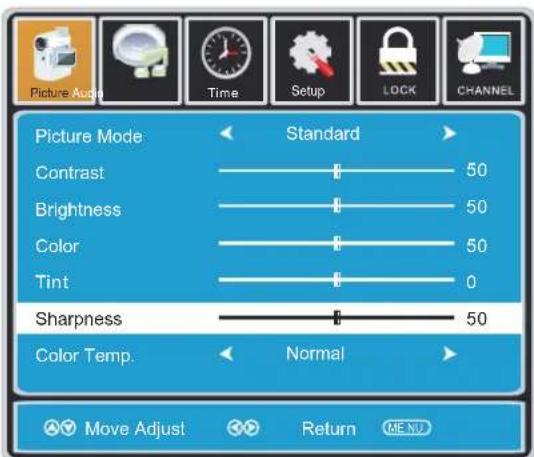
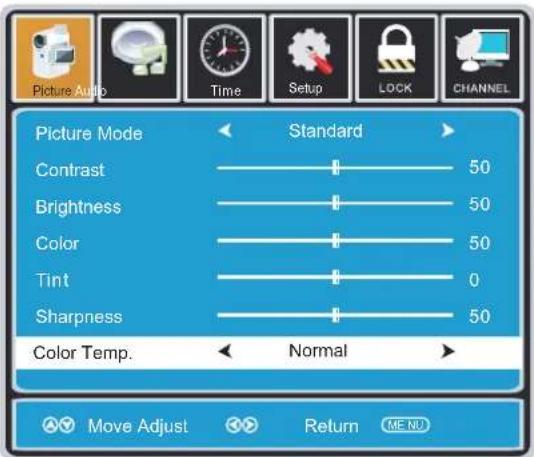
Adjustment options include contrast, brightness, color, tint, sharpness and Color Temp.
How to Navigate:
Press the MENU button on the remote control. Navigate using the ◀▶ buttons to select PICTURE.

text_image
Picture Mode Contrast Brightness Color Tint Sharpness Color Temp. Standard 50 50 50 0 50 Normal Move Select Return ME NOPress the ▼ button to highlight, then press the ▶ button to select your viewing preference from 4 factory options: STANDARD > DYNAMIC > MILD > USER.
The STANDARD setting is recommended for most viewing environments.
Depending on the ambient light level in the room, you may find one of the other options more pleasing.
To make more critical picture adjustments based on your own preferences in USER:
Use the ▼ button to highlight Contrast. Navigate using the ◀▶ buttons to increase or decrease contrast intensity.
Use the ▼ button to highlight Brightness. Navigate using the ◀▶ buttons to increase or decrease overall brightness.
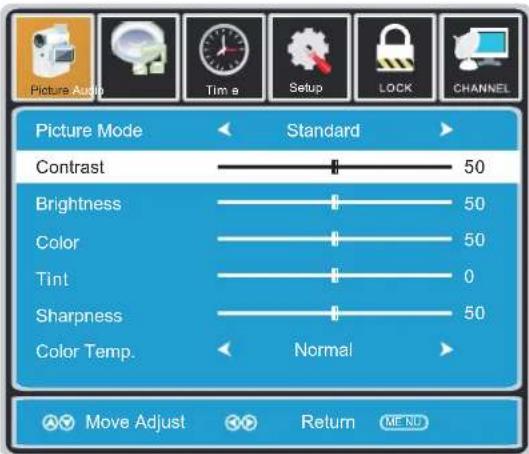
text_image
Picture Mode Contrast Brightness Color Tint Sharpness Color Temp. Standard 50 50 50 0 50 Normal Move Adjust Return MENU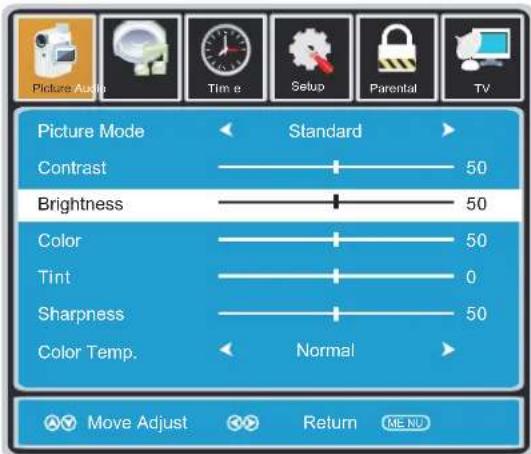
text_image
Picture Mode Contrast Brightness Color Tint Sharpness Color Temp. Standard 50 50 50 0 50 Normal Move Adjust Return ME-NUTV SETUP

PICTURE MENU
The PICTURE menu offers options to enhance and refine the picture displayed on your TV based on ambient room light and personal preferences.
Adjustment options include contrast, brightness, color, tint, sharpness and color temp.
Press the MENU button on the remote control. Navigate using the ◀▶ buttons to select PICTURE.
text_image
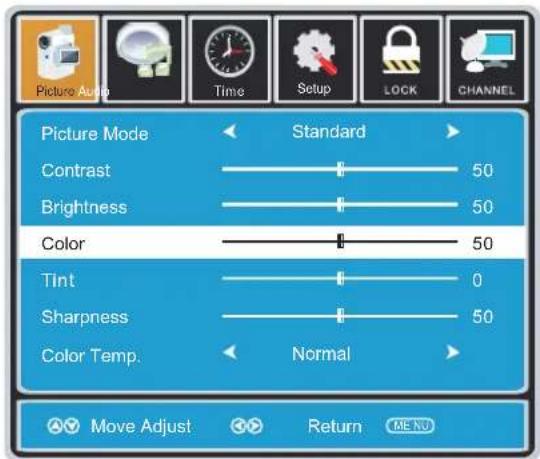
Picture Mode Contrast Brightness Color Tint Sharpness Color Temp. Standard 50 50 50 0 50 Normal Move Adjust Return MENUUse the ▼ button to highlight Color. Navigate using the ◀▶ buttons to increase or decrease color intensity.

text_image
Picture Audio Time Setup LOCK CHANNEL Picture Mode Standard Contrast 50 Brightness 50 Color 50 Tint 0 Sharpness 50 Color Temp. Normal Move Adjust Return MENUUse the ▼ button to highlight Tint. Navigate using the ◀▶ buttons to adjust colors toward green or reddish tint.
text_image
Picture Mode Contrast Brightness Color Tint Sharpness Color Temp. Standard 50 50 50 0 50 Normal Move Adjust Return MENUUse the ▼ button to highlight Sharpness. Navigate using the ◀▶ buttons to soften or view crisper edges in the picture.
text_image
Picture Mode Contrast Brightness Color Tint Sharpness Color Temp. Standard 50 50 50 0 50 Normal Move Adjust Return MENUUse the ▼ button to highlight Color Temp. Navigate using the ◀▶ buttons to select COOL (more bluish tone), NORMAL or WARM. The default setting is NORMAL. WARM mode will provide color that is calibrated to D6500° Kelvin, the standard color that broadcast stations and the Motion Picture industry consider as the most accurate to view programming.
Note:
When adjustments are completed, you may select another menu by pressing the Menu button.
TV SETUP

AUDIO MENU
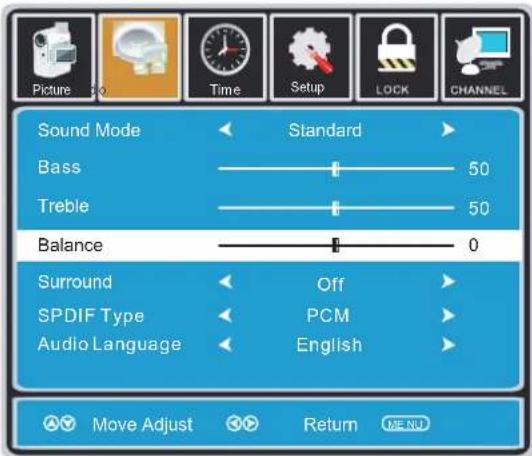
The AUDIO menu offers options to make sound enhancements while listening through the built-in speakers and personal preferences.
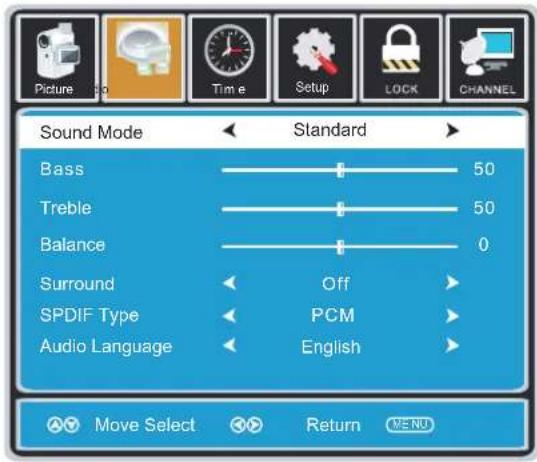
Adjustment options include bass, treble, balance, surround, SPDIF Type and audio language.
How to Navigate:
Press the MENU button on the remote control. Navigate using the ◀▶ buttons to select AUDIO.
text_image
Sound Mode Bass Treble Balance Surround SPDIF Type Audio Language Standard 50 50 0 Off PCM English Move Select Return MENUPress the ▼ button to highlight SoundMode, then press the ▶ button to select your sound preference from 4 factory options: STANDARD > MUSIC > MOVIE > USER.
The STANDARD setting is recommended for most sound environments.
Depending on the surroundings in the room, you may find one of the other options more pleasing.
To make more critical audio adjustments based on your own preferences in USER:
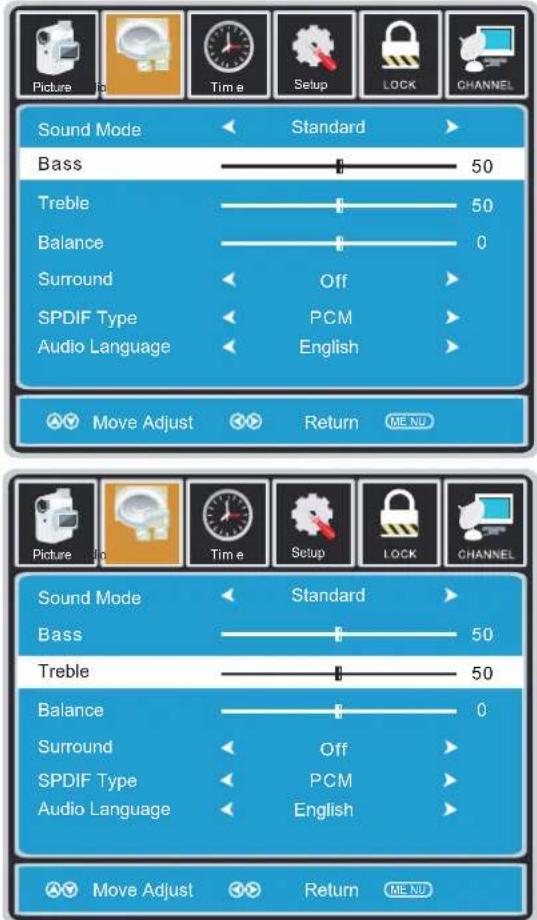
Use the ▼ button to highlight Bass. Navigate using the ◀▶ buttons to increase or decrease low frequency intensity.
Use the ▼ button to highlight Treble. Navigate using the ◀▶ buttons to increase or decrease high frequency intensity.
text_image
Picture To Time Setup LOCK CHANNEL Sound Mode Standard Bass 50 Treble 50 Balance 0 Surround Off SPDIF Type PCM Audio Language English Move Adjust Return MENU Sound Mode Standard Bass 50 Treble 50 Balance 0 Surround Off SPDIF Type PCM Audio Language English Move Adjust Return MENUTV SETUP

AUDIO MENU
The AUDIO menu offers options to make sound enhancements while listening through the built-in speakers and personal preferences.
Adjustment options include bass, treble, balance, surround, SPDIF Type and audio language.
How to Navigate:
Press the MENU button on the remote control. Navigate using the ◀▶ buttons to select AUDIO.
text_image
Sound Mode Bass Treble Balance Surround SPDIF Type Audio Language Standard 50 50 0 Off PCM English Move Adjust Return MENUUse the ▼ button to highlight Balance.
Navigate using the ◀▶ buttons to adjust sound towards the right or left speaker.

text_image
Picture Sound Mode Bass Treble Balance Surround Standard 50 50 0 Off SPDIF Type PCM Audio Language English Move Select Return MENUUse the ▼ button to highlight SPDIF Type.
Navigate using the ▶ button to adjust.

text_image
Sound Mode Bass Treble Balance Surround SPDIF Type Audio Language Standard 50 50 0 Off PCM English Move Select Return ME NUUse the ▼ button to highlight Surround. Navigate using the ▶ button to turn the dimensional surround effect ON or OFF. (for built-in speakers only).
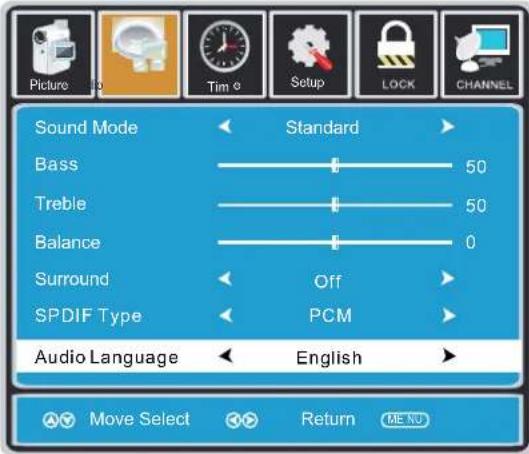
text_image
Sound Mode Bass Treble Balance Surround SPDIF Type Audio Language Standard 50 50 0 Off PCM English Move Select Return ME NOUse the ▼ button to highlight Audio Language. Navigate using the ◀▶ buttons to select to listen to an alternative language broadcast (if available) English > French > Spanish. You may select an alternative language using the remote control by pressing MTS)
Note:
When adjustments are completed, you may select another menu by pressing the Menu button.
TV SETUP

TIME MENU
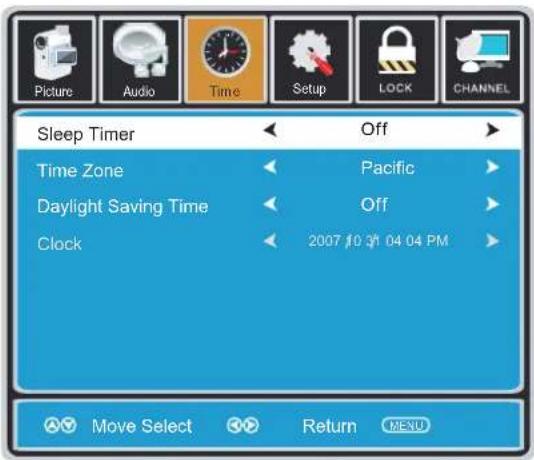
The TIME menu includes adjustment of settings for your local time zone and daylight savings time. The clock will adjust automatically after the initial Channel Auto Scan of available broadcast channels in your area.
How to Navigate:
Press the MENU button on the remote control. Navigate using the ◀▶ buttons to select TIME.
text_image
Picture Audio Time Setup LOCK CHANNEL Sleep Timer Off Time Zone Pacific Daylight Saving Time Off Clock 2007 10 34 04 04 PM Move Select Return MENUUse the ▼ button to highlight SleepTimer, then press the ▶ button to select among: 5min, 10min, 15min, 30min, 45min, 60min, 90min, 120min, 180min, 240min and off.

text_image
Picture Audio Time Setup LOCK CHANNEL Sleep Timer Off Time Zone Pacific Daylight Saving Time Off Clock 2007 10 31 04 04 PM Move Select Return MENUUse the ▼ button to highlight TimeZone, then press the ▶ button to select among: EASTERN > CENTRAL > MOUNTAIN > PACIFIC > ALASKA > HAWAII.

text_image
Picture Audio Time Setup LOCK CHANNEL Sleep Timer Off Time Zone Pacific Daylight Saving Time Off Clock 2007 10 3/1 04 04 PM Move Select Return MENUUse the ▼ button to highlight
Daylight Saving Time.
Navigate using the ◀▶ buttons to turn this feature on or off.

text_image
Picture Audio Time Setup LOCK CHANNEL Sleep Timer Off Time Zone Pacific Daylight Saving Time Off Clock 2007 10 31 04 04 PM Move Select Return MENUClock: Display the time at present.
Note:
When adjustments are completed, you may select another menu by pressing the Menu button.
TV SETUP

SETUP MENU
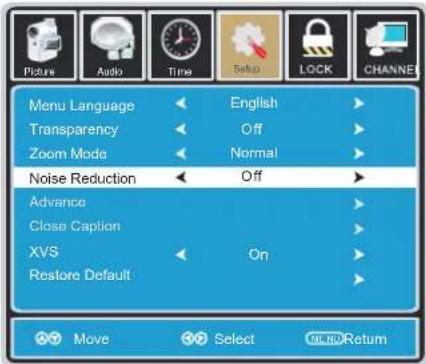
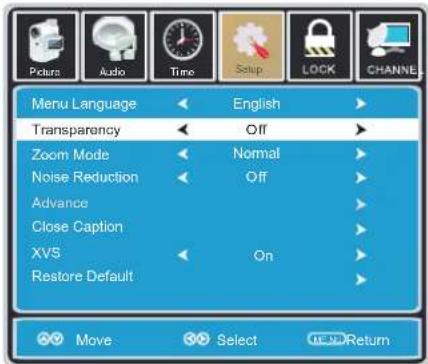
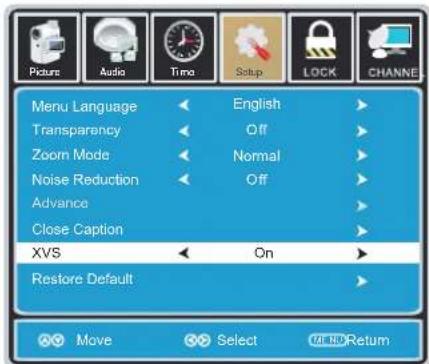
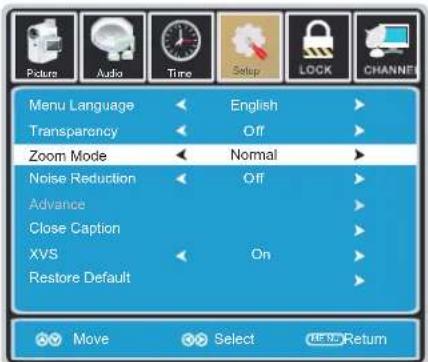
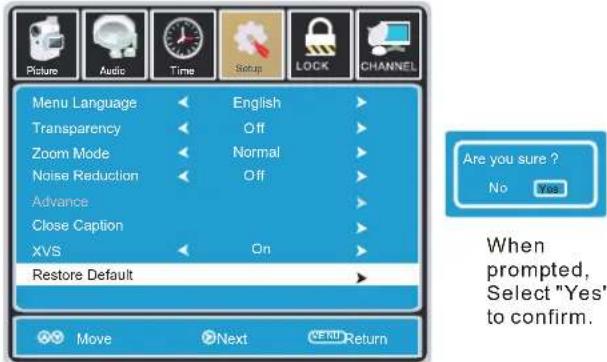
In the SETUP menu you may change the initial set up of preferences that include settings for language, menu display, computer monitoring, closed captions, enhancement of black detail in the picture and resetting your TV back to its factory default status.
How to Navigate:
Press the MENU button on the remote control. Navigate using the ◀▶ buttons to select SETUP.

text_image
Menu Language English Transparency Off Zoom Mode Normal Noise Reduction Off Advance Close Caption XVS On Restore Default Move Select OK/OK/ReturnUse the ▼ button to highlight Menu Language, Press the ▶ button to select the language you prefer among English, French and Spanish.
text_image
Picture Audio Time Select LOCK CHANNEL Menu Language English Transparency Off Zoom Mode Normal Noise Reduction Off Advance Close Caption XVS On Restore Default Move Select OLED ReturnUse the ▼ button to highlight Noise Reduction. Navigate using the ◀▶ buttons to reduce video noise: Middle > Strong> Off > Weak Default setting: Middle)
text_image
Menu Language Transparency Zoom Mode Noise Reduction Advance Close Caption XV5 Restore Default English Off Normal Off On Move Select OK/OK/ReturnUse the ▼ button to highlight Transparency. Navigate using the ◀▶ buttons to turn Off or On the translucent effect of the OSD.
text_image
Menu Language Transparency Zoom Mode Noise Reduction Advance Close Caption XVS Restore Default English Off Normal Off On Select OK/OK/ReturnUse the ▼ button to highlight XVS. Navigate using the ◀▶ buttons to select: Off > On. XVS provides noticeable black detail enhancement that may be preferred.
text_image
Menu Language Transparency Zoom Mode Noise Reduction Advance Close Caption XVS Restore Default English Off Normal Off On Move Select ReturnUse the ▼ button to highlight Zoom Mode. Navigate using the ◀▶ buttons to select the viewing mode: Normal > Wide > Zoom > Cinema.
text_image
Picture Audio Time Setup LOCK CHANNEL Menu Language English Transparency Off Zoom Mode Normal Noise Reduction Off Advance Close Caption XVS On Restore Default Are you sure ? No Yes When prompted, Select "Yes" to confirm. Move Next ReturnUse the ▼ button to highlight Restore Default. Press the ▶ button to automatically set all adjustments back to their original settings.
TV SETUP

SETUP MENU
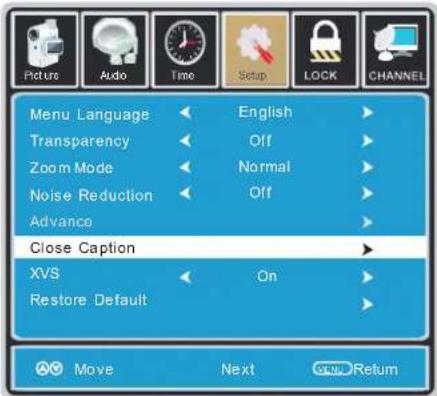
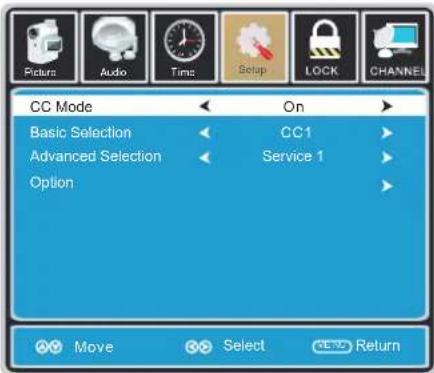
The SETUP menu includes adjustments for activating the Closed Caption feature for display on the television and customizing CC display types and font styles.
How to Navigate:
text_image
Menu Language Transparency Zoom Mode Noise Reduction Advance Close Caption XVS Restore: Default English Off Normal Off On Move Next ReturnPress the MENU button on the remote control. Navigate using the ◀▶ buttons to select SETUP. Press the ▼ button to highlight Closed Caption then press the ▶ button to select from the following options.

text_image
Picture Audio Time Setup LOCK CHANNEL CC Mode On Basic Selection CC 1 Advanced Selection Service 1 Option Move Select MENU ReturnUse the ▼ button to highlight Advance Selection. Navigate using the ◀▶ buttons to select Service 1 - 6.
text_image
CC Mode Basic Selection Advanced Selection Option On CC1 Service 1 Move Select ReturnUse the ▼ button to highlight CC Mode. Navigate using the ◀▶ buttons to select Off > On > CC on Mute.
text_image
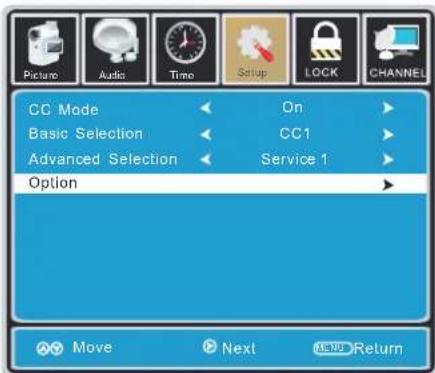
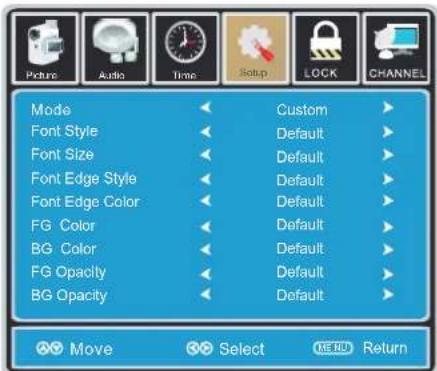
Picture Audio Time Setup LOCK CHANNEL CC Mode On Basic Selection CC1 Advanced Selection Service 1 Option Move Next NEW ReturnUse the ▼ button to highlight Option. Press the ▶ button to enter a menu with options to cus tomize text fonts, colors and opacities.
text_image
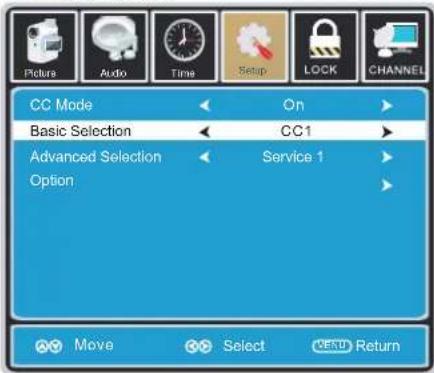
CC Mode Basic Selection Advanced Selection Option On CC1 Service 1 Move Select OKU ReturnUse the ▼ button to highlight Basic Selection. Navigate using the ◀▶ buttons to select CC 1-4, Text 1-4.
text_image
Picture Audio Time Setup LOCK CHANNEL Mode Custom Font Style Default Font Size Default Font Edge Style Default Font Edge Color Default FG Color Default BG Color Default FG Opacity Default BG Opacity Default Move Select MENU ReturnNote:
When adjustments are completed, you may select another menu by pressing the Menu button.
TV SETUP

SETUP MENU
In the SETUP menu you may adjust the position of images displayed on screen once you connect an input signal from your PC.
If your PC system uses a standard signal mode, the screen will adjust automatically.
Connect an optional 3.5mm audio cable for stereo sound.
How to Navigate:
After connecting to a PC, press the SOURCE button and highlight VGA, then press the ENTER button.

text_image
Picture Audio Time Setup LOCK CHANNEL Menu Language English Transparency Off Zoom Mode Normal Noise Reduction Off Advance Close Caption XVS On Restore Default Move Select ReturnPress the MENU button on the remote control and navigate using the ◀▶ buttons to select SETUP. Press the ▼ button to highlight Advanced, then press the ▶ button to select from the following options.

text_image
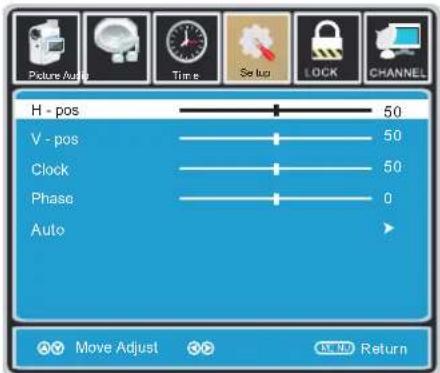
H - pos V - pos Clock Phase Auto 50 50 50 0 Move Adjust ReturnUse the ▼ button to highlight Clock. Navigate using the ◀▶ buttons to control the width of the image.
text_image
H - pos 50 V - pos 50 Clock 50 Phase 0 Auto Move Adjust ReturnUse the ▼ button to highlight H-POS. Navigate using the ◀▶ but tons to adjust the position of images displayed from side to side.
text_image
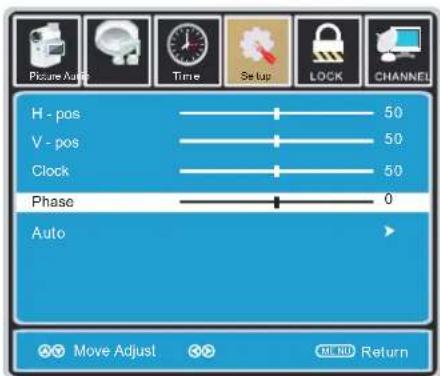
Picture Auto Time Setup LOCK CHANNEL H - pos 50 V - pos 50 Clock 50 Phase 0 Auto Move Adjust MI ND ReturnUse the ▼ button to highlight Phase. Navigate using the ◀▶ buttons to improve focus and image stability.
text_image
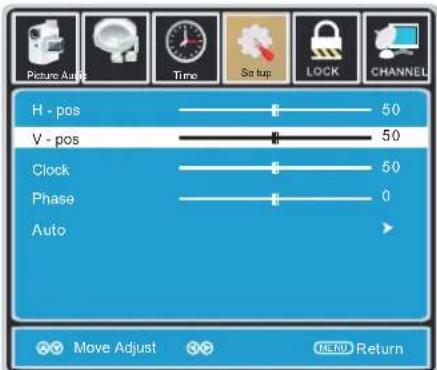
Picture Ads Time Sa tap LOCK CHANNEL H - pos 50 V - pos 50 Clock 50 Phase 0 Auto Move Adjust Micro ReturnUse the ▼ button to highlight V-POS. Navigate using the ◀▶ buttons to adjust the position of images displayed up and down.

text_image
Picture Auto Time Setup LOCK CHANNEL H - pos 50 V - pos 50 Clock 50 Phase 0 Auto Move Next MENU ReturnUse the ▼ button to highlight AUTO. Press the ▶ button to automatically adjust the display to the best setting.
TV SETUP

LOCK(PARENTAL) MENU
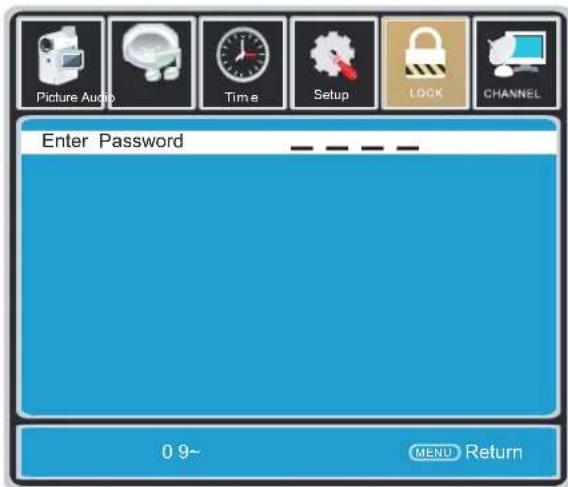
In the LOCK(PARENTAL) menu you may block television by inputting passwords. To gain access and select your preferences within the LOCK(Parental) menu make certain your input is set to TV.
How to Navigate:
Press the MENU button on the remote control. Navigate using the ◀▶ buttons to select Parental.
text_image
Picture Audio Time Setup LOCK CHANNEL Enter Password 0 9~ MENU ReturnPress the ▼ button to highlight Enter Password. Enter your 4 digit code (factory default code is "0000") unless previously changed.

text_image
Picture Audio Time Setup LOCK CHANNEL Enter New Password Confirm Password 0 9~ MENU ReturnUse the numeric buttons to input a new 4 digit code by two times.

text_image
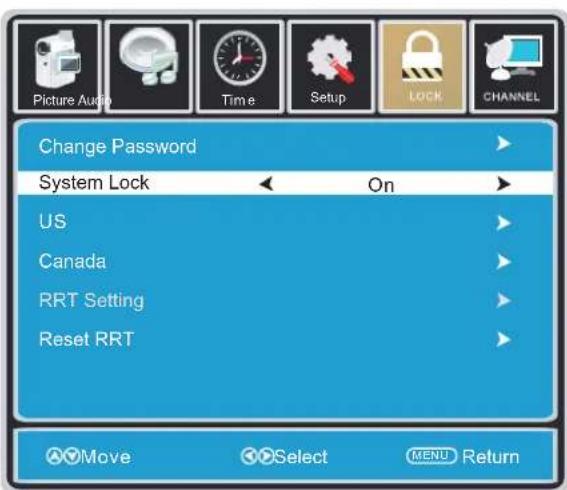
Picture Audio Time Setup LOCK CHANNEL Change Password System Lock On US Canada RRT Setting Reset RRT Move Next MENU ReturnTo change the password, press the ▶ button to display a screen to enter your new password, then confirm again.
text_image
Picture Audio Time Setup LOCK CHANNEL Change Password System Lock On US Canada RRT Setting Reset RRT Move Select MENU ReturnTo make changes to PARENTAL controls, Highlight SYSTEM LOCK then press the ▶ button to ON.
NOTE:
RRT Setting and Reset RRT are not user's adjustable settings.
TV SETUP

LOCK(PARENTAL) MENU
In the LOCK(PARENTAL) menu you may block television and movie programming based on U.S TV and movie rating guidelines. To gain access and select your preferences within the LOCK(Parental) menu make certain your input is set to TV.
How to Navigate:
Press the MENU button on the remote control. Navigate using the ◀▶ buttons to select LOCK (Parental).
Press the ▼ button to highlight ENTER PASSWORD. Enter your 4 digit code (factory default code is "0000") unless previously changed.
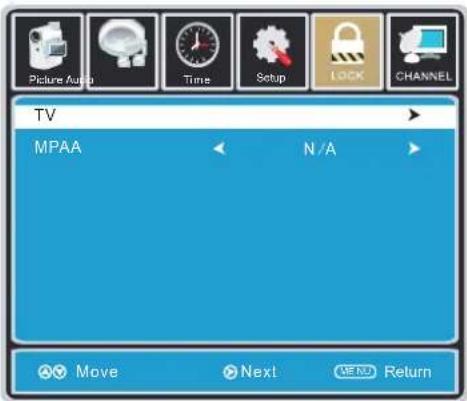
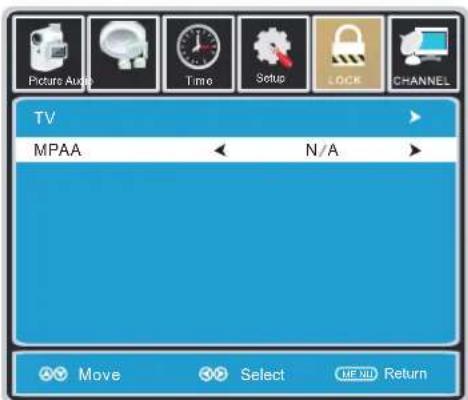
To set parental controls for television programming or DVD movies, press the ▲▼ buttons to highlight US. Navigate using the ◀▶ buttons to highlight TV/MPAA menu.
text_image
TV MPAA N/A Move Next Return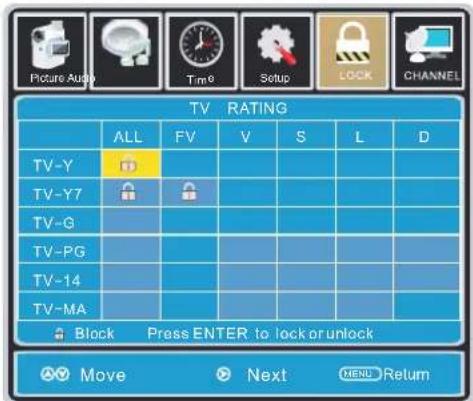
text_image
Picture Audio Time0 Setup LOCK CHANNEL TV RATING ALL FV V S L D TV-Y TV-Y7 TV-G TV-PG TV-14 TV-MA Block Press ENTER to lock or unlock Move Next MENU ReturnHighlight TV, then press the ▶ button to enter the TV Ratings menu to select your preference.
| Age | Defined as |
| TV-Y | Recommended for all children. |
| TV-Y7 | Directed to older children. |
| TV-G | General Audience. |
| TV-PG | Parental Guidance Suggested. |
| TV-14 | Parental Strongly Cautioned. |
| TV-MA | Mature Audience only. |
| Contents | Defined as |
| FV | Fantasy Violence |
| D | Suggestive Dialogue |
| L | Strong Language |
| S | Sexual Situations |
| V | Violence |
text_image
Picture Audio Time Setup LOCK CHANNEL TV MPAA N/A Move Select MF NII Return| Rating | Defined as |
| N/A | Not rated. |
| G | GENERAL AUDIENCES, Suitable for all ages. |
| PG | PARENTAL GUIDANCE SUGGESTED- Some material may not be suitable for children. |
| PG-13 | PARENTS STRONGLY CAUTIONED- Some material may be inappropriate for children under 13. |
| R | RESTRICTED, Under 17 requires accompanying parent or adult guardian for viewing in movie theaters. |
| NC-17 | No one 17 or under admitted in movie theater. |
| X | Adult audience only. |
Highlight MPAA then press the ▶ button repeatedly to select your movie rating preference.
TV SETUP

LOCK(PARENTAL) MENU
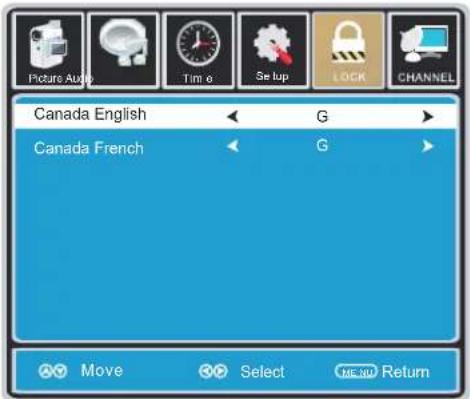
In the LOCK(PARENTAL) menu you may block television and movie programming based on Canadian TV and movie rating guidelines. To gain access and select your preferences within the LOCK(Parental) menu make certain your input is set to TV.
How to Navigate:
Press the MENU button on the remote control. Navigate using the ◀▶ buttons to select Parental. Press the button to highlight ENTER PASSWORD. Enter your 4 digit code (factory default code is "0000") unless previously changed.
To set parental controls for television programming or DVD movies, press the ▲▼ buttons to highlight Canada. Navigate using the ◀▶ buttons to highlight Canada English/Canada French menu.
text_image
Picture Audio Time o Se lup LOCK CHANNEL Canada English G Canada French G Move Select ME 100 Return| Rating | Description |
| E | Exempt. |
| C | Children. |
| C8 + | Recommended for children age 8 and older. |
| G | GENERAL AUDIENCES, Suitable for all ages |
| PG | PARENTAL GUIDANCE SUGGESTEDSome material may not be suitable for children. |
| 14 + | Viewers 14 years and older |
| 18 + | Adult Programming. |
Navigate using the ▼ button to highlight CANADA ENGLISH, then press the ▶ button repeatedly to select your ratings preference.

text_image
Picture Audio Time Setup LOCK CHANNEL Canada English G Canada French G Move Select MENU Return| Rating | Description |
| E | Exempt. |
| G | GENERAL AUDIENCES, Suitable for all ages. |
| 8 ans+ | Not recommended for young children. |
| 13 ans+ | Not suitable for children under the age of 13. |
| 16 ans+ | Not suitable for children under the age of 16. |
| 18 ans+ | Adult Programming. |
Navigate using the ▼ button to highlight CANADA FRENCH, then press the ▶ button repeatedly to select your ratings preference.
NOTE:
When adjustments are completed, you may select another menu by pressing the Menu button.
TV SETUP

TV(CHANNEL) MENU
The TV(CHANNEL) menu provides for the setup of your television to receive TV channels, store your favorites, add or skip channels and label them by their call letters.
How to Navigate:
Press the MENU button on the remote control. Navigate using the ◀▶ buttons to select TV. Press the ▼ button to highlight your preferences.

text_image
Air /Cable Auto Scan Favorite Show/Hide Channel No Channel Lable DTV Signal 50-3 KOCE LB Good Move Nxtf MI 20 Return
text_image
Picture Audio Time Setup LOCK CHANNEL Channel Program Name Favorite 2 -0 14 -1 ATSC -1 14 -2 ATSC -2 14 -3 ATSC -3 50 -1 KOCE -HD 50 -2 KOCE -SD 50 -3 KOCE -LB 66 -0 Prev Next Move Press 扼NTER Change NEW ReturnHighlight FAVOURITE to add channels to your Favorites List. Navigate using the ▲▼◀▶ buttons to select channels to be added or deleted from your list. Press the ENTER button to add or delete a channel. A checkmark indicates a channel has been added. You may also display your favourite list from the remote control by pressing FAV.

text_image
Picture Audio Time Setup LOCK CHANNEL Air /Cable Air Auto Scan Favorite Show / Hide Channel No 50-3 Channel Lable KOCE LB DTV Signal Good Move Next MENU Return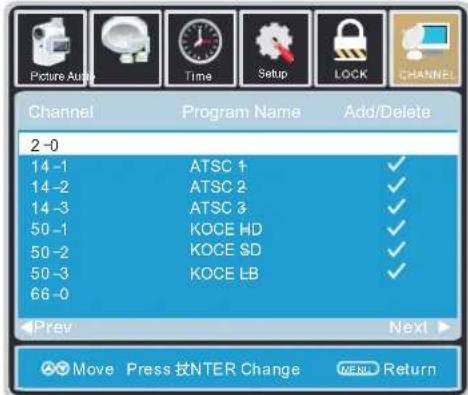
text_image
Picture Audio Time Setup LOCK CHANNEL Channel Program Name Add/Delete 2 -0 14 -1 ATSC 1 ✓ 14 -2 ATSC 2 ✓ 14 -3 ATSC 3 ✓ 50 -1 KOCE HD ✓ 50 -2 KOCE SD ✓ 50 -3 KOCE LB ✓ 66 -0 Prev Next ▶ Move Press 批NTER Change MEN ReturnHighlight to select Show/Hide or skip channels already in memory. Navigate using the ▲▼◀▶ buttons to access the list of available channels. Press the ENTER button to change the channels status. A checkmark indicates a channel has been added.

text_image
Picture Audio Time Setup LOCK CHANNEL Air /Cable Air Auto Scan Favorite Show/Hide Channel No 50 -3 Channel Lable KOCE LB DTV Signal Good Move Next MENU Return
text_image
Picture Audio Time® Setup LOCK CHANNEL KBBC - DT Move Next SEND ReturnHighlight CHANNEL LABEL to name or rename a broadcast channel. Navigate using the ▶ button to enter the screen menu to re-label a channel. Use the ▲▼ buttons to spell out each letter, number or character. Use the ◀▶ buttons to advance to the next space.
DISPLAY MODE
PC FORMATS
| SUPPORTED PC INPUT MODE | |||
| Resolution | Hi o aor z nt l Scanning Frequency (KHz) | Vertical Scanning Frequency (Hz) | Format |
| 640 x 480 | 31.5 | 60.0 | DOS |
| 800 x 600 | 35.1 | 56.2 | VESA |
| 800 x 600 | 37.9 | 60.0 | VESA |
| 1024 x 768 | 48.4 | 60.0 | VESA |
| 1360 x 768 | 47.7 | 60.0 | VESA |
NOTE:
This product does not support the display mode not listed above.
In order to achieve the best display effect, please select the above-listed 5 display modes input signal.
Because of the difference of display drivers output signal
(especially non-standard signal output), the display image may appear little disturbance which can be adjusted on the PC menu.
To prolong this unit's service life, please set your computer to power management mode.
DISPLAY MODE
VIDEO FORMATS
| SUPPORTED COMPONENT / HDMI INPUT MODE | |||
| e iRisφ on | Horizontal Scanning Frequency ( KHz ) | Vertical Scanning Frequency (Hz) | Format |
| 720 480 | 31. 47 | 59. 94 | 480 i |
| 720 480 | 15. 734 | 59. 94 | 480 p |
| 1280 720 | 37. 5 | 50 | 720 p |
| 1280 720 | 45 | 60 | 720 p |
| 1920 1080 | 31. 25 | 50 | 1080 i |
| 1920 1080 | 33. 75 | 60 | 1080 i |
| 1920 1080 | 27 | 24 | 1080 p |
| 1920 1080 | 56. 25 | 50 | 1080 p |
| 1920 1080 | 67. 50 | 60 | 1080 p |
NOTE:
The above listed formats are also related to the AV devices you are about to connect. Before you connect this unit with others please read all instructions carefully and make sure all necessary cables are connected.
This unit may be incompatible with some other formats which are not meet the above conditions.
SPECIFICATION
| Model Description | 32"LCD TV | |
| Panel | Panel Type | LCD Panel |
| Diagonal Size | 32 inches | |
| Screen Format 16 9: | ||
| Resolution | 1366 x 768 | |
| Brightness | 280 nit | |
| Contrast | 3000:1 | |
| View Angle | 176(H)/176(V) | |
| Response Time | 7 ms | |
| Maximum Color | 16.7M colors | |
| Systems | Color System | ATSC/QAM/NTSC |
| Sound System | M | |
| Audio System | BTSC | |
| Sound Output | L/R Speaker: 10 W + 10W | |
| Input / Output Jacks | RF Input 75 ohm external terminal | |
| HDMI Input | Video 480i 480p 720p 1080i, 1080p.: , , , ,Audio: Two channel linear PCM 32, 44.1 and 48kHz, 16, 20 and 24 bits | |
| PG-RGB Input | D-sub 15pinG: 0.7Vp-p, 75ohmsB: 0.7Vp-p, 75ohmsR: 0.7Vp-p, 75ohms | |
| Composite Video Input | 1.0 Vp-p, 75ohms RCA | |
| Component/Y Pb Pr Input | RCAY: 1.0 Vp-p, 75ohms, 0.3V negative syncPb: 0.7Vp-p, 75ohmsPr: 0.7Vp-p, 75ohms | |
| Sound Input | AV AUDIO: For CVBS/COMPONENT Audio inputPC AUDIO: For PC RGB Audio input500mV rms, Impedance: 20k ohms | |
| Power | Power Requirement | 100-240V~ 50/60Hz |
| Rated Power Consumption | 100 W | |
This manual is only for your reference.
Specifications are subject to update without prior notice.
TROUBLESHOOTING GUIDE
SYMPTOM CAUSE AND REMEDY( )
| TV | |
| Bad Picture (snow, multiple images distortion, blurry) | ·Check the location of the antenna and adjust it if necessary.·Make sure the antenna cable is firmly connected.·Make sure all input cables are firmly connected. |
| No sound. | ·Increase the volume.·Check whether the mute function has been activated on the Remote Control. |
| Black and White picture. | ·Check the PICTURE setting within the PICTURE menu.·Check to make sure the program you are watching is broadcast in Color and not Black & White. |
| No picture or sound. | ·Make sure the unit is plugged in and turned on.·Make sure that the ATV mode is selected.·Try a new channel to check for possible station trouble.·Make sure the antenna is connected properly.·Increase the volume.·Make sure the antenna or audio/video source device is working properly.·Make sure all cables are firmly connected.·Check for local interference. |
| Coloredpatches of picture. | ·Make sure there are no unshielded electrical devices nearby that are causing interference.·Turn the TV off for 30 minutes, then try it again. |
| Panel function key does not respond correctly. | ·Under the influence of electrostatic phenomenon, the product may malfunction and require usertopowerreset.·Unplug and re-plug the AC power cord. |
| The display monitor's panel goes hot. | ·LCD TV takes inside lighten phosphor. It may increase the temperature of the screen in some occasions. It's not a defect. |
| Unusual dots | ·Black dots and Bright points may appear on the LCD screen. This is a structural property of the LCD panel and is not a defect. |
| Stripes on screen | ·Adjust the impulse phase may decrease stripes. (RGB in ) |
| The top of the monitor gets hot. | ·It may occur during long-time working. It's not a defect. |
| Unable to select a certain channel. | ·The channel may be skipped. Choose this channel by directly selecting the buttons from the remote control. |
| Disorder display at power on. | ·This may be caused because of a very short interval between POWER OFF and ON.·Unplug the power and restart. |