ManualGo.com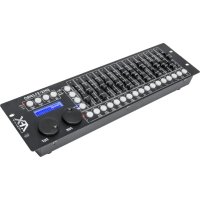
DMX512PRO - Controller AFX - Free user manual and instructions
Find the device manual for free DMX512PRO AFX in PDF.



Download the instructions for your Controller in PDF format for free! Find your manual DMX512PRO - AFX and take your electronic device back in hand. On this page are published all the documents necessary for the use of your device. DMX512PRO by AFX.
USER MANUAL DMX512PRO AFX
- Please keep this User Guide for future consultation. If you sell the unit to another user, be sure that they also receive this instruction booklet.
- Always make sure that you are connecting to the proper voltage and that the line voltage you are connecting to is not higher than that stated on decal or rear panel of the fixture.
- This product is intended for indoor use only!
- To prevent risk of fire or shock, do not expose fixture to rain or moisture. Make sure there are no flammable materials close to the unit while operating.
- The unit must be installed in a location with adequate ventilation, at least 50cm from adjacent surfaces. Be sure that no ventilation slots are blocked.
- Always disconnect from power source before maintenance, repairs or fuse replacement.
- In the event of serious operating problem, stop using the unit immediately. Never try to repair the unit by yourself. Repairs carried out by unskilled people can lead to damage or malfunction. Please contact the nearest authorized technical assistance center. Always use the same type spare parts.
- Don’t connect the device to a dimmer pack.
- Make sure power cord is never crimped or damaged.
- Never disconnect power cord by pulling or tugging on the cord.
- Operate this device only under ambient temperature conditions of -5°C to +45°C.
- There are no serviceable parts inside the device. Maintenance and service operations are only to be carried out by authorized dealers.
- Should you need any spare parts, please use genuine parts. Should you have further questions, please contact your dealer.
- We recommend a frequent cleaning of the device. Please use a soft lint-free and moistened cloth. Never use alcohol or solvents! DESCRIPTION The DMX controller serves for operation of DMX-controlled light effect devices such as LED spot lights, moving heads and scanners in discotheques or on stage. The controller provides 512 control channels which can be assigned as desired to the 32 control channels. The built-in effect generator facilitates programming significantly. 9 movement patterns designed for moving heads and scanners can be called at the push of a button as well as 7 color effects designed for light effect devices with RGBW LEDs in particular. 32 memory banks are available for programming illumination scenes. 32 additional memory banks are available for programming chases (sequences of scenes) with 100 steps each. The chases may be played©Copyright Lotronic 2018 Manual DMX512-PRO 4 manually, sound-controlled or automatically. All settings of your light show can be conveniently stored and archived on a USB memory device. CONTROLS & FUNCTIONS TOP panel:
For adjusting the DMX values of the connected light effect units. The current DMX value is indicated on the display.
Controls 1-4 adjust the brightness ratio of the red, green, blue and white LEDs of the light effect units and control 5 adjusts the total brightness.
2. Number buttons 1 to 16 with LEDs
These buttons control different functions depending on the selected mode and have a dual function; the PAGE button allows switching between the two channel groups 1-16 and 17-32.
FIXTURE: To select and deselect devices.
3. PAGE Button with LEDs
To switch the number buttons between the two channel groups 1-16 and 17-32.
LED A lights: channel group 1-16 is selected.
LED B lights: channel group 17-32 is selected.
4. FIXTURE Button with LED
With the button pressed (LED lights) the number buttons allow to select and deselect devices.
Adjusts the fade in time for the RGBW color channels together with the pan wheel.
5. MOVEMENT Button with LED
With the button pressed (LED lights) the number buttons allow to activate and deactivate movement patterns or color effects.©Copyright Lotronic 2018 Manual DMX512-PRO 5
6. SCENE Button with LED
With the button pressed (LED lights) the number buttons allow to activate and deactivate illumination scenes.
7. CHASE Button with LED
With the button pressed (LED lights) the number buttons allow to activate and deactivate chases.
Controls the pan movement of moving heads or scanners and programs functions.
Controls the tilt movement of moving heads or scanners and programs functions.
Connect a USB storage device for storing and importing data and firmware updates.
11. Button REC/ENTER with LED
- Long press: To activate or deactivate the programming mode.
- Short press: For storing individual illumination scenes or chases and for confirming adjustments.
12. Button MENU/ESC with LED
- Long press: To call and exit the system settings.
- Short press: To abort a setting procedure and jump back to a higher menu level.
13. Button BLACK OUT/DEL with LED
- Sets all control channels to the value zero (e.g. for turning off the devices).
- For deleting illumination scenes or chases.
- For inserting a scene into a chase.
14. Button RUN MODE/SWAP with LEDs
- For setting the running mode of a chase. A short press switches between manual, sound-controlled and automatic mode. The LEDs next to the button indicate the current setting. - MANUAL: The chase can be manually advanced step by step with the pan wheel. - MUSIC: The individual steps of the chase run to the rhythm of the music picked up via the internal microphone. - AUTO: The individual steps of the chase run at the adjusted speed and fade time.
- For switching between the parameters when editing movement patterns.
3-pin XLR jack for connecting the DMX input of the first light effect unit.
17. Power input©Copyright Lotronic 2018 Manual DMX512-PRO 6
Plug in the mains cable of the supplied power unit here.
Switches the controller on and off. Installation and Connections Switch off the DMX controller prior to connecting any units or to changing any existing connections.
Fig. 5.1 Example for connection Installation Install the unit on a plane surface or in your rack. When choosing the installation spot make sure that there is enough space around the unit for ventilation or that heated air from the rack can be passed on to improve heat radiation. Steady overheating will damage the unit. CABLE CONNECTORS Cabling must have a male XLR connector on one end and a female XLR connector on the other end. DMX connector configuration
Termination reduces signal errors. To avoid signal transmission problems and interference, it is always advisable to connect a DMX signal terminator. CAUTION Do not allow contact between the common and the fixture’s chassis ground. Grounding the common can cause a ground loop, and your fixture may perform erratically. Test cables with an ohm meter to check correct polarity and to make sure the pins are not grounded or shorted to the shield or each other. INPUT COMMON DMX + DMX- Resistance 120 ohm 1/ 4w between pin 2 (DMX-) and pin 3 (DMX+) of the last fixture.©Copyright Lotronic 2018 Manual DMX512-PRO 7 Unit Starting
address Unit Starting
1. Connect the (male) 3 pin connector side of the DMX cable to the output (female) 3
pin connector of the controller.
2. Connect the end of the cable coming from the controller which will have a
(female) 3 pin connector to the input connector of the next fixture consisting of a (male) 3 pin connector.
3. Then, proceed to connect from the output as stated above to the input of the
following fixture and so on. Connection to the Mains Connect the power supply unit to the power input jack and the mains plug to a mains outlet. Always disconnect the mains connector when you wish to change connections, move the unit to a different place or if it is not used for a longer period. Configuration Adjusting the DMX Starting Addresses of the Light Effect Units Adjust the DMX starting address of the connected light effect units according to the following scheme. If identical units are to be controlled synchronously, they can receive the same starting address; otherwise each unit must receive an individual address. For further information, please refer to the unit’s documentation. Table 6.1 Default values for the starting address of the light effect units©Copyright Lotronic 2018 Manual DMX512-PRO 8 Manual Assignment of DMX Starting Addresses It is possible to individually assign the DMX starting addresses to the controller. The assignment can be made in the system settings.
1. Switch on the controller with the rear power switch. The unit is in manual mode
and the display indicates “Manual” in the upper line.
2. Keep the button MENU pressed for 2 seconds to call the system settings.
3. The display indicates the first menu item „01.Patch fixture“(otherwise select it
with the pan wheel). Press the button ENTER to begin with the configuration. The display indicates “PLEASE SELECT FIXTURE”.
4. Use the buttons number buttons 1-16 to select the unit of which the DMX starting
address is to be assigned (control LED lights).
5. This menu item allows adjusting further characteristics. Use the button SWAP to
switch between the options.
6. Select the option DMX START ADDR to assign the DMX starting address. The
display indicates “NO PATCH ADDRESS“ in case no assignment was made yet; otherwise it indicates e.g. “ADR: 001“. Fig. 6.1 Manual address assignment
7. Change the address with the pan wheel. For addresses that were already assigned,
the display inserts a “!”.
8. Press the button ENTER to memorize your setting.
- To confirm the memory procedure, all LEDs of the controller flash three times.
9. Repeat the steps 4, 7 and 8 to assign further units.
10. After your settings, exit the system settings. For this, keep the button MENU
pressed for 2 seconds. Manual Assignment of DMX Channels It is possible to individually assign the DMX channels of the connected light effect units to the control elements of the controller (softpatch). However, some DMX channels must be assigned according to a certain scheme, in order for the controller to correctly perform the integrated movement patterns, color effects and fade effects. For control of the pan/tilt function of moving heads or scanners, the corresponding DMX channels must be assigned e.g. to the pan and tilt wheel; and for control of RGBW light effect units, the DMX channels which control red, green, blue, white and the dimmer function, must be assigned to the sliding control 1-5. The assignment can be made in the system settings.
1. Keep the button MENU pressed for 2 seconds to call the system settings.
with the pan wheel). Press the button ENTER to begin with the configuration. The display indicates “PLEASE SELECT FIXTURE”.
3. Use the buttons number buttons 1-16 to select the unit which the DMX channels
are to be assigned (control LED lights).
4. Select the option FADER CHANL with the button SWAP to assign the DMX channels
to the control elements. The display indicates the control element in the upper line, e.g. “Fader CHANL:1/R “ and the DMX channel in the lower line, e.g. “DMX channel:01” Fig. 6.2 Channel assignment
5. Adjust the first control element with the pan wheel, e.g. 1/R = sliding control 1 and
assign the DMX channel with the tilt wheel. Control DMX channel Control DMX channel 1/red
Tab. 6.2 Assignment of DMX channels to the control elements
6. Press the button ENTER to memorize your setting.
To confirm the memory procedure, all LEDs of the controller flash three times.
7. Repeat the steps 5 and 6 to assign further DMX channels.
8. Press the button DEL to delete an assignment (indication „NULL“).
To confirm the deleting procedure, all LEDs of the controller flash three times.
9. After your settings, exit the system settings.
For this, keep the button MENU pressed for 2 seconds. Inverting Output Values It is possible to individually invert the output values of the 512 control channels. The adjustment can be made in the system settings. Fader CHANL:1/R FX:01 DMX channel:01©Copyright Lotronic 2018 Manual DMX512-PRO 10
1. Keep the button MENU pressed for 2 seconds to call the system settings.
2. The display indicates the first menu item „01.Patch fixture“ (otherwise select it
with the pan wheel). Press the button ENTER to begin with the configuration. The display indicates “PLEASE SELECT FIXTURE”.
3. Use the number buttons 1-16 to select the unit of which the DMX channels are to
control element in the upper line, e.g. “FADER:1/R “ and the current setting in the lower line, e.g. “REVERSE:NO“. Fig. 6.3 Inverting output values
5. Adjust the first control element with the pan wheel and use the tilt wheel to select
the setting [YES] if the output value of the control channel is to be inverted or [NO] if not. With activated inversion, the output value is zero if the control channel has been set to the maximum value and vice versa.
6. Press the button ENTER to memorize your setting.
- To confirm the memory procedure, all LEDs of the controller flash three times.
7. Repeat the steps 5 and 6 to invert further control channels.
8. Repeat the steps 3, 5 and 6 to adjust further units.
9. After your settings, exit the system settings.
For this, keep the button MENU pressed for 2 seconds. Assigning the Fade In Function The fade in function for the RGBW color channels 1-4 and the dimmer channel can be individually assigned to each device. The adjustment can be made in the system settings.
1. Keep the button MENU pressed for 2 seconds to call the system settings.
2. The display indicates the first menu item „01.Patch fixture“ (otherwise select it
with the pan wheel). Press the button ENTER to begin with the configuration. The display indicates “PLEASE SELECT FIXTURE”.
3. Use the buttons number buttons 1-16 to select the unit to be configured (control
5. Use the tilt wheel to select the setting [YES] if fade in of the device should be
possible or [NO] if not. With the function activated, the controller automatically creates all necessary intermediate values for the fade in. Fader CHANL:1/R REVERSE:NO COLOR FADE FIXTURE:01 [NO]©Copyright Lotronic 2018 Manual DMX512-PRO 11
6. Press the button ENTER to memorize your setting.
- To confirm the memory procedure, all LEDs of the controller flash three times.
7. Repeat the steps 3, 5 and 6 to configure further units.
8. After your settings, exit the system settings.
For this, keep the button MENU pressed for 2 seconds. Copying Device Settings All DMX values assigned to a light effect unit can be conveniently copied to another unit. The adjustment can be made in the system settings.
1. Keep the button MENU pressed for 2 seconds to call the system settings.
2. The display indicates the first menu item „01.Patch fixture“ (otherwise select it
with the pan wheel). Press the button ENTER to begin with the configuration. The display indicates “PLEASE SELECT FIXTURE”.
3. Keep the number button pressed of the unit to be copied.
4. In addition, press the number button you would like to copy the values to. The
display shortly indicates “COPY“. Fig. 6.5 Copying device settings
OPERATION Switch on the controller with the rear power switch. The unit is in manual mode and the display indicates “Manual” in the upper line. Manual Adjustment of an Illumination Scene An illumination scene contains the values of all control channels including the pan and tilt settings of the connected light effect units.
1. Press the button FIXTURE.
- The control LED lights.
2. Use the number buttons 1-16 to select the units to be controlled.
- The corresponding LEDs of the buttons light.
- If a number button is pressed once again, the corresponding device is deselected.
- Instead of selecting each device individually, devices with consecutive numbers can be selected simultaneously. For this, press the first and last number button simultaneously. Example: For selecting the devices 1 to 8, press the number buttons 1 and 8 simultaneously. Thus, all 8 devices will be selected simultaneously. In the same way, it is possible to deselect devices again. Fig. 7.1 Adjusting DMX values
controls and, if necessary, the pan and tilt wheels.
- As soon as a fader is moved, the display indicates the number of the control channel in the lower line and the current output value as a DMX value.
4. The 32 light effect units are combined in 2 groups (channel pages) of 16 channels
each. If necessary, use the button PAGE to switch between the two channel groups 1-16 (LED A lights) and 17-32 (LED B lights) and repeat steps 2 and 3, until the desired values are assigned to all channels. Adjusting an Illumination Scene with Movement Patterns and Color effects The built-in effect generator allows creating 9 different movement patterns for pan and tilt movement of moving heads or scanners as well as 7 additional color effects for LED light effect units. The effects can be saved together with other DMX values in a scene.
1. Press the button FIXTURE (control LED lights) and use the number buttons 1-16 to
select the devices to be assigned to an effect.
- If necessary, used the button PAGE to switch between the two channel groups 1-6 (LED A lights) and 17-32 (LED B lights).
2. Call the effect mode with the button MOVEMENT.
- The control LED lights.
3. Select the desired movement patterns or color effect with the number buttons
- The selected devices will begin to perform the movement pattern or color effect.
- Number buttons 1-9: Create movement patterns designed for pan and tilt movement of moving heads or scanners.
- Number buttons 10-16: Create color effects for all kinds of LED light effect units.
- For optimum results of the color effects triggered by buttons 15 and 16, the operation with a least 8 devices is recommended.
4. The parameters of the movement patterns and color effects can be edited and
adapted to your particular application. Fig. 7.2 Adjusting parameters
- Movement patterns 1-9: Press the button SWAP to switch between the parameters and adjust the values with the Pan/Tilt wheels. - MOVEMENT RANGE: The pan/tilt movement can be adjusted between 1 and 100 %. - MOVEMENT OFFSET: Correction values can be adjusted for fine adjustment of the pan/tilt movement. MOVEMENT RANGE PAN:050% TL:080%©Copyright Lotronic 2018 Manual DMX512-PRO 13 - MOVEMENT SPEED: The running speed can be adjusted between 1 and 100 %. - DELAY LEVEL: The delay time for the operation with several devices can be adjusted between 0 and 30 seconds. Fig. 7.3 Adjusting parameters
- Color effects 10-16: The running speed can be adjusted between 1 and 100 % (indication “MOVEMENT SPEED“). Memorizing Illumination Scenes 32 memory banks are available for illumination scenes. Each scene contains the values of all control channels including the pan and tilt settings of the connected light effect units as well as movement patterns or color effects at the time of storage.
1. Call the programming mode. For this, keep the REC pressed until the LED above
- The control LED lights.
3. Use the number buttons 1-16 to select the devices to be controlled.
- The corresponding LEDs of the buttons light.
- If a number button is pressed once again, the corresponding device is deselected.
controls and, if necessary, the pan and tilt wheels.
- As soon as a fader is moved, the display indicates the number of the control channel in the lower line and the current output value as a DMX value.
5. If necessary, movement patterns or color effects can be integrated in the scene.
For this, call the effect mode with the button MOVEMENTS and select the desired effect with the number buttons 1-16. Exit the effect mode again by pressing the button FIXTURE.
6. If necessary, use the button PAGE to switch between the two channel groups 1-16
(LED A lights) and 17-32 (LED B lights) and repeat steps 3 and 5, until the desired values are assigned to all channels.
7. Deselect the adjusted devices with the corresponding number button 1-16.
8. Repeat the steps 3 to 5 for all further devices to be adjusted.
9. Press the button SCENE and then the button REC to memorize the scene.
10. Select the desired memory bank with one of the number buttons 1-16.
- If necessary, use the button PAGE to switch between the two channel groups 1-16 (LED A lights) and 17-32 (LED B lights).
- To confirm the memory procedure, all LEDs of the controller flash three times.
11. Repeat the steps 2 to 10 to memorize further scenes.
12. After all desired scenes have been memorized, switch off the programming
mode. For this, keep the button REC pressed until the LED above the button lights. Calling Illumination Scenes Static scenes from the memory bank can only be used in manual mode.
1. There should be no device selected. If one of the control LEDs of the number
buttons 1- 16 light, press the corresponding button for deselecting.
2. Press the button SCENE.
- The control LED lights.
3. Call the desired scene with the number buttons 1-16.
- The control LED lights.
- If the button is pressed once again, the scene is deselected (control LED extinguishes).
- If necessary, use the button PAGE to switch between the two channel groups 1-16 (LED A lights) and 17-32 (LED B lights). Adjusting Fade In for the Color Channels
Fig. 7.6 Adjusting a fade in time
It is possible to adjust a fade in time for illumination scenes affecting the RGBW color channels 1-4 and the dimmer channel. When actuating a sliding control, the corresponding channel is moved slowly and steadily to its target value. The controller automatically creates all necessary intermediate values. Keep the button FIXTURE pressed and simultaneously adjust the fade in time with the pan wheel between 0-30 seconds. When turning the wheel, the display indicates the selected value in the lower line, e.g. “Fade 8.5S“ for a fade in lasting 8.5 seconds. Deleting Illumination Scenes Fig. 7.7 Programming mode
1. Call the programming mode. For this, keep the REC pressed until the LED above
- The control LED lights.
3. Keep the button DEL pressed and select the scene to be deleted with the number
- The control LEDs of the memory banks containing data light.
- If necessary, use the button PAGE to switch between the two channel groups 1-16 (LED A lights) and 17-32 (LED B lights).
- To confirm the deleting procedure, all LEDs of the controller flash three times.
4. After the desired scene has been deleted, switch off the programming mode. For
this, keep the button REC pressed until the LED above the button lights. Programming and Memorizing Chases For programming chases (sequences of scenes), 32 memory banks are available. A sequence of up to 100 steps can be programmed on each memory bank. Previously memorized scenes may also be compiled to a chase in any desired order. Chases may run automatically, manually, or sound-controlled.
1. Call the programming mode. For this, keep the REC pressed until the LED above
- The control LED lights.
3. Select the desired memory bank with one of the number buttons 1-16.
- If necessary, use the button PAGE to switch between the two channel groups 1-16 (LED A lights) and 17-32 (LED B lights).
- The display indicates e.g. “Chase01 Step001“ in the lower line.
4. Press the button FIXTURE.
- The control LED lights.
5. Use the number buttons 1-16 to select the devices to be controlled.
- If necessary, use the button PAGE to switch between the two channel groups 1-16 and 17-32. Fig. 7.10 Adjusting the first scene
6. Adjust the first illumination scene with the sliding controls and, if necessary the
pan and tilt wheels.
- The display indicates the number of the control channel in the lower line and the current output value as a DMX value.
7. It is also possible to call a scene previously memorized or a movement pattern or
color effect and to insert it into the chase. For this, call the scene or the effect with the button SCENE or MOVEMENT and the corresponding number button.
8. Press the button REC to memorize the scene.
- To confirm the memory procedure, all LEDs of the controller flash three times.
- The indication “Step001" changes to “Step002“ and you can adjust and memorize the next scene.
9. Repeat the steps 6 to 8 to adjust and memorize the next scene.
- Up to 100 scenes can be programmed for a chase.
10. After the desired chase has been memorized, switch off the programming mode.
For this, keep the button ENTER pressed until the display indication switches back to “Manual“. Inserting a Scene Into a Chase
1. Call the programming mode. For this, keep the REC pressed until the LED above
- The control LED lights.
3. Select the chase to be extended with one of the number buttons 1-16.
- The control LED of the number button lights and the display indicates the number and steps of the chase.
- If necessary, use the button PAGE to switch between the two channel groups 1-16 (LED A lights) and 17-32 (LED B lights).
4. Select the step after which a new step is to be inserted with the pan wheel.
5. Press the button MENU.
- The LED INSERT above the button lights.
6. Now, a scene can be inserted. For this, call the scene with the button SCENE and
the corresponding number button.
7. Press the button REC to memorize the revised chase.
- To confirm the memory procedure, all LEDs of the controller flash three times.
8. Repeat the steps 4 to 7 to insert further scenes into this chase.
Program CH:02 Val:098©Copyright Lotronic 2018 Manual DMX512-PRO 17
9. After the revised chase has been memorized, switch off the programming mode.
For this, keep the button ENTER pressed until the display indication switches back to “Manual“. Playing a Chase A chase must be programmed before you can call it. Chases can be played manually, time- controlled or sound-controlled. As a basic setting, the manual mode is activated. The LEDs MANUAL, MUSIC and AUTO indicate the current setting.
1. There should be no device or illumination scene selected. If one of the control
LEDs of the number buttons 1-16 light, press the corresponding button for deselecting.
2. Press the button CHASE.
- The control LED lights. Fig. 7.11 Calling a chase
3. Use the number buttons 1-16 to select the desired chase.
- The control LED flashes.
- If necessary, use the button PAGE to switch between the two channel groups 1-16 (LED A lights) and 17-32 (LED B lights).
- Up to 5 chases can be selected simultaneously. The chases are played one after the other. The LED of the chase currently playing flashes, the others light.
- The display indicates the number of the chase (e.g. “Chase01”) in the lower line and the current step (e.g. “Step001).
4. Select the chase running mode with the button RUN MODE. The mode is indicated
by the LEDs next to the button. Fig. 7.12 Chase in manual mode
- MANUAL: The chase can be manually advanced step by step with the pan wheel. Fig. 7.13 Chase in sound-controlled mode
- MUSIC: The individual steps of the chase run to the rhythm of the music picked up via the internal microphone. The sensitivity of the sound control is adjustable. For this, keep the button RUN MODE pressed and turn the tilt wheel to adjust a value between 0-100 %. The higher the value, the higher the sensitivity. Manual Chase01 Step001
- AUTO: The individual steps of the chase run at the adjusted speed and fade time. Use the pan wheel to adjust the running speed, i.e. how long a scene is shown, between 10 minutes and 0.1 seconds (indication “Wait“). Use the tilt wheel to adjust the fade time, i.e. the time between the steps, between 0 and 30 (indication “Fade“).
5. A flashing LED indicates which chase can be adjusted when several chases are
selected simultaneously. The chase selected last can be adjusted. To adjust a different chase instead, keep the corresponding number button pressed until its LED flashes.
6. To stop a chase, press the corresponding number button so that its LED
extinguishes. Adjusting Fade In for the Color Channels
Fig. 7.15 Adjusting a fade in time It is possible to adjust a fade in time for chases affecting the RGBW color channels 1-4 and the dimmer channel. The controller automatically creates all necessary intermediate values. Keep the button FIXTURE pressed and simultaneously adjust the fade in time with the pan wheel between 0-30 seconds. When turning the wheel, the display indicates the selected value in the lower line, e.g. “Fade 8.5S“ for a fade in lasting 8.5 seconds. Overwriting Channels Manually During the playback of a chase, it is possible to overwrite the programmed DMX values with the sliding controls. This allows for minor adjustments during a live performance without the need for reprogramming scenes.
1. Press the button FIXTURE use the number buttons 1-16 to select the units to be
controlled manually.
2. Adjust the desired DMX values for the DMX channels using the sliding controls
and, if necessary, the pan and tilt wheels.
3. If necessary, use the button PAGE to switch between the two channel groups 1-16
(LED A lights) and 17-32 (LED B lights) and repeat steps 1 and 2, until the desired values are assigned to all channels. Deleting a Chase Fig. 7.16 Programming mode Auto Wait 1M10S
1. Call the programming mode. For this, keep the REC pressed until the LED above
- The control LED lights.
3. Keep the button DEL pressed and select the chase to be deleted with the number
- The control LEDs of the memory banks containing data light.
- If necessary, use the button PAGE to switch between the two channel groups 1-16 (LED A lights) and 17-32 (LED B lights).
- To confirm the deleting procedure, all LEDs of the controller flash three time.
4. After the desired chase has been deleted, switch off the programming mode. For
this, keep the button REC pressed until the LED above the button lights. Blackout Function With the blackout function it is possible to blackout and illumination scene or chase completely. Current fadings and chases are not stopped by the blackout function, they continue “in the dark” in the meantime.
1. With the button BLACK OUT/DEL this function is switched on: The LED above the
button flashes and all control channels are set to the output value zero.
2. By pressing the button BLACK OUT/DEL again, the function stops: The LED is
extinguished and all channels return to their pervious output values.
3. In the system settings, is possible define whether all control channels react to the
button BLACK OUT/DEL or only the dimmer control channel. After Use After the operation, disconnect the mains plug of the power supply unit from the socket, to prevent unnecessary power consumption. SYSTEM SETTINGS This mode allows you to change important system settings for the controller. Fig. 8.1 Calling the system settings
1. Keep the button MENU for 2 seconds to call the system settings.
- The display indicates the first menu item “01.Patch fixture”.
2. Turn the pan wheel to browse the menu items.
3. Press the button ENTER to select the desired menu item.
4. Turn the pan wheel to change a setting and confirm with ENTER.
5. Shortly press the button ESC to abort the setting procedure and return to the main
6. To save your settings and exit the system settings, keep the button MENU pressed
for 2 seconds. The following adjustments are possible: Indication Function
Reset to factory settings
03. Delete all Fixture patch
Delete all DMX address assignments
RDM DMX address assignments
08. Send fixture Update file
#1 This menu item is covered in chapter 6 #2: This function is not available Reset factory [Reset to factory settings] Here you can reset the controller to factory setting.
1. Call the menu item with the pan wheel and confirm with ENTER.
2. Select the setting [YES] with the pan wheel and confirm with ENTER.
- The display shortly indicates ”Reset factory Please wait ..“ and then “OK“ as soon as the factory settings are loaded. Delete all Fixture patch [Delete all DMX address assignments] All address assignments and control channel options made can be deleted and reset to the presettings.
1. Call the menu item with the pan wheel and confirm with ENTER.
2. Select the setting [YES] with the pan wheel if a reset is to be made. Confirm with
- The display shortly indicates “SAVE OK“ and returns to the main menu level. Fade mode [Fade function] The fade function can be assigned to all control channels or only to the pan and tilt wheels.
1. Call the menu item with the pan wheel and confirm with ENTER.
2. Use the pan wheel to select the setting [ALL CHANNELS] if the fade function is
possible for all control channels or select [ONLY PAN/TILT] if it is only possible for the pan and tilt wheels. Confirm with ENTER.©Copyright Lotronic 2018 Manual DMX512-PRO 21
- The display shortly indicates “SAVE OK“ and returns to the main menu level. RDM DMX Address setup [RDM DMX address assignments] This menu allows identifying connected RDM devices and changing their DMX address assignment.
1. Call the menu item with the pan wheel and confirm with ENTER.
2. Select the setting [YES] with the pan wheel to access RDM functions and confirm
“DISCOVER COUNT005“ when five devices have been found.
4. Select the desired device with the pan wheel. The display indicates information
regarding the device in the upper line and the corresponding DMX address in the lower line.
5. Use the tilt wheel to change the DMX address and confirm with ENTER.
6. Press the button SWAP to indicate the UID (manufacturer ID and serial number) of
the device in the upper line of the display.
7. Press the button BLACK OUT to perform the identify function for the device.
8. After your settings, return to the main menu level with ESC.
Regarding RDM RDM stands for "Remote Device Management" and makes remote control of devices connected to the DMX bus possible. RDM is an extension of the DMX512 protocol. RDM is especially useful when the device is installed in a remote area. RDM is integrated in DMX without influencing the connections. RDM data is transmitted via the standard XLR pins 1 and 2 and does not require a new cable type. RDM-ready and conventional DMX devices can be operated in one DMX line. If DMX splitters are used, they must support RDM. Data backup [Data backup] All settings of a light show, i.e. DMX settings, illumination scenes and chases can be stored on a USB memory device and recalled later. 16 memory banks are available.
1. Connect a USB memory device to the controller’s USB port.
2. Call the menu item with the pan wheel and confirm with ENTER.
3. Select the setting [YES] with the pan wheel confirm with ENTER. The display
indicates “Press number key Select file“ (select memory bank with number button).
4. Select a memory bank with one of the number buttons 1-16. The display indicates
e.g. “FILE:1“ and a progress bar.
- Each memory bank must be stored separately. If the control LED of a number button lights, this memory bank has been stored on the USB memory device before.
- The data will be stored in the folder “DMX Move Control 512“ located on the root directory of the USB memory device. A file with the extension “PRO” will be created©Copyright Lotronic 2018 Manual DMX512-PRO 22 for each memory bank. You should not make any changes to the default folder. Otherwise the controller cannot the reload the data later.
5. After completing the data backup, the device returns to the main menu level.
Regarding USB memory devices
- This unit supports data carriers with the file system FAT32 and with a capacity up to 32 GB.
- Prior to connecting a USB memory device, call the system settings.
- If a data carrier is not recognized at the first try, turn the controller off and on again. Data load [Data import]
1. Connect a USB memory device to the controller’s USB port.
- The files to be imported must be stored in the folder “DMX Move Control 512“located on the root directory of the USB memory device.
2. Call the menu item with the pan wheel and confirm with ENTER.
- The display indicates “Press number key Select file“ (select file with number button).
- The control LED of a number button lights, when data is available on the USB memory device for this memory bank.
3. Select the file to be loaded with the number buttons 1-16.
- The display indicates a progress bar.
4. After successful completion of the data import, the device returns to the main
menu level. Black-out mode [Blackout function] It is possible to define whether all control channels react on the button BLACK OUT or only the dimmer control channel.
1. Call the menu item with the pan wheel and confirm with ENTER.
2. Use the pan wheel to choose between the settings [All channels] and [Only
- All channels: All control channels react on the button (i.e. in the blackout state the control channels have the value zero).
- Only dimmer: Only the dimmer control channel reacts on the button BLACK OUT (i.e. in the blackout state the control channel has the value zero).
3. Confirm your setting with ENTER.
Imported from China by: LOTRONIC SA Avenue Zénobe Gramme 9 1480 SAINTES Belgium