Dogs 2 - Pets Weenect - Free user manual and instructions
Find the device manual for free Dogs 2 Weenect in PDF.


| Product Type | GPS Tracker for Pets |
| Brand | Weenect |
| Model | Dogs 2 |
| Dimensions | Approximately 5 x 4 x 2 cm |
| Weight | Approximately 35 g |
| Power Supply | Rechargeable lithium-ion battery, charges via micro-USB port |
| Battery Life | Several days depending on use |
| Protection Rating | IP67 (water and dust resistant) |
| Connectivity | GSM (mobile network) and GPS |
| Main Functions | Real-time GPS tracking, zone notifications, movement history, ambient listening (built-in microphone) |
| LED Display | Yellow LED (GSM), Red LED (battery), Blue LED (GPS) |
| Mobile App | Weenect-GPS (iOS and Android) |
| Attachment | Harness recommended for optimal antenna orientation |
| Care and Cleaning | Clean with a soft, dry cloth. Do not use chemicals. |
| Safety | Compliant with R&TTE and RoHS directives (EN 50581:2012). CE marking. |
| Spare Parts and Repairability | Battery replaceable by a professional. No consumer spare parts. |
| General Information | Requires a subscription for GSM service. Activation via my.weenect.com. |
Frequently Asked Questions - Dogs 2 Weenect
User questions about Dogs 2 Weenect
0 question about this device. Answer the ones you know or ask your own.
Ask a new question about this device
Download the instructions for your Pets in PDF format for free! Find your manual Dogs 2 - Weenect and take your electronic device back in hand. On this page are published all the documents necessary for the use of your device. Dogs 2 by Weenect.
USER MANUAL Dogs 2 Weenect
Weenect Dogs 2
|


We've designed Weenect Dogs2 as an aid to dog surveillance, not a substitute for it. Please be aware that network coverage (GSM) and GPS signal strength may have an impact on service reliability.
1 Activating your tracker
1 First create an account on my.weenect.com or from within the app (see part 3).
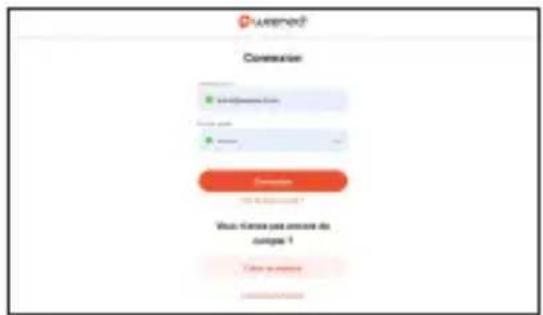
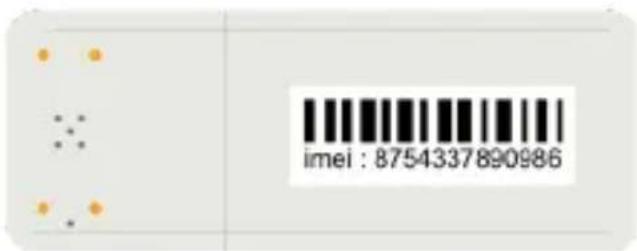
2 Then register your tracker by following the steps described in the procedure. The IMEI number can be found on the back of your tracker.

If you already have an account, you'll need to log in using your username and password in order to register your new tracker.
2 Switching on your tracker
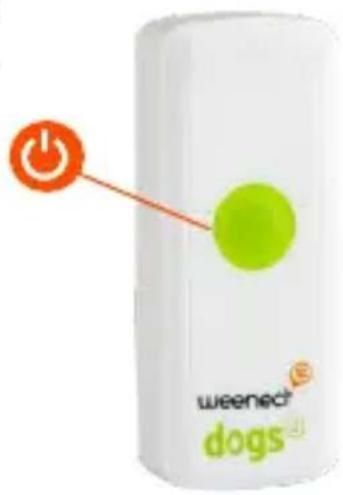
1 Take your tracker outside hold down the on-off button for three seconds. Once the tracker vibrates, you can release the button. The tracker is now turned on.
2 Keep your tracker outside until the blue LED is blinking. Congratulations! Your tracker has now established its GPS position for the first time.
3 To switch your tracker off, press the on/off button three times in succession or press 5 seconds consecutively. Once you feel your tracker vibrate it is switched off.
To watch these procedures on video, please visit leds.weenect.com
FR
EN
DE
NL
IT
ES
3 Installing the «Weenect-GPS» app

1 Search for the «Weenect-GPS» app on the App Store or Google Play. Install the app.
2 Log into the app using your existing username and password, or create a new account if you don't already have one.
3 To watch a video about the app's functions and features, please visit app.weenect.com
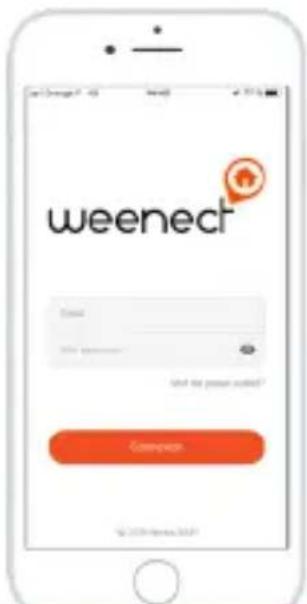

Be careful not to confuse the «Weenect-GPS» app with the «Weenect location» app.
4 Turning notifications on
Turn on notifications on your phone or tablet.
- If using iOS, go to Settings > Weenect > Notifications
- If using Android, go to Settings > Applications > Weenect > Notifications
Important: don't forget to adjust the settings to allow banner notifications and display of notifications on the lock screen.
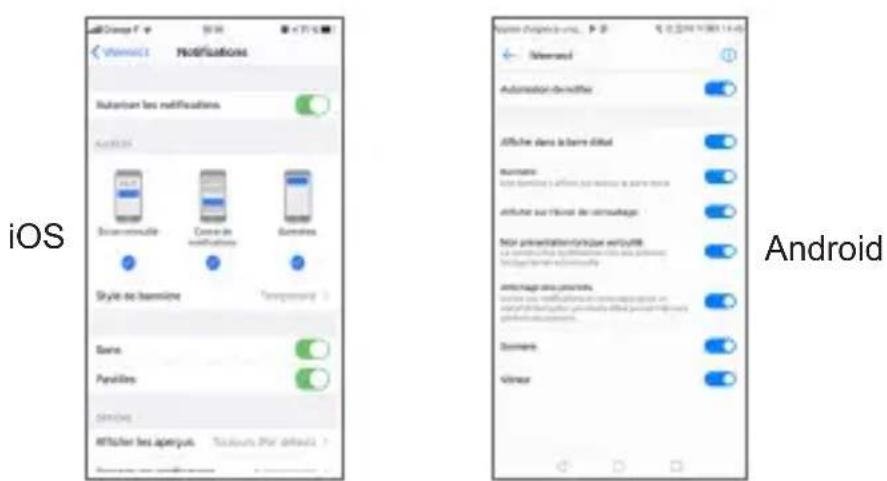

Tip: you don't need to keep the app open in order to receive notifications. You simply need to log in for the first time for them to work.
FR
5 Understanding your tracker
EN
DE
NL
IT
ES
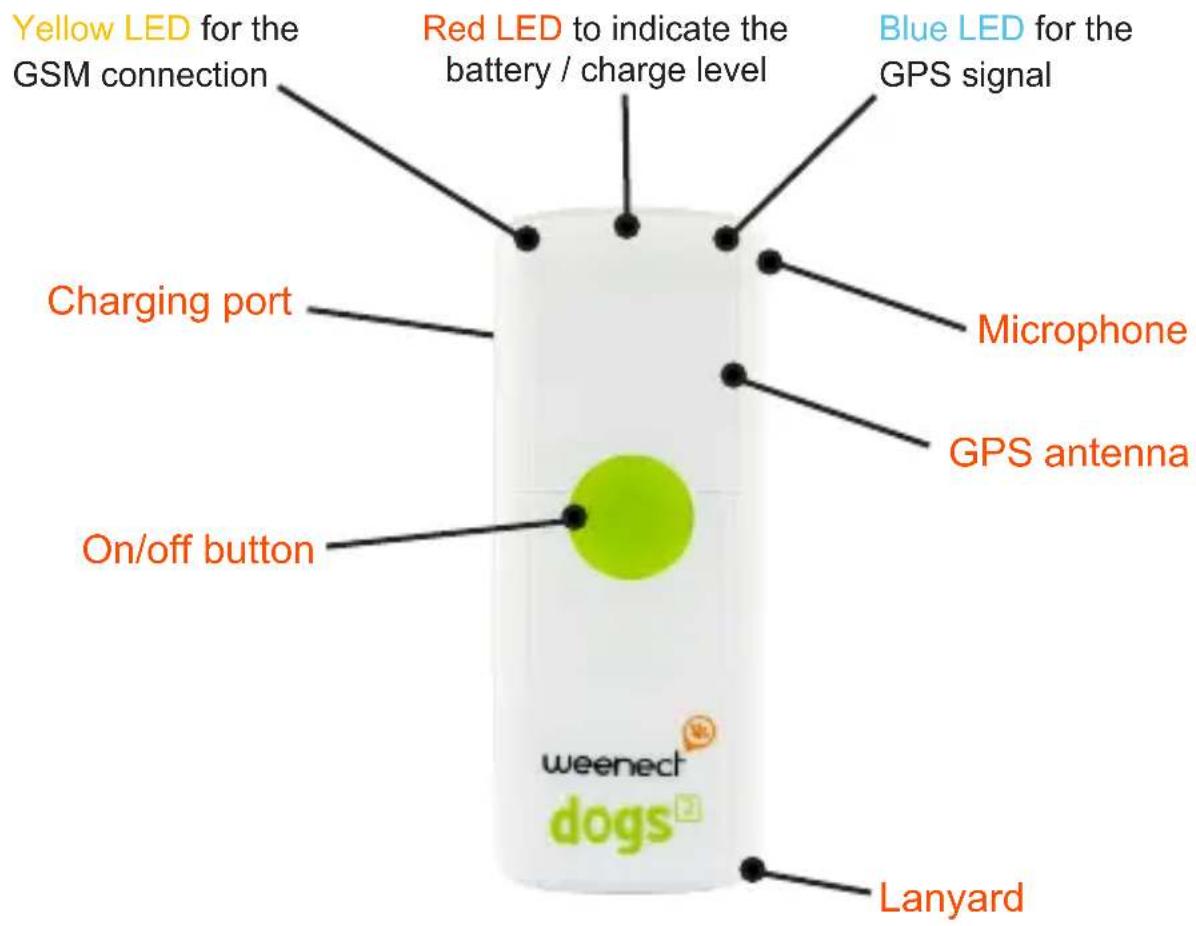

To optimize you tracker's GPS performances, we recommend to use a back harness attach in order to have the GPS antenna facing the sky.
6 Understanding the LEDs
FR
EN
| Icon/LED LED status Meaning | ||
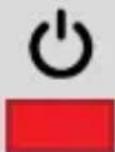 | Fixed The tracker is charging | |
| Blinking The tracker battery is low | ||
 | Off | Invalid GPS signal — take your tracker outside |
| Blinking | Valid GPS signal — the tracker has established its position | |
 | Blinking very rapidly | No server connection — no GSM network available |
| Blinking twice successively | Connected to the server — the tracker is successfully transmitting informations | |

To watch these explanations on video, please visit:
leds.weenect.com
7 Contact us
1 Please contact us by using the form available at my.weenect.com/support or from within the app itself. This ensures our customer services have access to all your information when they receive your message.
2 Constantly updated service status information is provided on our Twitter account: @StatusWeenect.
3 Don't forget to follow us on social networks so you can keep up to date with our latest news and interact with the community. We're also on Facebook and Instagram.


EN
DE
NL


Use precautions and Warranty
Shocks: ideally stow in a schoolbag or on the belt. Remember to use the protective pouch to protect the locator from any shocks.
Submersion in water: avoid any contact between the locator and water or any other liquid. The protective pouch is water-resistant (resistant to splashing), but cannot be submerged in water without damaging the locator.
Charging the locator: always use the USB cable provided to charge your locator. Never force the plug into the locator port; if it won't go in, make sure that the plug is being inserted the right way round.
Handling the locator: under no circumstances should you open the locator case and attempt to repair it yourself as this could invalidate the warranty. Contact Customer Service if there is a malfunction.
Use temperatures: the locator has been designed to operate at temperatures of between -20^ and 55^ . Temperatures above or below could damage it.
The locators have a two-year manufacturer's warranty. This warranty is valid for a locator failure not caused by dropping or breaking it or improper use and as long as the customer has a subscription and his payments are up to date. If this period does not comply with the applicable law, the warranty will be extended to the legal minimum period.
WEENECT® is a brand of Hareau SAS. This product is owned by Hareau SAS. Simplified joint stock company, registered with the Paris Trade and Companies Registry under number 538 863 937, 101 Rue de Sèvres - 75280 Paris cedex - France, which email adress is family@weenect.com
We hereby declare, that the product above is in compliance with the essential requirements of the R&TTE Directive (1999/5/EC) and the Directive (2011/65/EU) on the restriction of the use of certain hazardous substances in electrical and electronic equipment by application of EN 50581:2012.
To consult the declaration of conformity : https://www.weenect.com/pdf/en/doc-we202.pdf