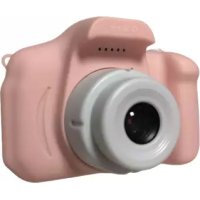
KCA1340 - Camera DENVER - Free user manual and instructions
Find the device manual for free KCA1340 DENVER in PDF.



| Brand | Denver |
| Model | KCA1340 |
| Product type | Digital camera |
| Screen | 2-inch IPS |
| Photo resolution (interpolated) | 40 MP |
| Video resolution (interpolated) | 1920 x 1080 (Full HD) |
| Real video resolution | 640 x 480 (VGA) |
| Battery | Lithium-polymer 600 mAh (with protection) |
| Battery life | Approximately 2 hours full charge |
| Storage | microSD card up to 64 GB (not included) + internal memory (50 photos) |
| Speaker | 1 W |
| Material | ABS with rubber coating |
| Main functions | Photo, video, MP3 music, games (5 preinstalled), playback, photo frames |
| Zoom | Digital (via up/down buttons) |
| Front/rear lens | Switchable (right button in photo mode) |
| Power supply | USB Type-C (cable included), charge via computer or power adapter |
| Compatible operating systems | Windows XP/Vista/7/8, Mac OS X 10.8 |
| Safety | Do not open, avoid heat/humidity, lithium-polymer battery, child supervision |
| Operating temperature | 0 to 40 °C |
| Maintenance | Clean with a soft dry cloth, do not use chemicals |
| Repairability | Repairs by qualified personnel only, do not open |
| Included accessories | USB Type-C cable, user manual |
| Recycling | Device and accessories recyclable, dispose at store or recycling center |
Frequently Asked Questions - KCA1340 DENVER
User questions about KCA1340 DENVER
0 question about this device. Answer the ones you know or ask your own.
Ask a new question about this device
Download the instructions for your Camera in PDF format for free! Find your manual KCA1340 - DENVER and take your electronic device back in hand. On this page are published all the documents necessary for the use of your device. KCA1340 by DENVER.
USER MANUAL KCA1340 DENVER
Please read the safety instructions carefully before using the product for the first time and keep the instructions for future reference.
- Warning: This product includes lithium polymer batteries.
- WARNING: CHOKING HAZARD - Children under 3 yrs. can choke or suffocate on camera because of its small size. Adult supervision required. Keep camera away from toddlers and pets to avoid chewing and swallowing. Discard broken buttons or parts at once.
- Product operating and storage temperature is from 0 degree Celsius to 40 degree Celsius. Under and over this temperature might affect the function.
- Never open the product. Touching the inside electrics can cause electric shock. Repairs or service should only be performed by qualified personnel.
- Do not expose to heat, water, moisture, direct sunlight!
- The unit is not waterproof. If water or foreign objects enter the unit, it may result in fire or electric shock. If water or a foreign object enters the unit, stop use immediately.
- Only charge with supplied USB cable.
- Do not use non original accessories together with the product as this can make the product functionality abnormal.
TABLE OF CONTENTS
- INTRODUCTION 3
1.1.PRODUCT OVERVIEW 3
1.2. POWERING THE DEVICE ON/OFF 3
1.3. SD CARD 3
1.4.HOMEPAGE ICONS 4
1.5.BATTERY CHARGING 4
2.CAMERA. 5
2.1. Photo 5
2.2. Photo frames 5
3.ZOOM 5
4.VIDEO 5
5. PLAYBACK 5
6. GAMES 6
7.MUSIC 6
8. SETTINGS 6
9. RESETTING THE DEVICE 6
10. SPECIFICATIONS. 7
1. INTRODUCTION
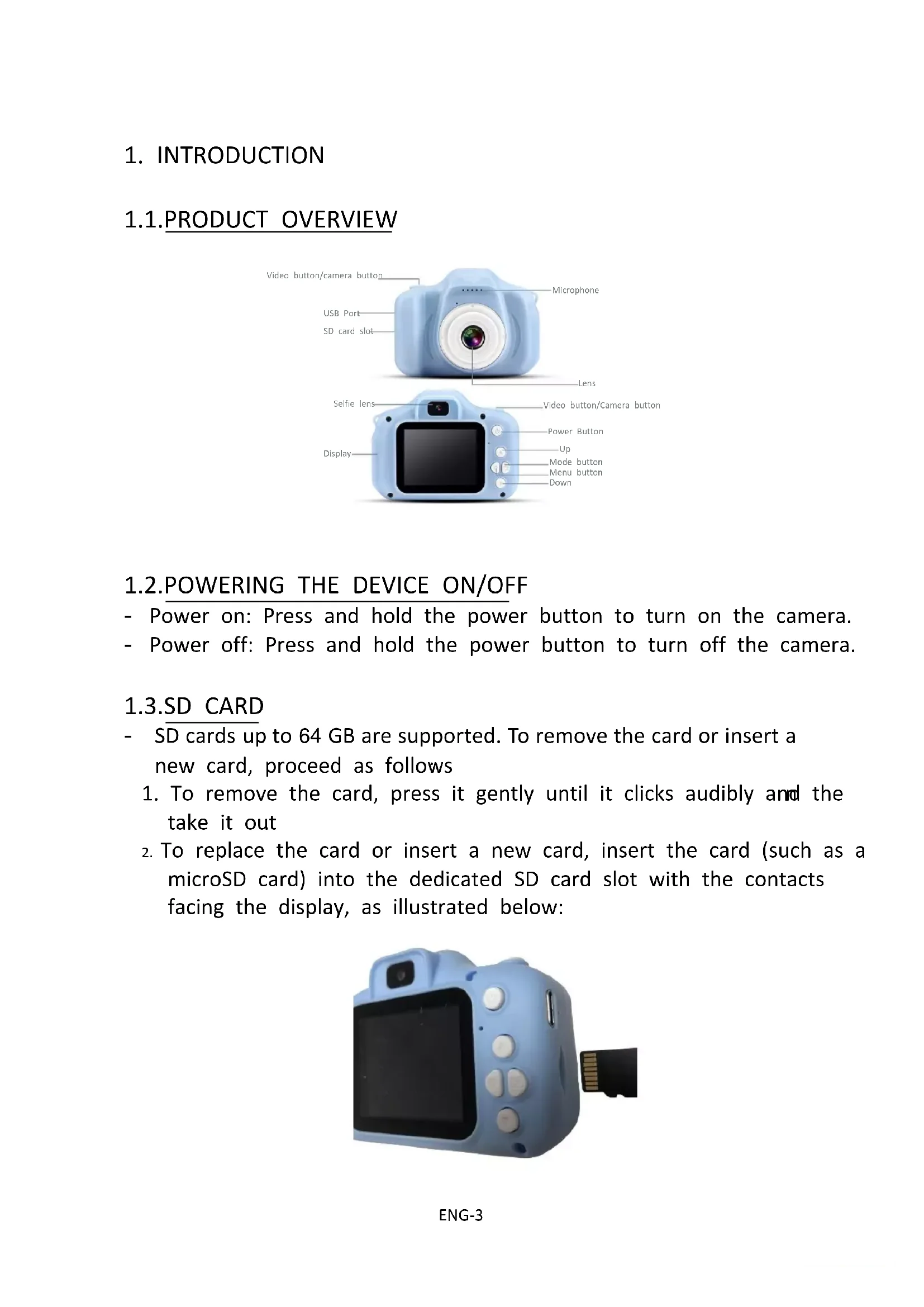
1.1.PRODUCT OVERVIEW

1.2.POWERING THE DEVICE ON/OFF
- Power on: Press and hold the power button to turn on the camera.
- Power off: Press and hold the power button to turn off the camera.
1.3.SD CARD
-
SD cards up to 64 GB are supported. To remove the card or insert a new card, proceed as follows
-
To remove the card, press it gently until it clicks audibly and the take it out
- To replace the card or insert a new card, insert the card (such as a microSD card) into the dedicated SD card slot with the contacts facing the display, as illustrated below:

Note:
- Before inserting or replacing a microSD card, make sure the unit is powered off.
- When inserting the microSD card, make sure it is properly oriented.
- Never force a card in violently, as this may damage the card or the unit. If it does not fit easily, check to ensure it is oriented correctly.
1.4.HOME PAGE ICONS

1.5.BATTERY CHARGING
- Plug the included USB Type-C cable (small end) into the USB Type-C port of the camera, as illustrated below:

- Plug the USB type - A end (large end) into your computer or standard USB power adapter outlet.
- When the connection is successful, a battery charging symbol appears on the camera screen.
-
When the battery is fully charged, the battery symbol on the screen looks full.
-
When the battery is fully charged, disconnect the charger from the power outlet first, then disconnect the charging cable from the camera.
Note: Please charge your camera before you use it. It takes approximately 2 hours to fully charge the battery.
2. CAMERA
2.1. Photo
- Press the direction buttons to select the camera icon, then press the Camera/Video button to enter Camera mode.
- Press the Camera/Video button to take a photo.
- In Camera mode, press the right button to switch between front and rear lenses.
2.2. Photo frames
- Enter Camera mode and press the up and down buttons to select various photo frames and special effects.
3. ZOOM
- In camera mode, long press the up or down button to zoom the photo in or out.
4.VIDEO
- Press the direction buttons to select the video icon, then press the Camera/Video button to enter Video mode.
- Press the Camera/Video button to begin recording the video.
- When you are done, press the same button to stop recording the video.
5. PLAYBACK
- Press the direction buttons to select the playback icon, then press the Camera/Video button to enter Playback mode.
- Press the up or down button to select the video or photo.
- Press the Camera/Video button to playback the video.
- Press the left button to delete the video or photo.
6. GAMES
- Press the direction buttons to select the games icon, then press the Camera/Video button to enter Games mode.
- The camera has 5 pre-installed games.
7. MUSIC
- Press the direction buttons to select the music icon, then press the Camera/Video button to enter Music mode.
-
Press the direction buttons to select the music you want to play, then press the Camera/Video button to play the music.
-
Note: You should copy a music file in the MP3 format to the camera first.
8. SETTINGS
- Press the direction buttons to select the settings icon, then press the Camera/Video button to enter Settings mode.
- Press the direction buttons to select any menu options, then press the Camera/Video button to confirm the menu setting.
9. RESETTING THE DEVICE
- There is a small hole under the USB port. When the camera is halted, use something pointy to stick inside the small hole. The camera will then reset. See illustration below:

10.SPECIFICATIONS
| Speaker | 1W |
| Battery | 600 mAh (full capacity with protective board) |
| Resolution | 1080p/720p/VGA |
| Video Resolution | Real: 640*480(VGA) Interpolation: 1920*1080 |
| Photo Resolution | Real: 640*480 Interpolation: 40 MP |
| Screen Size | 2-inch IPS screen |
| Material | ABS with rubber coating |
| Storage Media | Max. 64 GB supported |
| Memory | Built-in memory (for up to 50 photos). A memory card required to record video. Pictures stored in the built-in memory can only be copied to another device via USB, an SD card has been inserted. |
| System Requirements | Windows XP/Vista/7/8, Mac OS X 10.8 |
- Note: The product specifications are based on updated information when compiling this product manual. The specifications are subject to change without further notice. The product is the actual camera. When the camera crashes from a drop, please restart it.
- Please notice - All products are subject to change without any notice. We take reservations for errors and omissions in the manual.
ALL RIGHTS RESERVED, COPYRIGHT DENVER A/S

denver
www.denver.eu
C E


Electric and electronic equipment and included batteries contains materials, components and substances that can be hazardous to your health and the environment, if the waste material (discarded electric and electronic equipment and batteries) is not handled correctly. Electric and electronic equipment and batteries is marked with the crossed out trash can symbol, seen above. This symbol signifies that electric and electronic equipment and batteries should not be disposed of with other household waste, but should be disposed of separately. As the end user it is important that you submit your used batteries to the appropriate and designated facility. In this manner you make sure that the batteries are recycled in accordance with legislature and will not harm the environment. All cities have established collection points, where electric and electronic equipment and batteries can either be submitted free of charge at recycling stations and other collection sites, or be collected from the households. Additional information is available at the technical department of your city.
DENVER A/S
Omega 5A, Soeften
DK-8382 Hinnerup
Denmark
www.facebook.com/denver.eu
Warning: lithium battery inside
Contact
Nordics
Headquarter Denver A/S
Omega 5A, Soeften DK-8382 Hinnerup Denmark
Phone: +45 86 22 61 00 (Push "1" for support)
E-Mail For technical questions, please send to: support.hq@denver.eu
For all other questions please write to: contact.hq@denver.eu
Benelux
DENVER BENELUX B.V. Barwoutswaarder 13C+D
3449 HE Woerden
The Netherlands
Phone: 0900-3437623
E-Mail: support.nl@denver.eu
Spain/Portugal
DENVER SPAIN S.A
Ronda Augustes y Louis Lumiere, n° 23 - nave 16
Parque Tecnológico
46980 PATERNA
Valencia (Spain)
Spain
Phone: +34 960 046 883
Mail: support.es@denver.eu
Portugal:
Phone: +35 1255 240 294
E-Mail: denver.service@satfiel.com
Germany
Denver Germany GmbH Service
Max-Emanuel-Str. 4
94036 Passau
Phone: +49 851 379 369 40
E-Mail support.de@denver.eu
(for TV, E-Mobility/Hoverboards/Balanceboards, Smartphones & Tablets)
If your country is not listed above, please write an email to support@denver.eu

DENVER A/S Omega 5A, Soeften DK-8382 Hinnerup Denmark
denver.eu facebook.com/denver_eu


denver

KCA-1340
05/2023

FR
Warning: Lithium-Batterie innen
Contact
Nordics
Headquarter Denver A/S
Omega 5A, Soeften DK-8382 Hinnerup Denmark
Phone: +45 86 22 61 00 (Push "1" for support)
E-Mail For technical questions, please send to: support.hq@denver.eu
For all other questions please write to: contact.hq@denver.eu
Benelux
DENVER BENELUX B.V. Barwoutswaarder 13C+D
3449 HE Woerden
The Netherlands
Phone: 0900-3437623
E-Mail: support.nl@denver.eu
Spain/Portugal
DENVER SPAIN S.A
Ronda Augustes y Louis Lumiere, n° 23 - nave 16
Parque Tecnológico
46980 PATERNA
Valencia (Spain)
Spain
Phone: +34 960 046 883
Mail: support.es@denver.eu
Portugal:
Phone: +35 1255 240 294
E-Mail: denver.service@satfiel.com
Germany
Denver Germany GmbH Service
Max-Emanuel-Str. 4
94036 Passau
Phone: +49 851 379 369 40
E-Mail support.de@denver.eu
(for TV, E-Mobility/Hoverboards/Balanceboards, Smartphones & Tablets)
If your country is not listed above, please write an email to support@denver.eu

DENVER A/S Omega 5A, Soeften DK-8382 Hinnerup Denmark
denver.eu
facebook.com/denver.eu


denver

KCA-1340
05/2023

FR
Headquarter Denver A/S
Omega 5A, Soeften DK-8382 Hinnerup Denmark
Phone: +45 86 22 61 00 (Push "1" for support)
E-Mail For technical questions, please send to: support.hq@denver.eu
For all other questions please write to: contact.hq@denver.eu
Benelux
DENVER BENELUX B.V. Barwoutswaarder 13C+D
3449 HE Woerden
The Netherlands
Phone: 0900-3437623
E-Mail: support.nl@denver.eu
Spain/Portugal
DENVER SPAIN S.A
Ronda Augustes y Louis Lumiere, n° 23 - nave 16
Parque Tecnológico
46980 PATERNA
Valencia (Spain)
Spain
Phone: +34 960 046 883
Mail: support.es@denver.eu
Portugal:
Phone: +35 1255 240 294
E-Mail: denver.service@satfiel.com
Germany
Denver Germany GmbH Service
Max-Emanuel-Str. 4
94036 Passau
Phone: +49 851 379 369 40
E-Mail support.de@denver.eu
(for TV, E-Mobility/Hoverboards/Balanceboards, Smartphones & Tablets)
If your country is not listed above, please write an email to support@denver.eu

DENVER A/S Omega 5A, Soeften DK-8382 Hinnerup Denmark
denver.eu
facebook.com/denver.eu


denver

KCA-1340
05/2023

FR
9. HET APPARAAT RESETTEN
Headquarter Denver A/S
Omega 5A, Soeften DK-8382 Hinnerup Denmark
Phone: +45 86 22 61 00 (Push "1" for support)
E-Mail For technical questions, please send to: support.hq@denver.eu
For all other questions please write to: contact.hq@denver.eu
Benelux
DENVER BENELUX B.V. Barwoutswaarder 13C+D
3449 HE Woerden
The Netherlands
Phone: 0900-3437623
E-Mail: support.nl@denver.eu
Spain/Portugal
DENVER SPAIN S.A
Ronda Augustes y Louis Lumiere, n° 23 - nave 16
Parque Tecnológico
46980 PATERNA
Valencia (Spain)
Spain
Phone: +34 960 046 883
Mail: support.es@denver.eu
Portugal:
Phone: +35 1255 240 294
E-Mail: denver.service@satfiel.com
Germany
Denver Germany GmbH Service
Max-Emanuel-Str. 4
94036 Passau
Phone: +49 851 379 369 40
E-Mail support.de@denver.eu
(for TV, E-Mobility/Hoverboards/Balanceboards, Smartphones & Tablets)
If your country is not listed above, please write an email to support@denver.eu

DENVER A/S Omega 5A, Soeften DK-8382 Hinnerup Denmark
denver.eu
facebook.com/denver.eu


denver

KCA-1340
05/2023

FR
1.1.VUE D'ENSEMBLE DU PRODUIT

1.2.ALLUMER/ÉTEINDRE L'APPAREIL
Headquarter Denver A/S
Omega 5A, Soeften DK-8382 Hinnerup Denmark
Phone: +45 86 22 61 00 (Push "1" for support)
E-Mail For technical questions, please send to: support.hq@denver.eu
For all other questions please write to: contact.hq@denver.eu
Benelux
DENVER BENELUX B.V. Barwoutswaarder 13C+D
3449 HE Woerden
The Netherlands
Phone: 0900-3437623
E-Mail: support.nl@denver.eu
Spain/Portugal
DENVER SPAIN S.A
Ronda Augustes y Louis Lumiere, n° 23 - nave 16
Parque Tecnológico
46980 PATERNA
Valencia (Spain)
Spain
Phone: +34 960 046 883
Mail: support.es@denver.eu
Portugal:
Phone: +35 1255 240 294
E-Mail: denver.service@satfiel.com
Germany
Denver Germany GmbH Service
Max-Emanuel-Str. 4
94036 Passau
Phone: +49 851 379 369 40
E-Mail support.de@denver.eu
(for TV, E-Mobility/Hoverboards/Balanceboards, Smartphones & Tablets)
If your country is not listed above, please write an email to support@denver.eu

DENVER A/S Omega 5A, Soeften DK-8382 Hinnerup Denmark
denver.eu
facebook.com/denver.eu


denver

KCA-1340
05/2023

FR
Headquarter Denver A/S
Omega 5A, Soeften DK-8382 Hinnerup Denmark
Phone: +45 86 22 61 00 (Push "1" for support)
E-Mail For technical questions, please send to: support.hq@denver.eu
For all other questions please write to: contact.hq@denver.eu
Benelux
DENVER BENELUX B.V. Barwoutswaarder 13C+D
3449 HE Woerden
The Netherlands
Phone: 0900-3437623
E-Mail: support.nl@denver.eu
Spain/Portugal
DENVER SPAIN S.A
Ronda Augustes y Louis Lumiere, n° 23 - nave 16
Parque Tecnológico
46980 PATERNA
Valencia (Spain)
Spain
Phone: +34 960 046 883
Mail: support.es@denver.eu
Portugal:
Phone: +35 1255 240 294
E-Mail: denver.service@satfiel.com
Germany
Denver Germany GmbH Service
Max-Emanuel-Str. 4
94036 Passau
Phone: +49 851 379 369 40
E-Mail support.de@denver.eu
(for TV, E-Mobility/Hoverboards/Balanceboards, Smartphones & Tablets)
If your country is not listed above, please write an email to support@denver.eu

DENVER A/S Omega 5A, Soeften DK-8382 Hinnerup Denmark
denver.eu
facebook.com/denver.eu


denver

KCA-1340
05/2023

FR
Headquarter Denver A/S
Omega 5A, Soeften DK-8382 Hinnerup Denmark
Phone: +45 86 22 61 00 (Push "1" for support)
E-Mail For technical questions, please send to: support.hq@denver.eu
For all other questions please write to: contact.hq@denver.eu
Benelux
DENVER BENELUX B.V. Barwoutswaarder 13C+D
3449 HE Woerden
The Netherlands
Phone: 0900-3437623
E-Mail: support.nl@denver.eu
Spain/Portugal
DENVER SPAIN S.A
Ronda Augustes y Louis Lumiere, n° 23 - nave 16
Parque Tecnológico
46980 PATERNA
Valencia (Spain)
Spain
Phone: +34 960 046 883
Mail: support.es@denver.eu
Portugal:
Phone: +35 1255 240 294
E-Mail: denver.service@satfiel.com
Germany
Denver Germany GmbH Service
Max-Emanuel-Str. 4
94036 Passau
Phone: +49 851 379 369 40
E-Mail support.de@denver.eu
(for TV, E-Mobility/Hoverboards/Balanceboards, Smartphones & Tablets)
If your country is not listed above, please write an email to support@denver.eu

DENVER A/S Omega 5A, Soeften DK-8382 Hinnerup Denmark
denver.eu
facebook.com/denver.eu


denver

KCA-1340
05/2023

FR
Headquarter Denver A/S
Omega 5A, Soeften DK-8382 Hinnerup Denmark
Phone: +45 86 22 61 00 (Push "1" for support)
E-Mail For technical questions, please send to: support.hq@denver.eu
For all other questions please write to: contact.hq@denver.eu
Benelux
DENVER BENELUX B.V. Barwoutswaarder 13C+D
3449 HE Woerden
The Netherlands
Phone: 0900-3437623
E-Mail: support.nl@denver.eu
Spain/Portugal
DENVER SPAIN S.A
Ronda Augustes y Louis Lumiere, n° 23 - nave 16
Parque Tecnológico
46980 PATERNA
Valencia (Spain)
Spain
Phone: +34 960 046 883
Mail: support.es@denver.eu
Portugal:
Phone: +35 1255 240 294
E-Mail: denver.service@satfiel.com
Germany
Denver Germany GmbH Service
Max-Emanuel-Str. 4
94036 Passau
Phone: +49 851 379 369 40
E-Mail support.de@denver.eu
(for TV, E-Mobility/Hoverboards/Balanceboards, Smartphones & Tablets)
If your country is not listed above, please write an email to support@denver.eu

DENVER A/S Omega 5A, Soeften DK-8382 Hinnerup Denmark
denver.eu
facebook.com/denver.eu


denver

KCA-1340
05/2023

FR
Headquarter Denver A/S
Omega 5A, Soeften DK-8382 Hinnerup Denmark
Phone: +45 86 22 61 00 (Push "1" for support)
E-Mail For technical questions, please send to: support.hq@denver.eu
For all other questions please write to: contact.hq@denver.eu
Benelux
DENVER BENELUX B.V. Barwoutswaarder 13C+D
3449 HE Woerden
The Netherlands
Phone: 0900-3437623
E-Mail: support.nl@denver.eu
Spain/Portugal
DENVER SPAIN S.A
Ronda Augustes y Louis Lumiere, n° 23 - nave 16
Parque Tecnológico
46980 PATERNA
Valencia (Spain)
Spain
Phone: +34 960 046 883
Mail: support.es@denver.eu
Portugal:
Phone: +35 1255 240 294
E-Mail: denver.service@satfiel.com
Germany
Denver Germany GmbH Service
Max-Emanuel-Str. 4
94036 Passau
Phone: +49 851 379 369 40
E-Mail support.de@denver.eu
(for TV, E-Mobility/Hoverboards/Balanceboards, Smartphones & Tablets)
If your country is not listed above, please write an email to support@denver.eu

DENVER A/S Omega 5A, Soeften DK-8382 Hinnerup Denmark
denver.eu
facebook.com/denver.eu


denver

KCA-1340
05/2023

FR
Headquarter Denver A/S
Omega 5A, Soeften DK-8382 Hinnerup Denmark
Phone: +45 86 22 61 00 (Push "1" for support)
E-Mail For technical questions, please send to: support.hq@denver.eu
For all other questions please write to: contact.hq@denver.eu
Benelux
DENVER BENELUX B.V. Barwoutswaarder 13C+D
3449 HE Woerden
The Netherlands
Phone: 0900-3437623
E-Mail: support.nl@denver.eu
Spain/Portugal
DENVER SPAIN S.A
Ronda Augustes y Louis Lumiere, n° 23 - nave 16
Parque Tecnológico
46980 PATERNA
Valencia (Spain)
Spain
Phone: +34 960 046 883
Mail: support.es@denver.eu
Portugal:
Phone: +35 1255 240 294
E-Mail: denver.service@satfiel.com
Germany
Denver Germany GmbH Service
Max-Emanuel-Str. 4
94036 Passau
Phone: +49 851 379 369 40
E-Mail support.de@denver.eu
(for TV, E-Mobility/Hoverboards/Balanceboards, Smartphones & Tablets)
If your country is not listed above, please write an email to support@denver.eu

DENVER A/S Omega 5A, Soeften DK-8382 Hinnerup Denmark
denver.eu
facebook.com/denver.eu


denver

KCA-1340
05/2023

FR
Headquarter Denver A/S
Omega 5A, Soeften DK-8382 Hinnerup Denmark
Phone: +45 86 22 61 00 (Push "1" for support)
E-Mail For technical questions, please send to: support.hq@denver.eu
For all other questions please write to: contact.hq@denver.eu
Benelux
DENVER BENELUX B.V. Barwoutswaarder 13C+D
3449 HE Woerden
The Netherlands
Phone: 0900-3437623
E-Mail: support.nl@denver.eu
Spain/Portugal
DENVER SPAIN S.A
Ronda Augustes y Louis Lumiere, n° 23 - nave 16
Parque Tecnológico
46980 PATERNA
Valencia (Spain)
Spain
Phone: +34 960 046 883
Mail: support.es@denver.eu
Portugal:
Phone: +35 1255 240 294
E-Mail: denver.service@satfiel.com
Germany
Denver Germany GmbH Service
Max-Emanuel-Str. 4
94036 Passau
Phone: +49 851 379 369 40
E-Mail support.de@denver.eu
(for TV, E-Mobility/Hoverboards/Balanceboards, Smartphones & Tablets)
If your country is not listed above, please write an email to support@denver.eu

DENVER A/S Omega 5A, Soeften DK-8382 Hinnerup Denmark
denver.eu
facebook.com/denver.eu


denver

KCA-1340
05/2023

FR
Headquarter Denver A/S
Omega 5A, Soeften DK-8382 Hinnerup Denmark
Phone: +45 86 22 61 00 (Push "1" for support)
E-Mail For technical questions, please send to: support.hq@denver.eu
For all other questions please write to: contact.hq@denver.eu
Benelux
DENVER BENELUX B.V. Barwoutswaarder 13C+D
3449 HE Woerden
The Netherlands
Phone: 0900-3437623
E-Mail: support.nl@denver.eu
Spain/Portugal
DENVER SPAIN S.A
Ronda Augustes y Louis Lumiere, n° 23 - nave 16
Parque Tecnológico
46980 PATERNA
Valencia (Spain)
Spain
Phone: +34 960 046 883
Mail: support.es@denver.eu
Portugal:
Phone: +35 1255 240 294
E-Mail: denver.service@satfiel.com
Germany
Denver Germany GmbH Service
Max-Emanuel-Str. 4
94036 Passau
Phone: +49 851 379 369 40
E-Mail support.de@denver.eu
(for TV, E-Mobility/Hoverboards/Balanceboards, Smartphones & Tablets)
If your country is not listed above, please write an email to support@denver.eu

DENVER A/S Omega 5A, Soeften DK-8382 Hinnerup Denmark
denver.eu
facebook.com/denver.eu



- TABLE OF CONTENTS
- INTRODUCTION
- 1.1.PRODUCT OVERVIEW
- 1.2.POWERING THE DEVICE ON/OFF
- 1.3.SD CARD
- Note:
- 1.4.HOME PAGE ICONS
- 1.5.BATTERY CHARGING
- CAMERA
- Photo
- Photo frames
- ZOOM
- 4.VIDEO
- PLAYBACK
- GAMES
- MUSIC
- SETTINGS
- RESETTING THE DEVICE
- 10.SPECIFICATIONS
- denver
- C E
- Contact
- Nordics
- Benelux
- Spain/Portugal
- FR
- HET APPARAAT RESETTEN
- 1.1.VUE D'ENSEMBLE DU PRODUIT
- 1.2.ALLUMER/ÉTEINDRE L'APPAREIL
Brand : DENVER
Model : KCA1340
Category : Camera