ManualGo.com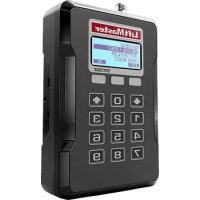
STAR1000 - Security and Access Control System LiftMaster - Free user manual and instructions
Find the device manual for free STAR1000 LiftMaster in PDF.



Download the instructions for your Security and Access Control System in PDF format for free! Find your manual STAR1000 - LiftMaster and take your electronic device back in hand. On this page are published all the documents necessary for the use of your device. STAR1000 by LiftMaster.
USER MANUAL STAR1000 LiftMaster
- Be sure power is NOT connected BEFORE installing the receiver. To prevent possible SERIOUS INJURY or DEATH from a moving gate or garage door:
- ALWAYS keep remote controls out of reach of children. NEVER permit children to operate, or play with remote control transmitters.
- Activate gate or door ONLY when it can be seen clearly, is properly adjusted, and there are no obstructions to door travel.
- ALWAYS keep gate or garage door in sight until completely closed. NEVER permit anyone to cross path of moving gate or door. To prevent possible SERIOUS INJURY or DEATH, the use of CONSTANT OPERATION on residential openers is PROHIBITED. When a receiver is used to activate a commercial door opener, a reversing edge MUST be installed on the bottom of the door. Failure to install a reversing edge under these circumstances may result in SERIOUS INJURY or DEATH to persons trapped beneath the door.
COMMERCIAL ACCESS CONTROL RECEIVER
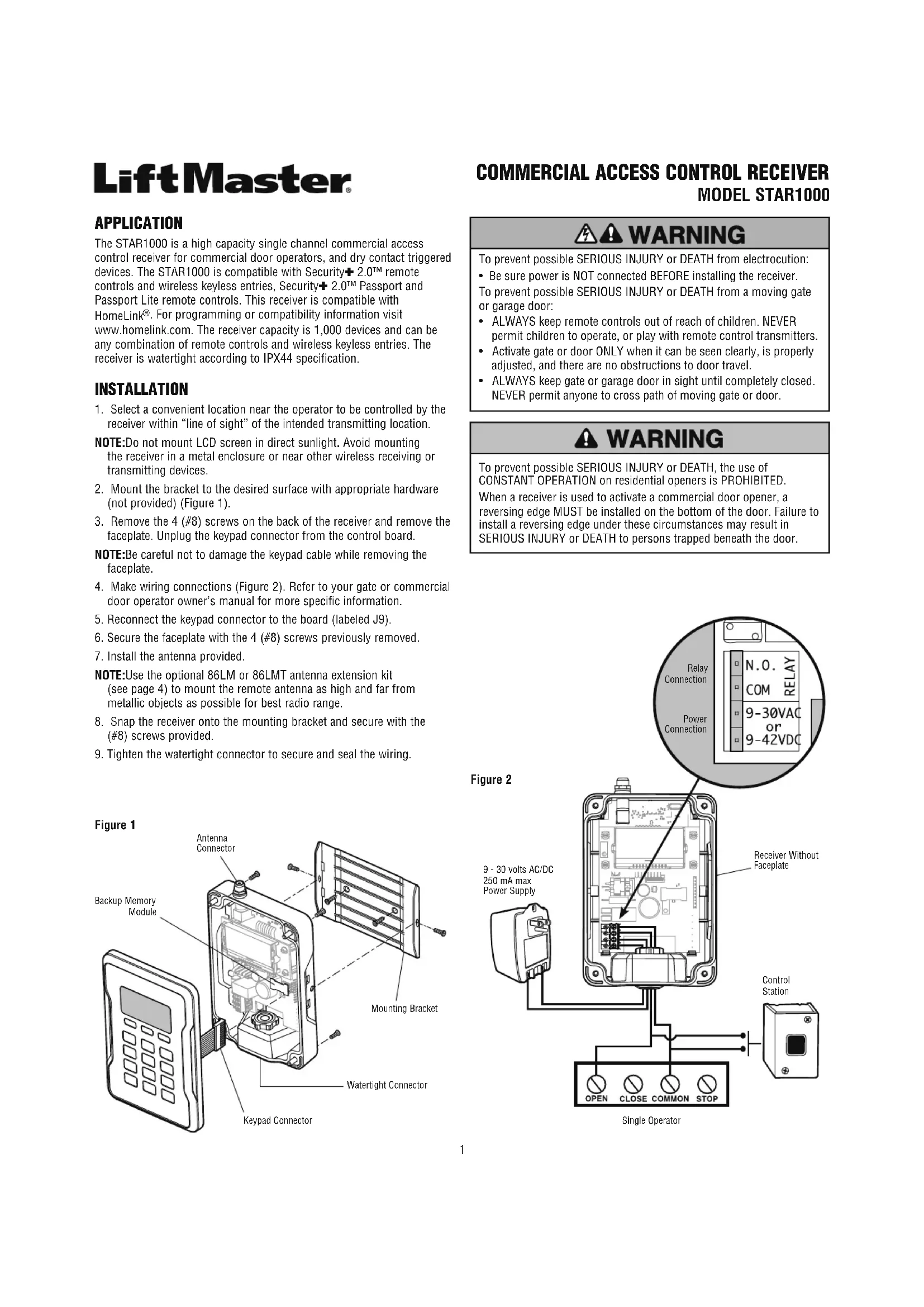
MODEL STAR1000 Control Station Receiver Without Faceplate Single Operator
250 mA max Power Supply APPLICATION The STAR1000 is a high capacity single channel commercial access control receiver for commercial door operators, and dry contact triggered devices. The STAR1000 is compatible with Security✚ 2.0™ remote controls and wireless keyless entries, Security✚ 2.0™ Passport and Passport Lite remote controls. This receiver is compatible with HomeLink
. For programming or compatibility information visit www.homelink.com. The receiver capacity is 1,000 devices and can be any combination of remote controls and wireless keyless entries. The receiver is watertight according to IPX44 specification. INSTALLATION
1. Select a convenient location near the operator to be controlled by the
receiver within “line of sight” of the intended transmitting location. NOTE: Do not mount LCD screen in direct sunlight. Avoid mounting the receiver in a metal enclosure or near other wireless receiving or transmitting devices.
2. Mount the bracket to the desired surface with appropriate hardware
(not provided) (Figure 1).
3. Remove the 4 (#8) screws on the back of the receiver and remove the
faceplate. Unplug the keypad connector from the control board. NOTE: Be careful not to damage the keypad cable while removing the faceplate.
4. Make wiring connections (Figure 2). Refer to your gate or commercial
door operator owner’s manual for more specific information.
5. Reconnect the keypad connector to the board (labeled J9).
6. Secure the faceplate with the 4 (#8) screws previously removed.
7. Install the antenna provided.
NOTE: Use the optional 86LM or 86LMT antenna extension kit (see page 4) to mount the remote antenna as high and far from metallic objects as possible for best radio range.
8. Snap the receiver onto the mounting bracket and secure with the
(#8) screws provided.
9. Tighten the watertight connector to secure and seal the wiring.
Figure 1 Mounting Bracket Watertight Connector Keypad Connector Antenna Connector Figure 2 Backup Memory Module Relay Connection Power Connection2 Antenna Connection For the direct antenna or the antenna extension kit. “SOFT” Keys Soft key functions are defined by the label on line 5 of the display. The functions change according to the menu selection. LCD Screen System programming and status display. Down/Up Keys For navigation in the menus. Numeric Keypad Numeric data is entered through the numeric keypad. Insert wiring USER INTERFACE The STAR1000 user interface consists of a 22 character by 5 line LCD display, 3 “soft keys”, Down/Up arrows and a numeric keypad. PROGRAMMING The receiver has the ability to learn a combination of remote control transmitters and keyless entries up to 1,000 devices. See page 4 for a complete list of compatible accessories. Audible and visual warnings occur when the receiver capacity is exceeded. After 30 seconds of inactivity, the receiver times out and the LiftMaster
logo is displayed. Select “UNLOCK” and enter the PIN to continue. Initial PIN set up: The PIN restricts access to authorized administrators only. If you omit this step, anyone will be able to program the receiver. Upon initial power up, the system firmware revision is displayed for 5 seconds followed by the LiftMaster
logo. When a key is pressed, “CREATE PIN?” is displayed.
1. Press “YES” to create PIN. If the PIN is lost you may request a reset
code by pressing “RESET”.
2. Enter a 6-digit PIN, and press “YES”; enter the 6-digit PIN a second
time and press “YES” to program the PIN. If you make a mistake, press “CLEAR” to change your entry. To exit the enter PIN screen, select “BACK”.
3. When your 6-digit PIN is programmed correctly, the LCD display
reads “KEYPAD UNLOCKED”. Select “OK” to continue to the Main Menu. After 30 seconds of inactivity, the receiver times out and the LiftMaster
logo is displayed. Select “UNLOCK” and enter PIN to continue. Line 1: Menu and function mode. Lines 2, 3, and 4: Menu selections and data. Line 5: Soft key function modes. Scroll Indicator If more than 3 options exist, a scroll indicator appears on the left margin of lines 2, 3, and 4. The scroll indicator shows the relative position within the list. Menu/Data selection shown in inverse font.3
MAIN MENU COMMAND DESCRIPTION
LEARN MENU LEARN DEVICE Program a device to the receiver.
Block program a range of devices to the receiver.
Program a device to a 4-digit number location. DELETE MENU DELETE DEVICE Delete a specified device that has been programmed to the receiver.
Delete all programmed devices. SUSPEND MENU SUSPEND DEVICE Temporarily disables the function of a specified device that has been programmed to the receiver.
Temporarily disables the function of ALL devices programmed to the receiver. UNSUSPEND DEVICE Re-enable the function of a suspended device.
UNSUSPEND ALL DEVICES
Re-enable the function of ALL suspended devices. QUERY MENU LOC # USED Displays a range of used locations starting from a specified location. LOC # AVAILABLE Displays a range of empty locations starting from a specified location. LOC # SUSPENDED Displays a range of suspended locations starting from a specified location. SETTINGS CHANGE PIN Change the 6-digit PIN number for the receiver. DEALER INFO Display and edit the dealer 11-digit contact phone number. FIRMWARE VERSION Displays the current firmware version. BEEP Turn the audible feedback on or off.