ManualGo.com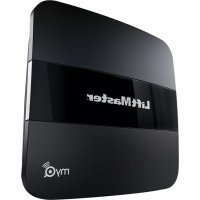
MyQ 819LMB - Smart Home LiftMaster - Free user manual and instructions
Find the device manual for free MyQ 819LMB LiftMaster in PDF.



Download the instructions for your Smart Home in PDF format for free! Find your manual MyQ 819LMB - LiftMaster and take your electronic device back in hand. On this page are published all the documents necessary for the use of your device. MyQ 819LMB by LiftMaster.
USER MANUAL MyQ 819LMB LiftMaster
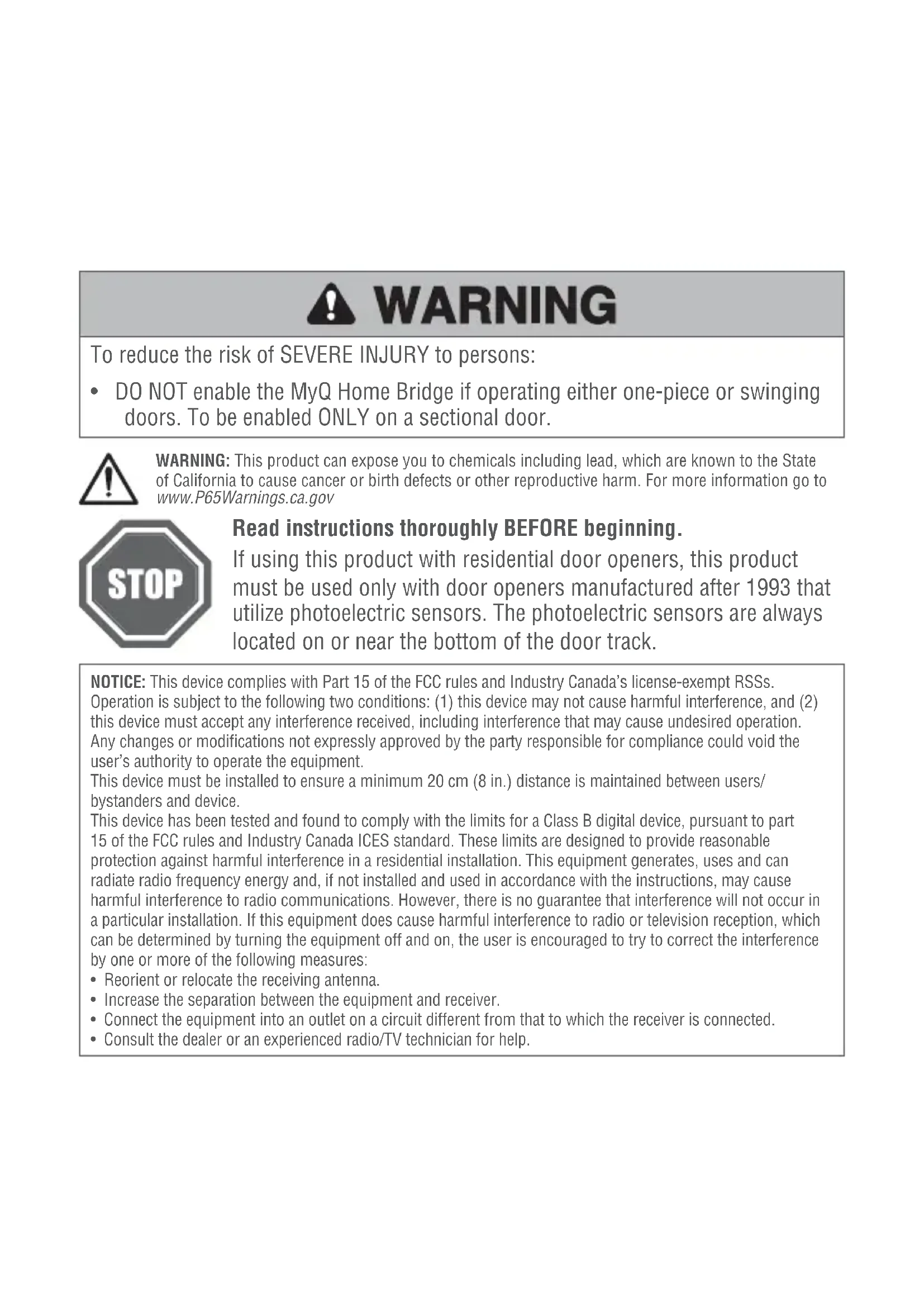
Home Bridge QUICK START GUIDETo reduce the risk of SEVERE INJURY to persons:
- DO NOT enable the MyQ Home Bridge if operating either one-piece or swinging doors. To be enabled ONLY on a sectional door. Read instructions thoroughly BEFORE beginning. If using this product with residential door openers, this product must be used only with door openers manufactured after 1993 that utilize photoelectric sensors. The photoelectric sensors are always located on or near the bottom of the door track. NOTICE: This device complies with Part 15 of the FCC rules and Industry Canada’s license-exempt RSSs. Operation is subject to the following two conditions: (1) this device may not cause harmful interference, and (2) this device must accept any interference received, including interference that may cause undesired operation. Any changes or modifi cations not expressly approved by the party responsible for compliance could void the user’s authority to operate the equipment. This device must be installed to ensure a minimum 20 cm (8 in.) distance is maintained between users/ bystanders and device. This device has been tested and found to comply with the limits for a Class B digital device, pursuant to part 15 of the FCC rules and Industry Canada ICES standard. These limits are designed to provide reasonable protection against harmful interference in a residential installation. This equipment generates, uses and can radiate radio frequency energy and, if not installed and used in accordance with the instructions, may cause harmful interference to radio communications. However, there is no guarantee that interference will not occur in a particular installation. If this equipment does cause harmful interference to radio or television reception, which can be determined by turning the equipment off and on, the user is encouraged to try to correct the interference by one or more of the following measures:
- Reorient or relocate the receiving antenna.
- Increase the separation between the equipment and receiver.
- Connect the equipment into an outlet on a circuit different from that to which the receiver is connected.
- Consult the dealer or an experienced radio/TV technician for help.
WARNING: This product can expose you to chemicals including lead, which are known to the State
of California to cause cancer or birth defects or other reproductive harm. For more information go to www.P65Warnings.ca.govWHAT’S IN THE BOX Yellow LED Green LED Blue LED MyQ Home Bridge Power Adapter Mounting bracket Warning Label Hardware (5/32" x 1-1/2" screws) BEFORE YOU START, YOU MUST HAVE A…
Router with 2.4GHz Wi-Fi
Mobile device connected to your home Wi-Fi network Compatible device:
garage door openers with MyQ
- Keep any existing MyQ devices plugged in
- Do not delete existing devices from the MyQ app
- To control this HomeKit-enabled accessory, iOS 10.0 or later is recommended
- Watch set up videos atwww.LiftMaster.com/MyQSupport ©2017 Sears Brands, LLC. All Rights Reserved. Craftsman and AssureLink are registered trademarks of KCD, IP, LLC.Need Help? Go to: www.LiftMaster.com/MyQSupport LIFTMASTER MyQ
1. Power the MyQ Home Bridge by plugging it in. The blue LED will
app or open the app if it is already installed.
3. Create an account or sign-in.
4. Press “+” or “” icon and select MyQ-nnn under Discovered
Accessories/Devices.
1. Check the Wi-Fi signal in the garage, where the MyQ Home Bridge will be mounted.
2. Make sure you have two or more Wi-Fi bars.
NOTE: If there are signal strength issues, please visit https://www.LiftMaster.com/wifi supportvideos for instructional videos.
3. Install the MyQ Home Bridge on the ceiling near the garage door opener, or in a
convenient location in the garage within Wi-Fi range. TIP: Wrap excess power adapter cable around the mounting bracket.
4. Plug it in and make sure the green LED turns on solid.
5. Attach the warning label to the wall next to the door control.
Communication between iPhone, iPad, or iPod touch and the HomeKit-enabled MyQ
device is secured by HomeKit technology and Security+ 2.0
Controlling this HomeKit-enabled accessory automatically and away from home requires anApple TV with tvOS 10.0 or later or an iPad with iOS 10.0 or laterset up as a home hub.819LMB