
Swarovski FM01SW40 - USB Drive PHILIPS - Free user manual and instructions
Find the device manual for free Swarovski FM01SW40 PHILIPS in PDF.
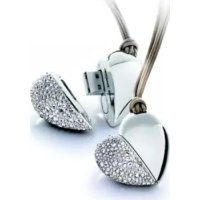



| Product Type | USB drive with Swarovski crystal |
| Brand | Philips |
| Model | Swarovski FM01SW40 |
| Interface | USB 2.0 High-Speed (compatible with USB 1.1) |
| Read speed | 8 MB/s |
| Write speed | 3 MB/s |
| Power consumption in standby | < 100 mA |
| Compatible operating systems | Windows Vista, XP, 2000, ME, 98SE; Mac OS 9.0+; Linux 2.4.0+ |
| Approximate dimensions | 60 x 20 x 10 mm |
| Approximate weight | 20 g |
| Power supply | Via USB port |
| Main functions | Data storage and transfer by drag and drop |
| Care and cleaning | Polish with a soft, lint-free cloth; avoid abrasive cleaners |
| Safety | Protect from rain, humidity, shocks and direct sunlight; do not open the casing |
| Disposal | Do not dispose of with household waste; follow directive 2002/96/EC |
| Warranty | See provided printed certificate |
Frequently Asked Questions - Swarovski FM01SW40 PHILIPS
User questions about Swarovski FM01SW40 PHILIPS
0 question about this device. Answer the ones you know or ask your own.
Ask a new question about this device
Download the instructions for your USB Drive in PDF format for free! Find your manual Swarovski FM01SW40 - PHILIPS and take your electronic device back in hand. On this page are published all the documents necessary for the use of your device. Swarovski FM01SW40 by PHILIPS.
USER MANUAL Swarovski FM01SW40 PHILIPS
FM01SW80 FM01SW40 FM01SW20 FM01SW60
Active Crystals
PHILIPS SWAROVSKI
Note:
This equipment has been tested and found to comply with the limits for a Class B digital device, pursuant to part 15 of the FCC Rules.
These limits are designed to provide reasonable protection against harmful interference in a residential installation. This equipment generates, uses and can radiate radio frequency energy and, if not installed and used in accordance with the instructions, may cause harmful interference to radio communications.
However, there is no guarantee that interference will not occur in a particular installation. If this equipment does cause harmful interference to radio or television reception, which can be determined by turning the equipment off and on, the user is encouraged to try to correct the interference by one or more of the following measures:
– Reorient or relocate the receiving antenna.
– Increase the separation between the equipment and receiver.
- Connect the equipment into an outlet on a circuit different from that to which the receiver is connected.
- Consult the dealer or an experienced radio/TV technician for help.
The shielded interface cable and connectors must be used in order to comply with the limits for digital device pursuant to subpart B of Part 15 of FCC Rules.
Electric-, Magnetic- and Electromagnetic Fields (EMF)
- Philips Royal Electronics manufactures and sells many products targeted at consumers, which, like any electronic apparatus, in general have the ability to emit and receive electro magnetic signals.
- One of Philips' leading Business Principles is to take all necessary health and safety measures for our products, to comply with all applicable legal requirements and to stay well within the EMF standards applicable at the time of producing products.
- Philips is committed to develop, produce and market products that cause no adverse health effects.
- Philips confirms that if its products are handled properly for their intended use, they are safe to use according to scientific evidence available today.
- Philips plays an active role in the development of international EMF and safety standards, enabling Philips to anticipate further developments in standardization for early integration in its products.
Welcome
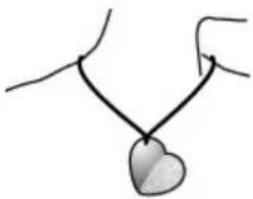
Thank you for buying this Active Crystals product. Designed by women for women, your Active Crystals product is an object of best craftsmanship, executed in the finest Swarovski crystal including state of the art technology of Philips. We wish you a truly enjoyable experience.
Important information
Note: Keep this detailed user manual for future reference.
WARNING
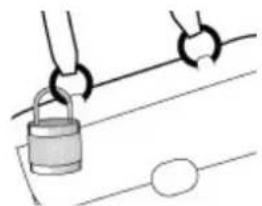
• To prevent fire or shock hazard, do not expose the unit to rain or moisture. • To avoid electric shock, do not open the cabinet. Refer servicing to qualified personal only. - Keep away from children. If swallowed, promptly see a doctor.
Note: Data is safe in the following environments: In X-ray security systems at airports and in magnetic fields with strengths not exceeding 3,500 Oe.
For customers in the U.S.A.
Changes or modifications made to this equipment not expressly approved by the company may void the FCC authorization to operate this equipment.
Operation is subject to the following two conditions:
(1) this device may not cause harmful interference, and (2) this device must accept any interference received, including interference that may cause undesired operation.
Important information
EN
CAUTION:
You are cautioned that any changes or modifications not expressly approved in this manual could void your authority to operate this equipment.
For customers in Canada
This Class B digital apparatus complies with Canadian ICES-003.
This device complies with Part 15 of the FCC Rules and with RSS-210 of Industry Canada.
For customers in Europe
This product conforms to the following European Directives: 89/336/EEC, 2006/95/EEC (safety directive) and 93/68/EEC (EC Marking Directive). This product complies with EN55022 Class B and EN55024 for use in the following areas: residential, commercial, and light-industrial.
Notes on Use
- The USB memory key may not function correctly if it is connected to the computer when the computer is started up, restarted, or restored from sleep mode. Always disconnect the USB memory key from the computer before performing any of these operations.
- Do not place the drive in locations that are:
- extremely hot or cold;
- vibrating;
- exposed to corrosive gases;
- dusty or dirty;
- very humid;
- exposed to direct sunlight.
- Microsoft and Windows are registered trademarks of Microsoft Corporation in the United States and other countries.
- Mac and Macintosh are trademarks of Apple Computer, Inc., registered in the U.S. and other countries.
- Other system names and product names that appear in this manual are registered trademarks or trademarks of their respective owners. Note that the ™ and ® symbols are not used in this manual.
- Power consumption in standby mode: < 100 mA.
- To help maintain the luster and beauty of your Active Crystals piece of time, carefully polish the product with a soft, lint-free cloth. Avoid contact with harsh cleansers.
Important information
EN
- The Company cannot accept any liability for financial damages, lost profits, claims from third parties, etc., arising from the use of the software provided with this unit.
- The software specifications may be subject to change without notice.
- For detailed warranty instructions, please refer to the printed certificate booklet.
Environmental information
Disposal of your old product
Your product is designed and manufactured with high quality materials and components, which can be recycled and reused.
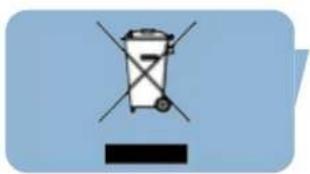
When this crossed-out wheeled bin symbol is attached to a product it means the product is covered by the European Directive 2002/96/EC. Please inform yourself about the local separate collection system for electrical and electronic products. Please act according to your local rules and do not dispose of your old products with your normal household waste. The correct disposal of your old product will help prevent potential negative consequences for the environment and human health.
Be responsible Respect copyrights
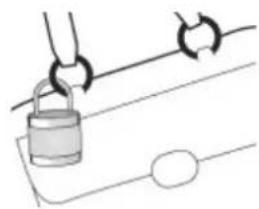
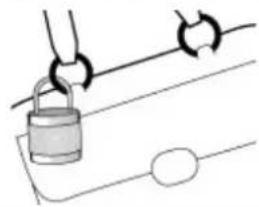
The making of unauthorized copies of copy-protected material, including computer programmes, files, broadcasts and sound recordings, may be an infringement of copyrights and constitute a criminal offence.
This equipment should not be used for such purposes.
Install
EN
Microsoft® Windows® Vista, XP, 2000, ME or MACOS 9.0 or higher:
- The USB memory key driver is installed automatically when the drive is connected to a USB port of the computer. However, with some USB 2.0 cards or boards, you may need to initiate installation manually. In this case, follow the on screen instructions to search for a suitable driver. Refer to the operating system's Help file if you need any help.
Note: Do not remove the USB memory key from the computer USB port as long as the download process is in progress.
Windows 98SE:
1 Download the device driver at www.active-crystals.com. 2 Insert the memory key USB connector into one of the computer's USB ports.
The New Hardware wizard starts. 3 Click the Next button. 4 Click Search for the best driver for your device. Then click the Next button. 5 Click Specify a location. Then click the Browse button. 6 When the dialog box appears, specify the folder where the installation program is stored. 7 Click the OK button to close the dialog box. Then click the Next button. 8 Click the Next button. 9 Click the Finish button. Installation of the driver starts. Once the installation process is complete, a drive icon for the USB memory key appears in the My Computer window. 10 After confirming that the drive is in standby mode you can remove the drive from the computer's USB port.
Connect
EN
Connecting the USB memory key to your computer
Note: If the USB port of your computer is not easily accessible, you can use a USB extension cable or an optional USB hub to connect the USB memory key to your computer.
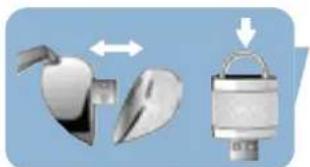
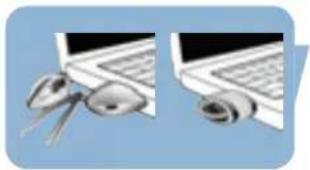
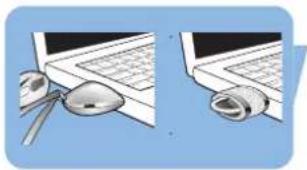
1 Remove the protective cap from the USB connector.
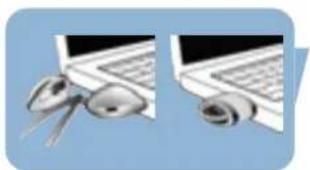
2 Insert the memory key USB connector into one of the computer's USB ports.
Enjoy
Operating the USB memory key
- Once the USB memory key is connected to the USB port of the computer:
- it is possible to start up a software package, enabling you to activate various applications. See the software help file for further instructions.
- the drive icon for the USB memory key will appear. You can now copy and save data on the drive by dragging files and folders on the drive icon, just like when you copy data to a hard disk, CD-ROM, DVD or floppy disk.
Notes:
- Do not remove the USB memory key from the computer USB port while copying and saving data otherwise the drive will no longer be recognized by your system.
- When operating under Windows, the drive name varies depending on your Windows version.
Enjoy
Disconnecting the USB memory key from your computer
Windows® 98SE
- After confirming that the USB memory key is in standby mode, you can remove the memory key from the computer's USB port.
Windows® ME and Windows® 2000
1. Double-click the Unplug or eject hardware icon in the task bar in the lower right part of the screen. 2. In the window that appears, select the name of the device that is to be removed, then click the STOP button. 3. When the Stop a hardware device screen appears, make sure the correct information is displayed, then click the OK button. 4. When a message appears indicating that the USB memory key can be safely removed, remove the USB memory key from the computer's USB port.
Windows XP
1. Double-click the Safely Remove Hardware icon in the task bar in the lower right part of the screen. 2. In the window that appears, select the name of the device that is to be removed, then click the STOP button. 3. When the Stop a hardware device screen appears, make sure the correct information is displayed, then click the OK button. 4. When the message Safe to Remove Hardware appears, remove the USB memory key from the computer's USB port.
Mac OS 9.0 and higher
1. Drag the drive icon to the Trash. 2. After confirming that the USB memory key is in standby mode, remove the USB memory key from the computer's USB port.
Technical specifications
Interface: High-Speed USB 2.0 (backwards compatible with USB 1.1)
Transfer rate Read: 8MB per second / Write: 3MB per second (High-speed USB 2.0 port required to achieve maximum speed)
Compatible OSs • Microsoft® Windows® Vista, XP, 2000, ME and 98SE (with driver)
• Mac OS 9.0 or later
- Linux 2.4.0 or later
Need help?
Online help: www.active-crystals.com
For interactive help, frequently asked questions, software updates and support.
Welcome
Important information
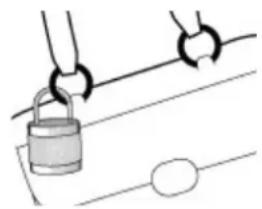
1 Remove the protective cap from the USB connector.
Be responsible Respect copyrights
Be responsible Respect copyrights
1 Remove the protective cap from the USB connector.
Important information
Be responsible Respect copyrights
Important information
1 Remove the protective cover from the USB connector.
Important information
Be responsible. Respect copyrights.
Important information
Be responsible. Respect copyrights.


- NOTE
- ELECTRIC-, MAGNETIC- AND ELECTROMAGNETIC FIELDS (EMF)
- WELCOME
- IMPORTANT INFORMATION
- WARNING
- FOR CUSTOMERS IN THE U.S.A
- CAUTION
- FOR CUSTOMERS IN CANADA
- FOR CUSTOMERS IN EUROPE
- NOTES ON USE
- ENVIRONMENTAL INFORMATION
- BE RESPONSIBLE RESPECT COPYRIGHTS
- INSTALL
- MICROSOFT® WINDOWS® VISTA, XP, 2000, ME OR MACOS 9.0 OR HIGHER
- WINDOWS 98SE
- CONNECT
- CONNECTING THE USB MEMORY KEY TO YOUR COMPUTER
- ENJOY
- OPERATING THE USB MEMORY KEY
- NOTES
- DISCONNECTING THE USB MEMORY KEY FROM YOUR COMPUTER
- WINDOWS® 98SE
- WINDOWS® ME AND WINDOWS®
- WINDOWS XP
- MAC OS 9.0 AND HIGHER
- TECHNICAL SPECIFICATIONS
- NEED HELP
- BE RESPONSIBLE. RESPECT COPYRIGHTS
Brand : PHILIPS
Model : Swarovski FM01SW40
Category : USB Drive