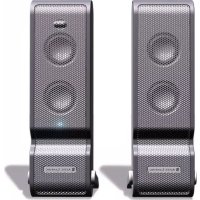
XT2 - Loudspeaker ALTEC LANSING - Free user manual and instructions
Find the device manual for free XT2 ALTEC LANSING in PDF.

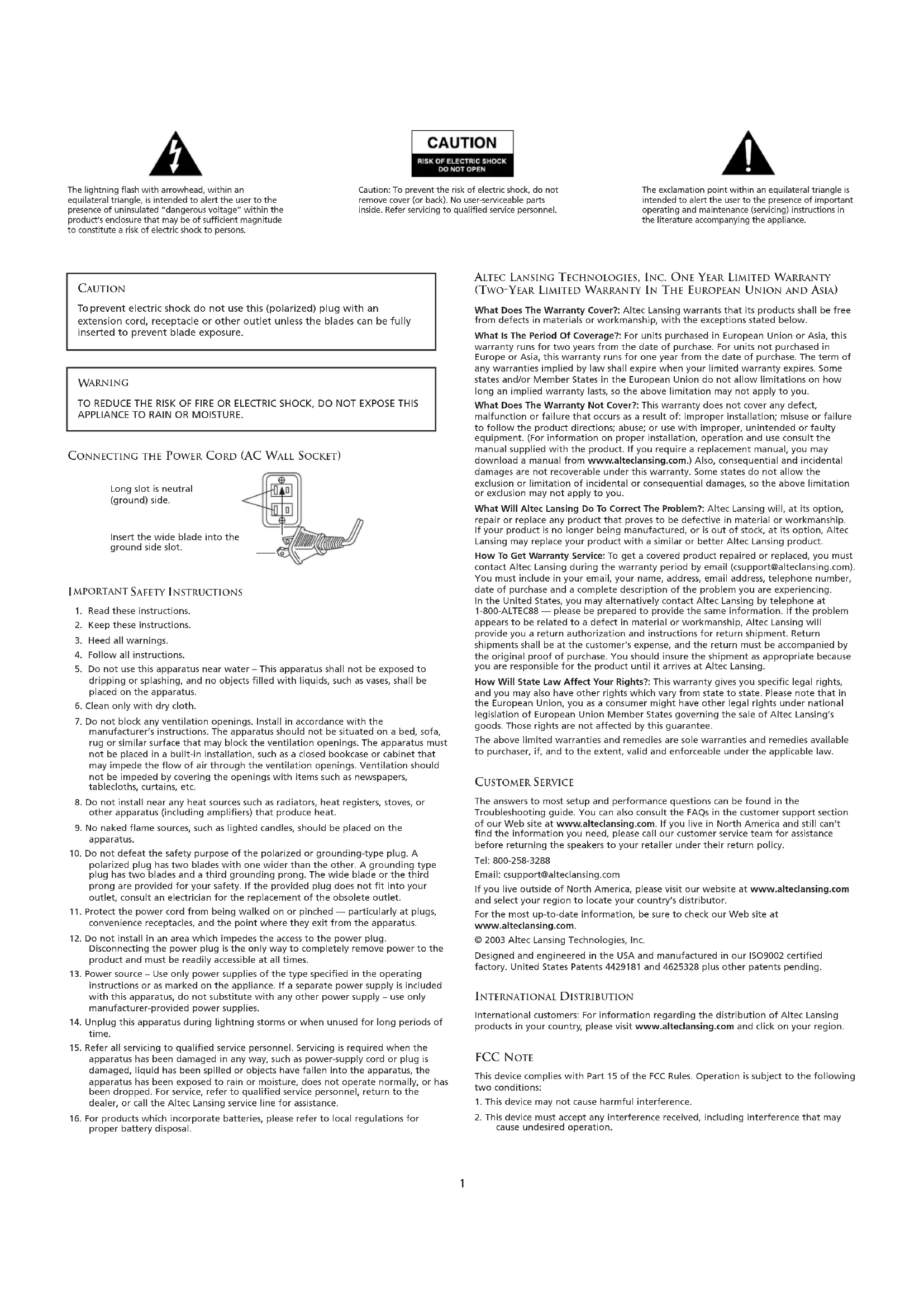


| Product Type | Portable two-piece audio system with dual power supply |
| Brand | Altec Lansing |
| Model | XT2 |
| Power Supply | Dual: via USB (computer) or via included wall power adapter |
| Total continuous power (on mains) | 4 Watts RMS (2 W/channel at 8 Ω) |
| Total continuous power (on USB) | 1.6 Watts RMS (800 mW/channel at 8 Ω) |
| Frequency Response | 100 Hz – 20 kHz (-10 dB) |
| Signal-to-Noise Ratio | > 65 dB at 1 kHz |
| Speakers | Two full-range micro-amplifiers 28 mm (per speaker) |
| Connectivity | USB Mini B, 3.5mm auxiliary input, subwoofer output (SUB OUT) |
| Subwoofer Output | Yes (SUB OUT) for optional Altec Lansing subwoofer |
| Package Contents | Two speakers, universal power adapter with international plugs, USB cable, 3.5mm stereo cable, deluxe carrying case, user guide |
| Warranty | 1 year (outside EU/Asia), 2 years (EU/Asia) |
| Country of Design | United States |
| Country of Manufacturing | ISO9002 certified factory |
| Additional Features | 270° swivel stand, treble and bass adjustment, volume controls, magnetic shielding |
| Safety and Precautions | Do not expose to water or moisture, do not block ventilation openings, use only the provided power adapter |
| Maintenance and Cleaning | Clean only with a dry cloth |
Frequently Asked Questions - XT2 ALTEC LANSING
User questions about XT2 ALTEC LANSING
0 question about this device. Answer the ones you know or ask your own.
Ask a new question about this device
Download the instructions for your Loudspeaker in PDF format for free! Find your manual XT2 - ALTEC LANSING and take your electronic device back in hand. On this page are published all the documents necessary for the use of your device. XT2 by ALTEC LANSING.
USER MANUAL XT2 ALTEC LANSING

The lightning flash with arrowhead, within an equilateral triangle, is intended to alert the user to the presence of uninsulated "dangerous voltage" within the product's enclosure that may be of sufficient magnitude to constitute a risk of electric shock to persons.
CAUTION
RISK OF ELECTRIC SHOCK DO NOT OPEN
Caution: To prevent the risk of electric shock, do not remove cover (or back). No user-serviceable parts inside. Refer servicing to qualified service personnel.

The exclamation point within an equilateral triangle is intended to alert the user to the presence of important operating and maintenance (servicing) instructions in the literature accompanying the appliance.
CAUTION
To prevent electric shock do not use this (polarized) plug with an extension cord, receptacle or other outlet unless the blades can be fully inserted to prevent blade exposure.
WARNING
TO REDUCE THE RISK OF FIRE OR ELECTRIC SHOCK, DO NOT EXPOSE THIS APPLIANCE TO RAIN OR MOISTURE.
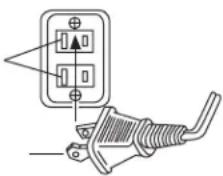
CONNECTING THE POWER CORD (AC WALL SOCKET)
Long slot is neutral (ground) side.
Insert the wide blade into the ground side slot.
IMPORTANT SAFETY INSTRUCTIONS
- Read these instructions.
- Keep these instructions.
- Heed all warnings.
- Follow all instructions.
- Do not use this apparatus near water - This apparatus shall not be exposed to dripping or splashing, and no objects filled with liquids, such as vases, shall be placed on the apparatus.
- Clean only with dry cloth.
- Do not block any ventilation openings. Install in accordance with the manufacturer's instructions. The apparatus should not be situated on a bed, sofa, rug or similar surface that may block the ventilation openings. The apparatus must not be placed in a built-in installation, such as a closed bookcase or cabinet that may impede the flow of air through the ventilation openings. Ventilation should not be impeded by covering the openings with items such as newspapers, tablecloths, curtains, etc.
- Do not install near any heat sources such as radiators, heat registers, stoves, or other apparatus (including amplifiers) that produce heat.
- No naked flame sources, such as lighted candles, should be placed on the apparatus.
- Do not defeat the safety purpose of the polarized or grounding-type plug. A polarized plug has two blades with one wider than the other. A grounding type plug has two blades and a third grounding prong. The wide blade or the third prong are provided for your safety. If the provided plug does not fit into your outlet, consult an electrician for the replacement of the obsolete outlet.
- Protect the power cord from being walked on or pinched — particularly at plugs, convenience receptacles, and the point where they exit from the apparatus.
- Do not install in an area which impedes the access to the power plug. Disconnecting the power plug is the only way to completely remove power to the product and must be readily accessible at all times.
- Power source - Use only power supplies of the type specified in the operating instructions or as marked on the appliance. If a separate power supply is included with this apparatus, do not substitute with any other power supply - use only manufacturer-provided power supplies.
- Unplug this apparatus during lightning storms or when unused for long periods of time.
- Refer all servicing to qualified service personnel. Servicing is required when the apparatus has been damaged in any way, such as power-supply cord or plug is damaged, liquid has been spilled or objects have fallen into the apparatus, the apparatus has been exposed to rain or moisture, does not operate normally, or has been dropped. For service, refer to qualified service personnel, return to the dealer, or call the Altec Lansing service line for assistance.
- For products which incorporate batteries, please refer to local regulations for proper battery disposal.
AITEC LANSING TECHNOLOGIES, INC. ONE YEAR LIMITED WARRANTY (TWO-YEAR LIMITED WARRANTY IN THE EUROPEAN UNION AND ASIA)
What Does The Warranty Cover?: Altec Lansing warrants that its products shall be free from defects in materials or workmanship, with the exceptions stated below.
What Is The Period Of Coverage?: For units purchased in European Union or Asia, this warranty runs for two years from the date of purchase. For units not purchased in Europe or Asia, this warranty runs for one year from the date of purchase. The term of any warranties implied by law shall expire when your limited warranty expires. Some states and/or Member States in the European Union do not allow limitations on how long an implied warranty lasts, so the above limitation may not apply to you.
What Does The Warranty Not Cover?: This warranty does not cover any defect, malfunction or failure that occurs as a result of: improper installation; misuse or failure to follow the product directions; abuse; or use with improper, unintended or faulty equipment. (For information on proper installation, operation and use consult the manual supplied with the product. If you require a replacement manual, you may download a manual from www.altelansing.com.) Also, consequential and incidental damages are not recoverable under this warranty. Some states do not allow the exclusion or limitation of incidental or consequential damages, so the above limitation or exclusion may not apply to you.
What Will Altec Lansing Do To Correct The Problem?: Altec Lansing will, at its option, repair or replace any product that proves to be defective in material or workmanship. If your product is no longer being manufactured, or is out of stock, at its option, Altec Lansing may replace your product with a similar or better Altec Lansing product.
How To Get Warranty Service: To get a covered product repaired or replaced, you must contact Altec Lansing during the warranty period by email (support@alteclansing.com). You must include in your email, your name, address, email address, telephone number, date of purchase and a complete description of the problem you are experiencing. In the United States, you may alternatively contact Altec Lansing by telephone at 1-800-ALTEC88 - please be prepared to provide the same information. If the problem appears to be related to a defect in material or workmanship, Altec Lansing will provide you a return authorization and instructions for return shipment. Return shipments shall be at the customer's expense, and the return must be accompanied by the original proof of purchase. You should insure the shipment as appropriate because you are responsible for the product until it arrives at Altec Lansing.
How Will State Law Affect Your Rights?: This warranty gives you specific legal rights, and you may also have other rights which vary from state to state. Please note that in the European Union, you as a consumer might have other legal rights under national legislation of European Union Member States governing the sale of Altec Lansing's goods. Those rights are not affected by this guarantee.
The above limited warranties and remedies are sole warranties and remedies available to purchaser, if, and to the extent, valid and enforceable under the applicable law.
CUSTOMER SERVICE
The answers to most setup and performance questions can be found in the Troubleshooting guide. You can also consult the FAQs in the customer support section of our Web site at www.altedansing.com. If you live in North America and still can't find the information you need, please call our customer service team for assistance before returning the speakers to your retailer under their return policy.
Tel: 800-258-3288
Email: csupport@alteclansing.com
If you live outside of North America, please visit our website at www.altelansing.com and select your region to locate your country's distributor.
For the most up-to-date information, be sure to check our Web site at www.alteclansing.com.
© 2003 Altec Lansing Technologies, Inc.
Designed and engineered in the USA and manufactured in our ISO9002 certified factory. United States Patents 4429181 and 4625328 plus other patents pending.
INTERNATIONAL DISTRIBUTION
International customers: For information regarding the distribution of Altec Lansing products in your country, please visit www.alteclansing.com and click on your region.
FCC NOTE
This device complies with Part 15 of the FCC Rules. Operation is subject to the following two conditions:
- This device may not cause harmful interference.
- This device must accept any interference received, including interference that may cause undesired operation.
XT2 TWO-PIECE DUAL-POWERED PORTABLE AUDIO SYSTEM
Thank you for purchasing this Altec Lansing product. For generations, Altec Lansing has been first in audio innovation. Today, our line of powered speakers has received more performance awards than any other brand. In all kinds of desktop environments, in every price range, Altec Lansing offers sound of distinction — giving even the most demanding customers the audio enjoyment they seek. Just listen to this!
BOX CONTENTS
- Two speakers
- Universal power supply with international plug set
USB cable - 3.5 mm stereo cable
- Deluxe carry case
- User's guide
SETTING-UP YOUR SPEAKERS
- Unfold the stand by pressing on the metallic bar located on the front of each speaker. The stand will automatically pivot 270 degrees. Note: To close the stand, gently rotate it back to the closed position until it locks into place.
- Locate the retractable speaker-to-speaker cable on the rear of the left speaker, and pull it gently to connect it to the rear of the right speaker.
Caution: To prevent full speed speaker cable return, press the button near the cable and hold the cable when rewinding.
Arrange the speakers to suit your listening tastes — from right next to the laptop computer to as far apart as the speaker cords allow.
For optimum sound, speakers should be placed in a left/right configuration, preferably apart and at equal distance from the center of the listening area. This will offer the best stereo imaging and provide the most satisfying results.
Note: The speakers ARE magnetically shielded and can be placed close to video displays such as computer monitors and TVs without distorting the image.
POWERING YOUR SPEAKERS
There are two different ways to provide your speakers with the required electrical power.
- Use your laptop to power your speakers: Locate the USB cable and connect the smaller connector (USB Mini B) to the back of the right speaker, and the larger connector (USB A) to the USB port on the PC computer, Mac computer, or USB hub. The USB connection will provide both the power and the audio signal to the speaker system. Warning: If you are using your laptop to power your speakers, make sure the laptop is turned on and is not in sleep-mode.
- O R use a wall outlet to power your speakers: Insert the barrel connector from the universal power supply into the DC connector on the side of the XT2 system. After this connection is made, insert the power supply into a wall outlet.
MAKING CONNECTIONS
Various connection schemes between your audio source and the speaker system are available. Determine if you'll be setting up the speaker system for laptop computer or PC, portable audio device, or console gaming, then skip to the appropriate section. To ensure first-time operation as expected, please carefully follow the connection sequences described below in the order indicated.
Note: Turn off the audio source (i.e., your laptop, PC, MP3 player, Sony PlayStation, etc.) before connecting it to the speaker system.
LAPTOP COMPUTER OR PC
Installation instructions vary depending on your computer's operating system. Determine which operating system is installed on your computer and skip to the appropriate section. Once the installation is completed you will be able to control the system using the computer operating system's audio controls or the XT2's controls on the right speaker.
Note: Your operating system's installation CD may be required to complete the installation.
Mac OSX:
- XT2 installation will start automatically once USB cable connections are made.
Windows XP:
- XT2 installation will start automatically once USB cable connections are made.
Windows 98SE:
- Follow the on-screen prompts to complete the installation.
- Note: When using Windows 98SE you will need to use software which supports "Digital Audio Extraction" such as Microsoft Windows Media Player 7 or higher. Your CD Drive will also need to support "Digital Audio Extraction." Otherwise you will not be able to hear CD audio.
Windows 2000/Windows Millennium Edition (ME):
- Start the "Device Manager" (Consult your operating system's online help for information on accessing "Device Manager.")
- Click the "+" sign to the left of the "DVD/CD-ROM drive(s)" item in the list.
- Right-click on the "DVD/CD-ROM drive(s)" device for which you wish to enable the "Digital Audio Extraction" feature, and select the "Properties" menu item.
- Select the "Properties" tab from the "Properties" sheet.
- Check the "Enable digital CD audio for this CD-ROM device" box. If the checkbox is disabled, your drive does not support this feature and you will not be able to listen to CD Audio with the XT2.
Note: You may need to restart you computer for this change to take effect.
PORTABLE AUDIO DEVICE (MP3, PORTABLE CD PLAYERS, PORTABLE DVD PLAYERS, ETC.)
- Locate the 3.5mm stereo cable and connect one end to the auxiliary input (AUX) on the side of the right speaker, and the other end to the "line-out," "audio-out," or headphone jack on your portable audio device.
Warning: If you would like to connect an alternate audio source via the auxiliary input (AUX) — such as a CD player or MP3 player — while the XT2 is connected to a laptop via the USB port, you must first set the "Mic in/Wave in" input slider on your laptop to its minimum position (Please note that this will disable the XT2's microphone feature.) Please refer to the "Disabling the Mic in/Wave in Input Slider" section for details.
CONSOLE GAMING
Note: Connection to a console game system requires the use of the Console Gaming Y-Adapter, which is not included. This adapter can be purchased at www.alteclansing.com.
Most console game systems feature dual-RCA outputs. To connect your speakers, follow the steps below:
- Make sure the power to your console gaming system is turned off.
- The Console Gaming Y-Adapter has a 3.5mm stereo jack on one end and two RCA jacks on the other — one red and one white.
- Locate the red and white RCA plugs on the end of the cable connected to the back of your console gaming system. Connect them to the matching red and white RCA jacks on the Console Gaming Y-Adapter.
- Locate the 3.5mm stereo cable and connect one end to the auxiliary input (AUX) on the side of the right speaker, and the other end to the 3.5mm stereo jack on the Console Gaming Y-Adapter.
Warning: If you would like to connect an alternate audio source via the auxiliary input (AUX) — such as a CD player or MP3 player — while the XT2 is connected to a laptop via the USB port, you must first set the "Mic in/Wave in" input slider on your laptop to its minimum position (Please note that this will disable the XT2's microphone feature.) Please refer to the "Disabling the Mic in/Wave in Input Slider" section for details.
FOR ADDITIONAL BASS
This speaker system is equipped with a subwoofer jack ("SUB OUT"). This output should only be used to connect an Altec Lansing optional subwoofer specifically designed to increase the bass output of this speaker system. Please check www.alteclansing.com for availability information.
POWERING ON
- Turn on the audio source.
- Turn on the speaker system by pushing the power button on the right speaker. An LED will light on the front of the right speaker when the power is on.
Note: To avoid hearing a popping sound when you turn on your Altec Lansing speaker system, always turn on your audio source first.
VOLUME
The "+" and "-" volume buttons on the right speaker control the master volume. Push the "+" button to increase the volume and push the "-" button to decrease the volume.
Note: The XT2 volume output and microphone input can be controlled using the Windows or Mac operating system, if so desired. While the XT2 has been tuned for optimal performance, bass and treble output can also be controlled using the Windows or Mac operating system.
TREBLE AND BASS
It is possible to adjust the XT2 treble and bass when the XT2 is not connected to a laptop via a USB cable.
To adjust the bass:
-
Press both the "+" and "-" volume buttons simultaneously. The power LED will flash slowly.
-
Push the "+" button to increase the bass and push the "-" button to decrease the bass. The LED will stop flashing after five seconds of inactivity.
Note: To set the bass to its default setting, press the power button while the LED is flashing slowly.
To adjust the treble: - Press both the "+" and "-" volume buttons simultaneously twice. The power LED will flash quickly.
- Push the "+" button to increase the treble and push the "-" button to decrease the treble. The LED will stop flashing after five seconds of inactivity.
Note: To set the bass to its default setting, press the power button while the LED is flashing quickly.
SETTING THE MIC IN/WAVE IN INPUT SLIDER TO ITS MINIMUM POSITION
If you would like to connect an alternate audio source via the auxiliary input (AUX) — such as a CD player or MP3 player — while the XT2 is connected to a laptop via the USB port, you must first set the "Mic in/Wave in" input slider on your laptop to its minimum position.
Windows users:
- Click on "Start" and select the Programs > Accessories > Entertainment > Volume control option.
- Under the "Options" menu, select "Properties."
- Click the "Recording Radio" button and close the window by clicking "OK."
- Move the "Mic in/Wave in" slider to its minimum position.
Mac users:
- Open the "System Preferences" window.
- Click "Sound."
- Select "Input."
- Select "Altec Lansing XT2 - USB Audio" from the list.
- Move the "Input Volume" slider to its minimum position.
Note: This action will allow you to play an alternate audio source but will disable the XT2 microphone feature. Unchecking the same box will re-activate the microphone.
SYSTEM SPECIFICATIONS*
Altec Lansing's superior sound comes from our proprietary technology, which utilizes custom-built, high-fidelity drivers, state-of-the-art equalization circuitry, and a harmonious mix of the following specifications:
Total Continuous Power
(when using wall power source): 4 Watts RMS
- Front Speakers: 2 Watts/channel @ 8 ohms
@ 20 - 20000 Hz (-3 dB)
2 Channels Loaded
Total Continuous Power
(when using USB power source): 1.6 Watts RMS
- Front Speakers: 800 mWatts/channel @ 8 ohms
@ 20 - 20000 Hz (-3 dB)
2 Channels Loaded
Frequency Response: 100Hz - 20kHz (-10 dB)
Signal to Noise Ratio
@ 1 kHz input: > 65 dB
Drivers (per satellite): Two 28 mm full-range
micro drivers
TROUBLESHOOTING
| SYMPTOM POSSIBLE PROBLEM SOLUTION | ||
| No LEDs are lit. | The speaker system isn't turned on. | Turn on the speaker system by pushing the power button on the right speaker. An LED will light on the front of the right speaker when the power is on. |
| The speaker system is not connected to a power source. | Please refer to the "Powering Your Speakers" section. | |
| You are using the USB port on your laptop computer or PC to power your speaker system and your laptop computer or PC is in sleep mode. | Some laptop computers and PCs can be configured to go into sleep mode after being left unused for a period of time. Make sure the computer is active. | |
| No sound from one or both speakers. | The retractable speaker-to-speaker cable is not properly connected. | Locate the retractable speaker-to-speaker cable on the rear of the left speaker, and pull it gently to connect it to the rear of the right speaker. |
| The volume is set too low. | The "+" and "-" volume buttons on the right speaker control the master volume. Push the "+" button to increase the volume. | |
| Check volume level on the computer operating system or other audio source, and set at mid-level. | ||
| You are using an alternate audio source and the speaker system is not properly connected to the audio source. | Make sure one end of the 3.5 mm stereo cable is fully inserted into the "line-out," "audio-out," or headphone jack of the audio source, and the other end is fully inserted into the auxiliary input (AUX) on the speaker system. | |
| You are using the USB port on your laptop computer or PC to power your speaker system while using an alternate audio source. | Set the Mic in/Wave in input slider on your laptop to its minimum position (Please note that this will disable the XT2's microphone feature.) Please refer to the "Setting the Mic in/Wave in Input Slider to its Minimum Position" section for details. | |
| You are using an alternate audio source and there is a problem with your audio source. | Test the speakers on another audio device. Remove the 3.5mm stereo cable from the audio source device and connect it to "line-out," "audio-out," or the headphones jack of another audio source. | |
| No sound from DVD/CD-ROM drive. | The computer is using Windows 2000/Windows Millennium Edition (ME) and the operating system's Digital Audio Extraction feature for CD/DVD ROM drive is not enabled. | Enable the operating system's Digital Audio Extraction feature for CD/DVD ROM drive. Refer to the "Windows 2000/Windows Millennium Edition (ME)" section under "Making Connections." |
| The computer is using Windows 98SE. | Refer to the "Windows 98SE" section under "Making Connections." | |
| Crackling sound from speakers. | If using a computer, the computer operating system master volume level is set too high. | Adjust the computer operating system master volume and balance levels to the center as a starting point, then adjust the level on the speaker using the volume control. |
| If using an alternate audio source, such as an MP3 or CD player, the volume level on the MP3 or CD player is set too high. | Reduce the volume level on the alternate audio source. | |
| You are using an alternate audio source and there is a problem with your audio source. | Test the speakers on another audio device. Remove the 3.5mm stereo cable from the audio source device and connect it to "line-out," "audio-out," or the headphone jack of another audio source. | |
| Broken audio from speakers. | The speaker system is connected to a computer running Windows 98SE. | The broken audio issue should resolve itself once Windows 98SE has finished the loading cycle. |
| The computer is running too many applications at the same time. | Quit one or more applications until the problem is resolved or increase computer memory (RAM) or storage space. | |
| Sound is distorted. | The volume is set too high. | The "+" and "-" volume buttons on the right speaker control the master volume. Push the "-" button to decrease the volume. |
| If using a computer, the computer operating system master volume level is set too high. | Adjust the computer operating system master volume and balance levels to the center as a starting point, then adjust the level on the speaker using the volume control. | |
| If using an alternate audio source, such as an MP3 or CD player, the volume level on the MP3 or CD player is set too high. | Reduce the volume level on the alternate audio source. | |
| The audio source is distorted. | WAV files are often of poor quality, so distortion and noise are easily noticed. Try a different audio source such as a music CD. | |
| The audio source EQ levels are set too high. | Adjust audio source EQ levels to "flat." | |
| Intermittent buzzing. | The XT2 is located too close to a GSM cell phone. | Move the GSM cell phone away from the XT2. |
| Radio interference. | The XT2 is located too close to a radio tower. | Move your speakers until the interference goes away. |
| Volume output cannot be controlled by the computer operating system's CD level controls. | The volume output cannot be controlled by operating system's CD level controls. | Adjust the master volume by using the "+" and "-" volume buttons on the right speaker or the master and wave level controls on the computer's operating system. |
© 2003 Altec Lansing Technologies, Inc.
© 2003 Altec Lansing Technologies, Inc.
© 2003 Altec Lansing Technologies, Inc.
Projetado e concebido nos EUA e fabricado em{nossa fabrica certificada com o ISO9002. Patentes 4429181 e 4625328 dos Estados Unidos da América acrescidas de outras patentes pendentes.
DISTRIBUICAO INTERNACIONAL
- Alto-Falantes Frontais: 2 Watts/canal @ 8 ohms
@ 20 - 20000 Hz (-3 dB)
2 Canais Carregados
For exciting offers, register today at:

- CAUTION
- RISK OF ELECTRIC SHOCK DO NOT OPEN
- WARNING
- CONNECTING THE POWER CORD (AC WALL SOCKET)
- IMPORTANT SAFETY INSTRUCTIONS
- AITEC LANSING TECHNOLOGIES, INC. ONE YEAR LIMITED WARRANTY (TWO-YEAR LIMITED WARRANTY IN THE EUROPEAN UNION AND ASIA)
- CUSTOMER SERVICE
- INTERNATIONAL DISTRIBUTION
- FCC NOTE
- XT2 TWO-PIECE DUAL-POWERED PORTABLE AUDIO SYSTEM
- BOX CONTENTS
- SETTING-UP YOUR SPEAKERS
- POWERING YOUR SPEAKERS
- MAKING CONNECTIONS
- LAPTOP COMPUTER OR PC
- Mac OSX:
- Windows XP:
- Windows 98SE:
- Windows 2000/Windows Millennium Edition (ME):
- PORTABLE AUDIO DEVICE (MP3, PORTABLE CD PLAYERS, PORTABLE DVD PLAYERS, ETC.)
- CONSOLE GAMING
- FOR ADDITIONAL BASS
- POWERING ON
- VOLUME
- TREBLE AND BASS
- SETTING THE MIC IN/WAVE IN INPUT SLIDER TO ITS MINIMUM POSITION
- SYSTEM SPECIFICATIONS*
- TROUBLESHOOTING
- DISTRIBUICAO INTERNACIONAL
Brand : ALTEC LANSING
Model : XT2
Category : Loudspeaker