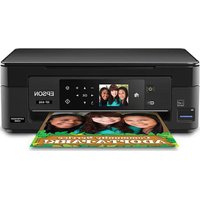
Expression Home XP430 - Printer EPSON - Free user manual and instructions
Find the device manual for free Expression Home XP430 EPSON in PDF.


User questions about Expression Home XP430 EPSON
0 question about this device. Answer the ones you know or ask your own.
Ask a new question about this device
Download the instructions for your Printer in PDF format for free! Find your manual Expression Home XP430 - EPSON and take your electronic device back in hand. On this page are published all the documents necessary for the use of your device. Expression Home XP430 by EPSON.
USER MANUAL Expression Home XP430 EPSON
This guide includes basic information about your product and troubleshooting tips. See the resources below for additional information.

User's Guide
See the online User's Guide for detailed information on using your product, including these features:
- Connect wirelessly from your smartphone, tablet, or computer. Print documents and photos from across the room or around the world with Epson Connect™ and Google Cloud Print™.
- Scan directly to Facebook ^ and the cloud with the Easy Photo Scan application.
- Easily set up networking—Wi-Fi or Wi-Fi Direct
- Copy and scan directly from the control panel.
- Save paper and power with ECO mode.

Support
Visit www.epson.com/support (U.S.) or www.epson.ca/support (Canada) where you can download drivers, view manuals, see FAQs, or e-mail Epson support.

Wireless Videos
View easy-to-follow videos on connecting the printer to your network. Visit www.epson.com/support/wireless (U.S.) or www.epson.ca/support/wireless (Canada) to view the videos.
Using the Control Panel
The control panel makes it easy to use all the features of your product. To save energy, the screen turns off after several minutes of inactivity. Press any button on the control panel to wake it up.
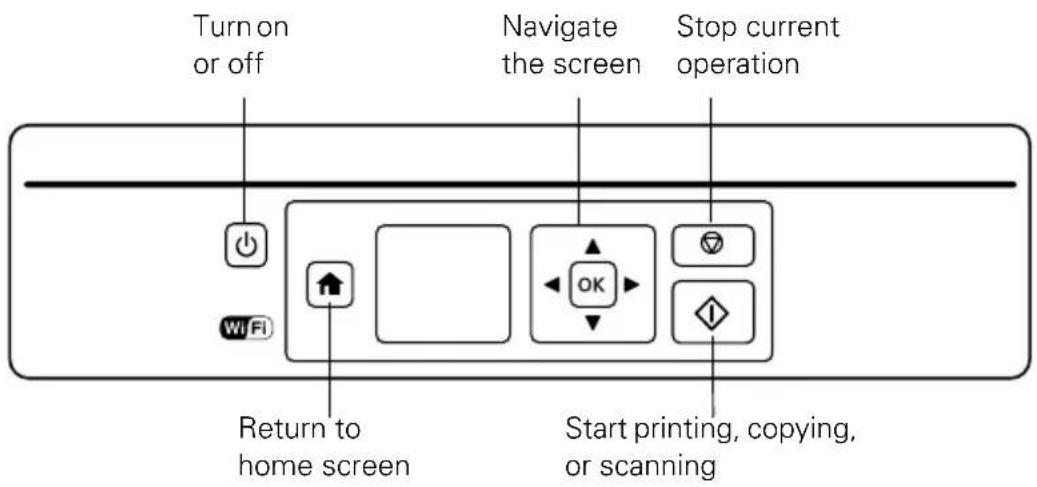
XP-330
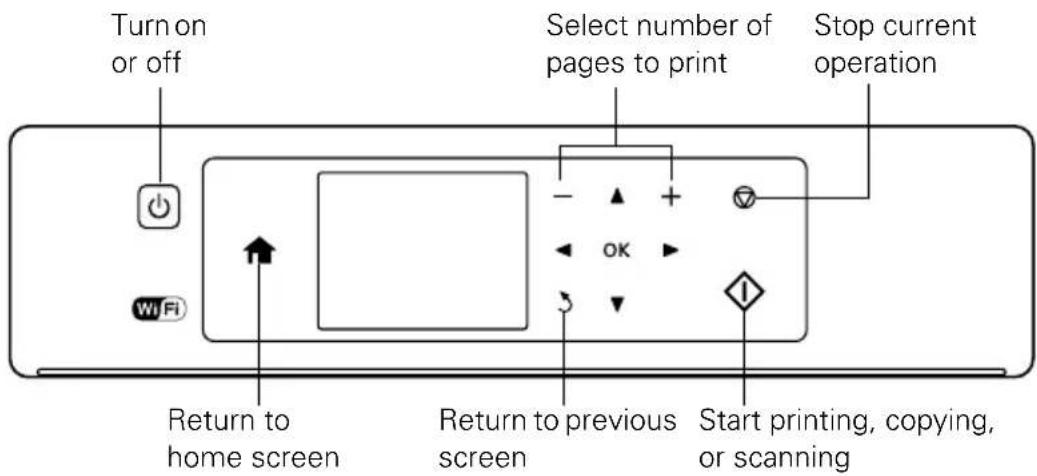
XP-430/XP-434
You may see the following icons on the screen:

The product is connected to a wireless network.

The product is connected to a wireless network in Ad Hoc mode.

The product is connected to a wireless network in Simple AP mode.

The product is connected to a wireless network in Wi-Fi Direct mode.
Loading Paper
Epson offers a wide array of high quality papers, making it easy to maximize the impact of your documents, photos, presentations, and other projects. For a list of compatible paper and instructions on loading envelopes or legal-size paper, see the online User's Guide.
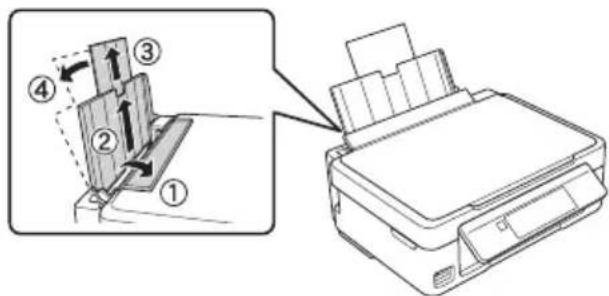
- Open the feeder guard, extend the paper support, and tilt it backwards.
- Slide the edge guide to the left.
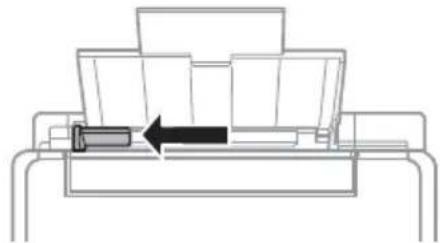
- Load paper short edge first against the right side of the rear paper feed with the printable side facing up.

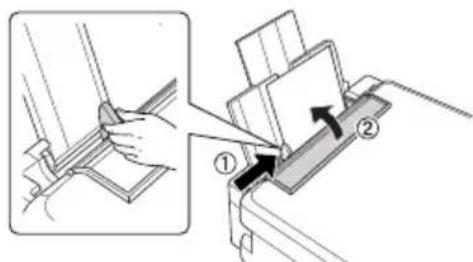
- Slide the left edge guide up against the paper and close the feeder guard.
- After you load the paper, use the control panel to select the paper size and type.
Scanning to Facebook
You can scan documents or photos and upload them to Facebook and other online destinations, such as photo-sharing sites, web servers, or network folders using Easy Photo Scan. For additional details on uploading photos, see your online User's Guide.
Starting Easy Photo Scan
Windows® 10.10: Click , and select All Apps. Select Epson Software and click Easy Photo Scan. Select your product and click OK, if necessary.
Windows 8.x: Navigate to the Apps screen and select Easy Photo Scan. Select your product and click OK, if necessary.
Windows (other versions): Click or Start, and select All Programs or Programs. Select Epson Software and click Easy Photo Scan. Select your product and click OK, if necessary.
OS X: Open the Applications folder, click Epson Software, and click Easy Photo Scan. Select your product and click OK, if necessary.
Scanning a Photo
Click the Scan icon to open your scanning program, then click Scan in the scanning program's window to scan the original.
The scanned image appears in the Easy Photo Scan window. Repeat for each photo you want to upload.
Uploading to Facebook
- Once you have finished scanning your images, click the Facebook icon on the destination bar.

- Log in to your Facebook account and select an album for the uploaded photos, then select an image format and any options. You can save your settings for future uploads.
- Click Send to upload the photos to Facebook.
Solving Network Problems
If you have a network problem with your Epson® product, check the messages on the LCD screen to diagnose the cause of most problems.
You can also check the basic troubleshooting suggestions below. For more in-depth troubleshooting, see your online User's Guide or FAQs at www.epson.com/support (U.S.) or www.epson.ca/support (Canada).
Try connecting to the wireless router or access point with your computer or another device to confirm that it is working correctly.
Try restarting the router (turn it off and then on), then try to connect to it again.
Print a network status sheet from the product's control panel.
XP-330: Press if necessary and select Setup > Network Settings > Print Status Sheet. Then press .
XP-430/XP-434: Press if necessary and select Setup > Network Settings > Network Status > Details > Print Status Sheet. Then press .
Check the signal strength. If it is poor, try moving the product closer to your router or access point.
If your wireless router has security enabled, make sure you entered the WEP key or WPA passphrase correctly.
- When using TCP/IP, make sure your network's DHCP option is enabled (your router manufacturer will be able to assist you with this setting).
■Remove and reinstall your product software.
- Disable your computer's firewall temporarily to see if that may be causing the problem. Contact your firewall manufacturer for assistance.
If you are connecting the product via Wi-Fi Protected Setup (WPS) and the Wi-Fi icon on your product's LCD is not lit, make sure you select one of the WPS options from the product control panel within 2 minutes of pressing the WPS button on your router.
Make sure to place your product within range of your router or access point.
Note: Avoid placing your product near a microwave oven, 2.4 GHz cordless phone, or large metal object, such as a filing cabinet.
You may need to disable any anti-virus software.
If your router or access point does not broadcast its network name (SSID), follow the instructions that came with your product to enter your wireless network name manually.
If you are using a Wi-Fi Direct connection that suddenly disconnects, the Wi-Fi Direct password on your device may have been changed. If necessary, delete the existing DIRECT-xxxxxx connection settings from your device and enter a new password. See your device documentation for instructions.
Notices
Declaration of Conformity
According to 47CFR, Part 2 and 15 for: Class B Personal Computers and Peripherals; and/or CPU Boards and Power Supplies used with Class B Personal Computers:
We: Epson America, Inc.
Located at: 3840 Kilroy Airport Way, MS 3-13, Long Beach, CA 90806
Telephone: (562) 981-3840
Declare under sole responsibility that the product identified herein, complies with 47CFR Part 2 and 15 of the FCC rules as a Class B digital device. Each product marketed is identical to the representative unit tested and found to be compliant with the standards. Records maintained continue to reflect the equipment being produced can be expected to be within the variation accepted, due to quantity production and testing on a statistical basis as required by 47CFR §2.909. Operation is subject to the following two conditions: (1) this device may not cause harmful interference, and (2) this device must accept any interference received, including interference that may cause undesired operation.
Trade Name: Epson
Type of Product: Multifunction printer
Model: C462U, C462T
Epson America, Inc. Limited Warranty
What Is Covered: Epson America, Inc. ("Epson") warrants to the original retail purchaser that the Epson printer covered by this limited warranty statement, if purchased and operated only in the United States, Canada, or Puerto Rico, will be free from defects in workmanship and materials for a period of one (1) year from the date of original purchase. For warranty service, you must provide proof of the date of original purchase.
What Epson Will Do To Correct Problems: Should your Epson printer prove defective during the warranty period, please call the Epson Connection ^SM at (562) 276-4382 (U.S.) or (905) 709-3839 (Canada) for warranty repair instructions and return authorization. An Epson service technician will provide telephone diagnostic service to determine whether the printer requires service. If service is needed, Epson will, at its option, exchange or repair the printer without charge for parts or labor. If Epson authorizes an exchange for the defective unit, Epson will ship a replacement printer to you, freight prepaid, so long as you use an address in the United States, Canada, or Puerto Rico.
Shipments to other locations will be made freight collect. You are responsible for securely packaging the defective unit and returning it to Epson within five (5) working days of receipt of the replacement. Epson requires a debit or a credit card number to secure the cost of the replacement printer in the event that you fail to return the defective one. If Epson authorizes repair instead of exchange, Epson will direct you to send your printer to Epson or its authorized service center, where the printer will be repaired and sent back to you. You are responsible for packing the printer and for all costs to and from the Epson authorized service center. When warranty service involves the exchange of the printer or a part, the item replaced becomes Epson property. The replacement printer or part may be new or refurbished to the Epson standard of quality, and, at Epson's option, may be another model of like kind and quality. Exchange products and parts assume the remaining warranty period of your original product covered by this limited warranty.
What This Warranty Does Not Cover: This warranty covers only normal use in the United States, Canada, or Puerto Rico. Excessive, continuous use is not considered normal use; damage, maintenance or service from such use will not be covered under this warranty. This warranty is not transferable. This warranty does not cover any color change or fading of prints or reimbursement of materials or services required for reprinting. This warranty does not cover damage to the Epson product caused by parts or supplies not manufactured, distributed or certified by Epson. This warranty does not cover ink cartridges, ink supply units, or ink packs. This warranty does not cover third party parts, components, or peripheral devices added to the Epson product after its shipment from Epson, e.g., dealer or user-added boards or components. Epson is not responsible for warranty service should the Epson label or logo or the rating label or serial number be removed or should the product fail to be properly maintained or fail to function properly as a result of misuse, abuse, improper installation, neglect, improper shipping, damage caused by disasters such as fire, flood, and lightning, improper electrical current, software problems, interaction with non-Epson products, or service other than by an Epson Authorized Servicer. If a claimed defect cannot be identified or reproduced, you will be held responsible for the costs incurred.
DISCLAIMER OF WARRANTY: THE WARRANTY AND REMEDY PROVIDED ABOVE ARE EXCLUSIVE AND IN LIEU OF ALL OTHER EXPRESSED OR IMPLIED WARRANTY INCLUDING, BUT NOT LIMITED TO, THE IMPLIED WARRANTY OF MERCHANTABILITY, FITNESS FOR A PARTICULAR PURPOSE AND NONINFRINGEMENT. UNLESS STATED HEREIN, ANY STATEMENTS OR REPRESENTATION MADE BY ANY OTHER PERSON OR FIRM ARE Void.
Remedies: Your exclusive remedy and Epson's entire liability for a material breach of this Agreement will be limited to a refund of the price paid for the Epson products covered by this Agreement. Any action for breach of warranty must be brought within 3 months of the expiration date of the warranty. Epson is not liable for performance delays or for nonperformance due to causes beyond its reasonable control. Except as provided in this written warranty, neither Epson nor its affiliates shall be liable for any loss, inconvenience, or damage, including direct, special, incidental or consequential damages, including lost profits, cost of substitute equipment, downtime, claims of third parties, including customers, or injury to property, resulting from the use or inability to use the Epson products, whether resulting from a breach of warranty or any other legal theory. Some jurisdictions do not allow limits on warranties or remedies for breach in certain transactions. In such jurisdictions, the limits in this paragraph and the preceding paragraph may not apply.
In Canada, warranties include both warranties and conditions.
Arbitration, Governing Laws: Any disputes arising out of this Agreement will be settled by arbitration, before a single arbitrator to be conducted in Los Angeles, California, in accordance with the commercial Arbitration Rules of the American Arbitration Association, and judgment upon the award rendered by the arbitrator may be entered in any court having jurisdiction thereof. This Agreement shall be construed in accordance with the laws of the State of California, except this arbitration clause which shall be construed in accordance with the Federal Arbitration Act.
To find the Epson Authorized Reseller nearest you, visit our website at: www.epson.com.
To find the Epson Customer Care Center nearest you, visit www.epson.com/support.
You can also write to: Epson America, Inc., P.O. Box 93012, Long Beach, CA 90809-3012.
Copyright Notice
All rights reserved. No part of this publication may be reproduced, stored in a retrieval system, or transmitted in any form or by any means, electronic, mechanical, photocopying, recording, or otherwise, without the prior written permission of Seiko Epson Corporation. The information contained herein is designed only for use with this Epson product. Epson is not responsible for any use of this information as applied to other equipment.
Neither Seiko Epson Corporation nor its affiliates shall be liable to the purchaser of this product or third parties for damages, losses, costs, or expenses incurred by purchaser or third parties as a result of: accident, misuse, or abuse of this product or unauthorized modifications, repairs, or alterations to this product, or (excluding the U.S.) failure to strictly comply with Seiko Epson Corporation's operating and maintenance instructions.
Seiko Epson Corporation shall not be liable for any damages or problems arising from the use of any options or any consumable products other than those designated as Original Epson Products or Epson Approved Products by Seiko Epson Corporation.
In addition to software program rights owned by Seiko Epson Corporation, this product also includes open source software. Refer to the online OSS.pdf for a list of open source software and software license terms applied to this printer.
Responsible Use of Copyrighted Materials
Epson encourages each user to be responsible and respectful of the copyright laws when using any Epson product. While some countries' laws permit limited copying or reuse of copyrighted material in certain circumstances, those circumstances may not be as broad as some people assume. Contact your legal advisor for any questions regarding copyright law.
Trademarks
EPSON is a registered trademark, Epson Connect is a trademark, and EPSON Exceed Your Vision is a registered logomark of Seiko Epson Corporation.
Epson Connection is a service mark of Epson America, Inc.
OS X is a trademark of Apple Inc., registered in the U.S. and other countries.
Google Cloud Print is a trademark of Google Inc.
Wi-Fi Direct® is a registered trademark of Wi-Fi Alliance®.
General Notice: Other product names used herein are for identification purposes only and may be trademarks of their respective owners. Epson disclaims any and all rights in those marks.
This information is subject to change without notice.
Guide rapide
© 2015 Epson America, Inc. 11/15