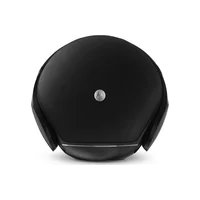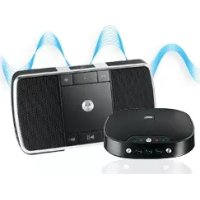
MotoROKR EQ7 - Docking station MOTOROLA - Free user manual and instructions
Find the device manual for free MotoROKR EQ7 MOTOROLA in PDF.


User questions about MotoROKR EQ7 MOTOROLA
0 question about this device. Answer the ones you know or ask your own.
Ask a new question about this device
Download the instructions for your Docking station in PDF format for free! Find your manual MotoROKR EQ7 - MOTOROLA and take your electronic device back in hand. On this page are published all the documents necessary for the use of your device. MotoROKR EQ7 by MOTOROLA.
USER MANUAL MotoROKR EQ7 MOTOROLA
The MOTOROKR™ EQ5 Ultra-Portable Wireless Speaker is sleek, stylish and pocket-sized. It's the perfect companion to your MP3 player or music phone.
- Pocket portability —The sleek, slim design fits comfortably in your pocket, so your music and speakerphone calls can go anywhere you go.
- Expand your sound —The EQ5 delivers high-definition stereo sound powered by SRSTM WOW HD™ enhanced audio technology.
- Don't miss the call —When paired with your phone, the MOTO ROKR™ EQ5 doubles as a speakerphone with echo-cancellation and noise-reduction to keep you sounding clear. Switch between music and calls with the touch of a button.
- Wireless mobility —Tangled wires are a thing of the past. Bluetooth stereo connectivity cuts the speaker cable, and the rechargeable battery unplugs you from the wall. Integrated music and call controls mean there's no need to reach for your phone, and your music automatically pauses with each call.
Note: Before using your speaker for the first time, be sure to review the important safety and legal pamphlet and follow instructions. Periodically review this information so you remember how to safely use your speaker.
before you begin
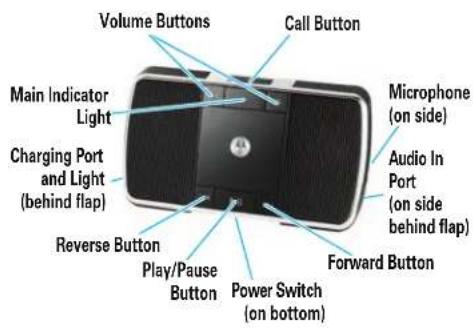
Take a moment before you get started to familiarize yourself with the components of your speaker.
charge your speaker
You'll need to charge your speaker's battery for a minimum of 1 hour using the included charger.
Note: You can use the speaker while the battery charges.
Plug the charger into the charging port on your speaker, as shown.
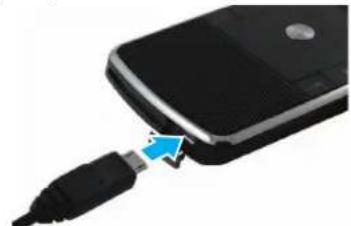
The Charging indicator light turns red when battery is charging. It may take up to 1 minute for the indicator light to turn on. When the speaker's battery is fully charged, the indicator light turns green.
Disconnect the charger.
Note: This product uses a lithium ion, rechargeable, non-replaceable battery. Under normal use, expected life of the rechargeable battery is approximately 500 charges.
turn it on & off
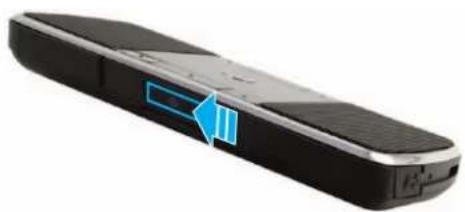
To turn your speaker on and offslide the Power switch to the ON position. The main indicator light flashes 3 times.
connect wirelessly
To listen to your music via Bluetooth wireless connection, as well as make and receive handsfree calls, you need to pair (link) your speaker with your Bluetooth phone and/or music player.
Turn off any Bluetooth devices previously paired with your speaker.
Turn on the Bluetooth feature on your Bluetooth phone or music player.
Turn on your speaker. The main indicator light is steadily lit in blue to indicate the speaker is in discoverable mode.
Place phone or music player in Bluetooth search mode. The phone or music player searches for your speaker.
5 Select Motorola EQ5 from search results on your phone or music player.
Select OK or Yes to pair your speaker with your phone or music player.
If prompted, enter 0000 for passkey.
connect wirelessly
When your speaker successfully pairs and connects with your phone or music player, the main indicator light flashes blue and purple. Music playing from your connected music source is heard on your speaker.
Notes:
After successfully pairing your speaker and Bluetooth device, you don't need to repeat these steps. For each use, ensure that your speaker is turned ON and that your device's Bluetooth feature is ON.
Some music devices will automatically attempt to play music when the EQ5 re-connects to it.
control your tunes
Playback controls on your speaker can be used when listening to wireless music streaming from a Bluetooth-enabled music player that also provides remote control capabilities (AVRCP).
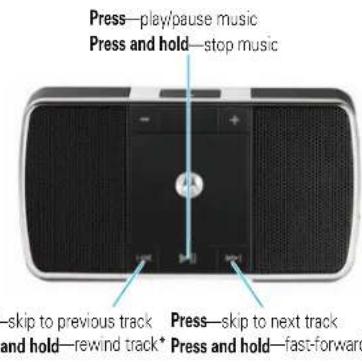
- If your music player supports this feature When remote control capabilities are not supported by your music player, the EQ5 simply acts as a speaker, and music should be controlled from your music player.
crank it up
To adjust music volume, use the Volume buttons on your speaker.
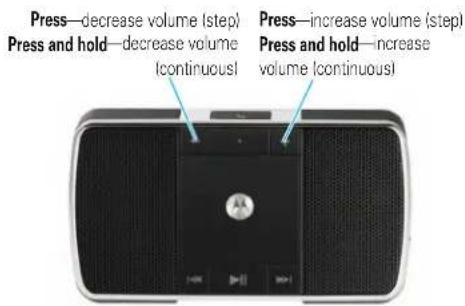
You'll hear a tone when maximum or minimum volume is reached on your speaker.
Note: The volume setting on your music player may impact volume on your speaker.
handsfree calls
To make and receive calls using the speaker, a Bluetooth handsfree (HFP) connection must be established with your phone (see "connect wirelessly" on page 7 for details).
You'll use these controls and indicators on your speaker when making and receiving handsfree calls.
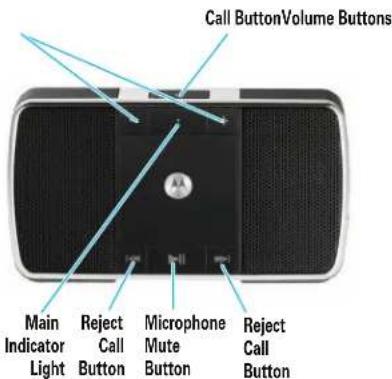
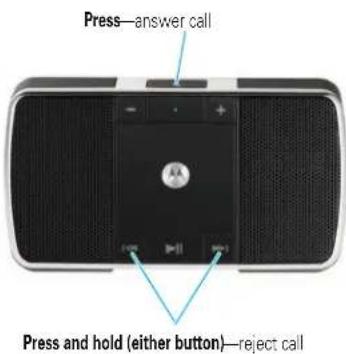
receive a call
When there's an incoming call, the main indicator light flashes quickly in blue on your speaker, and you hear a ring tone over your speaker. If music is playing when a call is received, the music pauses or mutes, depending on your music player and connection setup.
while on a call
When a call is active, the main indicator light slowly pulses in blue on your speaker.
Press-adjust call volume (steo)
Press and hold-adjust call volume (continuous)
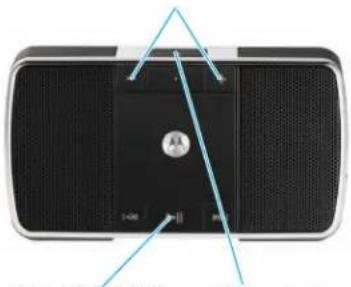
Press—mute call (main indicator light pulses in purple while muted)
Press-end call
while on a call
When there's a second incoming call, the main indicator light flashes quickly in blue on your speaker and you hear an alert.
Press-1) answer second call (first call is placed on hold), 2) end second call (first call resumes), or 3) resume first call on hold (when second caller hangs up)
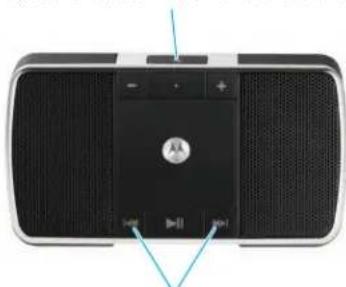
Press and hold (either button) reject second incoming call*
* If your phone supports this feature
make a call
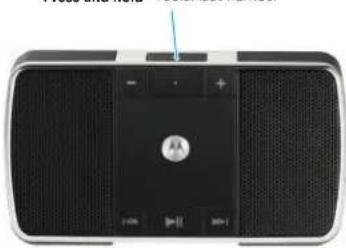
Using the speaker to make a call, you can redial the last dialed number or make a voice dial call (if your phone supports this feature). When making a voice dial call, the microphone on the speaker is enabled, and you hear a prompt from your phone.
Pressmake a voice dial call (you hear a prompt from your phone) Press and hold:redial last number
cable connection
To listen to your music using a wired connection
connect your music player to the Audio port on your speaker using the included audio cable.
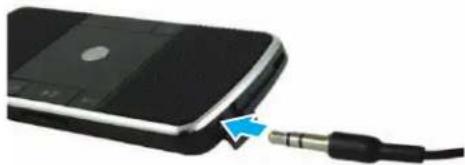
Notes:
The Audio port functions as an input port from a music device only (not as a headphone jack).
- Playback controls provided on your speaker cannot be used when listening to music input from wired connection.
In wired connection, if no audio is heard turn up volume on music device.
check your battery
To check your speaker's battery charge level press and hold both Volume buttons. The main indicator light displays charge status until the Volume buttons are released.
Main Indicator Light Battery Charge Status
Red Less than 30% charge
Yellow Between 30% and 70%
charge
Green More than 70% charge
When your speaker is in a low battery charge state, the main indicator light flashes quickly in red, and a tone is repeated every minute.
speaker status
The main indicator light on your speaker displays current status of Bluetooth wireless connection(s) to your phone and/or music player.
| Main Indicator Light Wireless Status |
| steady blue pairing mode |
| long blue flash standby (handsfree connection only) |
| long yellow flash standby (streaming music connection only) |
| long green flash standby (both handsfree and streaming music connection) |
| quick blue flash incoming/outgoing call |
| long blue pulse connected on a call |
| long purple pulse connected call muted |
| three green flashes started/paused music player |
| long green pulse music streaming (with handsfree connection active) |
speaker status
Main Indicator Light Wireless Status
long yellow pulse music streaming (without handsfree connection active)
long purple pulse music from wired connection active
two yellow flashes SRS WOW HD on/off
three yellow flashes stopped music player
slow red flash idle (not connected to a device)
tips & tricks
multi-point (two device) connection
To connect to phone and music device at the same time:
Pair and connect to your phone first (see page 7).
Turn off your phone and your speaker.
Turn your speaker back on. The Bluetooth indicator flashes to indicate the speaker is in discoverable mode.
4 Turn on your music device. Make sure the Bluetooth feature is turned on in the device. The music device searches for your speaker.
5 Complete steps 5 through 7 on page 7 to pair and connect your music device and speaker successfully.
Turn off your speaker.
Turn your phone back on and make sure the Bluetooth feature is turned on in both the phone and music device.
Turn your speaker system back on. It should now connect to both devices.
tips & tricks
pairing tips
To initiate pairing (discoverable) mode manually when your speaker is already powered on, press and hold both Call and Play/Pause buttons at the same time.
To clear paired devices list in your speaker, press and hold both Reverse and Forward buttons at the same time until speaker resets.
tips & tricks
disabling SRS WOW HD
SRS WOW HD is an audio enhancement technology that provides better width and improved bass and definition control. This feature is enabled on your speaker at purchase.
If your music player also has SRS or any other sound enhancement technology, best audio results may be achieved if the audio enhancement feature is enabled on only either the music source or the speaker (but not both).
To disable the SRS WOW HD audio enhancement feature on your speaker, press and hold the Play/Pause and Rewind buttons at the same time until you hear a tone and the main indicator light flashes yellow twice. To re-enable the SRS feature, perform the same action.
tech speak
Here are some helpful Bluetooth terms to know:
| Profile | An application (or use case) through which different Bluetooth devices can communicate with each other. Both devices must support the same profile in order to communicate with one another for the application. |
| A2DP(Advanced Audio Distribution Profile) | Profile for streaming dual-channel stereo audio from a stereo music player to your speaker. |
| AVRCP(Audio Video Remote Control Profile) | Profile for controlling streaming audio/video playback on remote devices.Typically used with A2DP devices for next/previous track selection and pause/play functions. |
| HFP(Hands-Free Profile) | Profile for making and receiving calls from a hands-free device. |
European Union Directives Conformance Statement

Hereby, Motorola declares that this product is in compliance with:
The essential requirements and other relevant provisions of Directive 1999/5/EC.
All other relevant EU Directives.
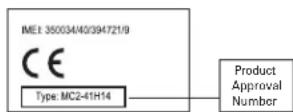
The above gives an example of a typical Product Approval Number.
You can view your product's Declaration of Conformity (DoC) to Directive 1999/5/EC (to R&TTE Directive) at www.motorola.com/rtte. To find your DoC, enter the product Approval Number from your product's label in the "Search" bar on the web site.
Motorola, Inc.
Consumer Advocacy Office
1307 East Algogunin Road
Schaumburg, IL 60196
www.motorola.com
www.motorola.com/bluetoothsupport
1-877-MOTOBLU (Motorola Bluetooth Support)
1-800-331-6456 (United States)
1-888-390-6456 (TTY/TDD United States for hearing impaired)
1-800-461-4575 (Canada)
The use of wireless devices and their accessories may be prohibited or restricted in certain areas. Always obey the laws and regulations on the use of these products.
MOTOROLA and the Stylized M Logo are registered in the US Patent &
Trademark Office. The Bluetooth trademarks are owned by their proprietor and used by Motorola, Inc. under license. SRS and WOW HD are trademarks of SRS Labs, Inc. All other product and service names are the property of their respective owners.
© 2008 Motorola, Inc. All rights reserved.
Bluetooth QD ID: B013626
Manual Number: 68000201065-A

MOTOROKR EQ5
Consumer Advocacy Office 1207 East 4th Ave. Rockville, MD
1307 East Algonquin Road Sahaumbura, IL 60196
Schaunburg, IC 60196
www.motorola.com
www.motorola.com/bluetoothsupport