
MXDD1 - Dictaphone SONY - Free user manual and instructions
Find the device manual for free MXDD1 SONY in PDF.
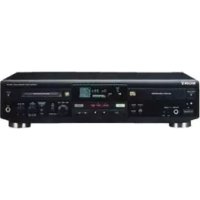


| Product Type | CD/MD recorder and player |
| Brand | Sony |
| Model | MXD-D1 (sometimes noted MXDD1) |
| Power Supply | 120 V, 60 Hz, power consumption 28 W |
| Supported Formats | CD audio (5 cm/8 cm), MiniDisc (60/74 min) |
| Playback Functions | Normal, random, programmed, repeat, A-B loop, scan |
| Recording Functions | Synchronized CD→MD recording, manual, with 6-second pre-storage, microphone mixing |
| MD Editing | Erasing, dividing, combining, moving, titling, undo |
| Connectivity | LINE (analog) RCA inputs, MIC stereo mini-jack; LINE RCA, PHONES, DIGITAL OUT optical outputs |
| Remote Control | Infrared RM-D11M, AA batteries supplied |
| Frequency Response | 5–20,000 Hz ±0.3 dB (CD and MD) |
| Signal-to-Noise Ratio | ≥ 98 dB (CD), ≥ 98 dB (MD playback) |
| Laser System | Semiconductor 780 nm, class 1 |
| Care and Cleaning | Clean the cabinet with a soft cloth slightly dampened with mild detergent; do not use solvents |
| Safety | Copy protection (SCMS); do not expose to rain or moisture; refer servicing to qualified personnel |
| Supplied Accessories | Audio connecting cords (2), optical cable, remote control, batteries |
| MD Protection | Record-protect tab on the cartridge |
Frequently Asked Questions - MXDD1 SONY
User questions about MXDD1 SONY
0 question about this device. Answer the ones you know or ask your own.
Ask a new question about this device
Download the instructions for your Dictaphone in PDF format for free! Find your manual MXDD1 - SONY and take your electronic device back in hand. On this page are published all the documents necessary for the use of your device. MXDD1 by SONY.
USER MANUAL MXDD1 SONY
Compact Disc MiniDisc Deck
Operating Instructions
Mode d'emploi
EN
F

MXD-D1
WARNING
To prevent fire or shock hazard, do not expose the unit to rain or moisture.
To avoid electrical shock, do not open the cabinet. Refer servicing to qualified personnel only.
The laser component in this product is capable of emitting radiation exceeding the limit for Class 1.
CAUTION
TO PREVENT ELECTRIC SHOCK, DO NOT USE THIS POLARIZED AC PLUG WITH AN EXTENSION CORD, RECEPTACLE OR OTHER OUTLET UNLESS THE BLADES CAN BE FULLY INSERTED TO PREVENT BLADE EXPOSURE.
IN NO EVENT SHALL SELLER BE LIABLE FOR ANY DIRECT, INCIDENTAL OR CONSEQUENTIAL DAMAGES OF ANY NATURE, OR LOSSES OR EXPENSES RESULTING FROM ANY DEFECTIVE PRODUCT OR THE USE OF ANY PRODUCT.
Precautions
On safety
Should any solid object or liquid fall into the cabinet, unplug the unit and have it checked by qualified personnel before operating it any further.
On power sources
- Before operating the unit, check that the operating voltage of the unit is identical with your local power supply. The operating voltage is indicated on the nameplate at the rear of the unit.
- If you are not going to use the unit for a long time, be sure to disconnect the unit from the wall outlet. To disconnect the AC power cord, grasp the plug itself; never pull the cord.
On condensation in the unit
If the unit is brought directly from a cold to a warm location, or is placed in a very damp room, moisture may condense on the lenses inside the unit. Should this occur, the unit may not operate properly. In this case, remove the CD or MD and leave the unit turned on for about an hour until the moisture evaporates.
On handling CDs
- To keep the CD clean, handle the CD by its edge. Do not touch the surface.
- Do not stick paper or tape onto the CD.
- Do not expose the CD to direct sunlight or heat sources such as hot air ducts, nor leave it in a car parked in direct sunlight as there can be a considerable rise in temperature inside the car.
On the MiniDisc cartridge
- Do not open the shutter to expose the MD.
- Do not place the cartridge where it will be subject to extremes of sunlight, temperature, moisture or dust.
On cleaning
Clean the cabinet, panel and controls with a soft cloth slightly moistened with a mild detergent solution. Do not use any type of abrasive pad, scouring powder or solvent such as alcohol or benzine.
If you have any questions or problems concerning your unit, please consult your nearest Sony dealer.
Welcome!
Thank you for purchasing the Sony Compact Disc MiniDisc Deck. Before operating the unit, please read this manual thoroughly and retain it for future reference.
About This Manual
Conventions
Before operating this unit, connect your unit by referring to "Getting Started." - For basic operations, refer to "Playing a CD", "Playing an MD" and "Recording a CD on an MD." Controls in the instructions are those on the unit; these may, however, be substituted by controls on the remote that are similarly named or, when different, appear in the instructions within brackets. The following icons are used in this manual:

Indicates a procedure that requires use of the remote.

Indicates tips for making the task easier and hints.
TABLE OF CONTENTS
Getting Started
Unpacking 4 Hooking Up the System 4
Playing a CD 6
Playing an MD 7
Recording a CD on an MD (CD Synchro-Recording) 8
Playing CDs
Checking Remaining Time of a CD 10 Locating a Specific Track on a CD 11 Locating a Particular Point in a Track on a CD 12 Playing Tracks on a CD Repeatedly (Repeat Play) 12 Playing Tracks on a CD in Random Order (Shuffle Play) 13 Playing Tracks on a CD in the Desired Order (Program Play) 14 Looping Part of a CD (Loop Play) 15 Useful Tips When Recording from CDs 16
Playing MDs
Checking Remaining Time of an MD 17 Locating a Specific Track on an MD 18 Locating a Particular Point in a Track on an MD 19 Playing Tracks on an MD Repeatedly (Repeat Play) 19 Playing Tracks on an MD in Random Order (Shuffle Play) 20 Playing Tracks on an MD in the Desired Order (Program Play) 21 Useful Tips When Recording from MDs to Tape 22
Recording on MDs
Notes on Recording 23 Useful Tips for Recording 25 Recording on an MD Manually 25 Adjusting the Recording Level 27 Recording the Mixed Sounds (Microphone Mixing) 27 Marking Track Numbers while Recording (Track Marking) 28 Starting Recording with 6 Seconds of Prestored Audio Data (Time Machine Recording) 29
Editing Recorded MDs
Notes on Editing 30 Erasing Recordings (Erase Function) 30 Dividing Recorded Tracks (Divide Function) 32 Combining Recorded Tracks (Combine Function) 33 Moving Recorded Tracks (Move Function) 34 Labeling Recordings (Title Function) 35 Undoing the Last Edit (Undo Function) 37
Additional Information
MD Display Messages 38 System Limitations of MD 38 Troubleshooting 39 Specifications 41 Guide to the Serial Copy Management System 42
Index 44
Unpacking
Check that you received the following items:
Audio connecting cords (2) Optical cable (1) Remote commander (remote) RM-D11M (1) Sony SUM-3 (NS) batteries (2)
Inserting batteries into the remote
You can control the unit using the supplied remote. Insert two R6 (size-AA) batteries by matching the + and - on the batteries. When using the remote, point it at the remote sensor on the unit.
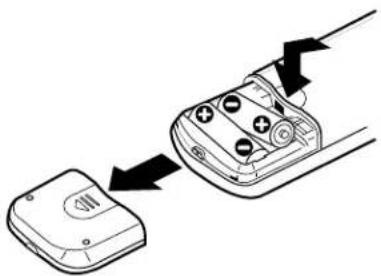

When to replace batteries
With normal use, the batteries should last for about six months. When the remote no longer operates the unit, replace all the batteries with new ones.
Notes
- Do not leave the remote near an extremely hot or humid place.
- Do not drop any foreign object into the remote casing, particularly when replacing the batteries.
- Do not expose the remote sensor to direct sunlight or lighting apparatuses. Doing so may cause a malfunction.
- If you don't use the remote for an extended period of time, remove the batteries to avoid possible damage from battery leakage and corrosion.
Hooking Up the System
Overview
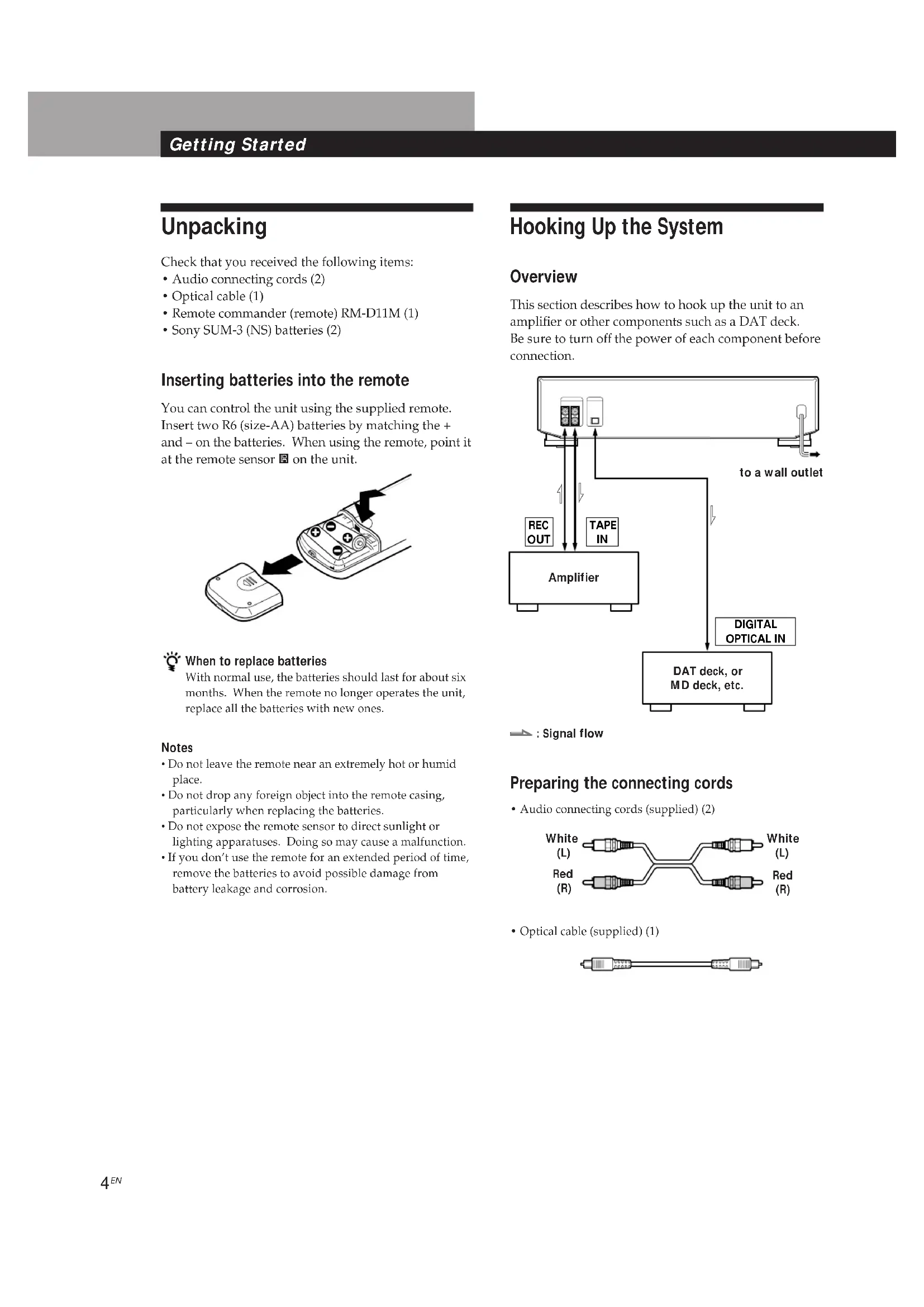
This section describes how to hook up the unit to an amplifier or other components such as a DAT deck. Be sure to turn off the power of each component before connection.
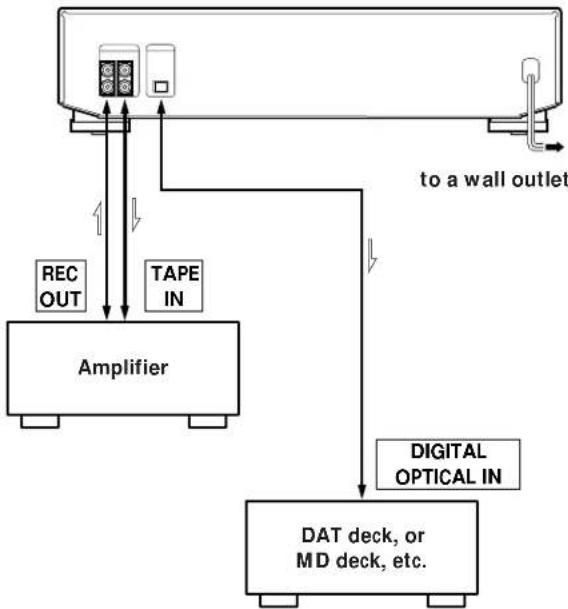

: Signal flow
Preparing the connecting cords
Audio connecting cords (supplied) (2)
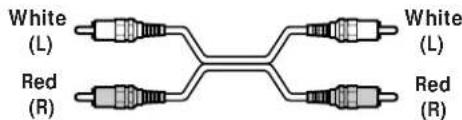
Optical cable (supplied) (1)

Hooking up the system
Connecting the unit to an amplifier
Connect the amplifier to the LINE (ANALOG) IN/OUT jacks using the audio connecting cords (supplied), making sure to match the color-coded cords to the appropriate jacks on the components: red (right) to red and white (left) to white. Be sure to make connections firmly to prevent hum and noise.
Signal flow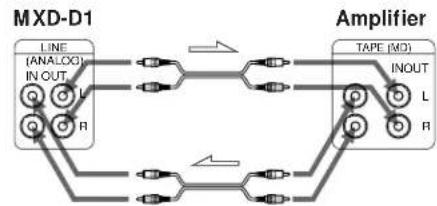
Connecting the unit to a digital component such as a DAT deck, digital amplifier, or another MD deck
Connect the component through the DIGITAL OUT OPTICAL connector with an optical cable (supplied). Take the cap off the connector before plugging in the cable.
Signal flow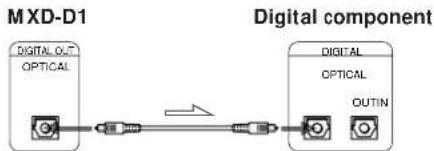
Connecting the AC power cord
Connect the AC power cord to a wall outlet.
Note
Do not connect the AC power cord to a switched outlet.
Playing a CD
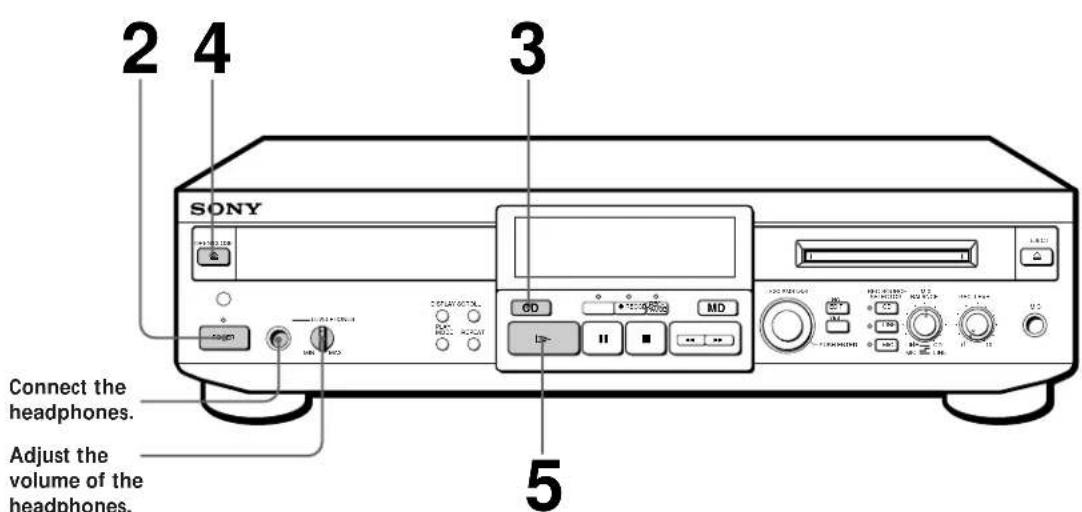
1 Turn on the amplifier and set the source selector to the position for TAPE (MD). 2 Press POWER. The POWER indicator changes from red to green. 3 Press CD (or set CD/MD to CD) to switch the function of the buttons to CD. 4 Press OPEN/CLOSE to insert a CD. Press the button again to close the disc tray.
With the label side up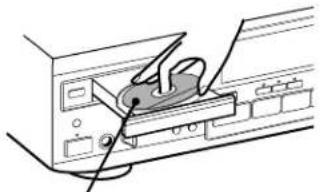
Press. The player starts playing. Adjust the volume on the amplifier.
To Do the following:
Stop playing Press.
Pause playing
Press. Press the button again or press to resume playing.
Go to the next track Turn AMS clockwise (or press on the remote).
Go to the preceding track Turn AMS counterclockwise (or press on the remote).
Take out the CD Press OPEN/CLOSE (or EJECT) after stopping playing.

When you play an 8-cm CD
Place it on the inner circle of the disc tray.

You can locate and play a track while the player is stopped
1 Turn AMS (or press or ) until the number of the track you want to play appears.
2 Press AMS or

To use headphones
Connect them to PHONES jack.Use PHONES LEVEL to adjust the volume.
Playing an MD
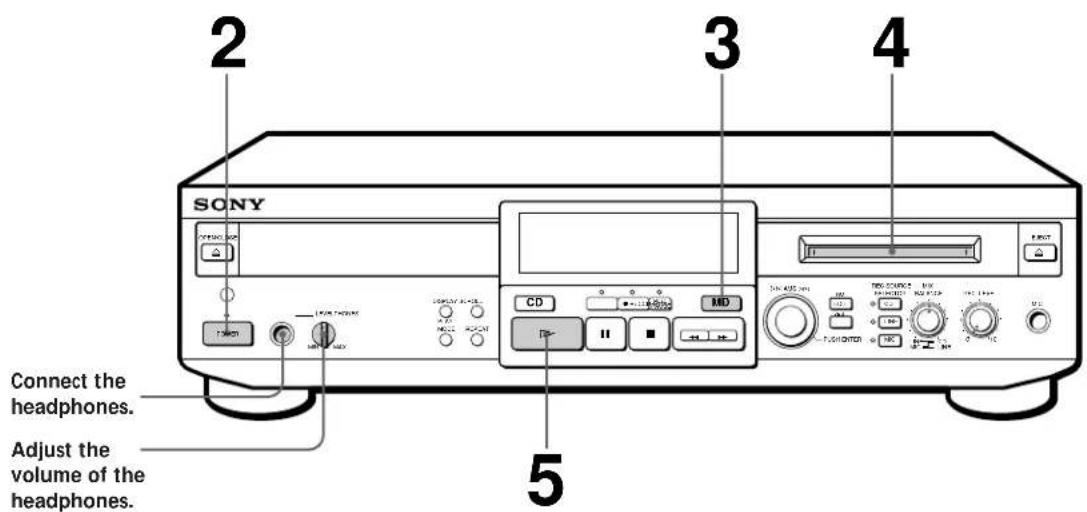

You can locate and play back a track while the player is stopped
1 Turn AMS (or press ▶) until the number of the track you want to play appears. 2 Press AMS or ▶.

To use headphones
Connect them to the PHONES jack. Use PHONES LEVEL to adjust the volume.
1 Turn on the amplifier and set the source selector to the position for TAPE (MD). 2 Press POWER. The POWER indicator changes from red to green. 3 Press MD (or set CD/MD to MD) to switch the function of the buttons to MD. 4 Insert an MD.
With the arrow pointing this way.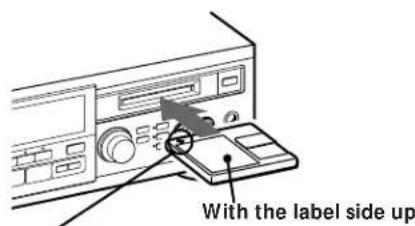
5 Press. The player starts playing. Adjust the volume on the amplifier.
| To | Do the following: |
| Stop playing Press■. | |
| Pause playing | Press■. Press the button again or press▷ to resume playing. |
| Go to the next track Turn AMS clockwise (or press▷ on the remote). | |
| Go to the preceding track Turn AMS counterclockwise (or press▷ on the remote). | |
| Take out the MD Press EJECT≌ after stopping playing. | |
Recording a CD on an MD
(CD Synchro-Recording)
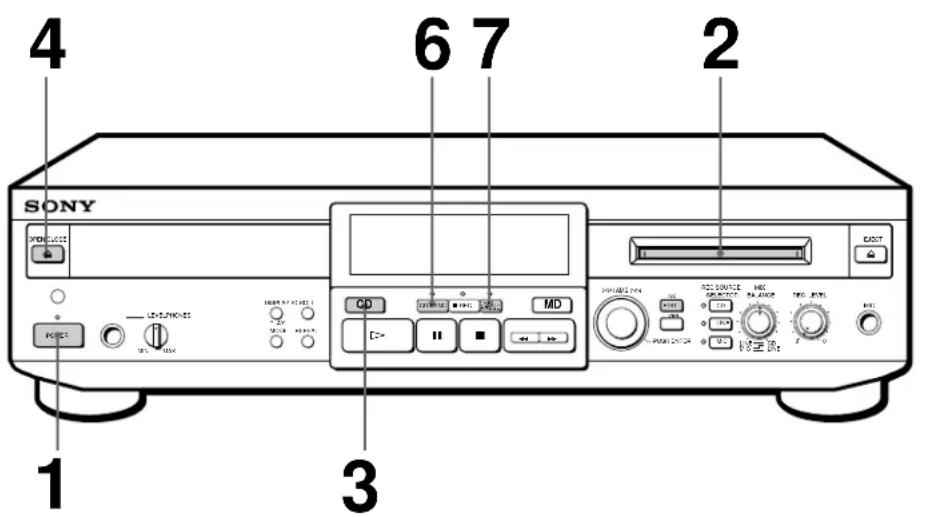
You can easily make digital recordings from a CD on an MD, marking track numbers in the same sequence as the original CD.
Before recording, see "Notes on Recording" on page 23.

When you play an 8-cm CD
Place it on the inner circle of the disc tray.
1 Press POWER. The POWER indicator changes from red to green. 2 Insert a recordable MD. 3 Press CD (or set CD/MD to CD) to switch the function of the buttons to CD. 4 Press OPEN/CLOSE to insert a CD. Press the button again to close the disc tray. 5 Select the playing mode of the CD (Program Play, Shuffle Play, etc.). See "Playing CDs." 6 Press CD-SYNC. REC PAUSE indicator flashes and REC indicator lights up. The MD deck section stands by for recording, and the CD player section stands by for playing. 7 Press REC PAUSE. Recording starts. The MD deck section and the CD player section will automatically stop after recording.
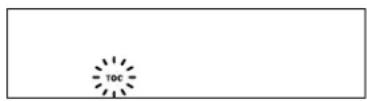
When "TOC" flashes in the display
The player is currently updating the Table Of Contents (TOC).
Do not move the unit or pull out the AC power cord.
If you do, recorded material may not be saved normally.
Do not disconnect the unit from the power source immediately after recording.
If you do, recorded material may not be saved to the MD. To save the material, after recording, press EJECT to take out the MD or change the player to standby by pressing POWER. "TOC" will flash in the display at this time. After "TOC" stops flashing and goes out, you can pull out the AC power cord.
To Press
Stop recording.
Pause recording* REC PAUSE or. Press the button again or press to resume recording.
Take out the CD OPEN/CLOSE after pausing playback.
Take out the MD EJECT after stopping recording.
- Whenever you pause recording, the track number increases by one. For example, if you paused recording while recording on track 4, the track number increases by one and recording continues on the new track when restarted.
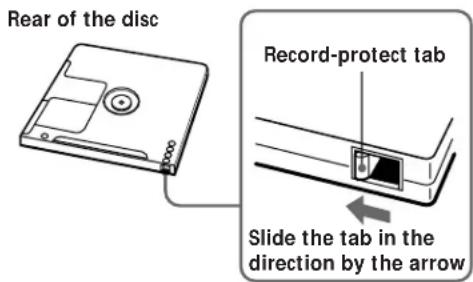
To protect an MD against accidental erasure
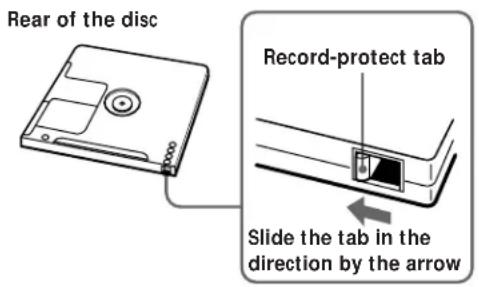
To make it impossible to record on an MD, slide the tab in the direction by the arrow, opening the slot. To allow recording, close the slot.
Checking Remaining Time of a CD
Press CD (or set CD/MD to CD) to switch the function of the buttons to CD.
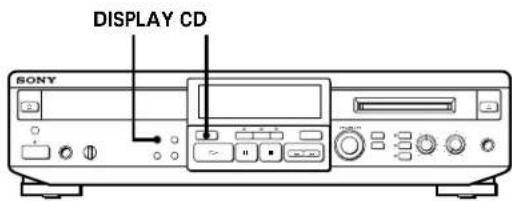
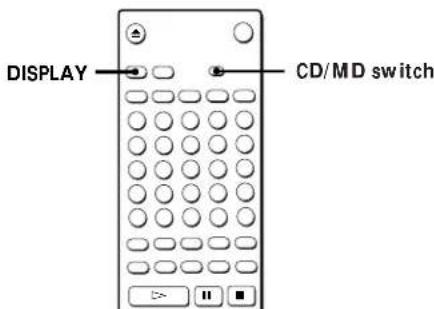
The display is usually as follows:
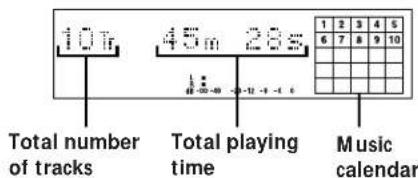
Checking the track number and remaining time of the current track
Press DISPLAY repeatedly while playing a CD.
Each time you press the button, the display changes as follows:
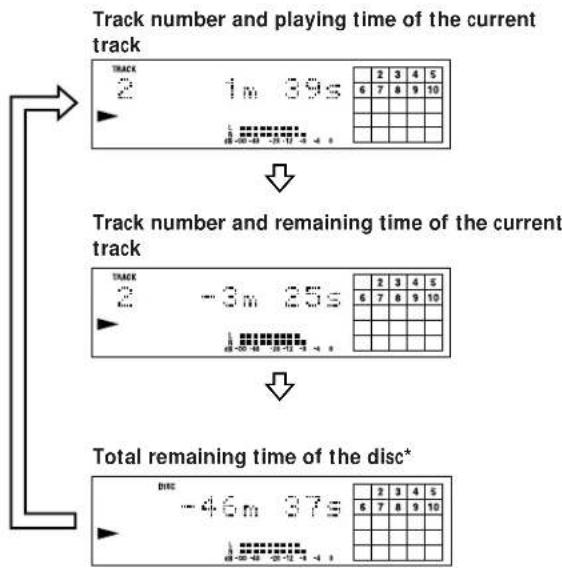
- Total remaining time of the program appears during Program Play.

The music calendar display
This display lights according to the number of tracks on the CD. If the total track number exceeds 25, appears to the right of number 25 in the music calendar. - As each track is played, the corresponding number disappears.
Locating a Specific Track on a CD
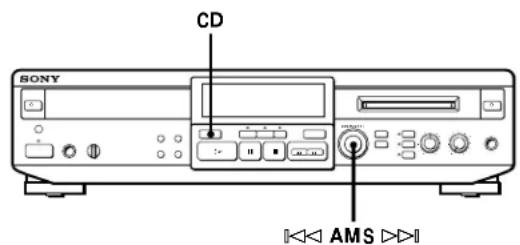
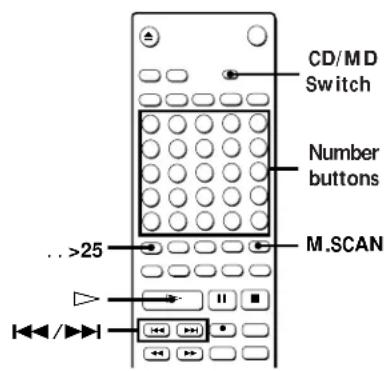
You can quickly locate any track while playing a CD by using AMS (Automatic Music Sensor), and number buttons or M.SCAN on the remote.
Press CD (or set CD/MD to CD) to switch the function of the buttons to CD.
To locate Do the following:
| The next or succeeding tracks | While playing, turn AMS clockwise (or press \( \blacktriangleright \blacktriangleright \) repeatedly) until you find the track. |
| The current or preceding tracks | While playing, turn AMS counterclockwise (or press \( \blacktriangleleft \) repeatedly) until you find the track. |
| A specific track directly \( \square \) | Press number buttons to enter the track number. |
| By scanning each track (music scan) \( \square \) | 1 Press M.SCAN before you start playing. 2 When you find the track you want, press \( \square \) to start playing. |

When you directly locate a track with a number over
25
You must press >25 first, before entering the
corresponding digits.
To enter "0," press button 10.
Example: To play track number 30
Press >25 once, then 3 and 10.

You can extend the playing time during music scan.

While the player is stopped, press M.SCAN repeatedly until the playing time you want (6, 10 or 20 seconds) appears in the display. Each time you press the button, the display changes as follows:


To pause playing at the beginning of a track
Turn AMS (or press ▶) after pausing playing.

To go quickly to the beginning of the last track
Turn AMS counterclockwise (or press ▼) while the display shows the total number of tracks and total playing time of the disc.
Locating a Particular Point in a Track on a CD
You can also use ◀ and ▶ to locate a particular point in a track on a CD during playing or playing pause.
Press CD (or set CD/MD to CD) to switch the function of the buttons to CD.
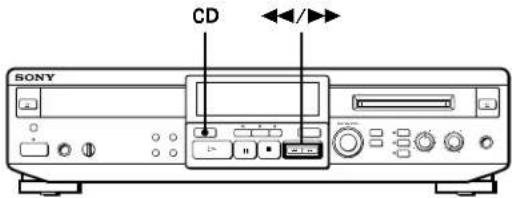
To locate a point Press
| While monitoring the sound | (forward) or (backward) and keep pressing until you find the point. |
| Quickly by observing the display during playing pause | or and keep pressing until you find the point. There is no sound output during this operation. |
Note
If the CD reaches the end while you are pressing ▶ during sound monitoring, the player stops.
Playing Tracks on a CD Repeatedly (Repeat Play)
You can play tracks repeatedly in any play mode.
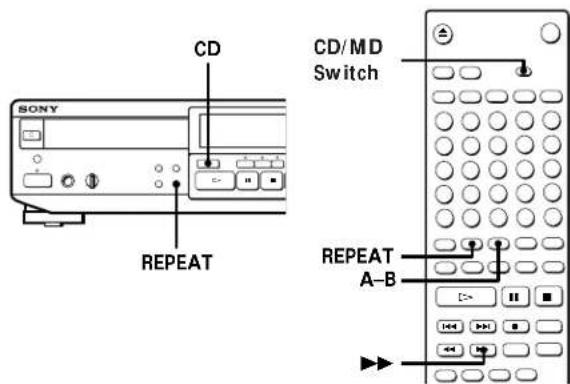
1 Press CD (or set CD/MD to CD). 2 Press REPEAT.
"REPEAT" appears in the display. The player repeats the tracks as follows:
When the CD is played in The player repeats
| Normal play (page 6) All the tracks |
| Shuffle Play (page 13) All the tracks in random order |
| Program Play (page 14) The same program |
Repeating the current track
While the track you want to repeat is playing in normal play, press REPEAT several times until "REPEAT 1" appears in the display.
To cancel Repeat Play
Press REPEAT several times until "REPEAT" or "REPEAT 1" disappears from the display. The player returns to the original playing mode.
Repeating a specific portion (A-B Repeat)
You can play a specific portion of a track repeatedly.
This might be useful when you want to memorize lyrics.
Note that you can only repeat a portion within the boundaries of a single track.
1 While playing a CD, press A-B at the starting point (point A) of the portion to be played repeatedly.
"REPEAT A-B" flashes in the display.
2 Continue playing the track or press ▸ until you reach the ending point (point B), then press A-B again.
"REPEAT A-B" lights continuously. The player starts to play the specified portion repeatedly.
To cancel A-B Repeat
Press REPEAT.
Setting new starting and ending points
You can repeat the portion immediately after the currently specified portion by changing the starting and ending points.
1 Press A-B while "REPEAT A-B" appears in the display. The current ending point B becomes the new starting point A and "REPEAT A-B" flashes in the display. 2 Continue playing the track or press ▸ until you reach the new ending point (point B), then press A-B again. "REPEAT A-B" lights continuously and the player starts playing repeatedly the newly specified portion.
Note
If you turn off the unit, the player will recall the last setting of the Repeat Play function the next time you turn on the unit.
The A-B Repeat settings, however, are lost.
Playing Tracks on a CD in Random Order (Shuffle Play)
You can have the player "shuffle" tracks and play them in random order.
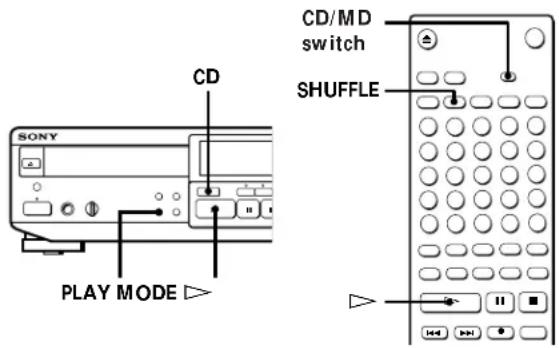
1 Press CD (or set CD/MD to CD). 2 Press PLAY MODE repeatedly (or SHUFFLE once) so that "SHUFFLE" appears in the display when the player is stopped. 3 Press ▸ to start Shuffle Play. "I" appears in the display while the player is "shuffling" the tracks.
To cancel Shuffle Play
Press PLAY MODE repeatedly (or CONTINUE once) when the player is stopped so that "SHUFFLE" disappears.

You can specify tracks during Shuffle Play
To play the next track, turn AMS clockwise (or press). To play from the beginning of the current track again, turn AMS counterclockwise (or press ↑). You cannot use AMS (or ↑) to go to tracks that have already been played.
Note
If you turn off the unit while the Shuffle Play function is selected, the Shuffle Play function will still be selected the next time you turn on the unit.
Playing Tracks on a CD in the Desired Order (Program Play)
You can specify the playing order of the tracks on a CD and create your own programs containing up to 25 tracks.
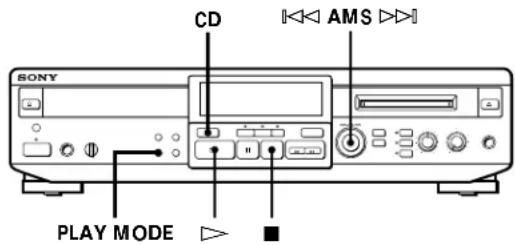
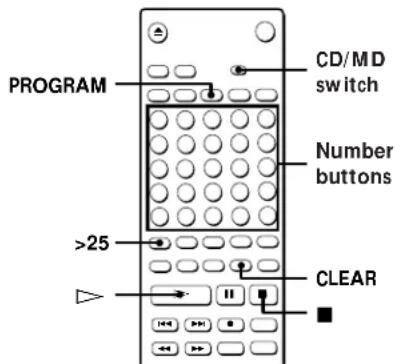
1 Press CD (or set CD/MD to CD). 2 Press PLAY MODE repeatedly (or PROGRAM once) so that "PROGRAM" appears in the display when the player is stopped. 3 Do either a) or b):
a) When using the remote
Press the number buttons to enter the tracks you want to program in the order you want.
To program a track with a number over 25
Use the >25 button (see page 11).
If you have made a mistake
Press CLEAR, then press the right number button.
b) When using the controls on the unit
You can program the tracks by checking the total program time.
1 Turn AMS until the track number you want appears in the display. 2 Press AMS or PLAY MODE.
4 Repeat step 3 to enter other tracks. Each time you enter a track, the total program time is added up and appears in the display. You can program up to 25 tracks. 5 Press ▸ to start Program Play.
To cancel Program Play
Press PLAY MODE repeatedly (or CONTINUE once) when the player is stopped so that "PROGRAM" disappears.

You can program the same track repeatedly
While the track number appears in the display, press AMS as many times as you want.

The program remains even after Program Play ends
When you press ▸ you can play the same program again.
Note
The program created by the Program Play function is lost when you turn off the unit or disconnect the AC power cord.
Changing the track order
You can change the order of the tracks in your program before you start playing.
| To Do the following: | |
| Erase the last track in the program | Press CLEAR. Each time you press the button, the last track will be cleared. |
| Add tracks to the end of the program | Do steps 3 and 4 in "Playing Tracks on a CD in the Desired Order." |
| Change the whole program completely | 1 Press while the player is stopped.2 Do steps 3 and 4 in "Playing Tracks on a CD in the Desired Order." |
Looping Part of a CD (Loop Play)
With the loop function, you can repeat part of a CD during playback. This lets you create original recordings.
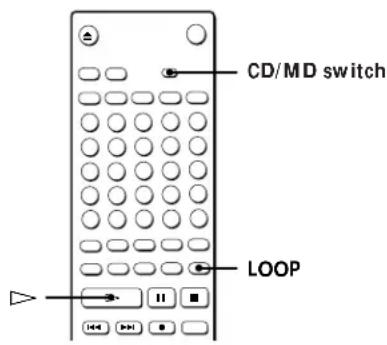
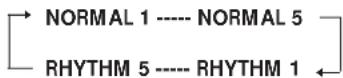
1 Set CD/MD to CD. 2 Press LOOP repeatedly and choose either NORMAL or RHYTHM. See "The difference between NORMAL and RHYTHM."
Each time you press LOOP, the display changes as follows:
3 Press ▸
The player starts playing.
4 Keep pressing LOOP at the point you want to repeat, and release LOOP when you want to stop repeating.
You can also change the mode of the loop (NORMAL 1 to 5, and RHYTHM 1 to 5), turning AMS on the unit while pressing LOOP.
The difference between NORMAL and RHYTHM
The original track can be looped in two ways, NORMAL and RHYTHM.
Original
Hey, Come on everybody!
In NORMAL mode
After repeating a particular portion, the normal play starts from the point you started pressing LOOP.
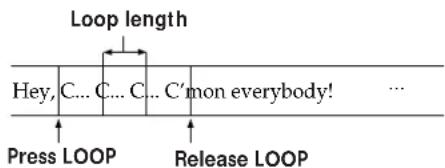
In RHYTHM mode
After repeating a particular portion, the normal play starts jumping over the period of the loop.
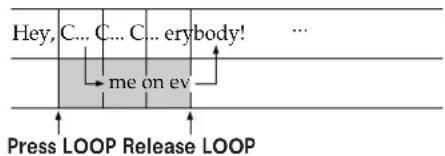
: Unheard portion overlapped by the loop.
You can choose the loop length from 1 (about 0.25 second) to 5 (about 1 second).
Useful Tips When Recording from CDs
The Auto Space, Auto Pause and Rec-It functions described in this section make recording from CDs to tapes or MDs easier. Press CD (or set CD/MD to CD) to switch the function of the buttons to CD.
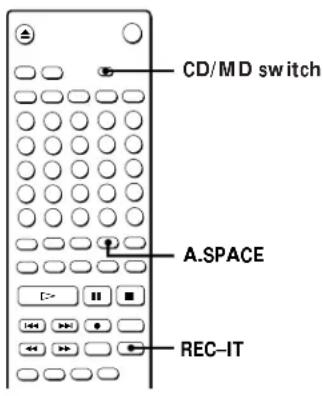
Inserting blank spaces while recording to tape (Auto Space)
The Auto Space function inserts a 3-second blank space between each track while recording from CDs to tapes, allowing you to use the AMS function during later playback.
Press A.SPACE repeatedly until "A.SPACE" appears in the display.
To cancel Auto Space
Press A.SPACE repeatedly until "A.SPACE" disappears.
Note
If the Auto Space function is on while recording a selection containing multiple track numbers (for example, a medley or symphony), blank spaces will be inserted within the selection whenever the track number changes.
Pausing after each track (Auto Pause)
When the Auto Pause function is on, the player pauses after playing each track. Auto Pause is convenient when recording single tracks or multiple, non-consecutive tracks on tapes or MDs.
Press A.SPACE repeatedly until "A.PAUSE" appears in the display.
To restart playing
Press ▸ or I
To cancel Auto Pause
Press A.SPACE repeatedly until "A.PAUSE" disappears.
Note
If you turn off the unit, the player will recall the last setting of the Auto Space and Auto Pause functions the next time you turn on the unit.
Recording the current track on an MD (Rec-It)
You can record the track being played from the beginning on an MD. The player will automatically stop after recording.
This function works only when a recordable MD is in the player.
Press REC-IT while playing the track you want to record.
Checking Remaining Time of an MD
Press MD (or set CD/MD to MD) to switch the function of the buttons to MD.
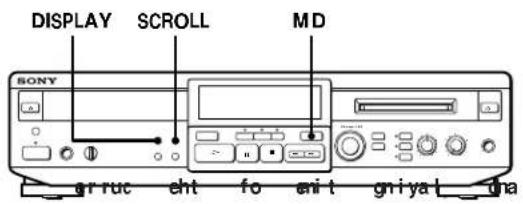
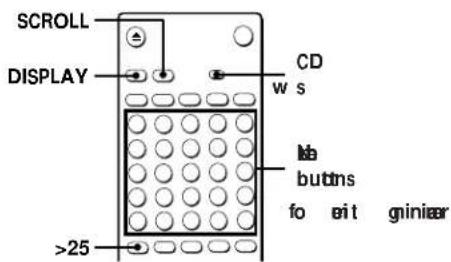
Checking the total number of tracks, total disc playing time, remaining recordable time of the disc and disc title
Each time you press DISPLAY while the player is stopped, the display changes as follows:
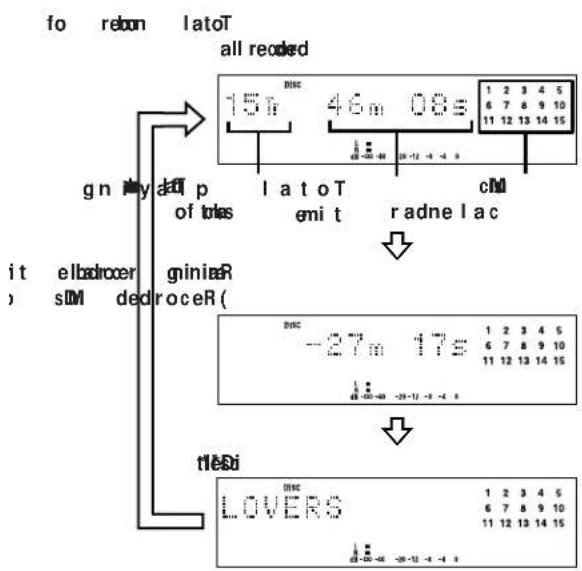
- For premastered MDs, the disc title appears instead of the remaining recordable time of the disc. ** To label a recordable MD, see "Labeling Recordings" on page 35.
When you insert an MD, the disc title, total number of tracks, and total disc playing time appear in the display.
Note
When you insert a new MD or turn off the unit and turn it on again, the last item displayed will reappear.
If, however, you disconnect the AC power cord, the display will show the total number of tracks and total playing time of all recorded tracks the next time you turn on the unit, no matter what the last display was.
Checking remaining time and track title
Each time you press DISPLAY while playing an MD, the display changes as follows:
* If no title is recorded, "No Name" appears, followed by the elapsed playing time.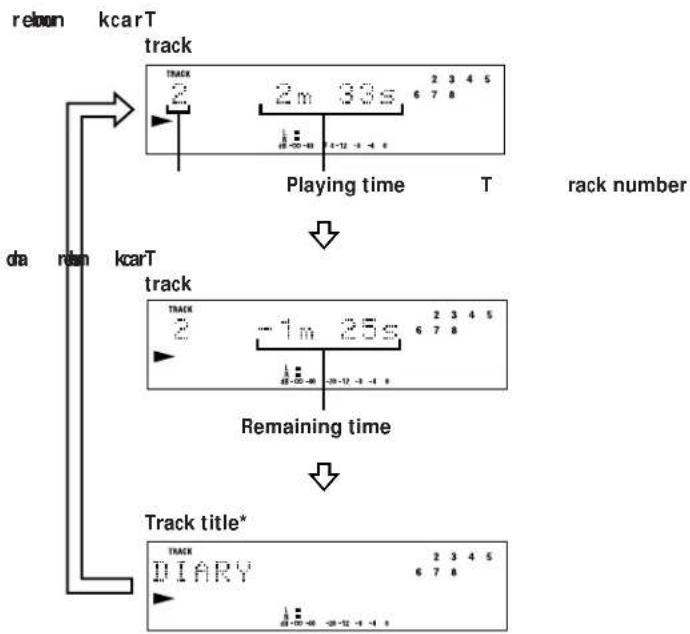
The music calendar display
- This display lights according to the number of tracks on the MD. If the total track number exceeds 25, ▸ appears to the right of number 25 in the music calendar.
- All the track numbers appear within a grid if the MD is a premastered disc, or without a grid if the MD is a recordable disc.
- As each track is played, the corresponding number disappears.
You can check the track title at any time while playing an MD
Press SCROLL.
Since the display shows up to 12 characters at a time, press SCROLL again to see the rest of the track title if the title has 13 characters or more.
Press SCROLL again to pause scrolling, and again to continue scrolling.
Locating a Specific Track on an MD
You can quickly locate any track while playing a disc by using AMS (Automatic Music Sensor), and number buttons or M.SCAN on the remote. Press MD (or set CD/MD to MD) to switch the function of the buttons to MD.
s60
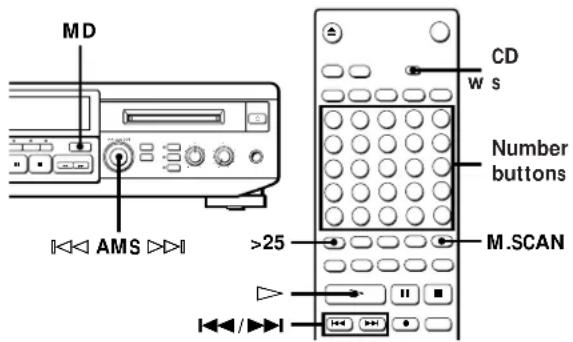

You can extend the playing time during music scan
While the player is stopped, press M.SCAN repeatedly until the playing time you want (6, 10 or 20 seconds) appears in the display. Each time you press the button, the display changes as follows:


To pause playback at the beginning of a track
Turn AMS (or press or ▸) after pausing playback.

To go quickly to the beginning of the last track
Turn AMS counterclockwise (or press ⊢) while the display shows the total number of tracks and total disc playing time, remaining recordable time of the disc, or disc title (see page 17).
| To locate Do the following: | |
| The next or succeeding tracks | While playback, turn AMS clockwise (or press▶I repeatedly) until you find the track. |
| The current or preceding tracks | While playback, turn AMS counterclockwise (or press▶I repeatedly) until you find the track. |
| A specific track directly | Press number buttons to enter the track number. |
| By scanning each track (music scan) | 1 Press M.SCAN before you start playing.2 When you find the track you want, press▶to start playing. |

When you directly locate a track with a number over
25
You must press >25 first, before entering the corresponding digits.
Press >25 once if it is a 2-digit track number, and twice if it is a 3-digit track number.
To enter "0," press button 10.
Examples: ♣ To play track number 30
Press >25 once, then 3 and 10.
To play track number 100
Press >25 twice, then 1, 10 and 10.
Locating a Particular Point in a Track on an MD
You can also use the triangle left and triangle right buttons to locate a particular point in a track during playback or playback pause. Press MD (or set CD/MD to MD) to switch the function of the buttons to MD.
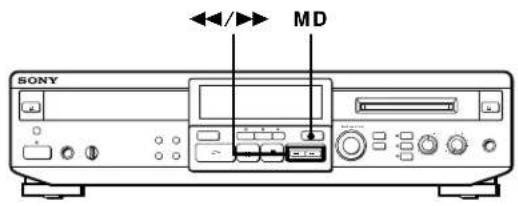
To locate a point, press
| While monitoring the sound | \( \blacktriangleright \) (forward) or \( \blacktriangleleft \) (backward) and keep pressing until you find the point. |
| Quickly by observing the display during playback pause | \( \blacktriangleright \) or \( \blacktriangleleft \) and keep pressing until you find the point. There is no sound output during this operation. |
Notes
- If the MD reaches the end while you are pressing the play button during sound monitoring, the player stops.
- Tracks that are only a few seconds long may be too short to scan using the search function. For such tracks, it is better to play the MD at normal speed.
Playing Tracks on an MD Repeatedly (Repeat Play)
You can play tracks repeatedly in any play mode.
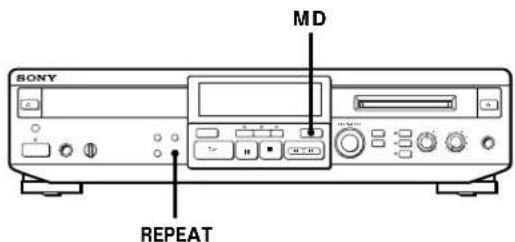
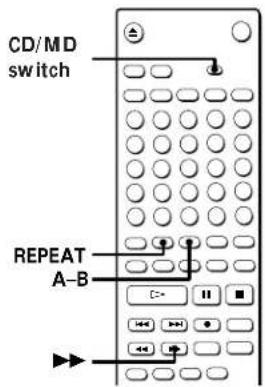
1. Press MD (or set CD/MD to MD). 2. Press REPEAT.
"REPEAT" appears in the display. The player repeats the tracks as follows:
When the MD is played in, the player repeats
| Normal play (page 7) All the tracks |
| Shuffle Play (page 20) All the tracks in random order |
| Program Play (page 21) The same program |
Repeating the current track
While the track you want to repeat is playing in normal play, press REPEAT several times until "REPEAT 1" appears in the display.
To cancel Repeat Play
Press REPEAT several times until "REPEAT" or "REPEAT 1" disappears from the display.
The player returns to the original playing mode.
(Continued)
Repeating a specific portion
(A-B Repeat)
You can play a specific portion of a track repeatedly. This might be useful when you want to memorize lyrics.
Note that you can only repeat a portion within the boundaries of a single track.
1 While playing an MD, press A-B at the starting point (point A) of the portion to be played repeatedly.
"REPEAT A-B" flashes in the display.
2 Continue playing the track or press until you reach the ending point (point B), then press A-B again.
"REPEAT A-B" lights continuously. The player starts to play the specified portion repeatedly.
To cancel A-B Repeat
Press REPEAT.
Setting new starting and ending points
You can repeat the portion immediately after the currently specified portion by changing the starting and ending points.
1 Press A-B while "REPEAT A-B" appears in the display. The current ending point B becomes the new starting point A and "REPEAT A-B" flashes in the display. 2 Continue playing the track or press until you reach the new ending point (point B), then press A-B again. "REPEAT A-B" lights continuously and the player starts playing repeatedly the newly specified portion.
Note
If you turn off the unit or disconnect the AC power cord, the player will recall the last setting of the Repeat Play function the next time you turn on the unit.
The A-B Repeat settings, however, are lost.
Playing tracks on an MD in Random Order (Shuffle Play)
You can have the player "shuffle" tracks and play them in random order.
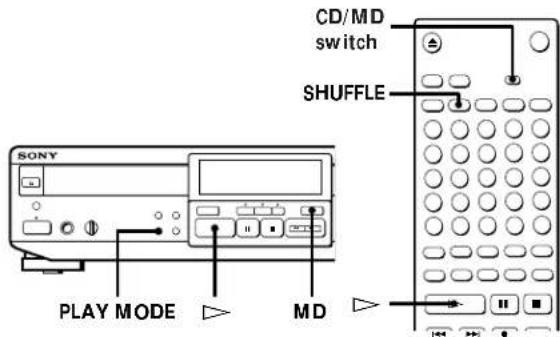
1 Press MD (or set CD/MD to MD). 2 Press PLAY MODE repeatedly (or SHUFFLE once) so that "SHUFFLE" appears in the display when the player is stopped. 3 Press ▸ to start Shuffle Play. "T" appears in the display while the player is "shuffling" the tracks.
To cancel Shuffle Play
Press PLAY MODE repeatedly (or CONTINUE once) when the player is stopped so that "SHUFFLE" disappears.

You can specify tracks during Shuffle Play
To play the next track, turn AMS clockwise (or press). To play from the beginning of the current track again, turn AMS counterclockwise (or press). You cannot use AMS (or) to go to tracks that have already been played.
Note
If you turn off the unit or disconnect the AC power cord while the Shuffle Play function is selected, the Shuffle Play function will be still selected the next time you turn on the unit.
Playing Tracks on an MD in the Desired Order (Program Play)
You can specify the playback order of the tracks on an MD and create your own programs containing up to 25 tracks.
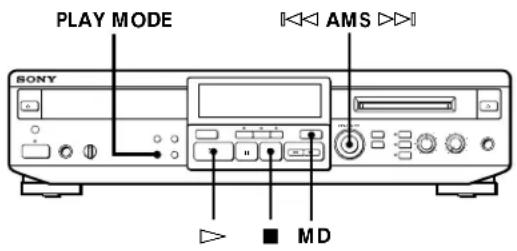
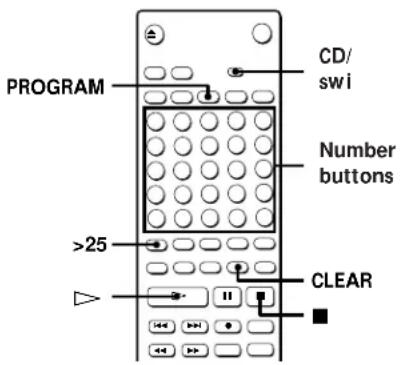
1 Press MD (or set CD/MD to MD). 2 Press PLAY MODE repeatedly (or PROGRAM once) so that "PROGRAM" appears in the display when the player is stopped. 3 Do either a) or b):
a) When using the remote
Press the number buttons to enter the tracks you want to program in the order you want.
To program a track with a number over 25
Use the >25 button (see page 18).
If you have made a mistake
Press CLEAR, then press the right number button.
b) When using the controls on the unit
You can program the tracks by checking total program time.
1 Turn AMS until the track number you want appears in the display. 2 Press AMS or PLAY MODE.
4 Repeat step 3 to enter other tracks.
Each time you enter a track, the total program time is added up and appears in the display. You can program up to 25 tracks.
5 Press ▶ to start Program Play.
To cancel Program Play
Press PLAY MODE repeatedly (or CONTINUE once) when the player is stopped so that "PROGRAM" disappears.

You can program the same track repeatedly
While the track number appears in the display, press AMS as many times as you want.

The program remains even after Program Play ends
When you press ▶, you can play the same program again.
Note
The program created by the Program Play function is lost when you turn off the unit or disconnect the AC power cord.
Changing the track order
You can change the order of the tracks in your program before you start playing.
| To Do the following: | |
| Erase the last track in the program | Press CLEAR. Each time you press the button, the last track will be cleared. |
| Add tracks to the end of the program | Do steps 3 and 4 in "Playing Tracks on an MD in the Desired Order." |
| Change the whole program completely | 1 Press while the player is stopped.2 Do steps 3 and 4 in "Playing Tracks on an MD in the Desired Order." |
Useful Tips When Recording from MDs to Tape
The Auto Space and Auto Pause functions described in this section make recording from MDs to tape more easy.
Press MD (or set CD/MD to MD) to switch the function of the buttons to MD.
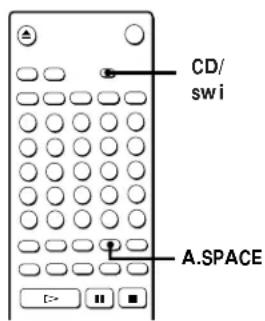
Inserting blank spaces while recording to tape (Auto Space)
The Auto Space function inserts a 3-second blank space between each track while recording from MDs to tapes, allowing you to use the AMS function during later playback.
Press A.SPACE repeatedly until "A.SPACE" appears in the display.
To cancel Auto Space
Press A.SPACE repeatedly until "A.SPACE" disappears.
Note
If the Auto Space function is on while recording a selection containing multiple track numbers (for example, a medley or symphony), blank spaces will be inserted within the selection whenever the track number changes.
Pausing after each track (Auto Pause)
When the Auto Pause function is on, the player pauses after playing each track. Auto Pause is convenient when recording single tracks or multiple, non-consecutive tracks.
Press A.SPACE repeatedly until "A.PAUSE" appears in the display.
To restart playback
Press ▸ or II.
To cancel Auto Pause
Press A.SPACE repeatedly until "A.PAUSE" disappears.
Note
If you turn off the unit, the player will recall the last setting of the Auto Space and Auto Pause functions the next time you turn on the unit.
Notes on Recording
The MD allows you to digitally record and play back music with the excellent audio quality that approaches the digital sound of CDs. In addition, because MDs are opto-magnetic discs, they are free from problems such as stretching or becoming tangled like ordinary cassette tapes. The recording method is also different from that used with cassette tapes, so you can write track numbers and edit the recordings.
Digital Recording and Analog Recording
This unit uses the following recording methods, depending on the sound source to be recorded or how the unit is connected to the sound source.
Digital recording
When recording from the CD player section, the MD deck section records a digital signal in the form of a digital signal.
However, if you select sound sources to be recorded with REC SOURCE SELECTOR, the recording method will automatically become analog recording.
Analog recording
If you select sound sources to be recorded with REC SOURCE SELECTOR, the MD deck section converts an analog signal into a digital signal and records the digital signal. Even if you record from the CD player section, the signal is converted to an analog signal and is then converted back into a digital signal. For example:
- When recording from audio equipment (a cassette deck, DAT deck, etc.) connected to the LINE (ANALOG) IN jacks (LINE is selected.)
- When recording from the CD player section, and CD is selected with REC SOURCE SELECTOR (CD is selected.)
- When recording the sound through a microphone (MIC is selected.)
- When recording while mixing sounds from a microphone and CD, etc. (CD and MIC are selected.)
MD recording and the Serial Copy Management System
Since the MD deck section uses the SCMS (Serial Copy Management System), MDs recorded through the digital input jack cannot be used to make copies digitally onto other MDs (see page 42).
Track Marking
Track marking is essentially the writing of track numbers while recording. By writing track numbers at specified points, you can quickly locate those points afterwards using the Automatic Music Sensor function. The method of writing track numbers differs, depending on the sound source being recorded. You can also write track numbers manually.
MD track numbers (TOC)
In an MD, all of the information on track numbers (track sequence), the starting and ending points of tracks, etc., are recorded in an area called the "Table Of Contents" (TOC) that is managed apart from the music. As a result, not only can you instantaneously find the start of a track, but you can also quickly edit recorded tracks simply by changing the TOC information (see pages 30 to 37).
For example, with a cassette tape, erasing a track entails re-recording the track with no sound from the start. With an MD, you can delete a track simply by overwriting the information in the TOC.
When recording from a CD digitally
The MD deck section automatically marks track numbers in the same sequence as the original CD. However, if recording is paused, the portion recorded up to that point is counted as one track, so if recording is started again, the track number increases by one.
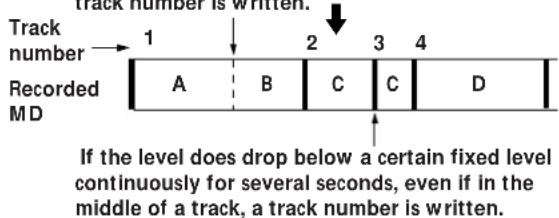
When "LEVEL-SYNC" is displayed during analog recording
The track number is written in sync with the level of the input signal from the sound source. In other words, if the input signal from the sound source is continuously at or below a certain fixed level for several seconds, a track number is written the next time the input signal exceeds that level (see "Marking track numbers automatically" on page 28).

If the level does not drop below a certain fixed level continuously for several seconds because the interval between tracks is short, etc., no track number is written.
Note
When you select MIC with REC SOURCE SELECTOR, the track number is not written automatically even if "LEVEL-SYNC" appears in the display.
Other cases
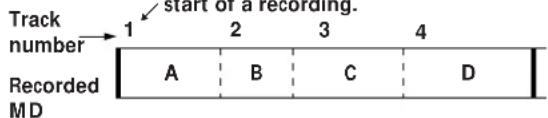
Only one track number is written at the start of a recording. The entire recording is counted as one track. You can mark track numbers during recording, either manually or automatically (see "Marking track numbers manually" on page 28).
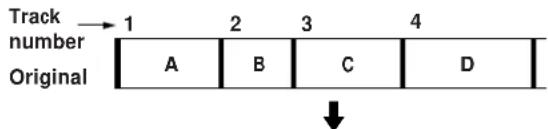
Only one track number is written at the start of a recording.
When "TOC" flashes in the display
Do not move the unit or pull out the AC power cord. If you do, the recorded material may not be saved normally because the MD deck section is updating the Table Of Contents (TOC).
Do not disconnect the AC power cord immediately after recording
If you do, the recorded material may not be saved to the MD.
To protect an MD against accidental erasure
To make it impossible to record on an MD, slide the tab in the direction of the arrow, opening the slot.
"Protected" appears in the display if you attempt to record on the MD. To allow recording, close the slot.
Useful Tips for Recording
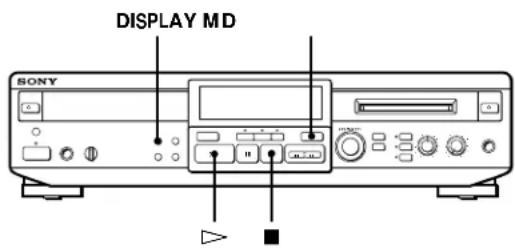
Press MD (or set CD/MD to MD) to switch the function of the buttons to MD.
Checking the remaining recordable time on the MD
- When you press DISPLAY repeatedly while the MD player is stopped, the display changes as follows (see page 17):
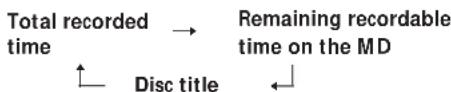
- When you press DISPLAY while recording, the remaining recordable time on the MD appears.
Playing back tracks just recorded
Do this procedure to immediately play back tracks that have just been recorded.
Press ▶ immediately after stopping recording. Playback starts from the first track of the material just recorded.
To play from the first track of the MD after recording
1 Press again after stopping recording. 2 Press ▶
Playback starts from the first track of the MD.
Recording on an MD Manually
You can start recording from the end of the existing material or record over the existing tracks just as you would on an analog cassette tape.
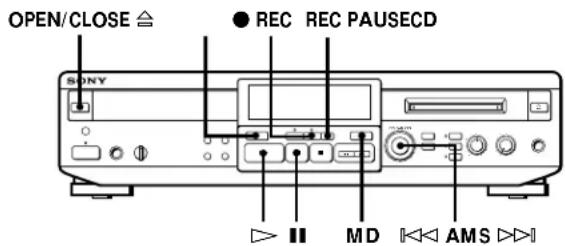
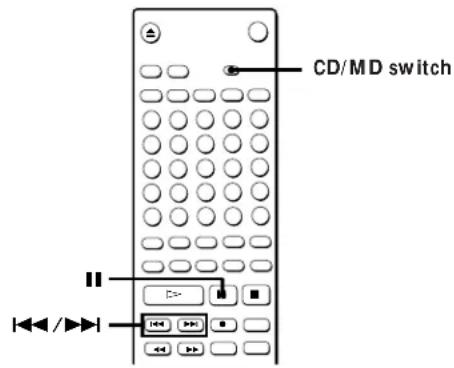
1 Turn on the amplifier and set the source selector to the position for the sound source you want to record. When you want to record from the CD player section, press OPEN/CLOSE and insert a CD. 2 Press MD (or set CD/MD to MD). 3 Insert a recordable MD.
(Continued)
Recording on MDs
4 Decide a point on the MD where you want to start recording.
To record on a brand new MD or start recording from the end of the existing material, skip this step.
To record from a specific point of a recorded track, press to start playback, and press at the point where you want to start recording.
To record erasing the previously recorded tracks
Turn AMS (or press or repeatedly) until the number of the track to be recorded over appears in the display.
5 Press REC.
REC PAUSE indicator flashes and REC indicator lights up.
The player stands by for recording.
Analog recording
6 Adjust the recording level.
For details, see "Adjusting the Recording Level" on page 27.
7 Press ▸ or II.
Recording starts.
8 Start playing the sound source you want to record.
To stop analog recording
Press
Digital recording
6 Press CD (or set CD/MD to CD). 7 Press REC PAUSE. Recording starts. 8 Start playing the track you want to record.
To pause digital recording
Press REC PAUSE.
To stop digital recording
After pressing MD (or setting CD/MD to MD), press
To stop playing a CD
After pressing CD (or setting CD/MD to CD), press

While "TRACK" flashes in the display
The player is recording over an existing track, and stops flashing when it reaches the end of the recorded portion.
Note
You cannot record from the middle of an existing track when "PROGRAM" or "SHUFFLE" appears in the display.
Adjusting the Recording Level
When recording sound sources selected by the REC SOURCE SELECTOR buttons, adjust the recording level before starting recording.
You cannot adjust the recording level during digital recording.
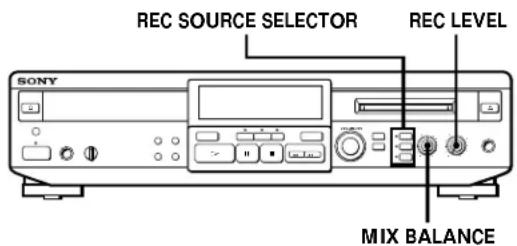
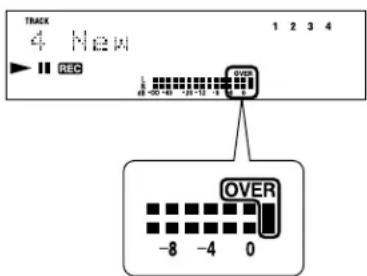
1 Do steps 1 to 5 in "Recording on an MD Manually" on page 25. 2 Press one or two of the REC SOURCE SELECTOR buttons to select the sound source you want to record. 3 Play the portion of the sound source with the strongest signal level. 4 While monitoring the sound, turn REC LEVEL to adjust the recording level so that the OVER indication (red) of the peak level meters does not turn on.
If the peak level meters do not move much even after turning REC LEVEL, adjust MIX BALANCE.
5 Stop playing the sound source. 6 To start recording, do the procedure starting from step 7 (Analog recording) in "Recording on an MD Manually" on page 26.
Recording the Mixed Sounds (Microphone Mixing)
You can "mix" sound by playing the CD player section, sound sources connected to the unit, or singing or speaking into a microphone (not supplied).
The mixed sounds can then be recorded on an MD. You can also enjoy cross-fading with the CD player section and connected sound source.
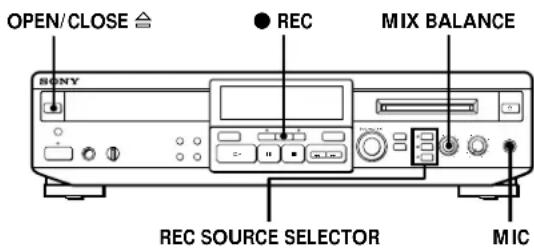
1 Connect a microphone (not supplied) to the MIC jack. 2 Turn on the amplifier and set the source selector to the position for the sound source you want to record.
When you want to record from the CD player section, press OPEN/CLOSE and insert a CD.
3 Insert a recordable MD. 4 Press REC.
The MD deck section stands by for recording.
5 Press one or two of the REC SOURCE SELECTOR buttons to select the sound sources you want to mix.
You can select up to two sound sources.
(Continued)
6 Adjust the balance of the sound sources you want to record. Turn MIX BALANCE according to the sound sources you have selected in the following ways:
If you have selected Turn MIX BALANCE
| LINE and CD Counterclockwise to raise the level of the sound source connected through the LINE (ANALOG) IN jacks and clockwise to raise the level of the CD. |
| MIC and CD Counterclockwise to raise the level of the microphone and clockwise to raise the level of the CD. |
| MIC and LINE Counterclockwise to raise the level of the microphone and clockwise to raise the level of the sound source connected through the LINE (ANALOG) IN jacks. |
When selecting only one sound source
Adjust MIX BALANCE at the center.
7 Do steps 3 to 6 in "Adjusting the Recording Level" on page 27.
To stop recording
Press
When you finish mixing
Disconnect the microphone and adjust MIX BALANCE at the center.
Marking Track Numbers while Recording (Track Marking)
You can mark track numbers either manually or automatically. By marking track numbers at specific points, you can quickly locate those points afterwards, using the AMS function or editing functions.
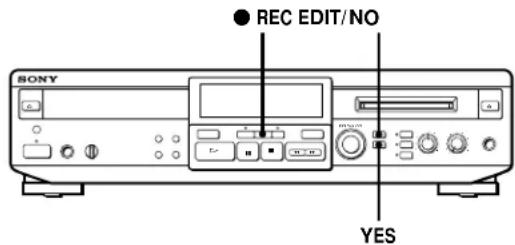
Marking track numbers manually (Manual Track Marking)
You can mark track numbers at any time while recording on an MD.
Press REC at the point you want to add a track mark while recording.
Marking track numbers automatically (Automatic Track Marking)
The player adds track marks differently in the following cases:
- When recording digitally from the CD player section: The player automatically marks track numbers in the same sequence as the original CD.
- Other cases
When "LEVEL-SYNC" appears in the display, the player marks a new track number whenever the input signal from the sound source is continuously at or below a certain level for several seconds, and then exceeds that level (Automatic Track Marking).
If "LEVEL-SYNC" does not light up, set the LevelSync to ON as follows:
1 Press EDIT/NO repeatedly until "LevelSync ?" appears in the display during recording or recording pause. 2 Press YES twice to display "LevelSync ON." "LEVEL-SYNC" appears in the display.
To cancel Automatic Track Marking
1 Press EDIT/NO repeatedly until "LevelSync?" appears in the display during recording or recording pause. 2 Press YES. 3 Press EDIT/NO repeatedly until "LevelSyncOFF" appears in the display.

When you want to mark track numbers after you have finished recording
Use the Divide function (see "Dividing Recorded Tracks" on page 32).
Note
If you turn off the unit or disconnect the AC power cord, the player will recall the last setting (LevelSync ON or OFF) of the Automatic Track Marking function the next time you turn on the unit.
Starting Recording with 6 Seconds of Prestored Audio Data (Time Machine Recording)
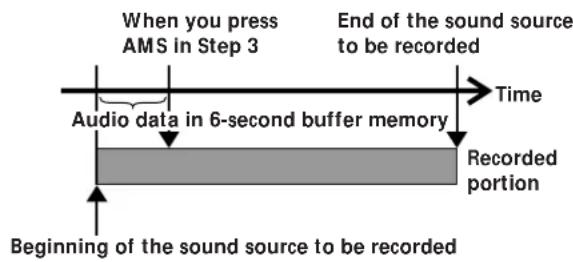
When recording from an FM or satellite broadcast, the first few seconds of material are often lost due to the time it takes you to ascertain the contents and press the record button. To prevent the loss of this material, the Time Machine Recording function constantly stores 6 seconds of the most recent audio data in a buffer memory so that when you begin recording the sound source, the recording actually begins with the 6 seconds of audio data stored in the buffer memory in advance, as shown in the illustration below:
1 Do steps 1 to 5 in "Recording on an MD Manually" on page 25.
The player stands by for recording.
2 Start playing the sound source you want to record.
The most recent 6 seconds of audio data is stored in the buffer memory.
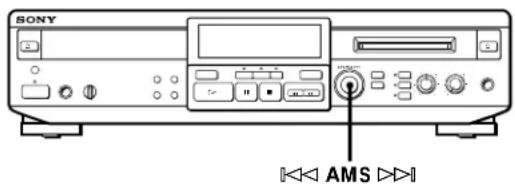
3 Press AMS to start Time Machine Recording. Recording of the sound source starts with the 6 seconds of audio data stored in the buffer memory.

To stop Time Machine Recording
Press
Note
The player starts storing audio data when it is in recording pause and you start playing the sound source. With less than 6 seconds of playing of the sound source and audio data stored in the buffer memory, Time Machine Recording starts with less than 6 seconds of audio data.
Notes on Editing
You can edit the recorded tracks after recording, using the following functions:
- Erase function allows you to erase recorded tracks simply by specifying the corresponding track number.
- Divide function allows you to divide tracks at specified points so that you can quickly locate those points afterwards, using the AMS function.
- Combine function allows you to combine two consecutive tracks into one.
- Move function allows you to change the order of tracks by moving a specific track to a track position you want.
- Title function allows you to create titles for your recorded MDs and tracks.
Before editing, press MD (or set CD/MD to MD) to switch the function of the buttons to MD.
If "Protected" appears in the display
The player could not edit because the record-protect slot on the MD is open. Edit after closing the slot.
When "TOC" flashes in the display
Do not move the unit or pull out the AC power cord. After editing, "TOC" lights continuously until you eject the MD or turn off the power. "TOC" flashes while the player is updating the TOC. When the player finishes updating the TOC, "TOC" goes off.
Erasing Recordings (Erase Function)
There are three methods for erasing recordings:
Erasing a single track Erasing all tracks on an MD Erasing a portion of a track
When you erase a track, the total number of tracks on the MD decreases by one and all tracks following the erased one are renumbered.
Unlike cassette tapes, there is no need to record over a previously recorded track in order to erase it.

To avoid confusion when erasing multiple tracks, you should proceed in order of high to low track number to prevent the renumbering of tracks that have not been erased yet.
Erasing a single track
You can erase a track and the track title simply by specifying the corresponding track number.
Example: Erasing B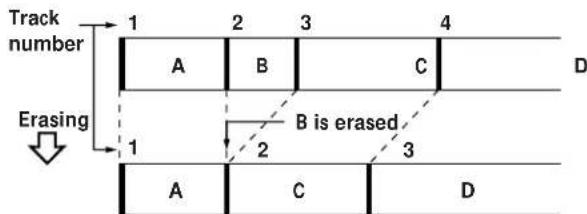
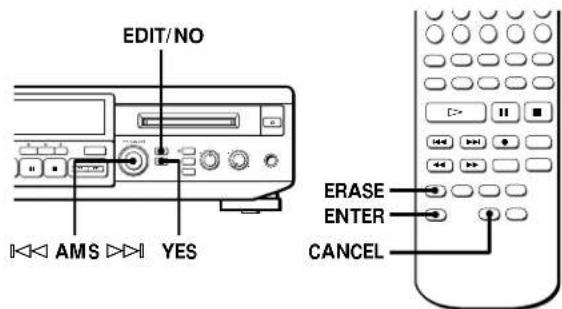
1 Turn AMS until the track number you want to erase appears in the display (or press the corresponding number button on the remote). 2 Press EDIT/NO repeatedly (or ERASE once) so that "Erase ?" appears in the display. The track number you selected starts flashing in the music calendar. 3 Press YES (or ENTER). When the track selected in step 1 has been erased, "Complete" appears for a few seconds and the total number of tracks in the music calendar decreases by one. If you erase a track during playback, the track following the deleted one begins playing afterwards. 4 Repeat steps 1 to 3 to erase more tracks.
To cancel the Erase function
Press EDIT/NO (or CANCEL), or turn AMS to change the track number.
"Erase ?" disappears from the display.
Note
If "Erase!!?" appears in the display, the track was recorded or edited on another MD deck and is record-protected. If this indication appears, press YES (or ENTER) to erase the track.
Erasing all tracks on an MD
You can erase all recorded tracks, track titles and the disc title (all information recorded on an MD) at one time.
Note, however, that once erased, MD data cannot be recovered.
1 While the player is stopped, press EDIT/NO repeatedly (or ERASE once) so that "All Erase ?" appears in the display. 2 Press YES (or ENTER). All tracks in the music calendar start flashing. 3 Press YES (or ENTER) again. When the disc title, all recorded tracks, and track titles on the MD have been erased, "Complete" appears for a few seconds. All the track numbers disappear from the music calendar.
To cancel the Erase function
Press EDIT/NO (or CANCEL) or so that "All Erase?" disappears from the display.
Erasing a portion of a track
By using the Divide (see page 32), Erase (see page 30) and Combine (see page 33) functions, you can erase specific portions of a track.
Example: Erasing a portion of track A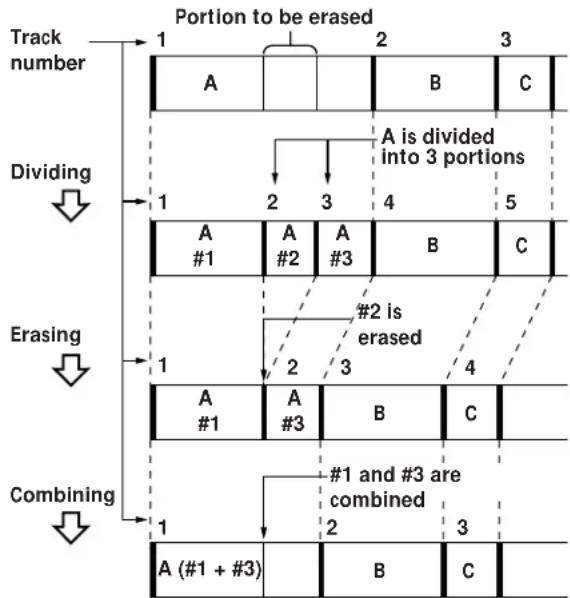
Dividing Recorded Tracks (Divide Function)
With the Divide function, you can mark a new track number at points that you want to randomly access afterwards. Use this function to add tracks to MDs recorded from an analog source (and therefore contain no track numbers), or to divide an existing track into multiple portions. When you divide a track, the total number of tracks on the MD increases by one and all tracks following the divided one are renumbered.
Example: Dividing track 2 to create a new track for C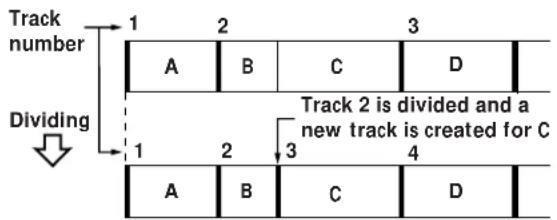
1 While playing the MD, press at the point where you want to create a new track. The player pauses playing. 2 Press EDIT/NO repeatedly (or DIVIDE once) so that "Divide ?" appears in the display. 3 Press YES (or ENTER) to divide the track. "Rehearsal" alternates with "Position ok?" in the display, the track to be divided starts flashing in the music calendar, and the starting portion of the new track begins playing repeatedly. 4 If the starting position is incorrect, press EDIT/ NO (or CANCEL) or . (If it is correct, skip to step 7.)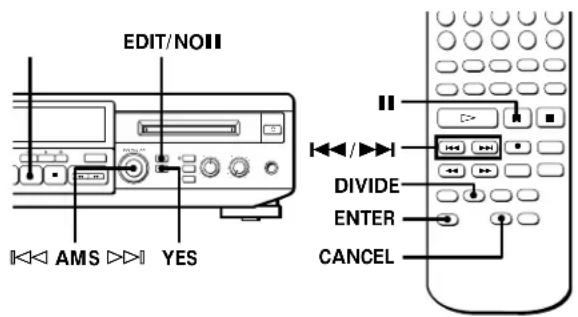
5 While monitoring the sound, turn AMS (or press or ) to find the starting position of the new track.
The starting portion of the new track is played back repeatedly.
"Rehearsal" alternates with "Position ok?" in the display.
The starting position can be moved within a maximum range of -128 to +127 steps of about 0.06 second each within a track.
6 If the starting position is still incorrect, repeat step 5 until it is correct. 7 Press YES or AMS (or ENTER) when the position is correct.
When the track has been divided, "Complete" appears for a few seconds and the newly created track begins playing. The new track will have no track title even if the original track was labeled.
The track number in the music calendar increases by one.
To cancel the Divide function
Press (or CANCEL).

You can undo a track division
Combine the tracks again (see "Combining Recorded Tracks" on page 33) then redivide the tracks if necessary.

You can divide a track while recording
Use the Track Marking function (see page 28).
Combining Recorded Tracks (Combine Function)
Use the Combine function while the player is stopped, playing or in pause to combine consecutive tracks on a recorded MD. This function is useful for combining several songs into a single medley, or several independently recorded portions into a single track. When you combine two tracks, the total number of tracks decreases by one and all tracks following the combined tracks are renumbered.
Example: Combining B and C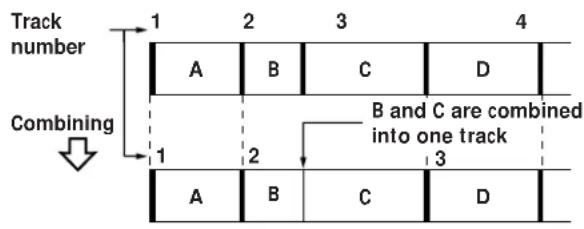
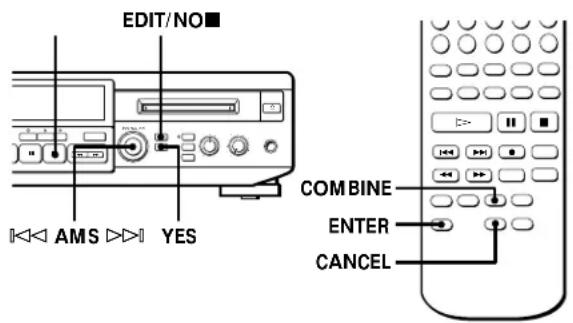
1 Turn AMS until the second track of the two to be combined appears (or press the corresponding number button on the remote). For example, when combining tracks 3 and 4, turn AMS until 4 appears (or press button 4). 2 Press EDIT/NO repeatedly (or COMBINE once) so that "Combine?" appears in the display. 3 Press YES (or ENTER). "Rehearsal" alternates with "Track ok?" in the display. The point where the two tracks will join (i.e., the end of the first track and the beginning of the second track) repeatedly plays back and the respective track number flashes in the music calendar.
4 If the point is incorrect, press EDIT/NO (or CANCEL) or , then start from step 1 again. If it is correct, skip to step 5. 5 If the point is correct, press YES (or ENTER). When the tracks have been combined, "Complete" appears for a few seconds and the total number of tracks in the music calendar decreases by one. If both of the combined tracks have track titles, the title of the second track is erased.
To cancel the Combine function
Press EDIT/NO (or CANCEL) or
You can undo a track combination
Divide the tracks again (see "Dividing Recorded Tracks" on page 32), then repeat the Combine function with the correct tracks if necessary.
Note
If "Sorry" appears in the display, the tracks cannot be combined. This sometimes happens when you have edited the same track many times, and is due to a technical limitation of the MD system, not a mechanical error.
Moving Recorded Tracks (Move Function)
Use the Move function to change the order of any track. After you move a track, the track numbers between the new and old track positions are automatically renumbered.
Example: Moving track C to track position 2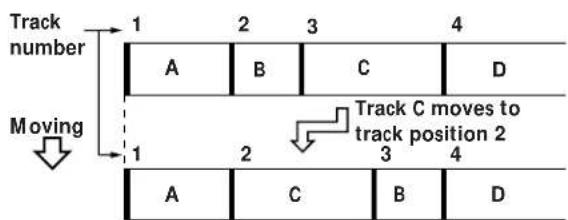
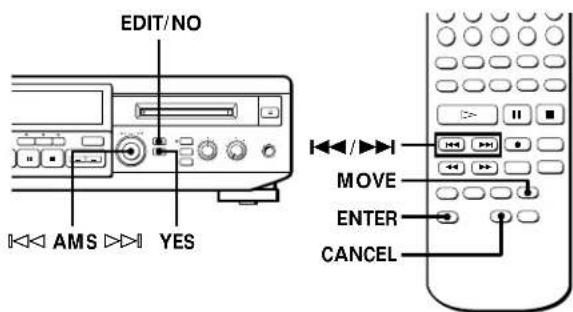
4 Turn AMS until the new track position appears (or press or
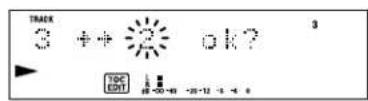
5 Press YES or AMS (or ENTER). After you have moved the track, "Complete" appears for a few seconds and the moved track begins playing back if the player is in playback mode.
To cancel the Move function Press EDIT/NO (or CANCEL) or
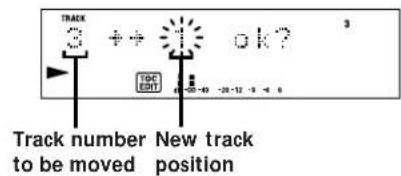
1 Turn AMS until the track number you want to move appears in the display (or press the corresponding number button on the remote). 2 Press EDIT/NO repeatedly (or MOVE once) so that "Move ?" appears in the display. 3 Press YES (or ENTER). The track number to be moved and the new track position appears.
Labeling Recordings (Title Function)
You can create titles for your recorded MDs and tracks. Titles - which may consist of uppercase and lowercase letters, numbers and symbols for a maximum of about 1,700 characters per disc - appear in the display during MD operation. See "Labeling tracks and MDs with the remote" on page 36 for use of the remote.
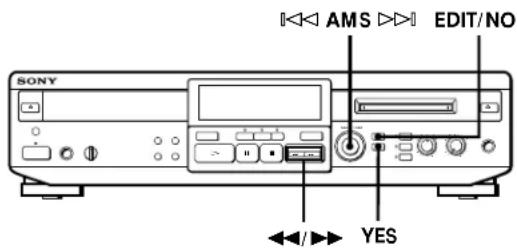
Use the following procedure to label a track or an MD. You can label a track while it is playing, pausing or recording. If the track is playing or recording, be sure to finish labeling before the track ends. If the track ends before you have completed the labeling procedure, the characters already entered are not recorded and the track will remain unlabeled.
1 Press EDIT/NO repeatedly until "Name in ?" appears in the display, then do the following:
To label Make sure that the player is
| A track Playing, pausing, recording the track to be labeled, or stopped after locating the track to be labeled |
| An MD Stopped with no track number appearing in the display |
2 Press YES.
A flashing cursor appears in the display.
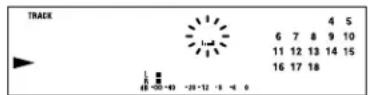
3 Turn AMS to select the character.
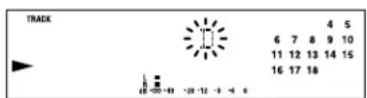
The selected character flashes.
Letters, numbers, and symbols appear in sequential order as you turn AMS.
You can use the following symbols in titles:
! ^ " # $ % & ' ( ) * + , - . / : ; < = > ? @ _
4 Press AMS to enter the selected character.
The cursor shifts rightwards and waits for the input of the next character.
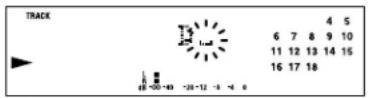
5 Repeat steps 3 and 4 until you have entered the entire title.
If you entered the wrong character
Press or until the character to be corrected starts flashing, and repeat steps 3 and 4 to enter the correct character.
To erase a character
Press or until the character to be erased starts flashing, then press EDIT/NO.
To enter a space
Press AMS or while the cursor is flashing.
6 Press YES.
This completes the labeling procedure and the title appears on the left side of the display.
To cancel labeling
Press
Note
You cannot label a track or an MD while you are recording over an existing track.
(Continued)
Labeling tracks and MDs with the remote
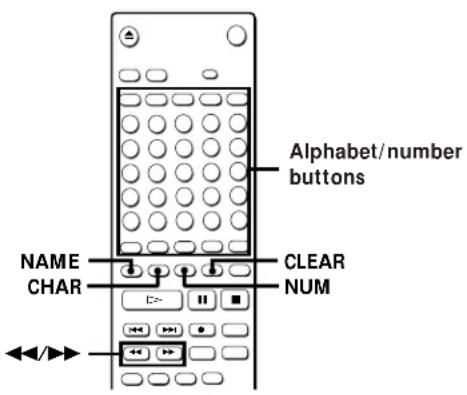
1 Press NAME so that a flashing cursor appears in the display, then do the following:
To label Make sure that the player is
| A track Playing, pausing, recording the track to be labeled, or stopped after locating the track to be labeled |
| An MD Stopped with no track number appearing in the display |
2 Select the character type as follows:
To select Press
| Uppercase letters CHAR repeatedly until "Selected ABC" appears in the display |
| Lowercase letters CHAR repeatedly until "Selected abc" appears in the display |
| Numbers NUM repeatedly until "Selected 123" appears in the display |
3 Enter one character at a time.
After you enter a character, the cursor shifts rightwards and waits for the input of the next character.
4 Repeat steps 2 and 3 until you have entered the entire title.
If you entered the wrong character
Press or until the character to be corrected starts flashing. Press CLEAR to erase the incorrect character, then enter the correct one.
5 Press NAME again.
The entered title appears on the left side of the display after the label has been recorded.
To cancel labeling
Press
Changing an existing title
1 Press NAME so that a track title or disc title appears in the display, then do the following:
To change Make sure that the player is
| A track title Playing, pausing the track whose title is to be changed, or stopped after locating the track whose title is to be changed |
| A disc title Stopped with no track number appearing in the display |
2 Keep pressing CLEAR (or EDIT/NO on the unit) until the current title is erased. 3 Enter the new title.
Do steps 3 to 5 of "Labeling Recordings" on page 35, or steps 2 to 4 of "Labeling tracks and MDs with the remote" on this page.
4 Press NAME.
Erasing all titles on a disc (Name Erase)
Use this function to erase all titles on an MD simultaneously.
Note that once erased, titles cannot be recovered.
1 Press EDIT/NO repeatedly while the player is stopped until "All Erase?" appears in the display. 2 Press EDIT/NO again.
"Name Erase ?" appears in the display.
3 Press YES.
All titles are erased.
To cancel the Name Erase function
Press

You can erase all recorded tracks and titles
See "Erasing all tracks on an MD" on page 31.
Undoing the Last Edit (Undo Function)
You can use the Undo function to cancel the last edit and restore the contents of the MD to the condition that existed before editing was done. Note, however, that you cannot undo an edit if you do any of the following after the edit:
- Press the REC button on the unit
- Press the button or the CD-SYNC button on the remote
- Update the TOC by turning off the power or ejecting the MD
- Disconnect the AC power cord
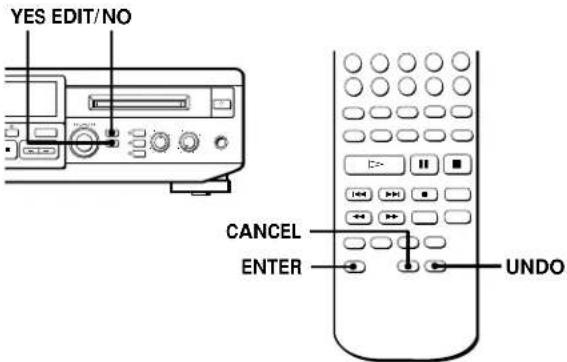
1 With the player stopped and no track number appearing in the display, press EDIT/NO repeatedly (or UNDO once) so that "Undo?" appears in the display.
"Undo?" does not appear if no editing has been done.
2 Press YES (or ENTER).
One of the following messages appears in the display, depending on the type of editing to be undone:
| Editing done: | Message: |
| Erasing a single track | "Erase Undo?" |
| Erasing all tracks on an MD | |
| Dividing a track | "Divide Undo?" |
| Combining tracks | "Combine Undo?" |
| Moving a track | "Move Undo?" |
| Labeling a track or an MD | |
| Changing an existing title | "Name Undo?" |
| Erasing all titles on an MD |
3 Press YES (or ENTER) again.
"Complete" appears for a few seconds and the contents of the MD are restored to the condition that existed before the edit.
To cancel the Undo function
Press EDIT/NO (or CANCEL) or
MD Display Messages
The following table explains the various messages that appear in the display.
| Message | Meaning |
| Blank Disc | A new (blank) or erased MD has been inserted. |
| Cannot Copy | An attempt was made to make a second copy from a digitally dubbed MD (see page 42). |
| Cannot EDIT | An attempt was made to edit the MD during Program or Shuffle Play. |
| Disc Error | The MD is scratched or missing a TOC.Erase all tracks on a new recordable MD before use (see "Erasing all tracks on an MD" on page 31). |
| Disc Full | The MD is full (see "System Limitations of MD" on this page). |
| Impossible | An attempt was made to combine tracks while playing back the first track. |
| Name Full | The tilting capacity of the MD has reached its limit (about 1,700 characters). |
| NO DISC | There is no MD in the player. |
| No Track | The inserted MD has a disc title but no tracks. |
| Protected | The inserted MD is record-protected. |
| Retry | The first recording attempt failed due to a disturbance or scratch on the MD, and a second attempt is being made. |
| Retry Error | Due to vibrations to the unit or scratches on the MD, several recording attempts were made but with no success. |
| Sorry | An attempt was made to combine tracks that cannot be combined. |
| STANDBY (flashing) | The material recorded last time was not saved to the MD properly, or else the unit does not remember what playback status was used last time. |
System Limitations of MD
The recording system in your player is radically different from those used in cassette and DAT decks and is characterized by the limitations described below. Note, however, that these limitations are due to the inherent nature of the MD recording system itself and not to mechanical causes.
"Disc Full" appears even though the maximum recording time (60 or 74 minutes) has not been reached
When 255 tracks have been recorded on the MD, "Disc Full" appears in the display regardless of the total recorded time. More than 255 tracks cannot be recorded on the MD. To continue recording, erase unnecessary tracks or use another recordable MD.
"Disc Full" appears before the maximum number of tracks is reached
Fluctuations in emphasis within tracks are sometimes interpreted as track intervals, incrementing the track count and causing "Disc Full" to appear in the display.
The remaining recording time may not increase even after erasing numerous short tracks
Tracks under 12 seconds in length are not counted and so erasing them may not lead to an increase in the recording time.
Some tracks cannot be combined with others
Track combination may become impossible when tracks are edited.
The total recorded time and the remaining time on the MD may not total the maximum recording time (60 or 74 minutes).
Recording is done in minimum units of 2 seconds each, no matter how short the material. The contents recorded may thus be shorter than the maximum recording capacity. Disc space may also be further reduced by scratches.
Tracks created through editing may exhibit sound dropout during search operations.
Track numbers may not be recorded correctly.
When recording a CD digitally, small extra tracks may be created due to the contents of the CD recording. In addition, when track marking is performed automatically with "LevelSync ON", the track numbers may not be recorded correctly, depending on the material being recorded.
"TOC Reading" appears for a long time.
If the inserted recordable MD is brand new, "TOC Reading" appears in the display longer than for MDs that have been used.
Tracks edited many times may exhibit sound dropout during playback.
Limitations when recording over an existing track.
- The correct remaining recording time may not be displayed.
- You may find it impossible to record over a track if that track has been recorded over several times already. If this happens, erase the track using the Erase function.
- The remaining recording time may be shortened out of proportion to the total recorded time.
- Recording over a track to eliminate noise is not recommended since this may shorten the duration of the track.
- You may find it impossible to label a track while recording over it.
The correct recorded/playing time may not be displayed during playback of monaural-format MDs.
Troubleshooting
If you experience any of the following difficulties while using the unit, use this troubleshooting guide to help you remedy the problem. First check that the power cord is connected firmly and the unit is on.
Should any problem persist, consult your nearest Sony dealer.
CD player section
The player does not start playing
A CD is not in the disc tray. Insert a CD. The CD is inserted label side down. Place the CD properly. The CD is dirty. Clean the CD. Moisture condensation has formed inside the player. Take the CD out and leave the system turned on for about an hour until the moisture evaporates.
MD deck section
The player does not operate or operates poorly.
The MD may be damaged ("Disc Error" appears). Take the MD out and insert it again. If "Disc Error" remains, replace the MD.
The player does not start playback.
Moisture condensation has formed inside the player. Take the MD out and leave the system turned on for several hours until the moisture evaporates. The MD is inserted in the wrong direction. Slide the MD into the disc compartment with the label side up and the arrow pointing towards the opening until the player grips it. Nothing is recorded on the MD (The music calendar does not appear). Replace the MD with one that has been recorded.
(Continued)
Additional Information
Recording is not possible.
The MD is protected against erasure ("Protected" appears). Slide the tab to close the slot. The unit is not connected properly to the sound source. Make connections properly to the sound source. The recording level is not adjusted properly (in case of input through LINE (ANALOG) IN). Turn REC LEVEL to adjust the recording level properly. A premastered MD is inserted. Replace it with a recordable MD. There is not enough time left on the MD. Replace it with another recordable MD with fewer recorded tracks, or erase unnecessary tracks. There has been a power failure or the AC power cord has been disconnected during recording. Data recorded to that point may be lost. Repeat the recording procedure.
The sound has a lot of static.
Strong magnetism from a television or a similar device is interfering with operations. Move the unit away from the source of strong magnetism.
General
There is no sound.
Plug in the connecting cords firmly. Operate the amplifier properly. When connecting the headphones, PHONES LEVEL control is adjusted almost at MIN. Turn PHONES LEVEL clockwise to increase the sound level.
The remote does not function.
There is an obstacle between the remote and the unit. Remove the obstacle. Point the remote at the remote sensor on the unit. The batteries have run down. Replace both batteries.
Note
If the unit does not operate properly even after you have attempted the prescribed remedies, turn off the power, then reinsert the plug into the power outlet.
Specifications
CD player section
System: Compact Disc digital audio system
Laser: Semiconductor laser (λ = 780 nm)
Emission duration: continuous
Laser output: Less than 44.6µW^*
- This output is the value measured at a distance of 200mm from the objective lens surface on the Optical Pick-up Block with 7mm aperture.
Frequency response: 5 to 20,000 Hz ±0.3 dB
Signal-to-noise ratio: More than 98 dB
Wow and flutter: Below measurable limit
MD deck section
System: MiniDisc digital audio system
Disc: MiniDisc
Recording system: Magnetic field modulation overwrite system
Playback scanning system: No-contact optical scanning (using a semiconductor laser)
Laser: Semiconductor laser (λ = 780nm)
Emission duration: continuous
Laser output: Less than 44.6µW^*
- This output is the value measured at a distance of 200mm from the objective lens surface on the Optical Pick-up Block with 7mm aperture.
Laser diode properties Material: GaAlAs
Recording time 74 minutes max. (using MDW-74)
Revolutions (CLV) Approx. 400 rpm to 900 rpm
Error correction Advanced Cross Interleave Reed
Solomon Code (ACIRC)
Sampling frequency 44.1 kHz
Coding Adaptive Transform Acoustic Coding (ATRAC)
Modulation system EFM (Eight-to-Fourteen Modulation)
Number of channels 2 stereo channels
Frequency response 5 to 20,000 Hz ±0.3 dB
Signal-to-noise ratio 98 dB or more (during playback)
Wow and flutter Below measurable limit
Inputs
| Jack type | Input impedance | Rated input | Minimum input | |
| LINE (ANALOG) IN | Phono jacks | 47 kilohms | 500 mVrms | 125 mVrms |
| MIC | Stereo phone jack | 600 ohms | 0.8 mVrms | 0.3 mVrms |
Outputs
| Jack type Rated output Load impedance | |||
| PHONES | Stereo phone jack | 10 mW | 32 ohms |
| LINE (ANALOG) OUT | Phono jacks | 2 Vrms (at 50 kilohms) | Over 10 kilohms |
| DIGITAL OUT OPTICAL | Square optical connector jack | -18 dBm | Wave length: 660 nm |
General
Power requirements: 120 V, 60 Hz
Power consumption: 28 W
Dimensions (approx.) (w/h/d) incl. projecting parts:
430 · 107 · 280 mm
(17 · 4 1/4 · 11 1/8 in.)
Mass (approx.): 4.5 kg (9 lb 14 oz)
Supplied accessories: See page 4.
Optional accessories:
Recordable MDs: MDW-60 (60 min), MDW-74 (74 min)
Optical cable: POC-15A
Microphone: ECM-909A
Plug adapter: PC-234S
U.S. and foreign patents licensed from Dolby Laboratories Licensing Corporation.
Design and specifications are subject to change without notice.
Guide to the Serial Copy Management System
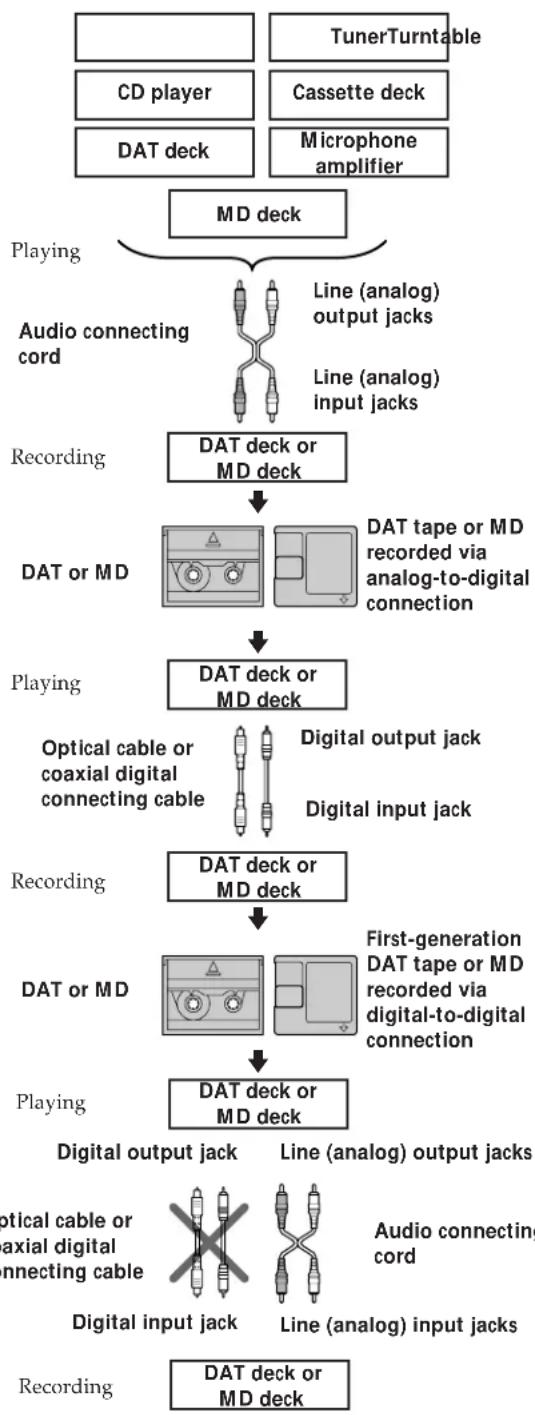
An MD recorded with digital input cannot be used to make another recording with digital input. As a digital audio component, this MD deck conforms with the Serial Copy Management System standards. The Serial Copy Management System restricts copies made by recording digital signal to first-generation copies only. However, subsequent recording from the second-generation copy onto another recordable DAT tape or MD is possible only through the analog input jack on the DAT or MD deck.
There are three general rules that apply to this unit.
Rule 1
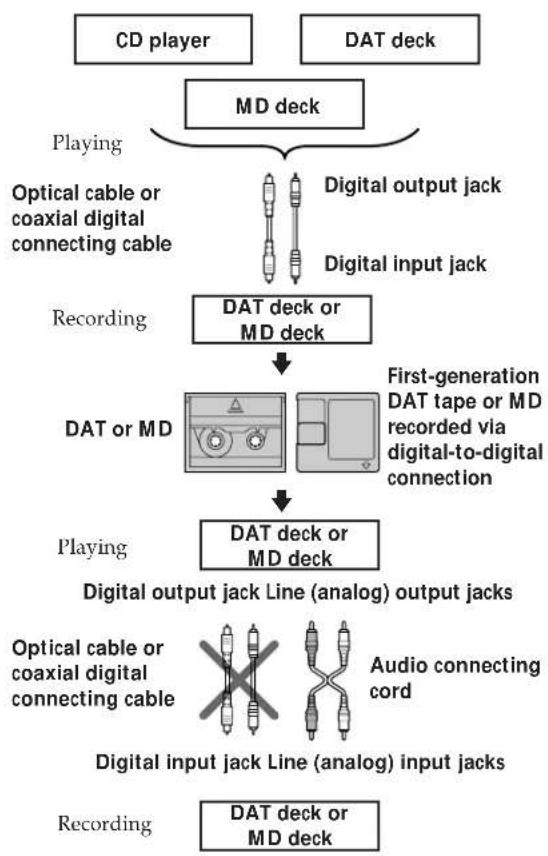
You can record from digital sound sources (CDs, DATs or premastered MDs) onto a DAT tape or recordable MD via digital input jack on the DAT or MD deck. You cannot, however, record from this recorded DAT tape or MD onto another DAT tape or recordable MD via the digital input jack on the DAT or MD deck.
Rule 2
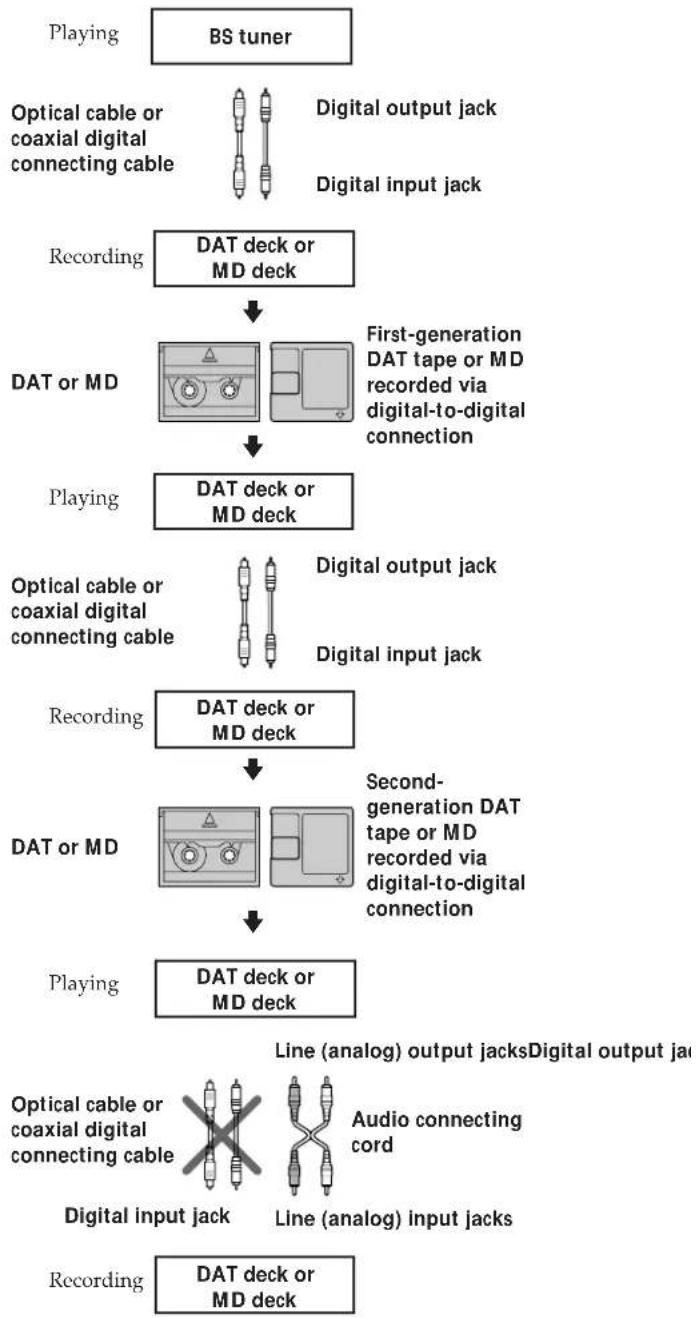
You can record the digital input signal of a digital satellite broadcast onto a DAT tape or recordable MD via the digital input jack on the DAT or MD deck which is capable of handling a sampling frequency of 32 kHz or 48 kHz. (This unit supports 44.1 kHz only.) You can then record the contents of this recorded DAT tape or MD (first-generation) onto another DAT tape or recordable MD via digital input jack on the DAT or MD deck to create a second-generation digital copy. Note, however, that on some BS tuners, second-generation digital copying may not be possible.
Rule 3
You can record a DAT tape or MD on which an analog record, FM broadcast, or other analog source was recorded onto another DAT tape or MD via the DAT or MD deck's digital output jack. You cannot, however, make a second-generation DAT tape or MD copy via the DAT or MD deck's digital output jack.
Index
A,B
A-B repeat 13,20
AMS (Automatic Music Sensor) 11, 18
Analog recording 23
Audio connecting cord 4, 42
Auto pause 16,22
Auto space 16, 22
C
CD
inserting 6
synchro-recording 8
taking out 6, 9
Changing
an existing title 36
order of programmed tracks 14, 21
Checking
remaining time 10, 17, 25
track number 10, 17
track title 17
Cleaning 2
Combining 33
D
Digital recording 23
Display messages 38
Dividing 32
E, F, G
Erasing
all titles 36
all tracks 31
a part of a track 31
a single track 30
H, I, J, K
Hooking up
a digital component 4, 5
an analog component 4, 5
L
Labeling
an MD 35
a track 35
with the remote 36
LEVEL-SYNC 24,28
Locating
a particular point in a track 12,19
a specific track 11, 18
Looping 15
M
MD
inserting 7
premastered 17
recordable 8,17
taking out 7,9
Mixing 27
Moving 34
Music scan 11, 18
N
Notes
on editing 30
on recording 23
0
Optical cable 4, 42
Optional accessories 41
P, Q
Pausing
playback 6,7
recording 9
Playing
normal play 6,7
program play 14, 21
repeat play 12, 19
shuffle play 13,20
Precautions 2
R
Recording
manual recording 25
rec-it recording 16
time machine recording 29
Recording level 27
Record-protect tab 9,24
Remote commander (remote) 4
s
SCMS (Serial Copy Management System) 23, 42
Specifications 41
Supplied accessories 4
System limitations 38
T
TOC (Table Of Contents) 9, 23, 30
Track marking
automatic track marking 28
manual track marking 28
Troubleshooting 39
U, V, W, X, Y, Z
Undoing the last edit 37
Names of controls
Buttons
A-B 12, 19
Alphabet/Number 11,14,17,18,21,36
A.SPACE 16, 22
CANCEL 30, 32 to 34, 37
CD 6
CD (REC SOURCE SELECTOR) 23, 27
CD-SYNC. 8
CHAR 36
CLEAR 14, 21, 36
COMBINE 33
CONTINUE 13, 14, 20, 21
DISPLAY 10, 17, 25
DIVIDE 32
EDIT/NO 28, 30, 32 to 37
EJECT 7, 9
EJECT 6
ENTER 30, 32 to 34, 37
ERASE 30
LINE (REC SOURCE SELECTOR) 23, 27
LOOP 15
MD 7,30
MIC (REC SOURCE SELECTOR) 23, 24, 27
MOVE 34
M.SCAN 11, 18
NAME 36
NUM 36
OPEN/CLOSE 6,9
PLAY MODE 13, 14, 20, 21
PROGRAM 14,21
REC (recording) 25, 27, 28
REC-IT 16
REC PAUSE 8,25
REPEAT 12, 19
SCROLL 17
SHUFFLE 13,20
UNDO 37
YES 28,30,32 to 37
(play) 6,7,11,13 to 15,18,20,21
(pause) 6,7,32
stop)6,7,14,21,31,33
12,19,35,36
6,7,11,18,25,32,34
recording) 37
2511,14,17,18,21
Switches
CD/MD 6,7,30
POWER 6,7
Controls
AMS 6,7,11,15,18,29,30,32 to 35
MIX BALANCE 27
PHONES LEVEL 6,7,40
REC LEVEL 27,40
Indicators
CD
CD-SYNC.
LINE
MIC
POWER 6,7
REC 8
REC PAUSE 8
Jacks
DIGITAL OUT OPTICAL 5
LINE (ANALOG) IN/OUT 5,23
MIC 27
PHONES 6,7
Others
Display window 10, 17
Music calendar 10, 17
(Remote sensor) 4, 40
WARNING
Hey, Come on everybody!
In NORMAL mode
Dimensions (approx.) (W/H/D), including protruding parts
430× 107× 280mm
Weight (approx.) 4.5 kg
CD (REC SOURCE SELECTOR) 23, 27
CD-SYNC.8
CHAR 36
CLEAR 14,21,36
COMBINE 33
CONTINUE 13, 14, 20, 21
DISPLAY 10, 17, 25
DIVIDE 32
EDIT/NO 28,30,32 to 37
EJECT 7,9
EJECT 6
LINE (REC SOURCE SELECTOR) 23, 27
LOOP 15
MD 7,30
MIC (REC SOURCE SELECTOR) 23, 24, 27
MOVE 34
M.SCAN 11, 18
NAME 36
NUM 36
OPEN/CLOSE 6,9
PLAY MODE 13, 14, 20, 21
PROGRAM 14,21
REC (recording) 25, 27, 28
REC-IT 16
REC PAUSE 8,25
REPEAT 12, 19
SCROLL 17
SHUFFLE 13,20
UNDO 37
YES 28,30,32a37
(play) 6, 7, 11, 13 to 15, 18, 20, 21
(pause) 6,7,32
25 11, 14, 17, 18, 21
Interrupteurs
CD/MD 6,7,30
POWER 6,7
Commandes
AMS 6,7,11,15,18,29,30,32 a 35
MIX BALANCE 27
PHONES LEVEL 6,7,40
REC LEVEL 27,40
Indicateurs
CD
CD-SYNC.
LINE
MIC
POWER 6,7
REC 8
REC PAUSE 8
Prises
DIGITAL OUT OPTICAL 5
LINE (ANALOG) IN/OUT 5,23
MIC 27
PHONES 6,7
Divers
Afficheur 10, 17
Répertoire 10, 17
(Telecommande) 4,40
- COMPACT DISC MINIDISC DECK
- WARNING
- CAUTION
- PRECAUTIONS
- ON SAFETY
- ON POWER SOURCES
- ON CONDENSATION IN THE UNIT
- ON HANDLING CDS
- ON THE MINIDISC CARTRIDGE
- ON CLEANING
- WELCOME
- ABOUT THIS MANUAL
- CONVENTIONS
- TABLE OF CONTENTS
- GETTING STARTED
- PLAYING A CD
- PLAYING AN MD
- RECORDING A CD ON AN MD (CD SYNCHRO-RECORDING)
- PLAYING CDS
- PLAYING MDS
- RECORDING ON MDS
- EDITING RECORDED MDS
- ADDITIONAL INFORMATION
- UNPACKING
- INSERTING BATTERIES INTO THE REMOTE
- WHEN TO REPLACE BATTERIES
- NOTES
- HOOKING UP THE SYSTEM
- OVERVIEW
- PREPARING THE CONNECTING CORDS
- CONNECTING THE UNIT TO AN AMPLIFIER
- CONNECTING THE UNIT TO A DIGITAL COMPONENT SUCH AS A DAT DECK, DIGITAL AMPLIFIER, OR ANOTHER MD DECK
- CONNECTING THE AC POWER CORD
- NOTE
- TO DO THE FOLLOWING
- TO USE HEADPHONES
- YOU CAN LOCATE AND PLAY BACK A TRACK WHILE THE PLAYER IS STOPPED
- RECORDING A CD ON AN MD
- (CD SYNCHRO-RECORDING)
- WHEN YOU PLAY AN 8-CM CD
- WHEN "TOC" FLASHES IN THE DISPLAY
- DO NOT DISCONNECT THE UNIT FROM THE POWER SOURCE IMMEDIATELY AFTER RECORDING
- TO PRESS
- TO PROTECT AN MD AGAINST ACCIDENTAL ERASURE
- CHECKING REMAINING TIME OF A CD
- CHECKING THE TRACK NUMBER AND REMAINING TIME OF THE CURRENT TRACK
- THE MUSIC CALENDAR DISPLAY
- LOCATING A SPECIFIC TRACK ON A CD
- LOCATING A PARTICULAR POINT IN A TRACK ON A CD
- PLAYING TRACKS ON A CD REPEATEDLY (REPEAT PLAY)
- REPEATING THE CURRENT TRACK
- TO CANCEL REPEAT PLAY
- REPEATING A SPECIFIC PORTION (A-B REPEAT)
- TO CANCEL A-B REPEAT
- SETTING NEW STARTING AND ENDING POINTS
- PLAYING TRACKS ON A CD IN RANDOM ORDER (SHUFFLE PLAY)
- TO CANCEL SHUFFLE PLAY
- YOU CAN SPECIFY TRACKS DURING SHUFFLE PLAY
- PLAYING TRACKS ON A CD IN THE DESIRED ORDER (PROGRAM PLAY)
- WHEN USING THE REMOTE
- TO PROGRAM A TRACK WITH A NUMBER OVER
- IF YOU HAVE MADE A MISTAKE
- WHEN USING THE CONTROLS ON THE UNIT
- TO CANCEL PROGRAM PLAY
- YOU CAN PROGRAM THE SAME TRACK REPEATEDLY
- THE PROGRAM REMAINS EVEN AFTER PROGRAM PLAY ENDS
- CHANGING THE TRACK ORDER
- LOOPING PART OF A CD (LOOP PLAY)
- THE DIFFERENCE BETWEEN NORMAL AND RHYTHM
- ORIGINAL
- IN NORMAL MODE
- IN RHYTHM MODE
- USEFUL TIPS WHEN RECORDING FROM CDS
- INSERTING BLANK SPACES WHILE RECORDING TO TAPE (AUTO SPACE)
- TO CANCEL AUTO SPACE
- PAUSING AFTER EACH TRACK (AUTO PAUSE)
- TO RESTART PLAYING
- TO CANCEL AUTO PAUSE
- RECORDING THE CURRENT TRACK ON AN MD (REC-IT)
- CHECKING REMAINING TIME OF AN MD
- CHECKING THE TOTAL NUMBER OF TRACKS, TOTAL DISC PLAYING TIME, REMAINING RECORDABLE TIME OF THE DISC AND DISC TITLE
- CHECKING REMAINING TIME AND TRACK TITLE
- YOU CAN CHECK THE TRACK TITLE AT ANY TIME WHILE PLAYING AN MD
- LOCATING A SPECIFIC TRACK ON AN MD
- WHEN YOU DIRECTLY LOCATE A TRACK WITH A NUMBER OVER
- LOCATING A PARTICULAR POINT IN A TRACK ON AN MD
- PLAYING TRACKS ON AN MD REPEATEDLY (REPEAT PLAY)
- REPEATING A SPECIFIC PORTION
- (A-B REPEAT)
- PLAYING TRACKS ON AN MD IN RANDOM ORDER (SHUFFLE PLAY)
- PLAYING TRACKS ON AN MD IN THE DESIRED ORDER (PROGRAM PLAY)
- USEFUL TIPS WHEN RECORDING FROM MDS TO TAPE
- TO RESTART PLAYBACK
- NOTES ON RECORDING
- DIGITAL RECORDING AND ANALOG RECORDING
- DIGITAL RECORDING
- ANALOG RECORDING
- MD RECORDING AND THE SERIAL COPY MANAGEMENT SYSTEM
- TRACK MARKING
- MD TRACK NUMBERS (TOC)
- WHEN RECORDING FROM A CD DIGITALLY
- WHEN "LEVEL-SYNC" IS DISPLAYED DURING ANALOG RECORDING
- OTHER CASES
- DO NOT DISCONNECT THE AC POWER CORD IMMEDIATELY AFTER RECORDING
- USEFUL TIPS FOR RECORDING
- CHECKING THE REMAINING RECORDABLE TIME ON THE MD
- PLAYING BACK TRACKS JUST RECORDED
- TO PLAY FROM THE FIRST TRACK OF THE MD AFTER RECORDING
- RECORDING ON AN MD MANUALLY
- ADJUSTING THE RECORDING LEVEL
- RECORDING THE MIXED SOUNDS (MICROPHONE MIXING)
- WHEN YOU FINISH MIXING
- MARKING TRACK NUMBERS WHILE RECORDING (TRACK MARKING)
- MARKING TRACK NUMBERS MANUALLY (MANUAL TRACK MARKING)
- MARKING TRACK NUMBERS AUTOMATICALLY (AUTOMATIC TRACK MARKING)
- TO CANCEL AUTOMATIC TRACK MARKING
- WHEN YOU WANT TO MARK TRACK NUMBERS AFTER YOU HAVE FINISHED RECORDING
- STARTING RECORDING WITH 6 SECONDS OF PRESTORED AUDIO DATA (TIME MACHINE RECORDING)
- TO STOP TIME MACHINE RECORDING
- NOTES ON EDITING
- IF "PROTECTED" APPEARS IN THE DISPLAY
- ERASING RECORDINGS (ERASE FUNCTION)
- ERASING A SINGLE TRACK
- TO CANCEL THE ERASE FUNCTION
- ERASING ALL TRACKS ON AN MD
- ERASING A PORTION OF A TRACK
- DIVIDING RECORDED TRACKS (DIVIDE FUNCTION)
- YOU CAN UNDO A TRACK DIVISION
- YOU CAN DIVIDE A TRACK WHILE RECORDING
- COMBINING RECORDED TRACKS (COMBINE FUNCTION)
- TO CANCEL THE COMBINE FUNCTION
- YOU CAN UNDO A TRACK COMBINATION
- MOVING RECORDED TRACKS (MOVE FUNCTION)
- LABELING RECORDINGS (TITLE FUNCTION)
- IF YOU ENTERED THE WRONG CHARACTER
- TO ERASE A CHARACTER
- TO ENTER A SPACE
- TO CANCEL LABELING
- CHANGING AN EXISTING TITLE
- ERASING ALL TITLES ON A DISC (NAME ERASE)
- UNDOING THE LAST EDIT (UNDO FUNCTION)
- MD DISPLAY MESSAGES
- SYSTEM LIMITATIONS OF MD
- DISC FULL" APPEARS EVEN THOUGH THE MAXIMUM RECORDING TIME (60 OR 74 MINUTES) HAS NOT BEEN REACHED
- DISC FULL" APPEARS BEFORE THE MAXIMUM NUMBER OF TRACKS IS REACHED
- THE REMAINING RECORDING TIME MAY NOT INCREASE EVEN AFTER ERASING NUMEROUS SHORT TRACKS
- SOME TRACKS CANNOT BE COMBINED WITH OTHERS
- THE TOTAL RECORDED TIME AND THE REMAINING TIME ON THE MD MAY NOT TOTAL THE MAXIMUM RECORDING TIME (60 OR 74 MINUTES)
- TRACK NUMBERS MAY NOT BE RECORDED CORRECTLY
- TOC READING" APPEARS FOR A LONG TIME
- TRACKS EDITED MANY TIMES MAY EXHIBIT SOUND DROPOUT DURING PLAYBACK
- LIMITATIONS WHEN RECORDING OVER AN EXISTING TRACK
- TROUBLESHOOTING
- CD PLAYER SECTION
- THE PLAYER DOES NOT START PLAYING
- MD DECK SECTION
- THE PLAYER DOES NOT OPERATE OR OPERATES POORLY
- THE PLAYER DOES NOT START PLAYBACK
- RECORDING IS NOT POSSIBLE
- THE SOUND HAS A LOT OF STATIC
- GENERAL
- THERE IS NO SOUND
- THE REMOTE DOES NOT FUNCTION
- SPECIFICATIONS
- INPUTS
- OUTPUTS
- OPTIONAL ACCESSORIES
- GUIDE TO THE SERIAL COPY MANAGEMENT SYSTEM
- RULE
- INDEX
- A,B
- C
- D
- E, F, G
- H, I, J, K
- L
- M
- N
- P, Q
- R
- S
- T
- NAMES OF CONTROLS
- BUTTONS
- SWITCHES
- CONTROLS
- INDICATORS
- JACKS
- OTHERS
- INTERRUPTEURS
- COMMANDES
- INDICATEURS
- PRISES
- DIVERS
Brand : SONY
Model : MXDD1
Category : Dictaphone